

Submit a Work From Home Request
This tutorial guides you through submitting a Work From Home request using the Ninerole platform. You will learn how to navigate the system and complete the request form accurately.
Before you start, go to ninerole.com.
About this task
- Purpose
- Request to work from home for a date or range, so it goes to your approver and is recorded against your attendance.
- Who can do this
- Employee (self-service)
- Before you start
- A work-from-home policy is assigned to you.
- You will need
- The policy to apply, your dates, and whether it is a half day.
- Result
- A work-from-home request is submitted and awaits approval.
- This unlocks
- Once approved, those days are treated as WFH in attendance rather than absence.
This guide answers
- How do I apply for work from home?
- How do I request a half-day WFH?
- Who approves my WFH request?
- What is the difference between WFH and leave?
- Where do I see whether my request was approved?
If something goes wrong
- No policy appears in the list.
- Work-from-home policies are assigned by HR. If none is listed, ask HR to check your assignment.
- You need time off rather than remote work.
- Submit a leave request instead — it is a different request type and draws on your leave balance.
Related: Request leave · Punch in & out · RegularizationAlso called: WFH request, remote work request.Last verified: 7 September 2026
1. Introduction
You will learn how to navigate the system and complete the request form accurately.
Open the Work From Home section
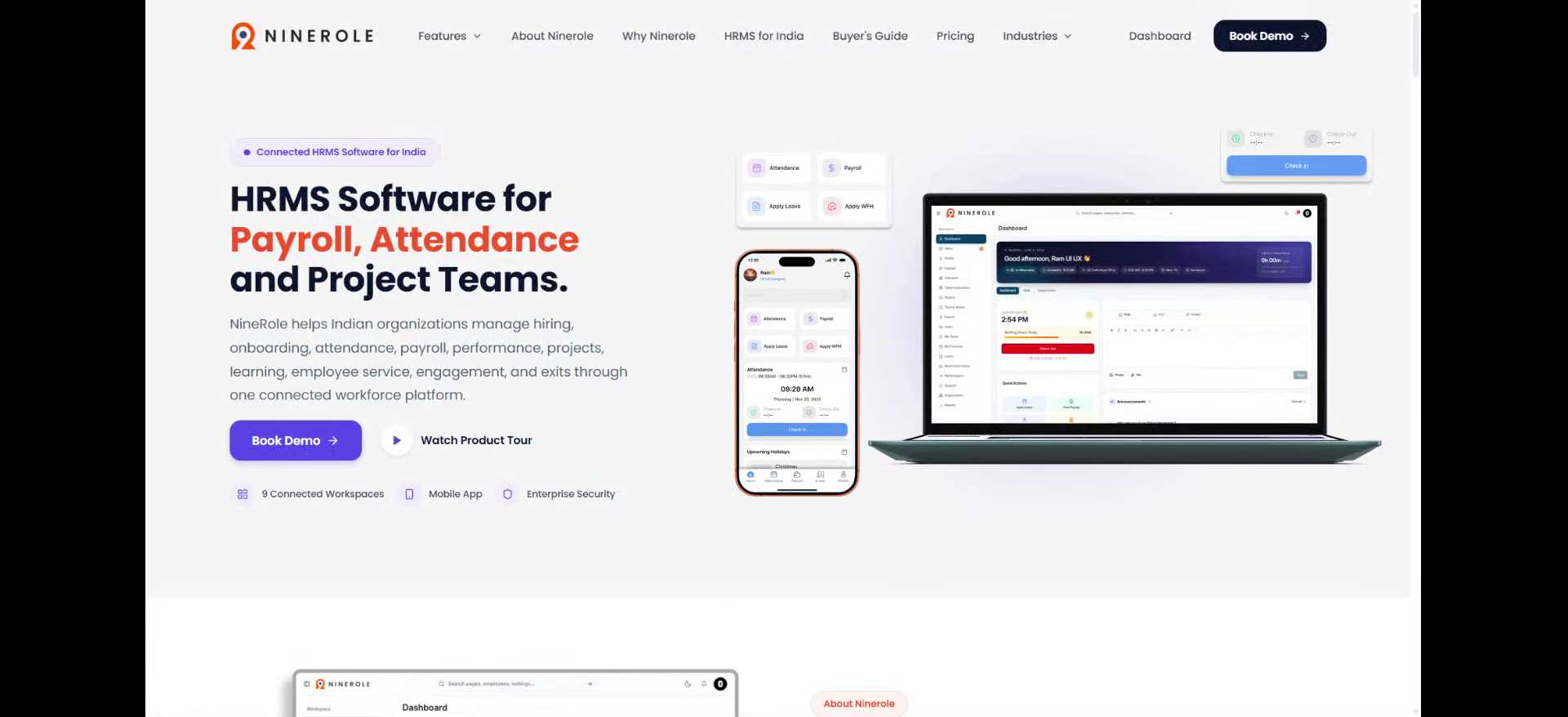
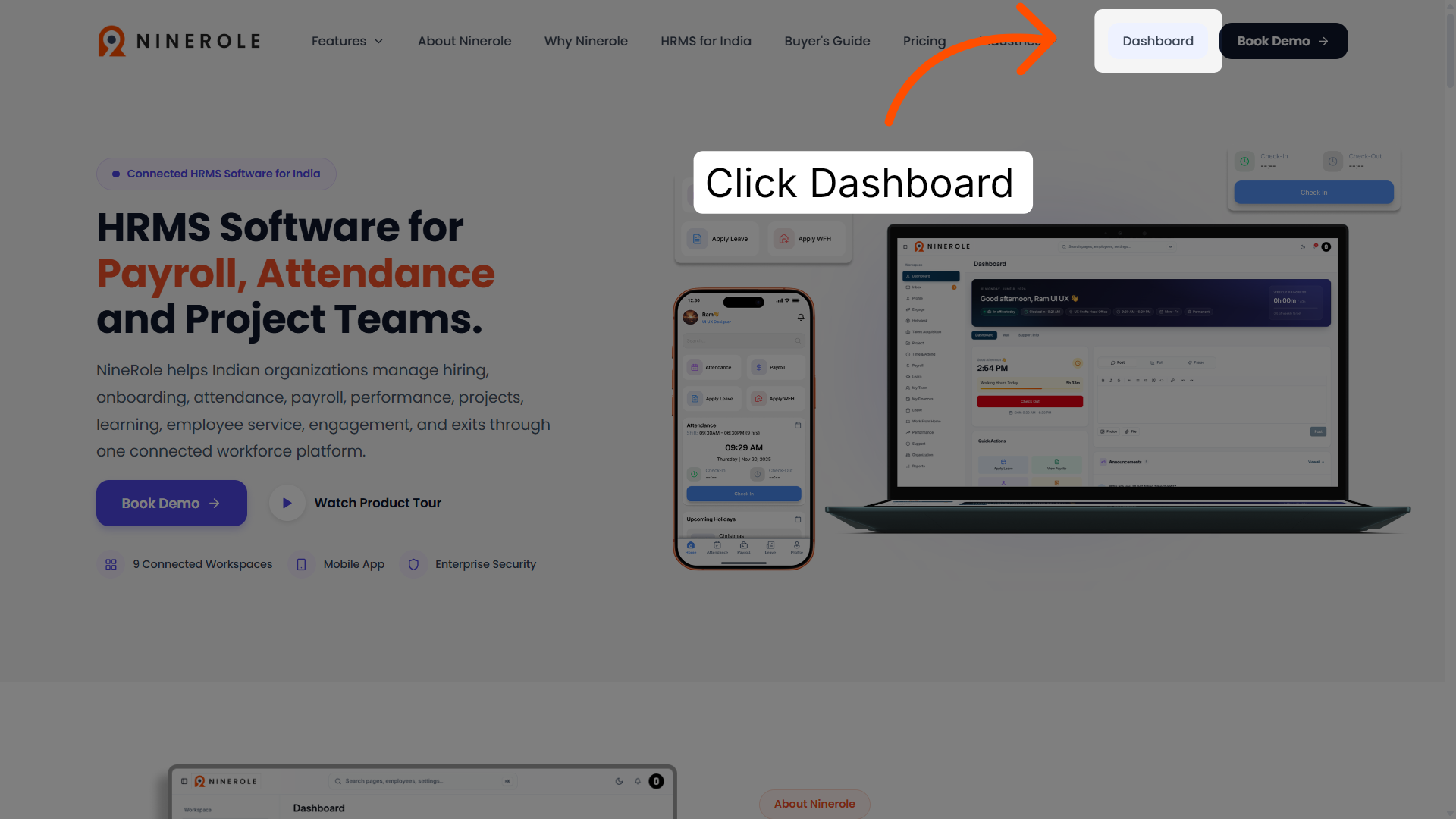
2. Access the dashboard
Click Dashboard to open your main workspace in Ninerole.
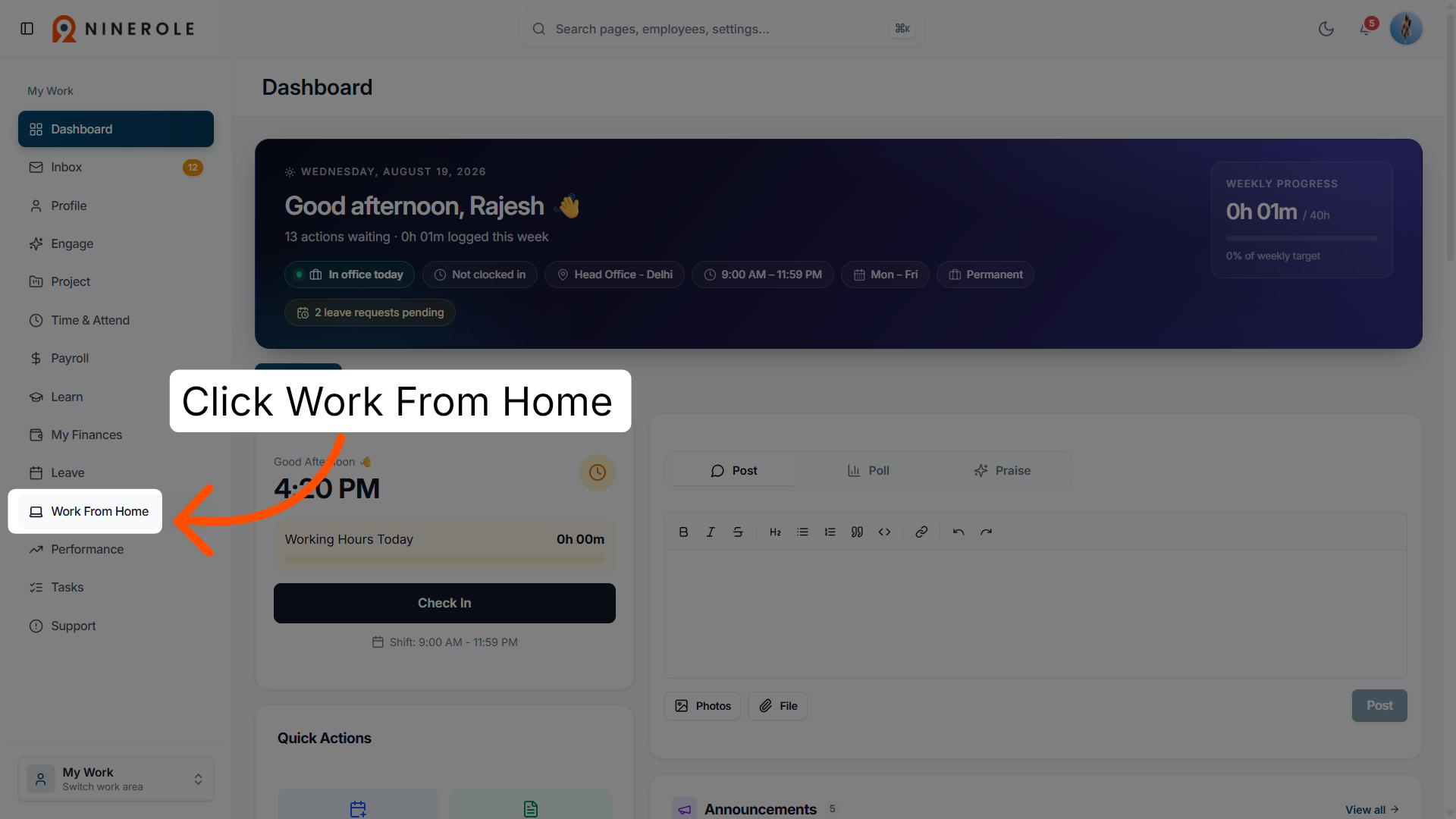
3. Open the Work From Home section
Click Work From Home to access the remote work request options.
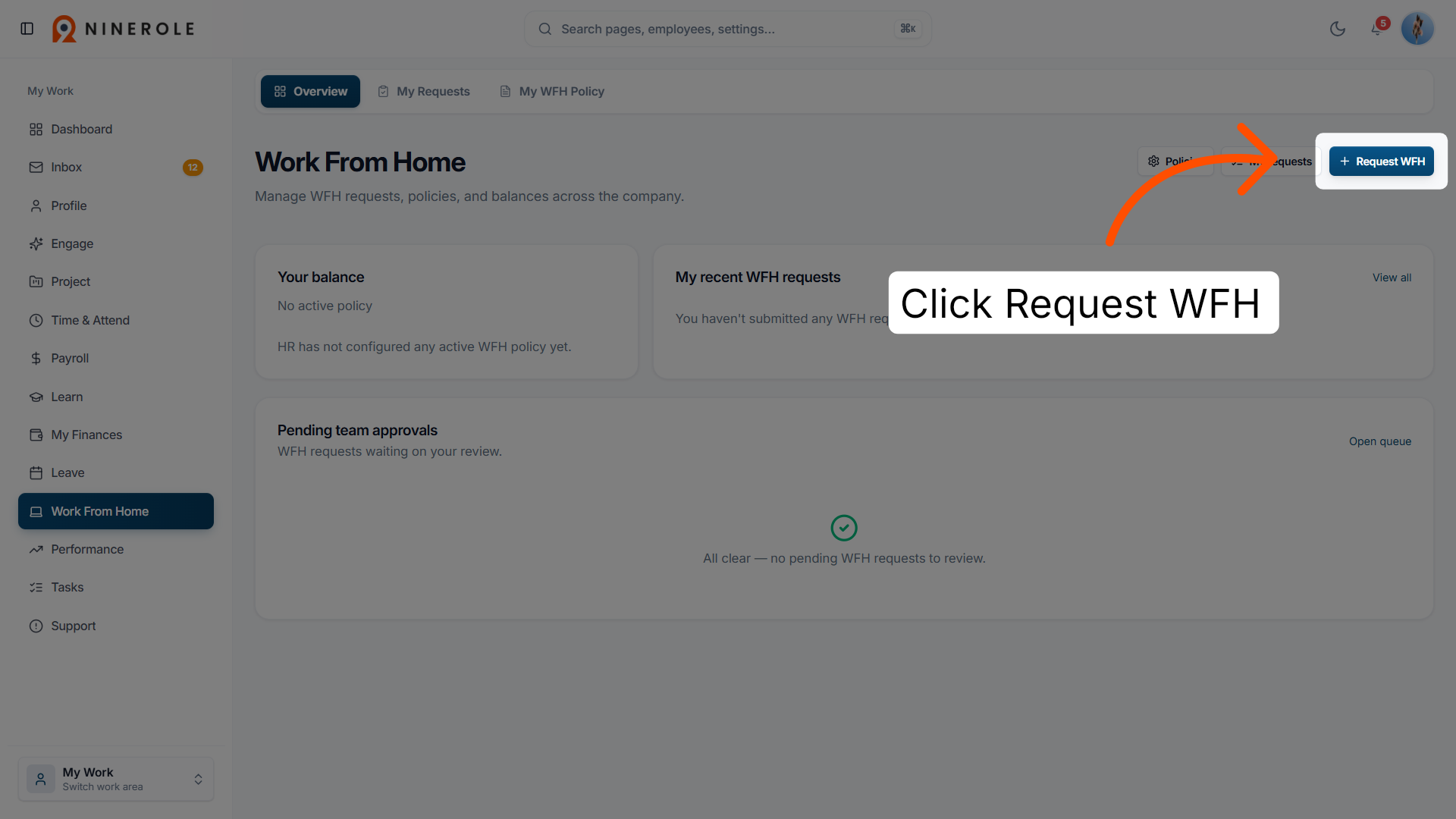
4. Initiate the WFH request
Click Request Work From Home to start a new Work From Home application.
Complete the request form
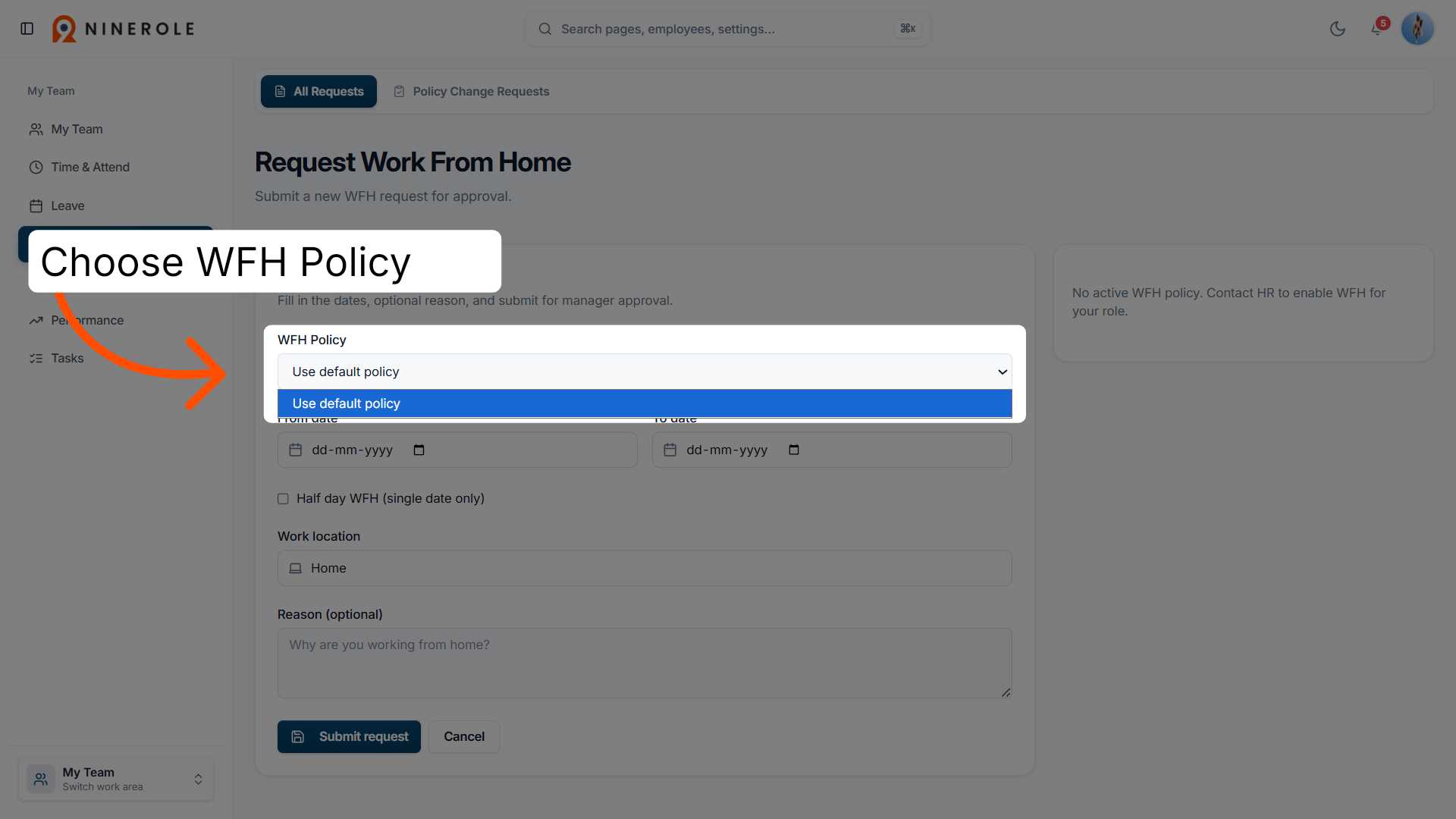
5. Apply the default policy
Choose the Work From Home policy to apply the standard Work From Home guidelines.
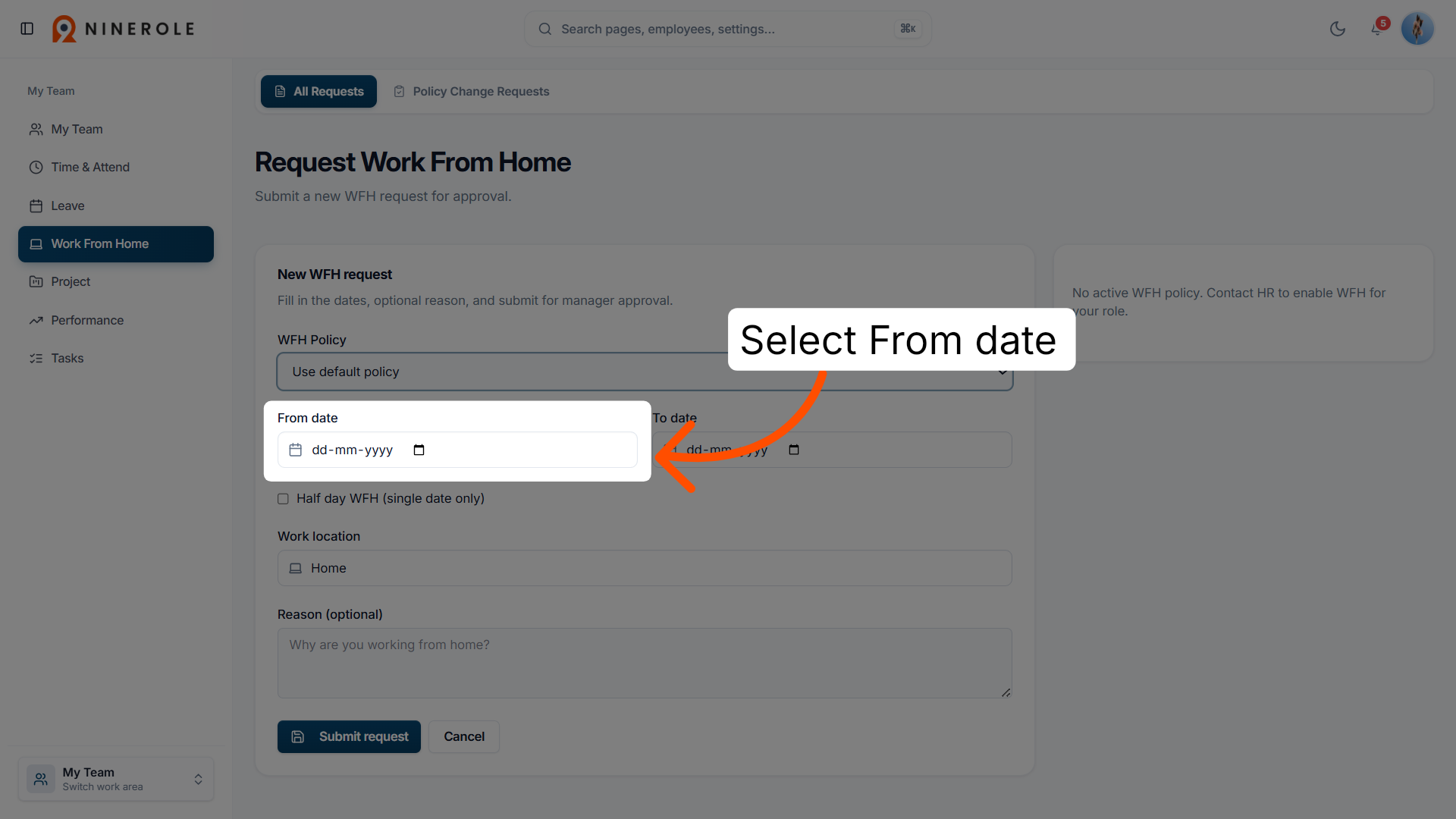
6. Select the start date
Select From date to choose the day you plan to start working from home.
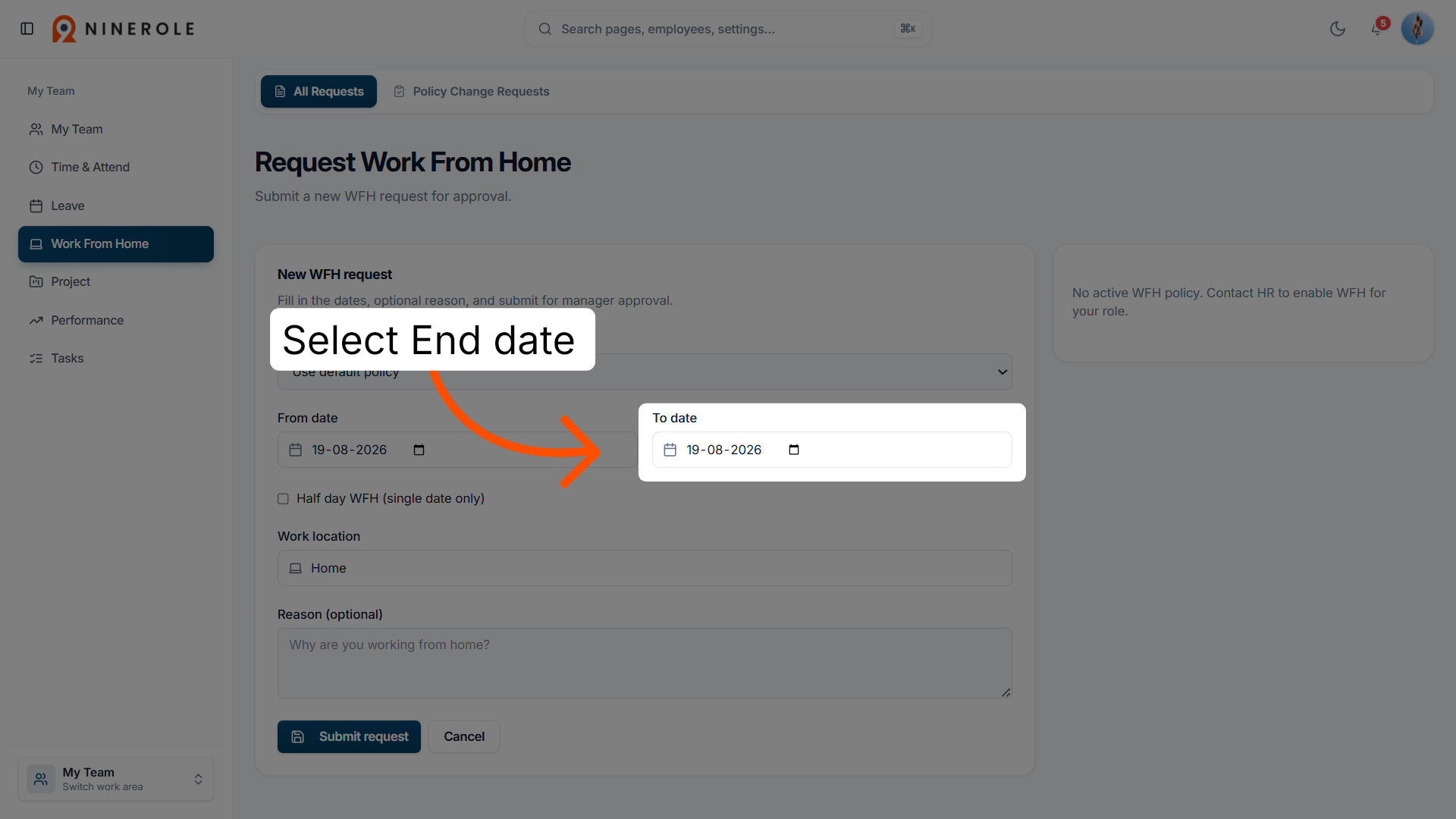
7. Select the end date
Select End date to specify the last day of your Work From Home request.
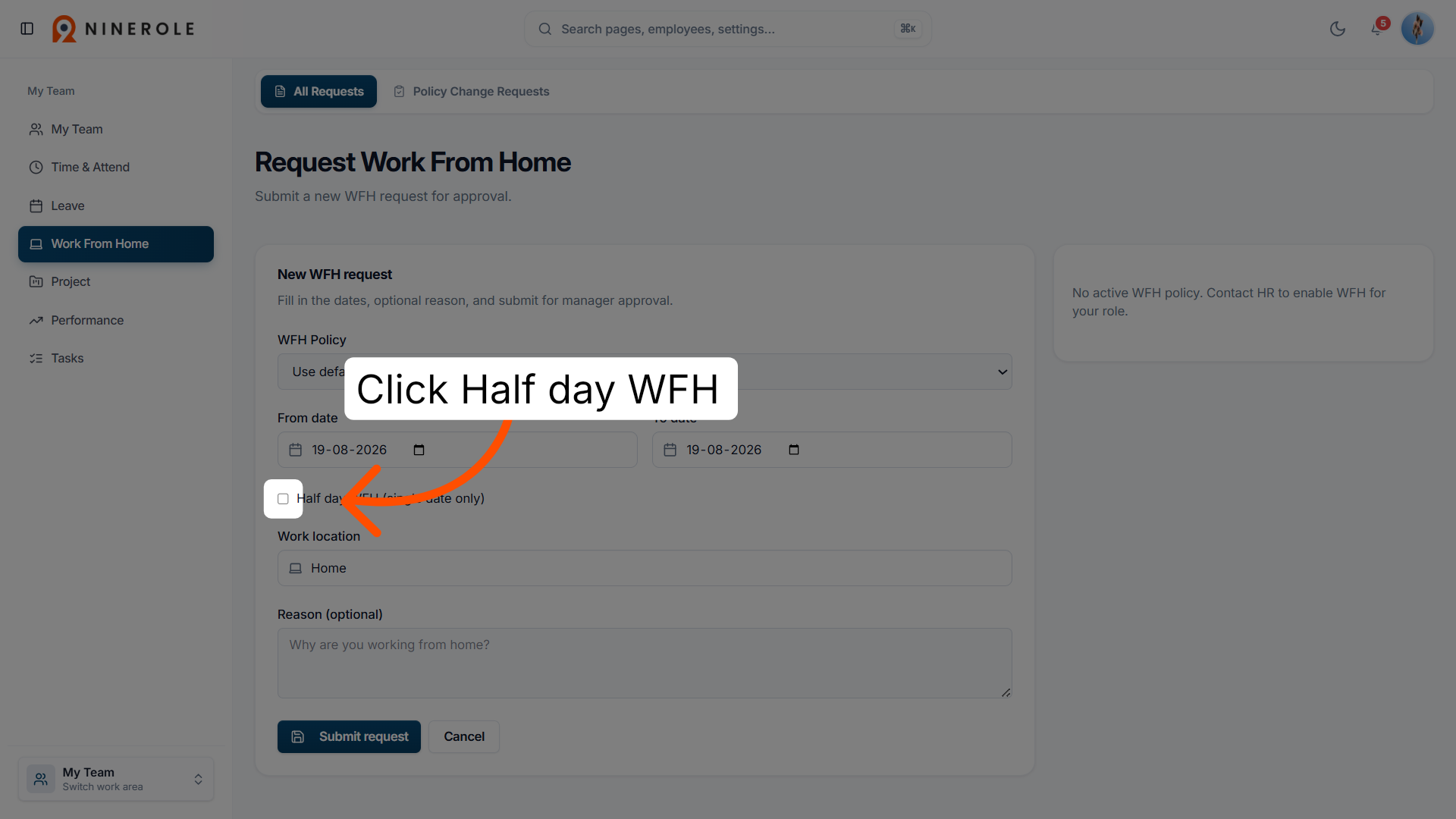
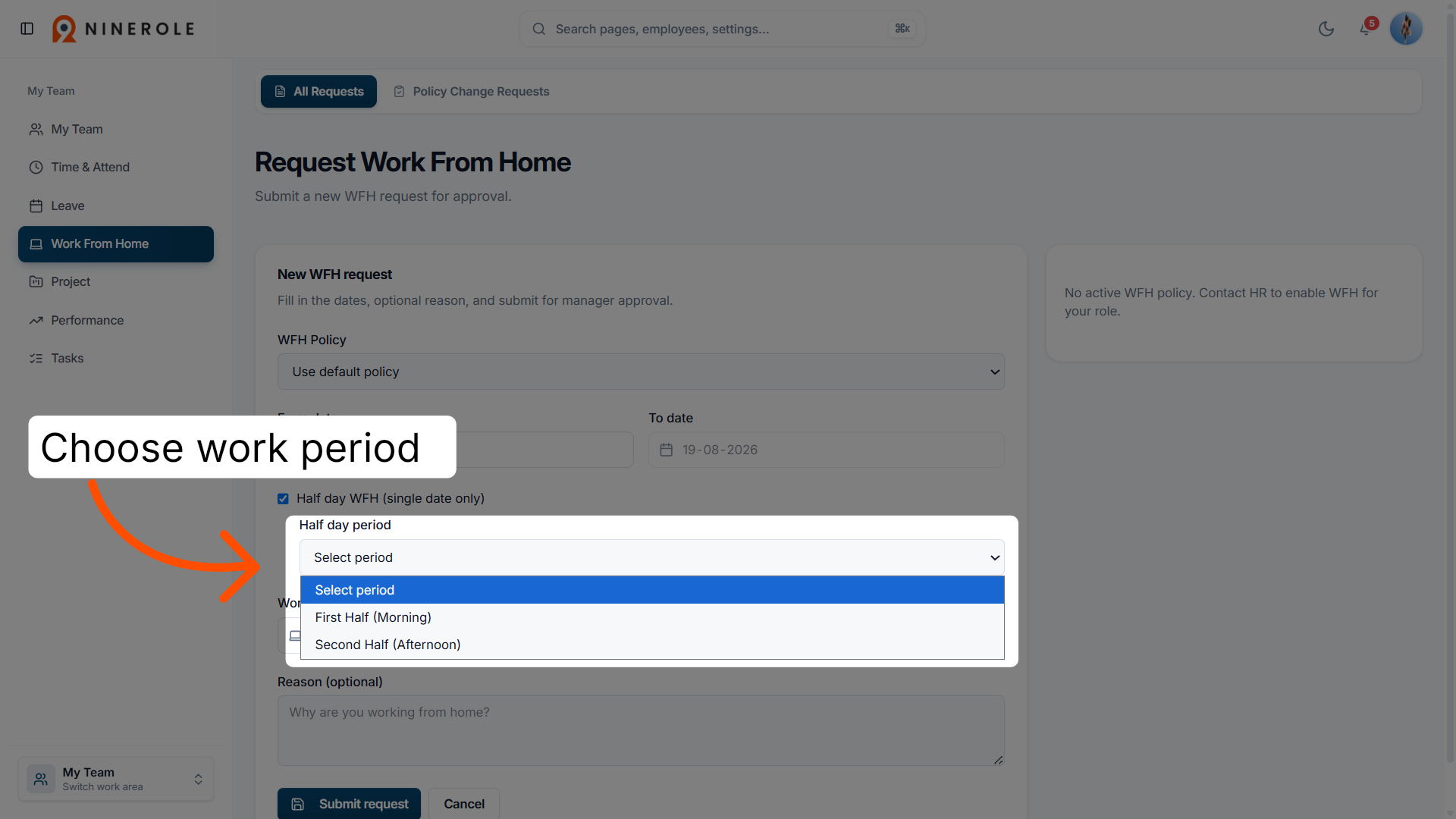
8. Enable the half day option
If you only need part of a day, click Half day Work From Home to indicate a partial day.
9. Choose the work period
Choose your work period — First Half (Morning) or Second Half (Afternoon) — to pick your preferred half day.
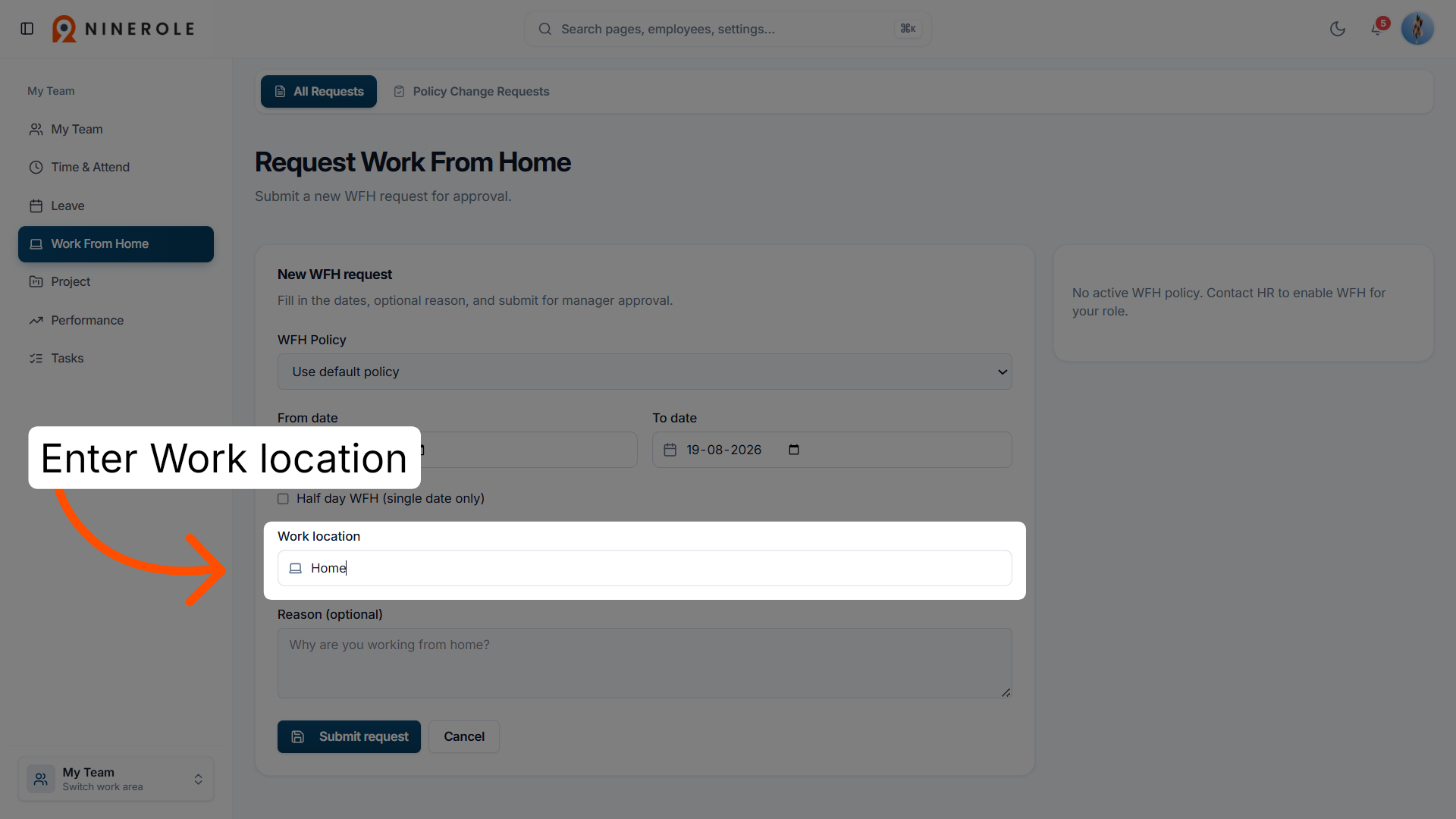
10. Select the work location
Enter Work location to specify where you will be working from.
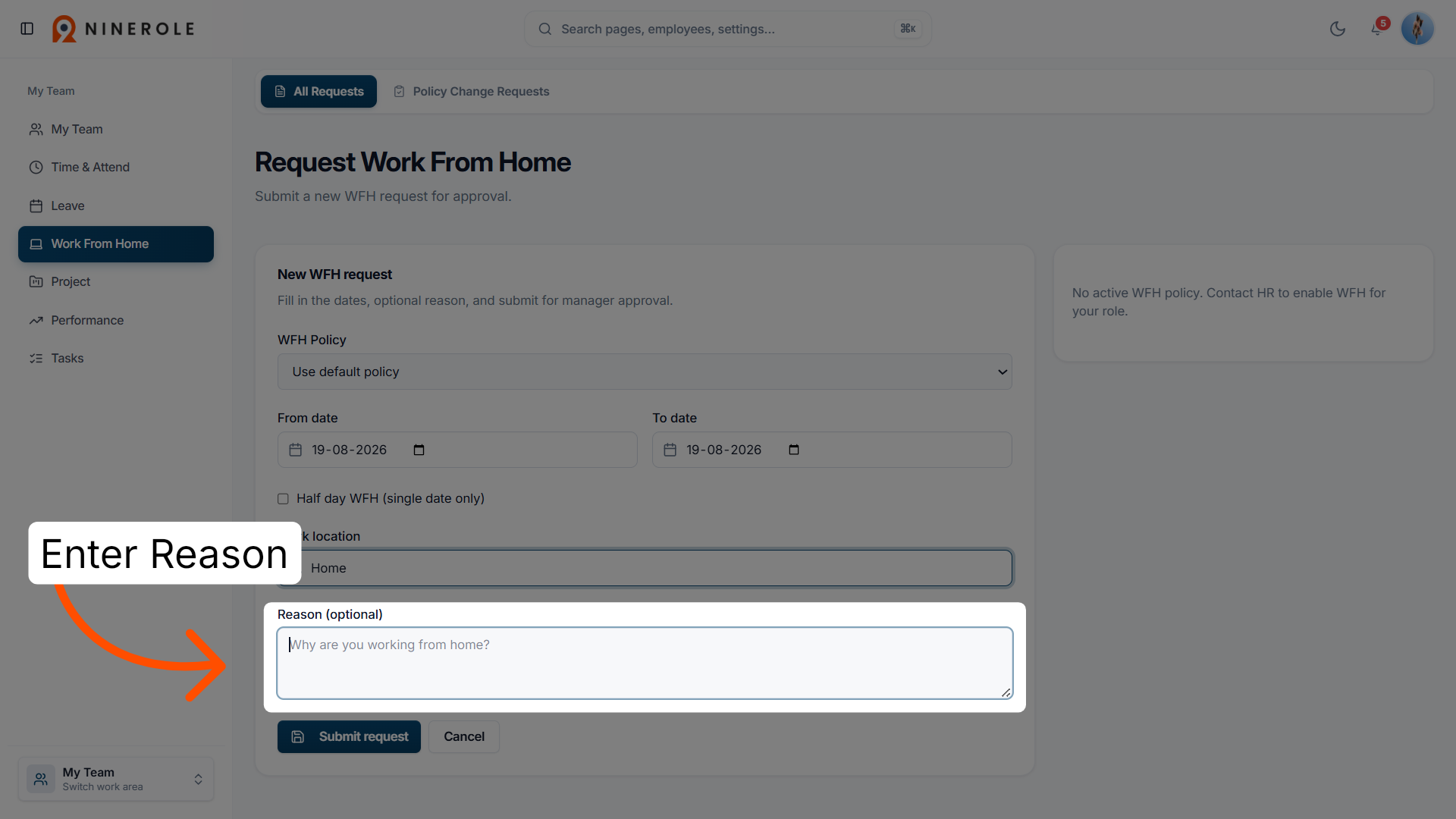
11. Add an optional reason
Enter a Reason to provide any additional information for your request.
Submit for approval
12. Submit the WFH request
Click Submit request to send your Work From Home application for approval.
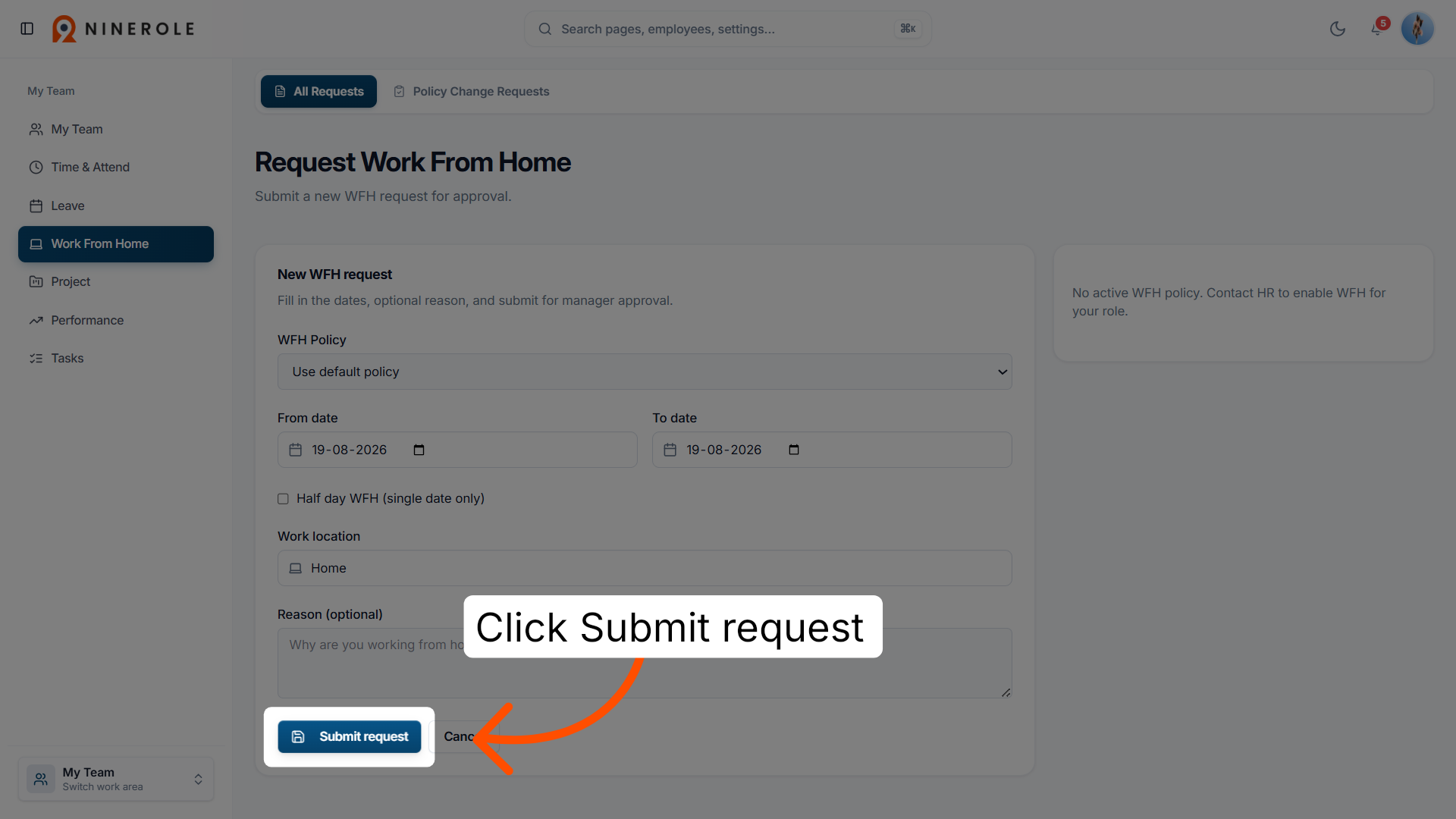
You have successfully submitted a Work From Home request using the Ninerole platform. Your application is now pending approval, and you can track its status within your dashboard.
Back to Attendance · all modules · Ninerole HRMS overview
Last updated: