

Generate Attendance Reports
This tutorial guides you through generating attendance reports within the Ninerole platform. You will learn how to filter data by date and export reports in multiple formats for your analysis needs.
Before you start, go to ninerole.com.
About this task
- Purpose
- Filter attendance data for a date range and export it for analysis or sharing.
- Who can do this
- HR admin or Manager
- Before you start
- Attendance exists for the period you want to report on.
- You will need
- The date range, and the format you want — PDF, CSV or Excel.
- Result
- A report is generated for the selected range and downloaded in your chosen format.
- This unlocks
- Reconciling attendance before a pay run, and sharing figures outside Ninerole.
This guide answers
- How do I export attendance data?
- Which formats can I export to?
- How do I report on a specific date range?
- How do I check attendance before running payroll?
- Why are some days missing from the report?
If something goes wrong
- Days are missing from the report.
- Those days have no punch recorded. Fix them with regularization before exporting.
- The export is empty.
- The date range has no attendance in it, or the filters exclude everyone. Widen the range and re-apply.
Related: My & team attendance · Regularization · Run payrollAlso called: attendance export, attendance report.Last verified: 7 September 2026
1. Introduction
You will learn how to filter data by date and export reports in multiple formats for your analysis needs.
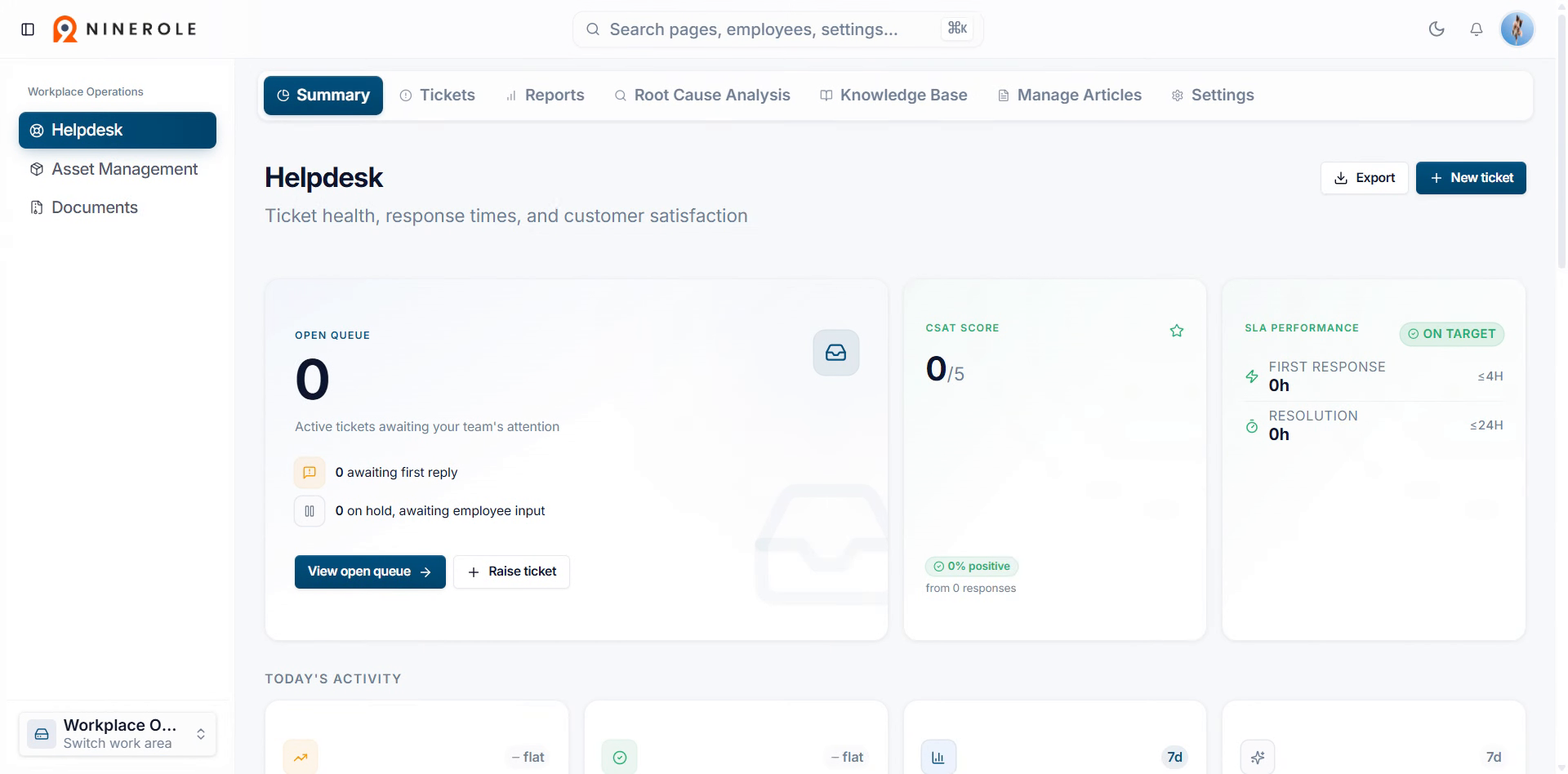
Open the attendance reports
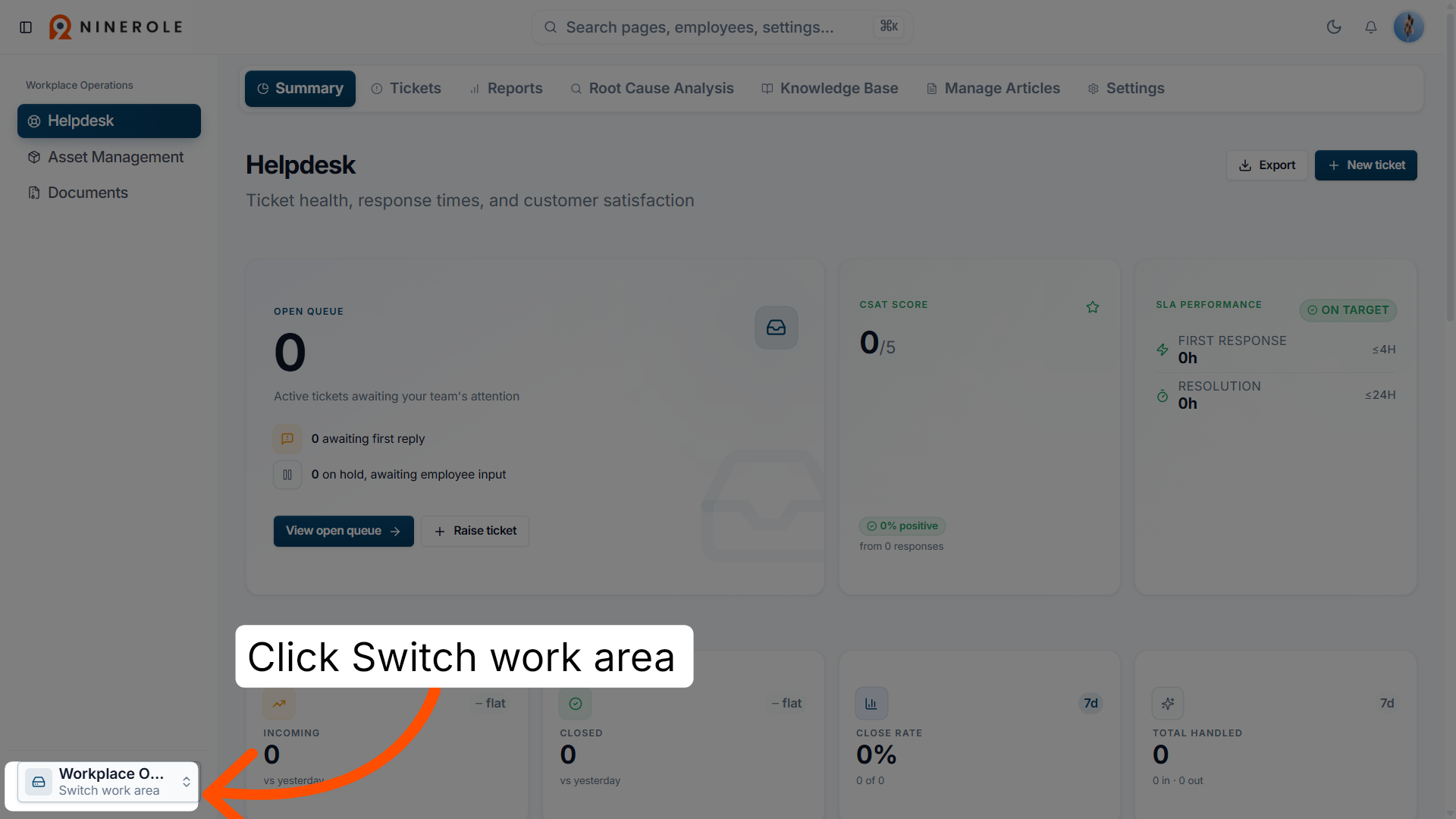
2. Access the work area switcher
Click Switch work area to change your current workspace within Ninerole.
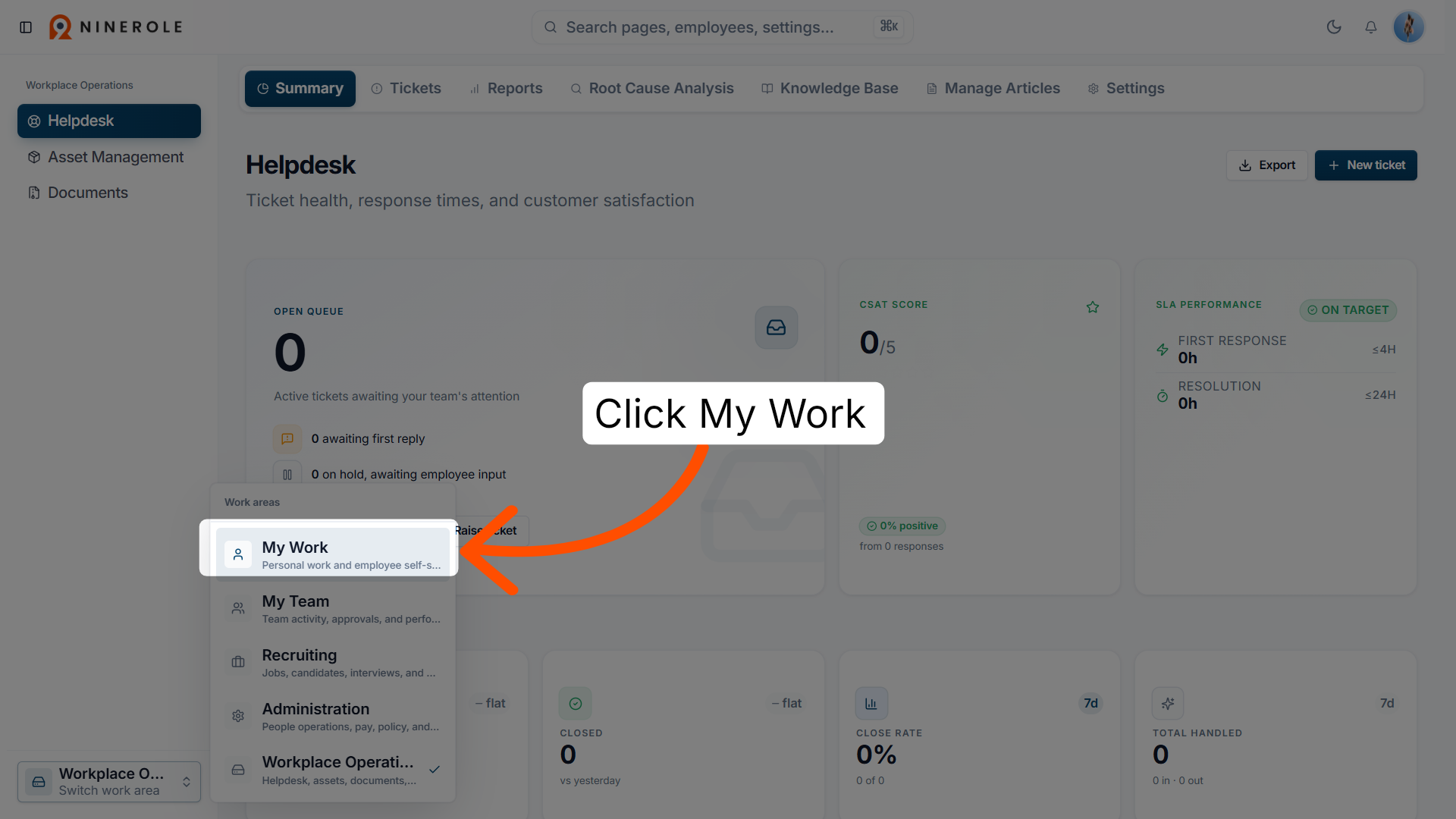
3. Open the My Work section
Click My Work to navigate to your personal task and project overview.
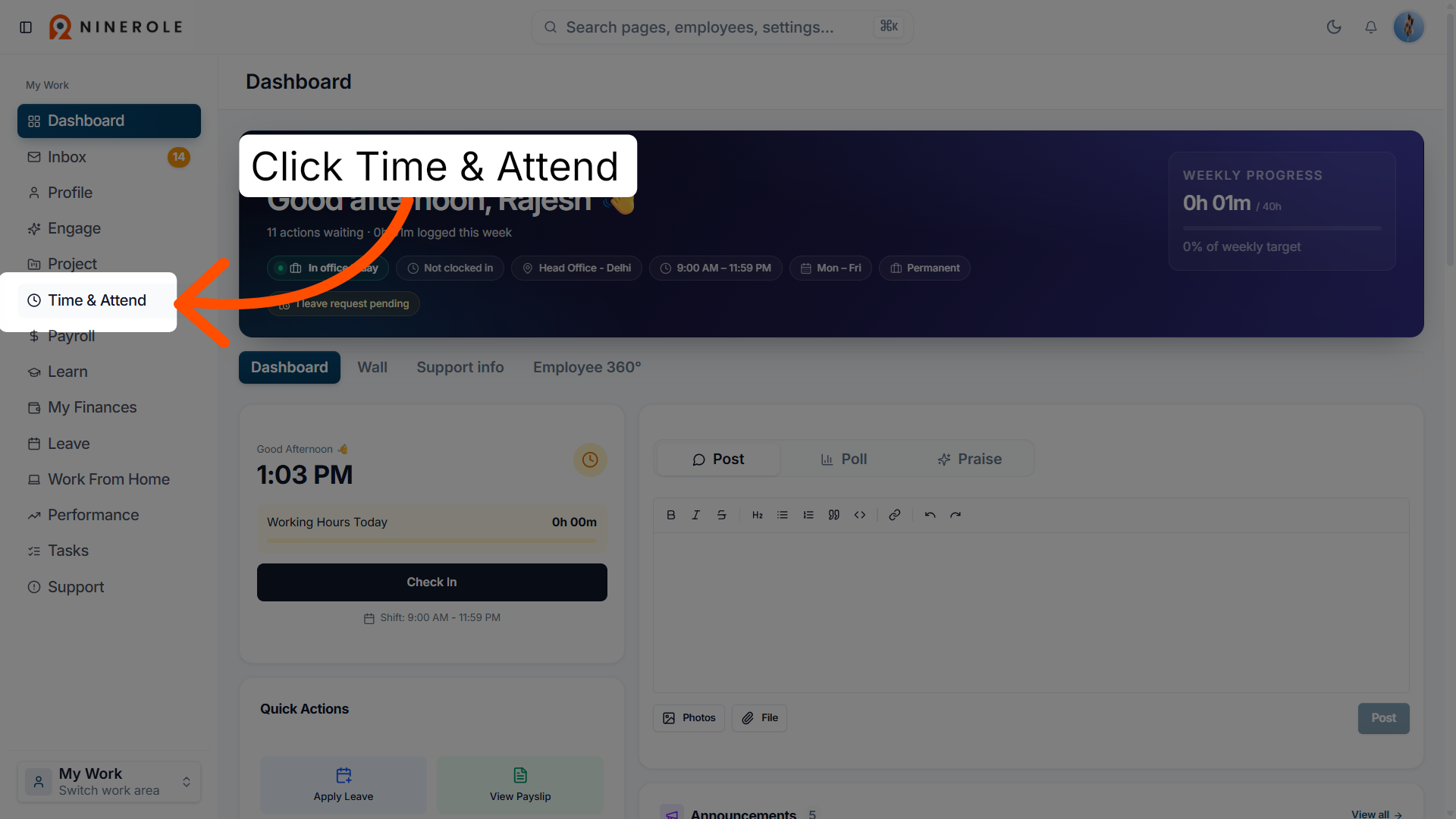
4. Navigate to Time & Attendance
Click Time & Attend to access your attendance tracking dashboard.
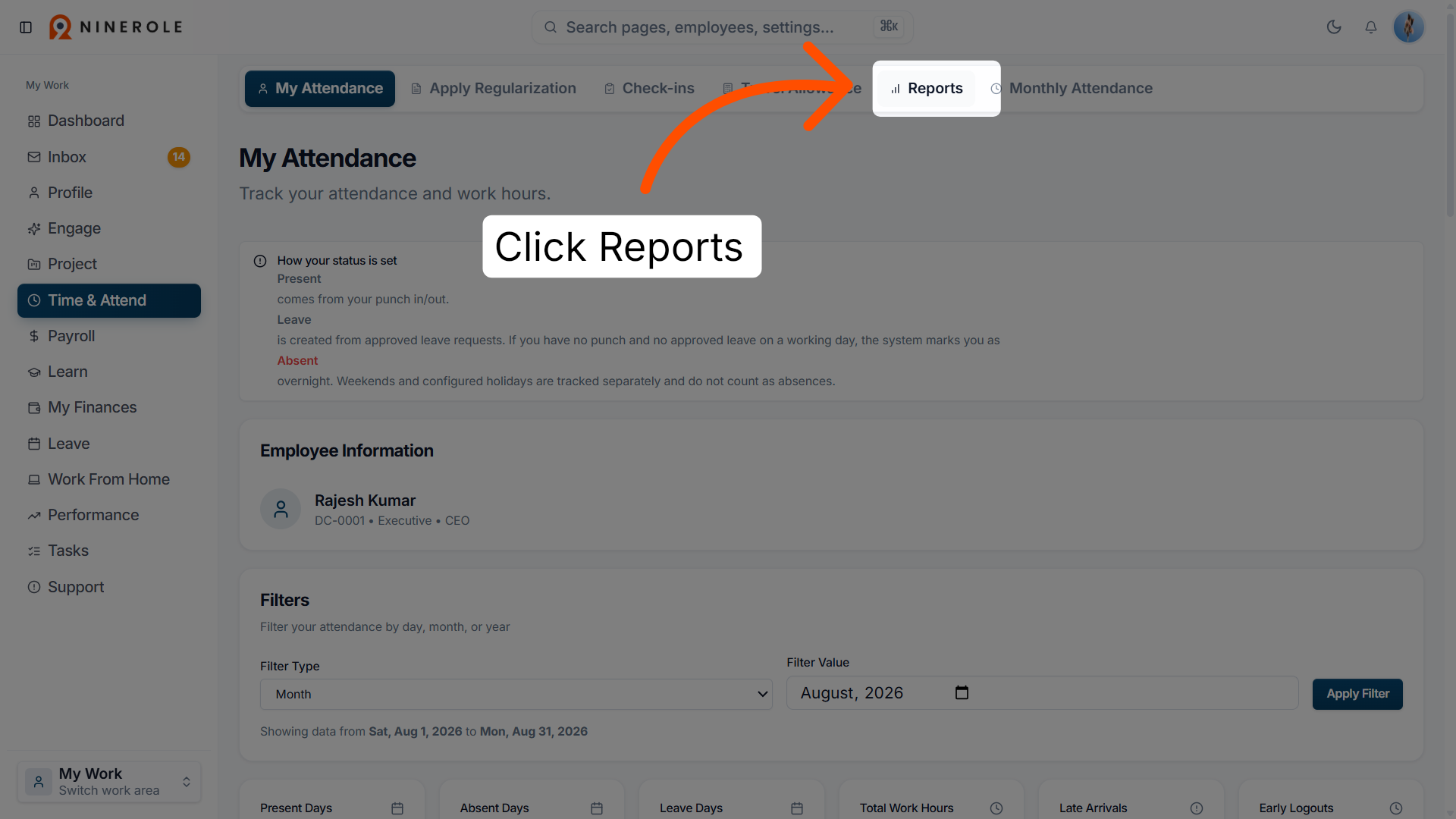
5. Open the Reports section
Click Reports to view available attendance reports and analytics.
Filter by date range
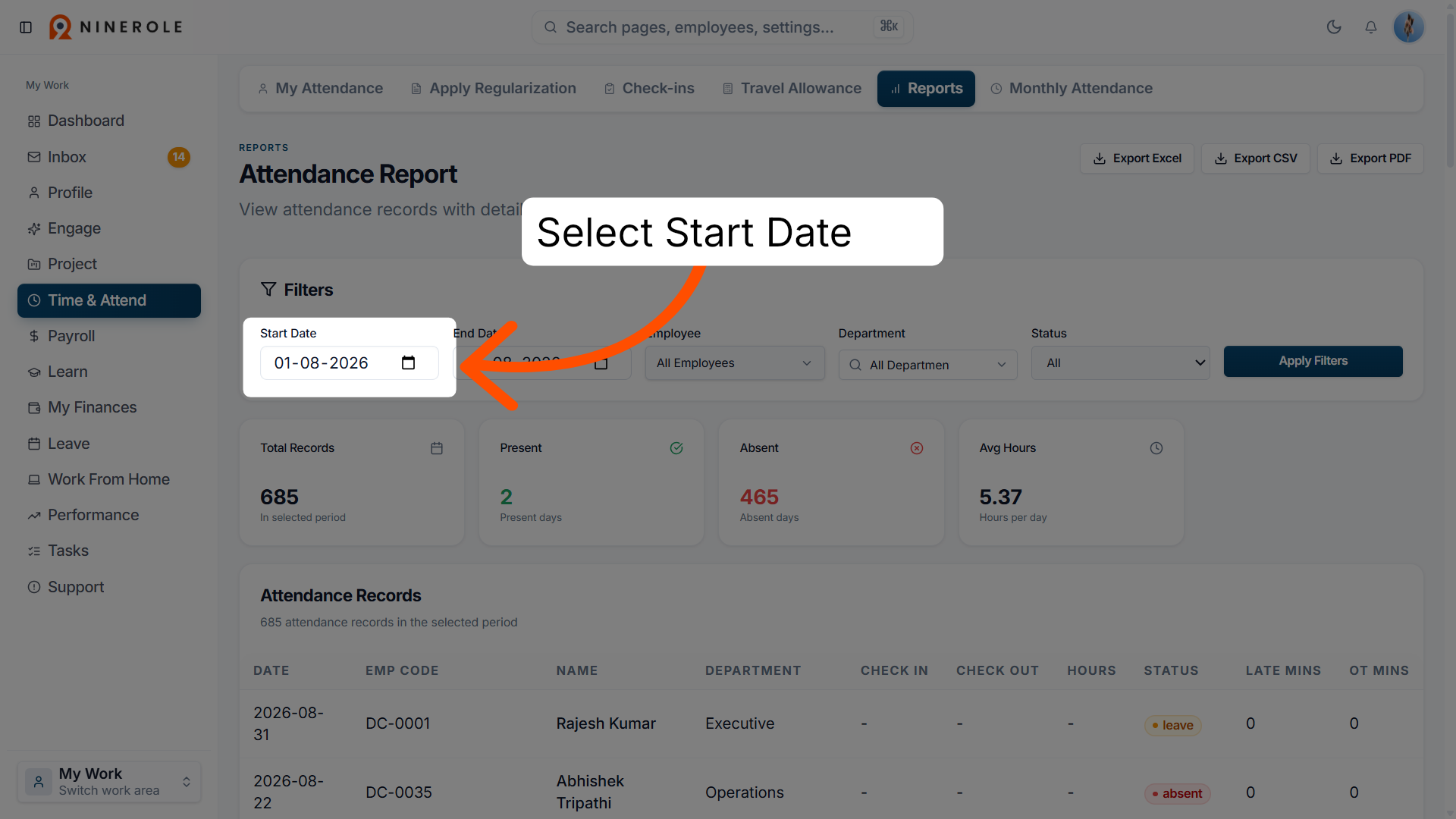
6. Select the report start date
Select Start Date to specify the beginning of the attendance report period.
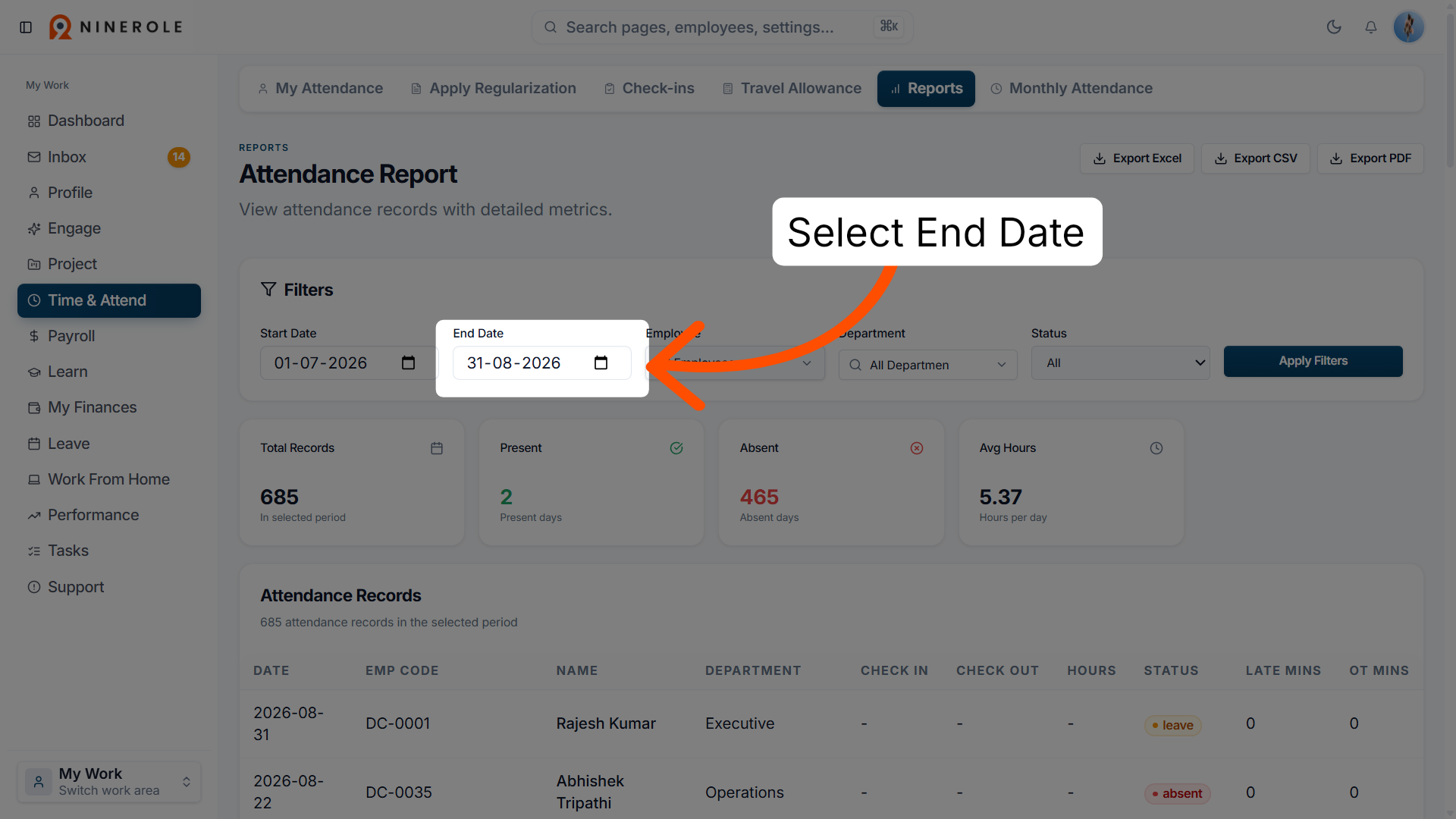
7. Select the report end date
Select End Date to specify the end of the attendance report period.
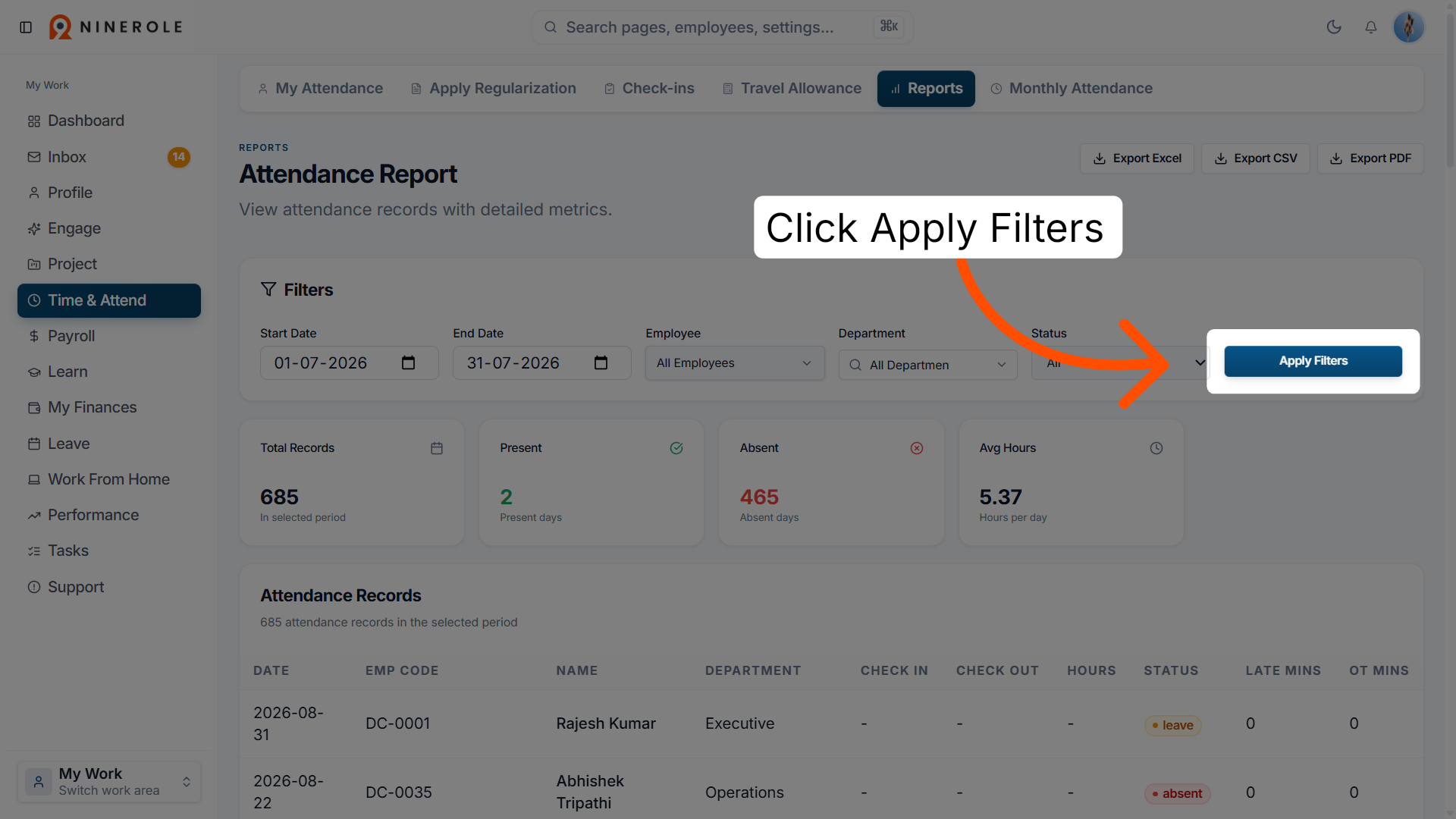
8. Apply the date filters
Click Apply Filters to update the report with the selected date range.
Export the report
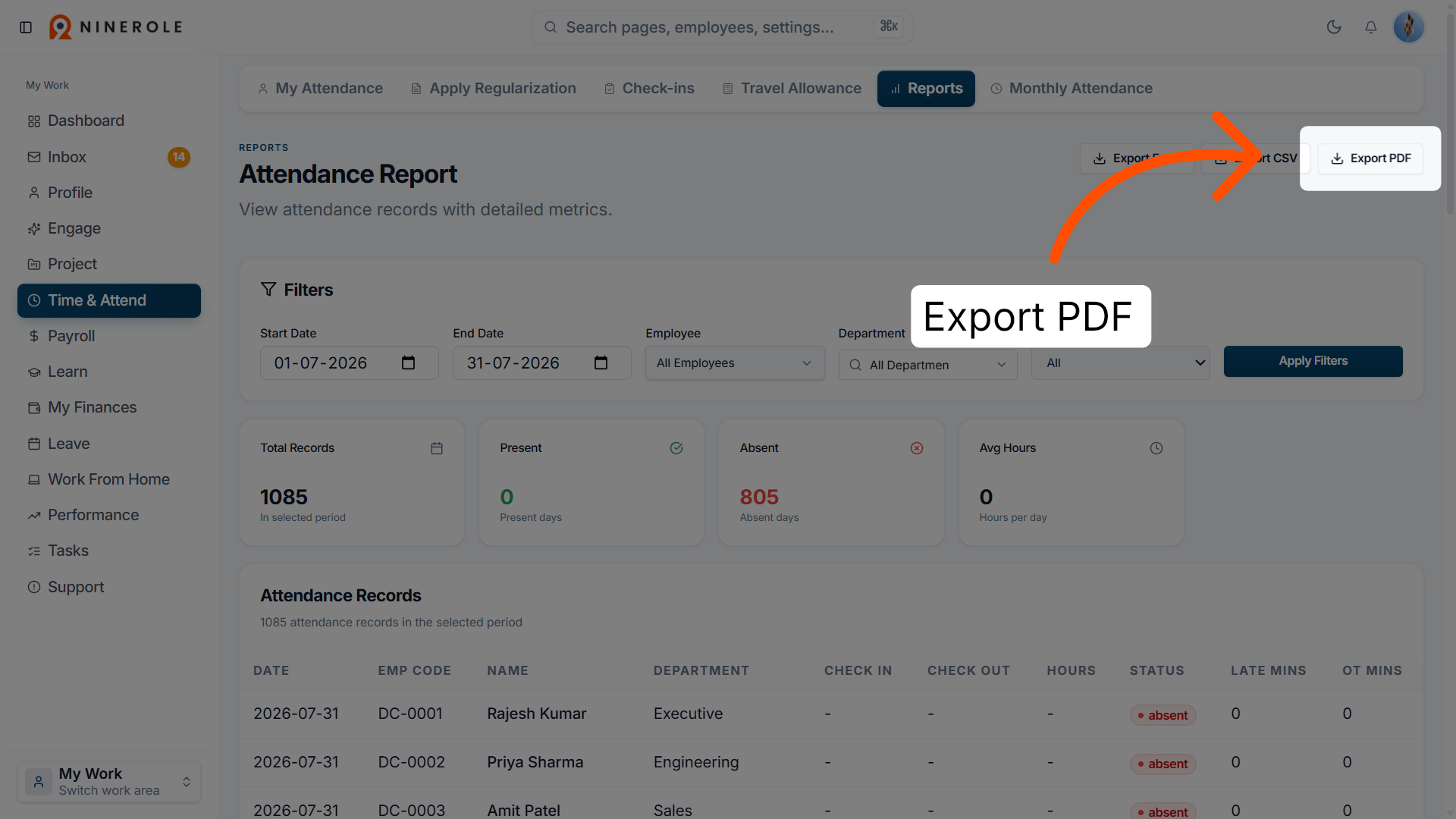
9. Export the report as PDF
Click Export PDF to download the attendance report in PDF format for easy sharing.
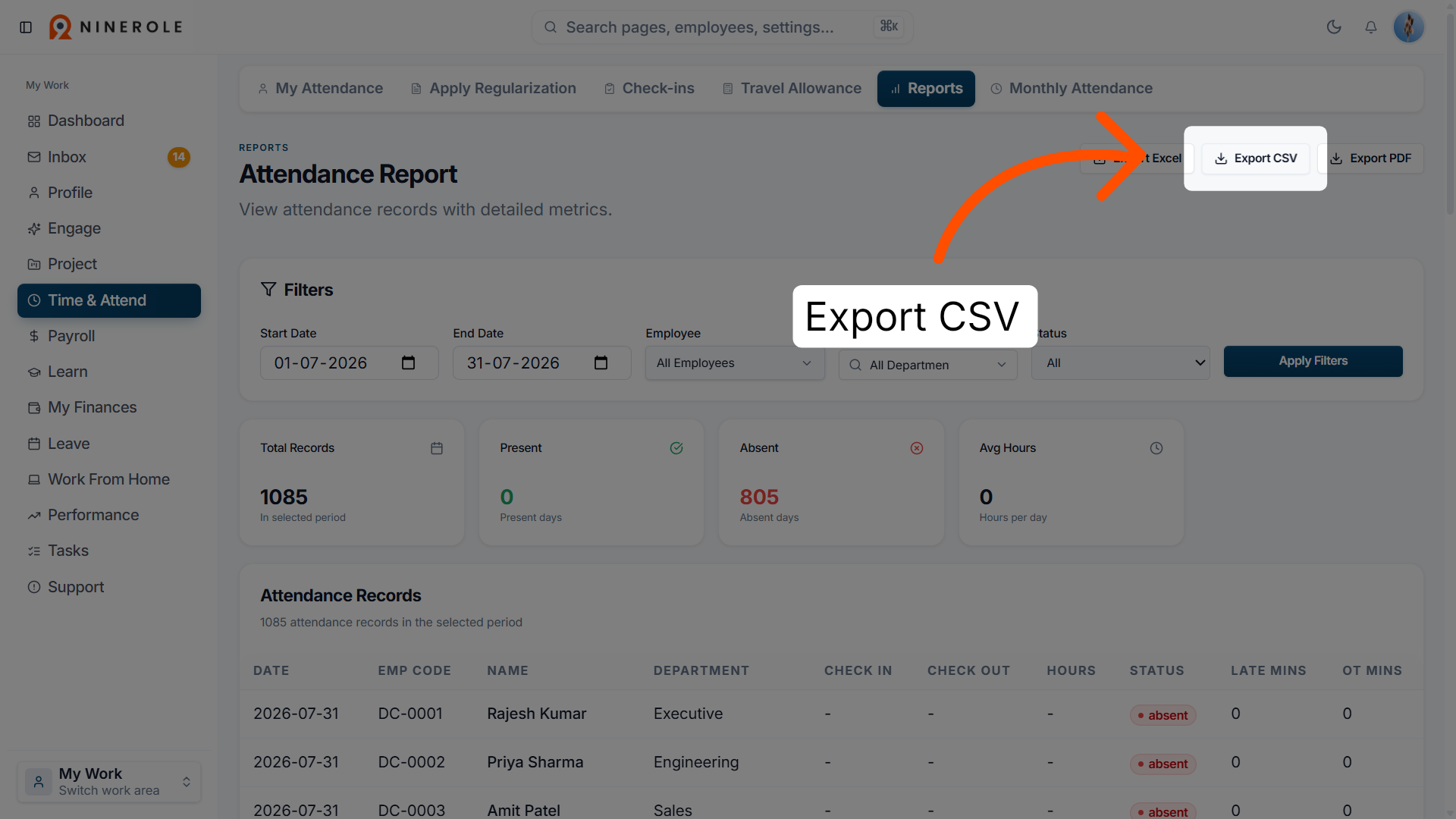
10. Export the report as CSV
Click Export CSV to download the attendance report as a CSV file for spreadsheet use.
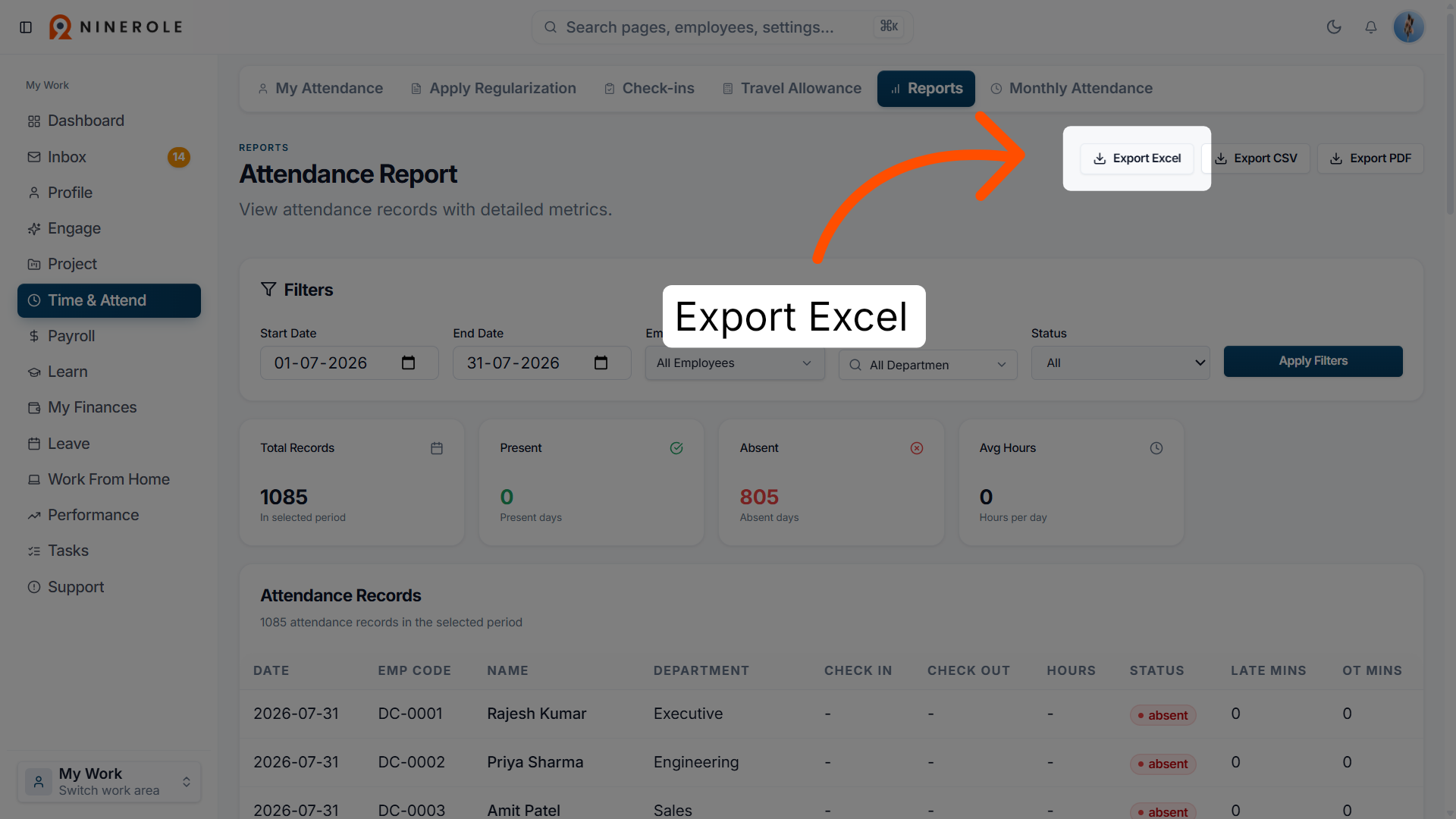
11. Export the report as Excel
Click Export Excel to download the attendance report in Excel format for detailed analysis.
You have successfully generated and exported attendance reports in PDF, CSV, and Excel formats using Ninerole. Use these reports to analyze attendance data and support your workforce management tasks.
Back to Attendance · all modules · Ninerole HRMS overview
Last updated: