

Manage Employee Salary Details and Payroll
This tutorial explains how to manage and update employee salary details in Ninerole HRMS. You will learn to navigate salary structures, apply templates, and maintain accurate compensation records.
Before you start, go to ninerole.com and sign in with an account that can edit employee records.
Salary templates and components are set up first under Payroll settings. If the template you need does not exist yet, create it with Components and templates.
About this task
- Purpose
- Open an employee's salary details, apply a salary template, review the resulting structure, and record a salary history entry.
- Who can do this
- HR admin or Payroll administrator — not the employee
- Before you start
- The employee record exists.
- A salary template exists if you want to apply one.
- You will need
- The employee, the gross salary, and the template to apply.
- Result
- The employee has a complete salary structure, and any change is recorded in their salary history.
- This unlocks
- Including that employee in a pay run — the readiness check fails on incomplete salary data.
This guide answers
- How do I set an employee's salary?
- How do I apply a salary template to someone?
- What is the difference between a template and a structure?
- How do I record a salary revision?
- Why does payroll say an employee is missing salary data?
If something goes wrong
- No template appears when you try to apply one.
- Templates are created under Payroll settings. Create one first.
- Payroll reports this employee has incomplete salary data.
- The structure was never completed. Open salary details and finish it, then re-run the readiness check.
Related: Components & templates · Add an employee · Run payrollAlso called: salary structure, compensation details, CTC setup.Last verified: 7 September 2026
1. Introduction
You will learn to navigate salary structures, apply templates, and maintain accurate compensation records.
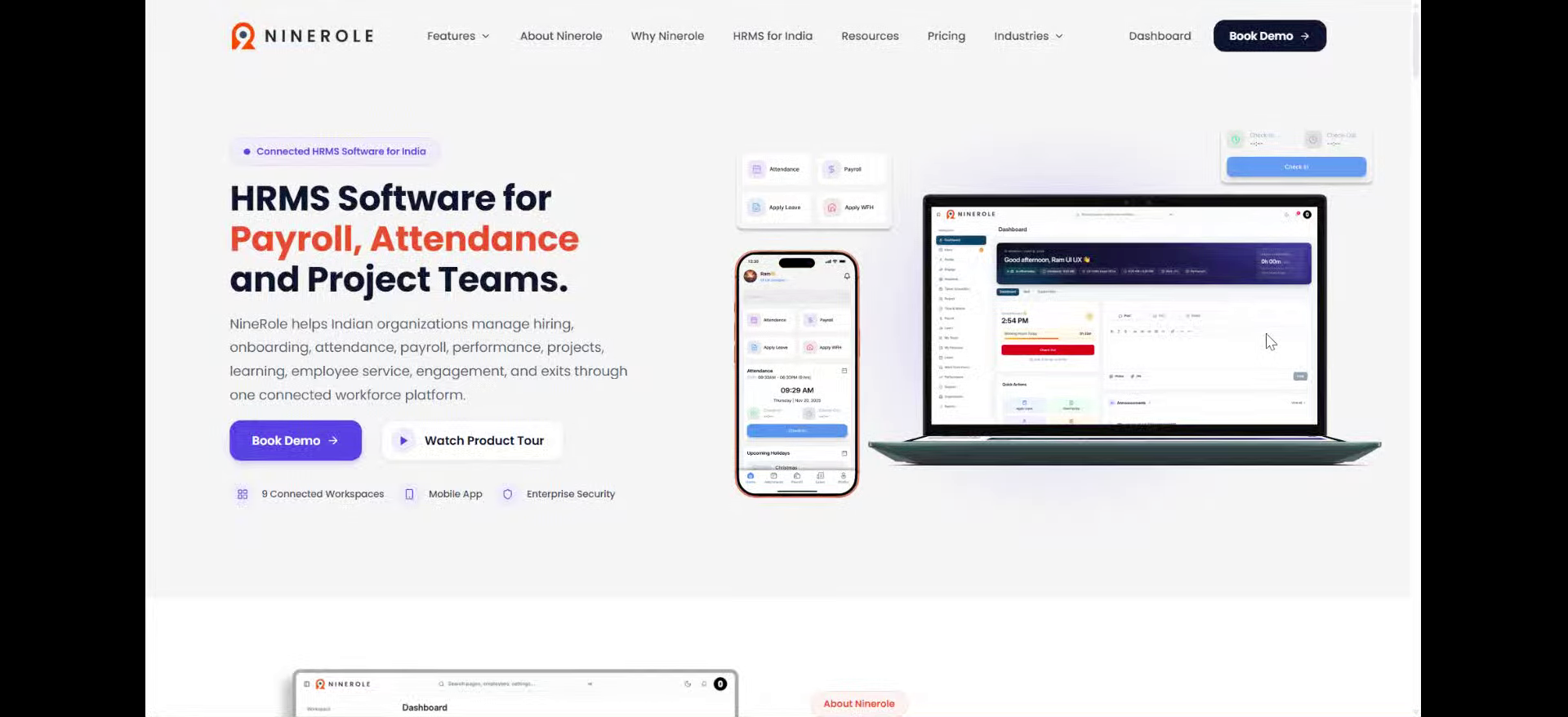
Open the employee's salary details
2. Access the main dashboard
Open the main dashboard for an overview of employee management activities.
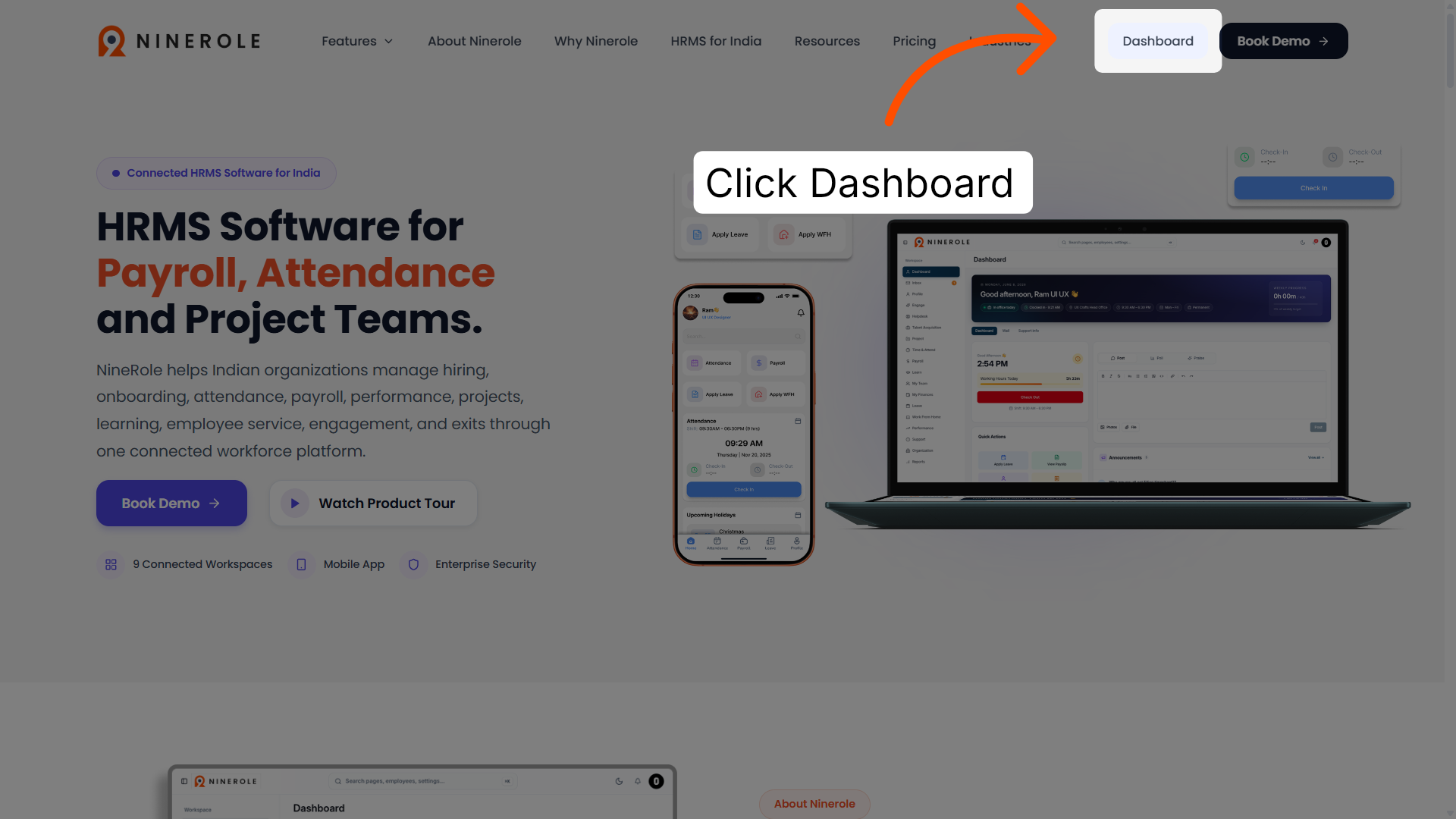
3. Open the dashboard section
Open the dashboard section to reach the detailed employee operations and reporting features.
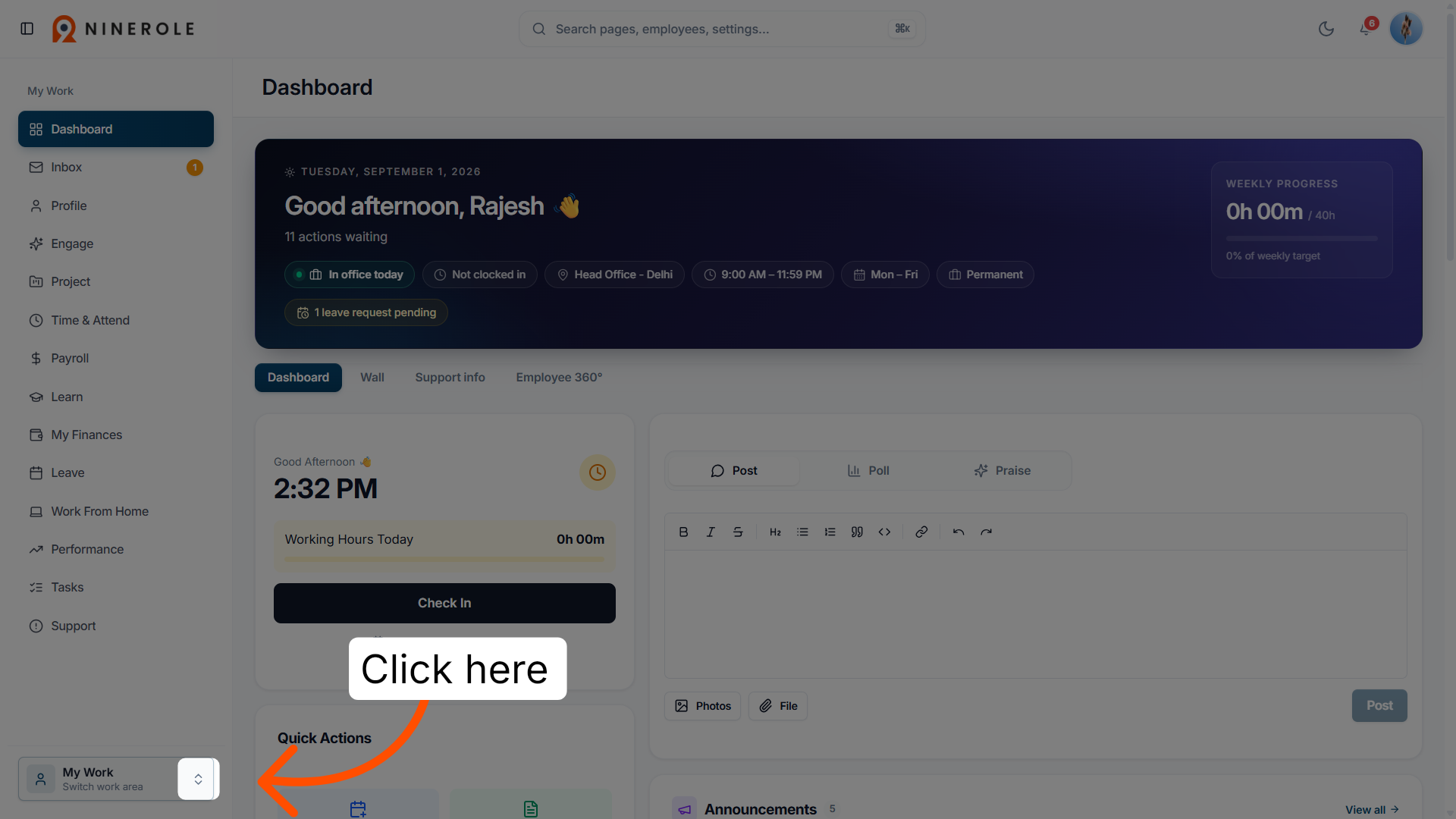
4. Access people operations
Click Administration to open the people operations, pay, policy, and reporting area where employee data and policies are managed.
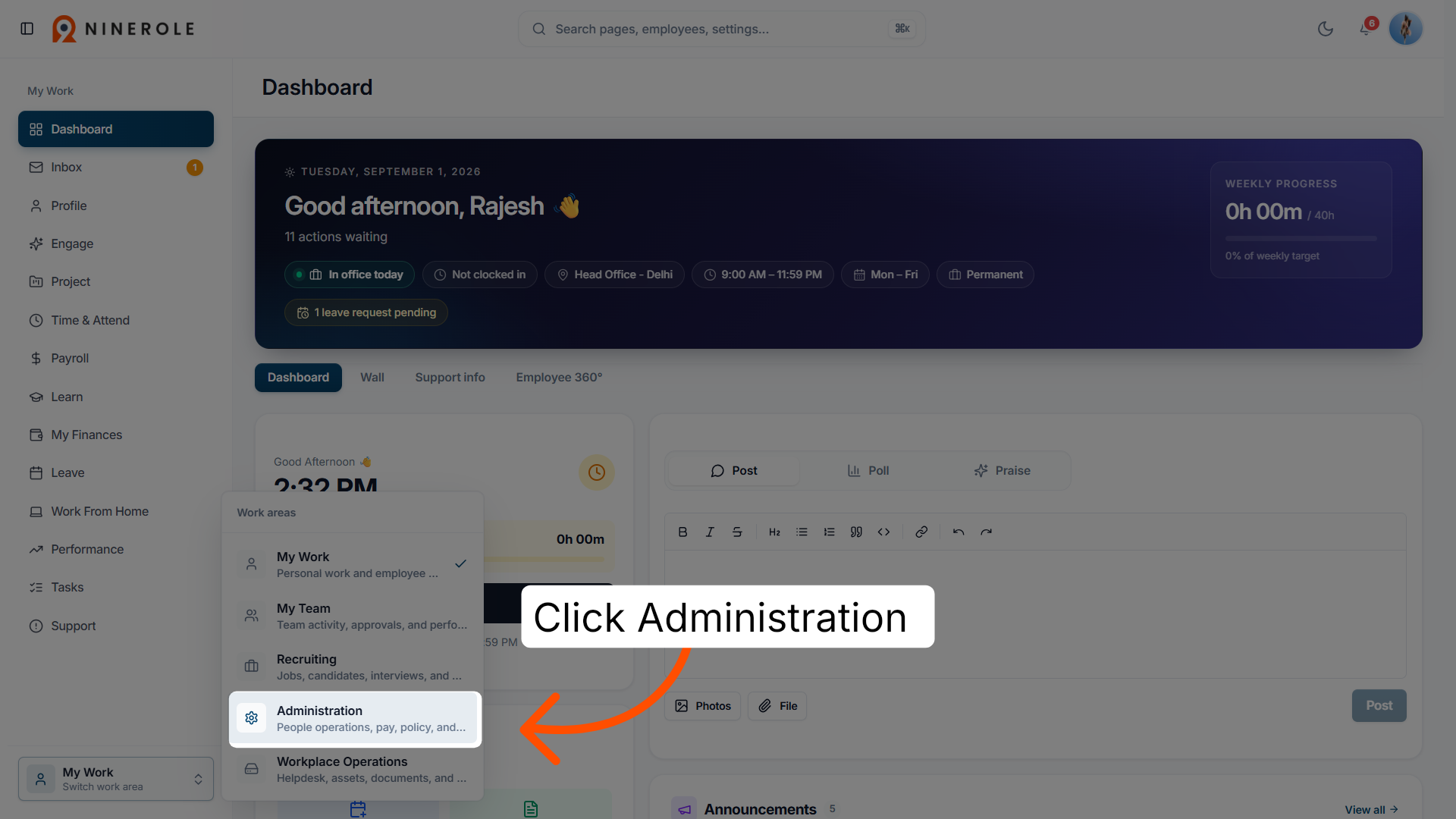
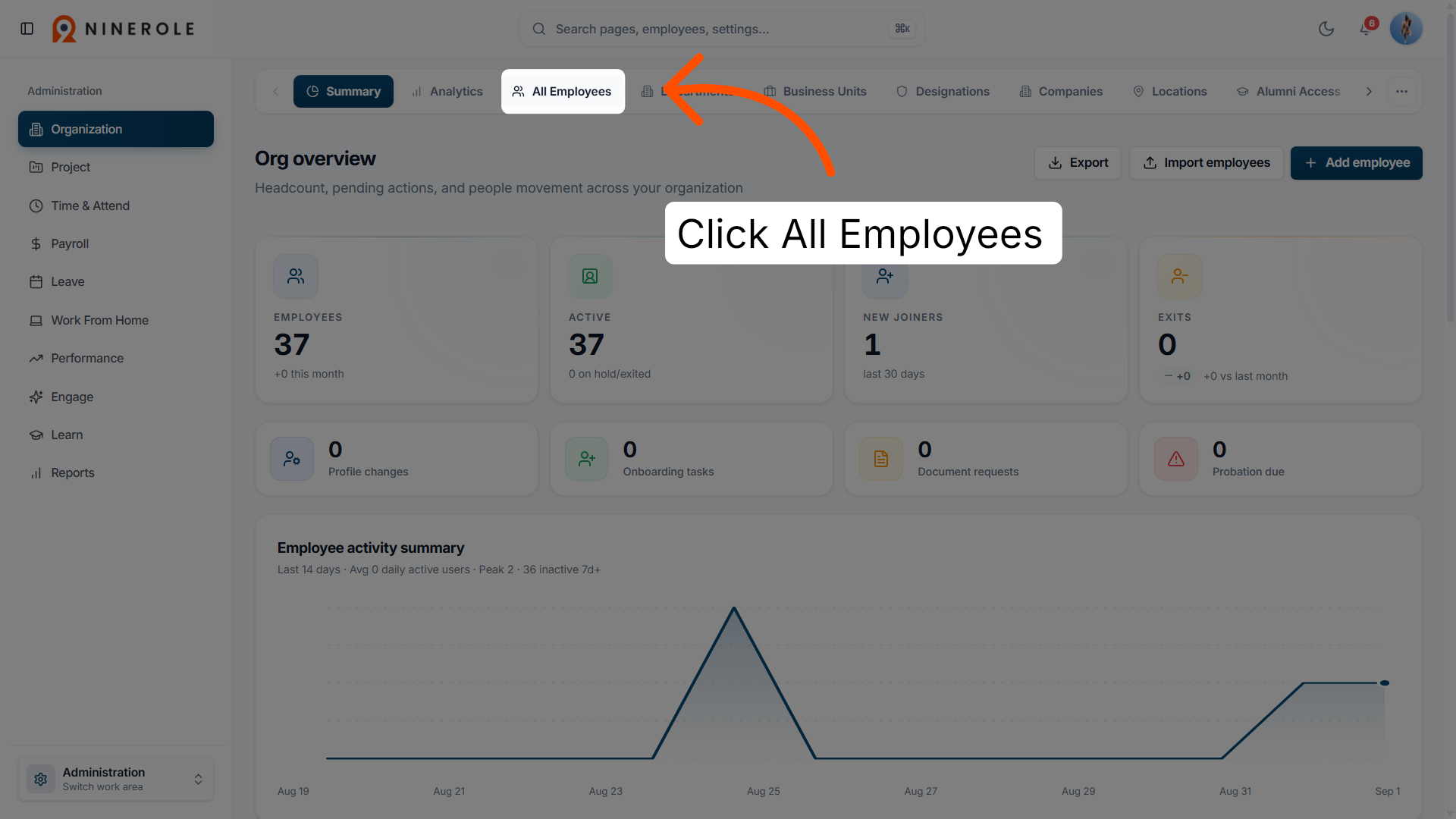
5. View all employees
Open the list of all employees to review and manage individual records.
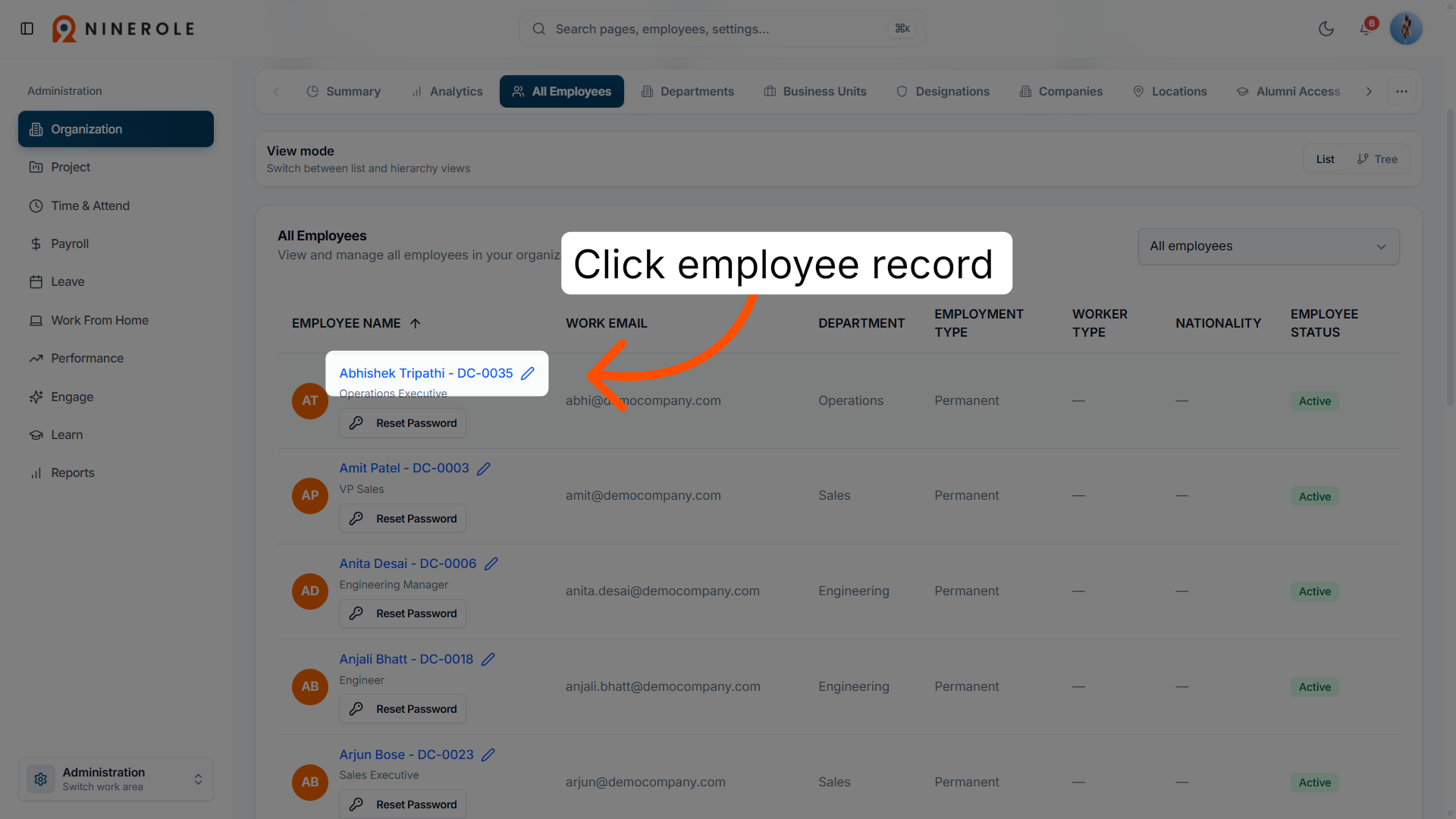
6. Open the employee record
Select the employee whose salary and personal details you want to view or edit.
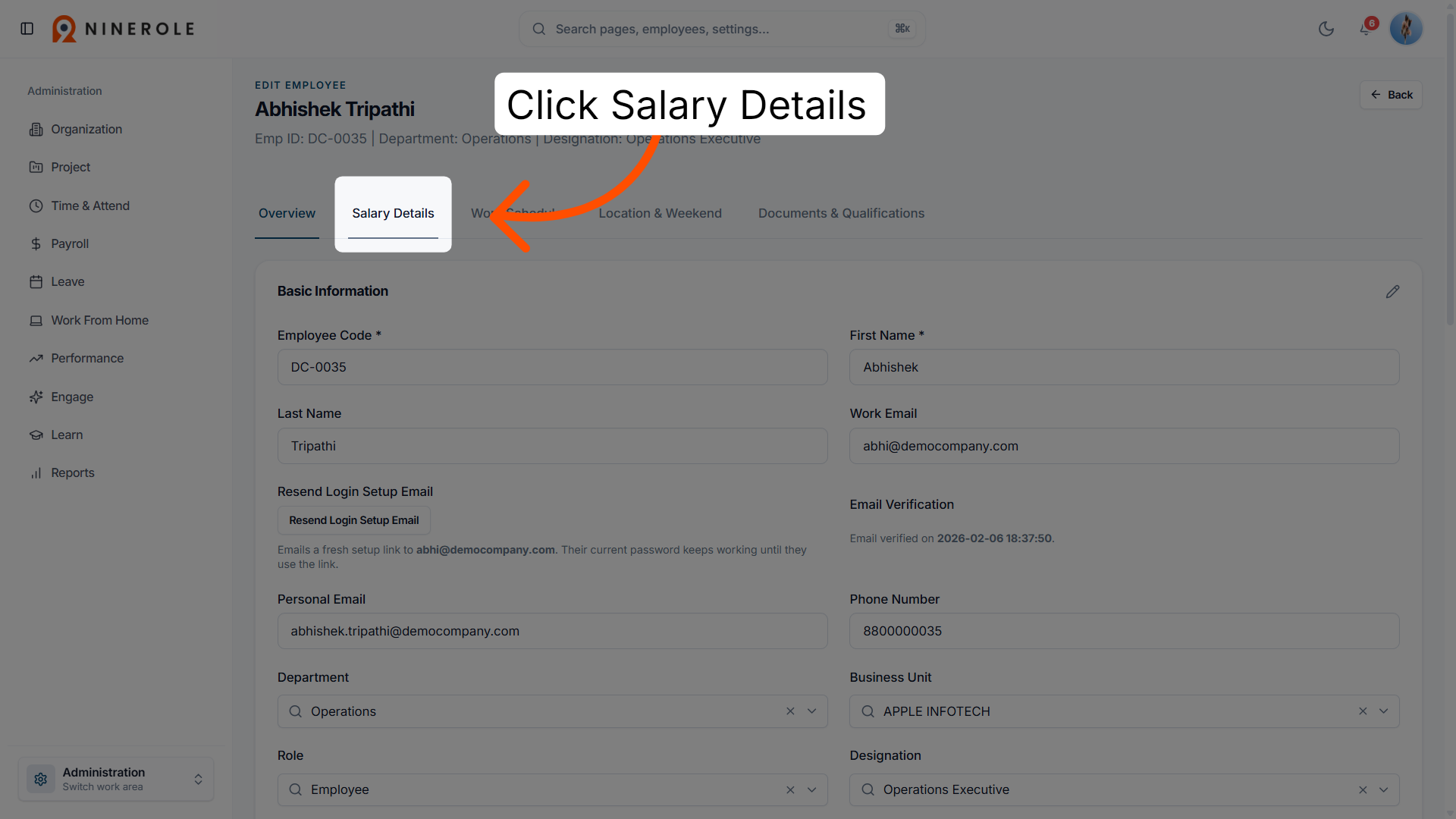
7. Access salary details
Go to the Salary details section to review and update the employee's compensation information.
Review the current salary breakdown
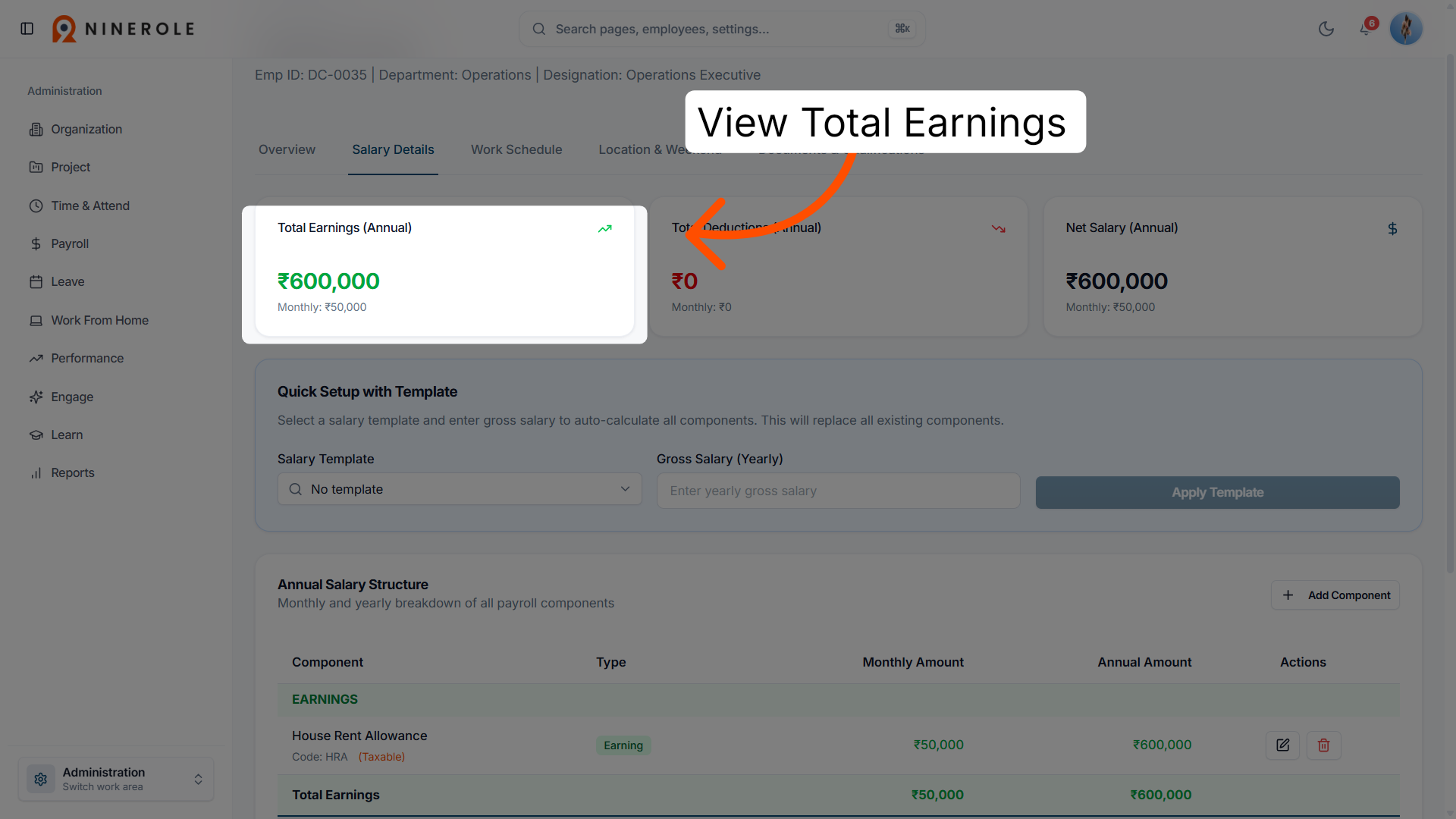
8. Review total earnings
View the total annual earnings to understand the employee's gross income for the year.
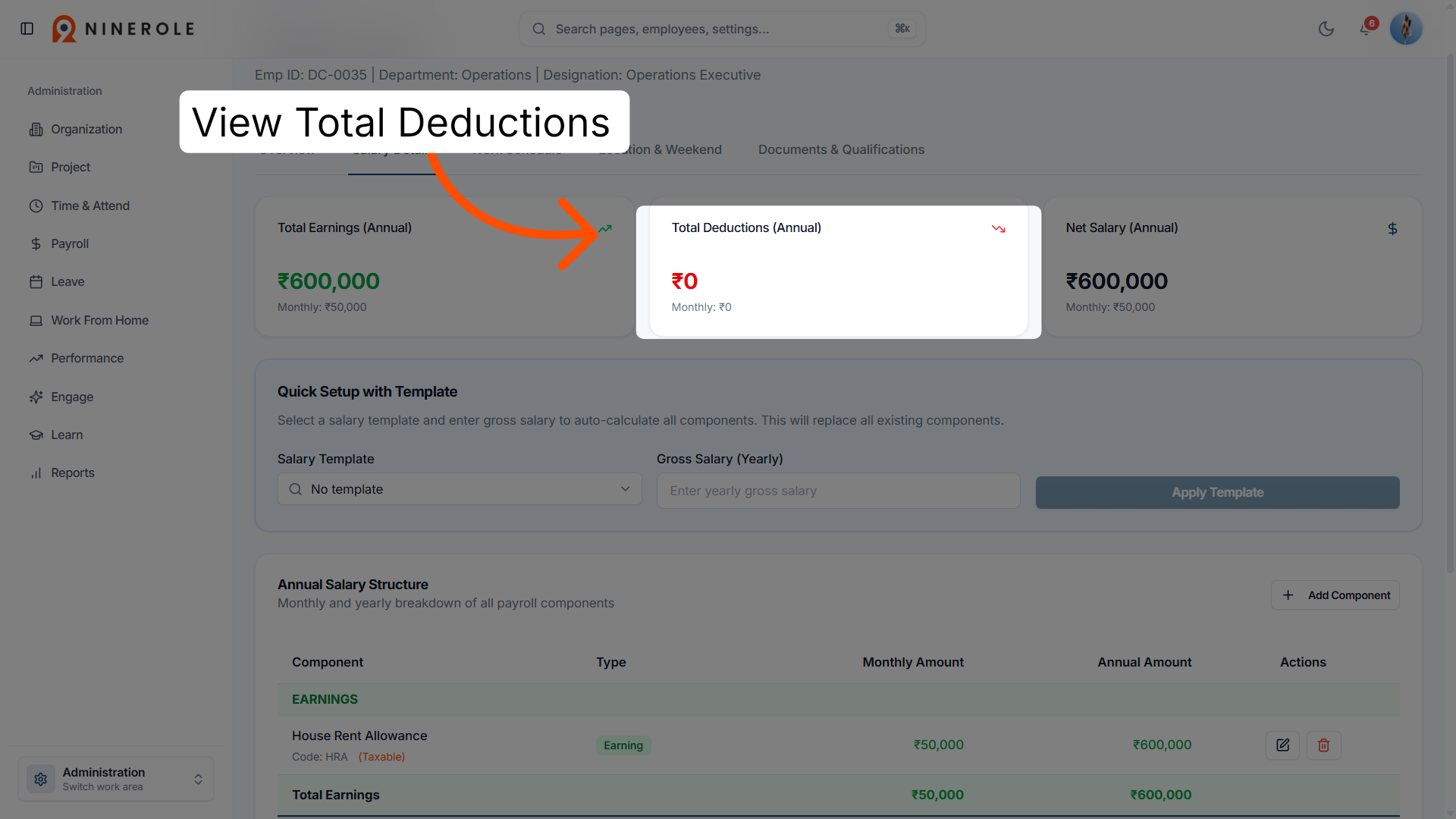
9. Check total deductions
Check the total annual deductions to see everything subtracted from the employee's salary.
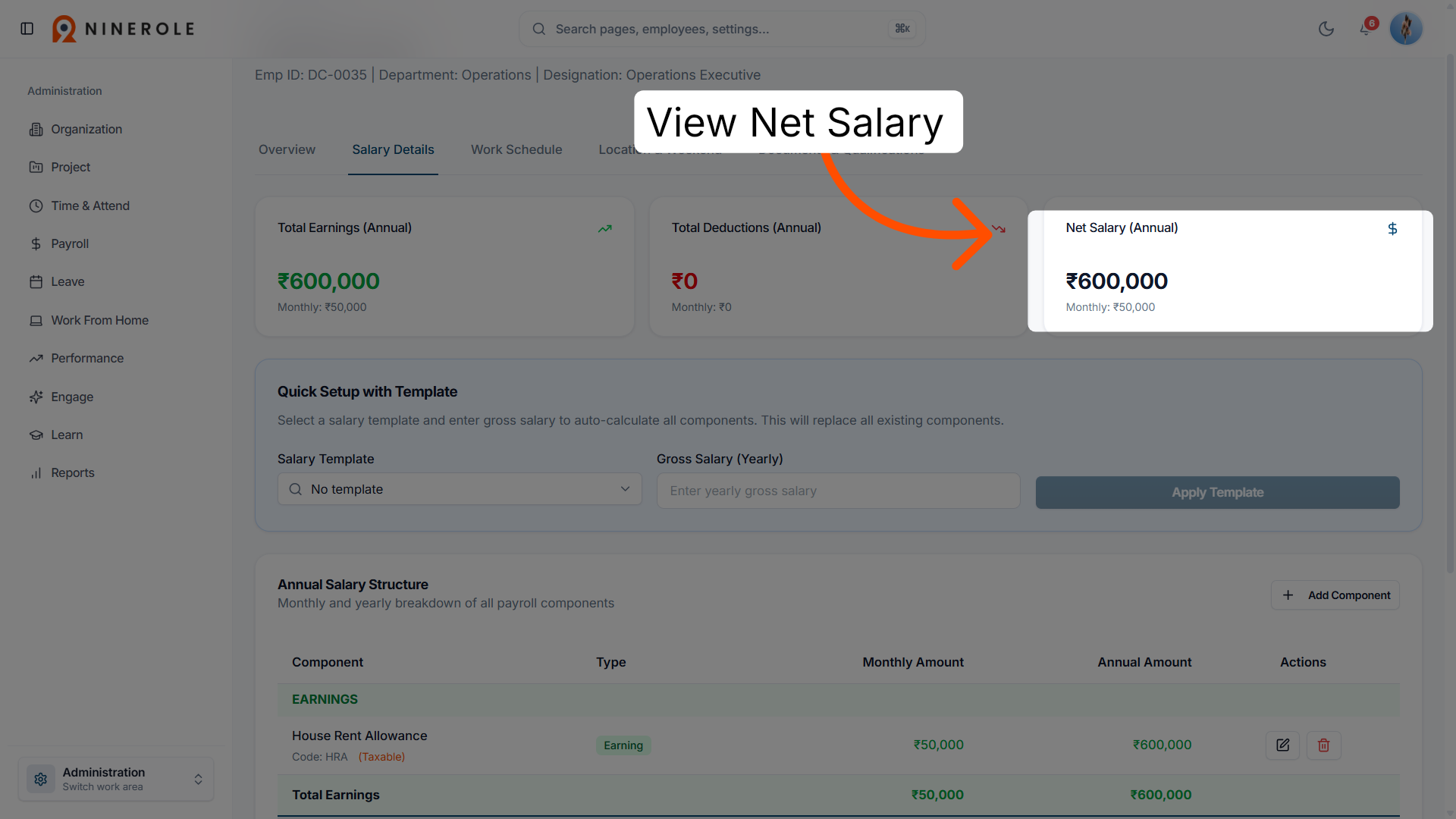
10. View net salary
Review the net annual salary to confirm the employee's take-home pay after deductions.
Apply a salary template
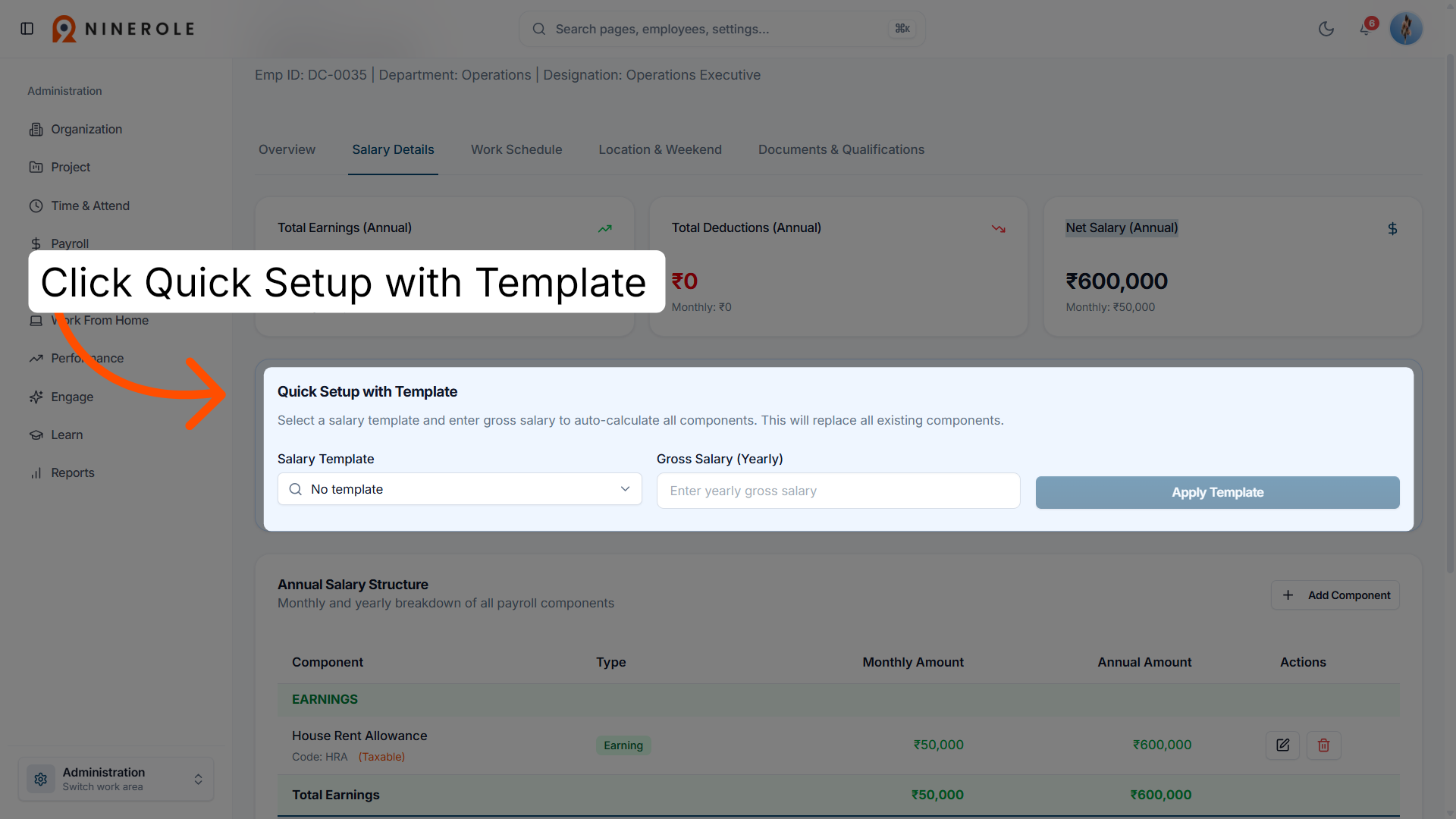
11. Start quick setup
Start the quick setup process, which uses a predefined template to speed up salary configuration.
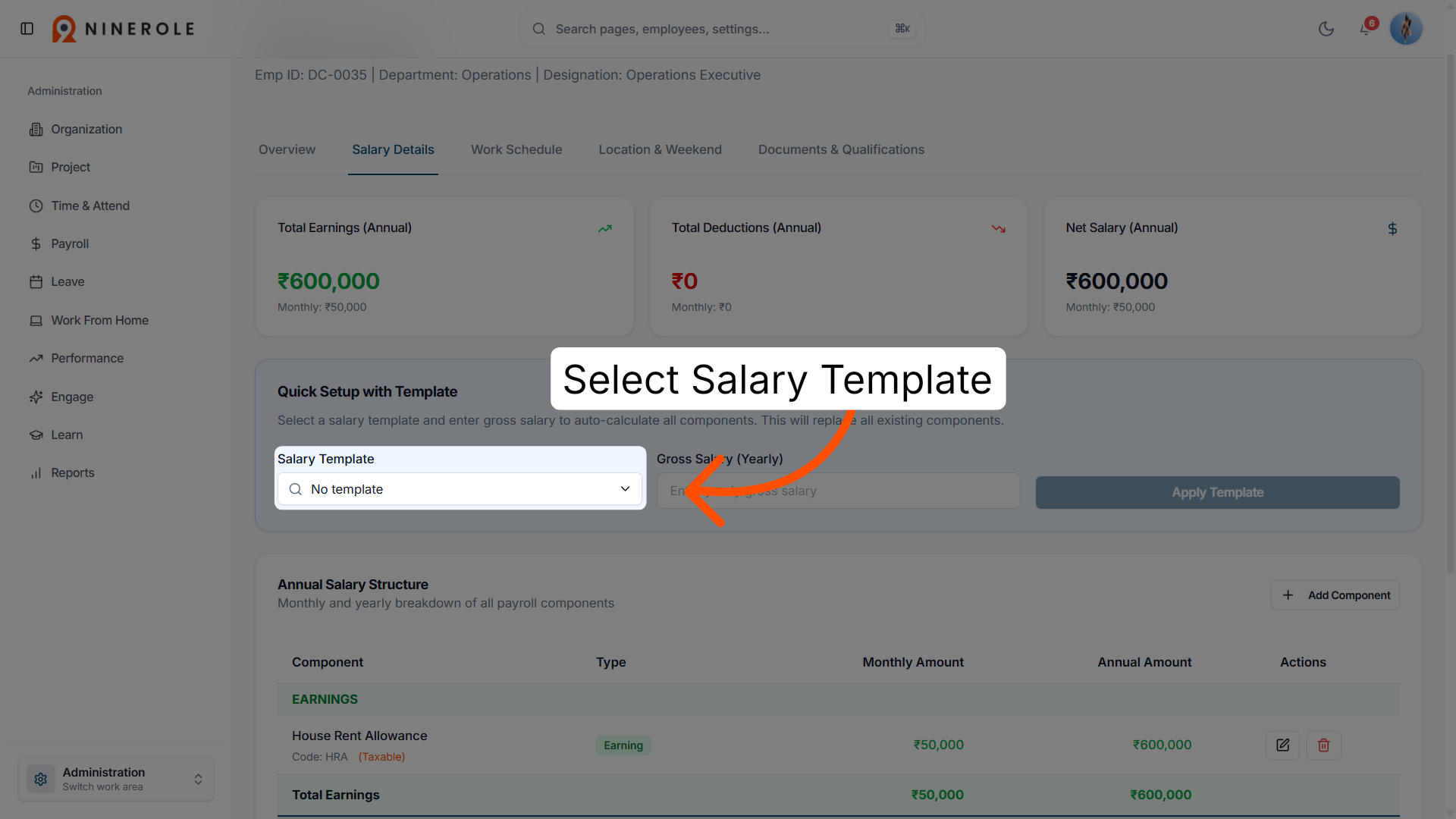
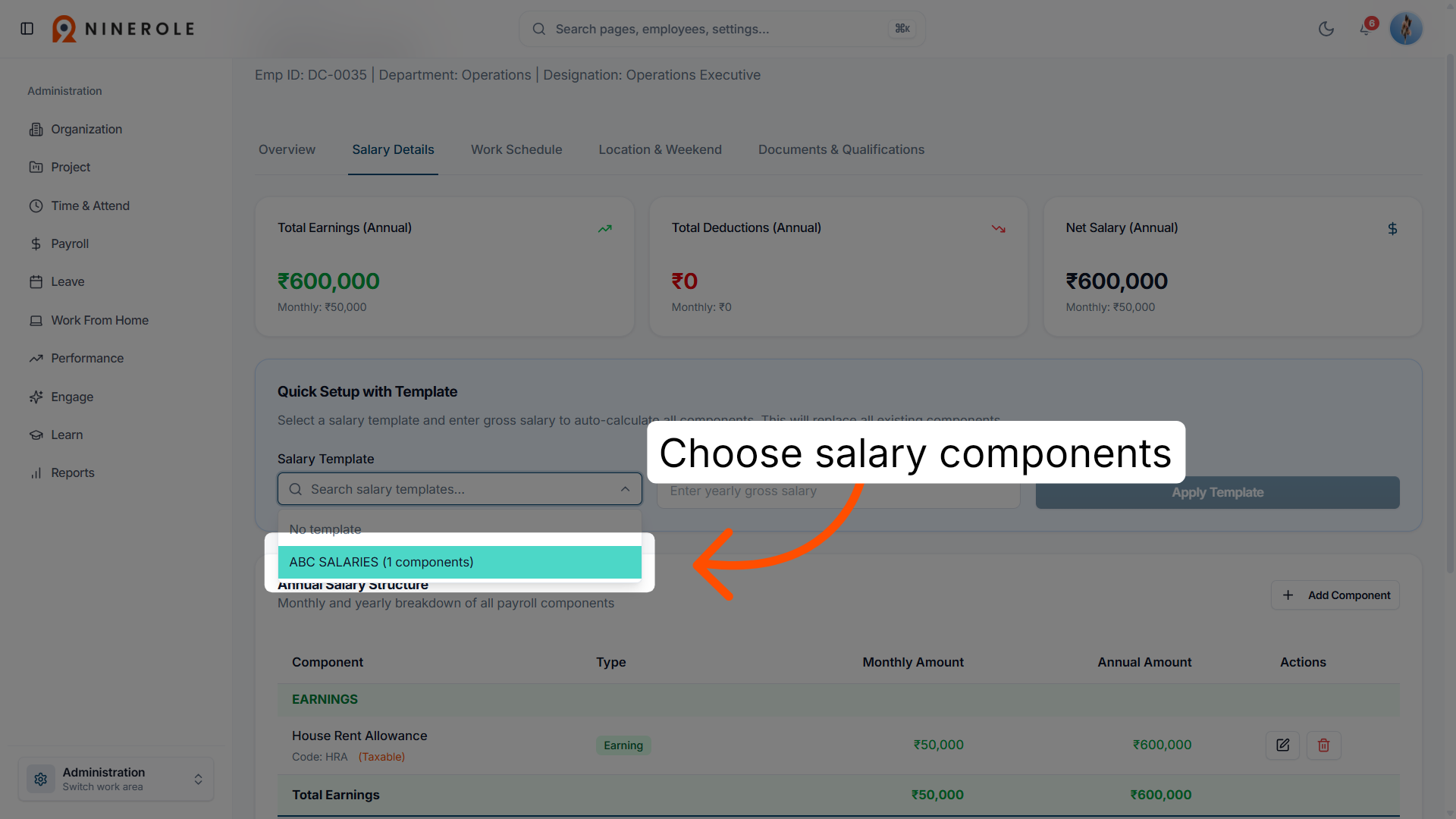
12. Open the template options
Open the template options to choose the salary structure to apply.
13. Select the salary components
Review the salary components included in the selected template and adjust them for this employee's pay structure.
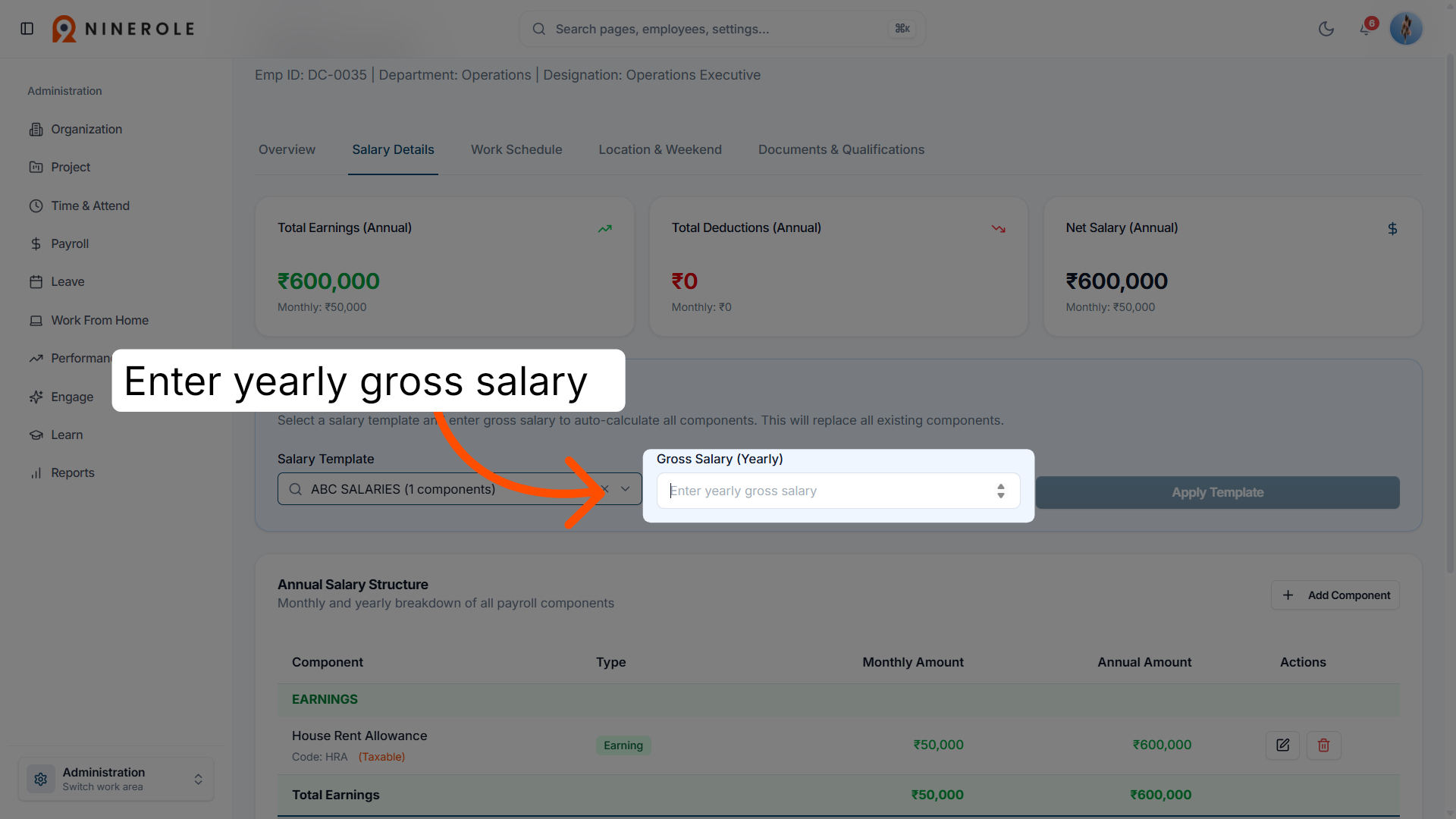
14. Open the gross salary field
Select the yearly gross salary field, which defines the employee's total earnings before deductions.
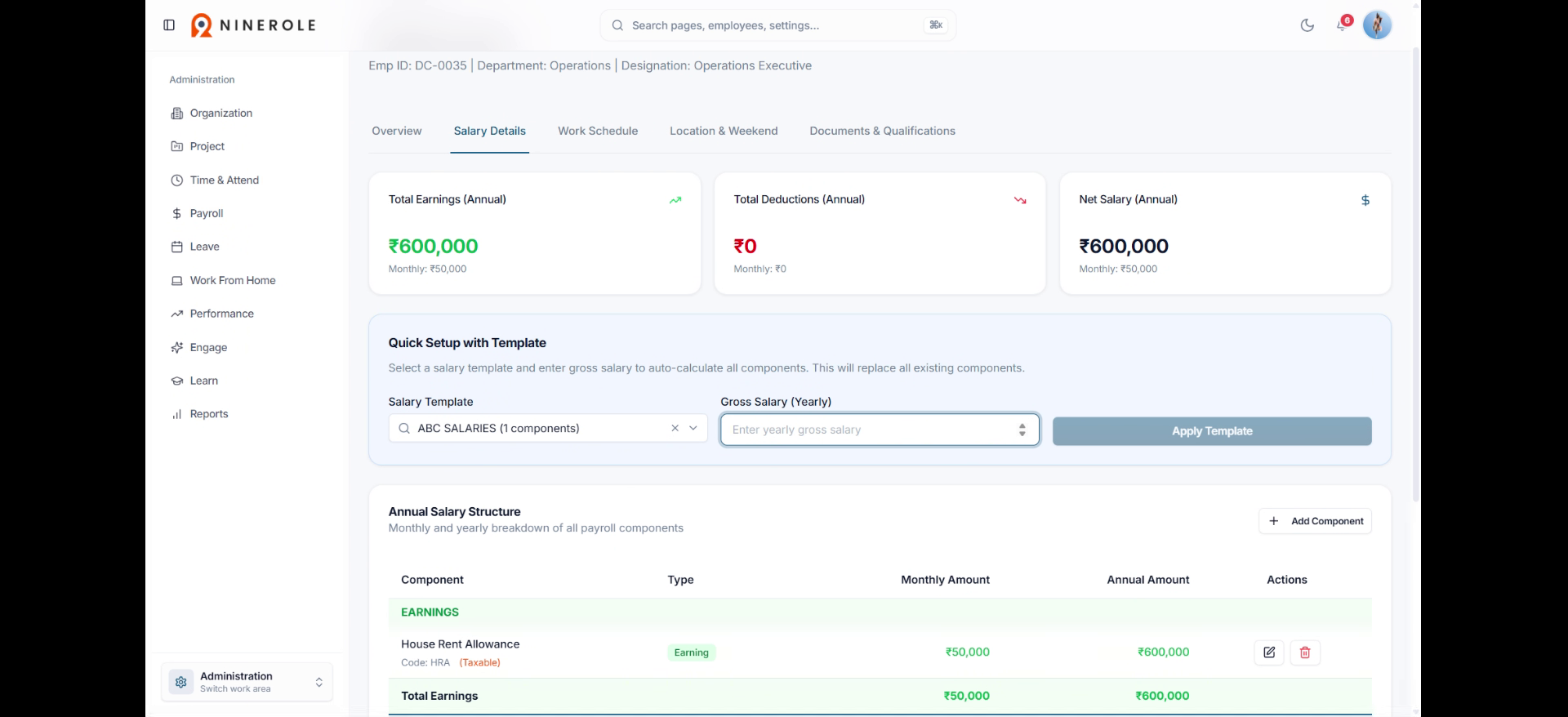
15. Enter the gross salary amount
Type the gross salary value. Every component in the template is calculated from this figure.
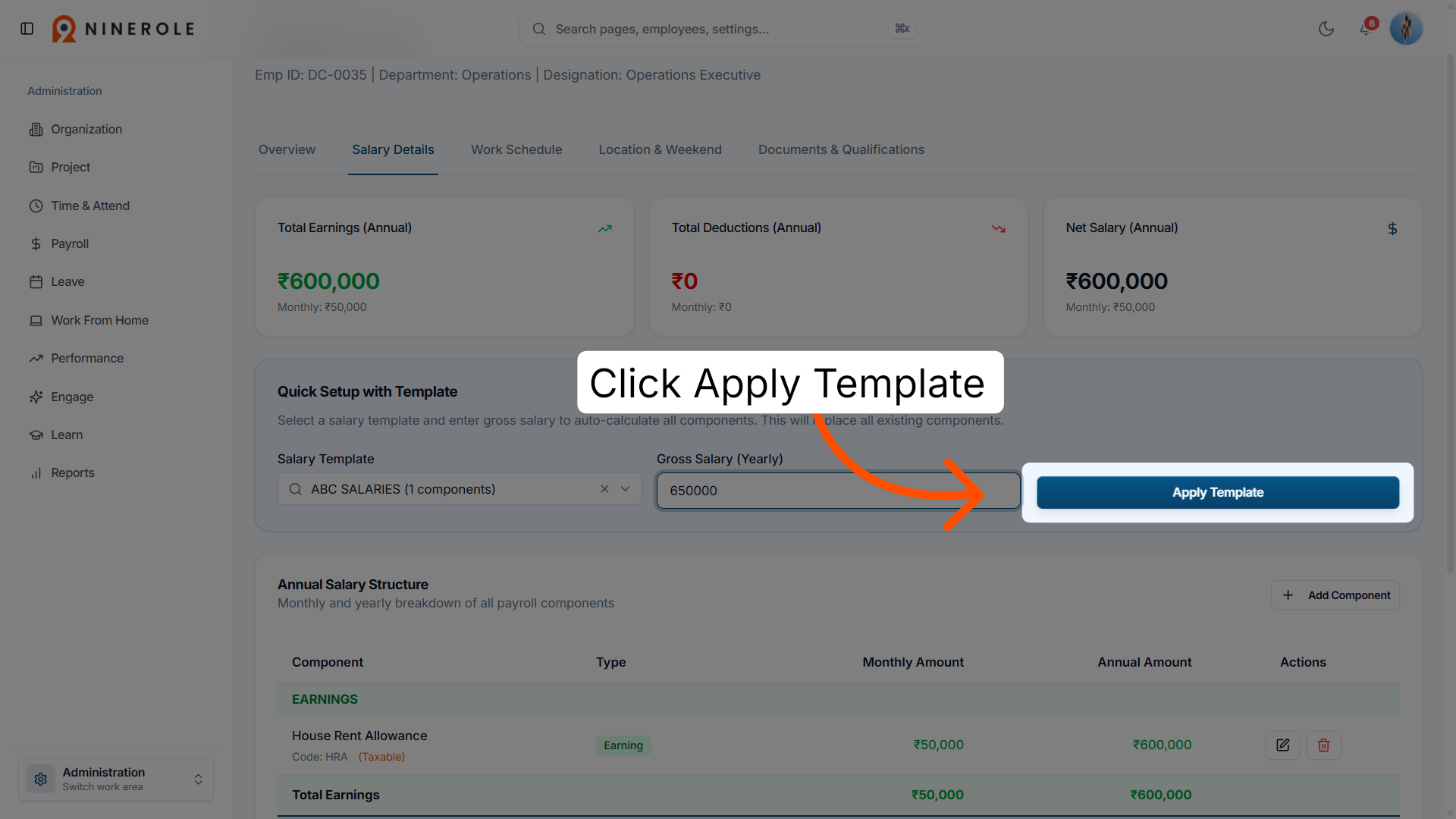
16. Apply the salary template
Apply the selected template to update the employee's pay structure with its predefined settings.
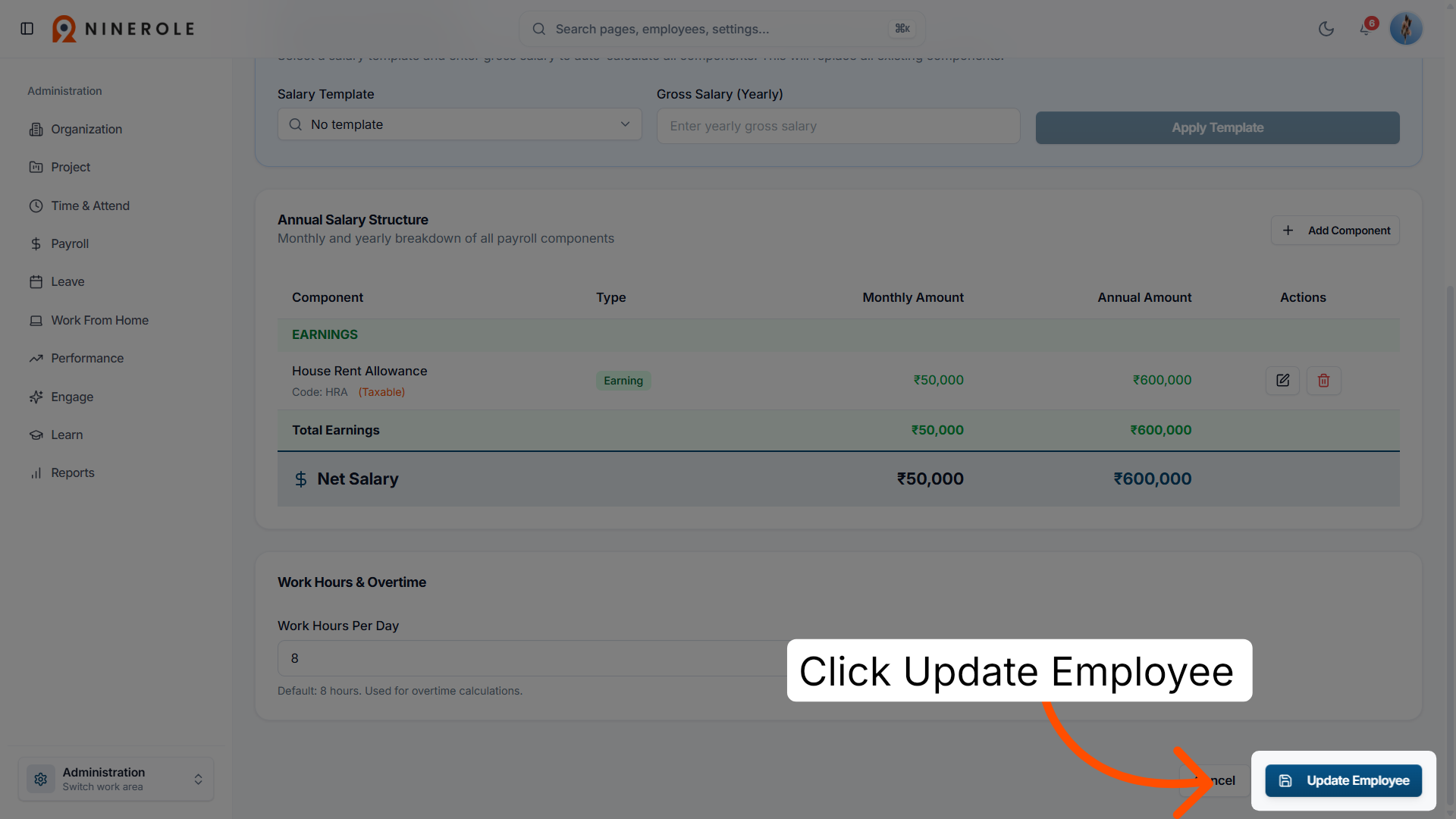
17. Update the employee record
Save the changes so the updated salary details are recorded against the employee.
Review the salary structure in Payroll
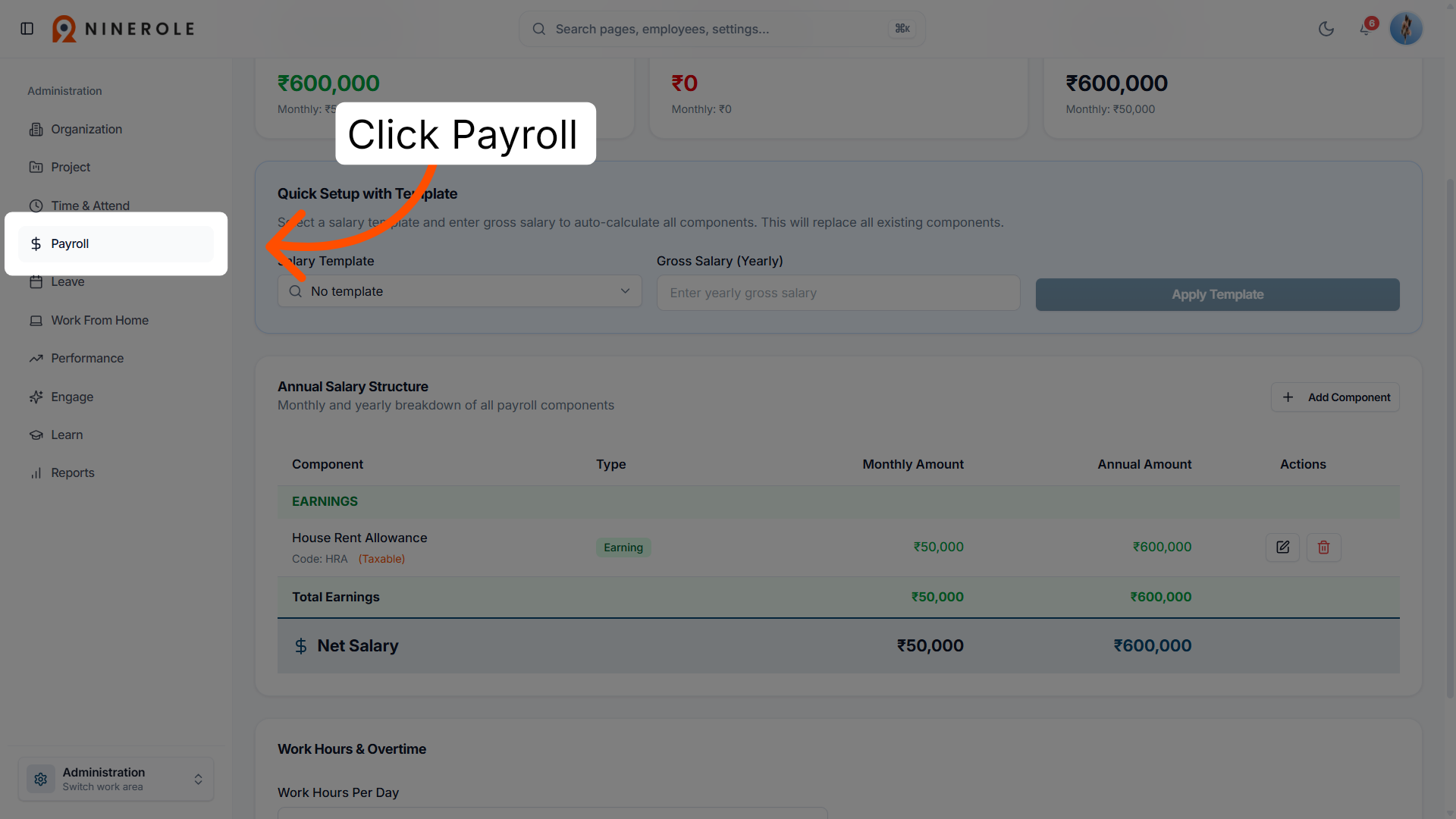
18. Access the payroll section
Go to the Payroll section, where salary structures and payment processing are managed.
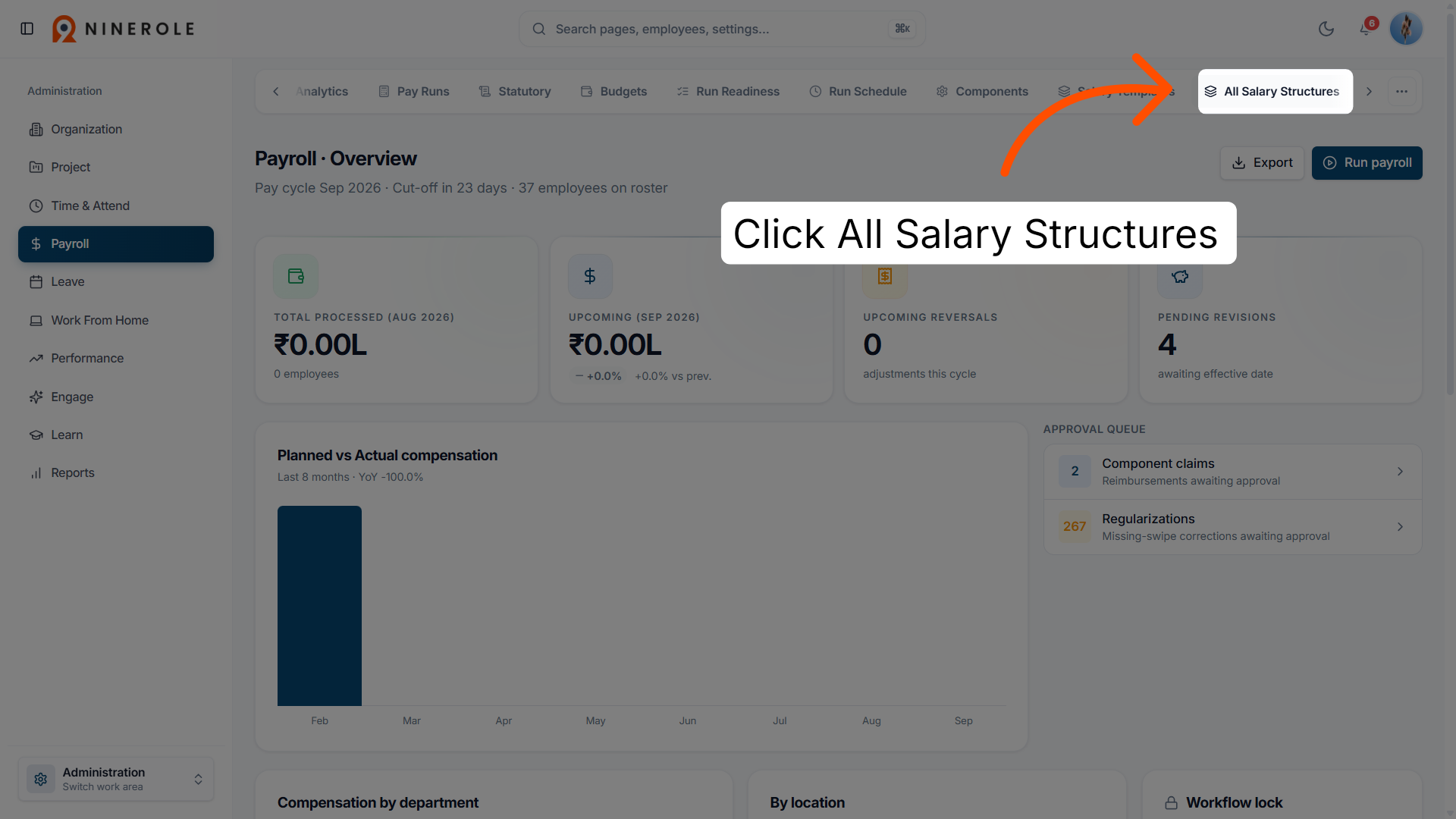
19. View salary structures
Open the list of all salary structures to review the compensation frameworks in use.
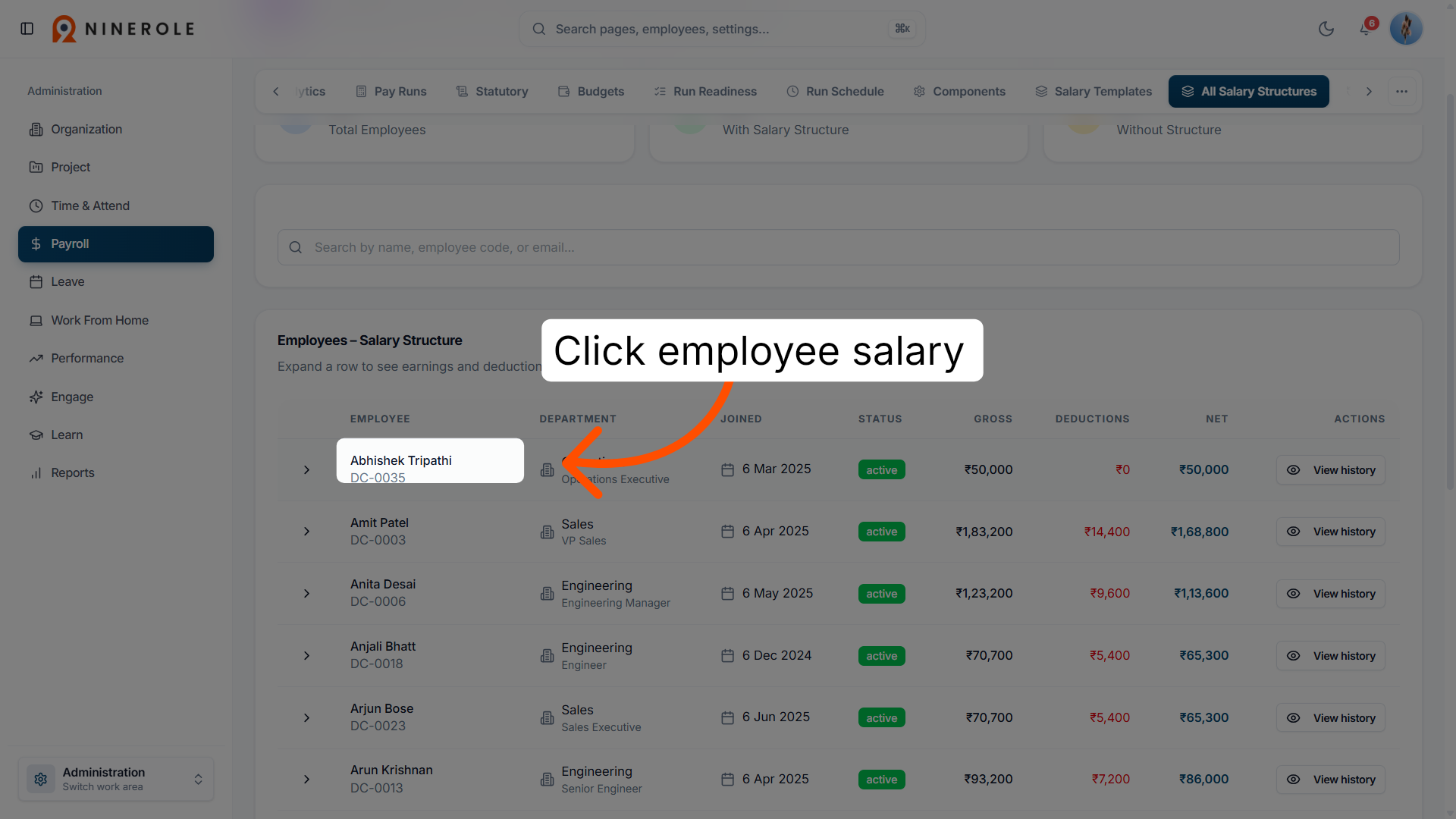
20. Select the employee's salary structure
Choose the employee's salary structure to see its detailed earnings and deductions.
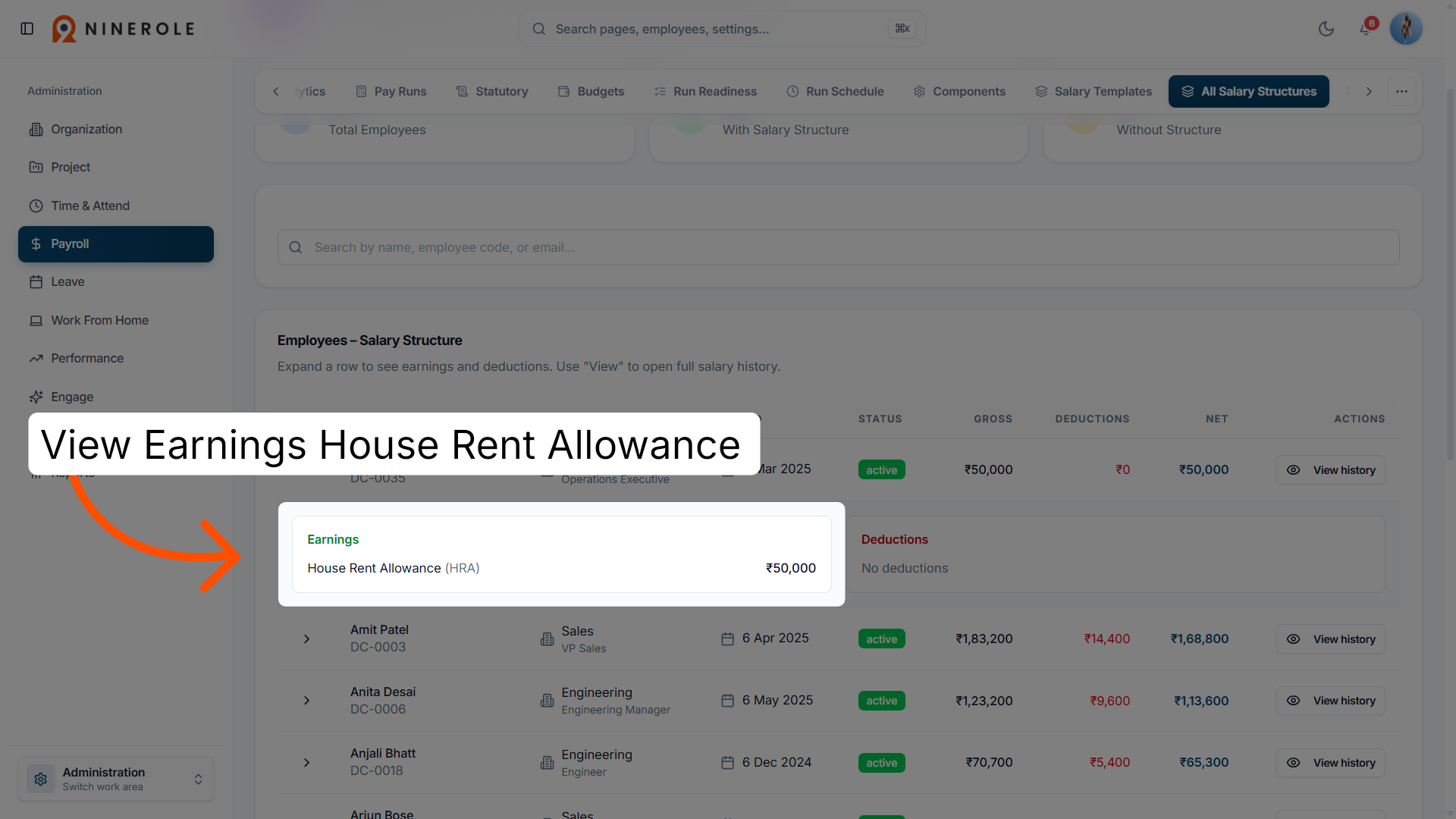
21. Review an earnings component
Check an earnings component — house rent allowance in this example — to verify its value within the structure.
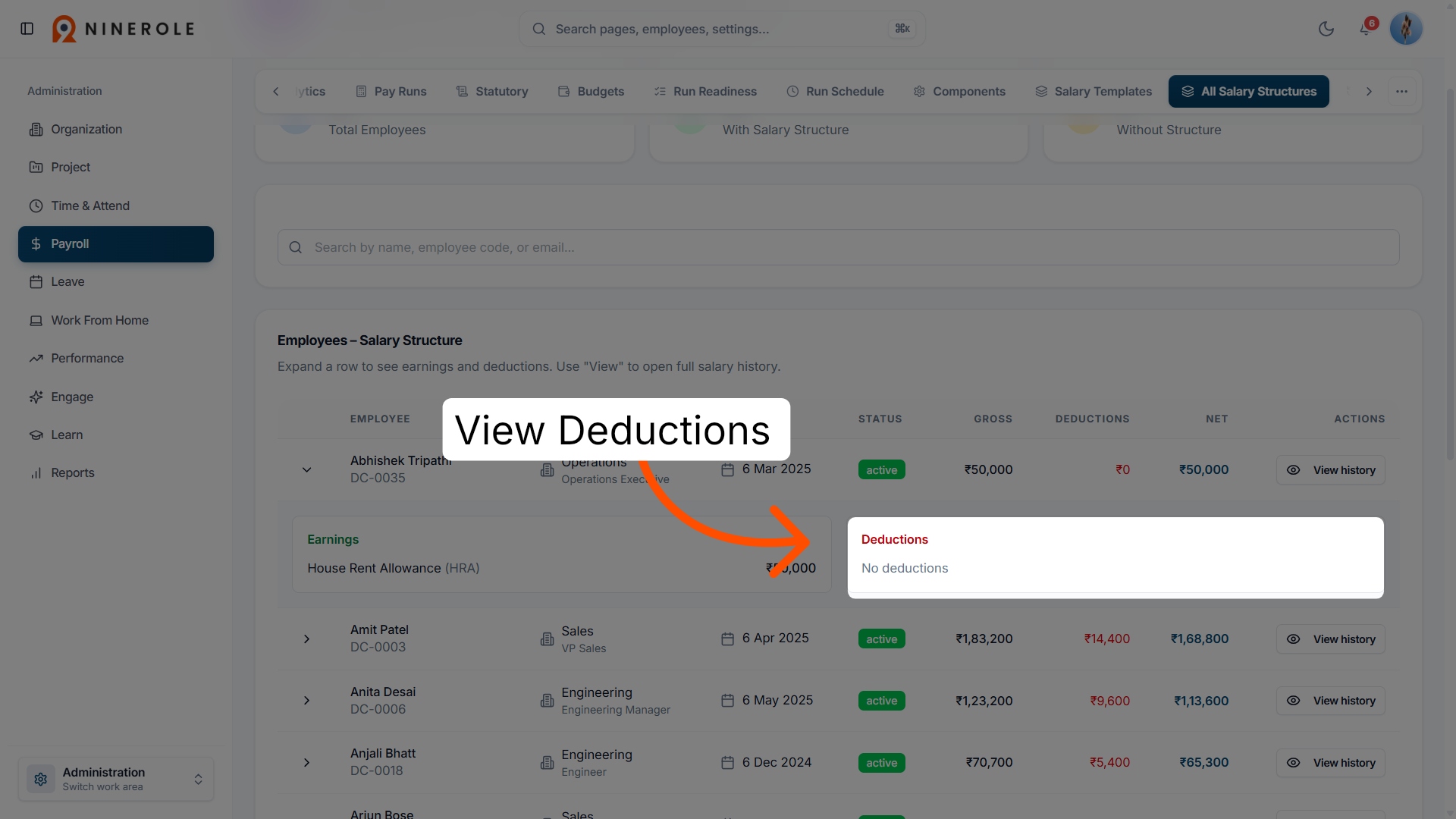
22. Access the deductions section
Open the deductions area to review every subtraction that applies to the employee.
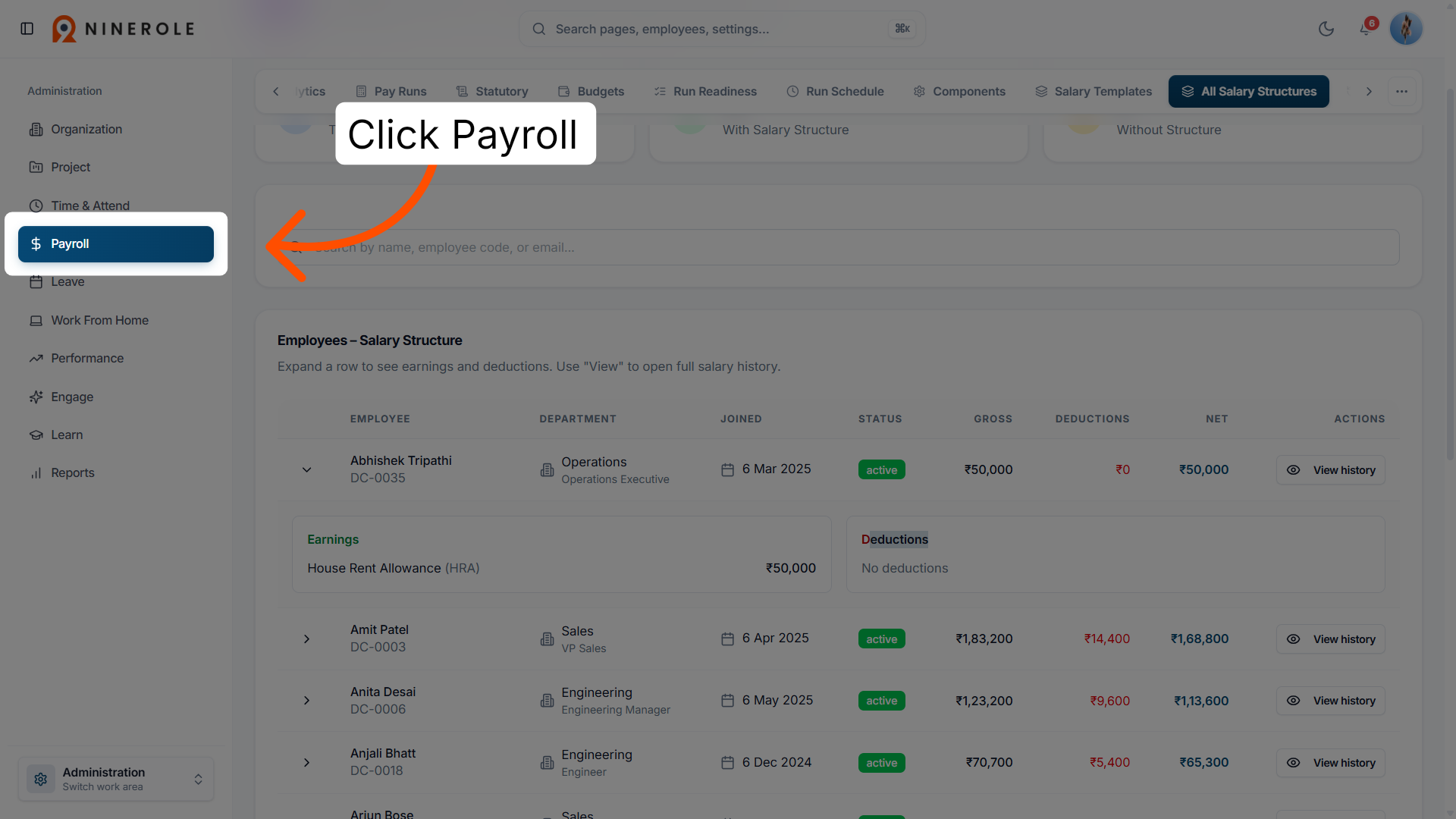
23. Return to payroll
Go back to the main payroll section to continue managing salary and payment details.
Record a salary history entry
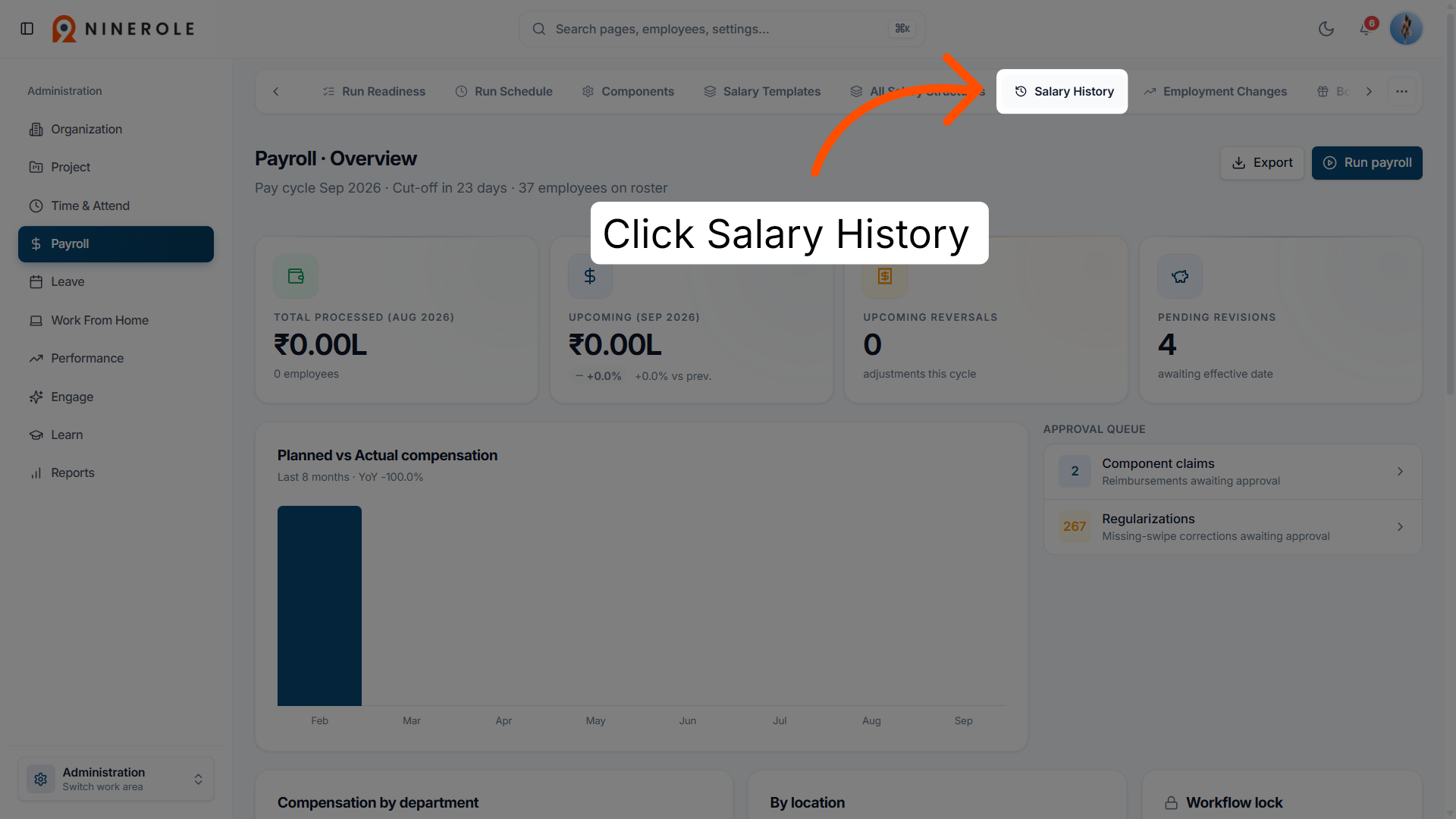
24. Open salary history
Open Salary history to review past compensation changes for the employee.
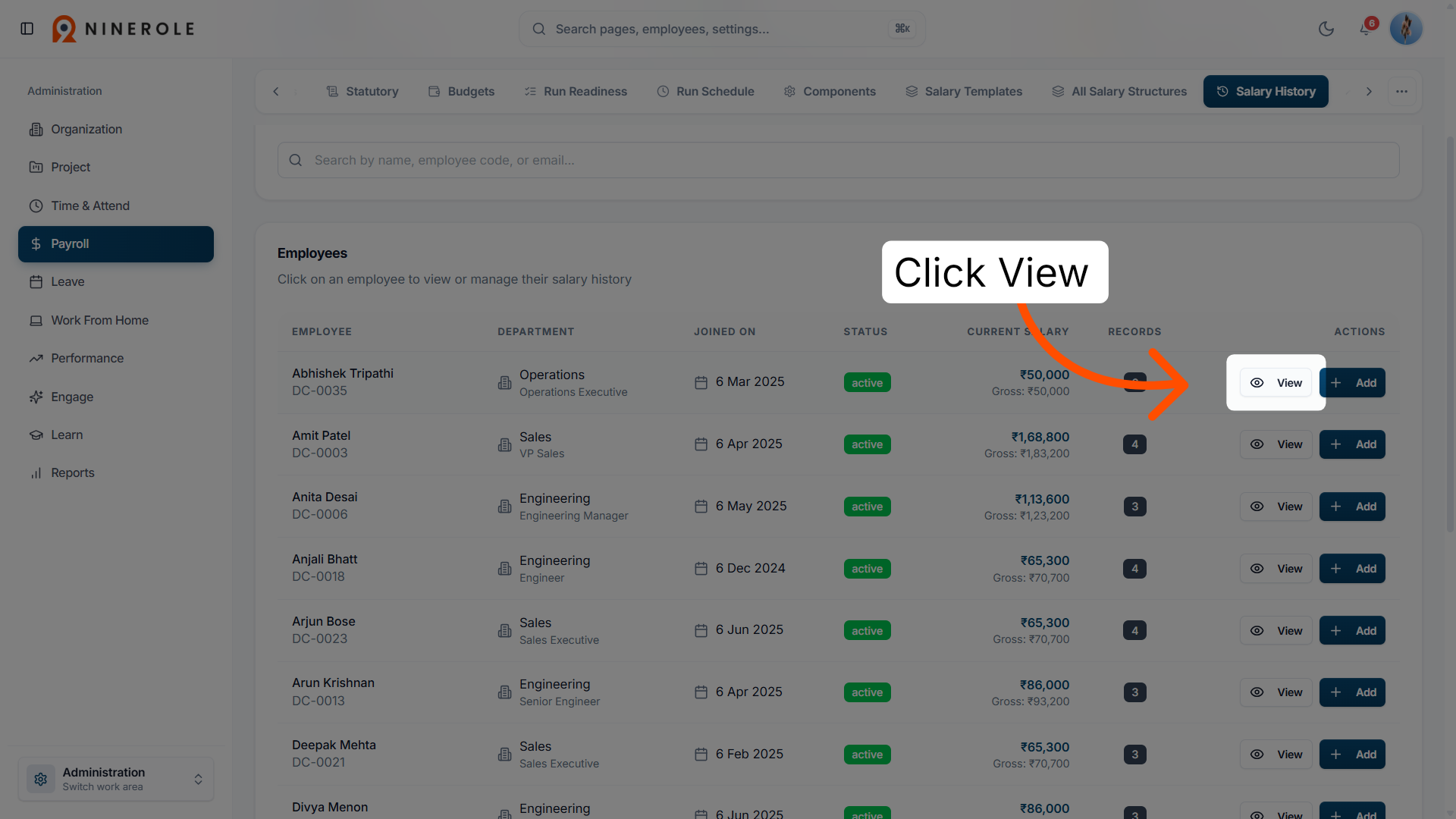
25. View a salary record
Open a specific salary history record to examine the detail behind a previous change.
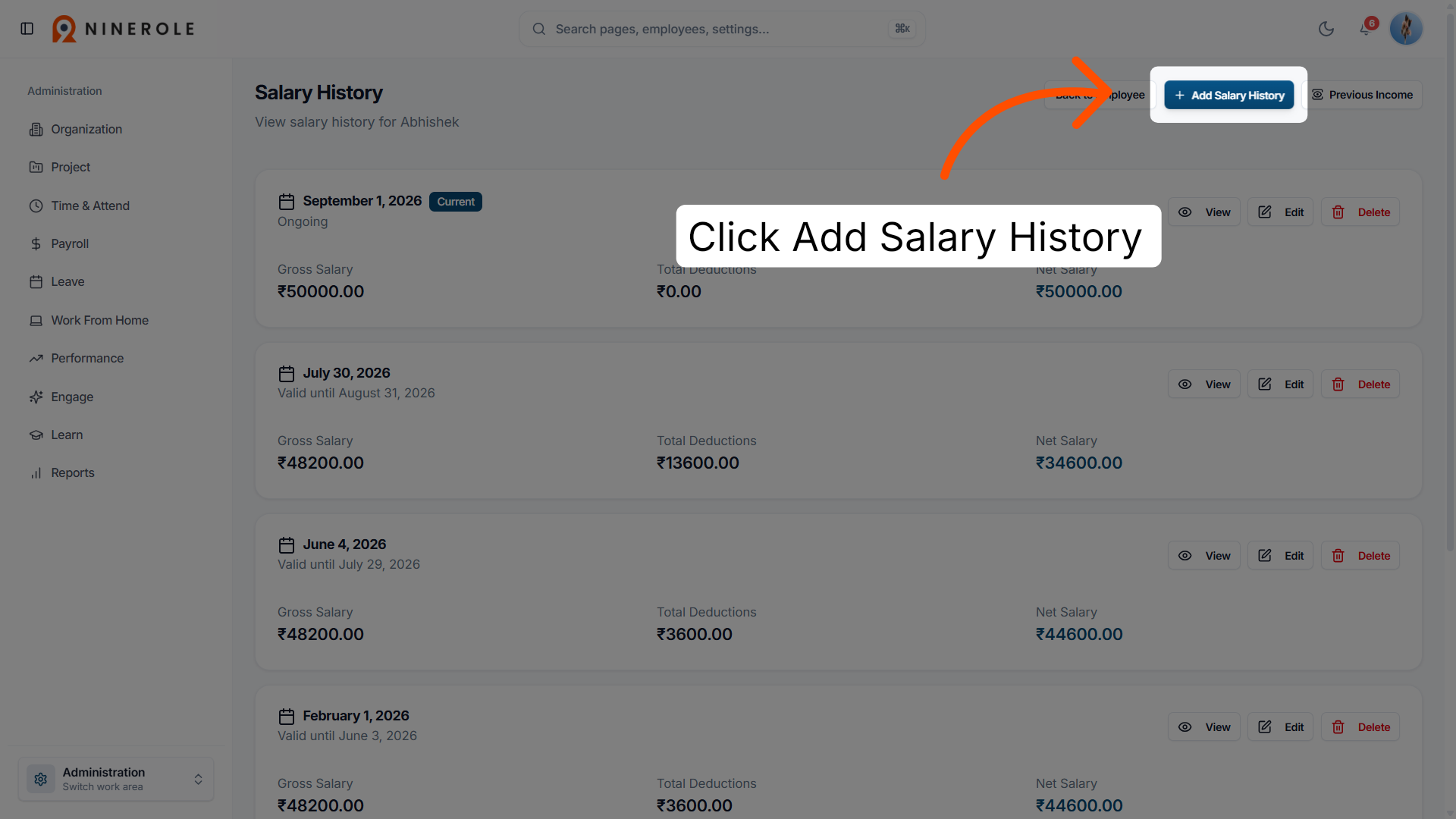
26. Add a salary history entry
Start a new salary history entry for the employee's compensation record.
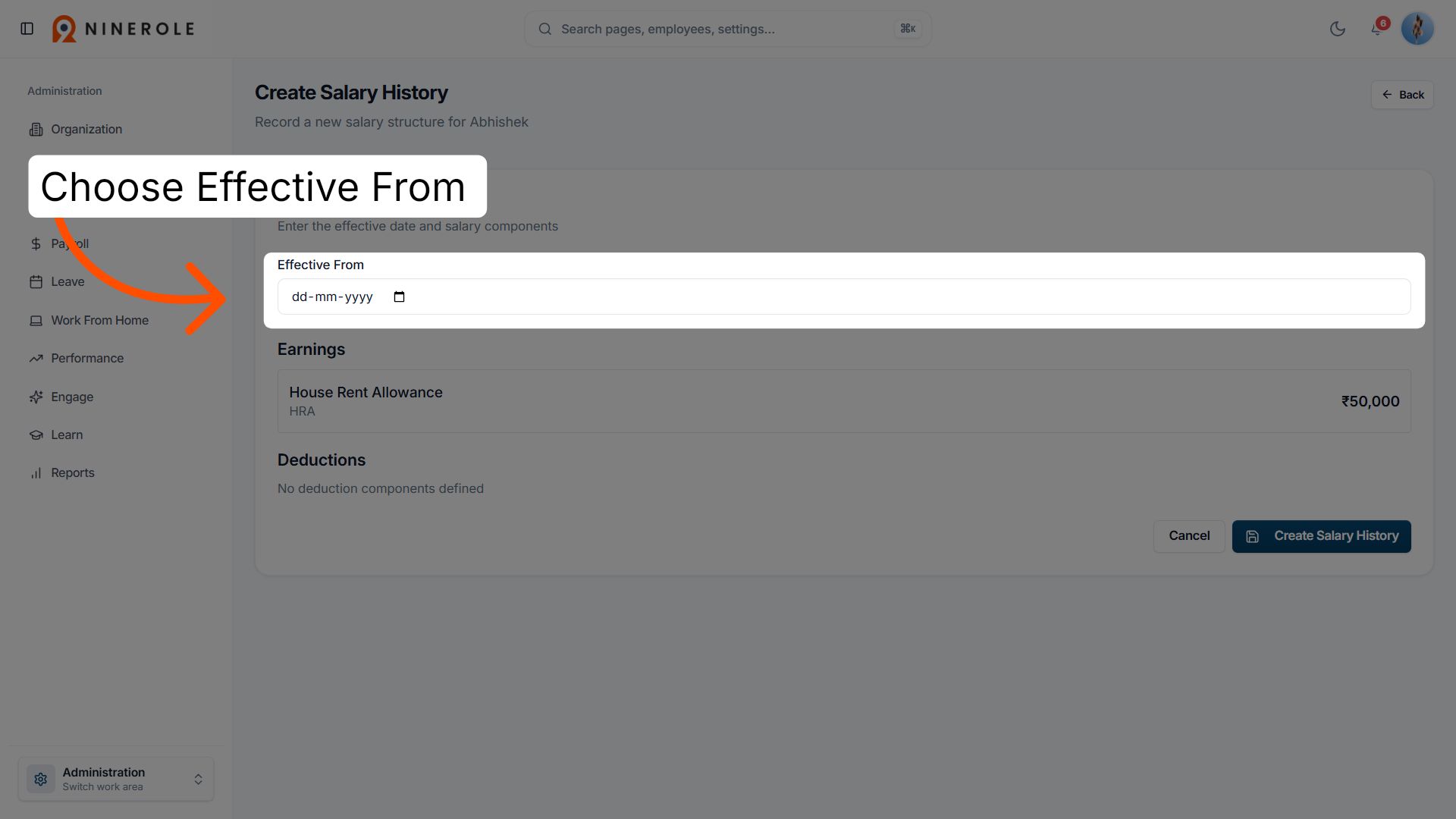
27. Set the effective date
Select the effective date for the entry to specify when the change takes effect.
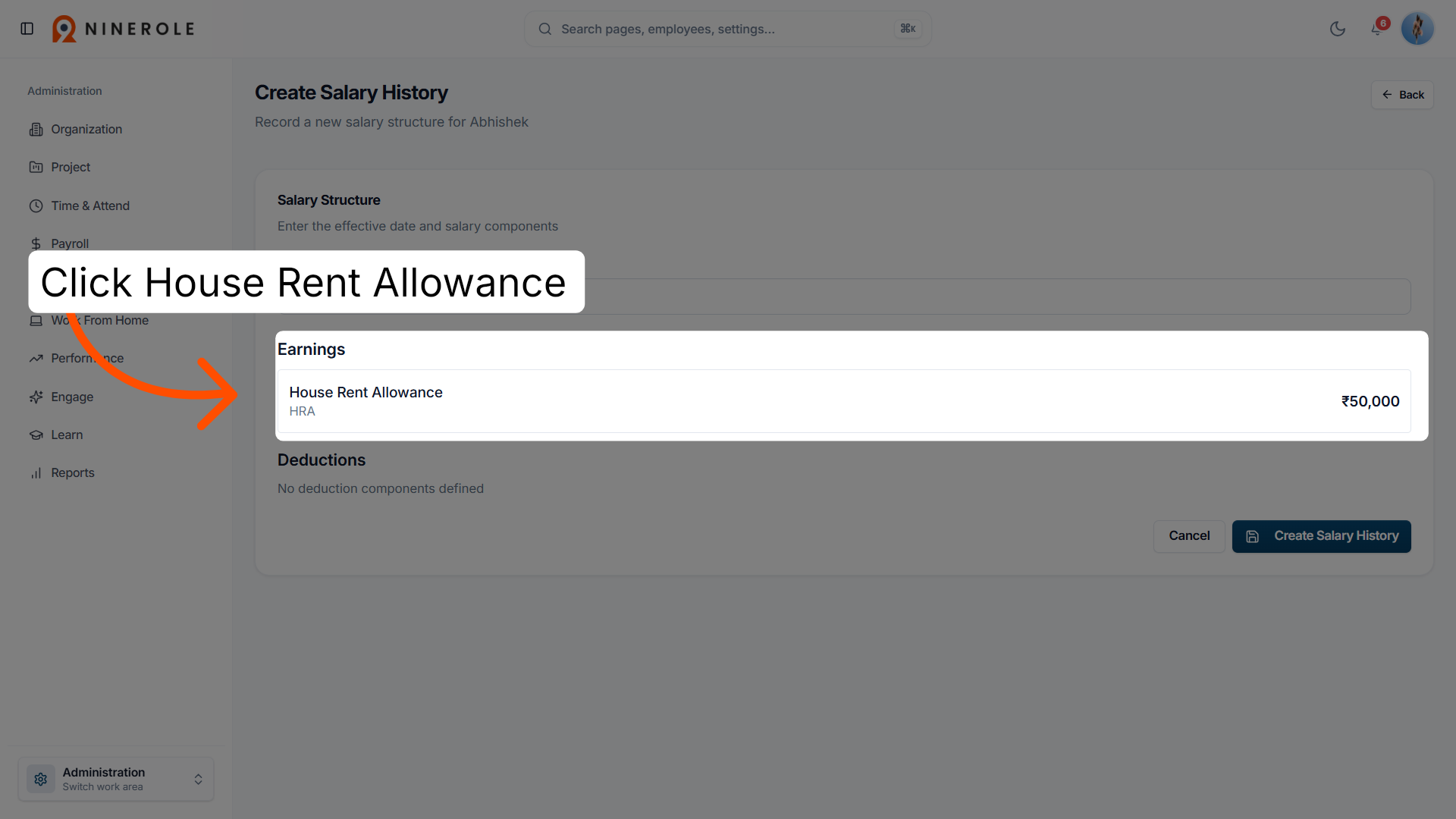
28. Choose the allowance type
Select the allowance type — house rent allowance in this example — to include in the new record.
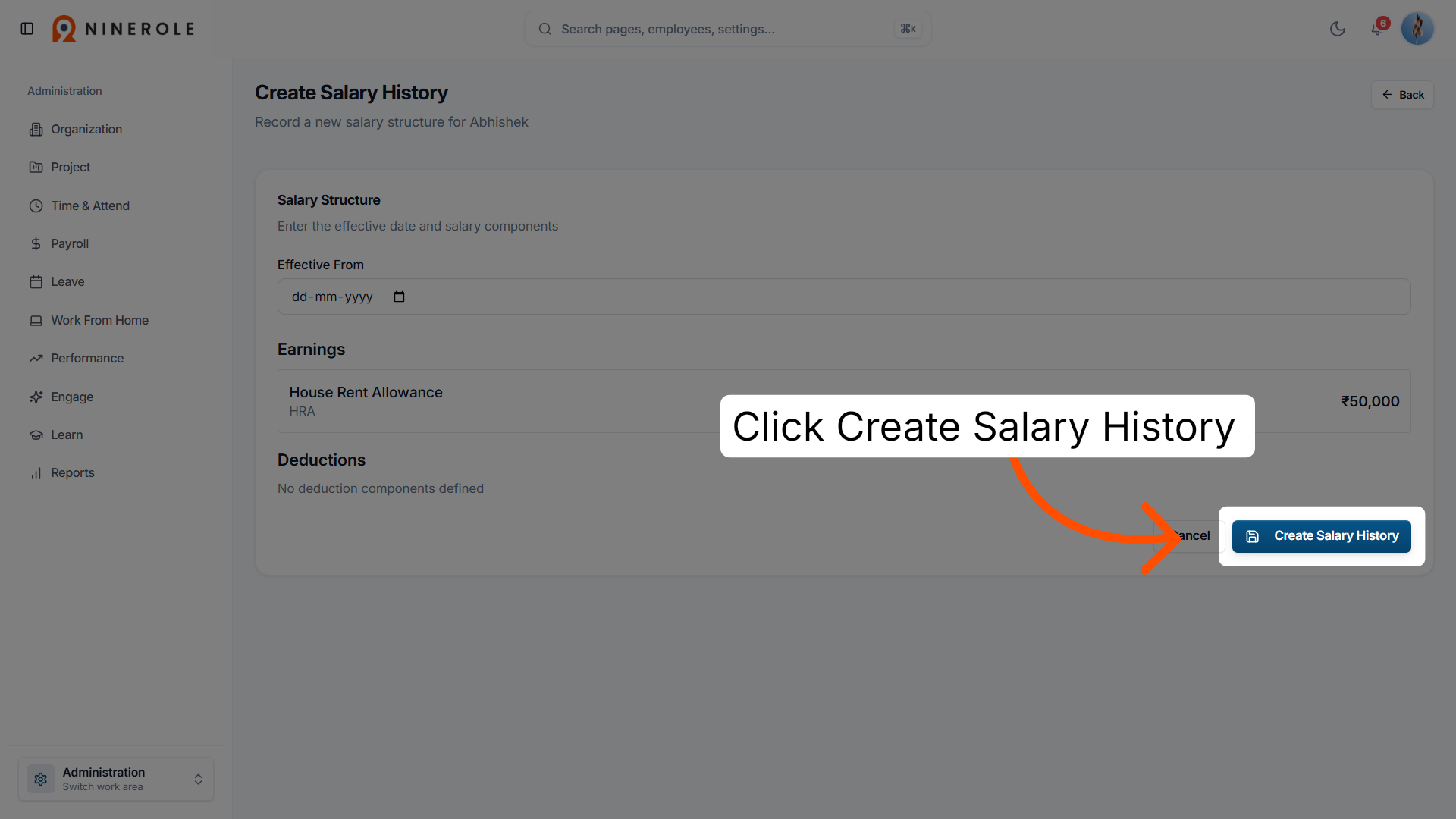
29. Create the salary history entry
Create the entry to update the employee's compensation history.
Following these steps keeps payroll configuration and record keeping accurate for each employee.
Related: Components and templates · Access and review payslips · Add a new employee
Back to Payroll · all modules
Last updated: