

Schedule Live Sessions and Submit External Trainings
This tutorial guides you through scheduling live training sessions and submitting external training records in Ninerole HRMS.
Before you start, go to ninerole.com.
About this task
- Purpose
- Schedule a live training session, submit an external training for approval, and download certificates.
- Who can do this
- Employee for external submissions; HR admin or a learning administrator for scheduling
- You will need
- Session details and dates, or the external training details and its cost and duration.
- Result
- A live session is scheduled, or an external training is submitted for approval; certificates can be downloaded.
- This unlocks
- Recorded training history and certifications against the employee's profile.
This guide answers
- How do I schedule a live training session?
- How do I submit an external training?
- How do I download my certificate?
- Who approves external training?
- Where is my training history?
If something goes wrong
- Your certificate is not available.
- Certificates appear once the training is completed and approved.
- An external training was rejected.
- External training usually needs manager or HR approval, including cost. Check the reason on the request.
Related: Create a course · Profile settingsAlso called: external training, live session, certification.Last verified: 7 September 2026
Open Live Trainings
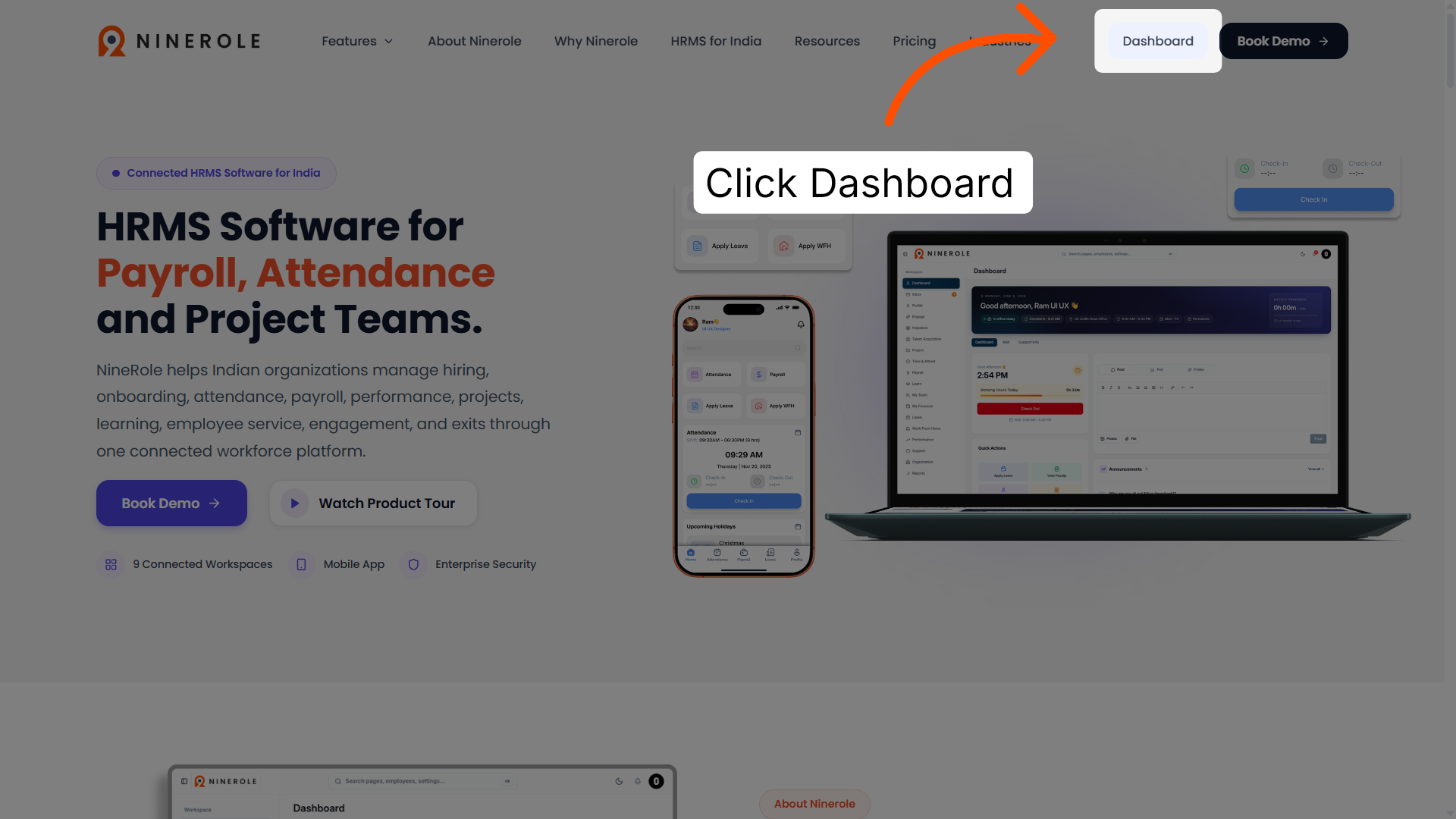
1. Access the dashboard
Click Dashboard to open the main overview page of Ninerole HRMS.
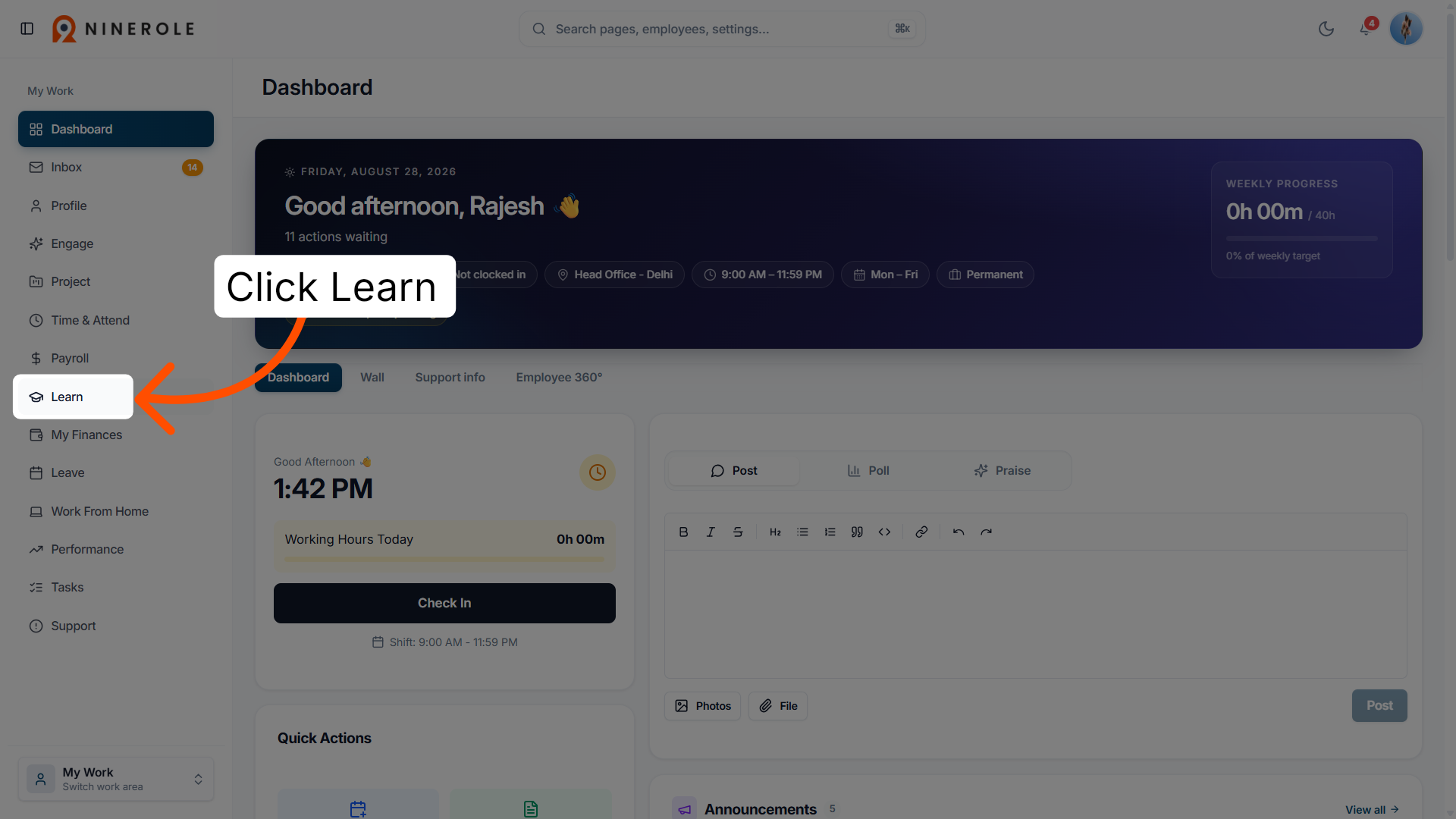
2. Open the Learning section
Click Learn to navigate to the learning and training resources available on your dashboard.
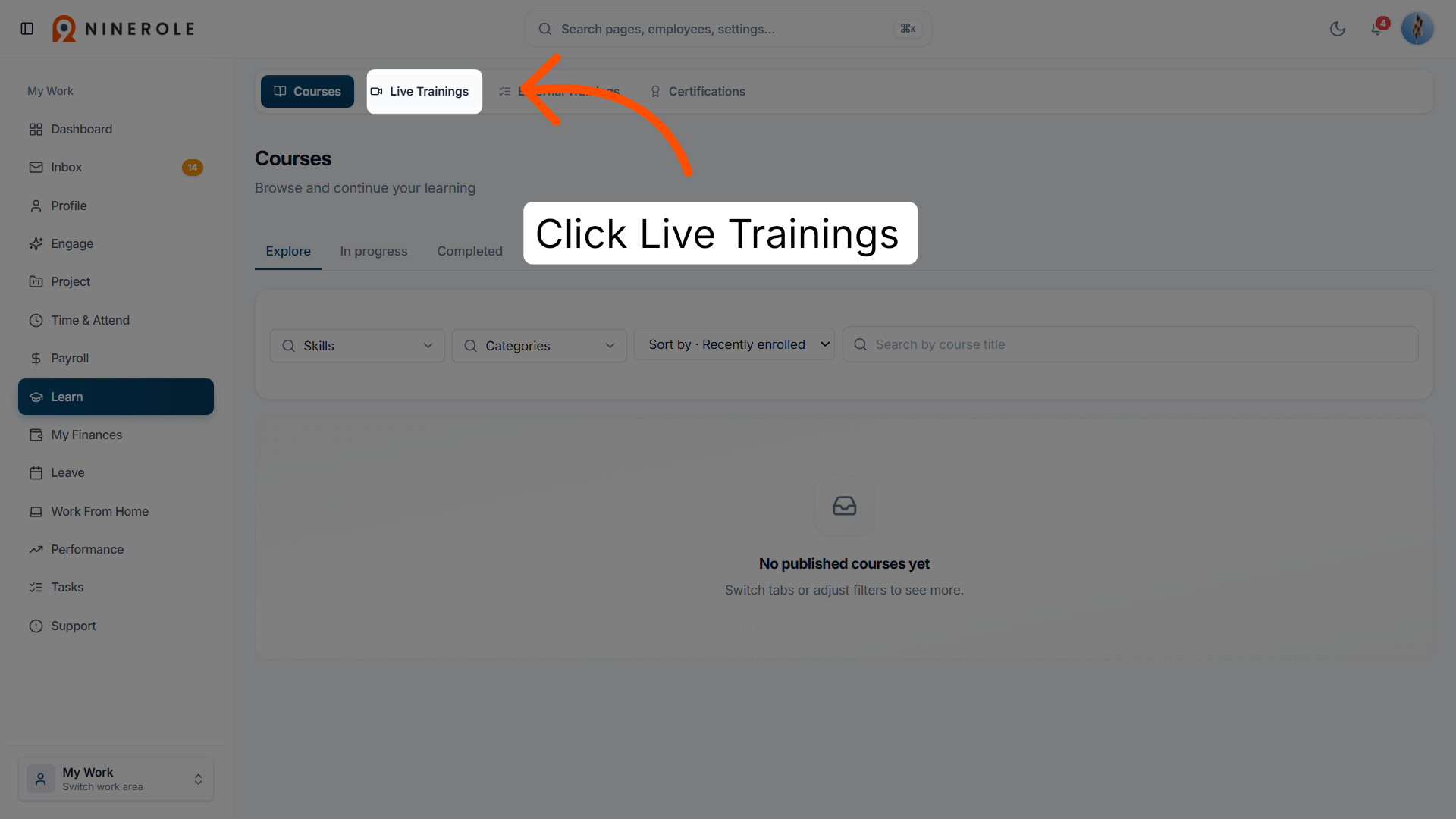
3. View Live Trainings
Click Live Trainings to access the list of scheduled live training courses.
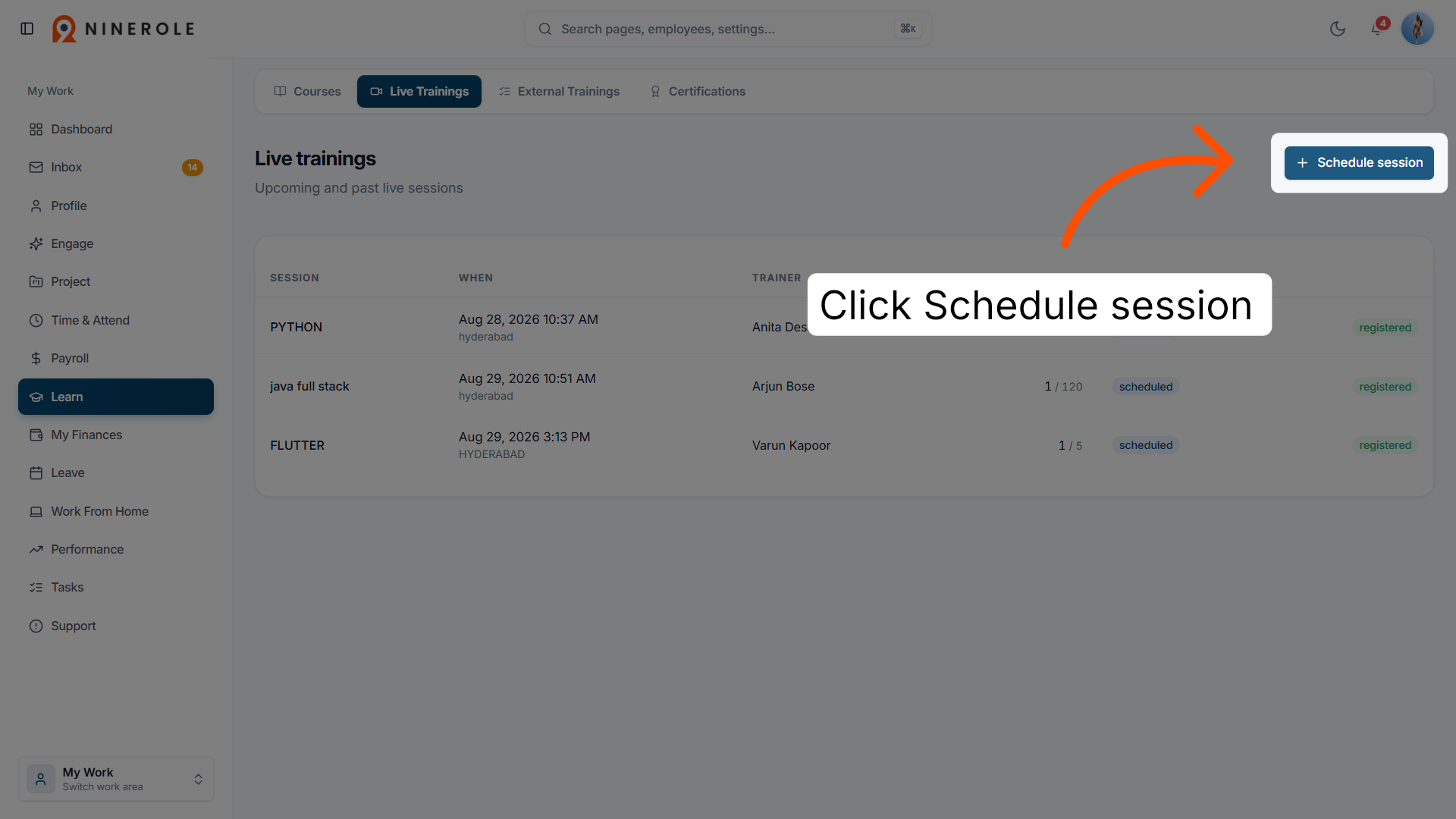
4. Initiate session scheduling
Click Schedule session to start creating a new live training session.
Set up the live session
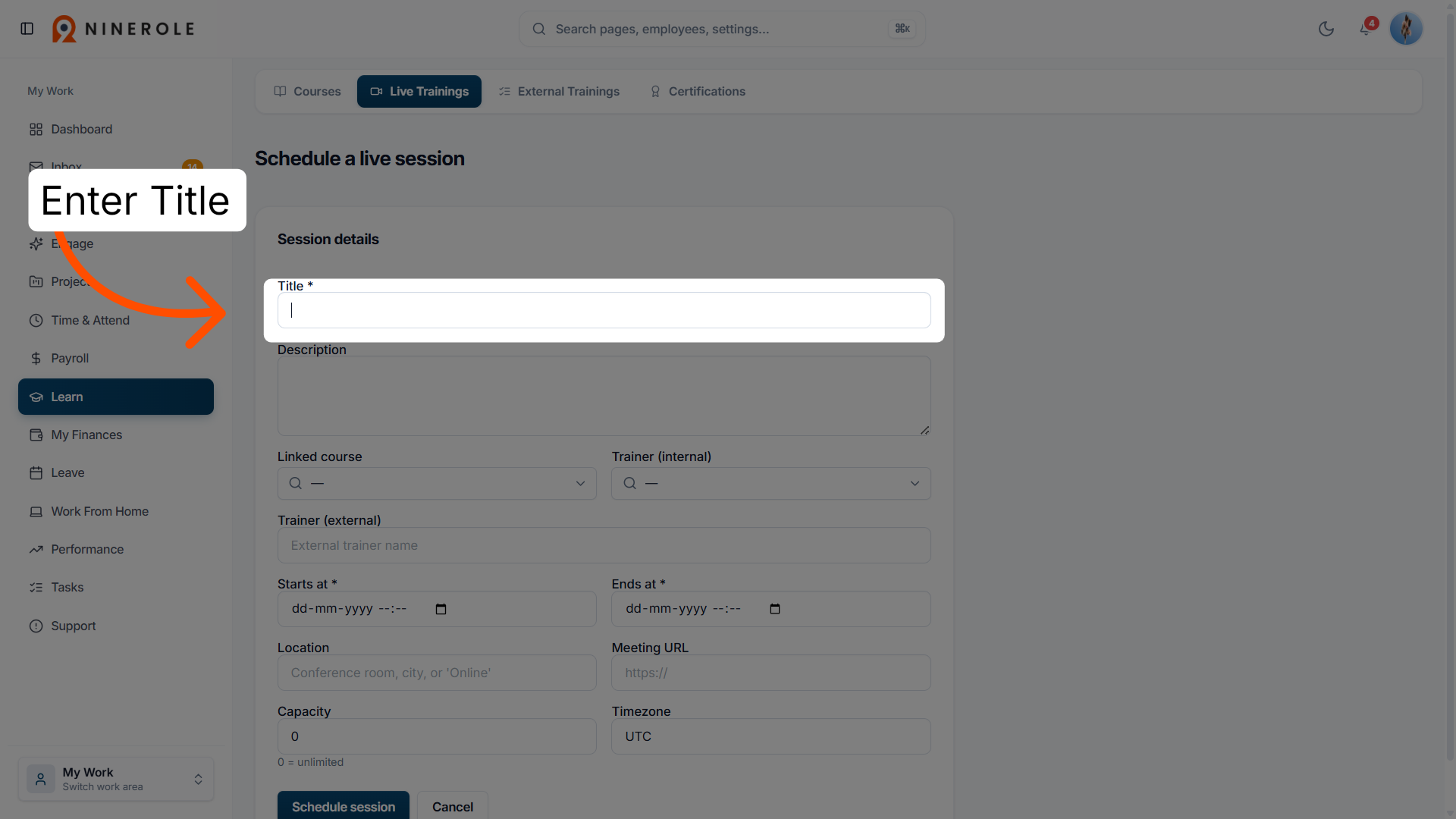
5. Enter the session title
Enter the title for the new live session.
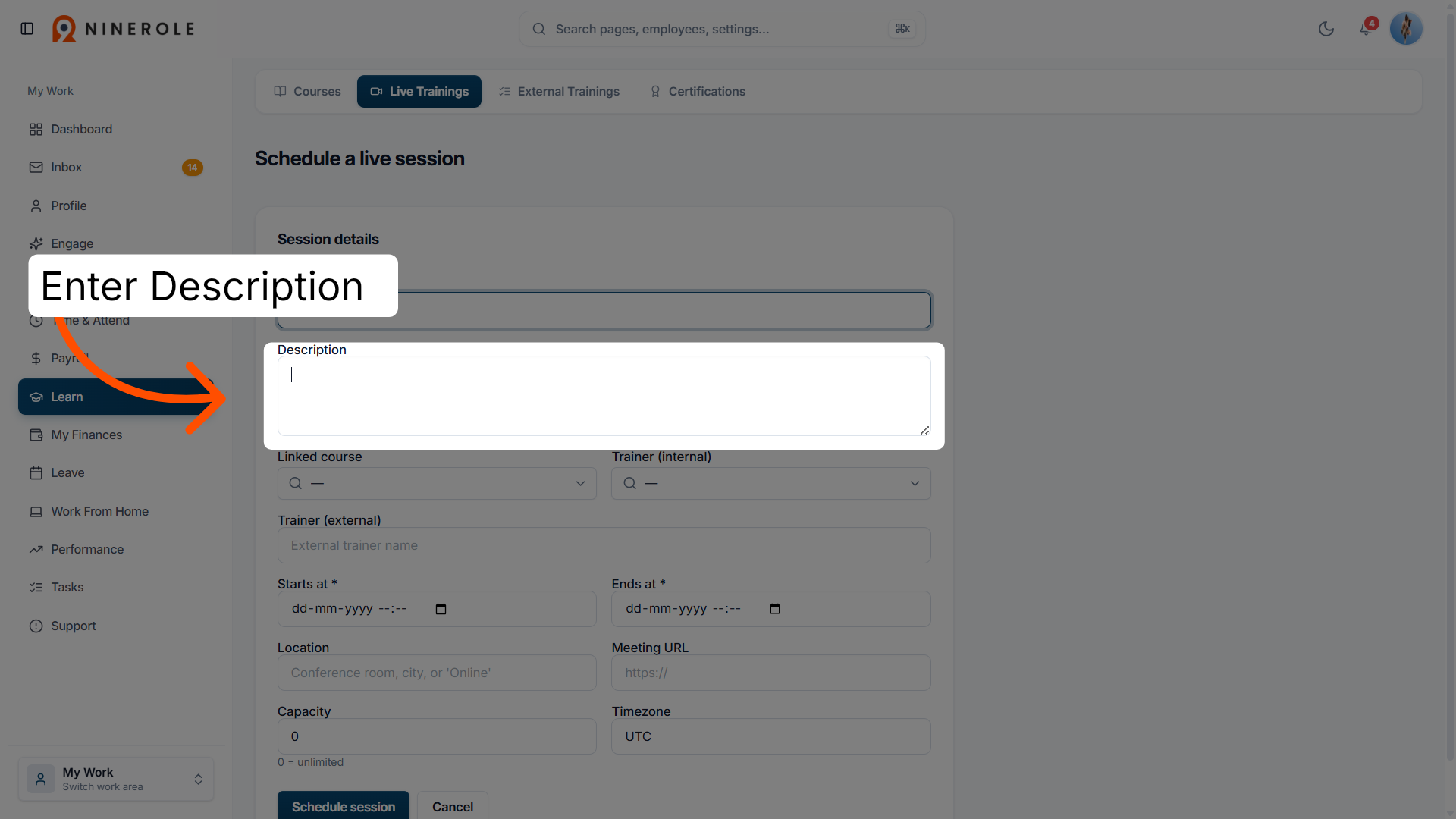
6. Enter the session description
Enter the Description for the live session.
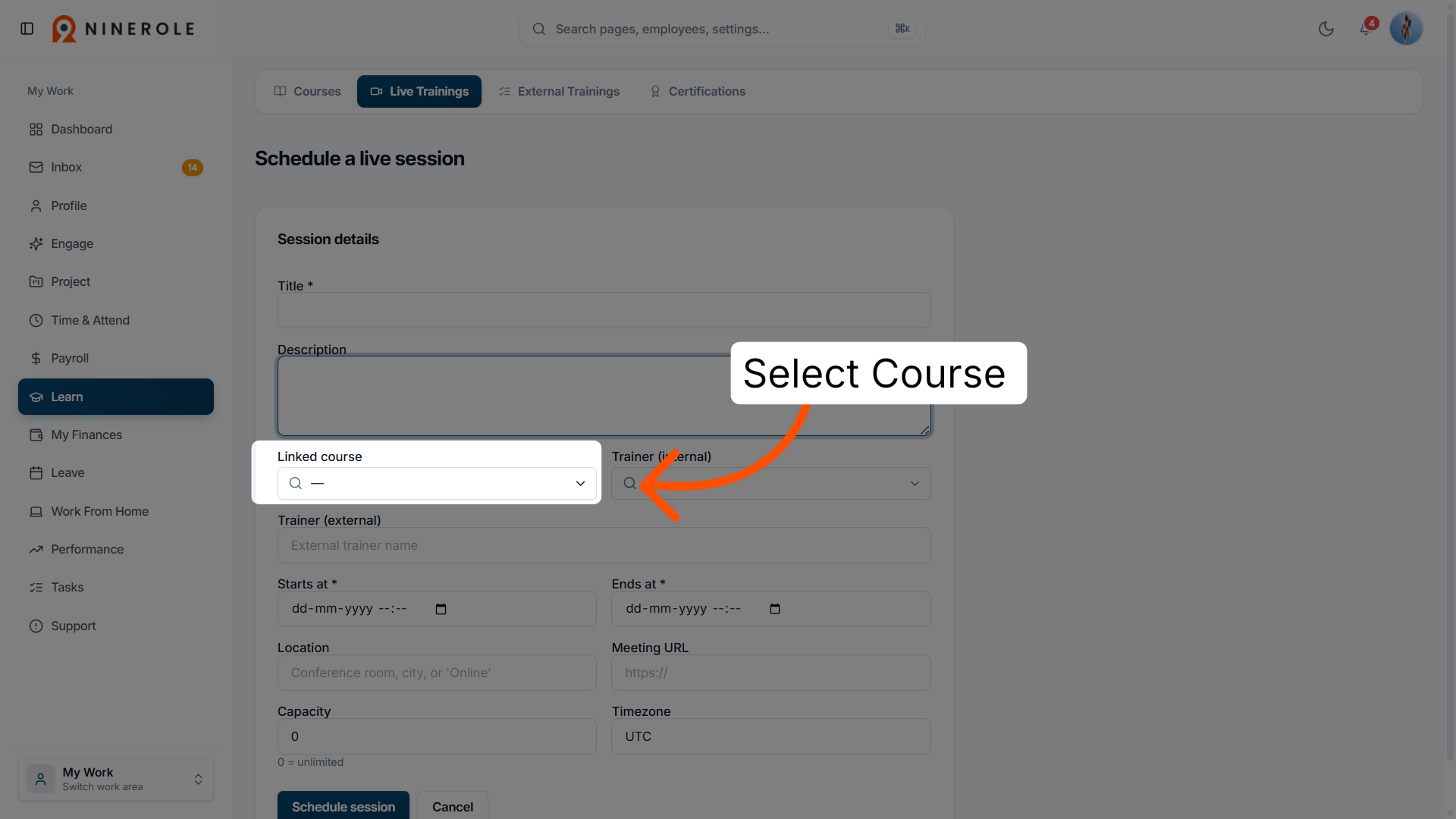
7. Select the linked course
Select the linked course to associate the session with an existing course.
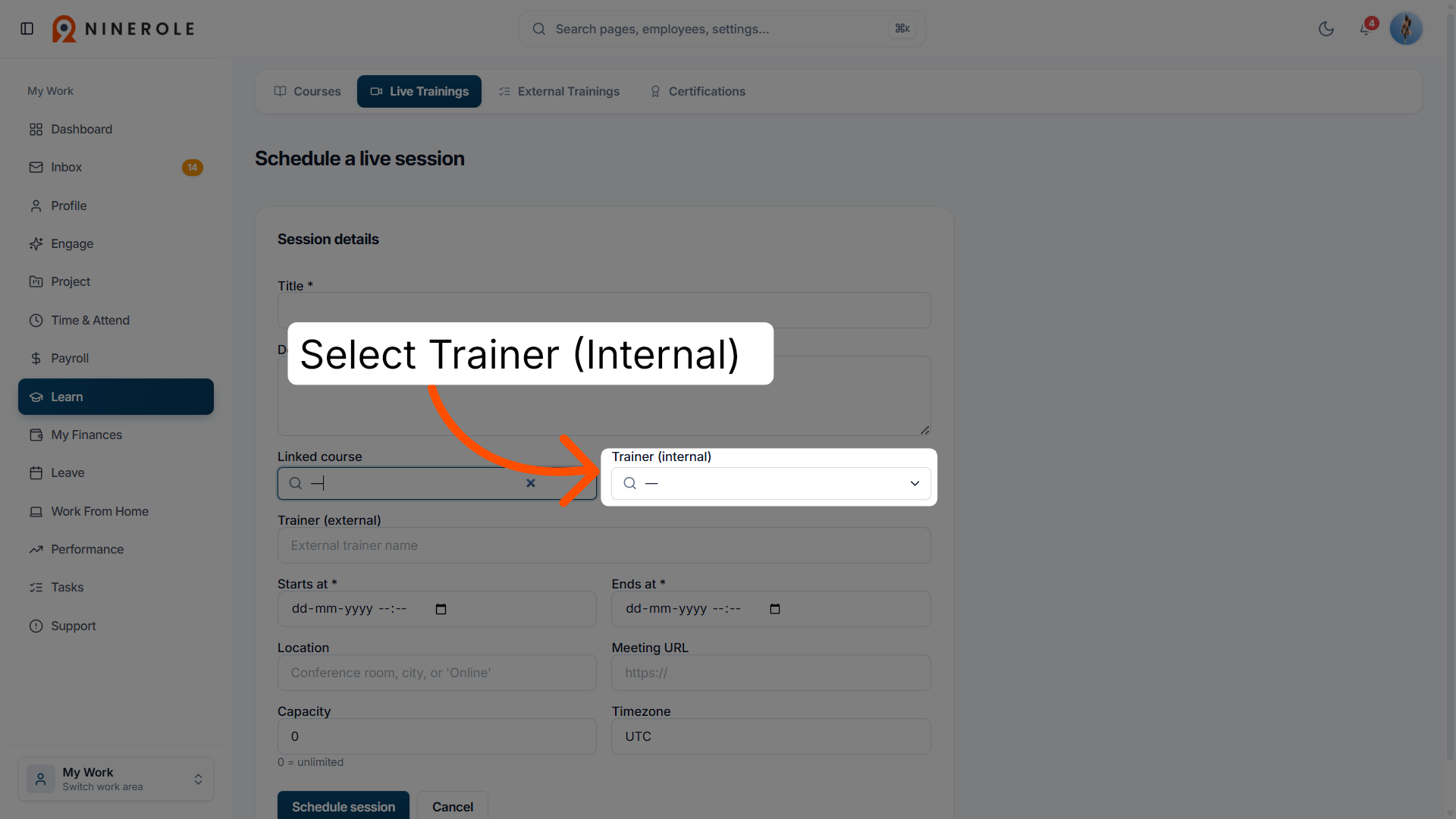
8. Open the trainer lookup
To select an internal trainer, click Open lookup to search for the trainer.
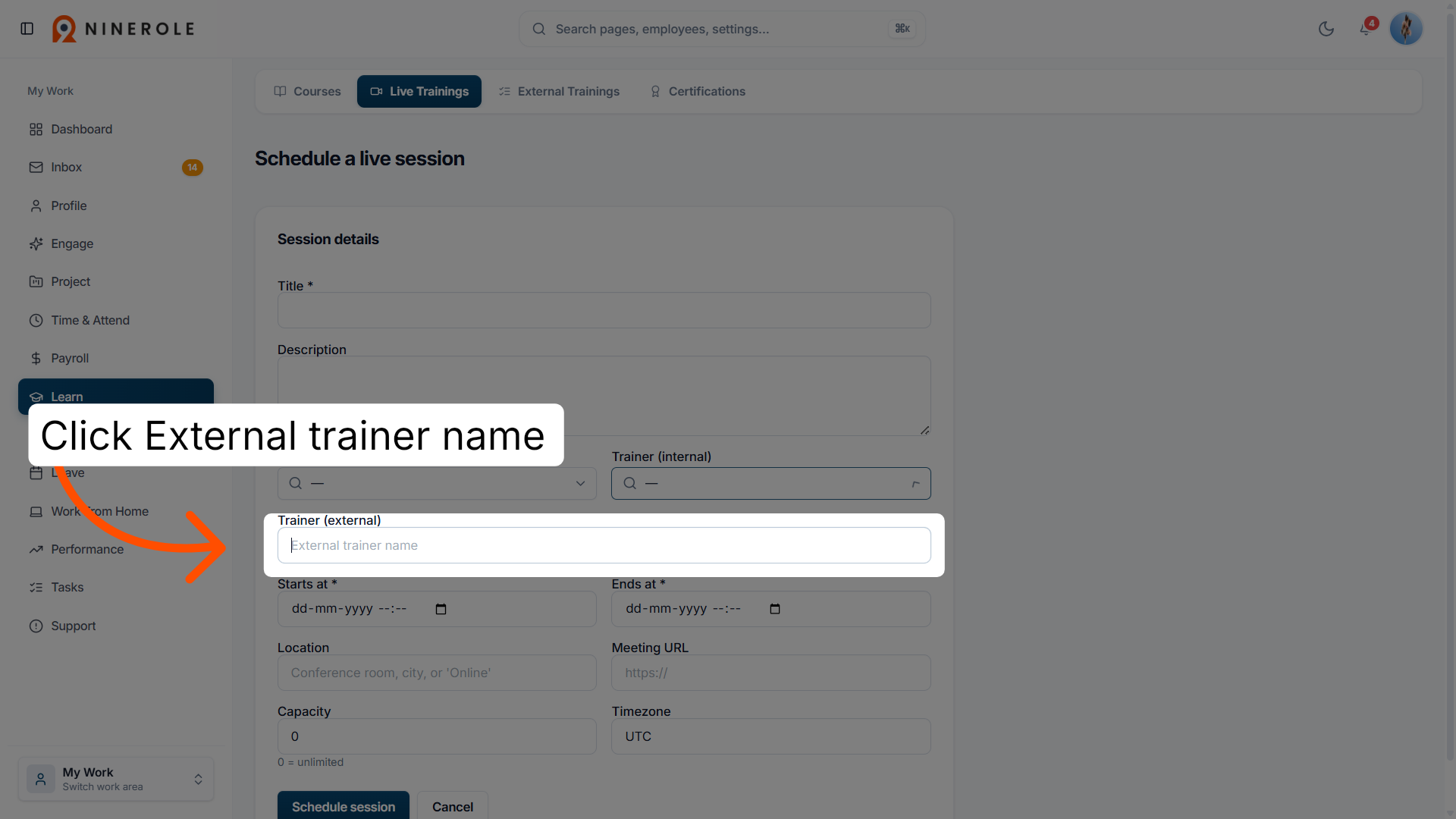
9. Select an external trainer
Click External trainer name to choose the trainer who will conduct the session.
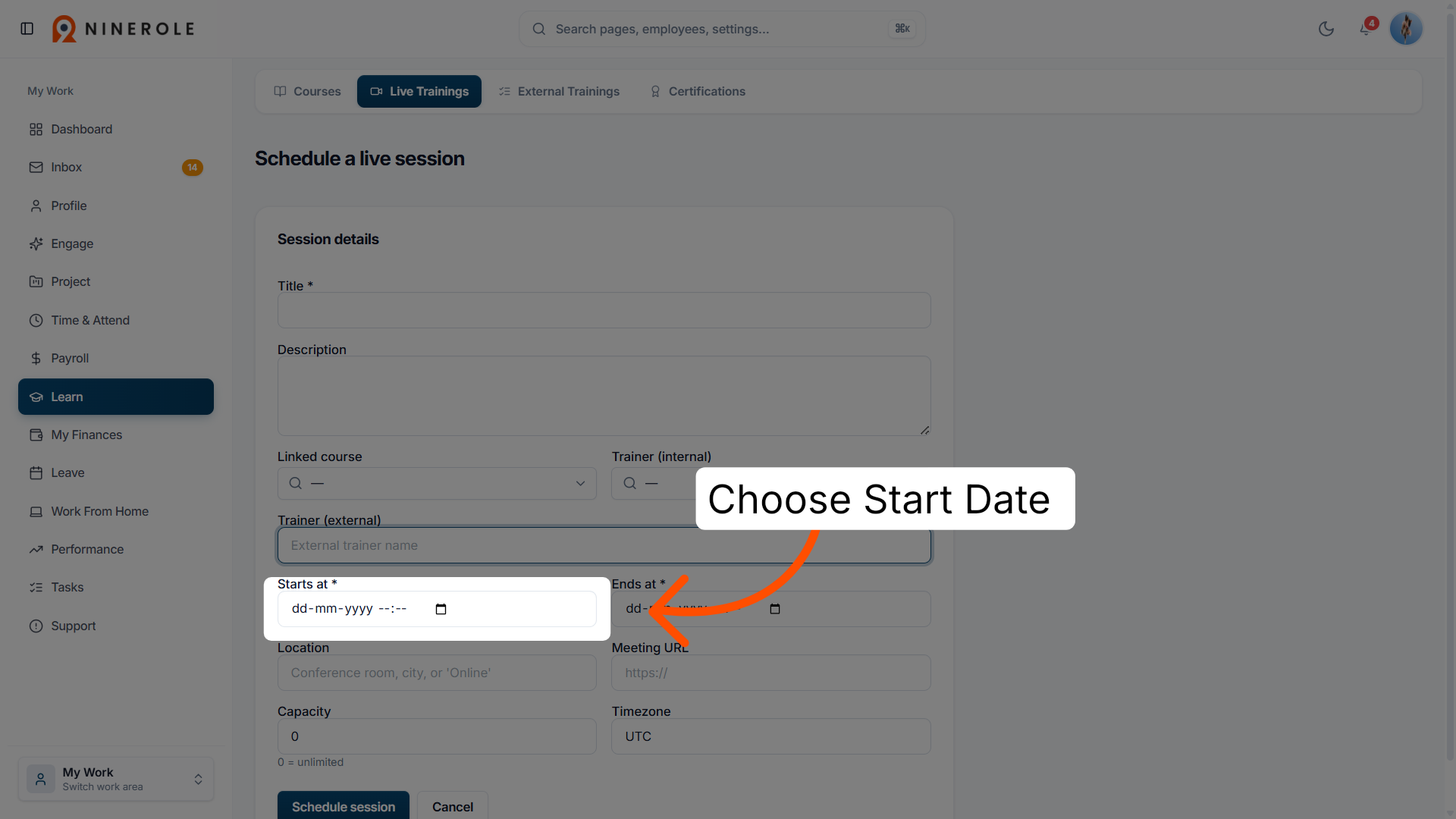
10. Set the session start
Choose the start date and time of the live session.
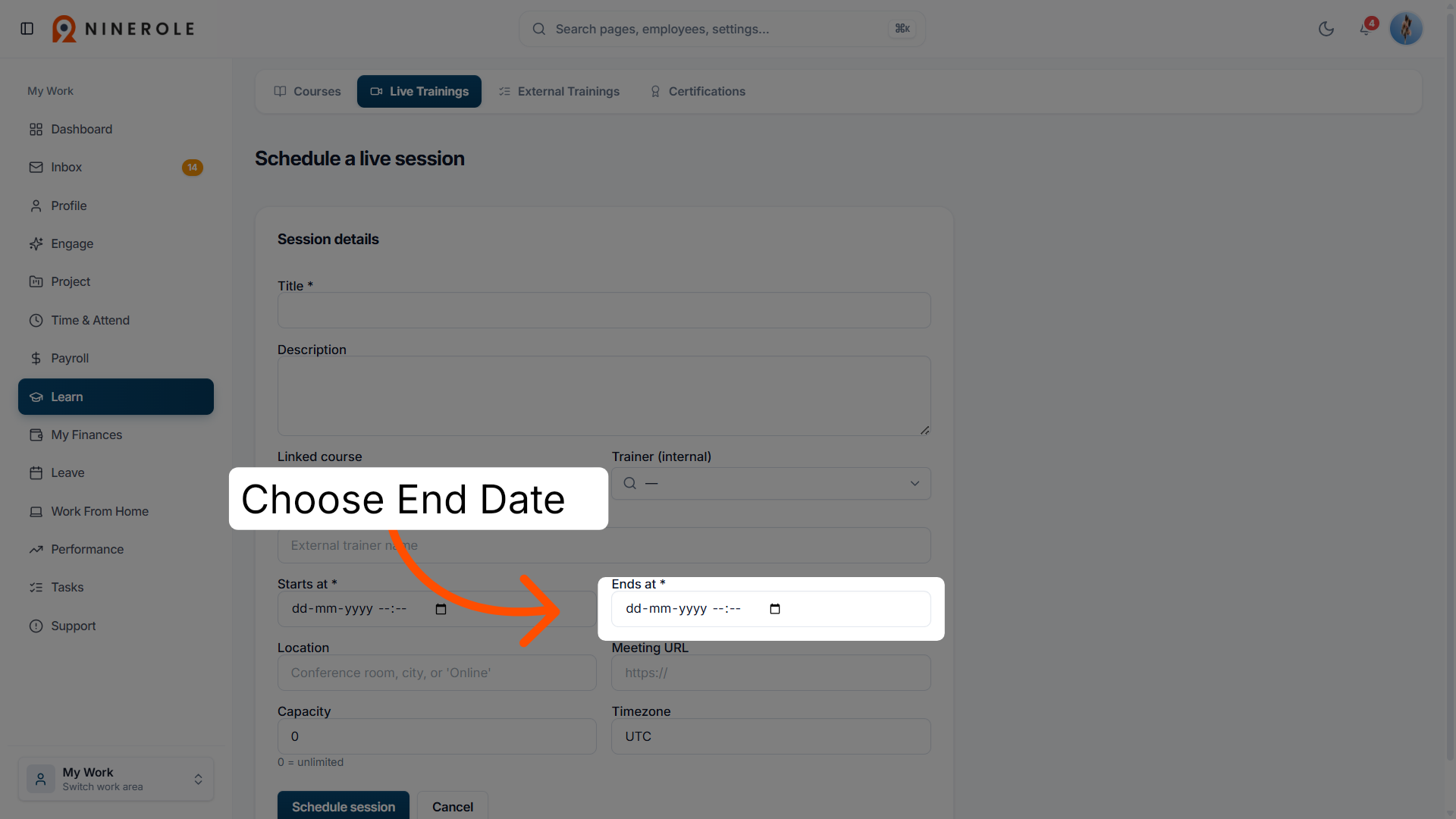
11. Set the session end
Choose the end date and time of the live session.
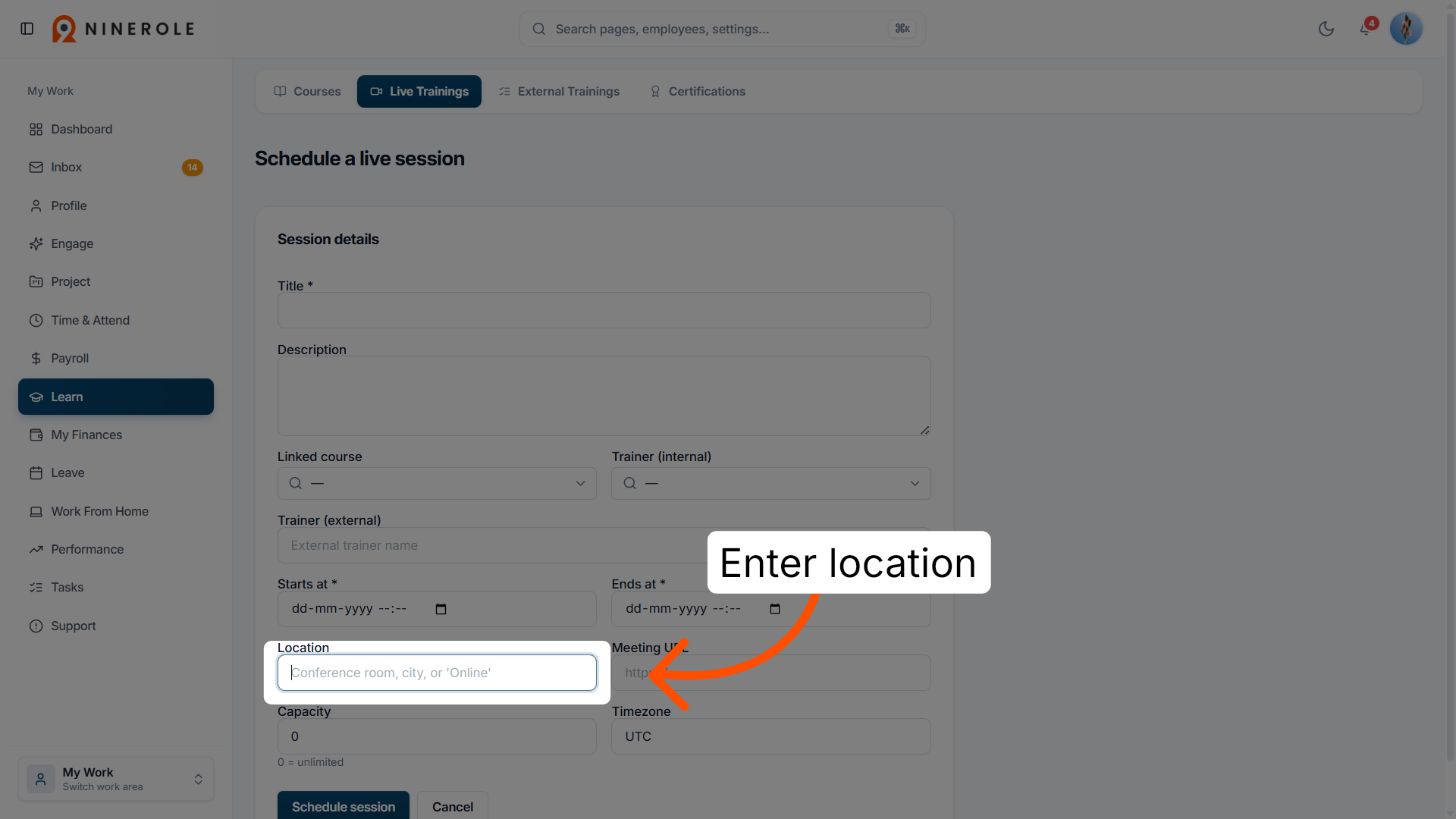
12. Choose the location or mode
Enter a conference room, city, or Online to specify where or how the session will be held.
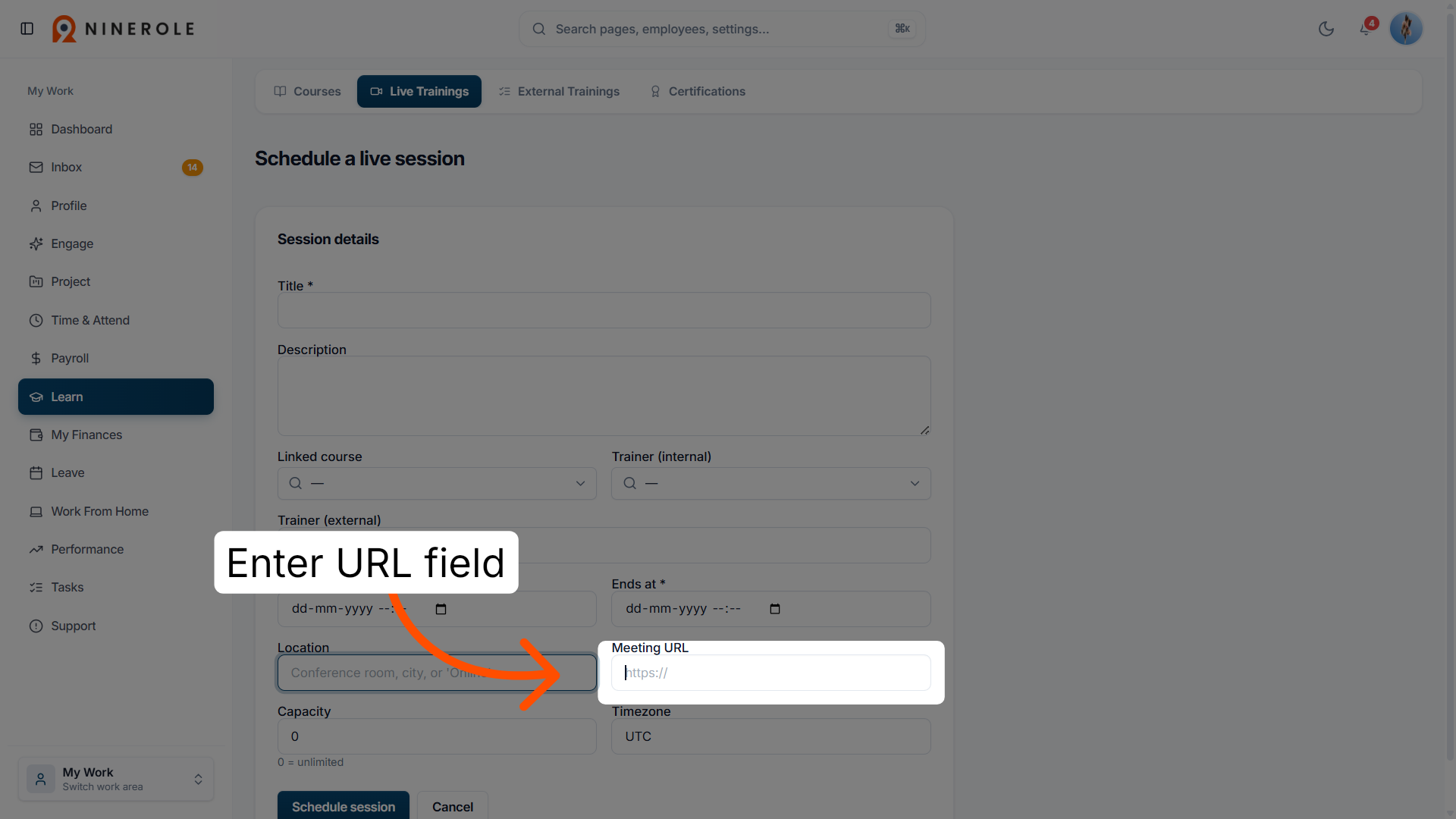
13. Enter the session URL
Enter the URL for the online session if applicable.
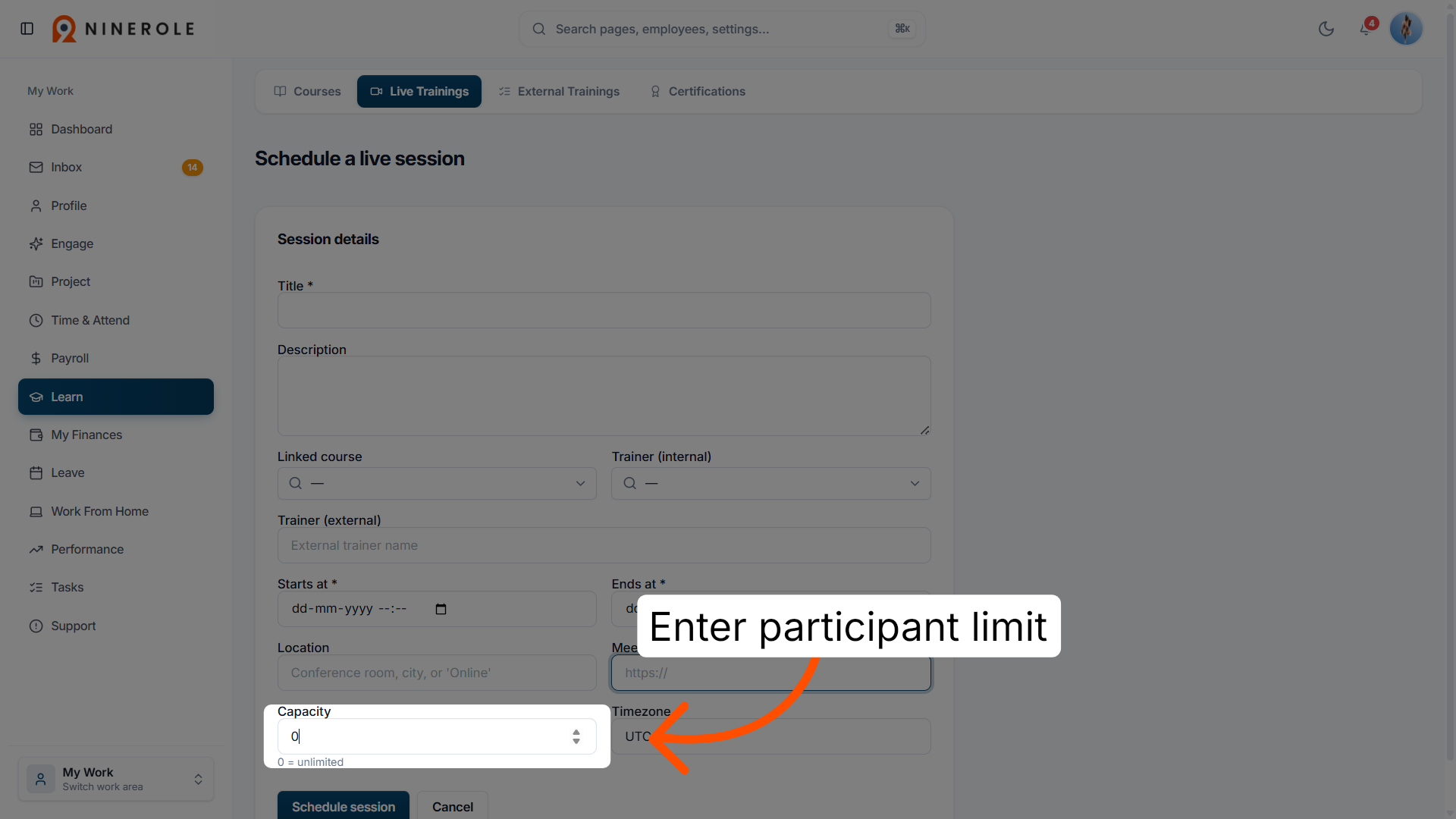
14. Set the participant limit
Enter a number to define the maximum number of participants allowed for the session.
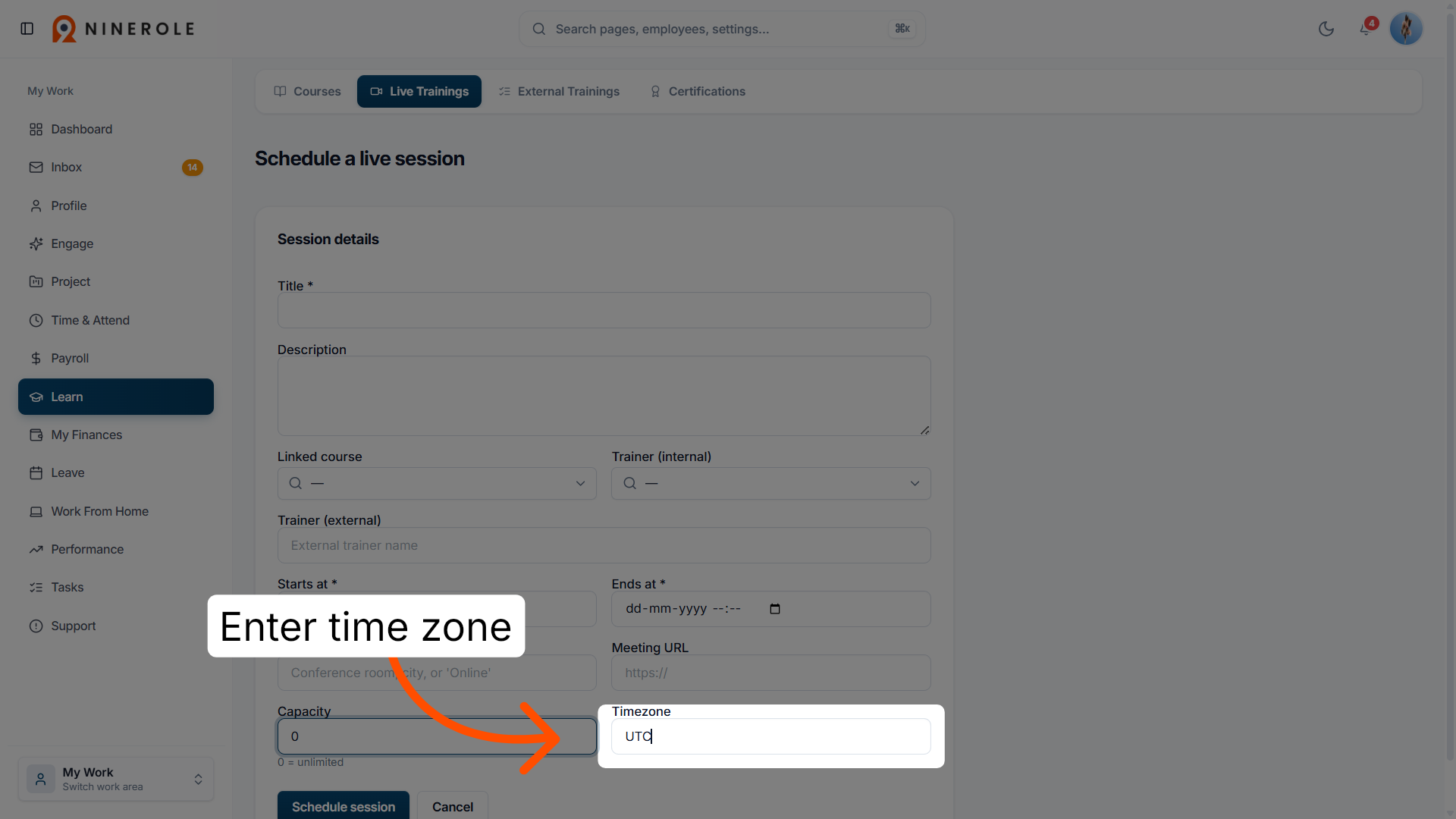
15. Select the time zone
Choose the appropriate time zone for the session schedule.
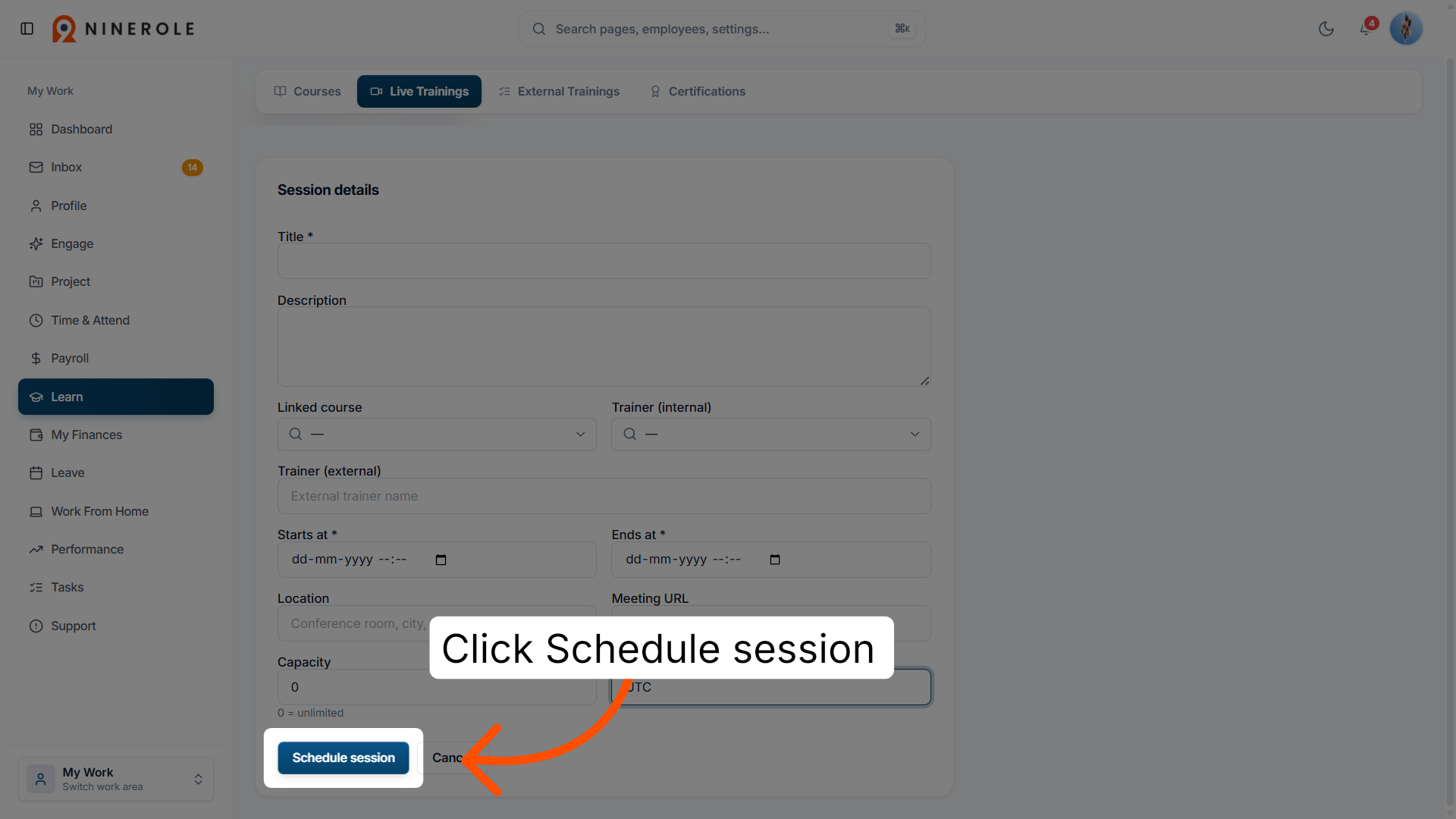
16. Finalize the session scheduling
Click Schedule session to save and confirm the new live training session.
Submit an external training
17. Access External Trainings
Click External Trainings to view and manage trainings conducted outside the platform.
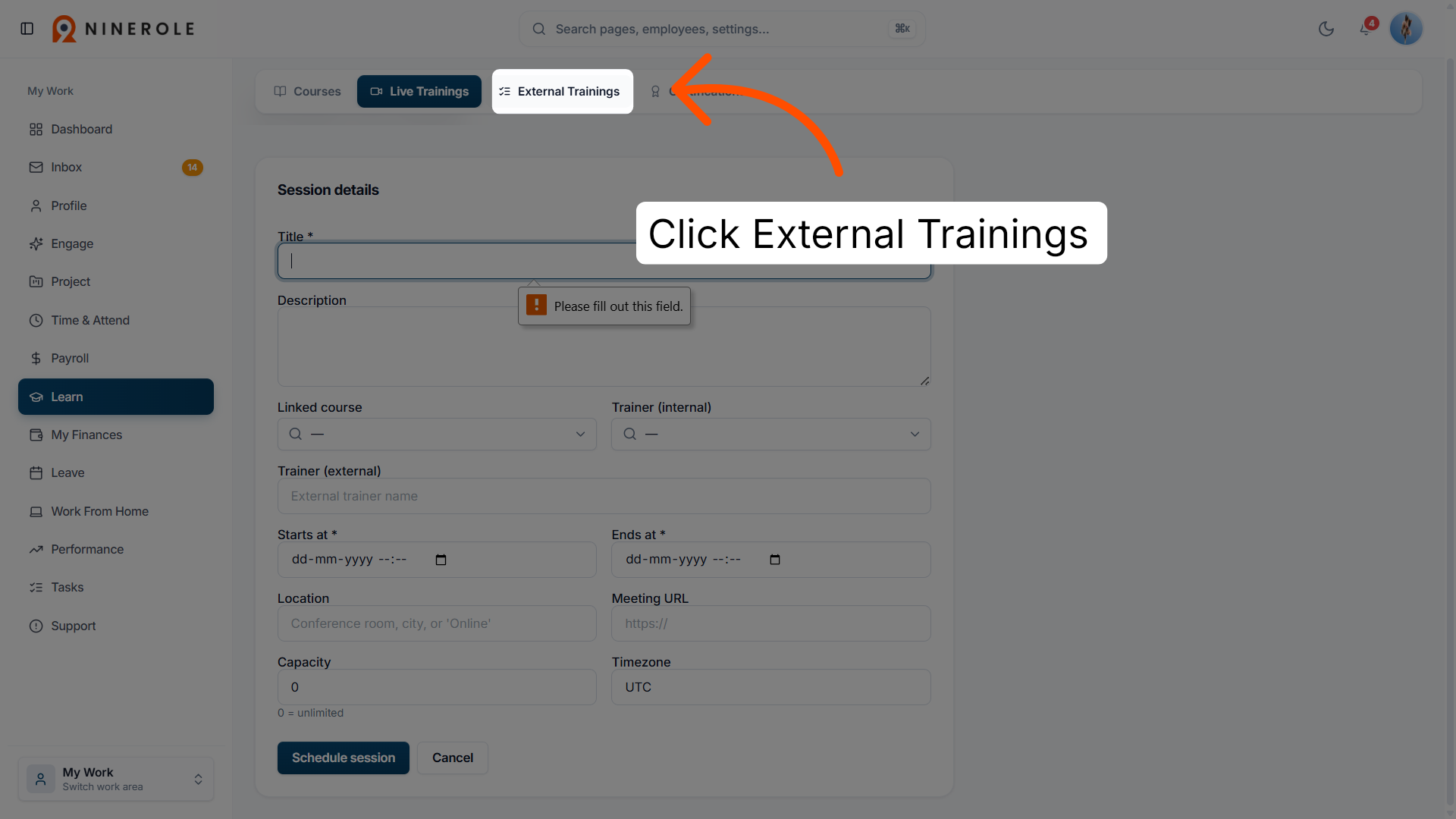
18. Start a submission
Click Submit training to begin adding an external training record.
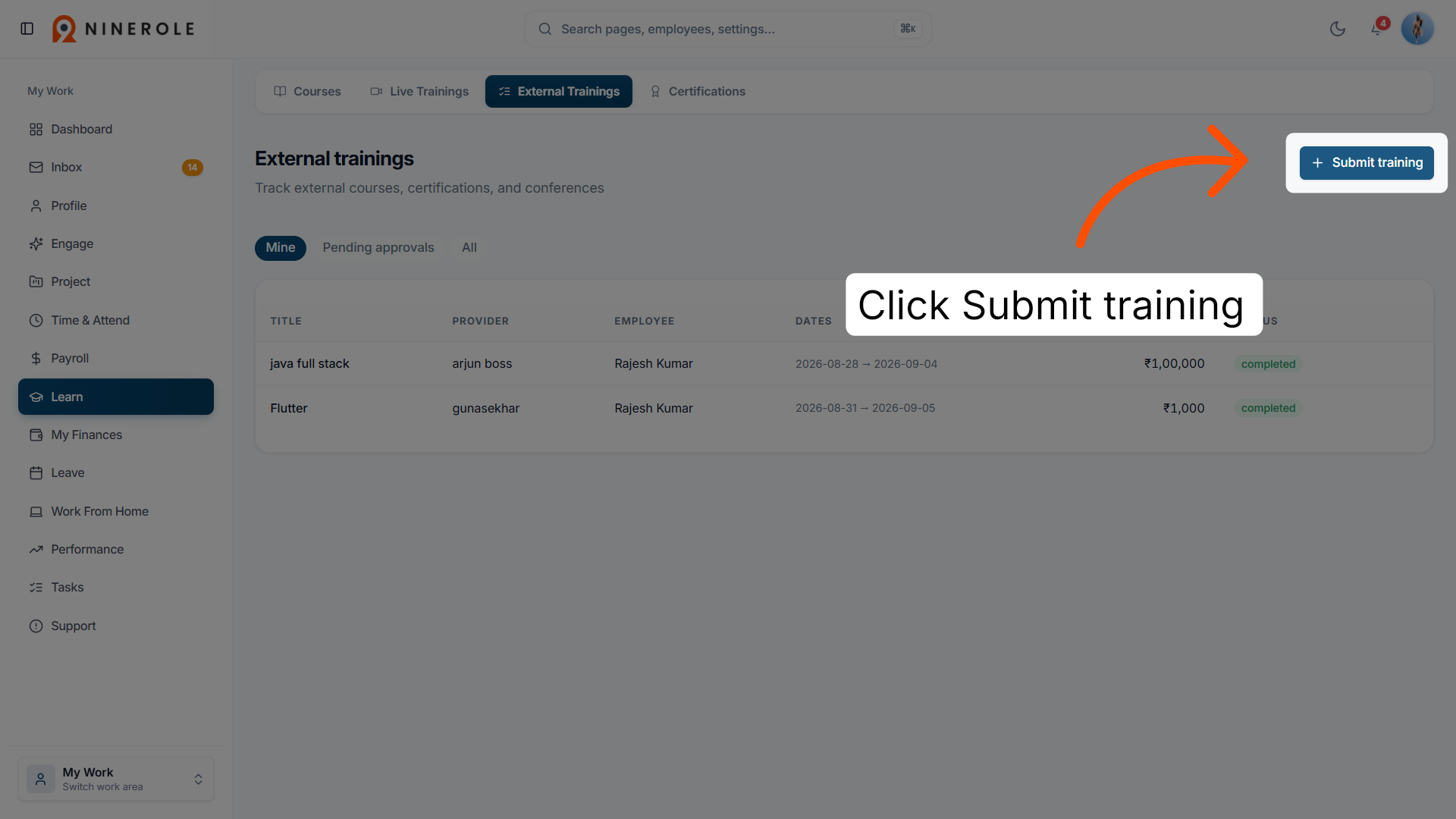
19. Enter the training title
Enter the title of the external training.
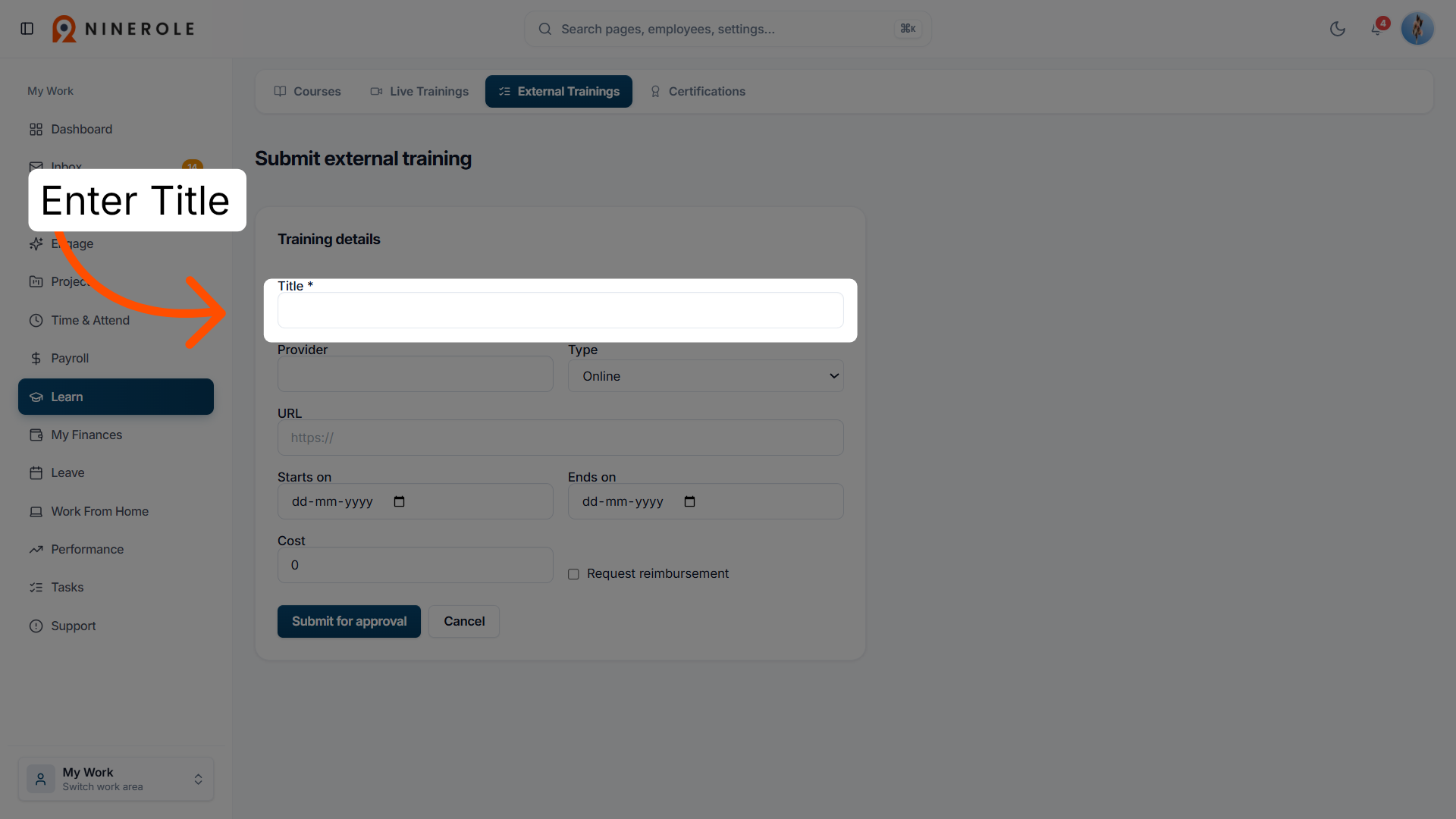
20. Enter the provider
Enter the provider who delivered the training.
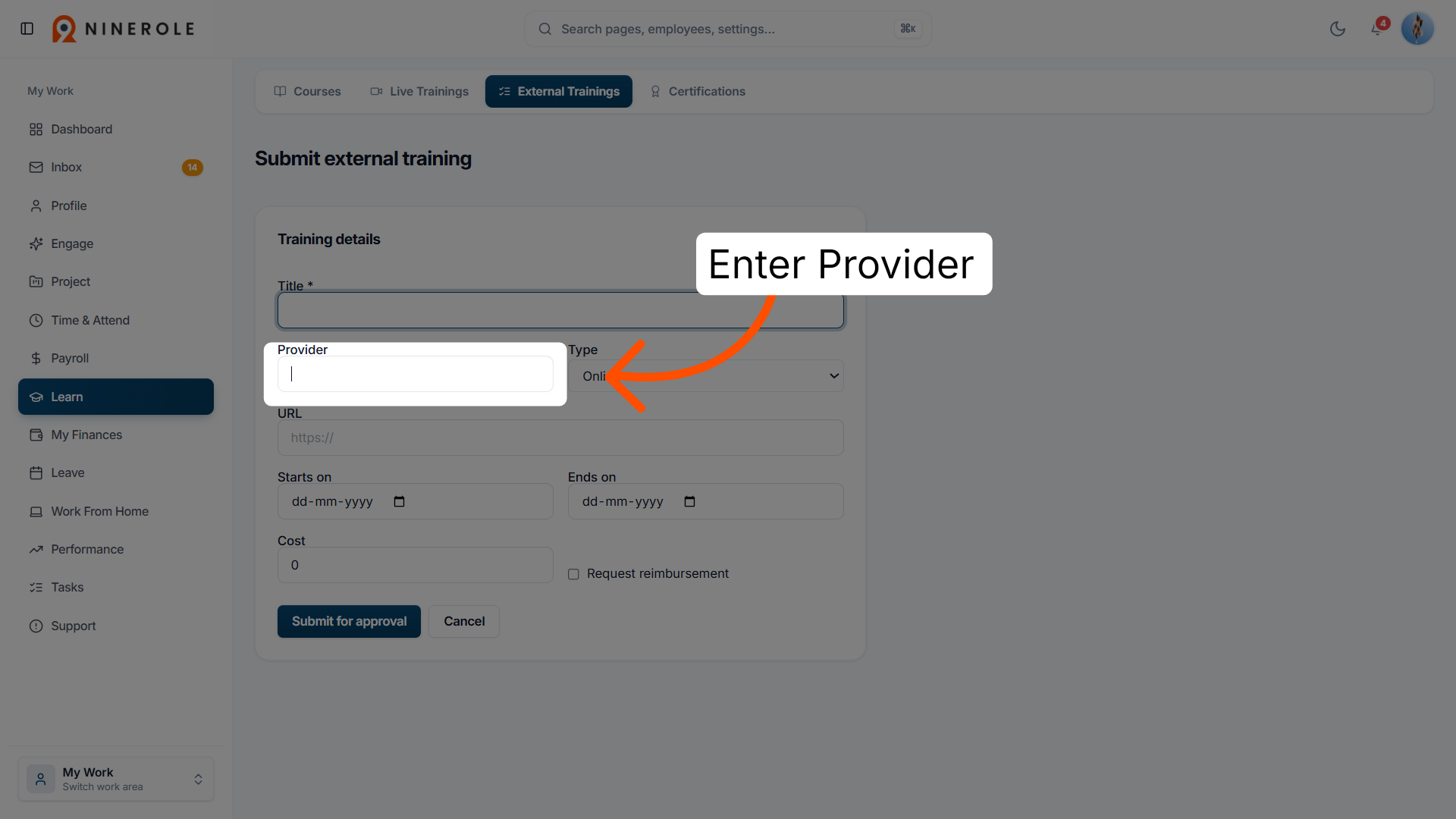
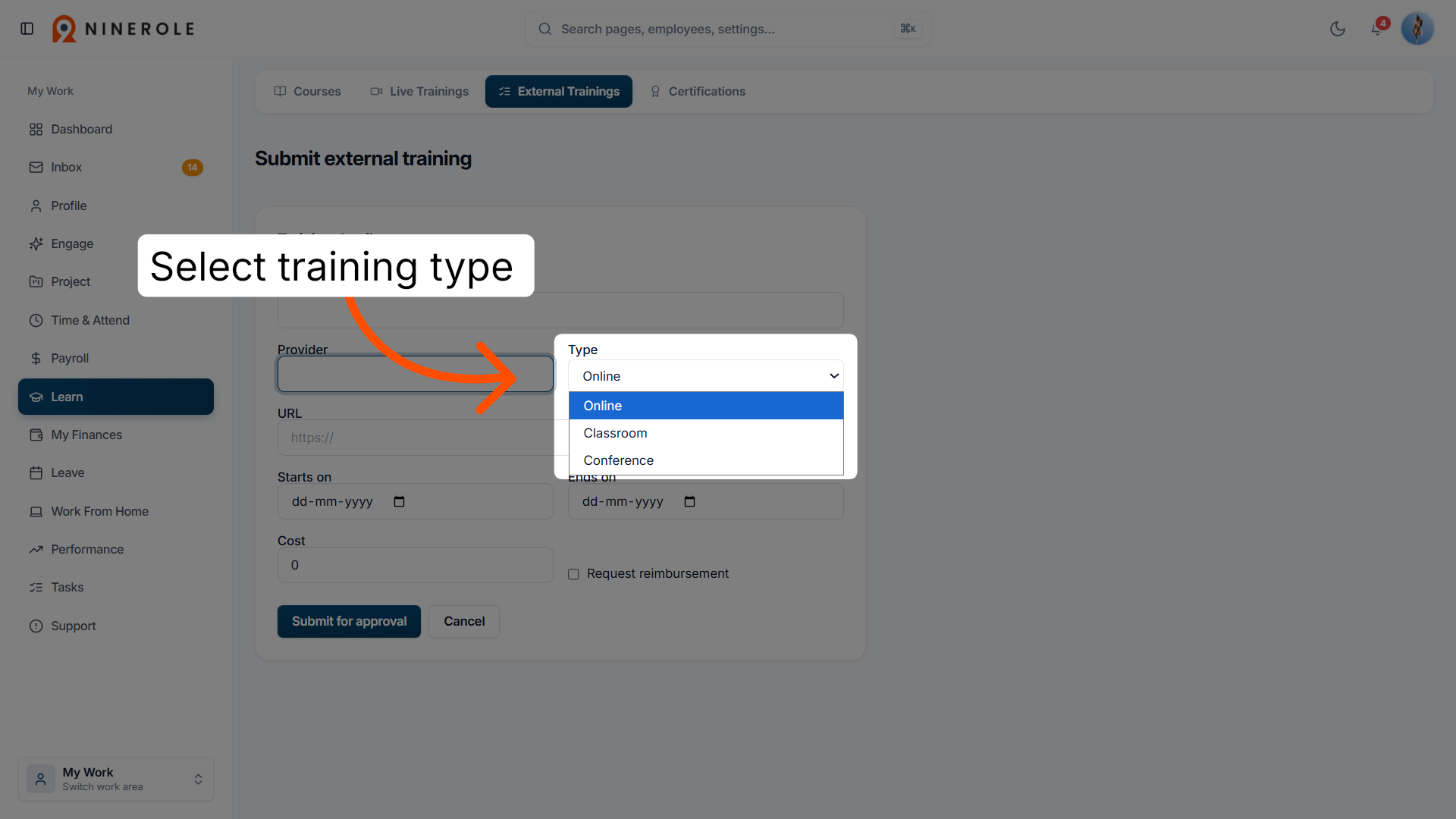
21. Select the training type
Select the training type — Online, Classroom, or Conference — to specify the format.
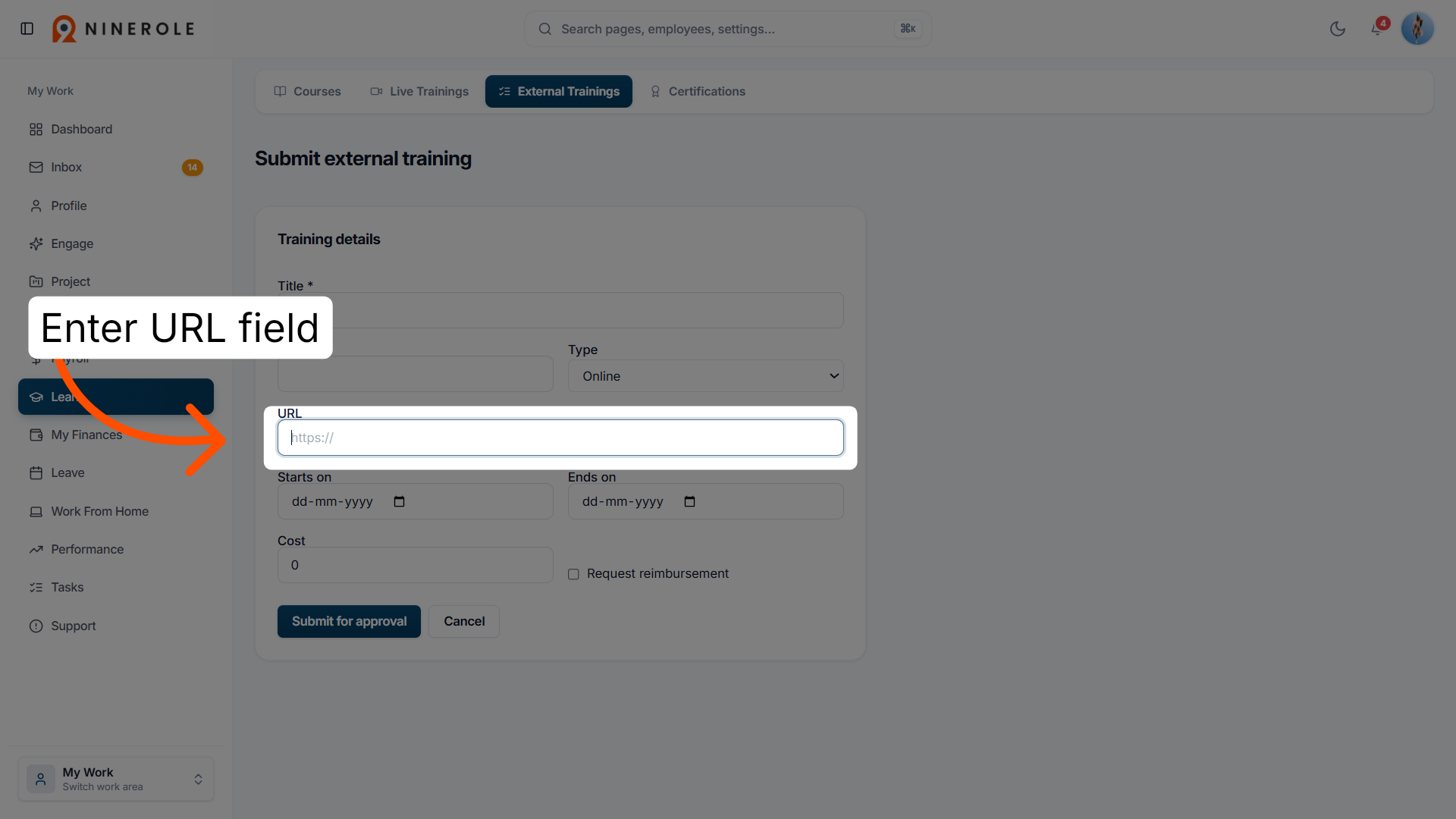
22. Enter the training URL
Enter the URL related to the external training.
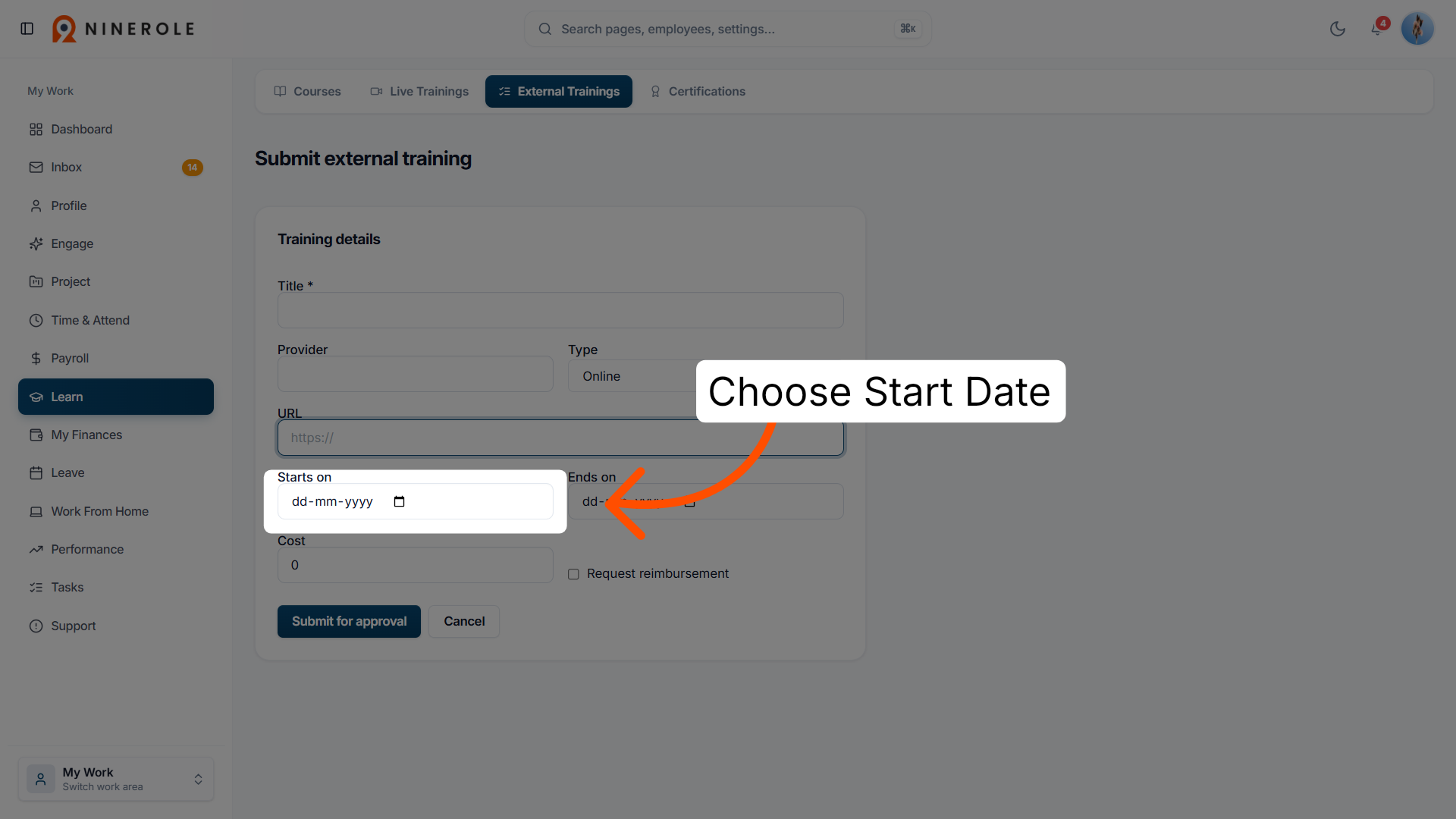
23. Set the training start
Choose the start date and time of the external training.
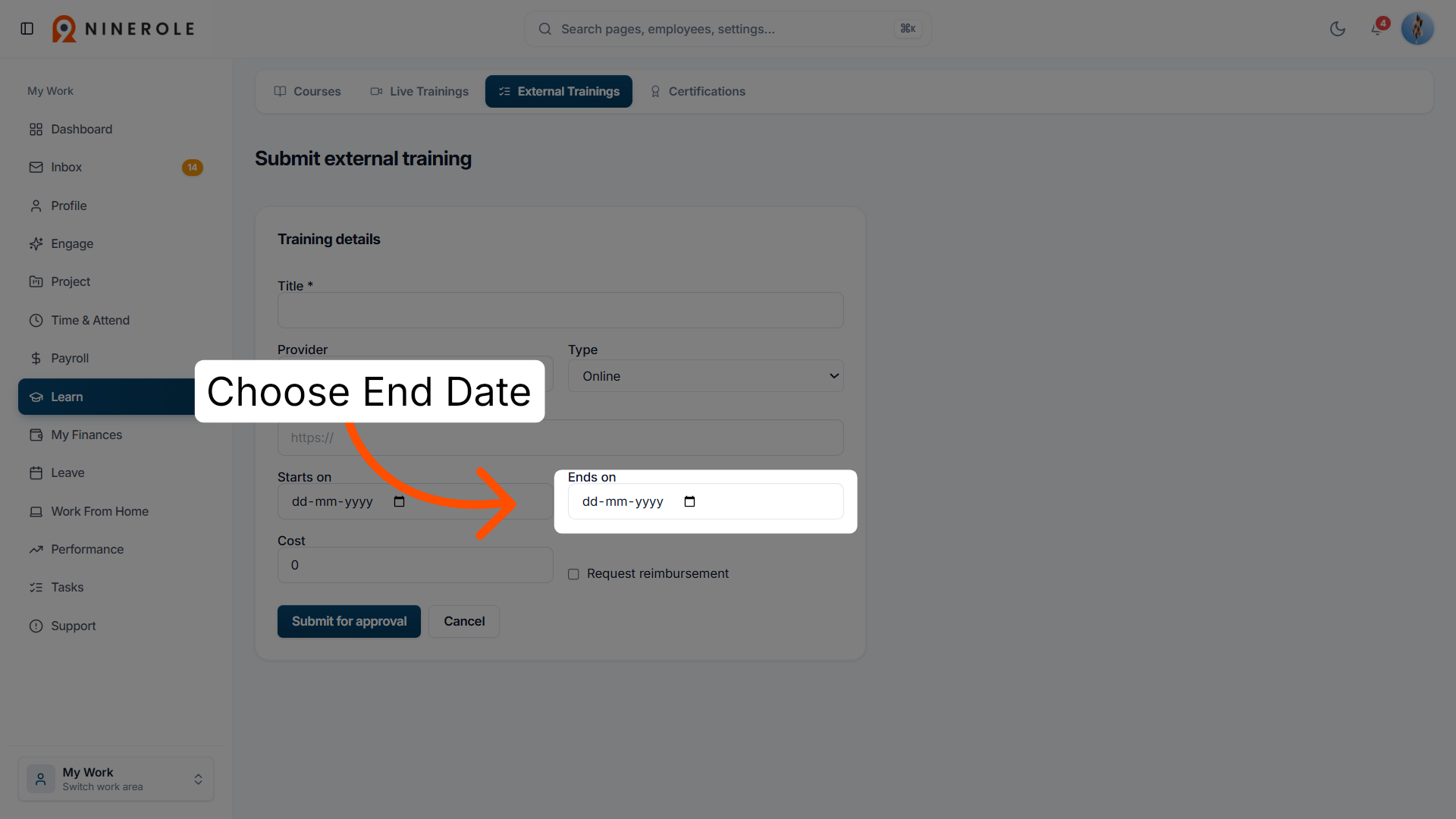
24. Set the training end
Choose the end date and time of the external training.
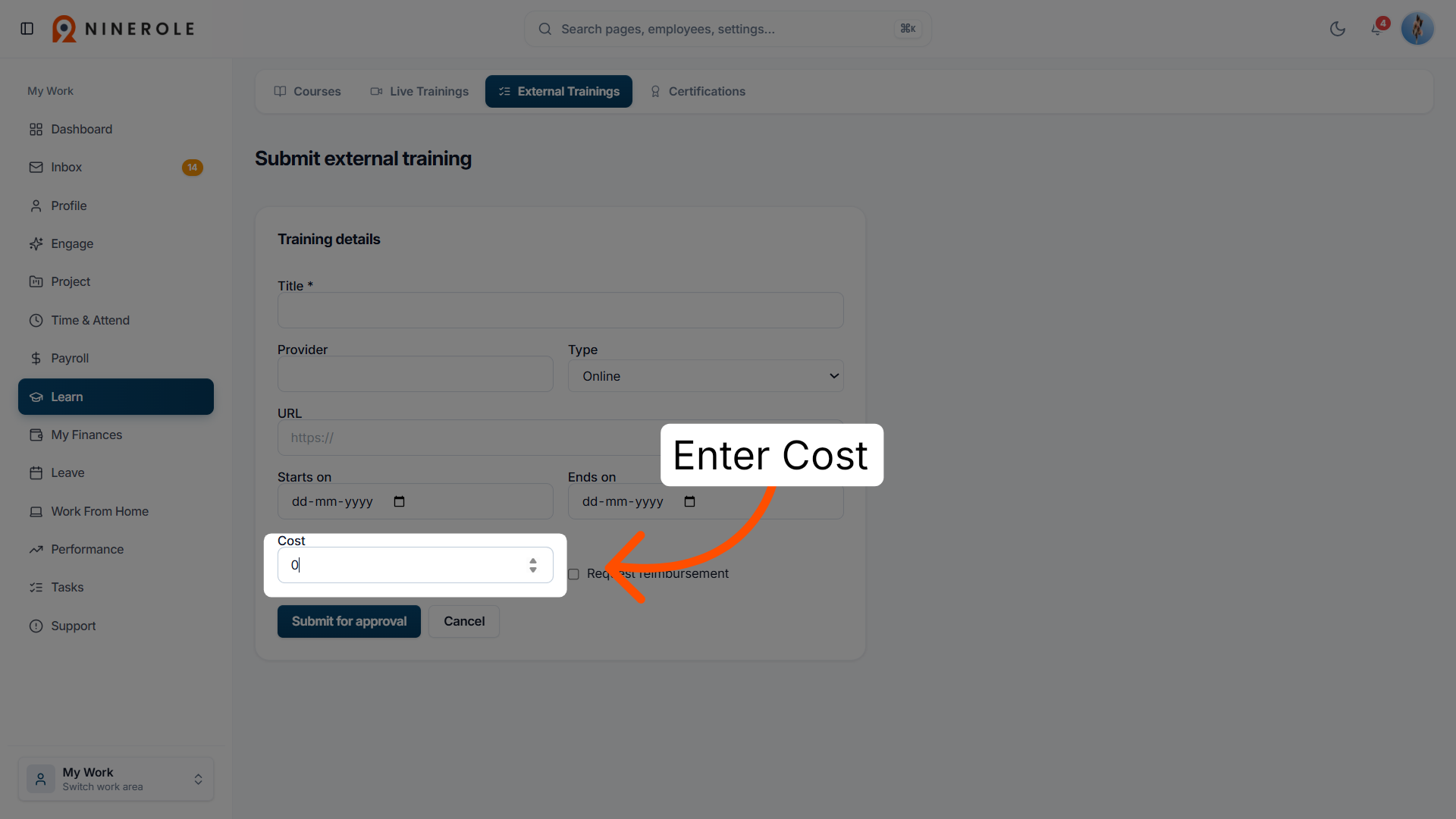
25. Enter the training cost
Enter the cost of the external training.
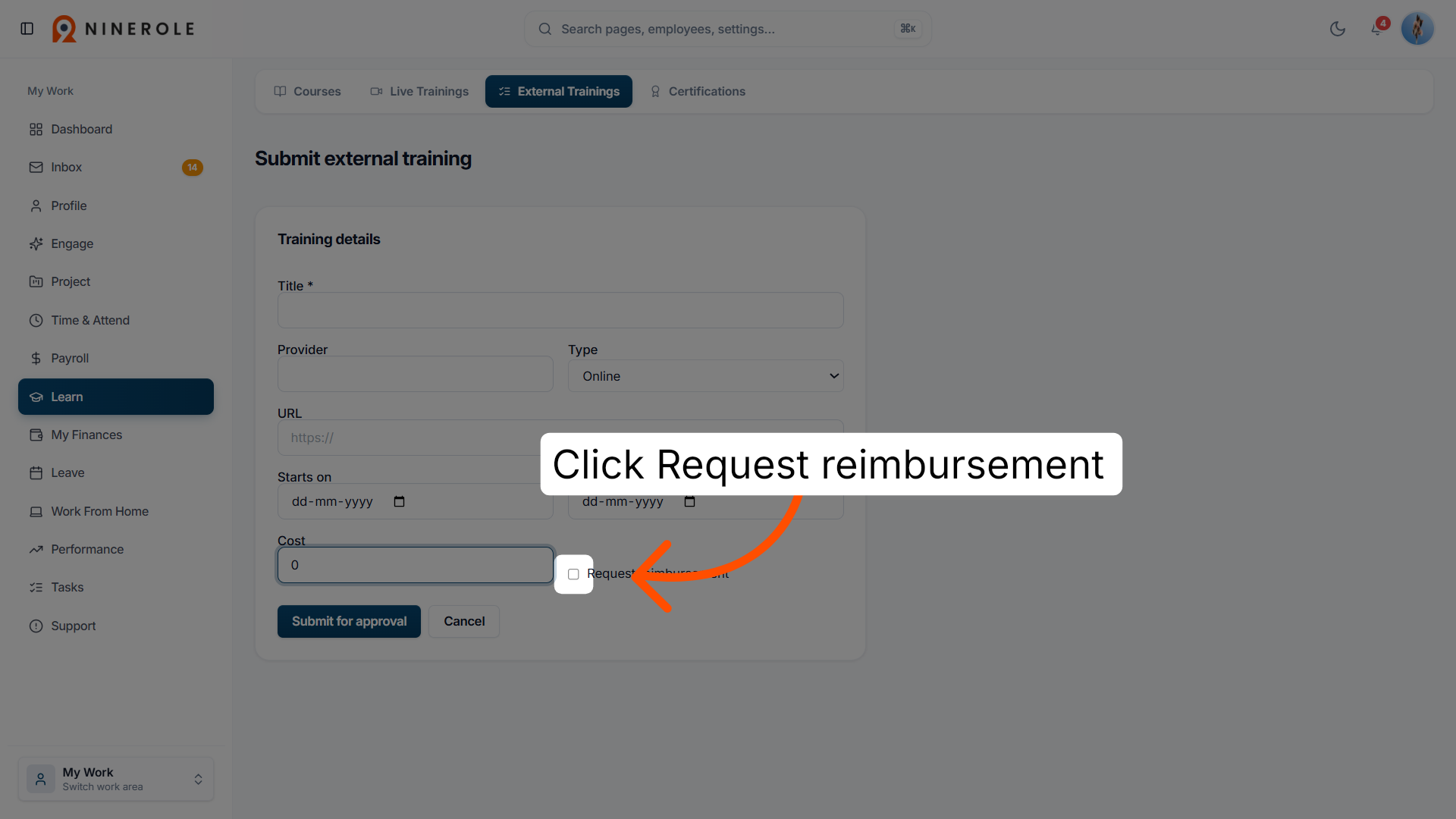
26. Request reimbursement
Click Request reimbursement to apply for reimbursement of the training cost.
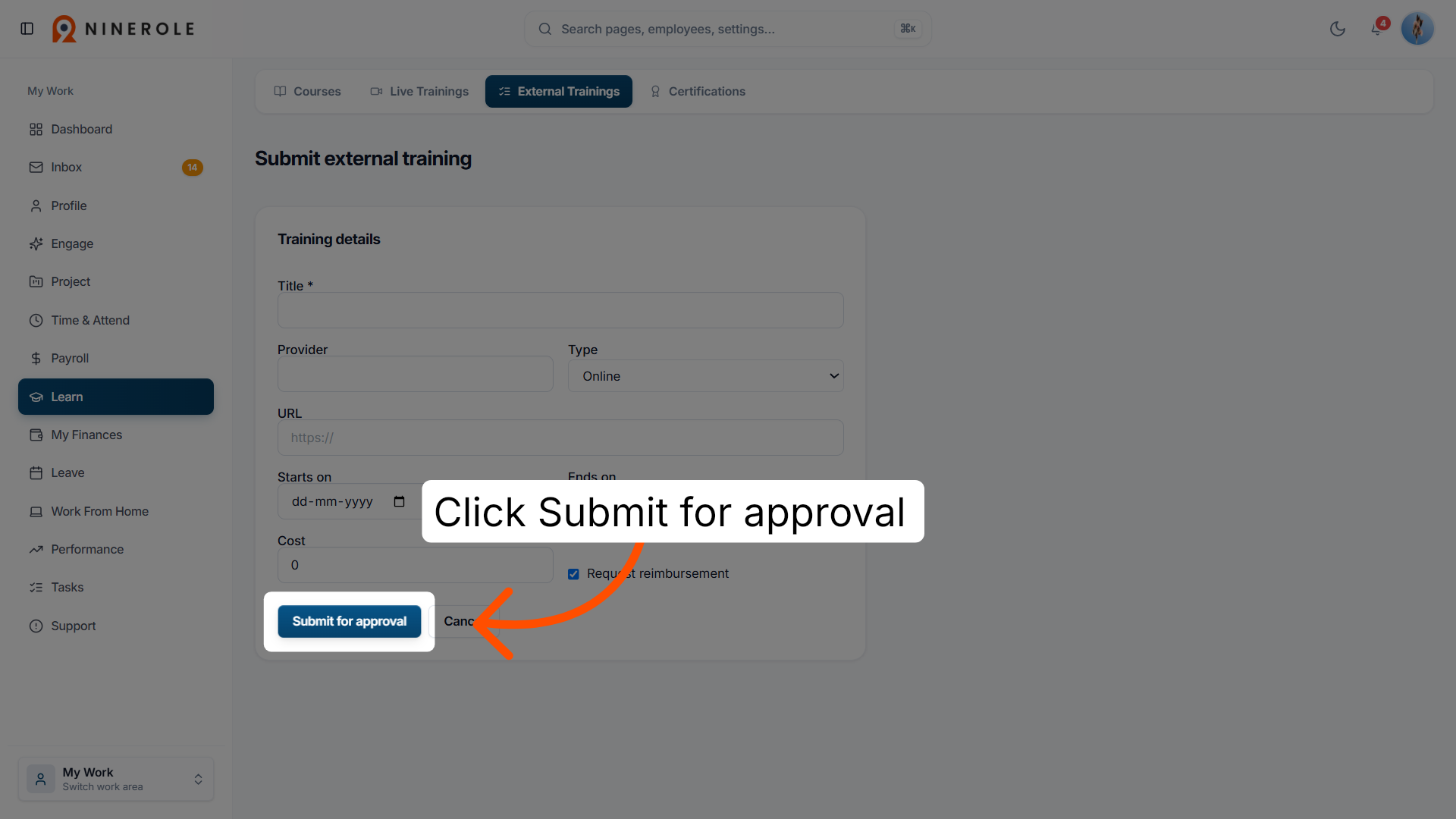
27. Submit for approval
Click Submit for approval to send the external training request for managerial review.
Download certificates
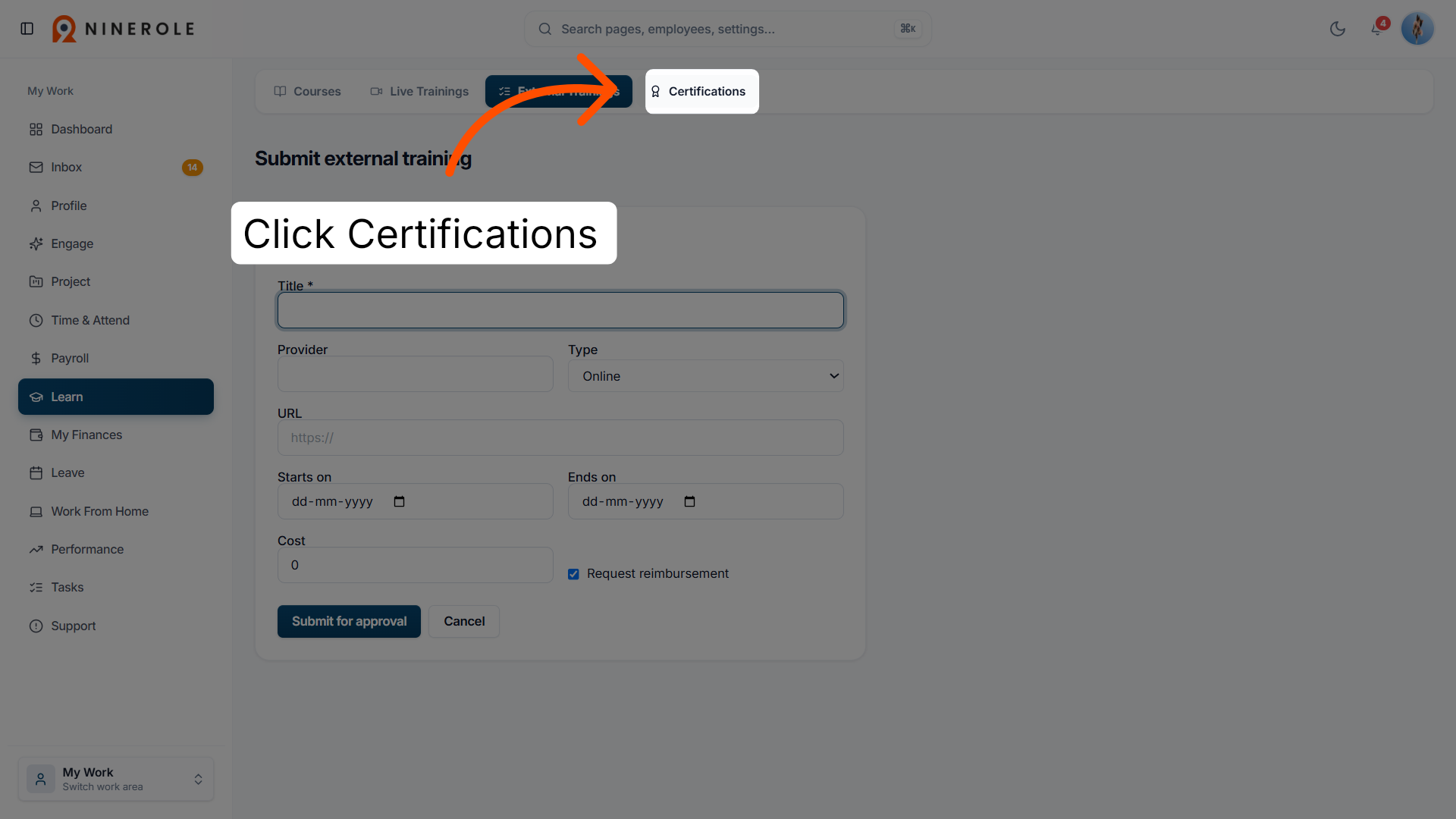
28. View certifications
Click Certifications to access your earned training certificates within Ninerole.
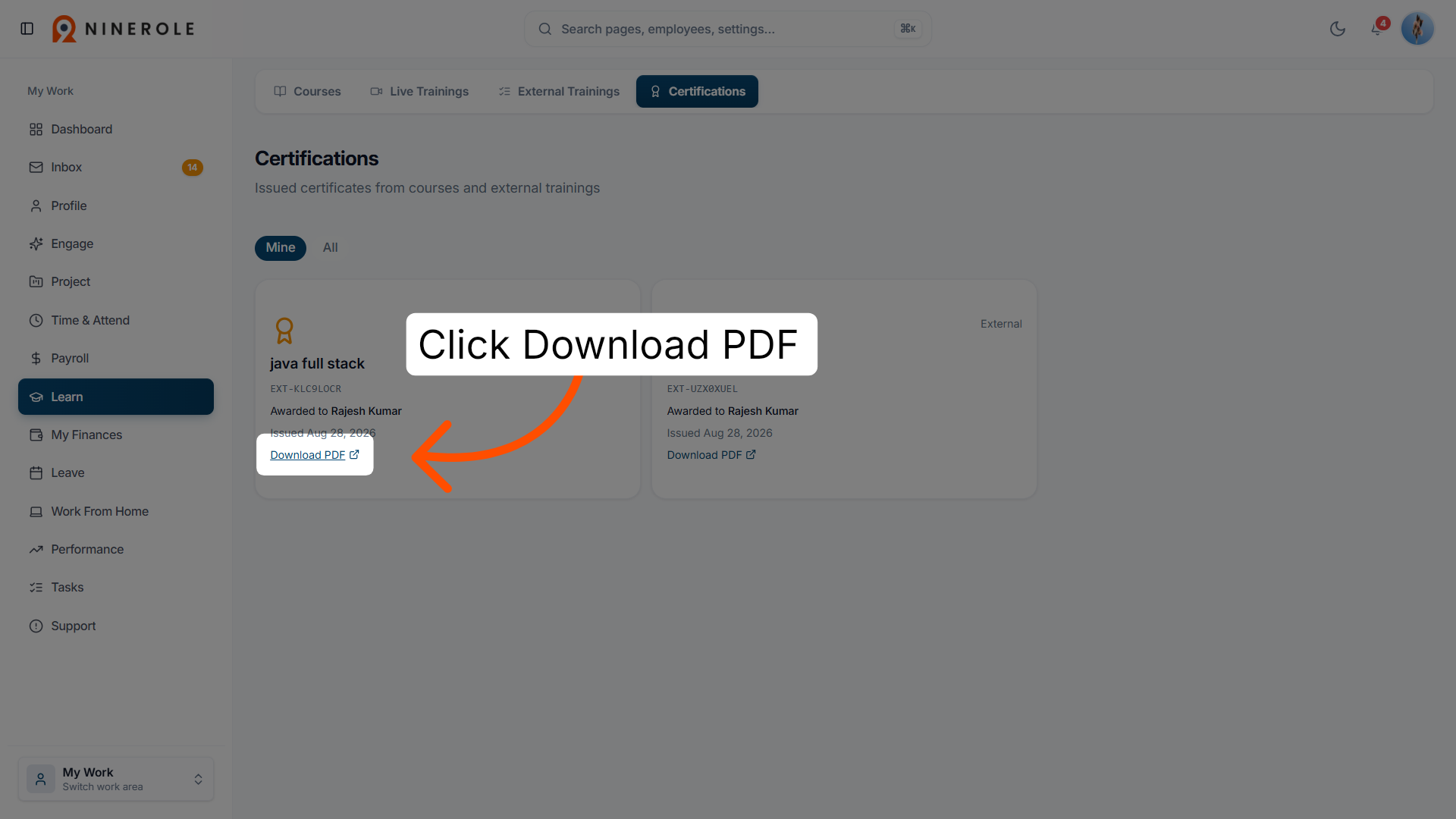
29. Download the certificate PDF
Click Download PDF to save a copy of your training certification document.
You have successfully scheduled live training sessions and submitted external training records in Ninerole HRMS. Next, you can review your certifications or explore additional learning resources to continue your professional development.
Sessions can be linked to a course — see Create and Manage Courses.
Back to Learning · all modules · Ninerole HRMS overview
Last updated: