

Create and Manage Payroll Components and Templates
This tutorial guides you through creating and managing payroll components, formulas, and salary templates in the Ninerole HRMS platform. You will learn how to configure these elements for employee payroll processing.
Before you start, go to ninerole.com.
About this task
- Purpose
- Set up the building blocks of payroll — earning and deduction components, calculation formulas, and reusable salary templates.
- Who can do this
- Payroll administrator
- Before you start
- Company details are configured.
- You will need
- The components you want to define, how each is calculated, and which belong in each template.
- Result
- Components, formulas and salary templates exist and can be applied to employees.
- This unlocks
- Applying a template to an employee's salary details, and running payroll — the readiness check requires templates to exist.
This guide answers
- How do I create a payroll component?
- What is the difference between a component and a template?
- How do I write a calculation formula?
- How do I import components in bulk?
- How do I build a salary template?
If something goes wrong
- A component is not available in a template.
- Create the component first — templates are assembled from components that already exist.
- The payroll readiness check reports a missing template.
- No salary template has been created, or none is applied to the employees in the run.
Related: Salary details · Payslip templates · Run payrollAlso called: components and templates, salary template, earning and deduction heads.Last verified: 7 September 2026
1. Introduction
You will learn how to configure these elements for employee payroll processing.
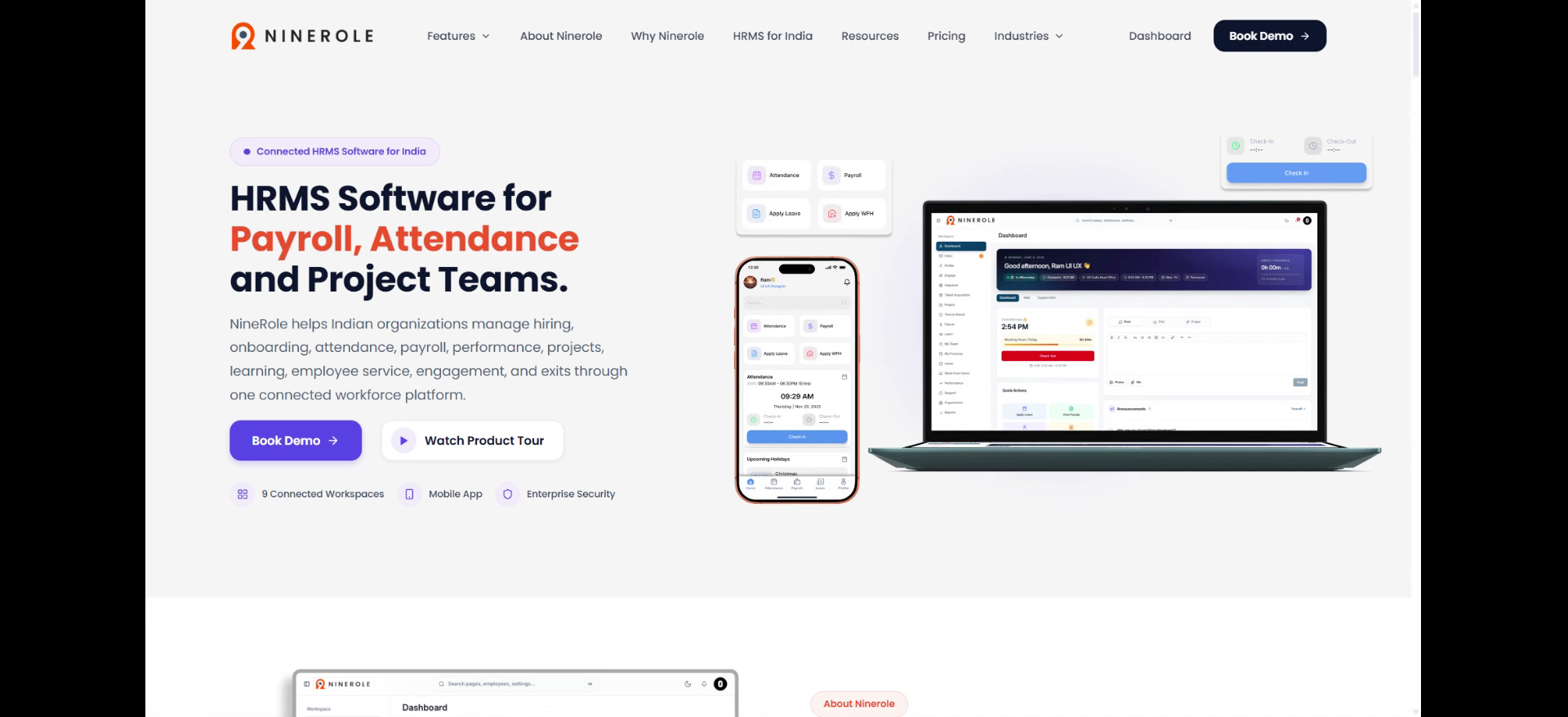
Open payroll settings
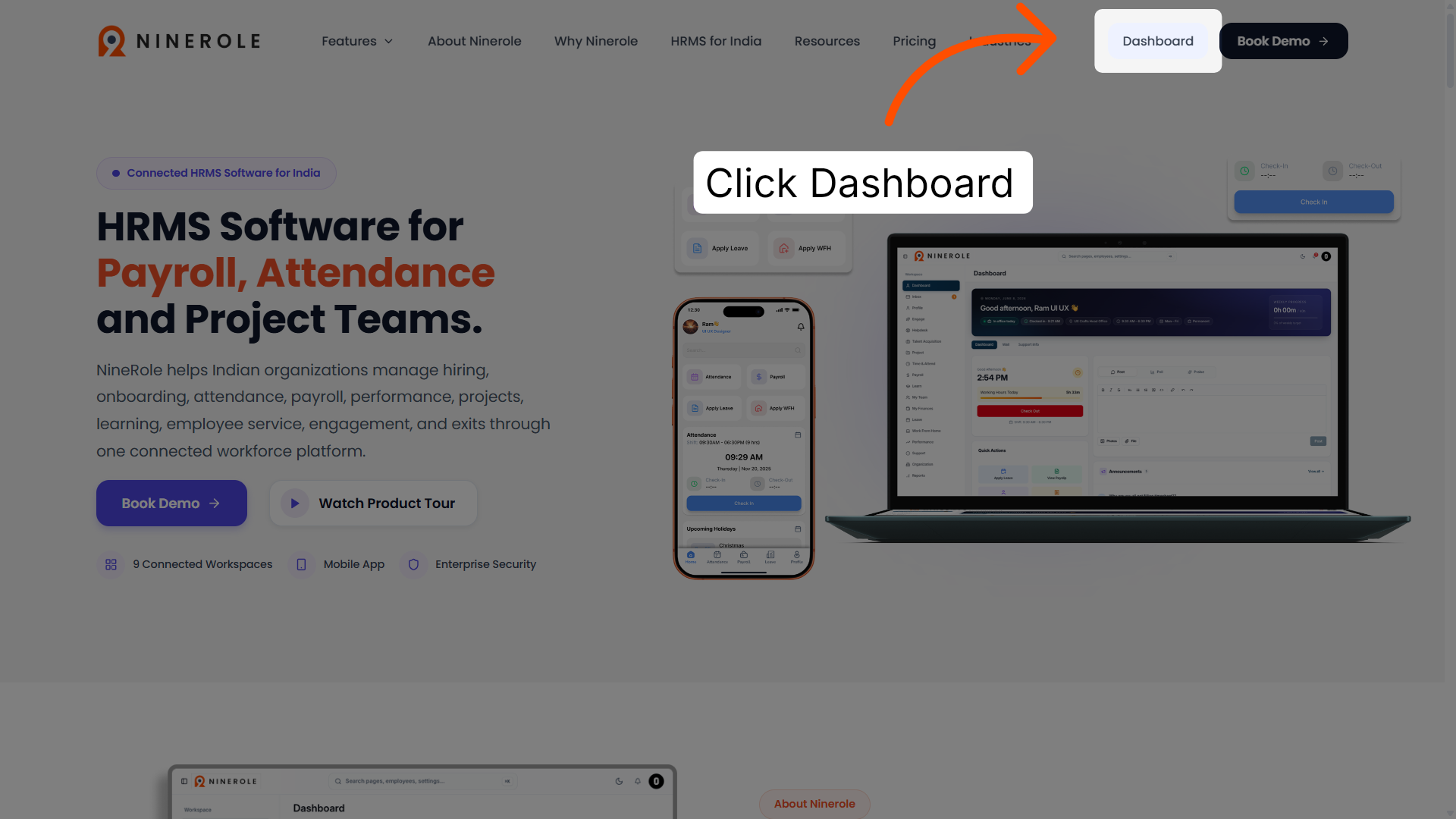
2. Access the dashboard overview
Navigate to the main dashboard to view an overview of employee management features and options.
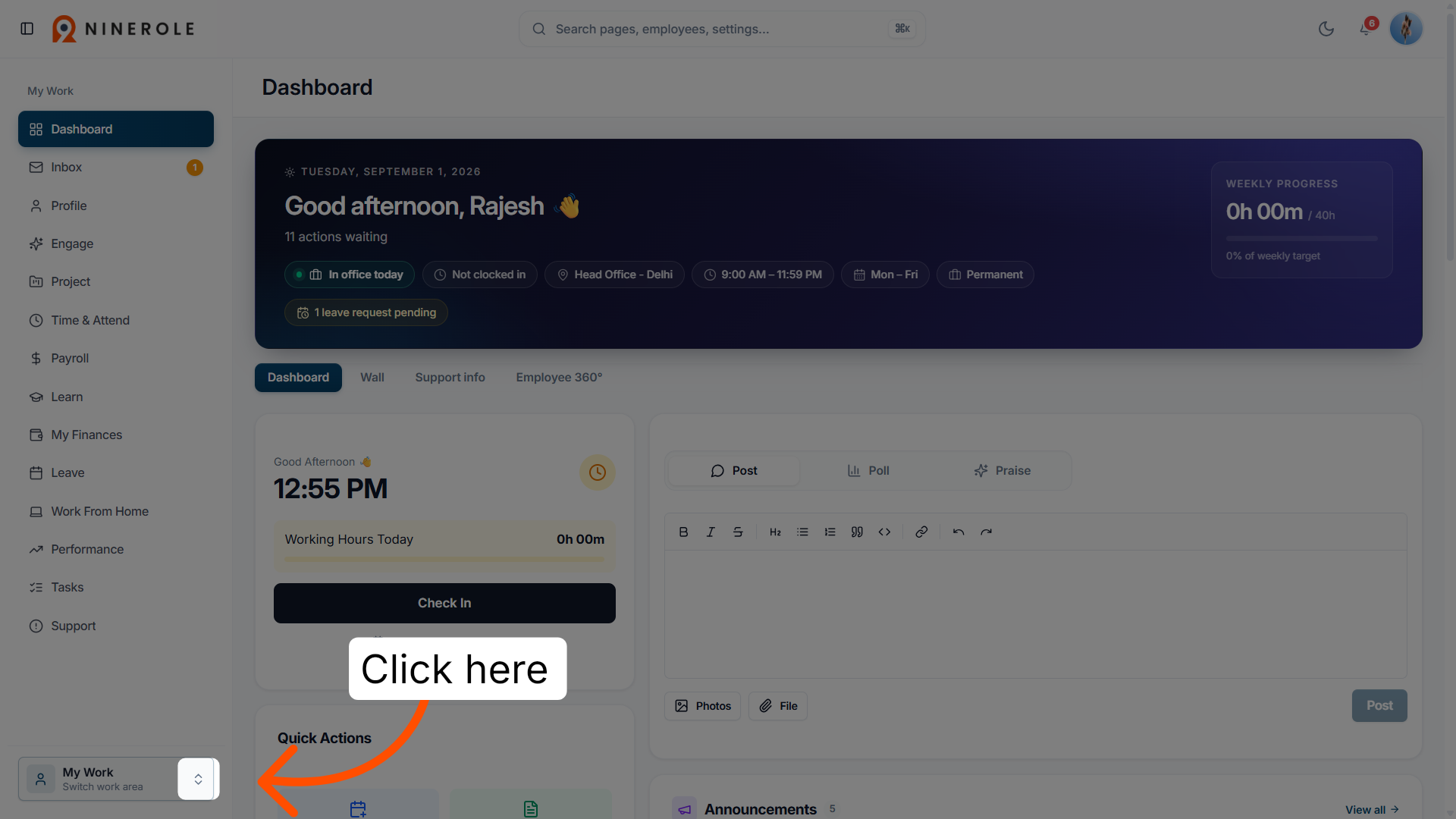
3. Open the dashboard details
Open the detailed dashboard view to access specific employee and operational data within the platform.
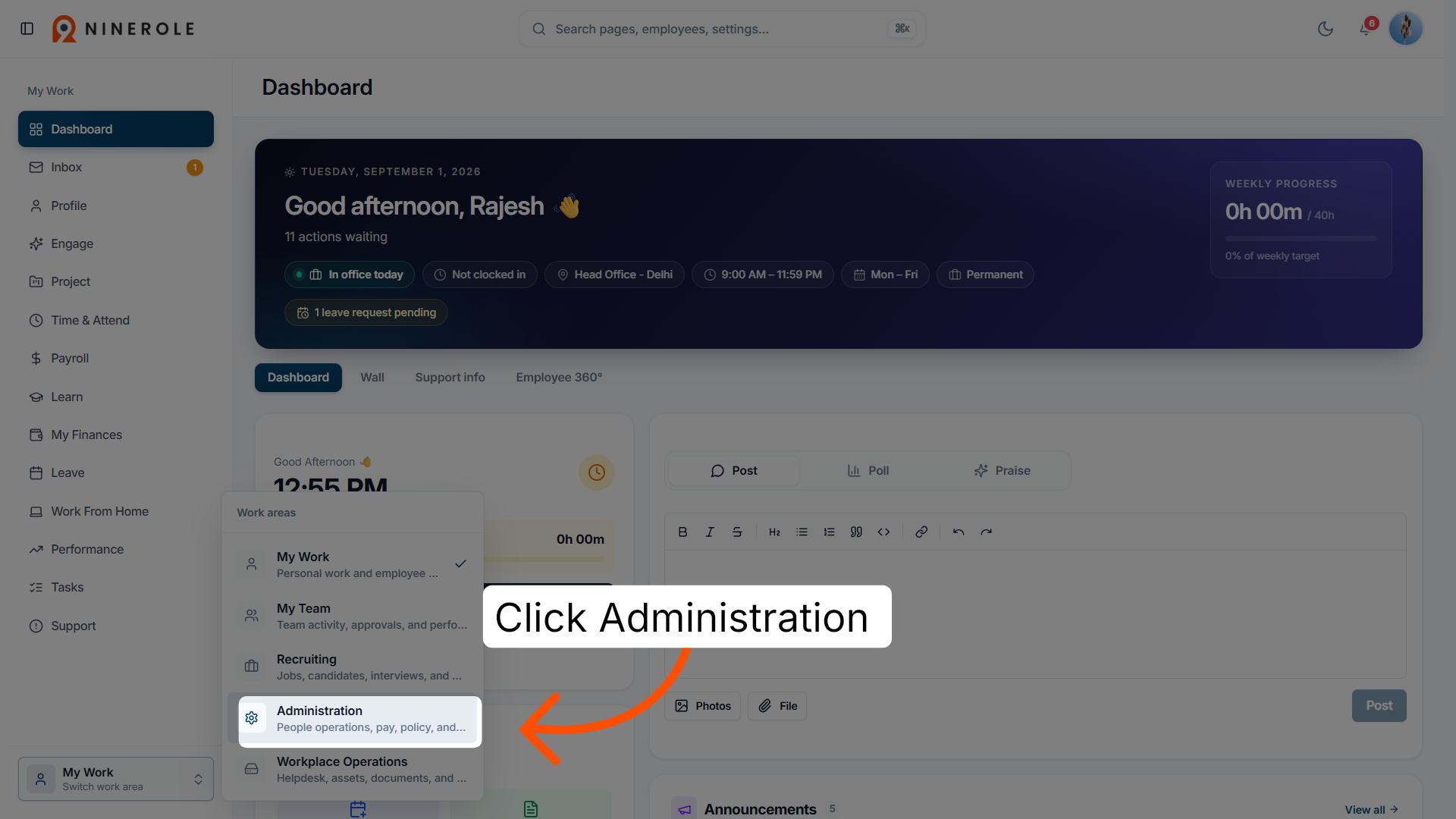
4. Access the People Operations section
Click Administration — for people operations, pay, policy, and reporting — to manage HR-related processes.
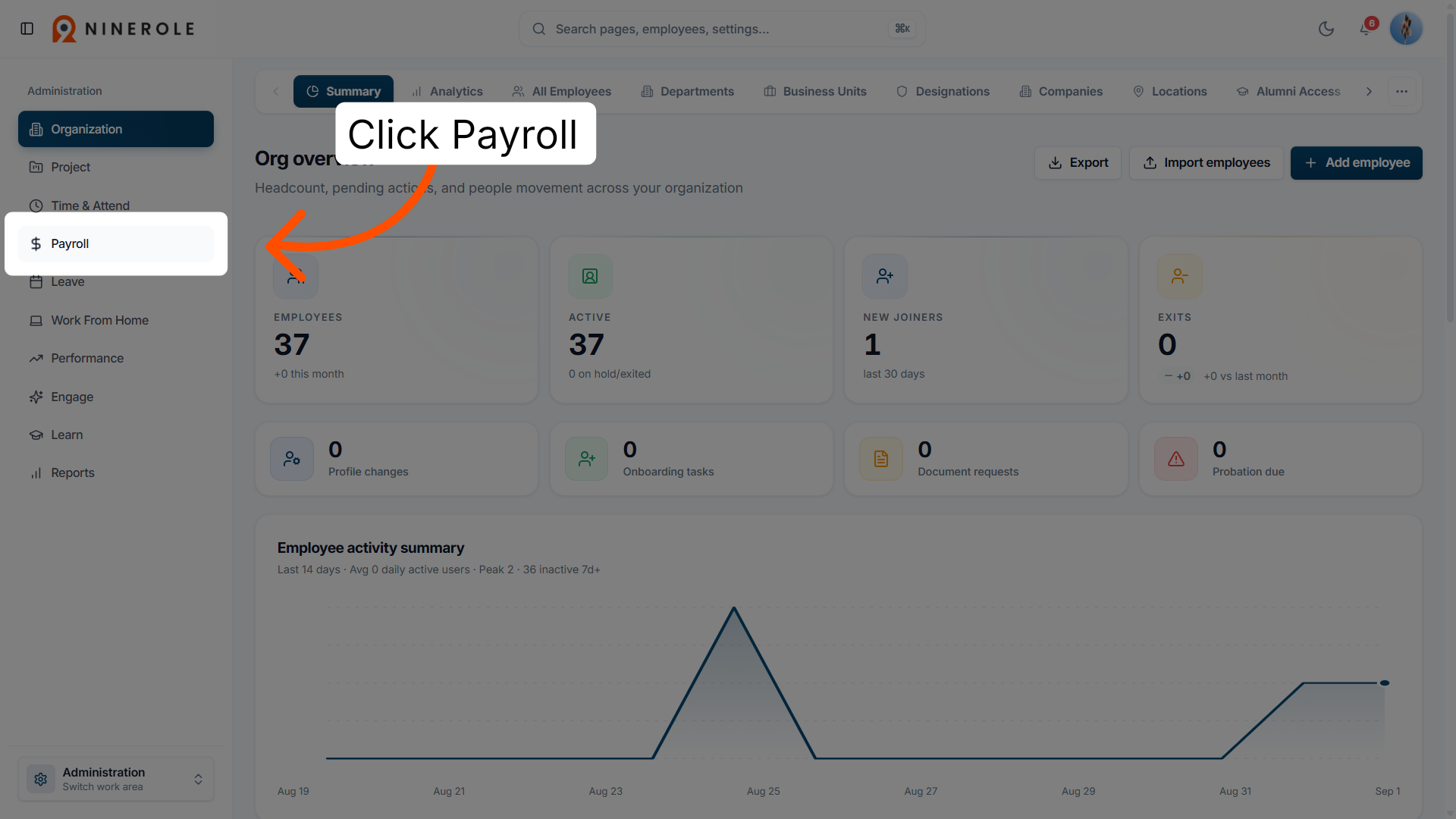
5. Navigate to payroll settings
Enter the payroll area to configure salary components and payment details for employees.
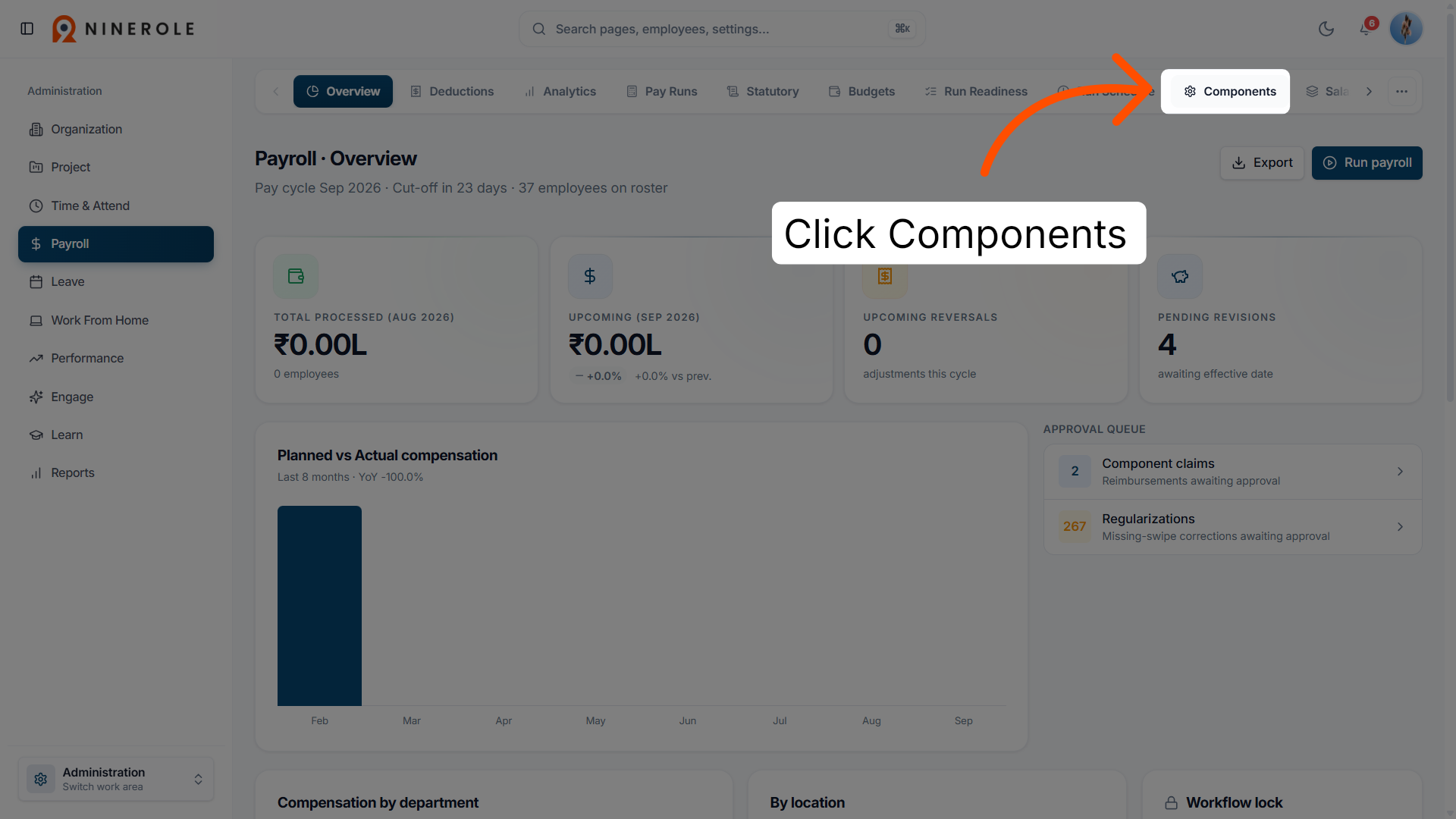
6. Open payroll components
Access the payroll components section to view and manage individual salary elements and deductions.
Create a payroll component
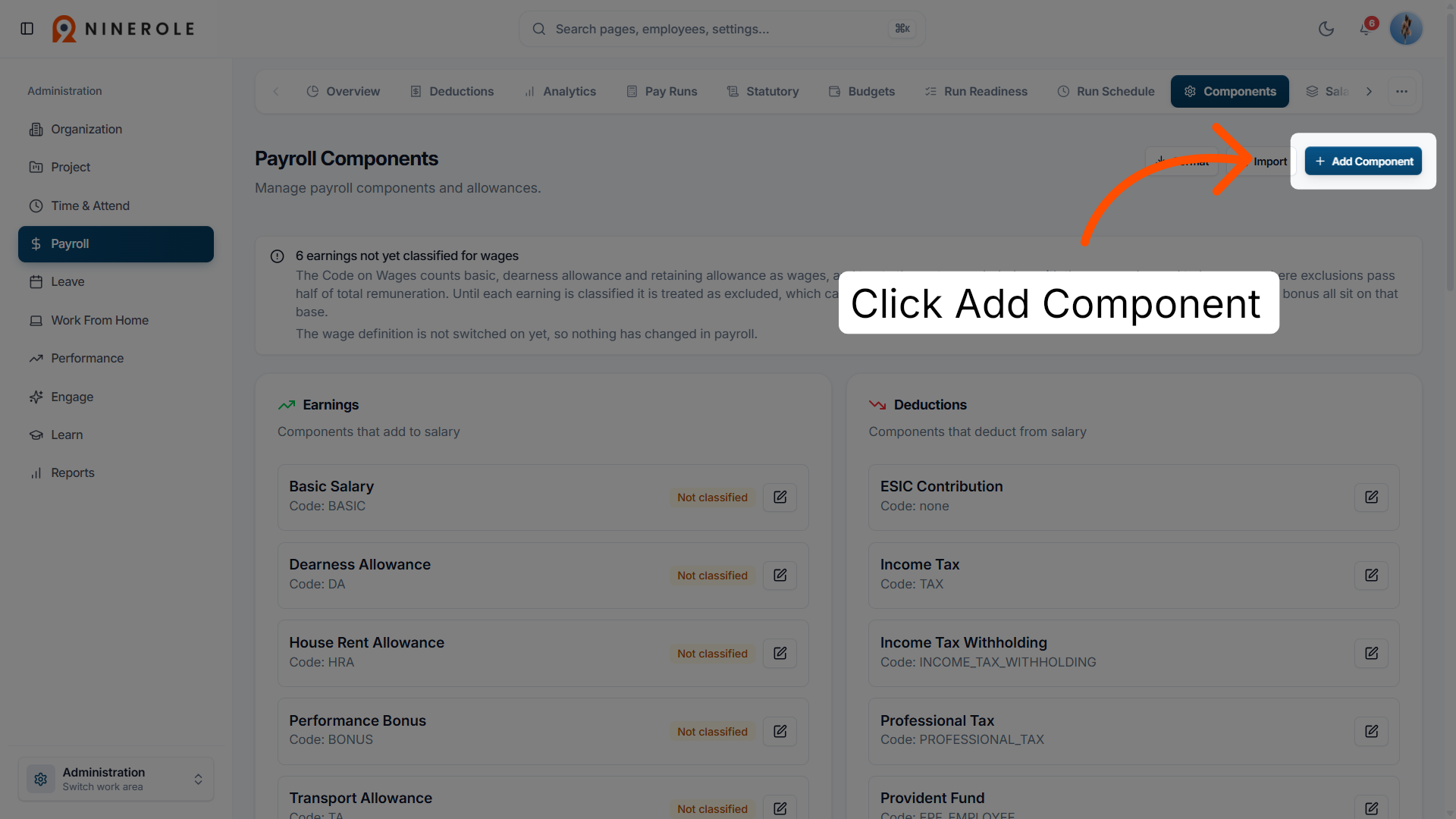
7. Add a new payroll component
Start creating a new payroll component to customize salary structures and payment rules.
8. Select the component code field
Choose the code field to assign a unique identifier for the new payroll component.
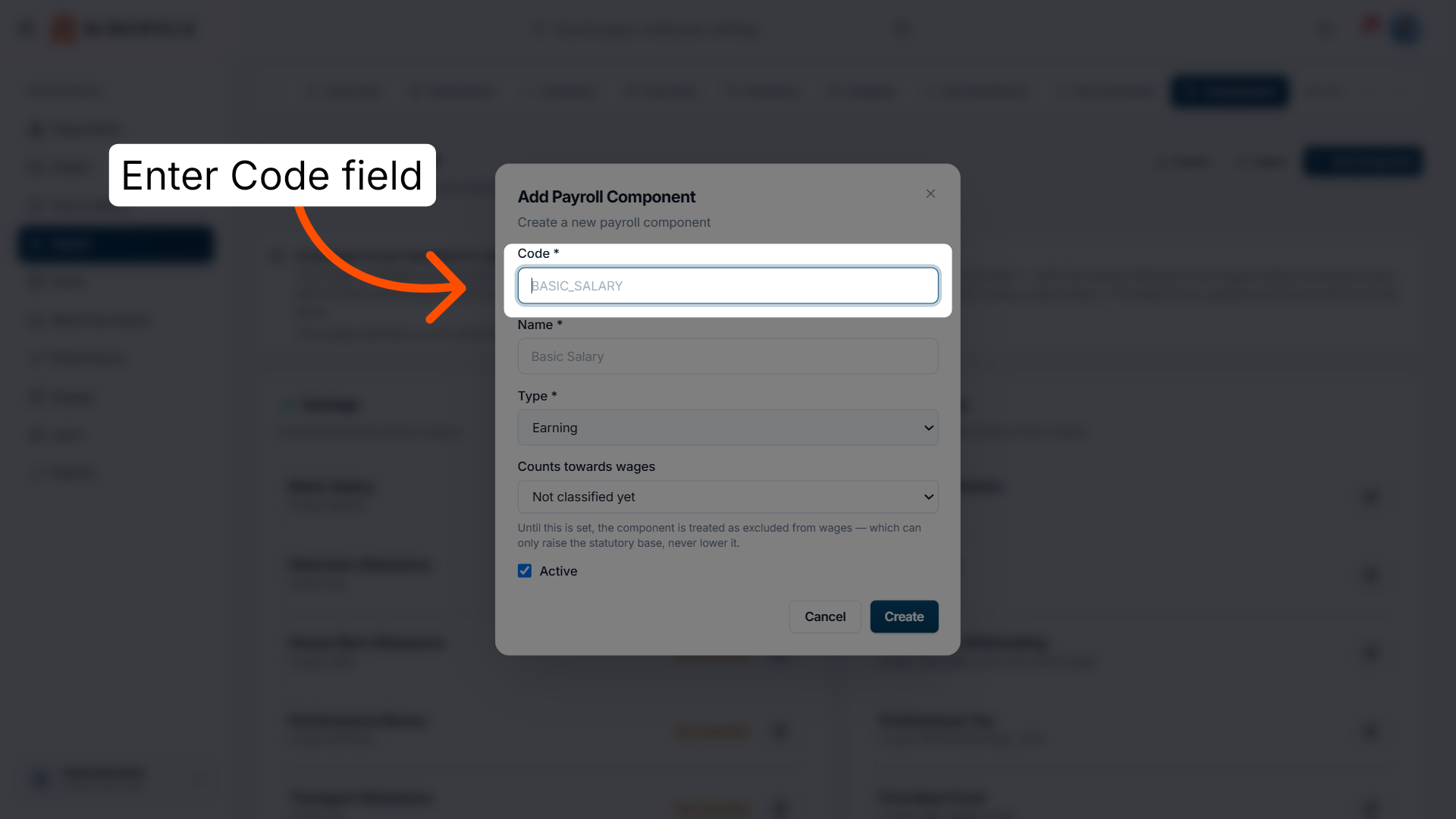
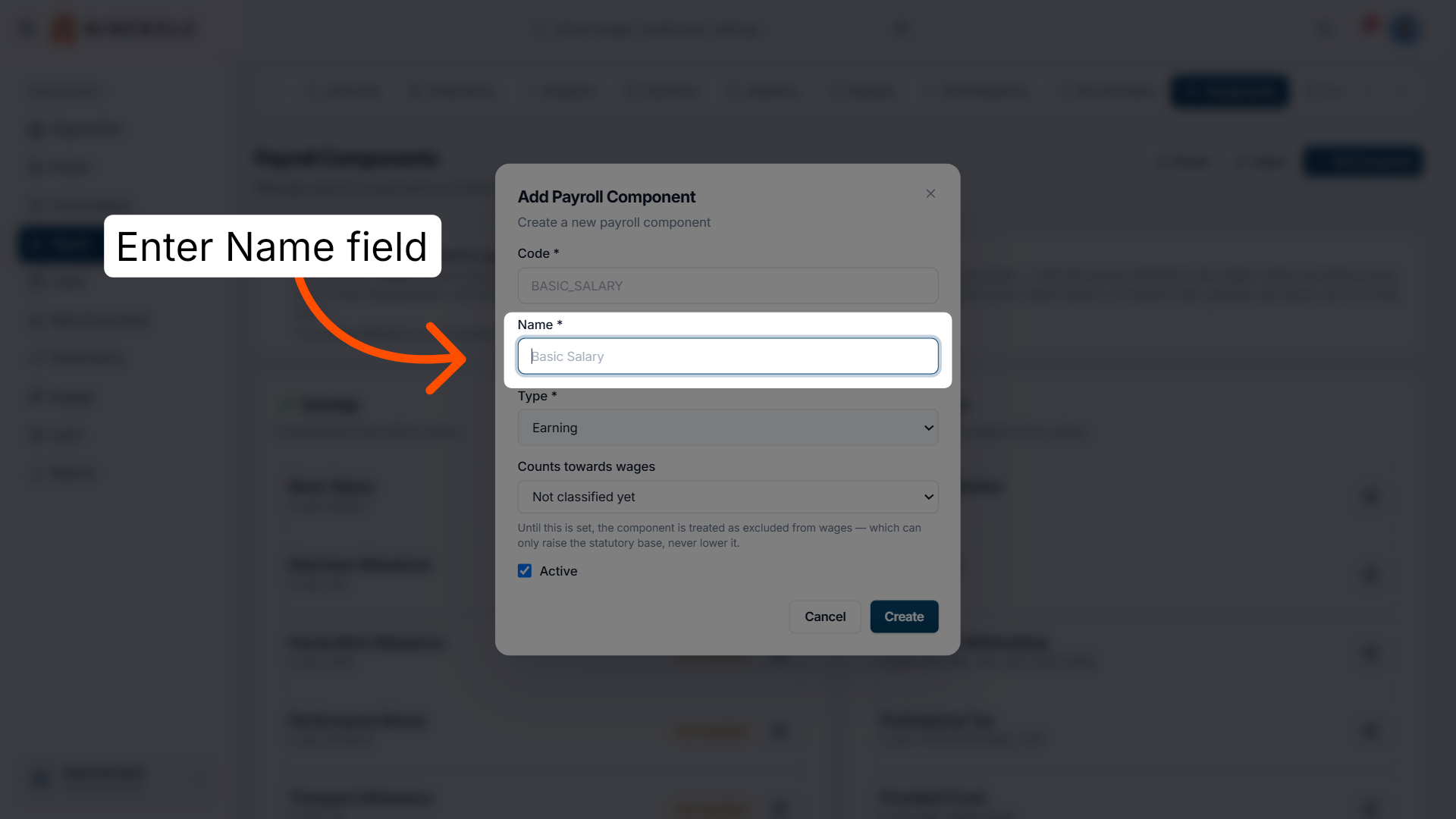
9. Select the component name field
Select the name field to give the component a descriptive title.
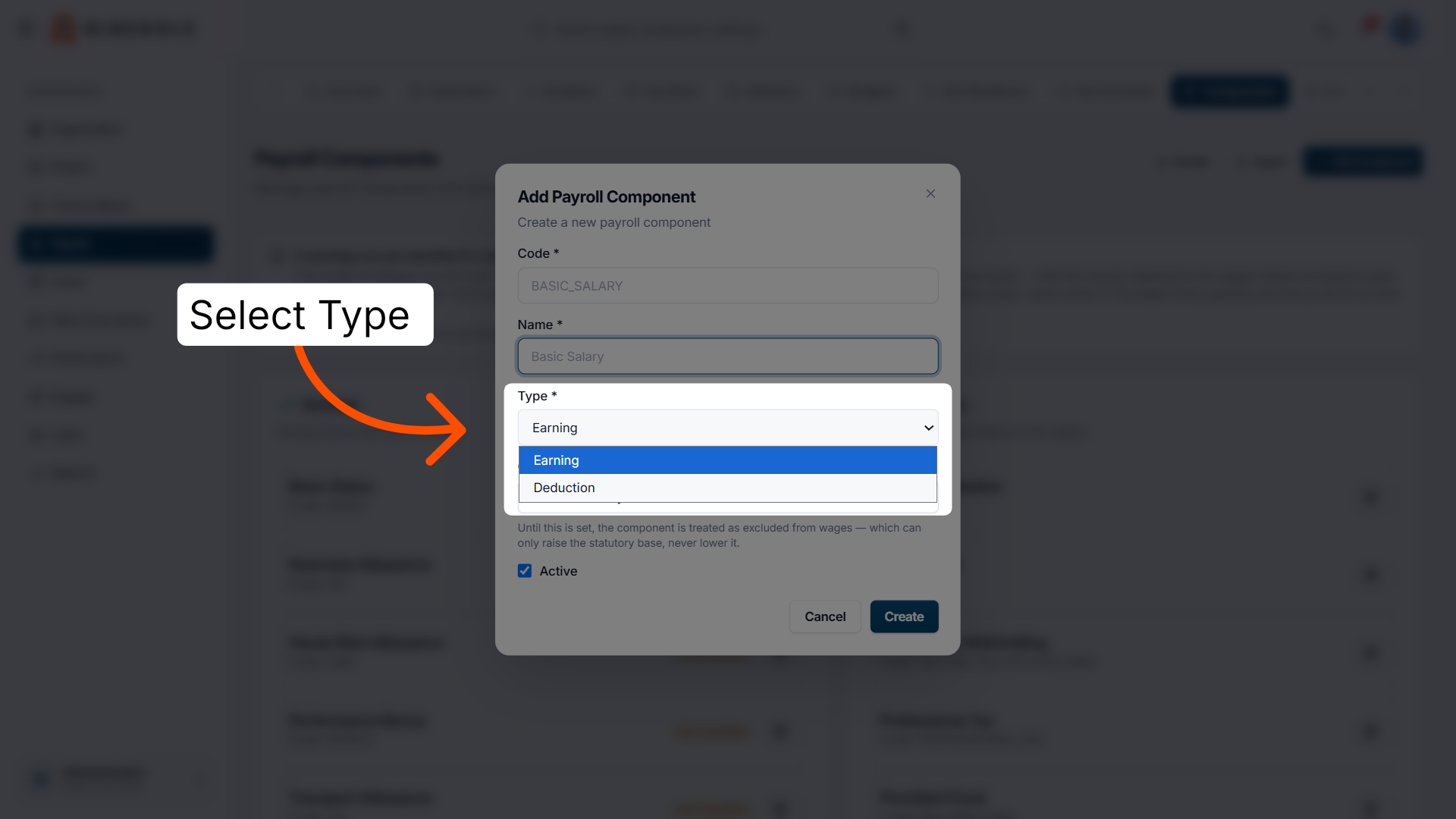
10. Choose earning or deduction
Define whether the component is an earning or a deduction, so it is categorized correctly in payroll calculations.
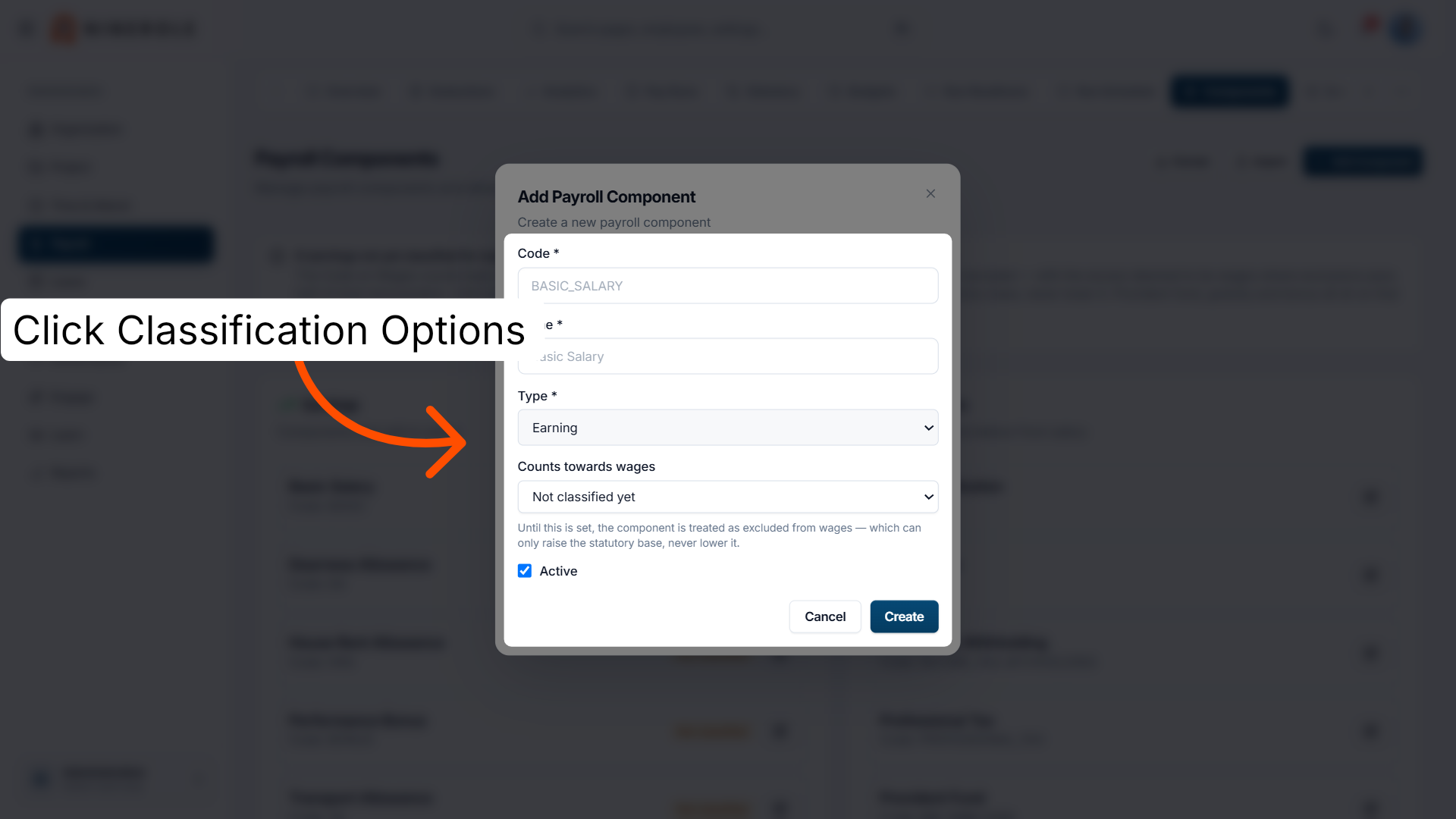
11. Review the classification options
Examine the classification settings to determine how the component counts towards wages and remuneration.
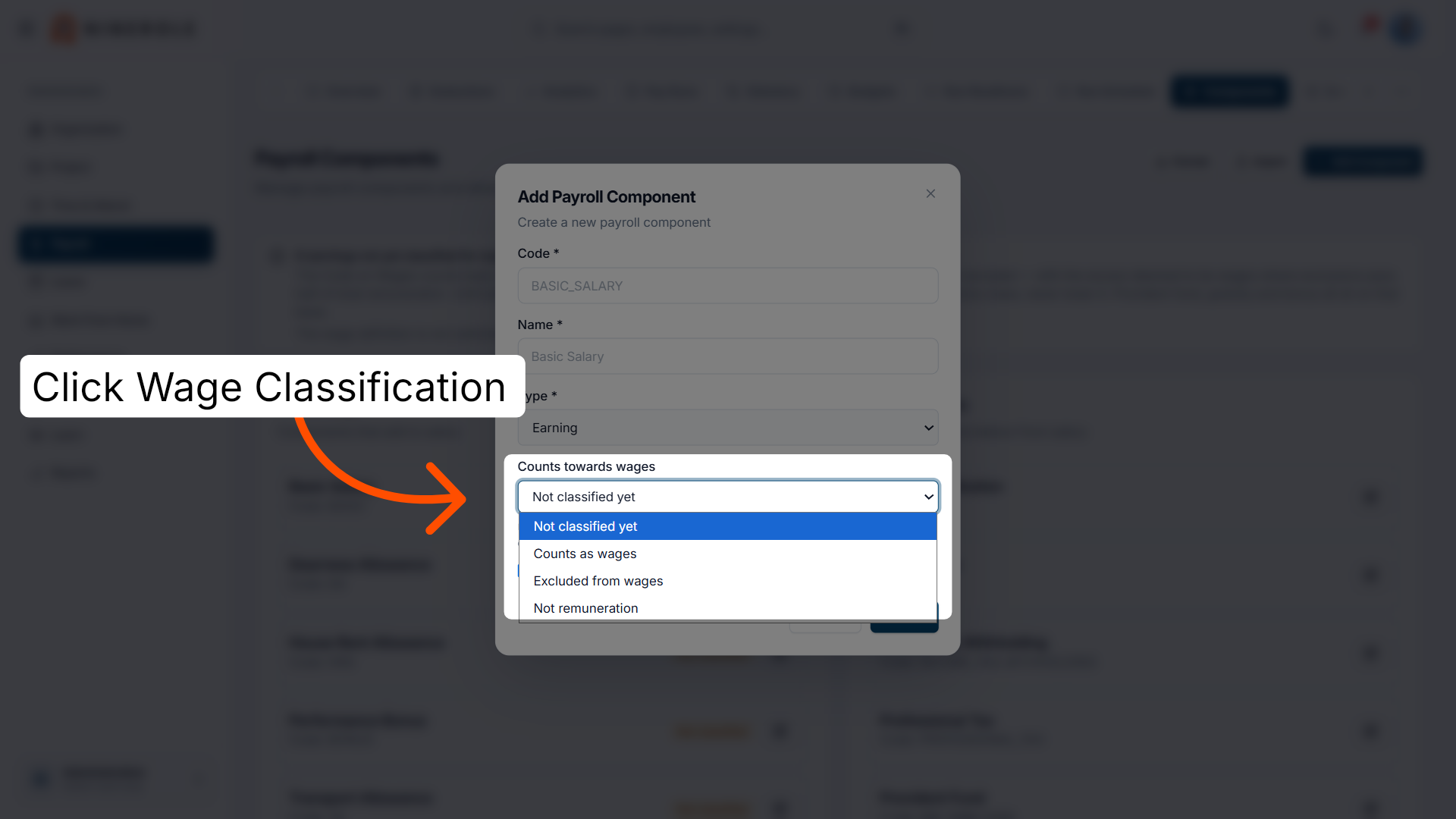
12. Set the wage classification
Specify whether the component counts as wages, is excluded, or is not considered remuneration for payroll processing.
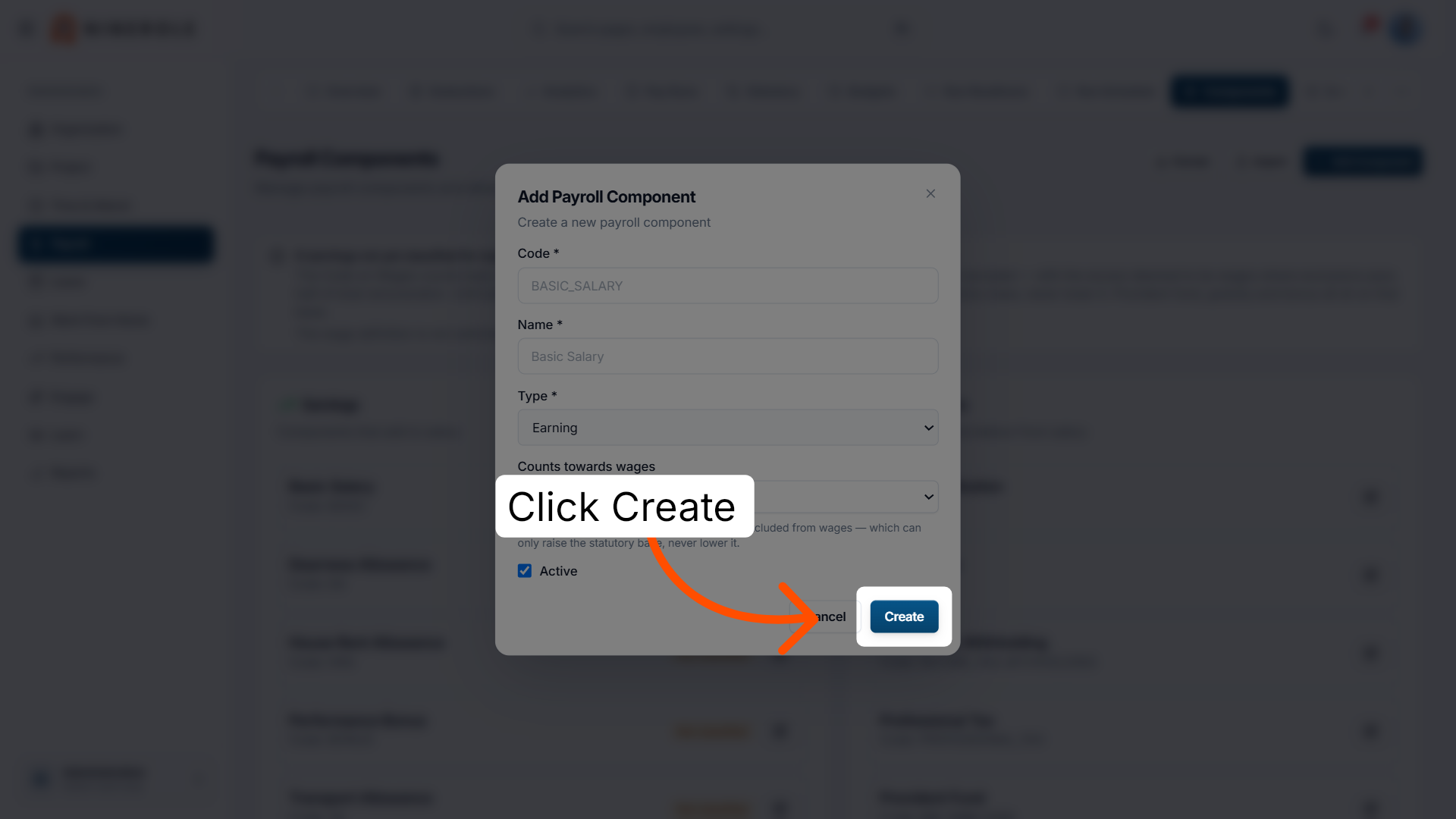
13. Create the payroll component
Finalize and create the new payroll component to include it in the payroll system.
Import components in bulk
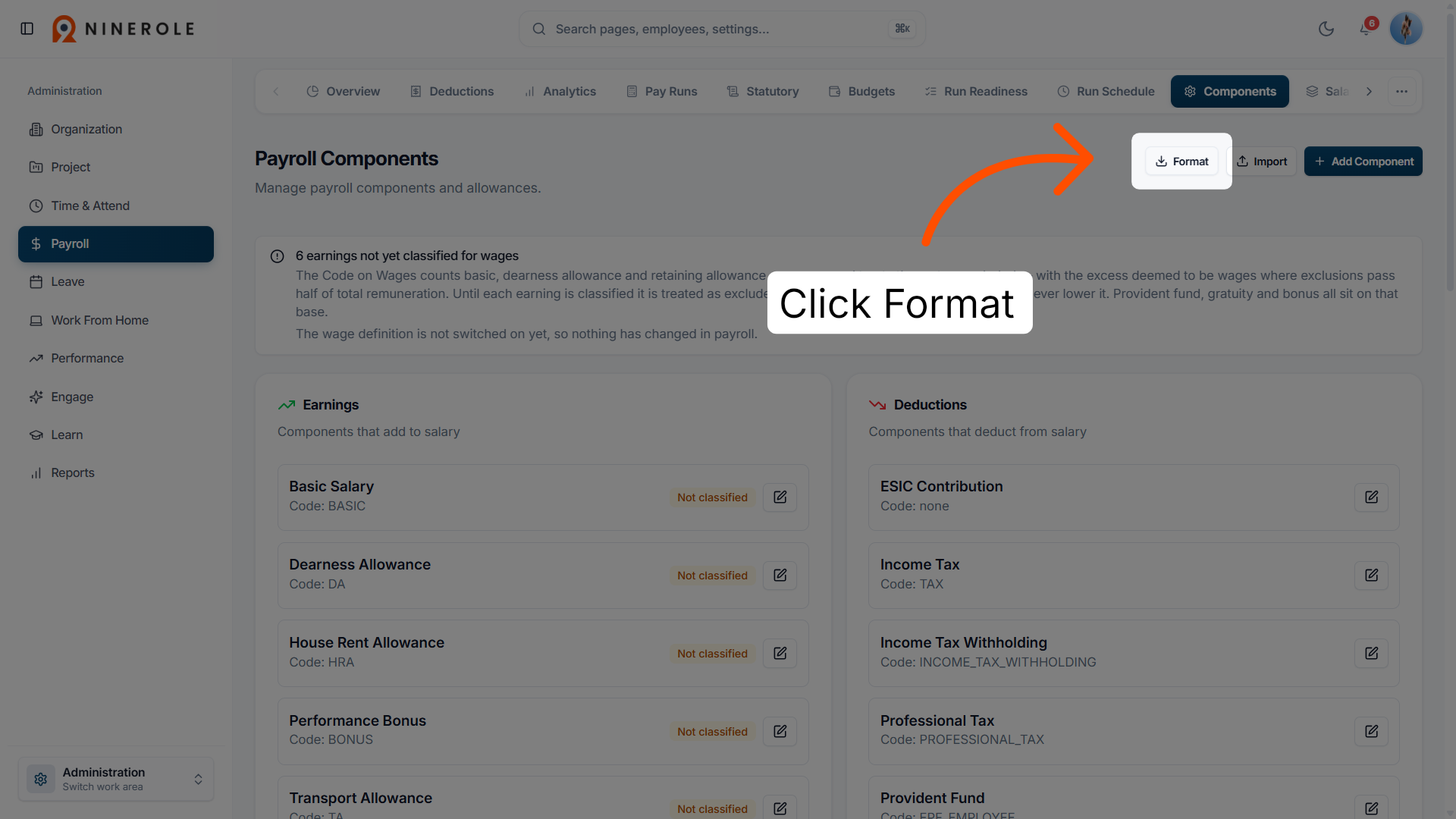
14. Download the import format
Download the format file, which sets out how payroll components should be laid out for import.
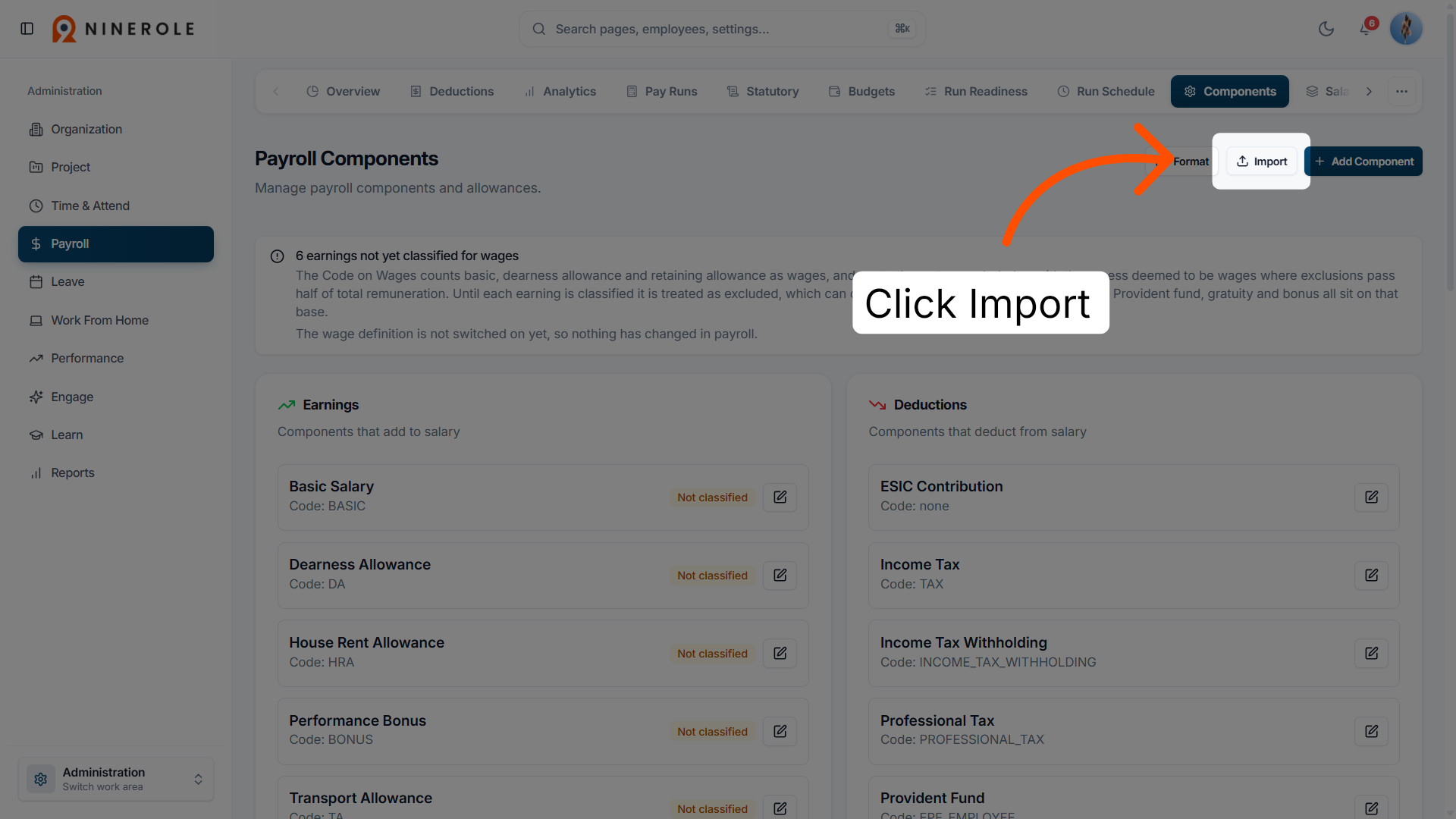
15. Import payroll components
Import payroll components from an external source to speed up setup and data entry.
Create a formula
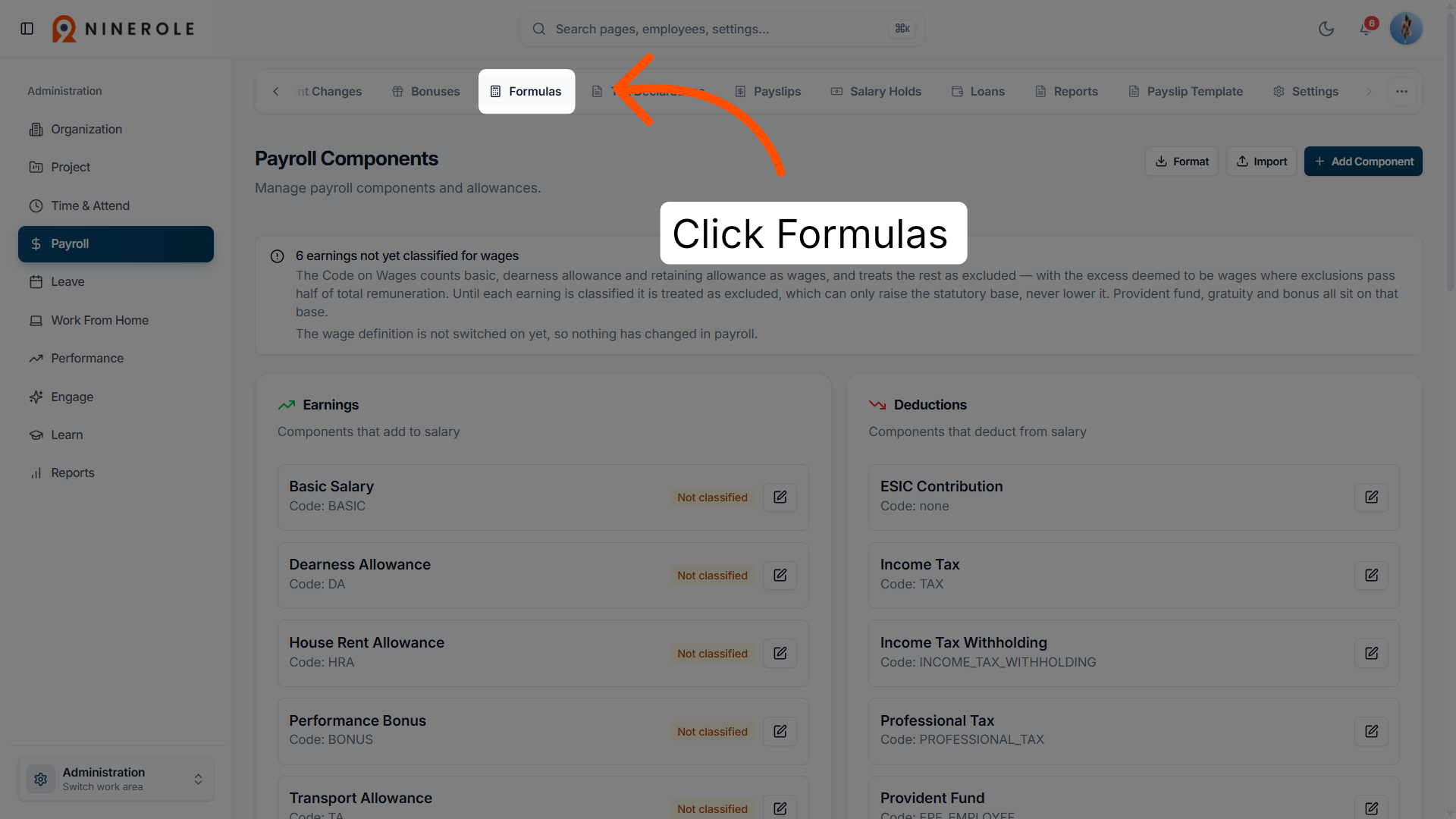
16. Open the Formulas section
Navigate to the formulas section to manage calculation rules for payroll components.
17. View existing formulas
Review the list of existing formulas applied to payroll components for accuracy and updates.
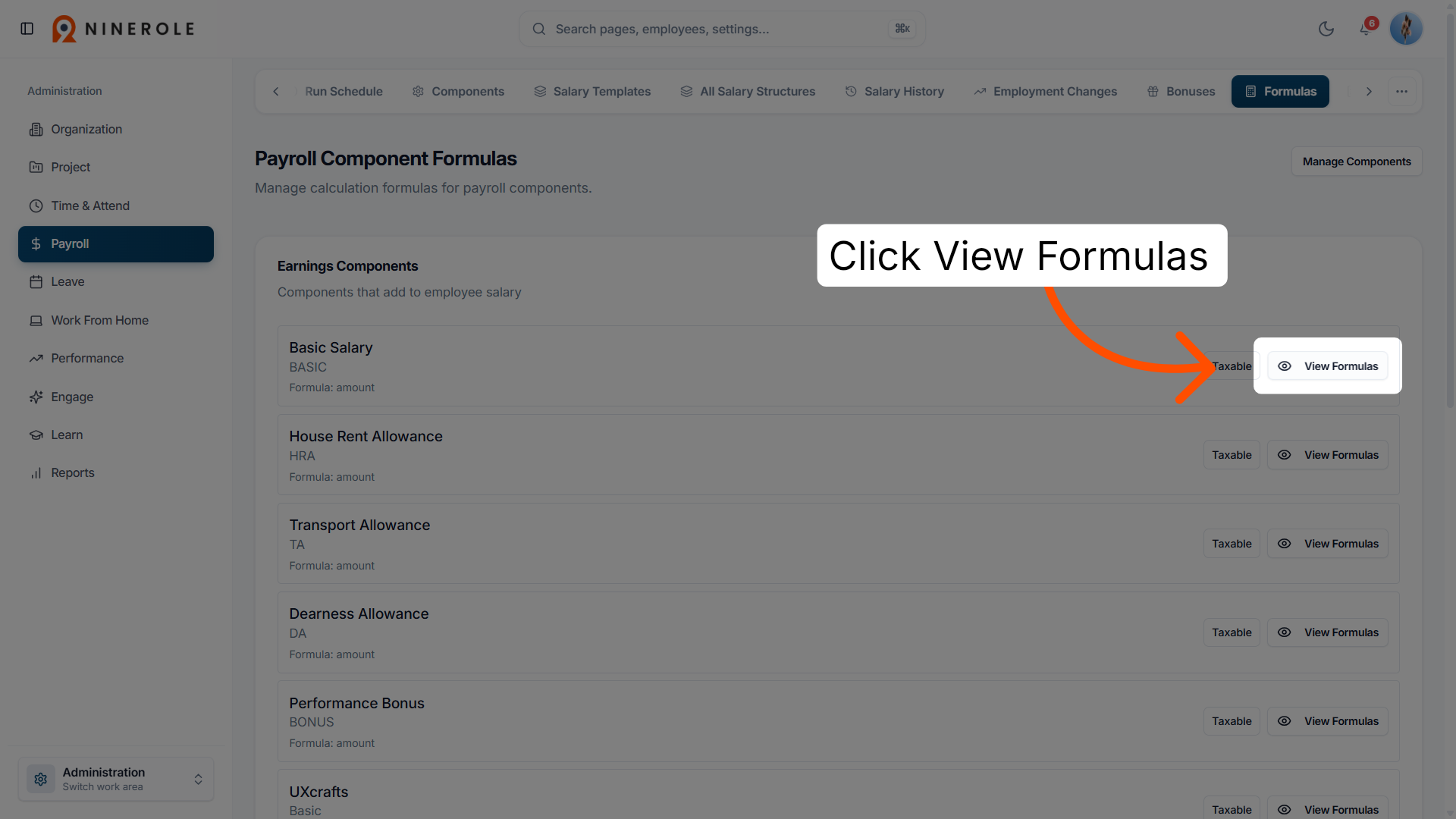
18. Add a new formula
Begin creating a new formula to define custom calculations for payroll components.
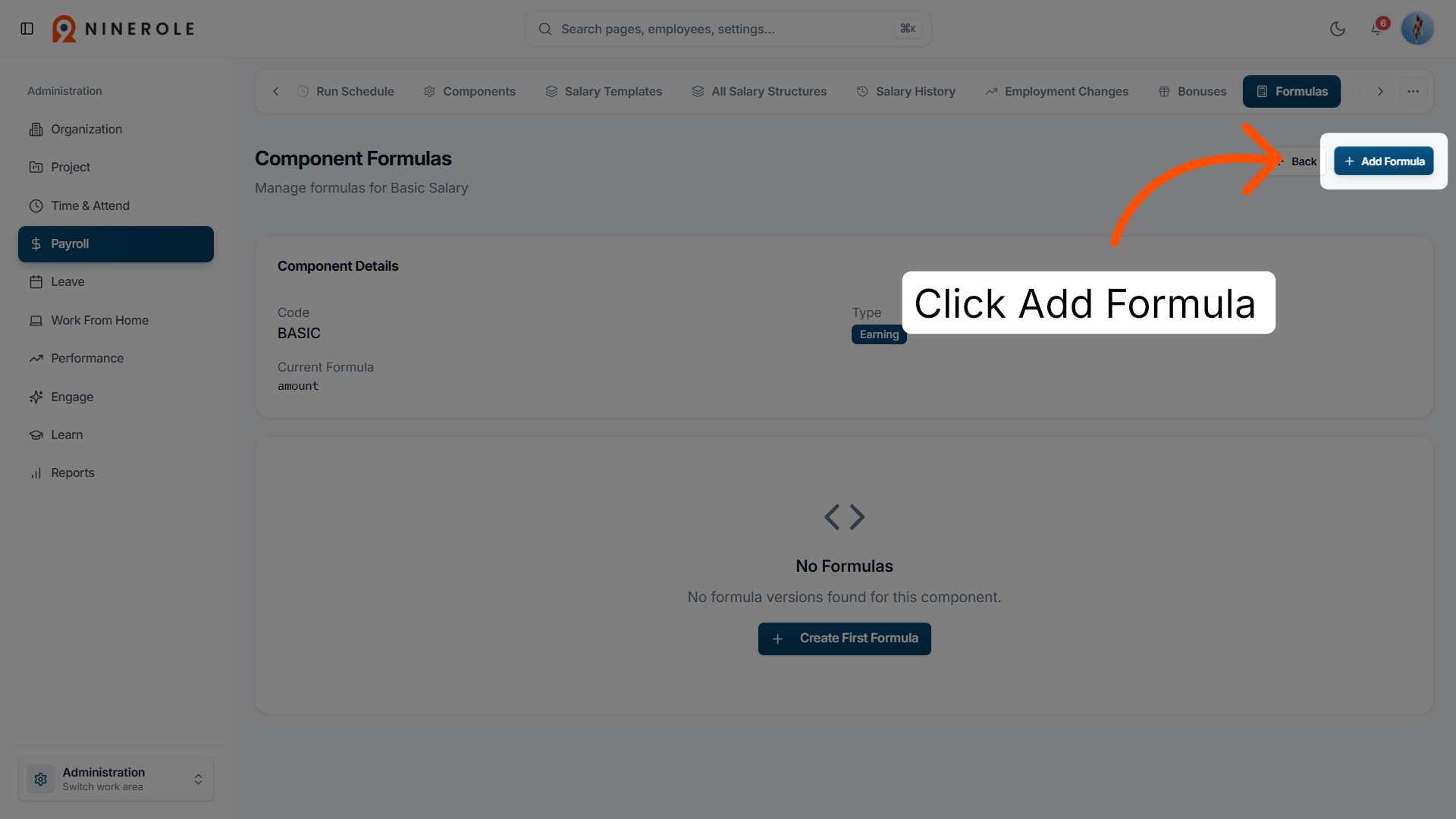
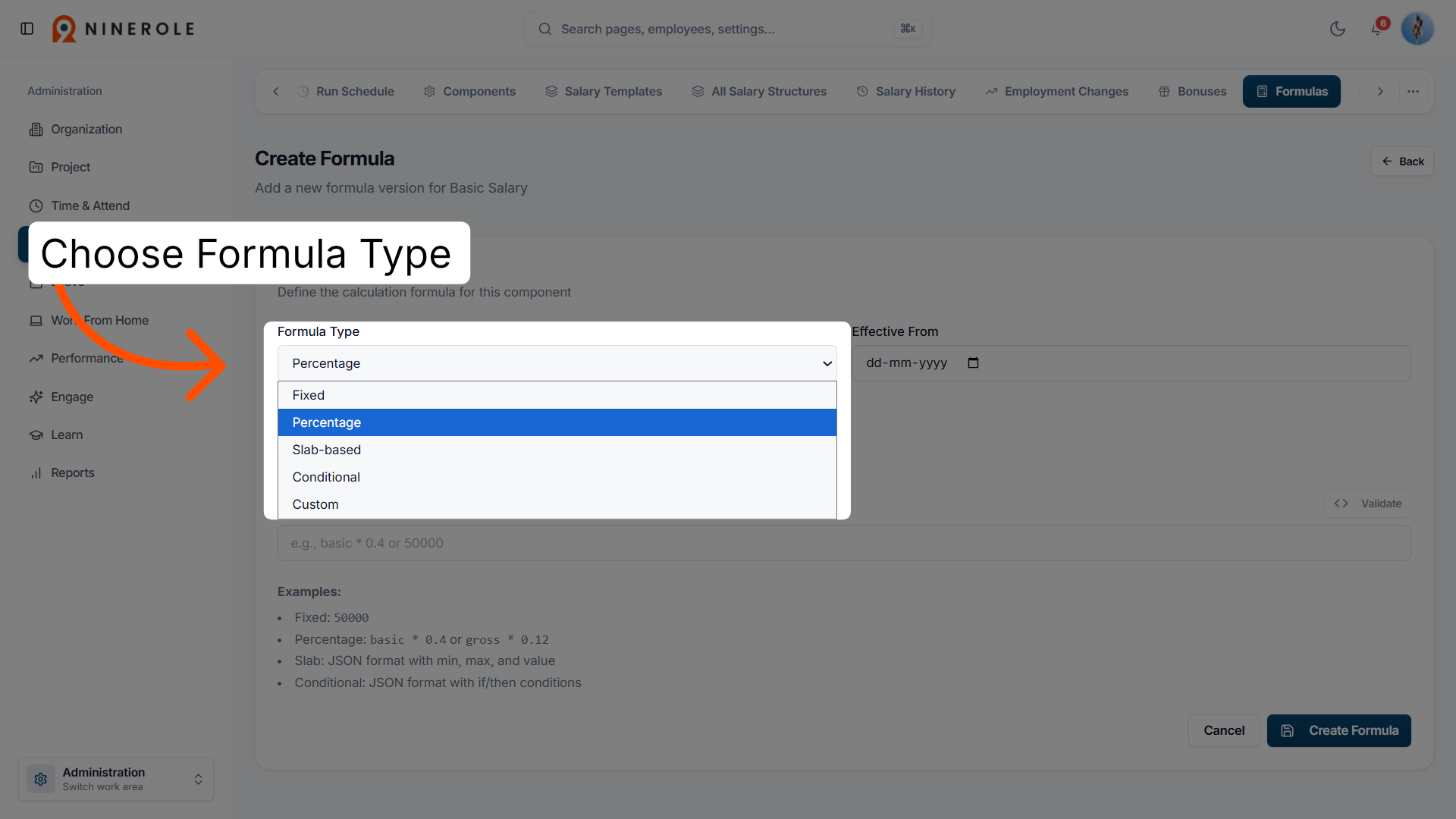
19. Select the formula type
Choose the type of formula — fixed, percentage, slab-based, or conditional — to apply the appropriate calculation.
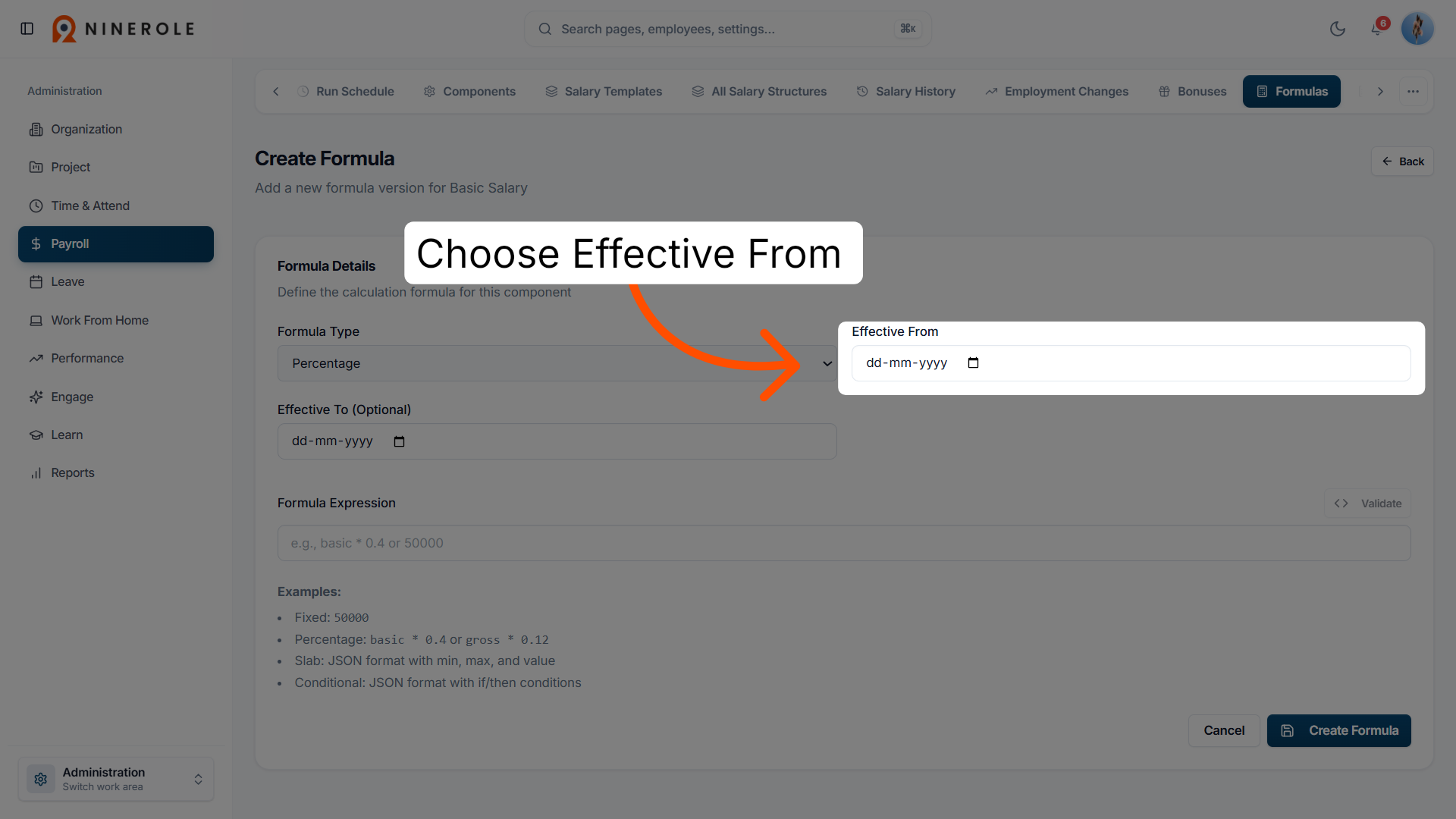
20. Set the effective start date
Specify the date from which the formula takes effect in payroll processing.
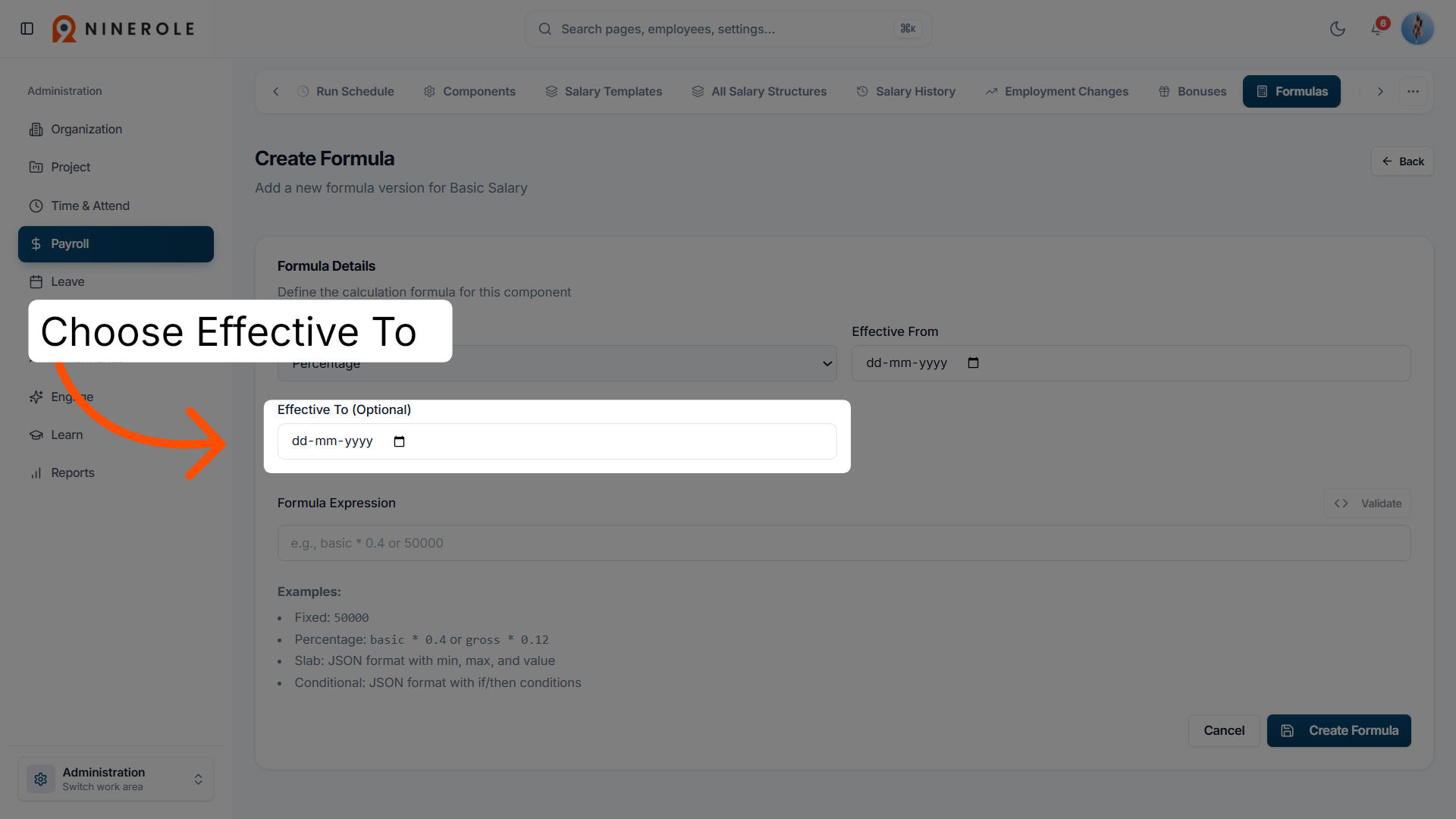
21. Set the effective end date
Optionally define an end date for the formula's validity, to manage time-bound calculations.
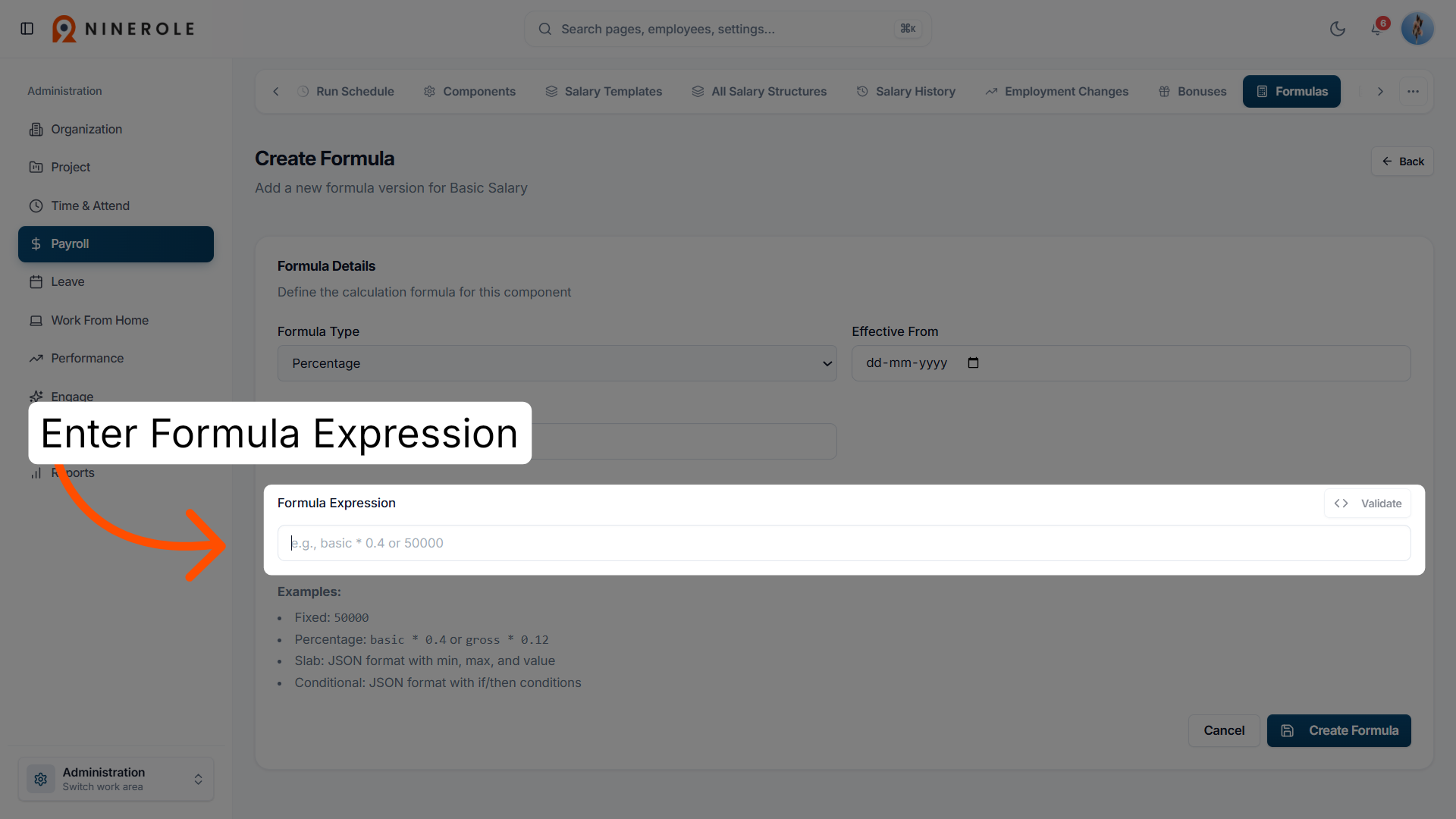
22. Enter the formula expression
Input the mathematical expression that defines how the payroll component is calculated.
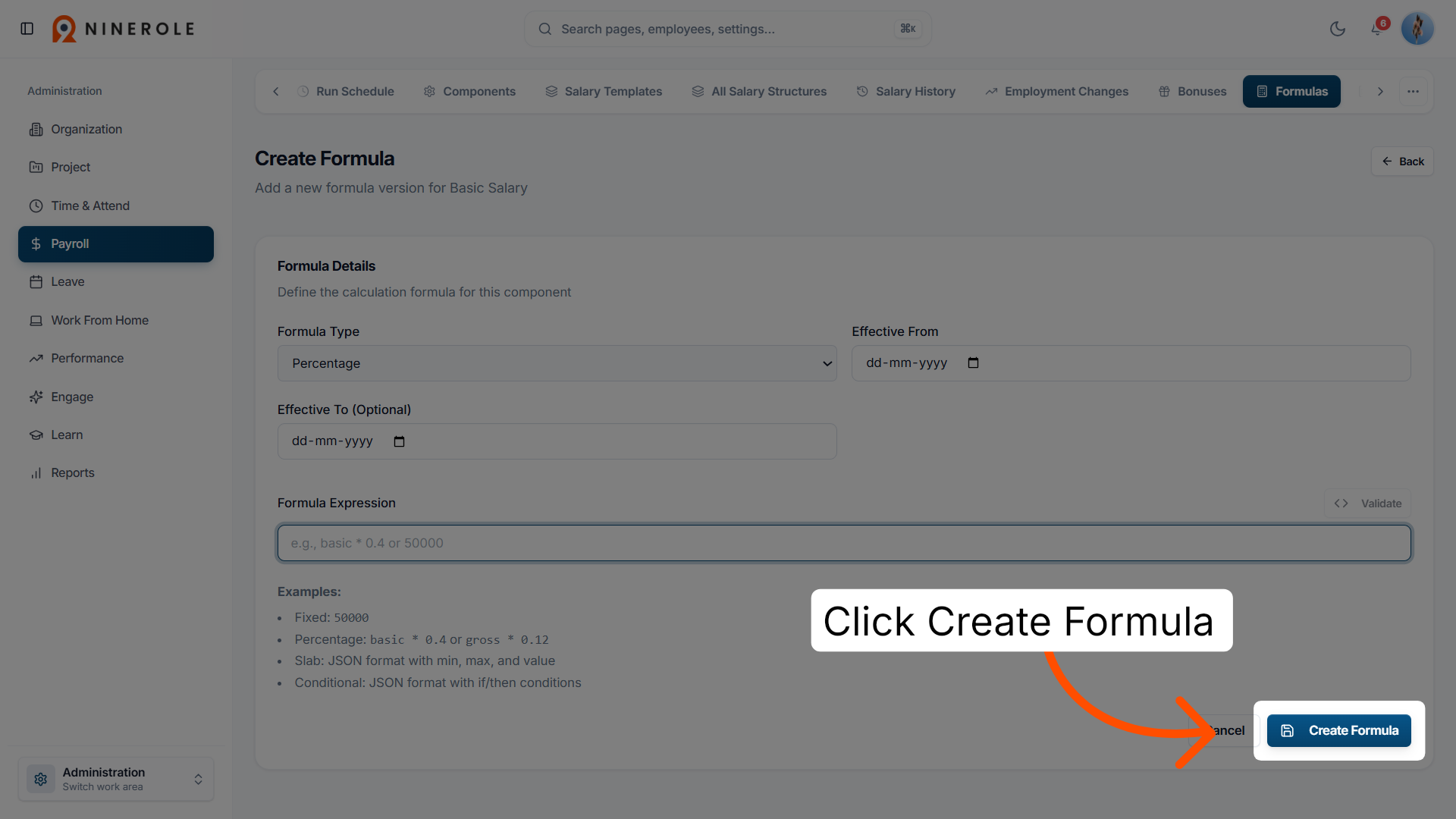
23. Create the formula entry
Complete the formula creation to apply it to the selected payroll component.
Build a salary template
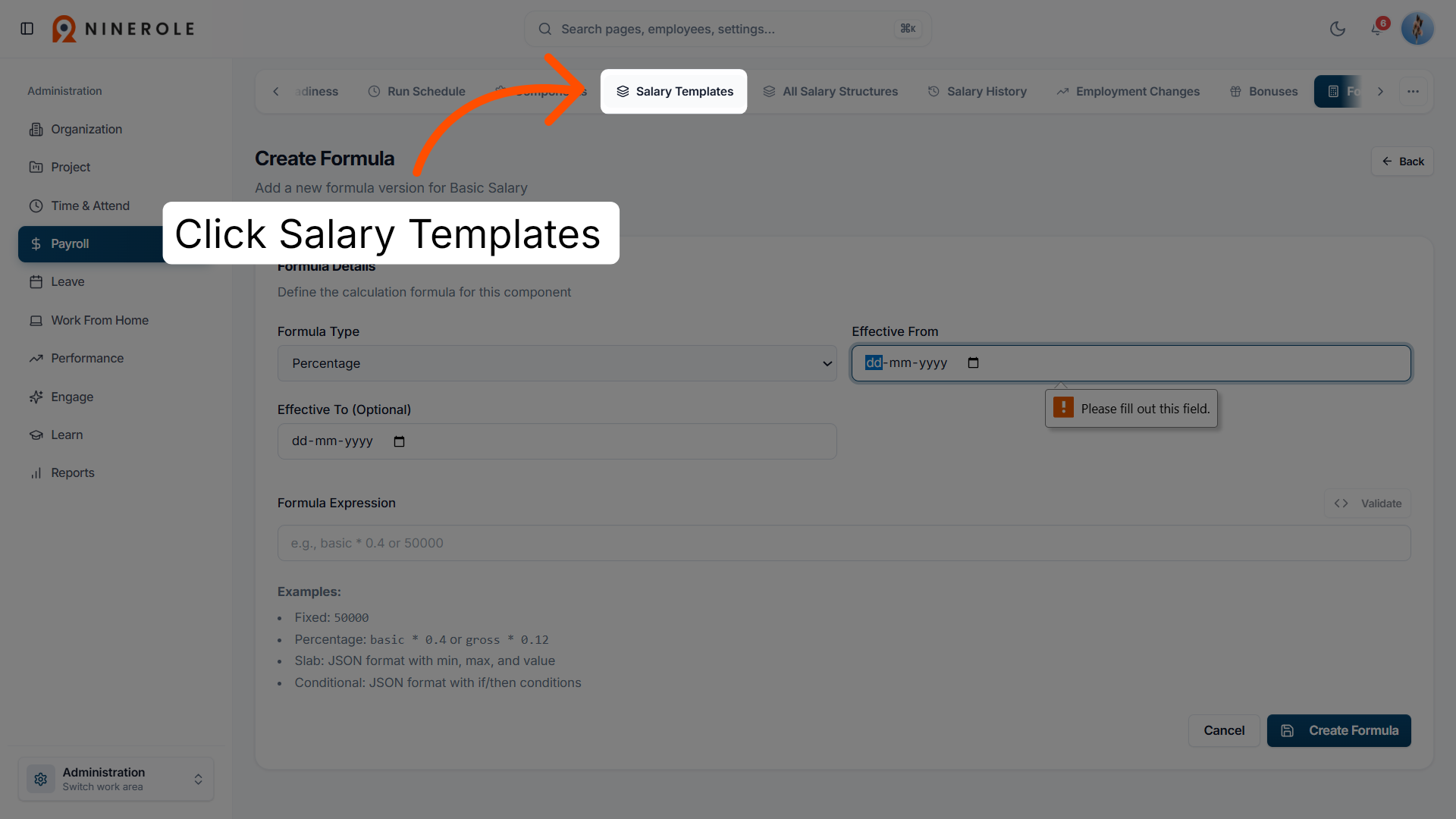
24. Access salary templates
Open the salary templates section to manage predefined salary structures for employees.
25. Create a new salary template
Start building a new salary template to standardize compensation components across roles.
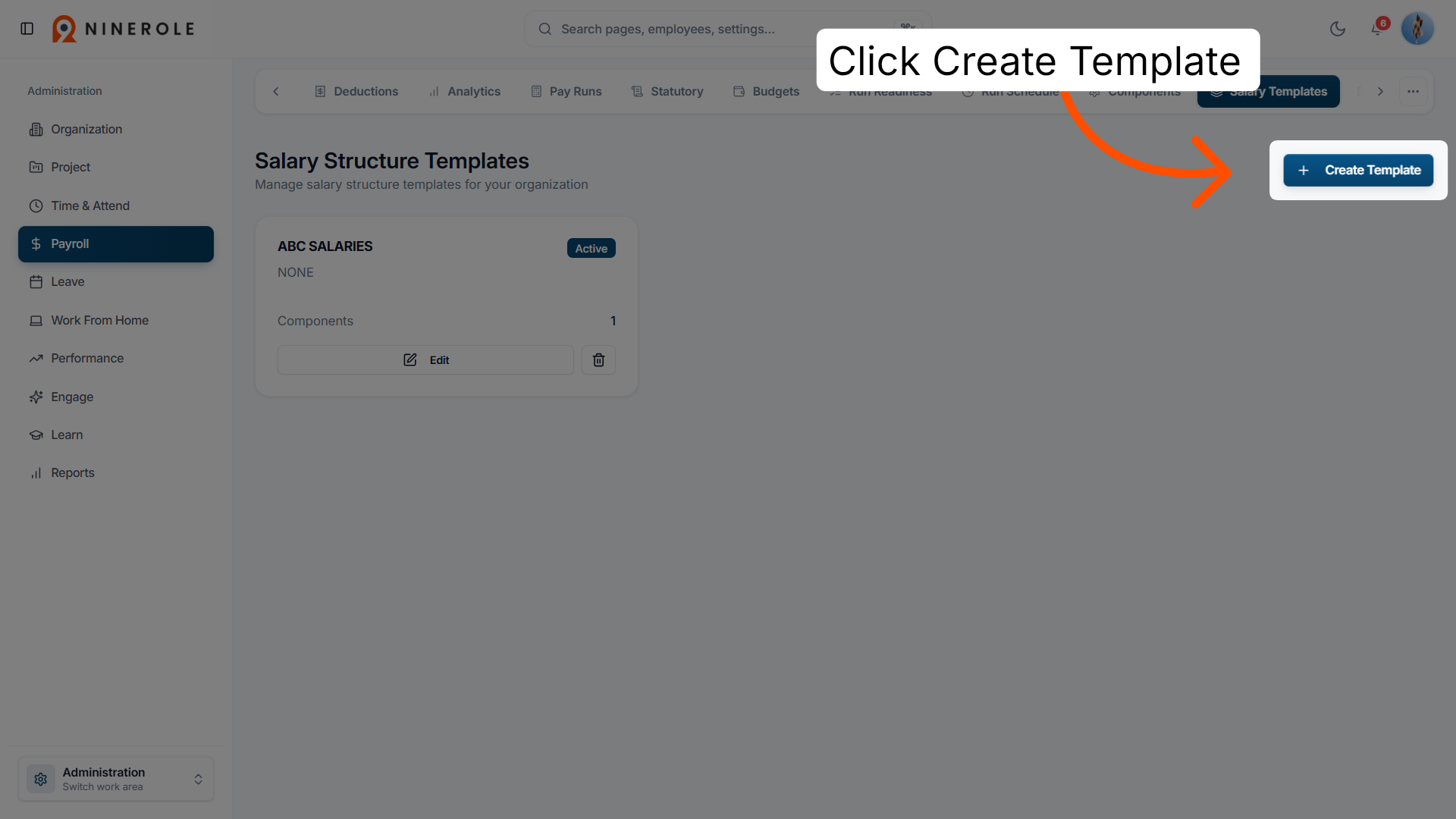
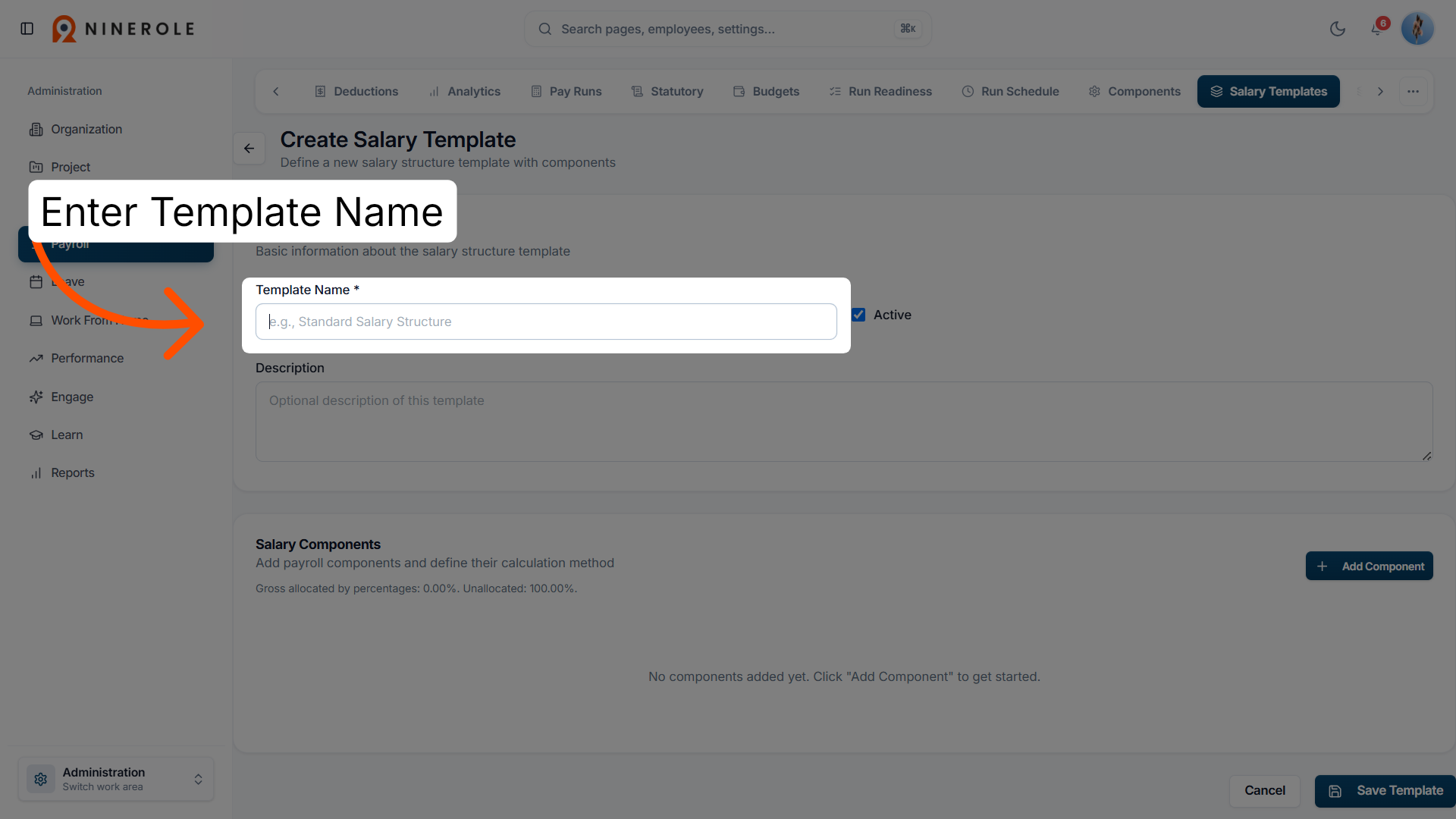
26. Enter the template name
Provide a name for the salary template to identify it within the system.
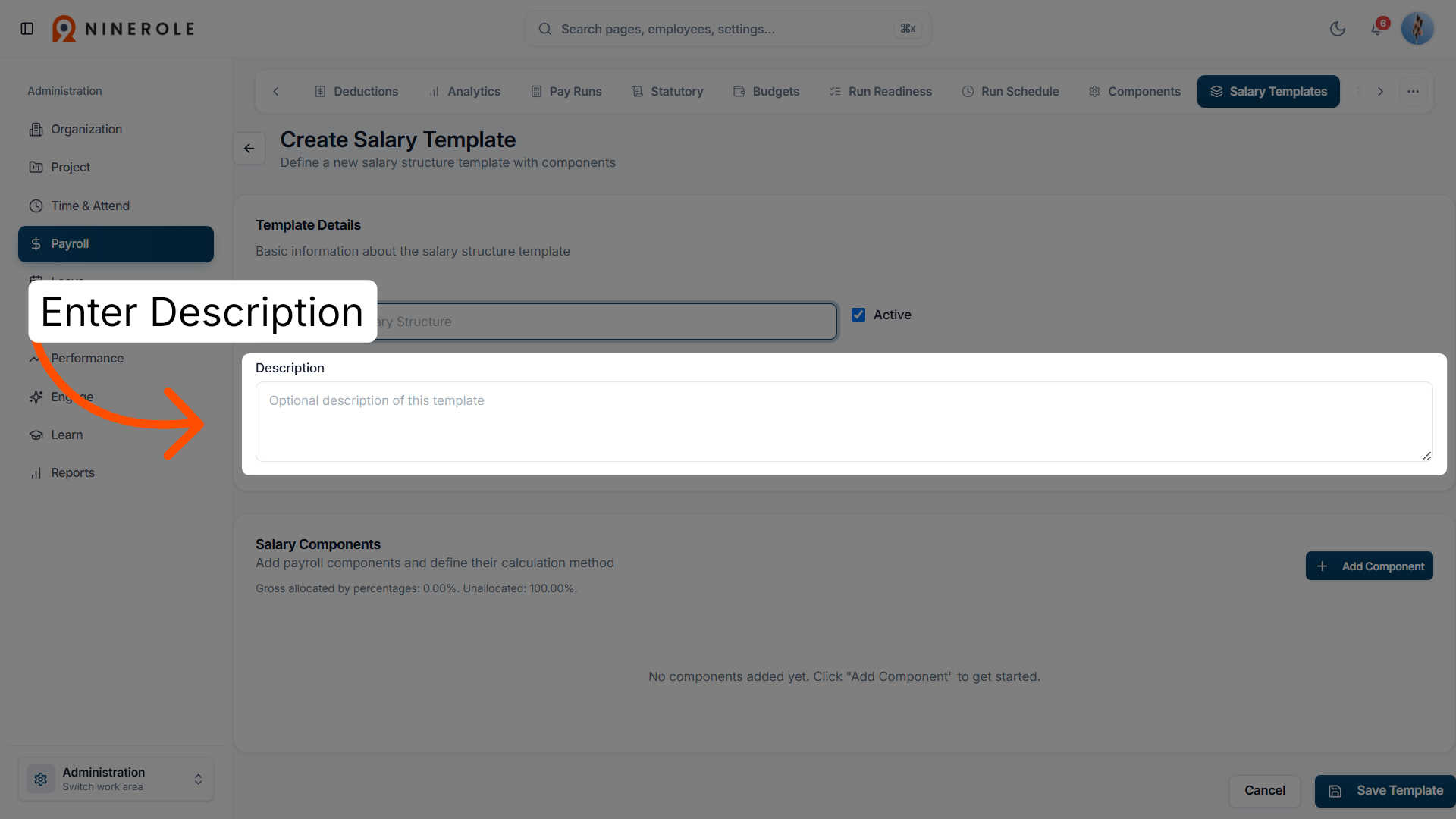
27. Add a template description
Include a description to explain the purpose and details of the salary template.
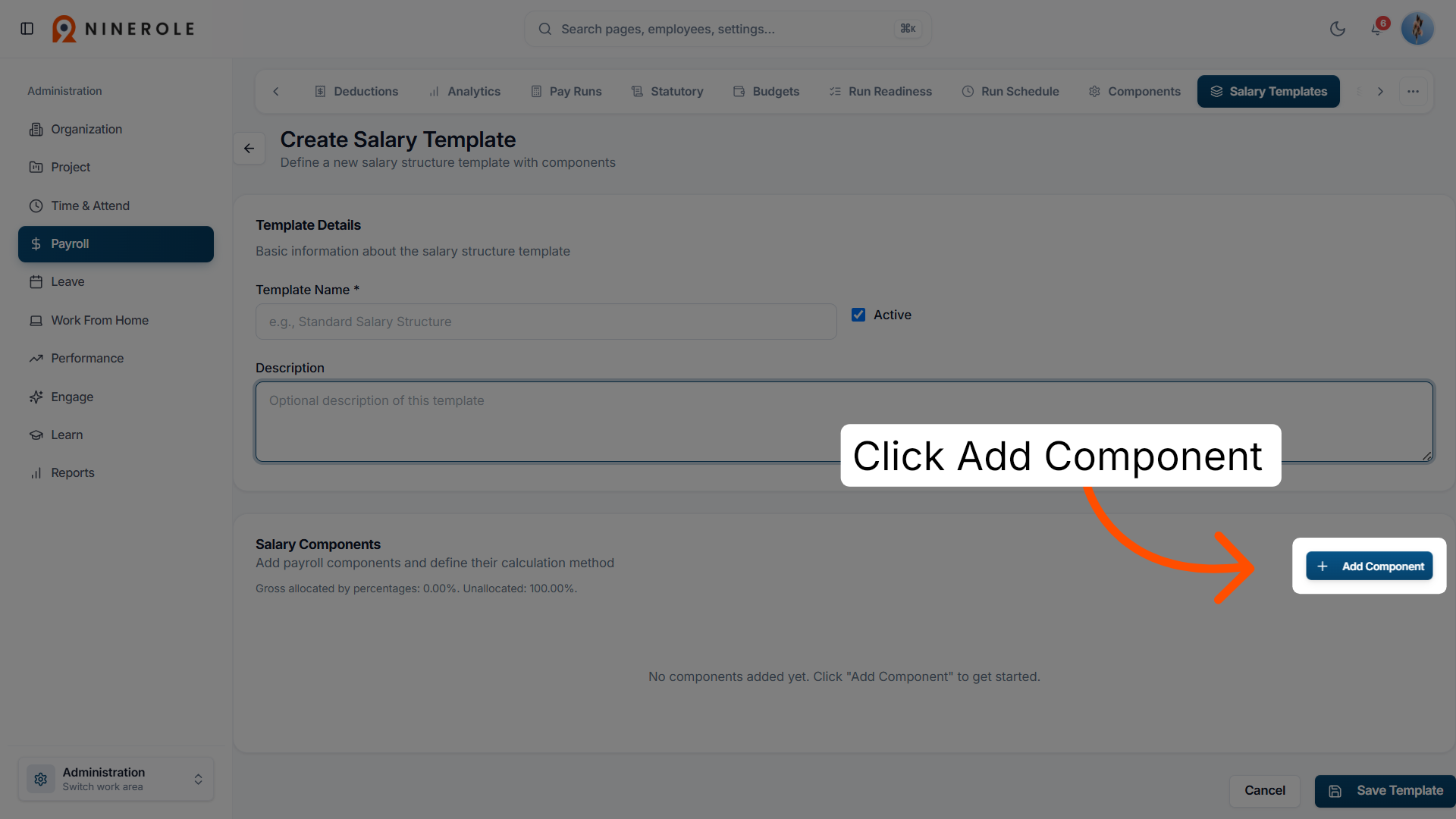
28. Add a component to the template
Incorporate payroll components into the salary template to define its structure.
29. Configure the component settings
Adjust the specific settings for the added component within the salary template.
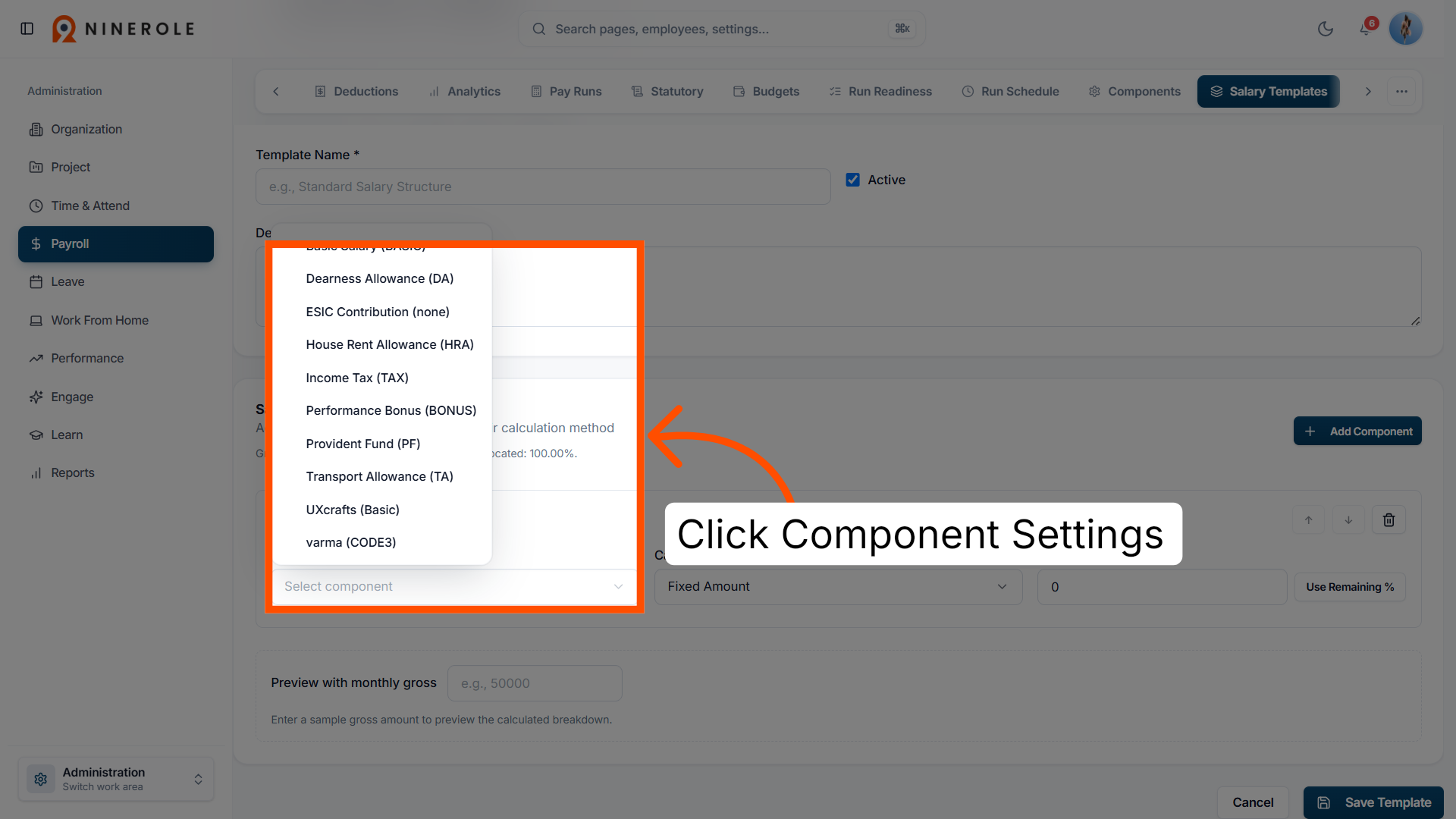
30. Modify the component parameters
Make any changes needed to the component parameters to fit the salary template's requirements.
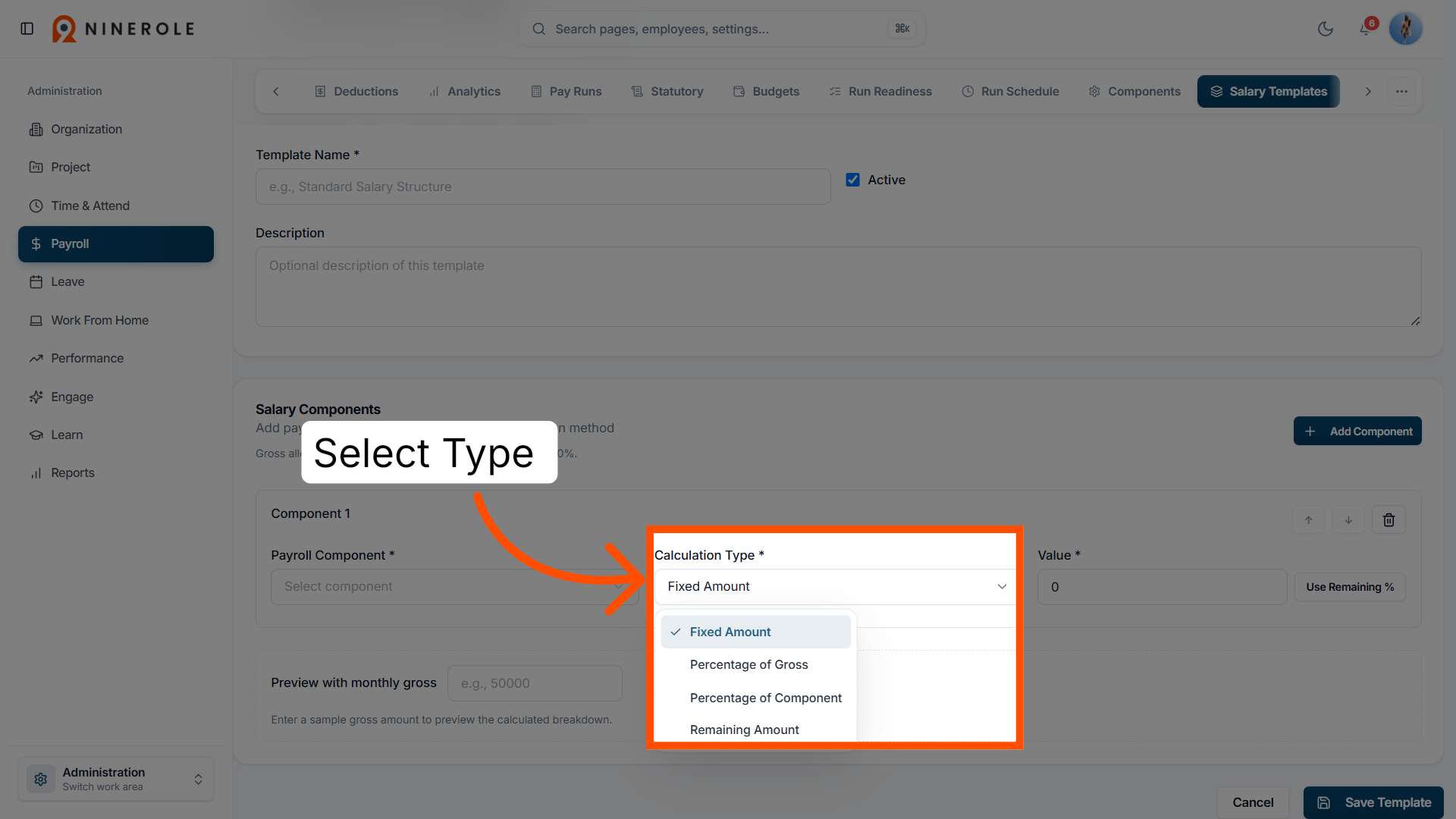
31. Set the component value
Assign a value or percentage to the component as part of the salary template configuration.
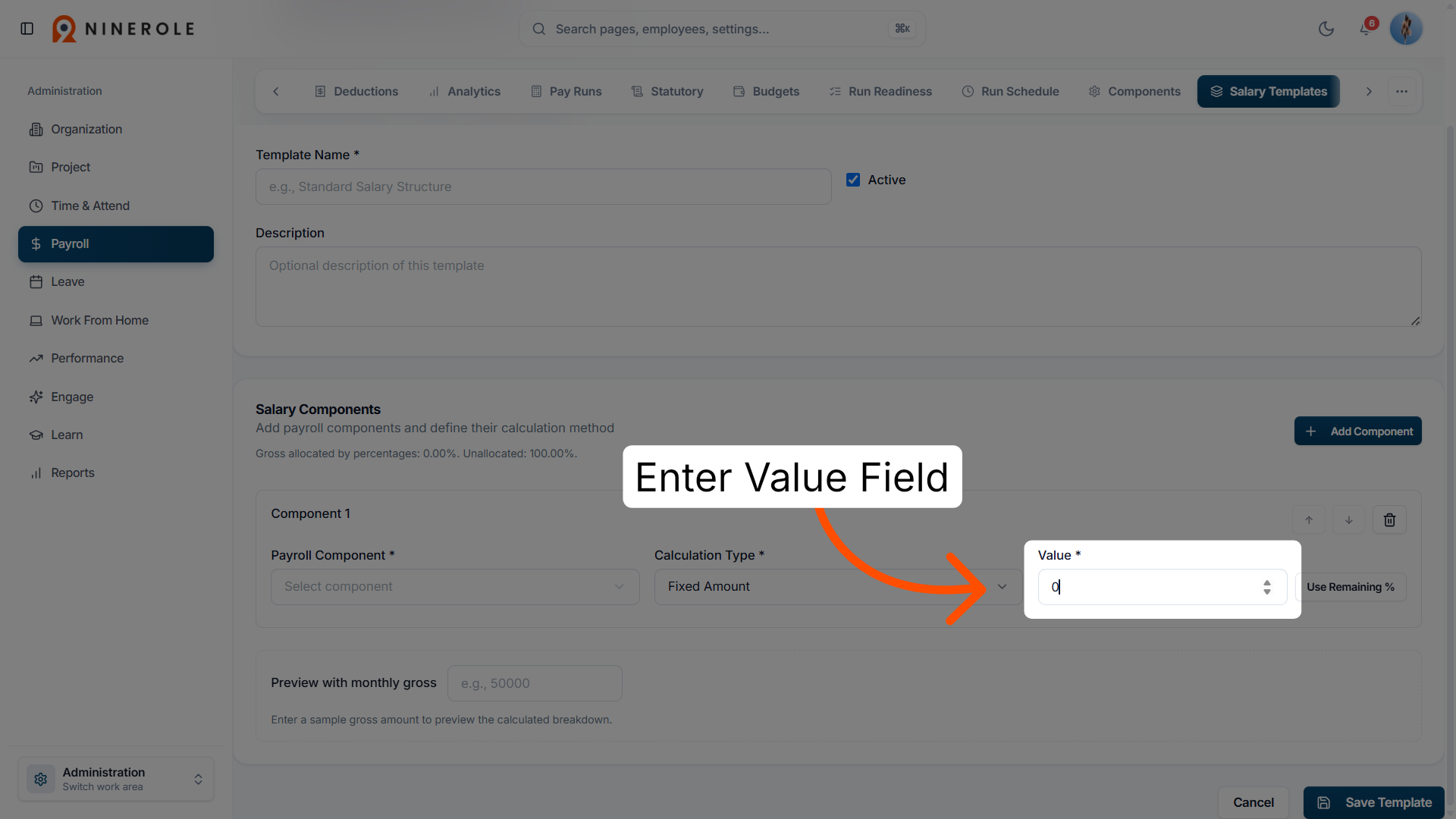
32. Use the remaining percentage option
Select this option to allocate the remaining percentage of the salary to this component automatically.
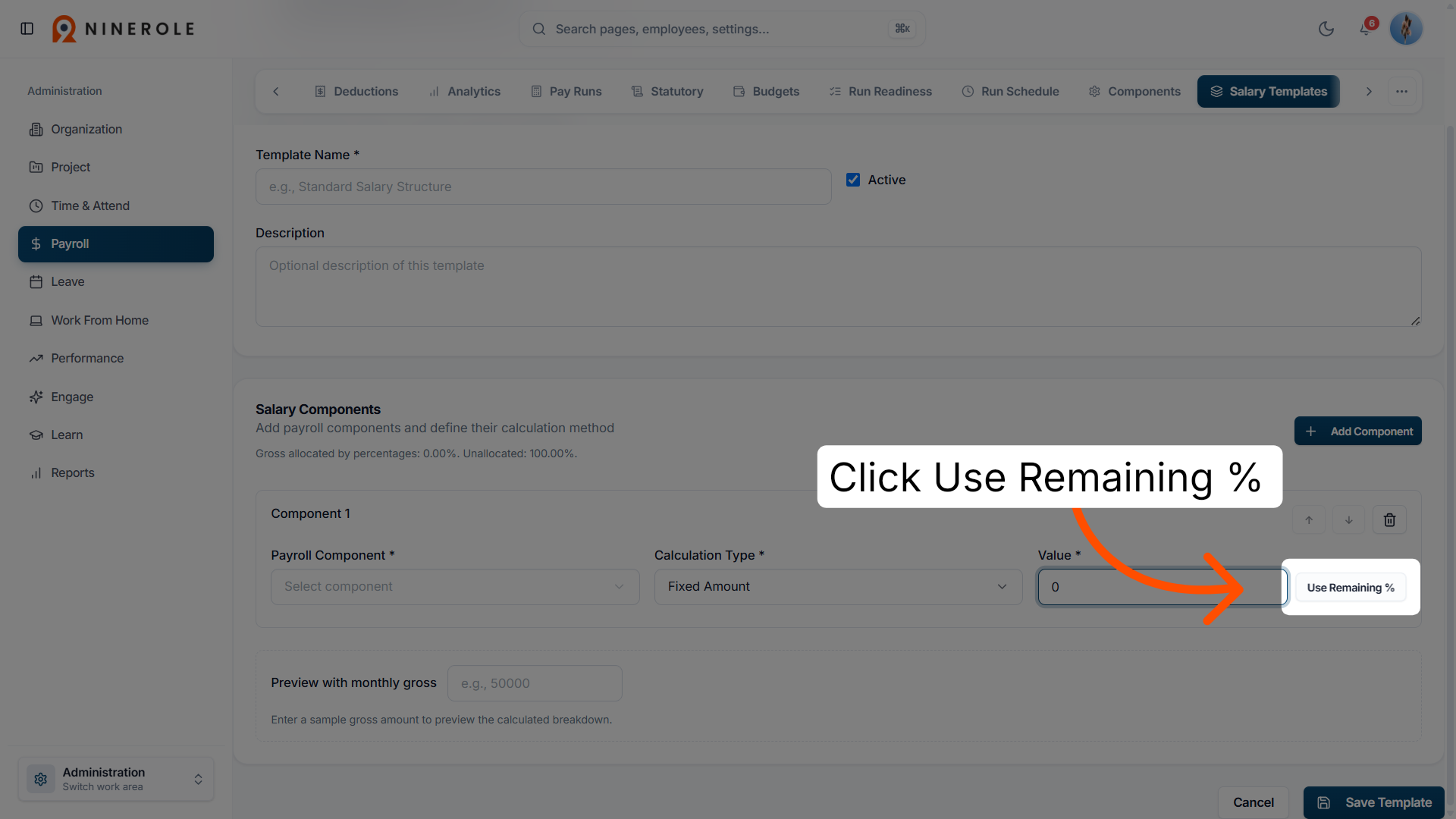
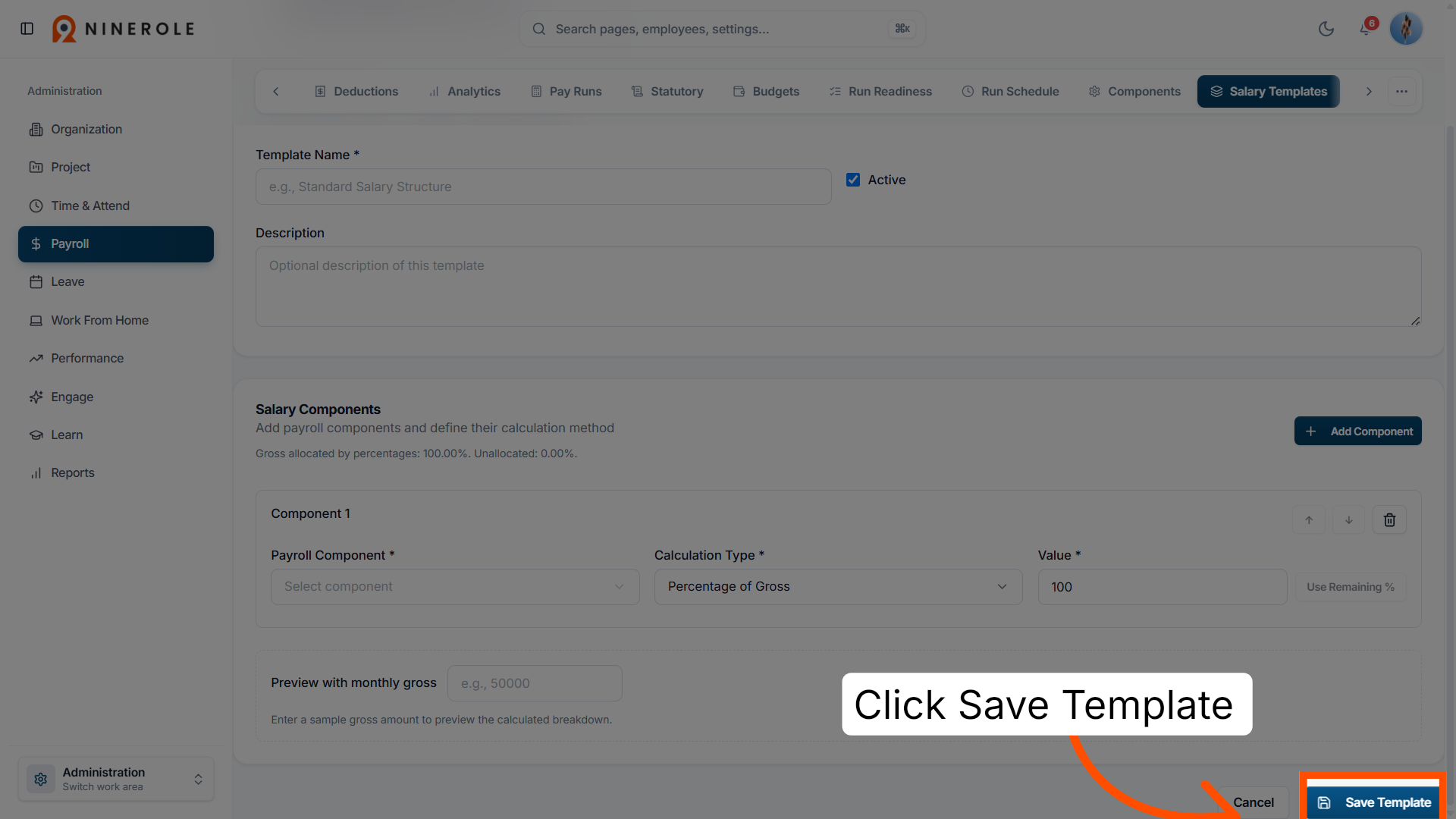
33. Save the salary template
Save the completed salary template to apply it for employee payroll processing.
You have successfully created and configured payroll components, formulas, and salary templates within the Ninerole HRMS platform. This setup enables reliable payroll management and accurate salary calculations for your organization.
Salary templates created here are the ones applied when adding an employee, and they drive the earnings and deductions shown on payslips.
Back to Payroll · all modules · Ninerole HRMS overview
Last updated: