

Configure Performance Cycles and Templates
This tutorial walks through setting up a performance review cycle and building a customised evaluation template in Ninerole HRMS. You will configure cycle details, define performance criteria, and assign the template to employees.
Before you start, go to ninerole.com and sign in with an administrator account.
A template is built from KRAs (Key Result Areas) that must total 100% of the score, each holding KPIs that must total 100% within their KRA. A KPI can be one of four types — rating scale, text answer, numeric target or checklist — and this walkthrough adds one of each.
About this task
- Purpose
- Create a performance review cycle, build an evaluation template from weighted KRAs and KPIs, and assign it to employees.
- Who can do this
- HR admin or a performance administrator
- Before you start
- Employees exist to assign the template to.
- You will need
- Cycle name and dates, the KRAs and their weights, the KPIs inside each, and who to assign it to.
- Result
- A cycle exists and a template is assigned to employees, ready to be filled in.
- This unlocks
- Employees logging progress against goals, and reviews running on the cycle.
This guide answers
- How do I create a performance cycle?
- How do I build an evaluation template?
- What is the difference between a KRA and a KPI?
- Why won't my template save?
- How do I assign a template to employees?
If something goes wrong
- The template will not save.
- KRA weights must total exactly 100%, and KPI weights must total 100% within each KRA.
- Employees do not see the template.
- It exists but has not been assigned. Use the assign step and pick the cycle.
Related: Track & log progressAlso called: appraisal cycle, review cycle, evaluation template.Last verified: 7 September 2026
1. Introduction
You will learn how to configure cycle details, define performance criteria, and assign templates to employees.
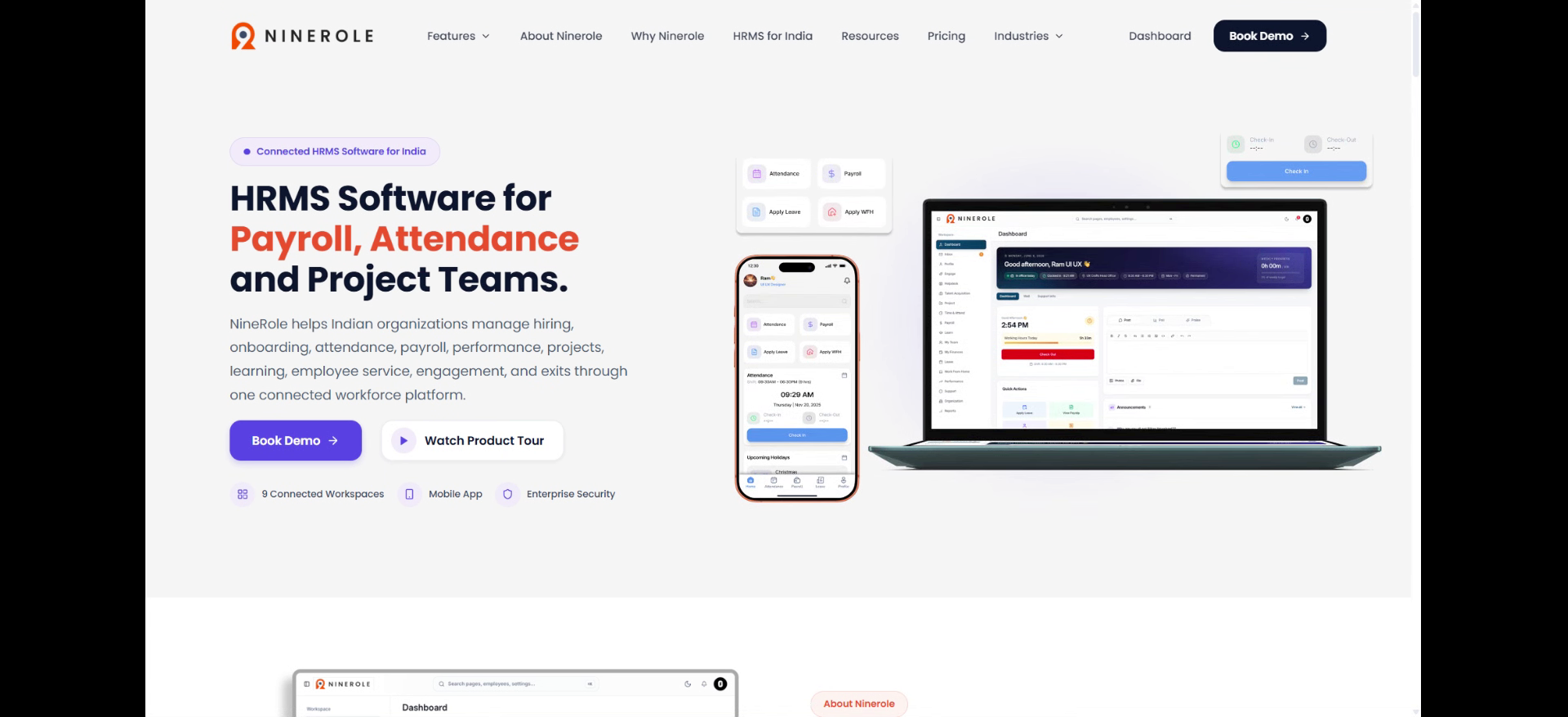
Open the performance cycle setup
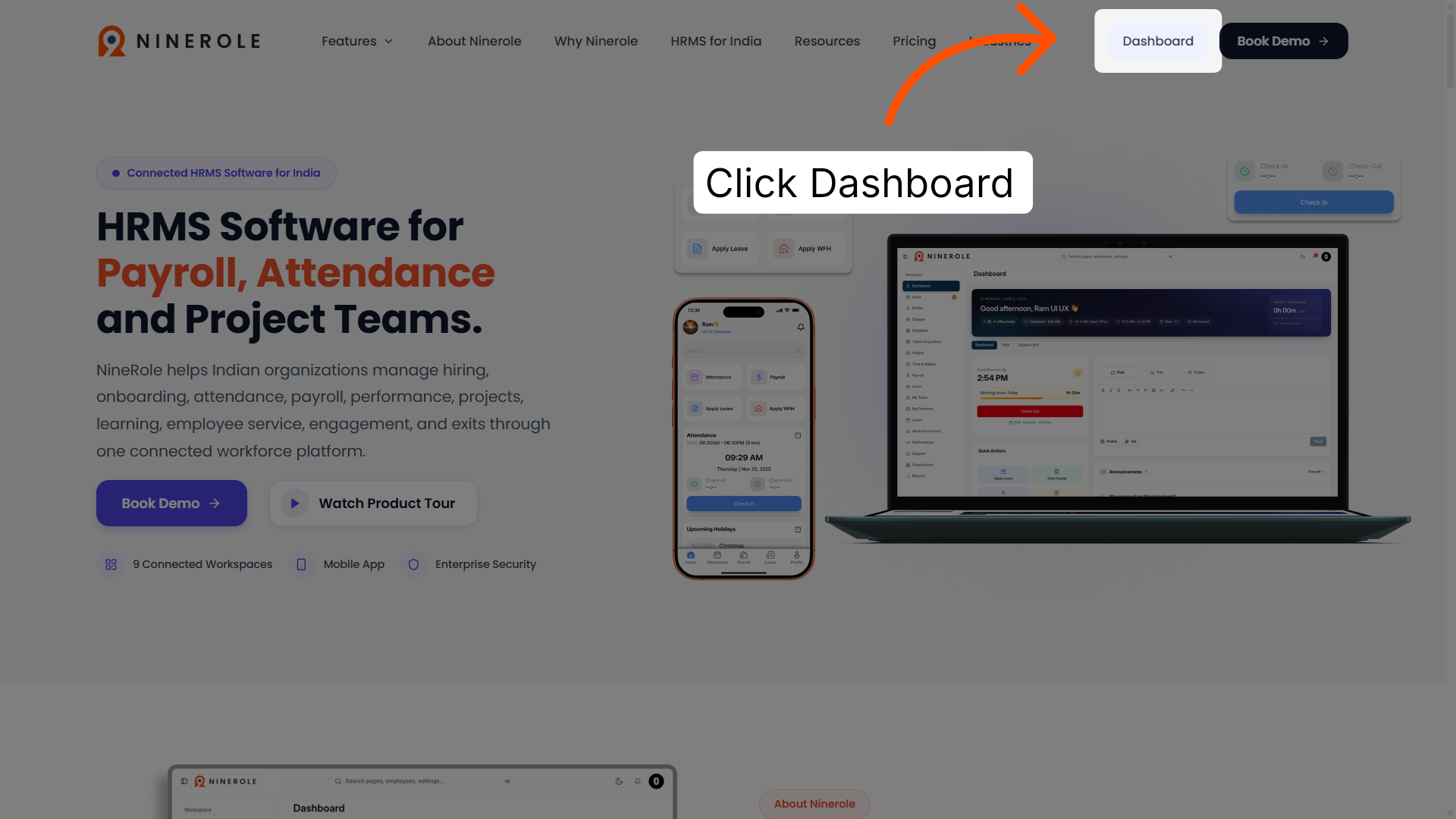
2. Access the dashboard overview
Open the Dashboard for an overview of employee activity and key metrics.
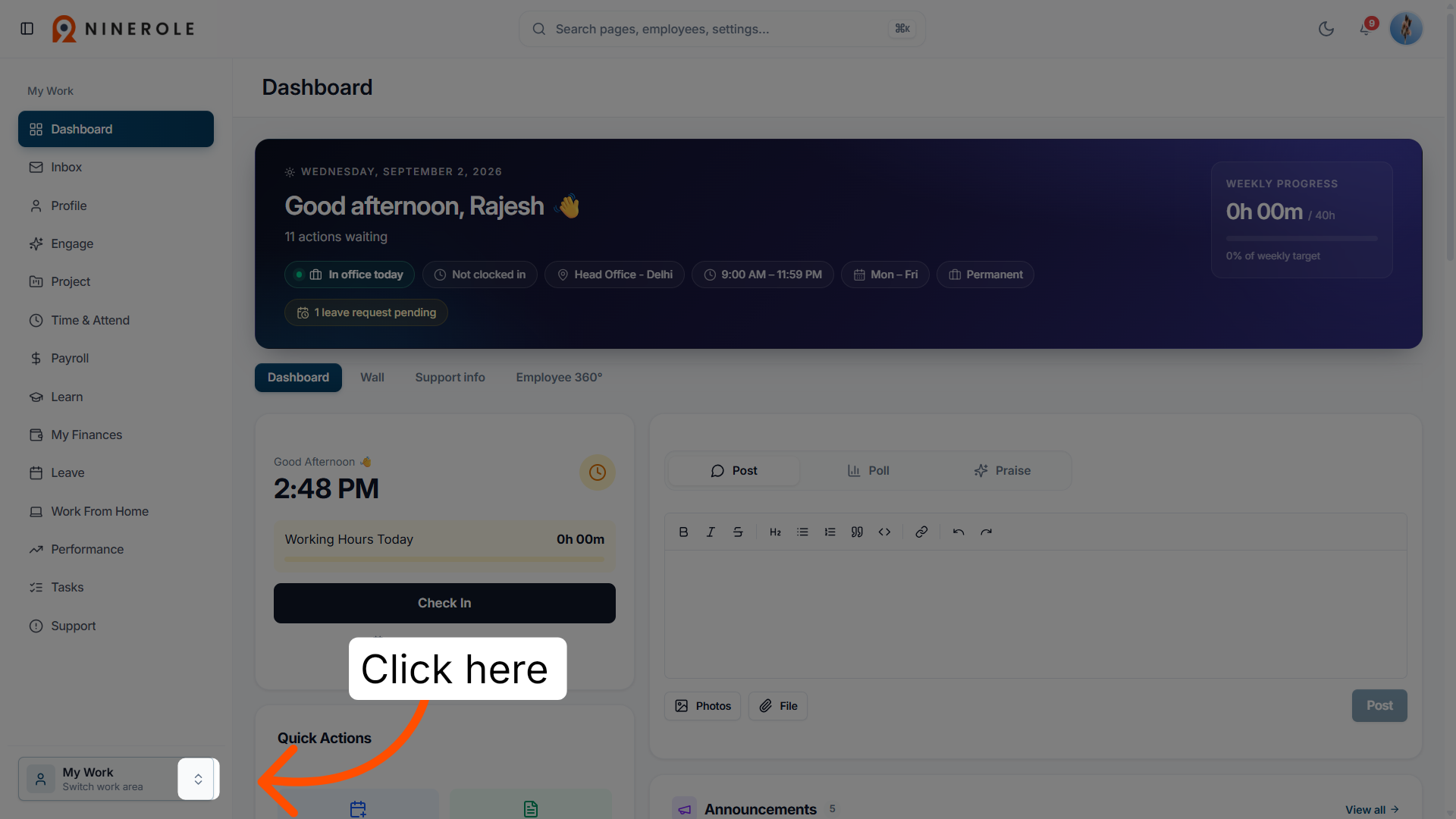
3. Open the dashboard detail
Open the detailed dashboard view to explore employee journey data and performance indicators.
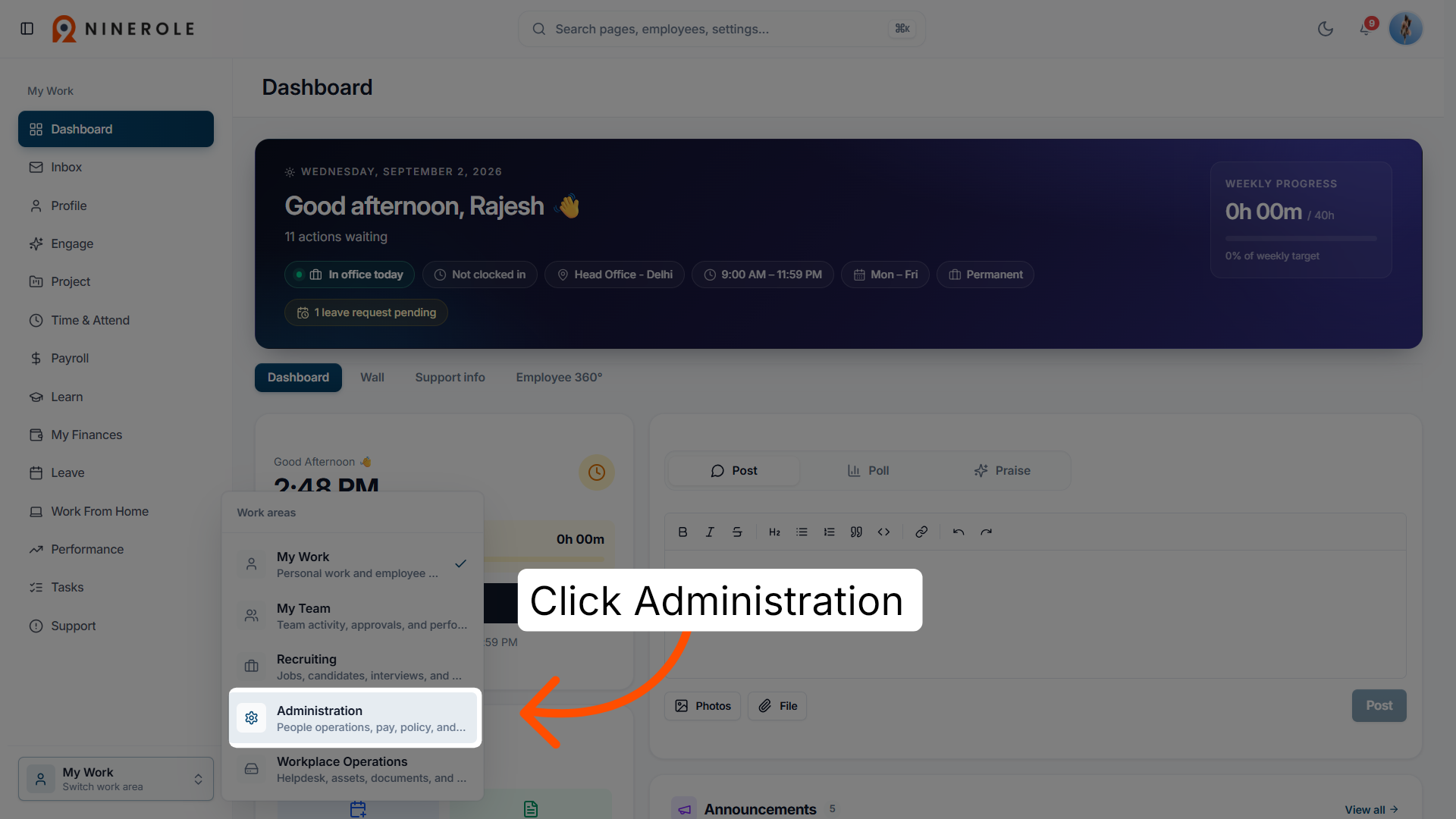
4. Go to Administration
Open the Administration section, where organizational settings and performance configuration live.
5. Open the Performance module
Open Performance to configure and monitor cycles and related data.
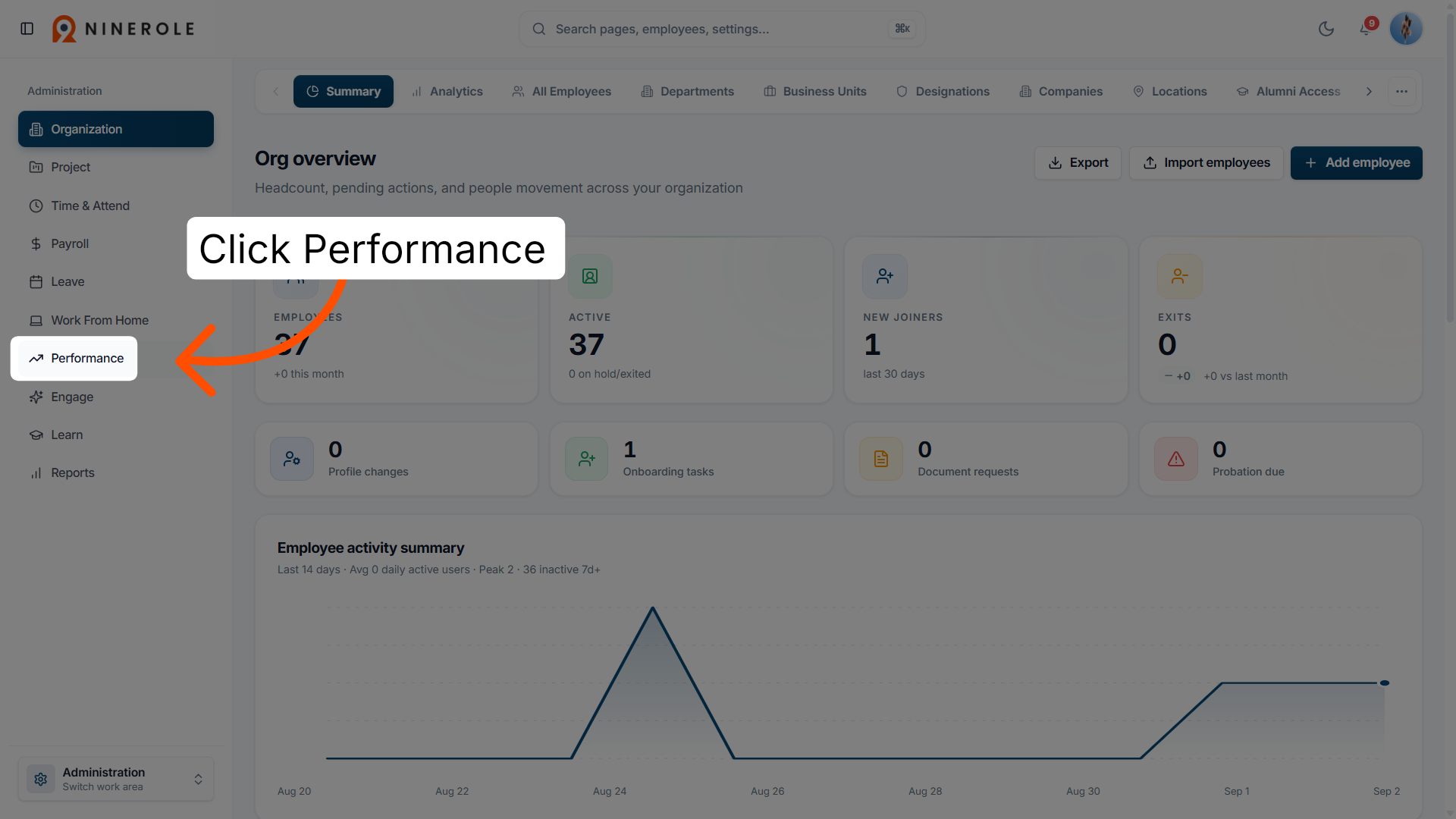
6. Open Cycle Setup
Open the Cycle Setup page to create or modify review cycles for your organization.
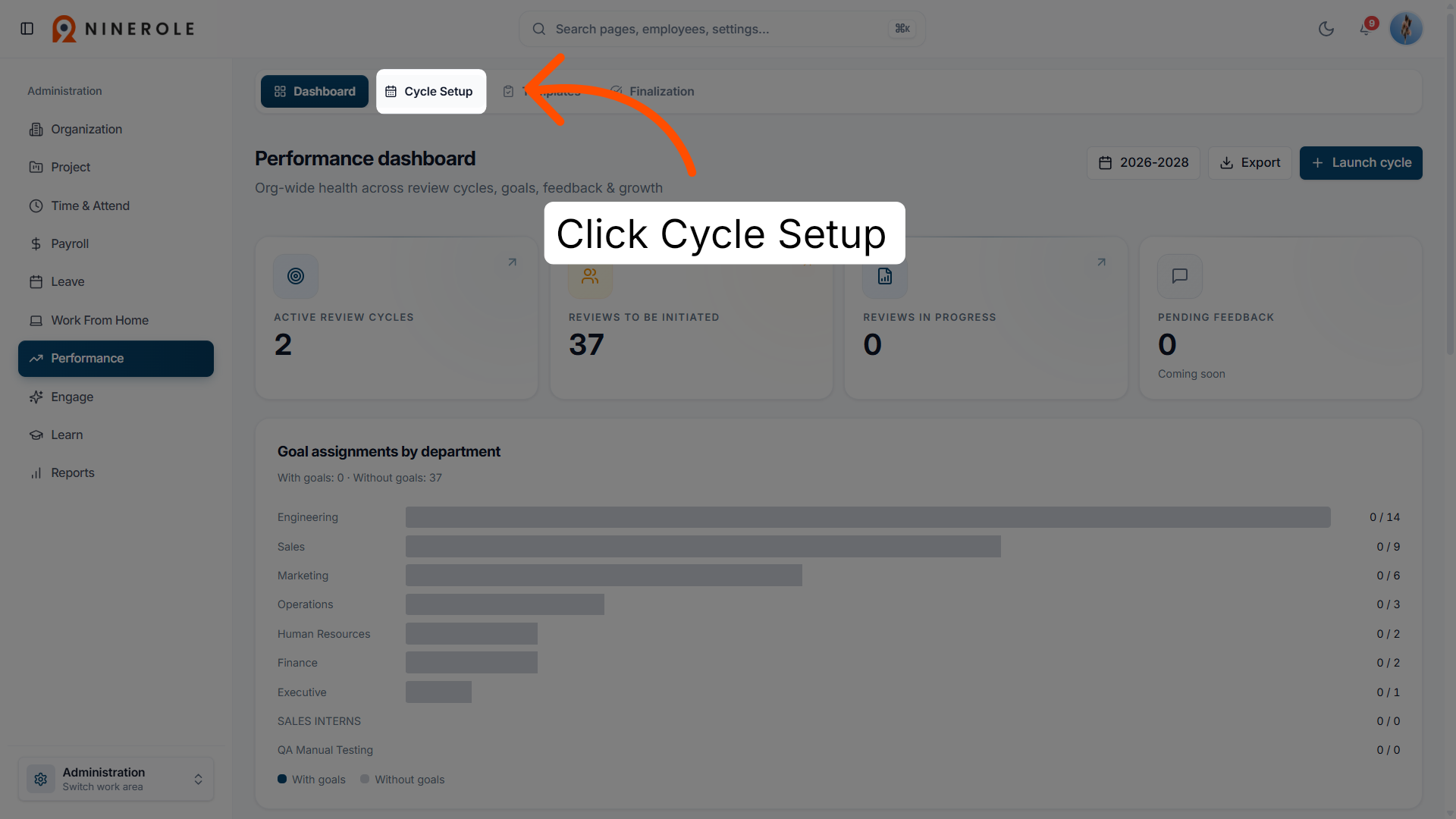
Create a performance cycle
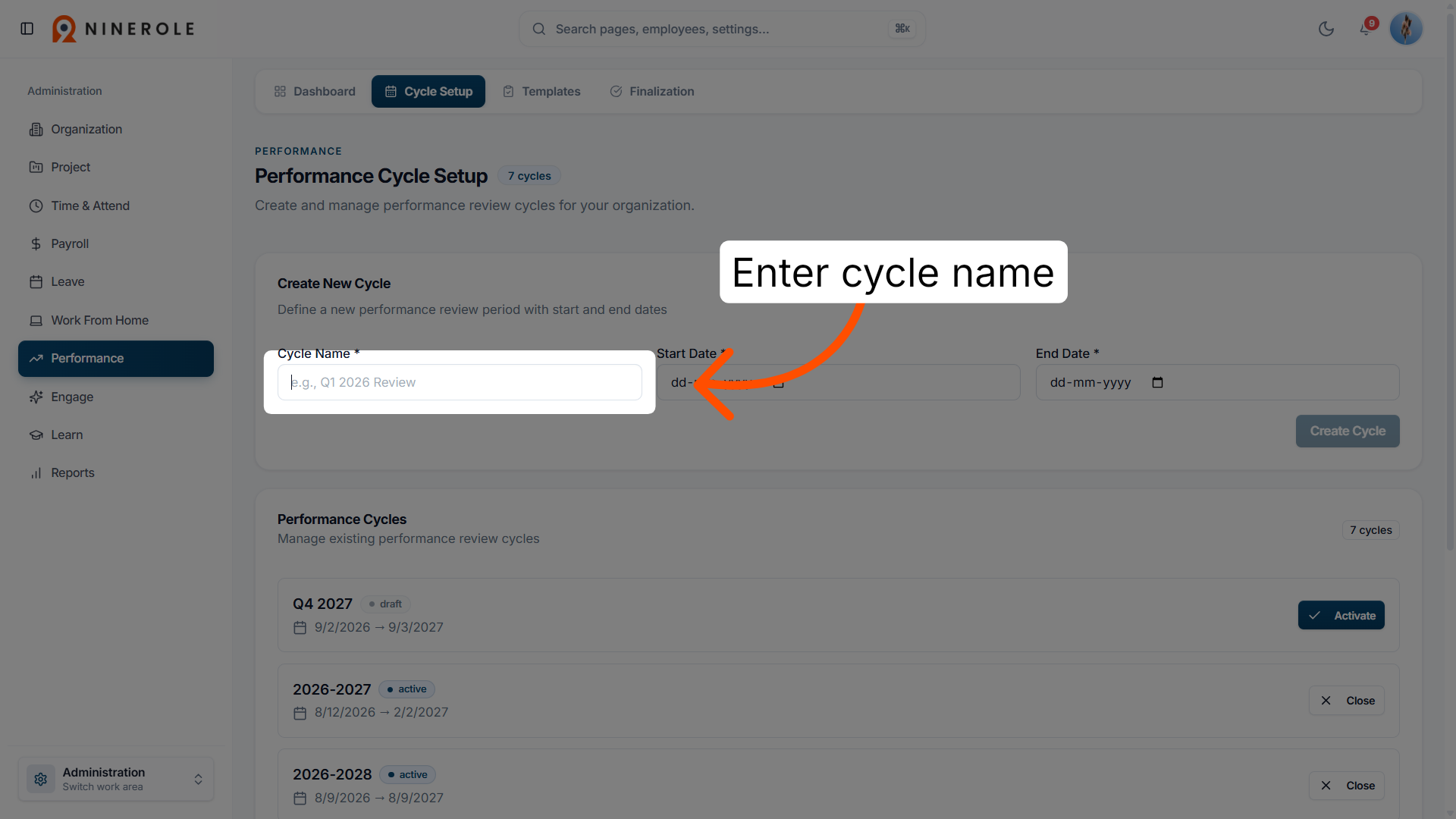
7. Enter the cycle name
Type a name for the cycle, or pick an existing one to review and update its settings.
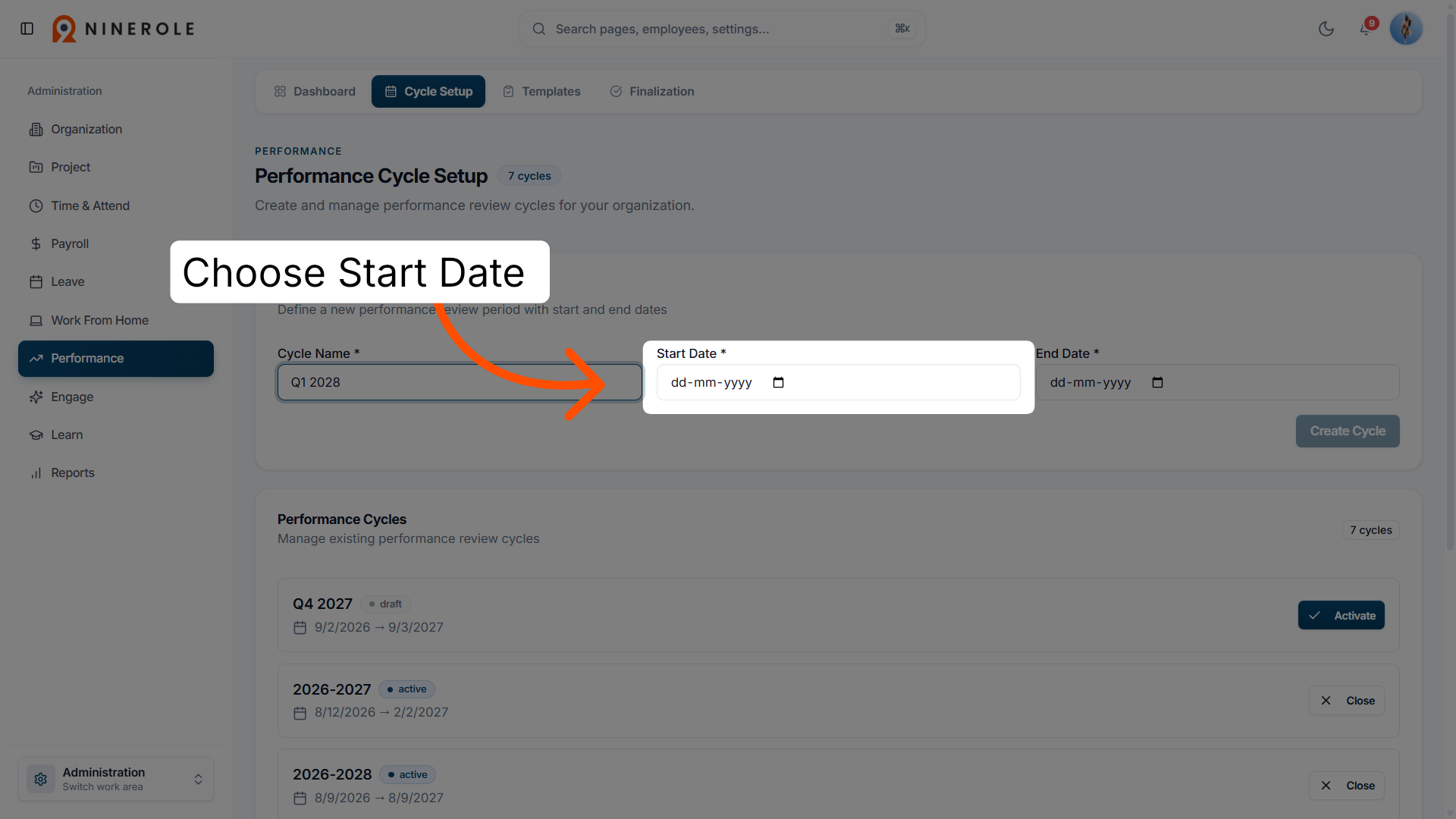
8. Set the start date
Enter the start date to define when the review period begins.
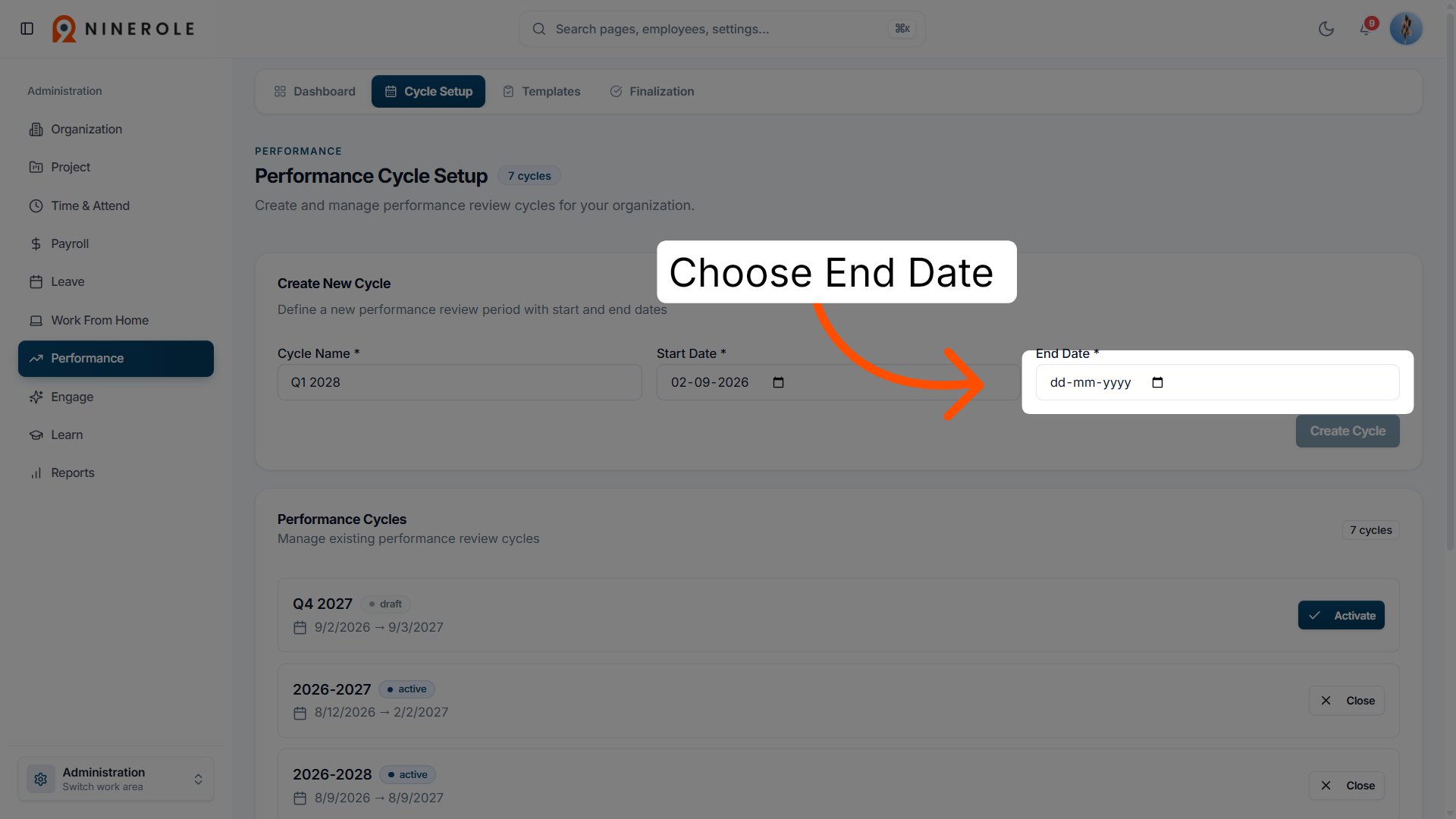
9. Set the end date
Enter the end date to close the review period.
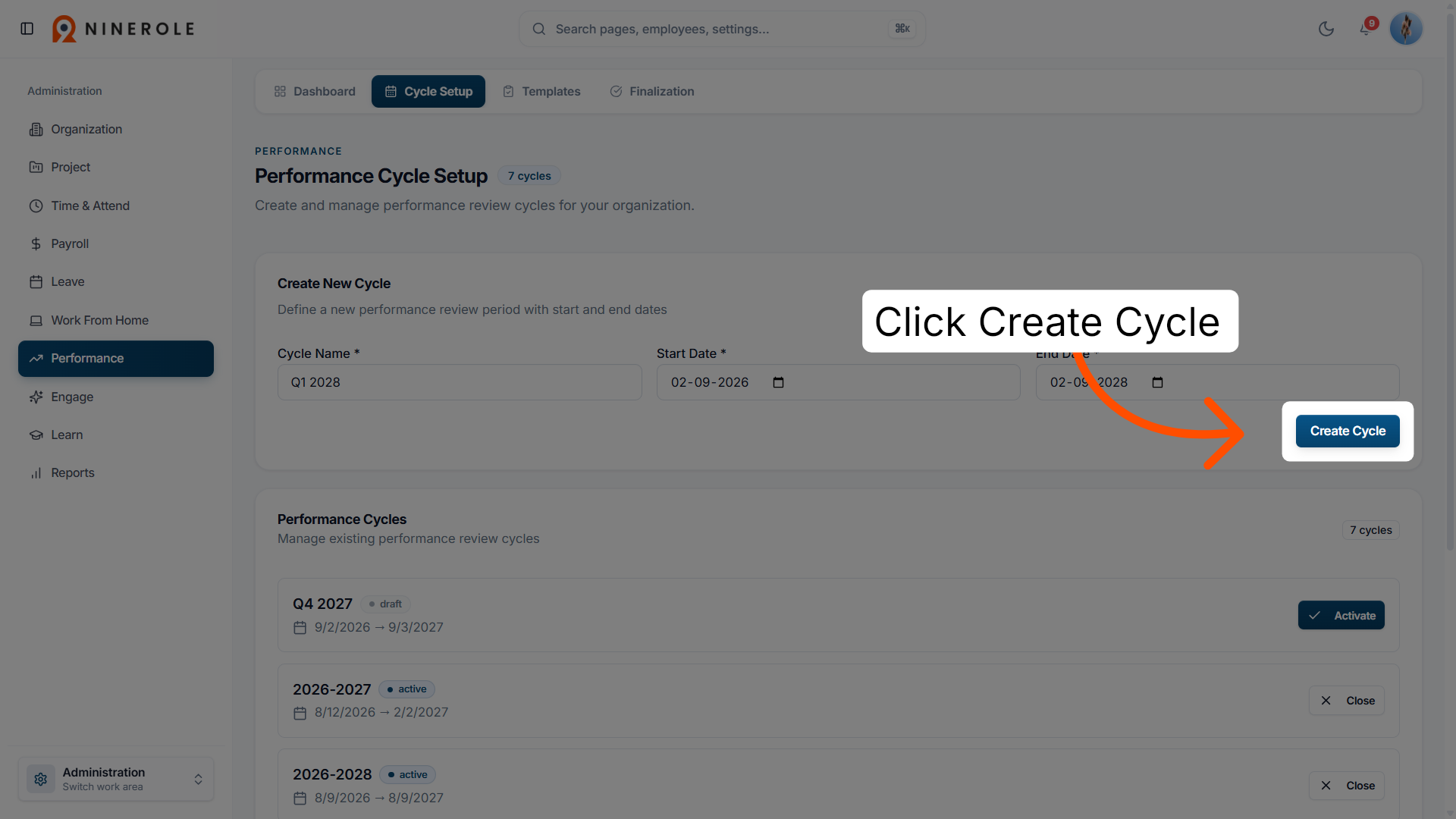
10. Create the cycle
Create the cycle with the name and dates you entered, so reviews can be attached to it.
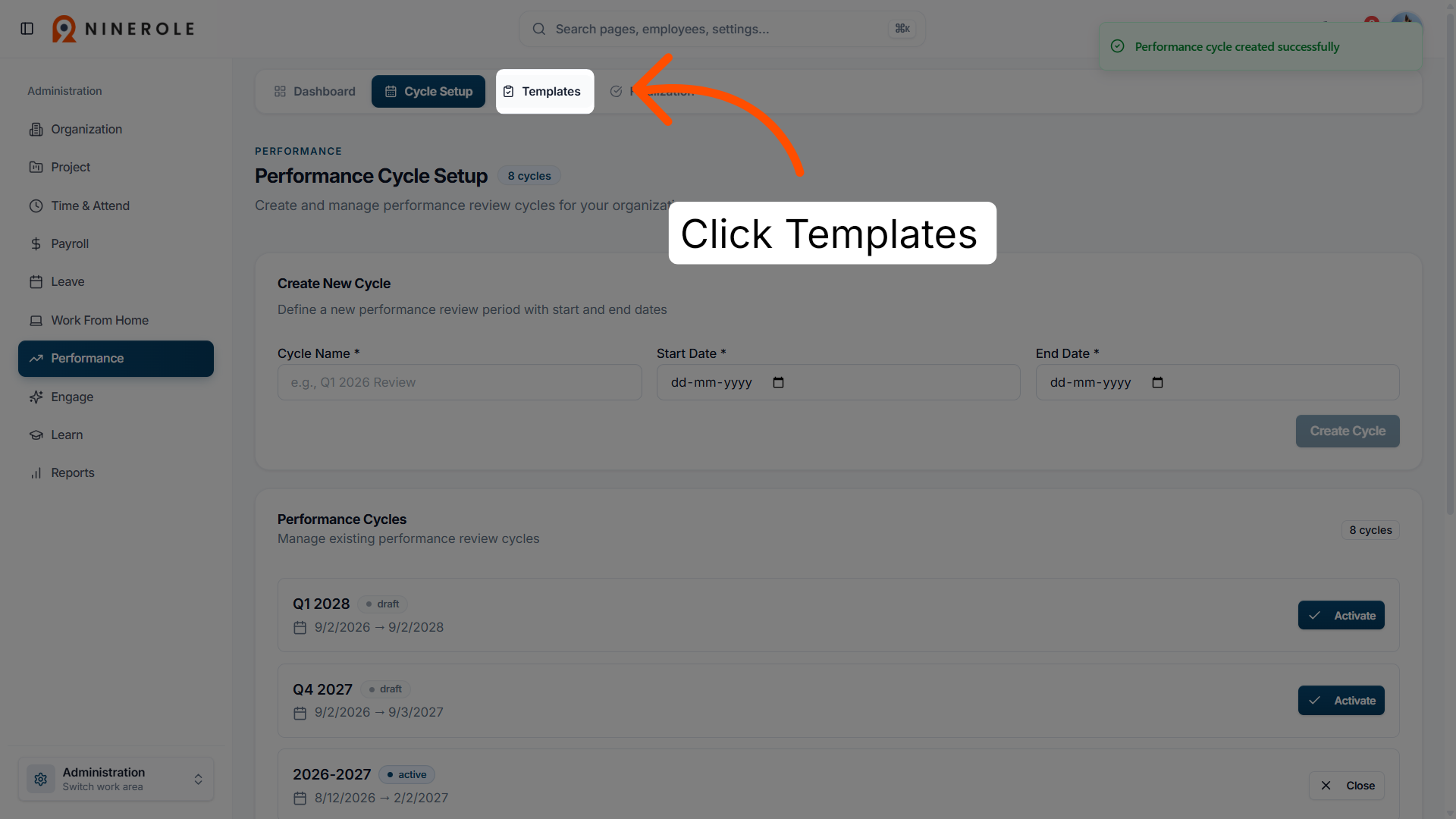
Start a performance template
11. Open Performance Templates
Open the Templates section to manage and create evaluation templates for your cycles.
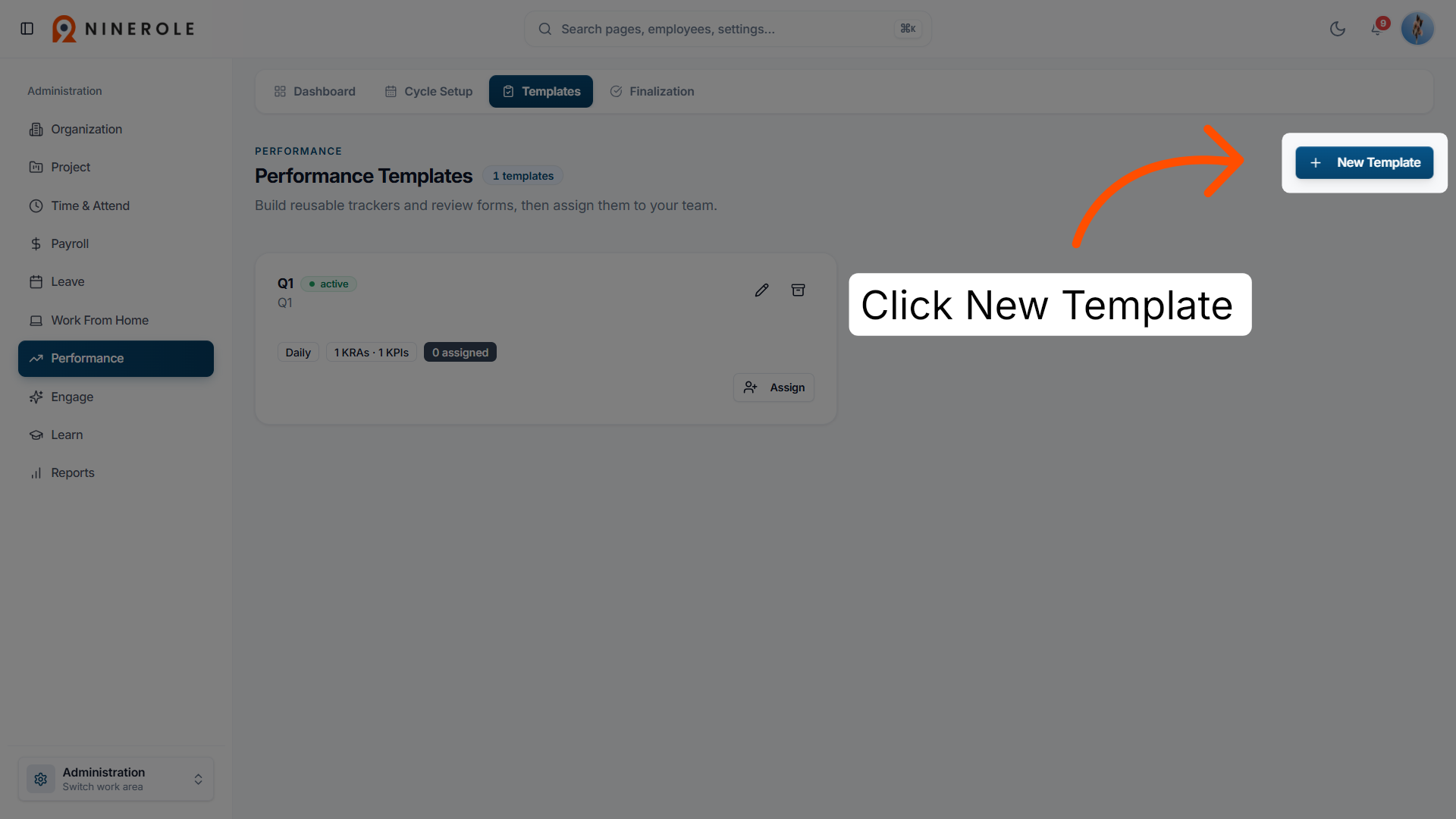
12. Start a new template
Click to begin a new template and define its evaluation criteria and structure.
13. Enter the template name
Give the template a name, for example "Sales Daily Tracker".
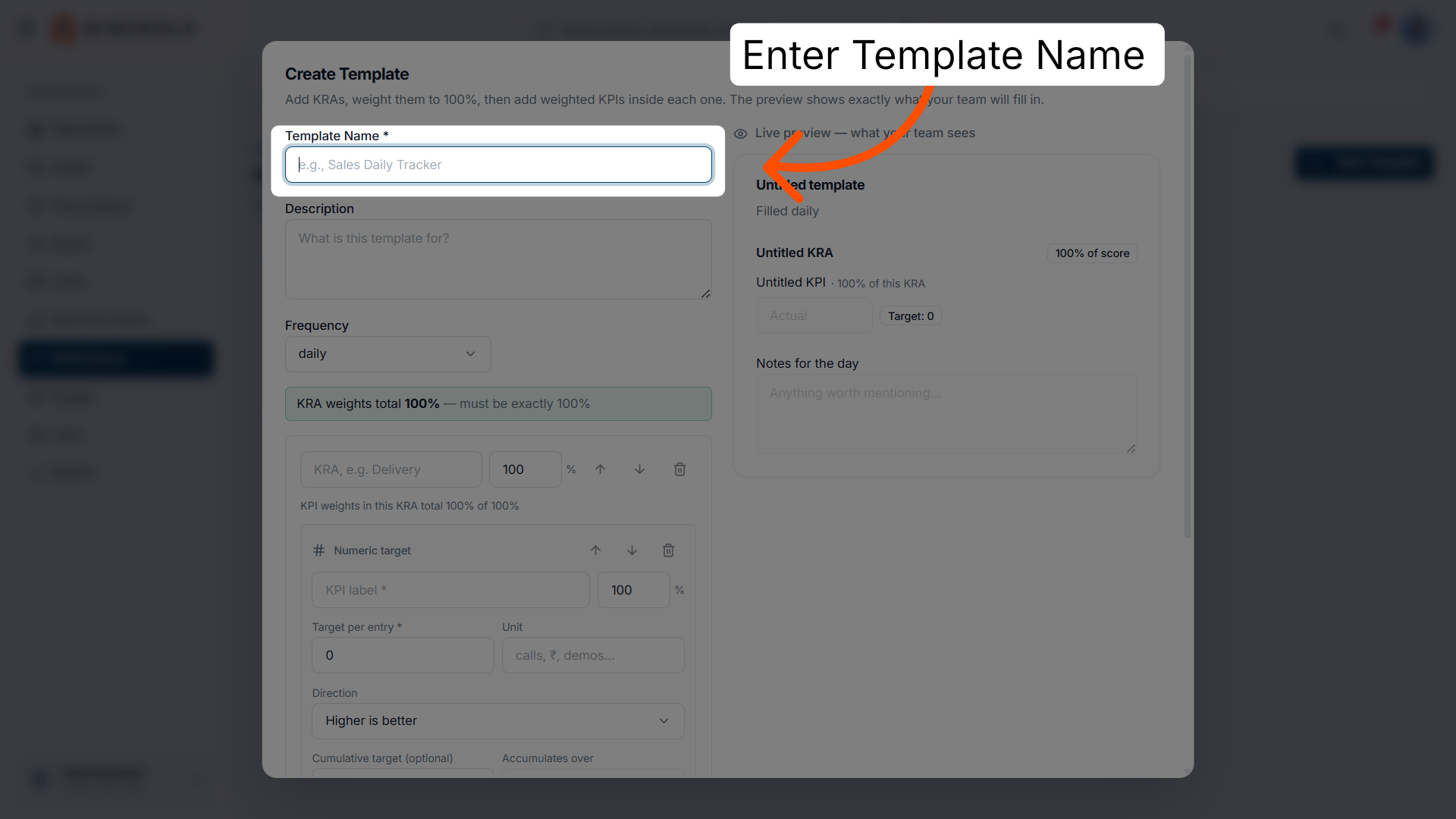
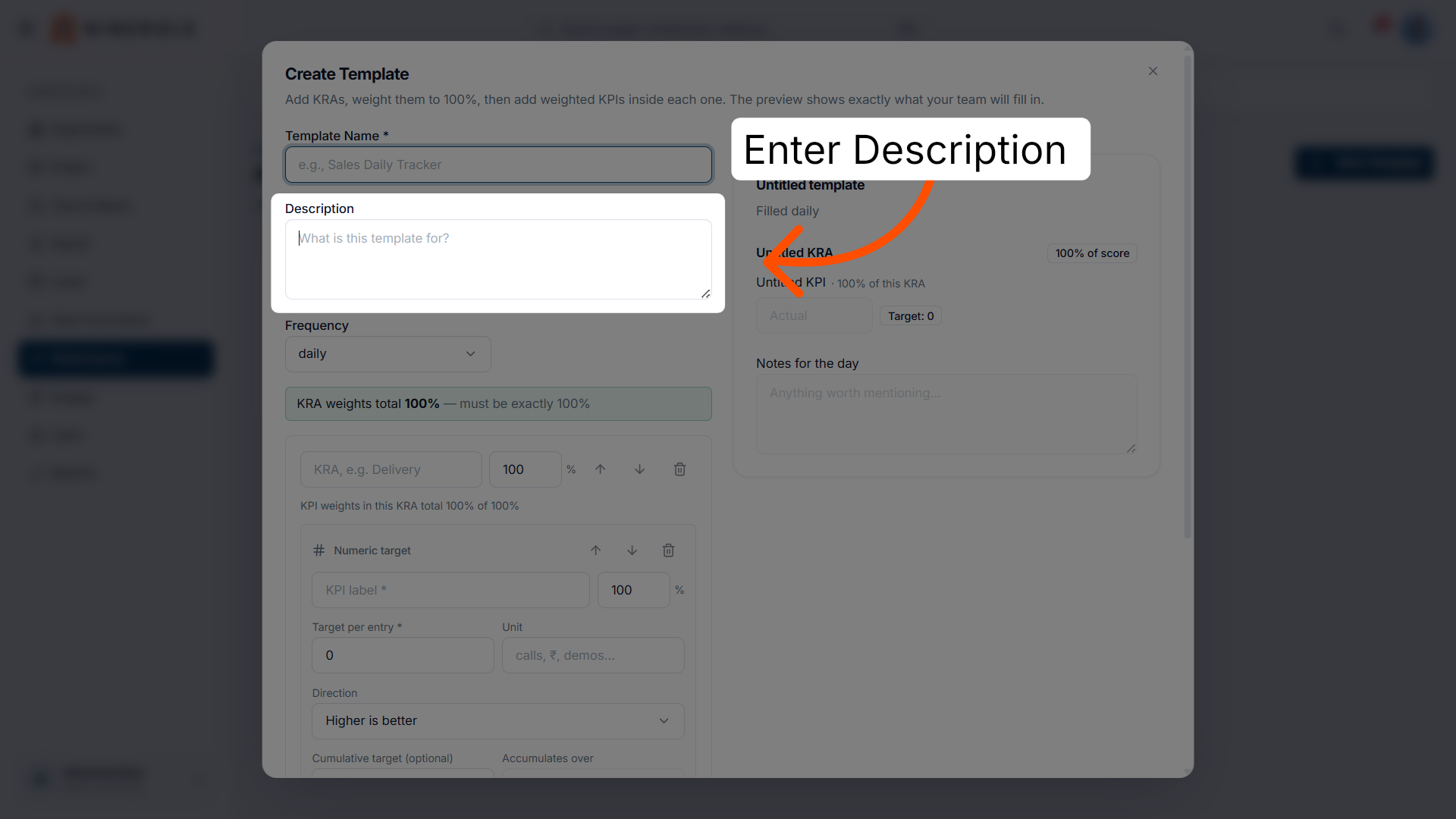
14. Describe the template
Use Description to record what this template is for. The Live preview panel on the right shows exactly what your team will fill in.
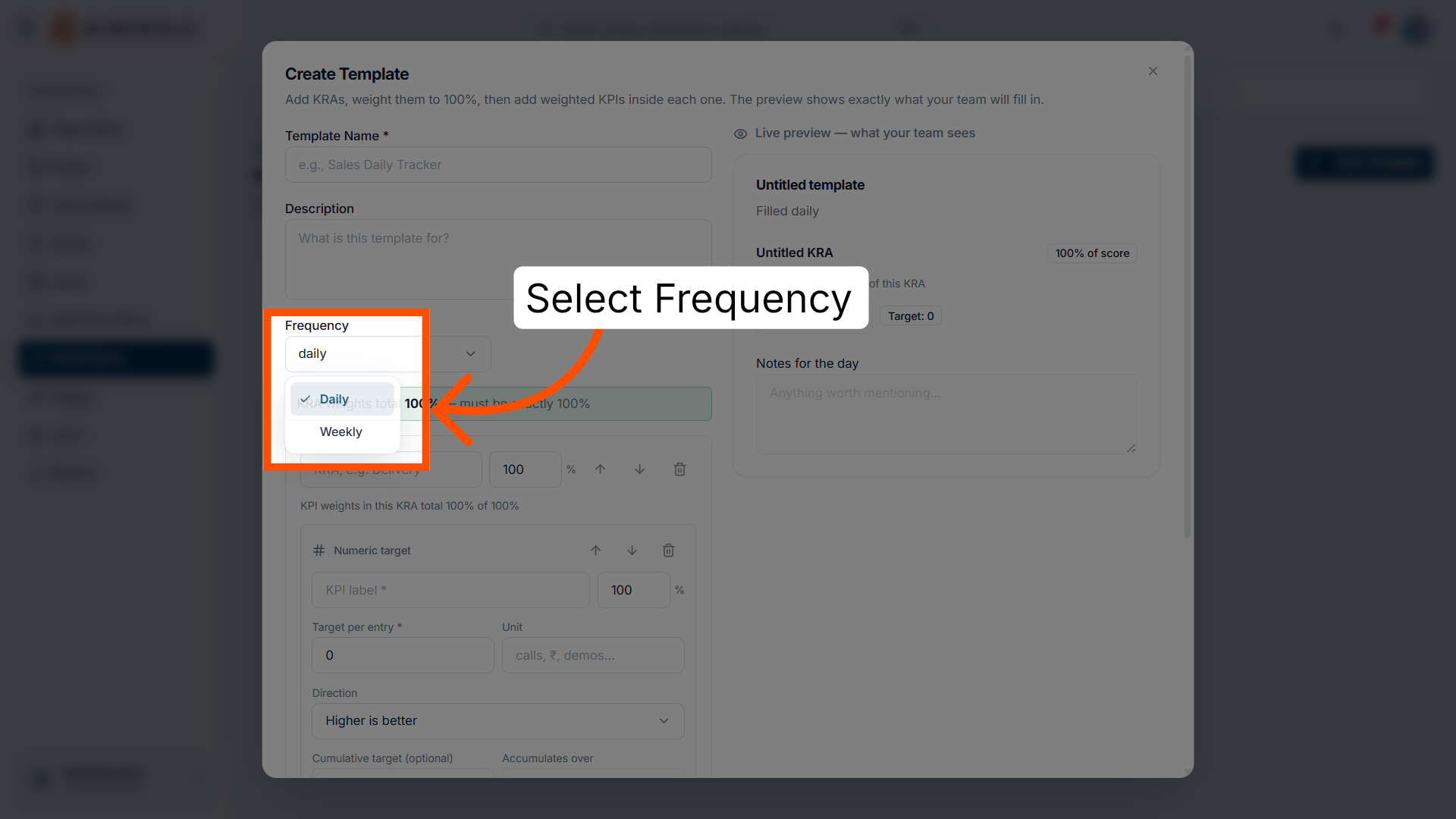
15. Select the frequency
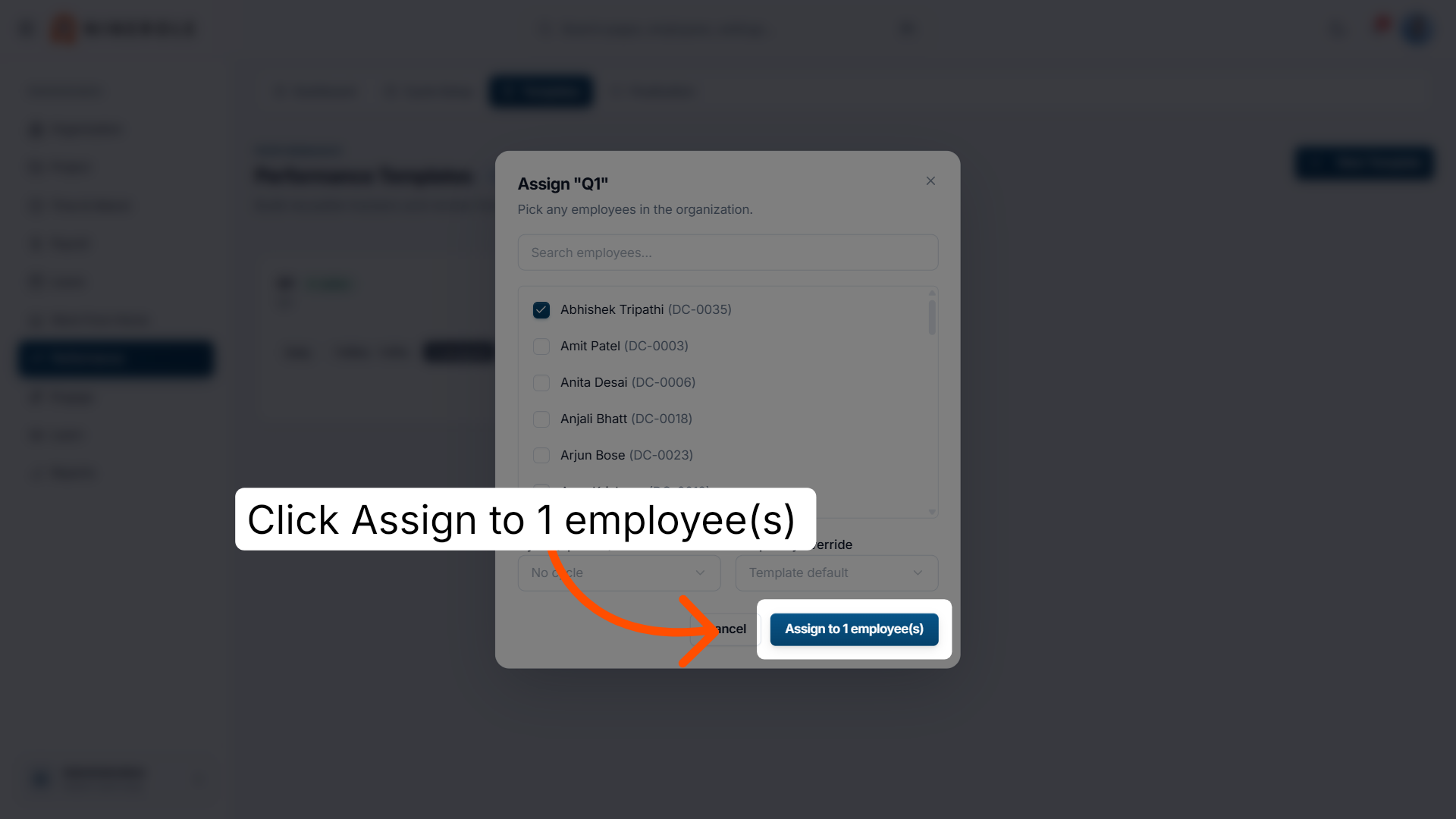
Set Frequency to Daily or Weekly — this decides how often the team completes the form.
Define the first KRA and a numeric KPI
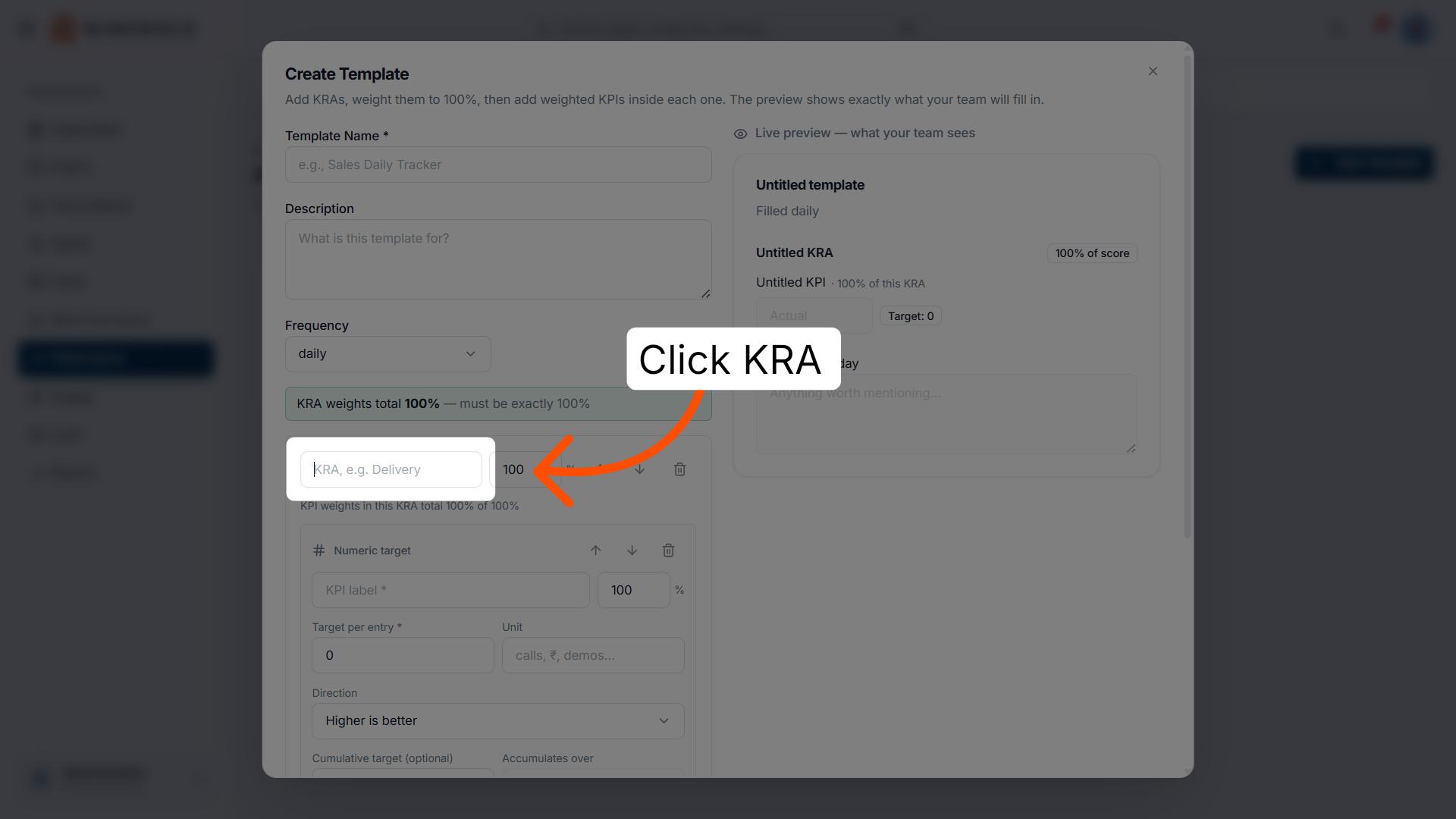
16. Name the Key Result Area
Enter the KRA — the performance objective this group of KPIs measures, for example "Delivery".
17. Set the KRA weight
Set the KRA's weight. All KRA weights must total exactly 100%.
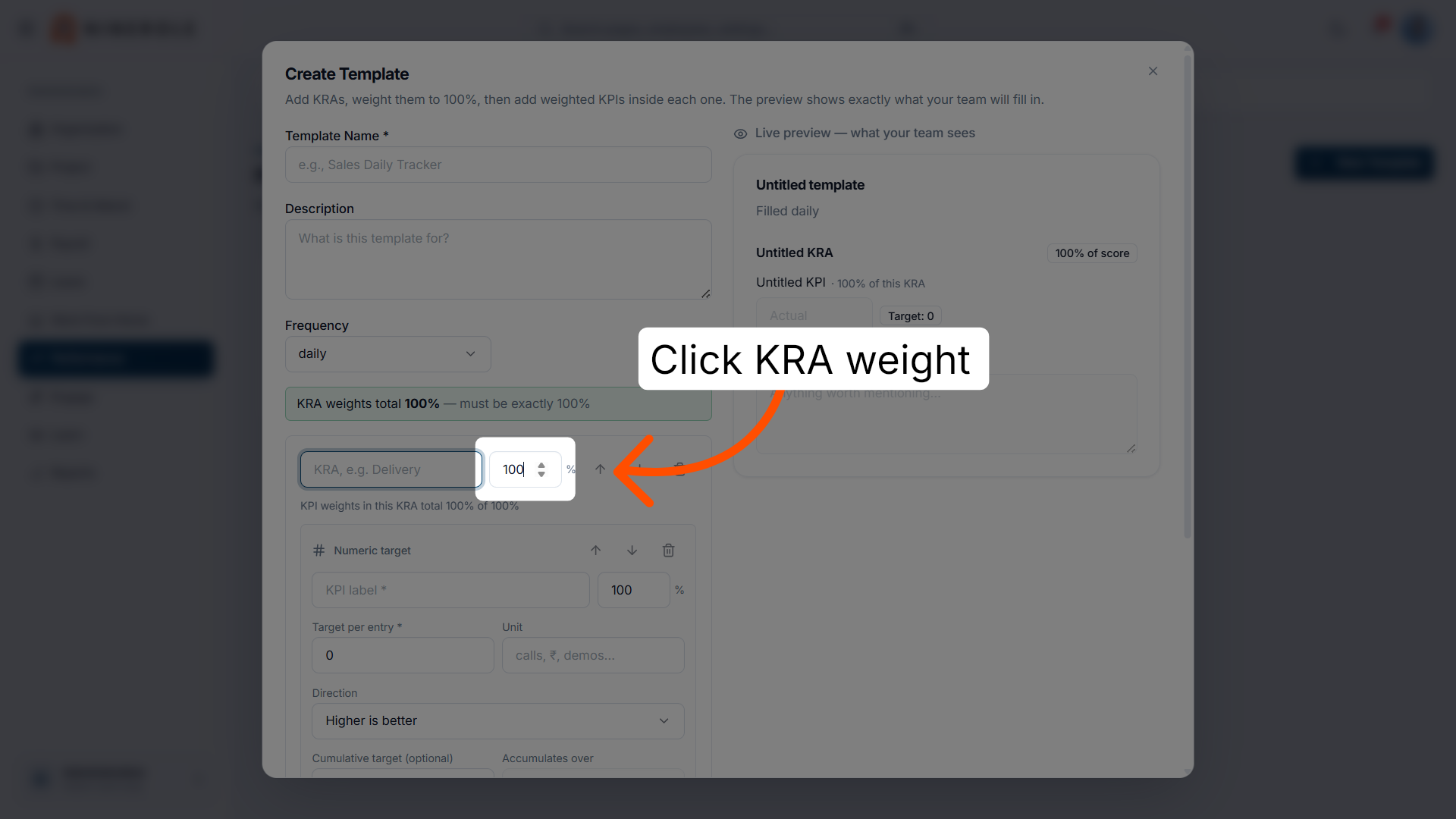
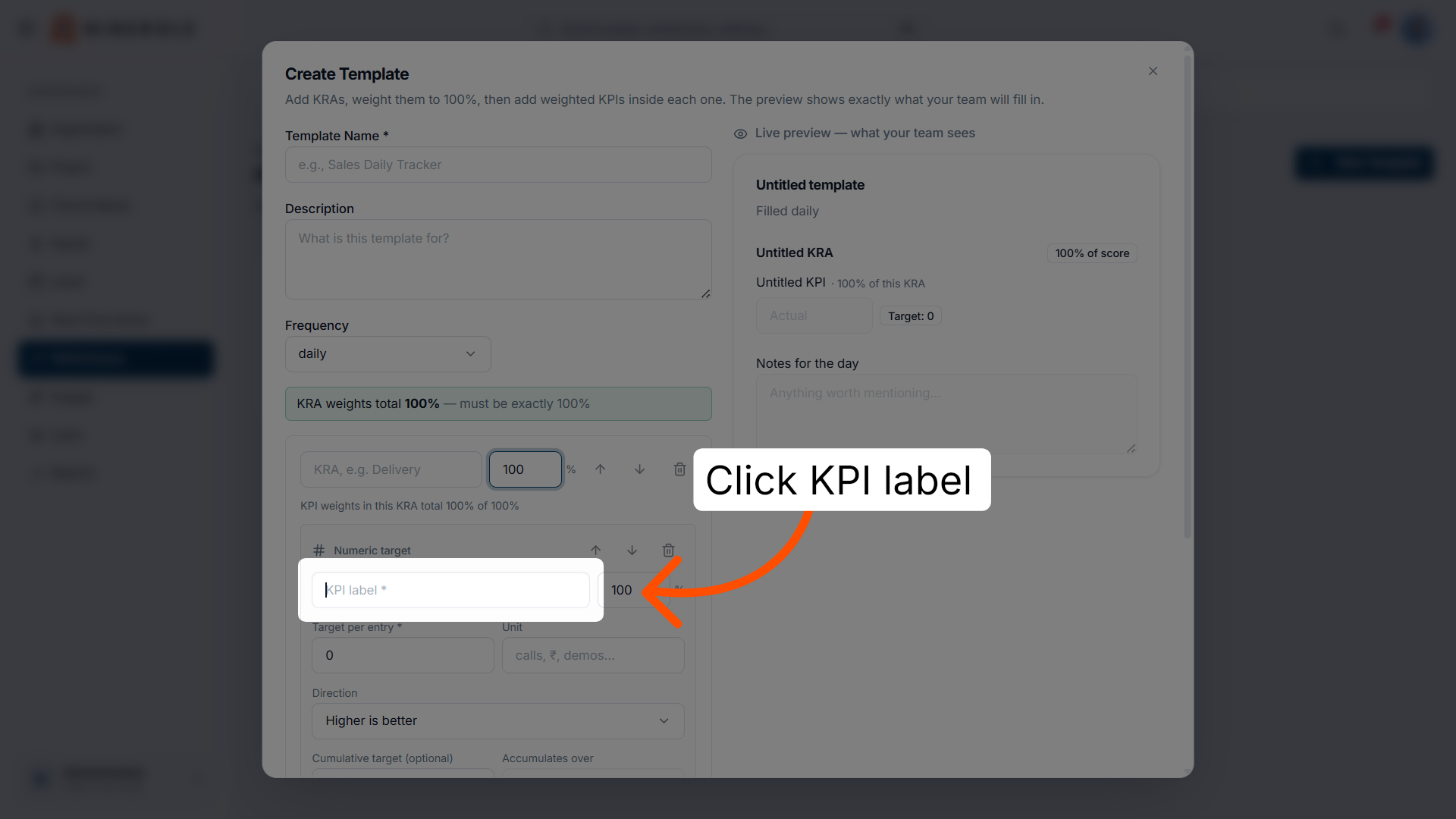
18. Enter the KPI label
Enter the KPI label so the metric being measured is clear.
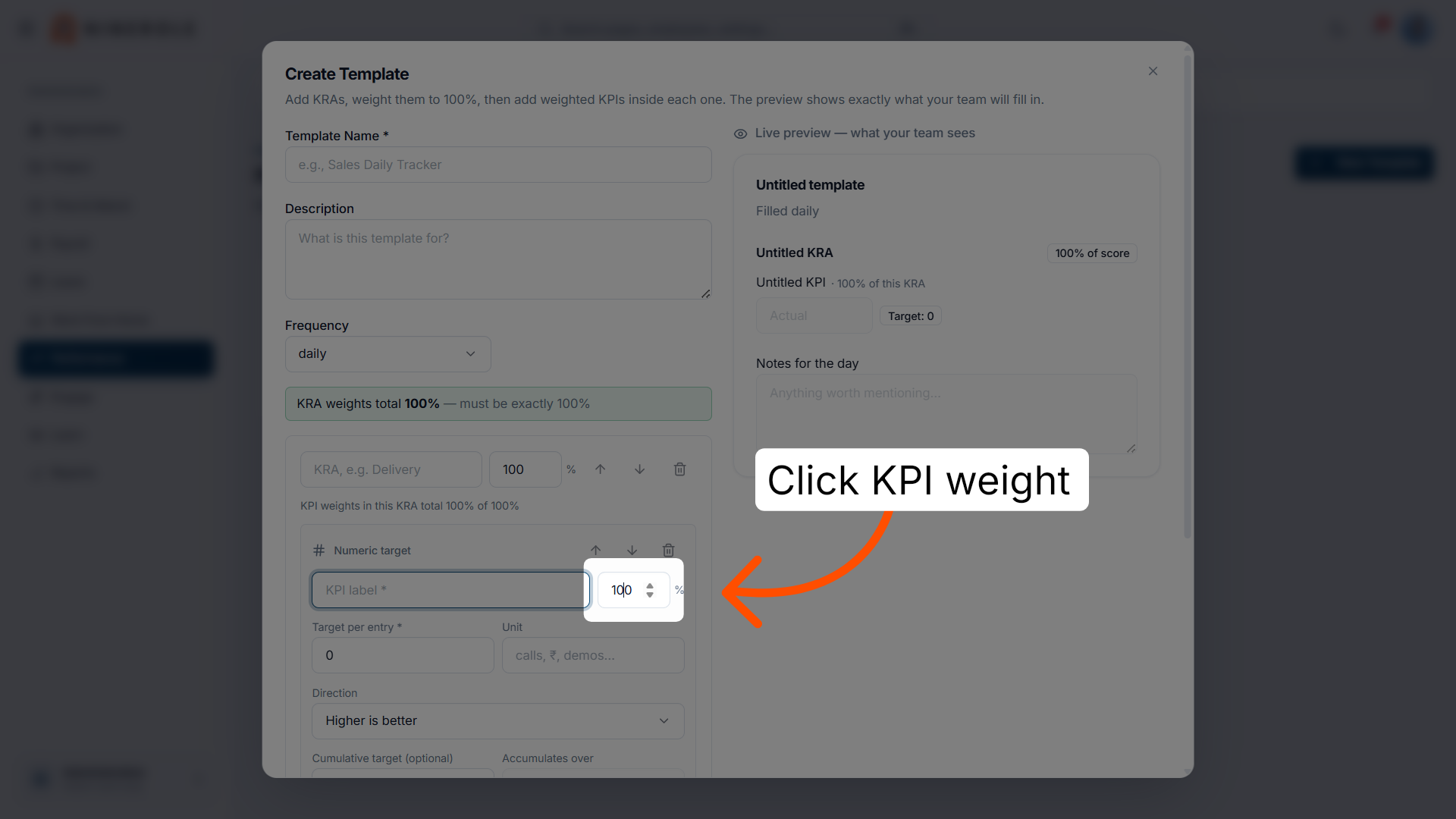
19. Open the KPI weight field
Select the KPI's weight field. KPI weights inside one KRA must also total 100%.
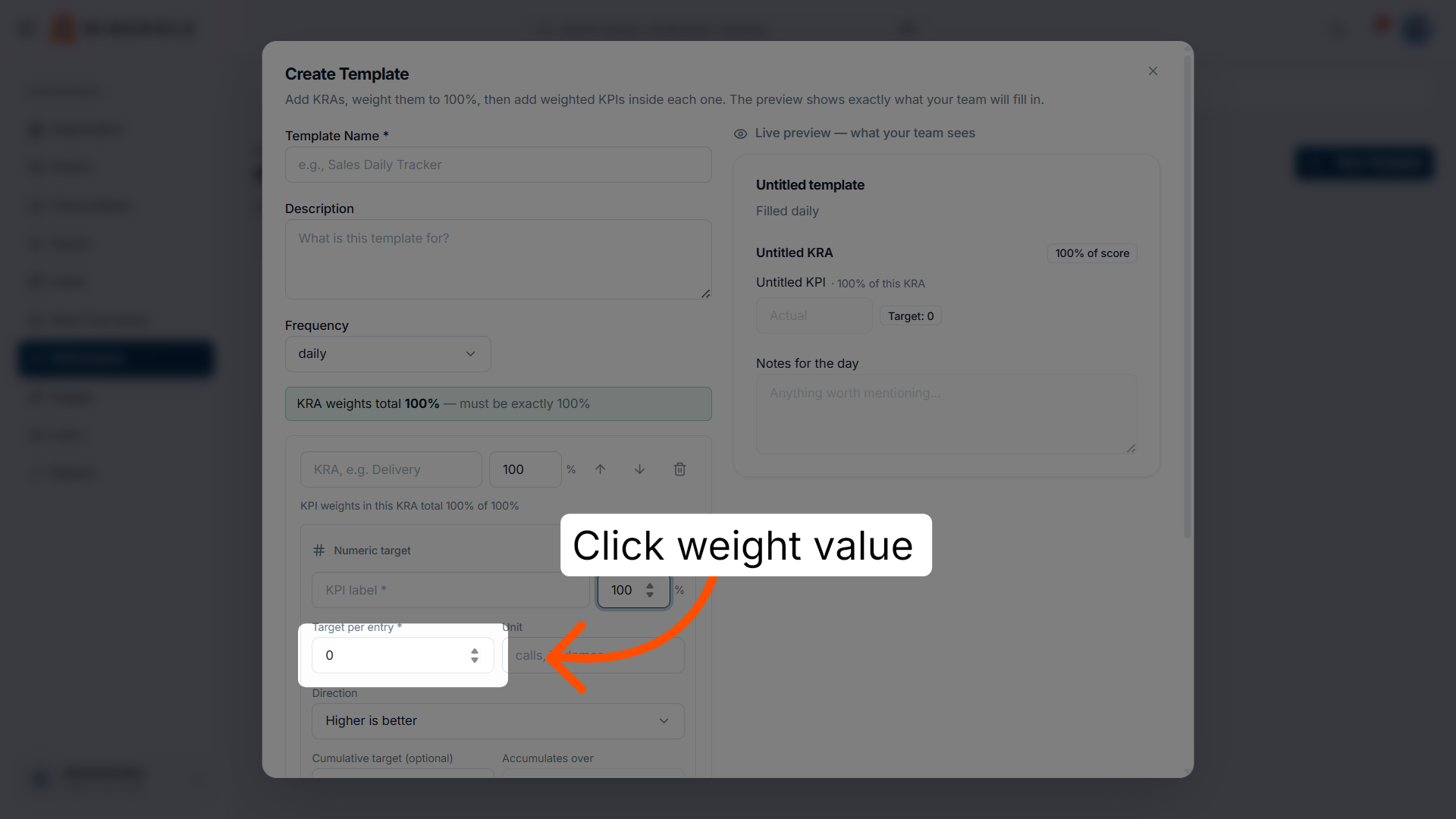
20. Set the KPI weight
Enter the weight value to balance this KPI's impact on the score.
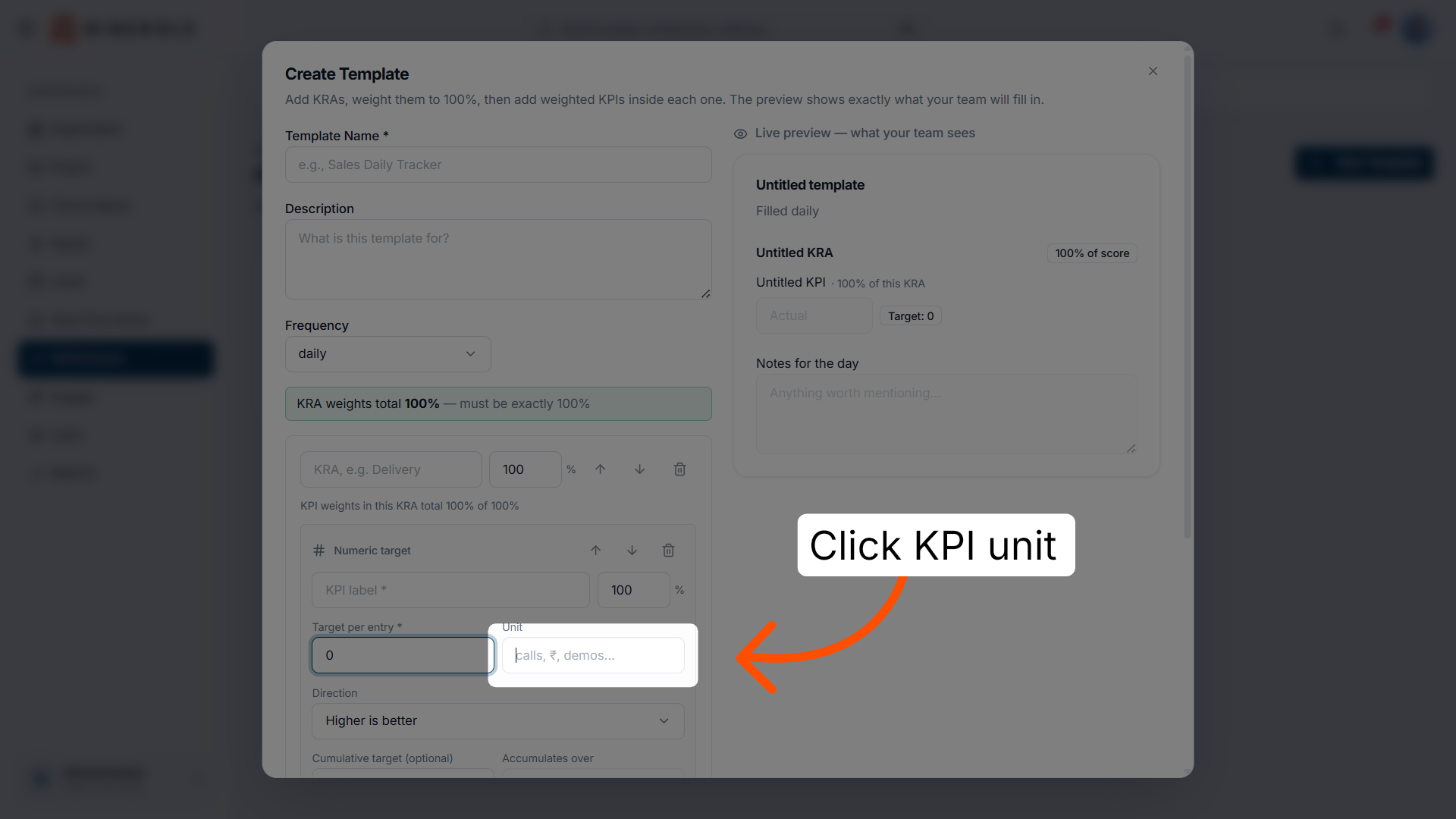
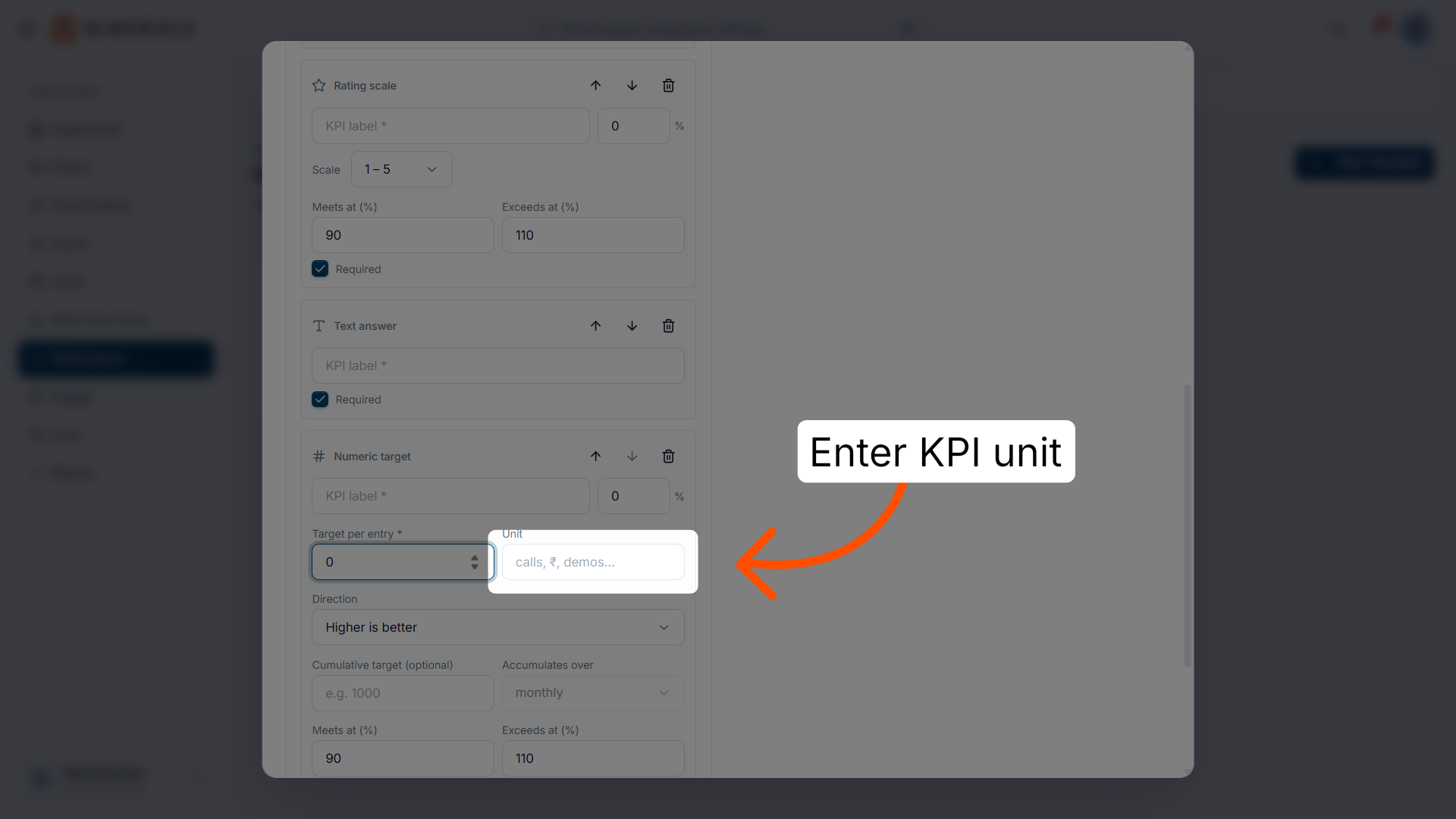
21. Choose the unit
Set Unit — calls, ₹, demos, or whatever the metric is counted in.
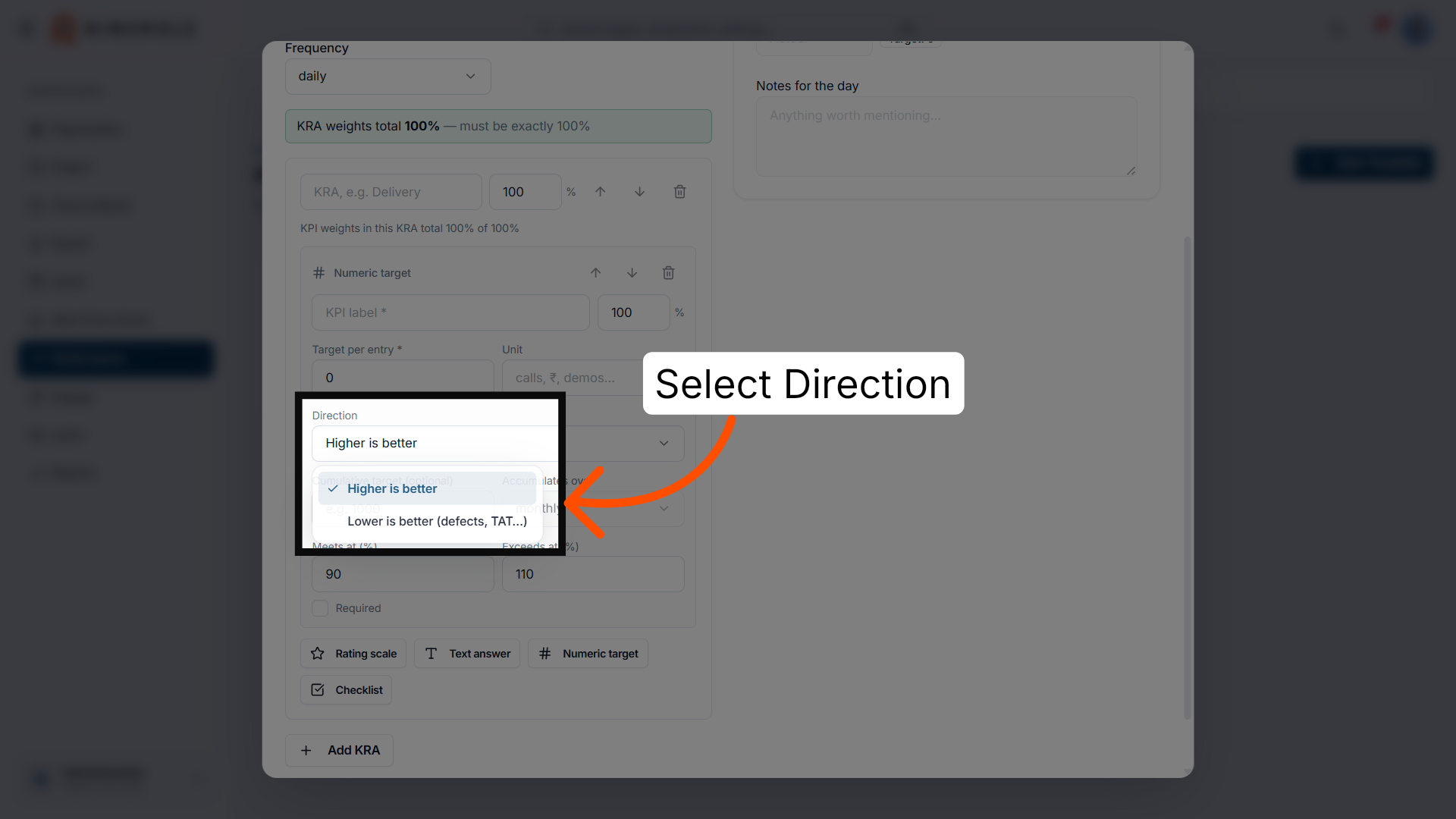
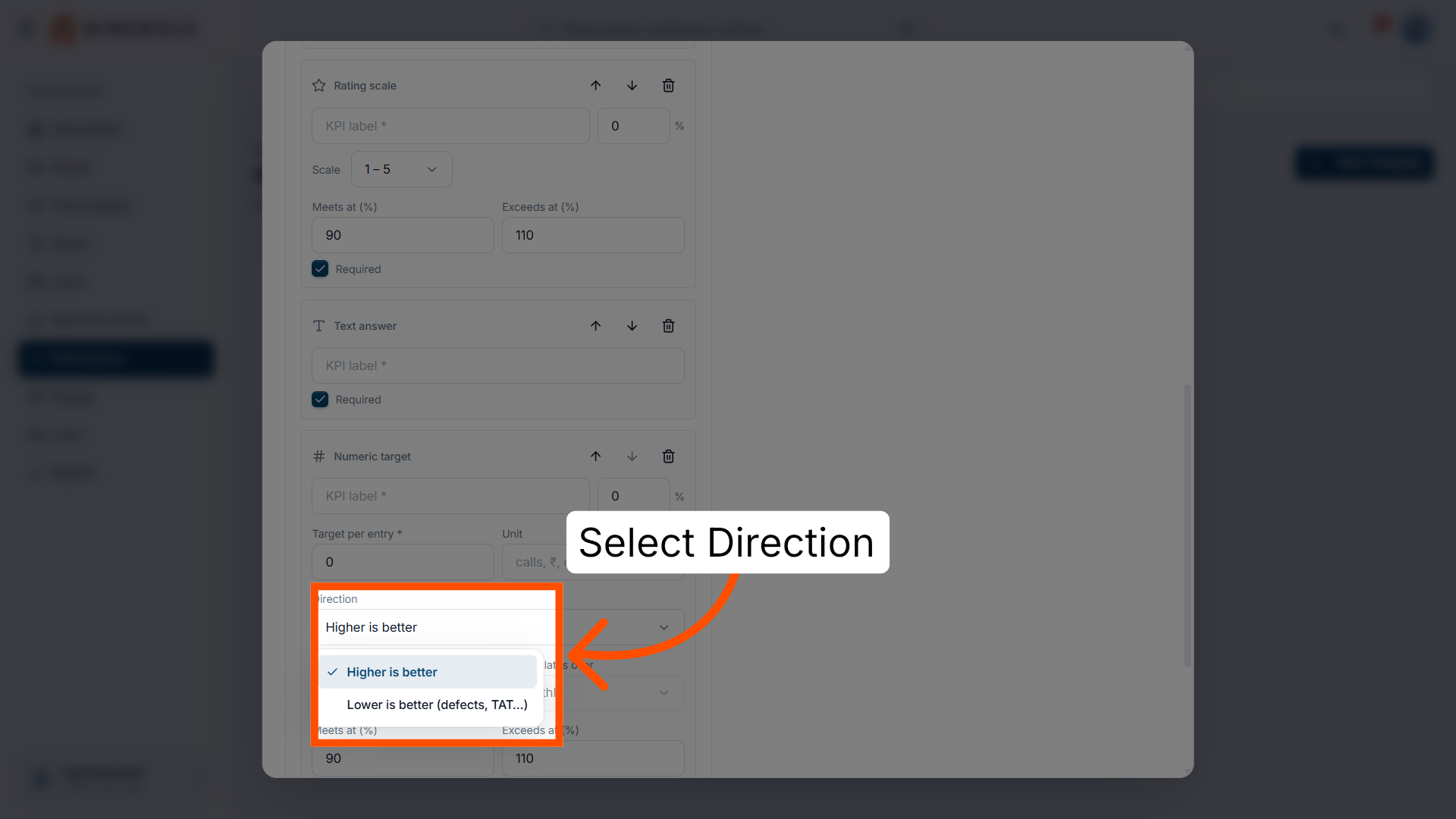
22. Select the direction
Set Direction to Higher is better, or Lower is better for metrics like defects and turnaround time.
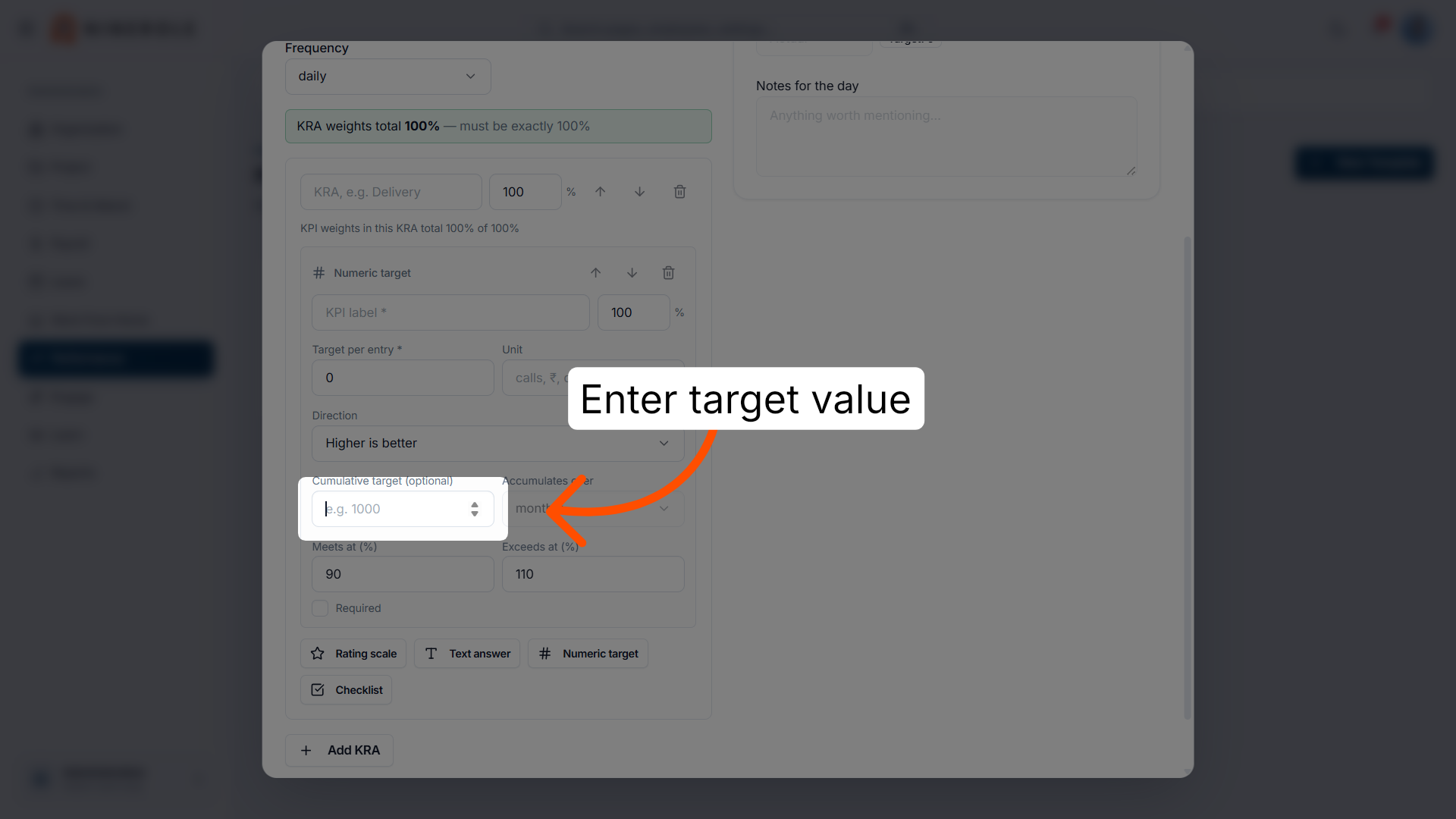
23. Set the target per entry
Enter Target per entry — the value the employee should hit each time they fill the form in.
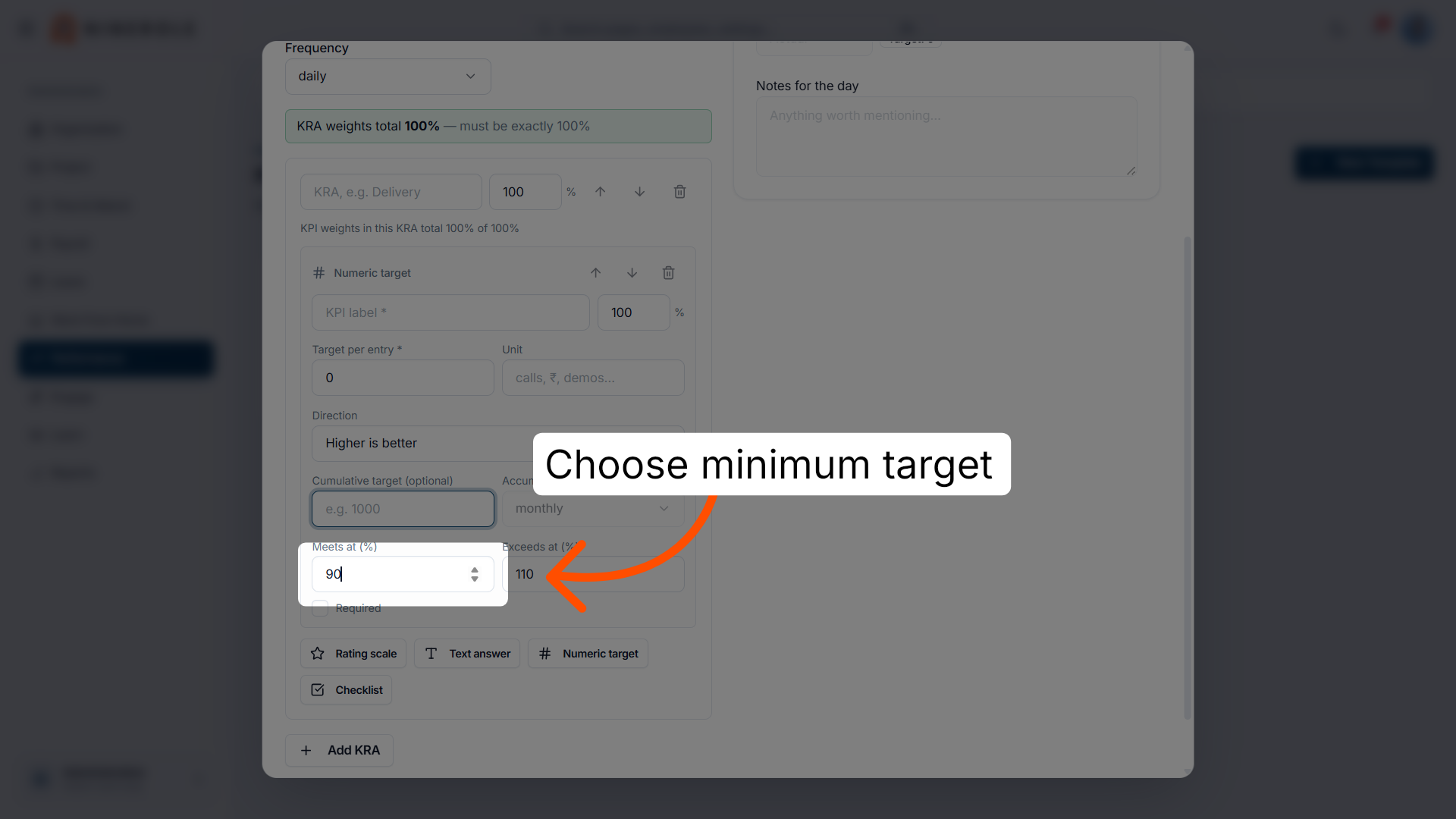
24. Set the "meets at" threshold
Set Meets at (%) — the share of target that counts as meeting expectations.
25. Set the "exceeds at" threshold
Set Exceeds at (%) — the point above which performance counts as exceeding expectations.
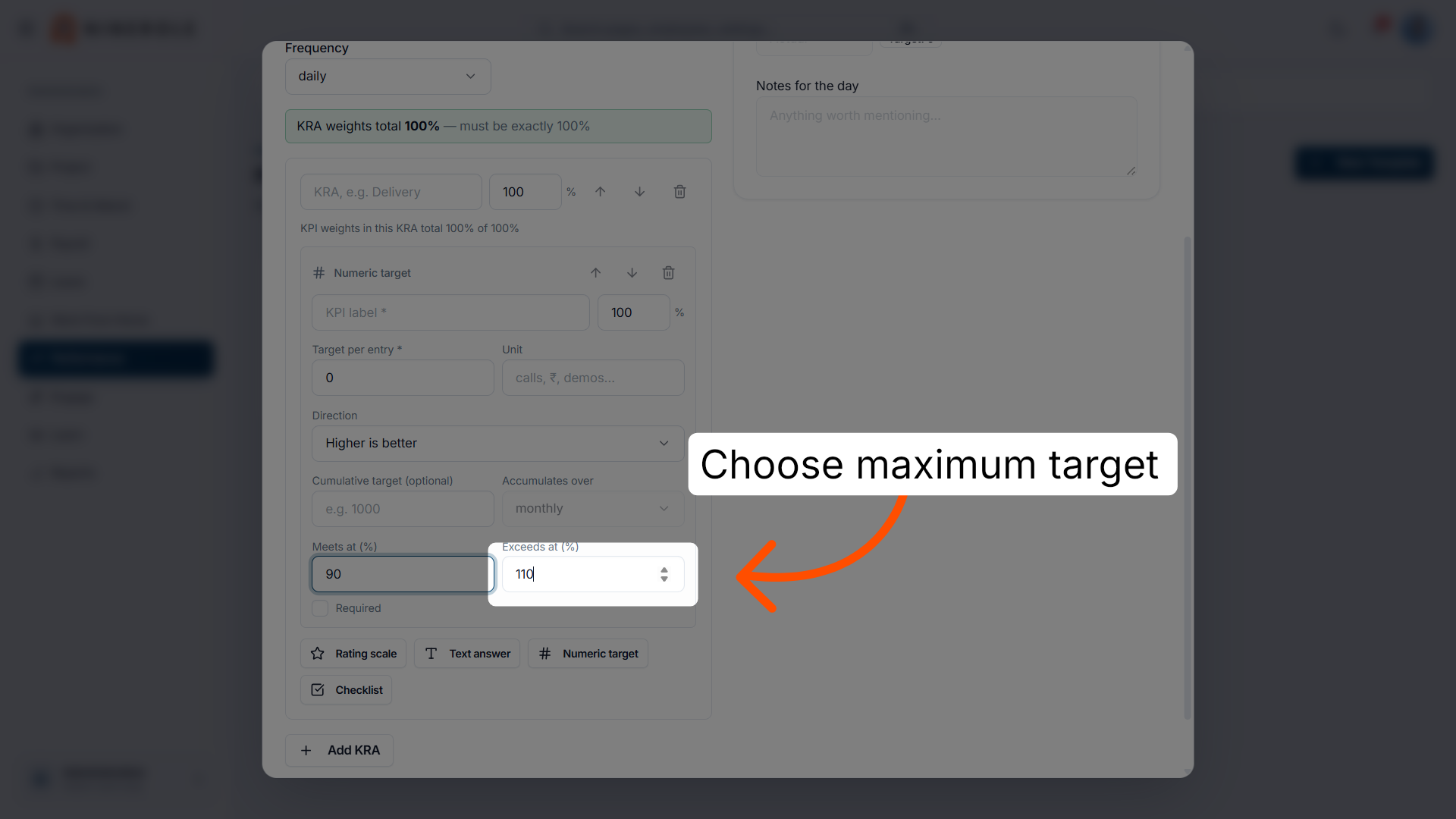
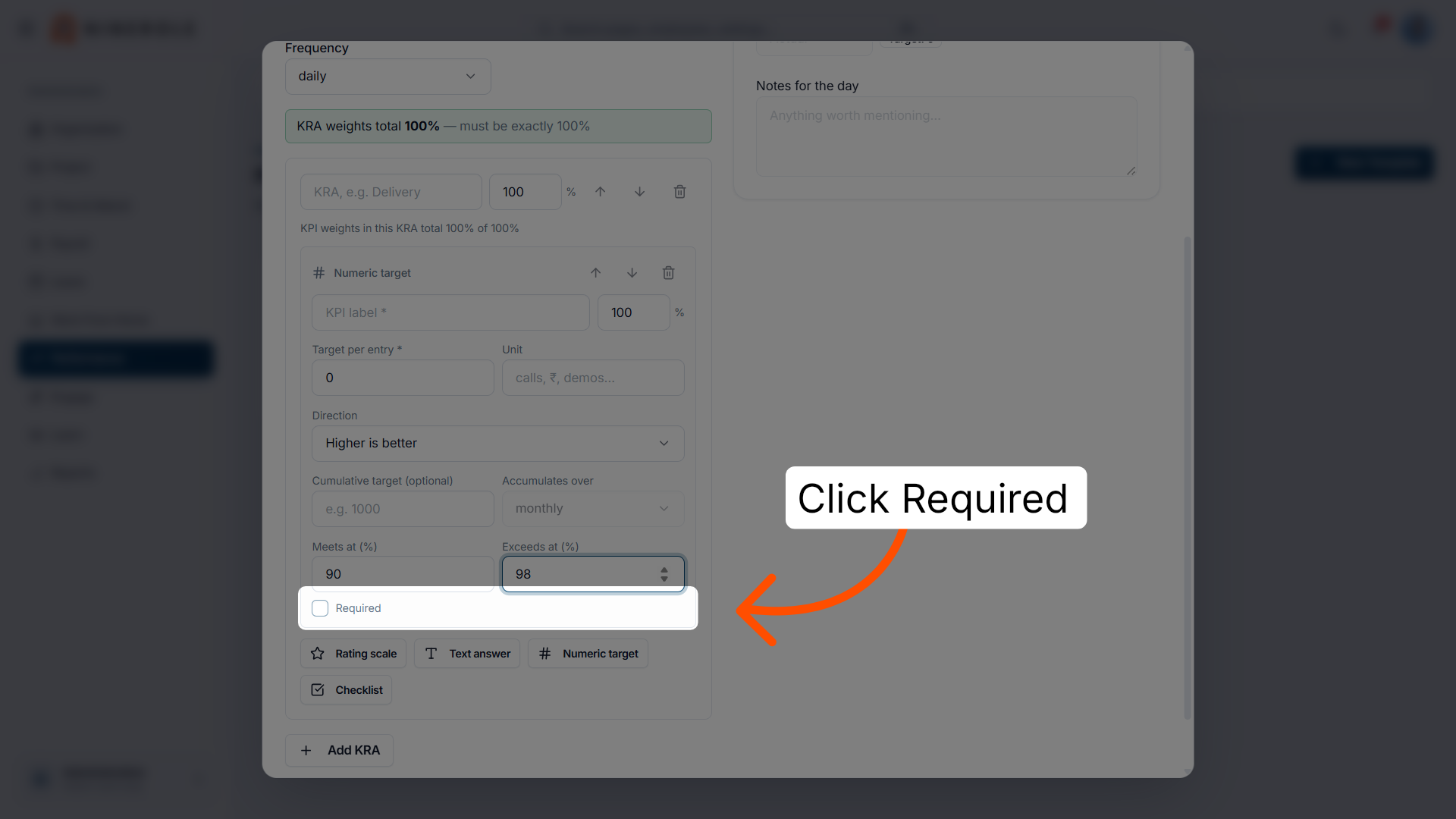
26. Mark the KPI as required
Tick Required so the KPI must be filled in for the evaluation to be complete.
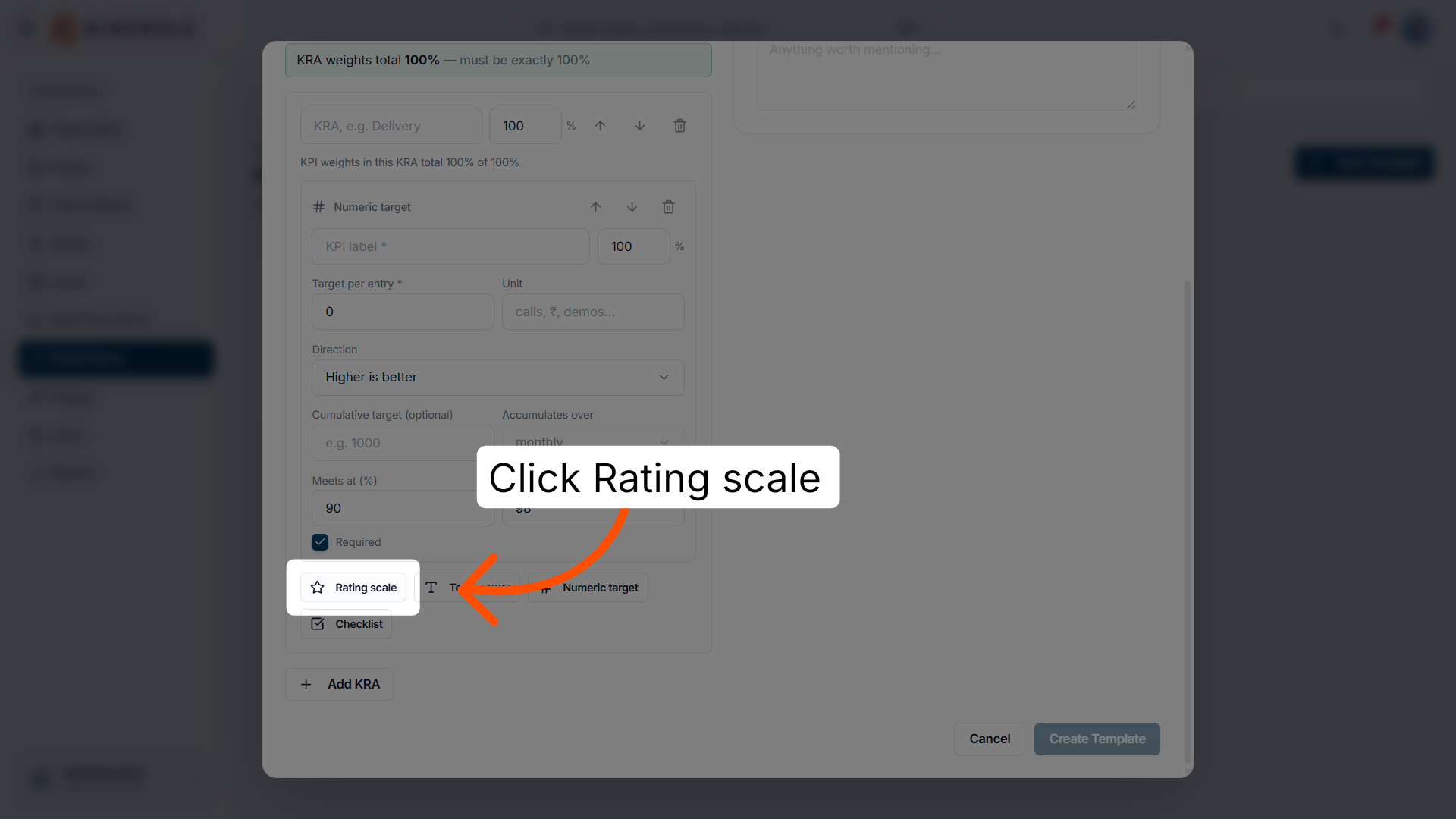
Add a rating-scale KPI
27. Add a rating scale KPI
Click Rating scale to add a second KPI scored on a scale rather than a number.
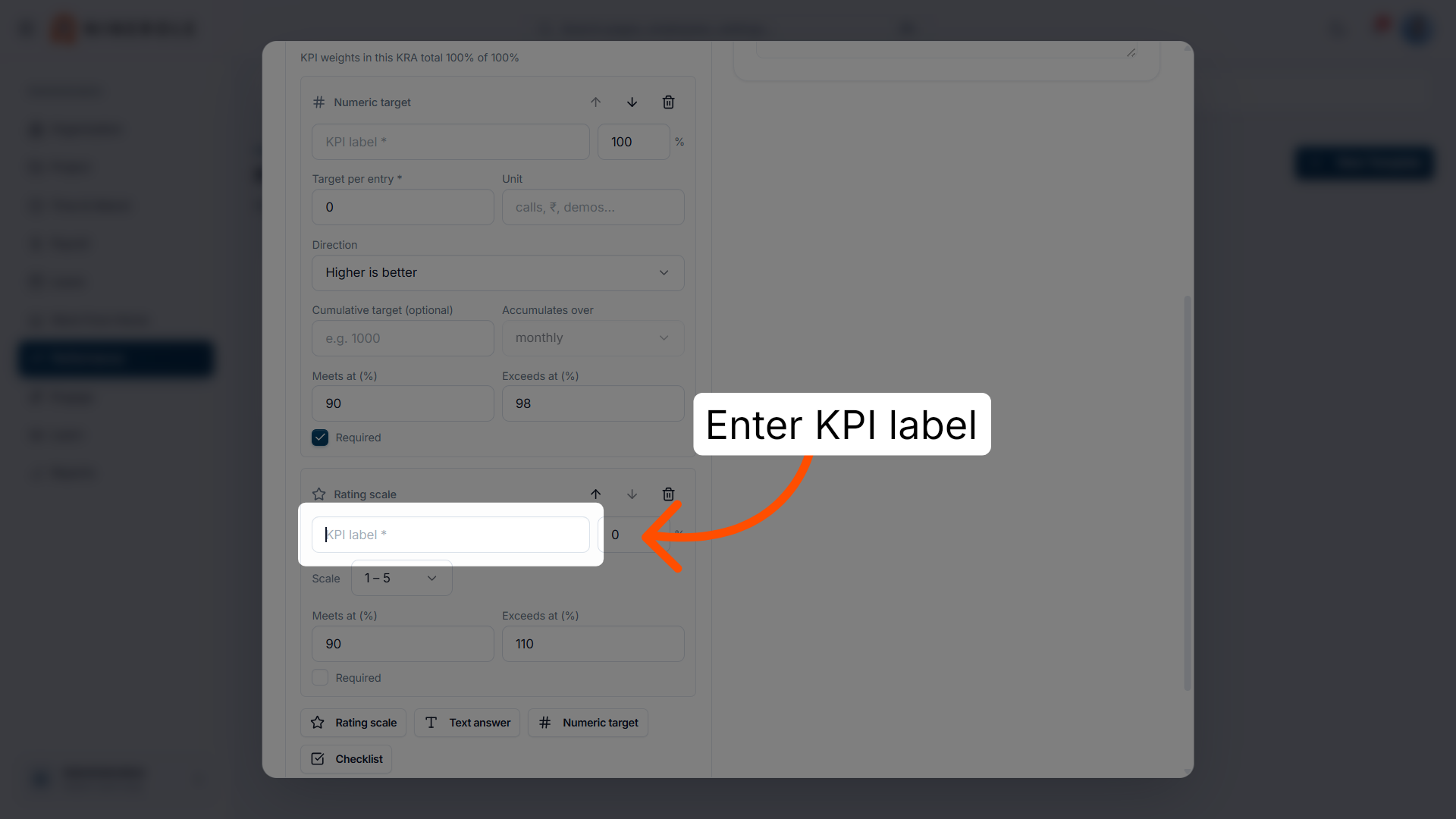
28. Enter its KPI label
Enter the label for the rating-scale KPI.
29. Set its weight
Set this KPI's weight within the KRA.
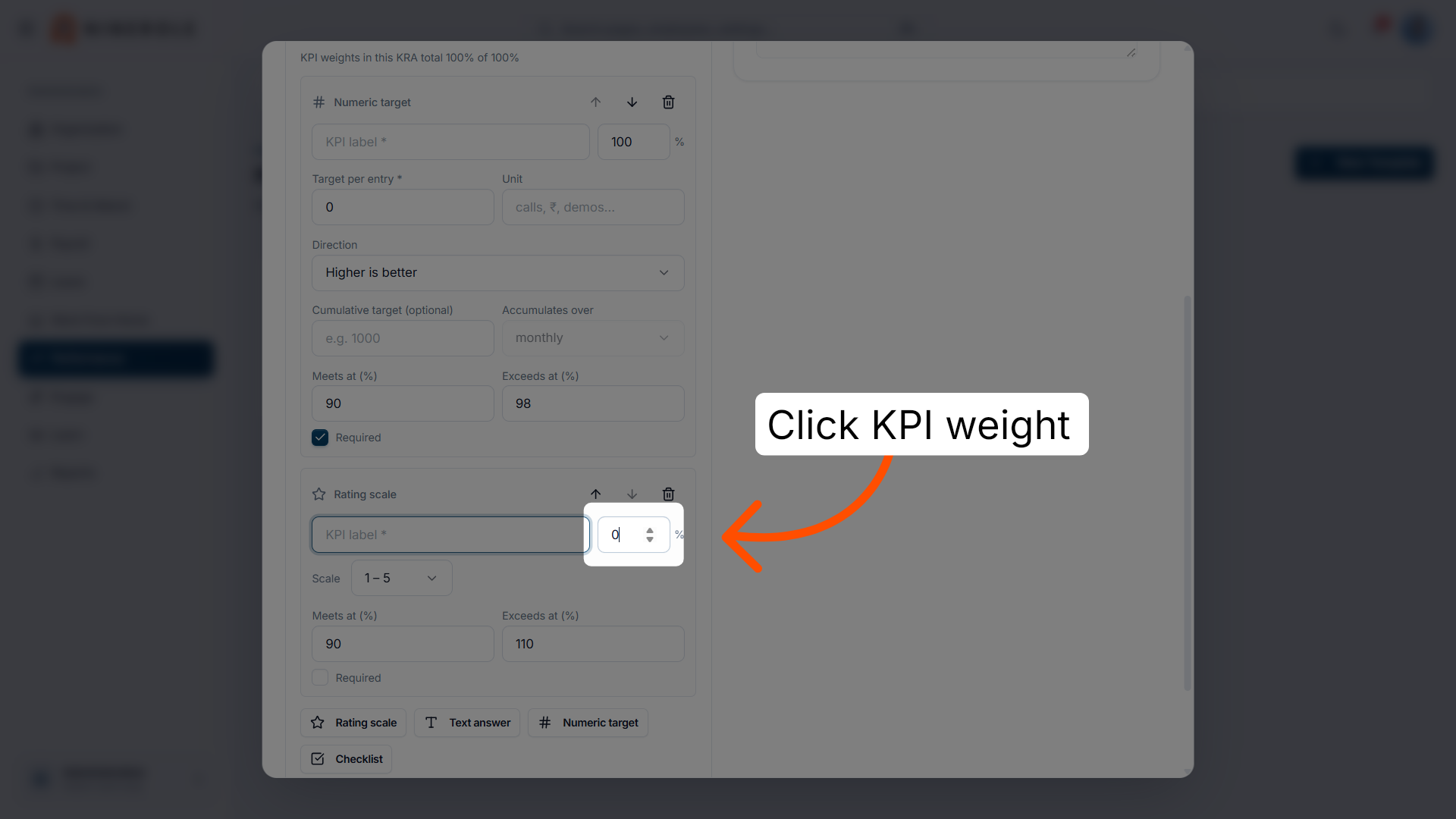
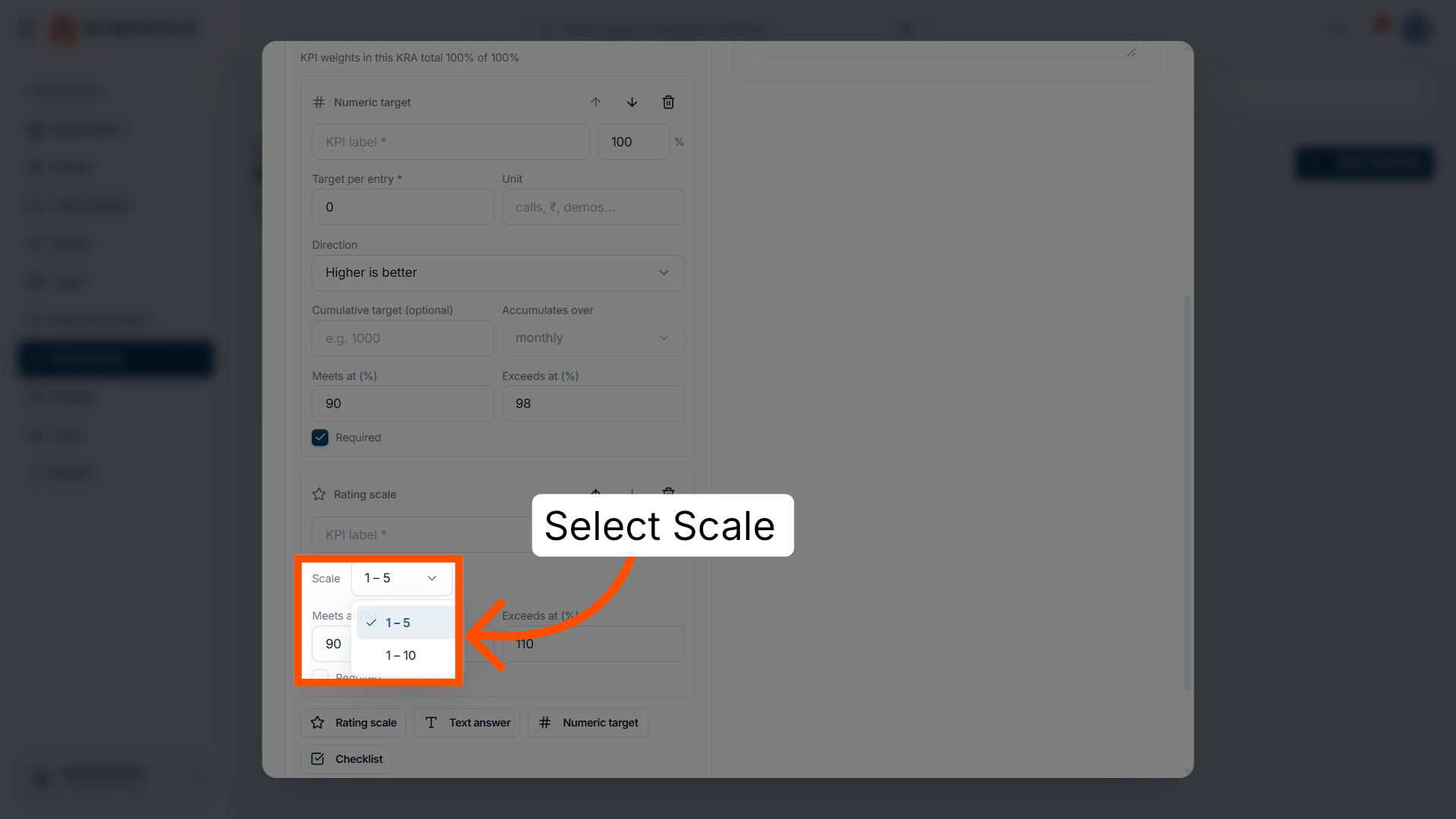
30. Choose the scale
Select the rating scale to be used when this KPI is evaluated.
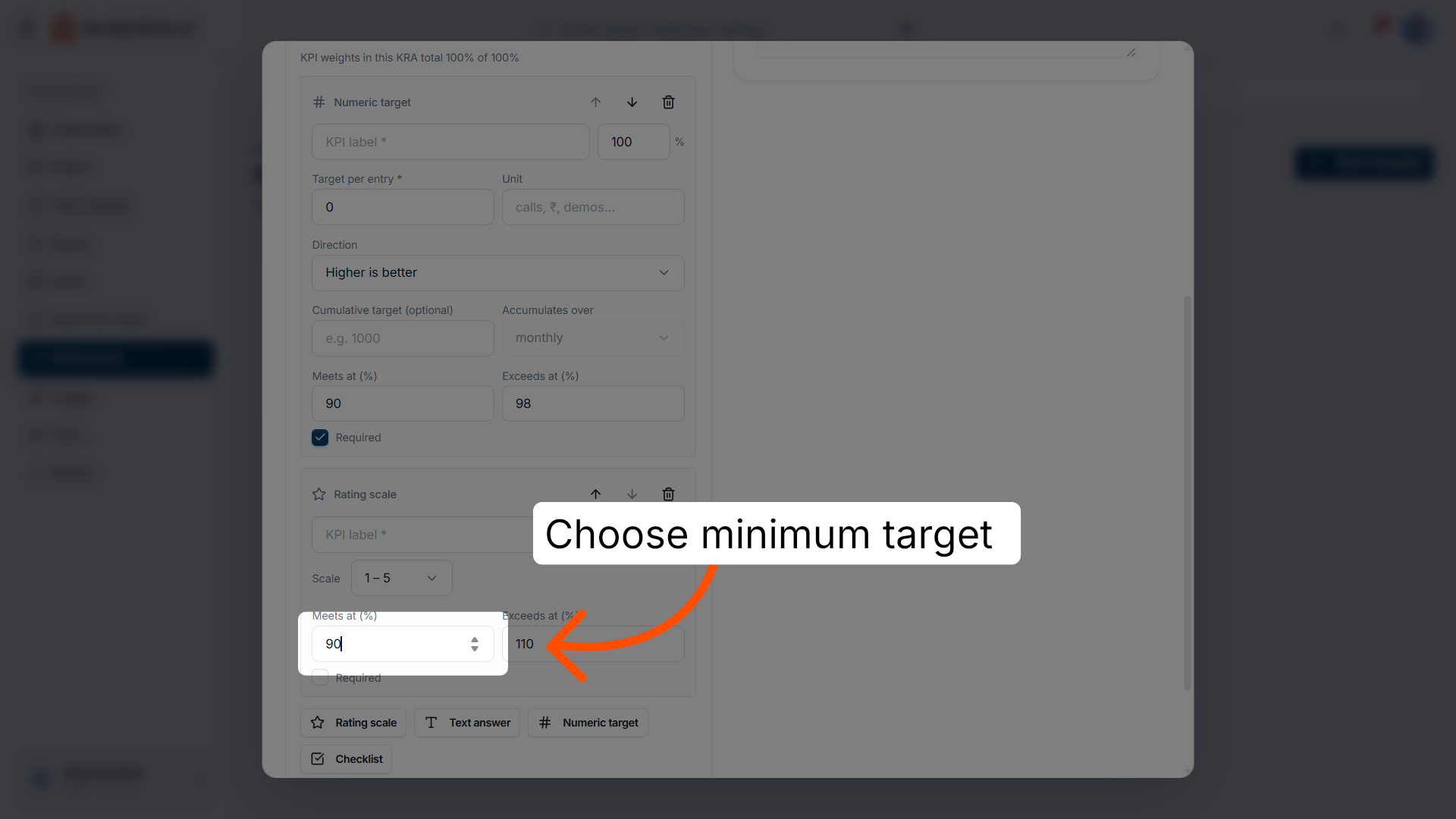
31. Set its "meets at" threshold
Set Meets at (%) for the rating-scale KPI.
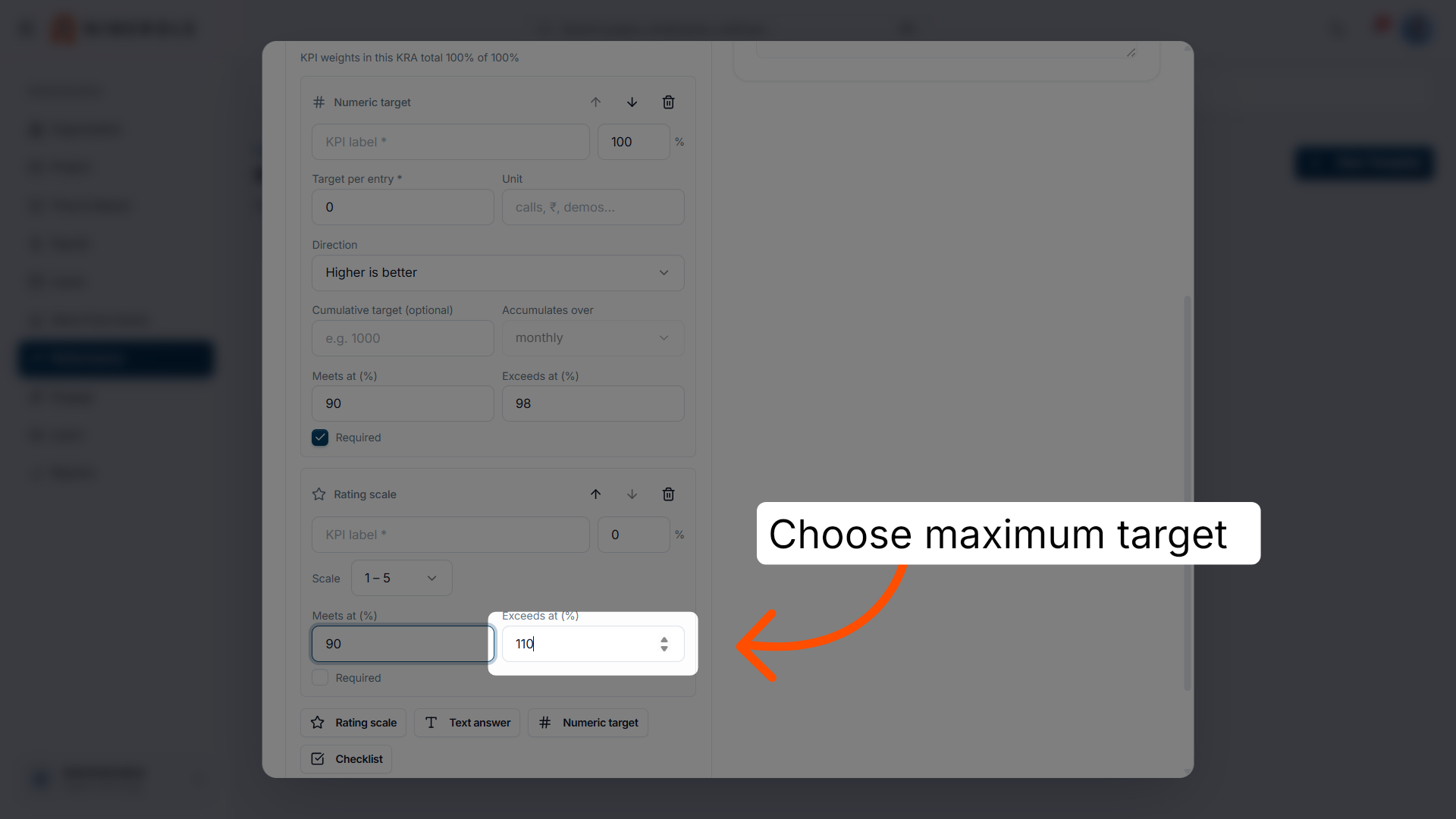
32. Set its "exceeds at" threshold
Set Exceeds at (%) for the rating-scale KPI.
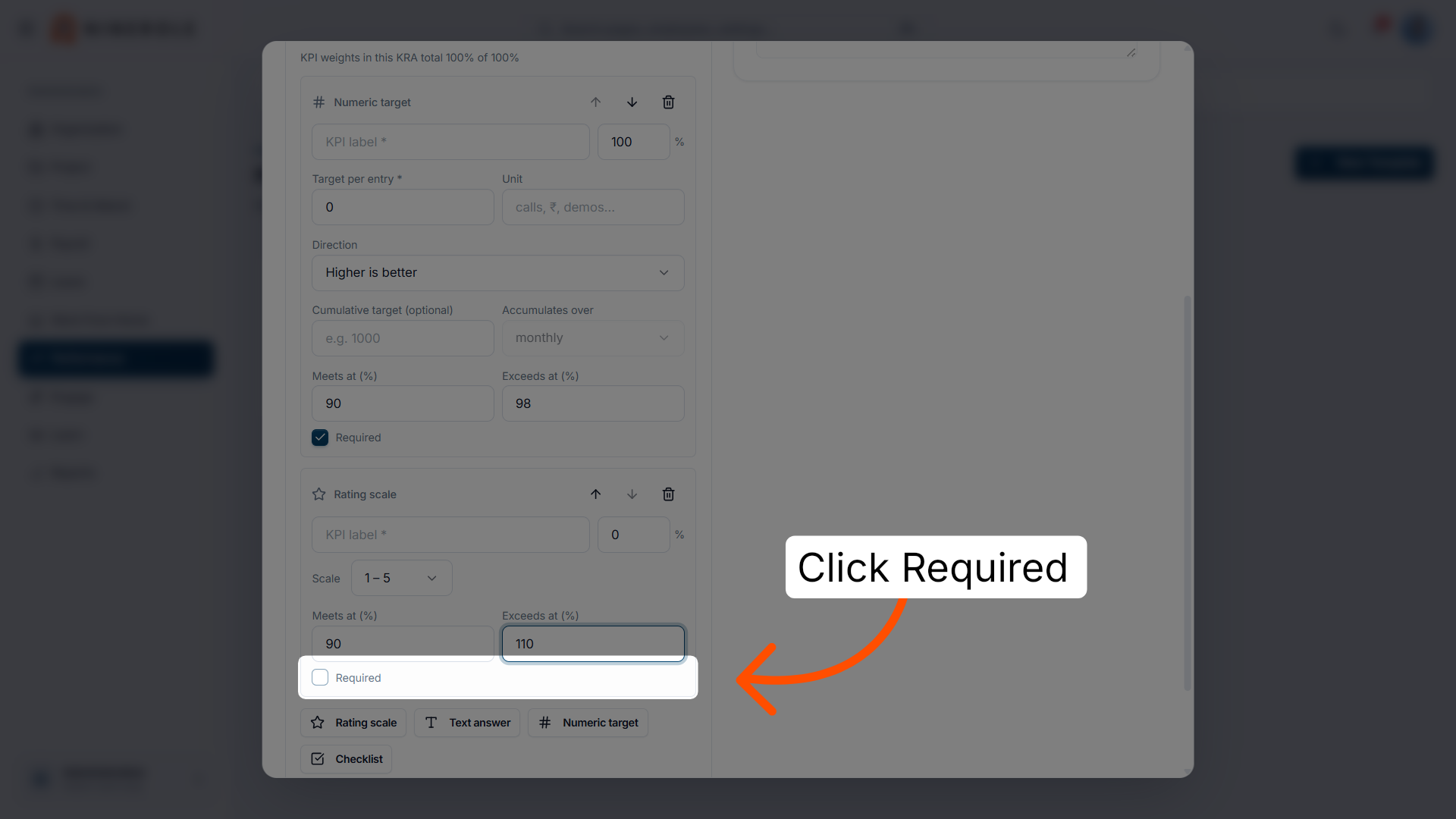
33. Mark it as required
Tick Required so this KPI is always included in the assessment.
Add a text-answer KPI
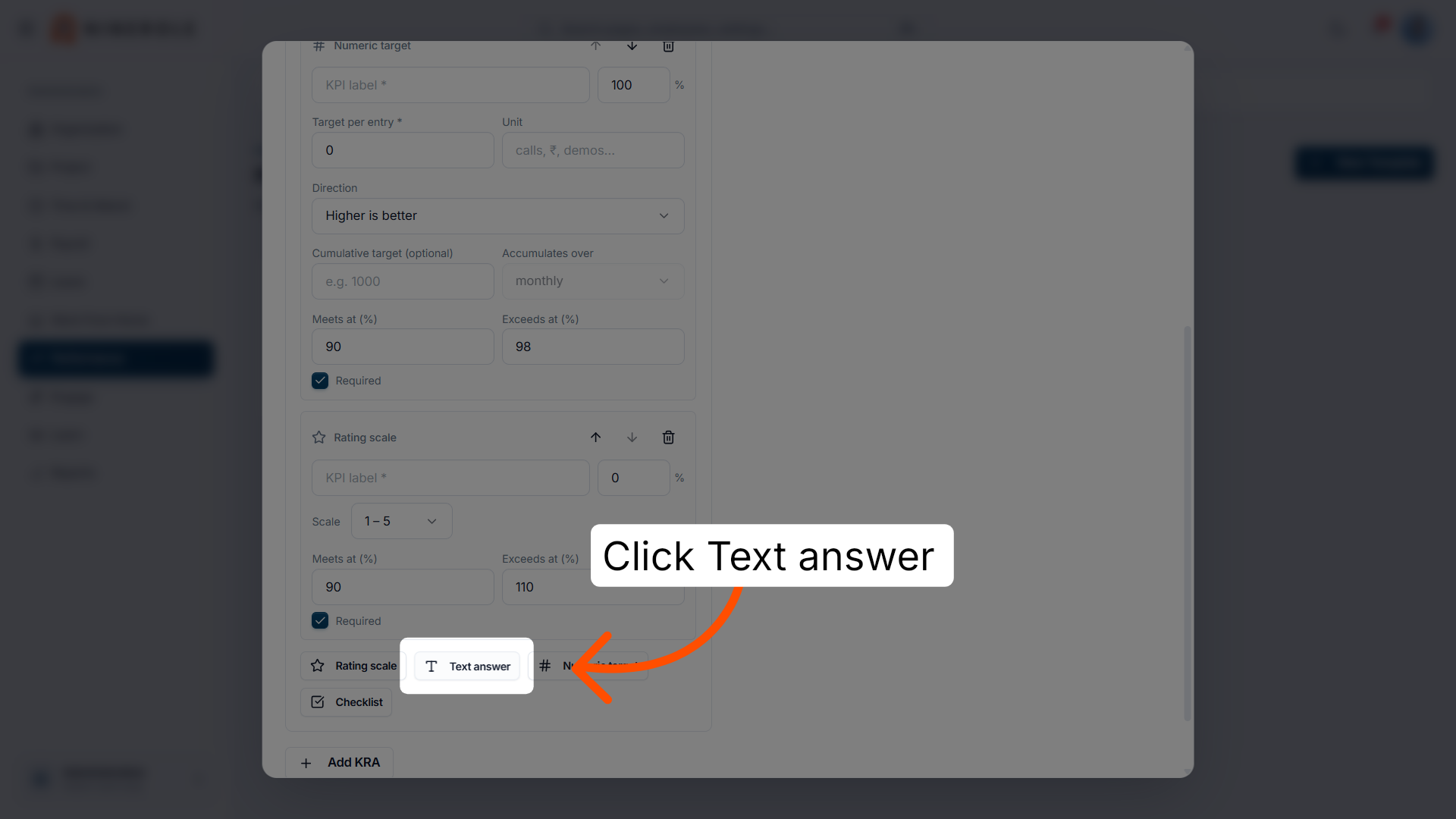
34. Add a text answer KPI
Click Text answer to add a KPI that captures a written, qualitative response.
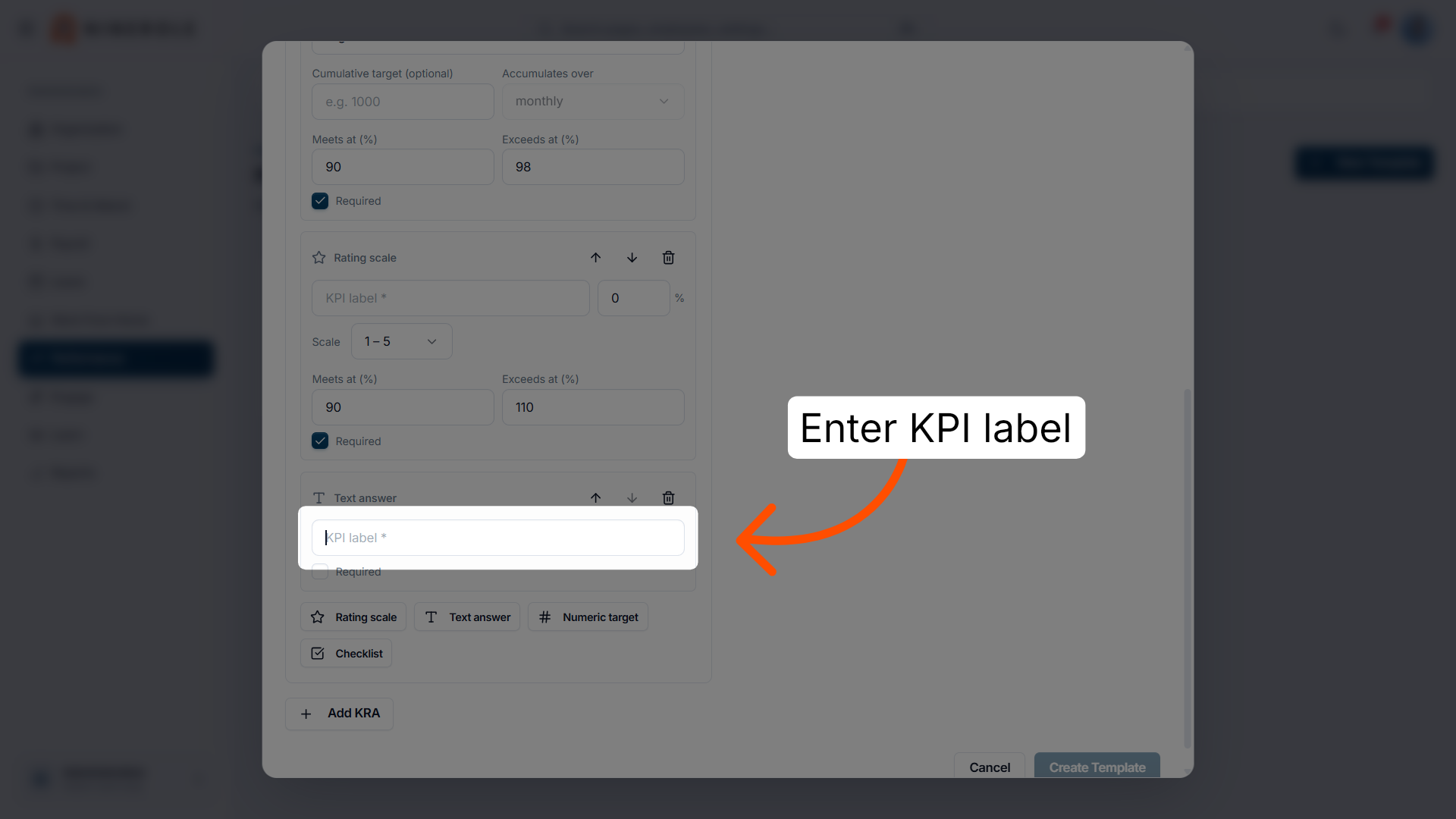
35. Enter its KPI label
Enter the label — this is the question your team answers in their own words.
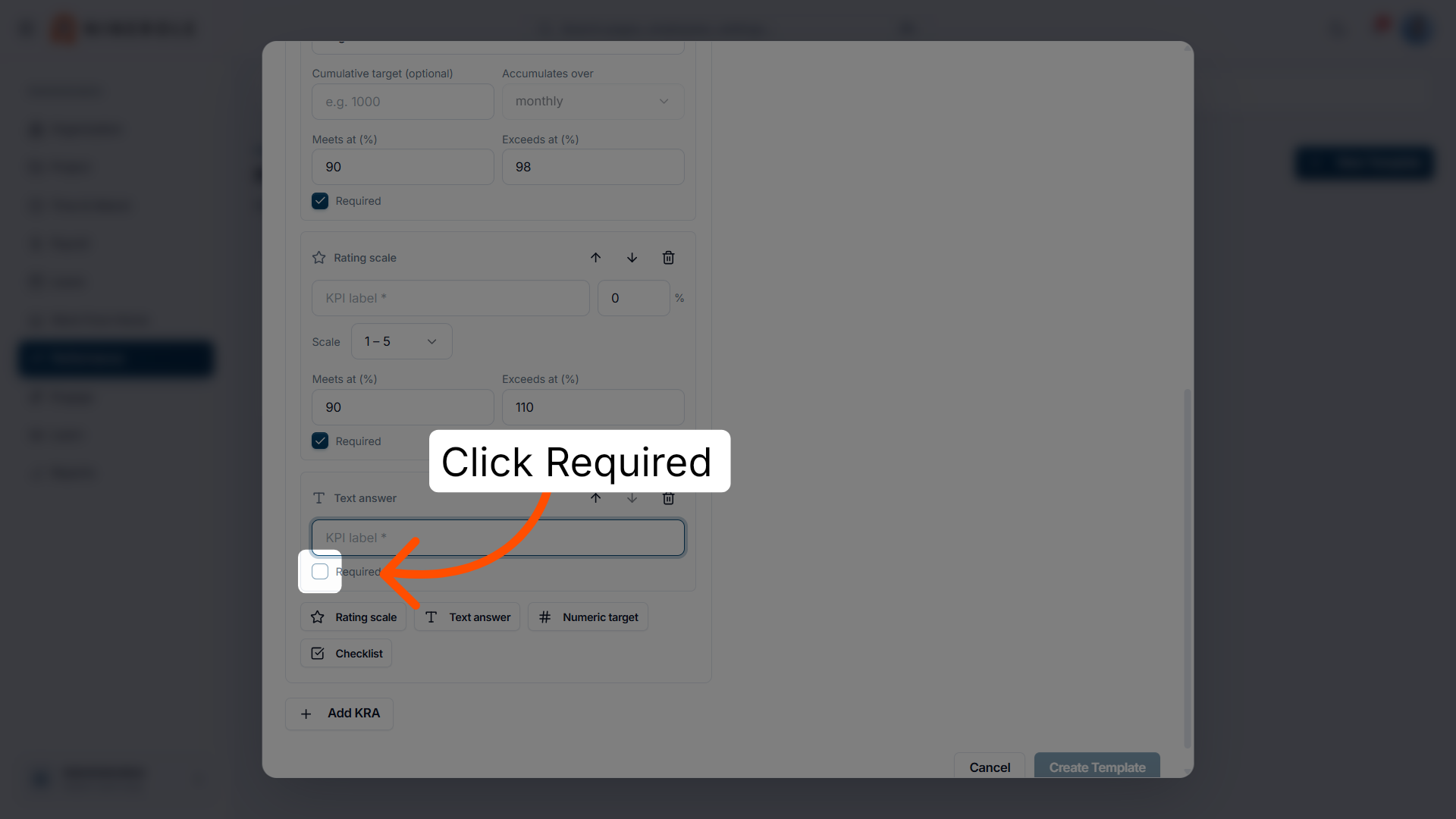
36. Mark it as required
Tick Required so the written answer cannot be skipped.
Add a second numeric KPI
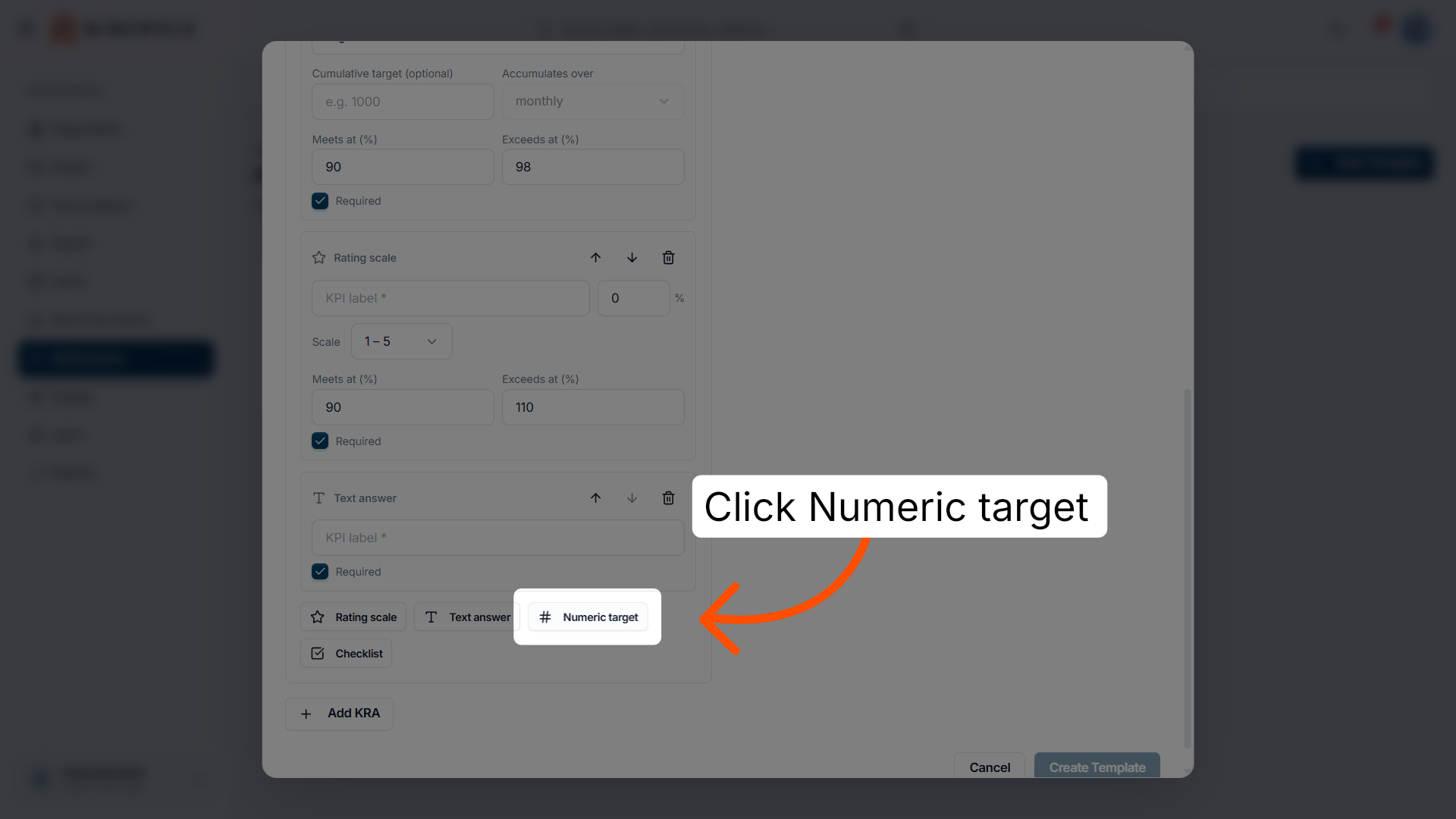
37. Add a numeric target KPI
Click Numeric target to add another measurable KPI.
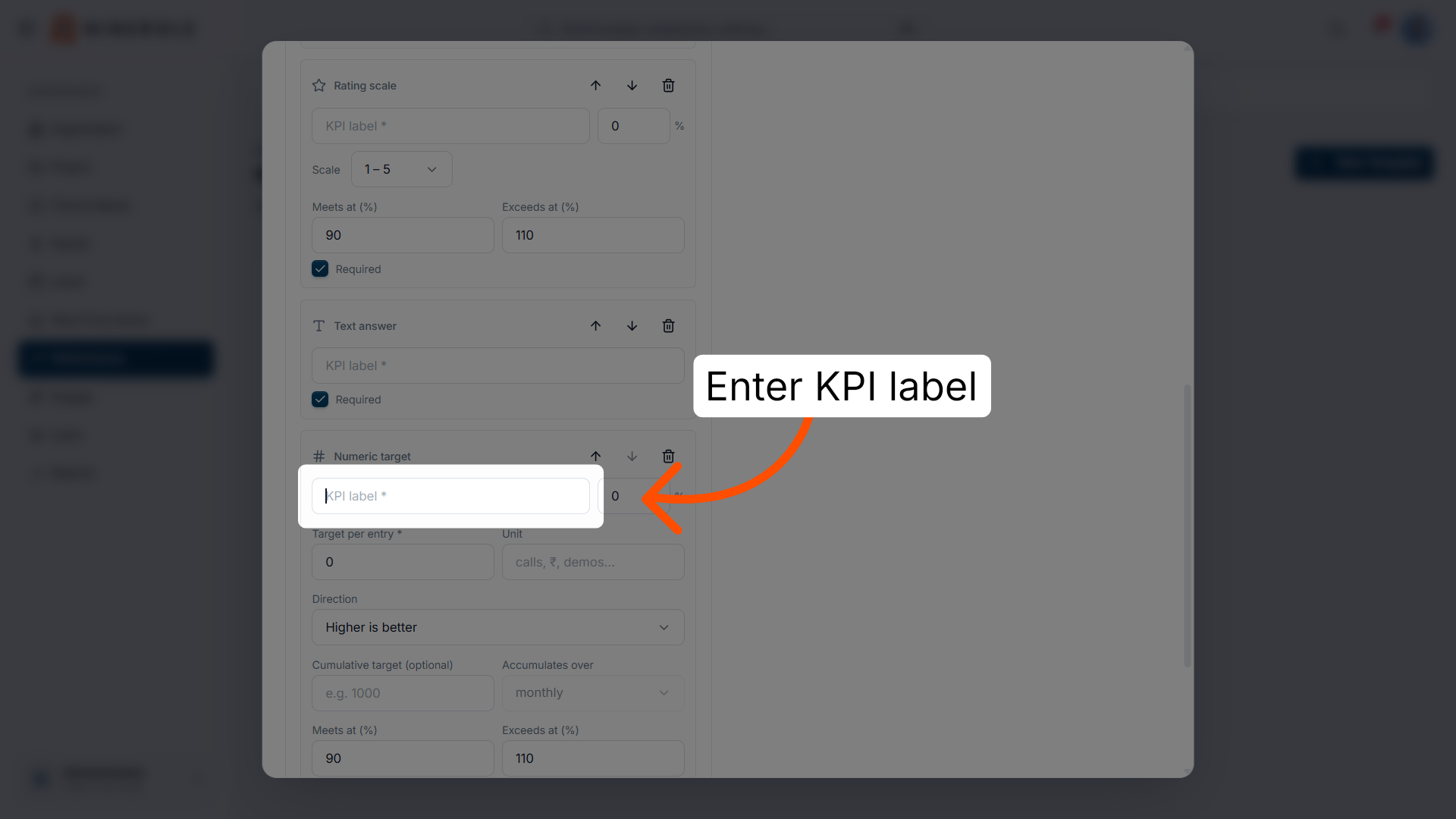
38. Enter its KPI label
Enter the label for the numeric KPI.
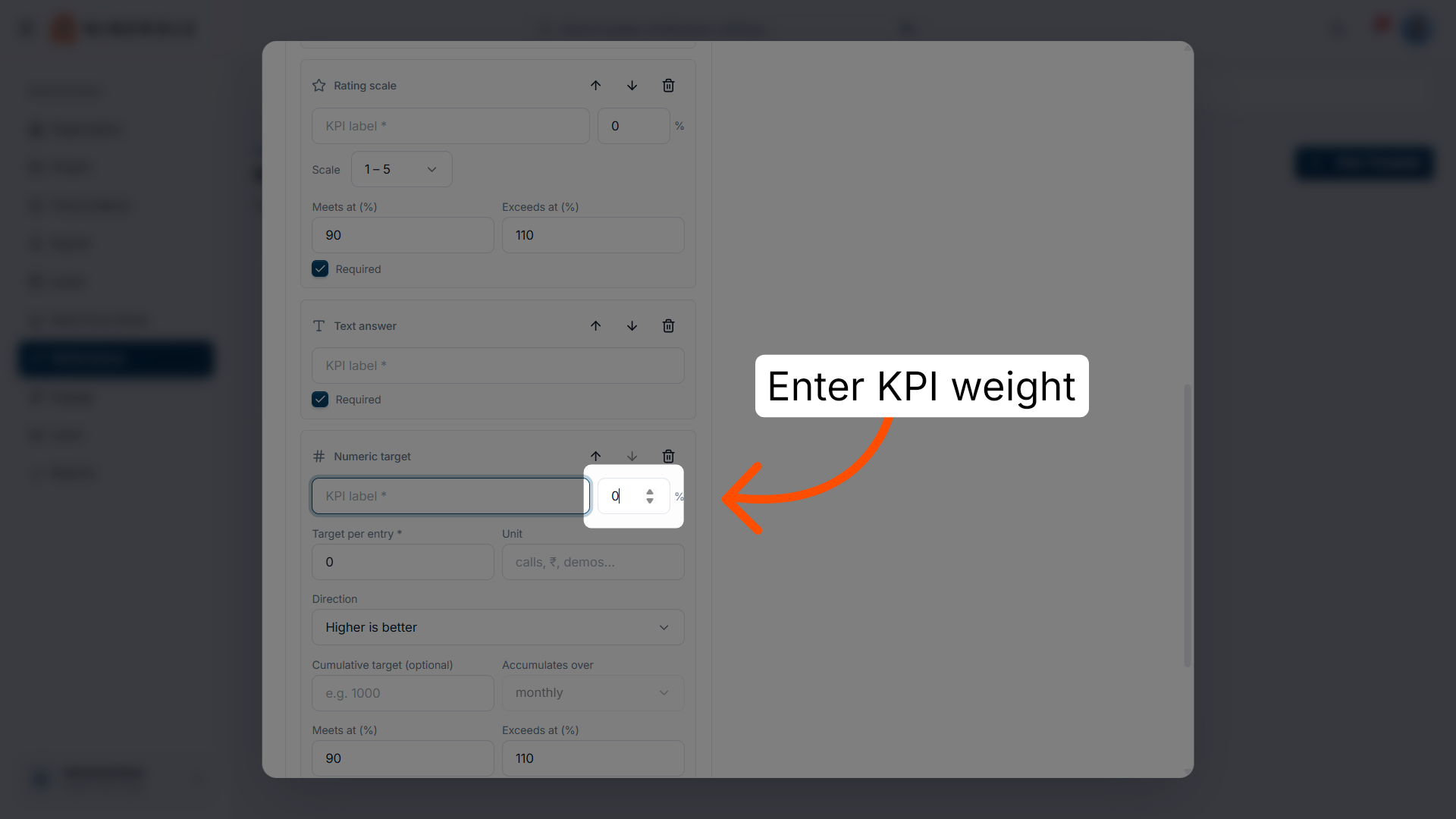
39. Open its weight field
Select the weight field for this KPI.
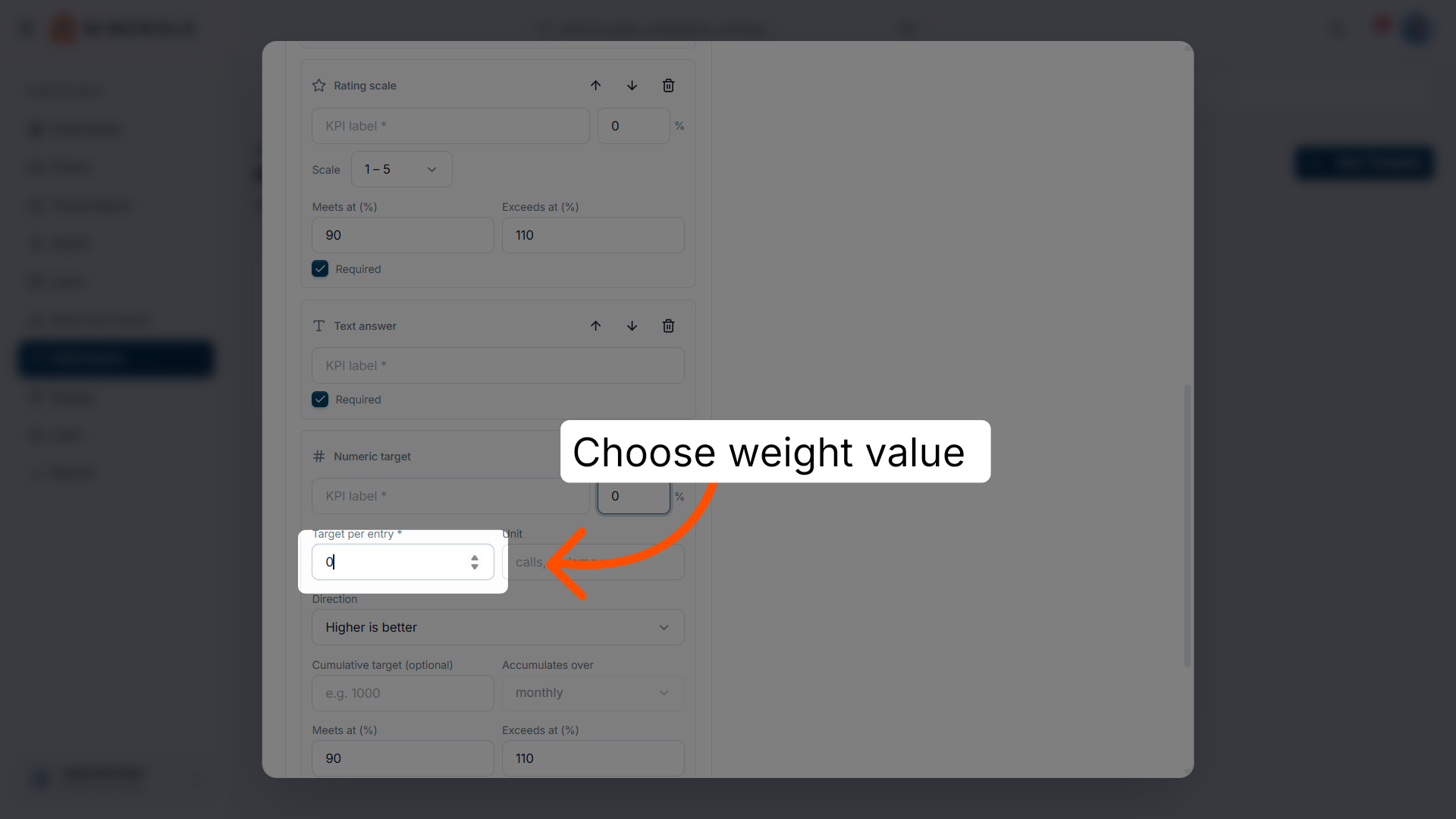
40. Set its weight
Enter the weight value so the KRA's KPI weights still total 100%.
41. Choose its unit
Set the Unit this KPI is counted in.
42. Select its direction
Set Direction for this KPI — higher or lower is better.
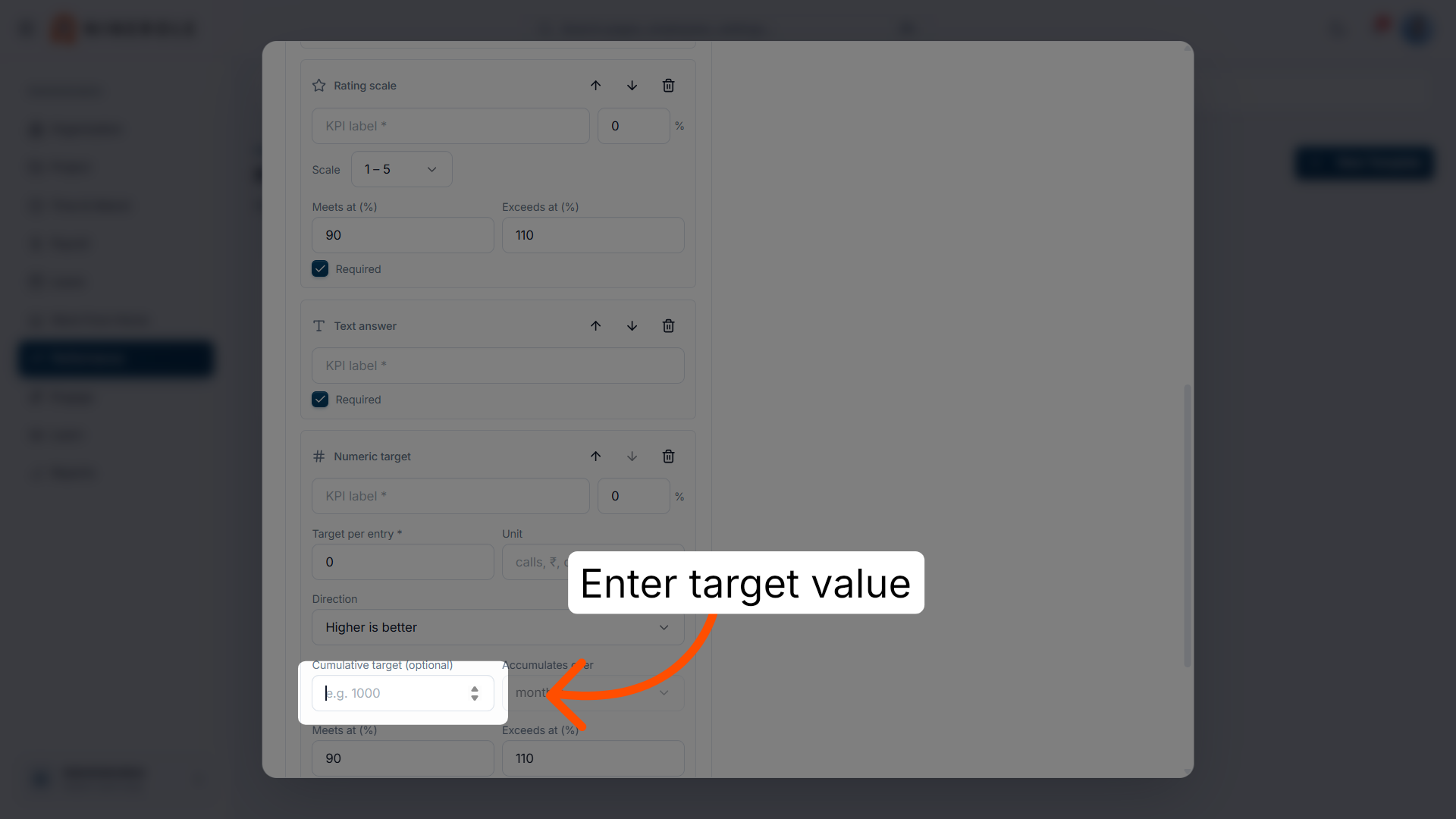
43. Set its target per entry
Enter Target per entry for the numeric KPI.
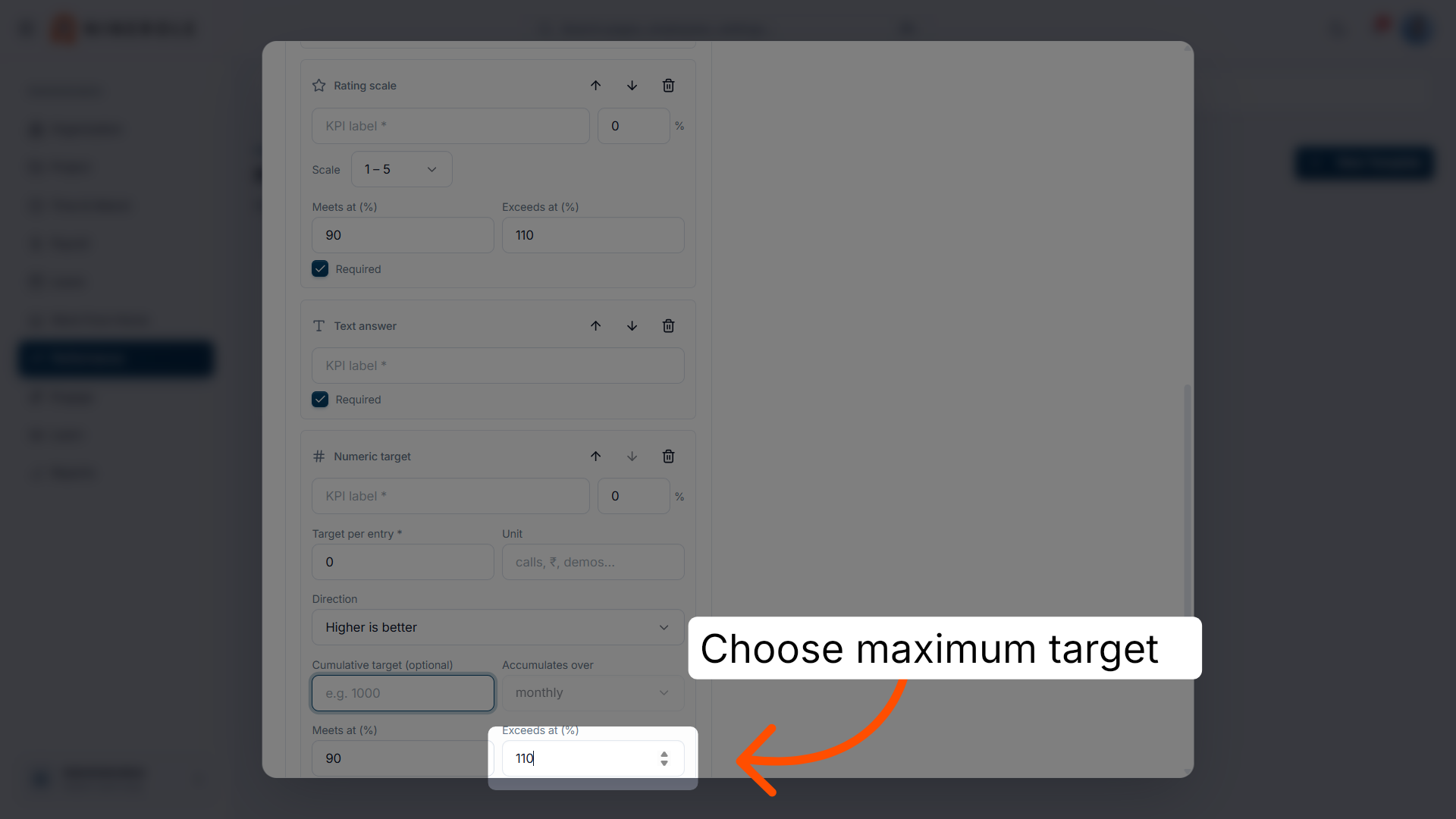
44. Set its "exceeds at" threshold
Set Exceeds at (%) for this KPI.
45. Set its "meets at" threshold
Set Meets at (%) for this KPI.
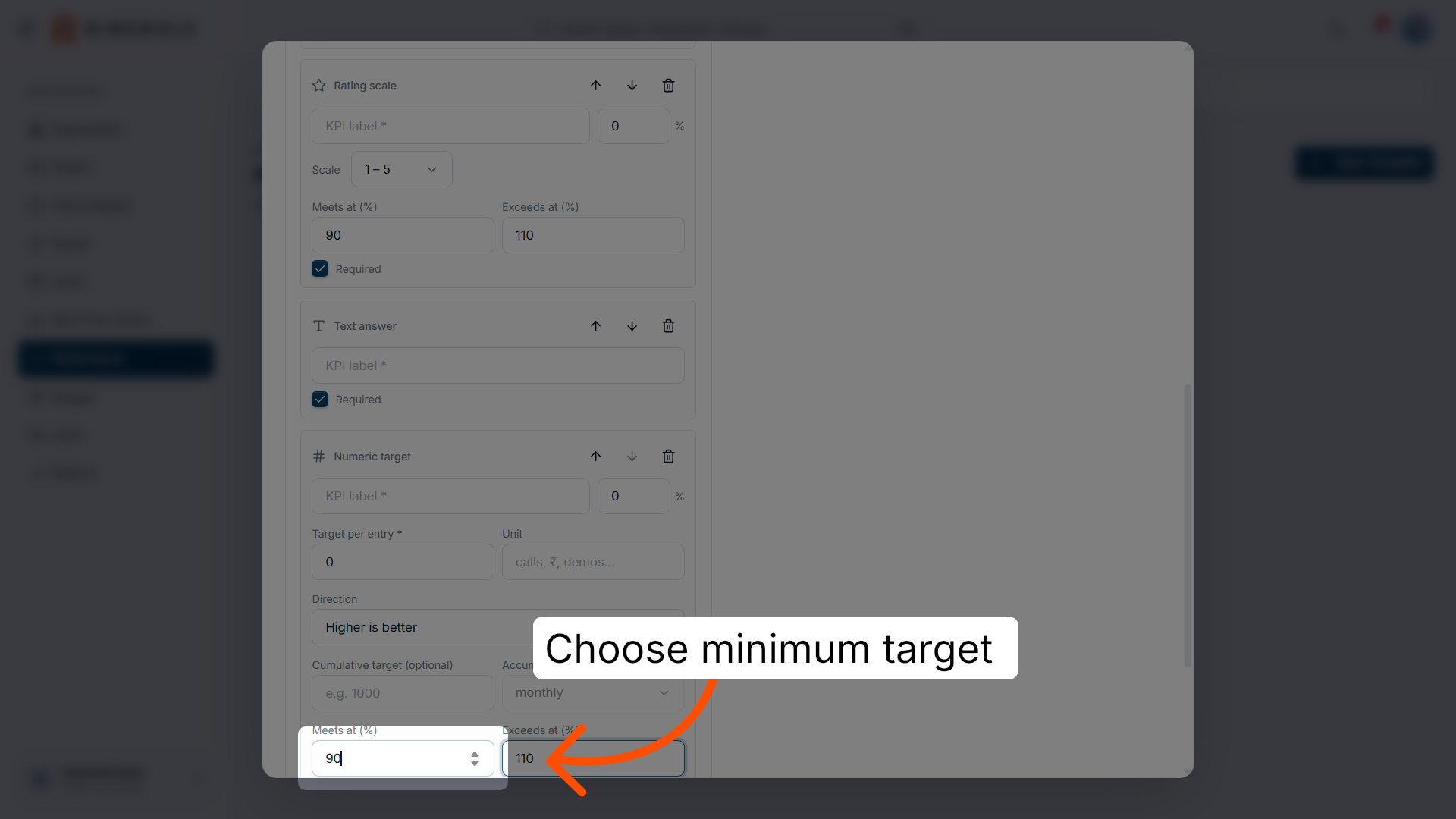
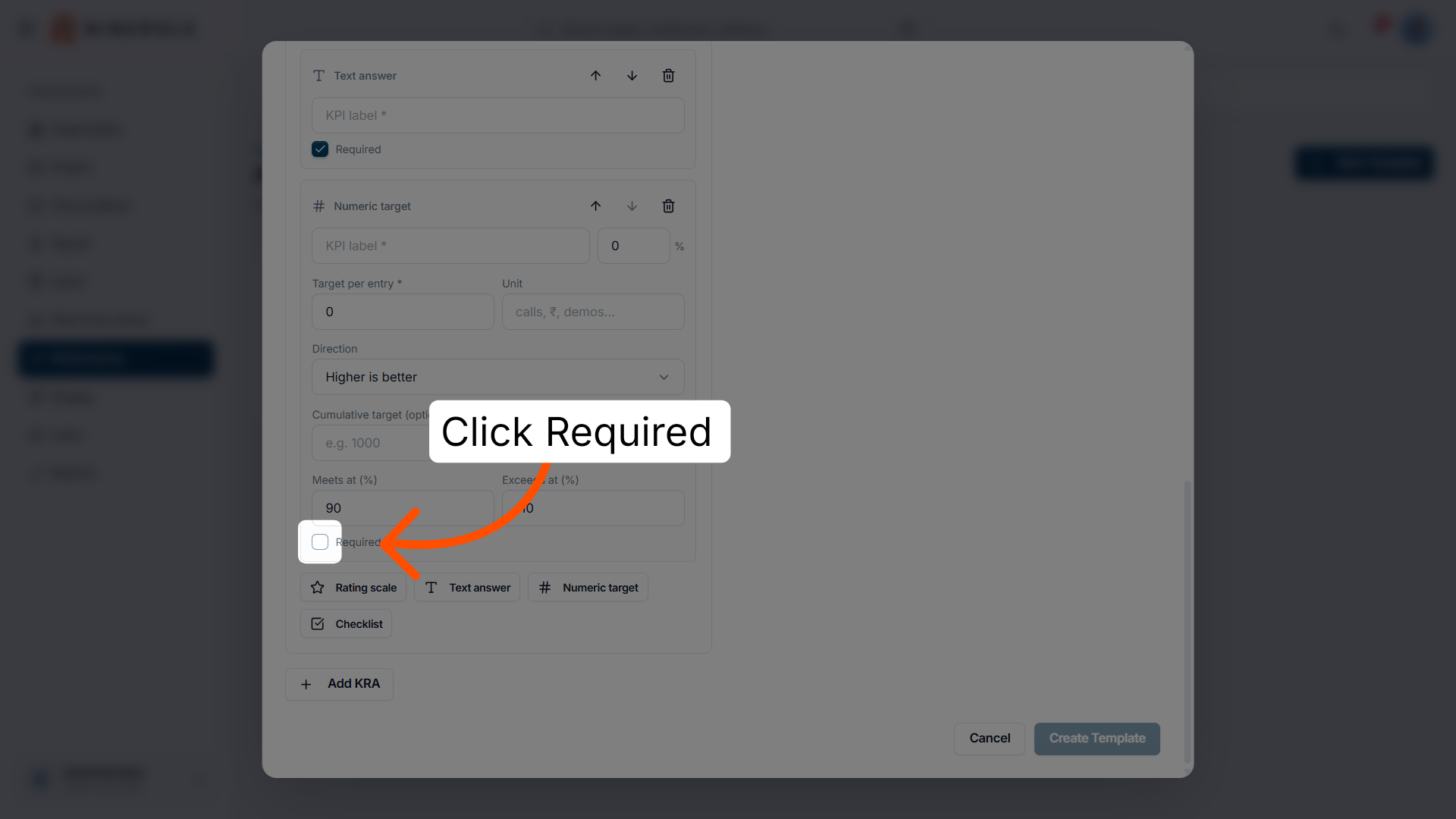
46. Mark it as required
Tick Required for the numeric KPI.
Add a checklist KPI
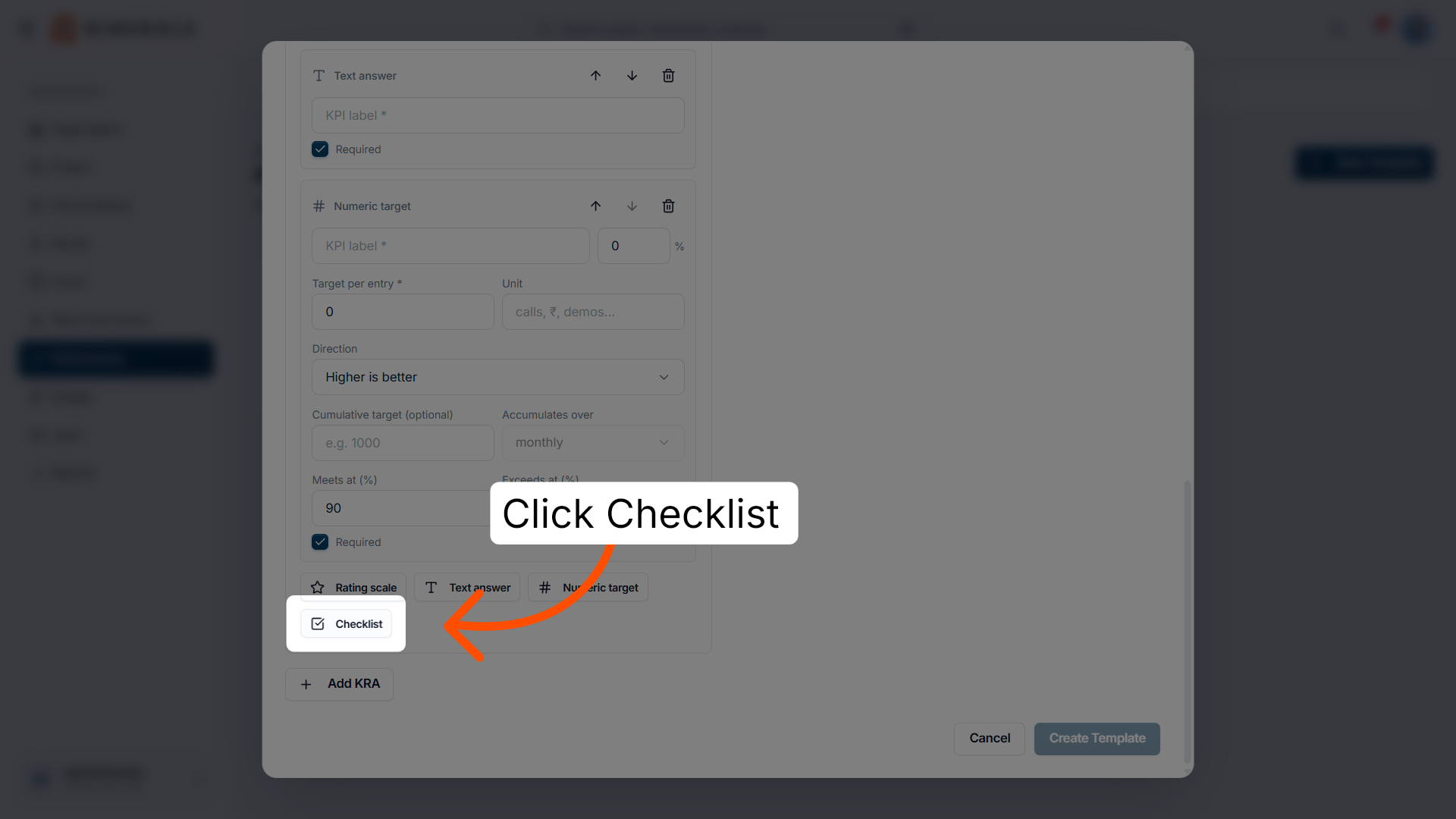
47. Add a checklist KPI
Click Checklist to add a KPI made up of task items to tick off.
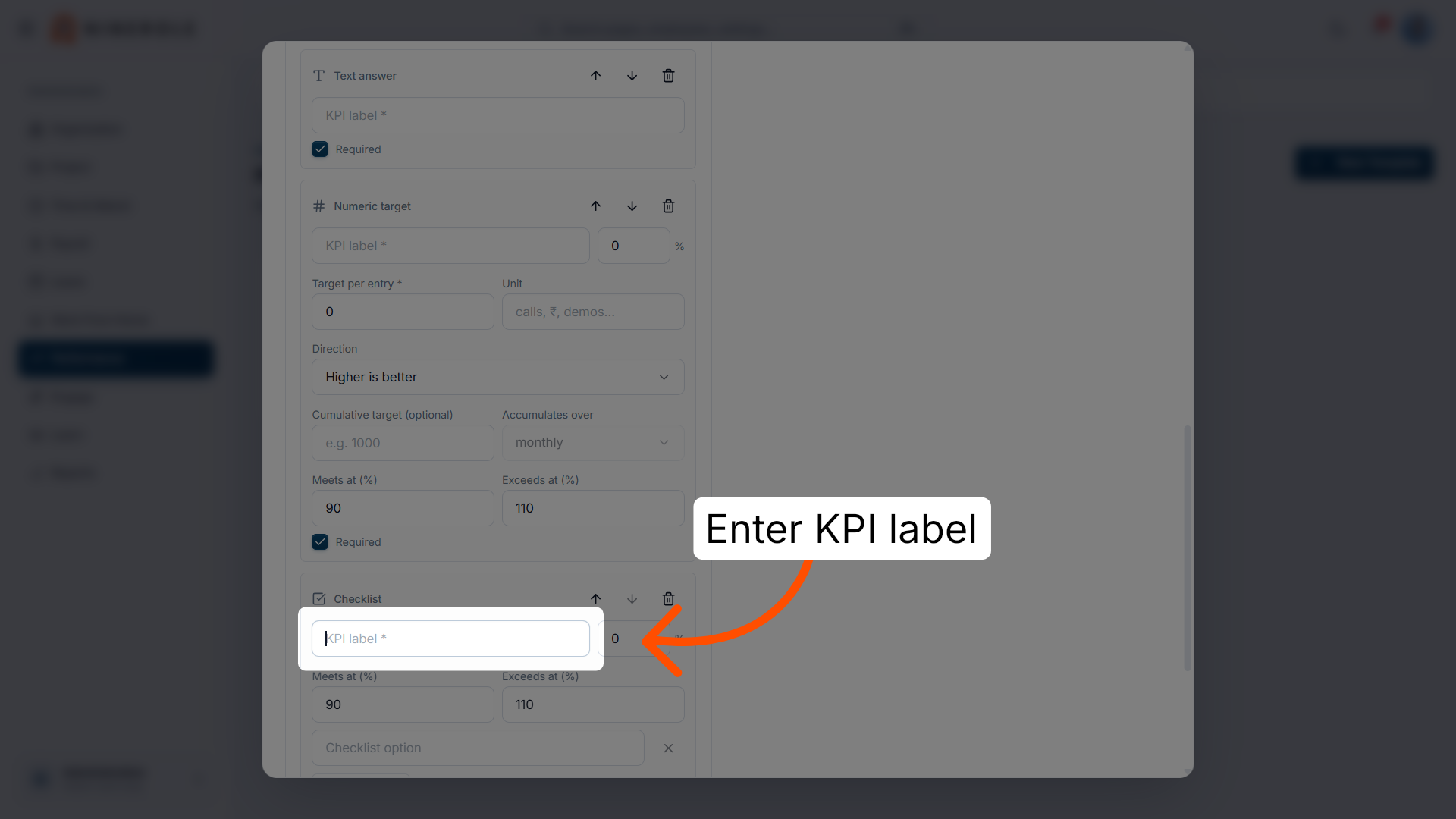
48. Enter its KPI label
Enter the label for the checklist KPI.
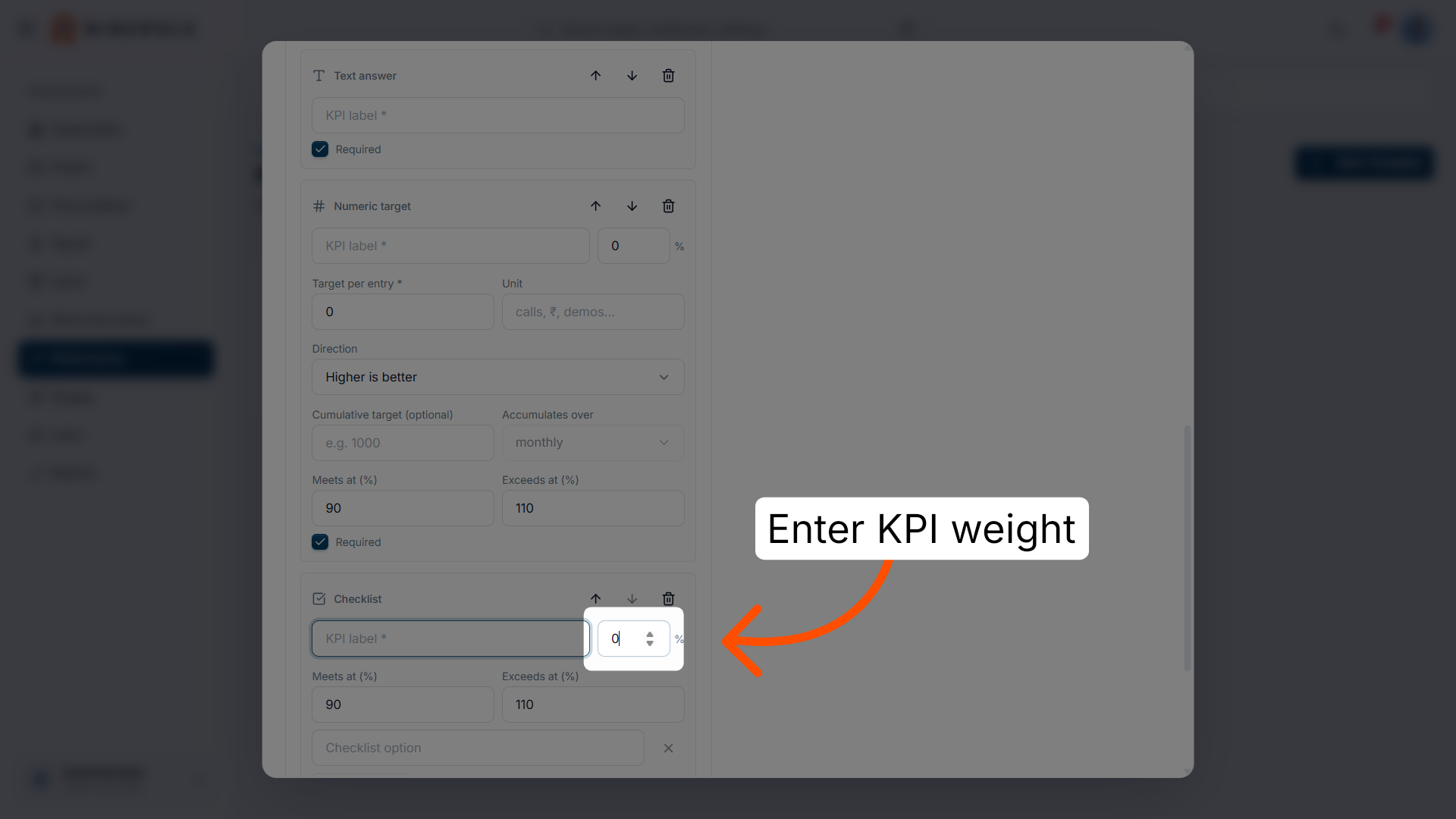
49. Set its weight
Set the checklist KPI's weight within the KRA.
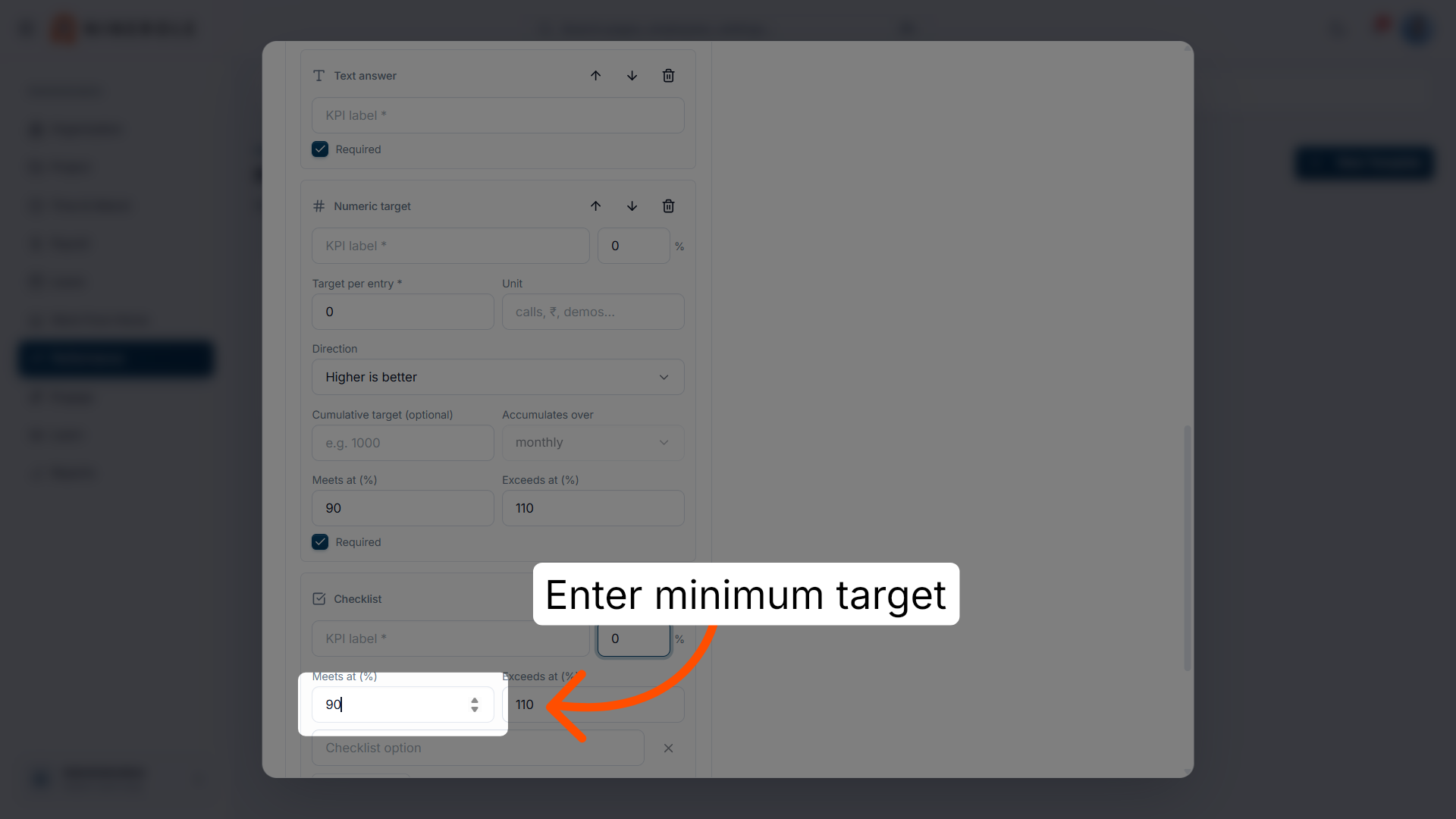
50. Set its "meets at" threshold
Set Meets at (%) for the checklist.
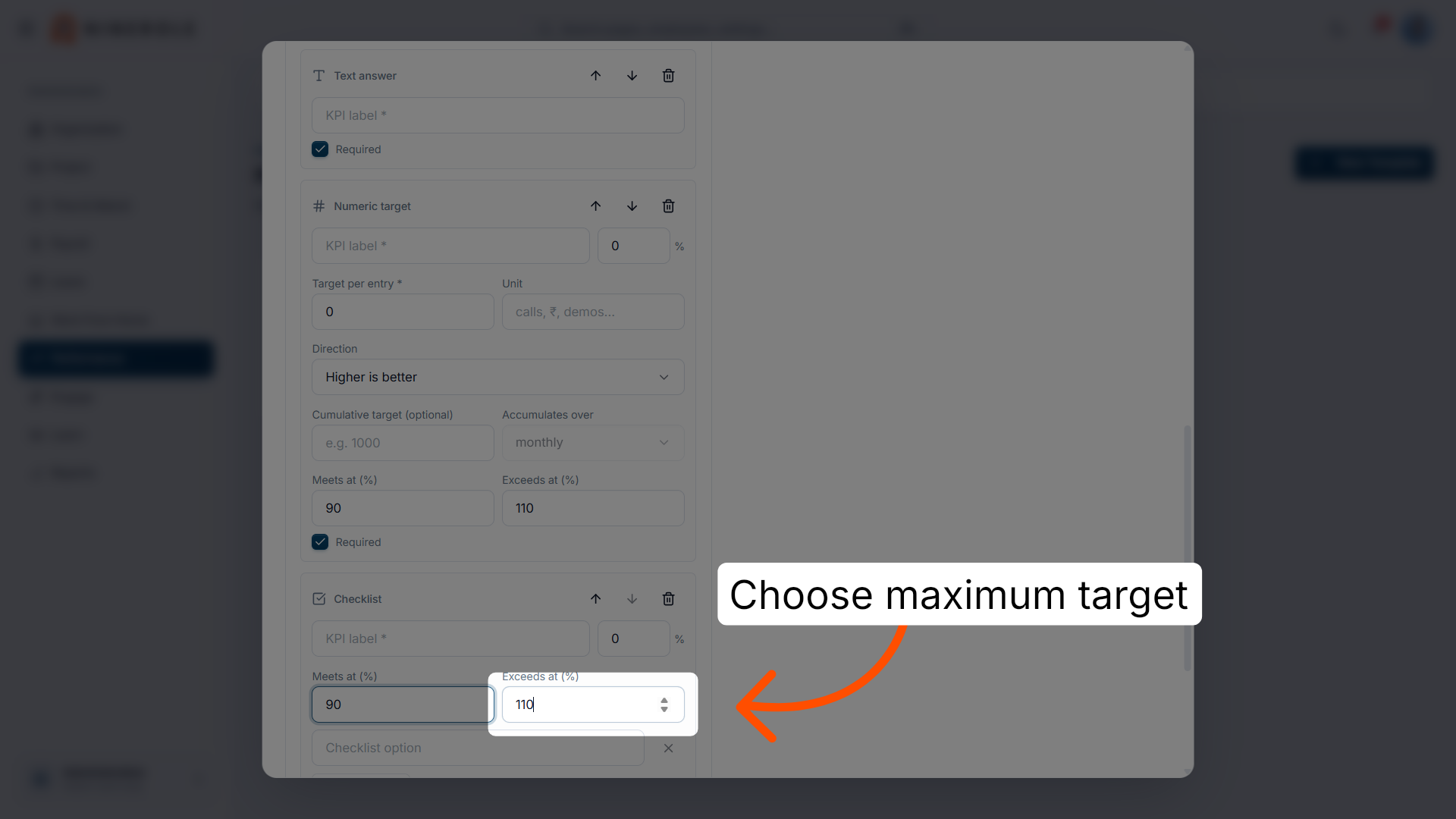
51. Set its "exceeds at" threshold
Set Exceeds at (%) for the checklist.
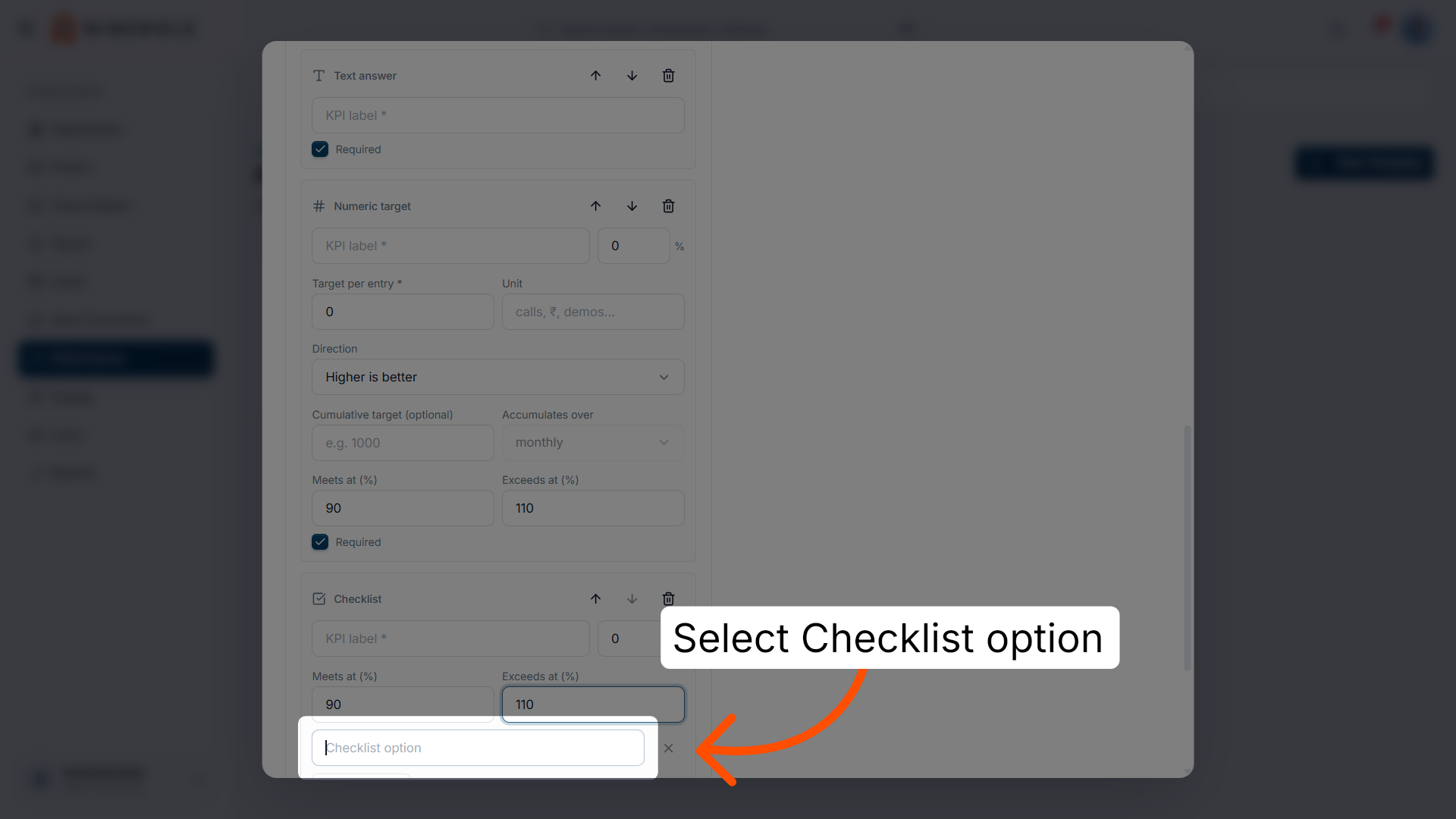
52. Enter the first checklist item
Enter the first task item the checklist asks about.
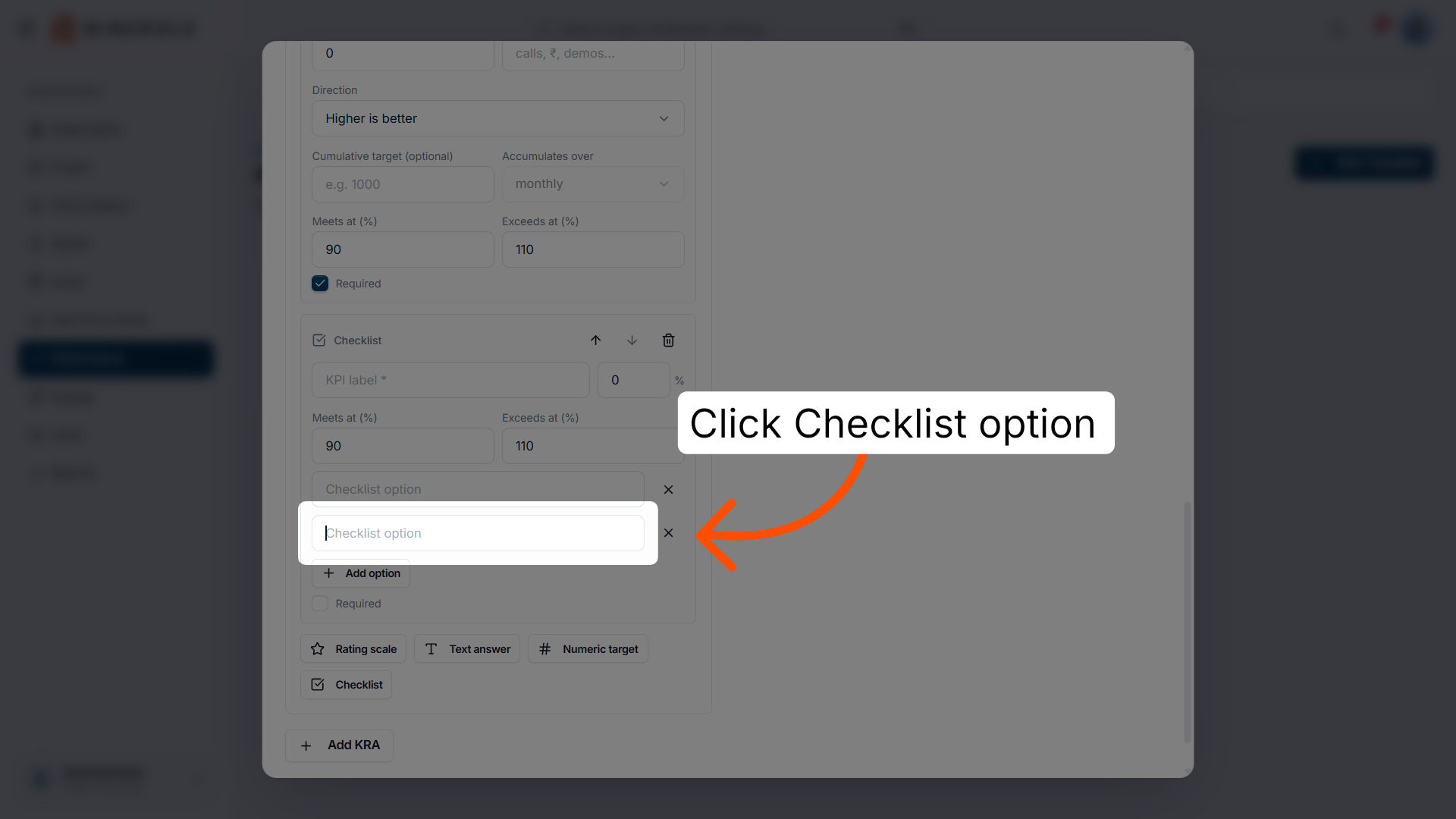
53. Add another checklist item
Add a further item to widen the checklist's coverage.
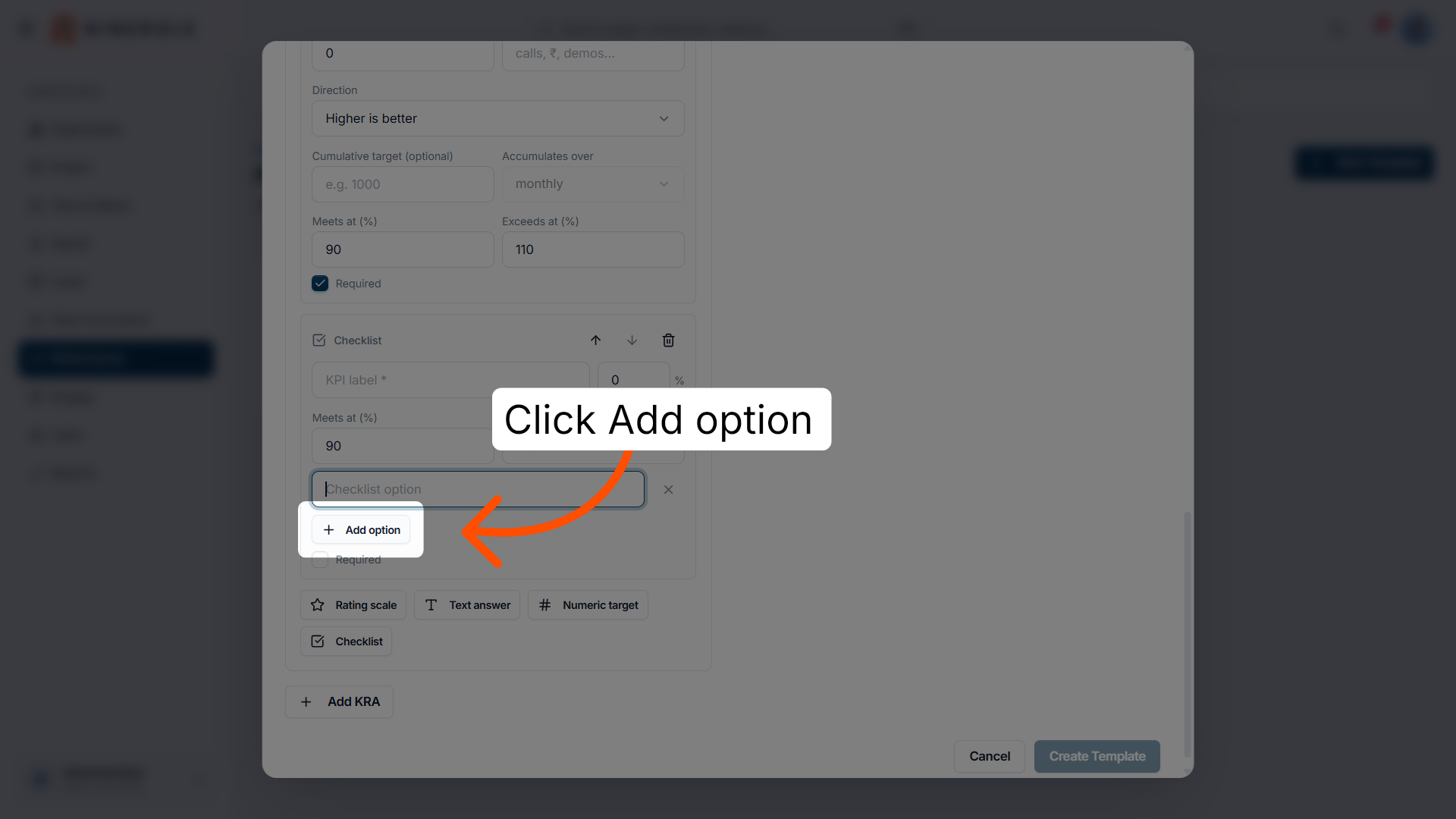
54. Enter that item
Enter the text for the item you just added.
Save the template and assign it
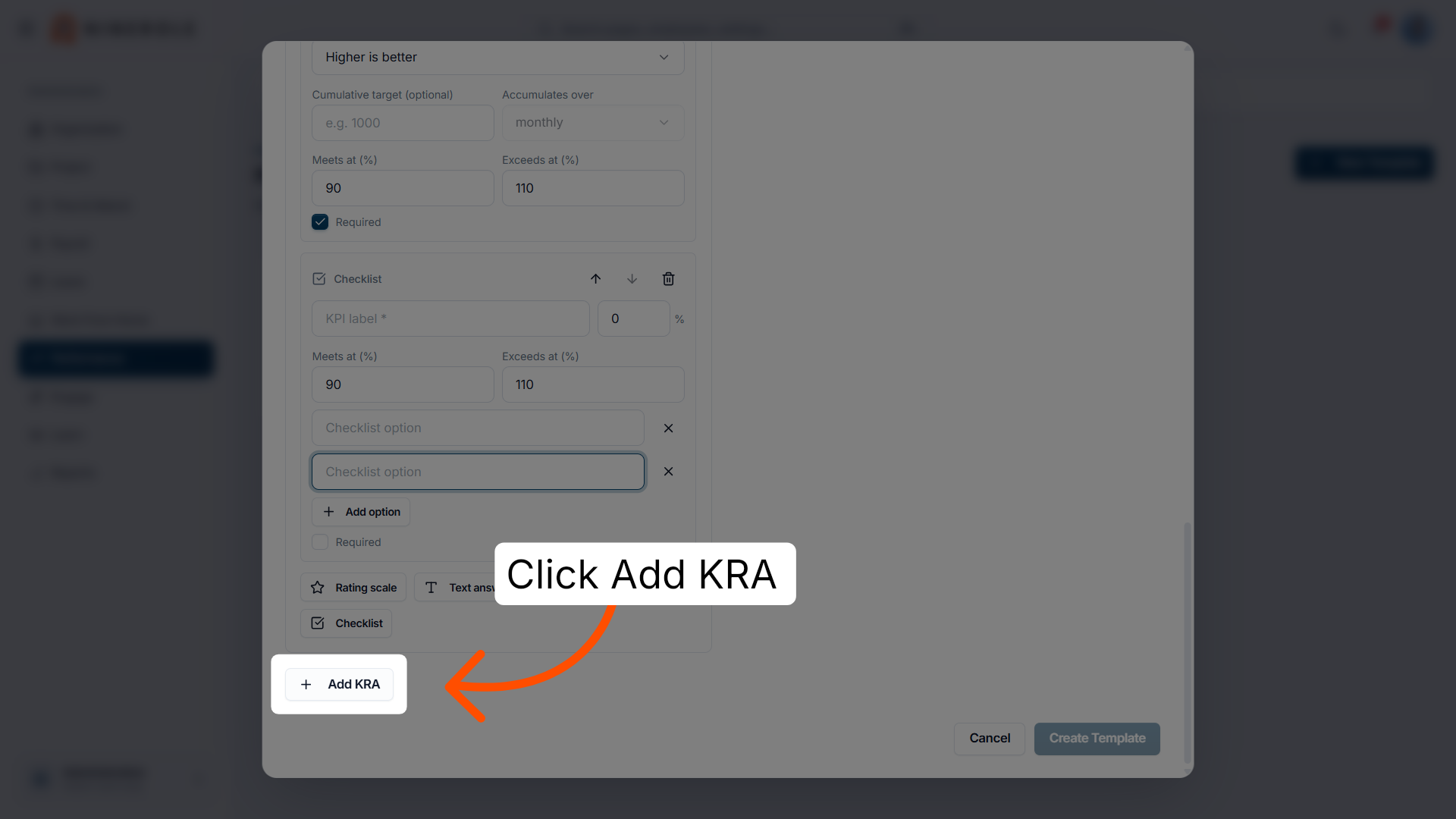
55. Add another KRA
Click Add KRA if the template needs a second area of objectives. Remember all KRA weights must total 100%.
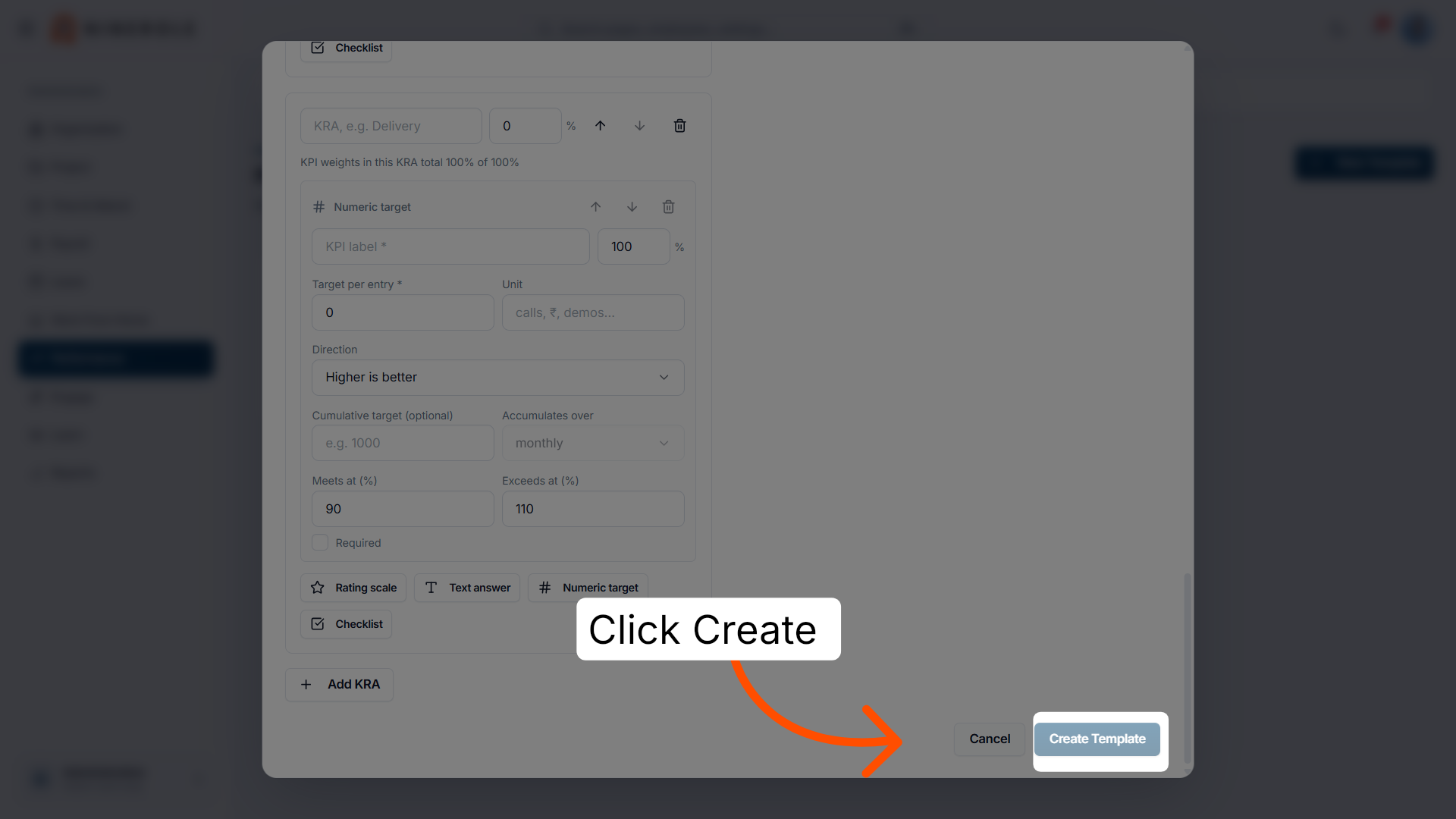
56. Create the template
Click Create Template to save the template with everything you configured.
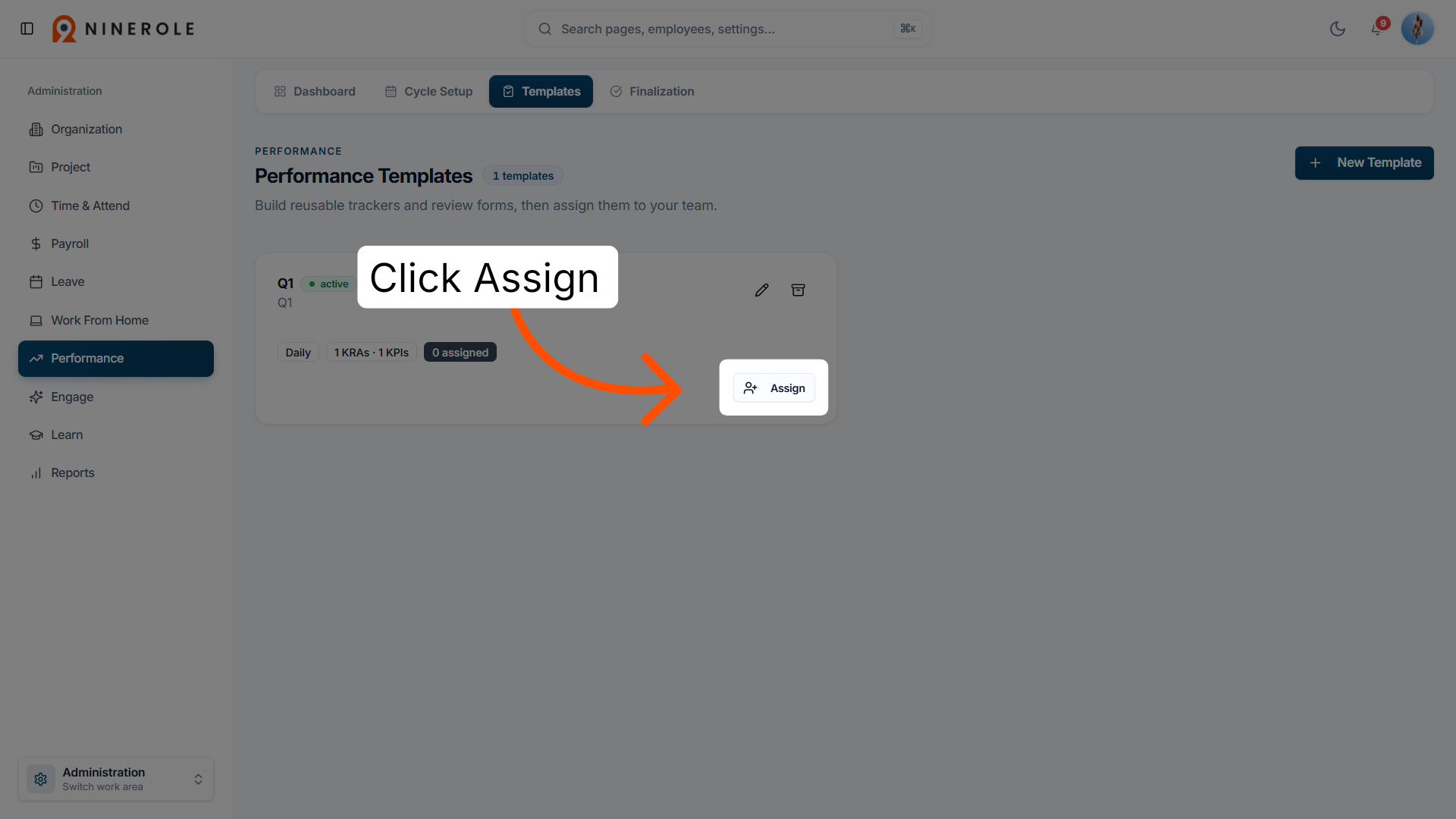
57. Open the assignment dialog
Open the assignment view to allocate the template to employees.
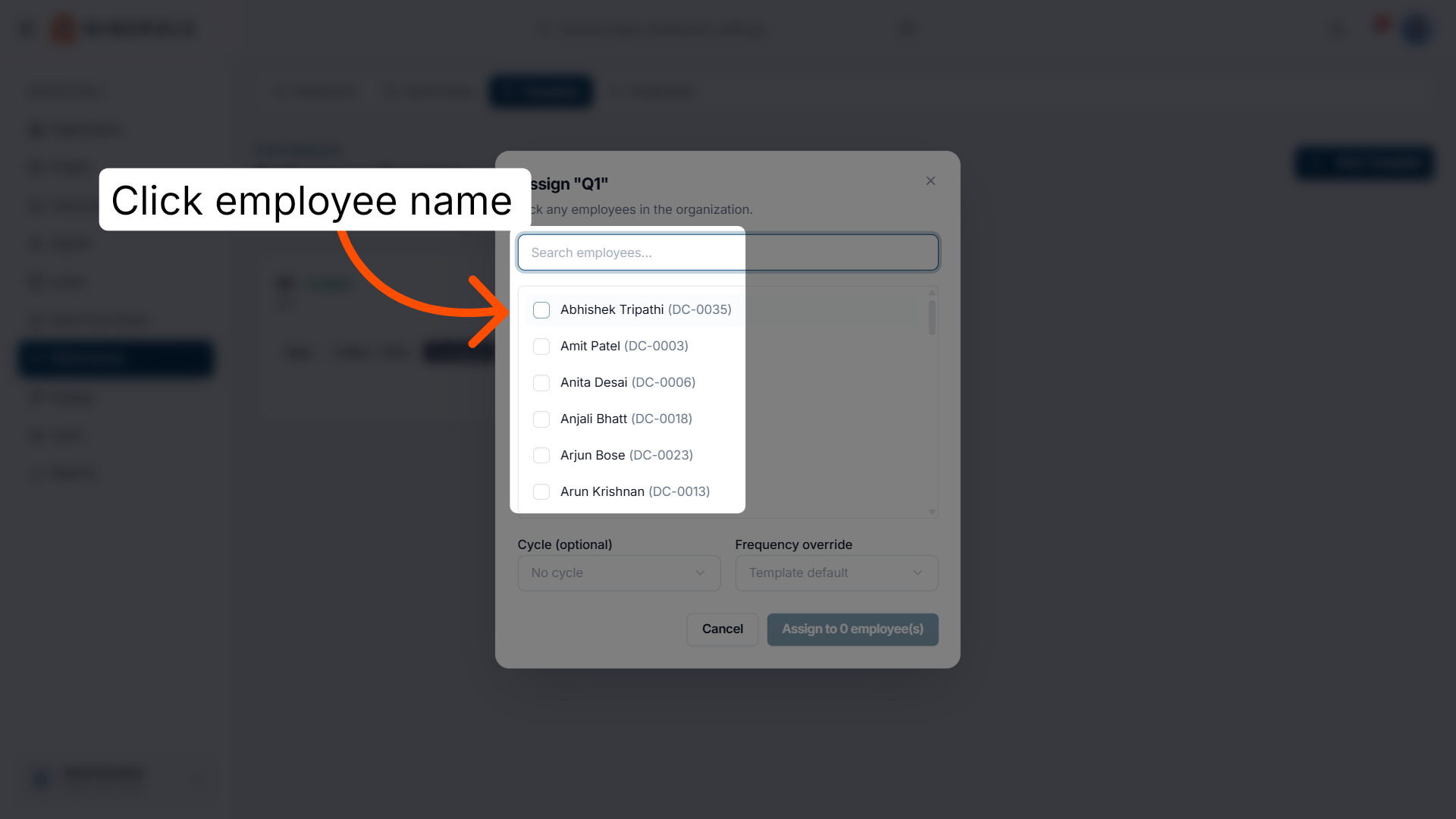
58. Select the employees
Tick the employees who should be evaluated with this template. Search by name or employee ID to find them.
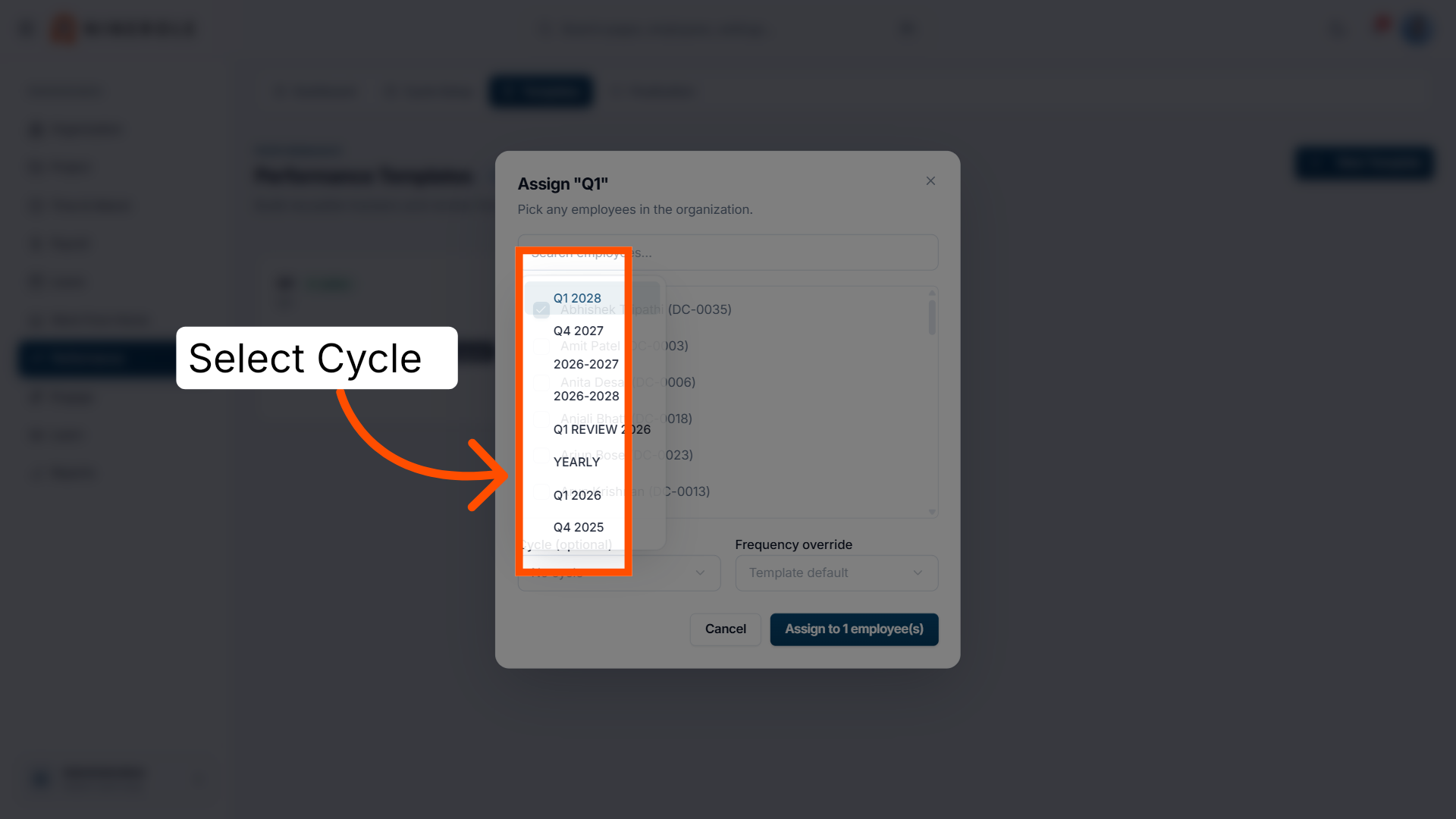
59. Choose the cycle
Set Cycle (optional) to tie the assignment to a review period.
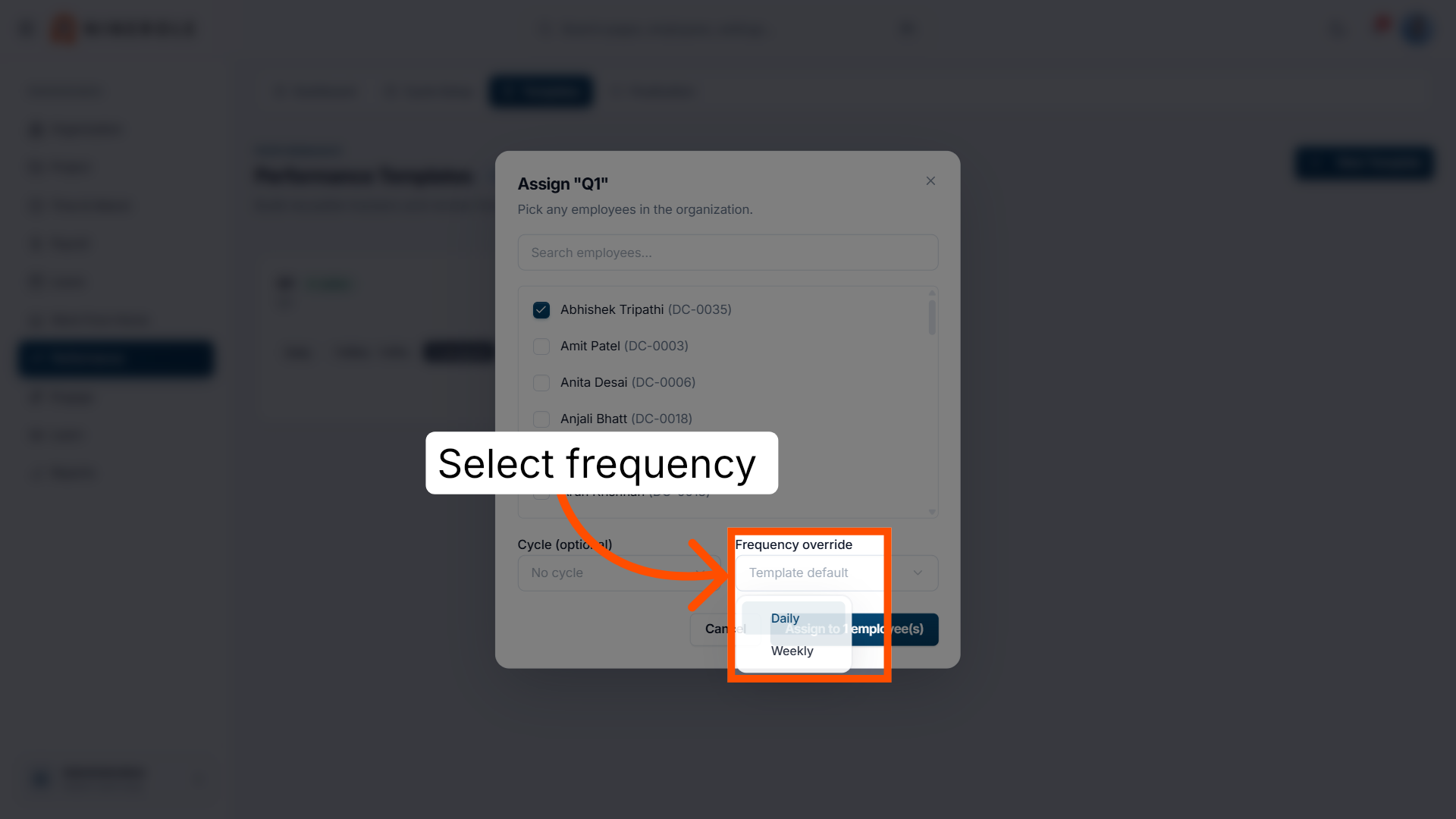
60. Set the frequency override
Use Frequency override if these employees should fill the form in on a different cadence from the template default.
61. Assign to the employees
Click Assign to N employee(s) to complete the assignment.
The cycle is set up, the template is built and assigned, and your team can start filling it in. From here you can monitor progress and adjust the template as reviews run.
Related: Track and log performance progress
Back to Performance · all modules
Last updated: