

Navigate and Upload Documents
This tutorial guides you through navigating the Ninerole platform to upload a document successfully. You will learn how to access the appropriate work area, select document categories, and manage file uploads.
Before you start, go to ninerole.com.
About this task
- Purpose
- Upload and organise documents so they are stored against the right record and can be found later.
- Who can do this
- Employee for your own documents; HR admin for company-wide documents
- You will need
- The document, its type, and where it belongs.
- Result
- The document is stored and retrievable.
- This unlocks
- Compliance records and audit trails, with documents attached where they belong.
This guide answers
- How do I upload a document?
- Where do my documents get stored?
- What file size is allowed?
- Who can see the documents I upload?
- How do I replace a document?
If something goes wrong
- An upload fails.
- Check the file size limit and the format. Compress large scans.
- You cannot find a document you uploaded.
- Check whether it went to your profile or to the shared documents area — they are separate.
Related: Profile settings · Manage assetsAlso called: document upload, file storage, records.Last verified: 7 September 2026
1. Introduction
You will learn how to access the appropriate work area, select document categories, and manage file uploads.
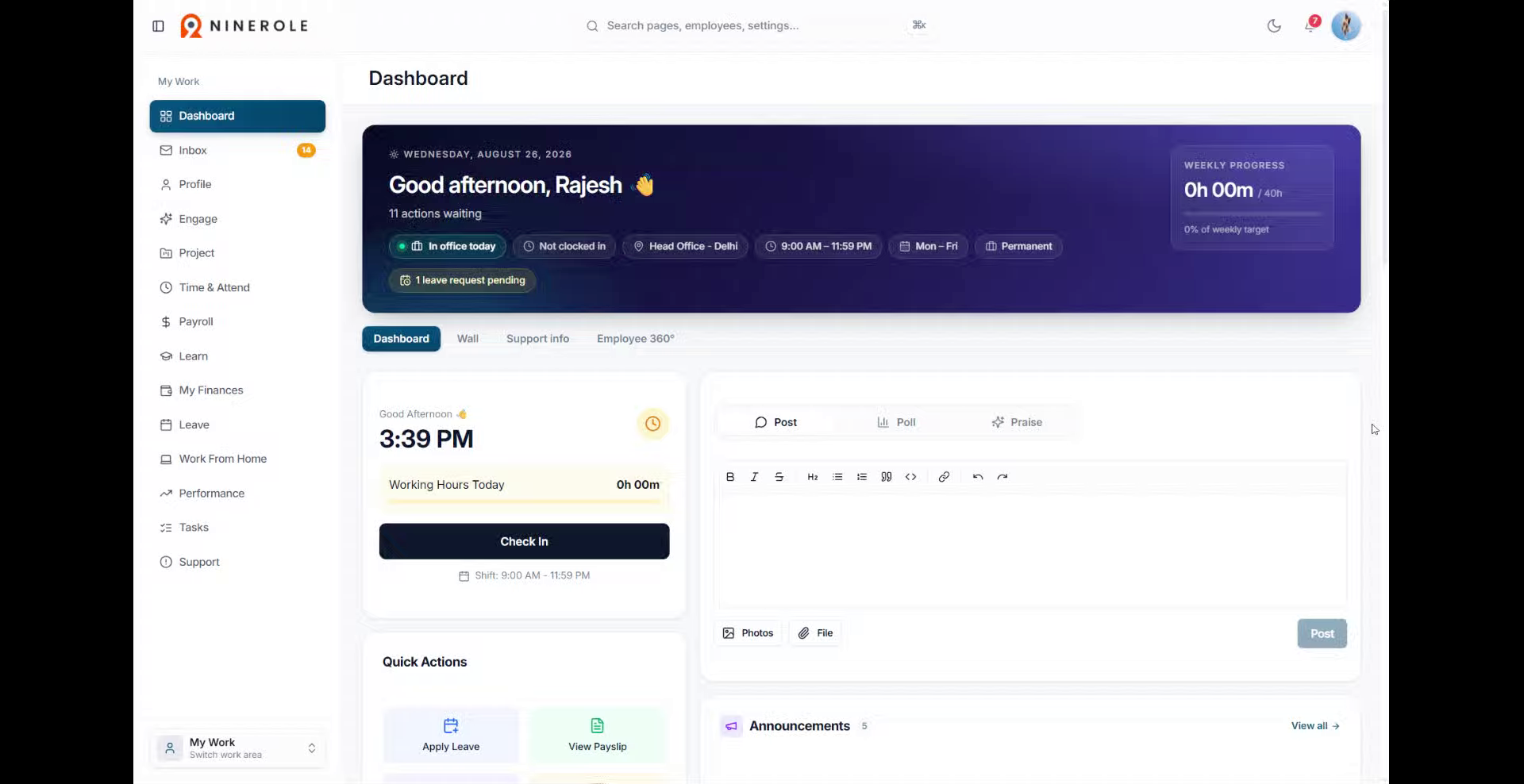
Open the Documents section
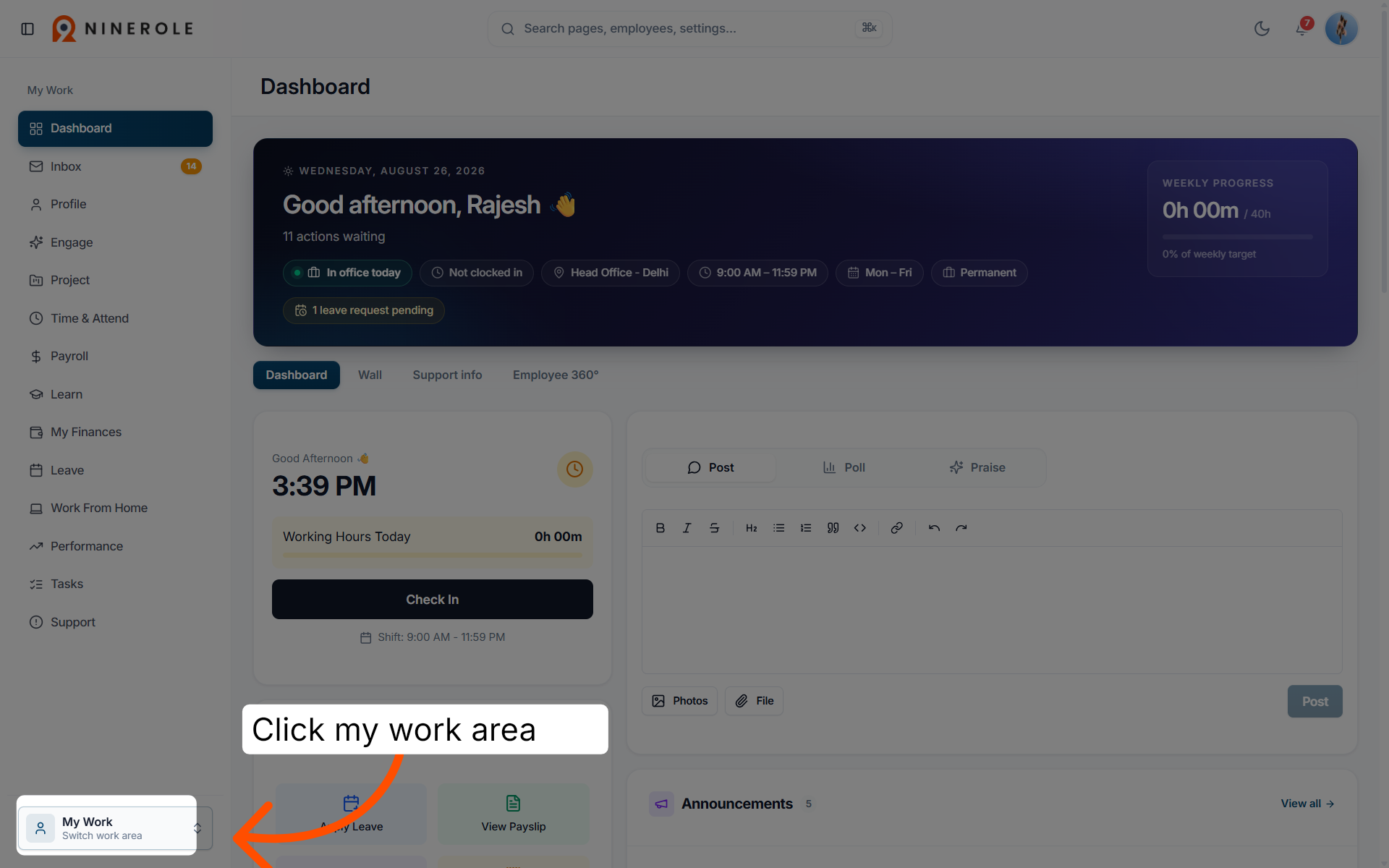
2. Access the work area menu
Click my work area to open the menu for selecting different workspaces within Ninerole.
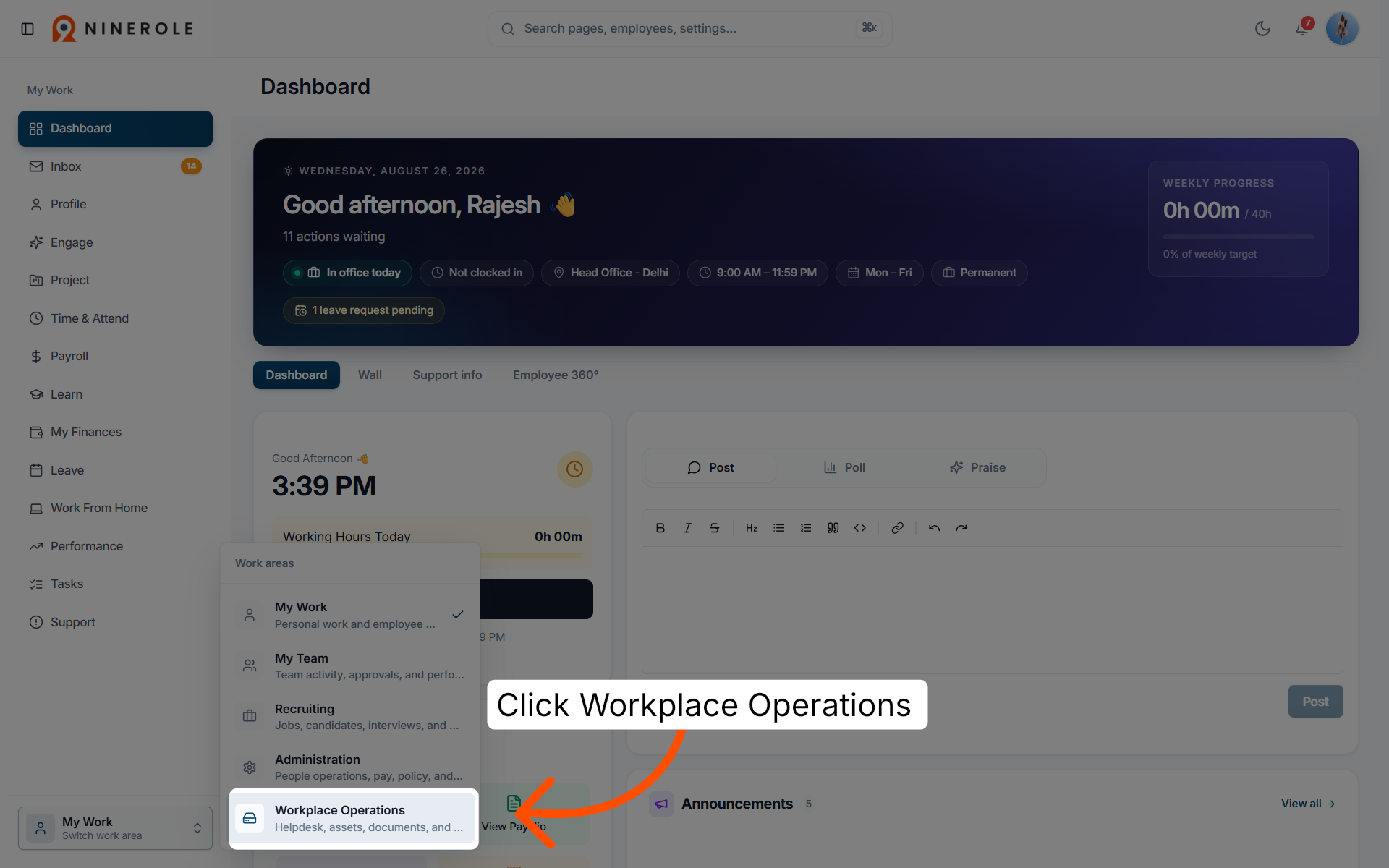
3. Select Workplace Operations
Click Workplace Operations to navigate to the operations section of your workspace.
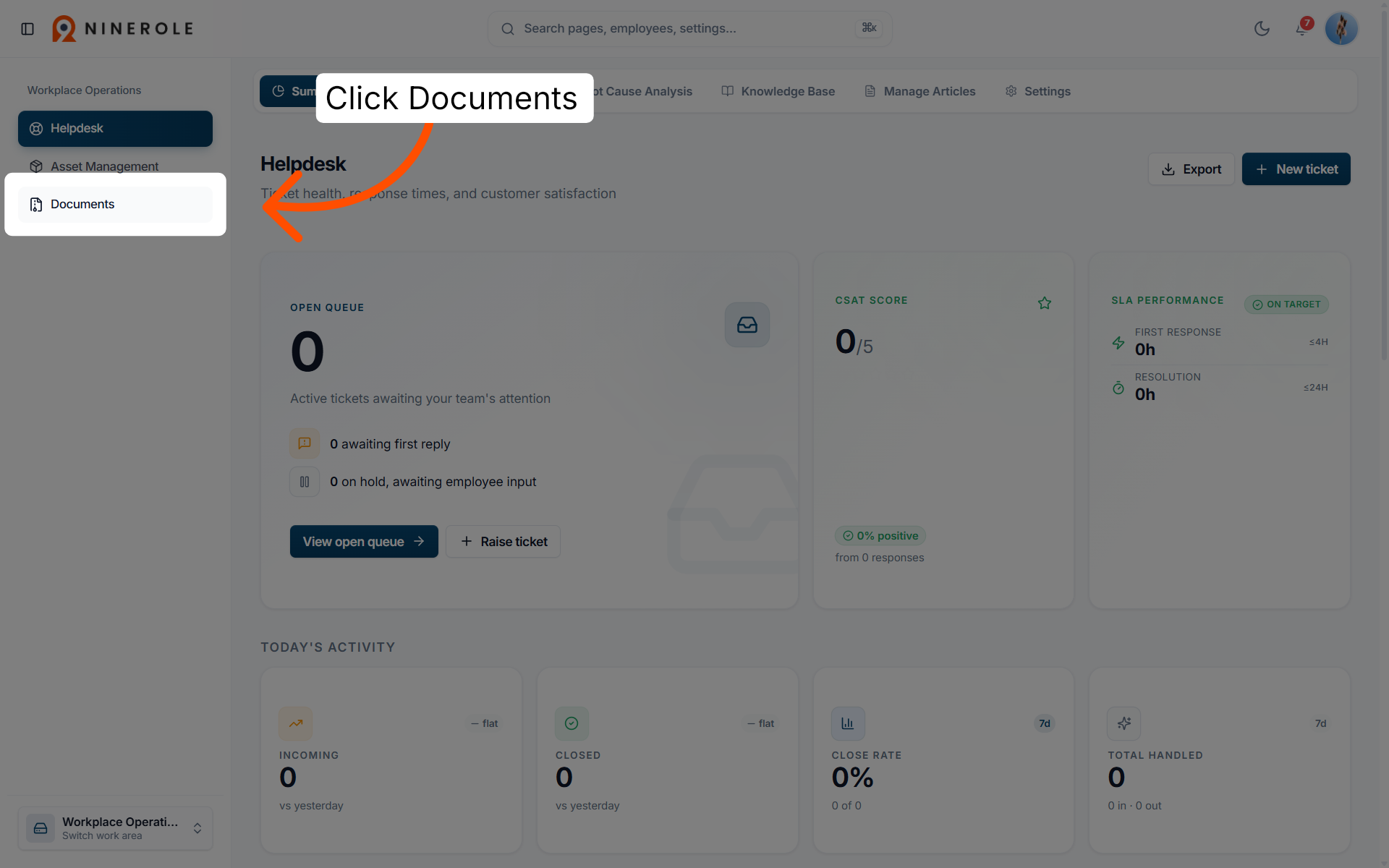
4. Open the Documents section
Click Documents to access the document management area within Workplace Operations.
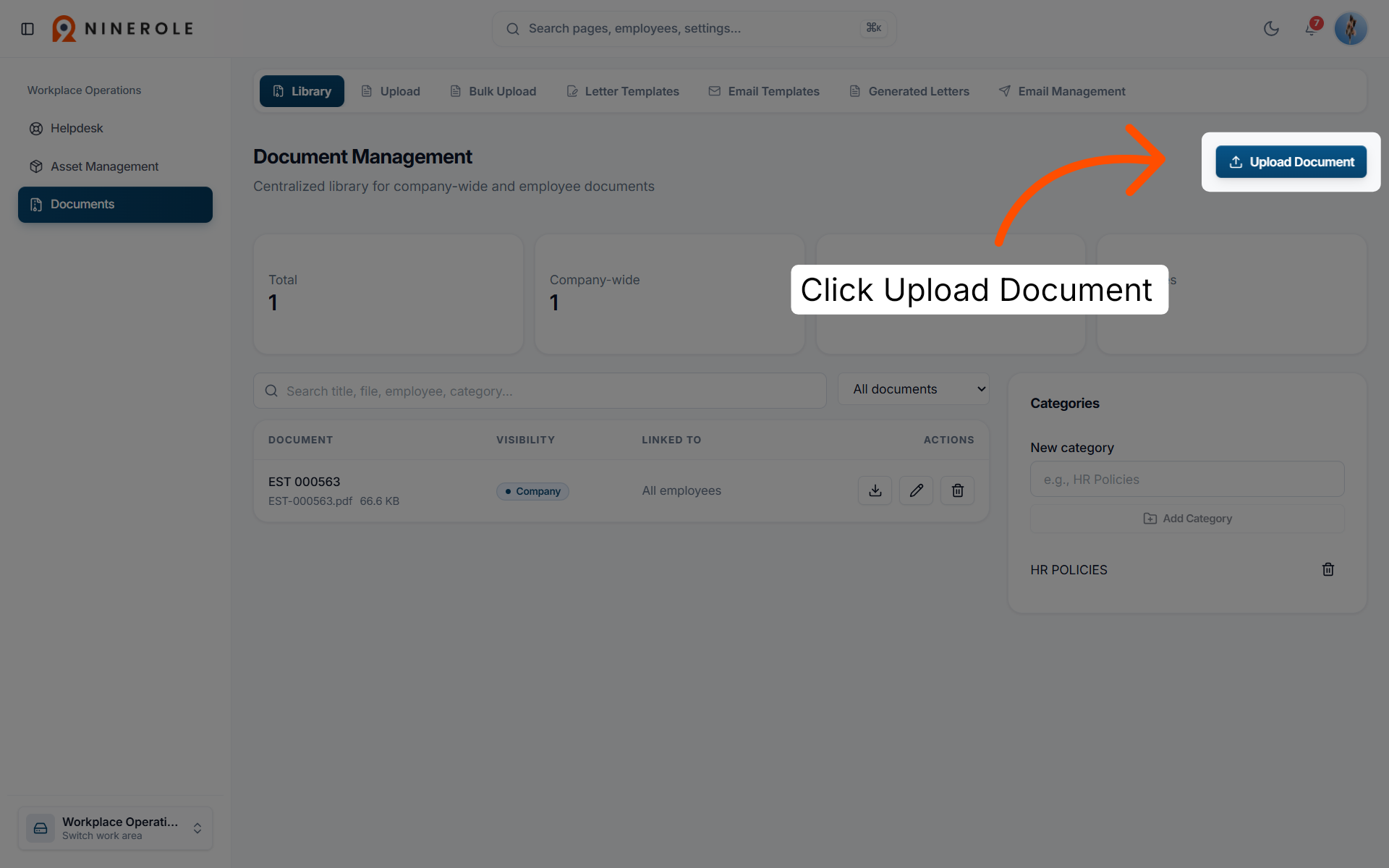
5. Initiate the document upload
Click Upload Document to start the process of adding a new document to the system.
Fill in the document details
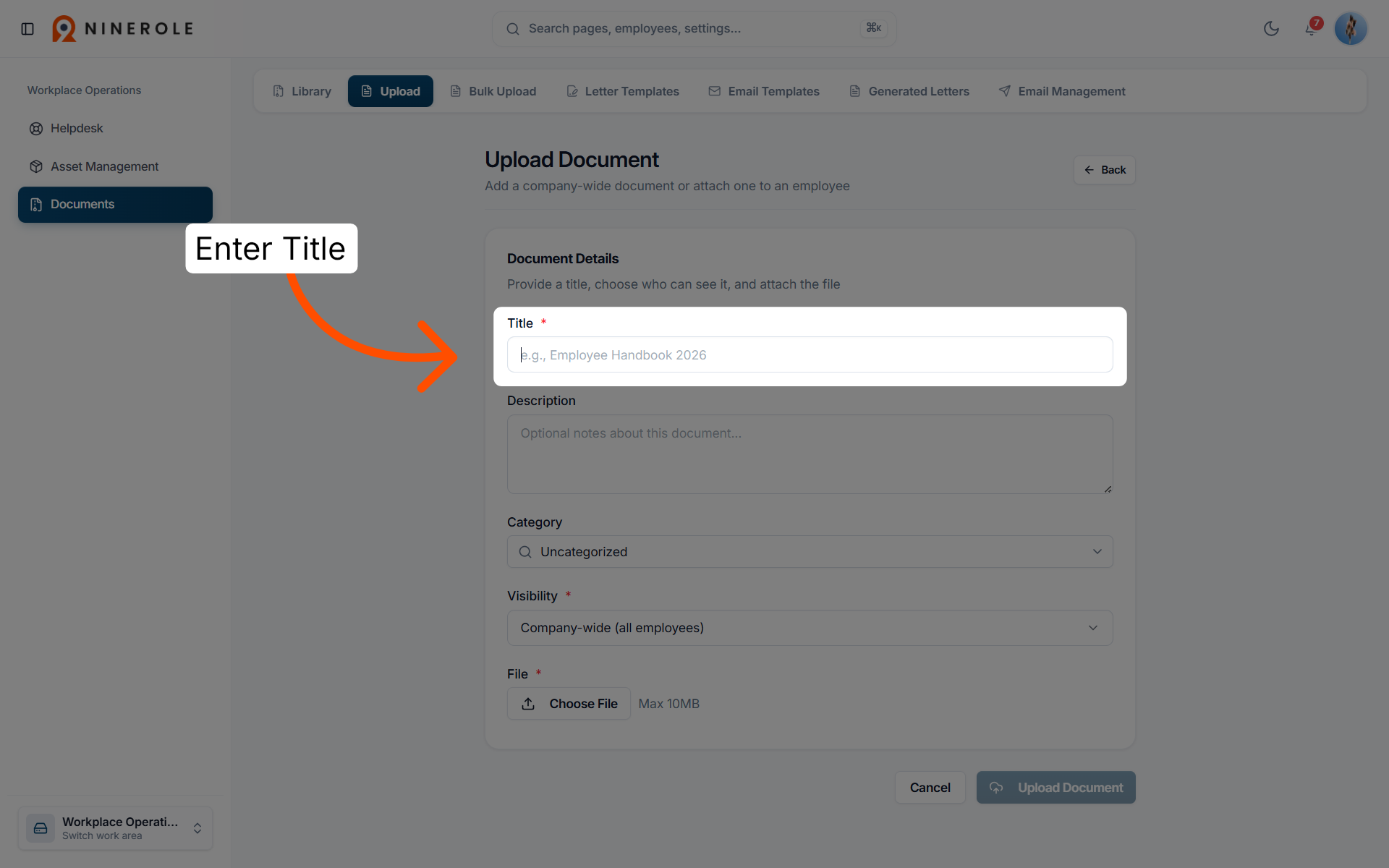
6. Enter the document title
Enter Title — the title of your document, a required field for identification.
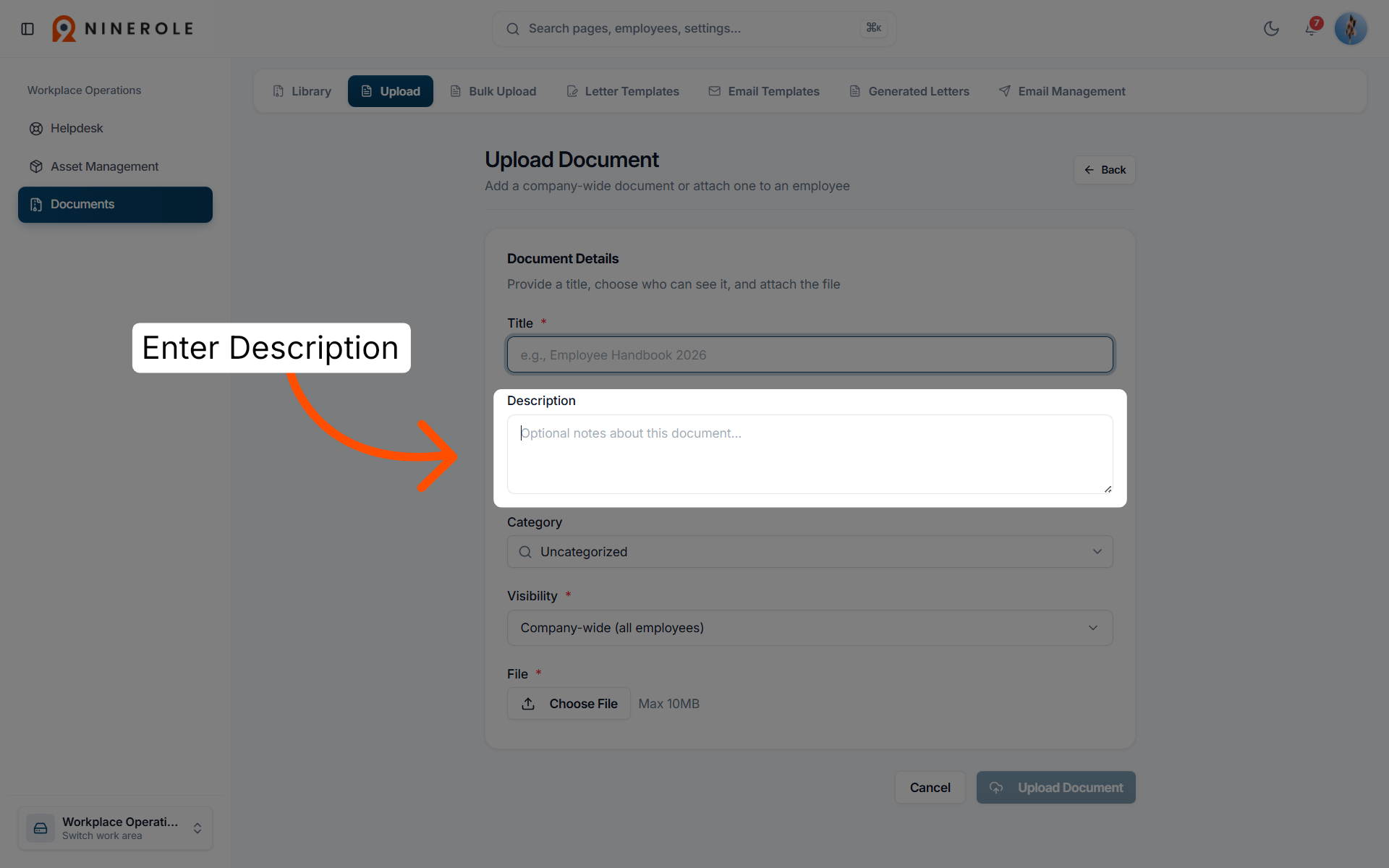
7. Add a document description
Enter Description to provide additional details about the document's content or purpose.
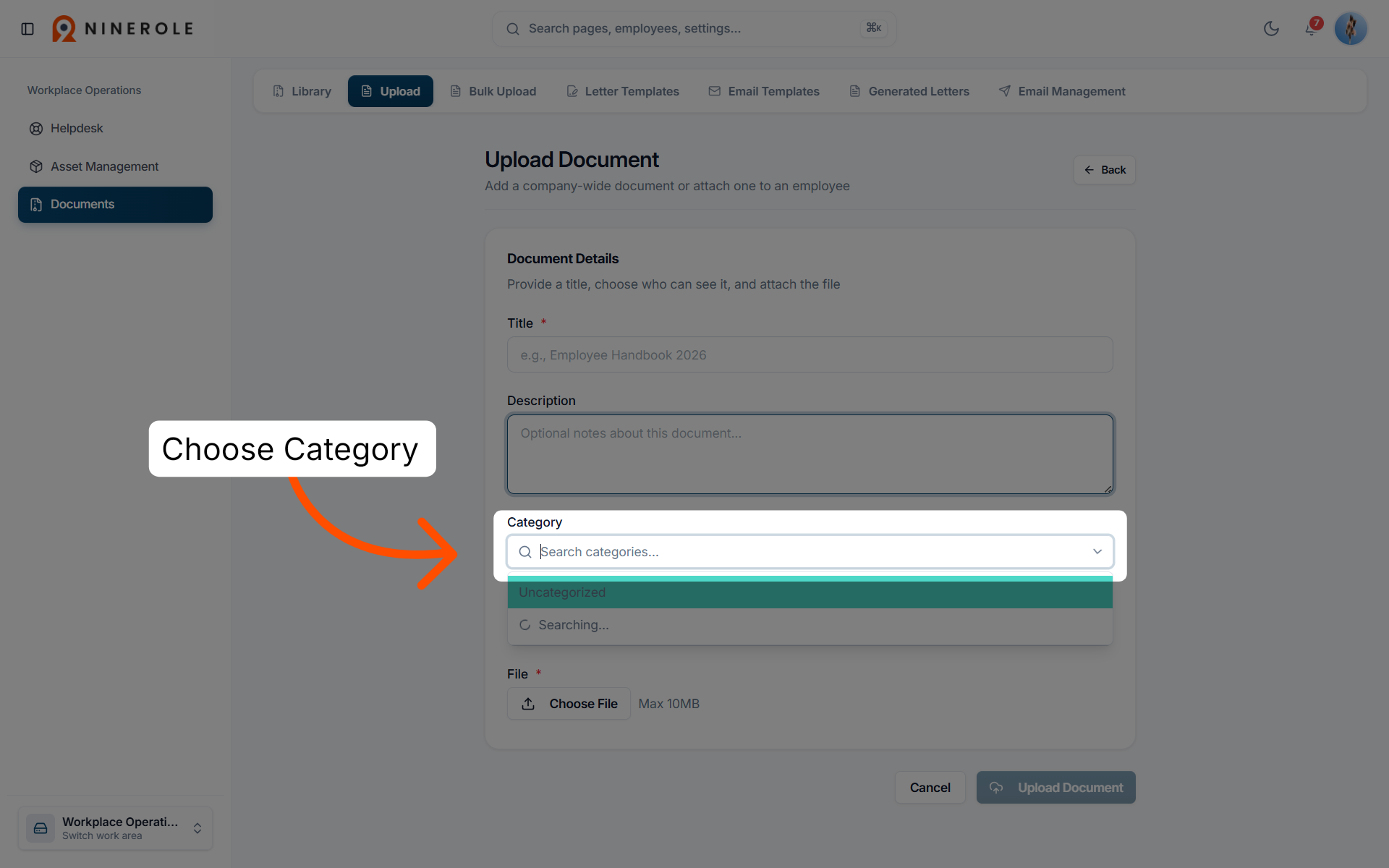
8. Choose the document category
Choose Category to select the appropriate classification for your document from the available options.
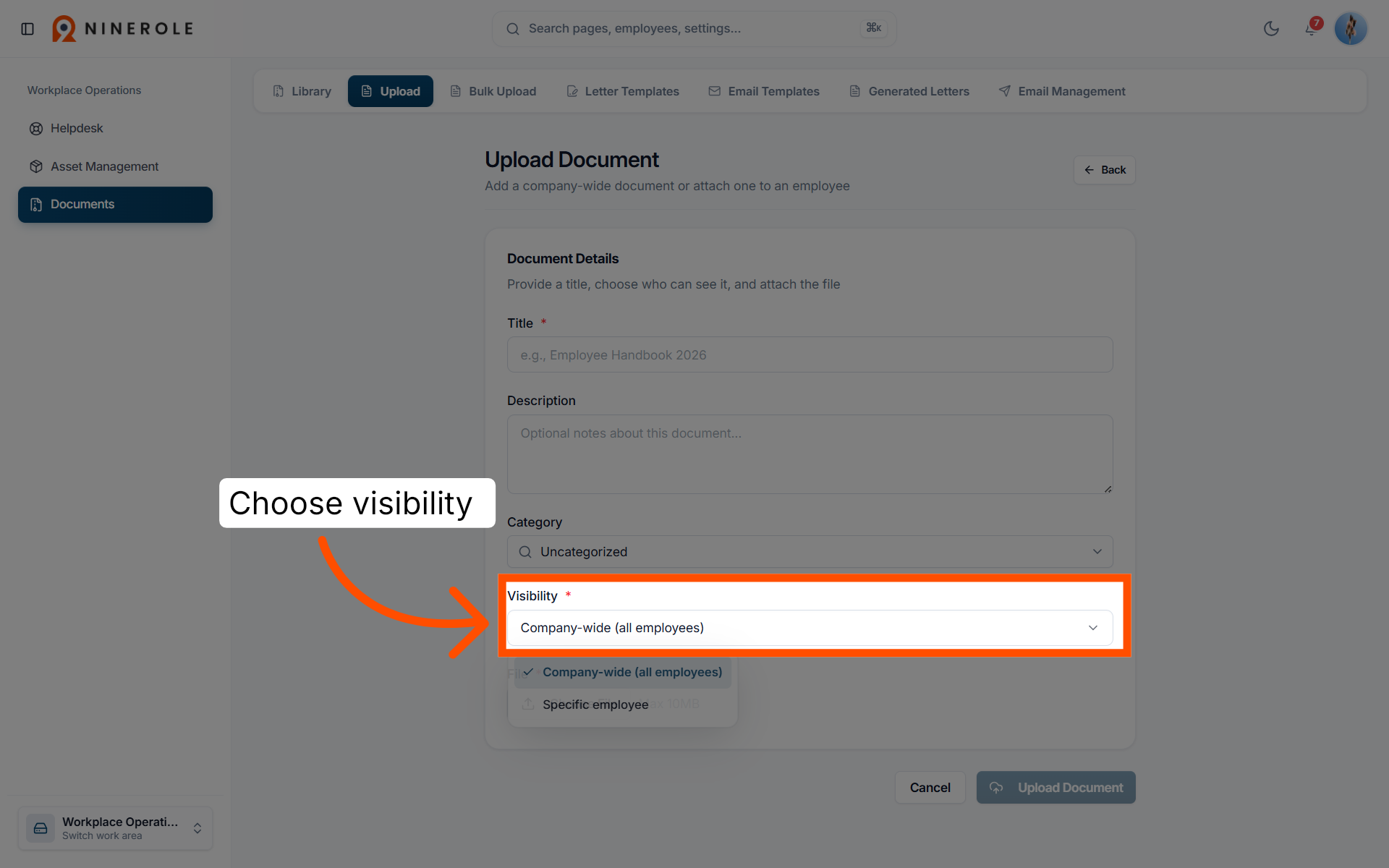
9. Choose the visibility
Choose the visibility setting to control who can see the document.
Select the file and upload
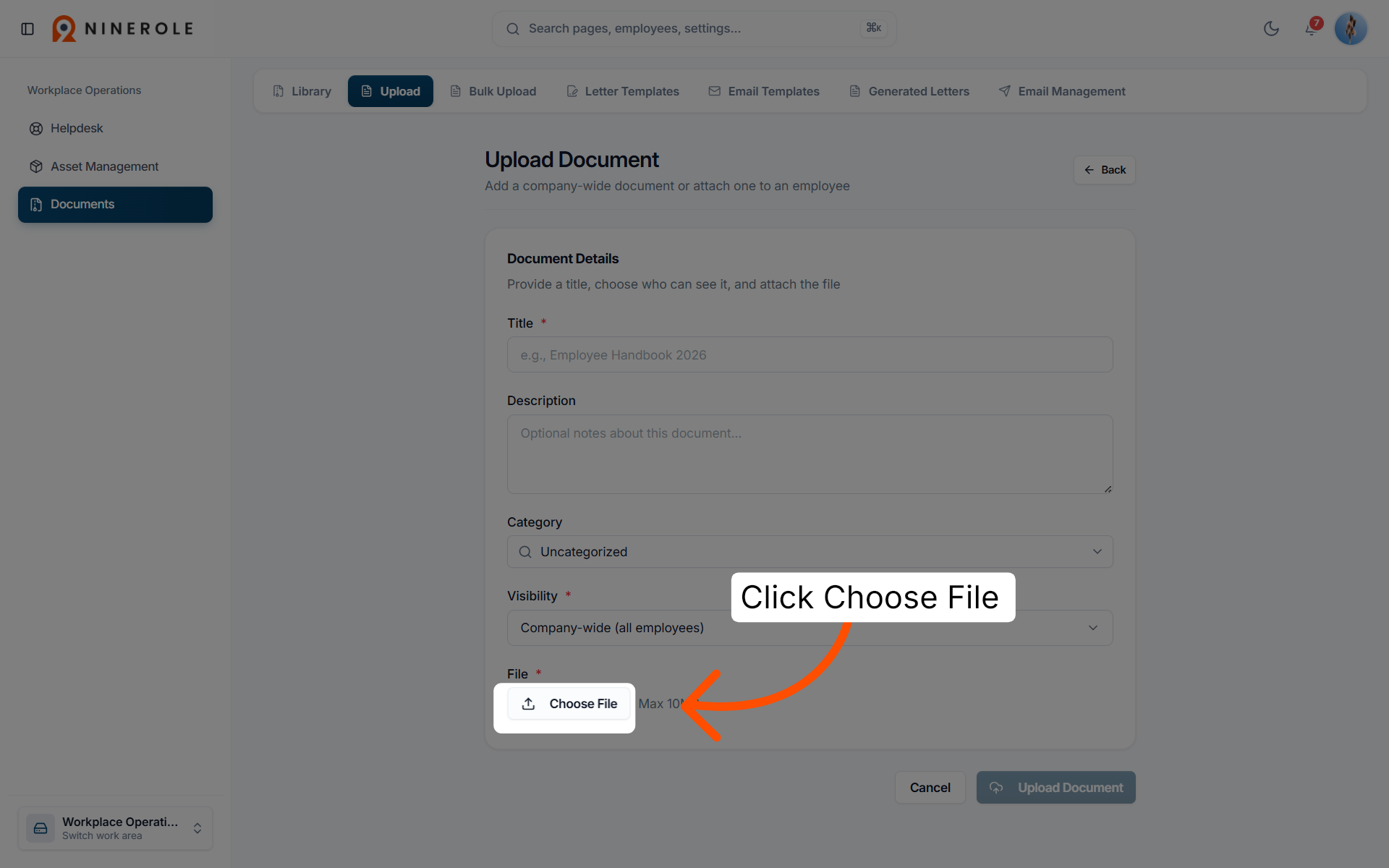
10. Select the file to upload
Click Choose File to browse and select the document file from your device for uploading.
11. Upload the document
Click Upload Document to complete the upload and save the document to the system.
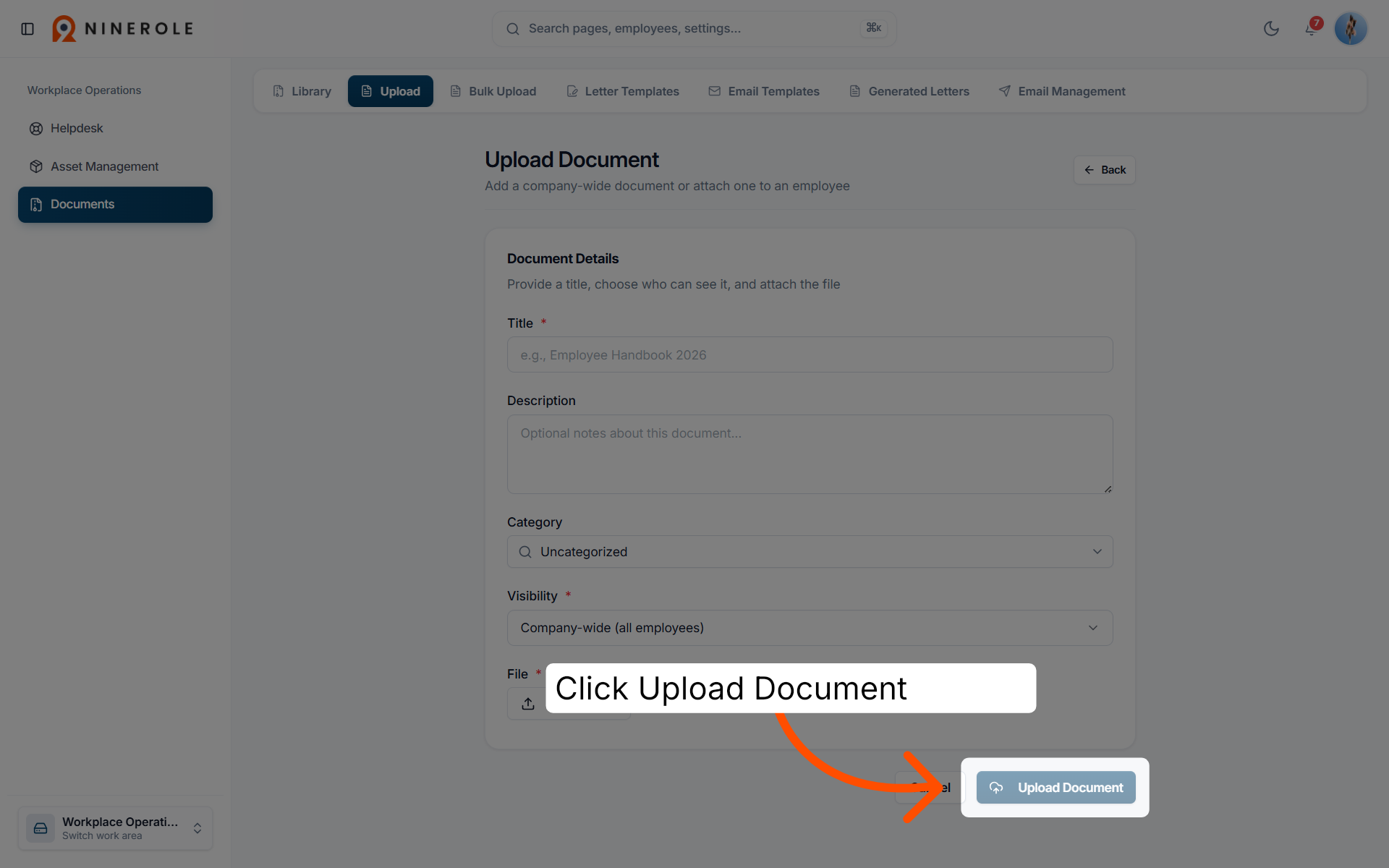
You have successfully navigated the Ninerole platform to upload a document by selecting the appropriate work area, filling in the document details, and choosing the file. You can now proceed to manage or share your uploaded documents within the system.
Back to Helpdesk · all modules · Ninerole HRMS overview
Last updated: