

Complete Employee Punch In and Out Process
This tutorial guides you through the process of punching in and out using the Ninerole application. You will learn how to capture webcam photos and record your attendance accurately.
Before you start, go to ninerole.com.
About this task
- Purpose
- Record your attendance for the workday — a check-in at the start and a check-out with a work report at the end.
- Who can do this
- Employee (self-service)
- Before you start
- You have an active Ninerole account and attendance is enabled for you.
- Your browser or the mobile app must be allowed to use the camera.
- You will need
- Camera access; your end-of-day work summary for check-out.
- Result
- A check-in record and a check-out record are created, each with a timestamp and a captured photo; your work report is saved against the day.
- This unlocks
- Your day counts toward monthly attendance and feeds payroll; managers can see it in team attendance.
This guide answers
- How do I punch in / check in?
- How do I punch out at the end of the day?
- Why does it ask for a photo / camera?
- Where do I add my end-of-day work report?
- The camera isn't working — what do I do?
- I forgot to punch in — how do I fix it?
If something goes wrong
- The camera won't start.
- The browser or app has camera permission turned off. Allow camera access, then retry. On a shared machine, check no other app is using the camera.
- Punch In or Punch Out is greyed out.
- You may already be punched in (or out), or attendance for today isn't open yet. Check your current status on the dashboard.
- I missed a punch, or punched at the wrong time.
- You cannot edit a saved punch. Submit an attendance regularization request instead.
Related: Apply Attendance Regularization · My & team attendance · Submit a Work From Home RequestAlso called: Check In / Check Out, clock in / clock out.Last verified: 7 September 2026
1. Introduction
You will learn how to capture webcam photos and record your attendance accurately.
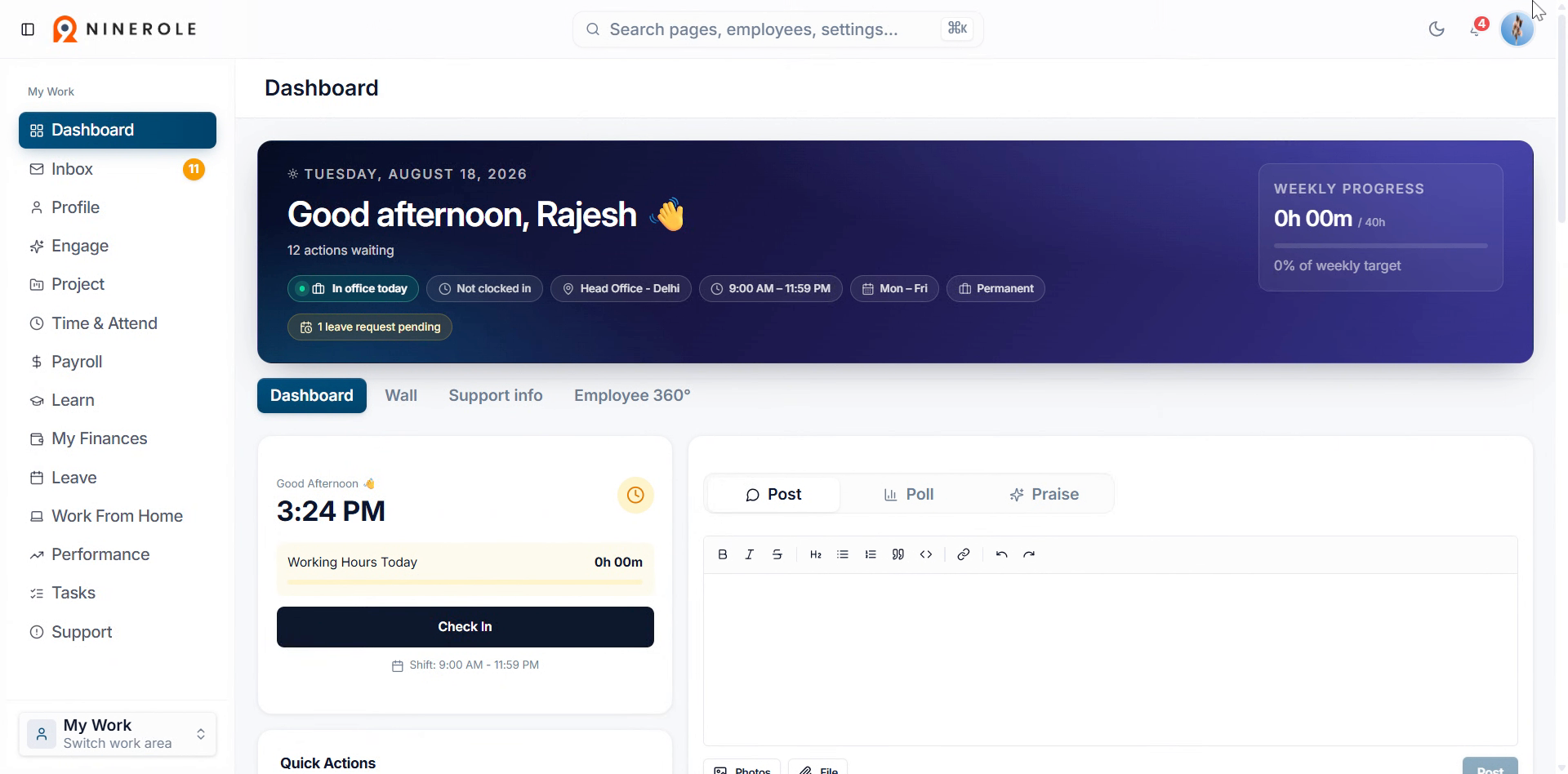
Punch in
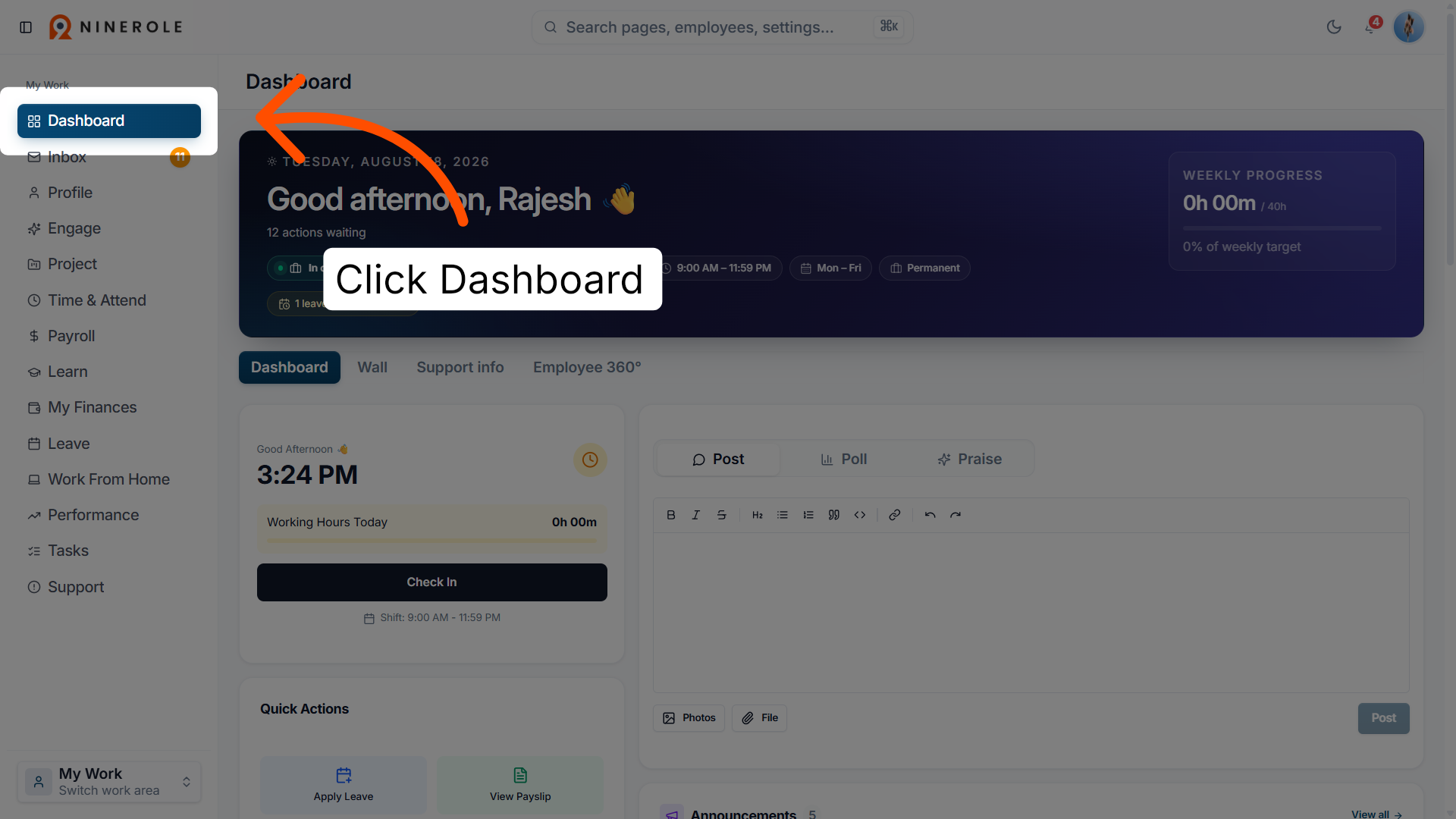
2. Access your dashboard
Click Dashboard to open your main workspace in Ninerole.
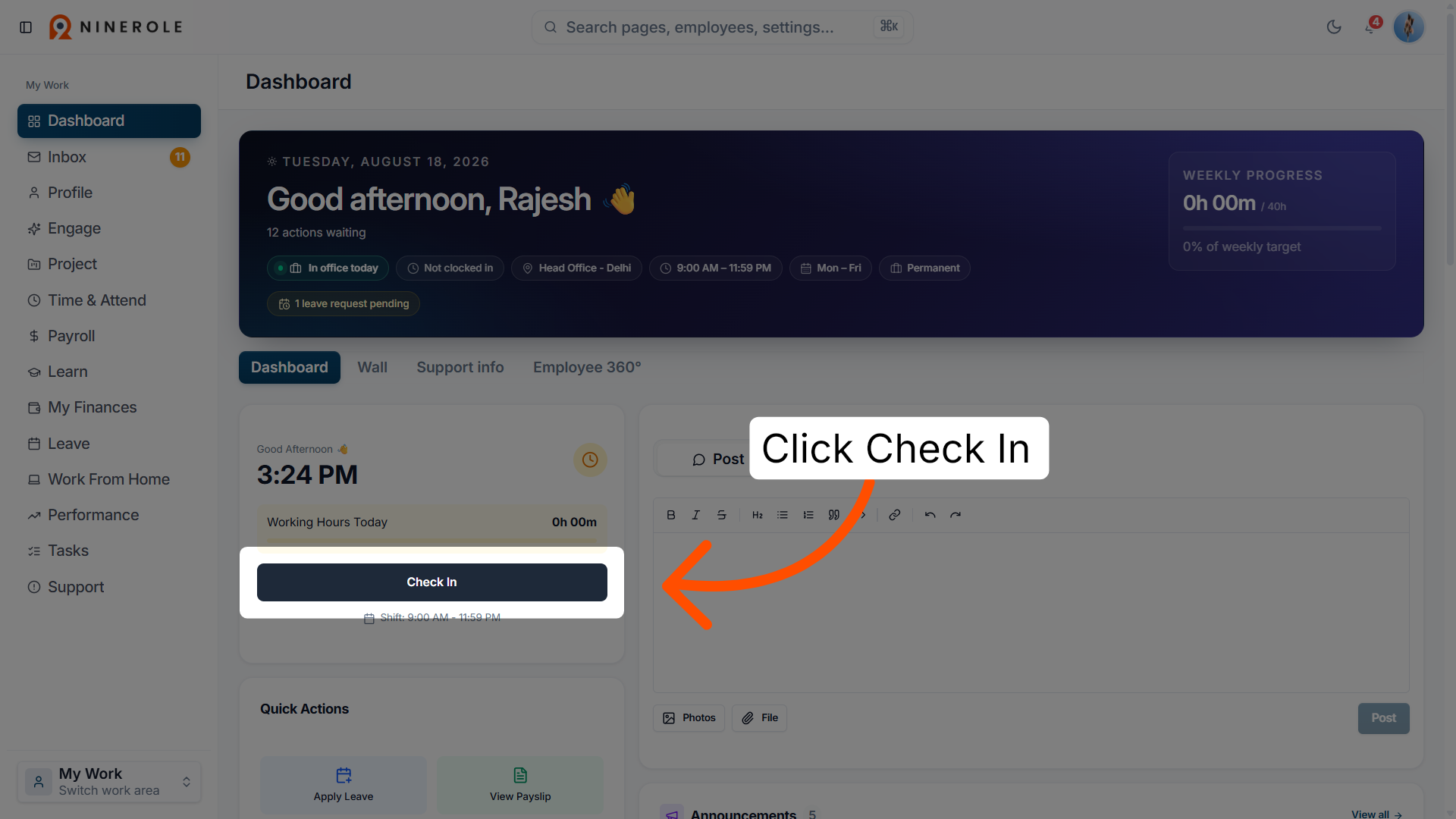
3. Open the Check In section
Click Check In to begin the process of recording your attendance.
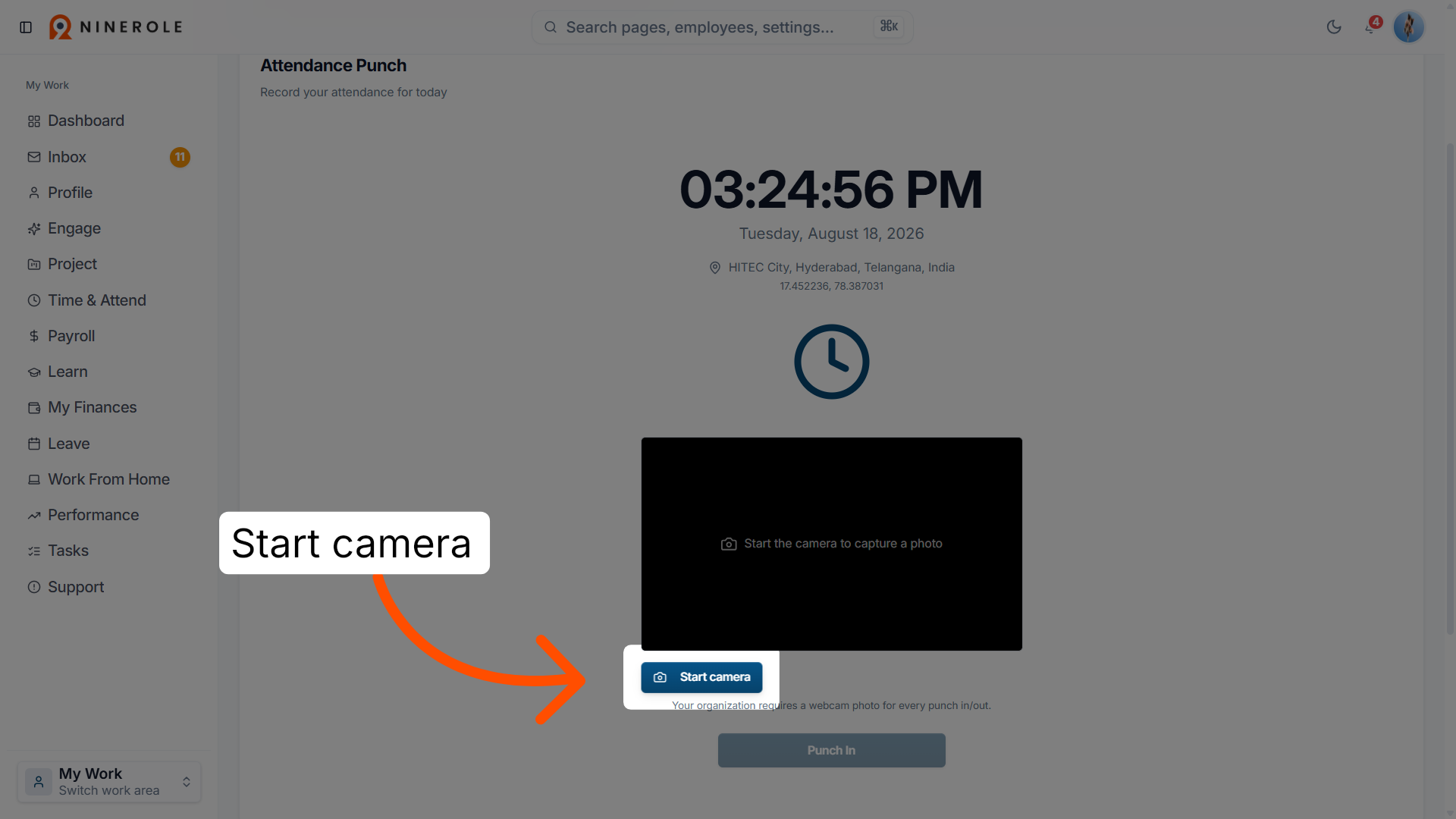
4. Activate the webcam
Click Start camera to enable your webcam for photo capture.
5. Open photo capture
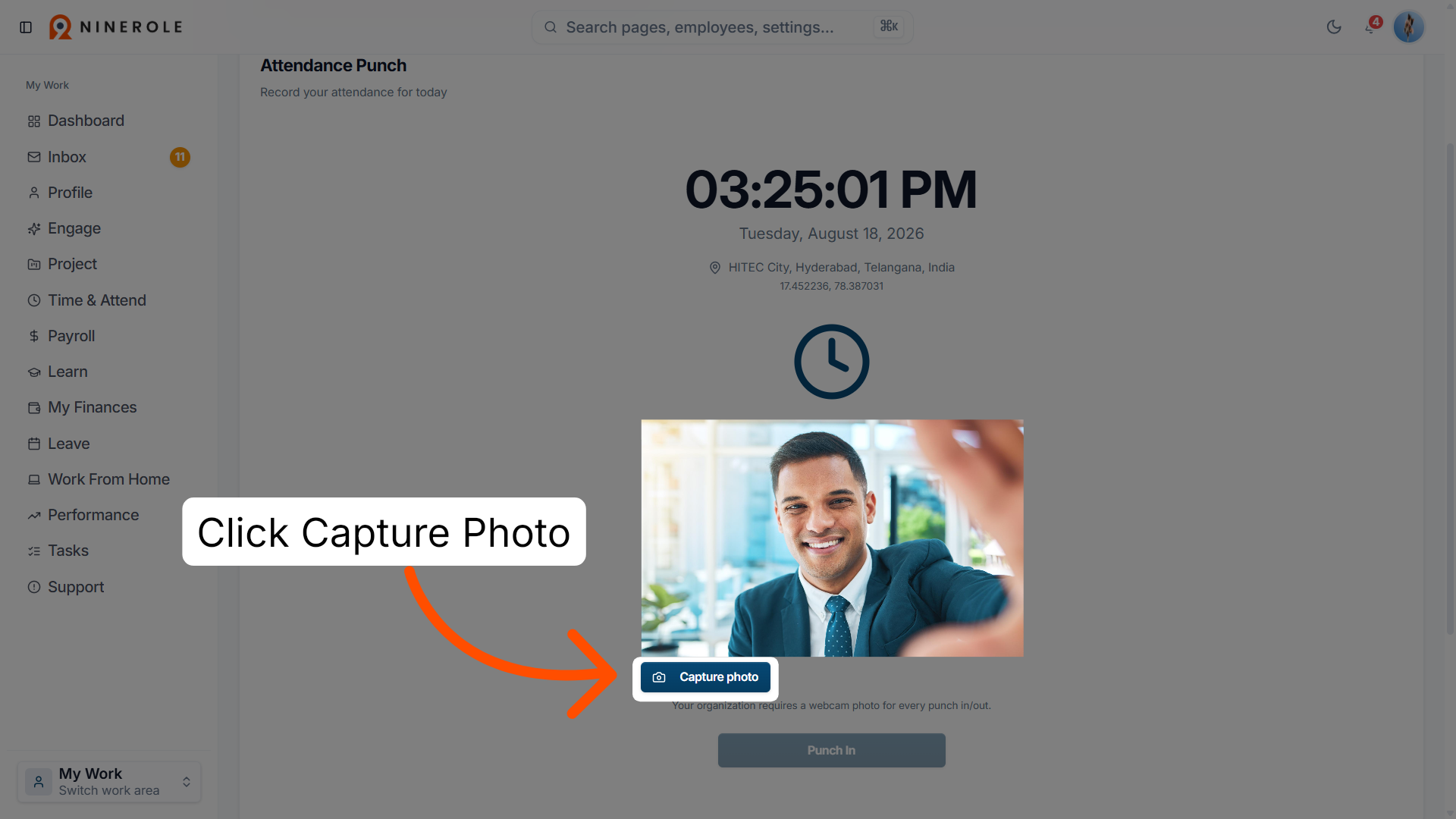
Click Capture Photo to proceed to the photo capture interface for punch in.
6. Capture the webcam photo
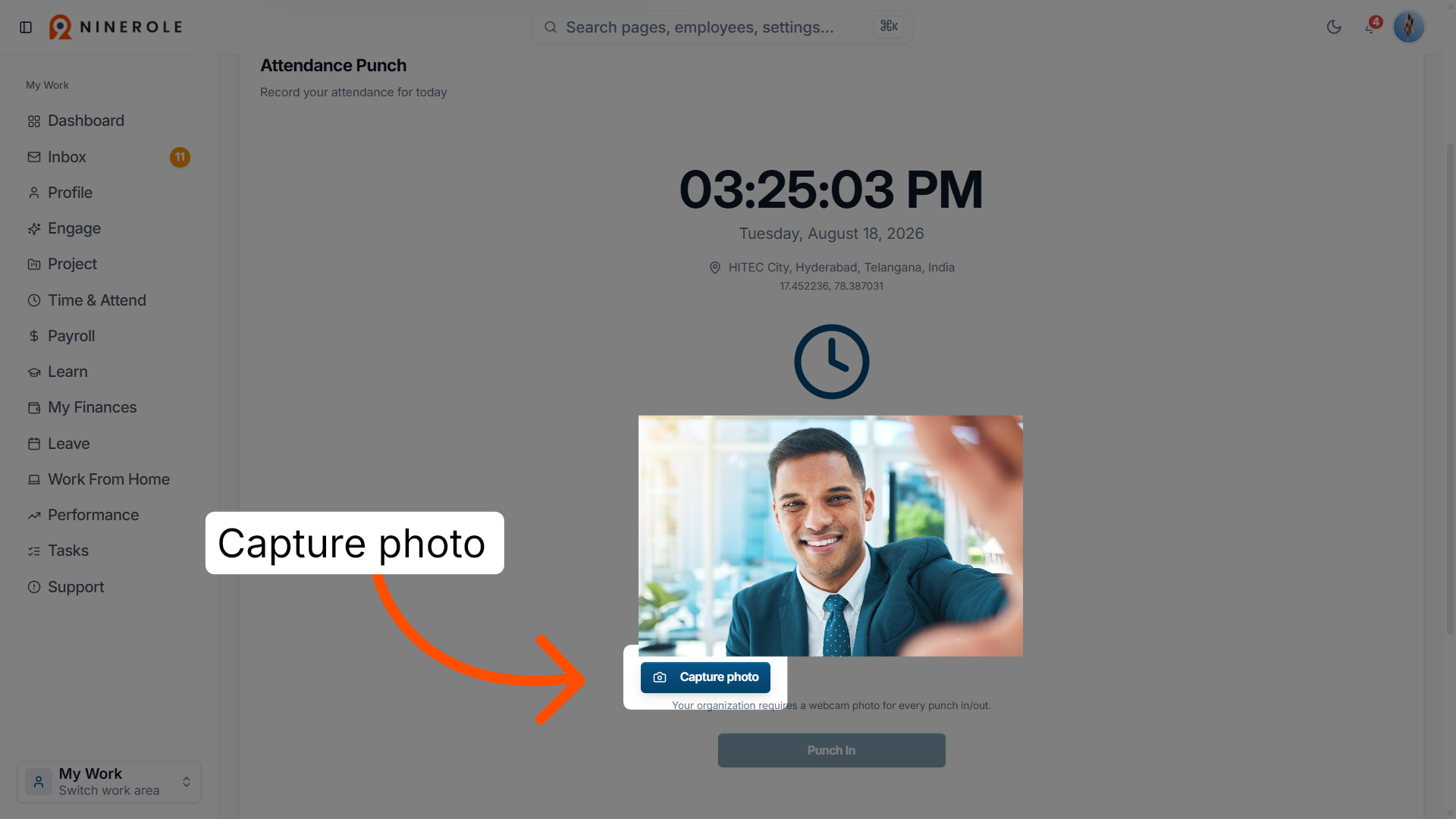
Click Capture photo to take a picture required for your punch in.
7. Complete punch in
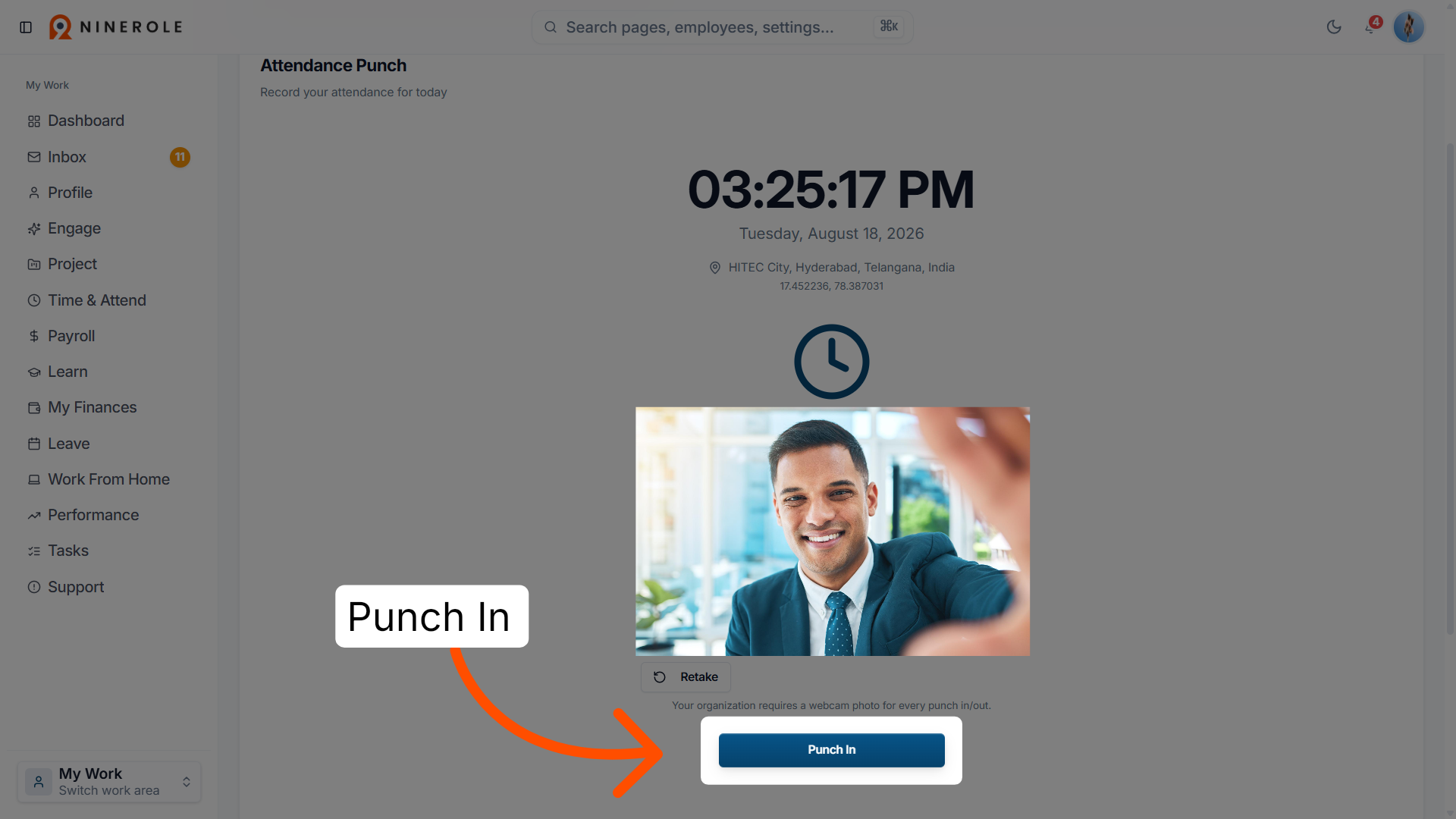
Click Punch In to record your attendance with the captured photo.
Punch out
8. Access the Check Out section
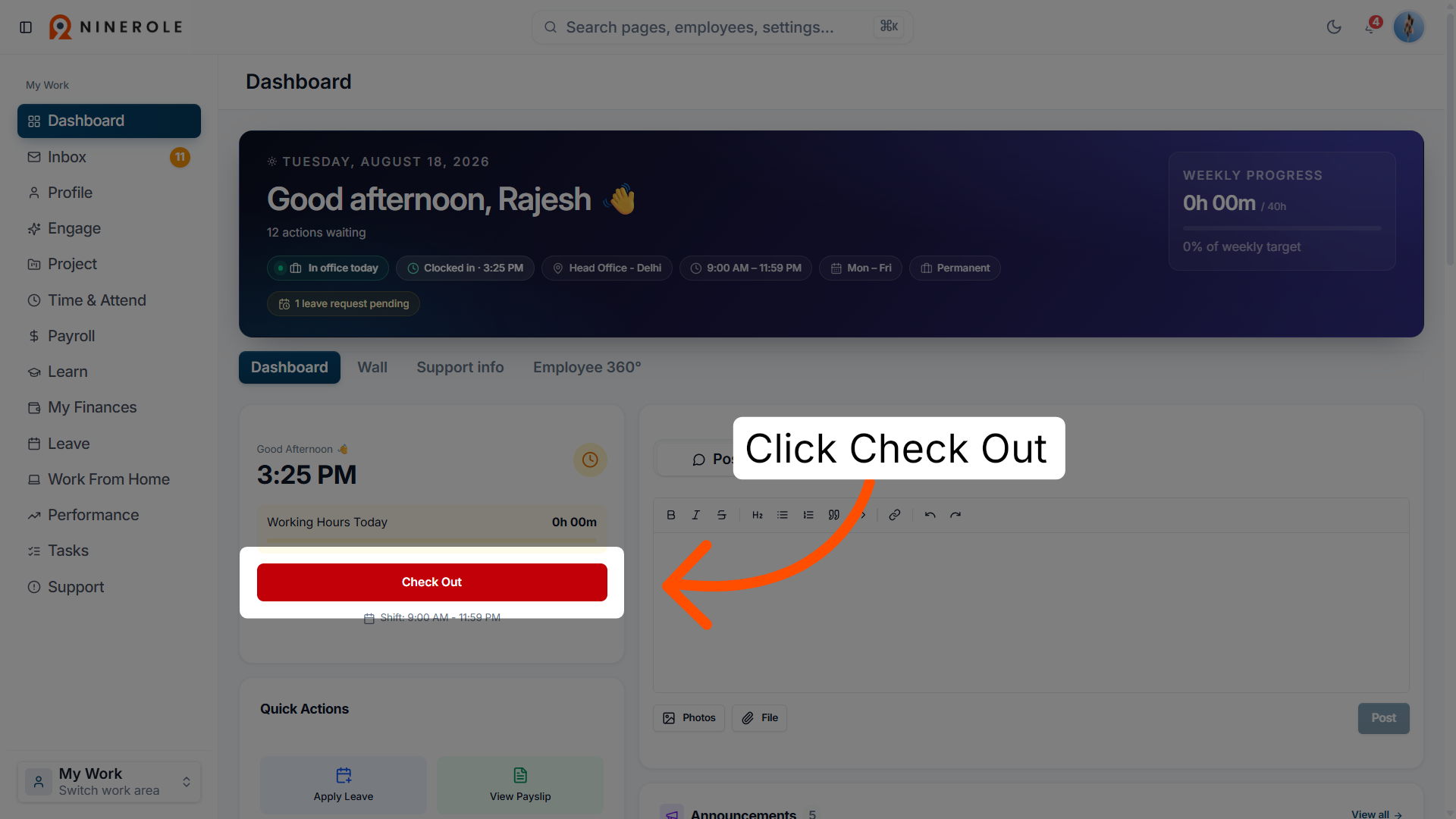
Click Check Out to begin the process of recording your departure time.
9. Activate the webcam for check out
Click Start camera to enable your webcam for the punch out photo capture.
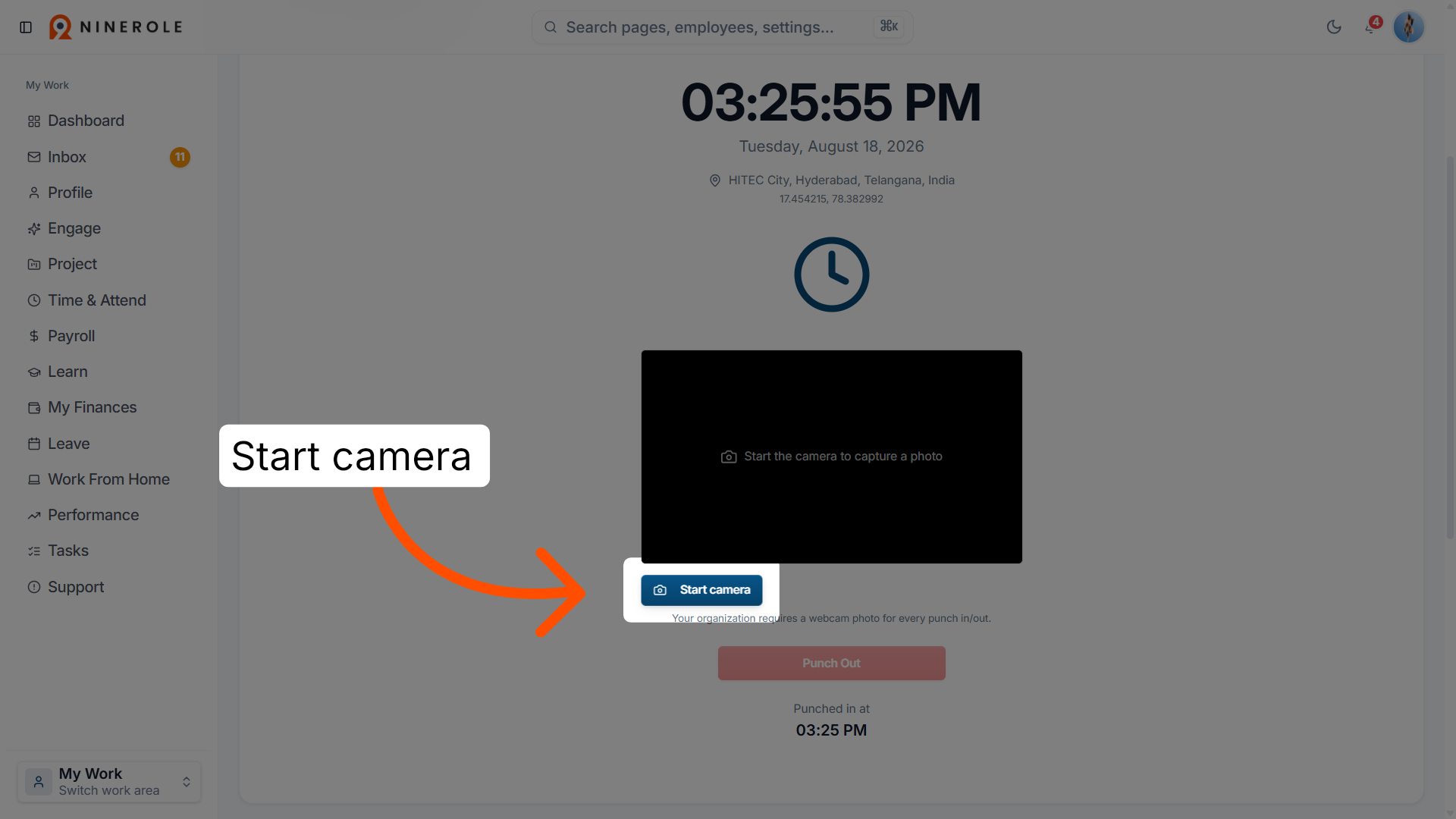
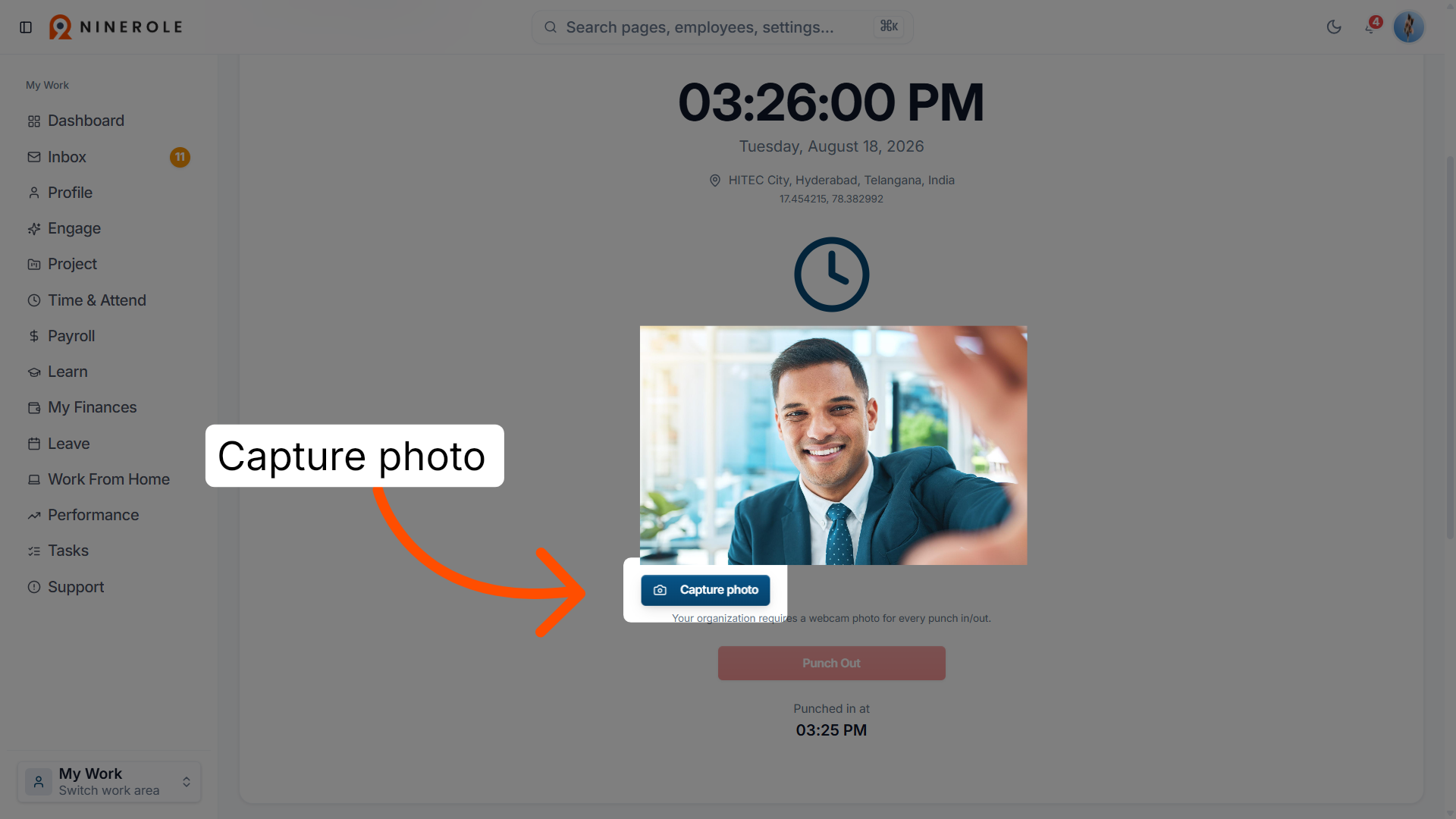
10. Capture the punch out photo
Click Capture photo to take a picture required for your punch out.
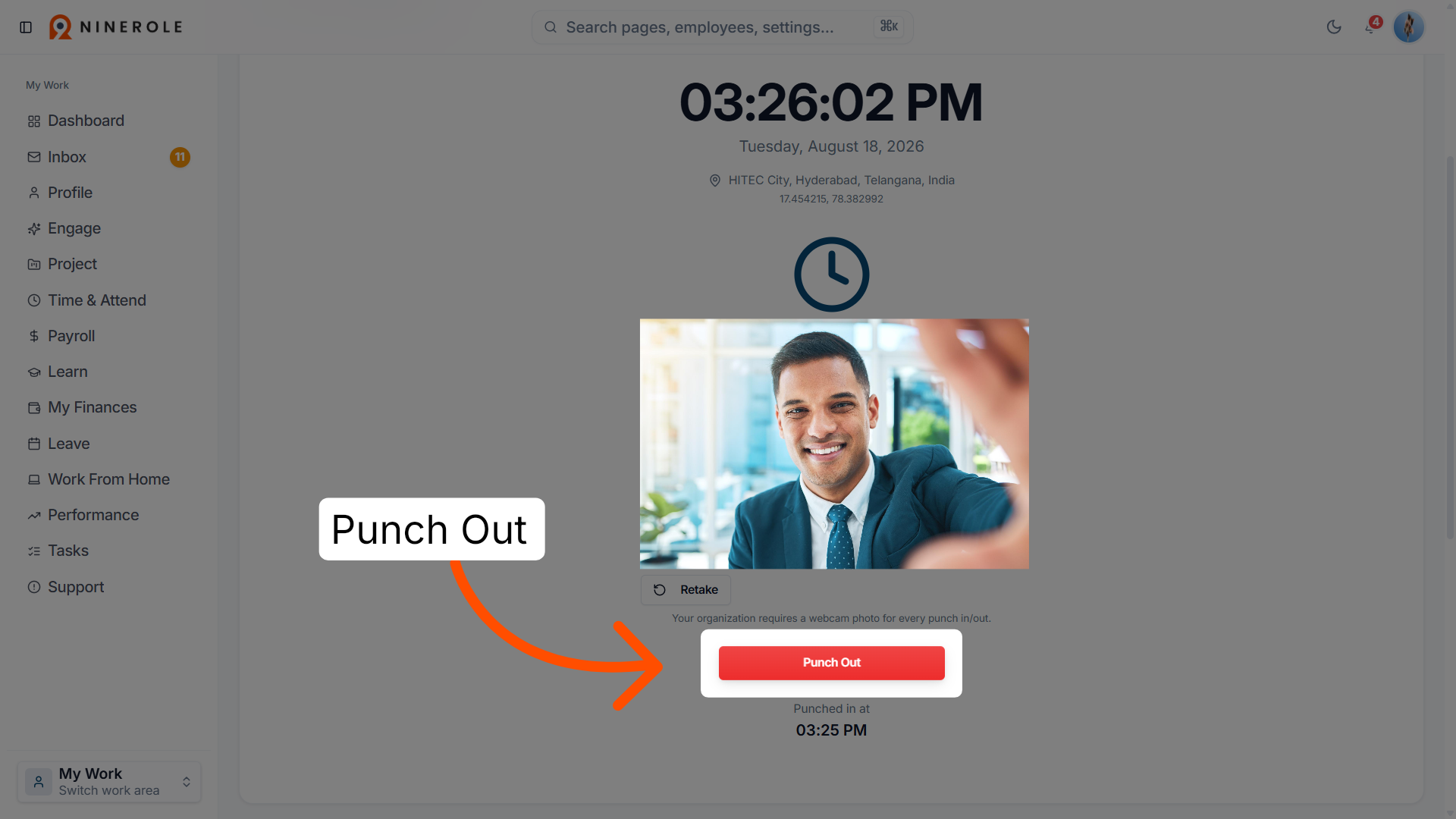
11. Complete punch out
Click Punch Out to record your departure with the captured photo.
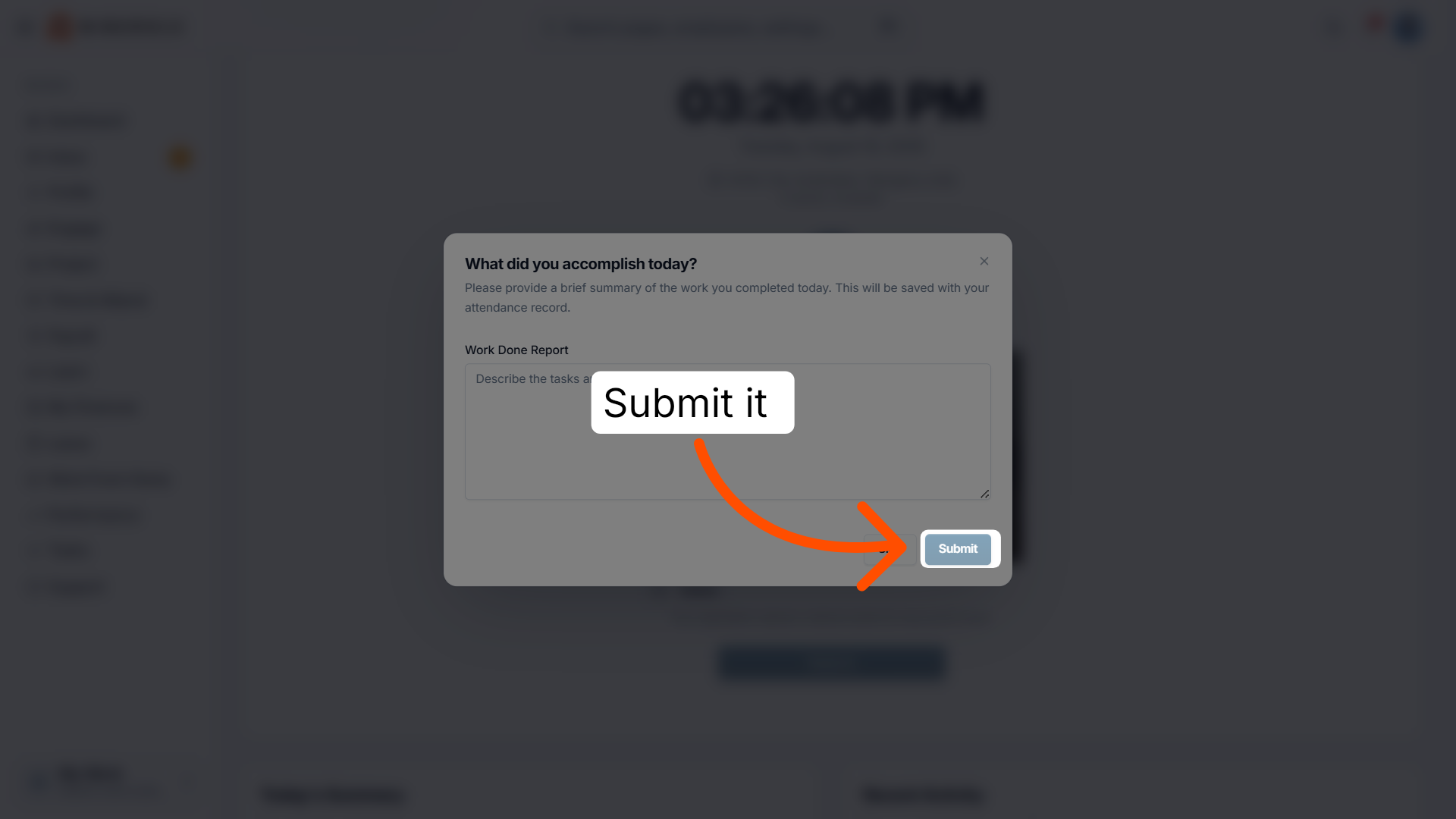
12. Enter your work report
Enter the work you have done today while checking out from the office.
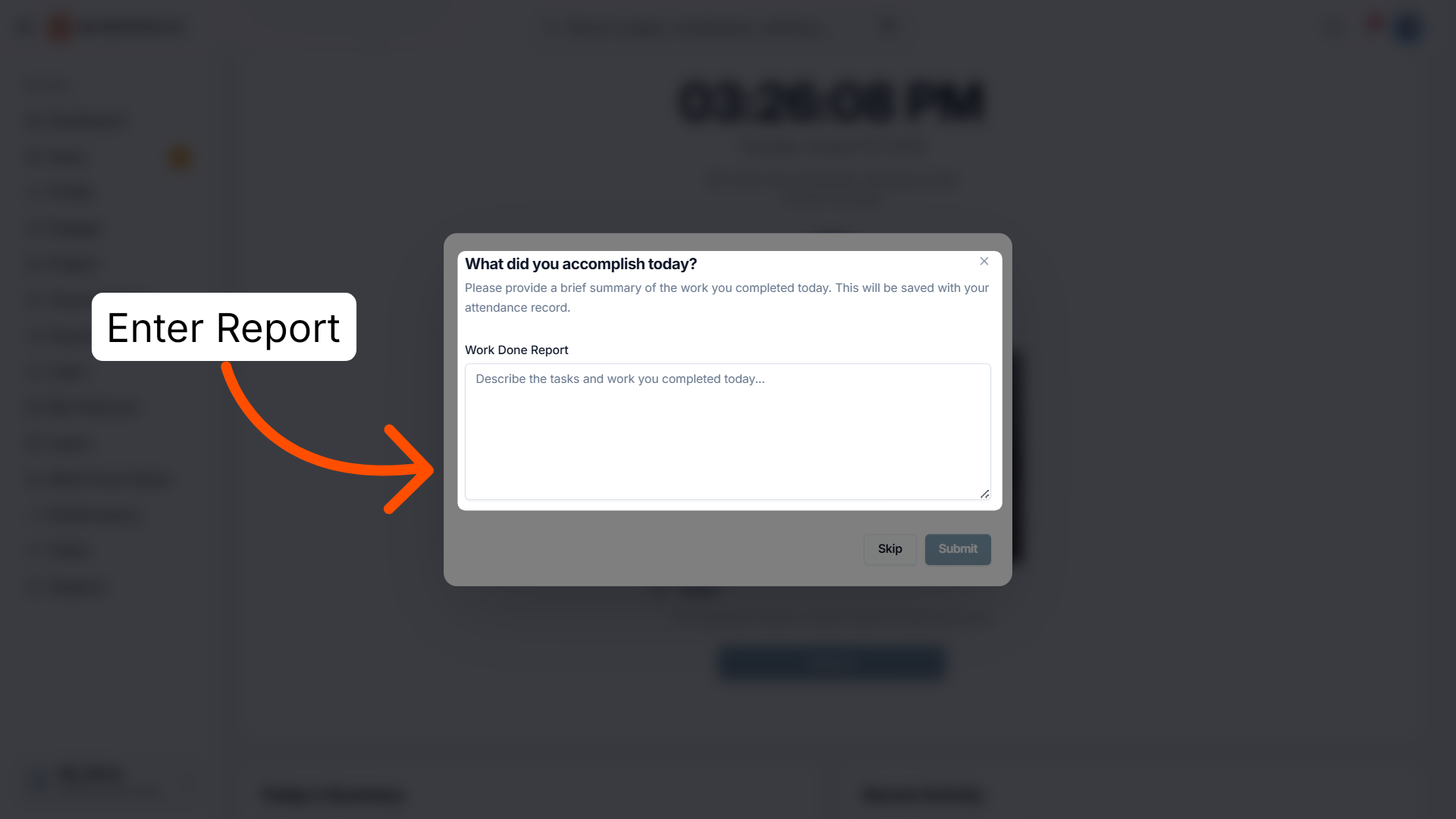
13. Submit
Click Submit to complete your check out.
You have successfully completed the punch in and punch out process in Ninerole, including capturing the required webcam photos.
Back to Attendance · all modules · Ninerole HRMS overview
Last updated: