

Create and Save New Opportunities
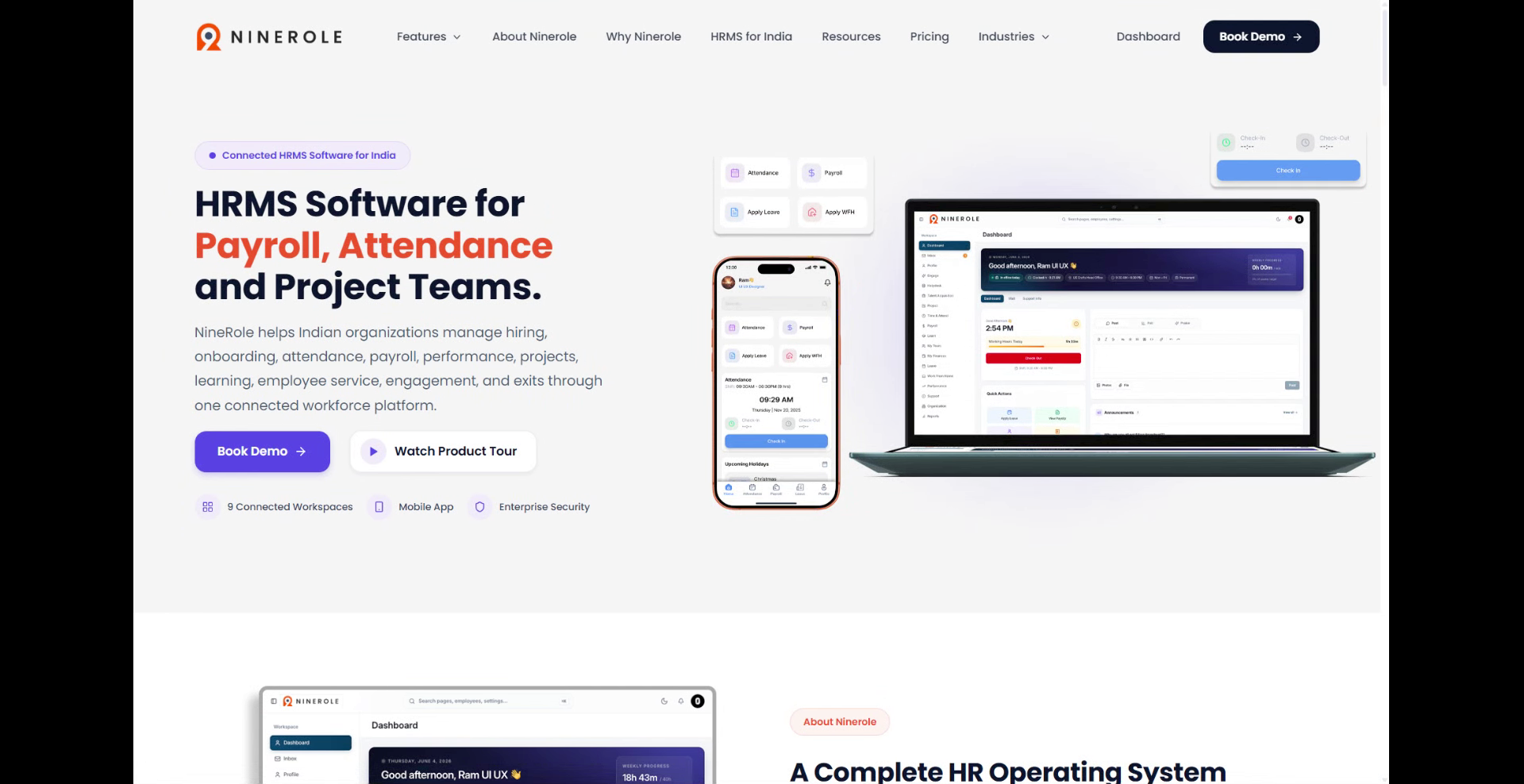
This tutorial guides you through creating and saving new opportunities within the Ninerole HRMS platform. You will learn how to navigate the system and input all necessary details to successfully add an opportunity.
Before you start, go to ninerole.com.
About this task
- Purpose
- Record a new opportunity against a client so potential work can be tracked before it becomes a project.
- Who can do this
- Project manager
- Before you start
- The client exists.
- You will need
- The client, opportunity details, value and expected dates.
- Result
- An opportunity is saved against the client.
- This unlocks
- Converting won work into a project, and reporting on pipeline.
This guide answers
- How do I create an opportunity?
- What is the difference between an opportunity and a project?
- How do I link an opportunity to a client?
- How do I record the value?
- What happens when an opportunity is won?
If something goes wrong
- The client is not in the list.
- Create the client first, then return here.
- You are unsure whether to create an opportunity or a project.
- An opportunity is potential work; a project is work you are delivering and booking time against.
Related: Add a client · Create a projectAlso called: deal, pipeline, prospect.Last verified: 7 September 2026
1. Introduction
You will learn how to navigate the system and input all necessary details to successfully add an opportunity.
Open Opportunities
2. Access the dashboard
Click Dashboard to access the main overview of your Ninerole HRMS account.

3. Switch work area
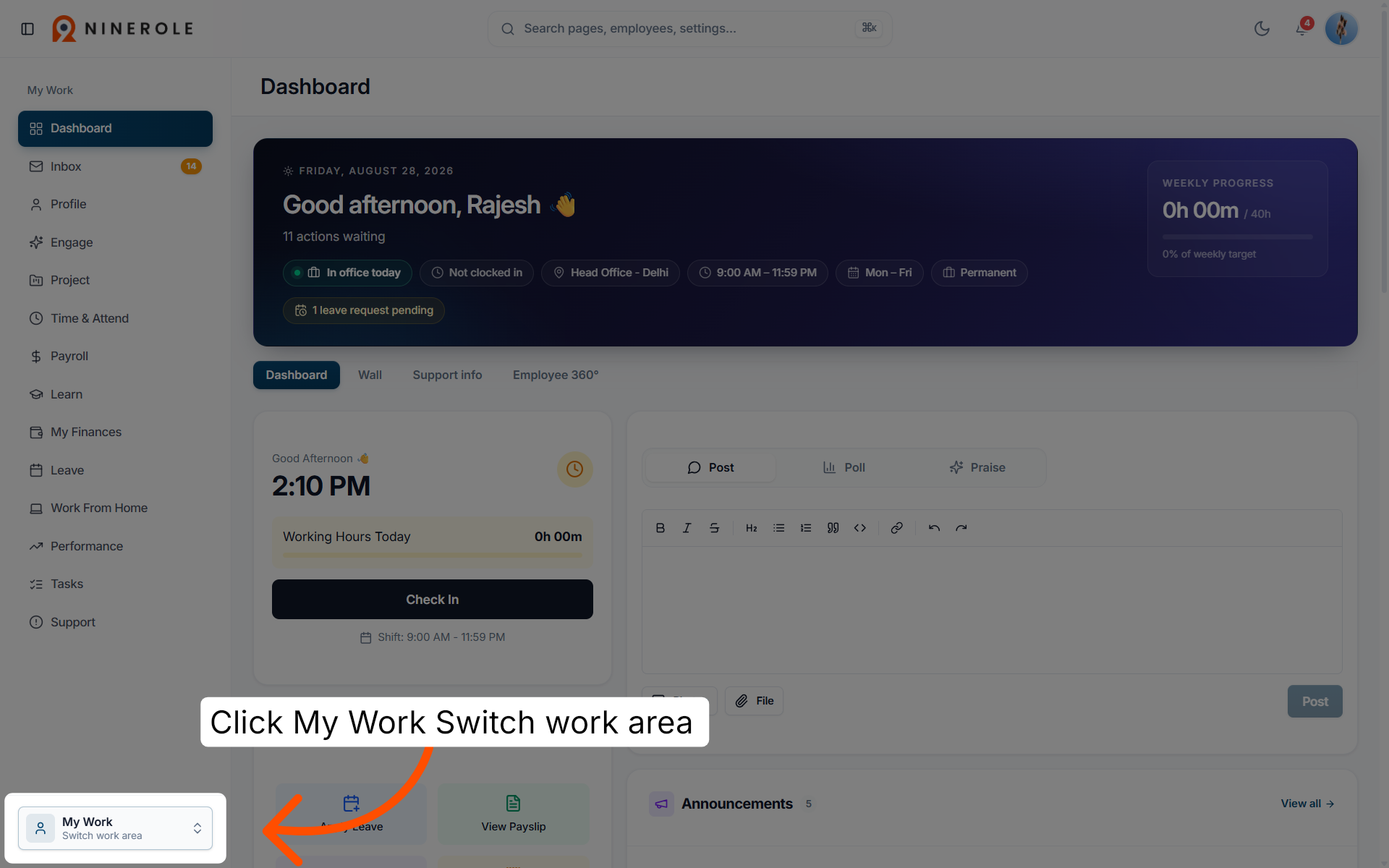
Click My Work → Switch work area to change your current workspace within the platform.
4. Open Administration
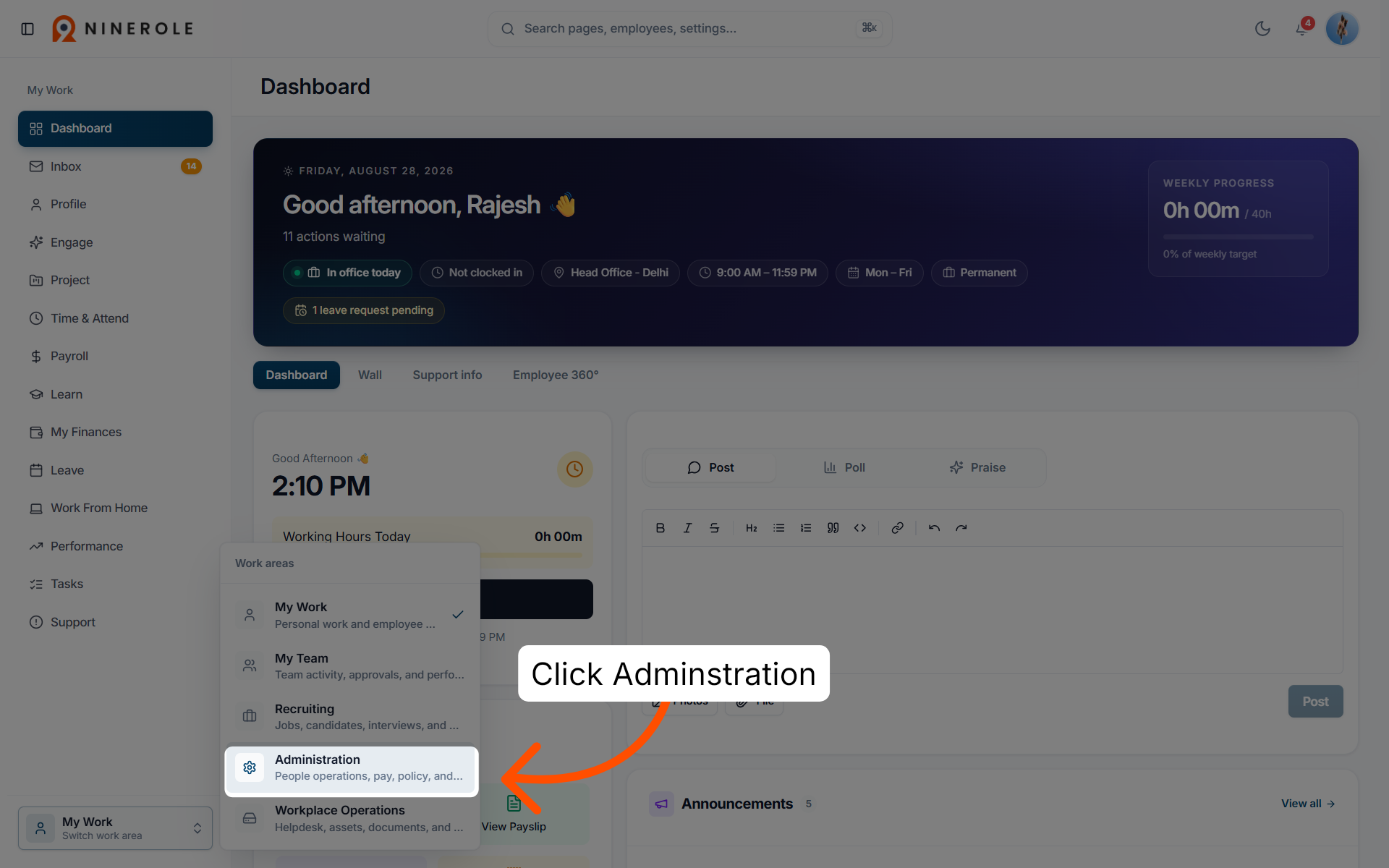
Click Administration.
5. Navigate to the project summary
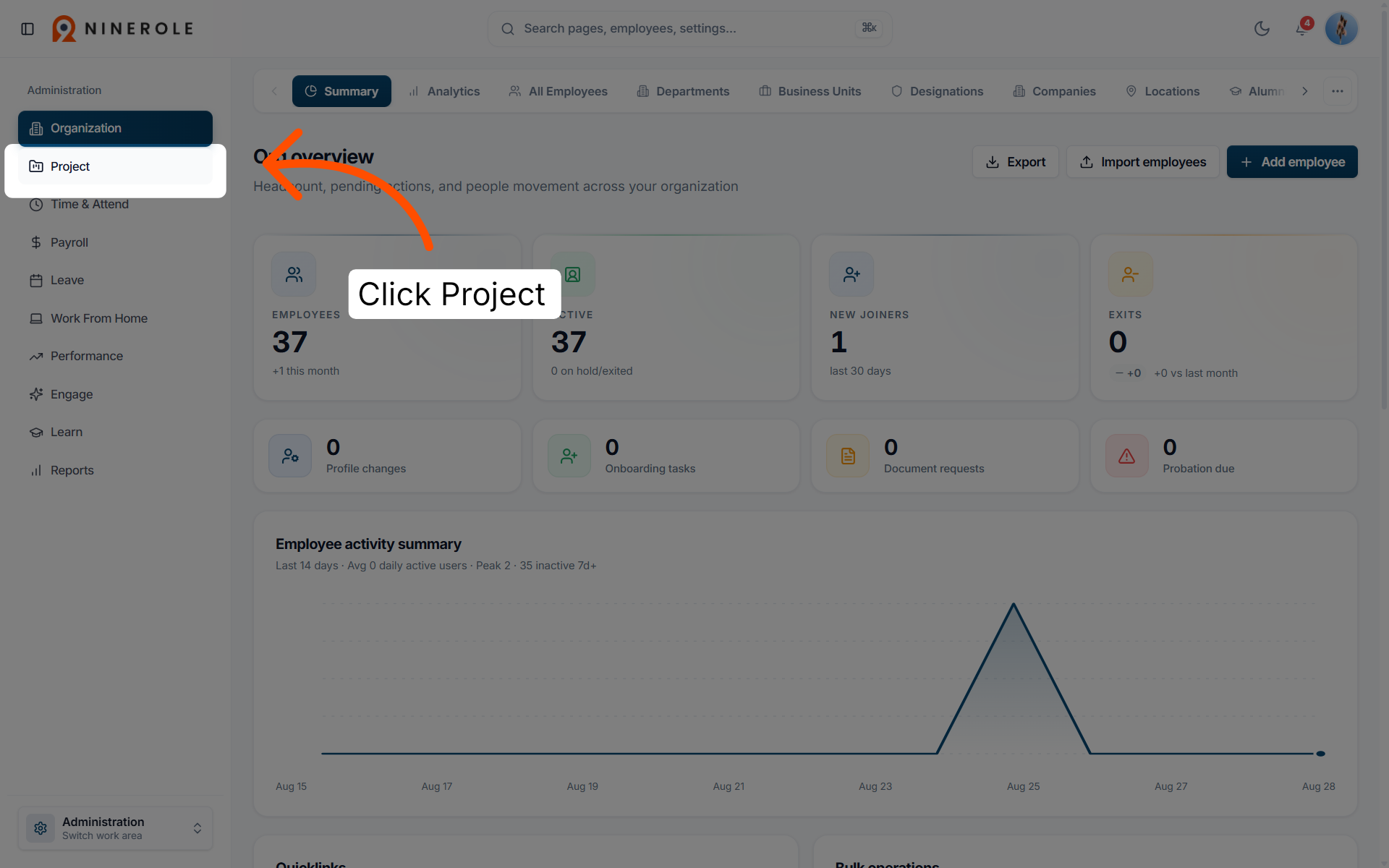
Click Project to view the summary and details related to ongoing projects.
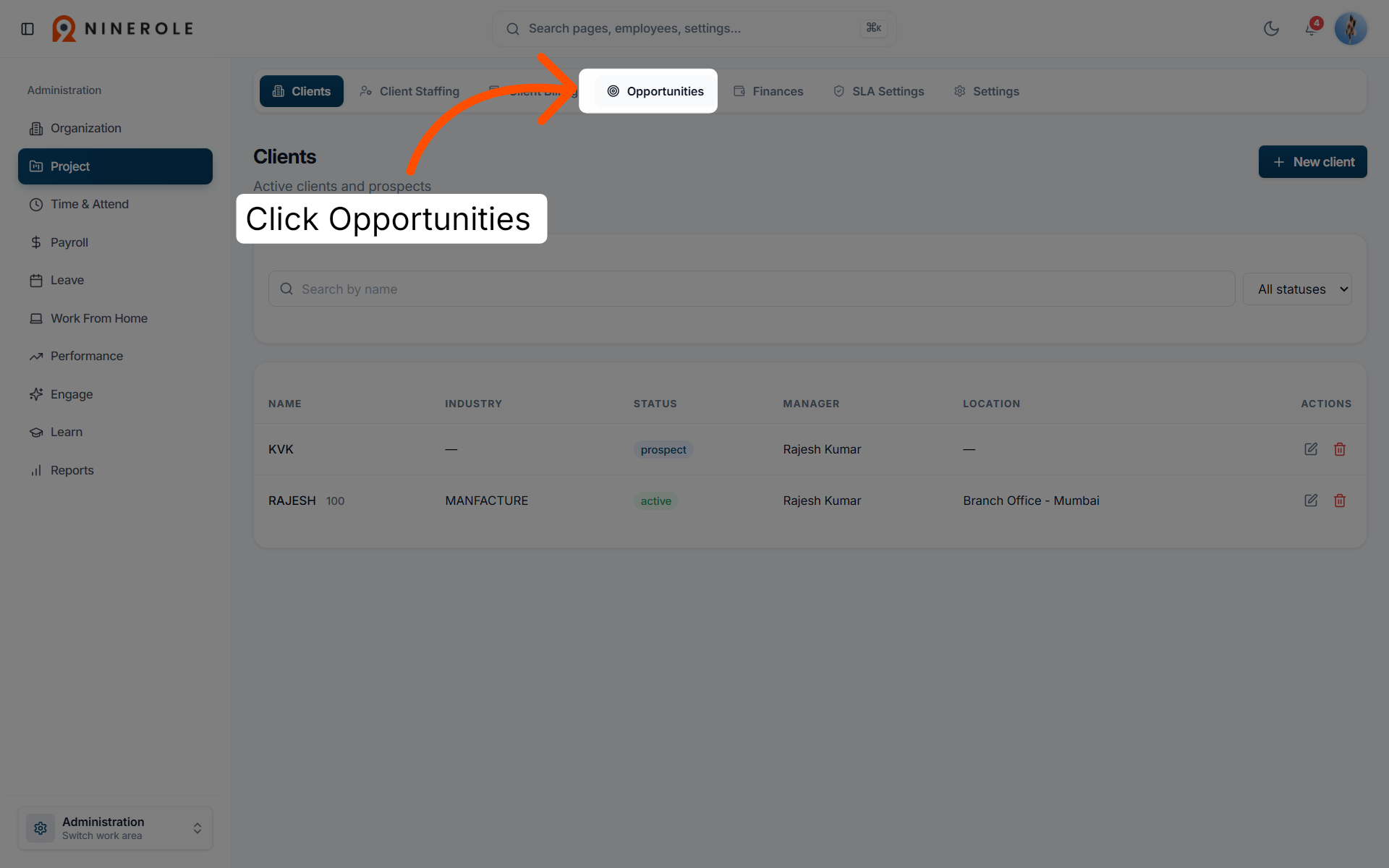
6. Access Opportunities
Click Opportunities to manage and review potential business opportunities within your projects.
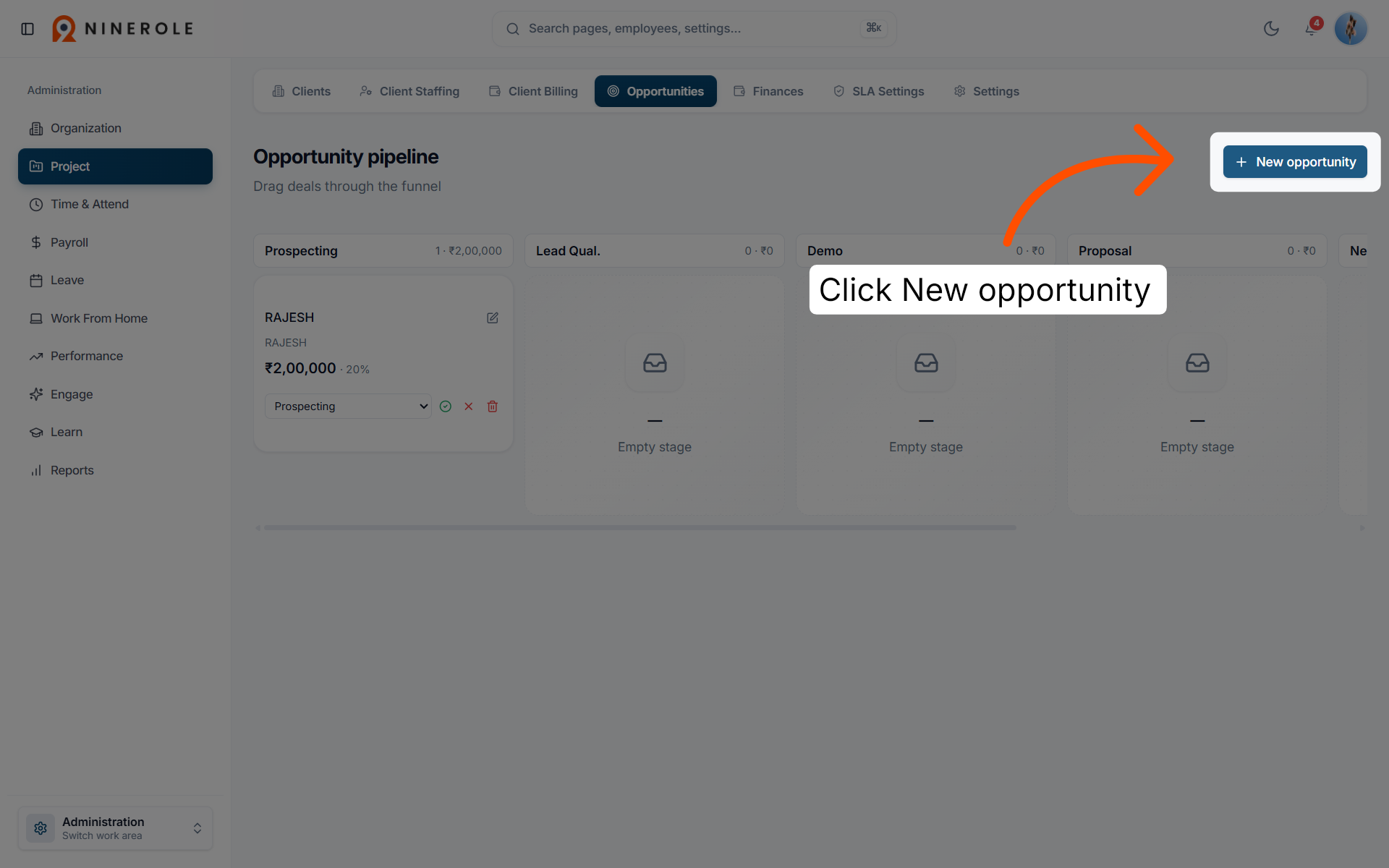
7. Initiate a new opportunity
Click New opportunity to start creating a new business opportunity record.
Identify the opportunity
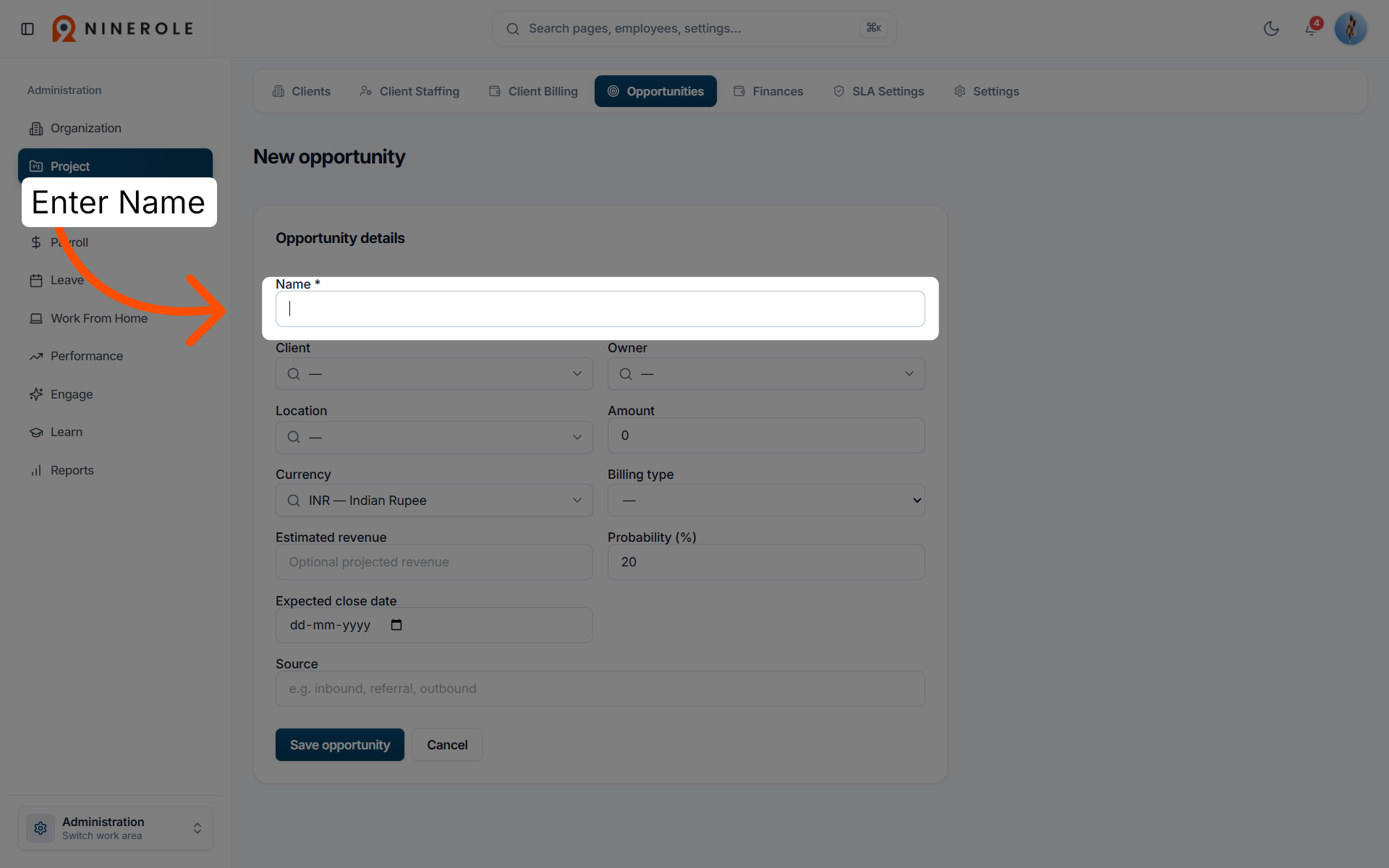
8. Enter the opportunity name
Enter Name to input the title or identifier for the new opportunity.
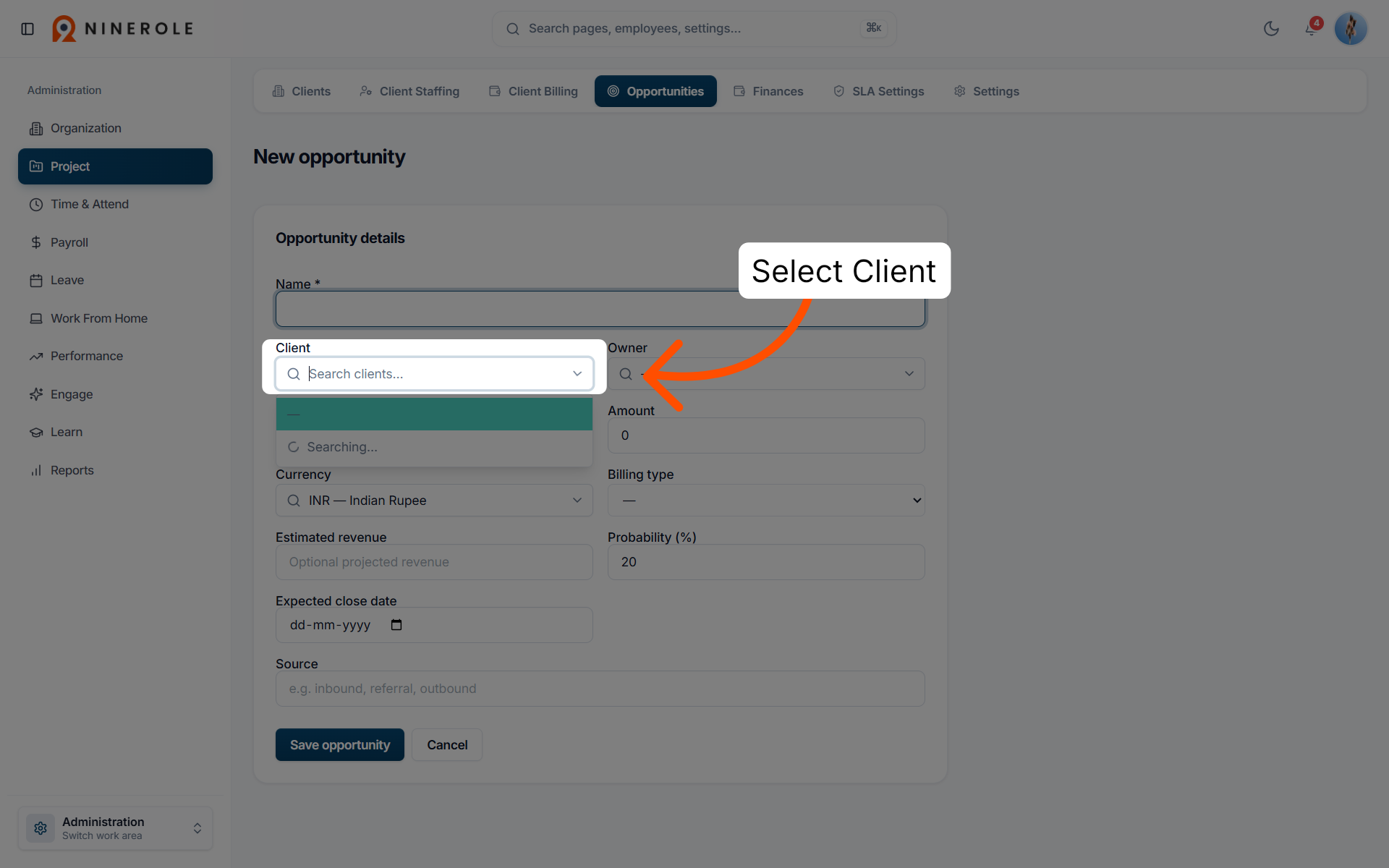
9. Select the client
Select Client to choose the client associated with this opportunity.
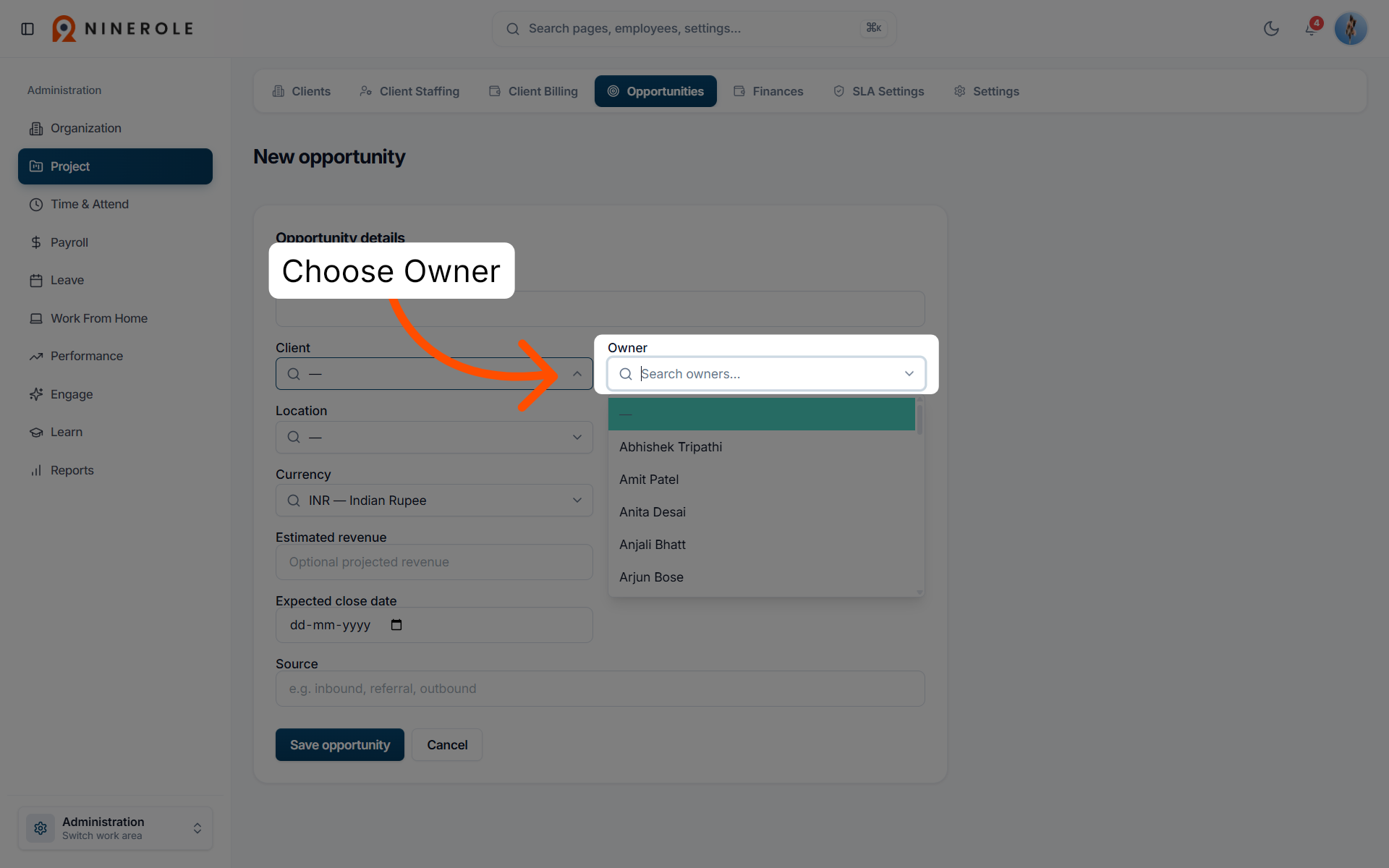
10. Assign the opportunity owner
Choose Owner to designate the person responsible for managing this opportunity.
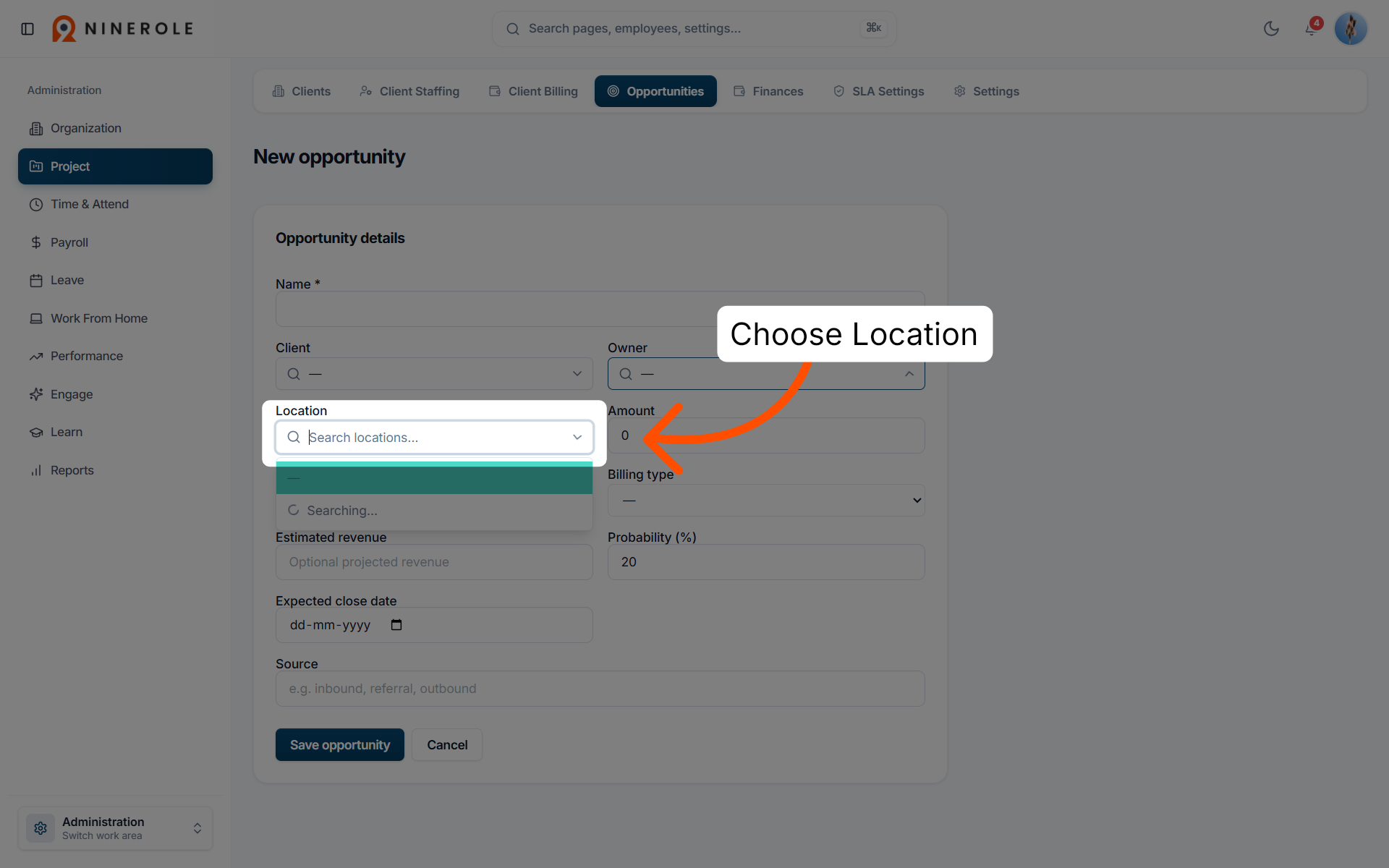
11. Specify the location
Choose Location to set the geographical or operational area relevant to the opportunity.
Enter the commercial details
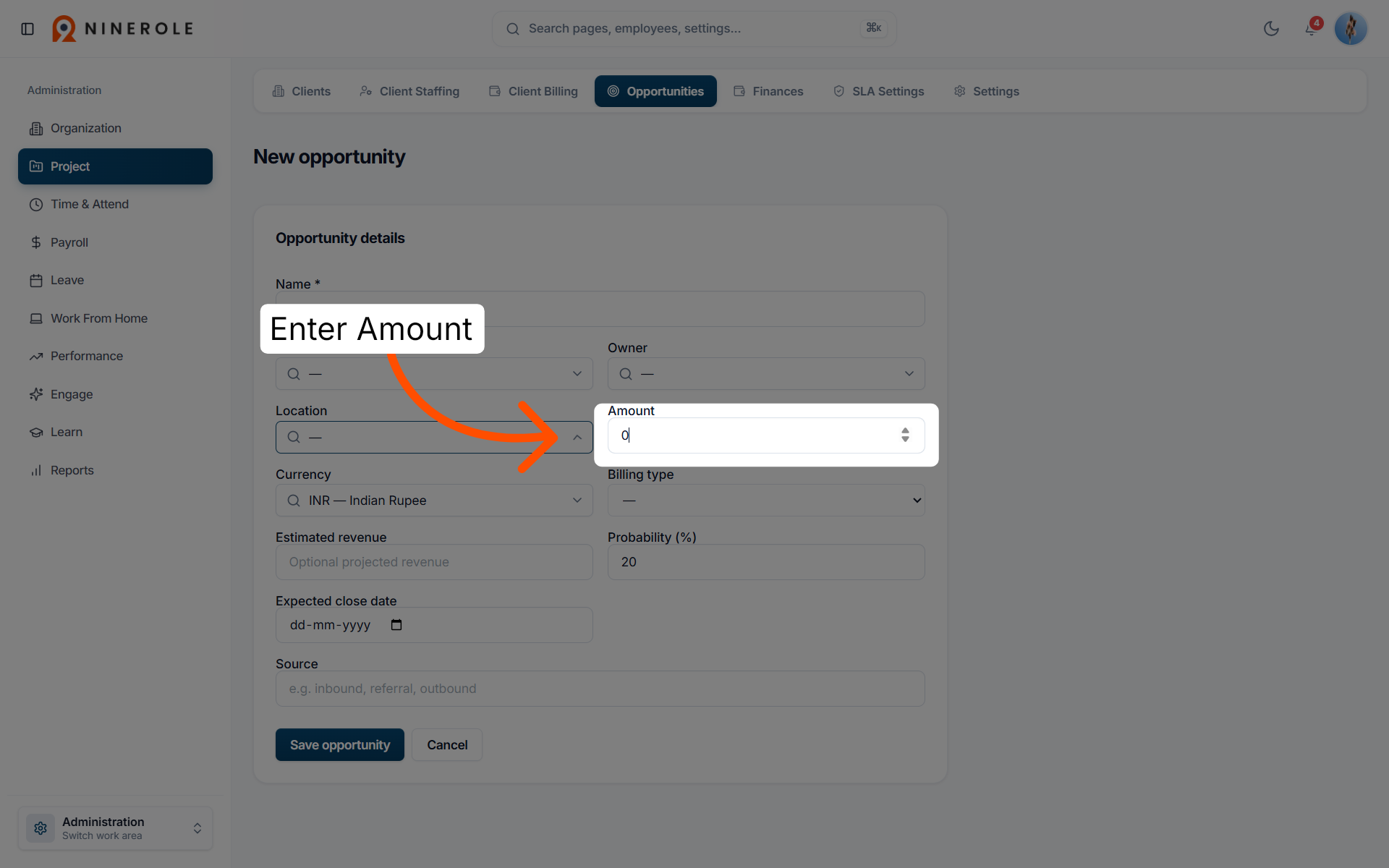
12. Input the amount
Enter Amount to record the financial value or budget related to the opportunity.
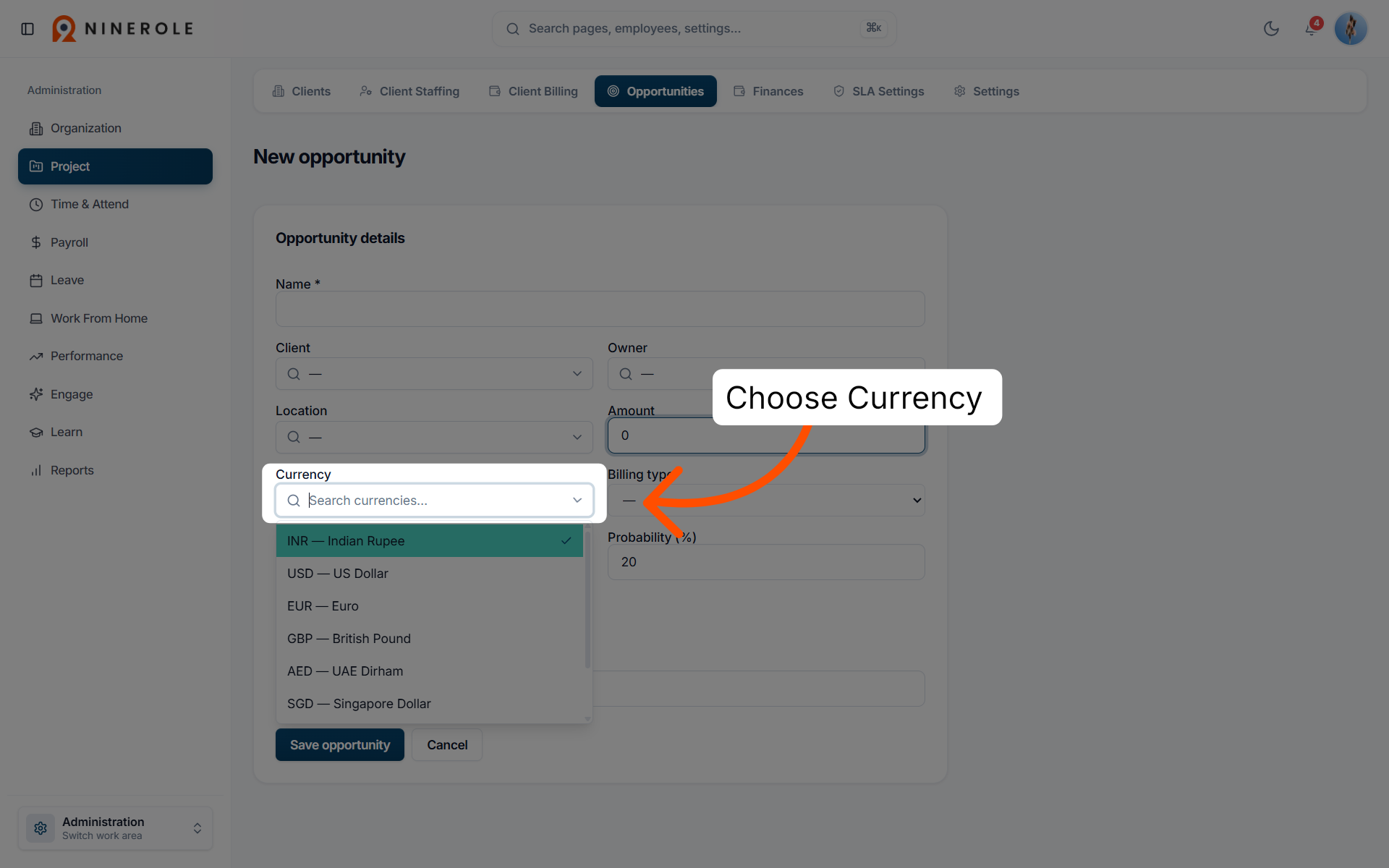
13. Choose the currency
Choose Currency to select the monetary unit applicable to the amount specified.
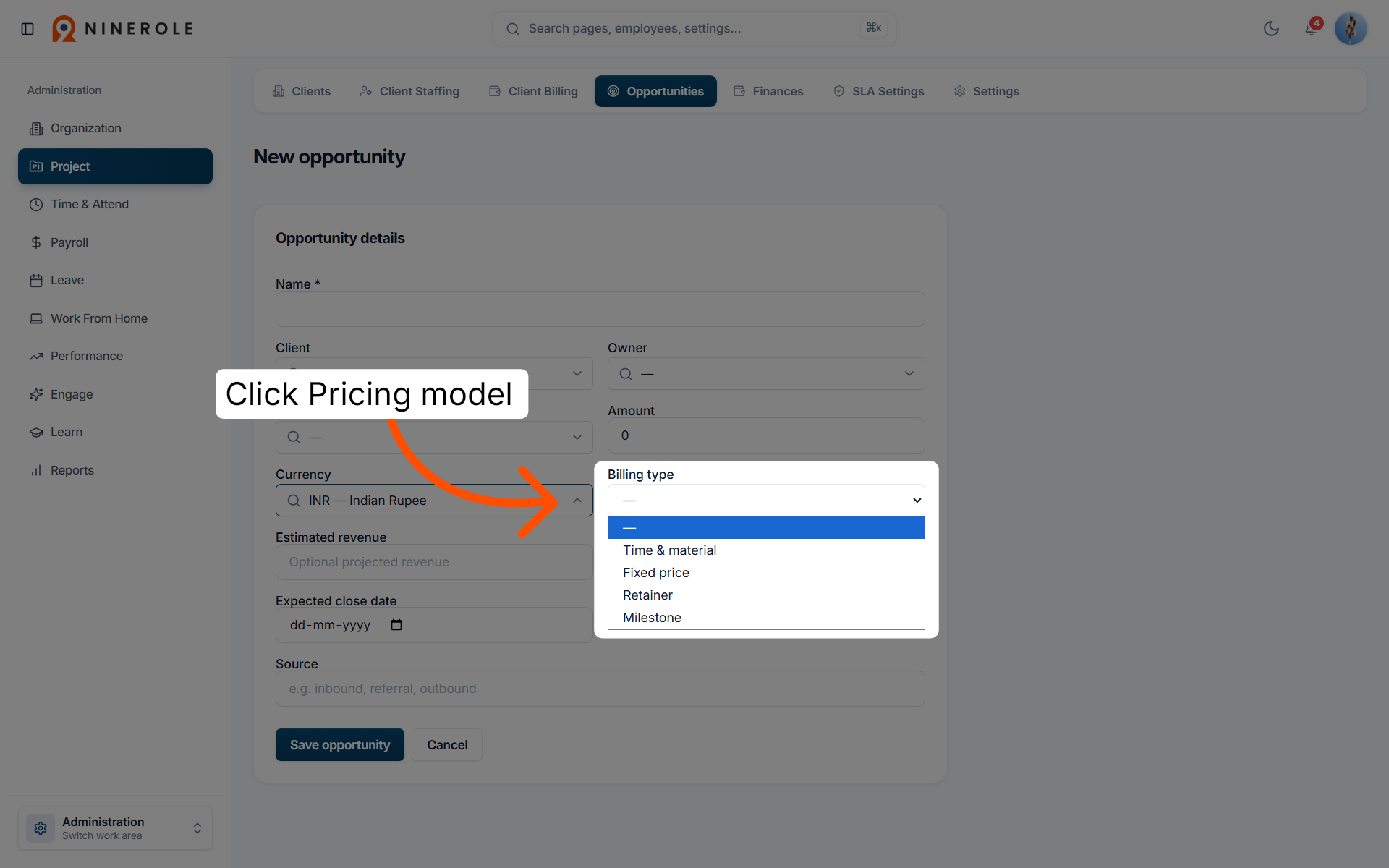
14. Select the pricing model
Choose the pricing structure for the opportunity.
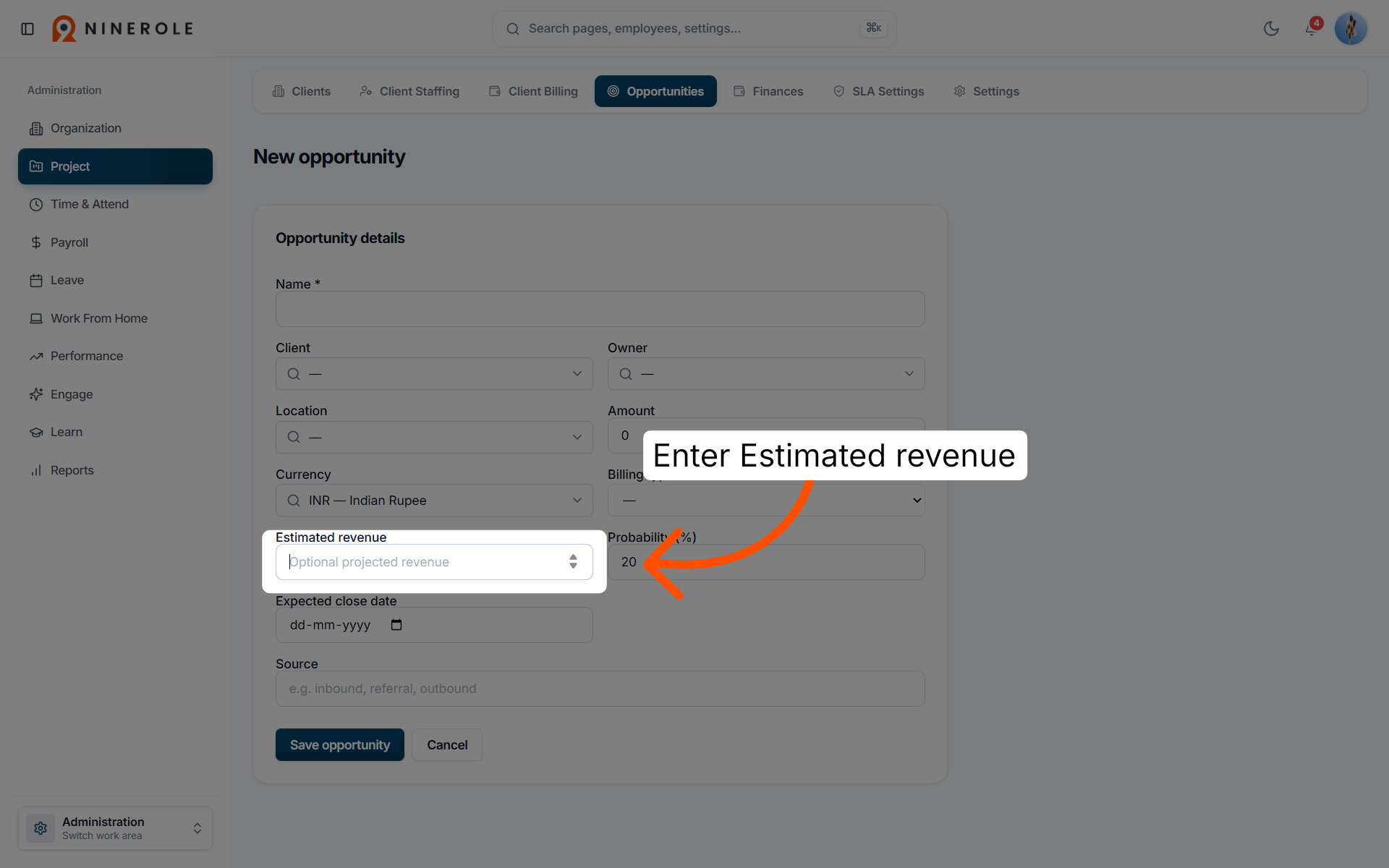
15. Enter the estimated revenue
Enter Estimated revenue to record the projected income expected from this opportunity.
Forecast and save
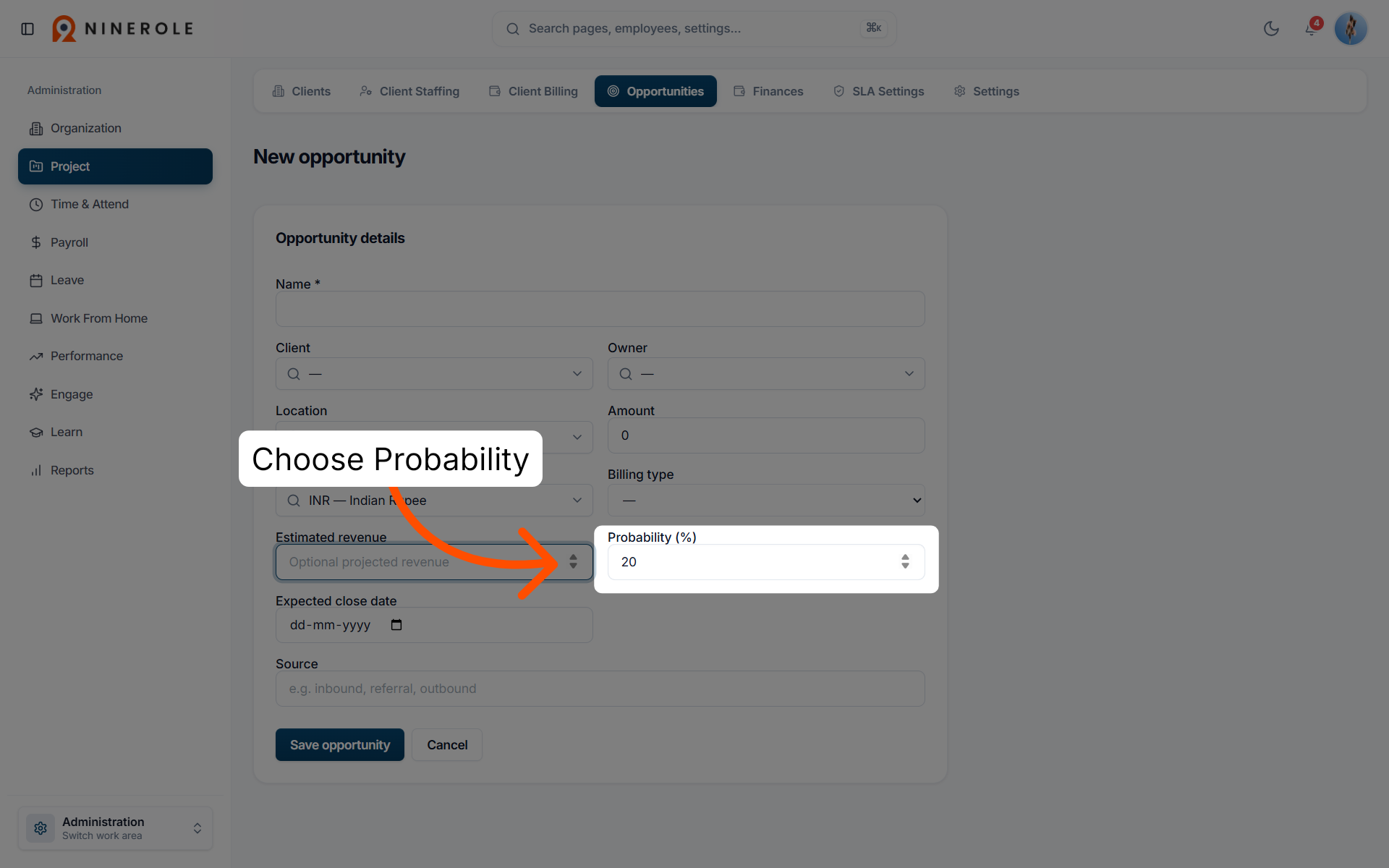
16. Set the probability percentage
Choose Probability to specify the likelihood of successfully closing the opportunity.
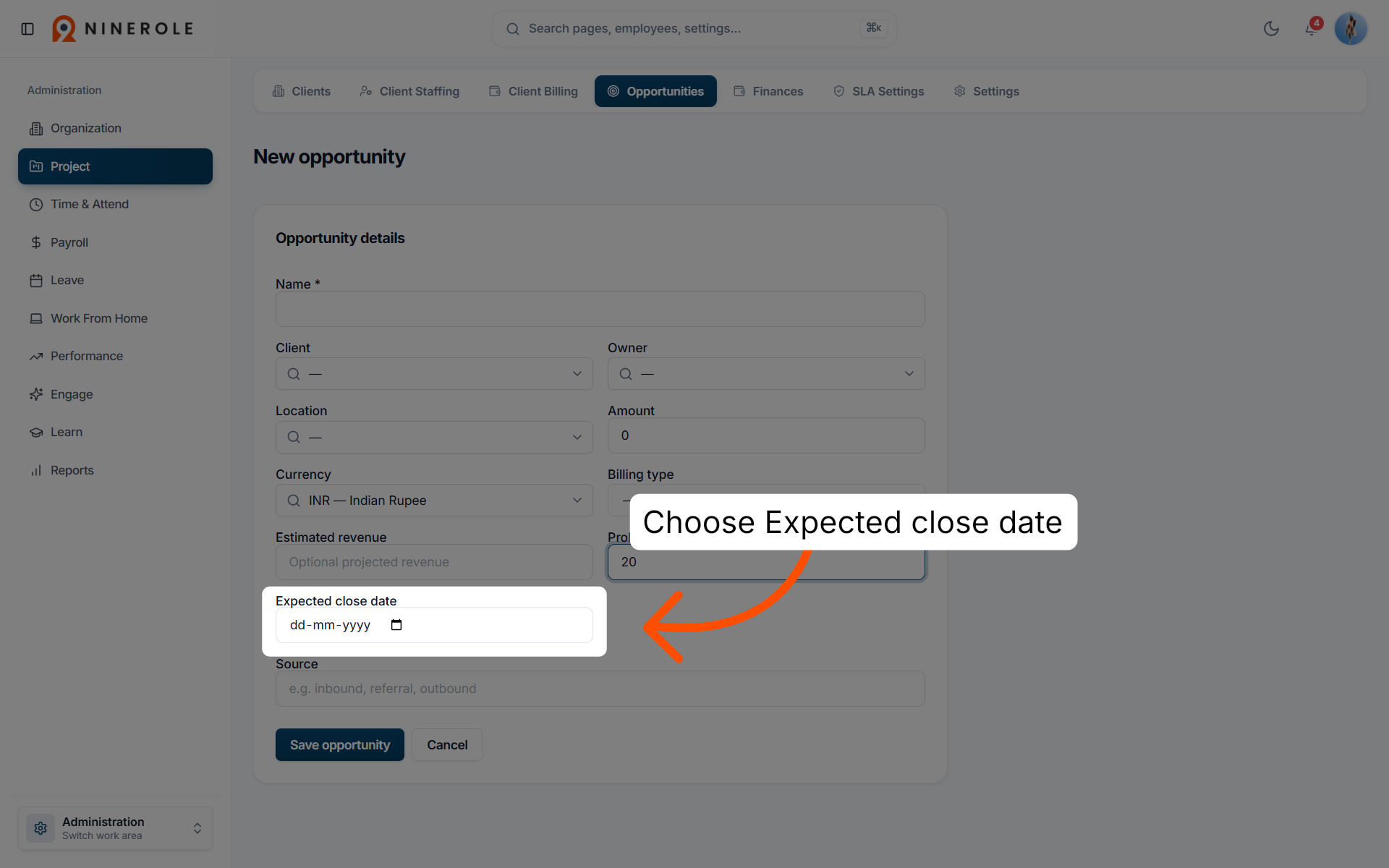
17. Choose the expected close date
Choose Expected close date to select when the opportunity is anticipated to be finalized.
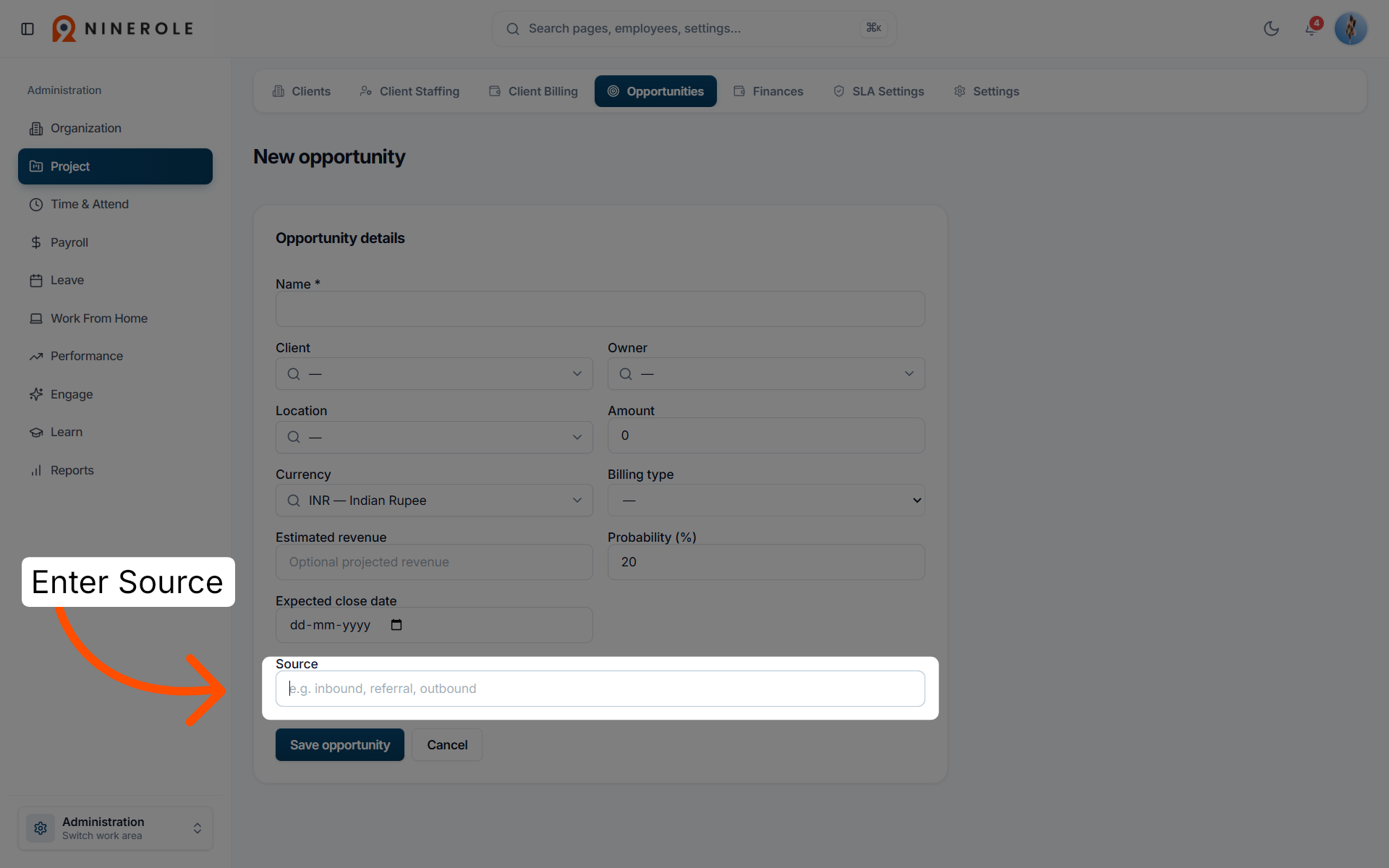
18. Identify the opportunity source
Enter Source to indicate where or how the opportunity originated.
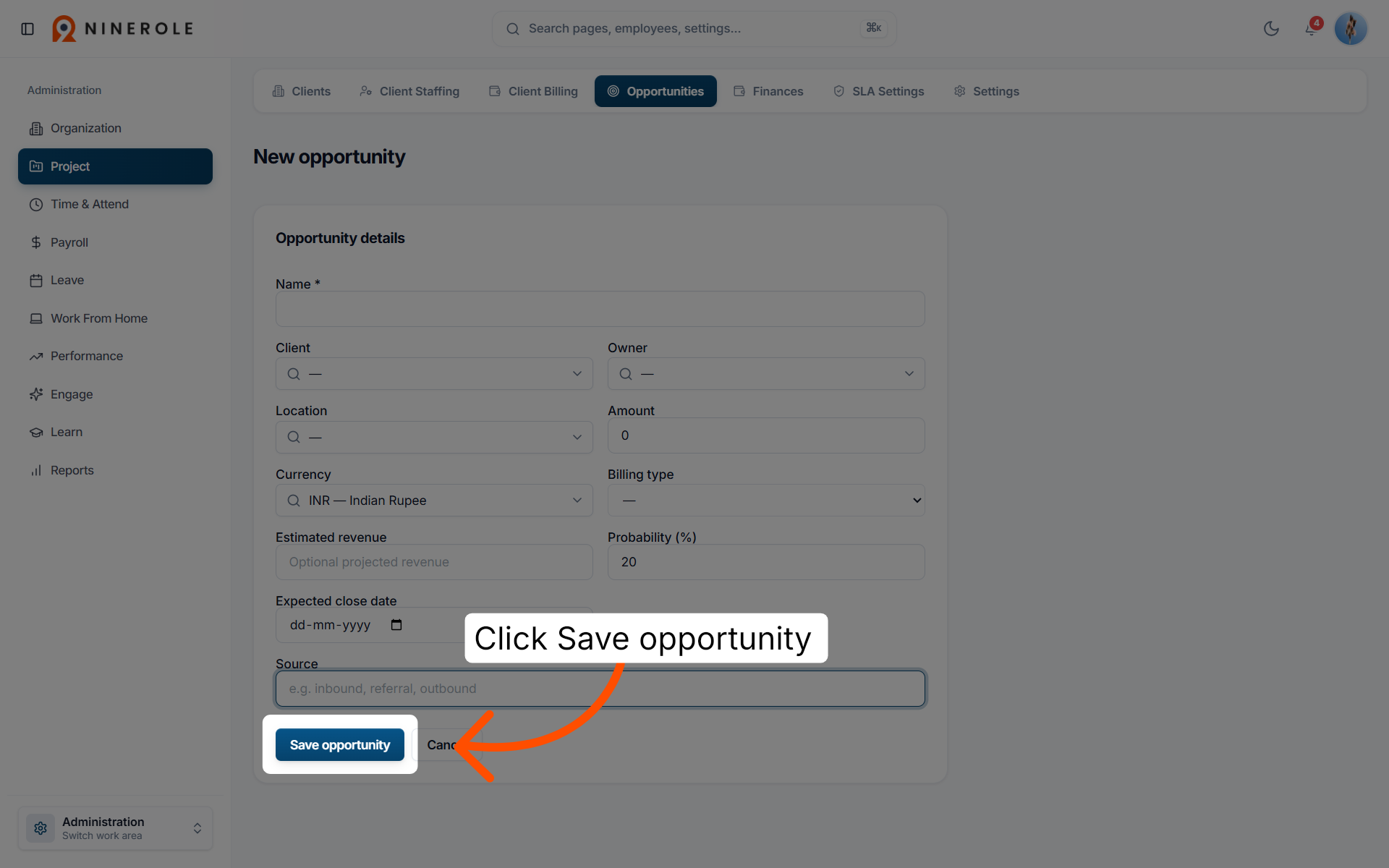
19. Save the new opportunity
Click Save opportunity to finalize and store the new opportunity in the system.
You have successfully created and saved a new opportunity in Ninerole HRMS by navigating through the project sections and entering all required details. You can now manage this opportunity or proceed to add more as needed.
The client must already exist — see Configure New Client Profiles.
Back to Projects · all modules · Ninerole HRMS overview
Last updated: