

Employee Location Tracking and Live Tracking
This tutorial guides you through accessing and reviewing attendance details within the Ninerole platform. You will learn how to navigate the dashboard, manage attendance tracking, and save your review effectively.
Before you start, go to ninerole.com.
About this task
- Purpose
- Review where field staff checked in from, inspect location history for a date and time, and see out-of-bounds attendance records.
- Who can do this
- HR admin or Manager with tracking access
- Before you start
- Location tracking and geofencing are enabled for the employees concerned.
- Those employees have granted location permission on their device.
- You will need
- The employee and the date or time window you want to review.
- Result
- You can see live and historical locations, and any attendance marked outside an allowed location.
- This unlocks
- Reviewing and annotating out-of-bounds check-ins before they affect the attendance record.
This guide answers
- How do I see where an employee checked in from?
- How does geofencing attendance work?
- What is an out-of-bounds attendance record?
- How do I view location history for a date?
- Why is an employee's location not showing?
If something goes wrong
- An employee's location is not showing.
- Their device has location permission turned off, or tracking is not enabled for them.
- A check-in is flagged out of bounds.
- The punch happened outside the allowed location. Review it and add a note rather than deleting the record.
Related: Punch in & out · Attendance reports · My & team attendanceAlso called: geofencing, field check-in, GPS attendance.Last verified: 7 September 2026
1. Introduction
You will learn how to navigate the dashboard, manage attendance tracking, and save your review effectively.
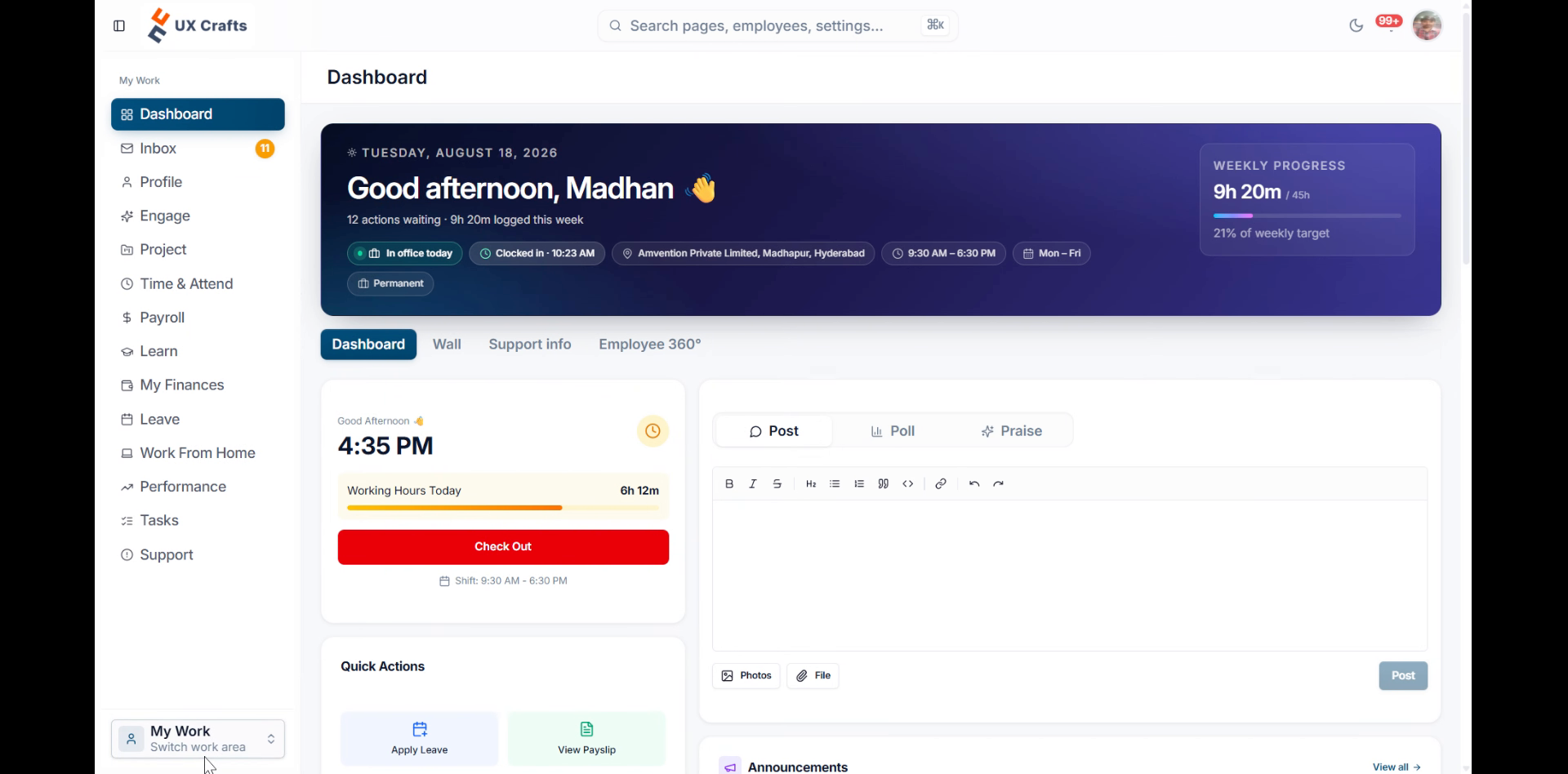
Open Live Tracking
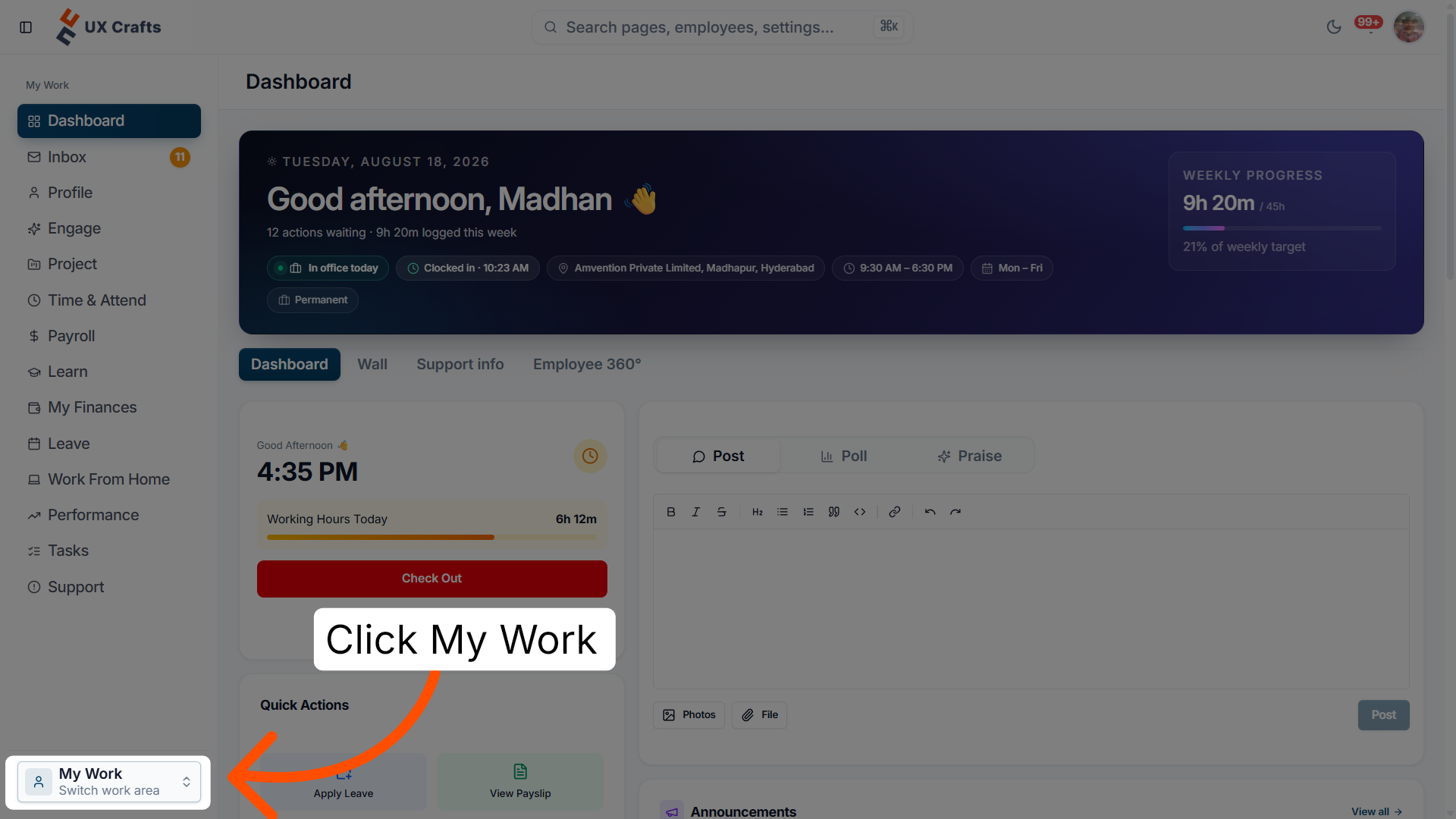
2. Access the My Work section
Click My Work to open your personal workspace on the Ninerole dashboard.
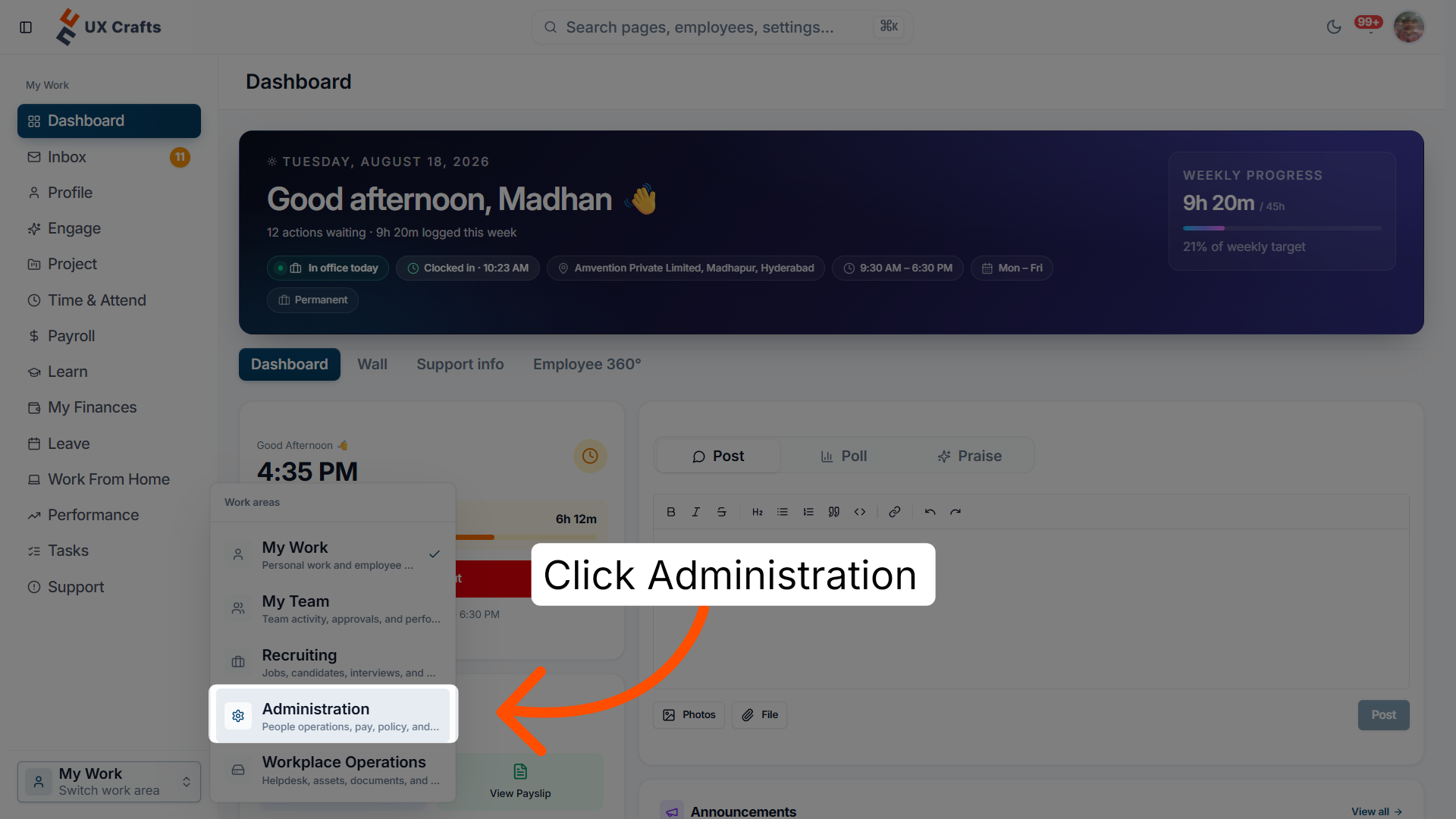
3. Open the Administration panel
Click Administration to access administrative settings and controls within Ninerole.
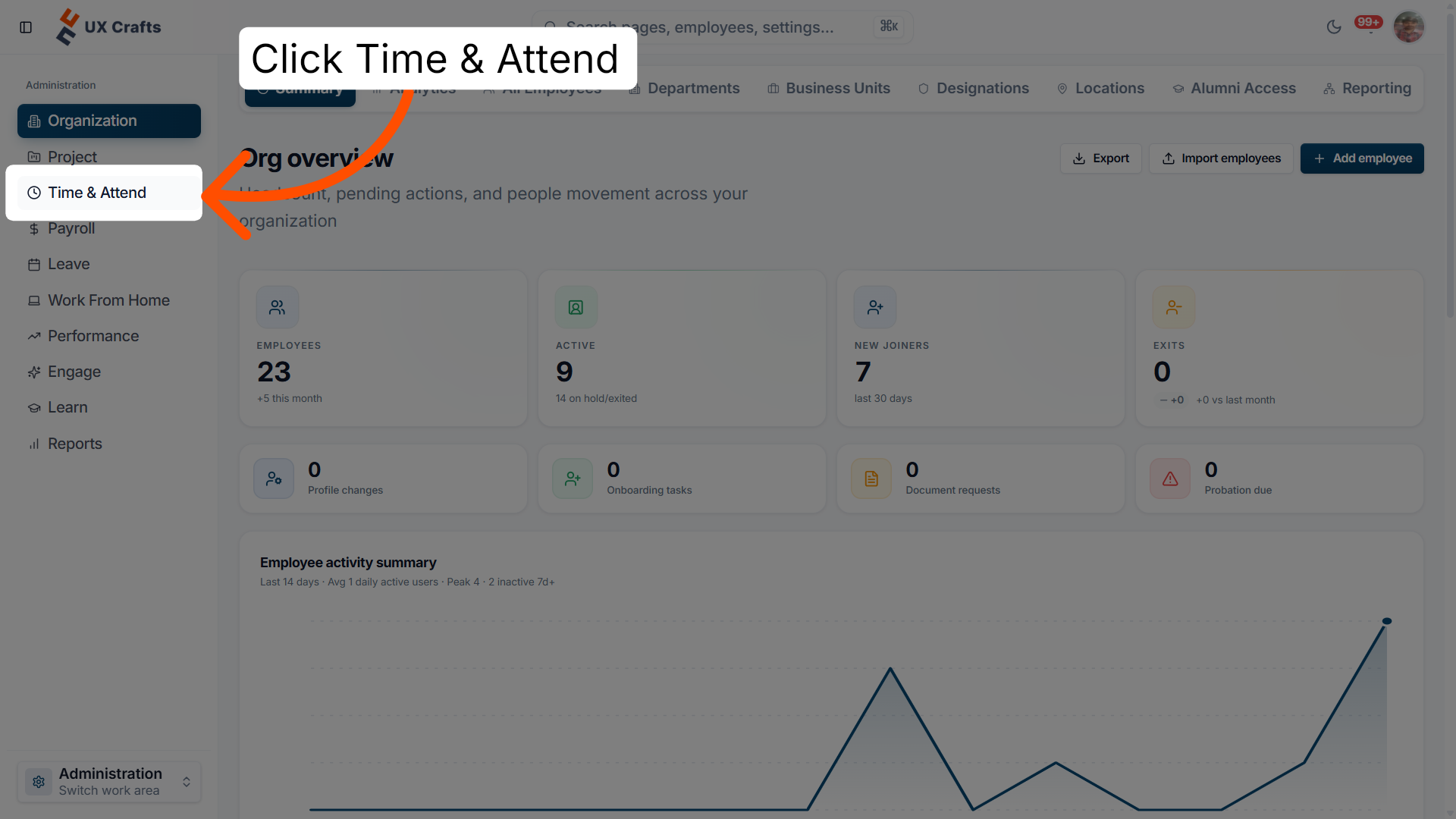
4. Navigate to Time and Attendance
Click Time & Attend to view and manage time tracking and attendance records.
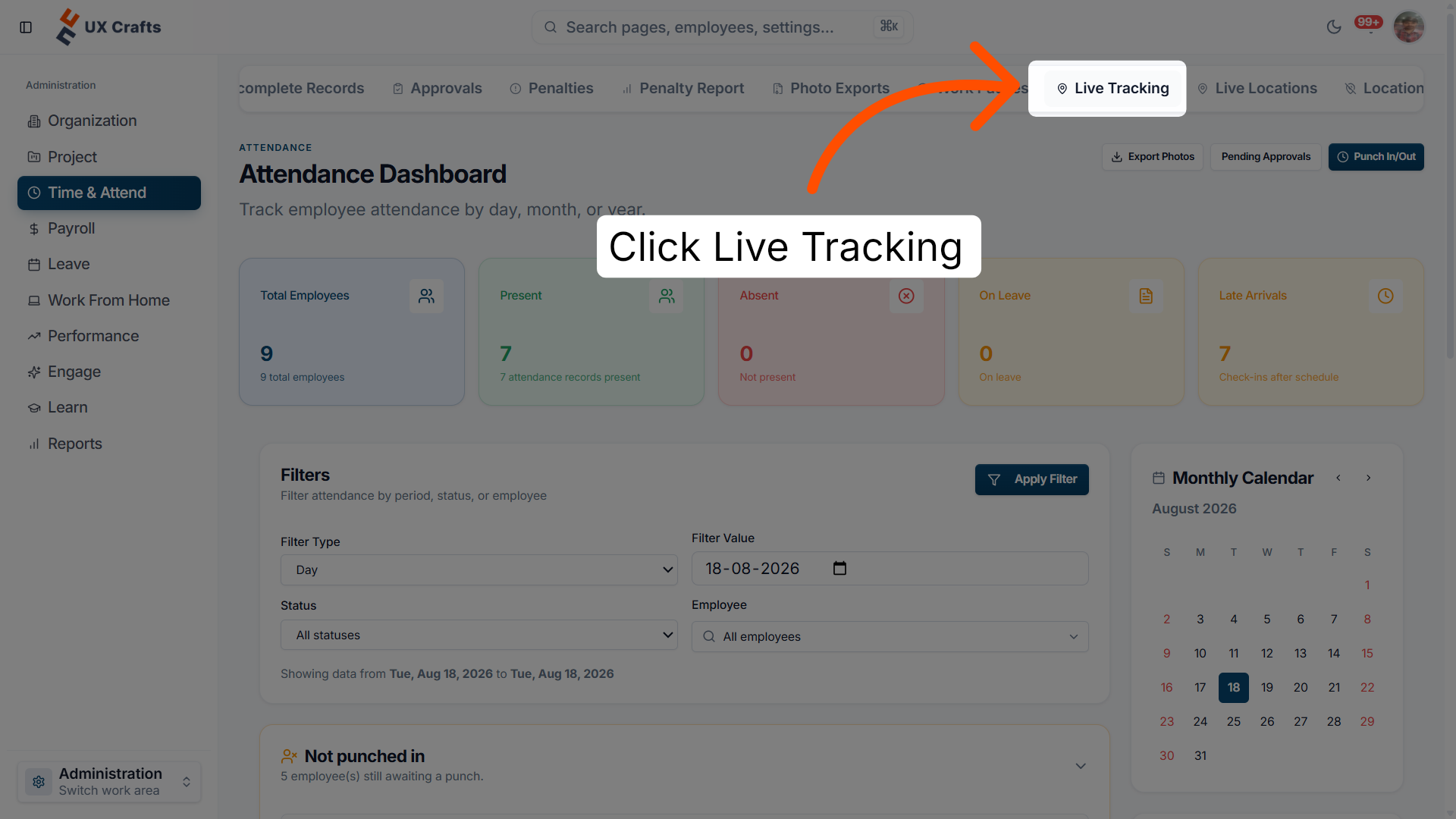
5. Access the Live Tracking feature
Click Live Tracking to monitor real-time attendance data and employee activity.
Inspect location details
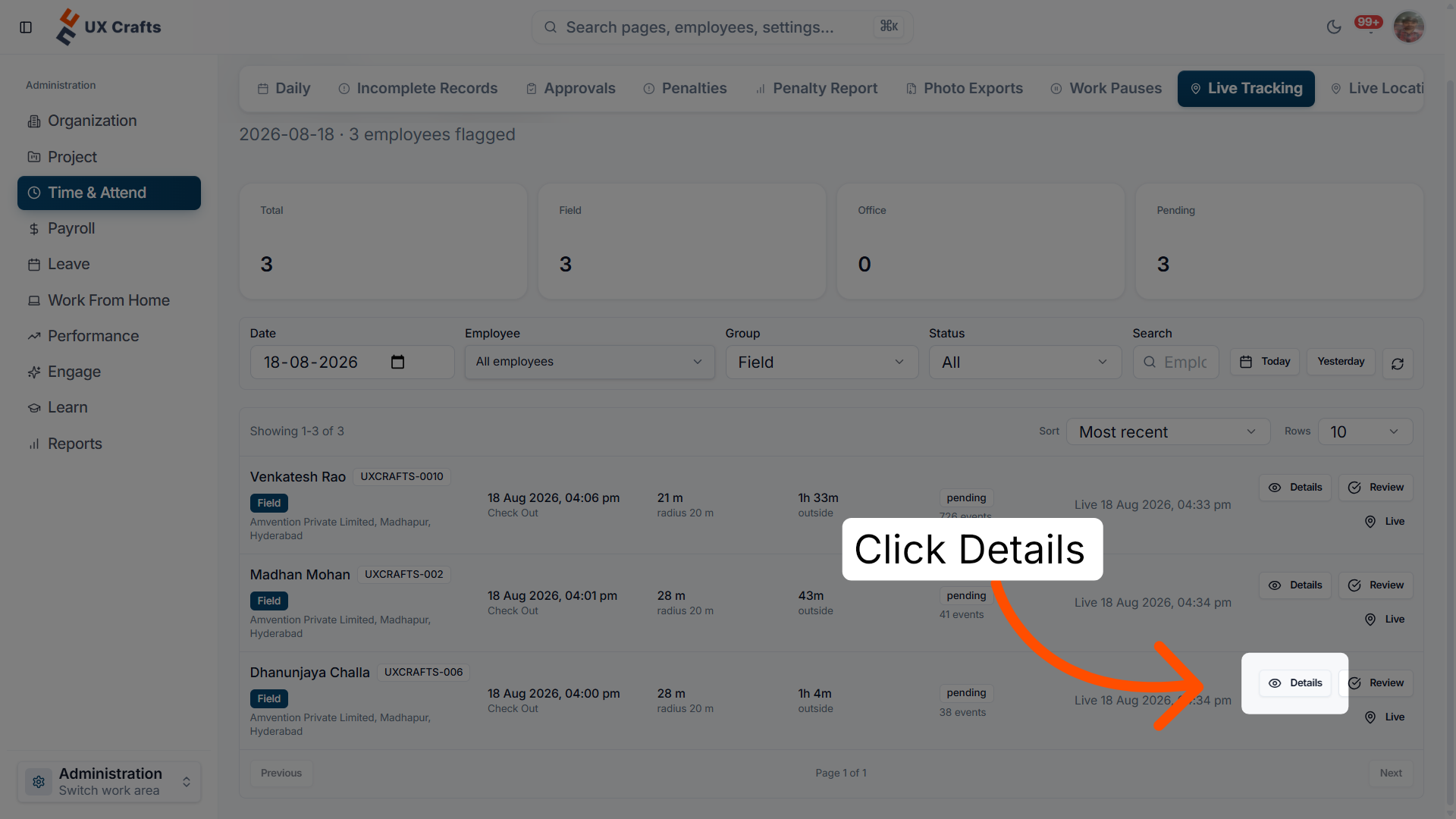
6. View attendance details
Click Details to see specific information about attendance out-of-bounds events.
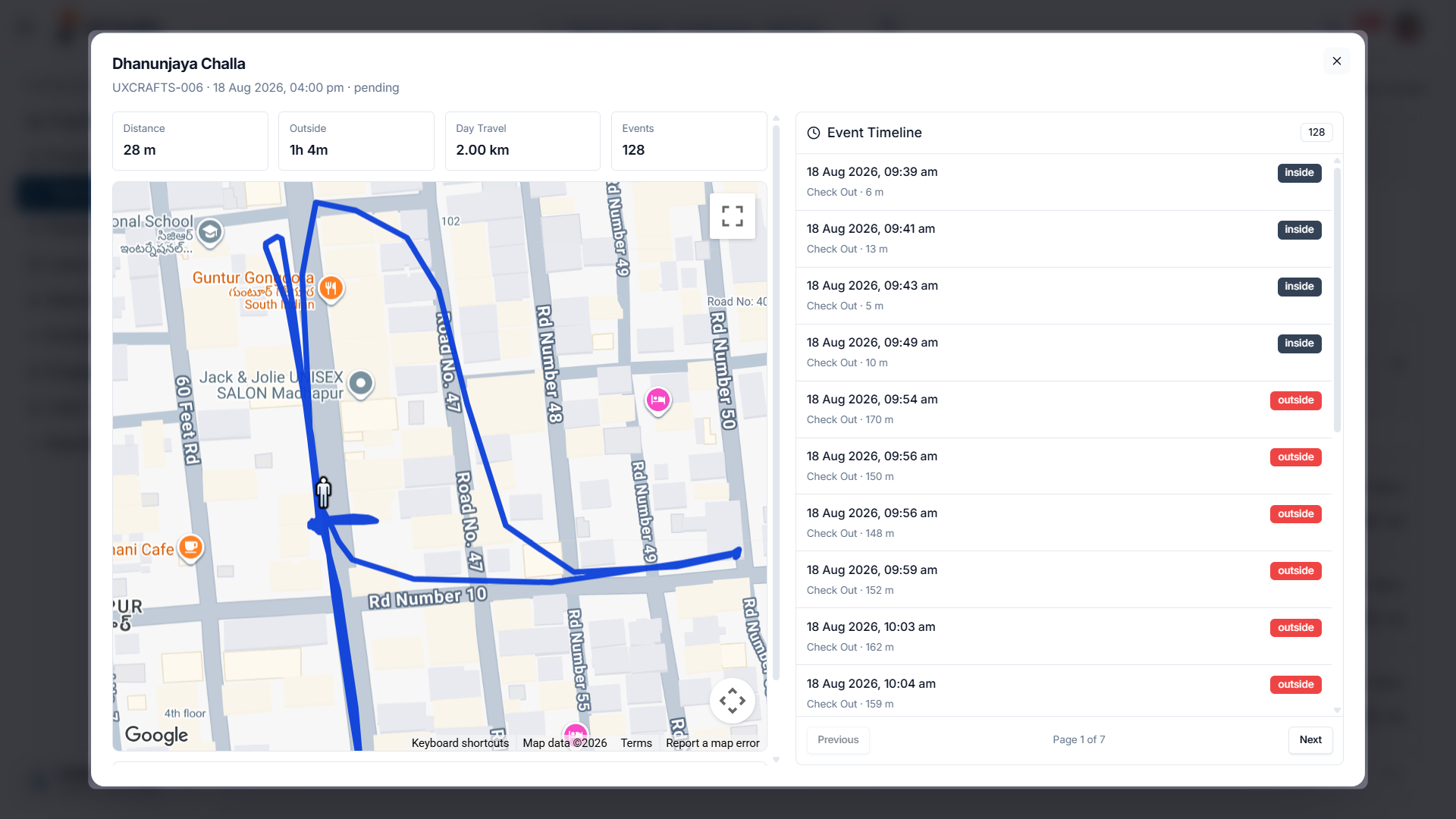
7. Tracking location
Here you can see the location tracking of the employee by time and date, after selecting the employee tracking details.
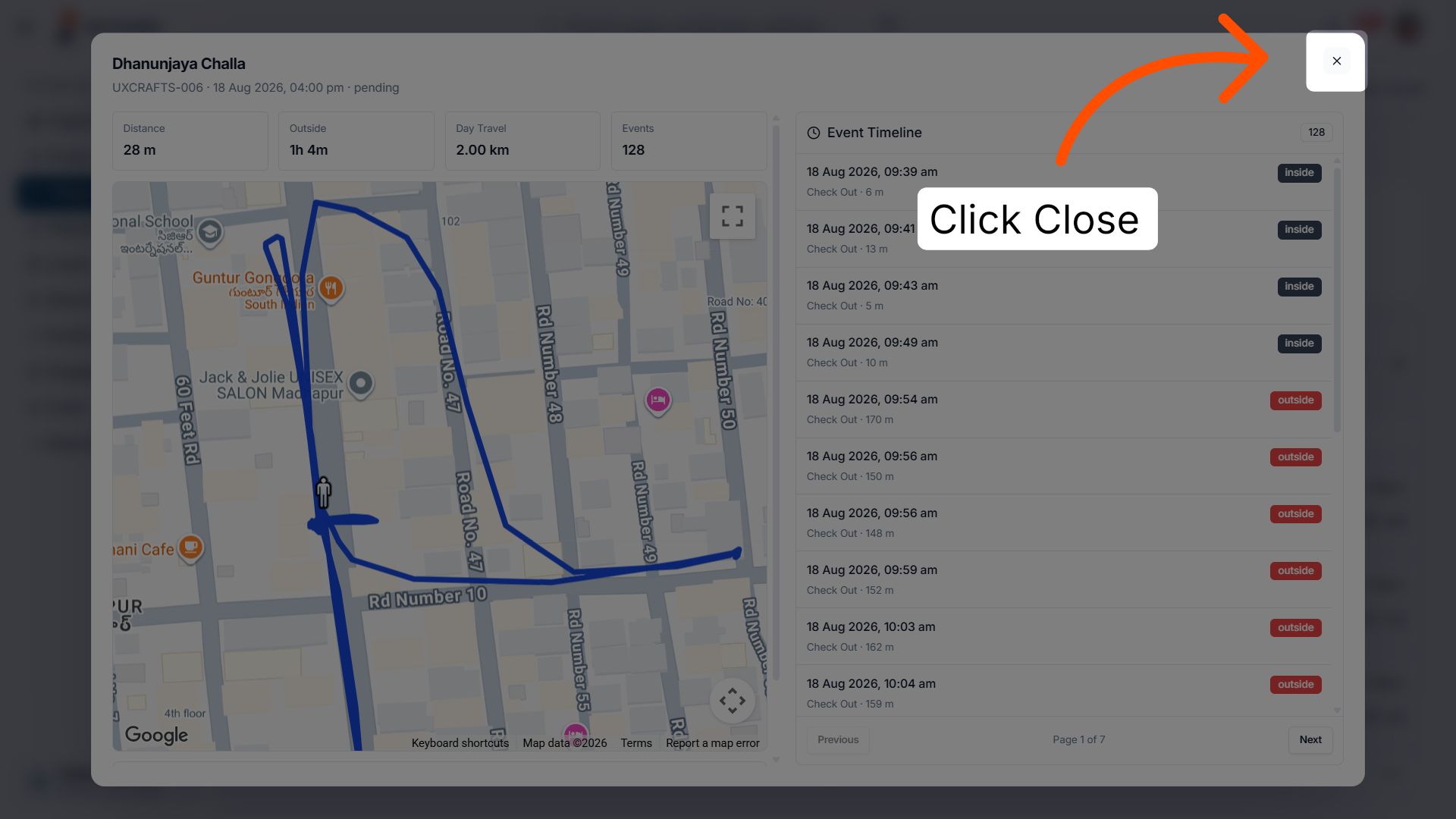
8. Close the details view
Click Close to exit the attendance details view and return to the previous screen.
Review out-of-bounds records
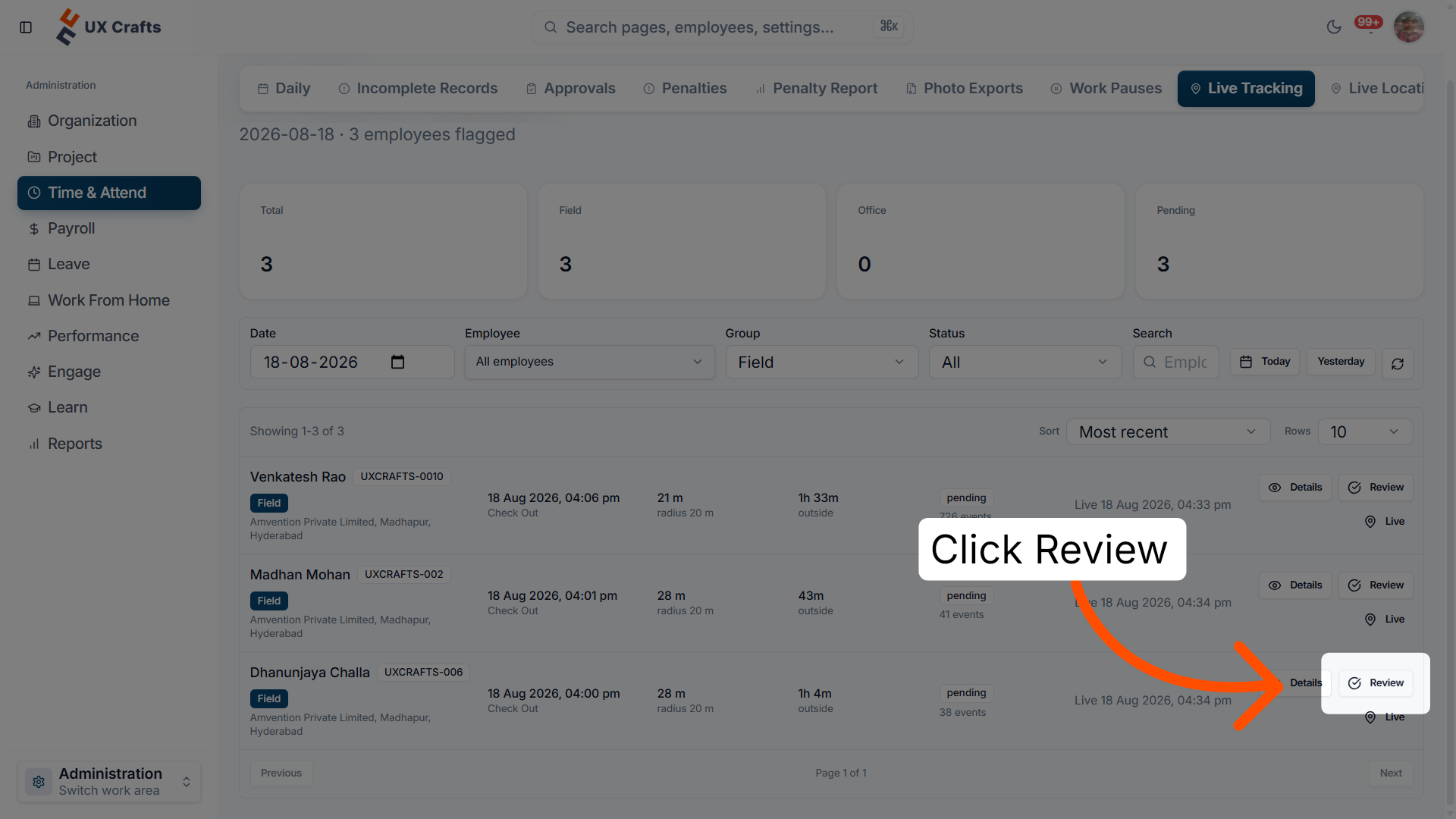
9. Open the Review section
Click Review to begin evaluating attendance records that require your attention.
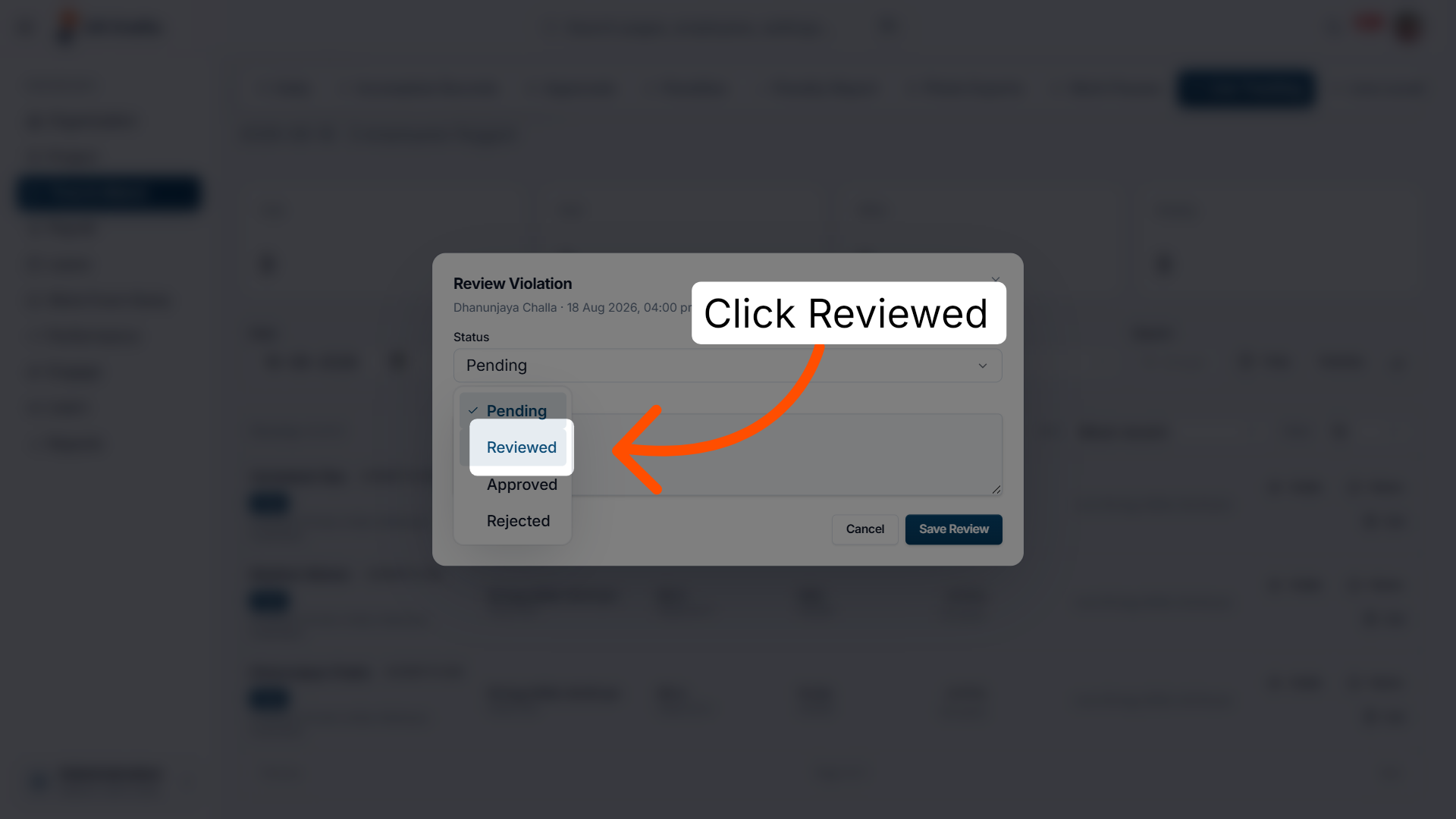
10. Mark records as reviewed
Select the status Reviewed from the dropdown to indicate that the selected attendance records have been reviewed.
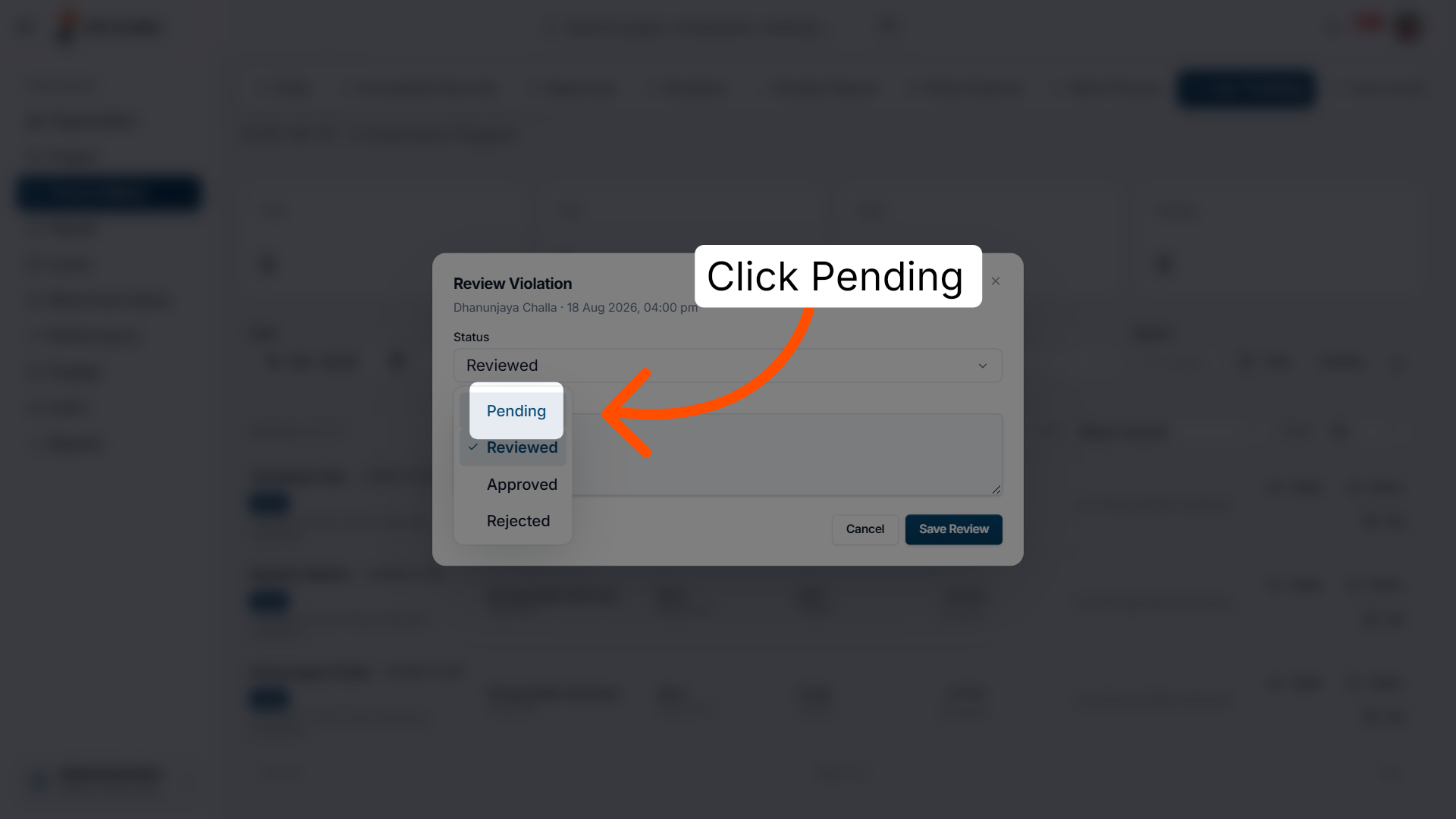
11. Filter pending records
Click Pending to display attendance records that are awaiting review or action.
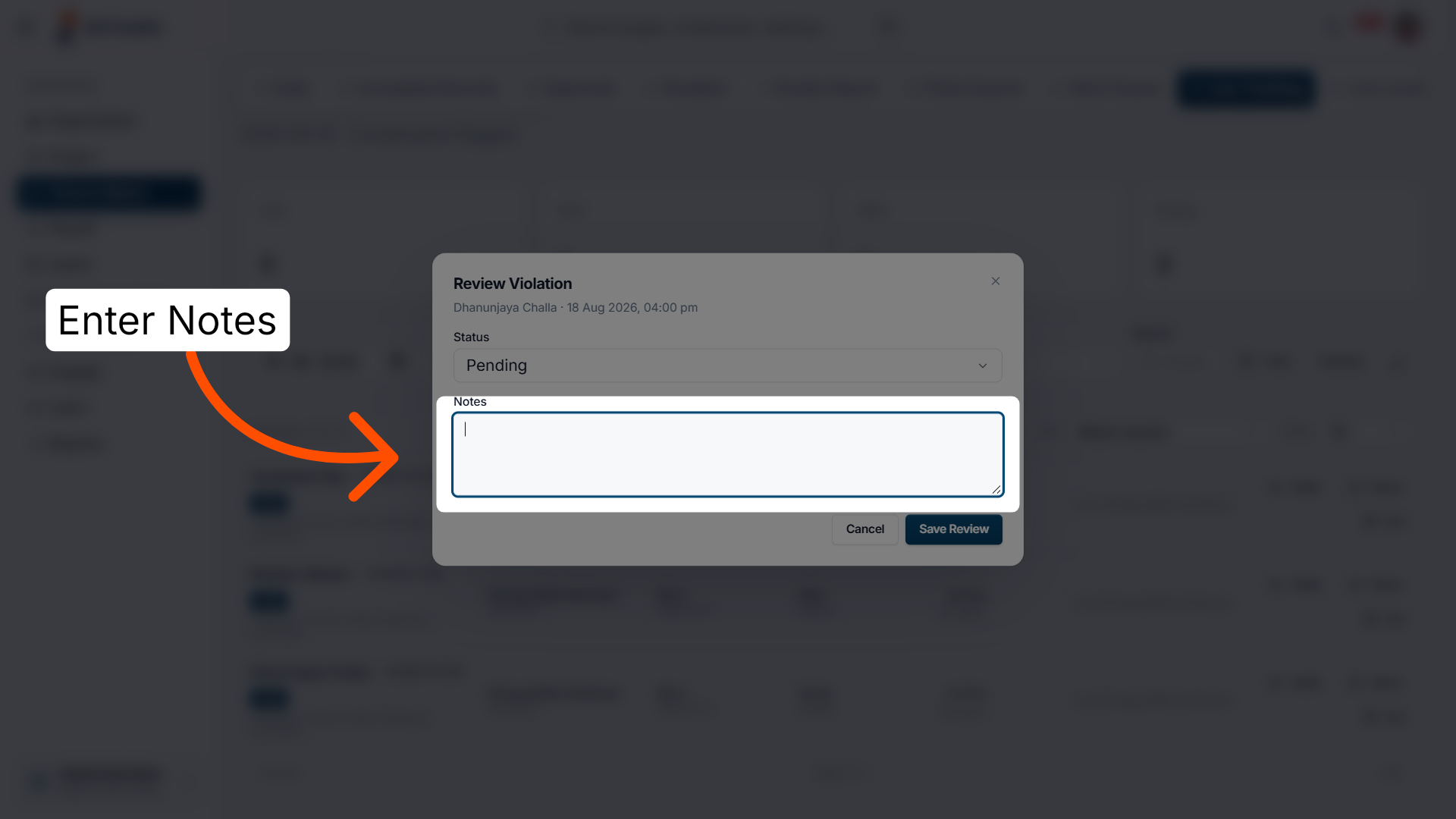
12. Add review notes
Enter Notes or observations related to the attendance records under review.
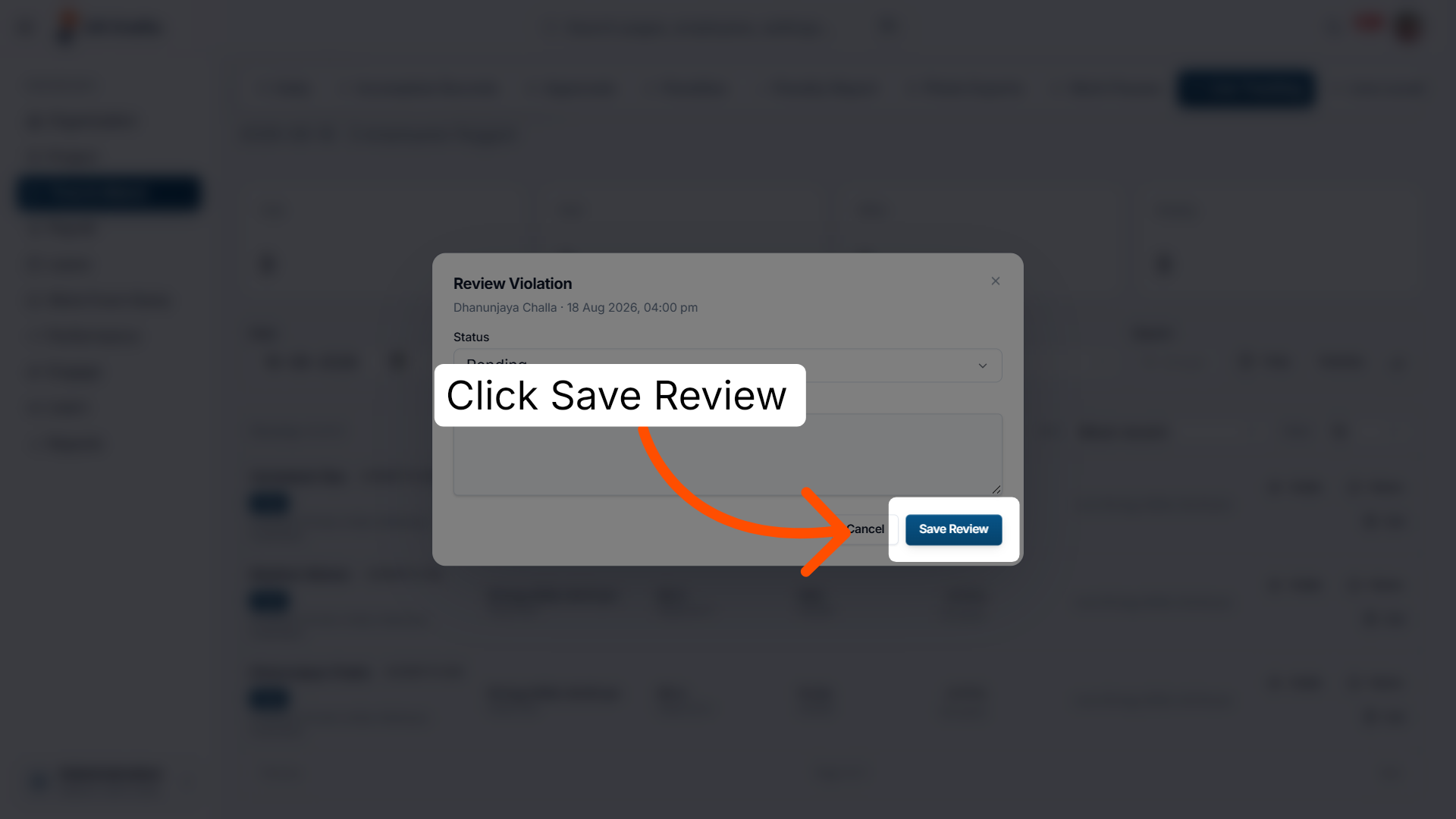
13. Save your review
Click Save Review to confirm and store your feedback on the attendance records.
Back to live monitoring
14. Return to the live view
Click Live to go back to the live attendance tracking interface for ongoing monitoring.

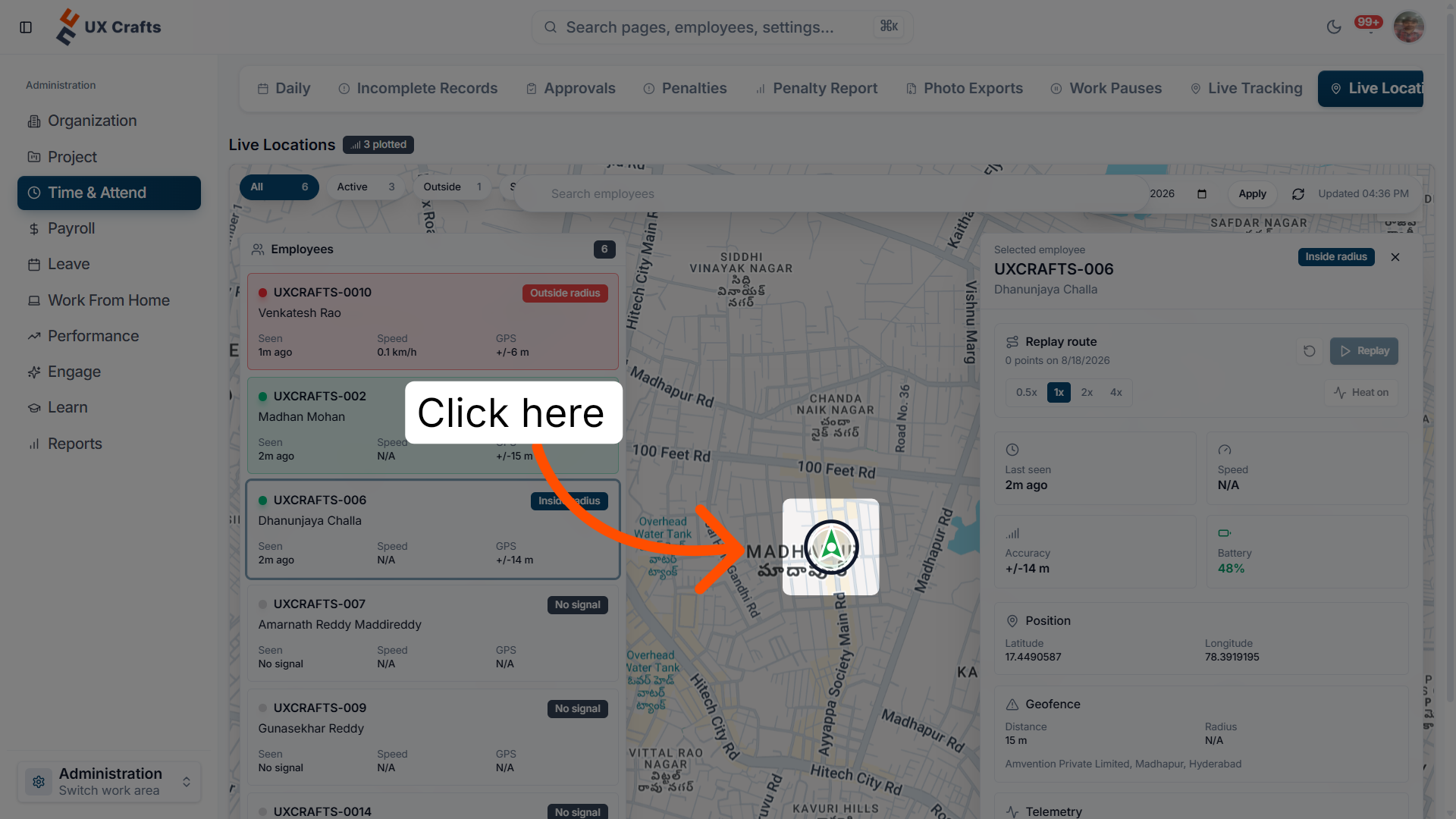
15. Access employee locations
Click here to view the current live locations of employees within the Ninerole system.
You have successfully navigated Ninerole's attendance management features, reviewed out-of-bounds records, added notes, and saved your review. Next, you can explore additional reporting or configure attendance settings for your organization.
Back to Attendance · all modules · Ninerole HRMS overview
Last updated: