

Track, Log and Manage Employee Performance Progress
This tutorial shows how to track, log and manage employee performance progress in Ninerole HRMS. You will learn to navigate the key sections and update goal statuses to keep performance records accurate.
Before you start, go to ninerole.com and sign in.
Performance lives in the My Work area and has six tabs: My Progress, My Goals, Continuous Tracking, Self Review, Outcomes and My PIP. This guide walks through all of them.
About this task
- Purpose
- Log daily progress against goals, record achievements and manager notes, and work through self review, outcomes and your PIP.
- Who can do this
- Employee for your own progress; Manager for notes on your reports
- Before you start
- A performance cycle and template are assigned to you.
- You will need
- The goal or target, your completion percentage, and what you did.
- Result
- Progress, achievements and notes are recorded on the performance timeline.
- This unlocks
- A reviewable history for the cycle, feeding self review and outcomes.
This guide answers
- How do I log progress against a goal?
- How do I add an achievement?
- How does a manager add a note?
- Where is my self review?
- What is My PIP?
If something goes wrong
- No goals appear.
- A cycle and template have to be assigned to you first. Ask HR.
- You cannot add a manager note.
- Manager notes are for your direct reports only.
Related: Cycles & templatesAlso called: goal tracking, continuous feedback, performance timeline.Last verified: 7 September 2026
1. Introduction
You will learn to navigate the key sections and update goal statuses to maintain accurate performance records.
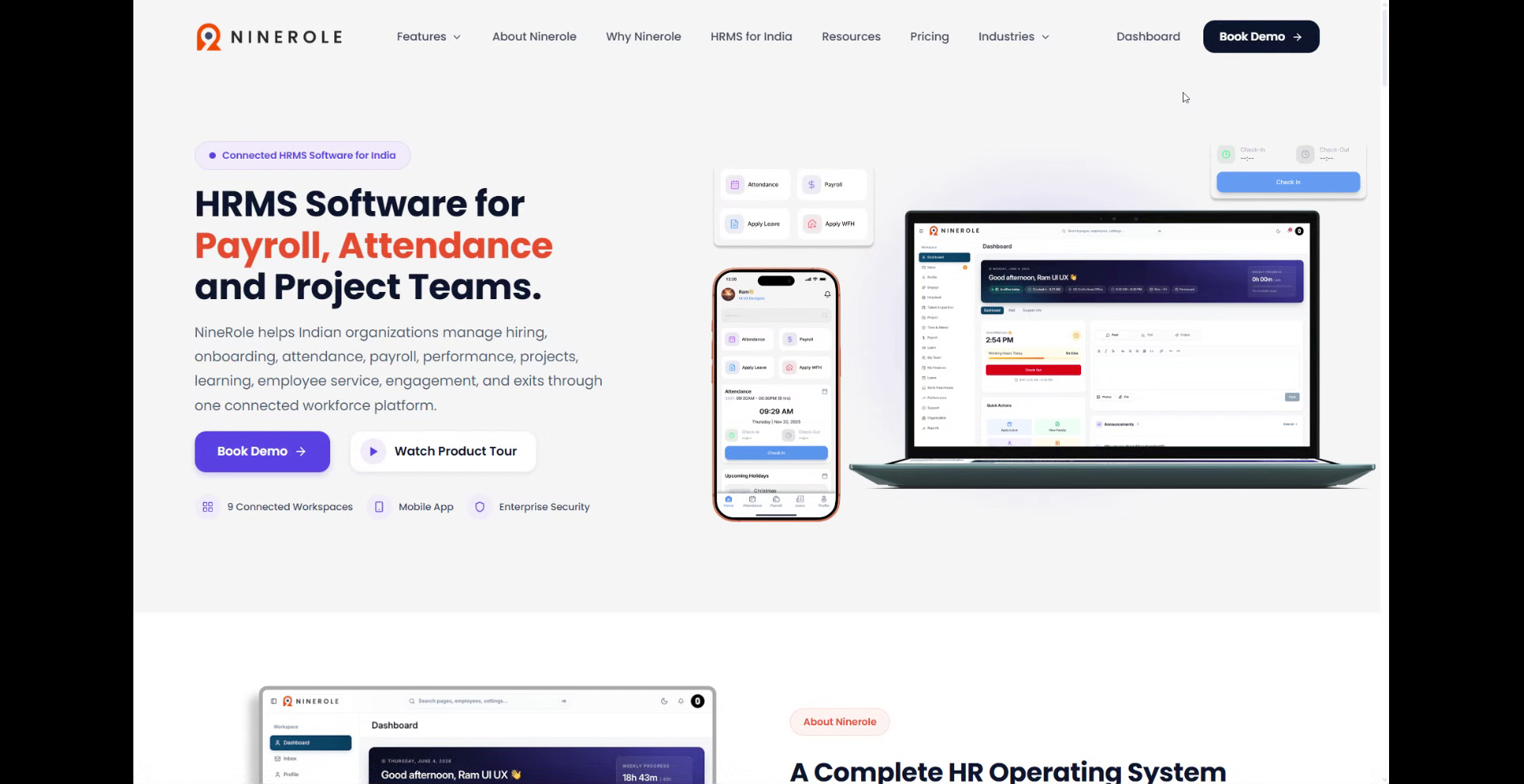
Open your performance workspace
2. Access the dashboard overview
Open the Dashboard for an overview of your employee journey and key metrics.
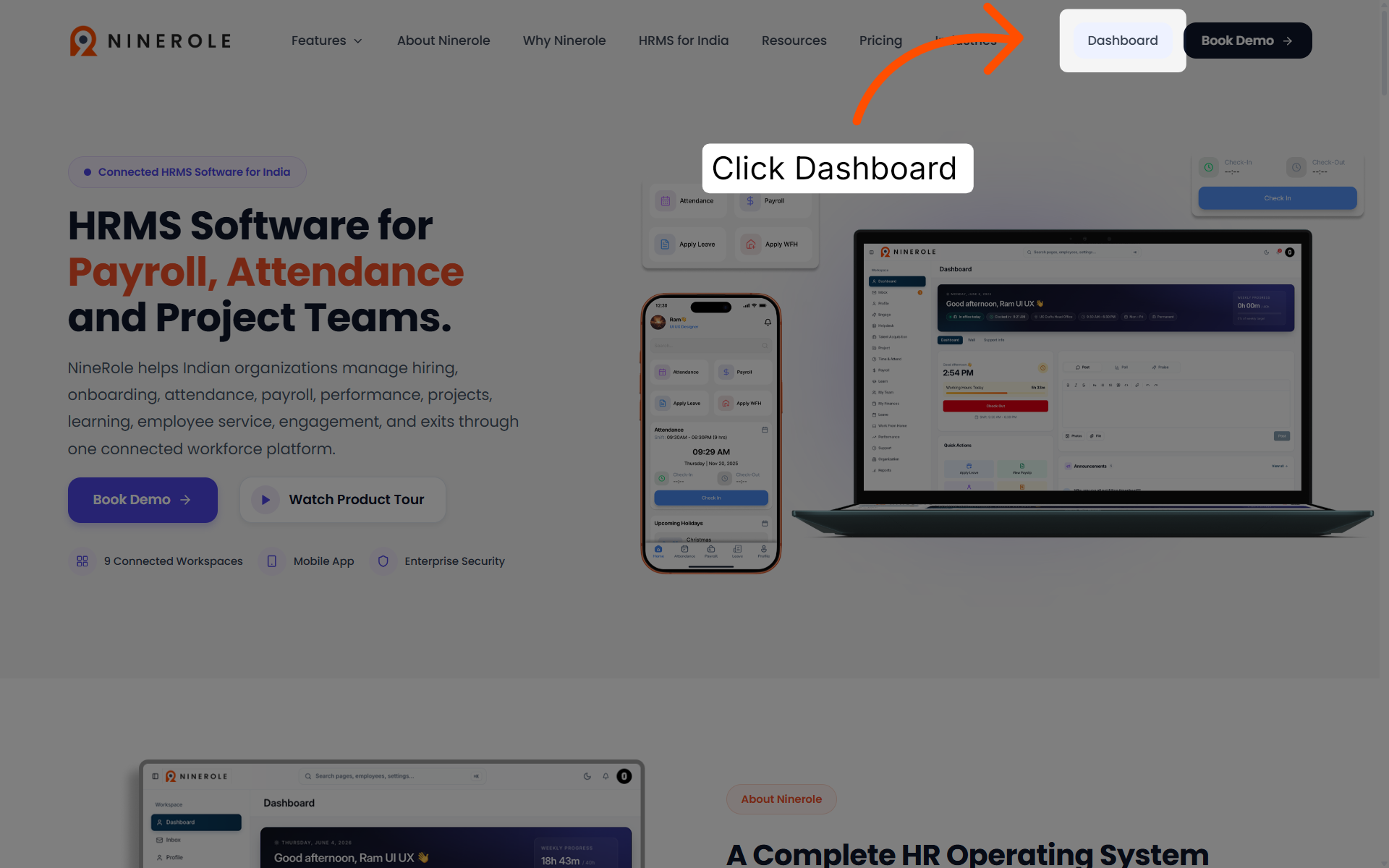
3. Switch to the My Work area
Use the workspace switcher at the bottom of the sidebar and select My Work.
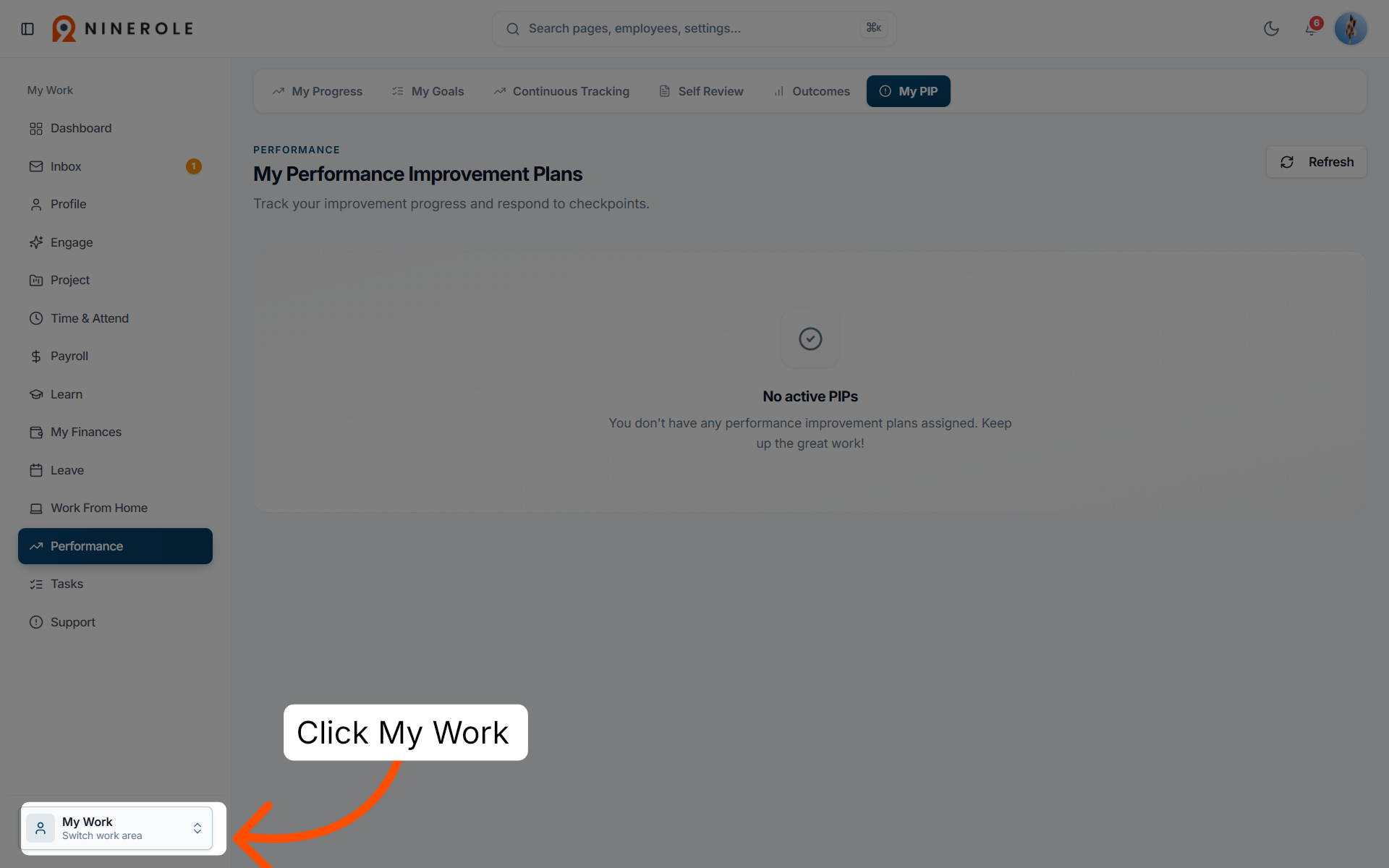
4. Open the Performance section
Open Performance to review progress and performance data.
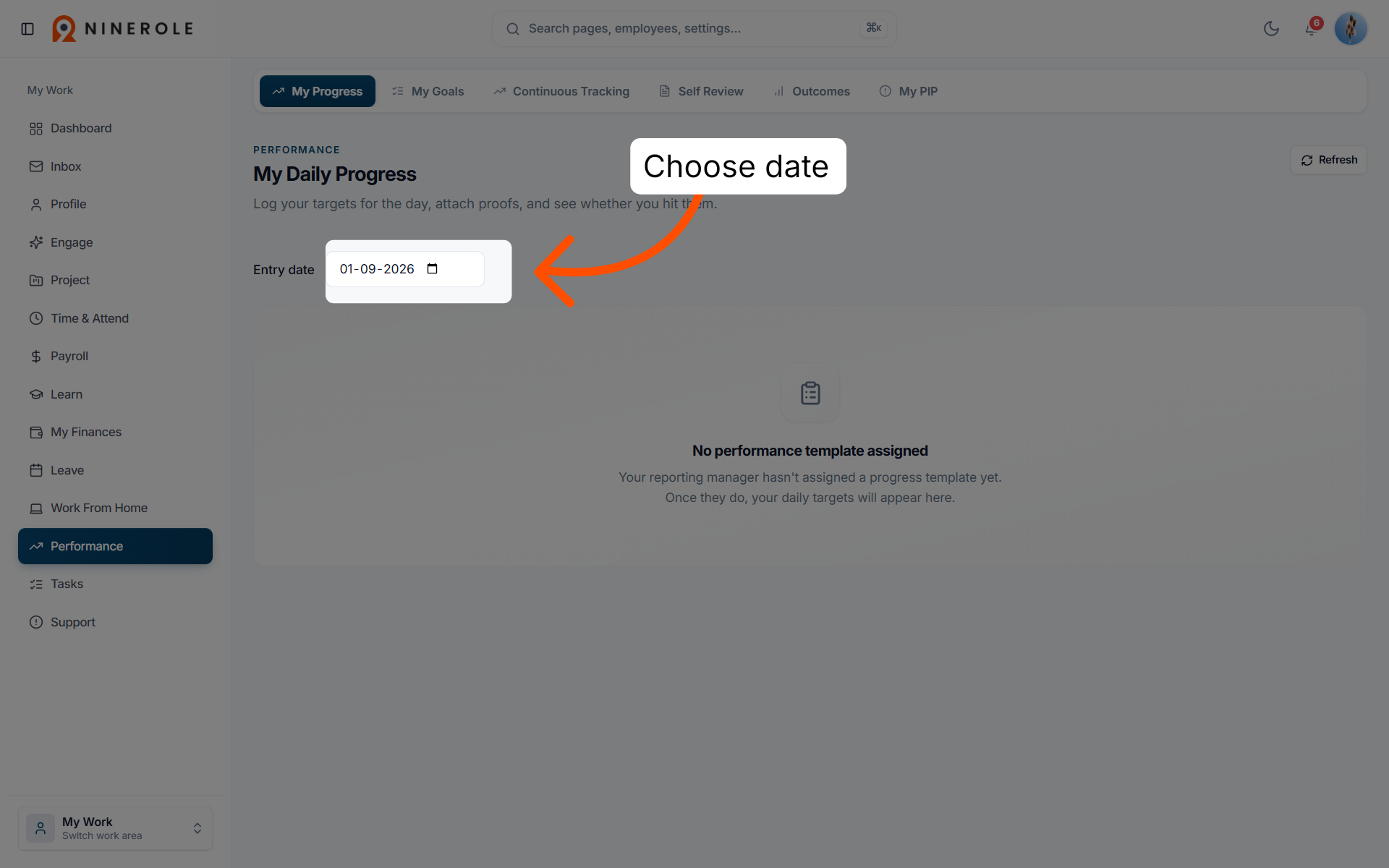
5. Select a specific date
On My Progress, choose a date to see the daily progress detail for that day.
Log daily progress against a goal
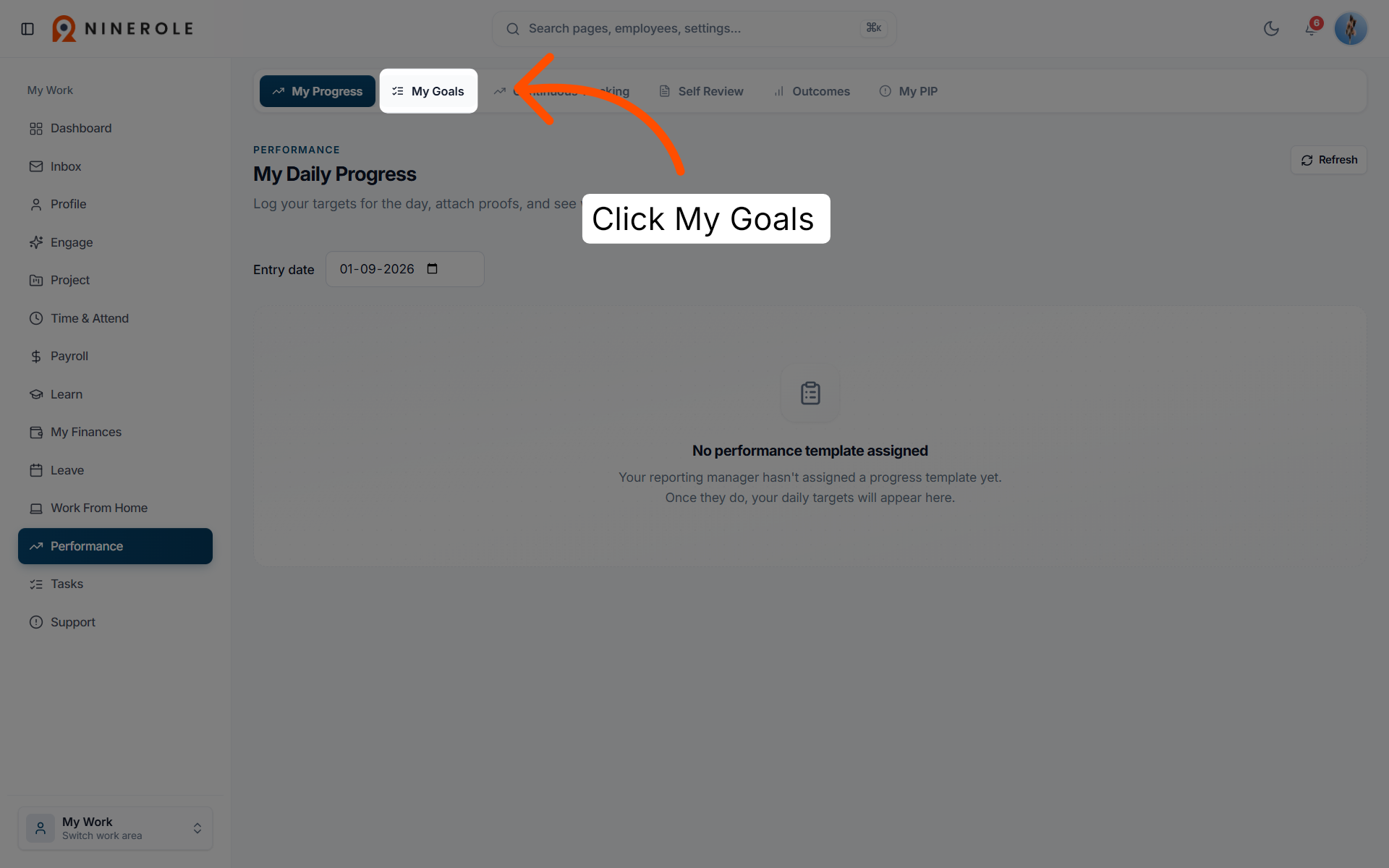
6. Open My Goals
Open the My Goals tab to monitor and manage your individual objectives.
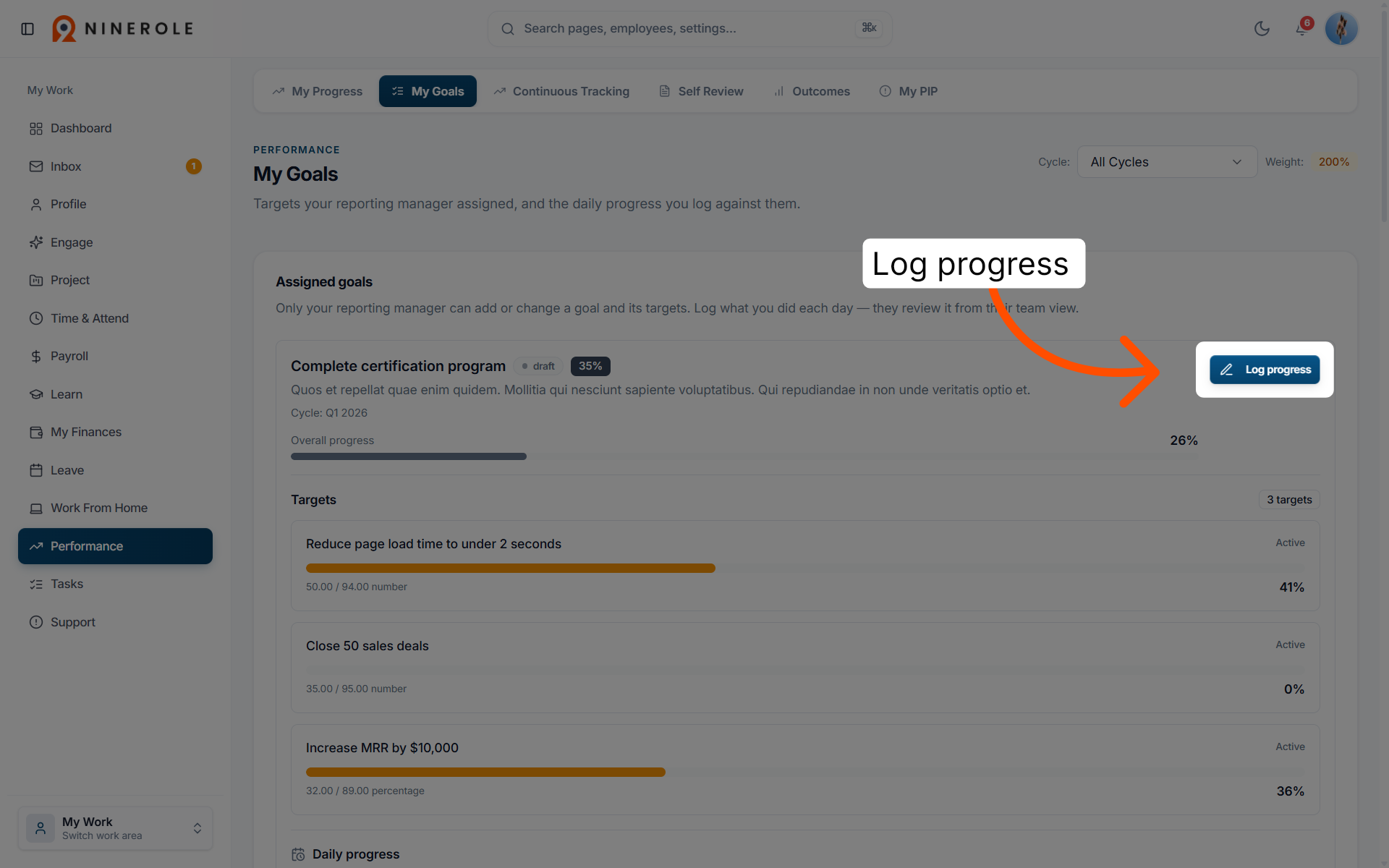
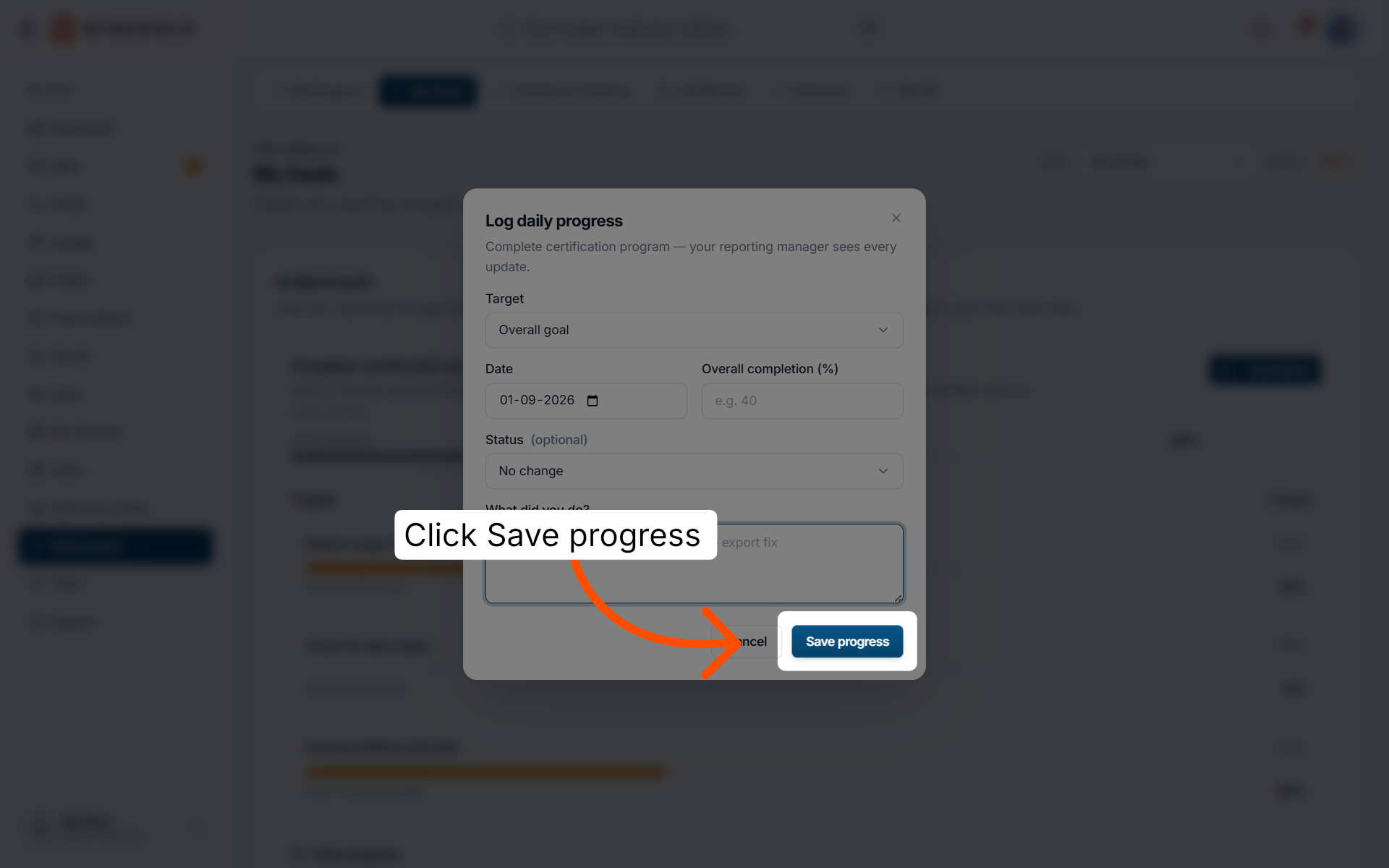
7. Start logging progress
Click Log progress on a goal to open the Log daily progress dialog and update its status.
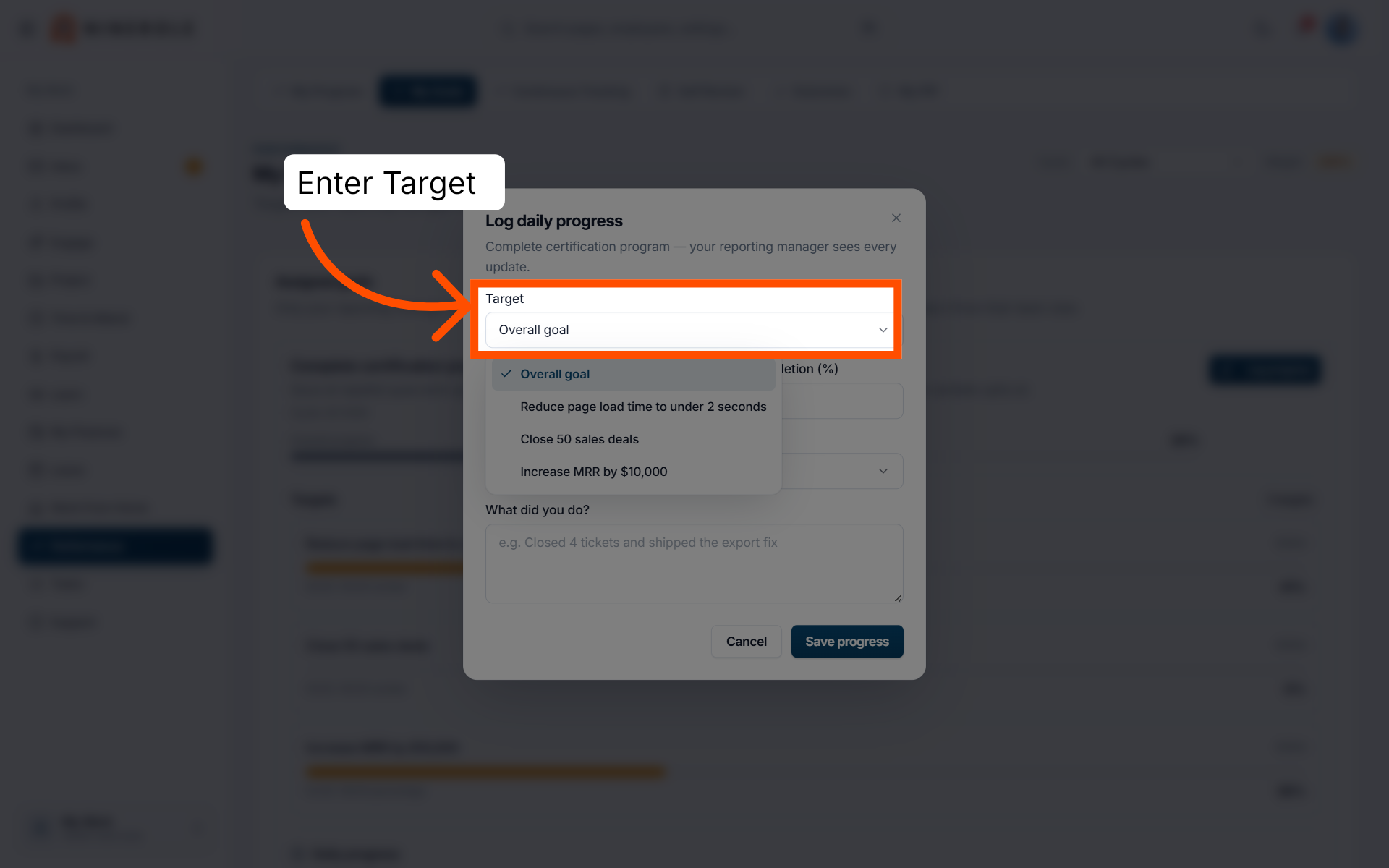
8. Choose the target
Open the Target dropdown and pick what this update applies to — the overall goal, or one of its individual key results.
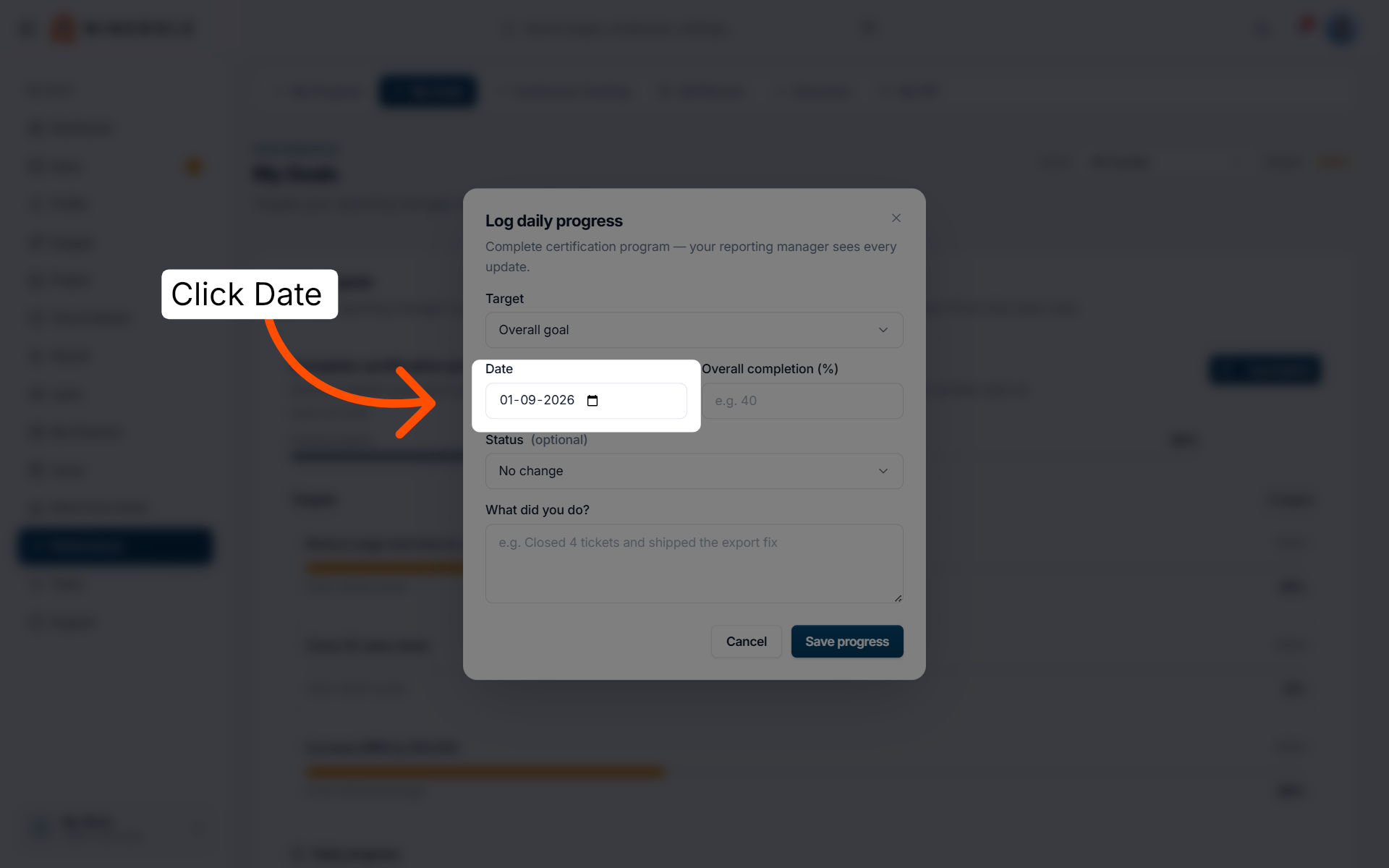
9. Set the progress date
Set the Date so the update reflects your actual work timeline.
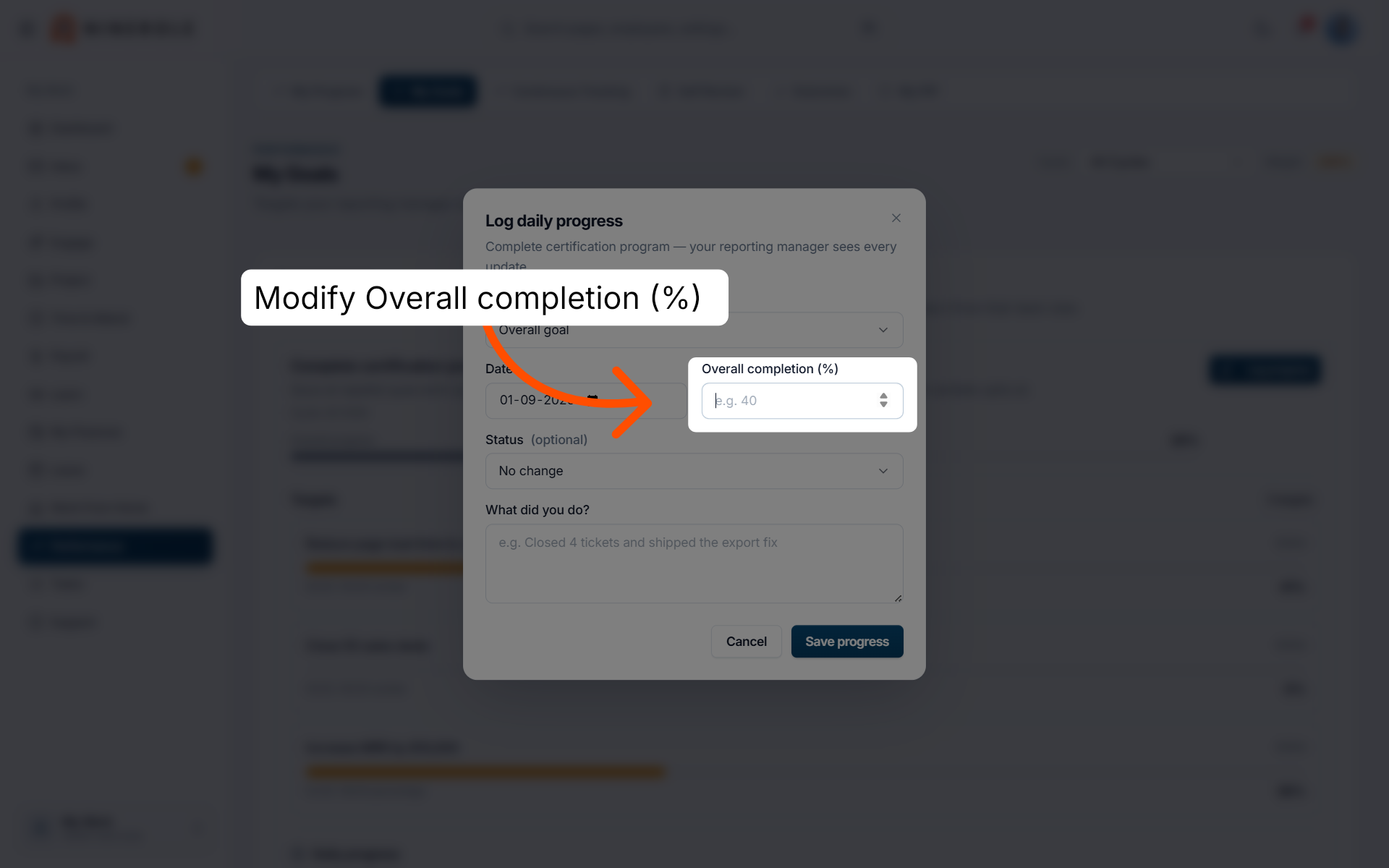
10. Enter the completion percentage
Enter the Overall completion (%) to show how much of the goal is finished.
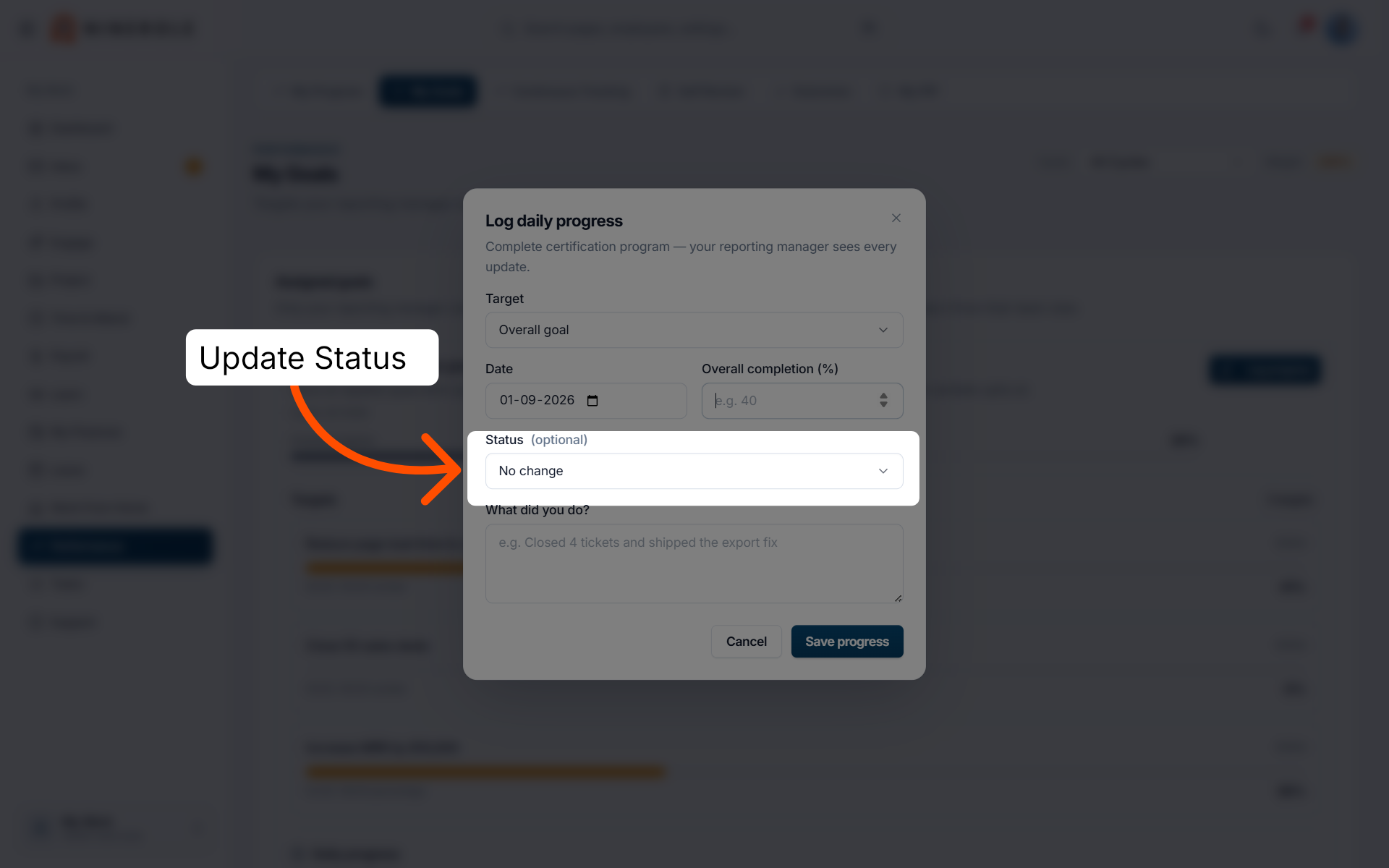
11. Update the status
Optionally set Status — leave it on No change if the goal's status is unchanged.
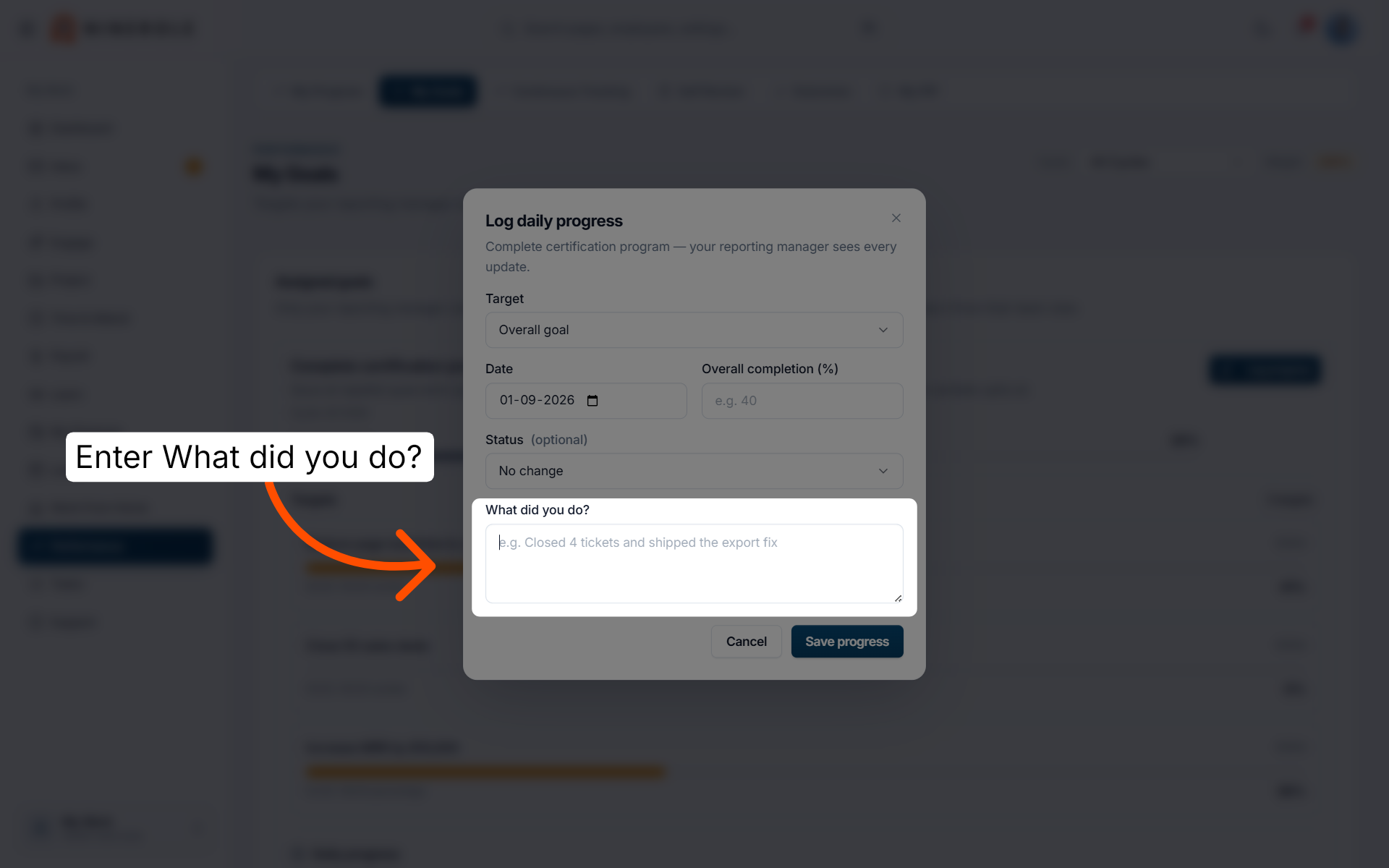
12. Describe what you did
Under What did you do?, describe the actions you took to advance the goal in this period.
13. Save the progress update
Click Save progress so the entry is recorded. Your reporting manager sees every update.
Filter the performance timeline
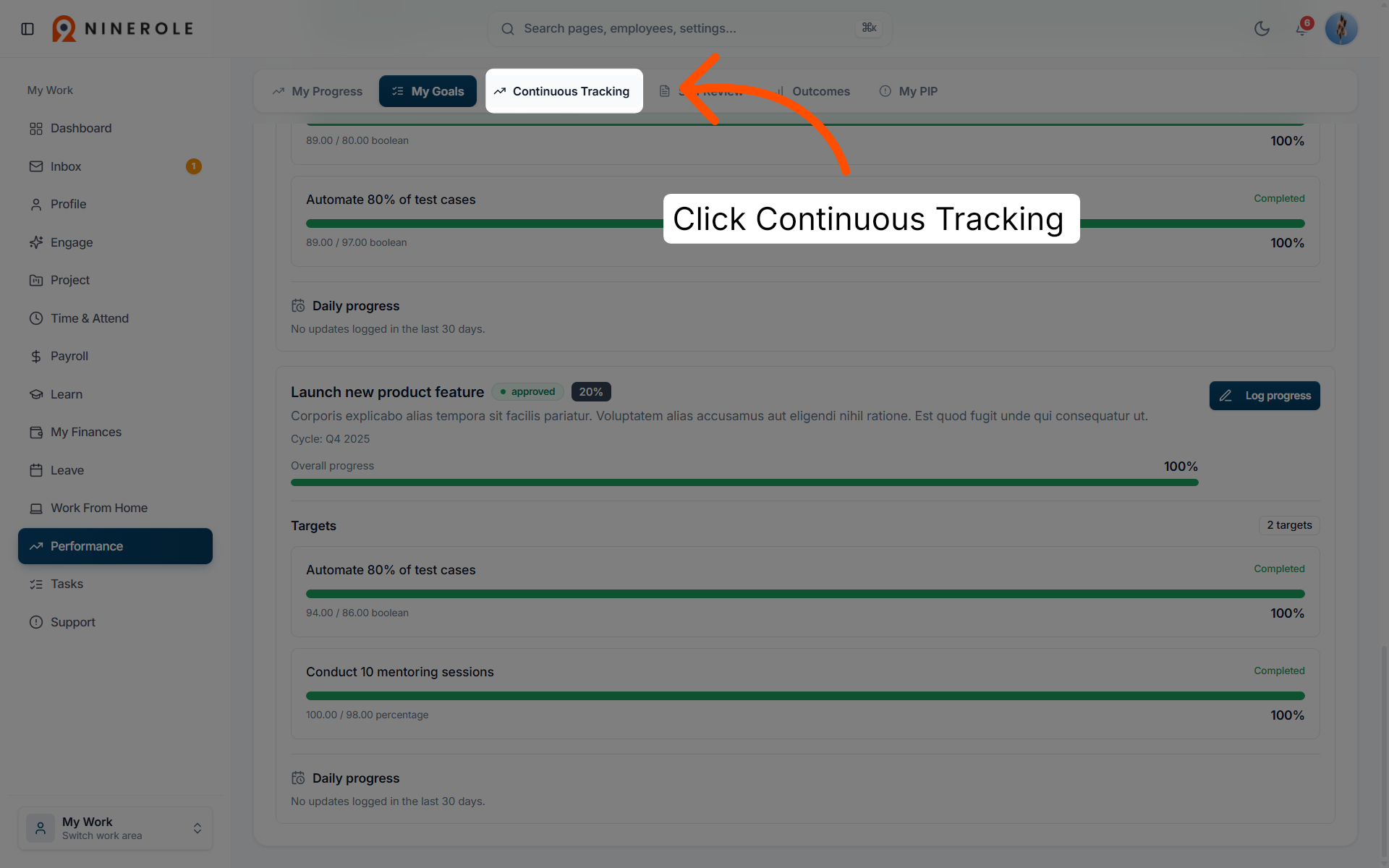
14. Open Continuous Tracking
Open the Continuous Tracking tab. The Performance Timeline collects achievements, notes and ratings in one place.
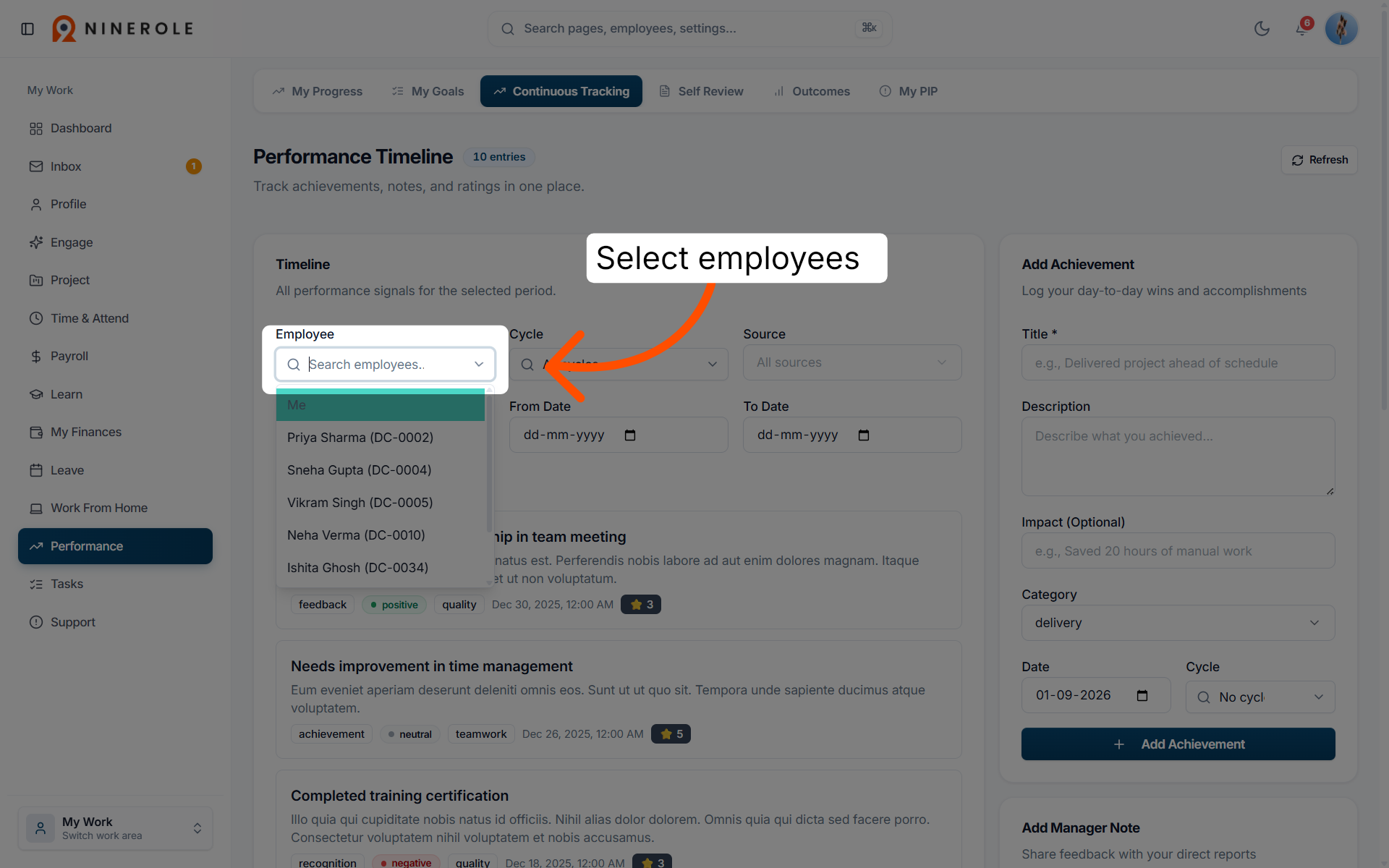
15. Filter by employee
Use the Employee filter to find a specific person's entries on the timeline.
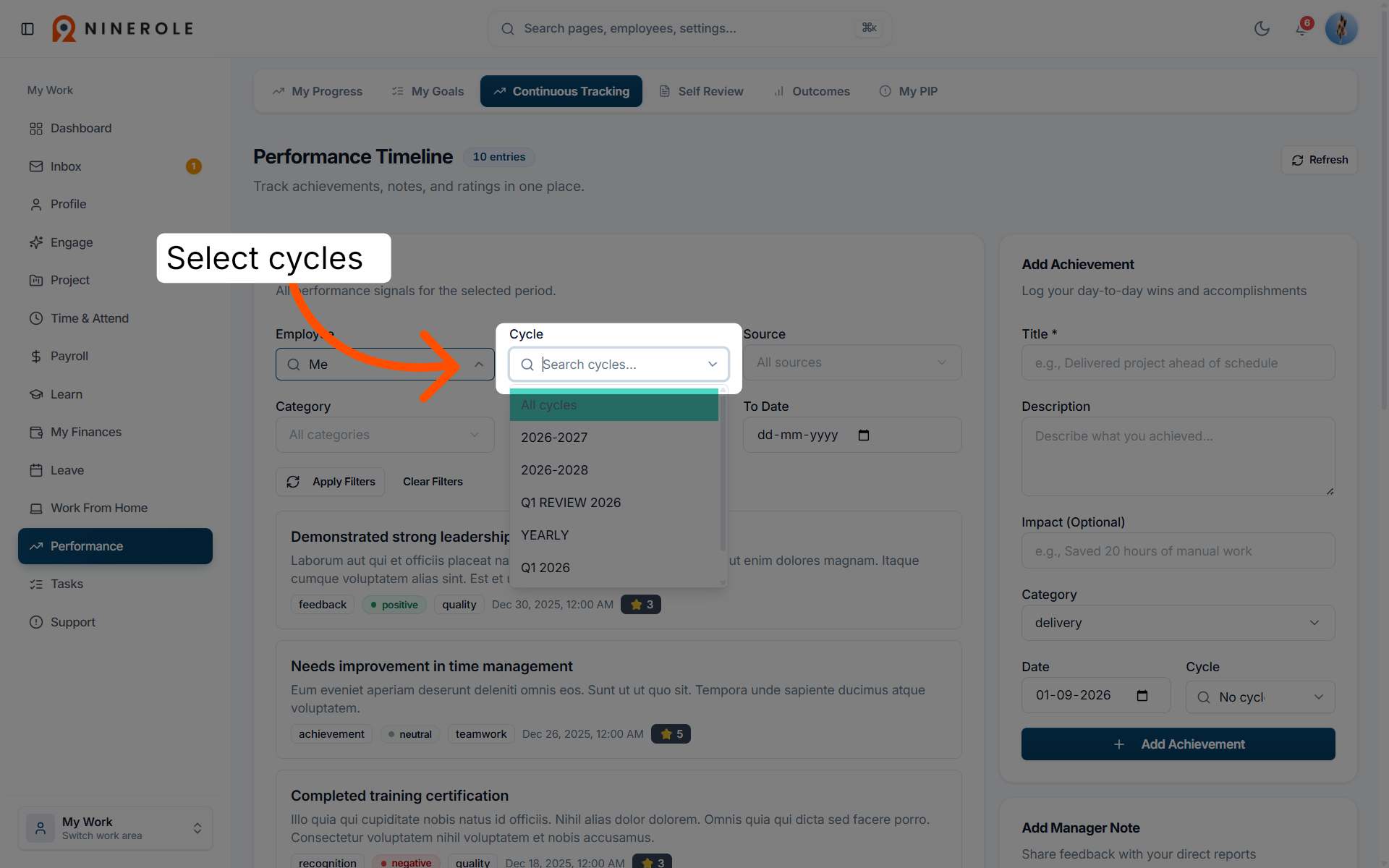
16. Filter by cycle
Use the Cycle filter to focus on a particular review period.
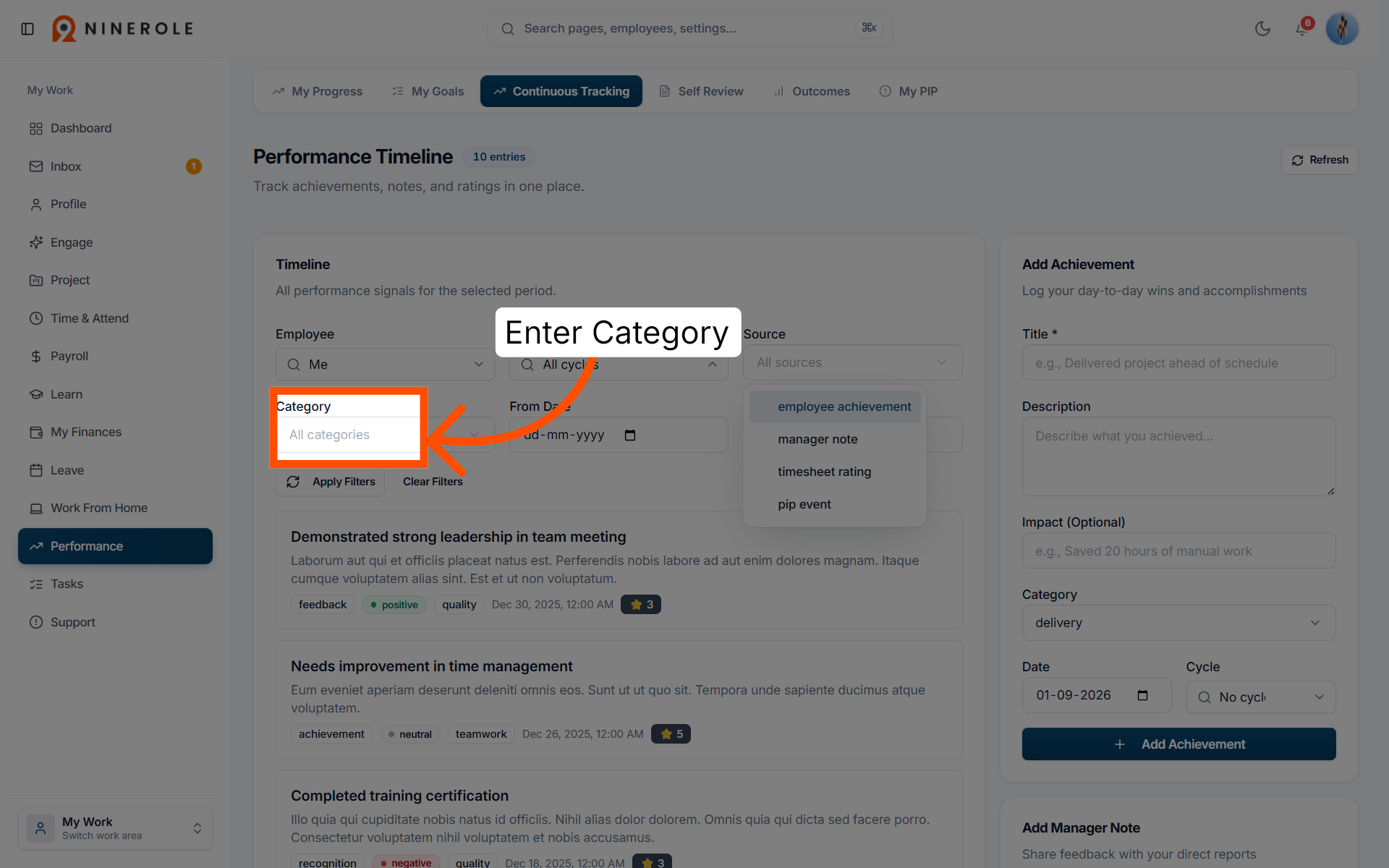
17. Filter by category
Use the Category filter to narrow the timeline to one type of entry.
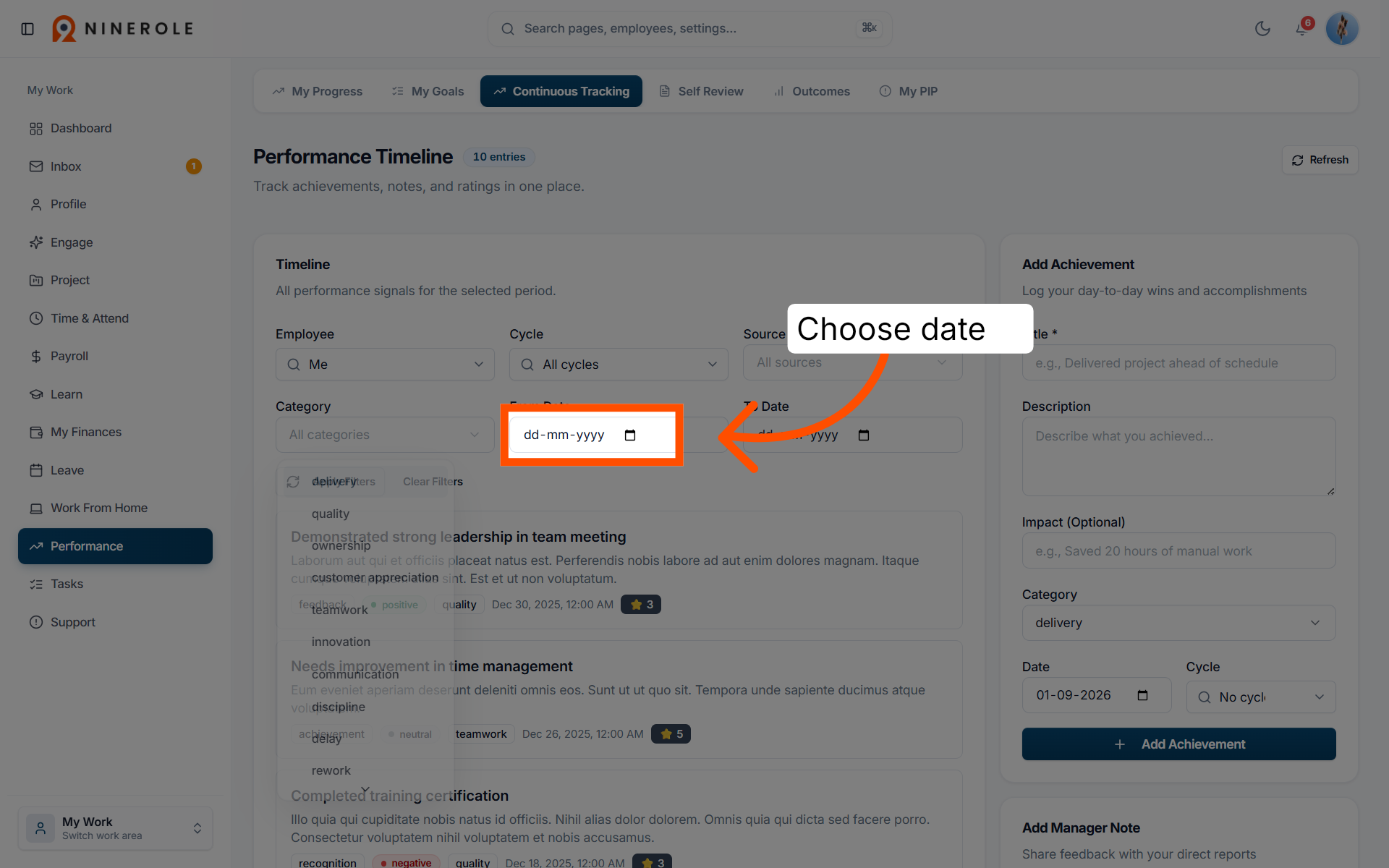
18. Set the from date
Set From Date to open the date range for the timeline.
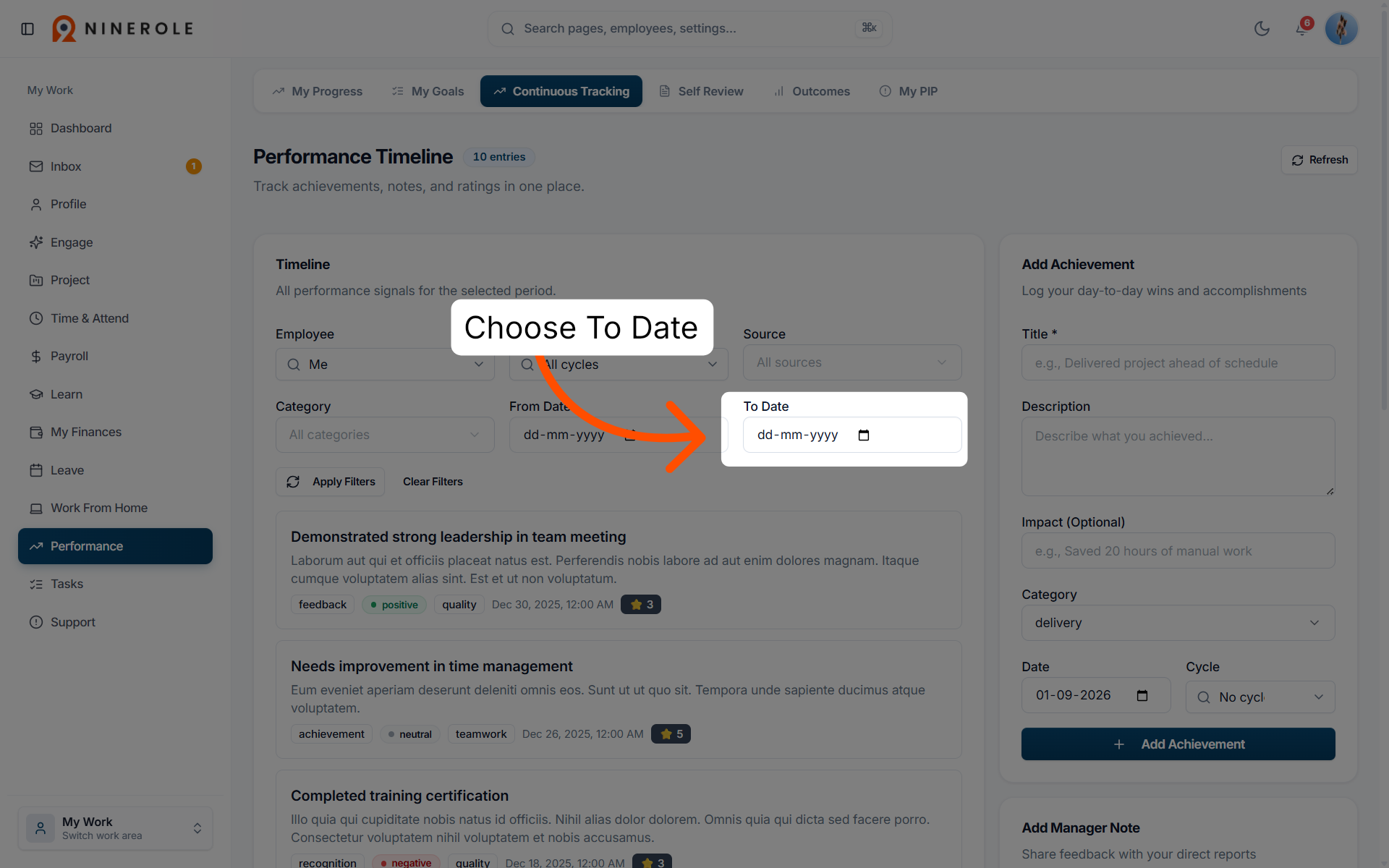
19. Set the to date
Set To Date to close the range, then click Apply Filters.
Add an achievement
The Add Achievement panel on the right logs your day-to-day wins and accomplishments.
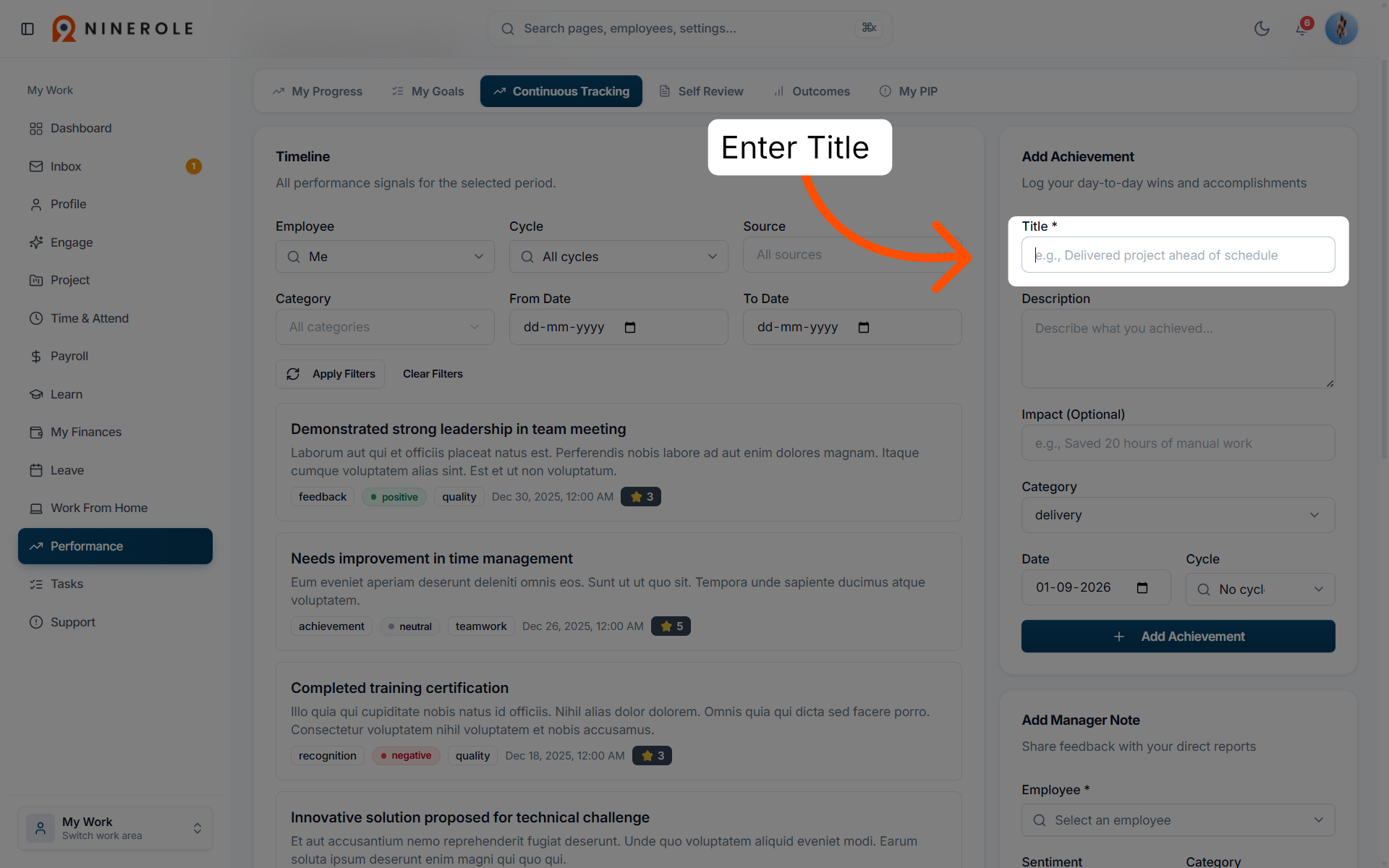
20. Enter the achievement title
Enter a Title for the achievement, for example "Delivered project ahead of schedule".
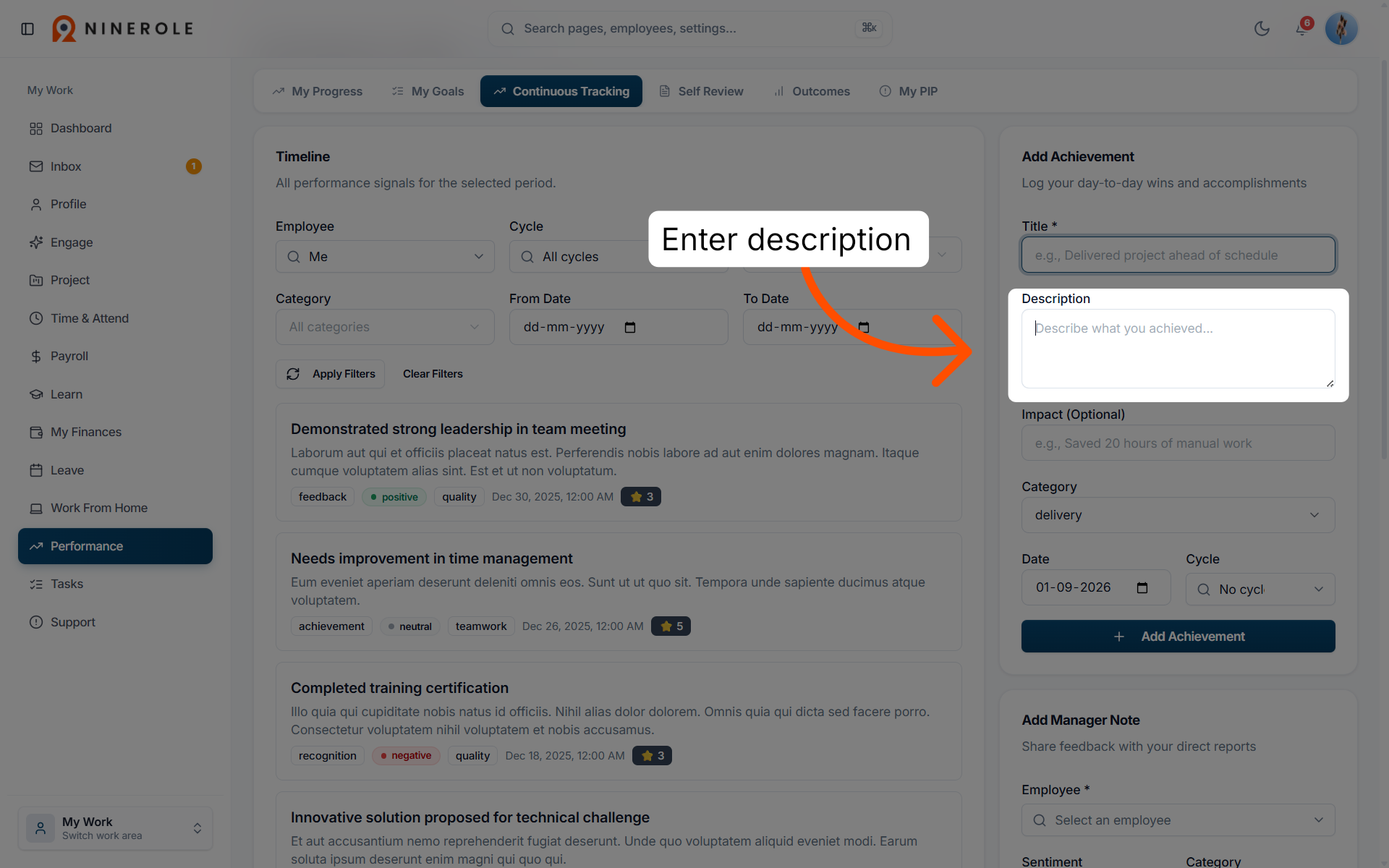
21. Describe the achievement
Enter a Description of what you accomplished to highlight your contribution.
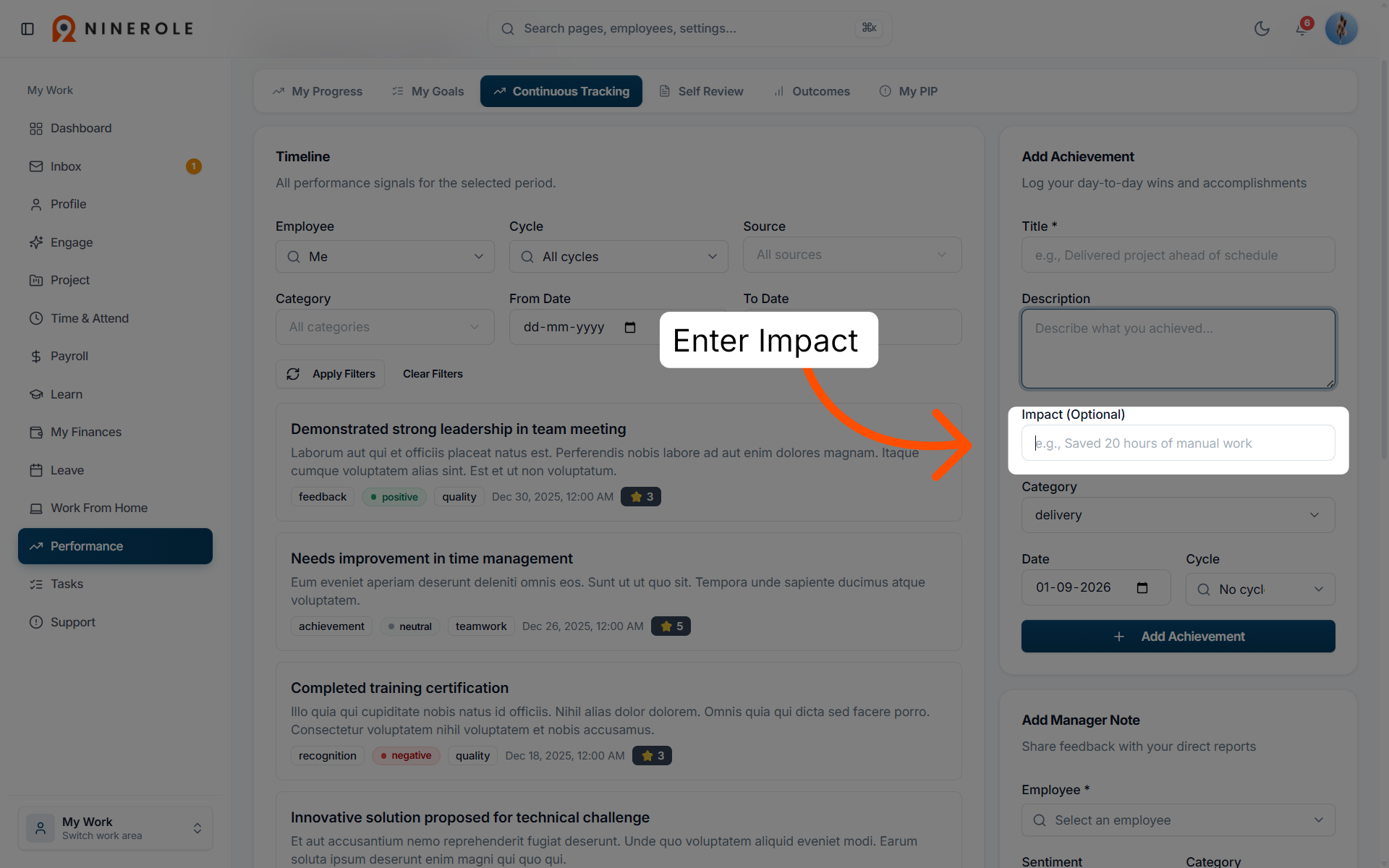
22. Record the impact
In Impact (Optional), record the effect it had — for example "Saved 20 hours of manual work".
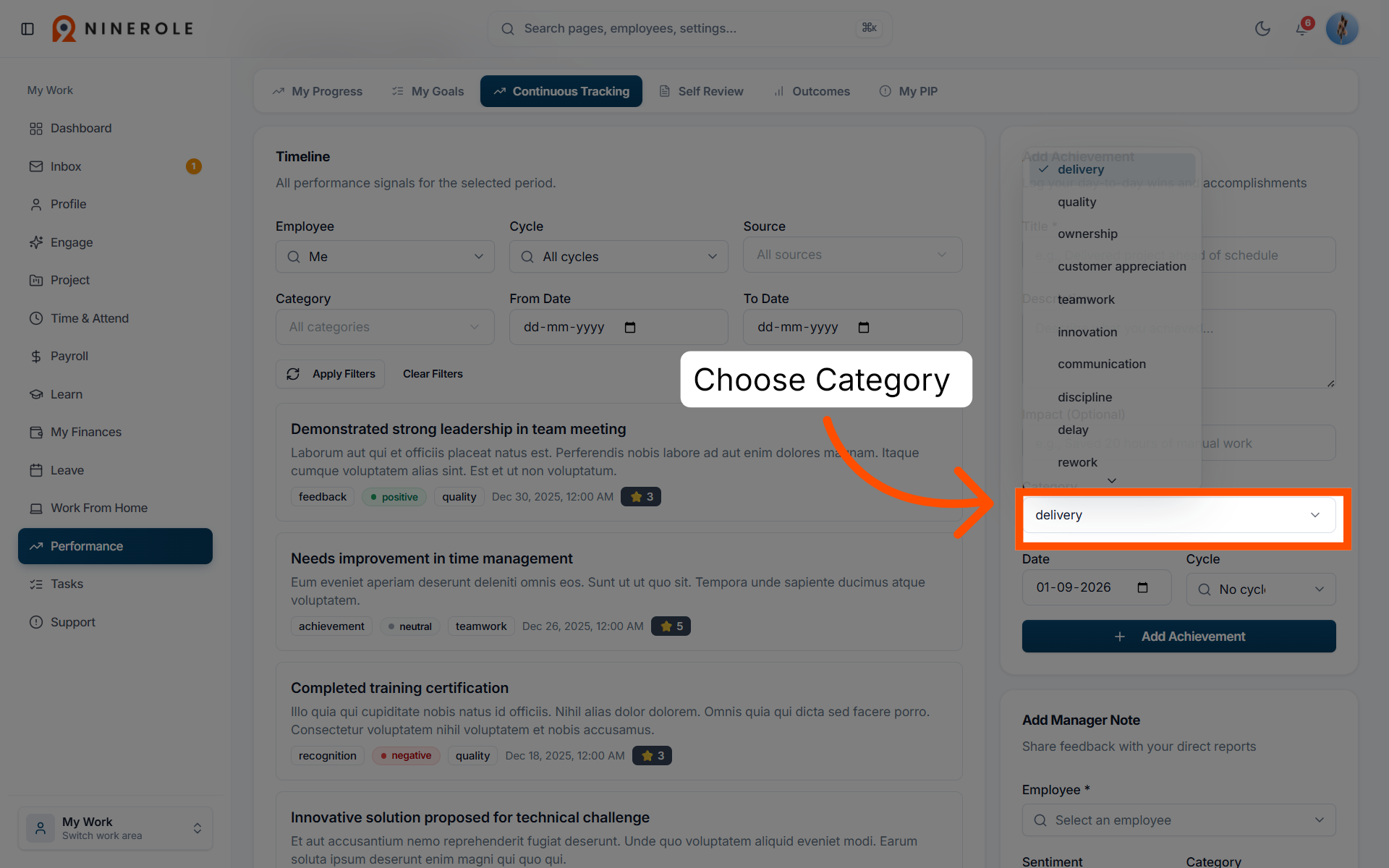
23. Choose the category
Pick a Category for the achievement, such as delivery or quality.
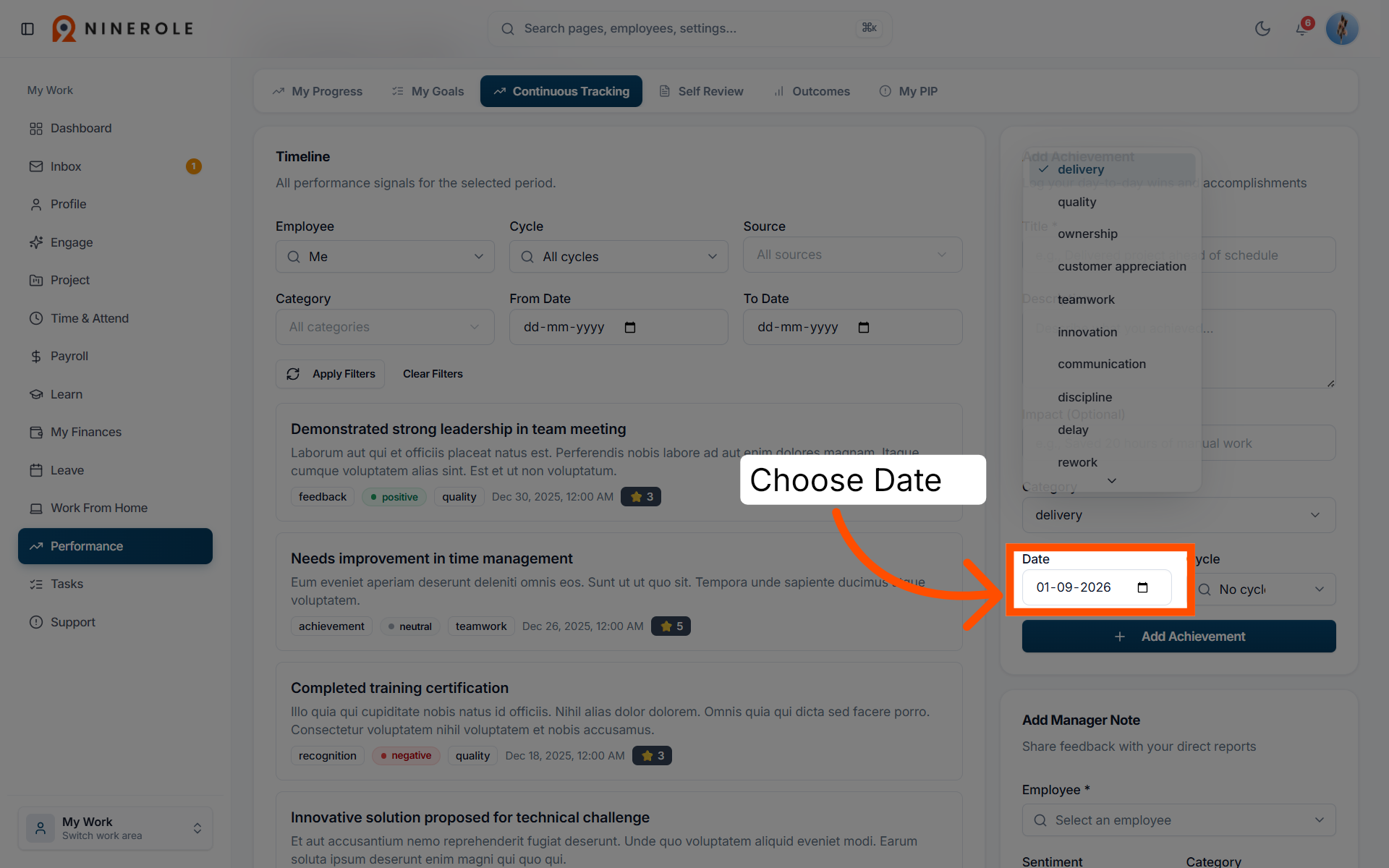
24. Choose the date
Set the Date the achievement belongs to.
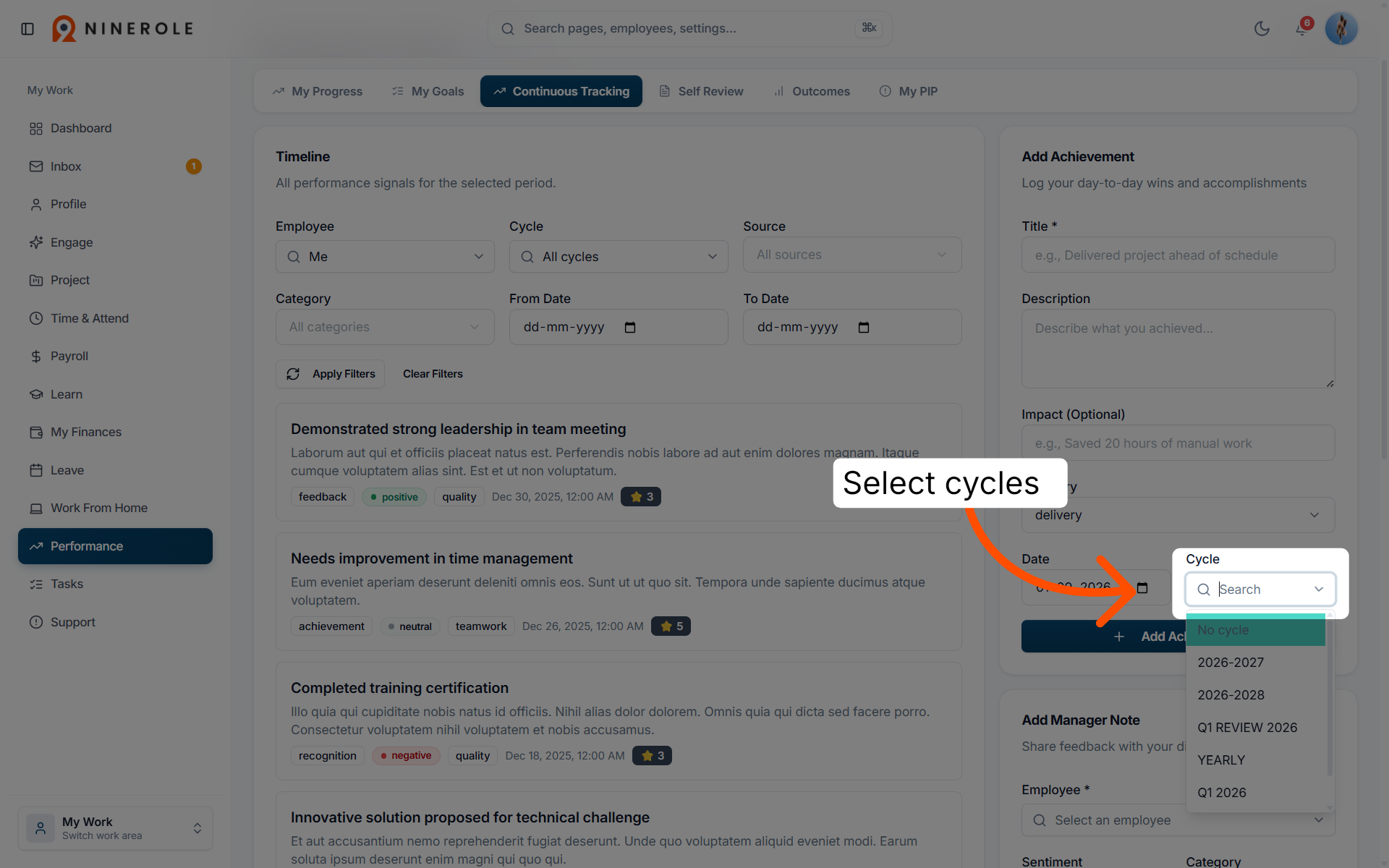
25. Choose the cycle
Use the Cycle search to attach the entry to a review period, or leave it as No cycle.
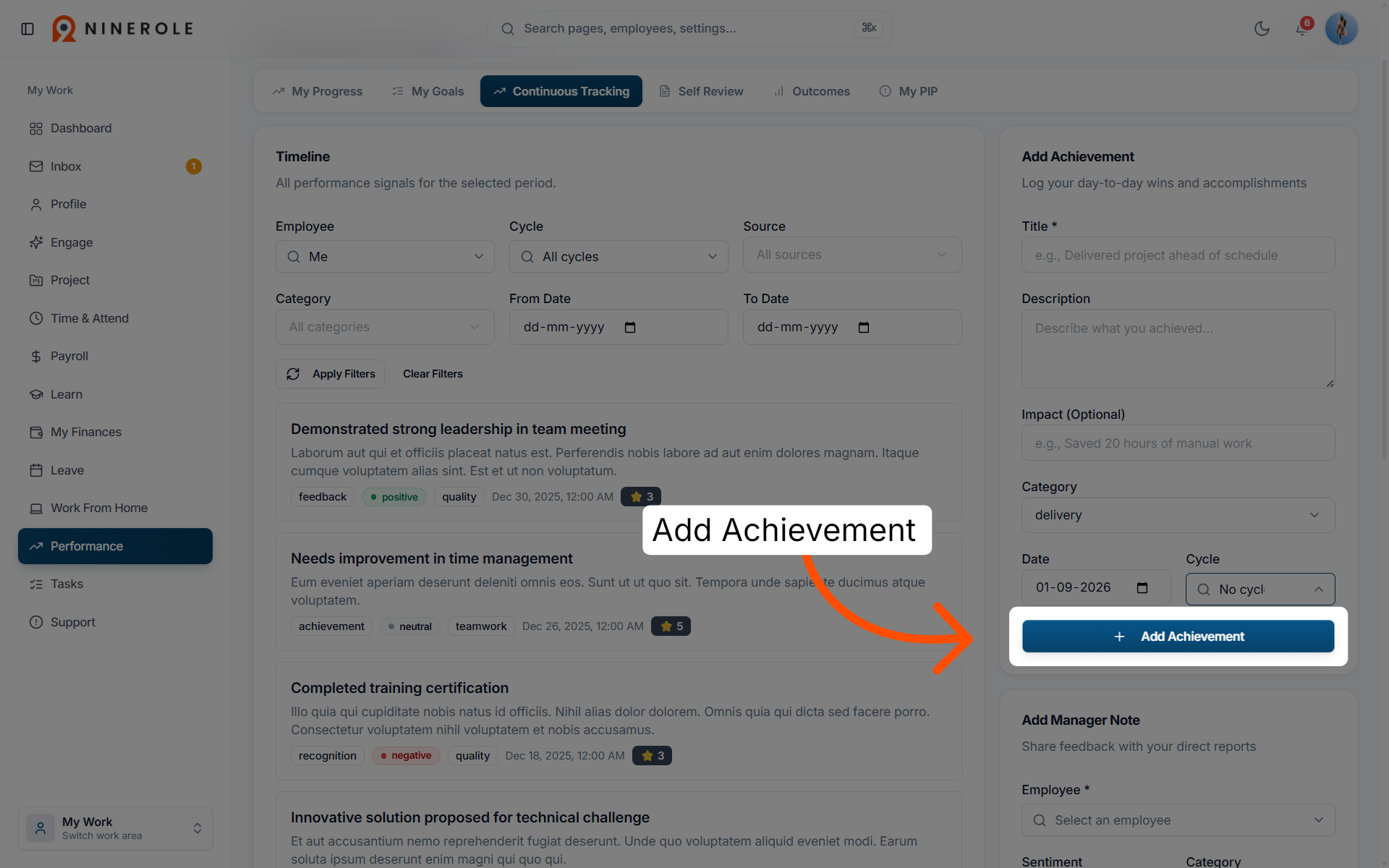
26. Add the achievement
Click Add Achievement to record the milestone on the timeline.
Add a manager note
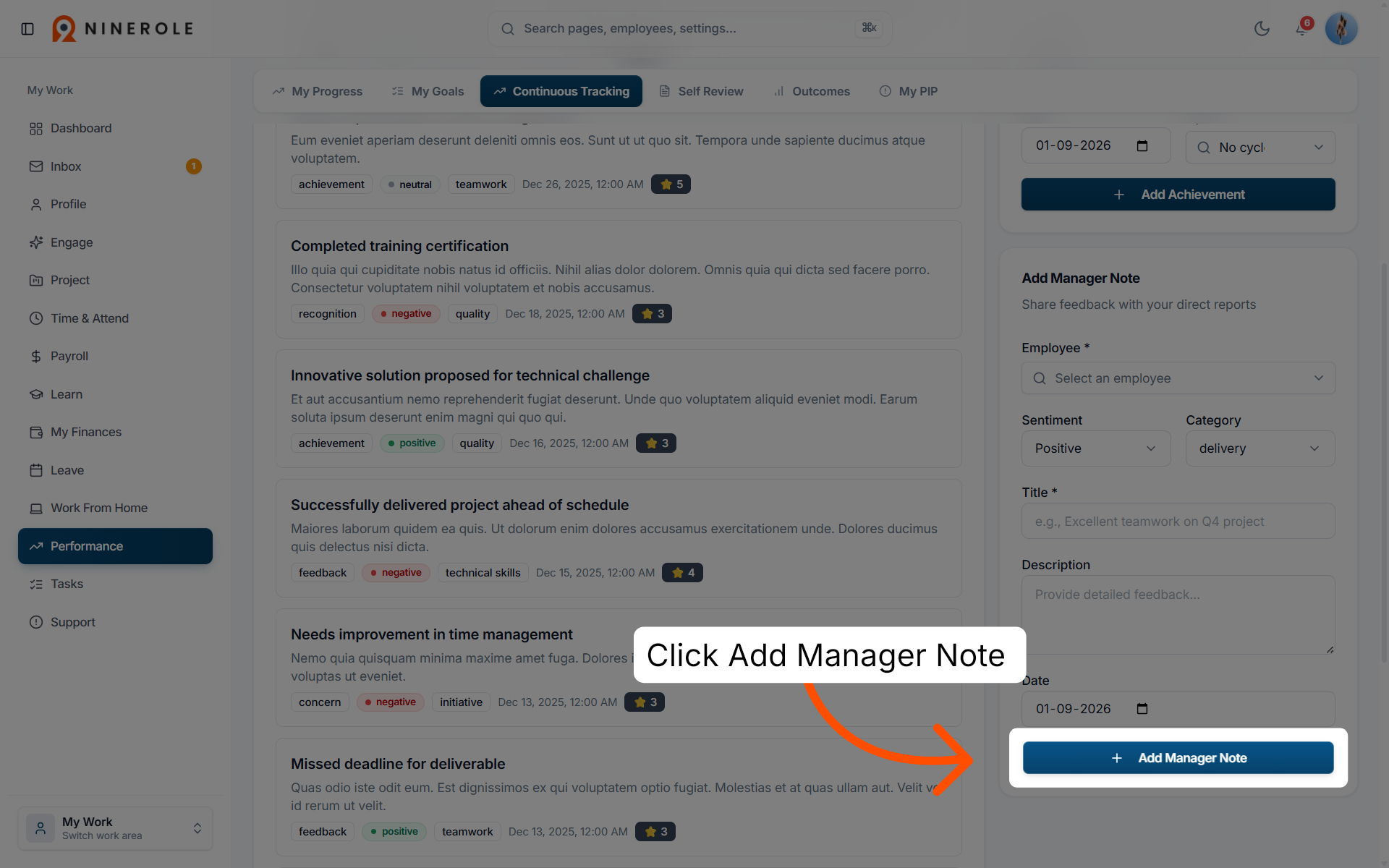
The Add Manager Note panel is how managers share feedback with their direct reports.
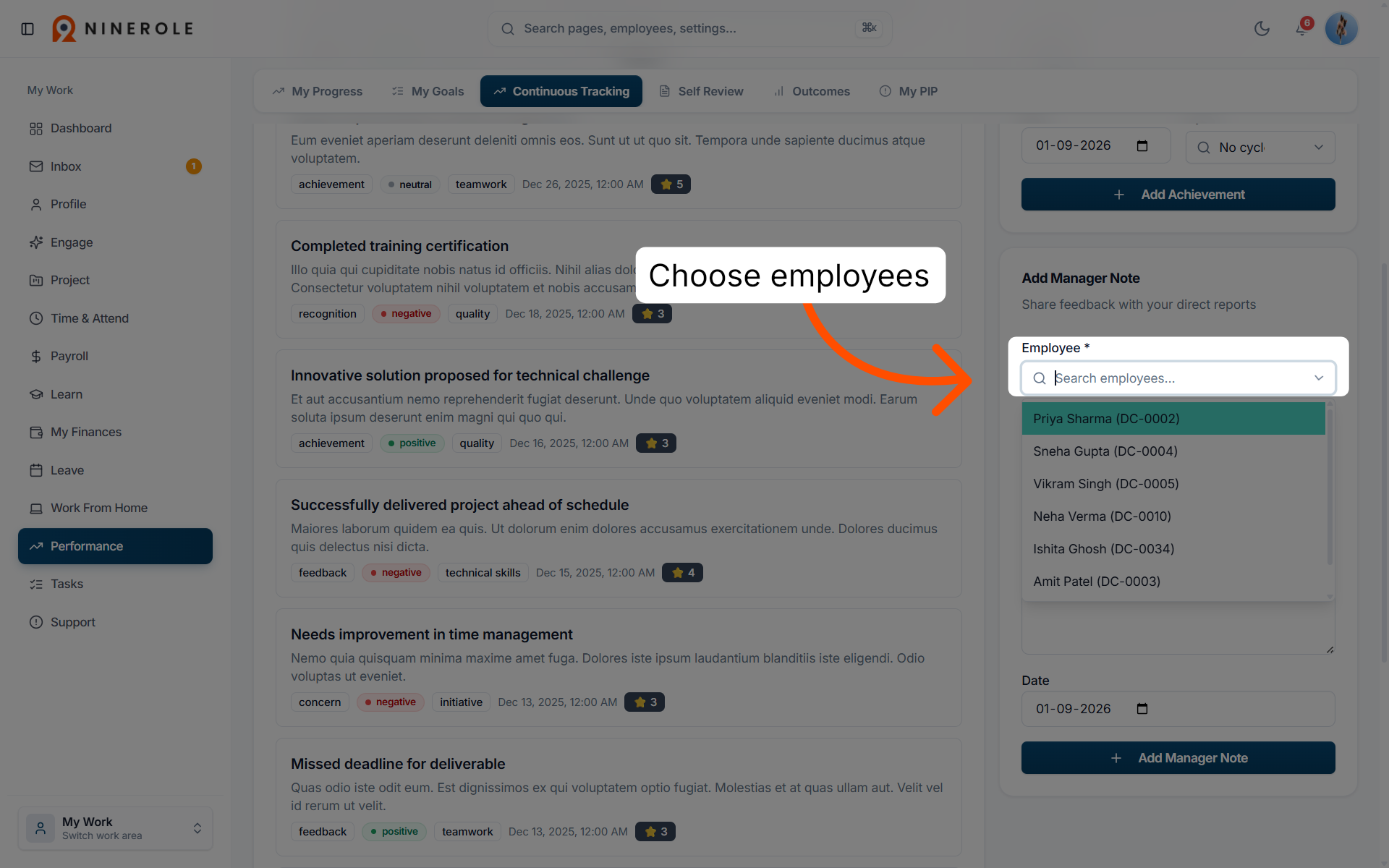
27. Select the employee
Choose the employee the note is about.
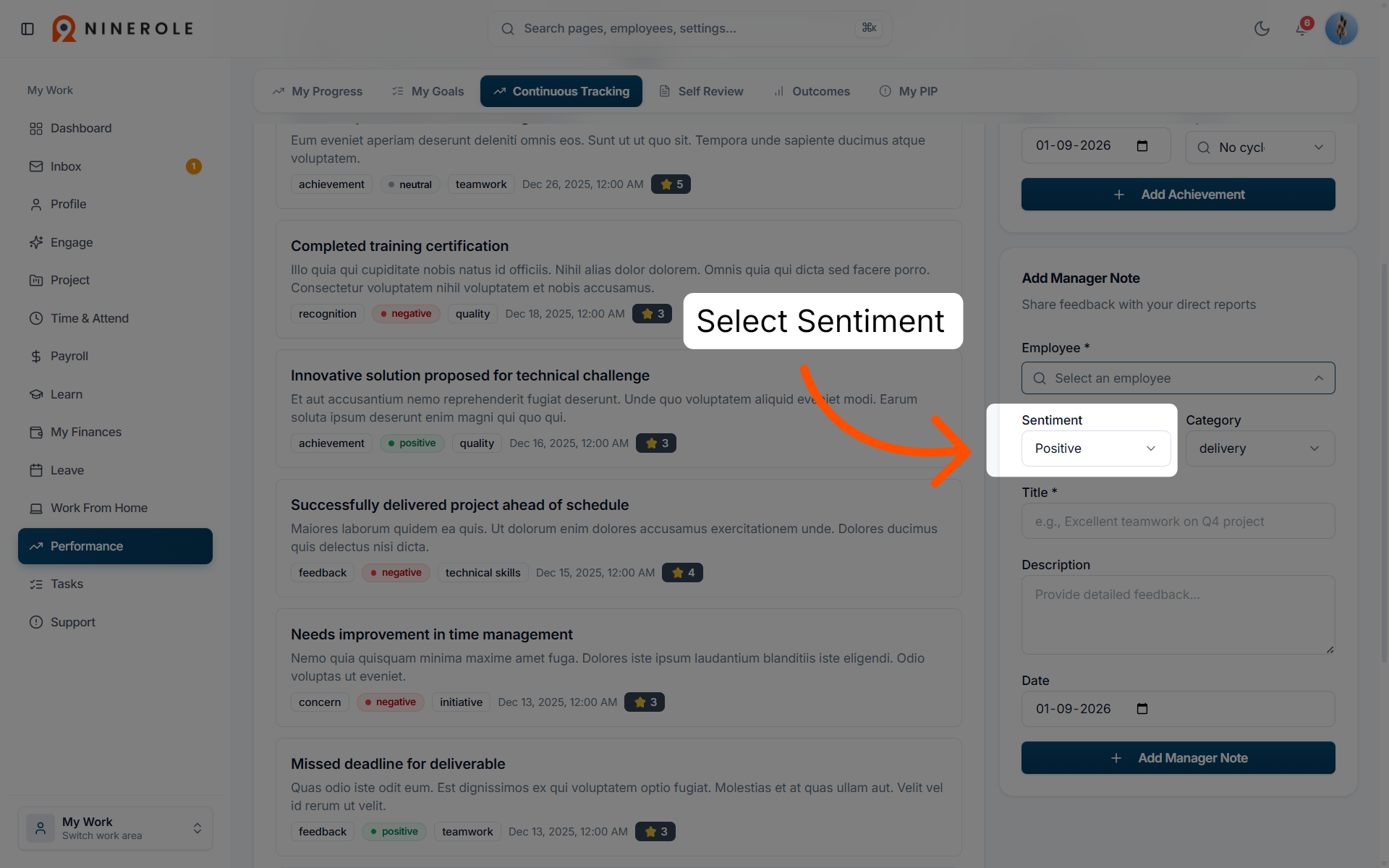
28. Select the sentiment
Set Sentiment — positive, neutral or negative.
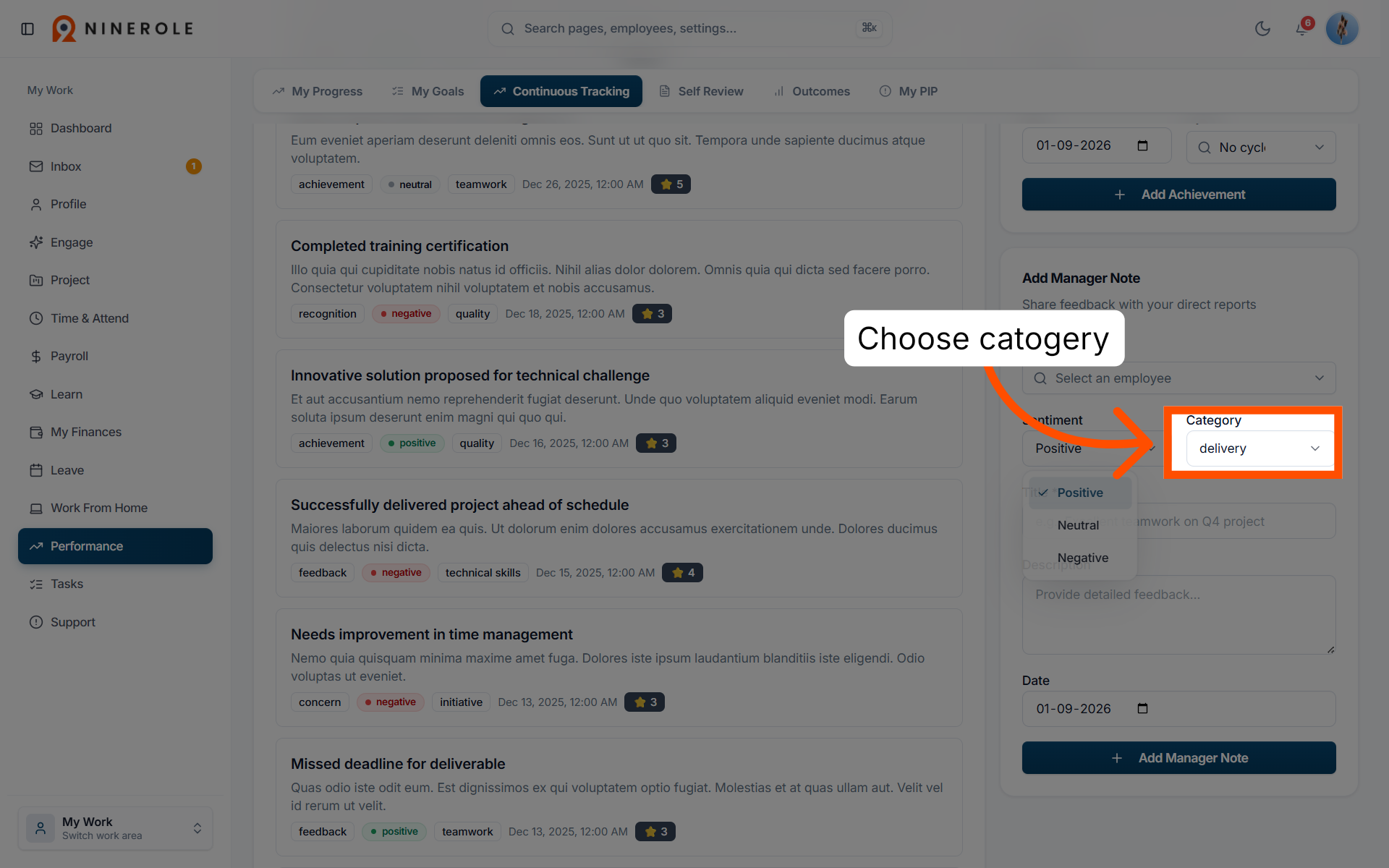
29. Choose the category
Pick the Category the note belongs to.
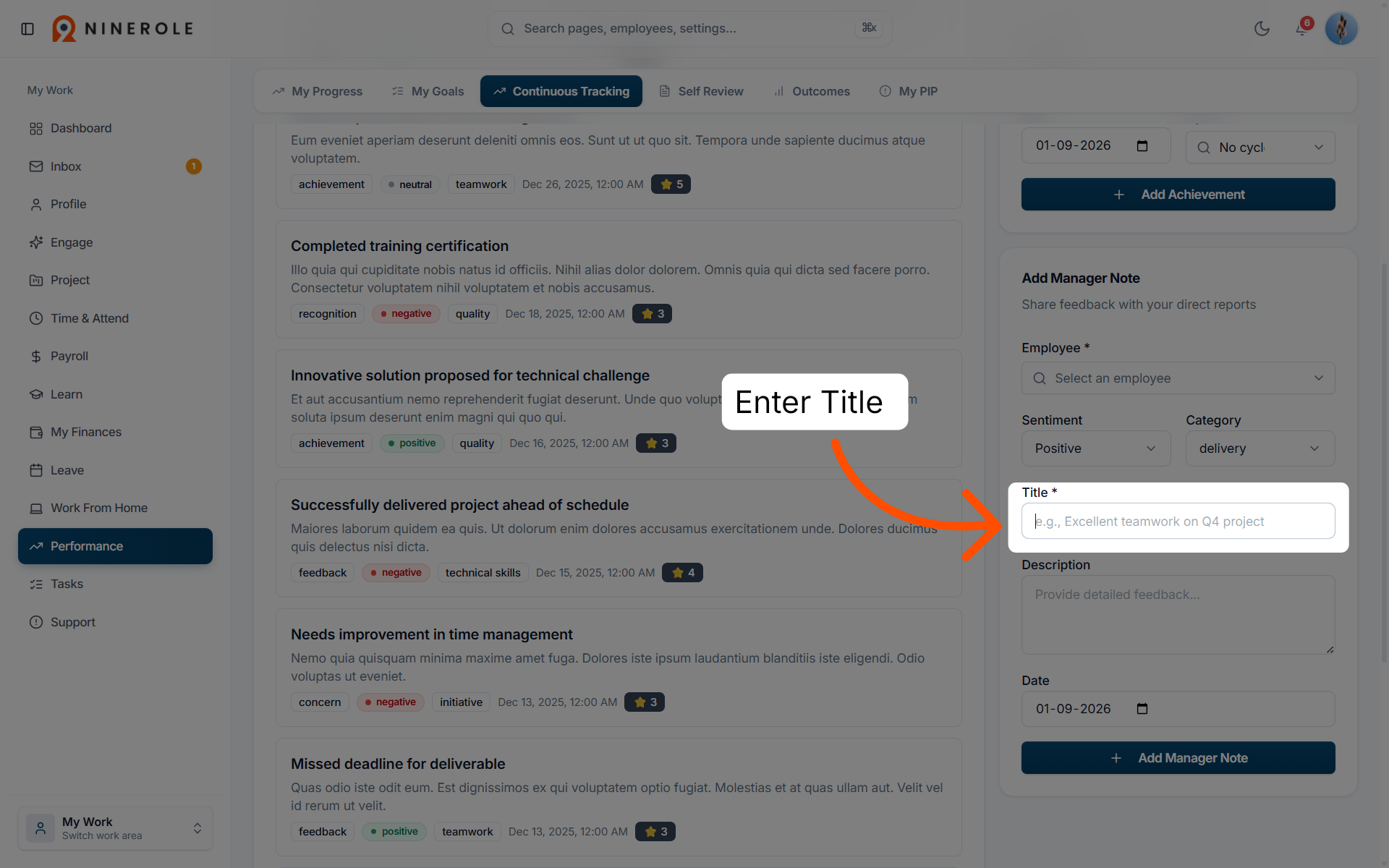
30. Enter the note title
Enter a Title, for example "Excellent teamwork on Q4 project".
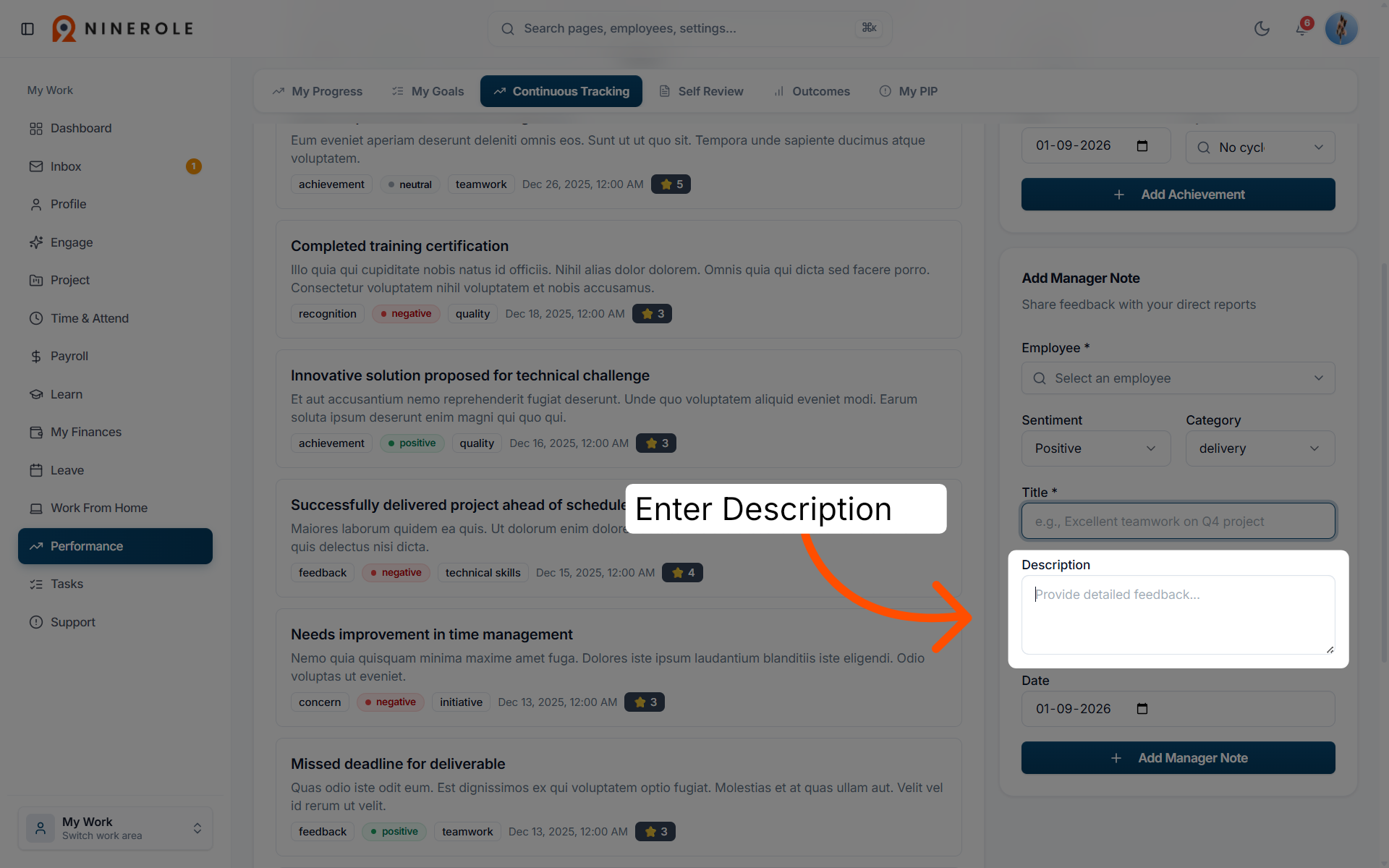
31. Provide detailed feedback
Write the Description with clear, specific feedback on the performance outcome.
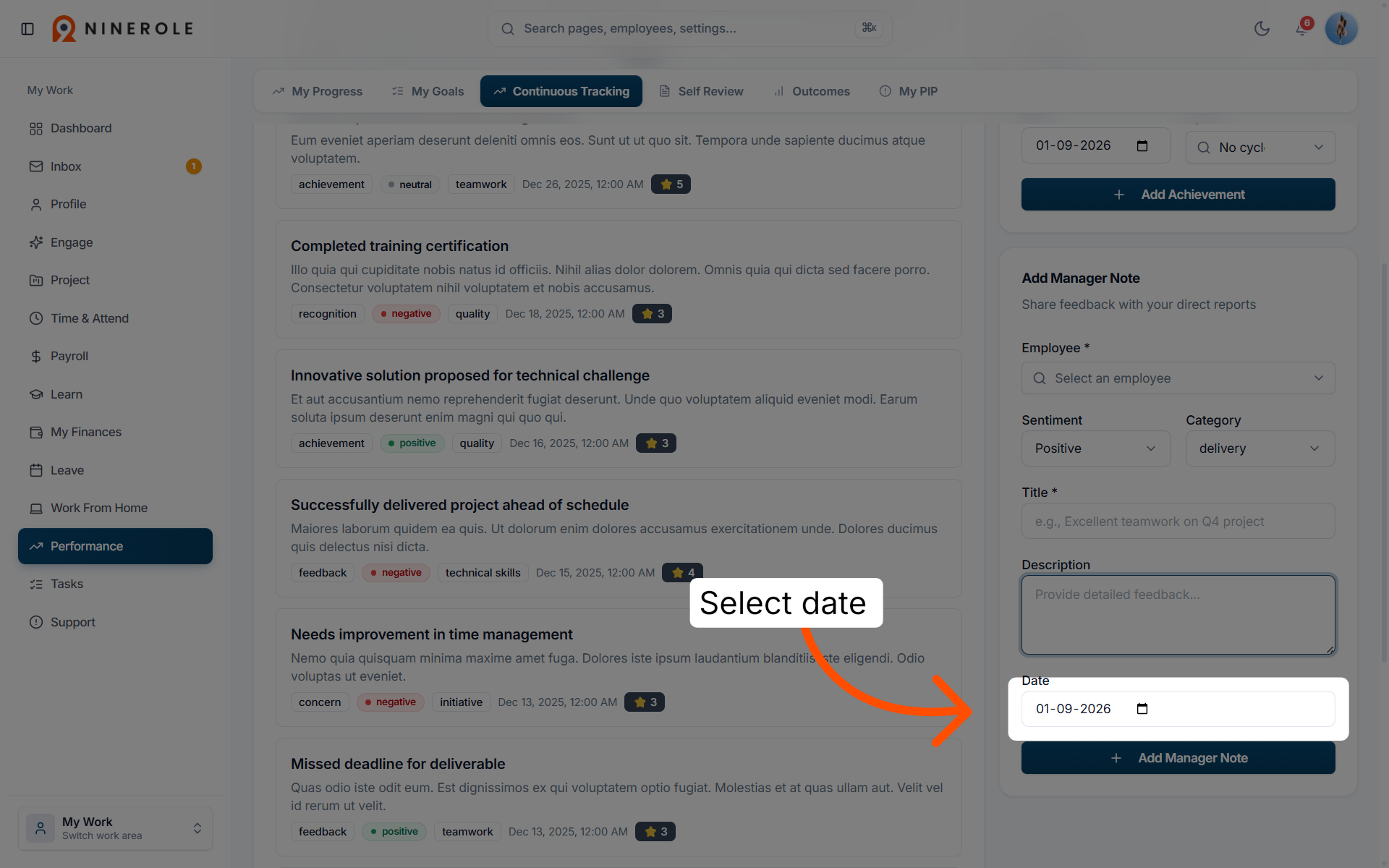
32. Choose the review date
Set the Date the feedback relates to, so the record stays accurate.
33. Add the manager note
Click Add Manager Note to post the feedback to the timeline.
Self review, outcomes and PIP
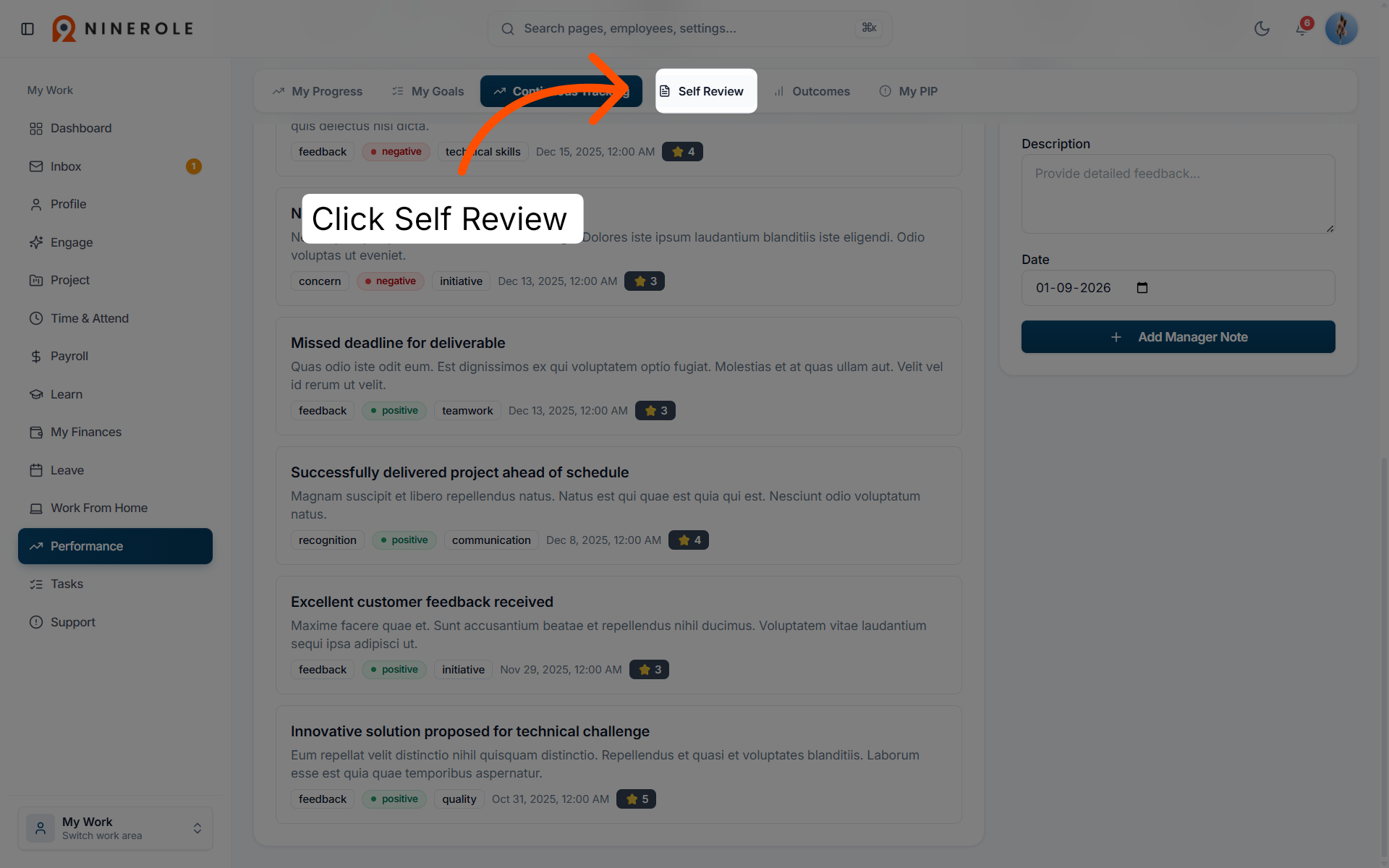
34. Open Self Review
Open the Self Review tab to evaluate your own performance and progress.
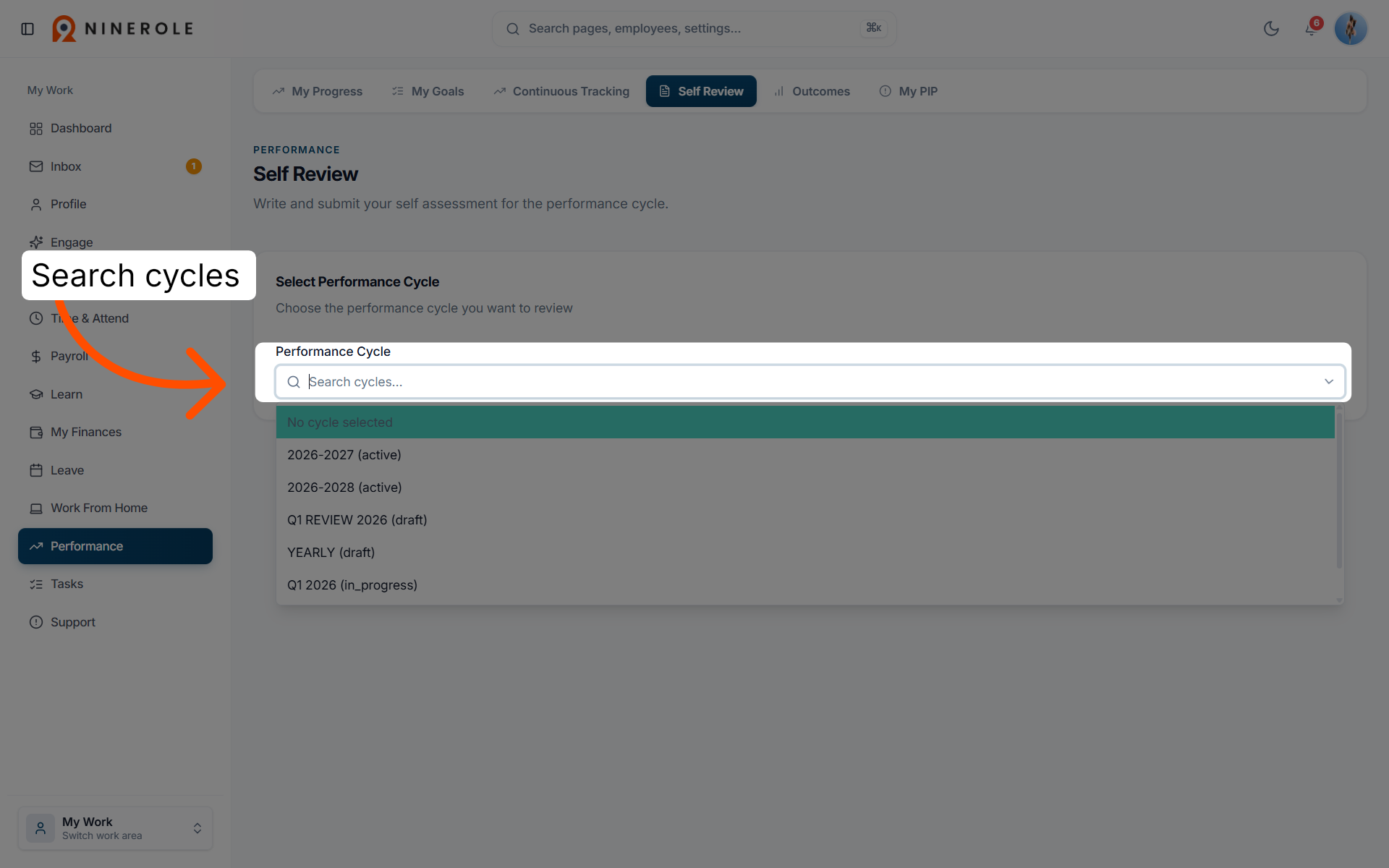
35. Search review cycles
Search for a review cycle to focus your self-assessment on the right period.
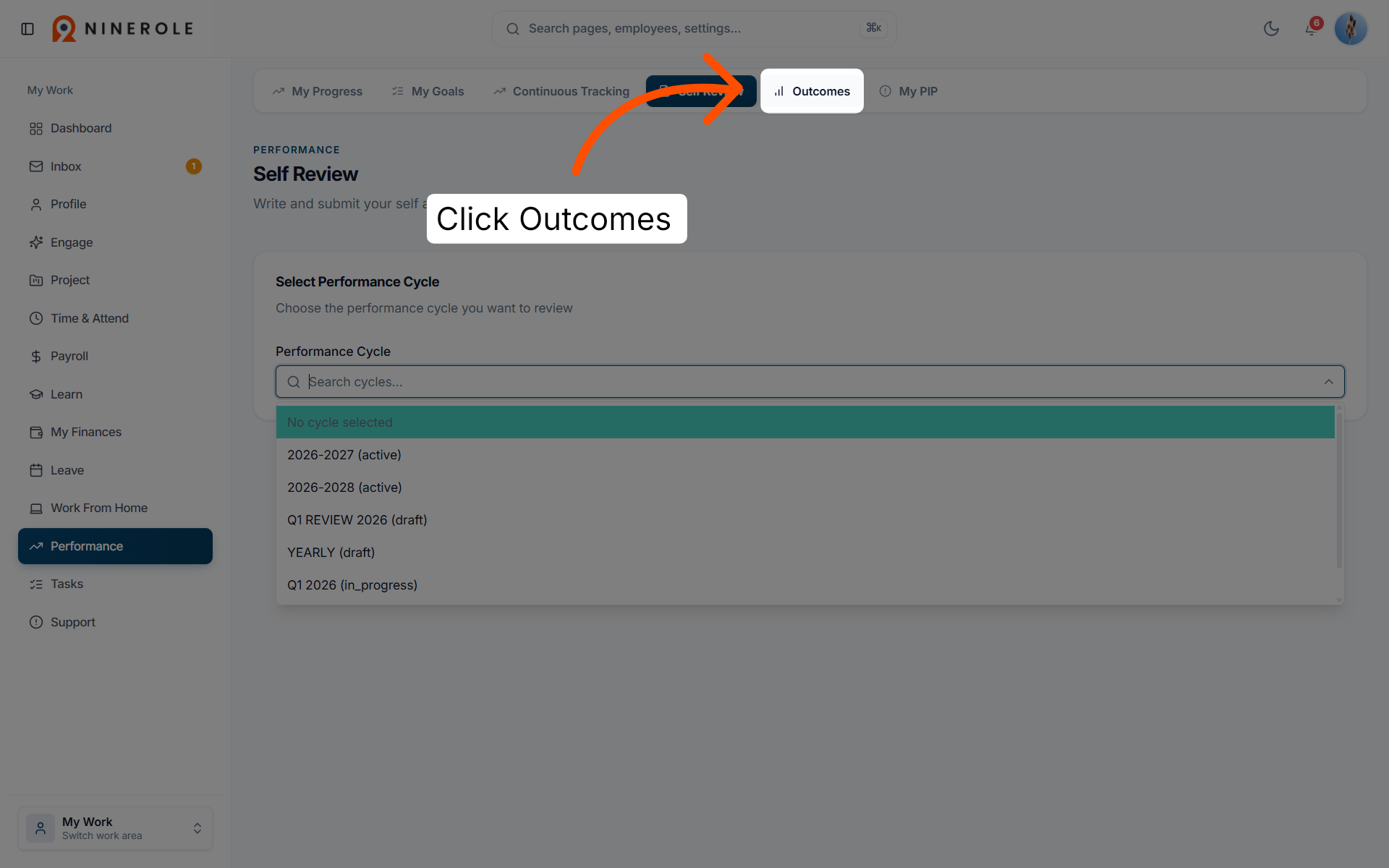
36. Open Outcomes
Open the Outcomes tab to analyze results and achievements from reviews.
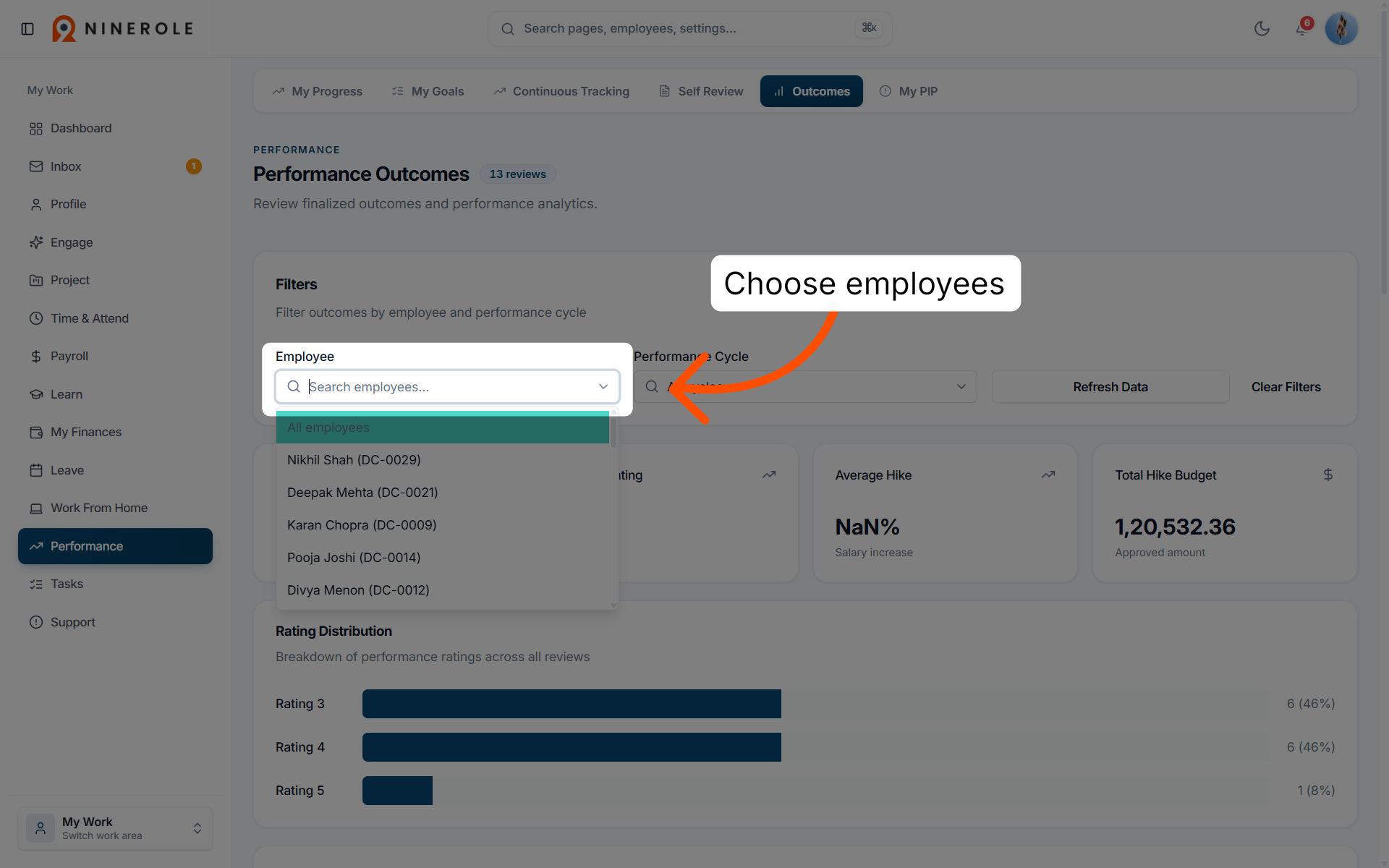
37. Search employee data
Use the employee search to pull up performance data for an individual team member.
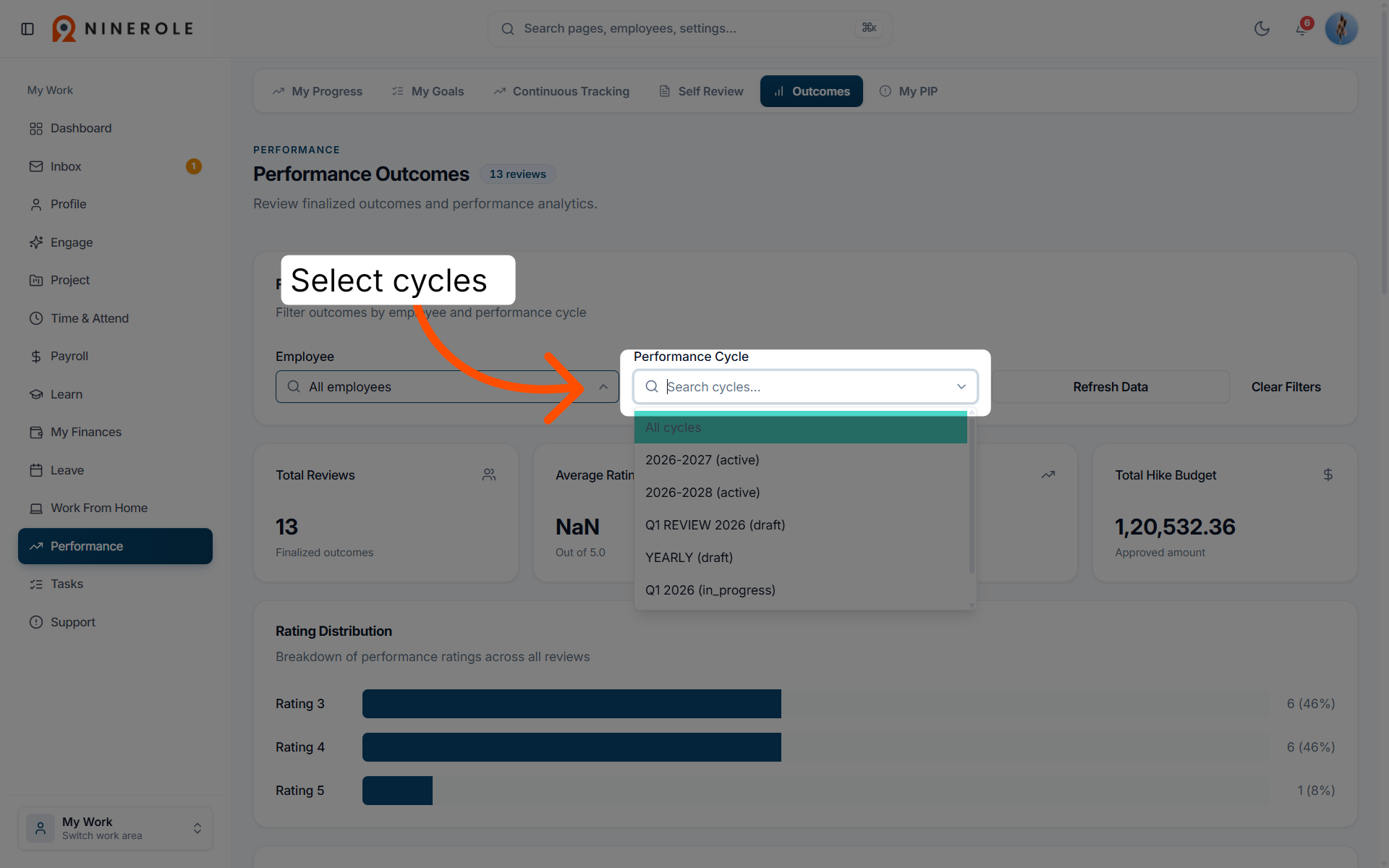
38. Filter review cycles
Select cycles to narrow the performance data to specific timeframes.
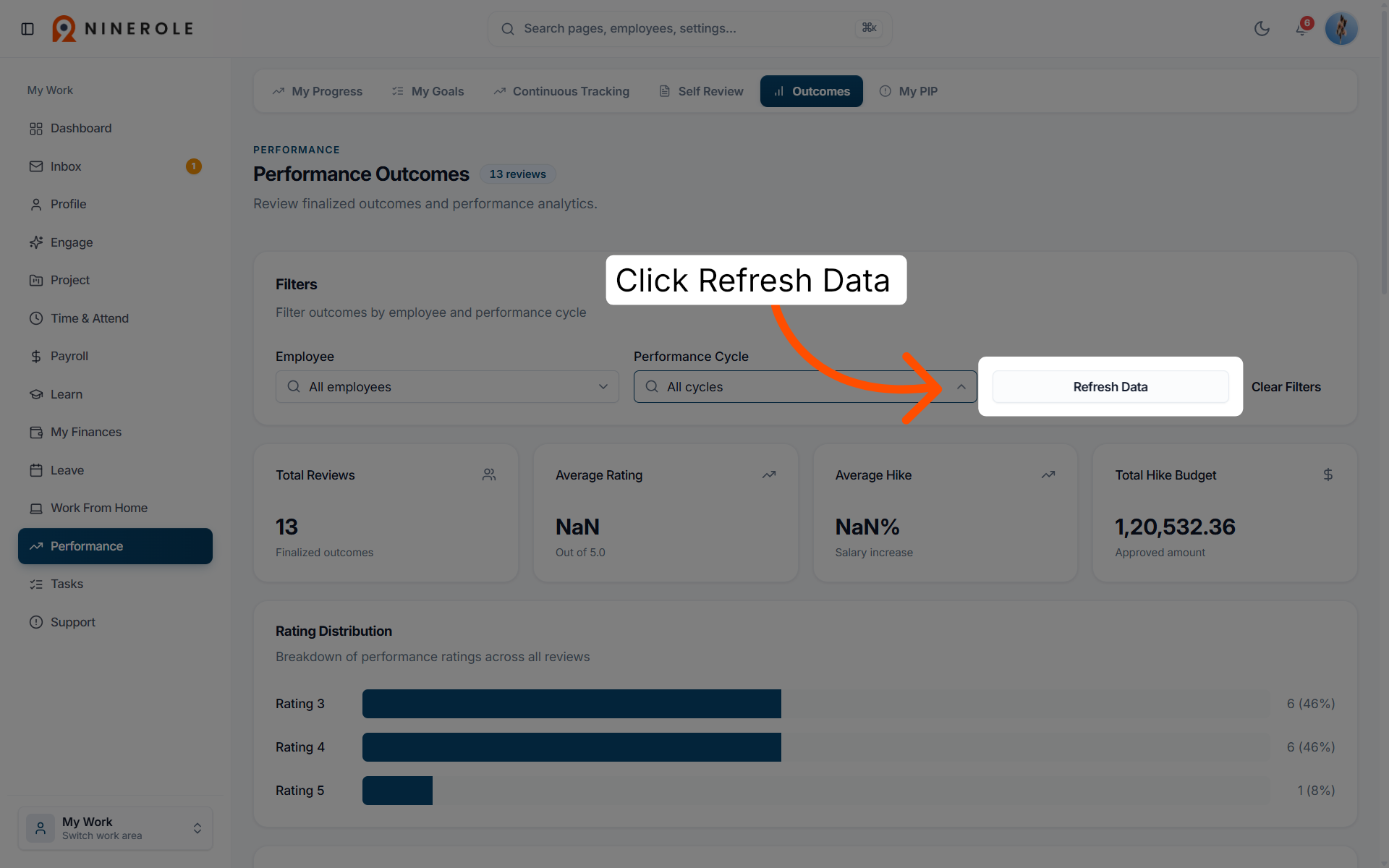
39. Refresh the data
Click Refresh to make sure you are looking at the most current performance information.
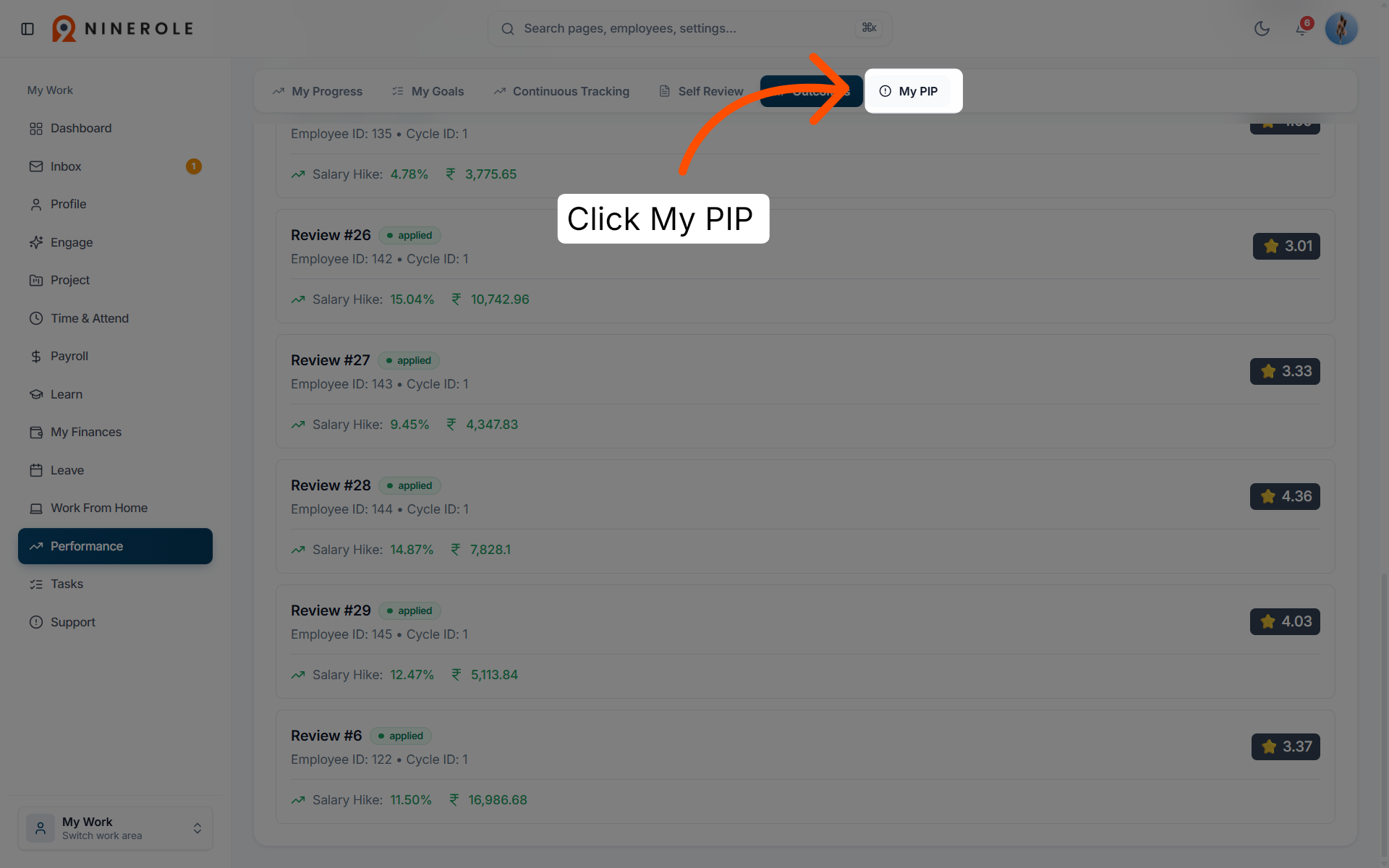
40. Open My PIP
Open My PIP to review and manage your personal improvement plans.
You can now update goals, add achievements, provide feedback and manage performance data across the whole Performance workspace.
Back to Performance · all modules
Last updated: