

Configure Company Details
This tutorial guides you through configuring company details within the Ninerole administration panel. You will learn how to navigate the dashboard and input essential company information accurately.
Before you start, go to ninerole.com.
About this task
- Purpose
- Register a company in Administration — display and legal names, incorporation date, statutory identifiers and address.
- Who can do this
- Owner or HR admin
- You will need
- Legal and display names, incorporation date, statutory identifiers (PAN, TAN, CIN, GSTIN, PF, ESI) and the registered address.
- Result
- The company exists and can be referenced across the platform.
- This unlocks
- Business units, employee records, payroll and statutory outputs — everything hangs off the company.
This guide answers
- How do I add a company?
- Which statutory identifiers does Ninerole store?
- Can I run more than one company?
- Where do I change the registered address?
- What has to exist before I add employees?
If something goes wrong
- A statutory field is rejected.
- Check the identifier's format. Ninerole stores these values; it does not validate them against a government portal.
- Payroll outputs show the wrong entity.
- The pay run uses the company on the employee record. Check which company the employee belongs to.
Related: Business units · Roles & permissions · Add an employeeAlso called: company setup, legal entity, organisation details.Last verified: 7 September 2026
1. Introduction
You will learn how to navigate the dashboard and input essential company information accurately.

Open the Companies page
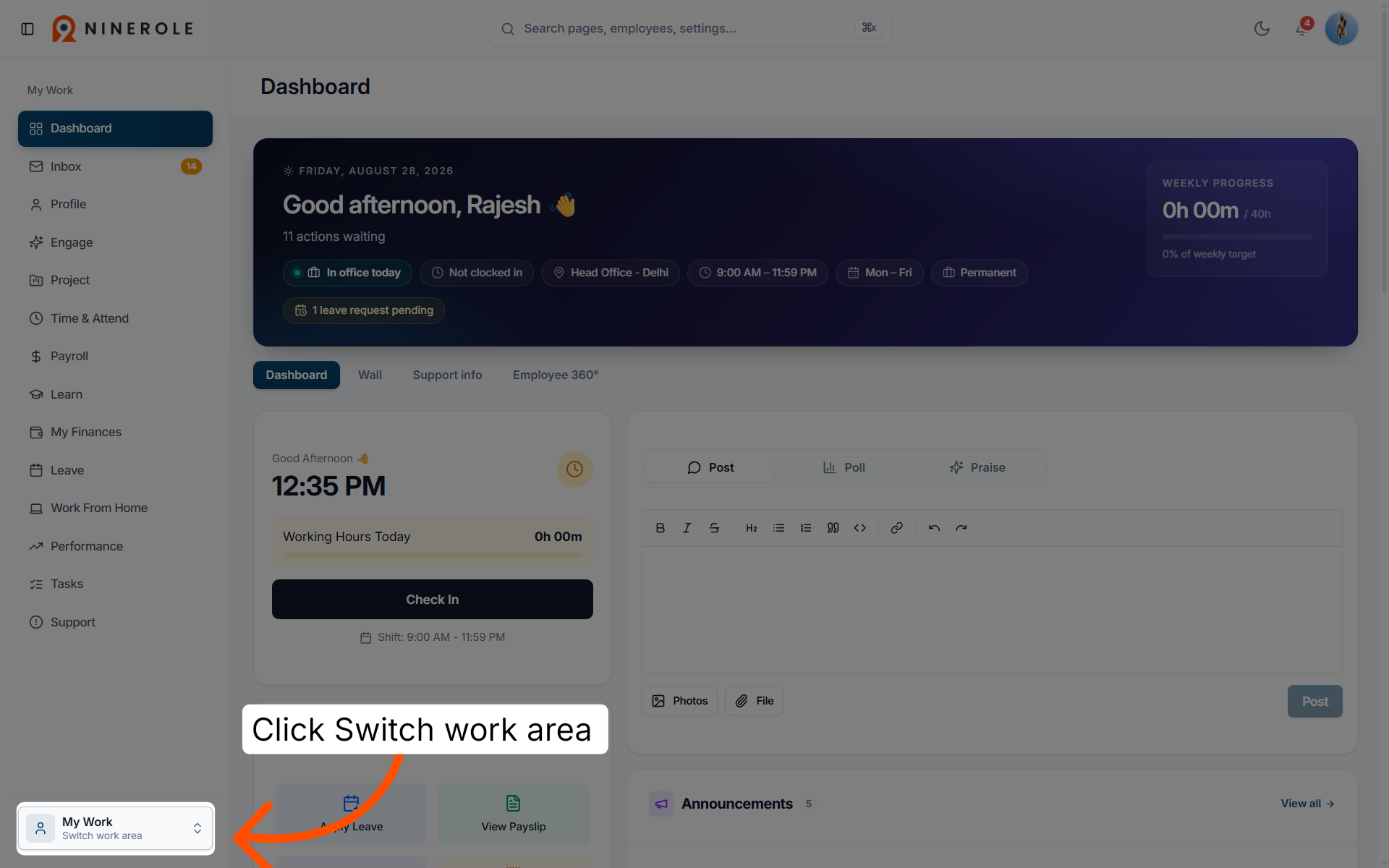
2. Access the work area switcher
Click Switch work area to access different sections within Ninerole.
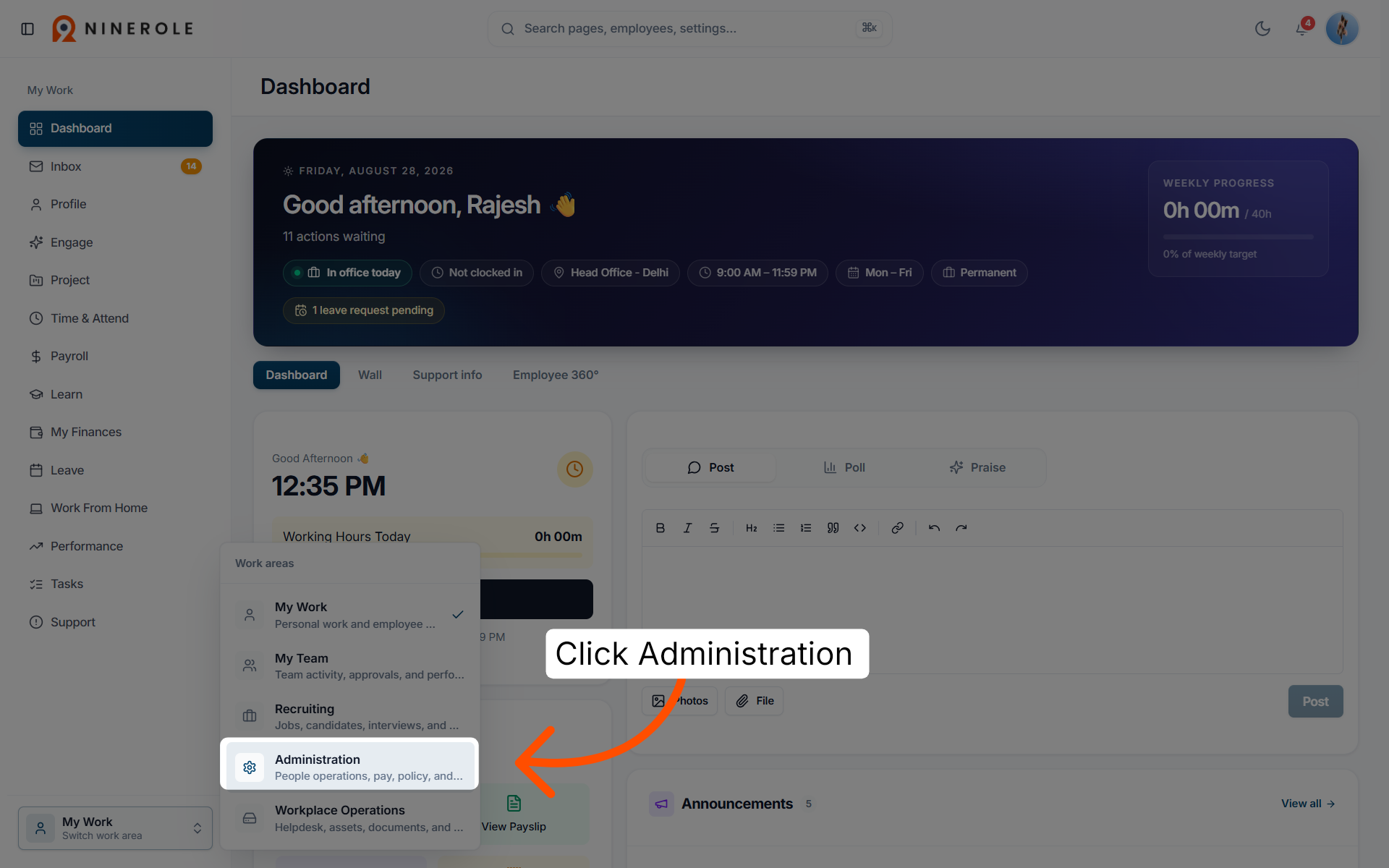
3. Open the Administration section
Click Administration to open the administrative settings area.
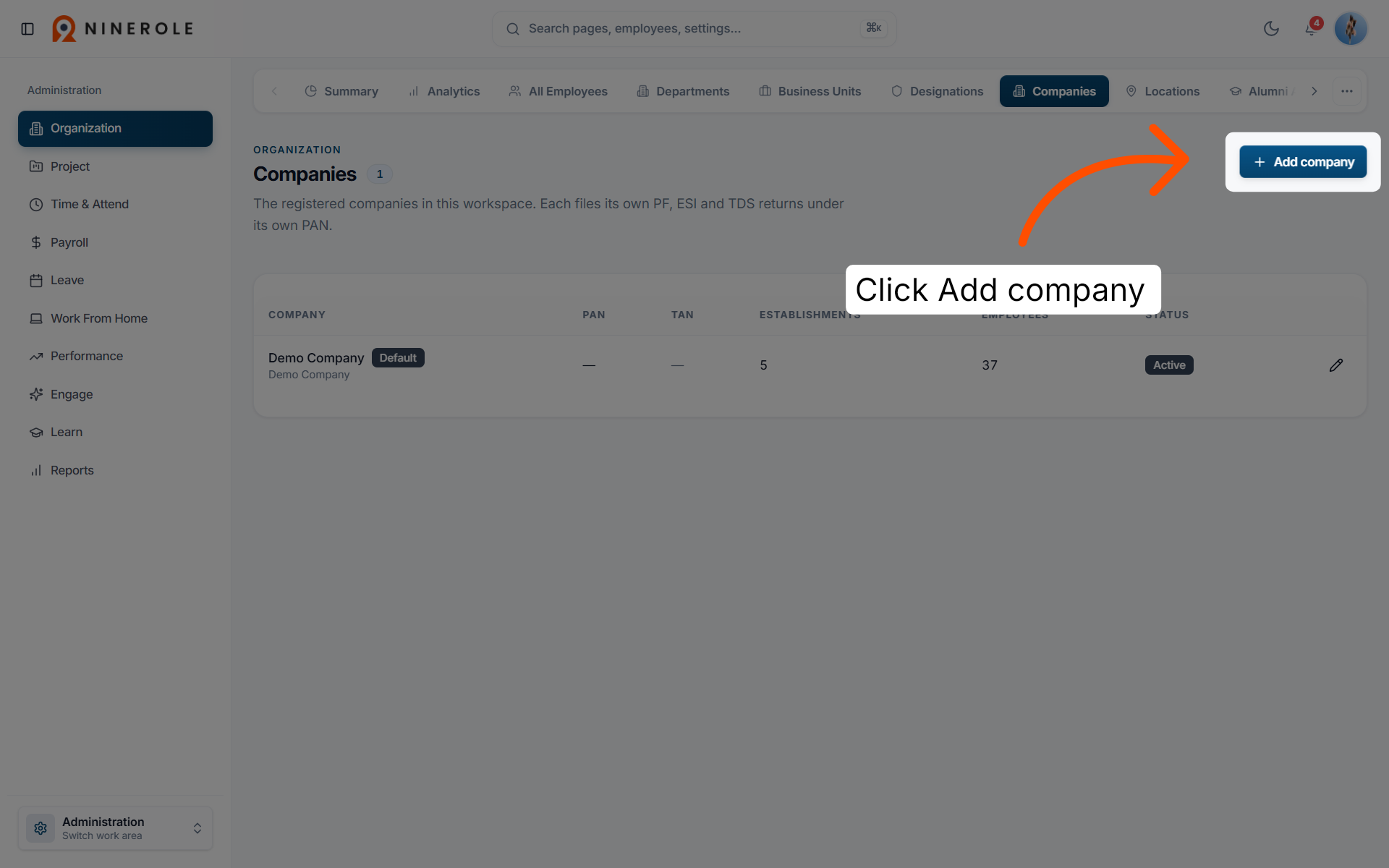
4. Navigate to the Companies summary
Click Companies to view the summary of all registered companies.

5. Initiate adding a new company
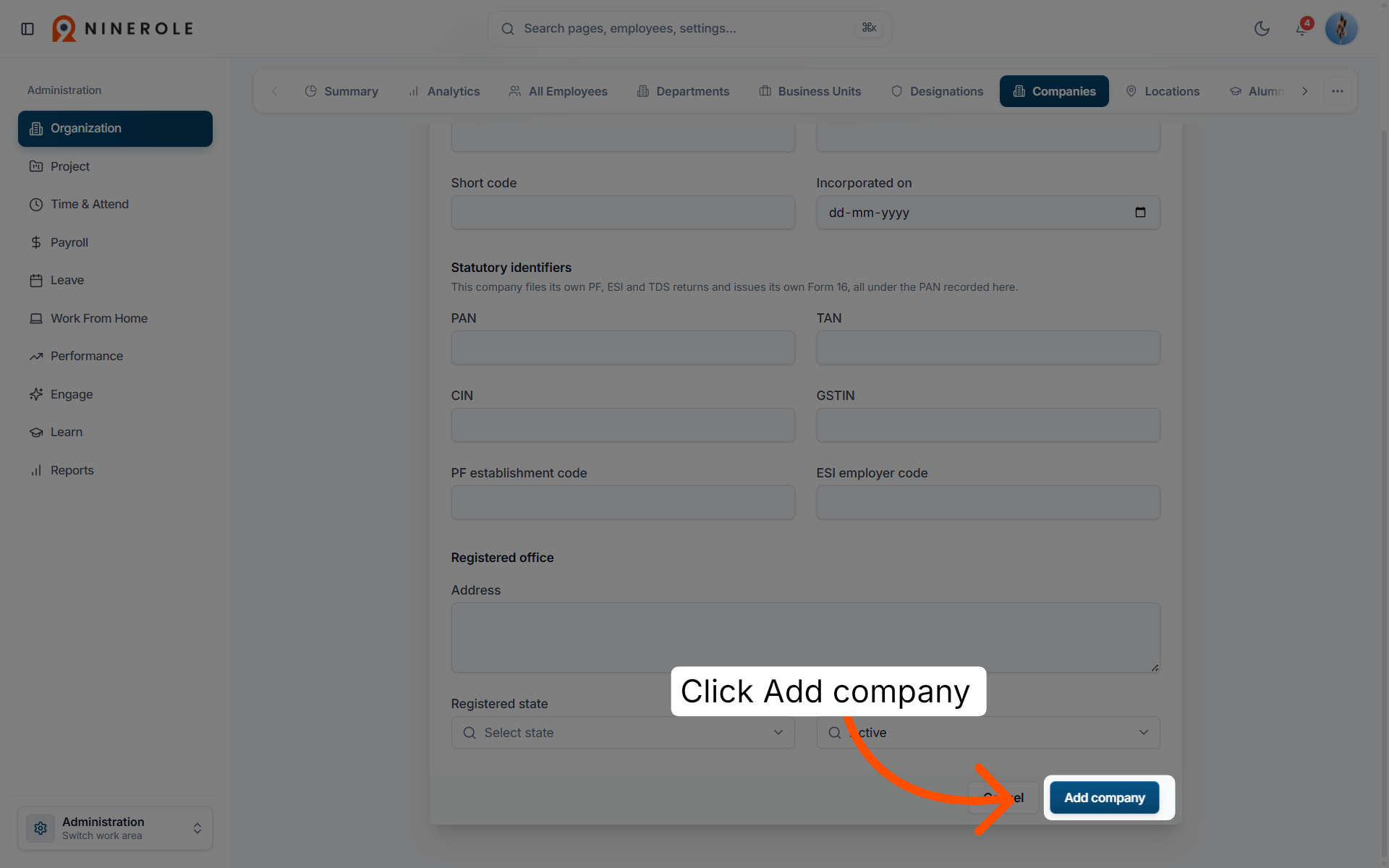
Click Add company to start entering a new company's details.
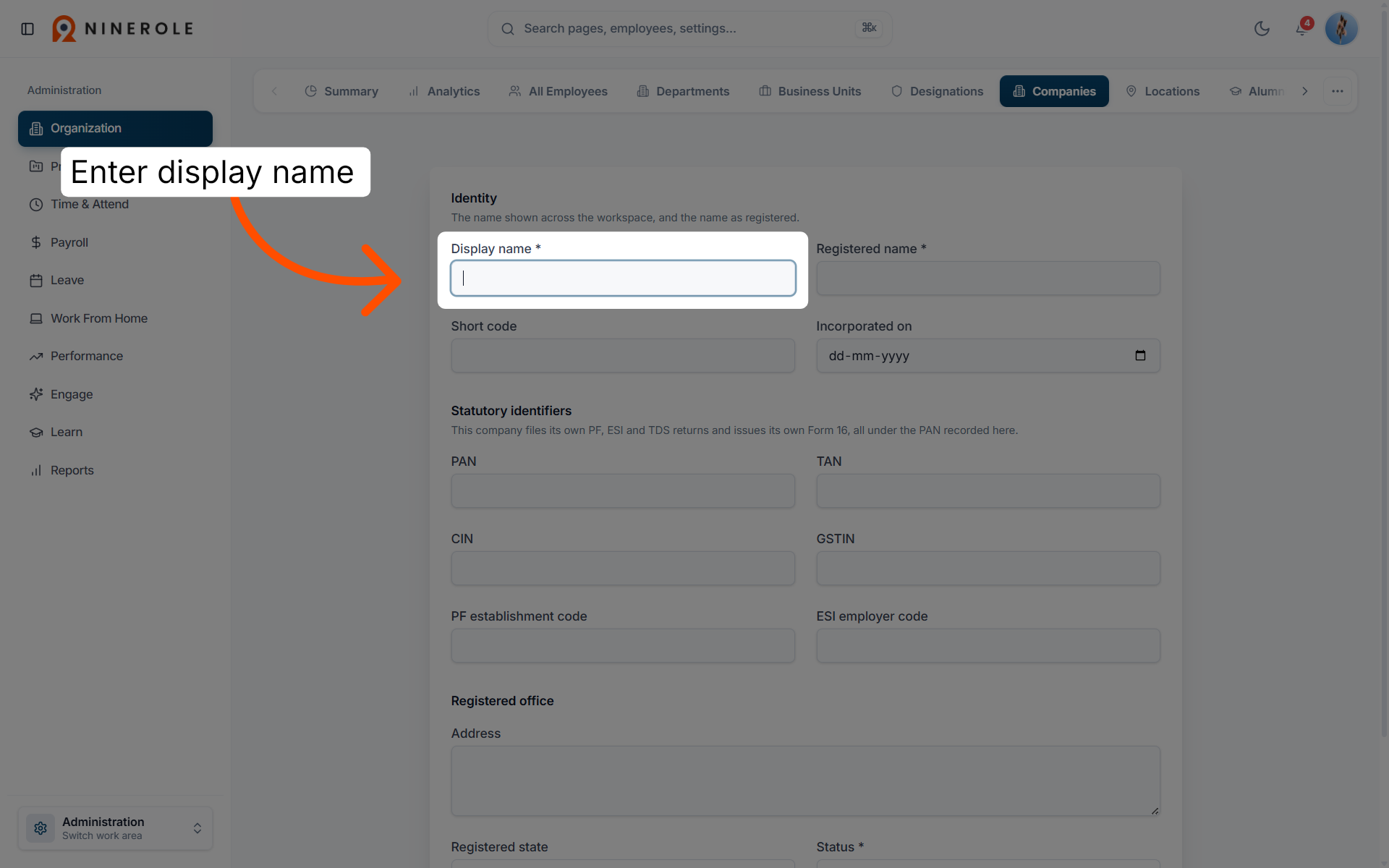
Enter the company identity
6. Enter the display name
Enter Display name to input the company's display name.
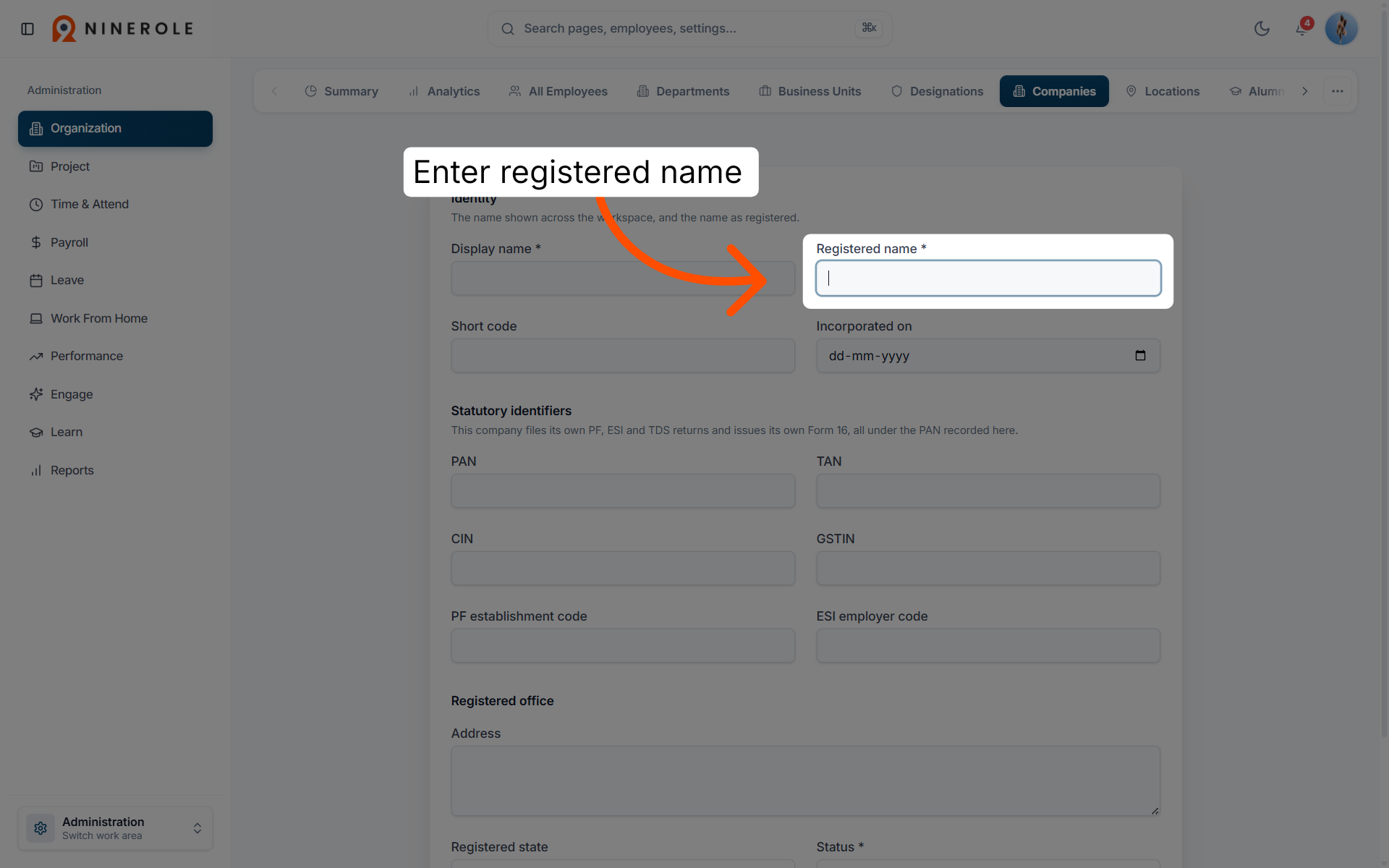
7. Enter the registered name
Enter Registered name * to input the company's registered legal name.
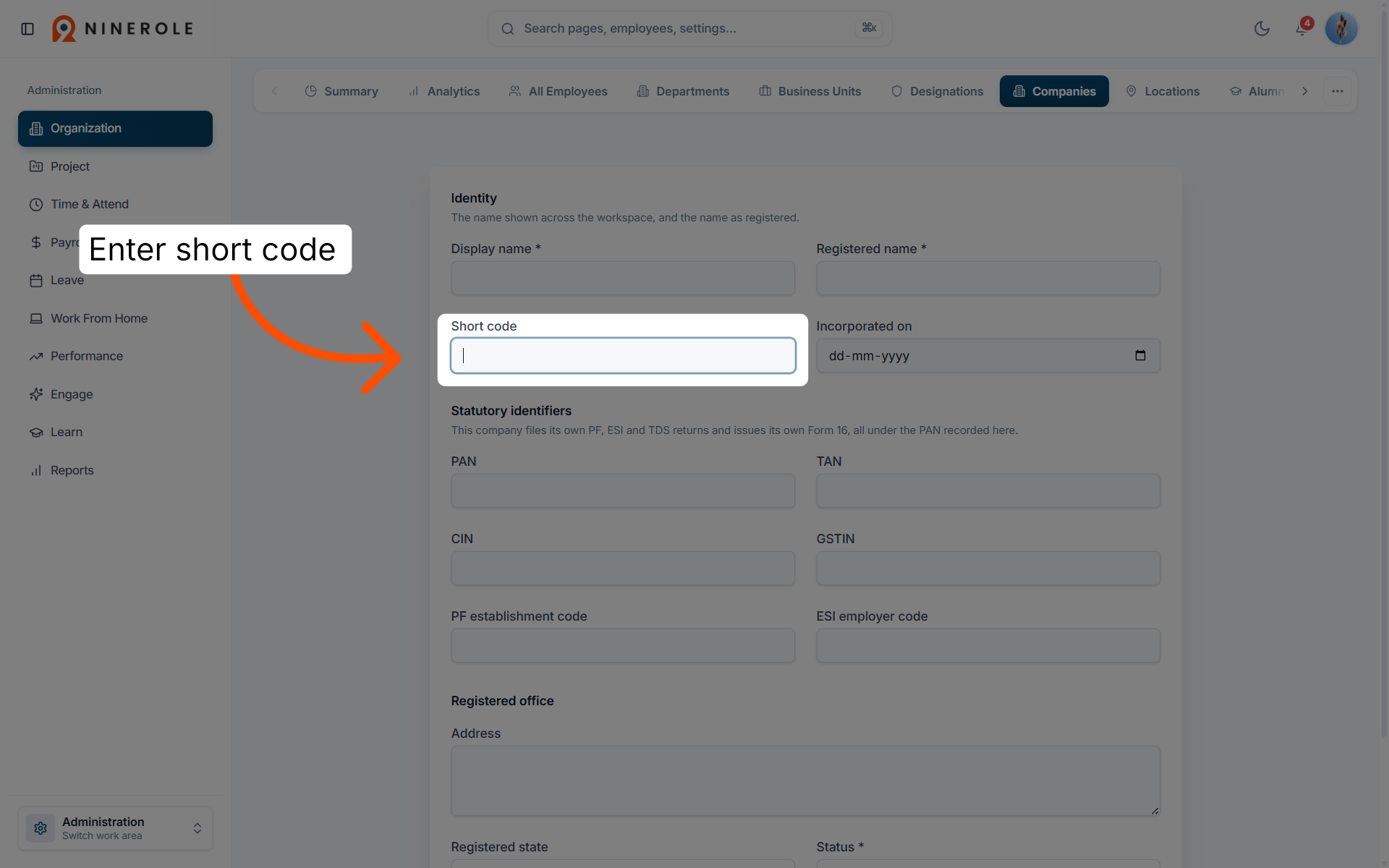
8. Input the company short code
Enter Short code to enter the company's abbreviated identifier.
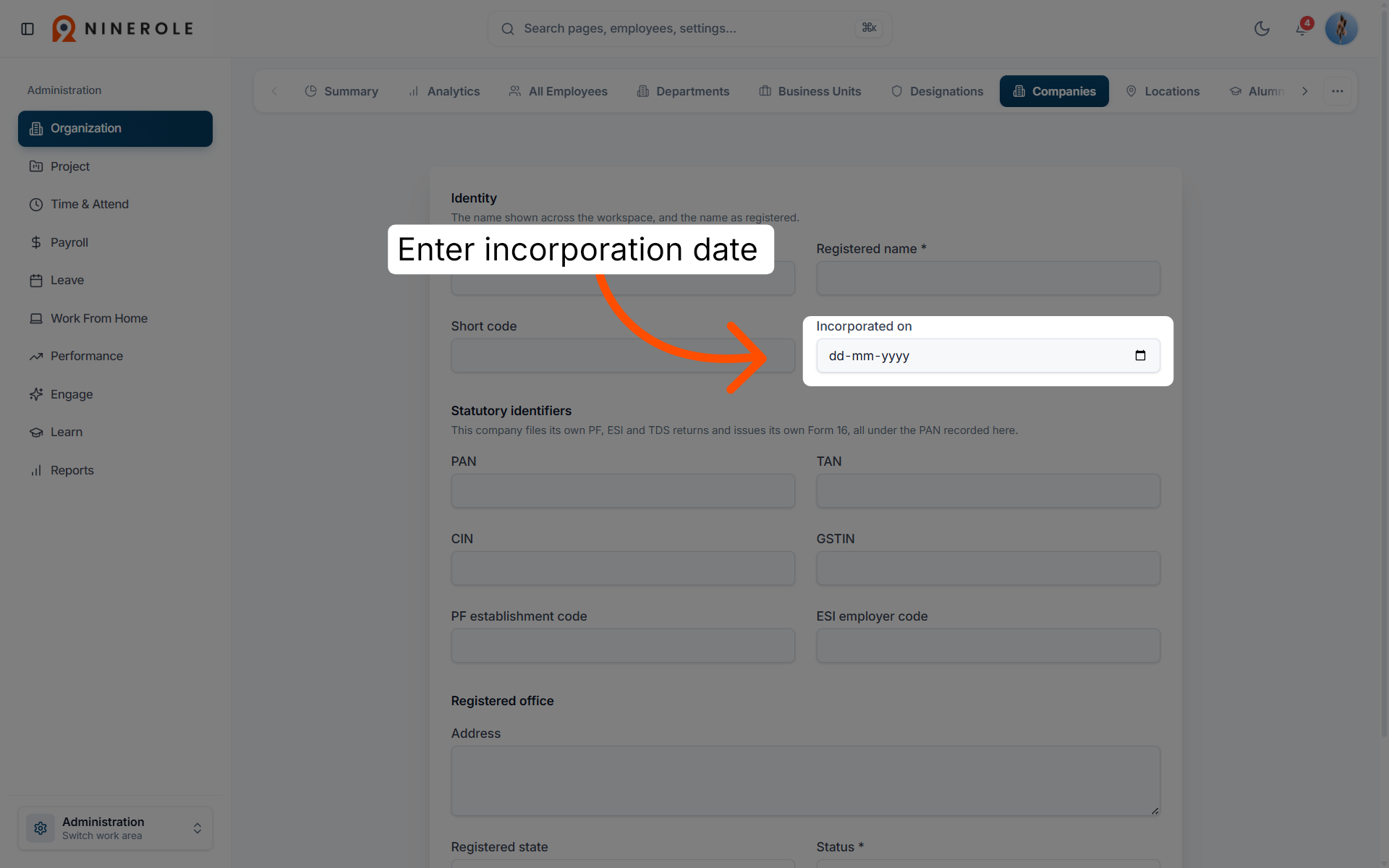
9. Set the incorporation date
Enter Incorporated on to specify the company's incorporation date.
Enter the statutory identifiers
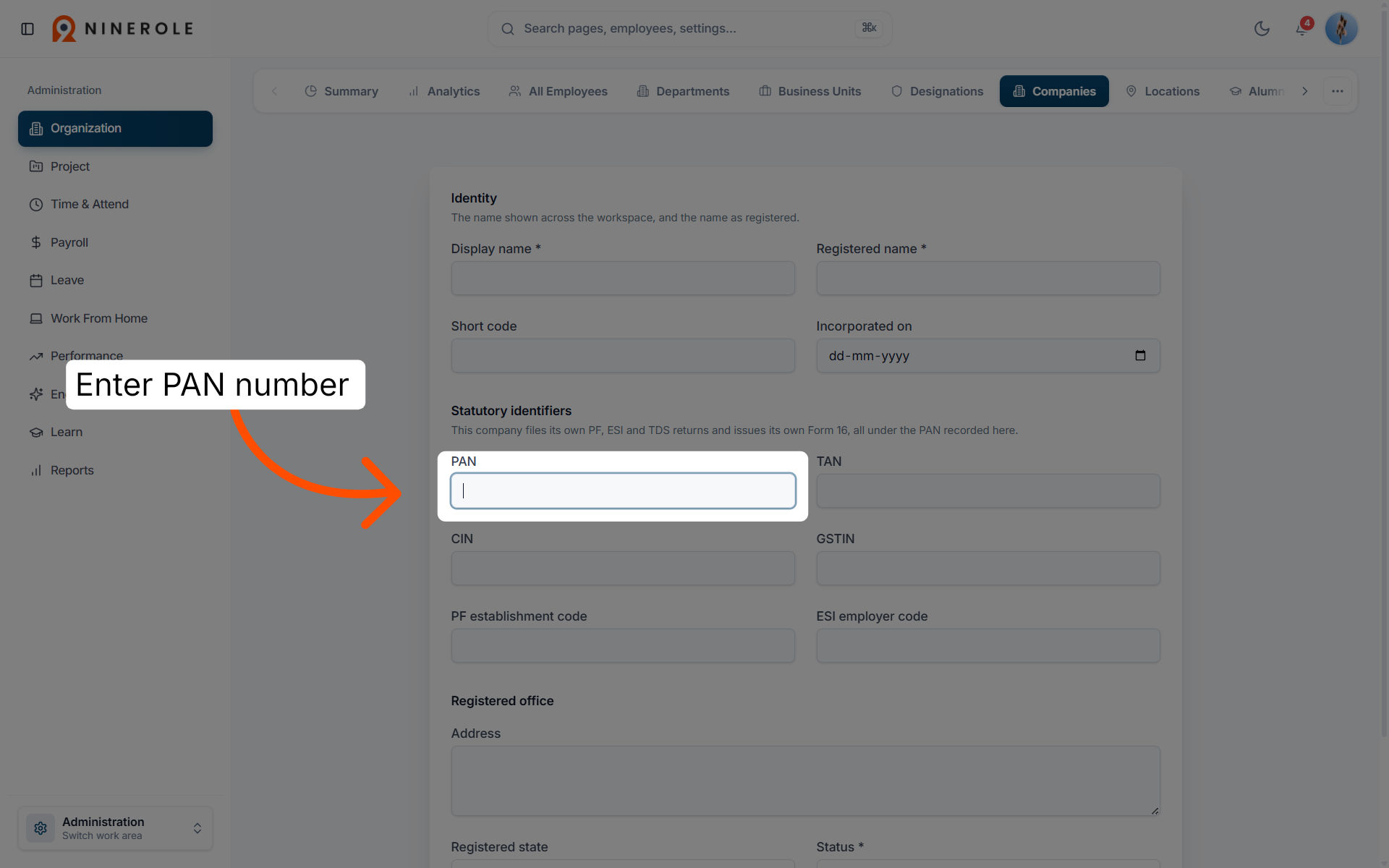
10. Provide the PAN number
Enter PAN to input the company's Permanent Account Number.
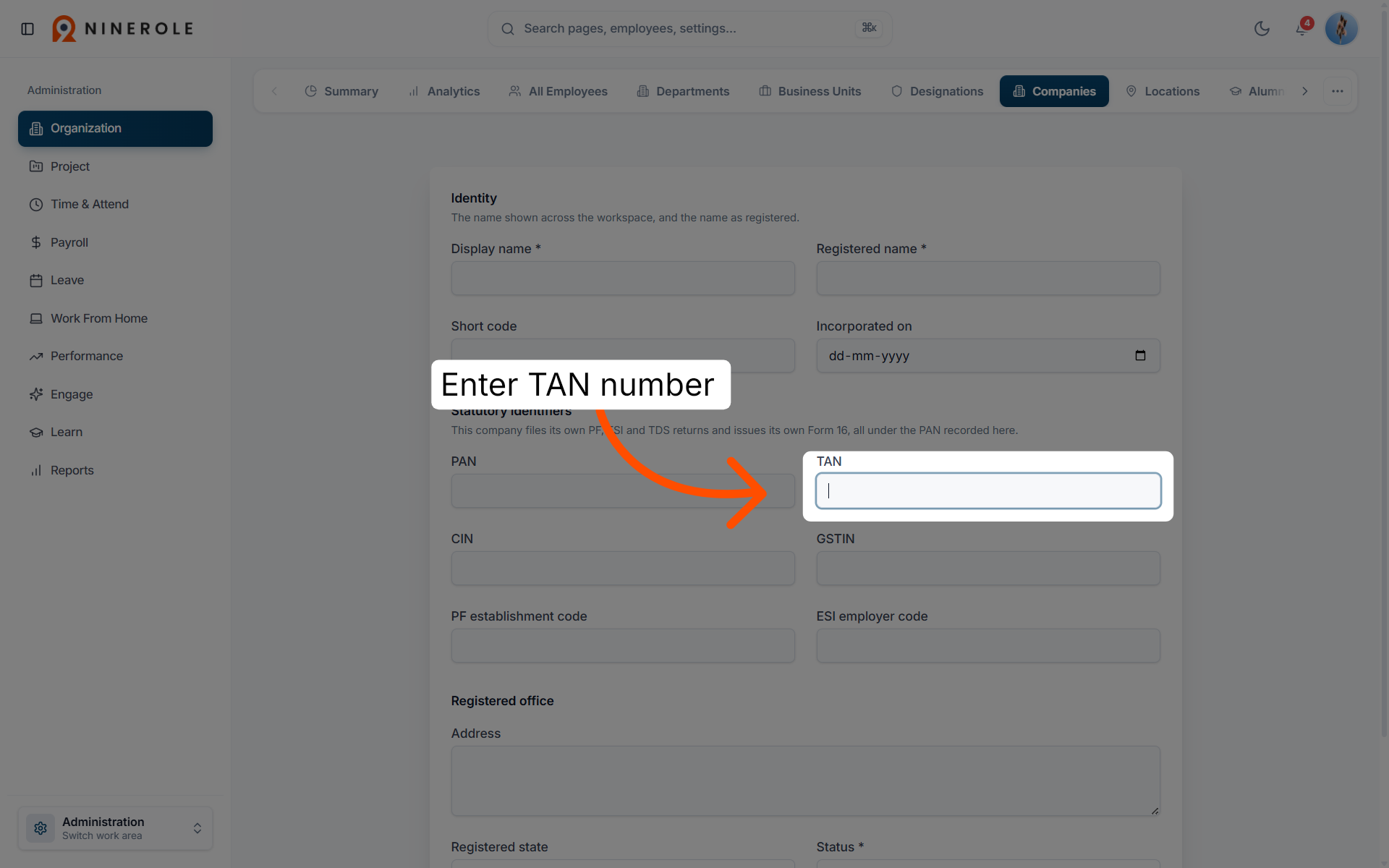
11. Provide the TAN number
Enter TAN to enter the company's Tax Deduction Account Number.
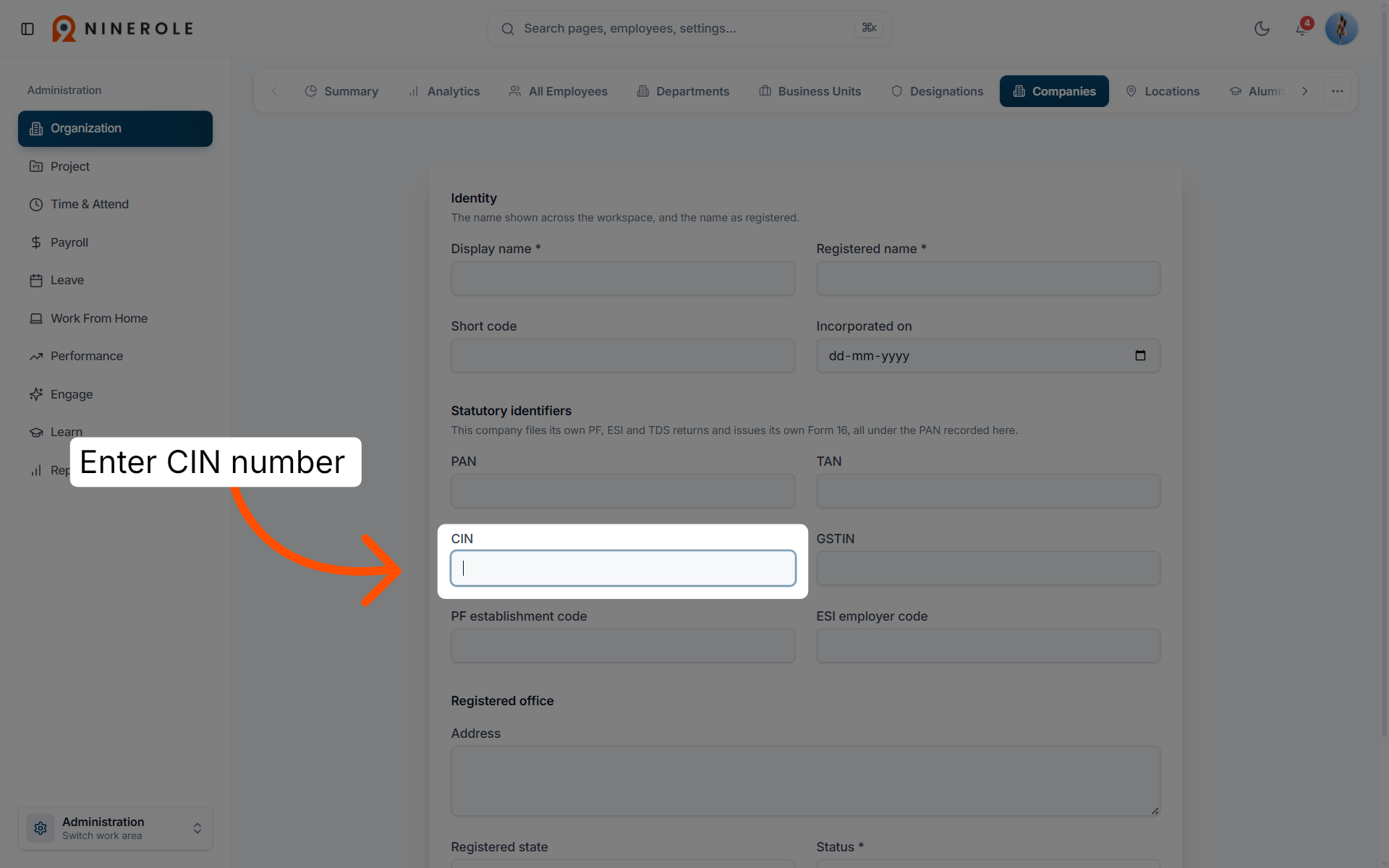
12. Provide the CIN number
Enter CIN to input the company's Corporate Identification Number.
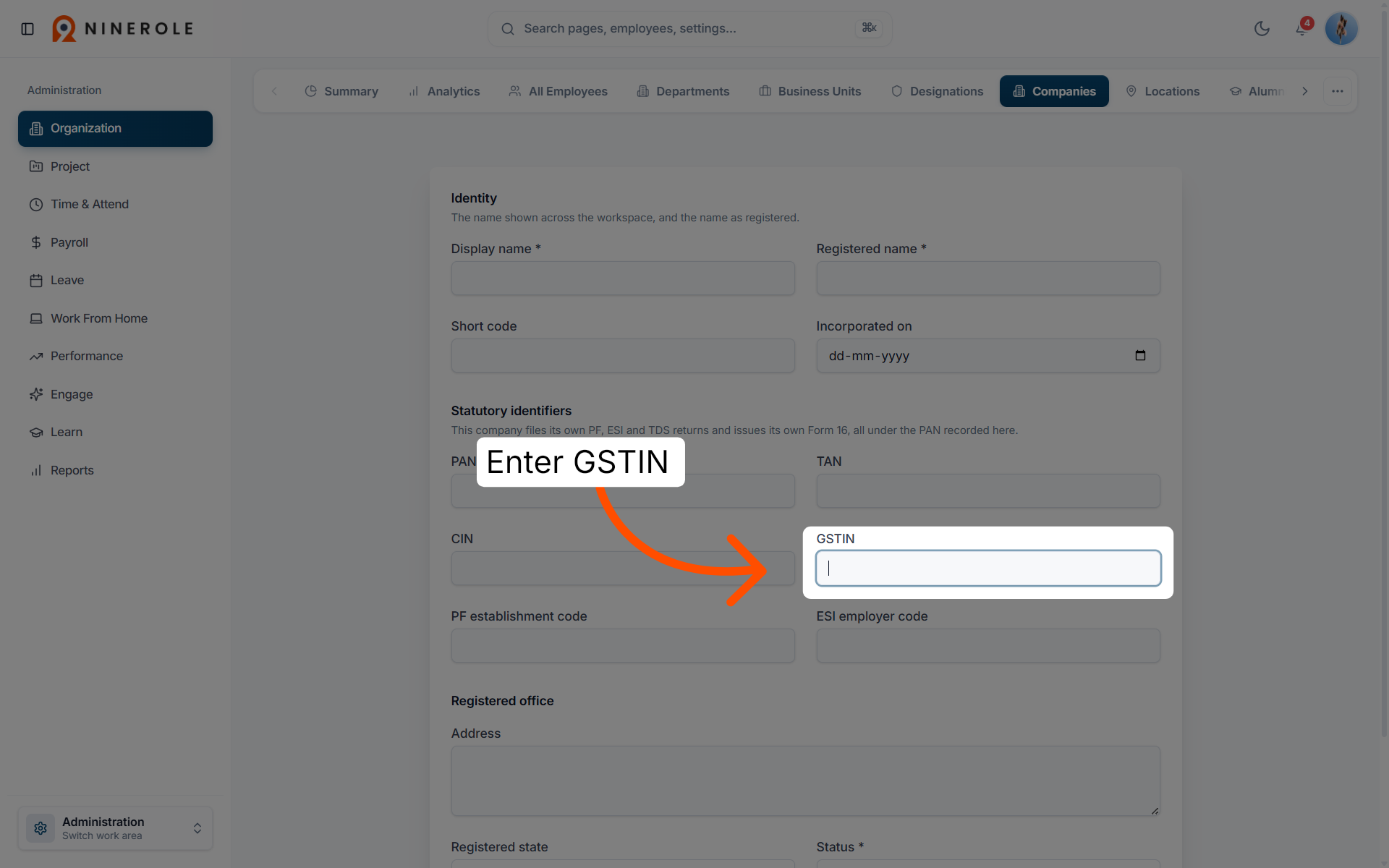
13. Enter the GSTIN
Enter GSTIN to provide the company's Goods and Services Tax Identification Number.
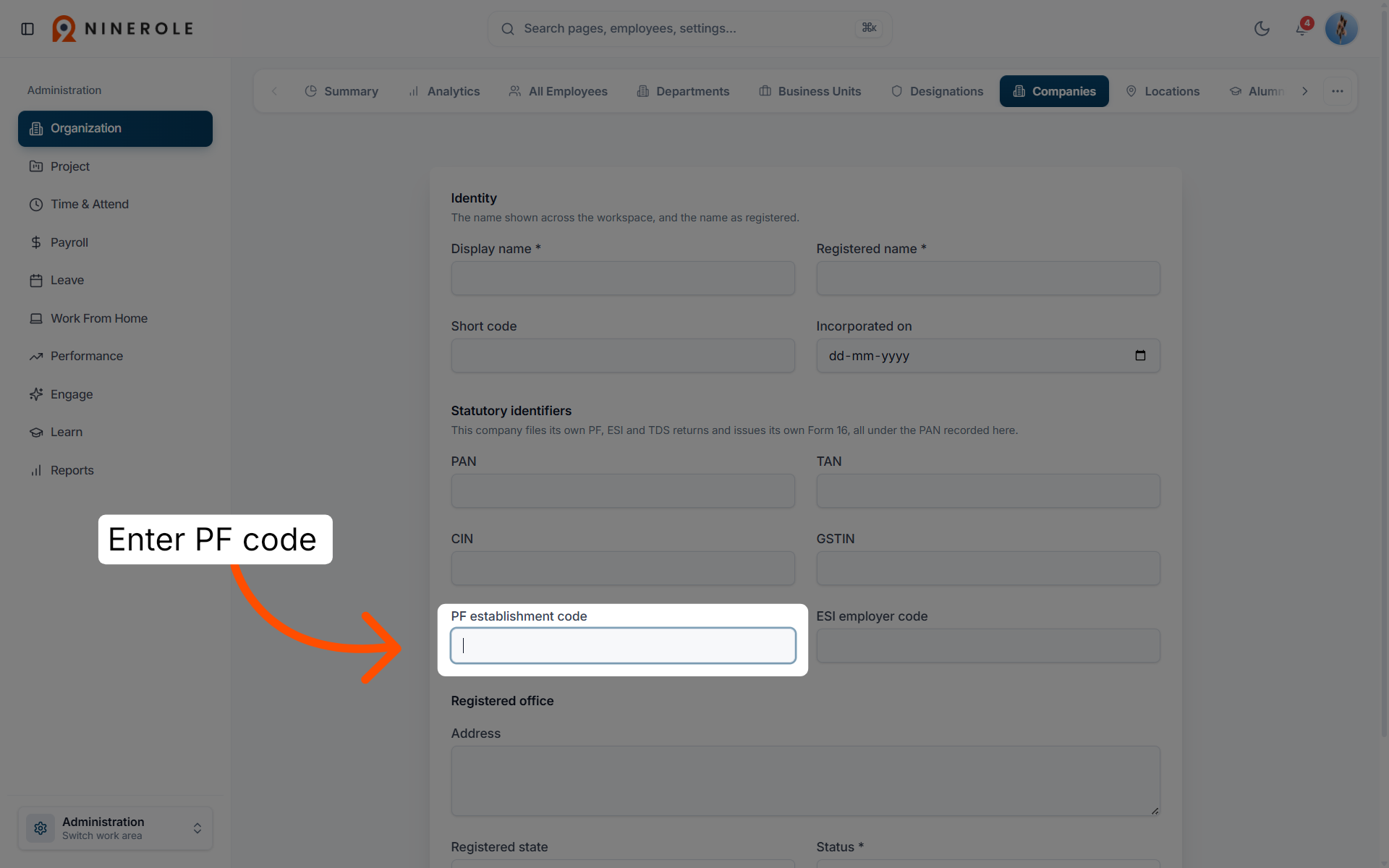
14. Input the PF establishment code
Enter PF establishment code to enter the Provident Fund establishment code.
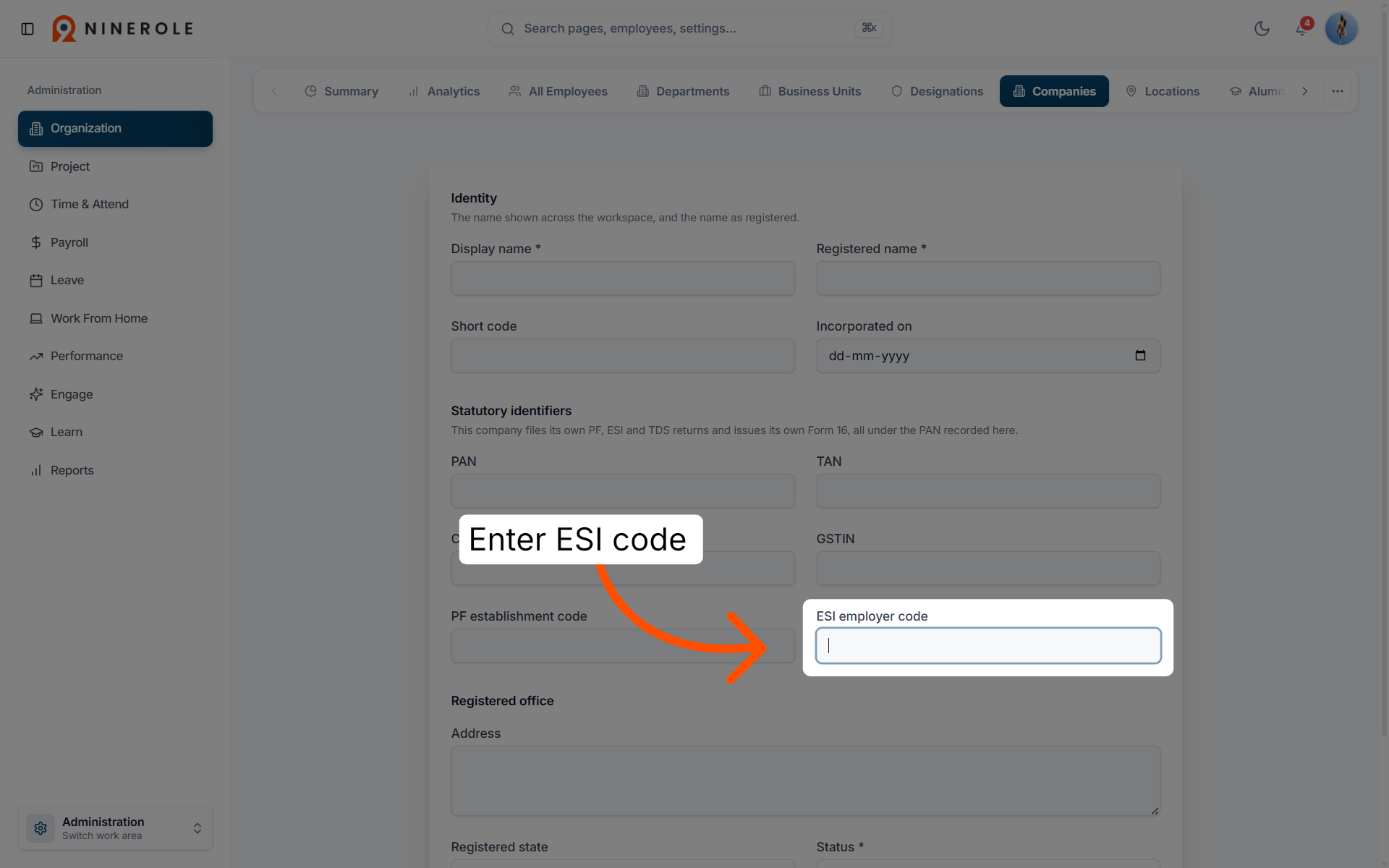
15. Input the ESI employer code
Enter ESI employer code to provide the Employee State Insurance employer code.
Enter the address
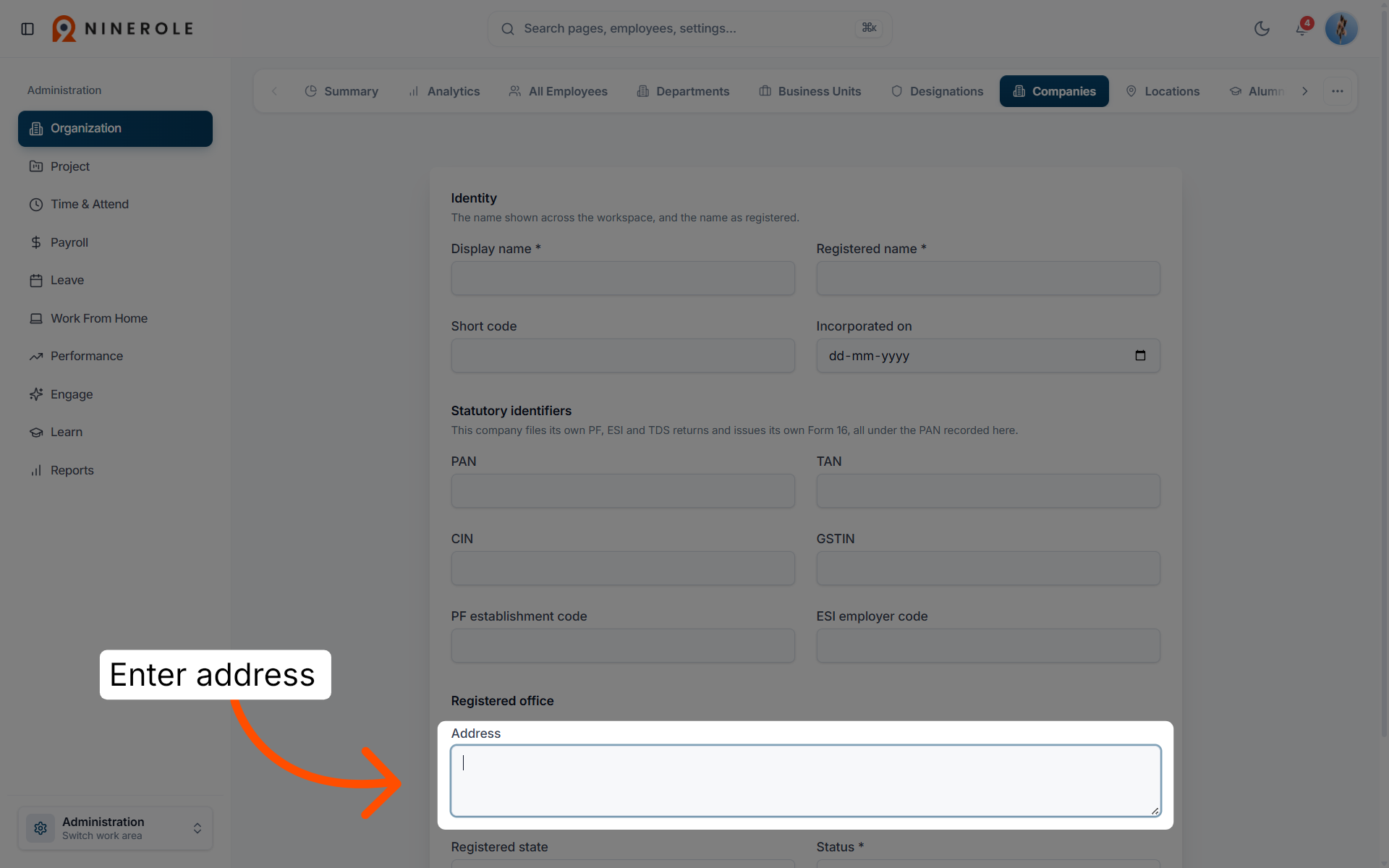
16. Enter the company address
Enter Address to input the company's physical address details.
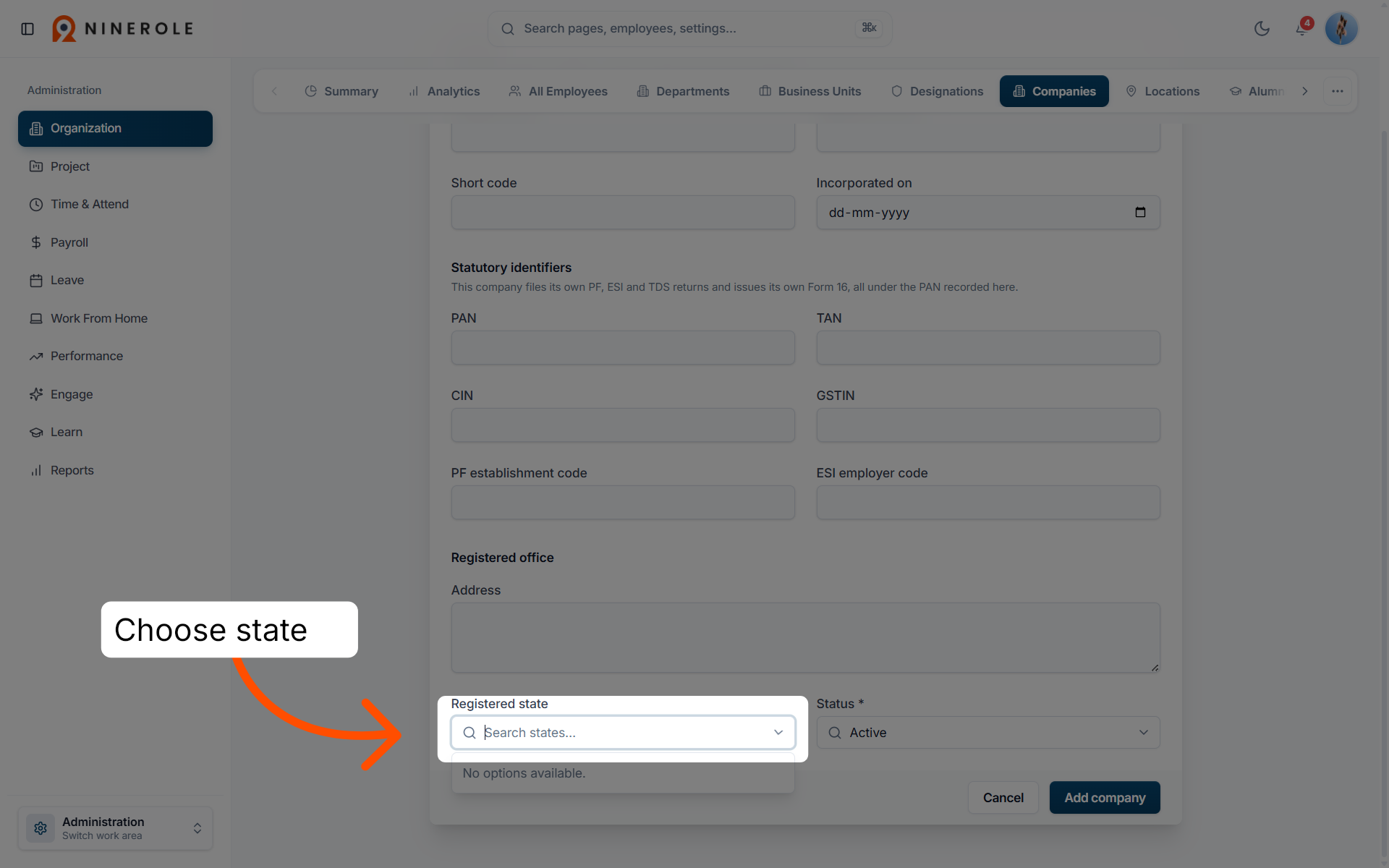
17. Search for the state
Search for and select the company's state.
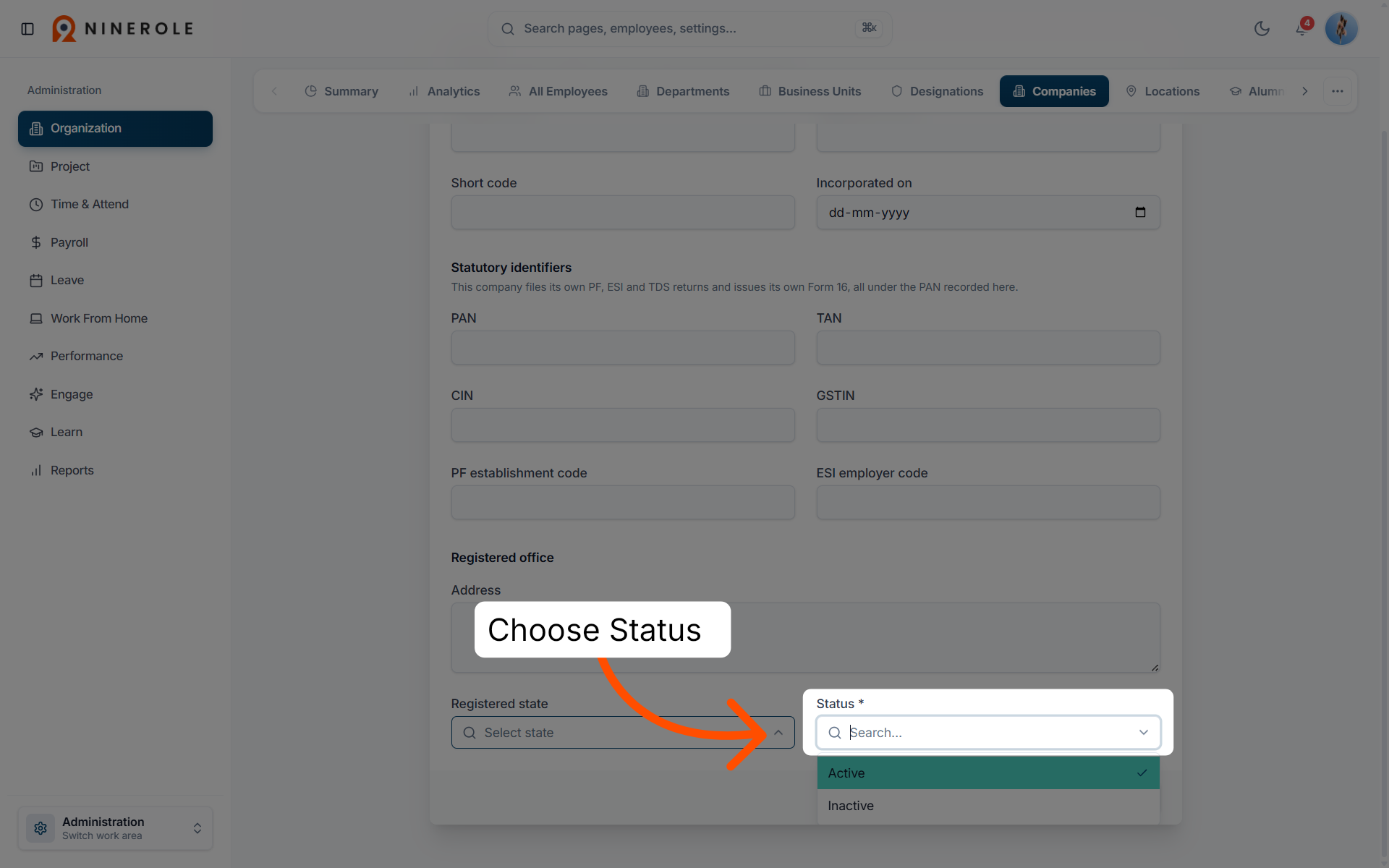
18. Search the location
Specify the precise location within the selected state.
19. Start another company entry
Click Add company to begin entering another company.
You have successfully navigated the Ninerole administration panel to input and manage company details. This process ensures accurate company information is recorded for organizational management and compliance purposes.
The statutory codes recorded here feed payroll compliance. You may also want to set up business units and roles.
Back to Administration · all modules · Ninerole HRMS overview
Last updated: