

Submit a Leave Request
This tutorial guides you through submitting a leave request efficiently using Ninerole. You will learn how to select leave types, specify dates, and provide reasons to complete your request.
Before you start, go to ninerole.com.
About this task
- Purpose
- Apply for leave from your own dashboard so it can go to your approver.
- Who can do this
- Employee (self-service)
- Before you start
- A leave policy is assigned to you, so leave types and balances exist.
- You know your remaining balance for the leave type you want.
- You will need
- The leave type, the start and end dates, and a reason.
- Result
- A leave request is submitted and sits awaiting approval; the days are held against your balance.
- This unlocks
- Once approved, the days show in your attendance record and are treated correctly by payroll.
This guide answers
- How do I apply for leave?
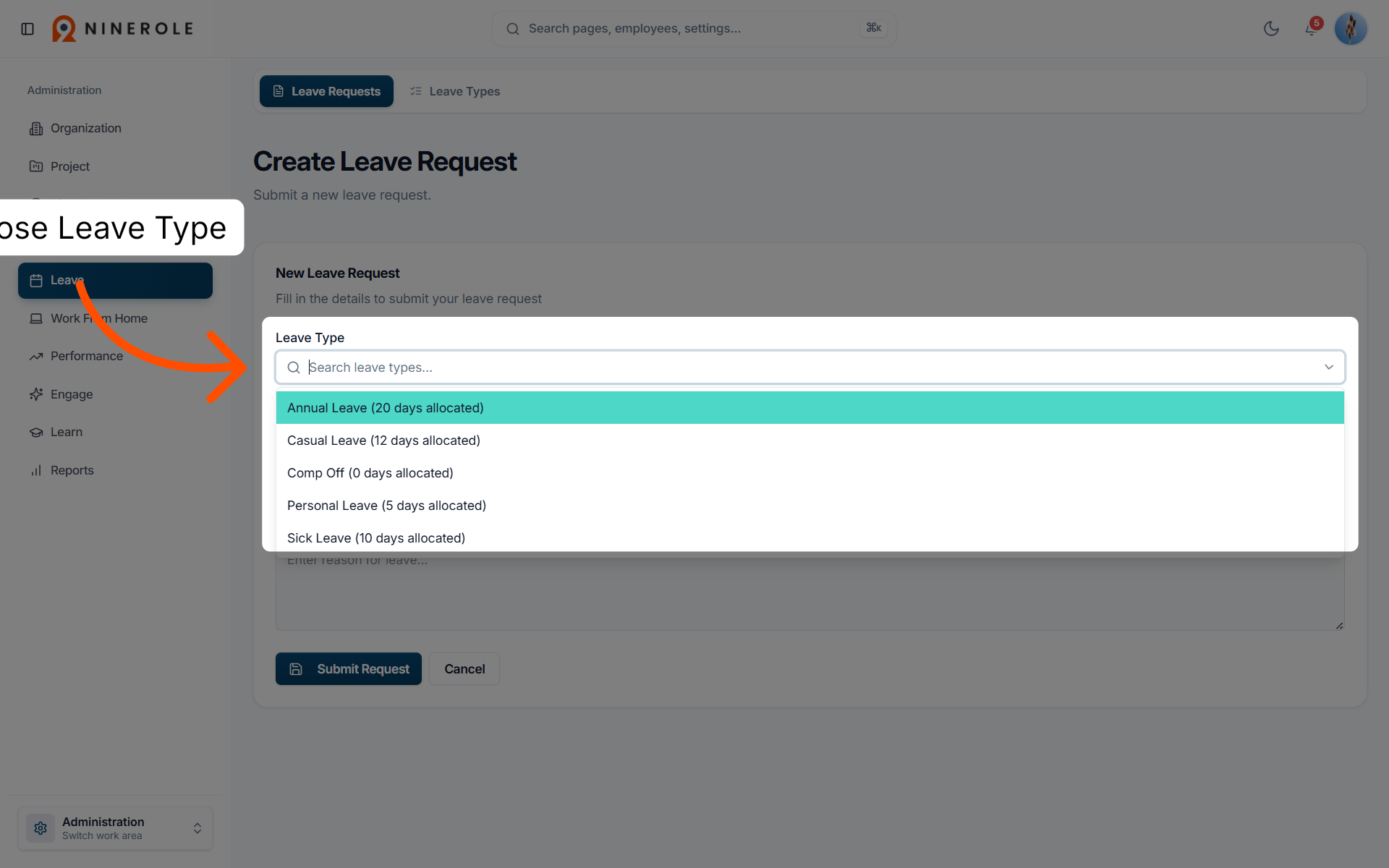
- Which leave types can I choose?
- How do I take a half day?
- How do I check my leave balance before applying?
- Who approves my leave request?
- How do I cancel or change a request I already submitted?
If something goes wrong
- The leave type you want isn't listed.
- Leave types come from the policy assigned to you. If one is missing, ask HR to check your policy assignment.
- The request is rejected because of insufficient balance.
- Check your remaining balance for that type first. Balance is per leave type, not a single pool.
- You need to work from home rather than take leave.
- Submit a work-from-home request instead — it is a separate request type.
Related: Manage leave · Work from home · My & team attendanceAlso called: apply for leave, leave application, time-off request.Last verified: 7 September 2026
1. Introduction
You will learn how to select leave types, specify dates, and provide reasons to complete your request.
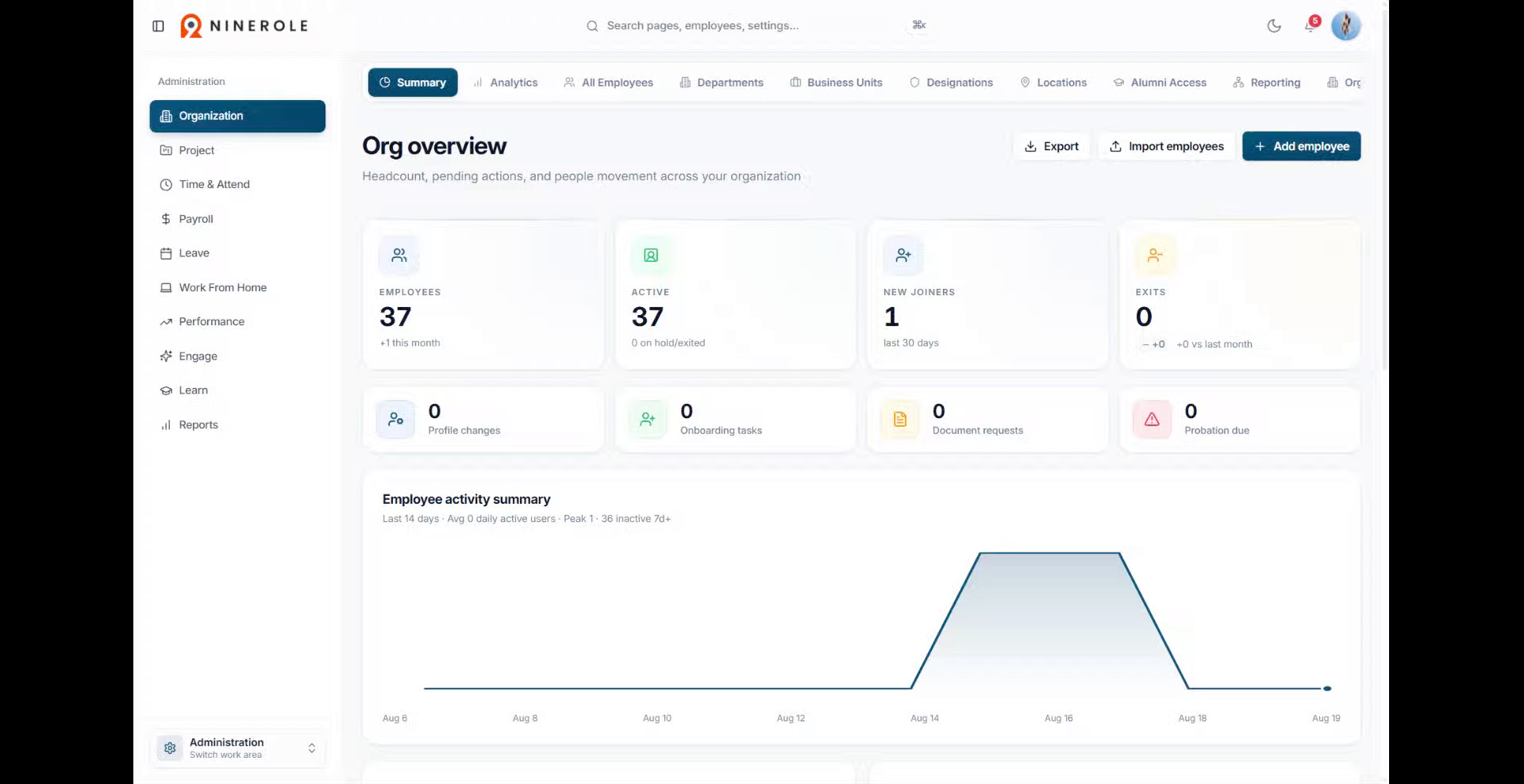
Open the leave request form
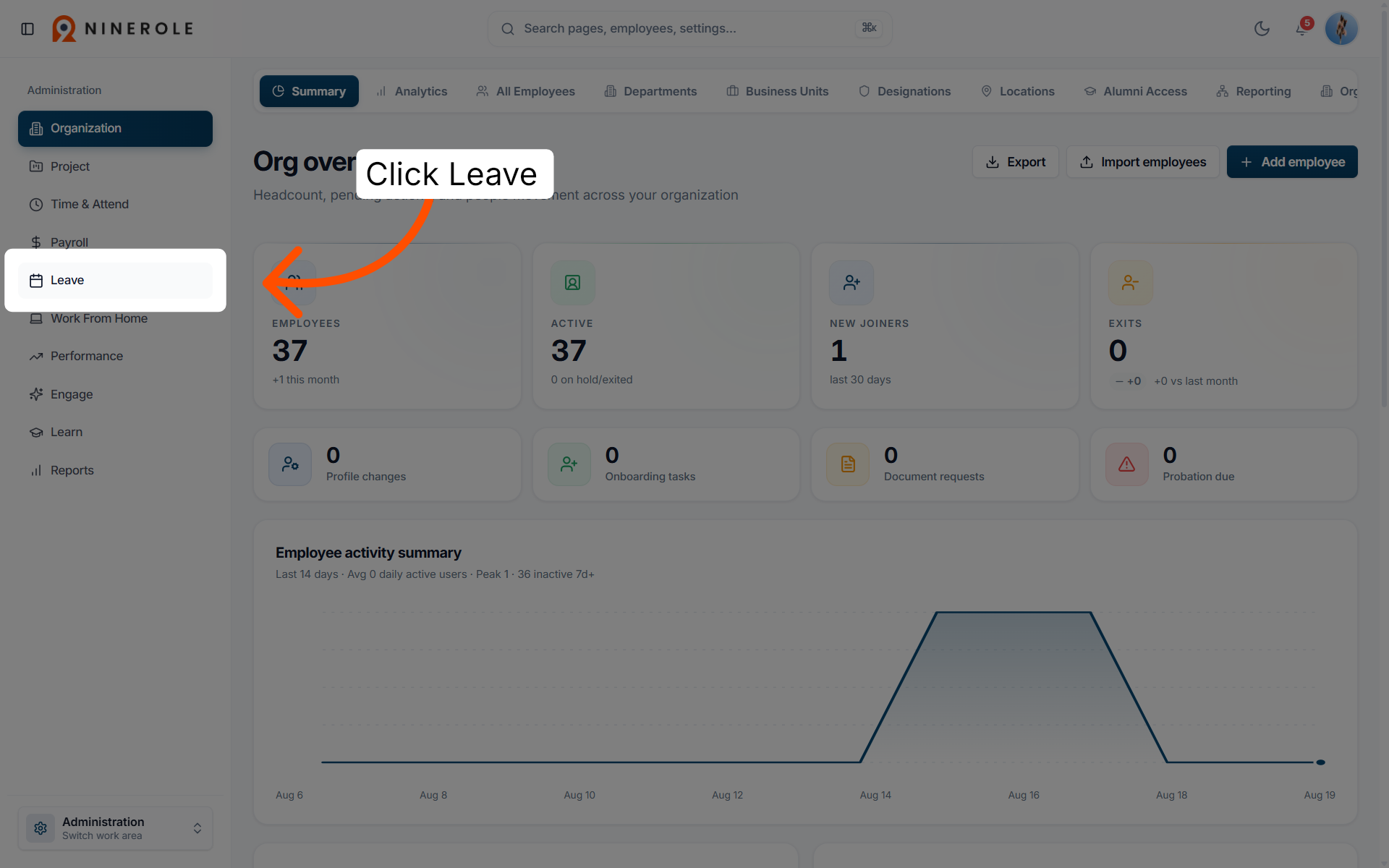
2. Access the Leave section
Click Leave to open the leave management section in Ninerole.
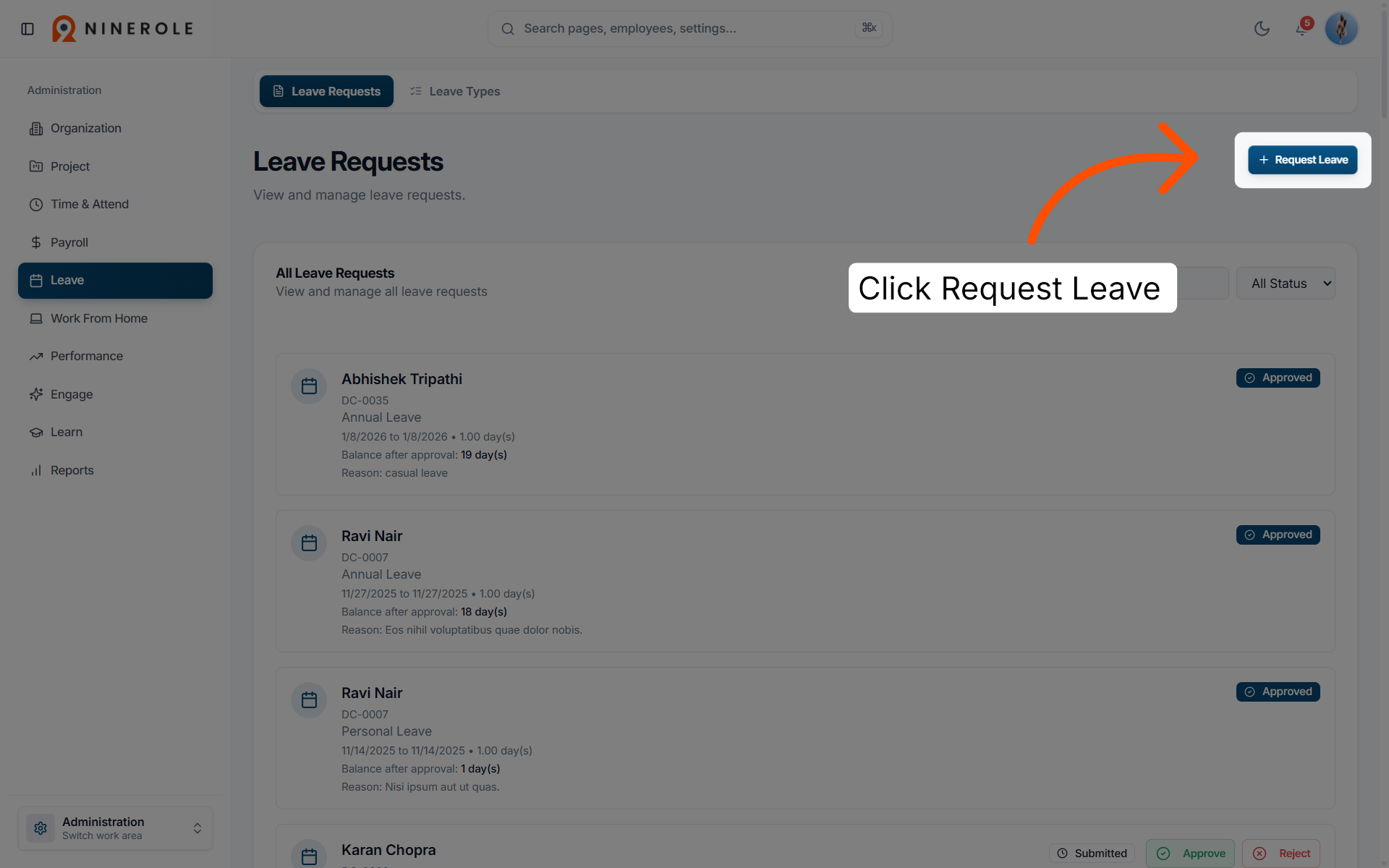
3. Open the leave request form
Click Request Leave to start creating a new leave request.
Complete and submit the request
4. Select the leave type
Choose Leave Type to view the available leave options.
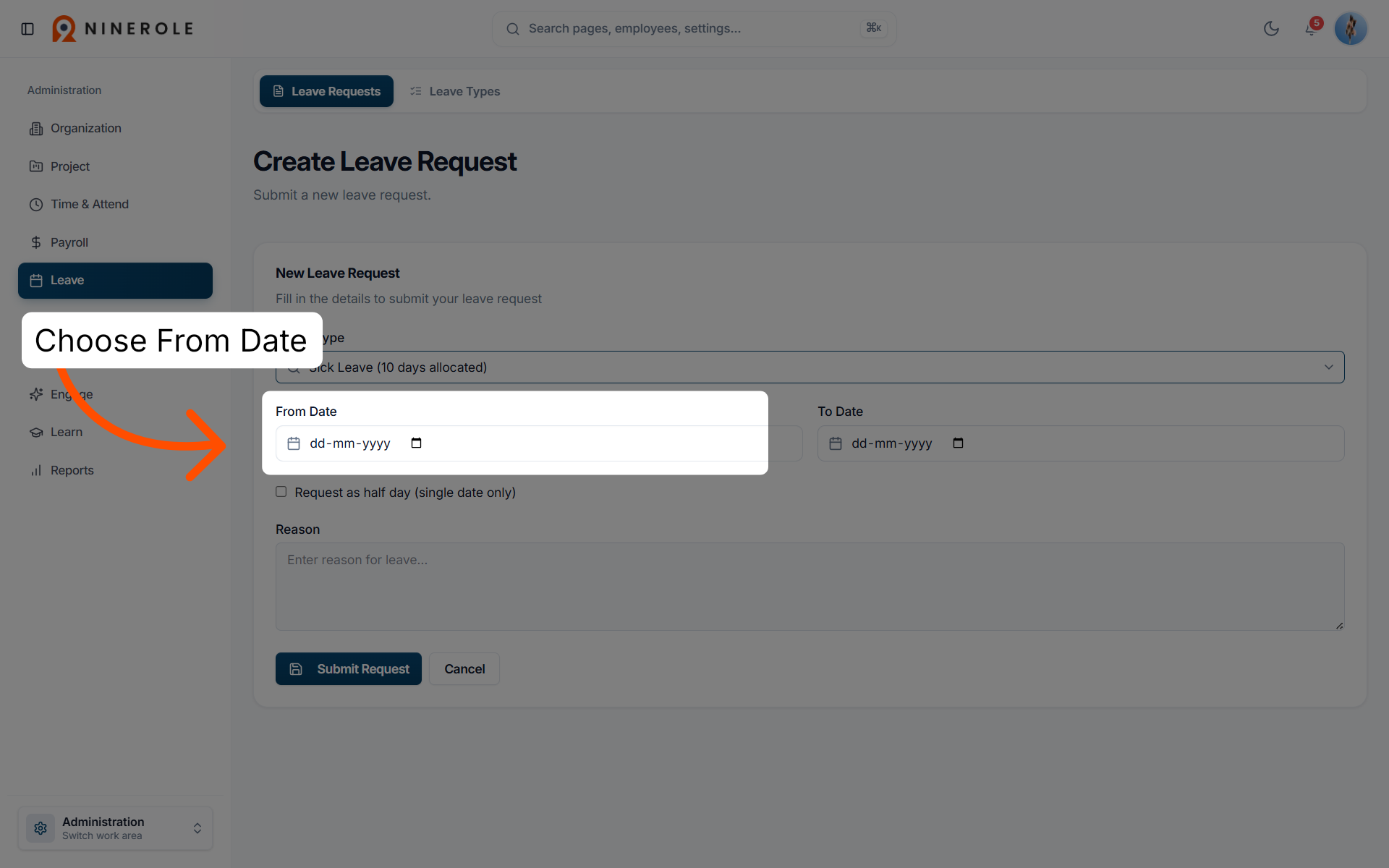
5. Open the start date picker
Choose From Date to pick the first day of your leave period.
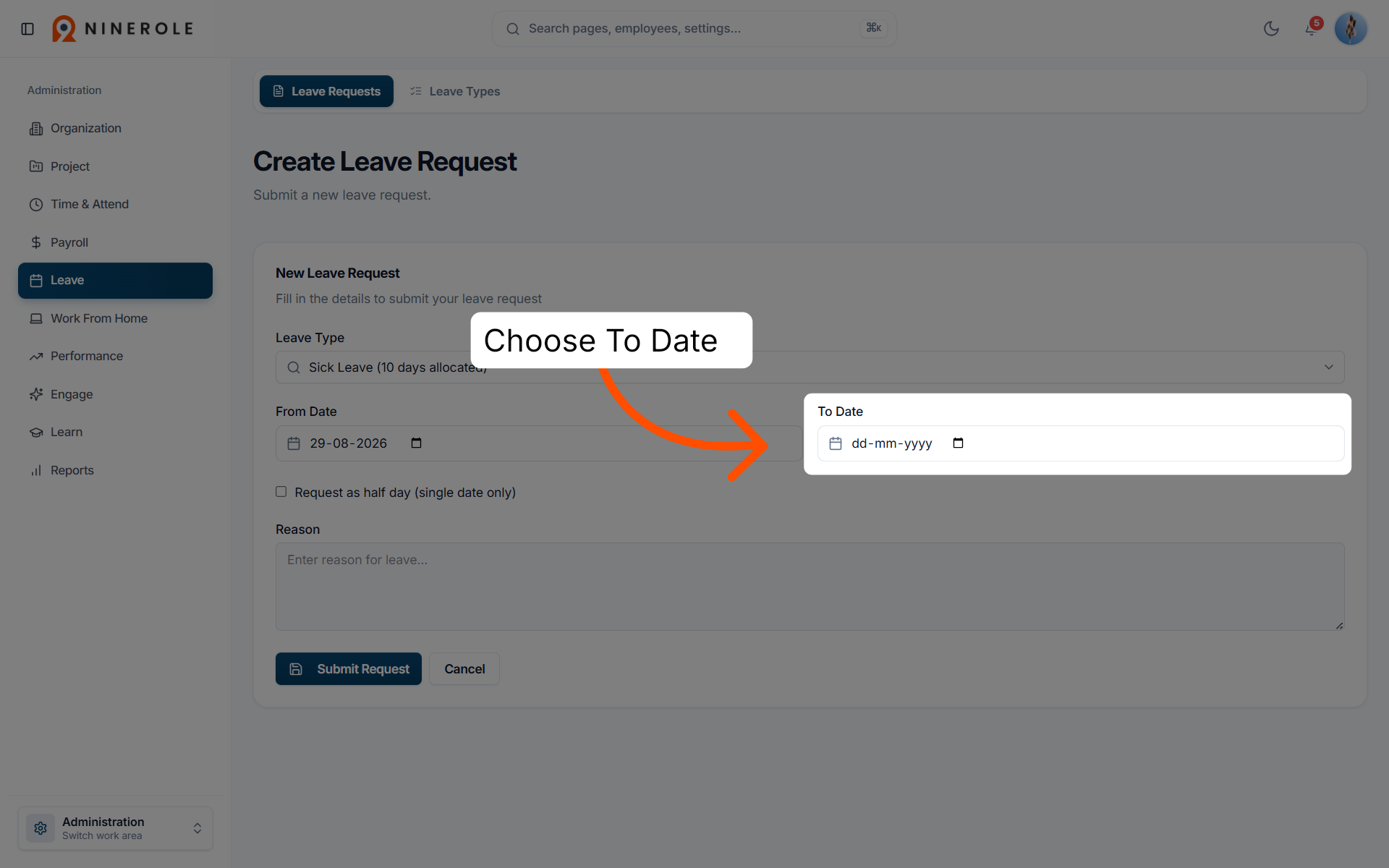
6. Open the end date picker
Choose To Date to specify the last day of your leave.
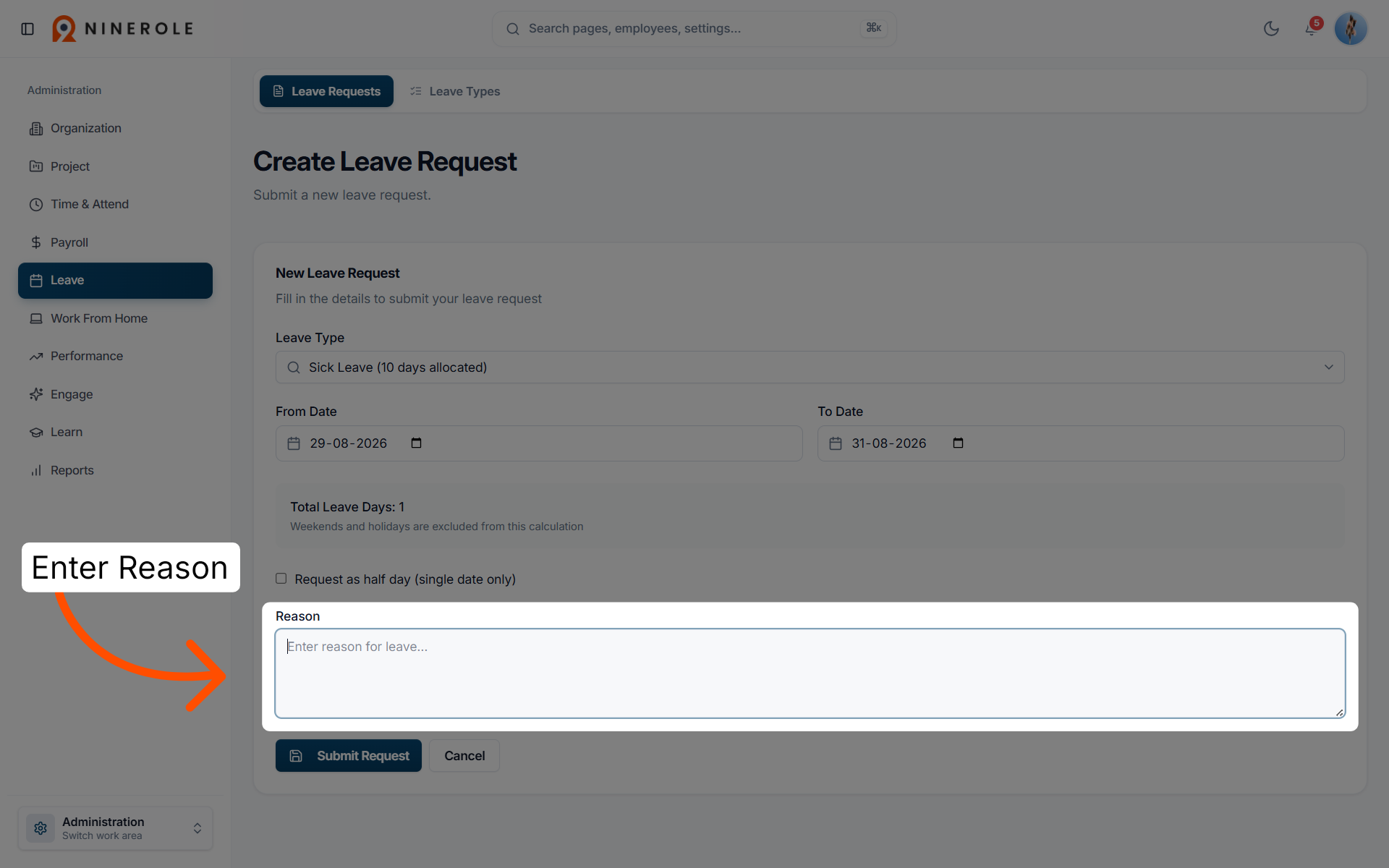
7. Access the reason field
Enter a Reason to provide the justification for your leave request.
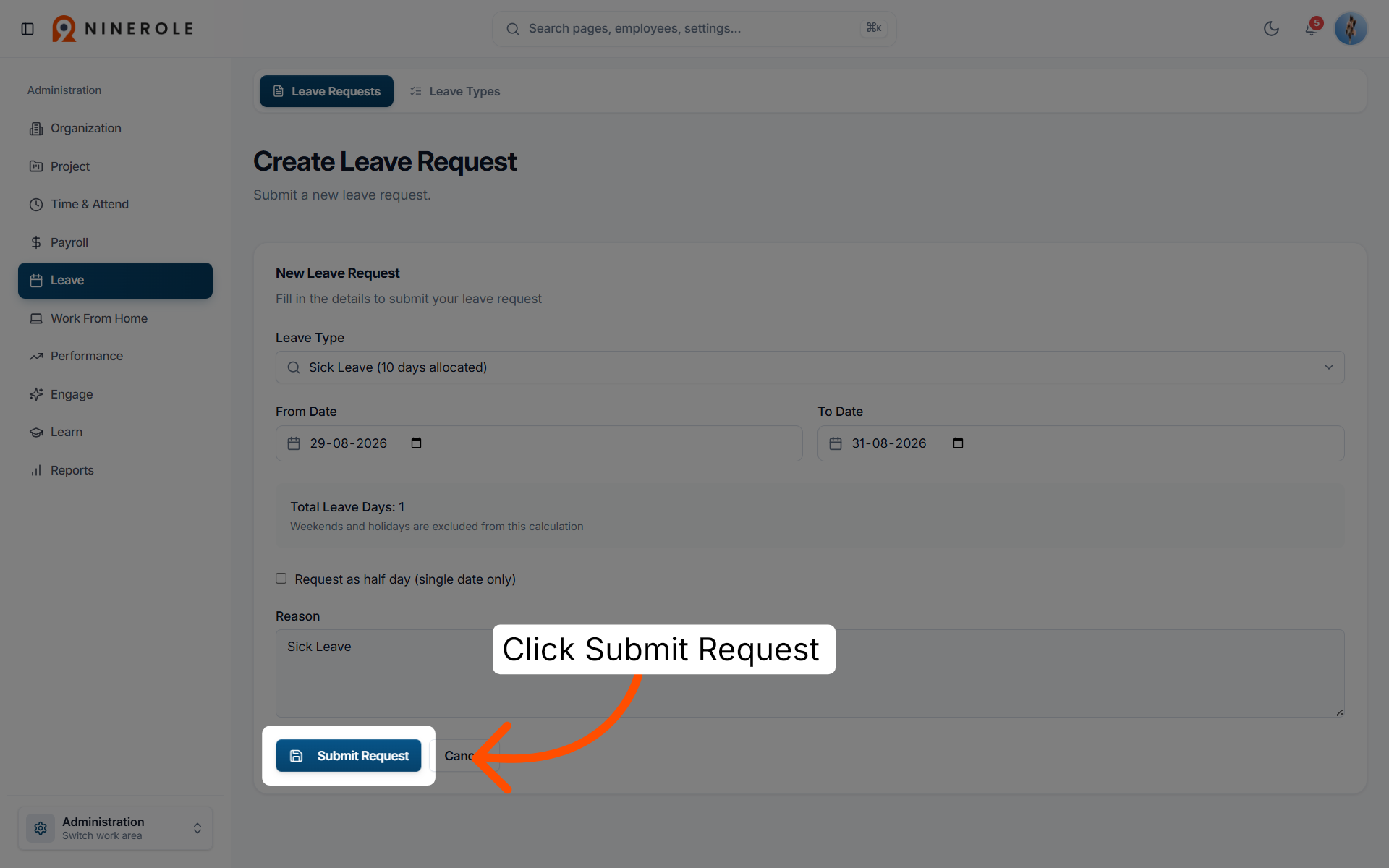
8. Submit the leave request
Click Submit Request to send your leave application for approval.
Your manager can then review it — see Manage Employee Leave for the approval side.
Back to Attendance · all modules · Ninerole HRMS overview
Last updated: