

My Attendance and My Team Attendance
This tutorial guides you through managing your monthly attendance records in Ninerole. You will learn how to navigate attendance data, review check-in and check-out times, and update records effectively.
Before you start, go to ninerole.com.
About this task
- Purpose
- Review your own monthly attendance, and — if you manage people — the same detail for your reports.
- Who can do this
- Employee for your own record; Manager for the team view
- You will need
- The month you want to review.
- Result
- You can see check-in and check-out times, totals and exceptions for the selected month.
- This unlocks
- Spotting a missing or wrong punch early, so it can be regularized before payroll reads the period.
This guide answers
- Where do I see my monthly attendance?
- How do I check my team's attendance?
- Why is a day showing as absent?
- How do I see check-in and check-out times for a date?
- What do I do about a wrong entry?
If something goes wrong
- A day shows as absent that you worked.
- A punch is missing. Submit an attendance regularization for that date.
- You cannot see your team.
- The team view needs manager access over those employees. Ask HR to check your reporting structure.
Related: Punch in & out · Regularization · Attendance reportsAlso called: my attendance, team attendance, monthly attendance record.Last verified: 7 September 2026
My attendance
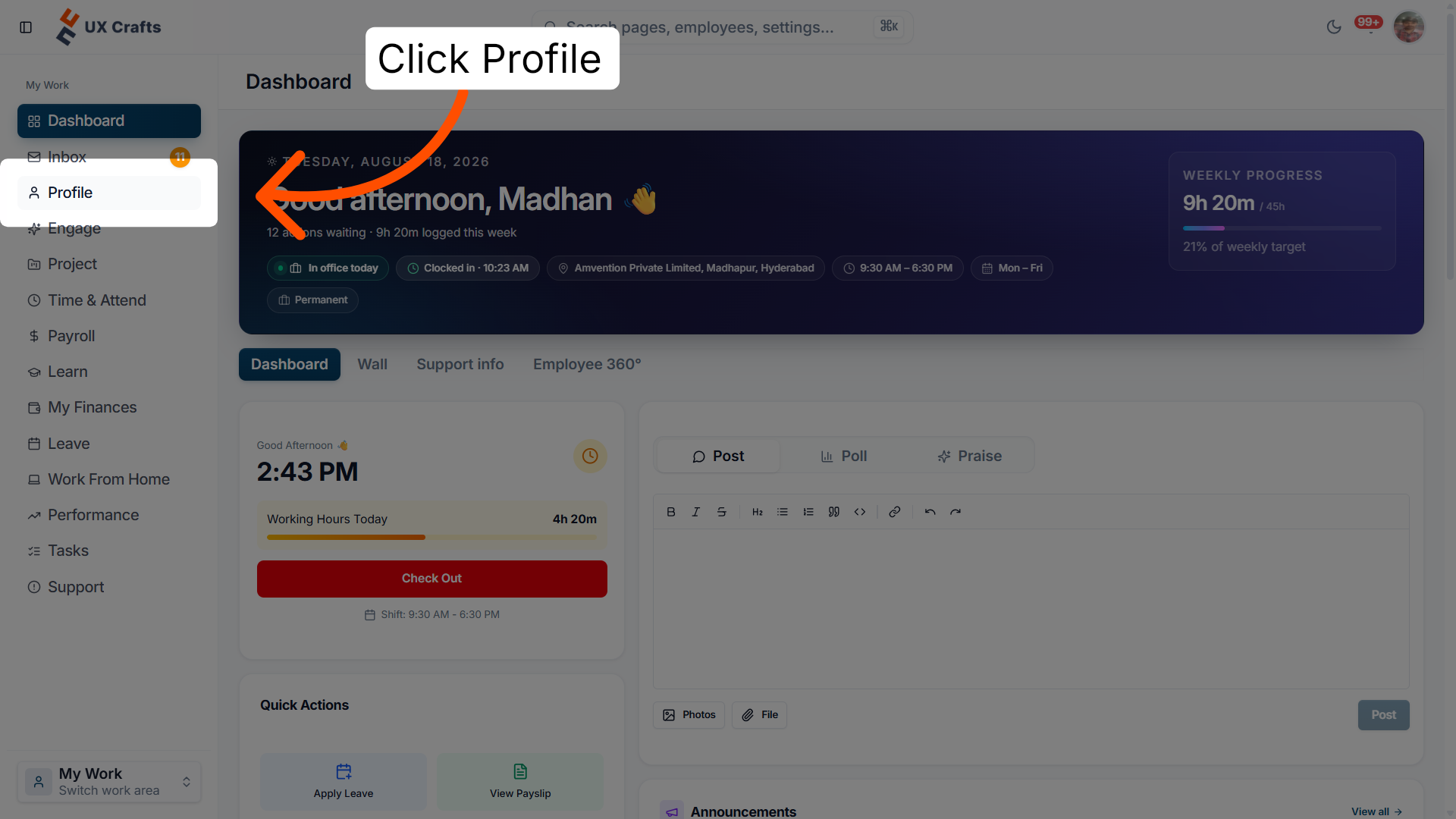
1. Navigate to Profile page
Click Profile to access your user profile and related settings.
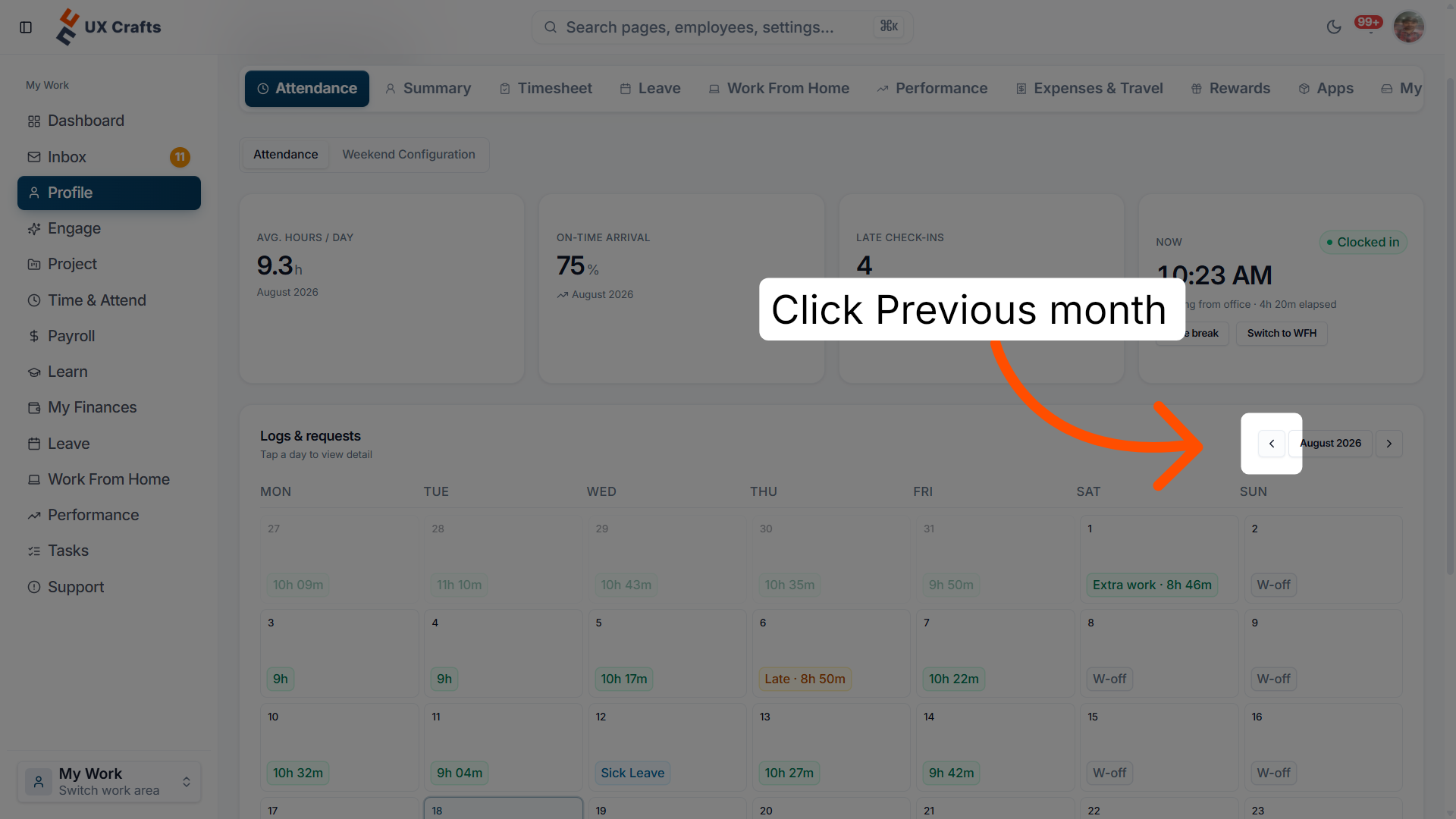
2. View previous month attendance
Click Previous month to review your attendance data from the prior month.
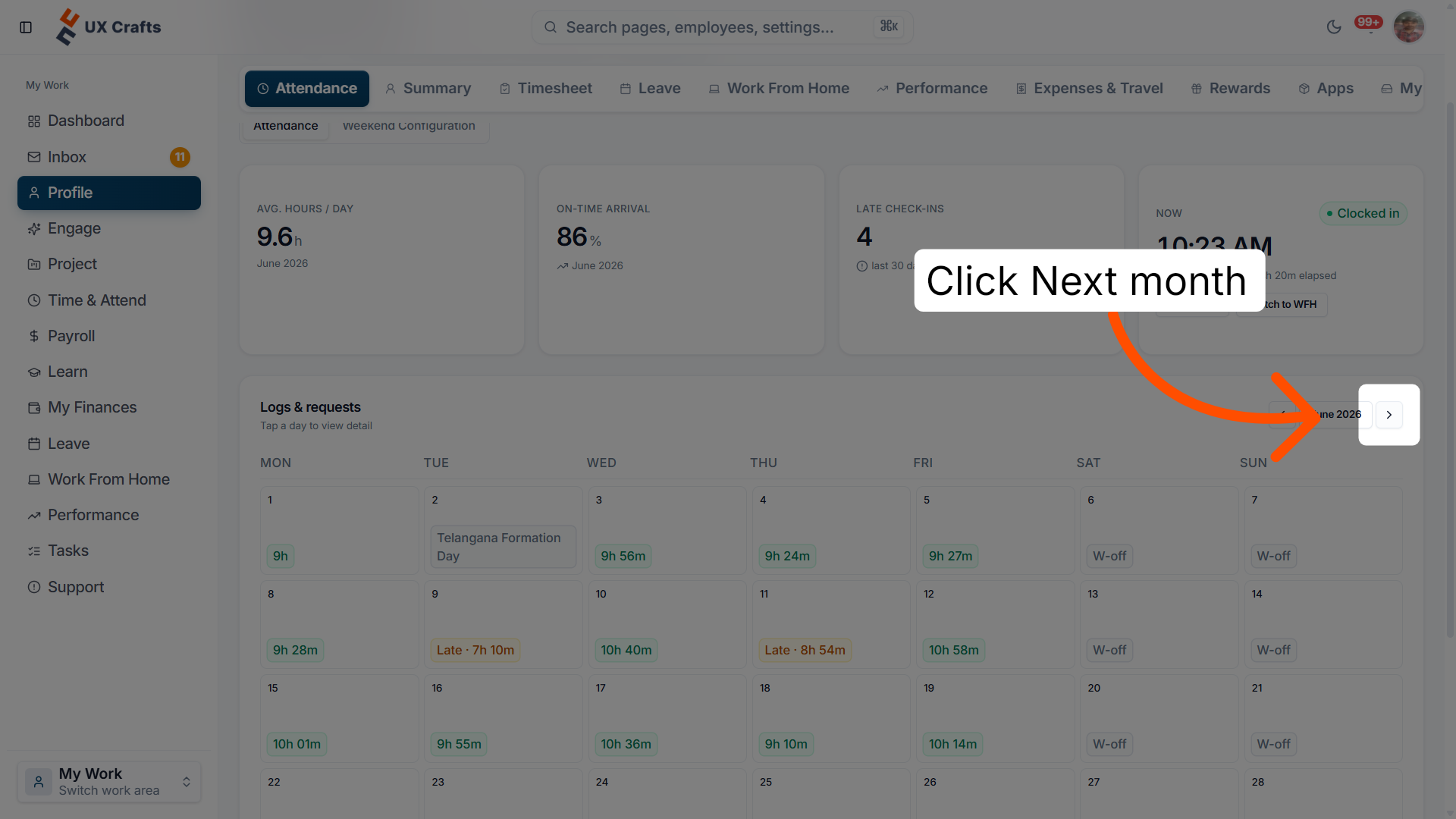
3. Advance to next month
Click Next month to move forward and view attendance for the following month.
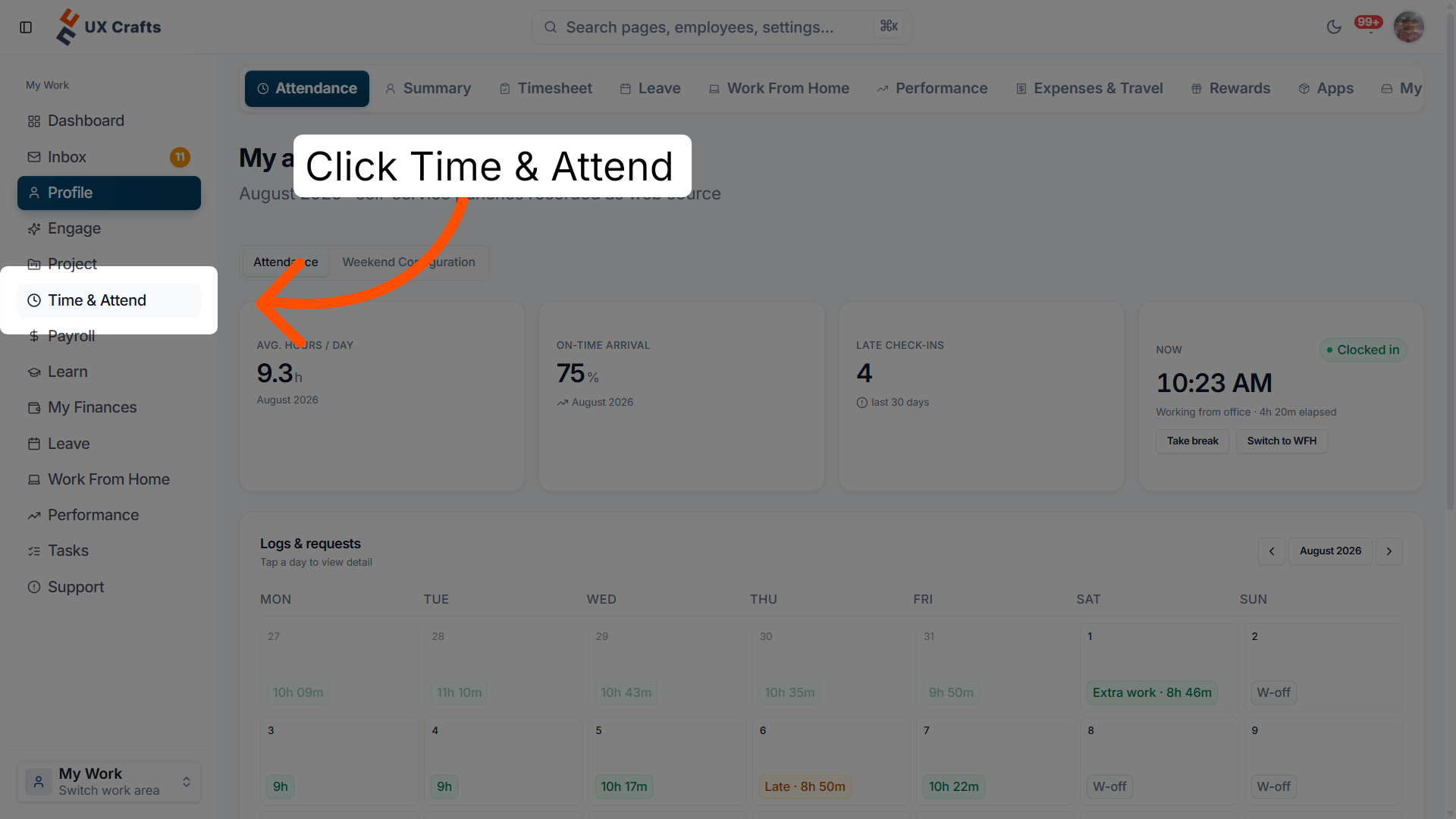
4. Open Time & Attendance section
Click Time & Attend to access detailed time and attendance information.
5. Access Monthly Attendance
Click Monthly Attendance to view your attendance summary for the selected month.
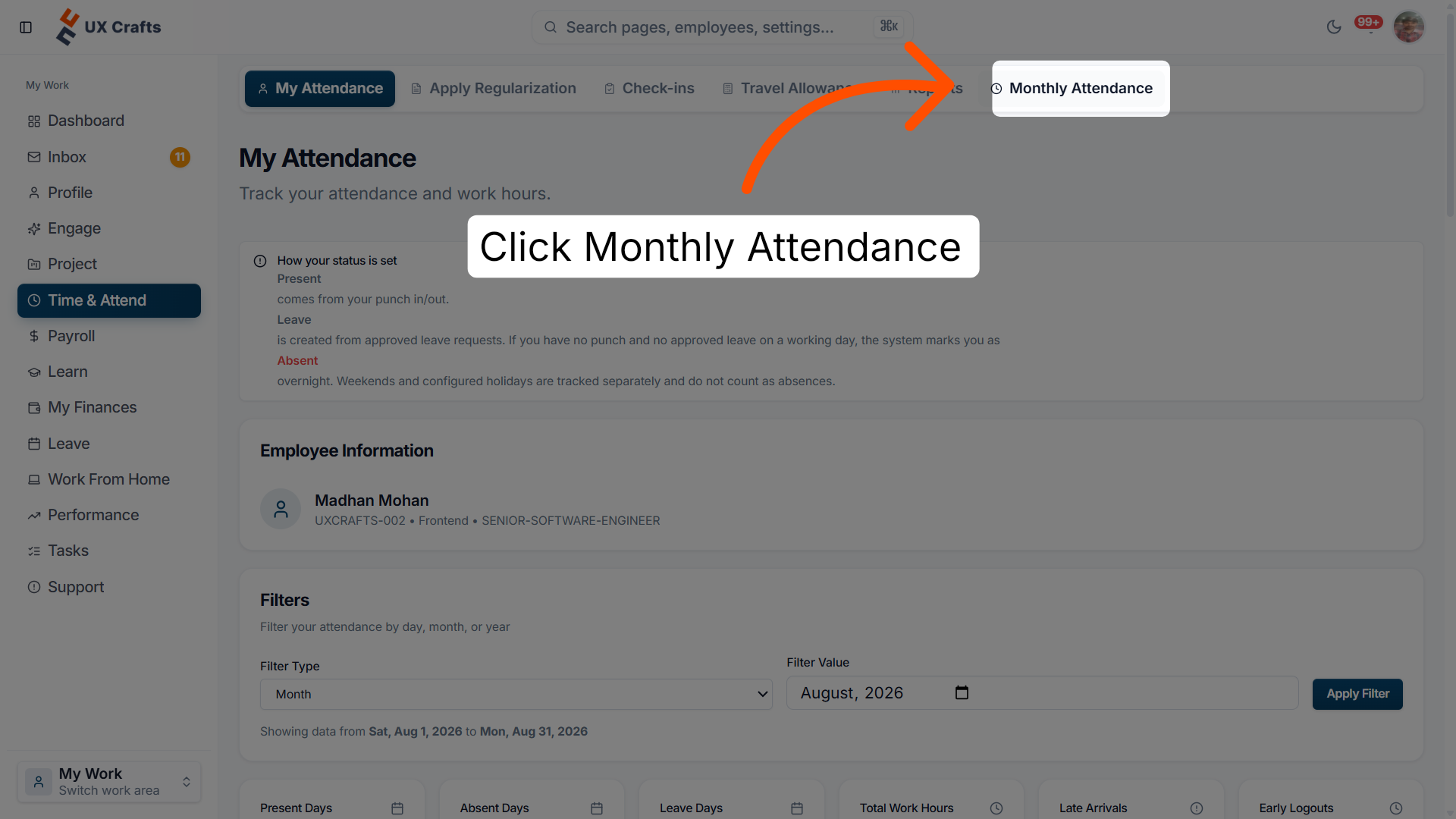
6. Select a specific attendance entry
Select a specific attendance entry to examine the attendance details for that day.
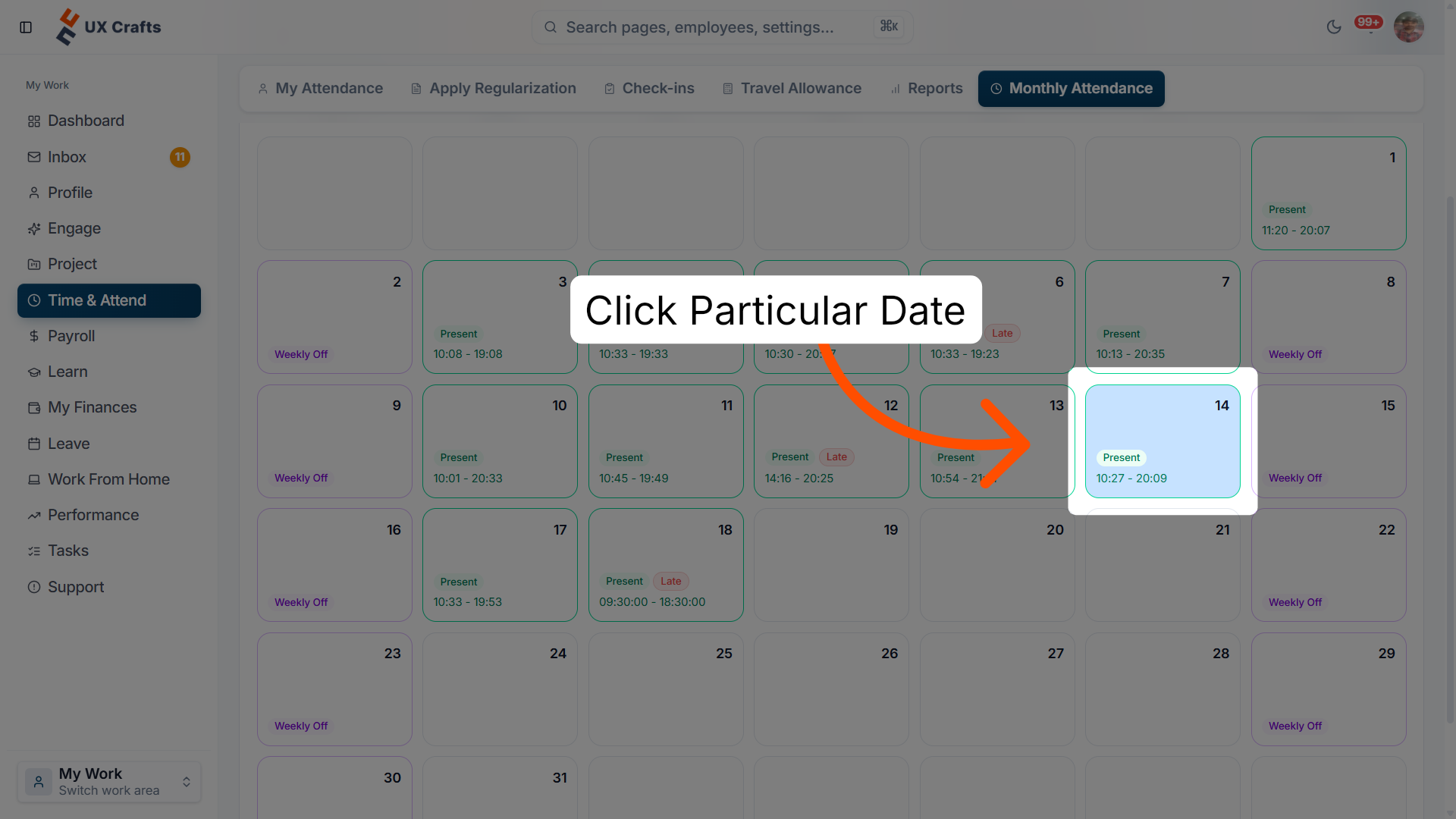
7. Interact with attendance options
Click here to access additional attendance options or details for the selected day.
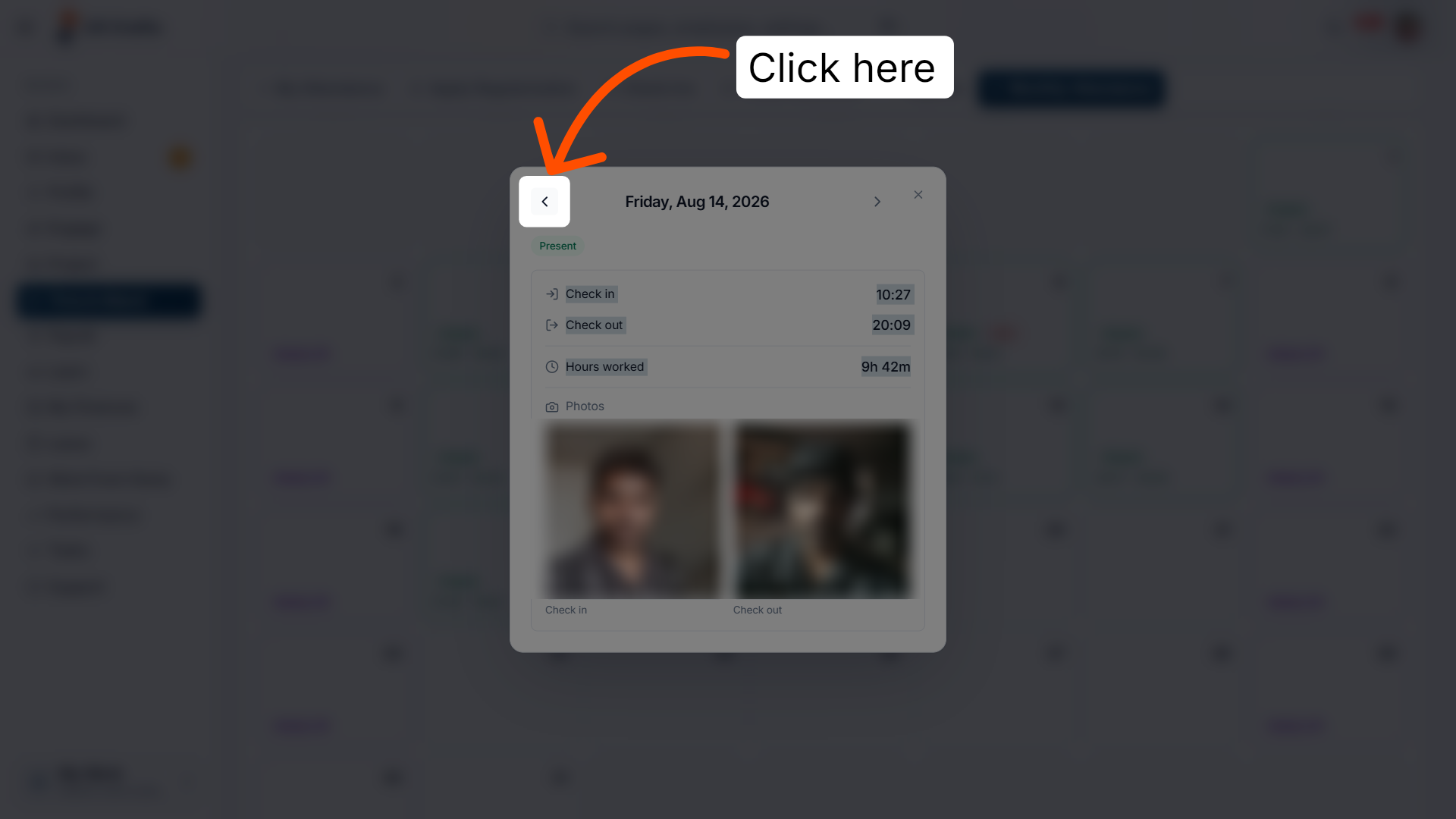
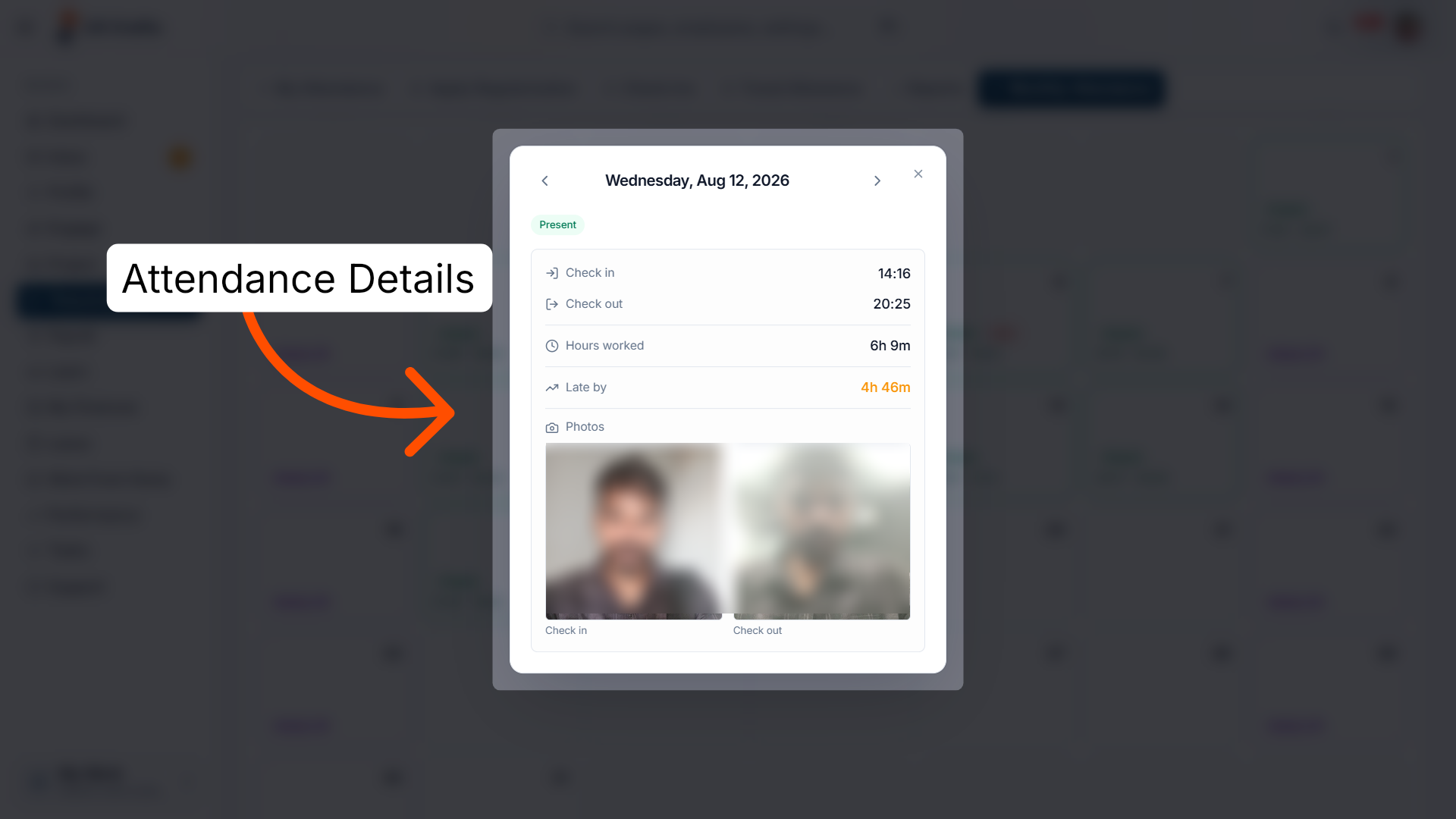
8. Review the detailed attendance record
Here you can check the attendance details — Present, Check in, Check out, Hours worked, Late by, and photos of check-in and check-out — to see comprehensive attendance information for that day.
My team's attendance
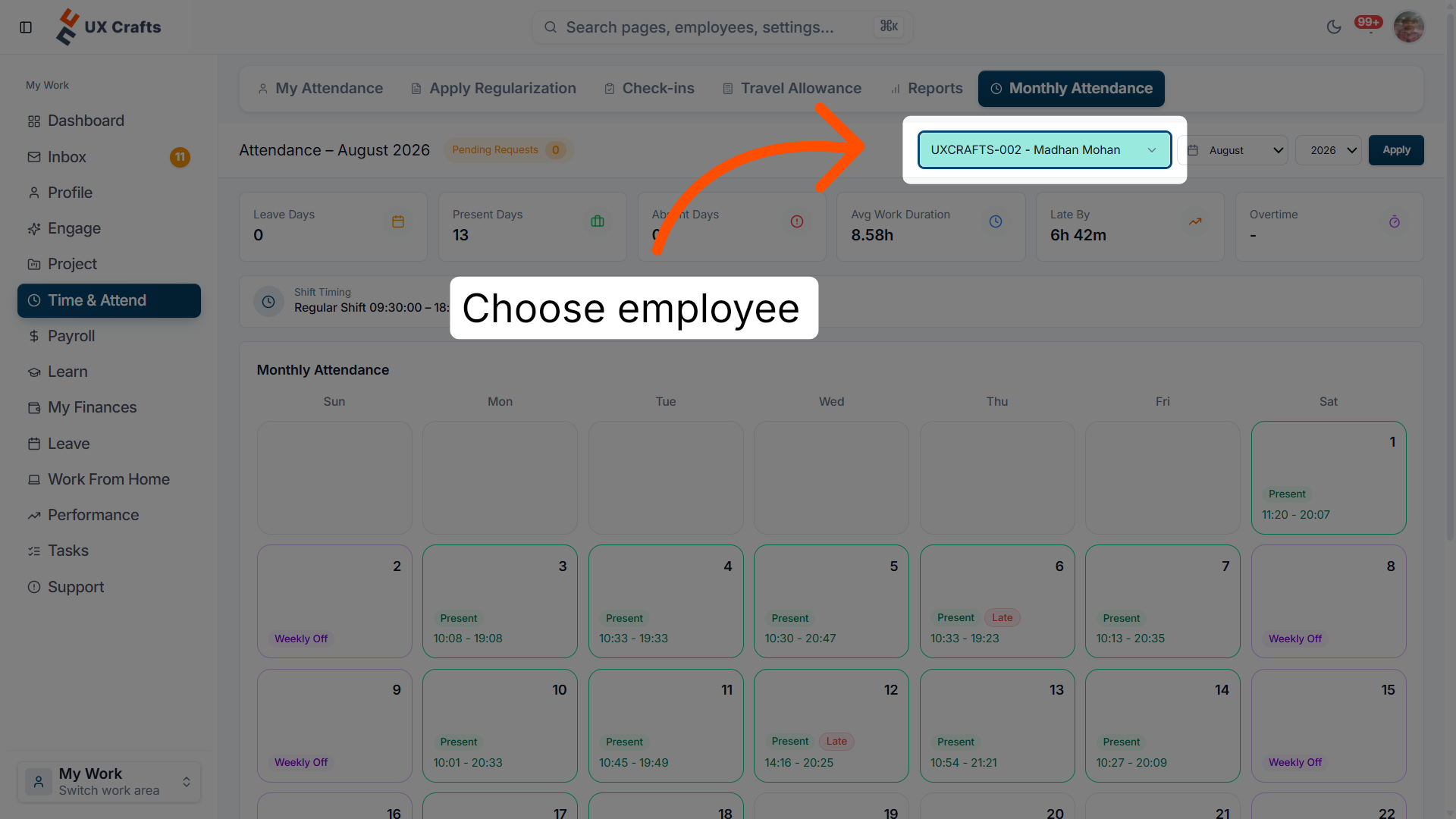
9. Select an employee attendance record
Choose the employee whose attendance details you want to view.
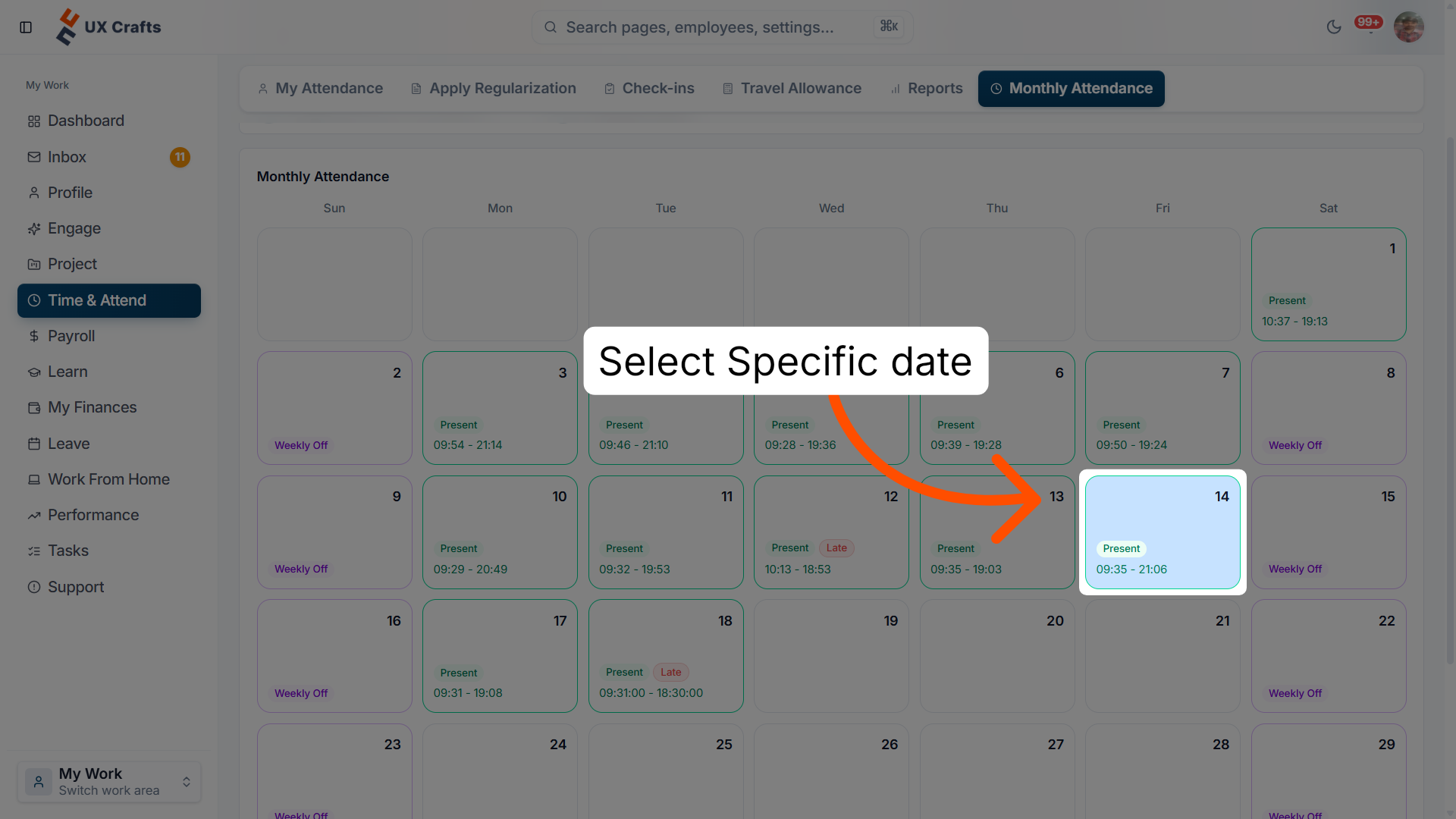
10. Select a specific date
Select a specific date to focus on attendance data for that day of the month.
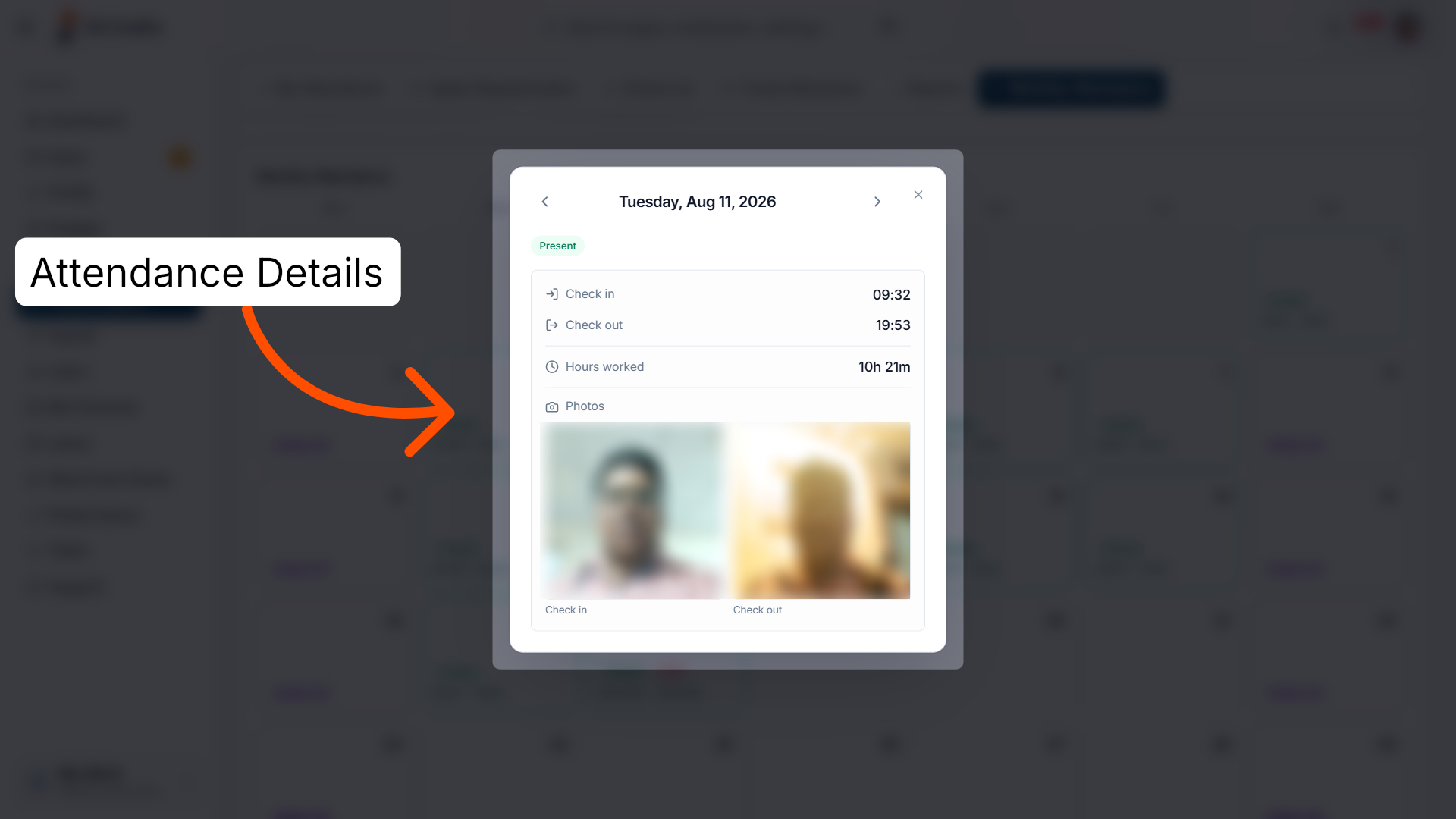
11. Review the attendance summary
Here you can check the employee's attendance details — Present, Check in, Check out, Hours worked, Late by, and photos of check-in and check-out — to see comprehensive attendance information for that day.
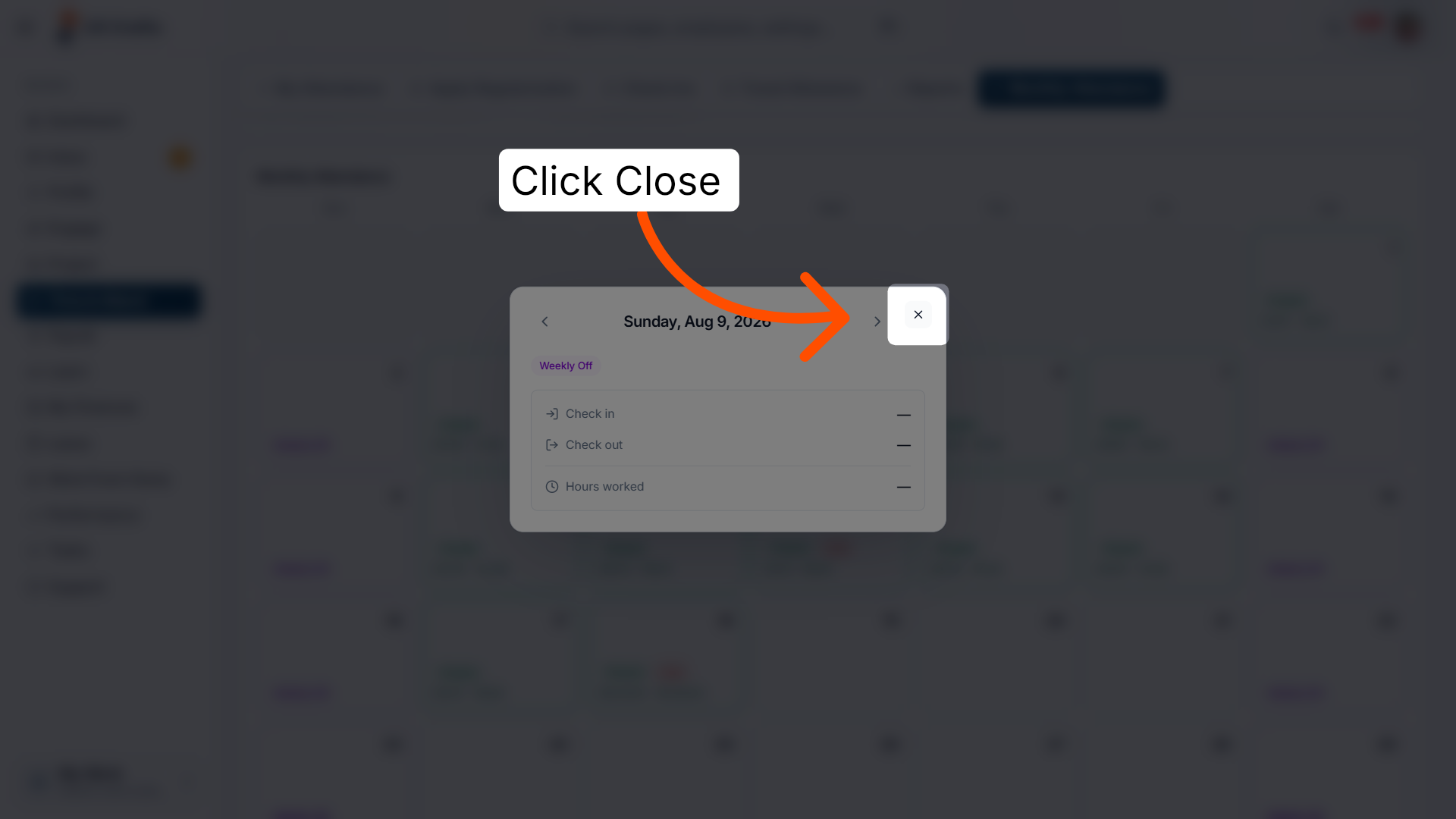
12. Close the attendance view
Click Close to exit the detailed attendance screen and return to the overview.
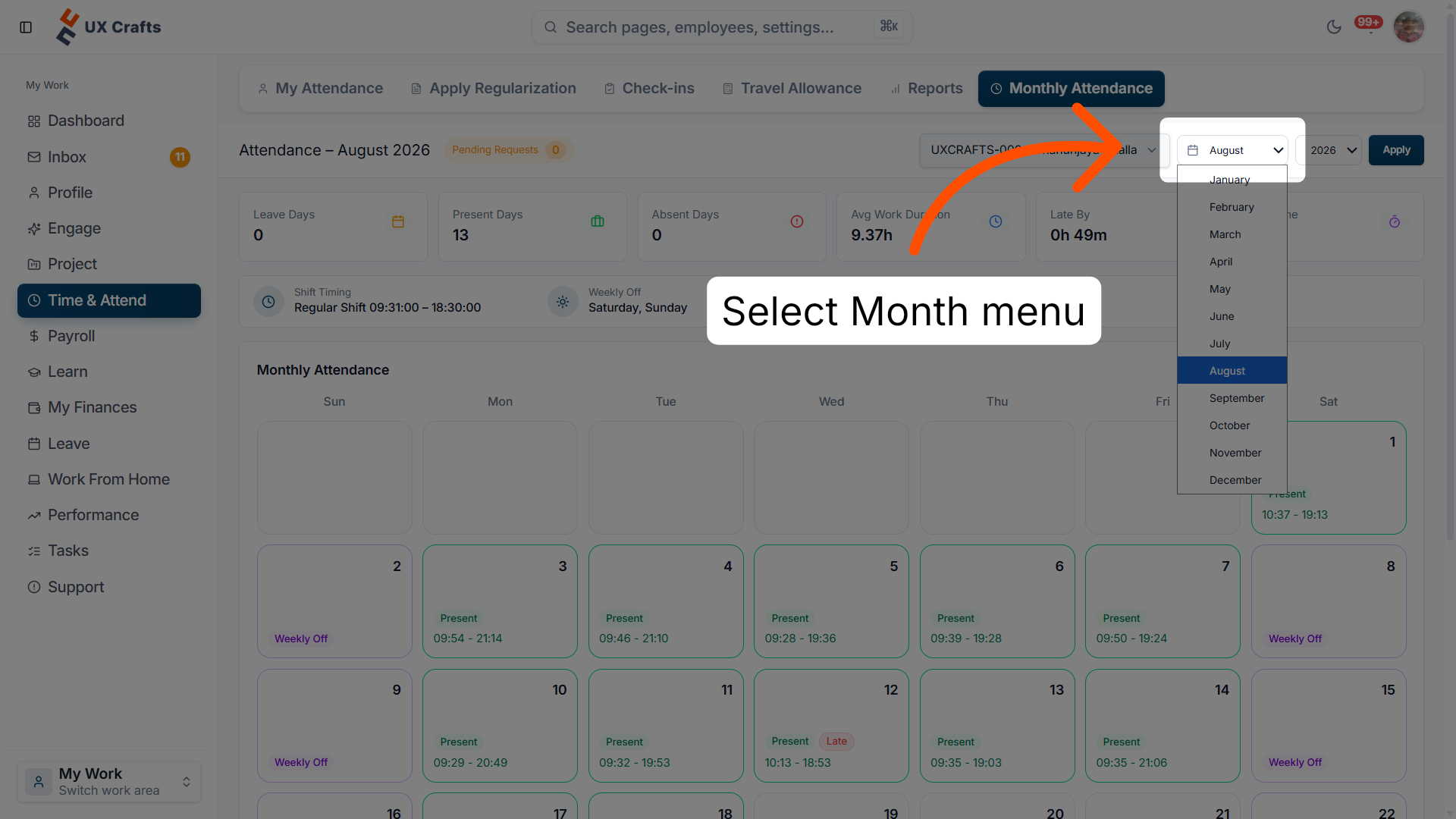
13. Open the month selection menu
Select any month from January through December to review attendance for a different month.
You have successfully navigated and managed your monthly attendance records within Ninerole.
Back to Attendance · all modules · Ninerole HRMS overview
Last updated: