

Configure Personal Profile Settings
This tutorial guides you through updating your personal profile information in Ninerole HRMS. You will learn how to access and modify various personal and work-related details to keep your profile current.
Before you start, go to ninerole.com.
About this task
- Purpose
- Keep your own profile current — personal and work details, qualifications, certifications, skills, banking and documents.
- Who can do this
- Employee (self-service)
- Before you start
- Your employee record has been created by HR.
- You will need
- The details you want to update, and any documents to upload (2 MB per file).
- Result
- Your profile is updated; documents are stored against your record.
- This unlocks
- Accurate data for payroll, compliance and internal search; certifications appear on your profile.
This guide answers
- How do I update my personal details?
- How do I add my bank account?
- How do I upload a document?
- What is the file size limit for documents?
- Which fields can I change myself?
If something goes wrong
- A field is read-only.
- Work details such as designation and joining date are maintained by HR, not self-service.
- A document upload fails.
- Files are limited to 2 MB each. Compress the file or upload a smaller scan.
Related: Add an employee · Upload documents · My payslipsAlso called: my profile, employee profile, personal details.Last verified: 7 September 2026
1. Introduction
You will learn how to access and modify various personal and work-related details to keep your profile current.
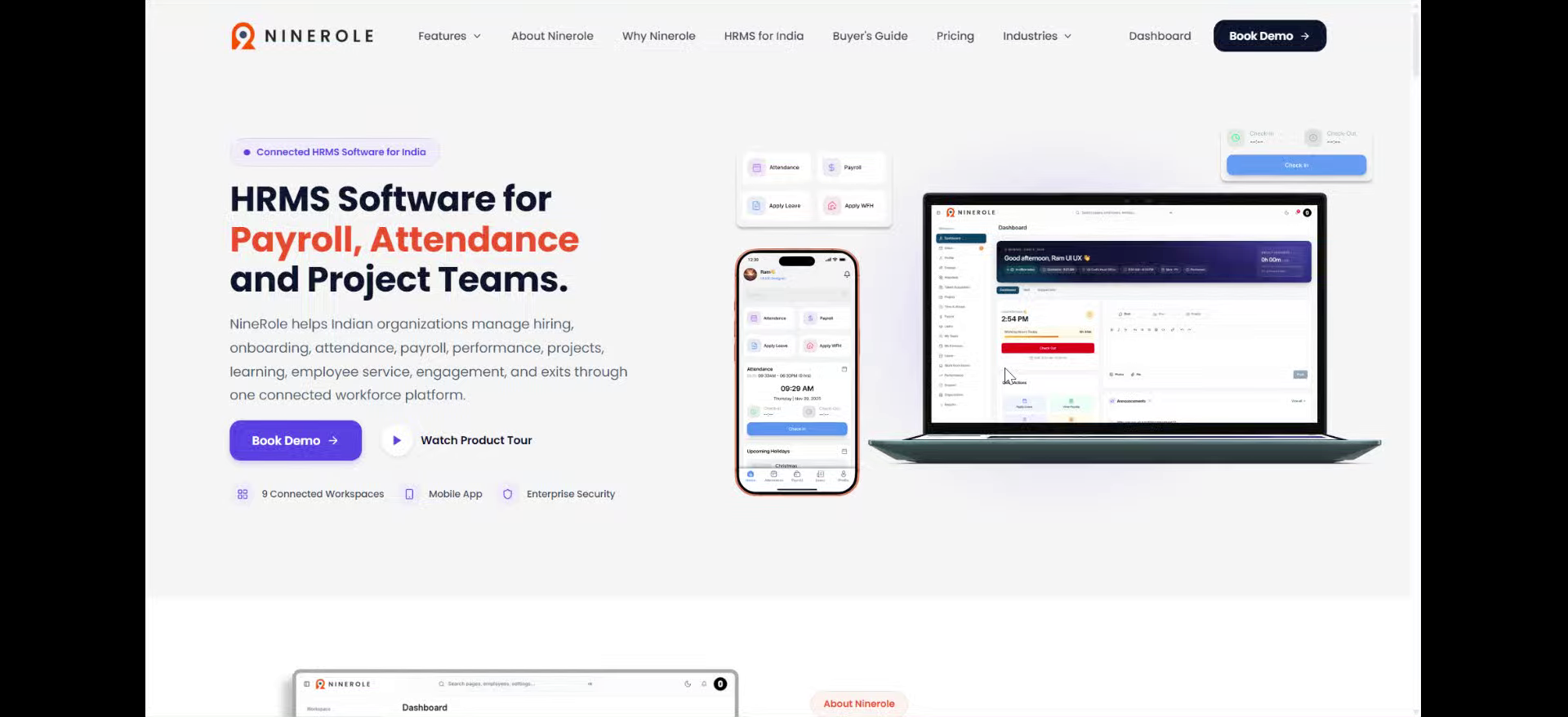
Open your profile
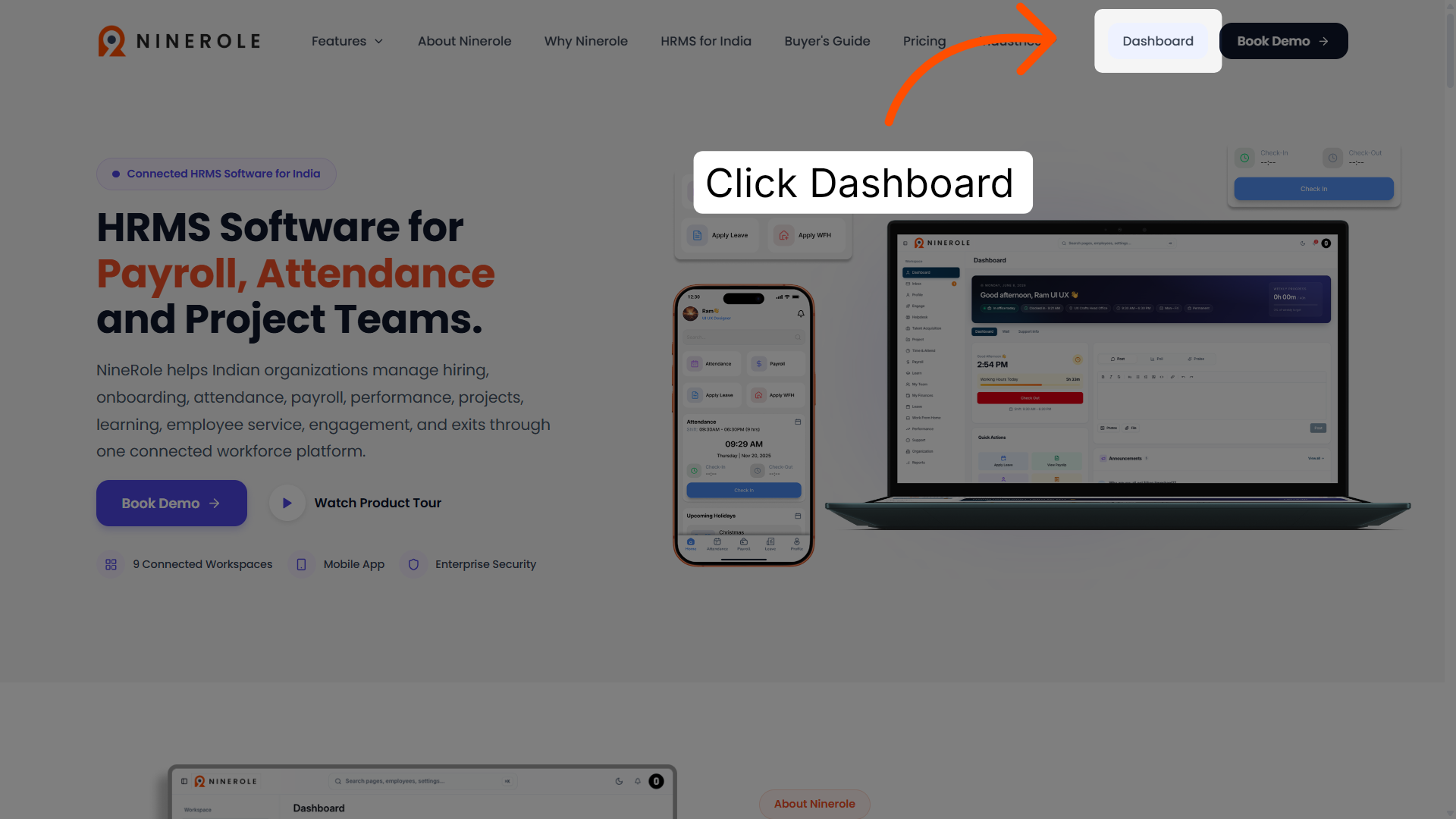
2. Access the dashboard
Click Dashboard to open the main overview page of Ninerole HRMS.
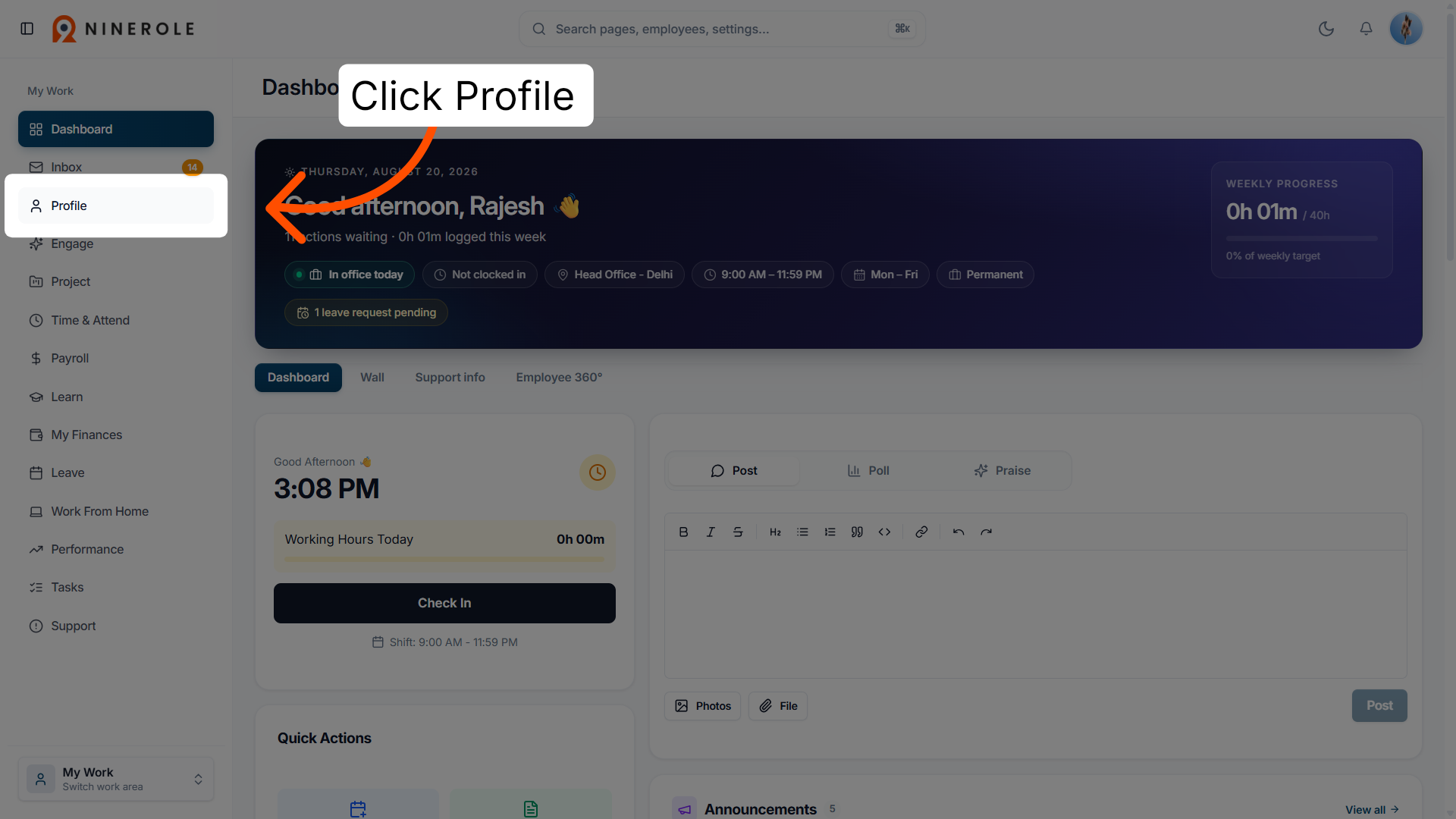
3. Open the Profile section
Click Profile to view and edit your personal information within the dashboard.
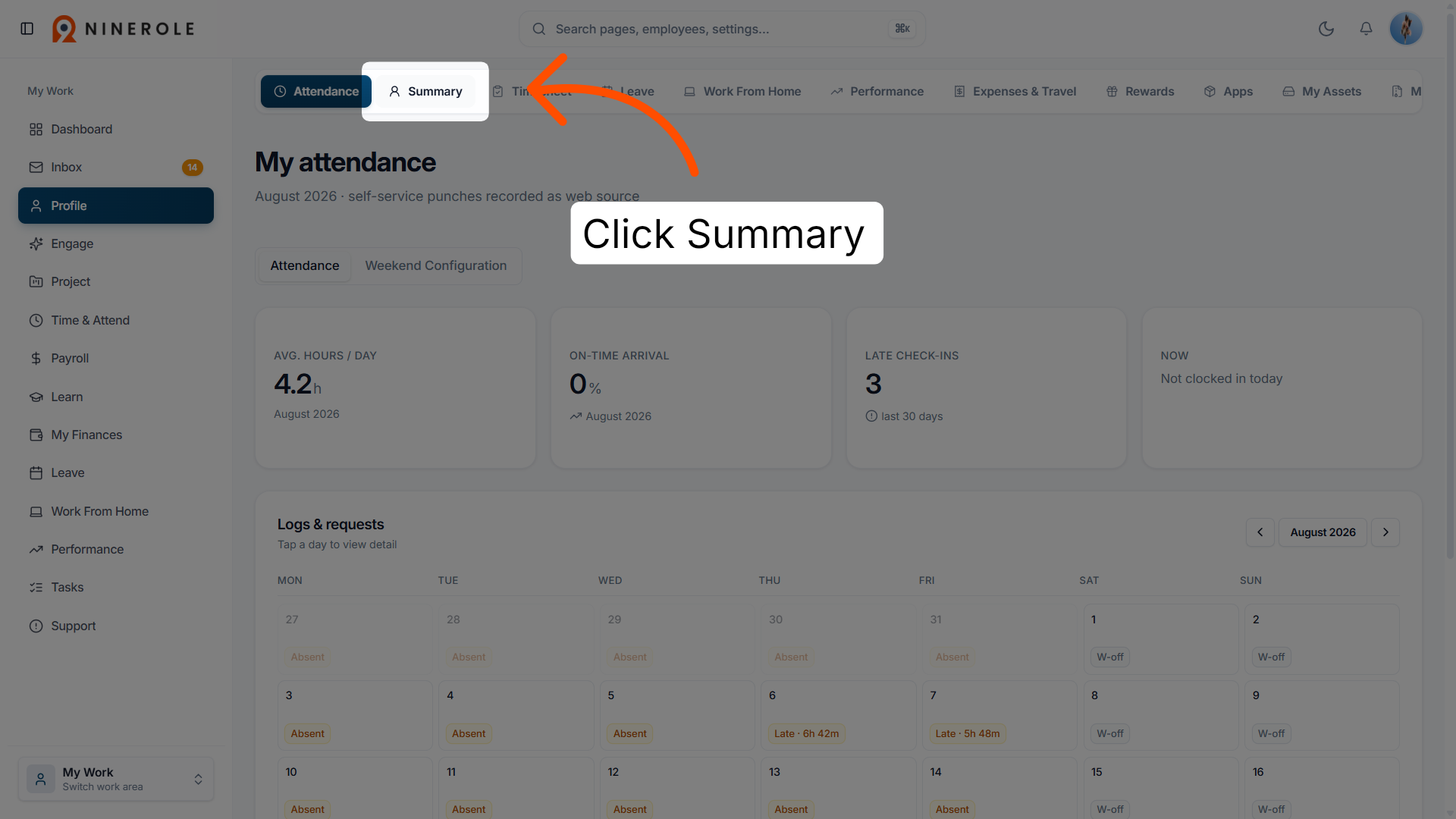
4. View the summary
Click Summary to access your details and related information.
Update personal details
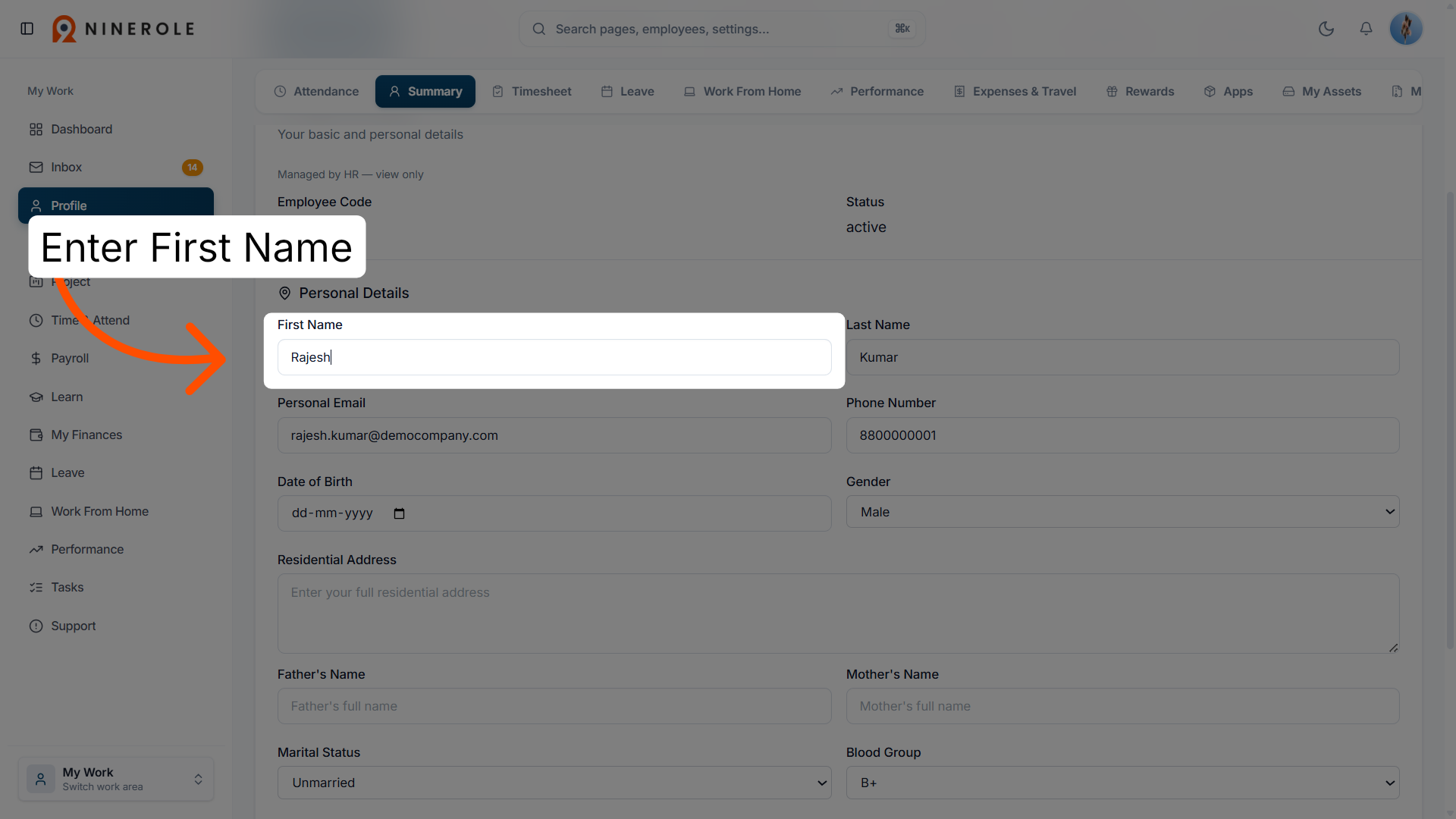
5. Edit your first name
Enter First Name to update your given name in your profile.
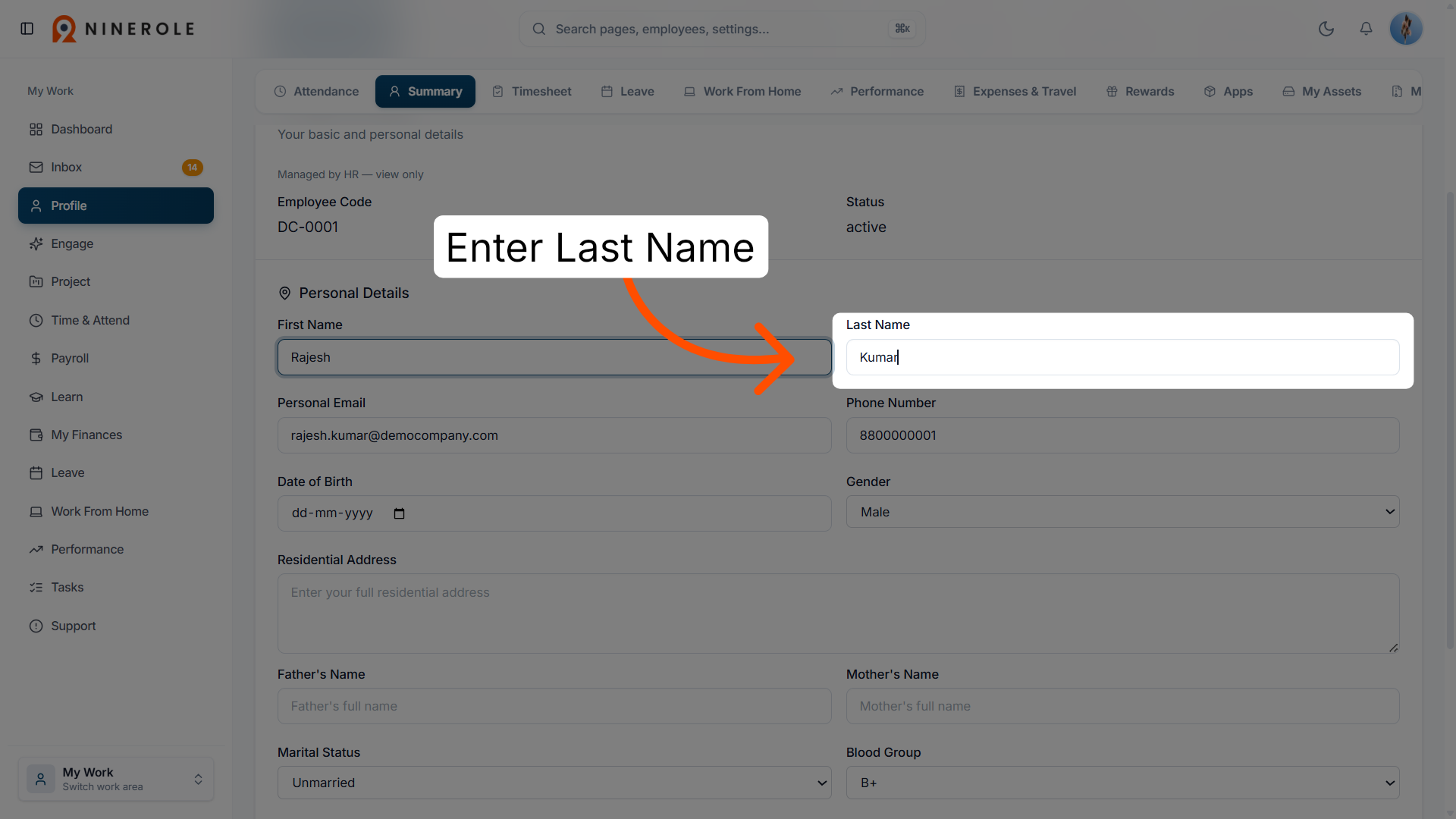
6. Edit your last name
Enter Last Name to modify your family name in your profile.
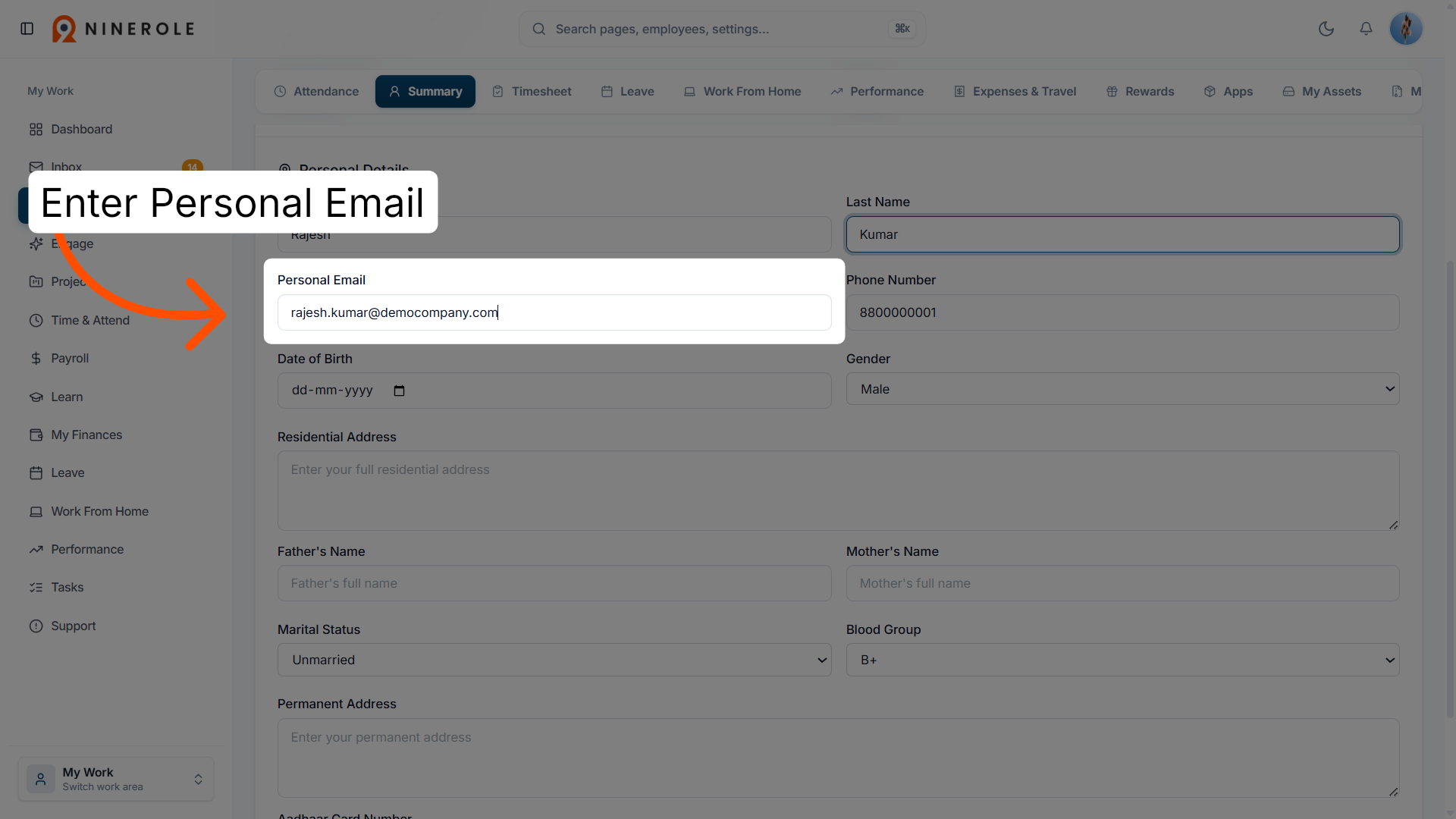
7. Update your personal email
Enter Personal Email to change the email address associated with your profile.
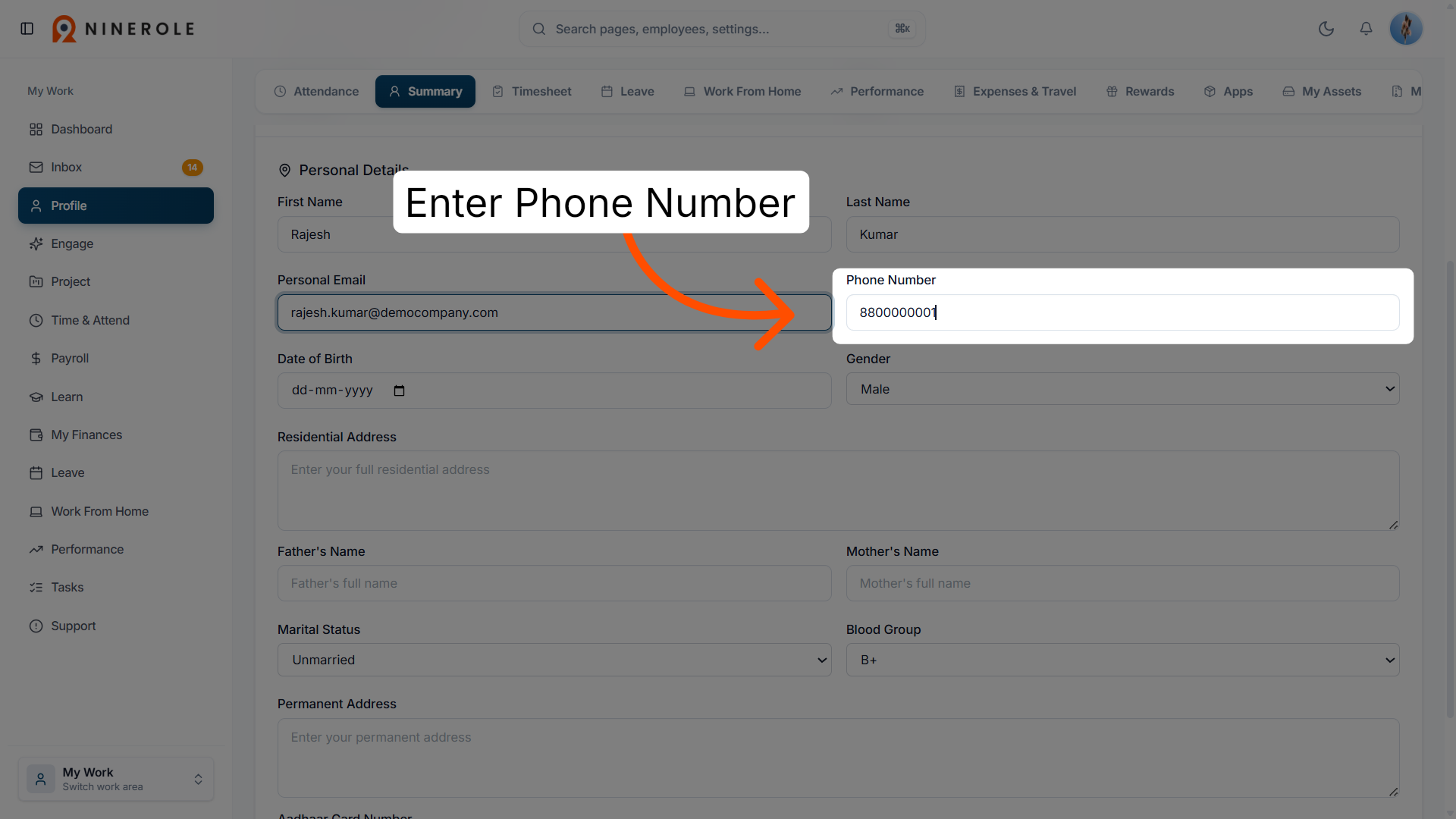
8. Modify your phone number
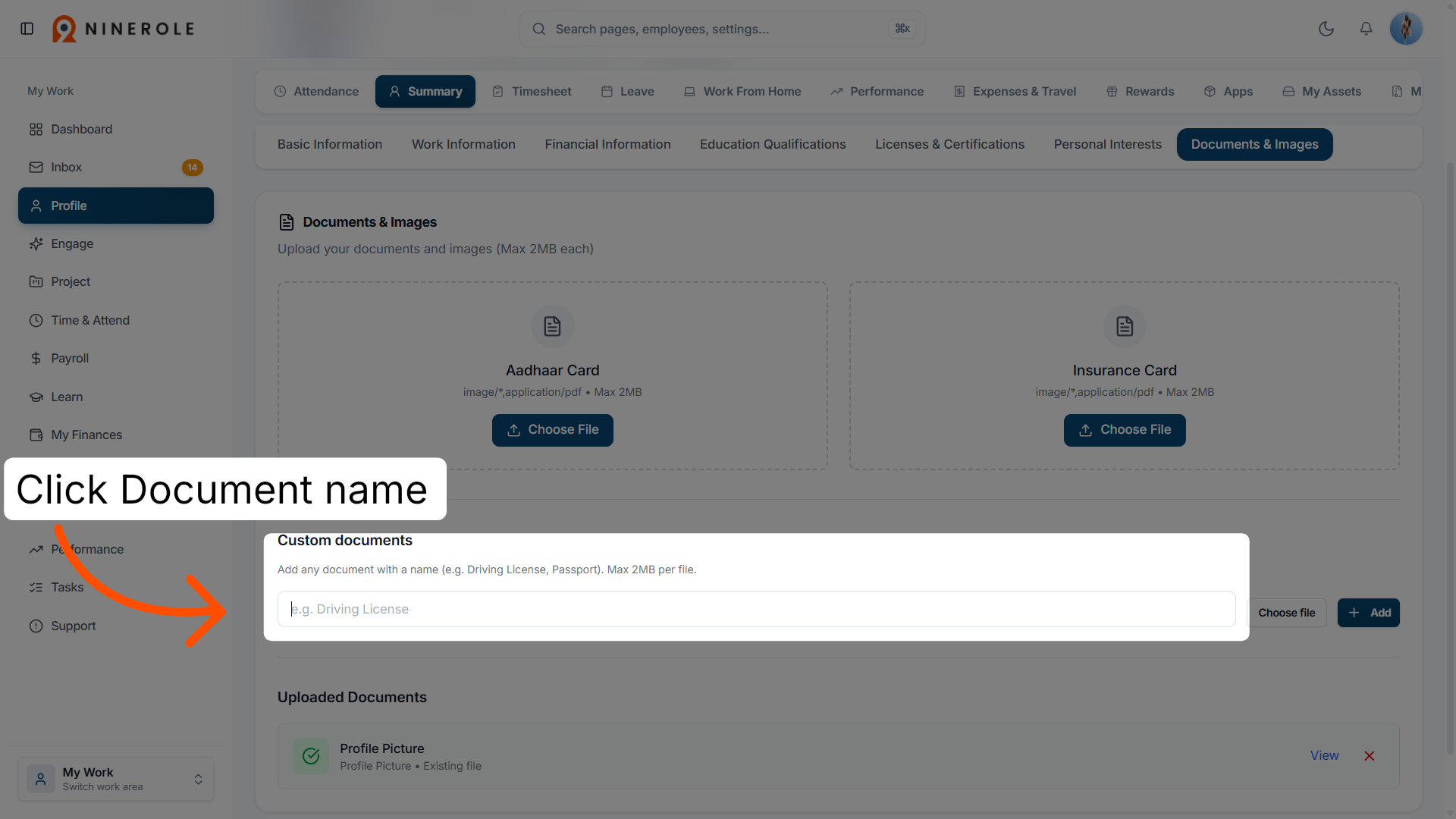
Enter Phone Number to update your contact telephone number.
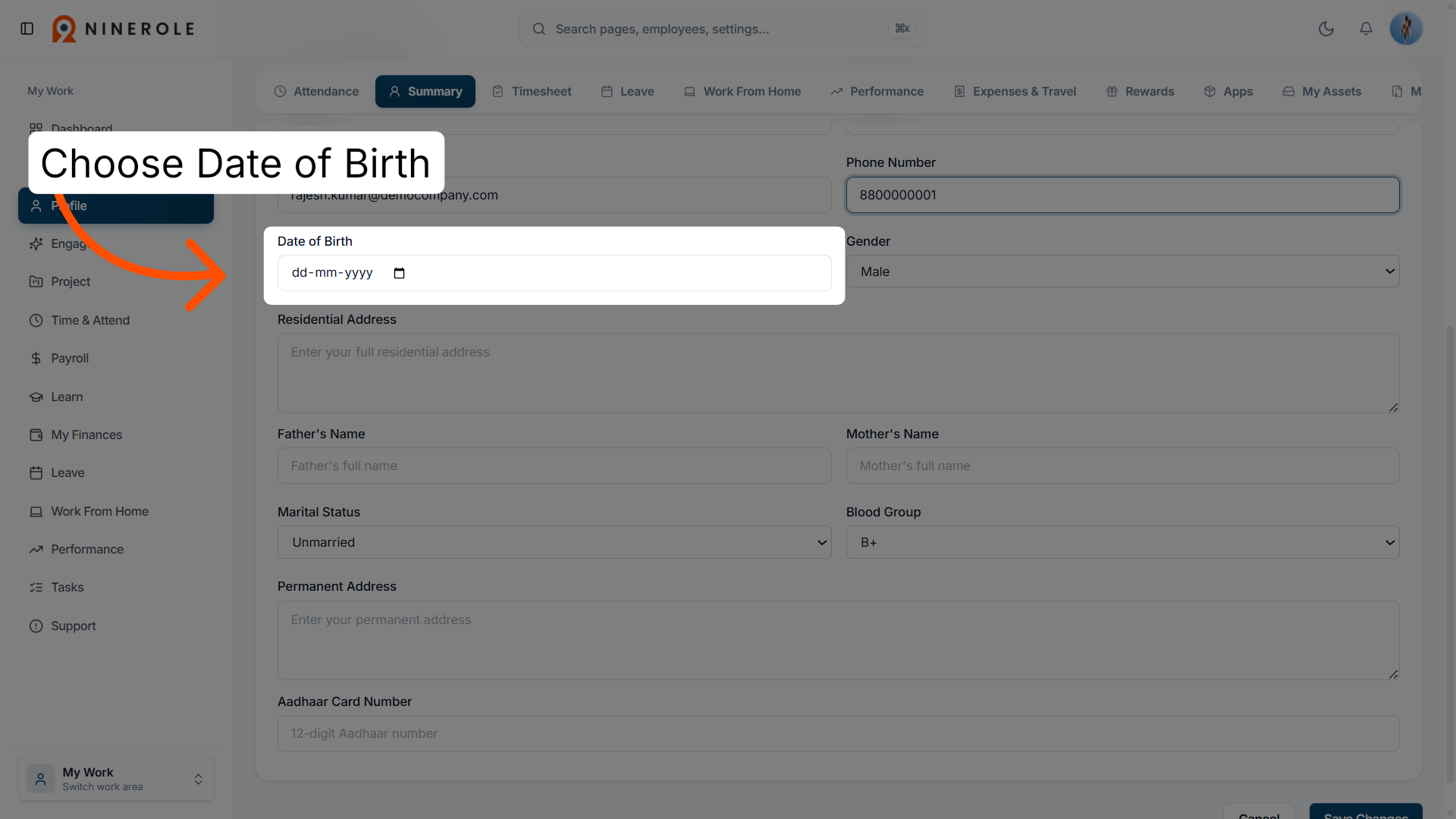
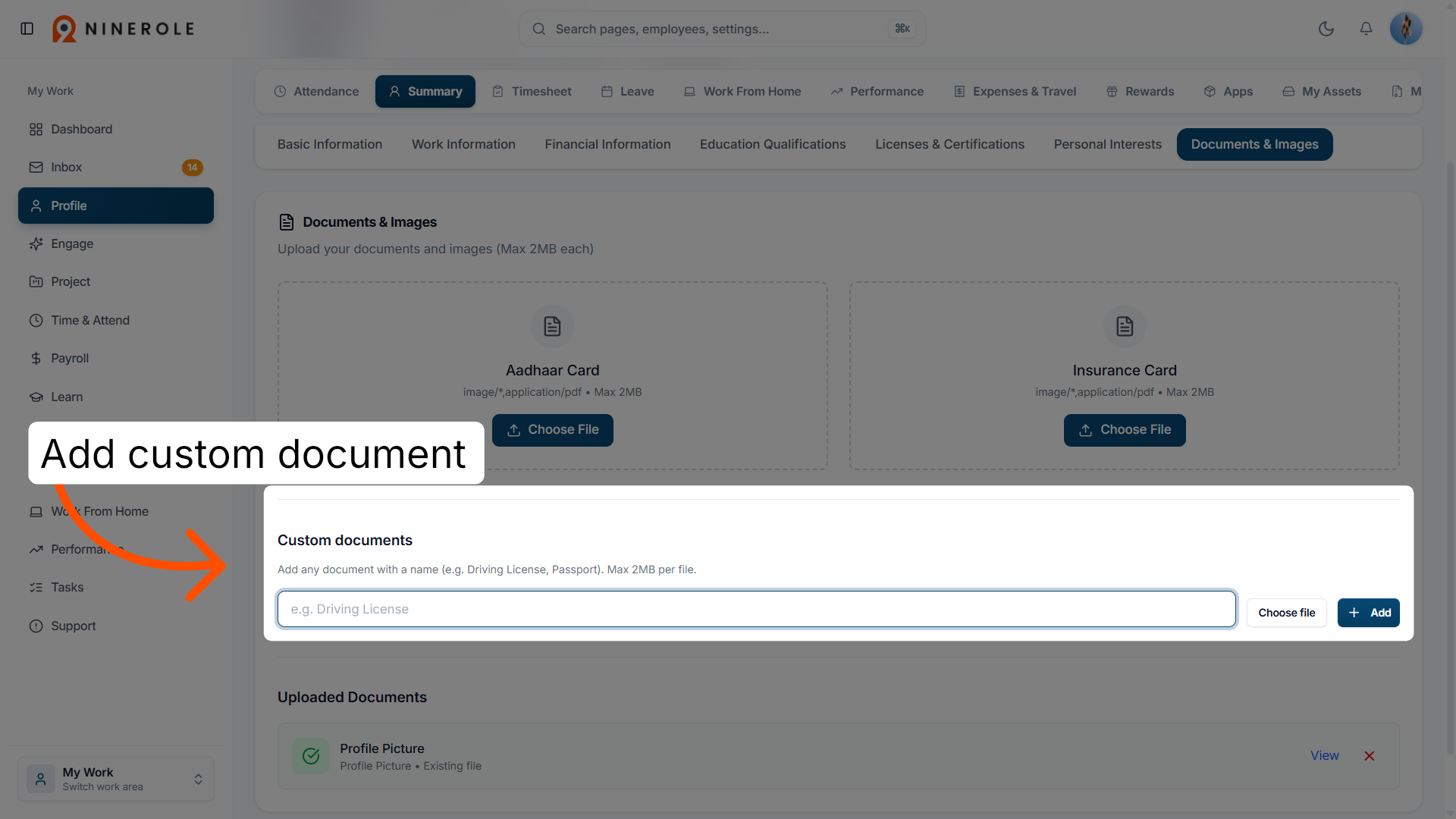
9. Set your date of birth
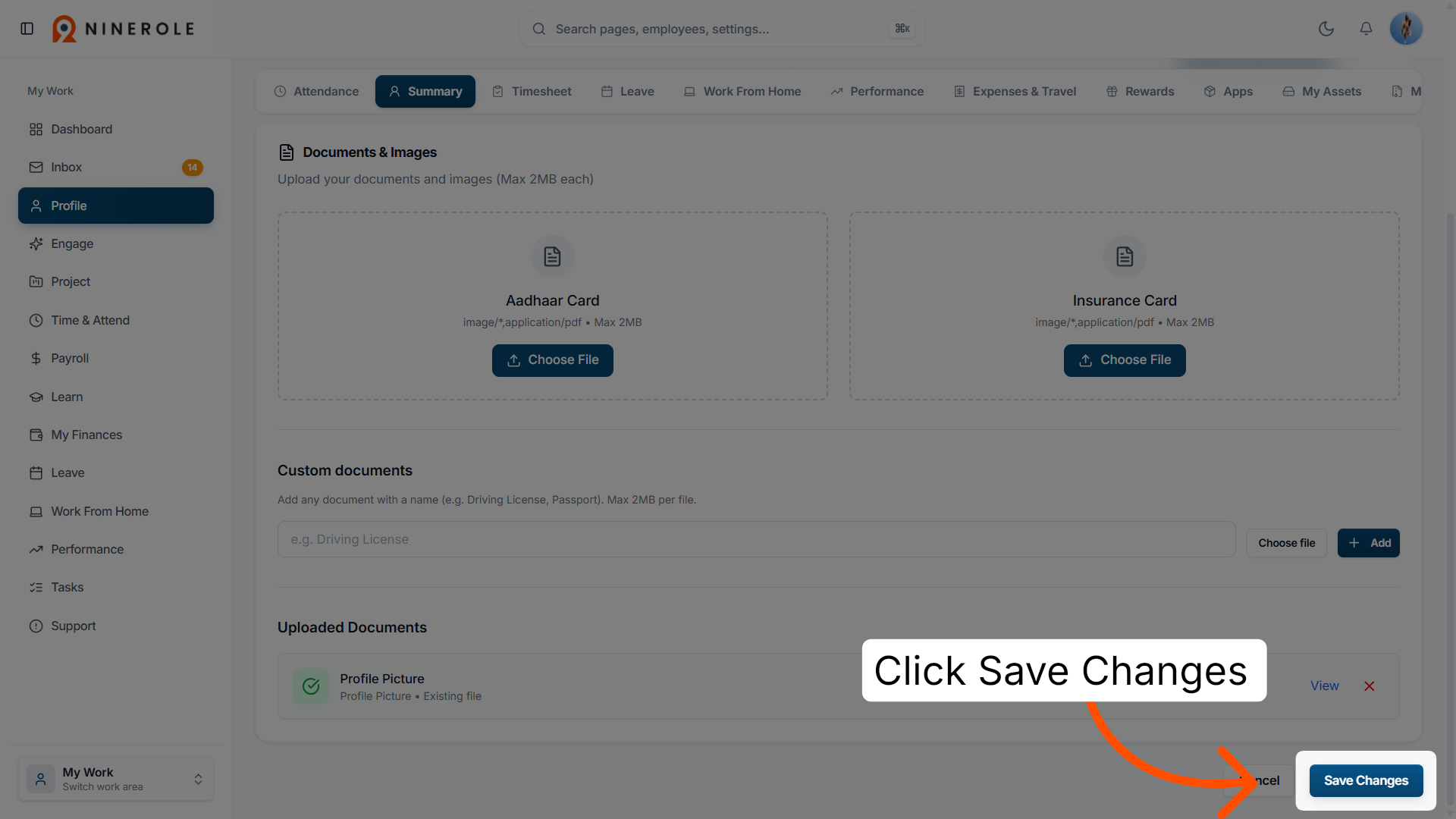
Choose Date of Birth to enter or adjust your birthdate information.
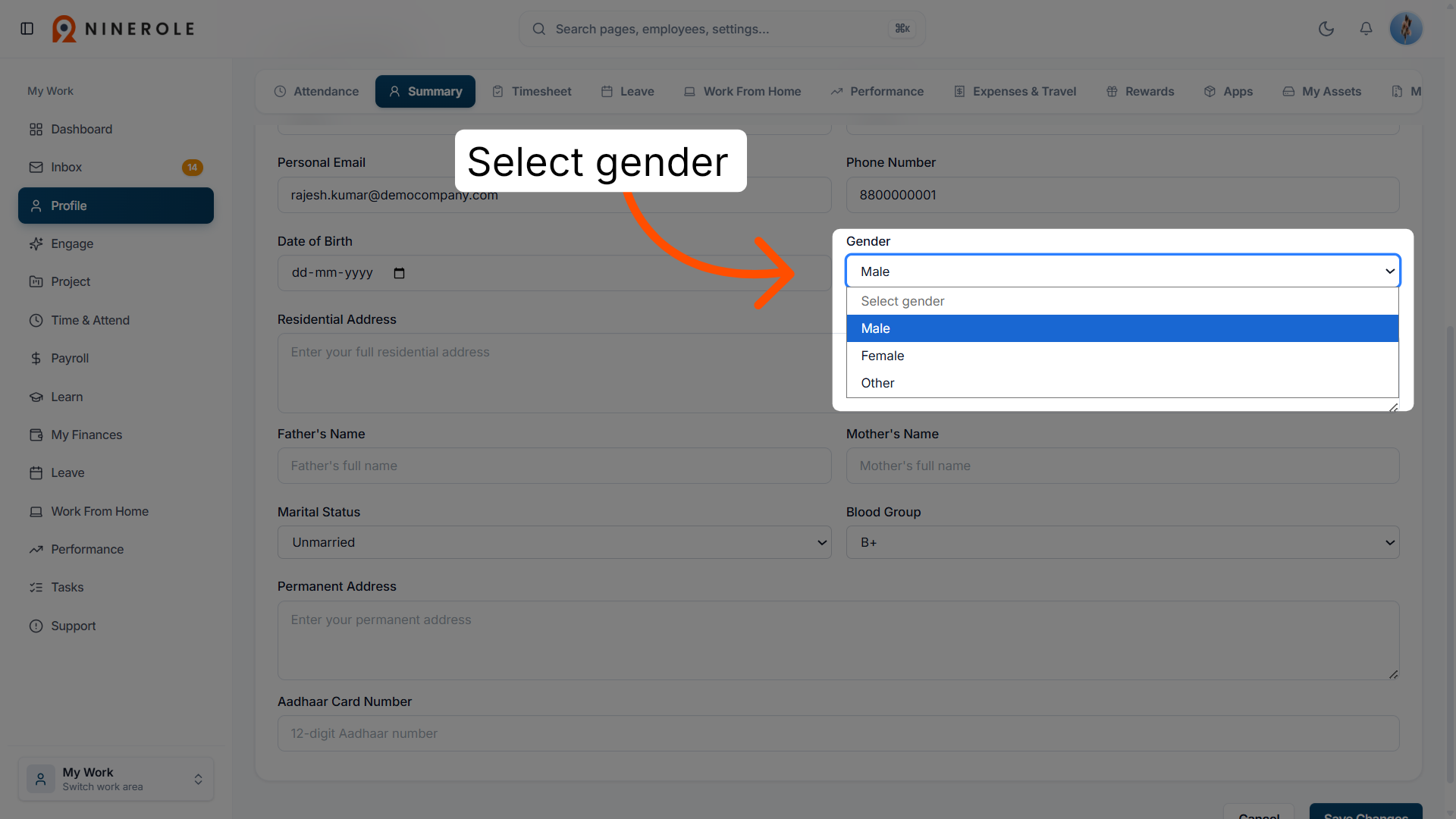
10. Select your gender
Choose your gender from the dropdown — Male, Female, or Other.
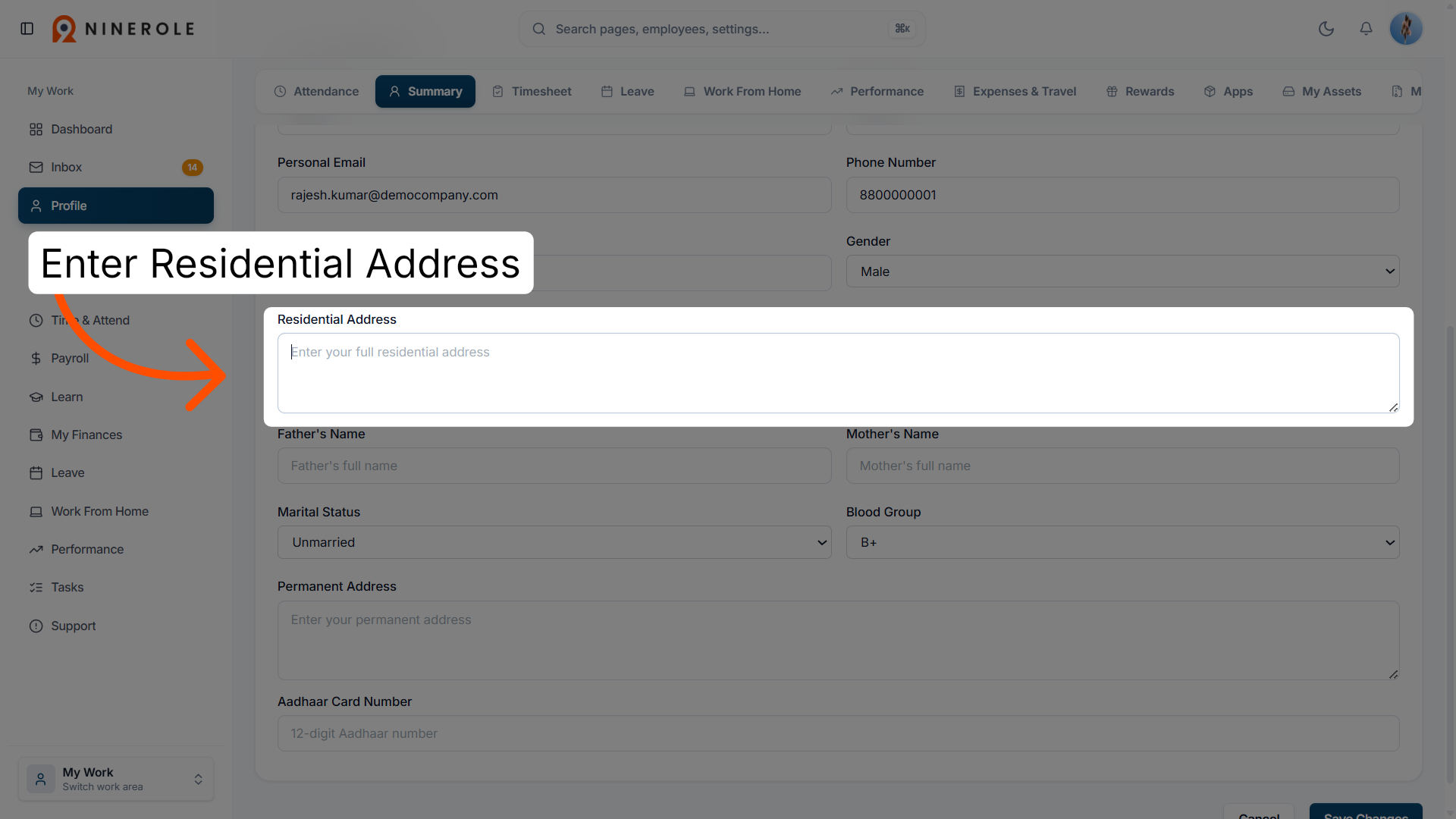
11. Update your residential address
Enter Residential Address to edit your current living address details.
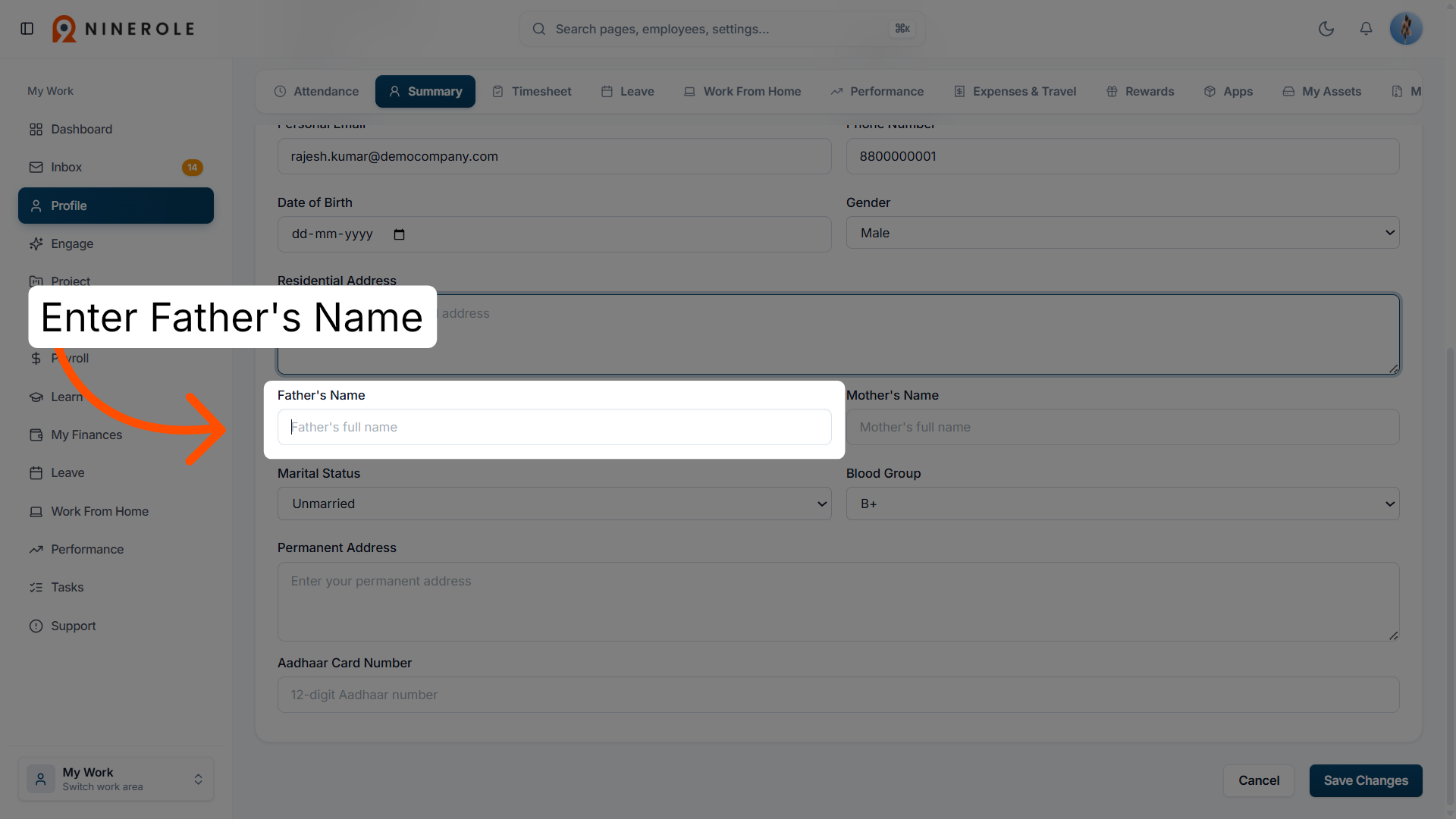
12. Enter your father's name
Enter Father's Name to provide or update your father's full name.
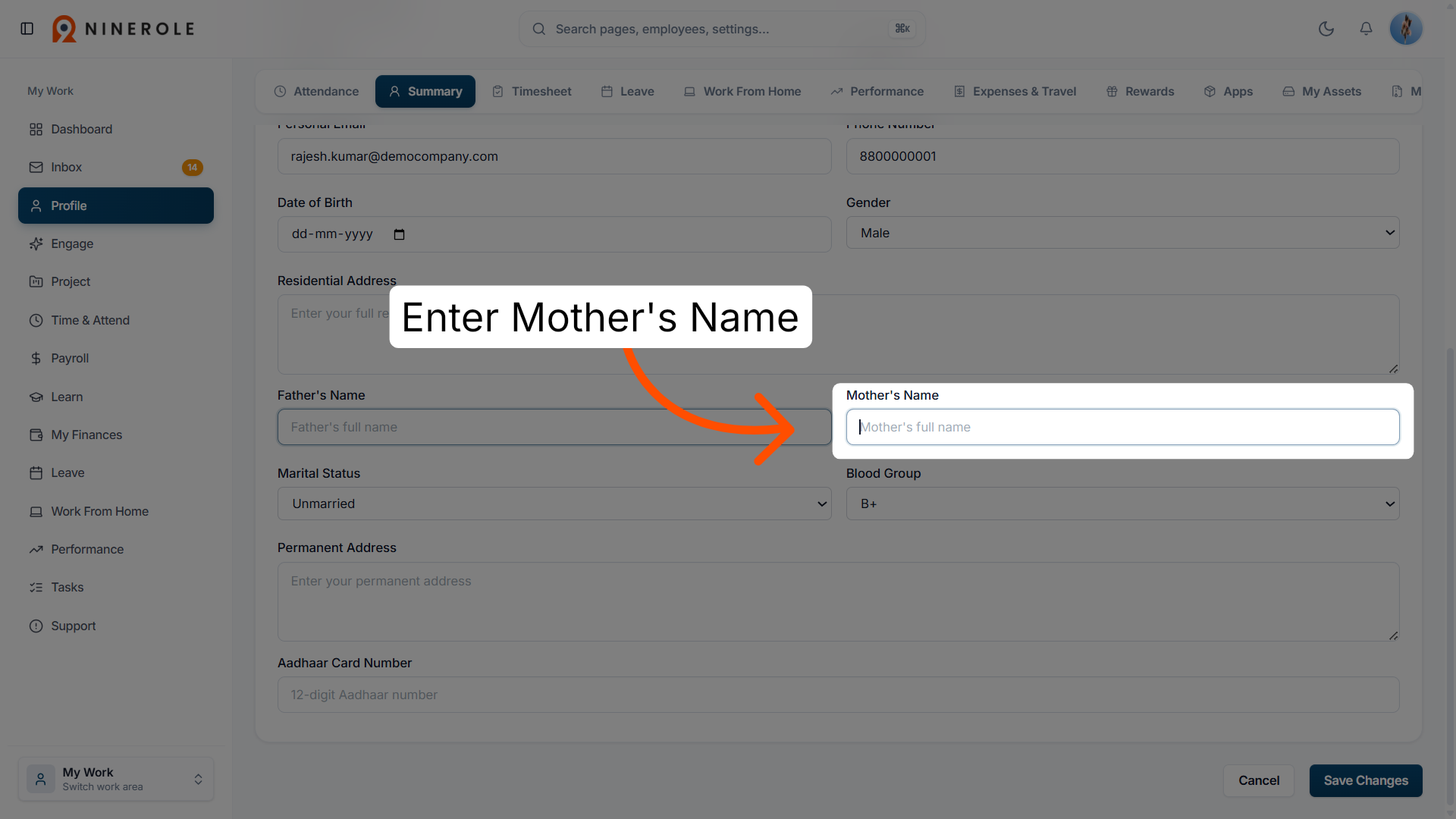
13. Enter your mother's name
Enter Mother's Name to provide or update your mother's full name.
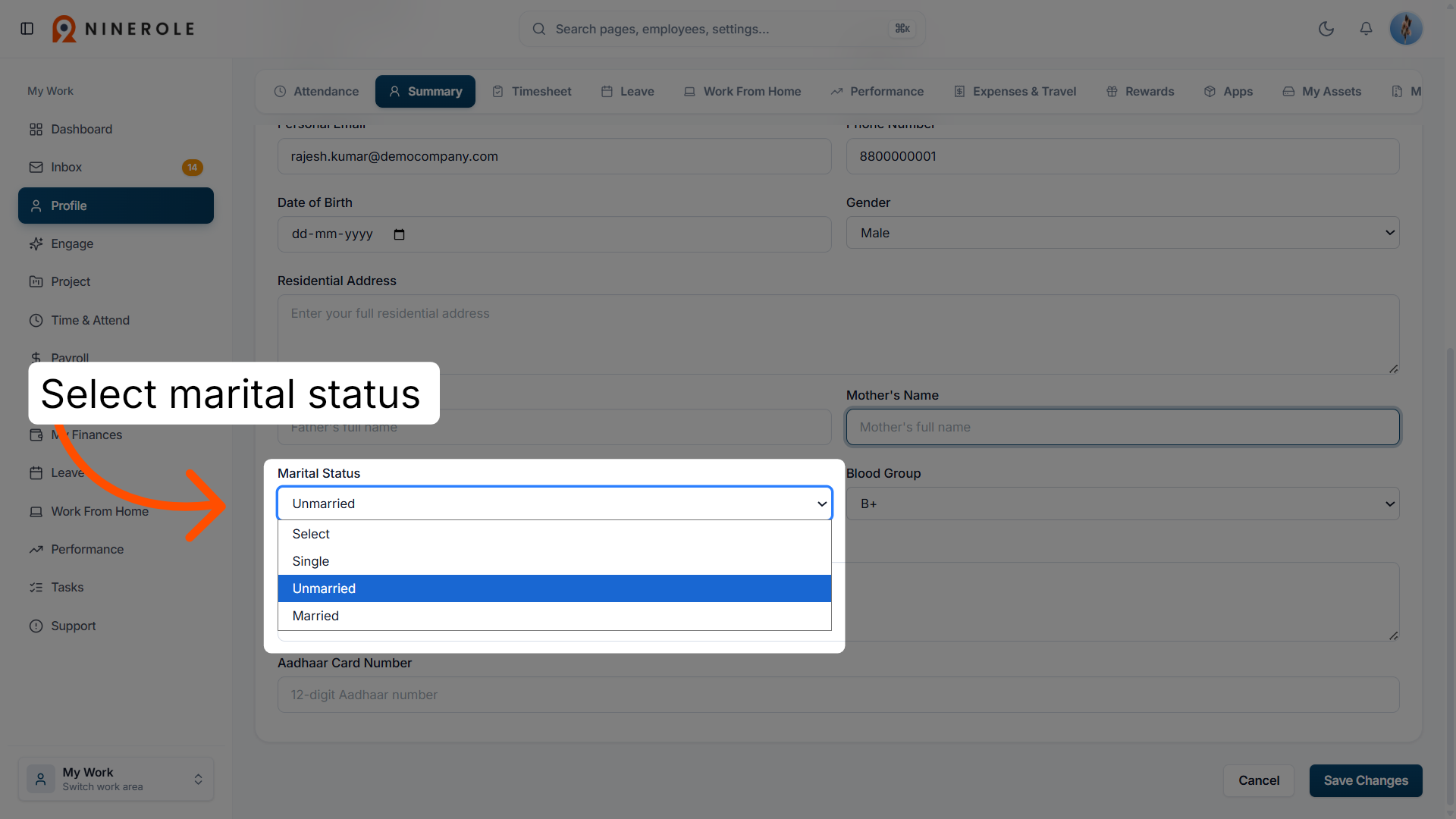
14. Select your marital status
Choose your marital status from the dropdown — Single, Unmarried, or Married.
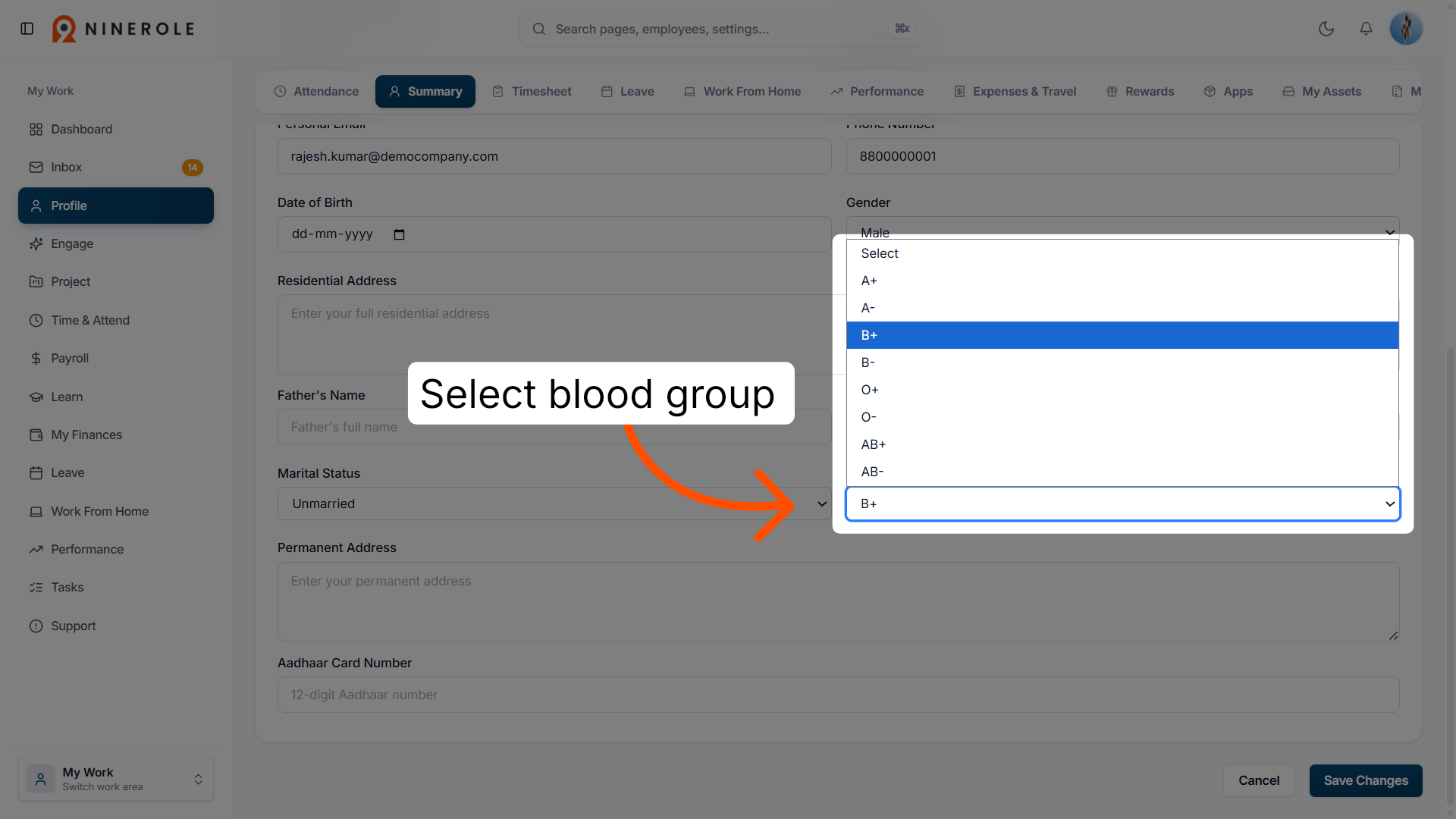
15. Choose your blood group
Choose your blood group to specify your blood type.
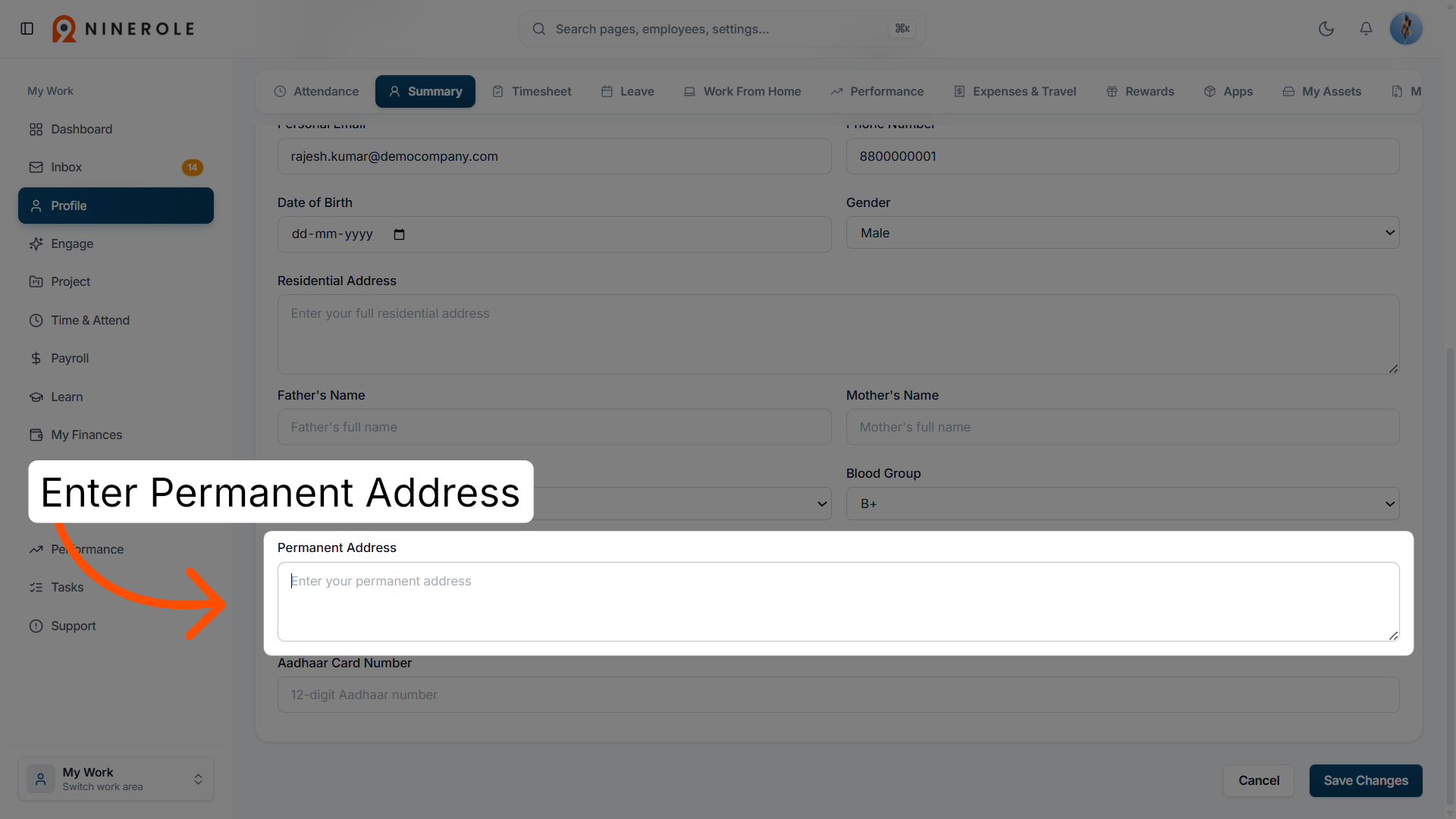
16. Edit your permanent address
Enter Permanent Address to update your long-term residential address.
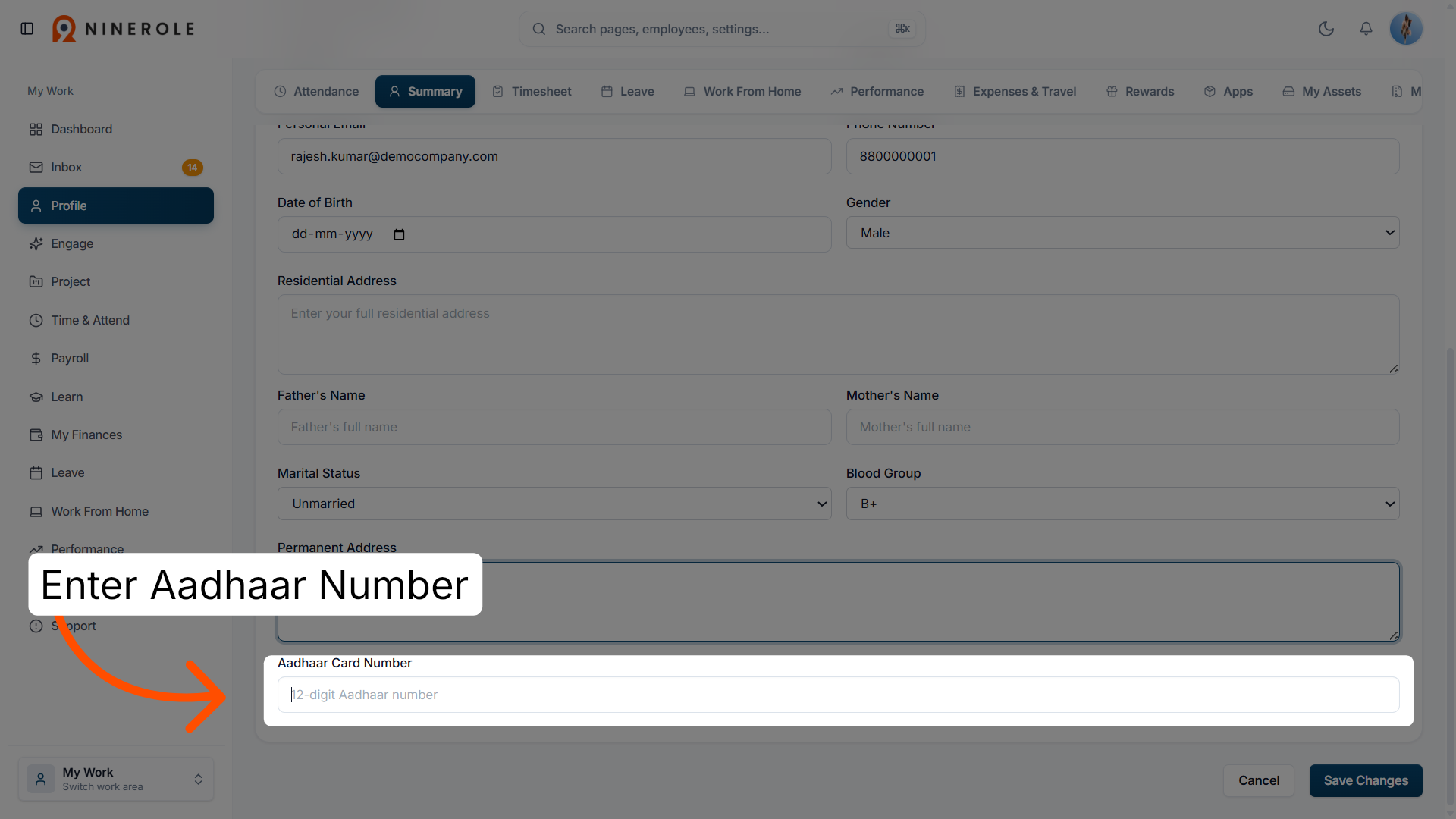
17. Enter your Aadhaar number
Enter Aadhaar Card Number to input your unique identification number.
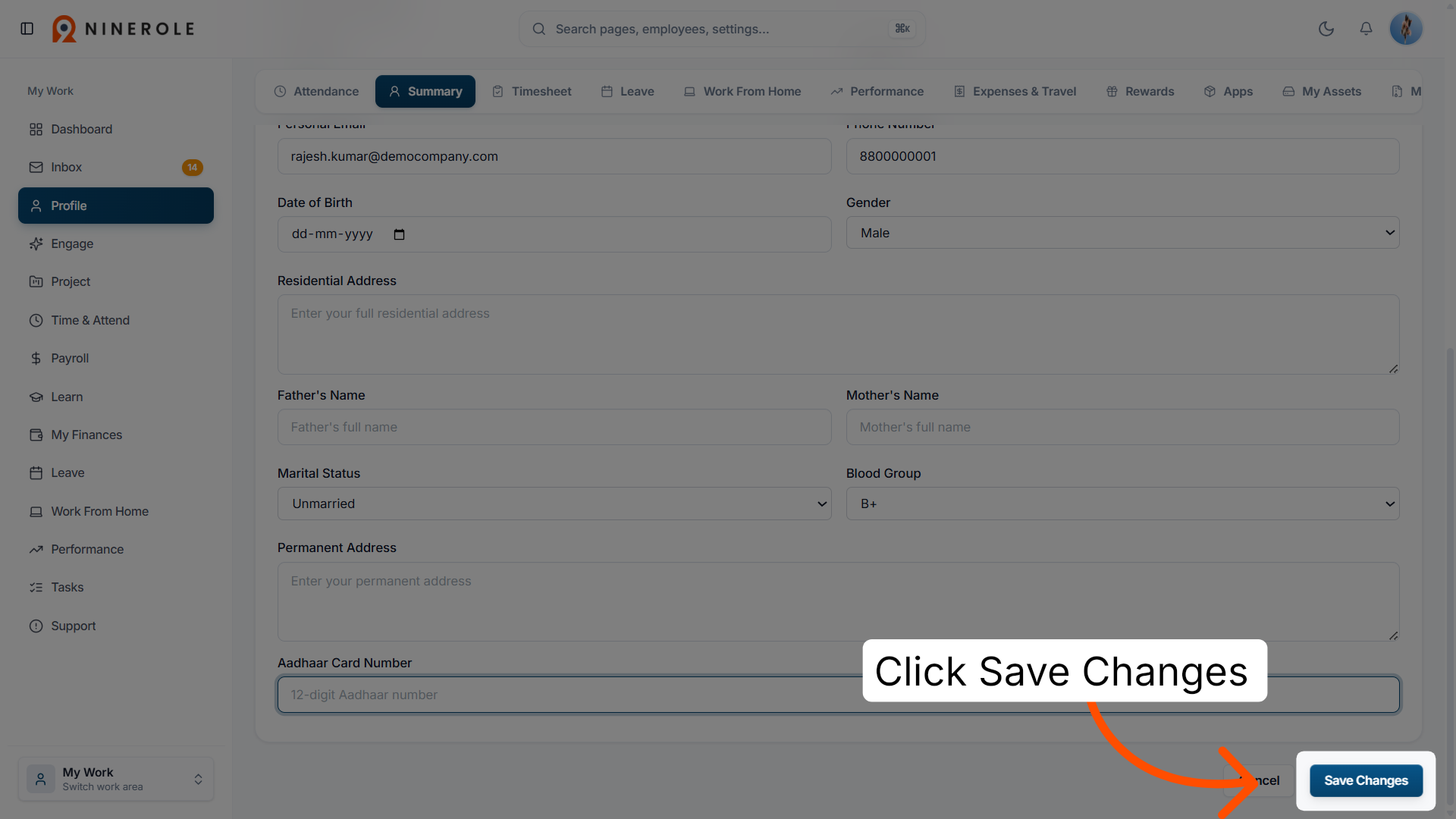
18. Save your profile changes
Click Save Changes to apply and store all updates made to your profile.
Work and financial information
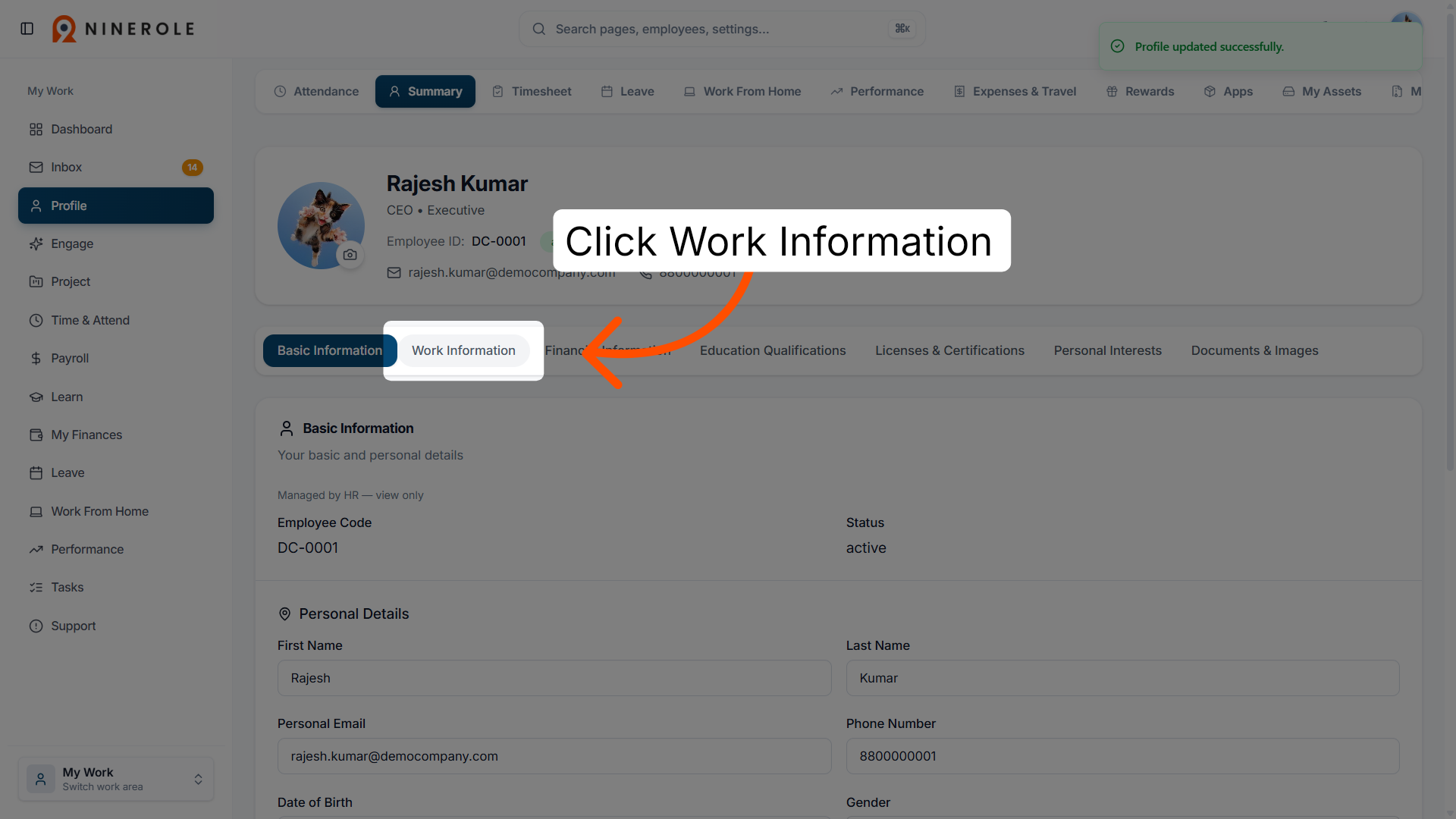
19. Access work information
Click Work Information to view and edit your employment-related details.
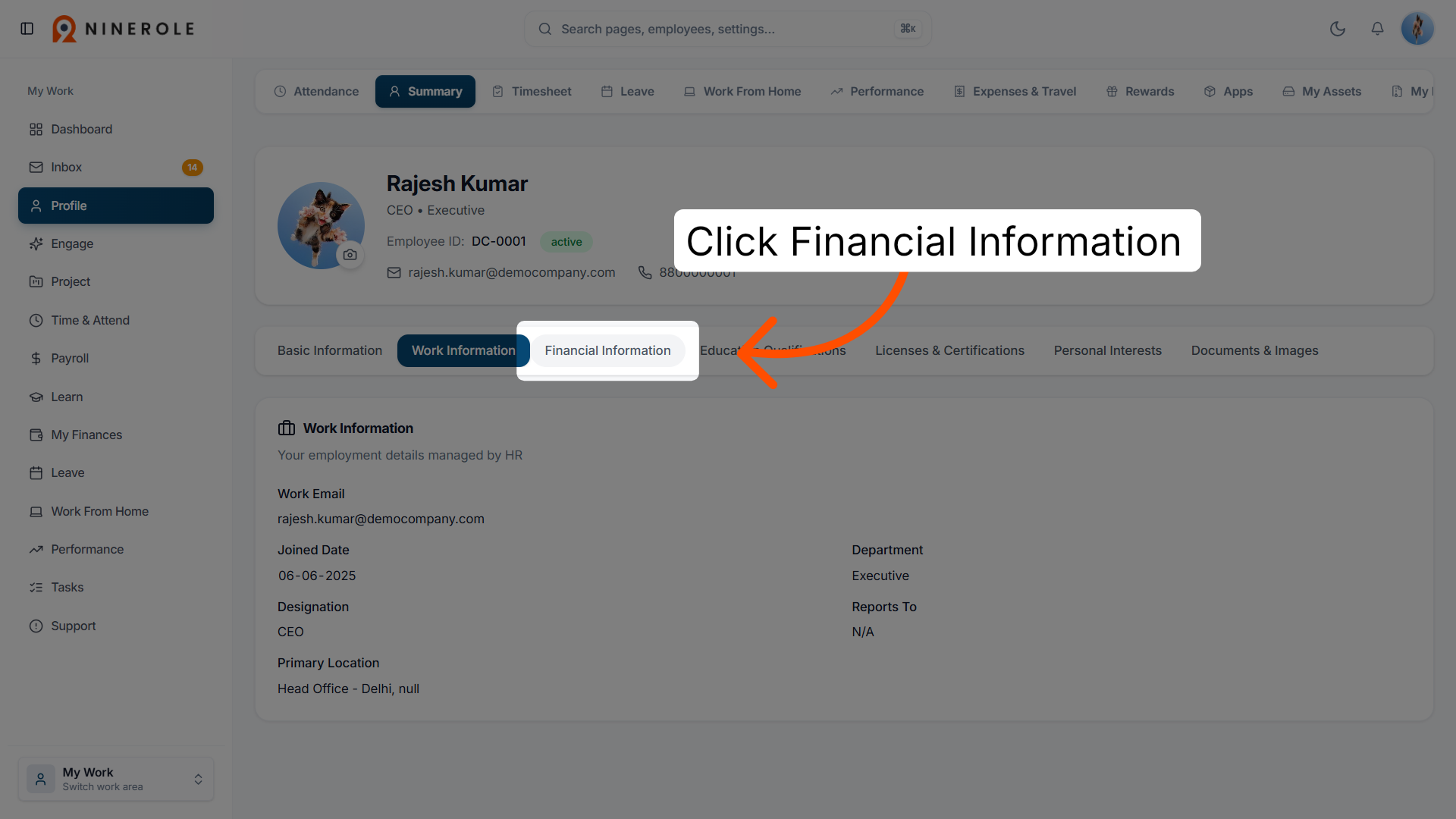
20. Open financial information
Click Financial Information to manage your financial and payroll data.
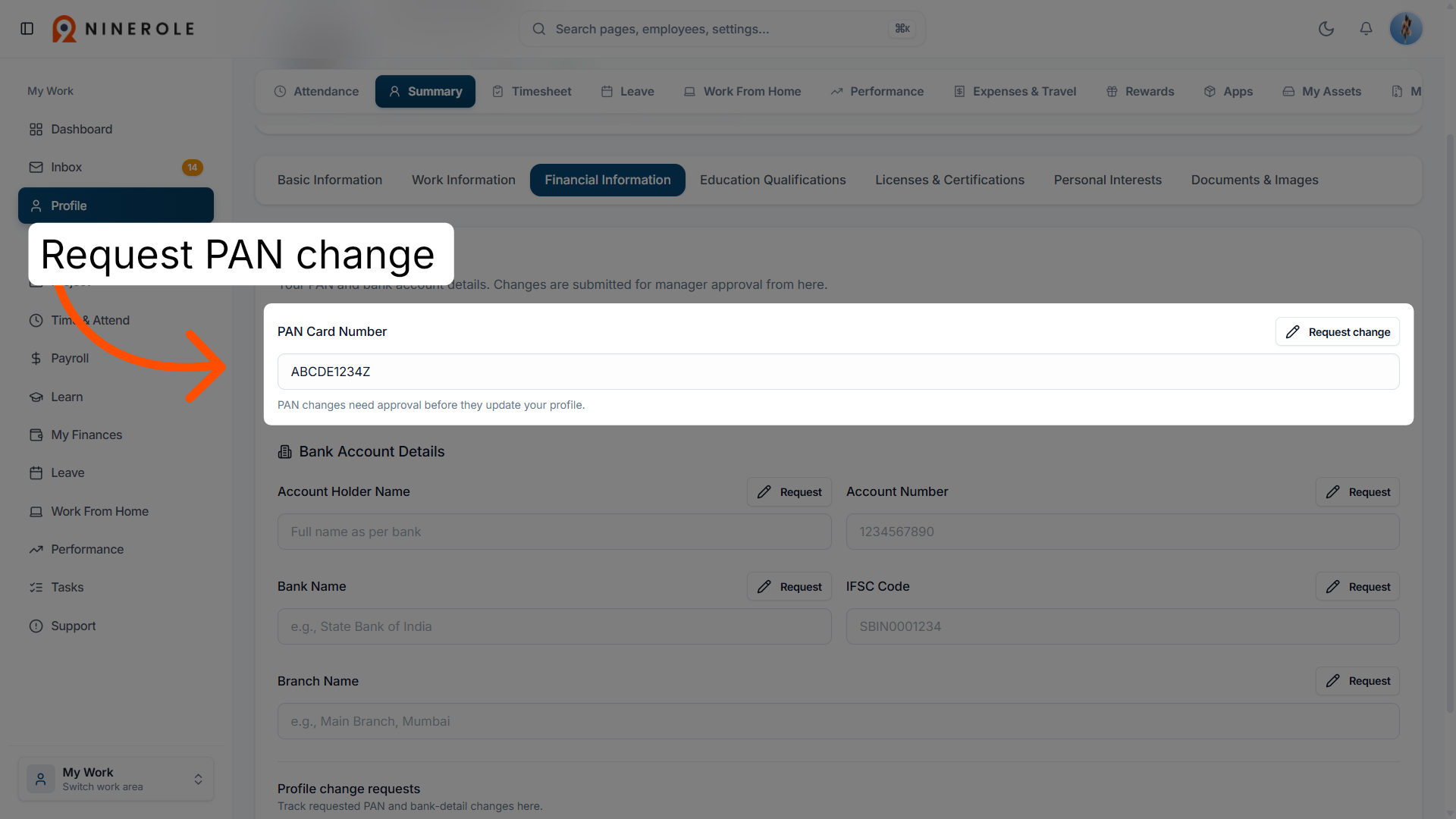
21. Request a PAN card change
Click Request change next to PAN Card Number to initiate a PAN update request. PAN changes need approval before they update your profile.
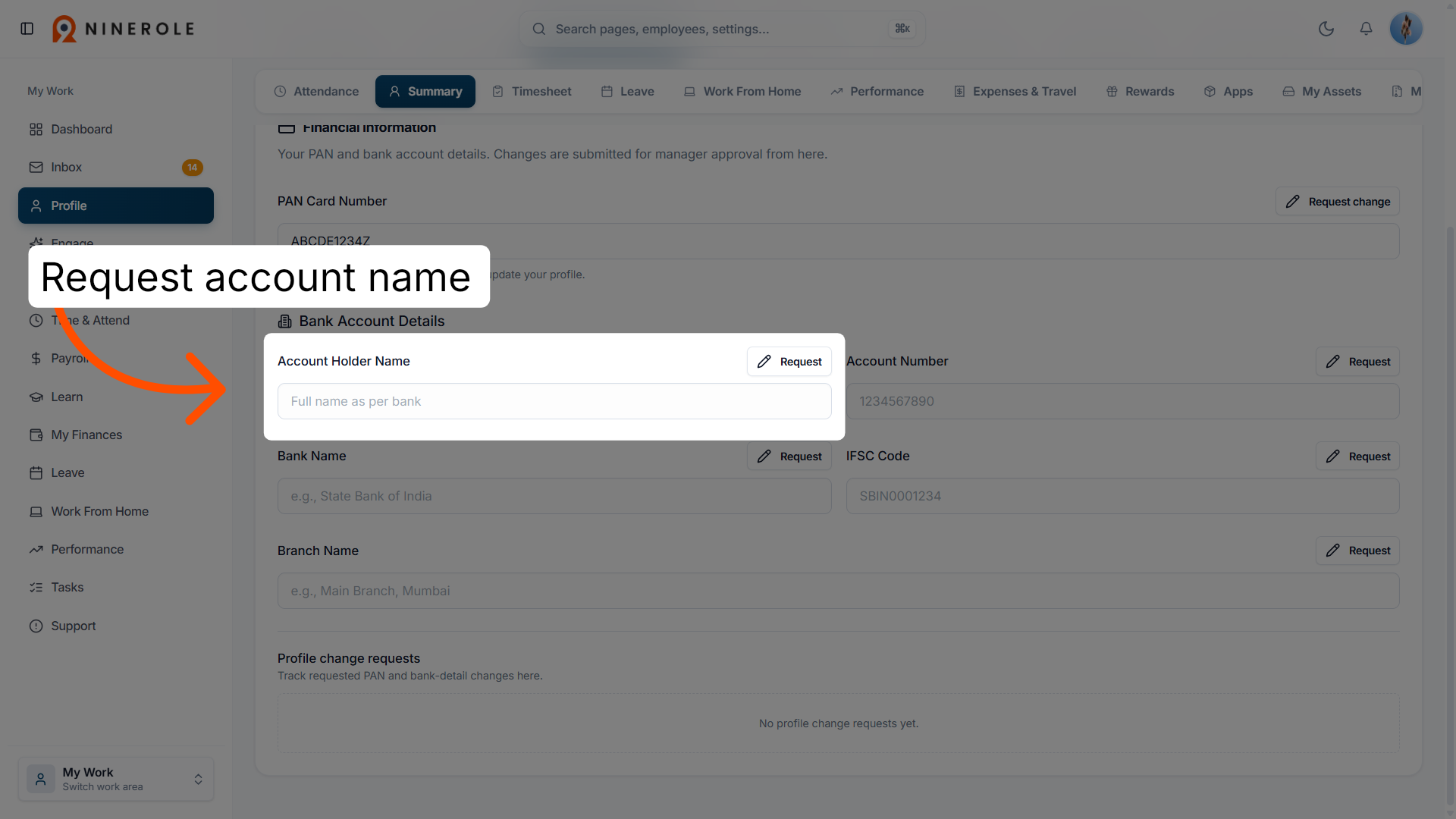
22. Request an account holder name change
Click Account Holder Name Request to submit a request for updating your bank account holder name.
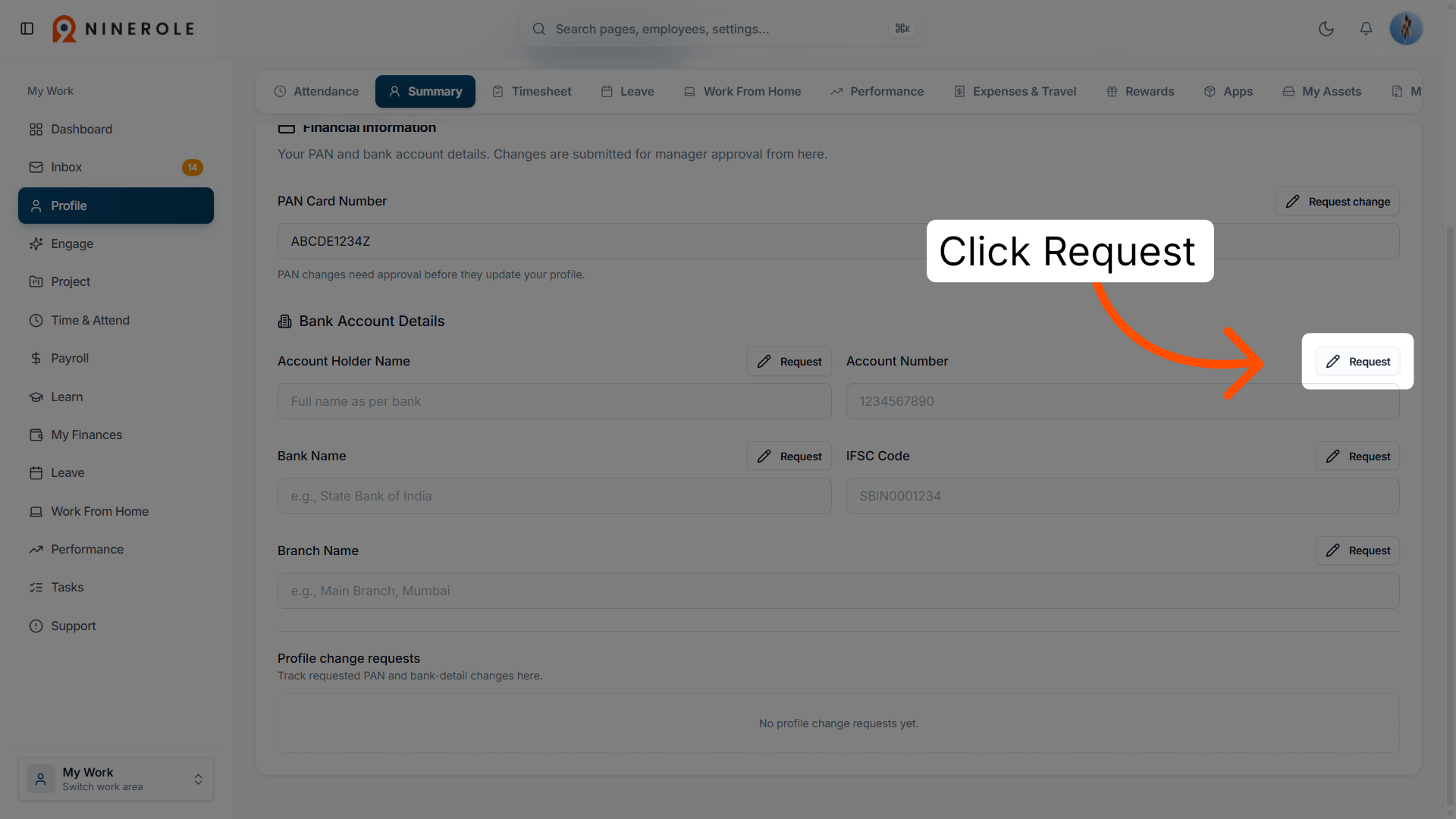
23. Submit the request
Click Request to send your change request for processing and approval.
Education qualifications
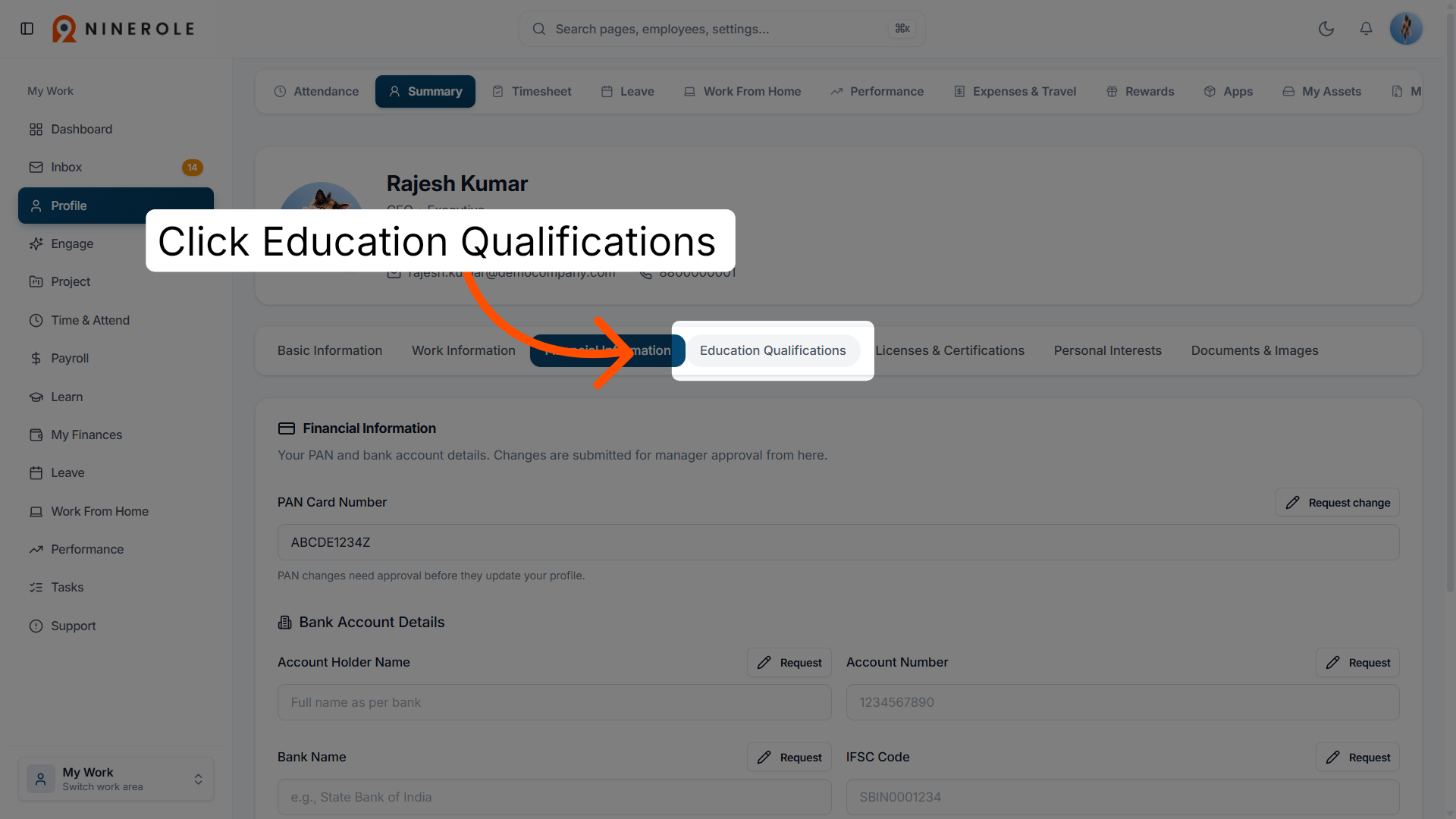
24. Open education qualifications
Click Education Qualifications to add or modify your academic credentials.
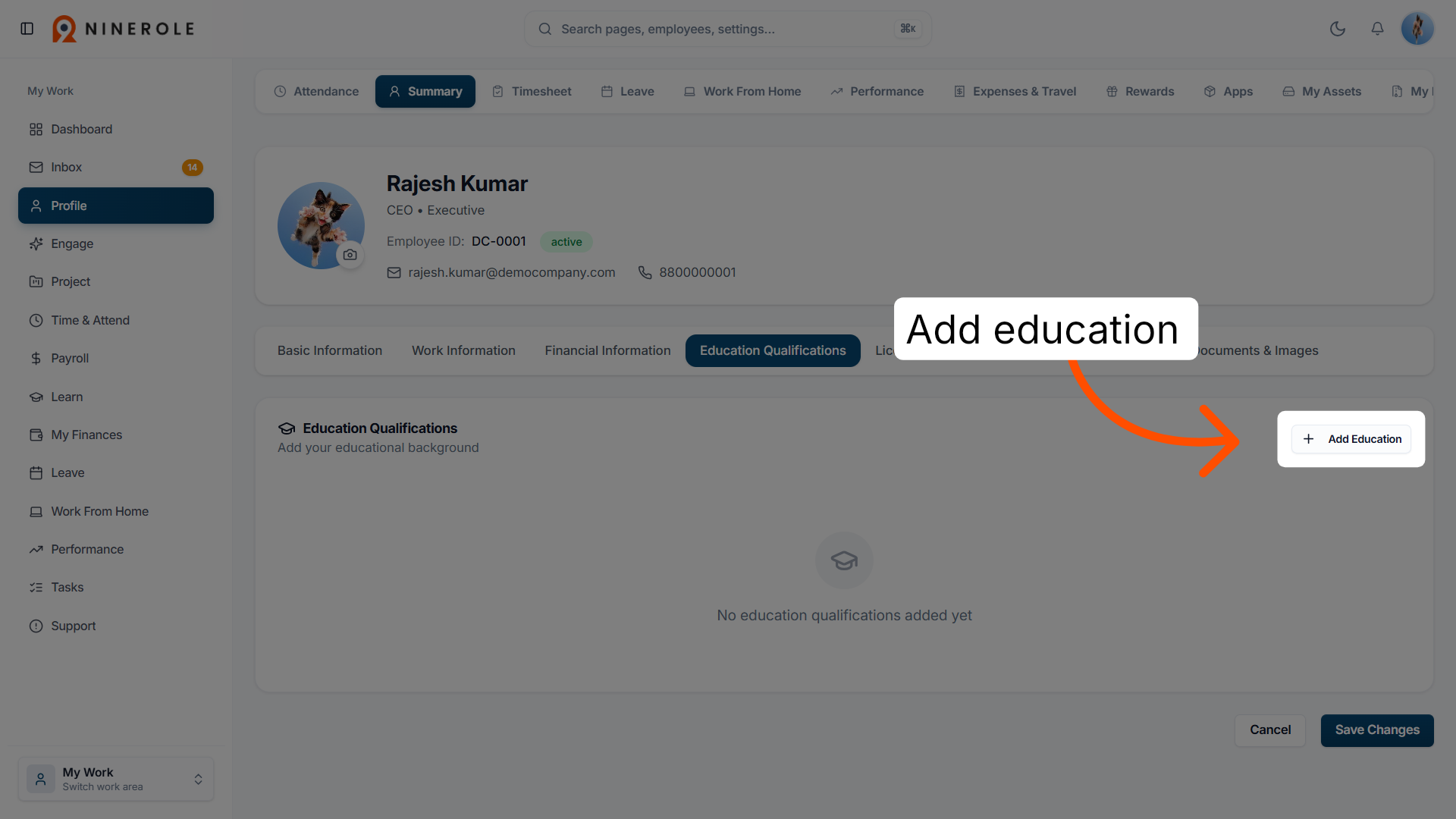
25. Add a new education entry
Click Add Education to begin entering a new educational qualification.
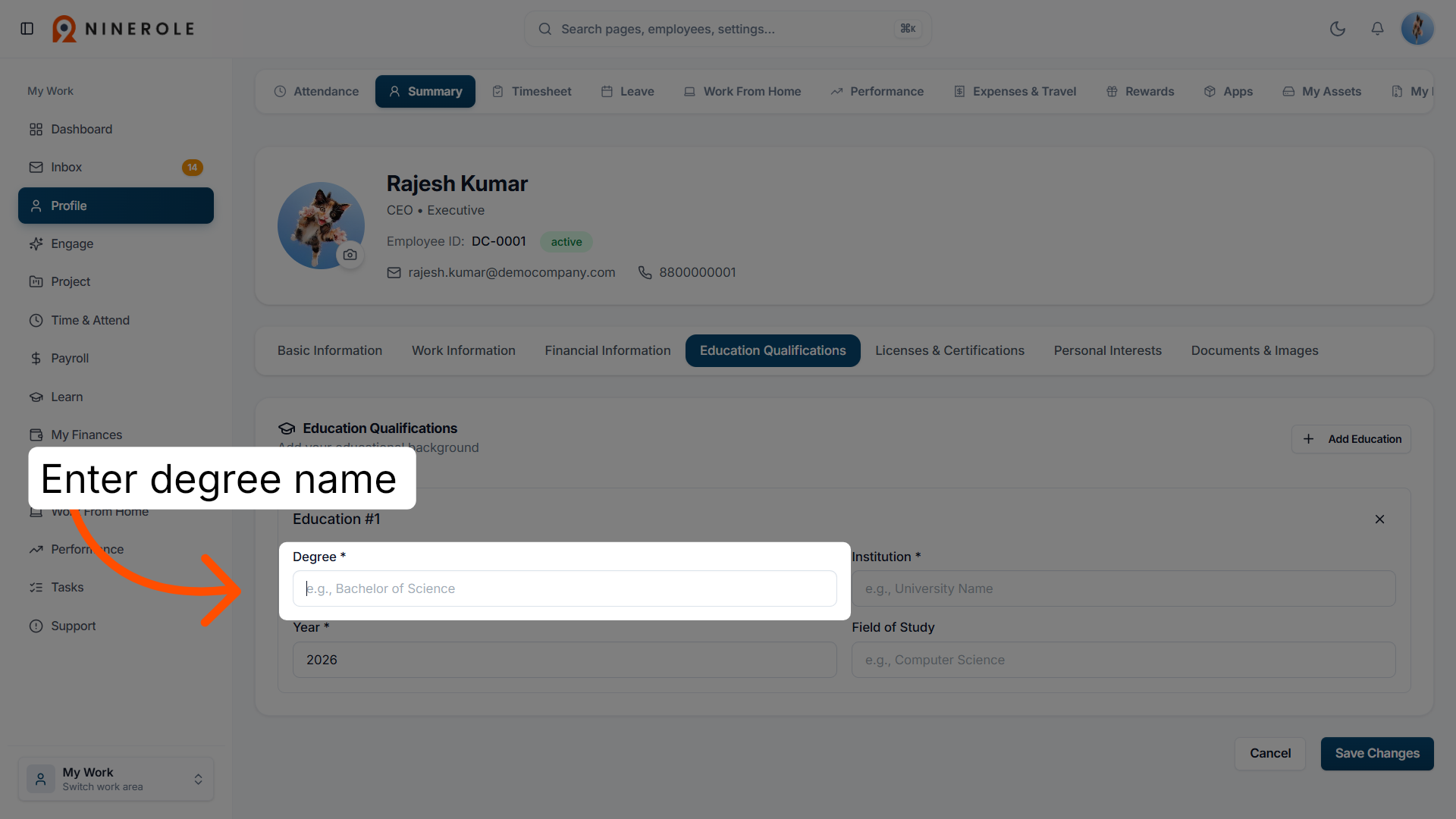
26. Enter the degree name
Enter the degree name — for example, Bachelor of Science — to specify the name of your degree.
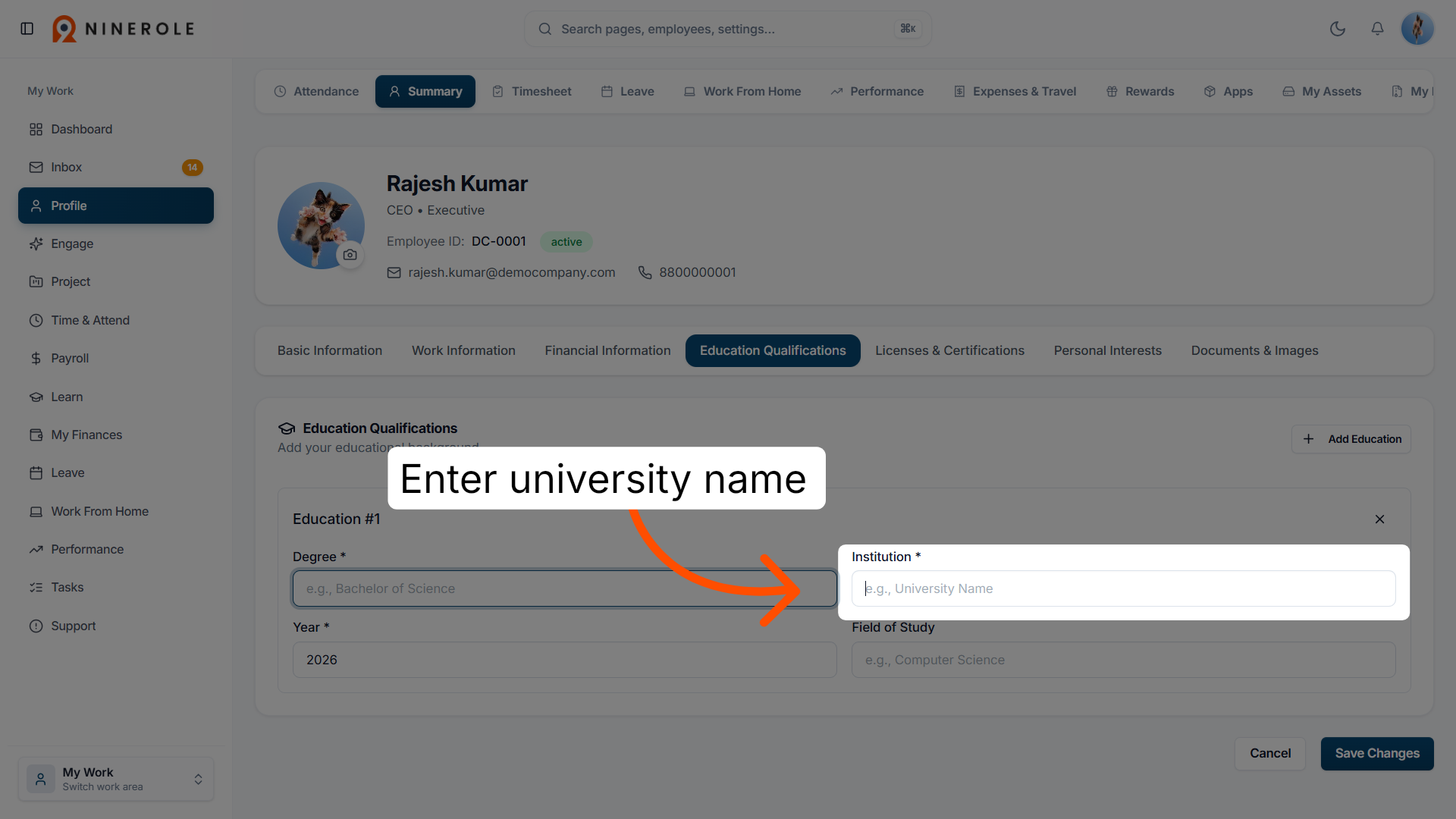
27. Enter the university name
Enter the university name to input the institution where you studied.
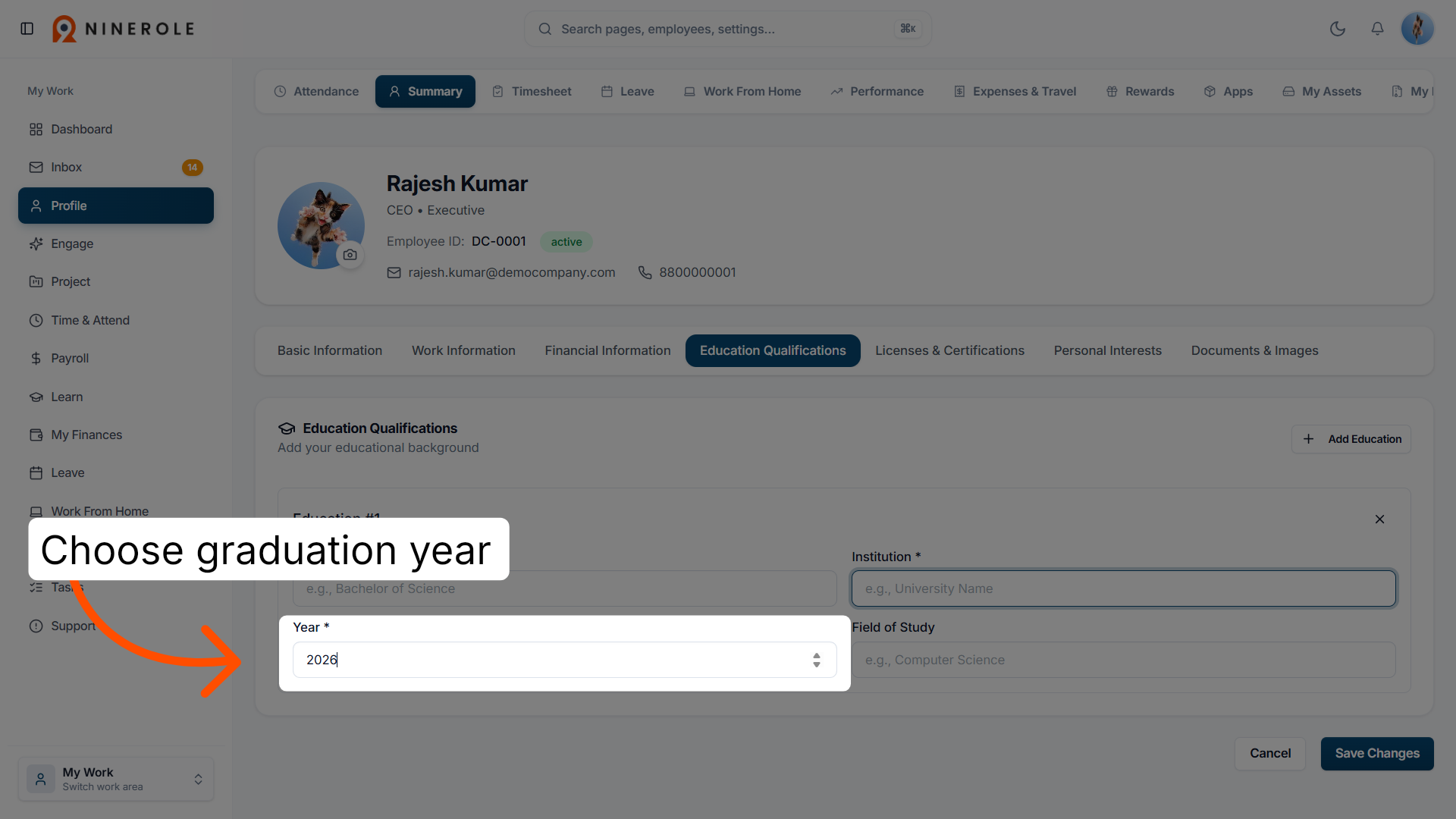
28. Select the graduation year
Choose your graduation year or expected completion year.
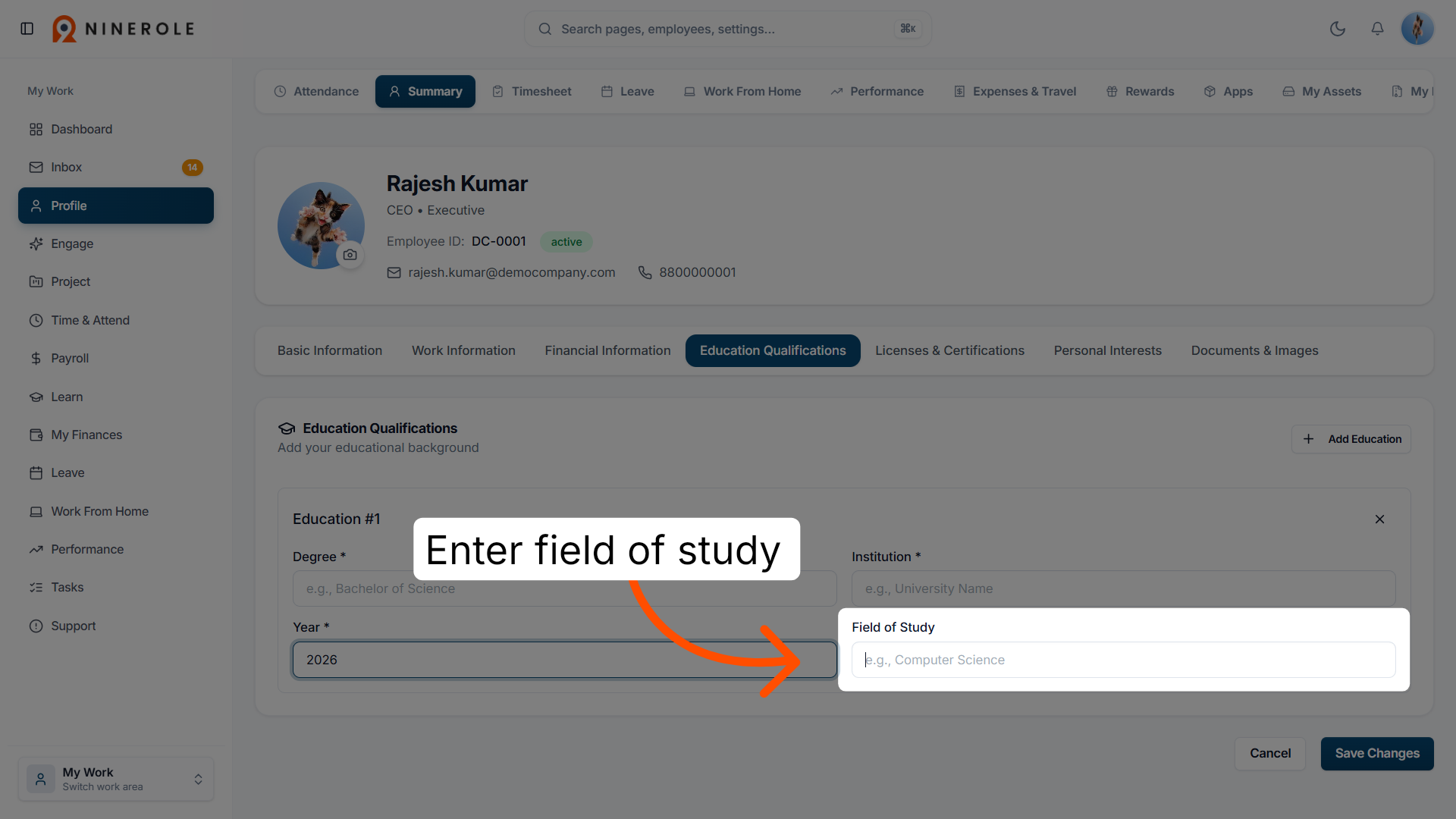
29. Enter the field of study
Enter your field of study.
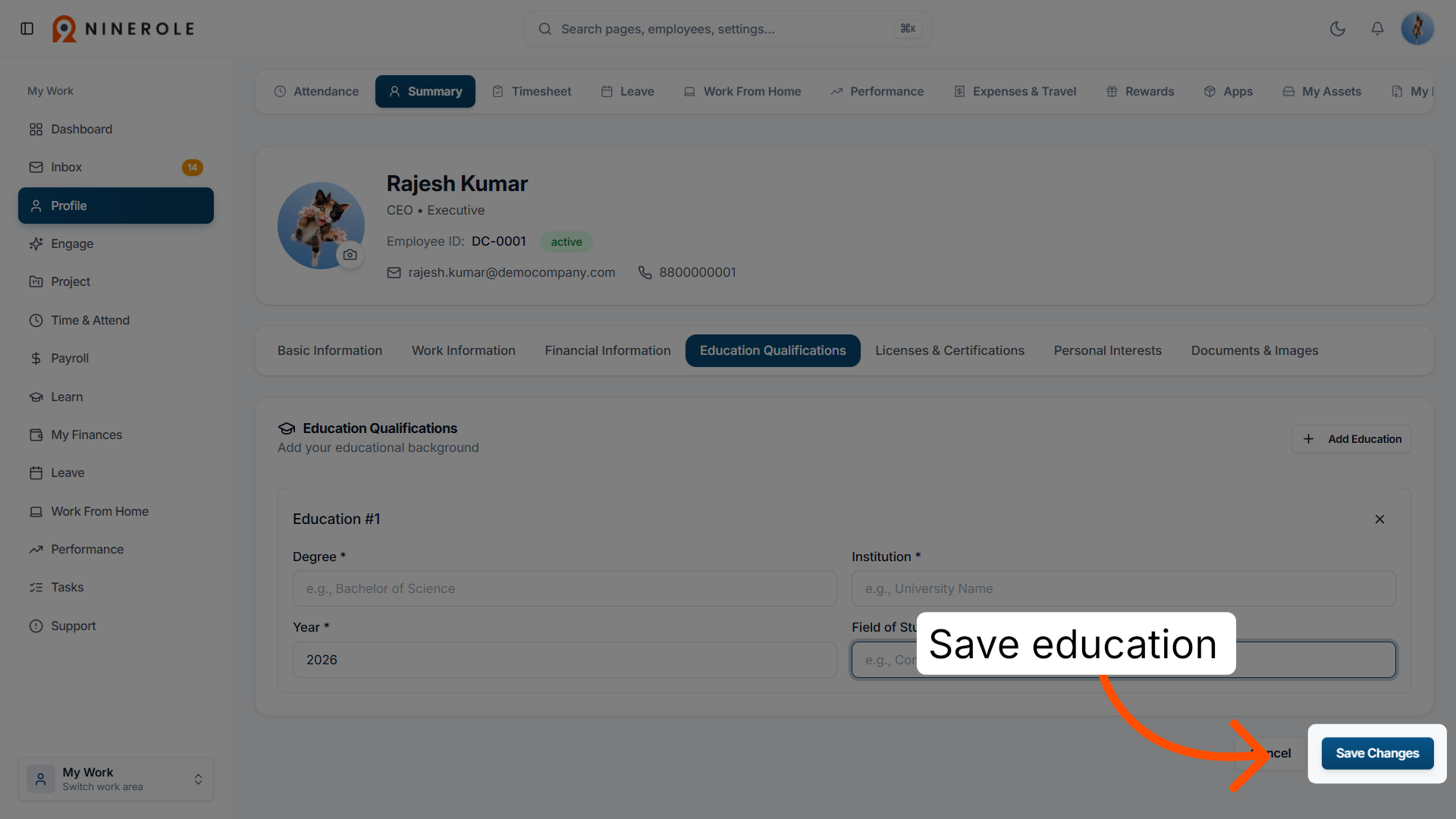
30. Save the education details
Click Save Changes to store the education information you have entered.
Licenses and certifications
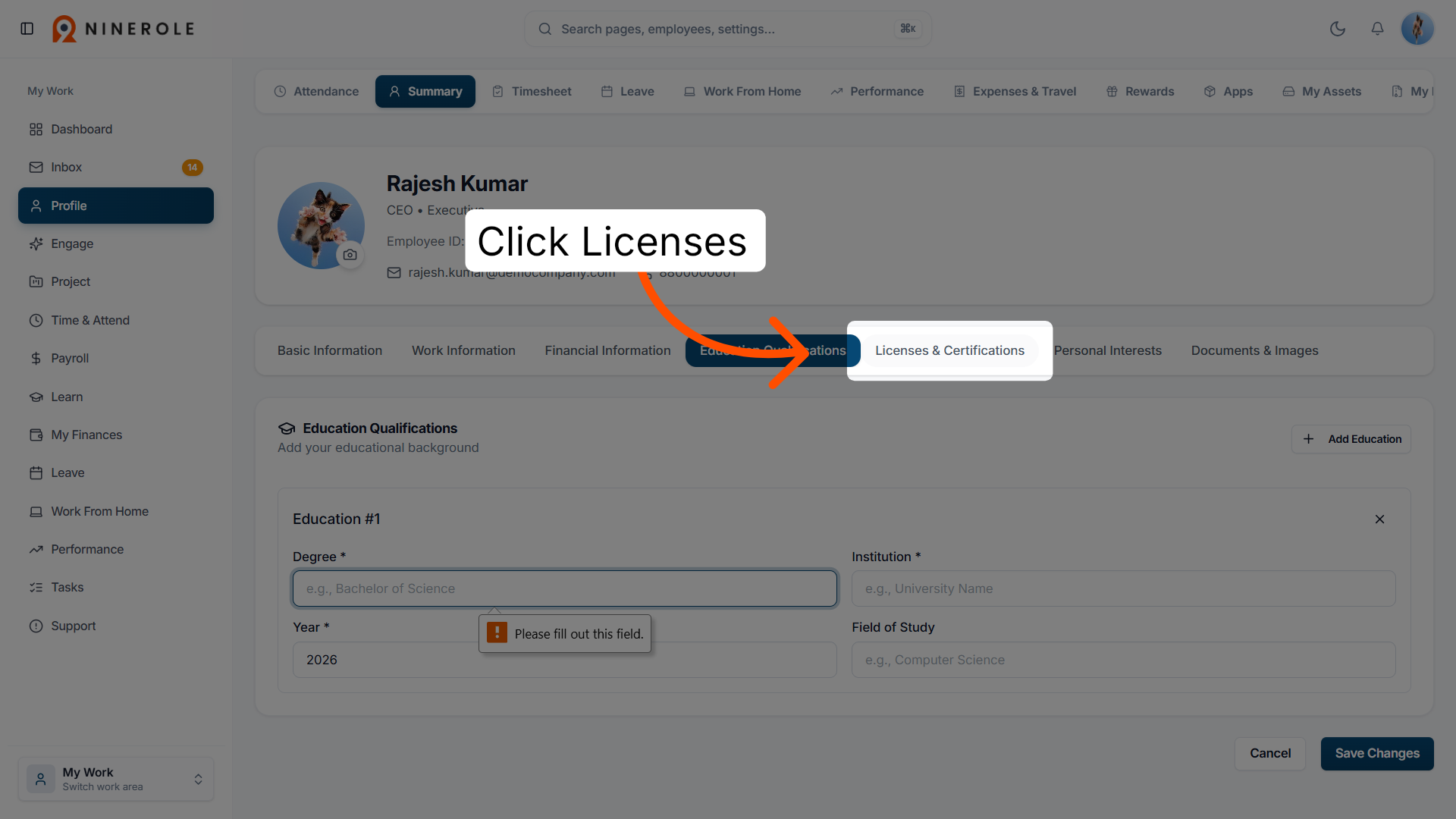
31. Access licenses and certifications
Click Licenses & Certifications to manage your professional credentials.
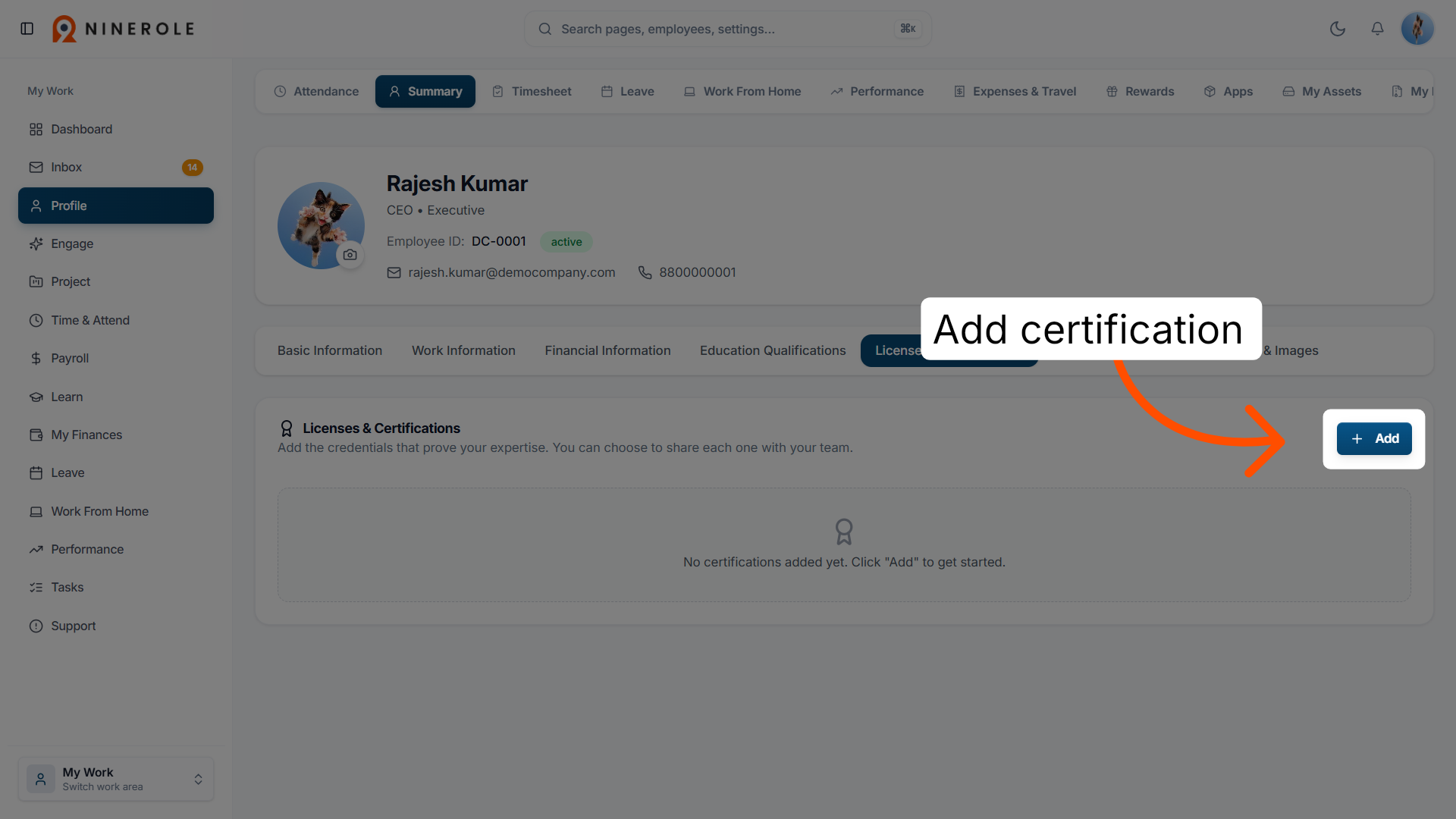
32. Add a certification
Click Add to input a new license or certification record.
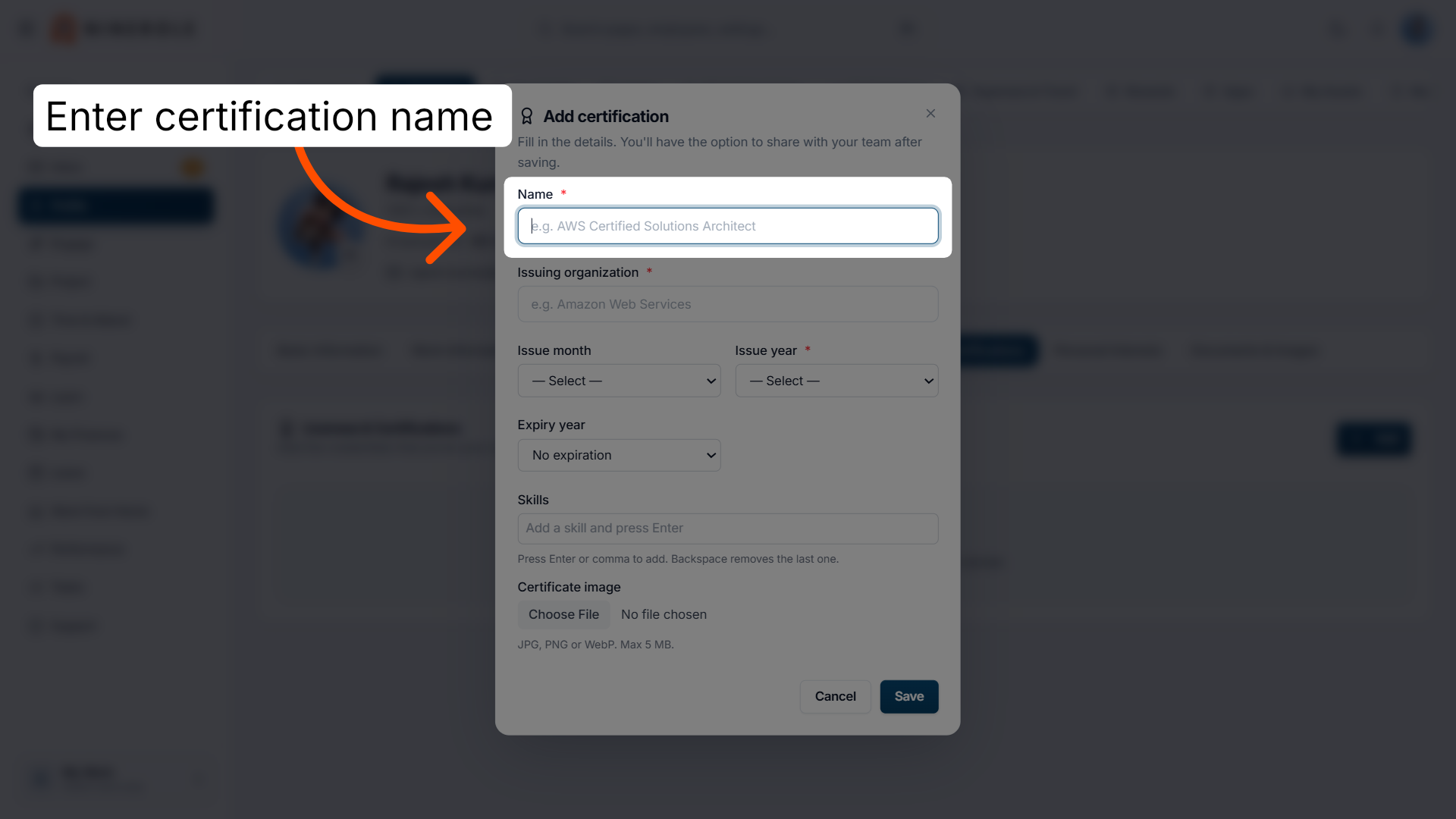
33. Enter the certification name
Enter Name * to provide the title of your certification.
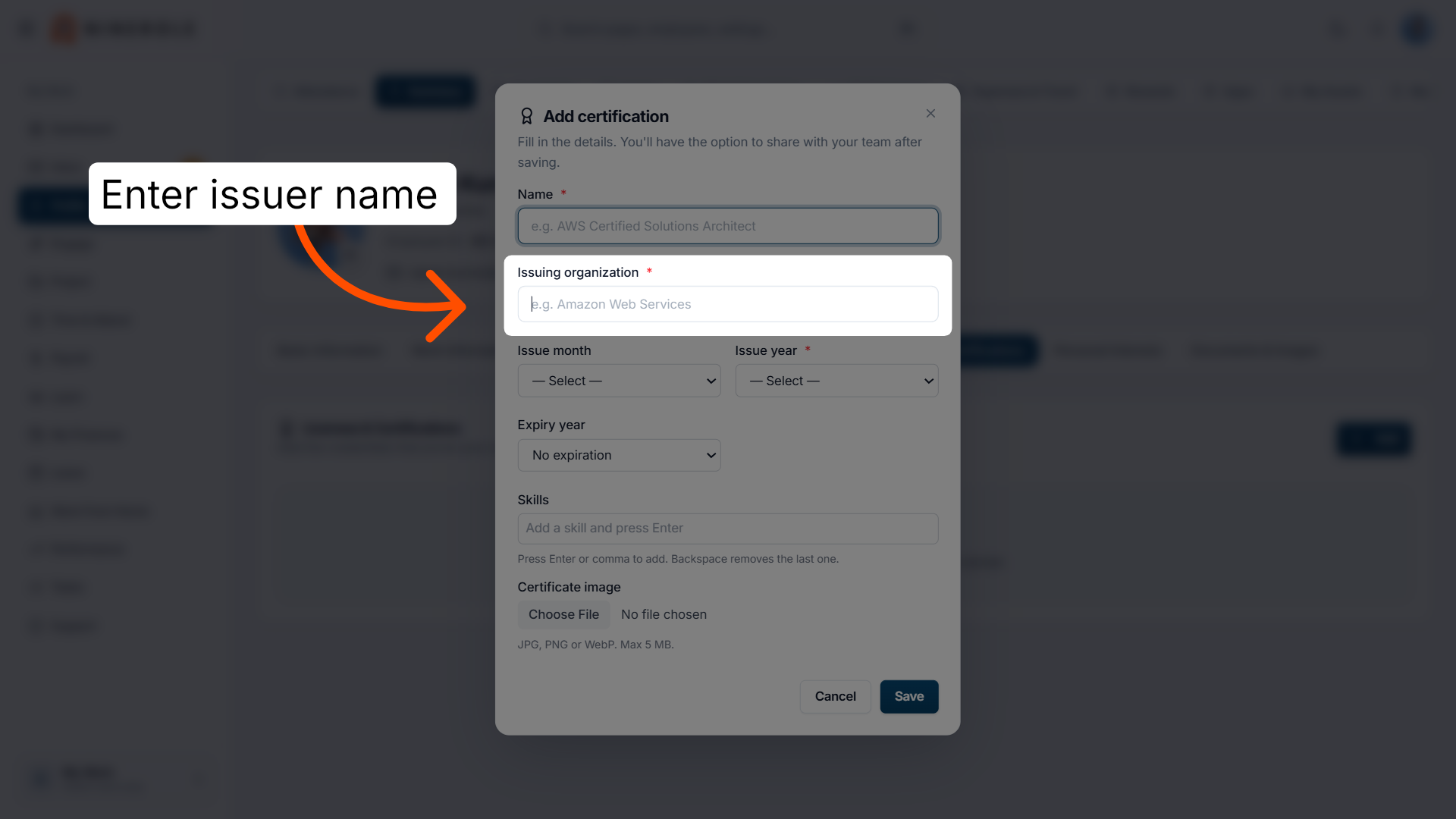
34. Enter the issuing organization
Enter Issuing organization * to specify the entity that granted the certification.
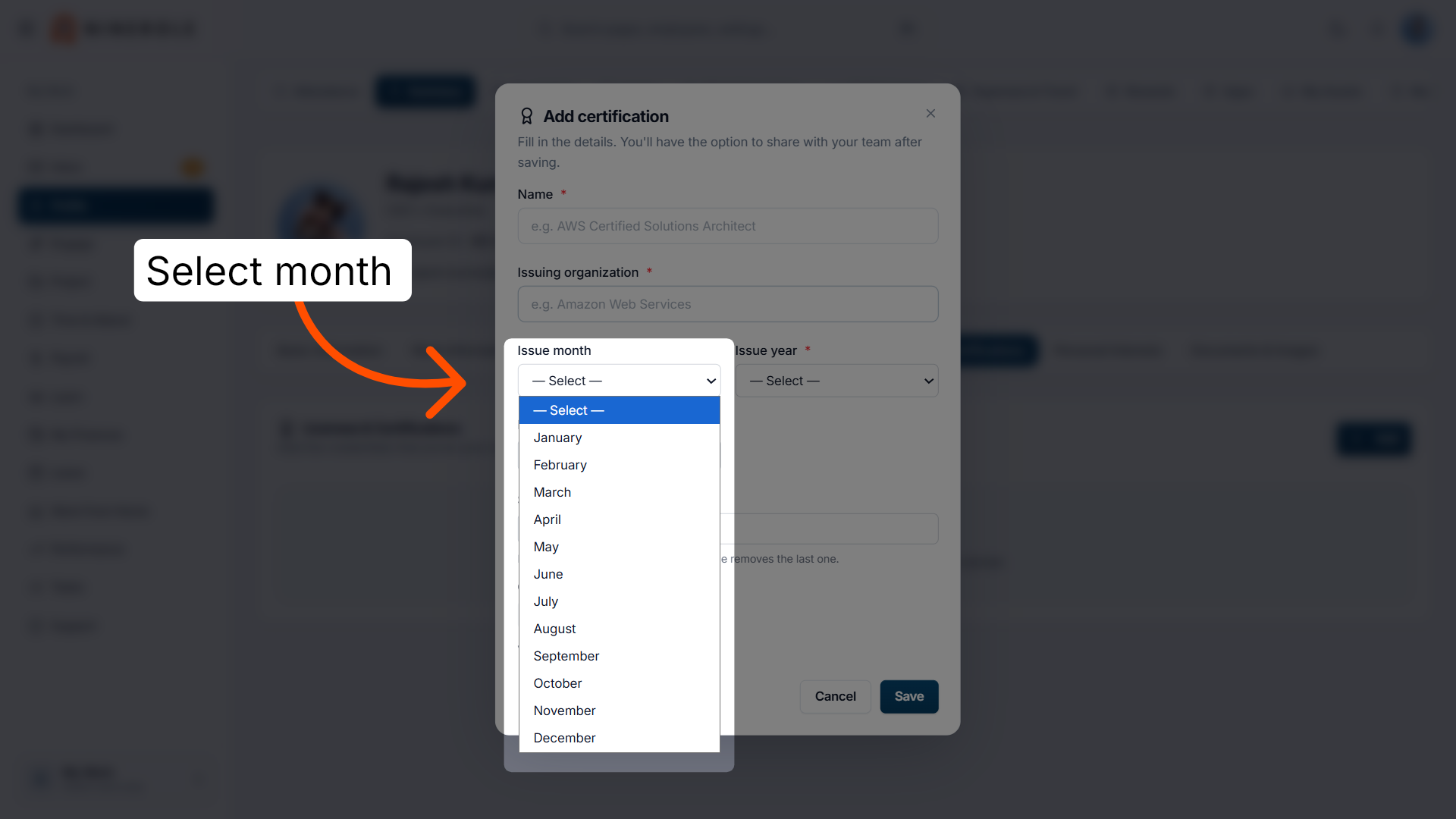
35. Select the certification month
Choose the certification month to set the month of issuance.
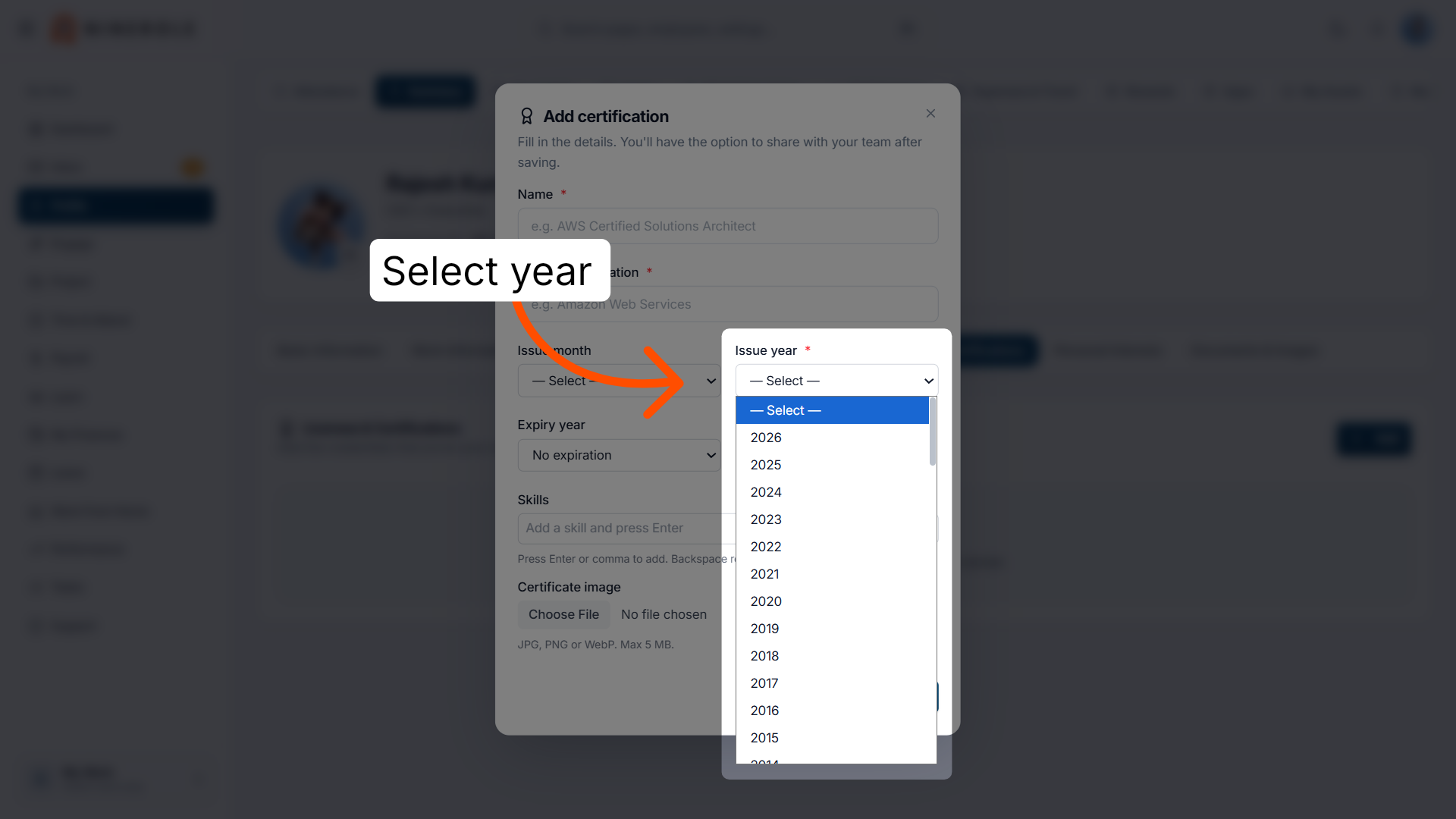
36. Select the certification year
Choose the year your certification was issued.
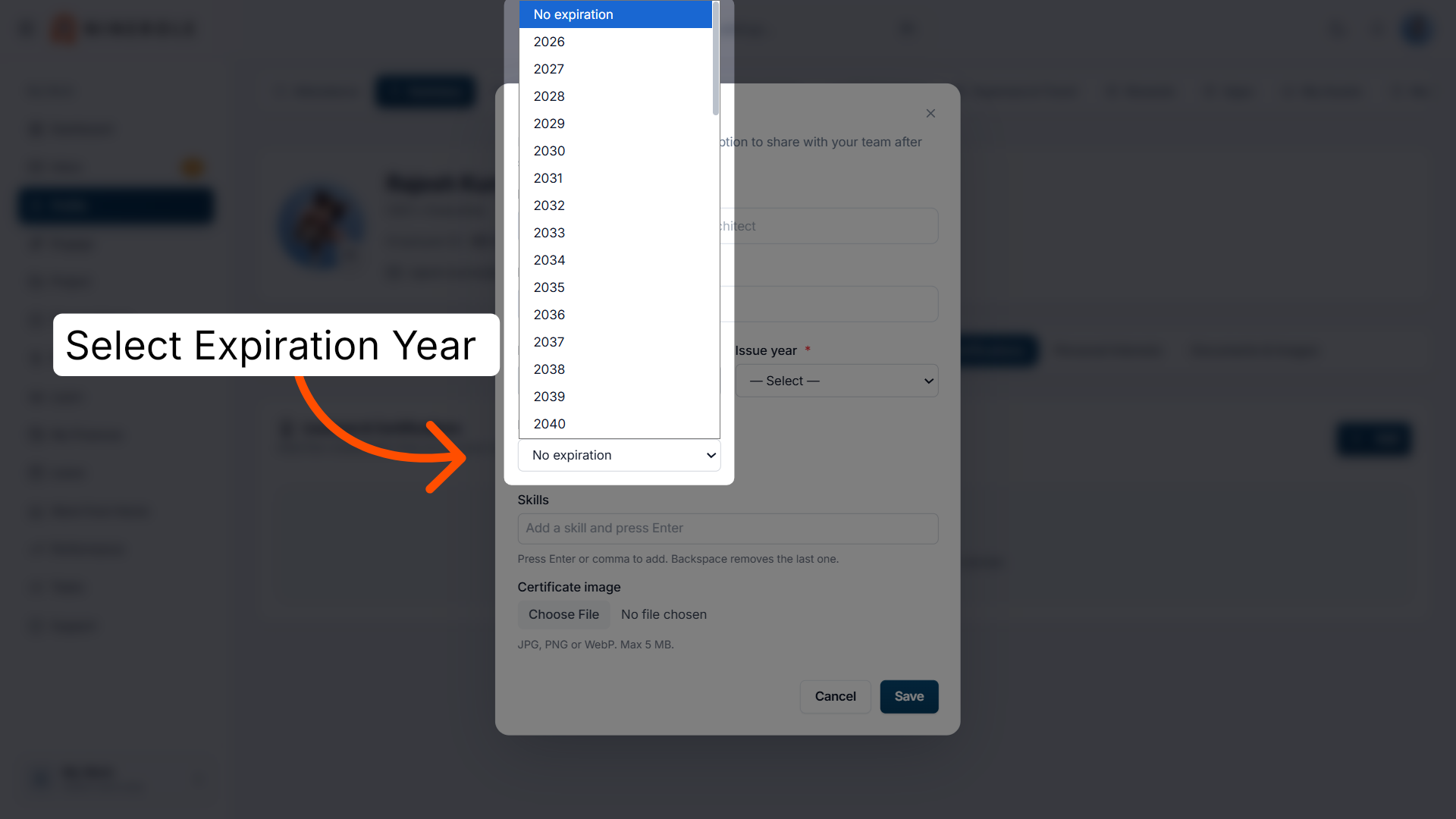
37. Select the expiration year
Select the expiration year to indicate the current status or validity of your certification.
Skills
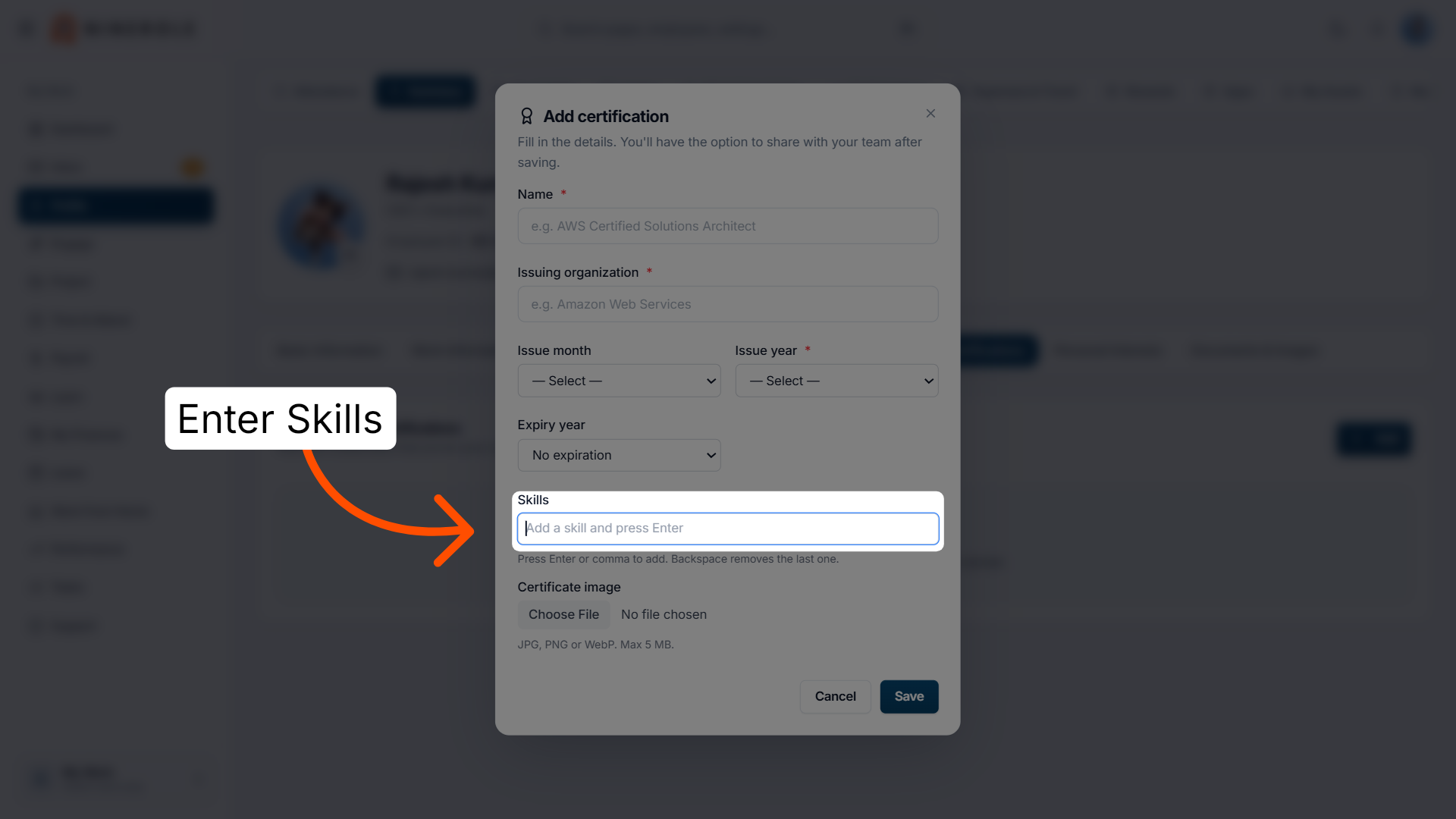
38. Open the Skills section
Enter Skills to add or update your professional skills.
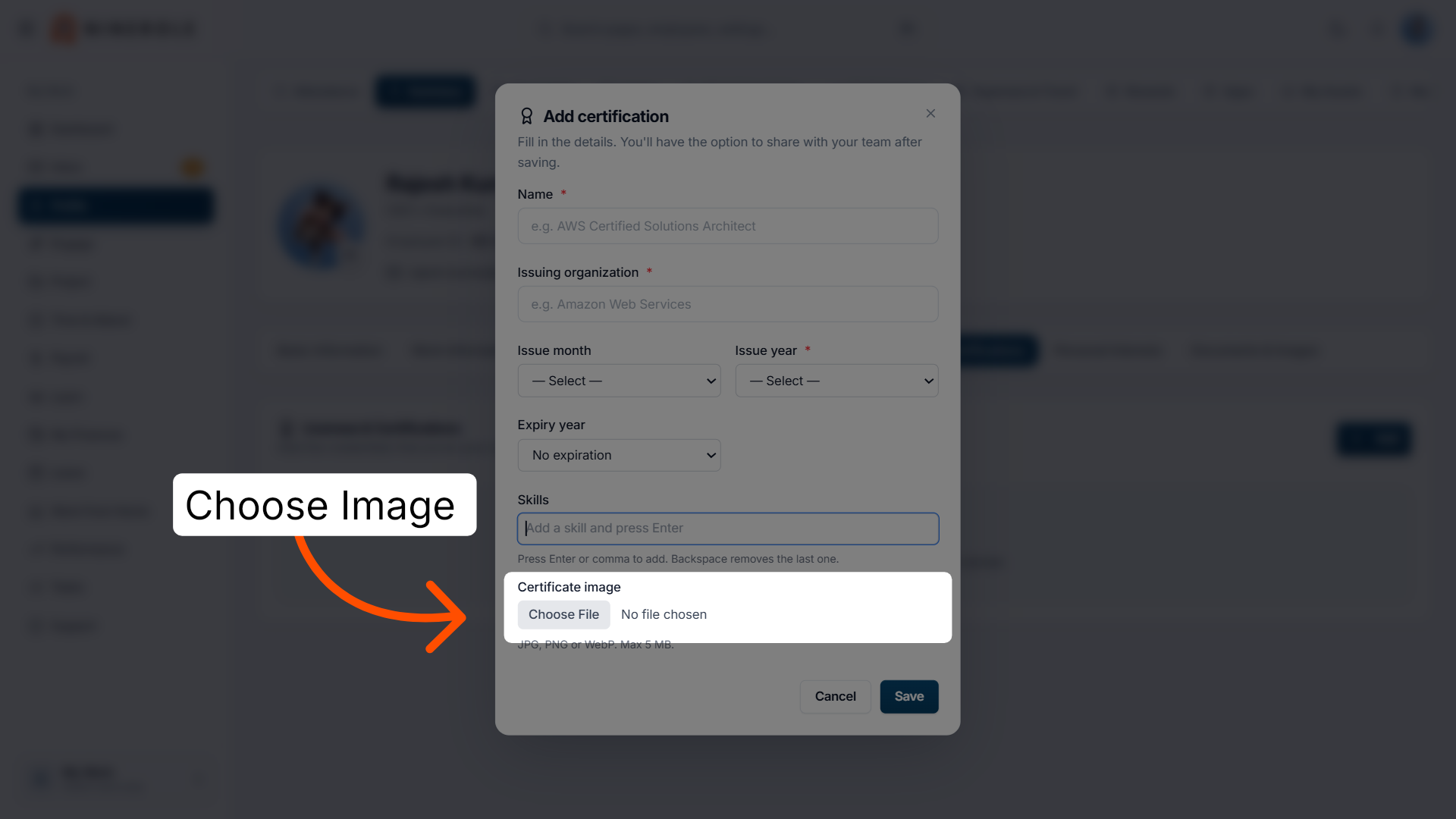
39. Upload a certification image
Choose a file to upload the certification image to your profile.
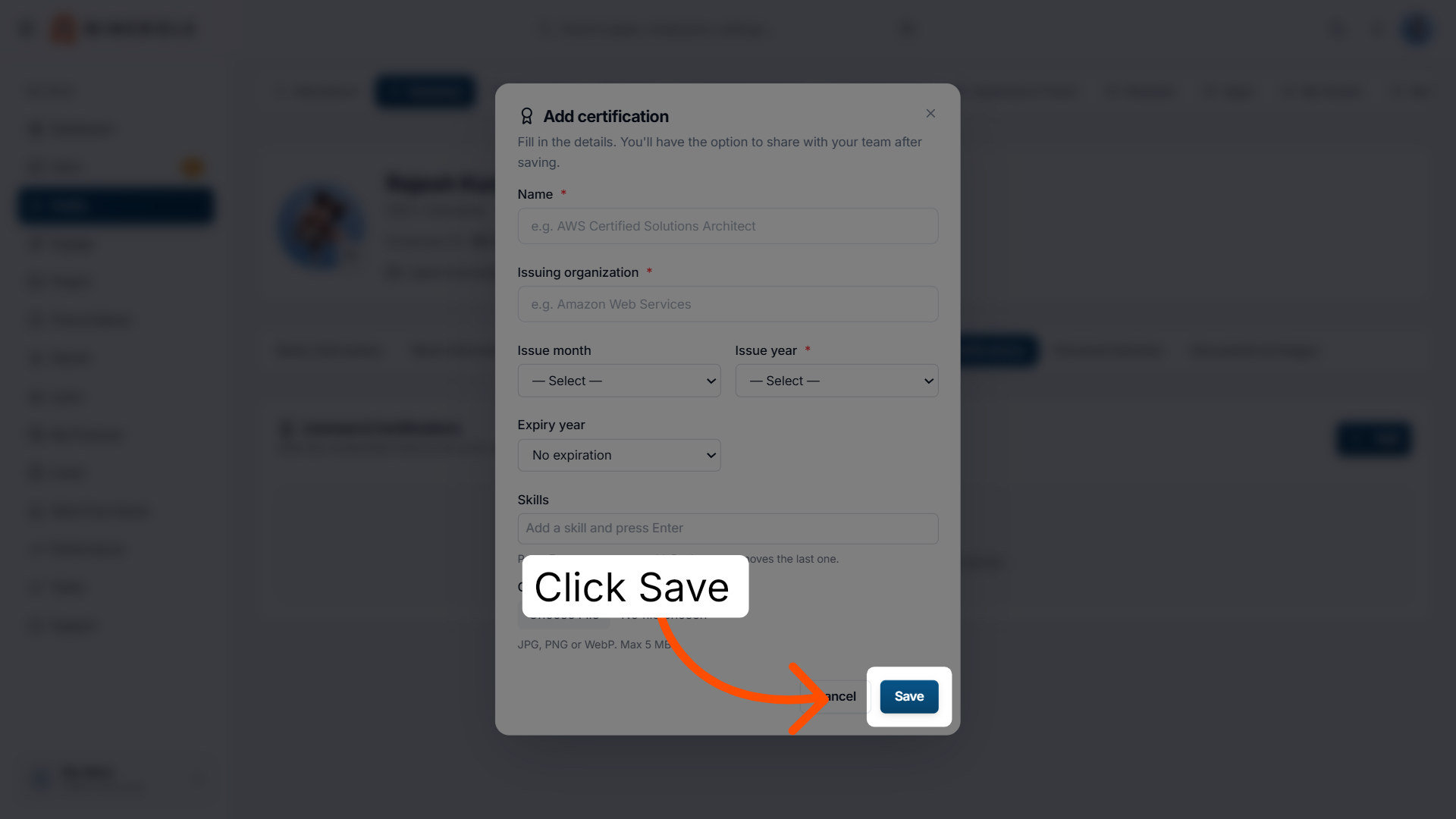
40. Save your skills
Click Save to apply the skills you have added or modified.
Personal interests
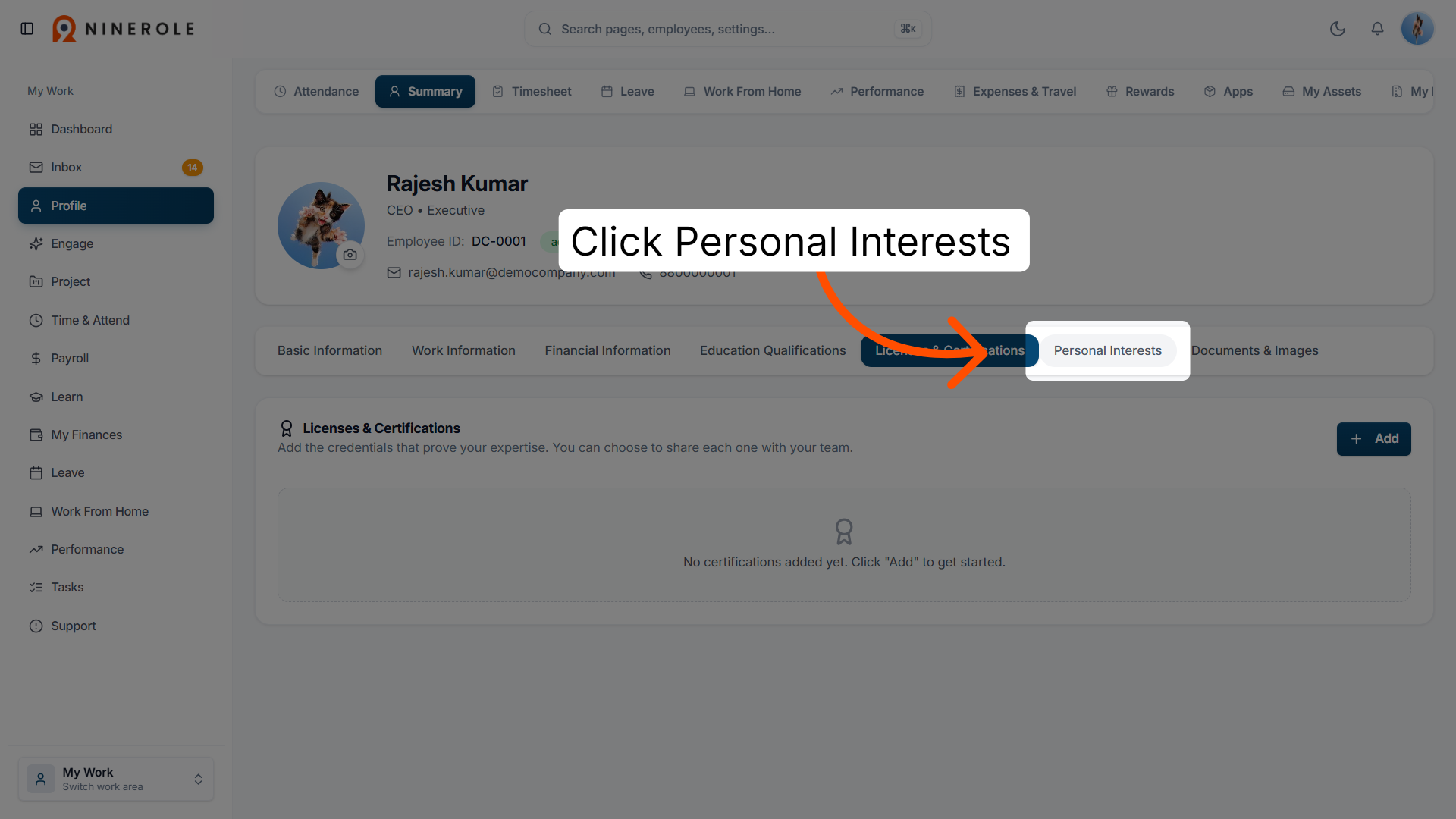
41. Access personal interests
Click Personal Interests to view or edit your hobbies and interests.
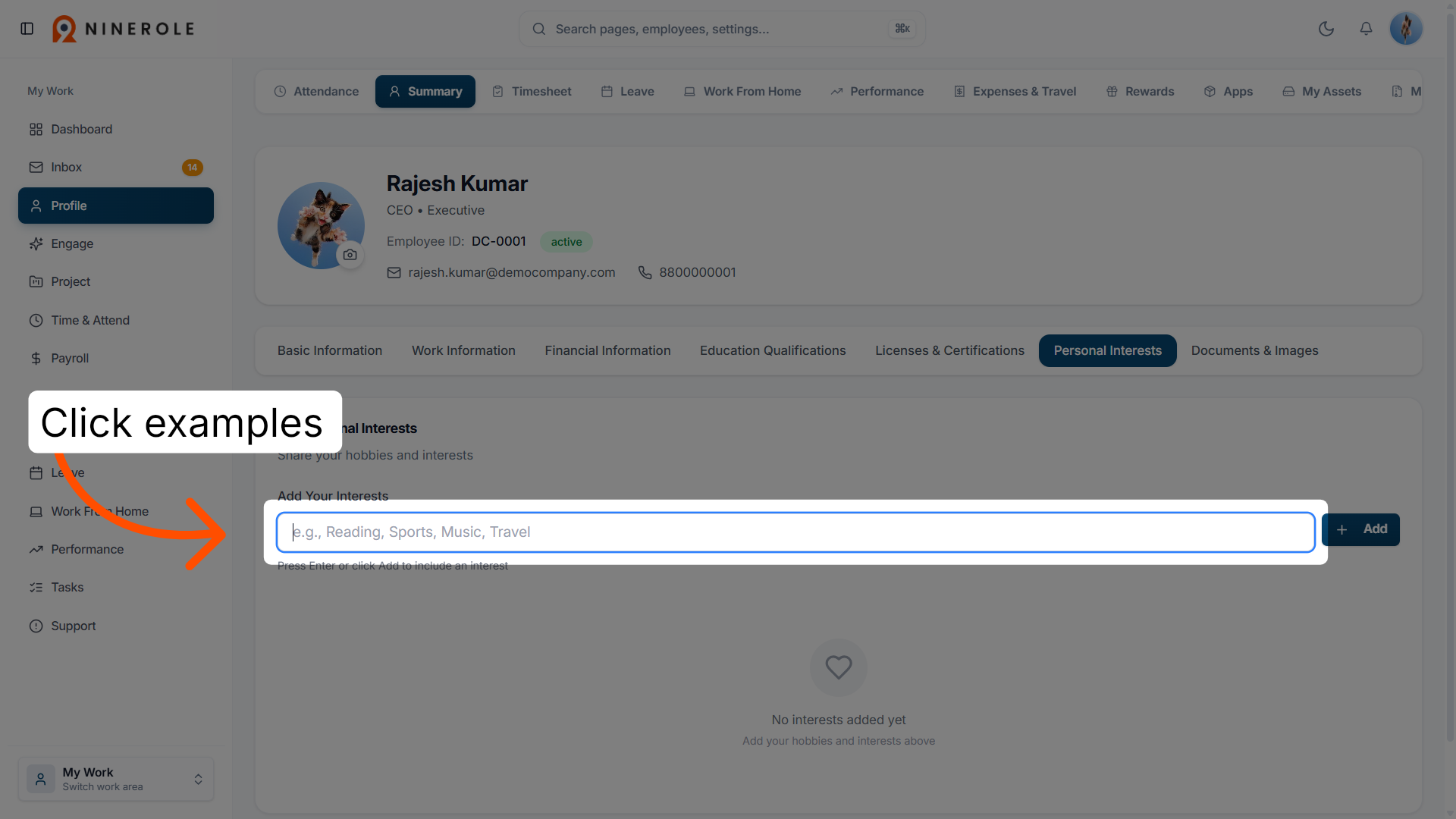
42. Enter an interest
Enter an interest in the field — for example, Reading, Sports, Music, or Travel.
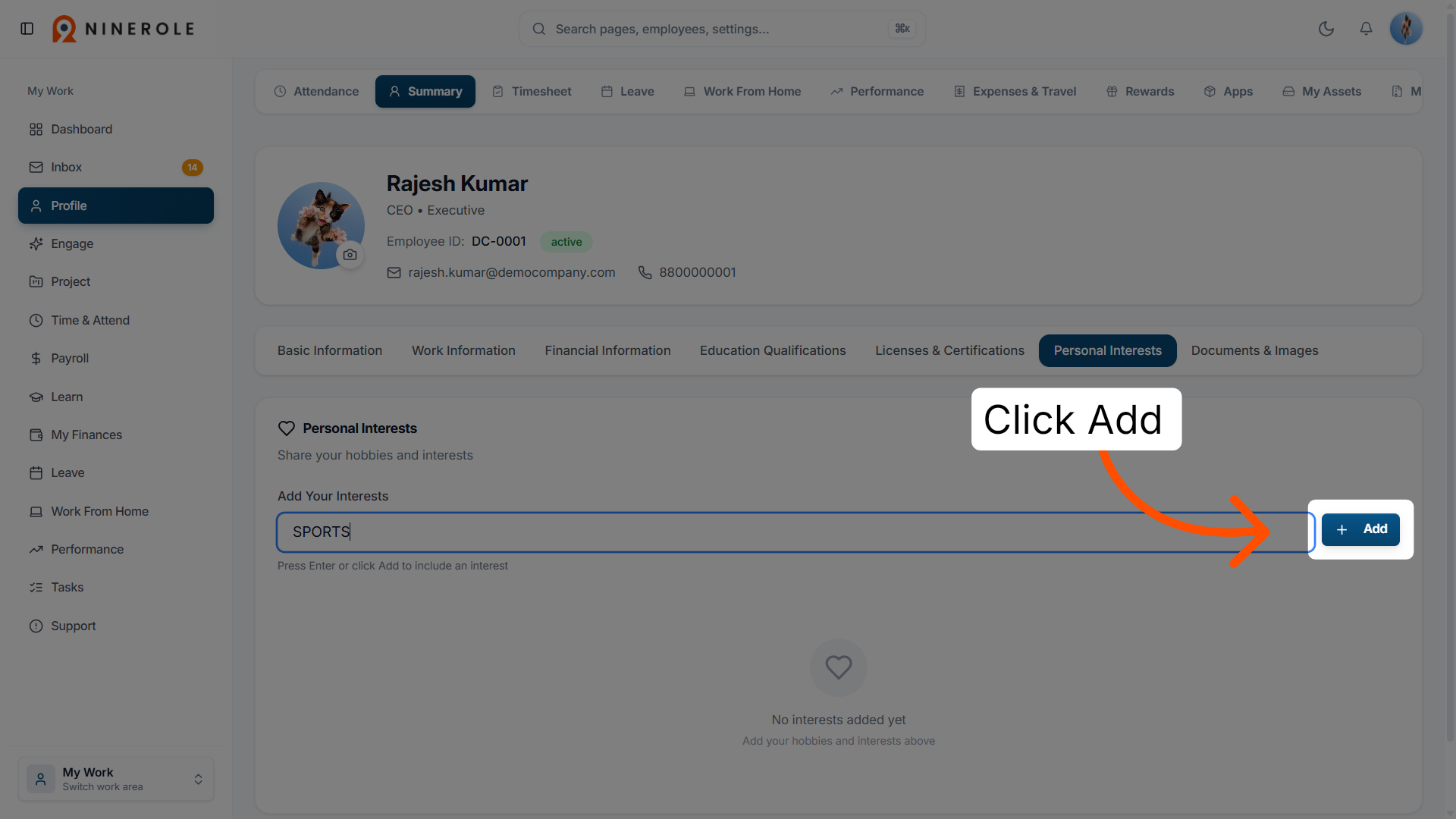
43. Add the interest
Click Add to save the new personal interest to your profile.
Documents and images
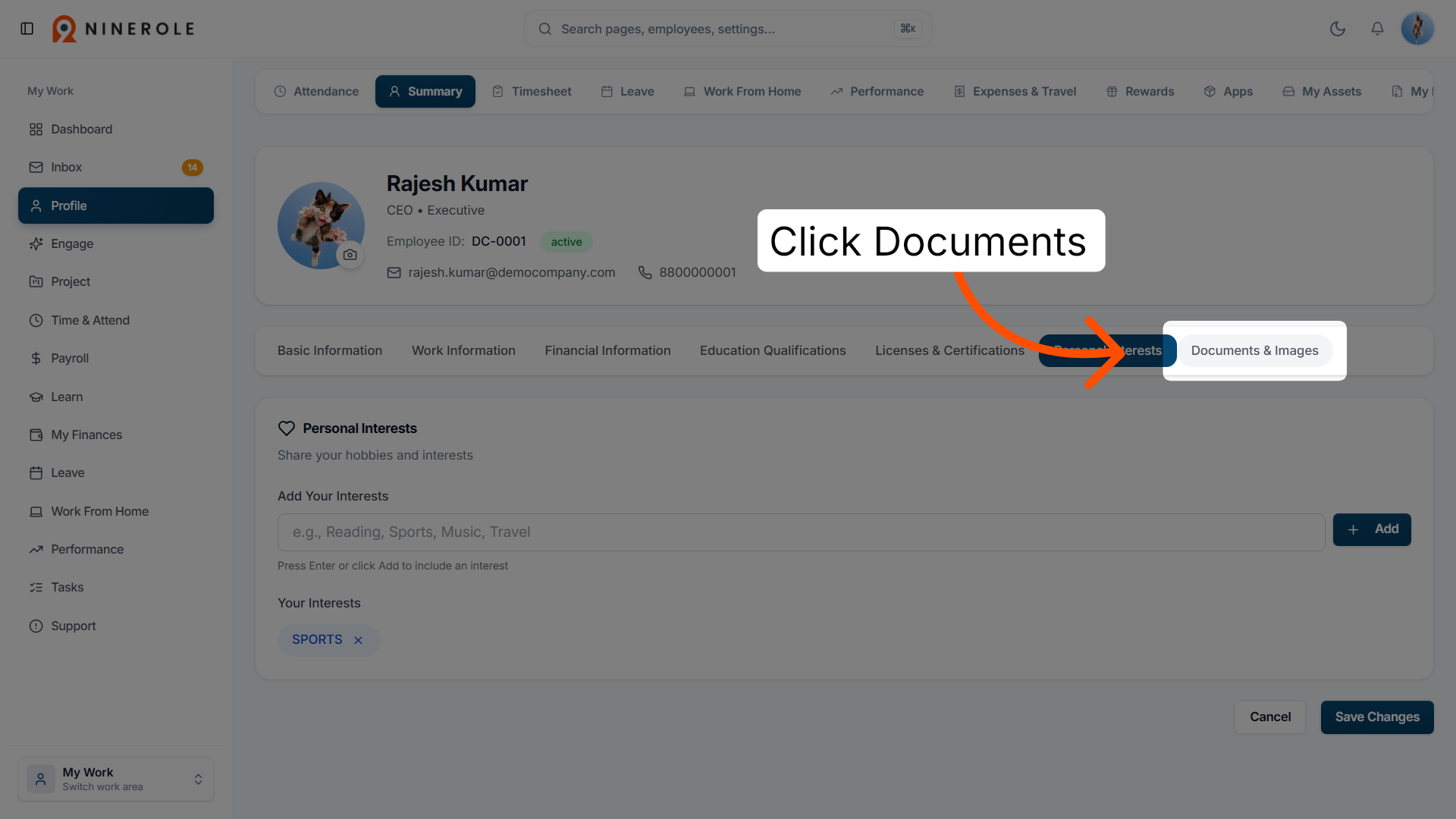
44. Open documents and images
Click Documents & Images to manage your uploaded files and images.
45. Select the document name
Enter Document name to specify or edit the name of a document.
46. Add a custom document
Under Custom documents, add any document with a name — for example, Driving Licence or Passport. Enter the document name, choose the file, and click Add. The limit is 2 MB per file.
47. Save the document changes
Click Save Changes to finalize and store all document uploads and edits.
You have successfully updated your personal profile information in Ninerole HRMS, including contact details, education, certifications, skills, and documents. To further enhance your profile, consider exploring additional settings or updating your work-related information as needed.
Back to People · all modules · Ninerole HRMS overview
Last updated: