

Manage Assets Efficiently in Ninerole HRMS
This tutorial explains how to manage assets within the Ninerole HRMS platform. You will learn to log in, add new assets, assign them, and navigate the inventory system effectively.
Before you start, go to ninerole.com.
About this task
- Purpose
- Add physical assets to the inventory, assign them to employees, and track stock, warranty and who holds what.
- Who can do this
- HR admin or an operations owner
- You will need
- Asset details — ID, tag, name, category, brand, model, serial number, location, condition, purchase and warranty dates.
- Result
- Assets exist in the inventory and can be assigned, tracked and returned.
- This unlocks
- Assigning equipment to employees, and reporting on stock and expiring warranties.
This guide answers
- How do I add an asset?
- How do I assign an asset to an employee?
- How do I record a serial number and warranty?
- How do I see who holds a device?
- How do I import assets in bulk?
If something goes wrong
- You cannot assign an asset.
- The asset record must exist and be marked deployable before it can be assigned.
- The location is not in the list.
- Locations come from the organisation master. Add the location first.
Related: New ticket (operations) · Upload documentsAlso called: asset inventory, equipment, device management.Last verified: 7 September 2026
Log in to Ninerole
1. Go to ninerole.com
Open ninerole.com and head to the sign-in page.
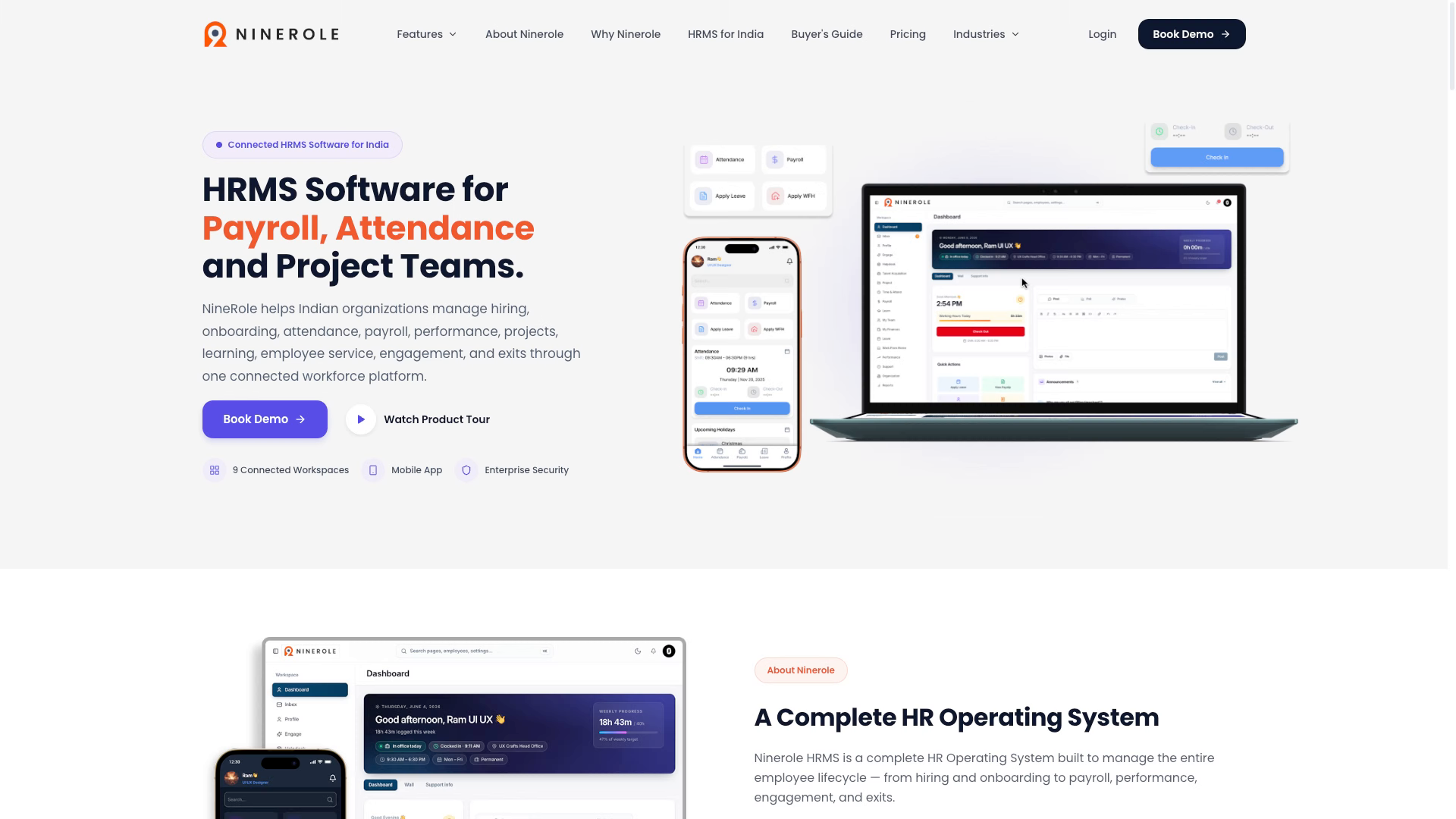
2. Click Login button
Click the Login button on the Ninerole HRMS platform to access your account.
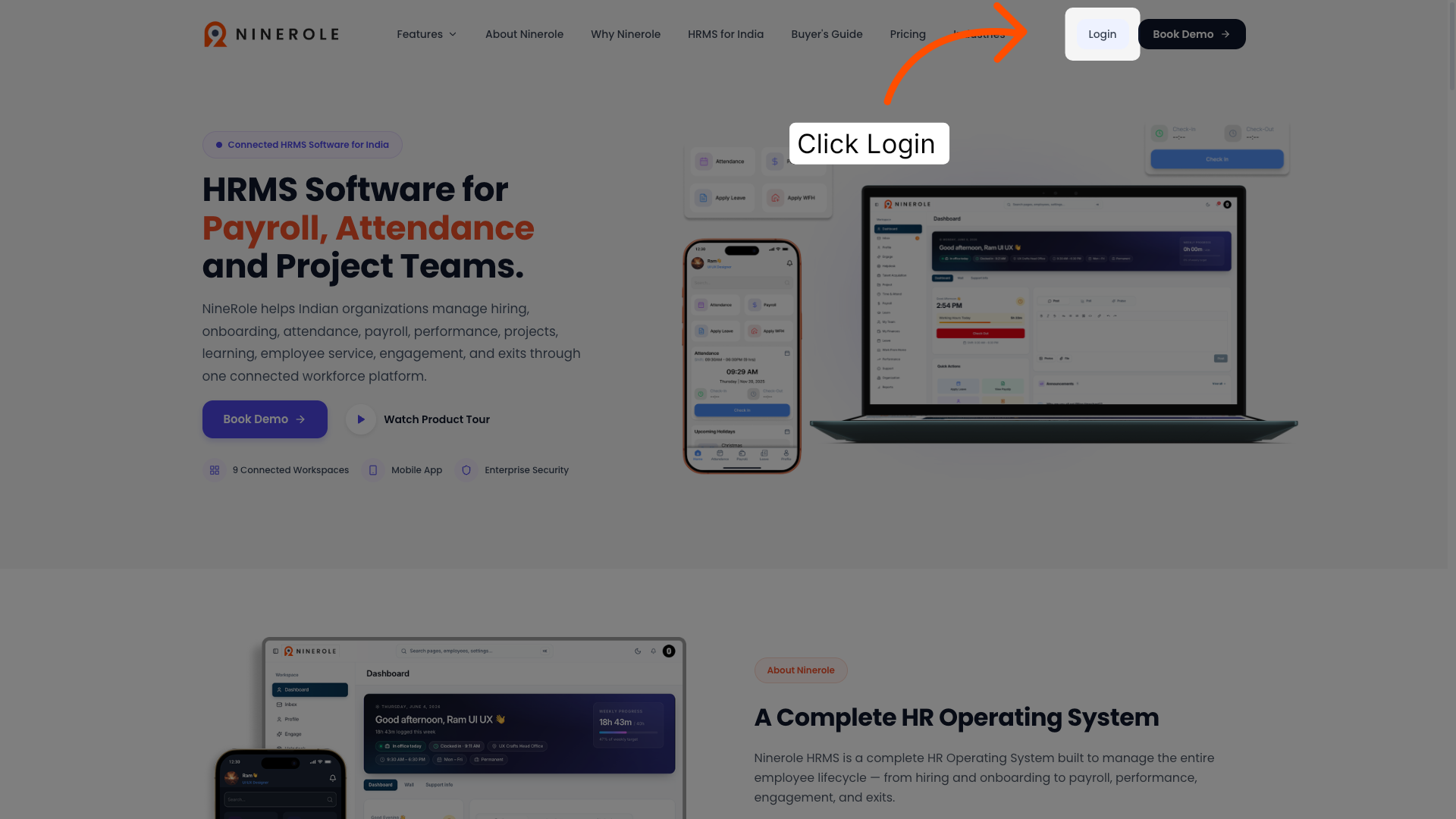
3. Click Sign In button
Click the Sign in button to proceed with logging into your Ninerole account.
Open Asset Management
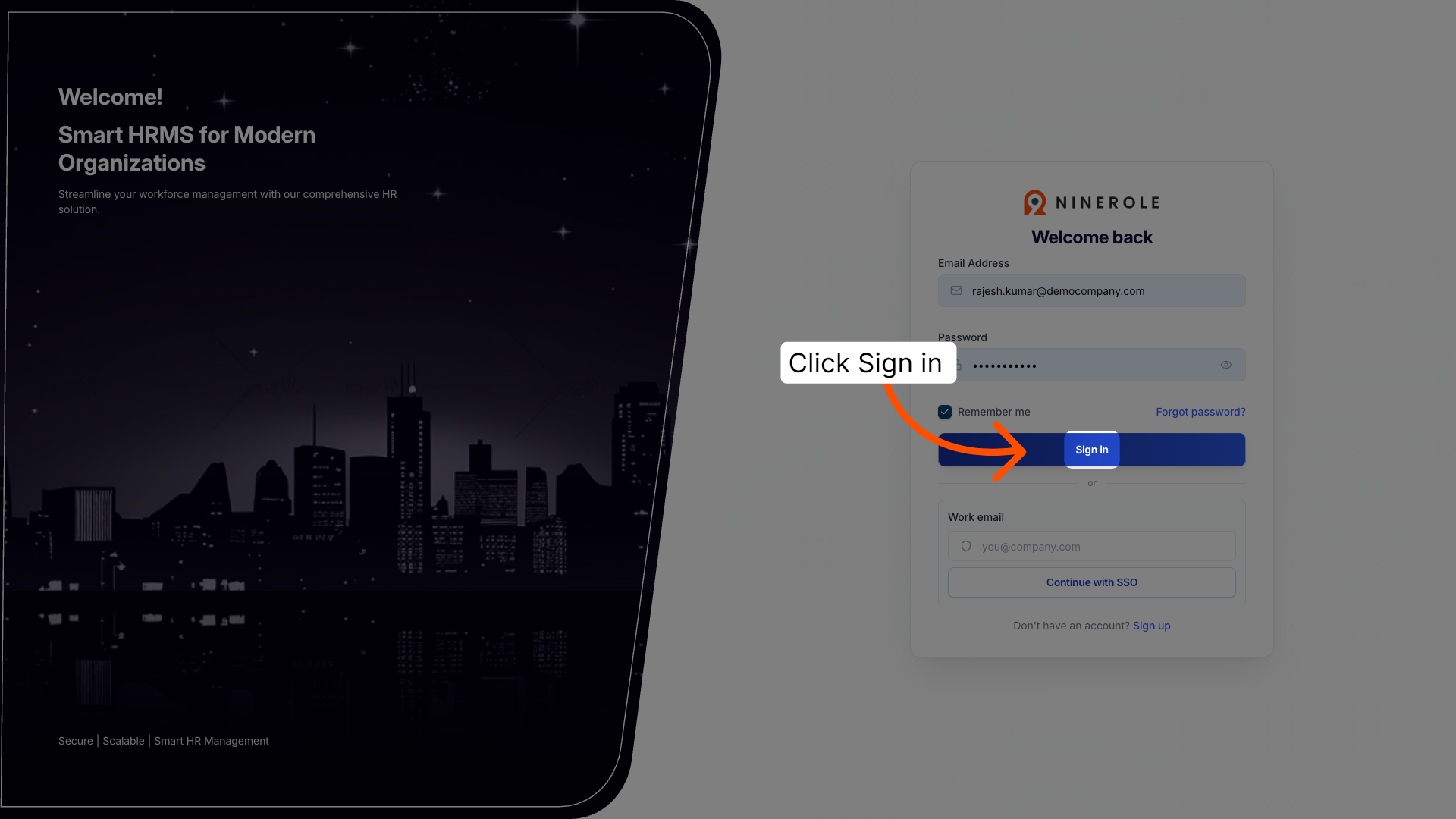
4. Open work area switcher
Click the Switch work area button on your dashboard to change your current workspace.
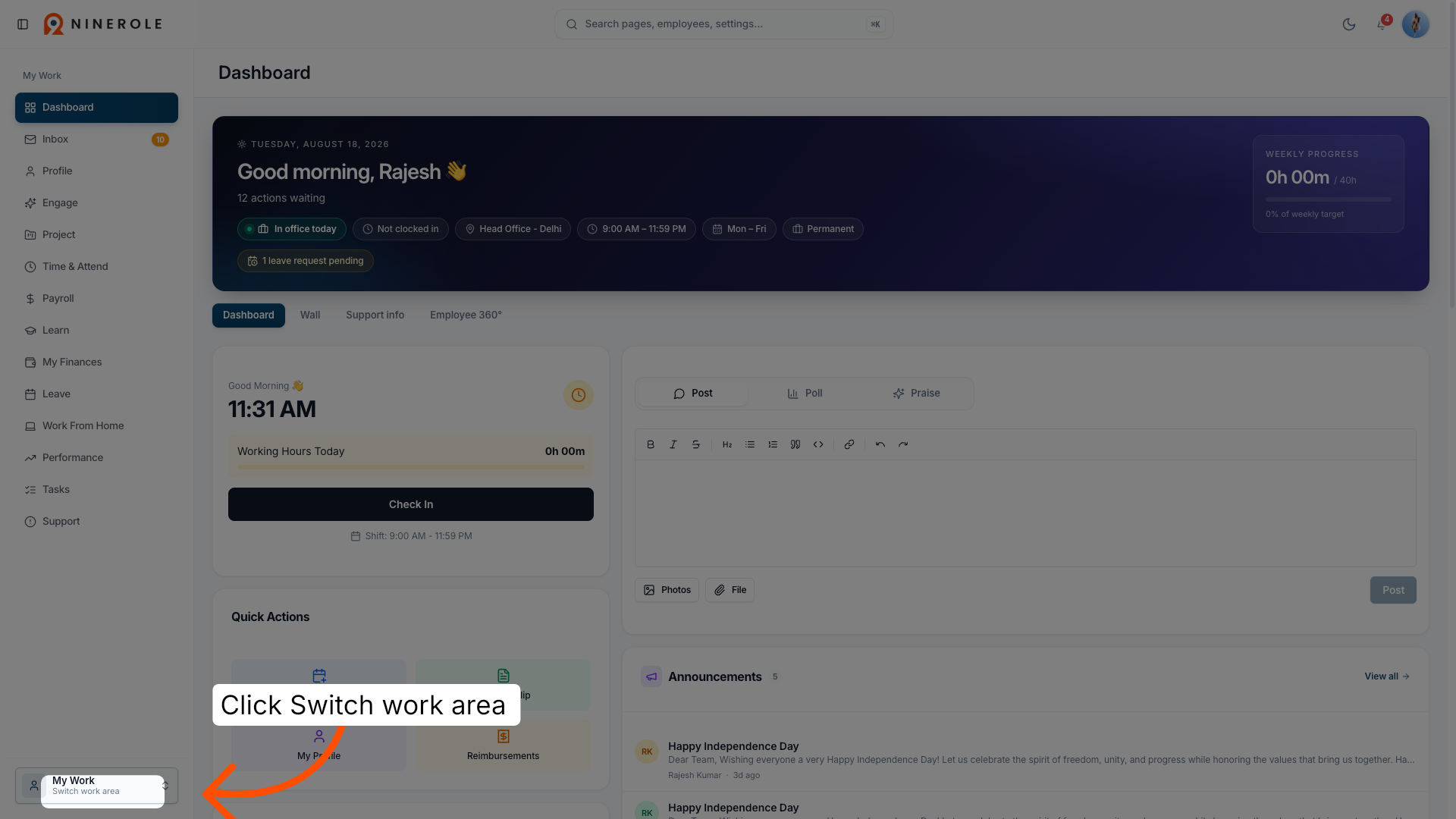
5. Access Helpdesk section
Click the Helpdesk, assets, documents, and devices section to manage related resources.
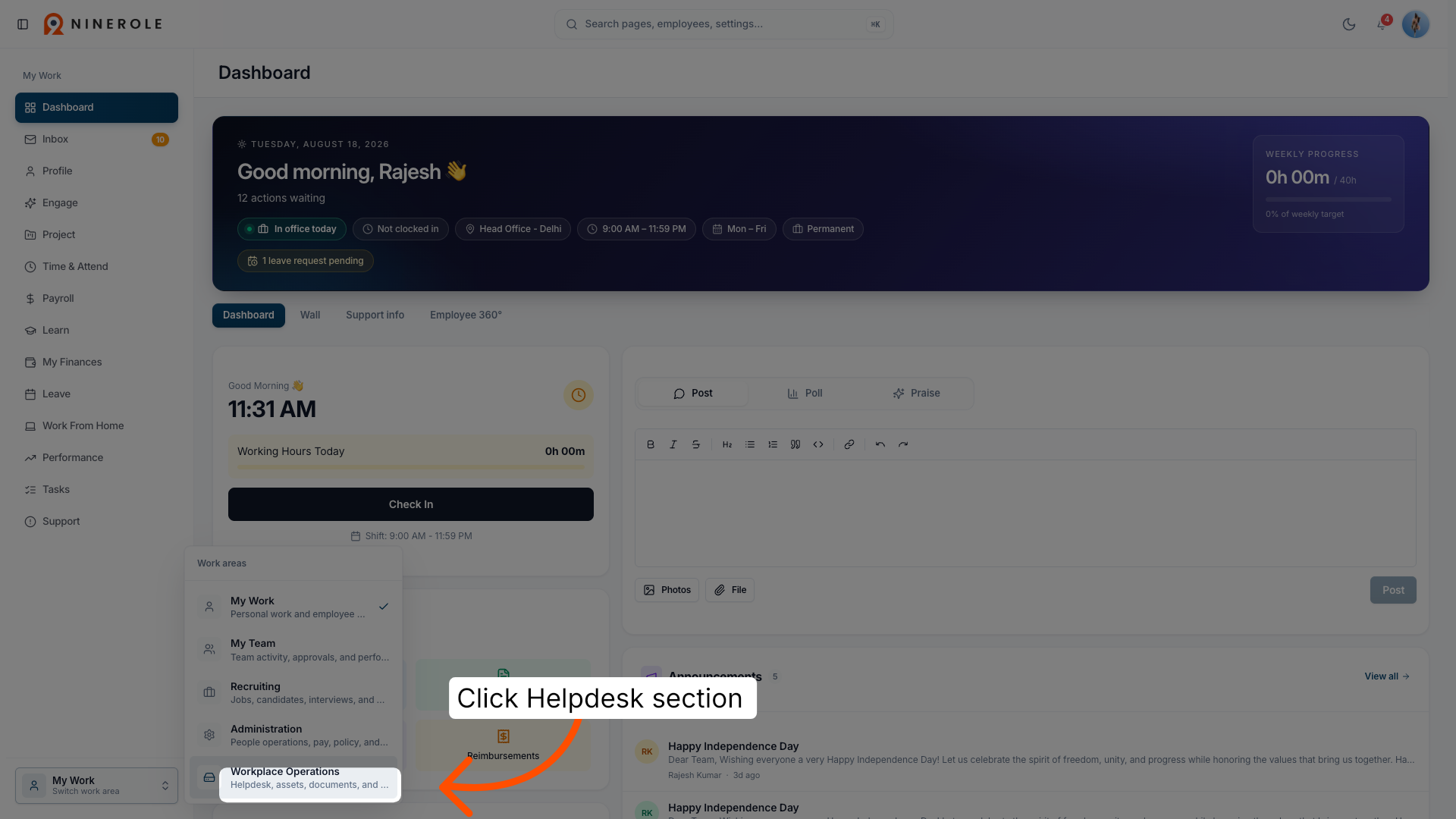
6. Navigate to Asset Management
Click the Asset Management option within the Helpdesk to manage company assets.
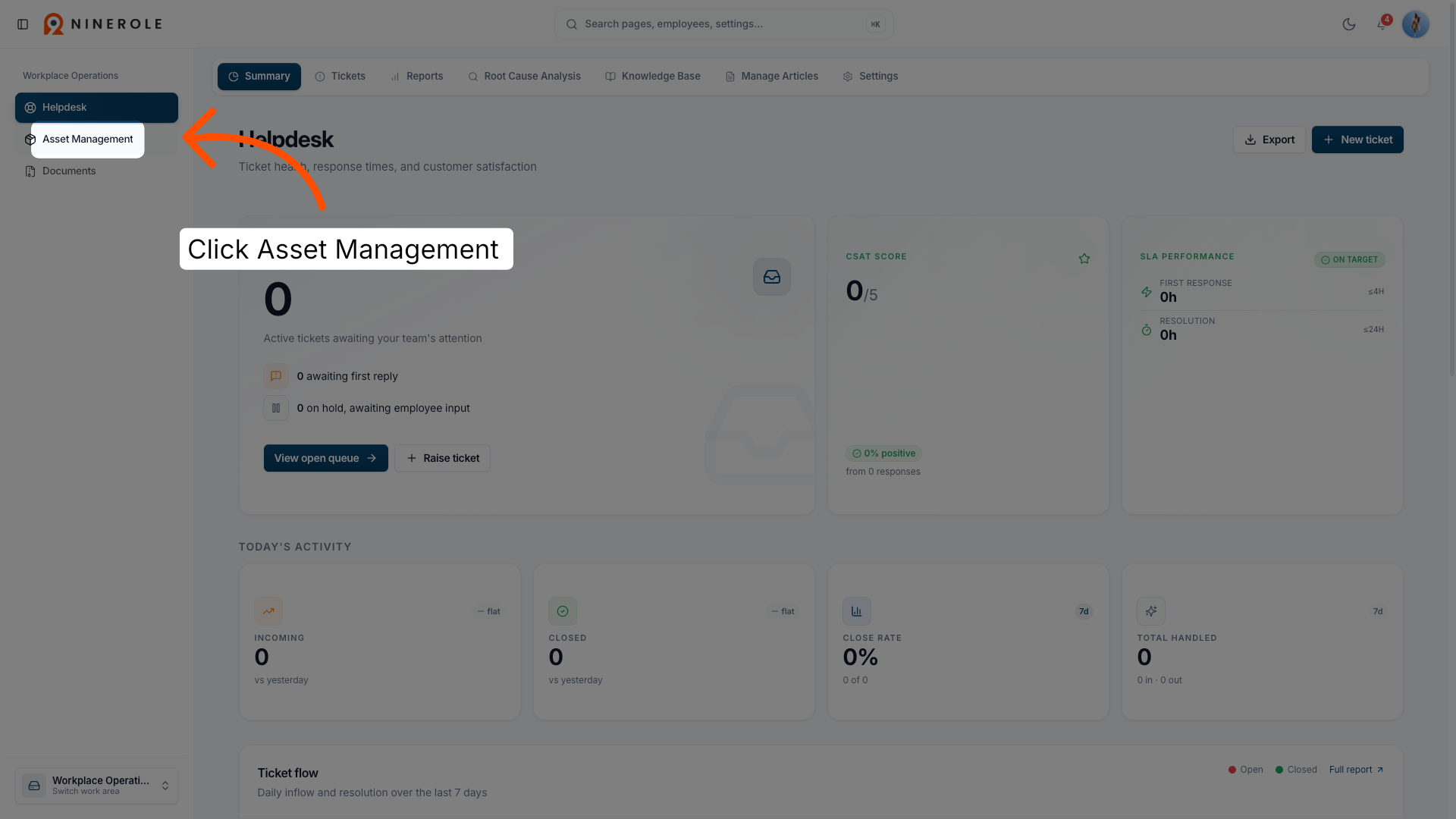
7. Open Inventory page
Click the Inventory tab to view and manage the list of assets in the system.
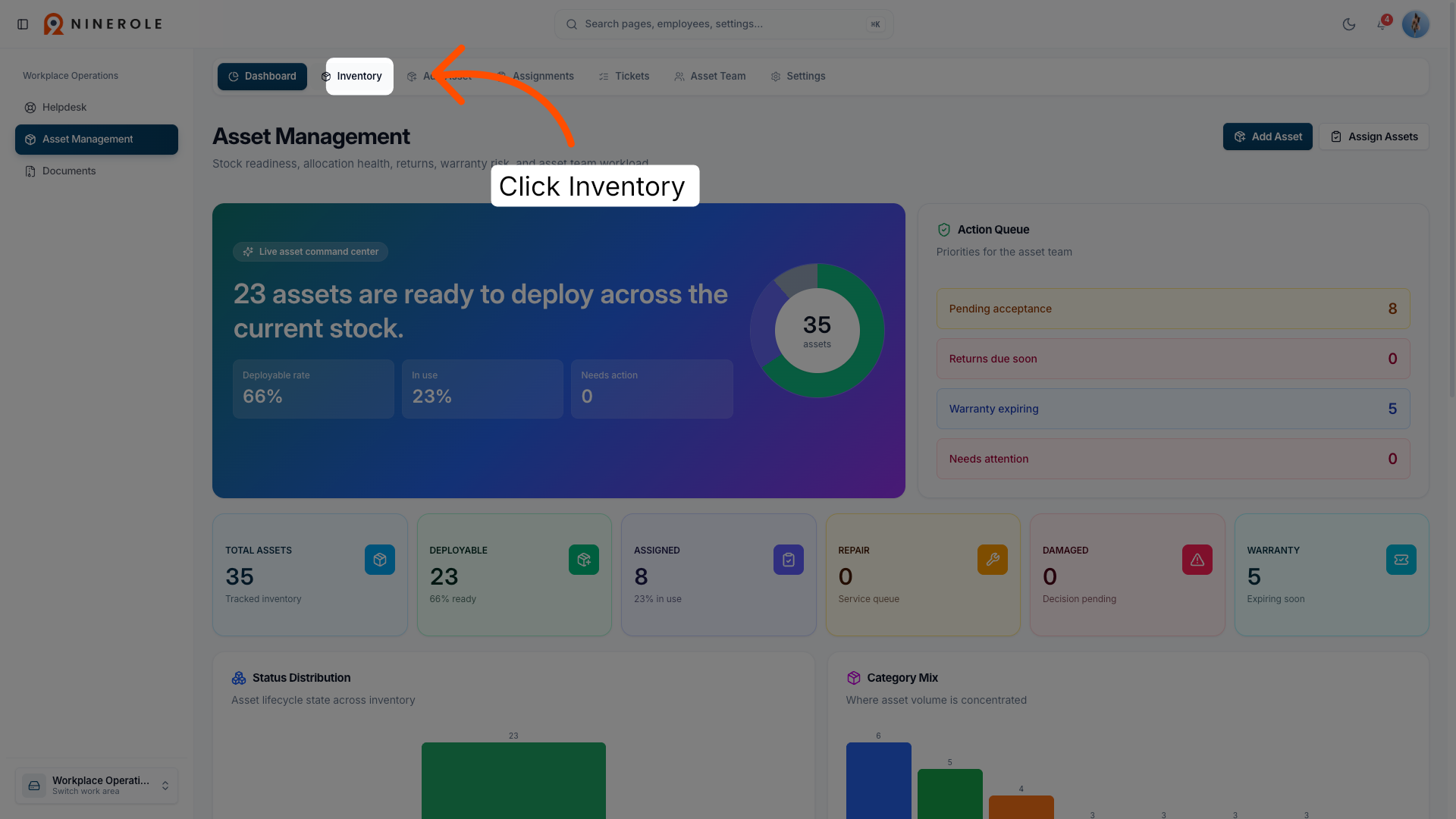
Add a new asset
8. Add new asset
Click the Add Asset button to begin entering details for a new asset in the inventory.
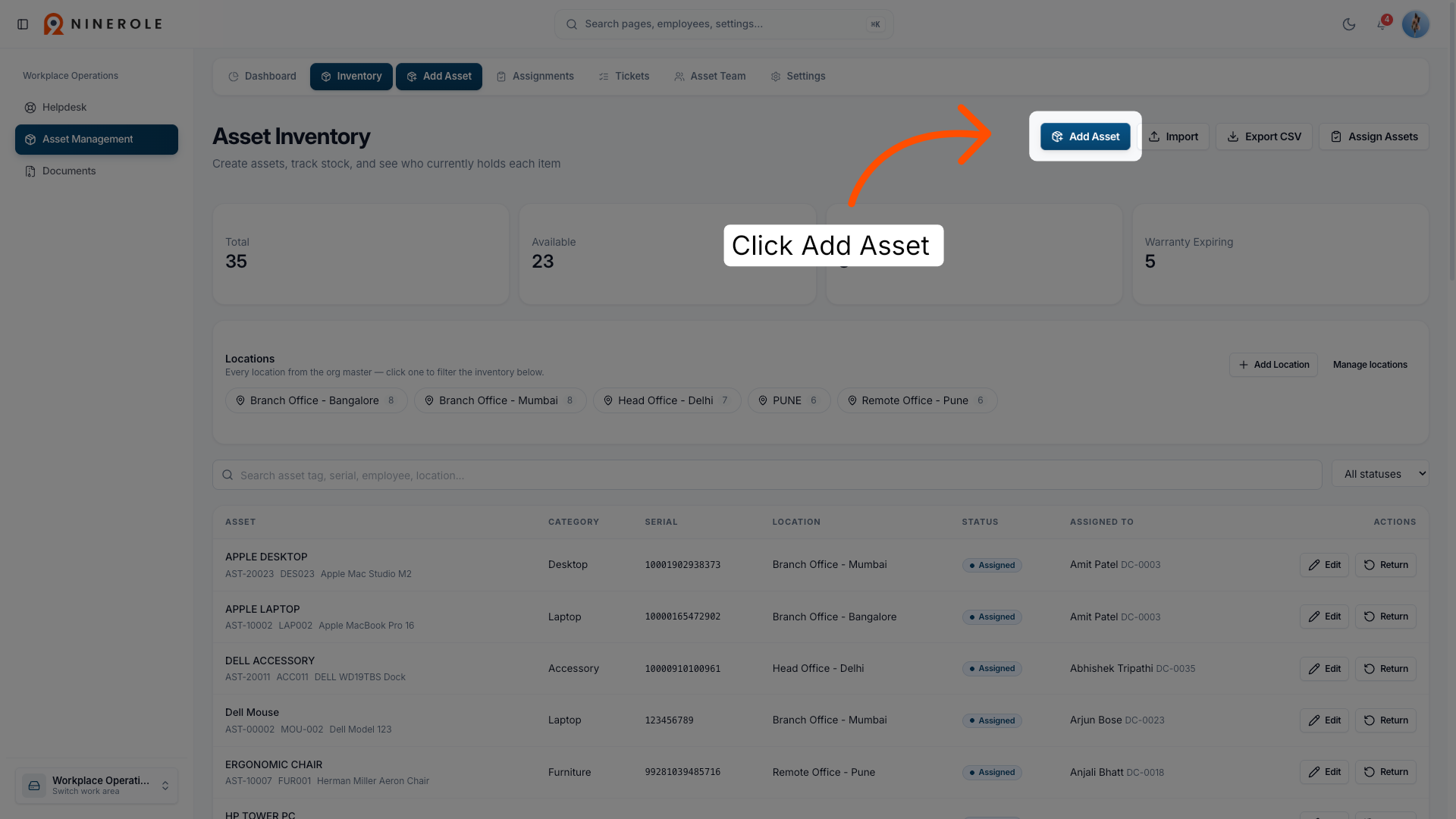
9. Open the Add Asset dialog
The Add Asset dialog opens. It creates the physical asset record that has to exist before the asset can be assigned to anyone.
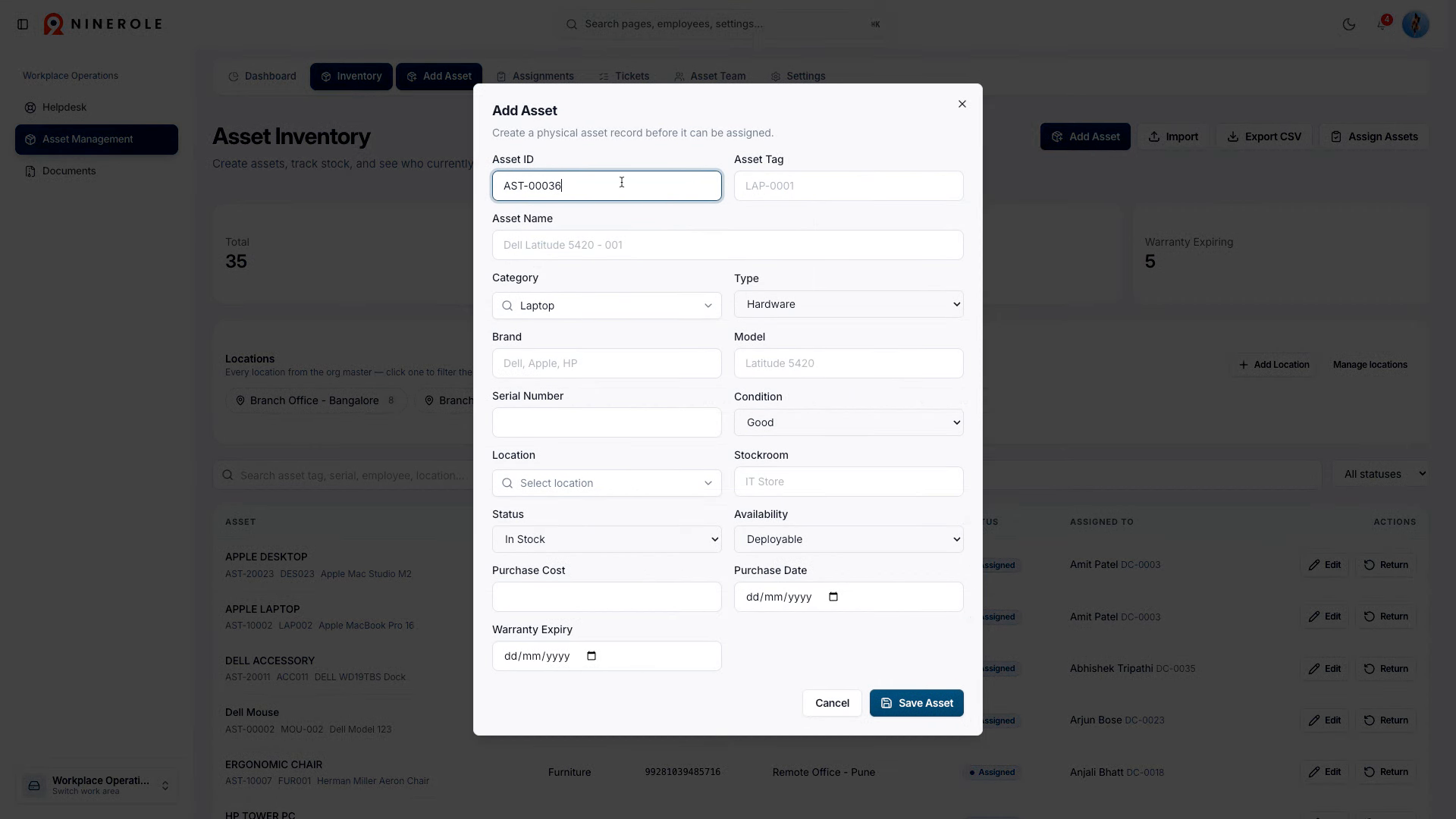
10. Select Asset ID field
Click the Asset ID field to specify the unique identifier for the new asset.
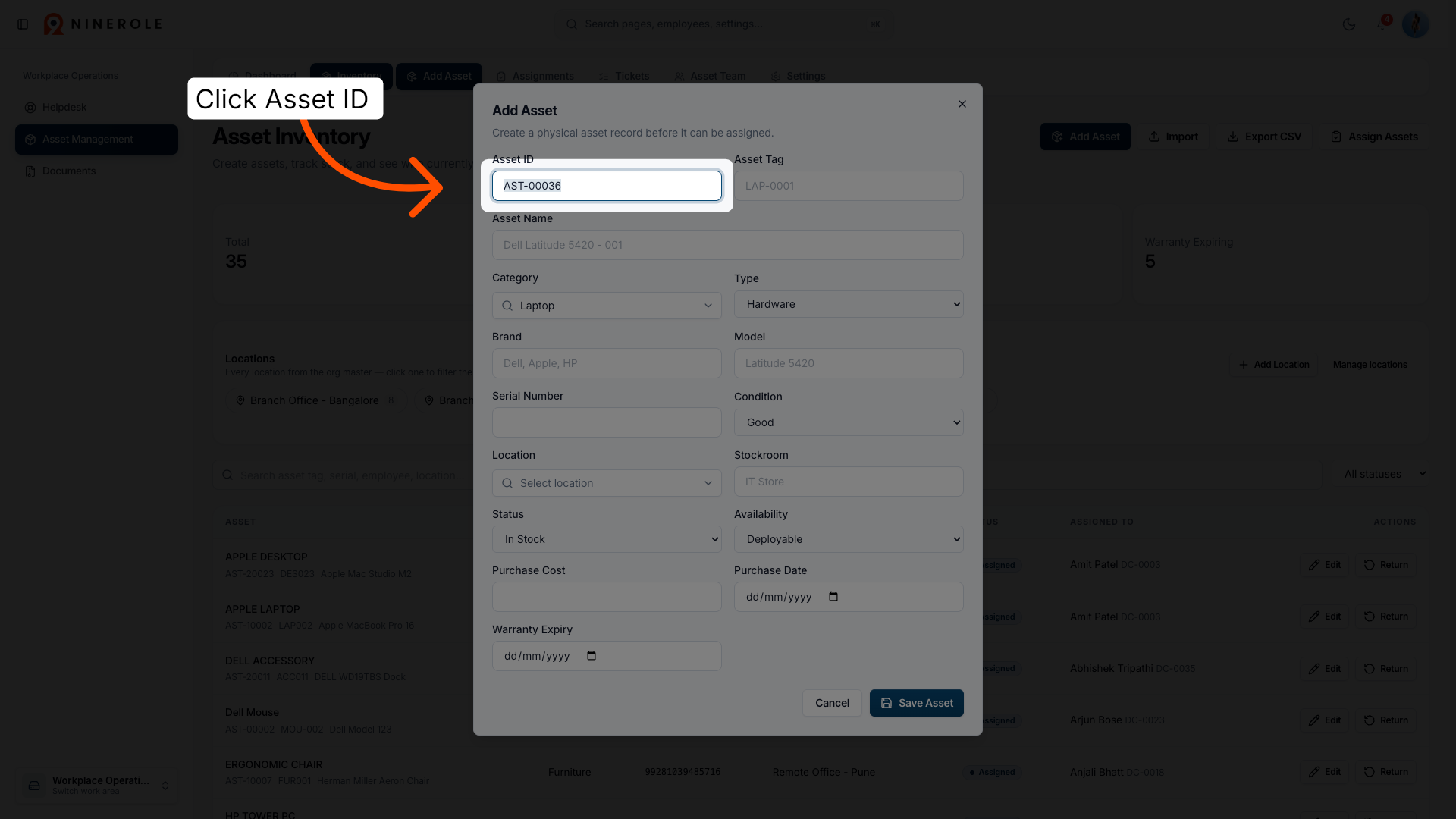
11. Enter asset tag
Enter the asset tag to uniquely identify the asset within the inventory system.
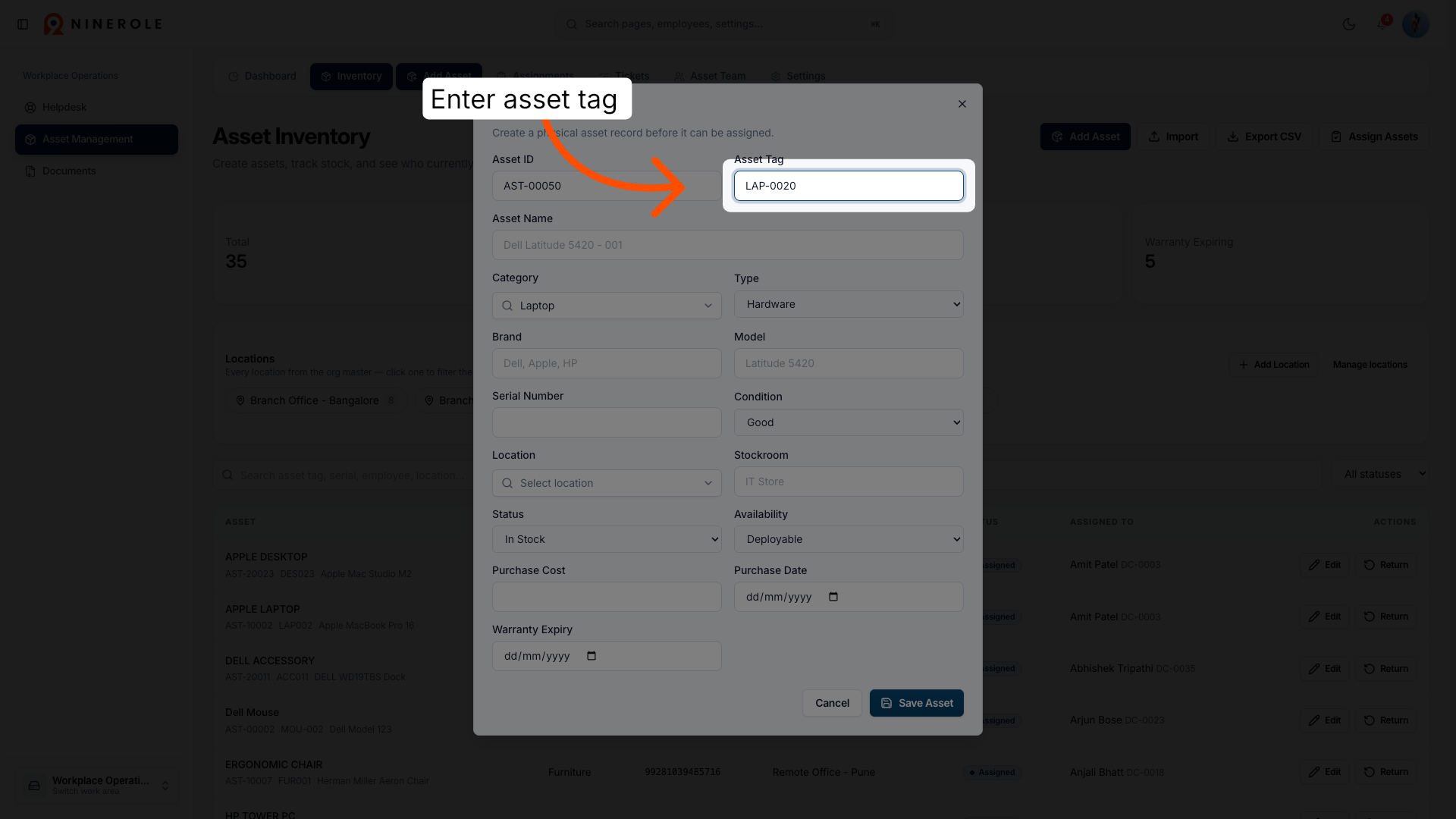
12. Enter asset name
Enter the name of the asset, such as the model or description, to identify it clearly.
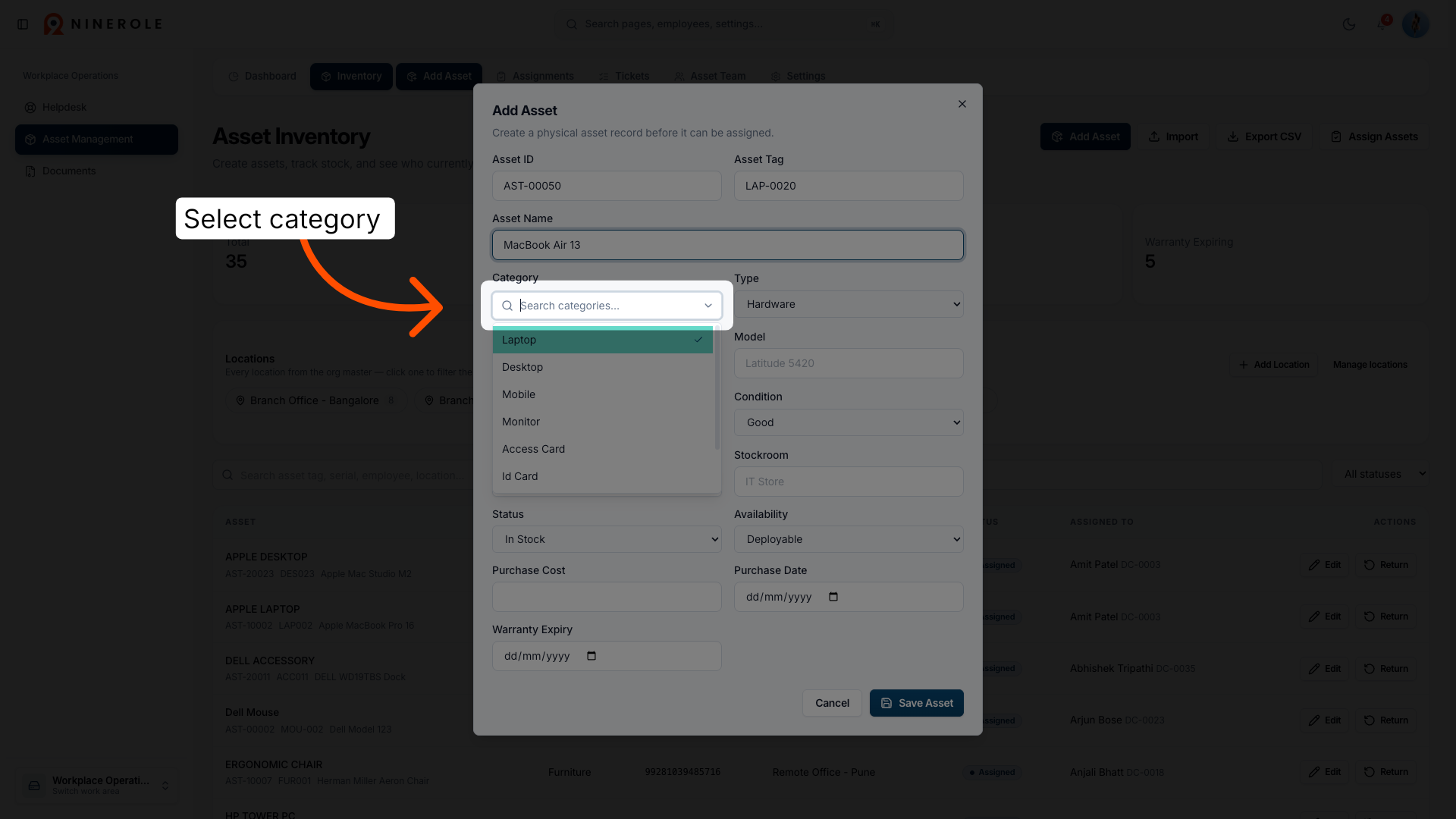
13. Select Category field
Click the Category dropdown to choose the type of asset you are adding.
14. Choose Laptop category
Select the Laptop category to classify the asset appropriately within the inventory.
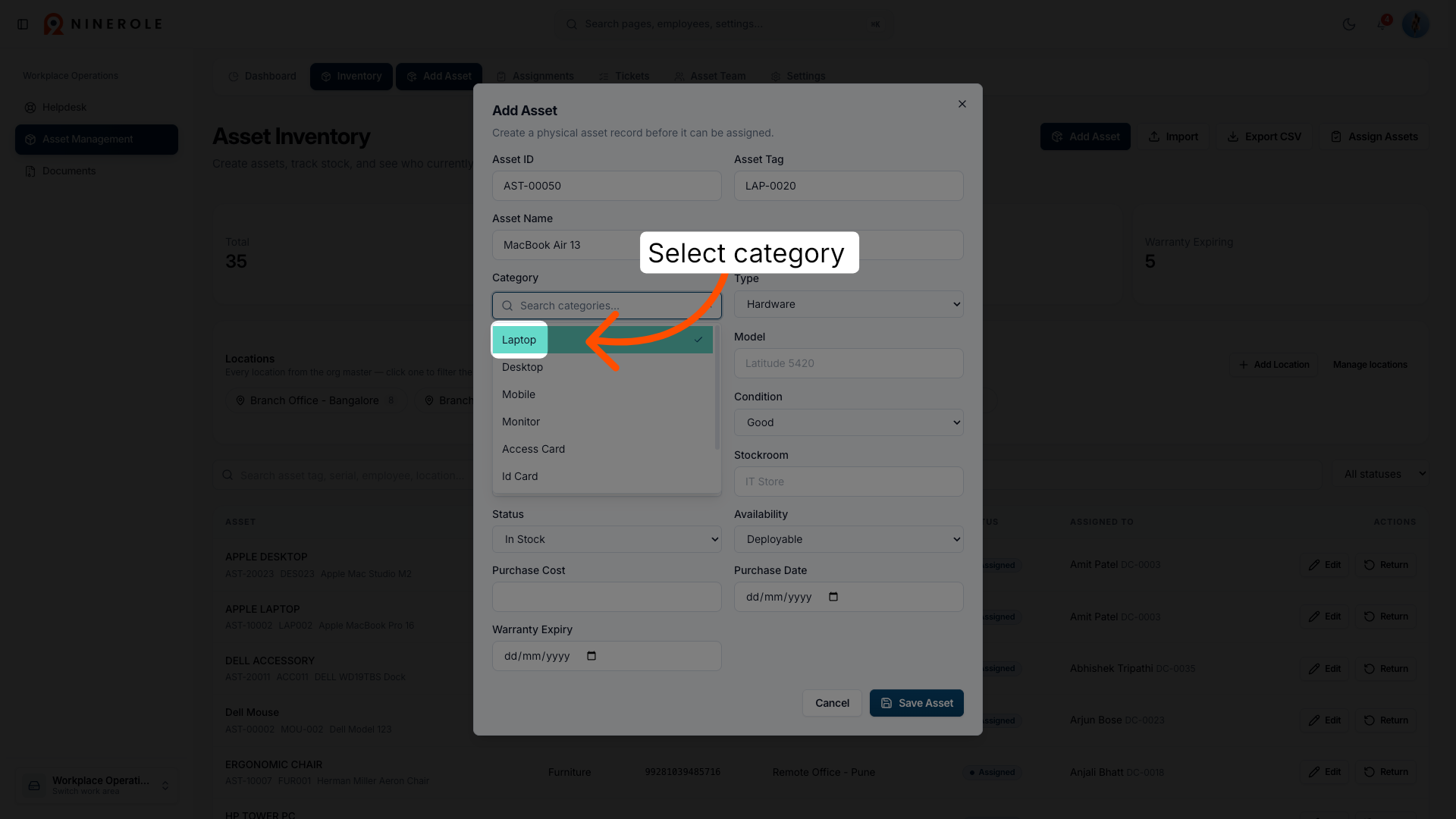
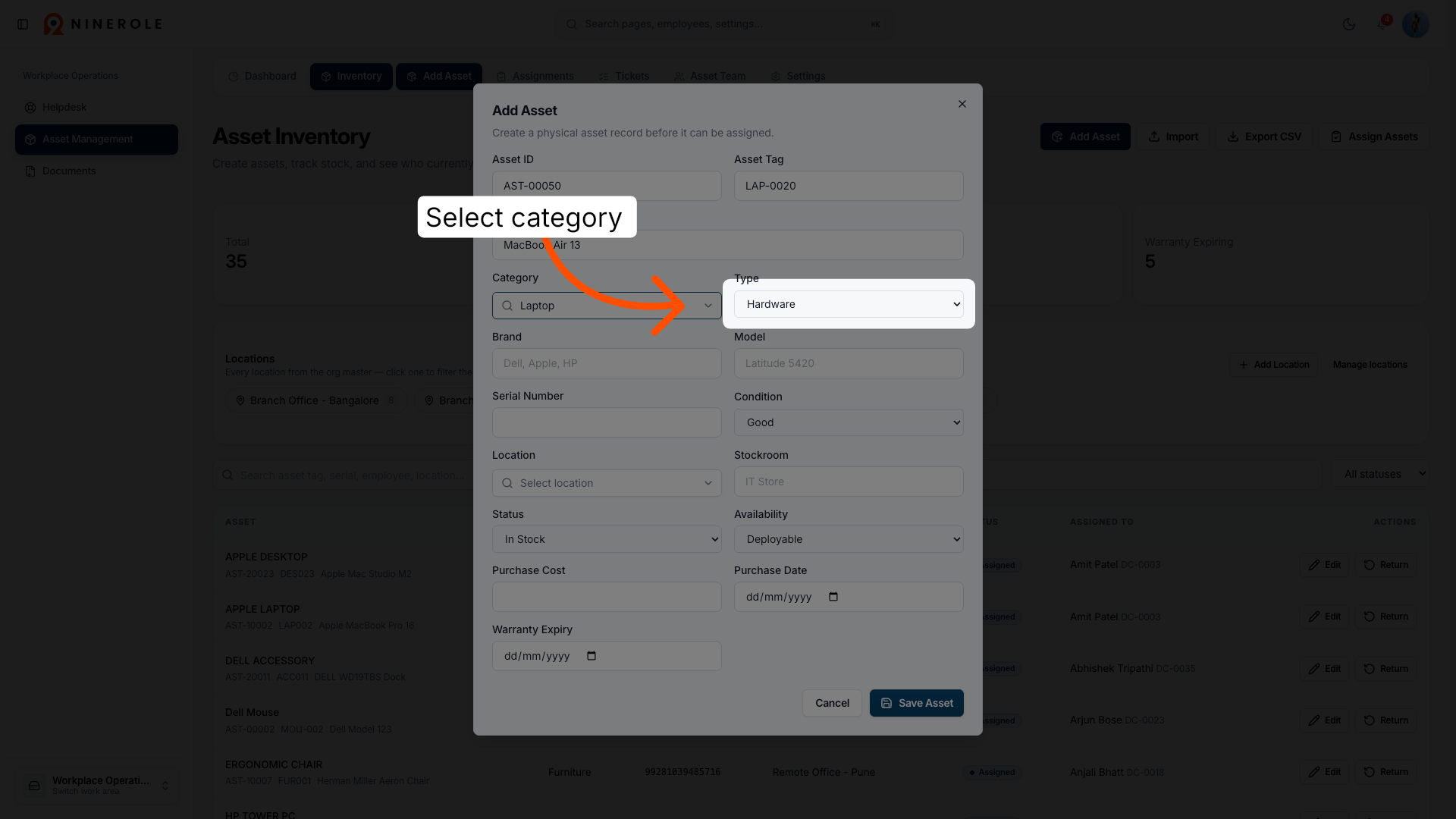
15. Open category options
Click the category options to view all available asset types for selection.
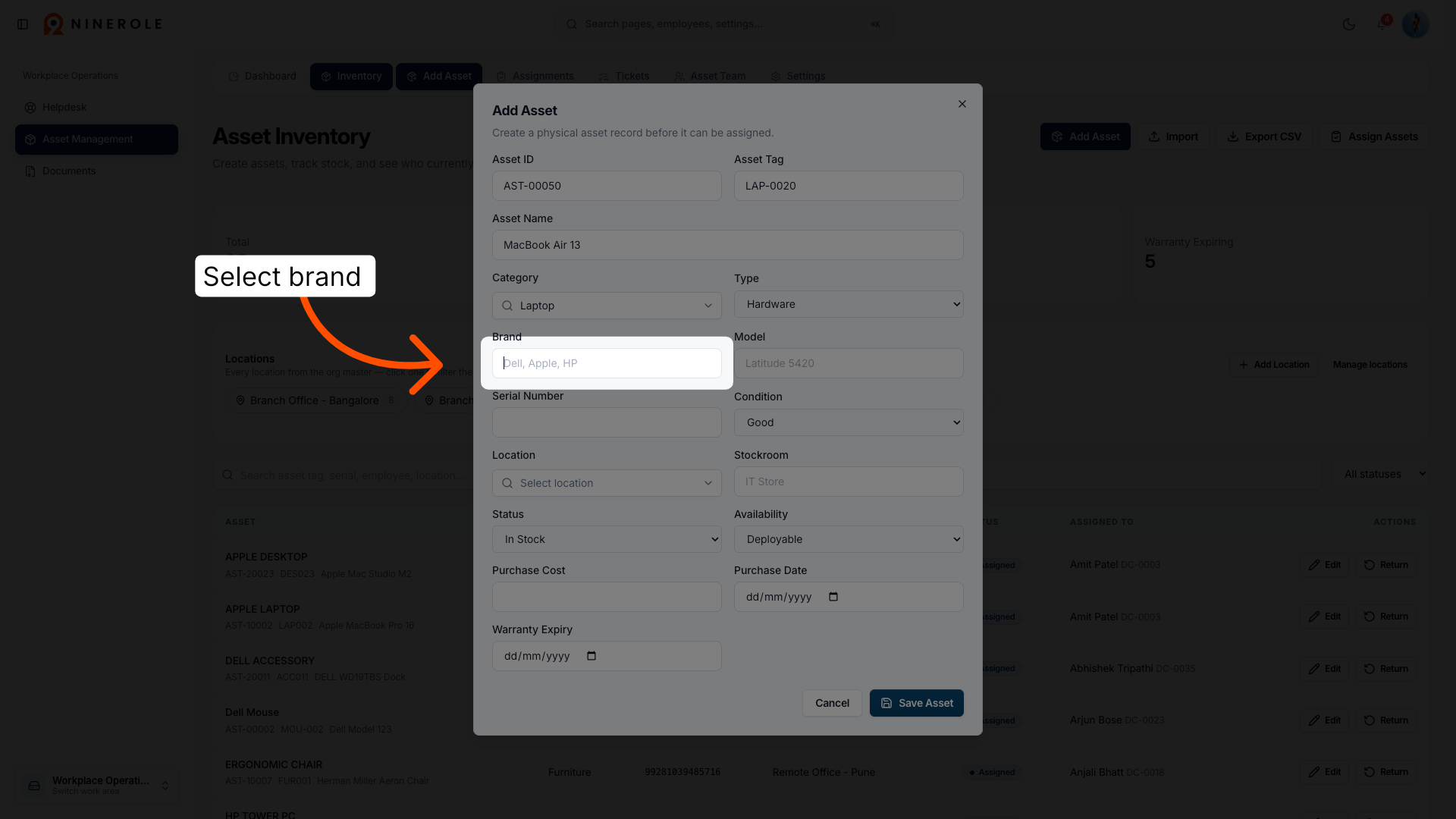
16. Select Brand field
Click the Brand field to specify the manufacturer or brand of the asset.
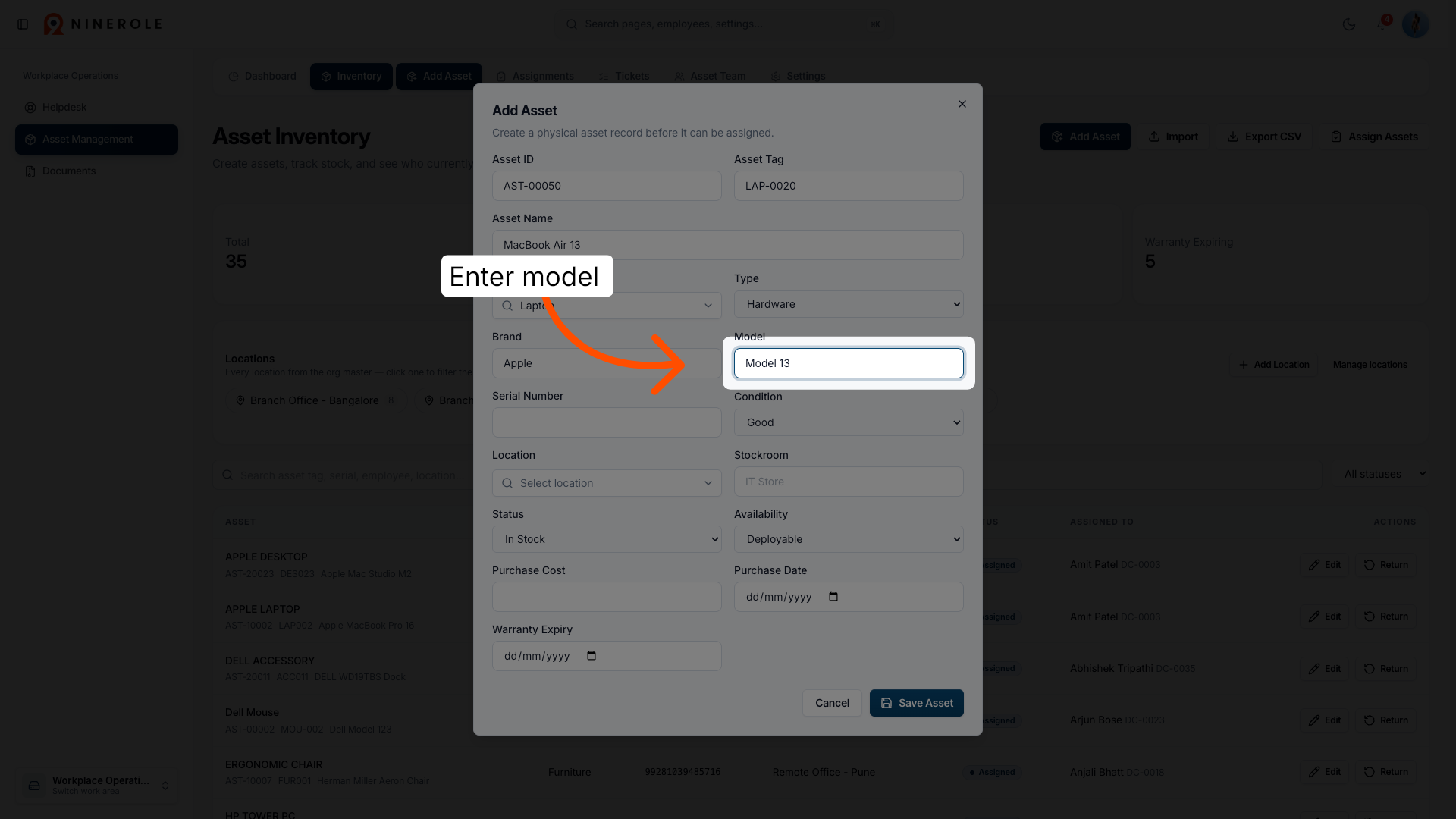
17. Enter model information
Enter the model details to accurately describe the asset's version or type.
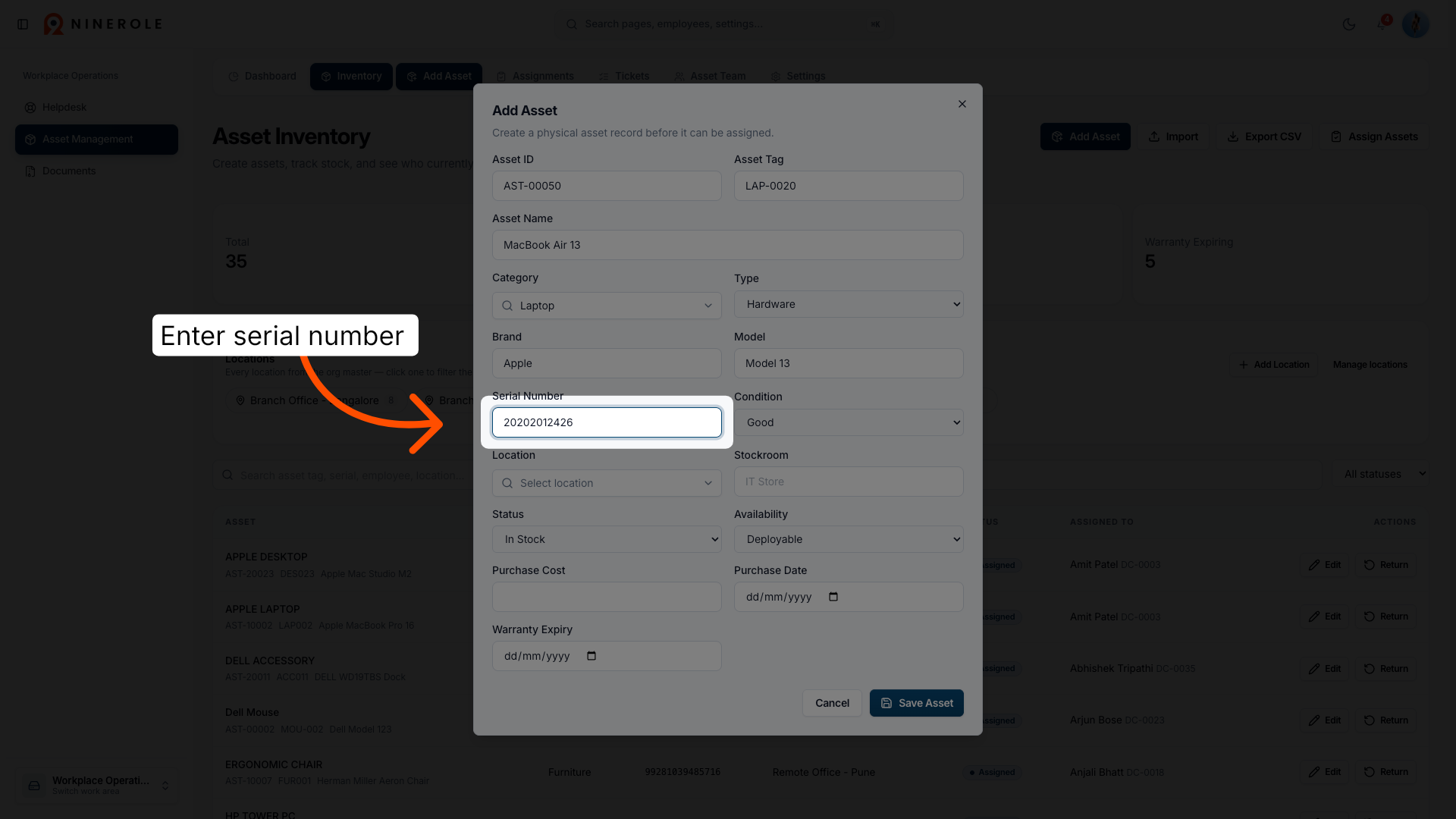
18. Enter serial number
Enter the serial number to uniquely identify the asset for tracking purposes.
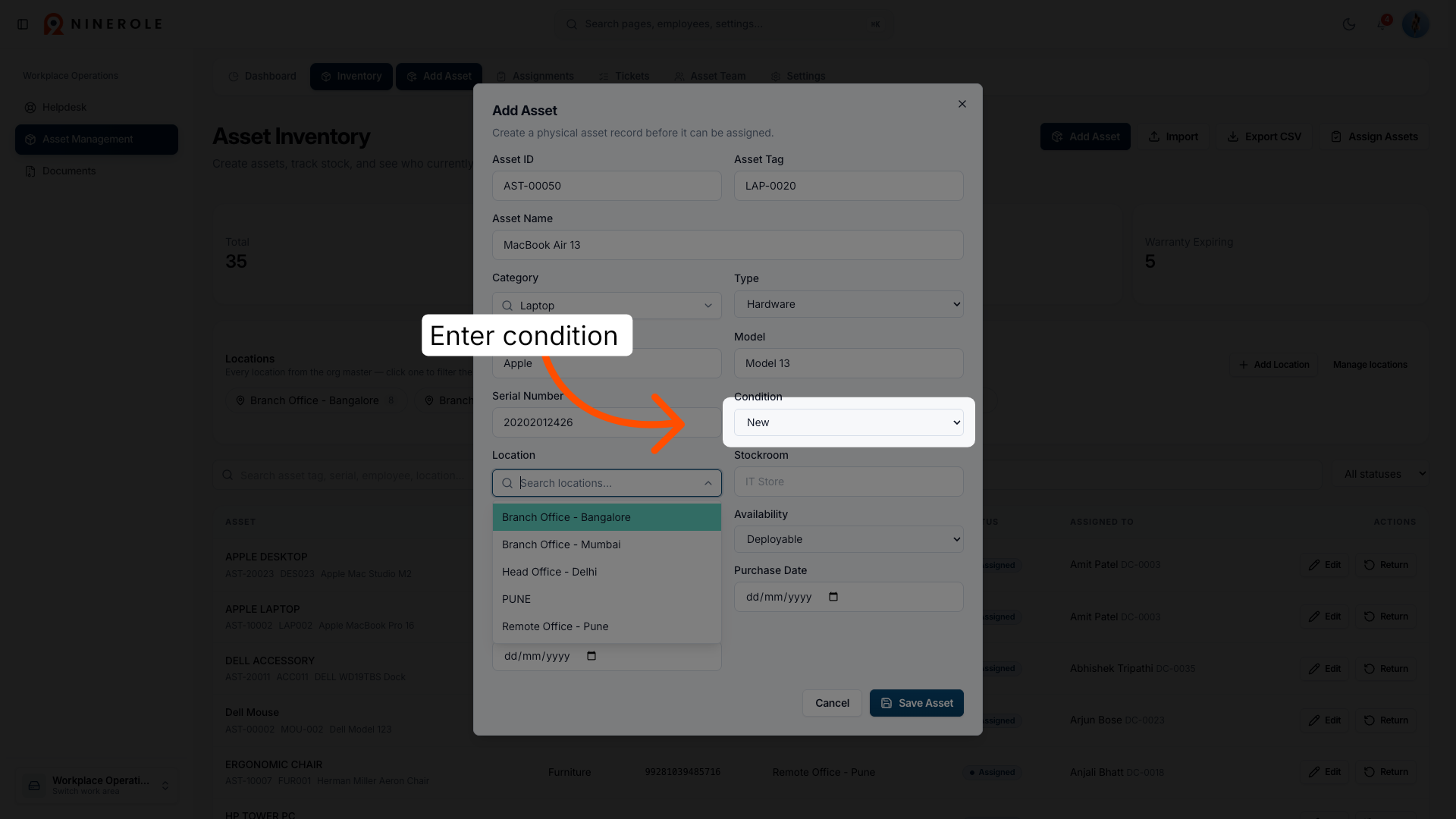
19. Enter condition status
Enter the condition status to reflect the asset's usability and physical state.
Set location and status
20. Select Location field
Click the Location field to choose where the asset is physically stored or assigned.
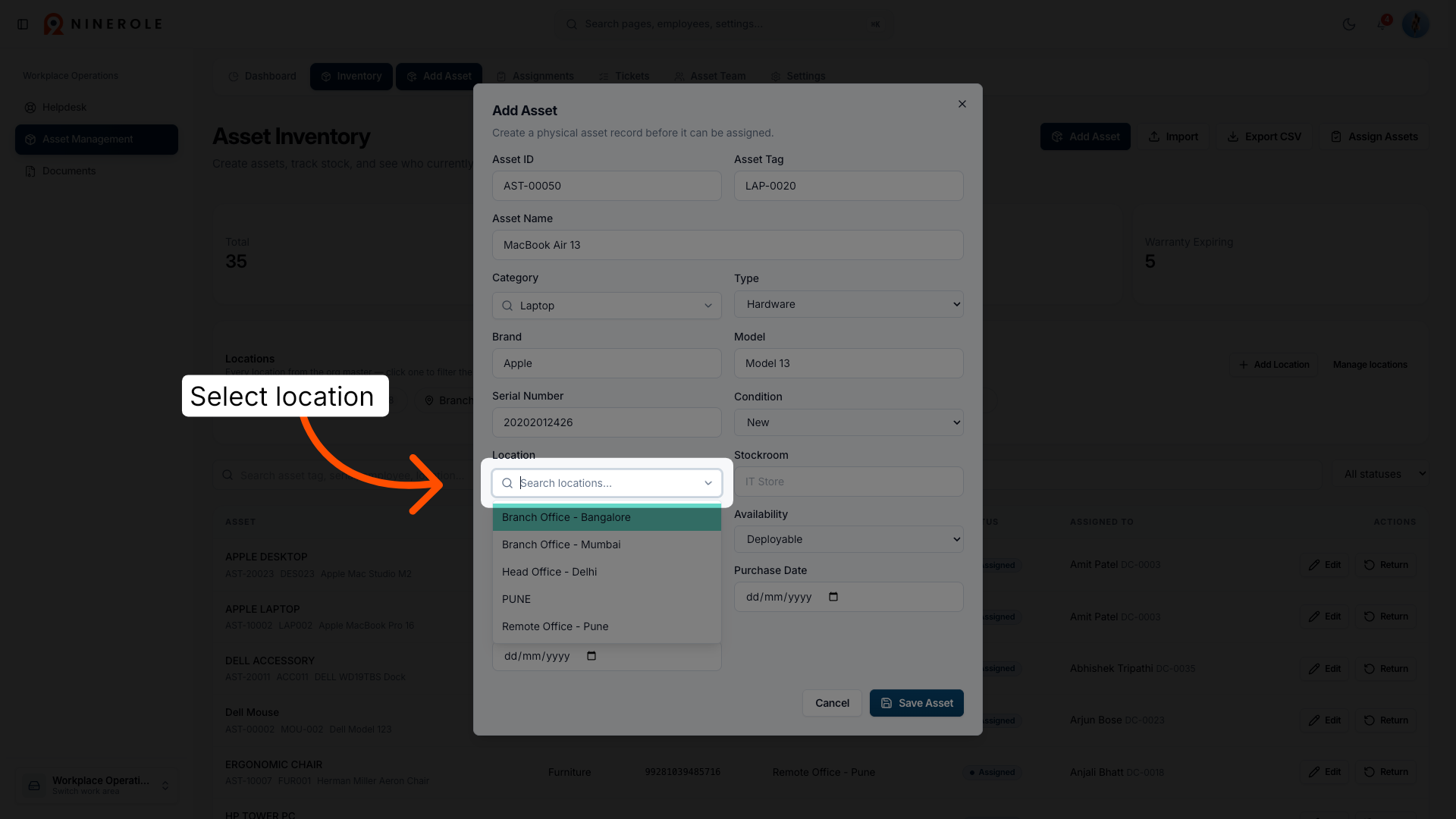
21. Choose Head Office location
Select the Head Office location to assign the asset's physical placement.
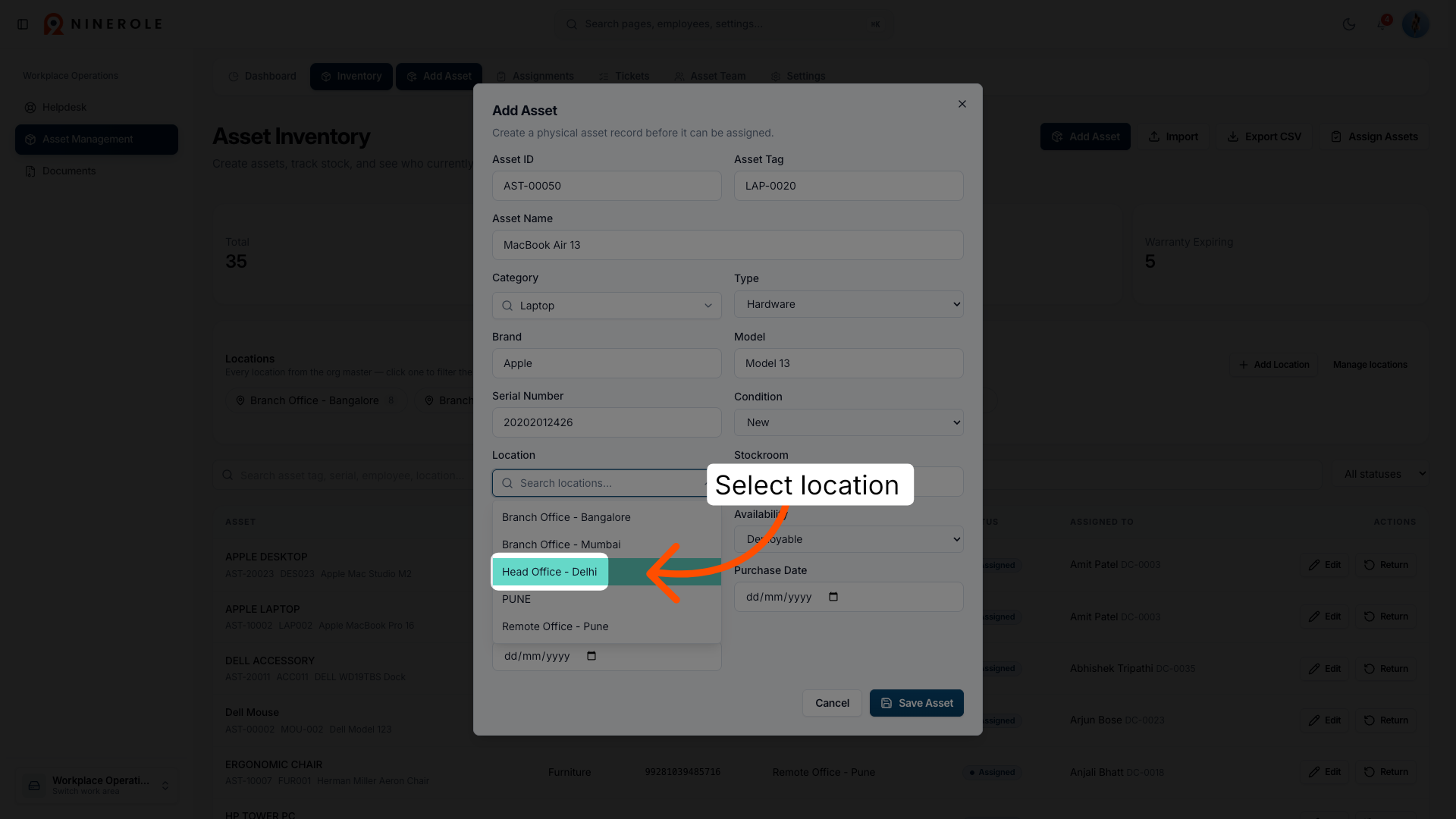
22. Select Stockroom location
Click the Stockroom option to specify the asset's storage area.
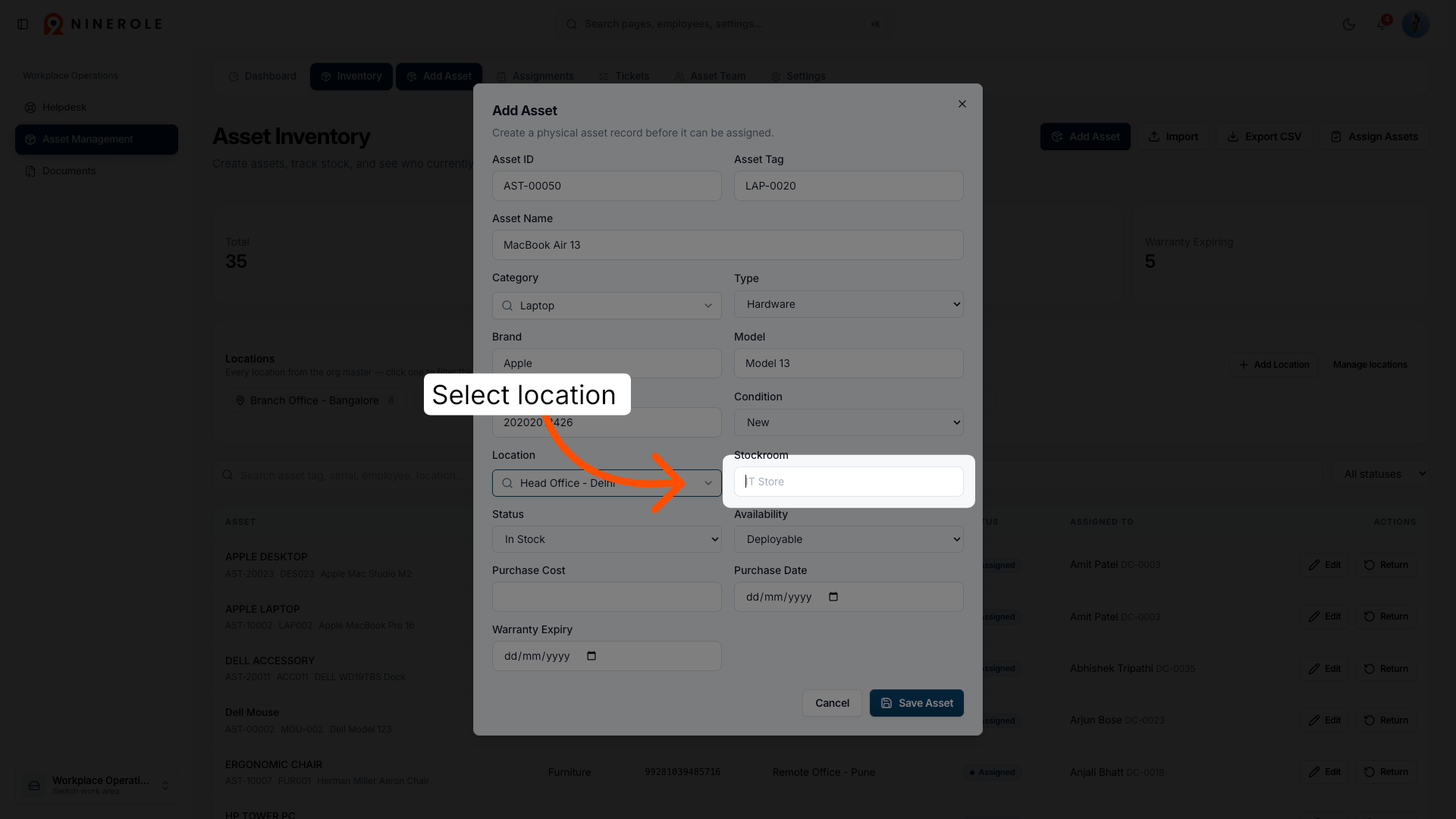
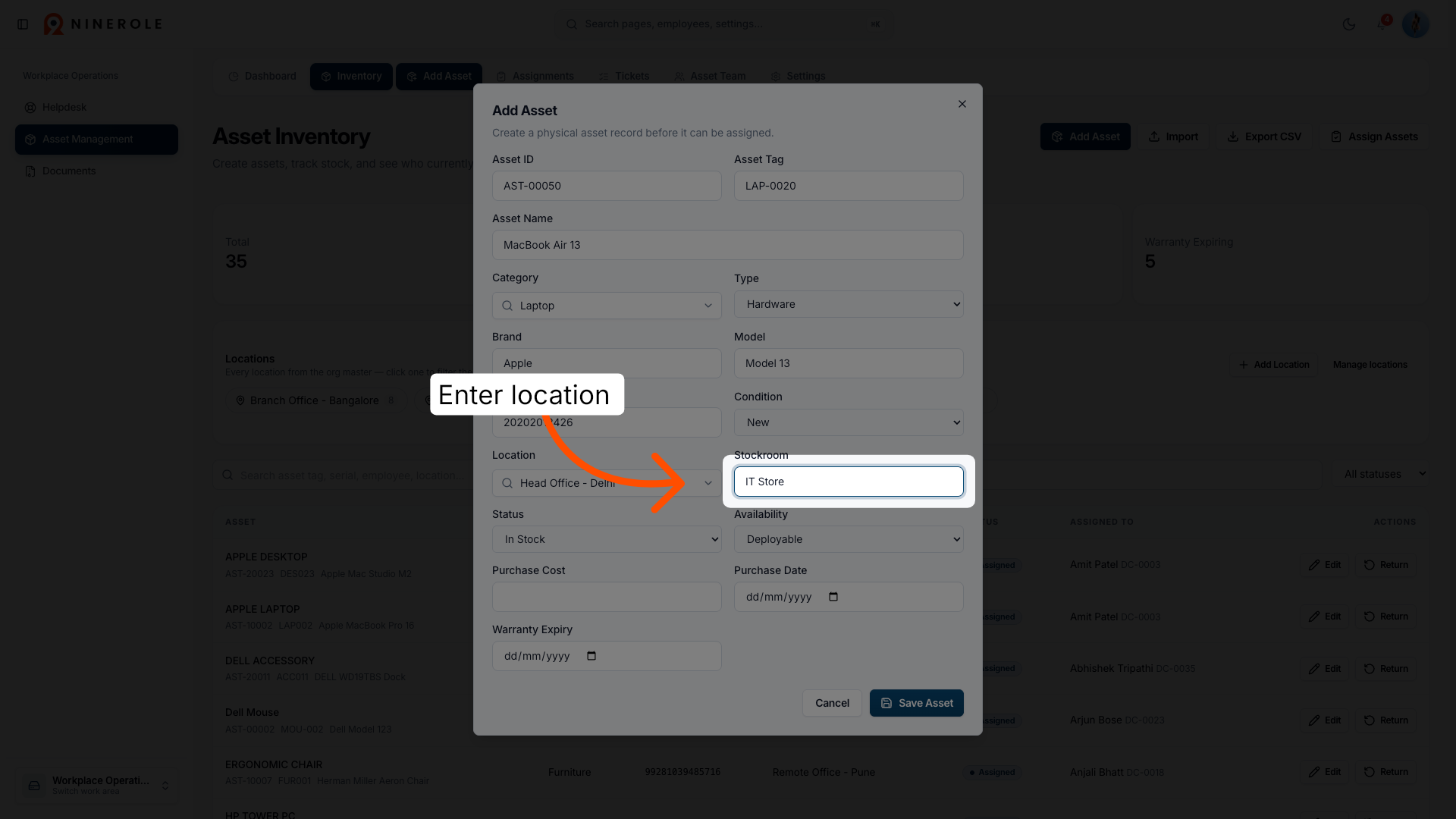
23. Enter location details
Enter the specific location name, such as IT Store, where the asset is kept.
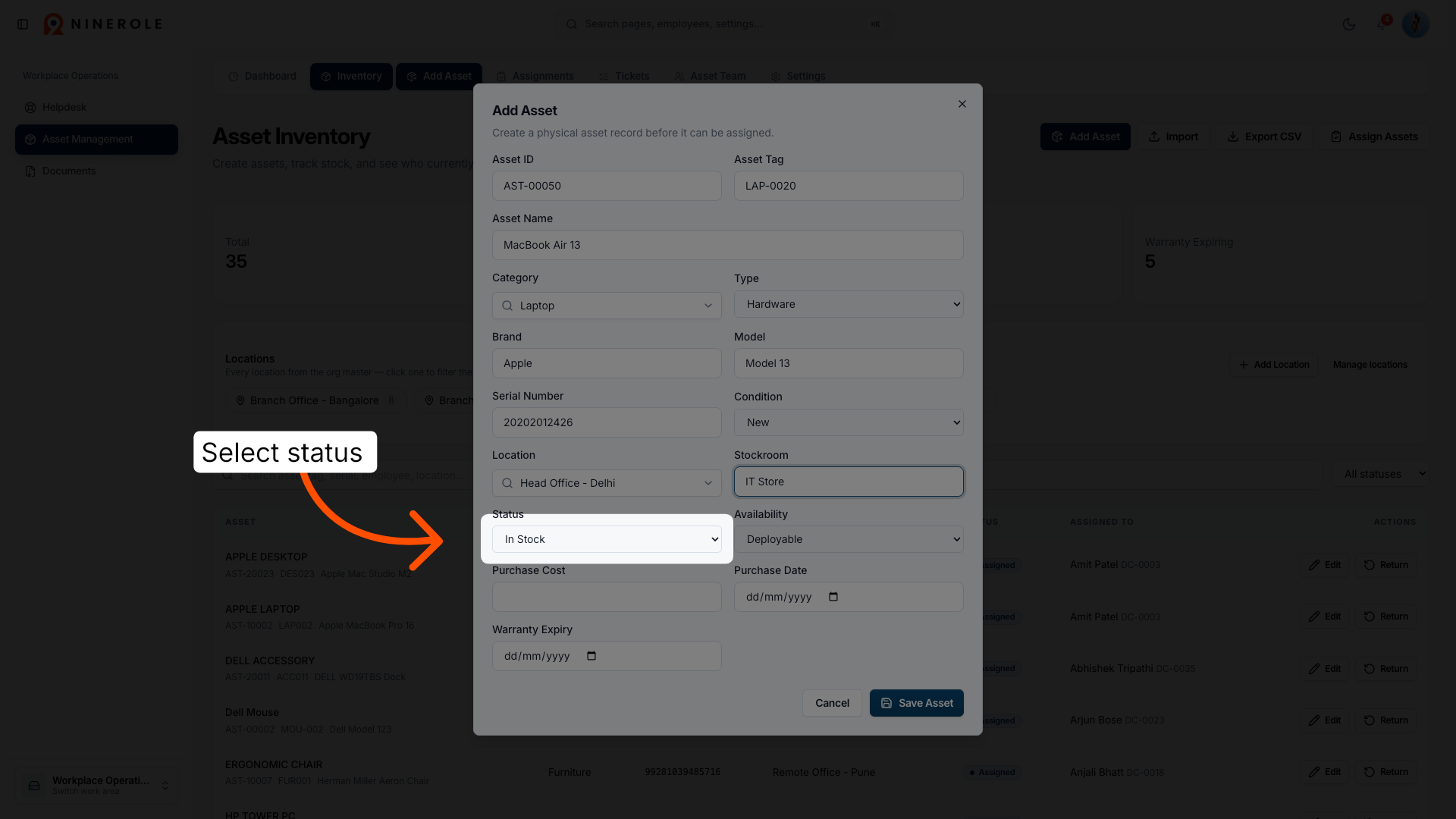
24. Select asset status
Click the asset status dropdown to indicate the current lifecycle stage of the asset.
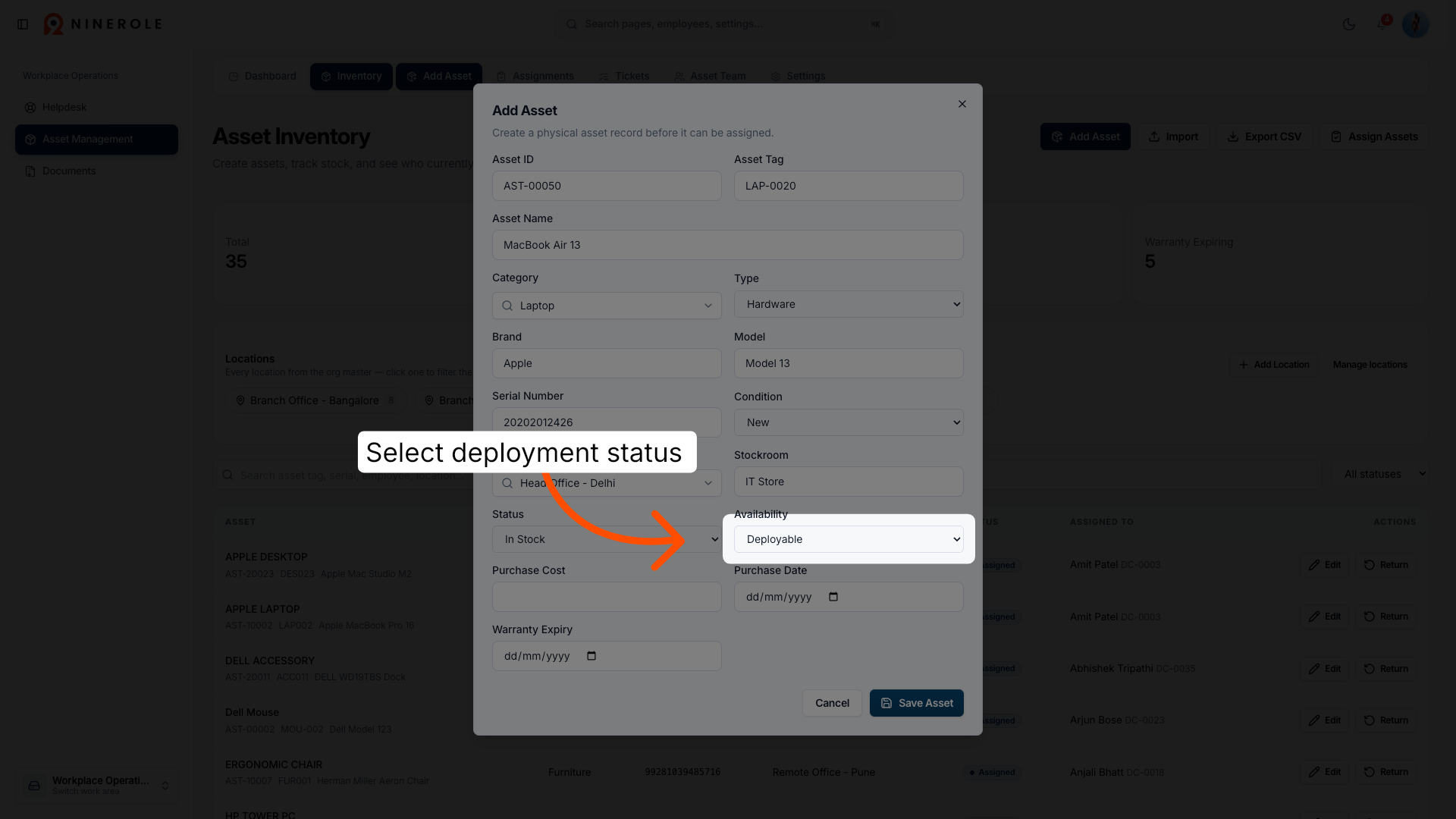
25. Select deployment status
Click the deployment status to specify if the asset is deployable or archived.
Record purchase and warranty
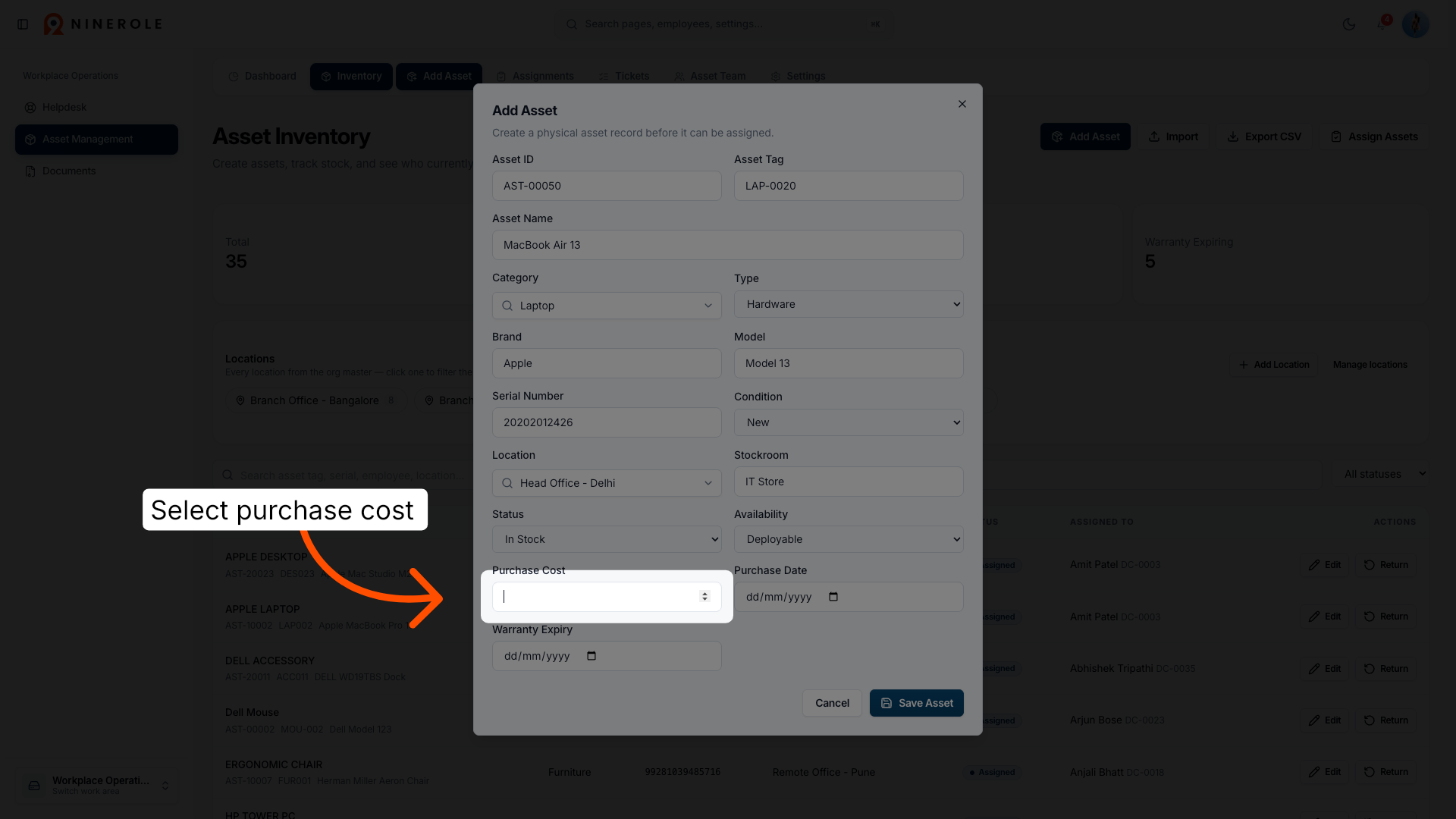
26. Select Purchase Cost field
Click the Purchase Cost field to enter the acquisition cost of the asset.
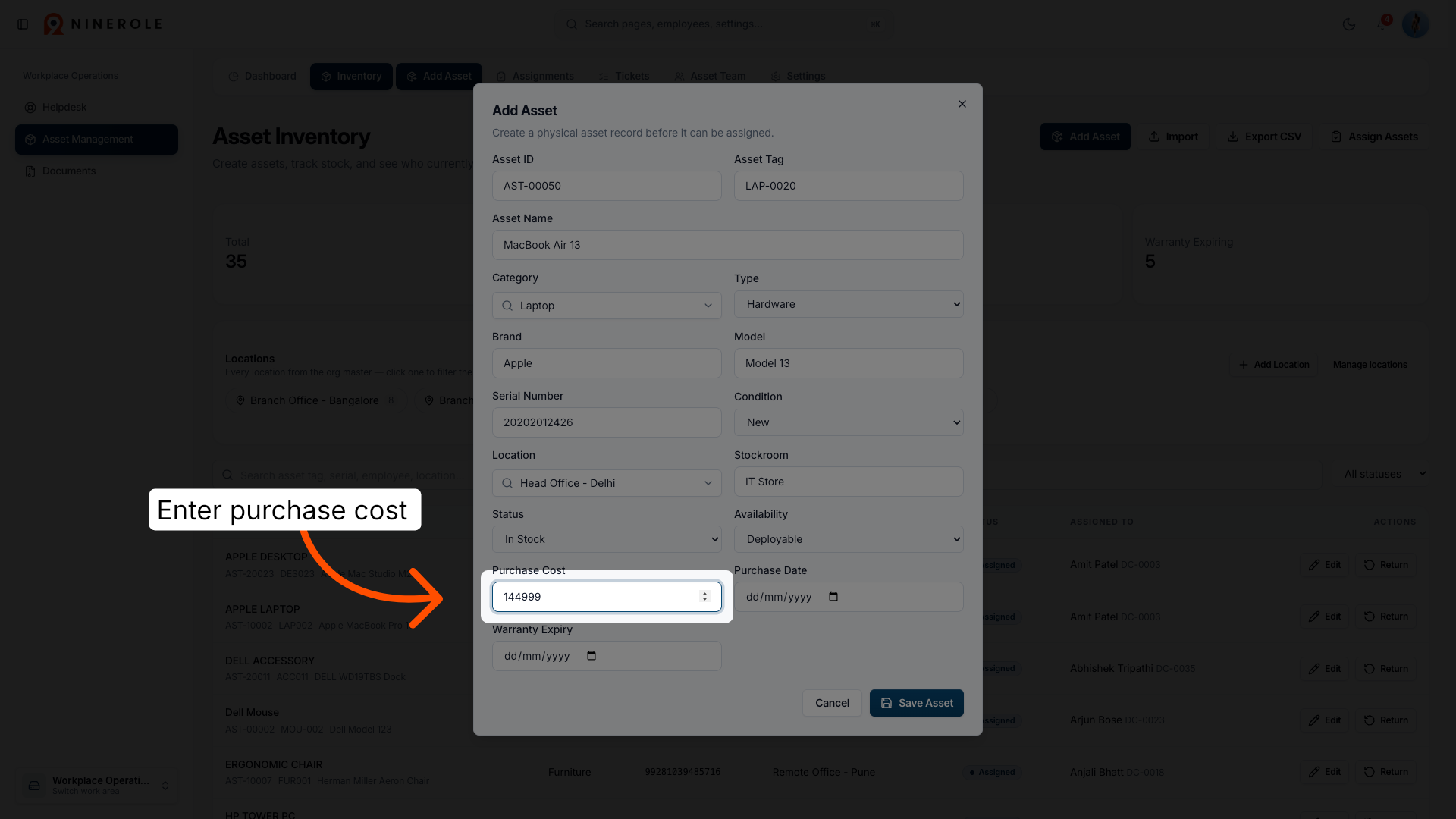
27. Enter purchase cost
Enter the purchase cost to record the asset's financial value.
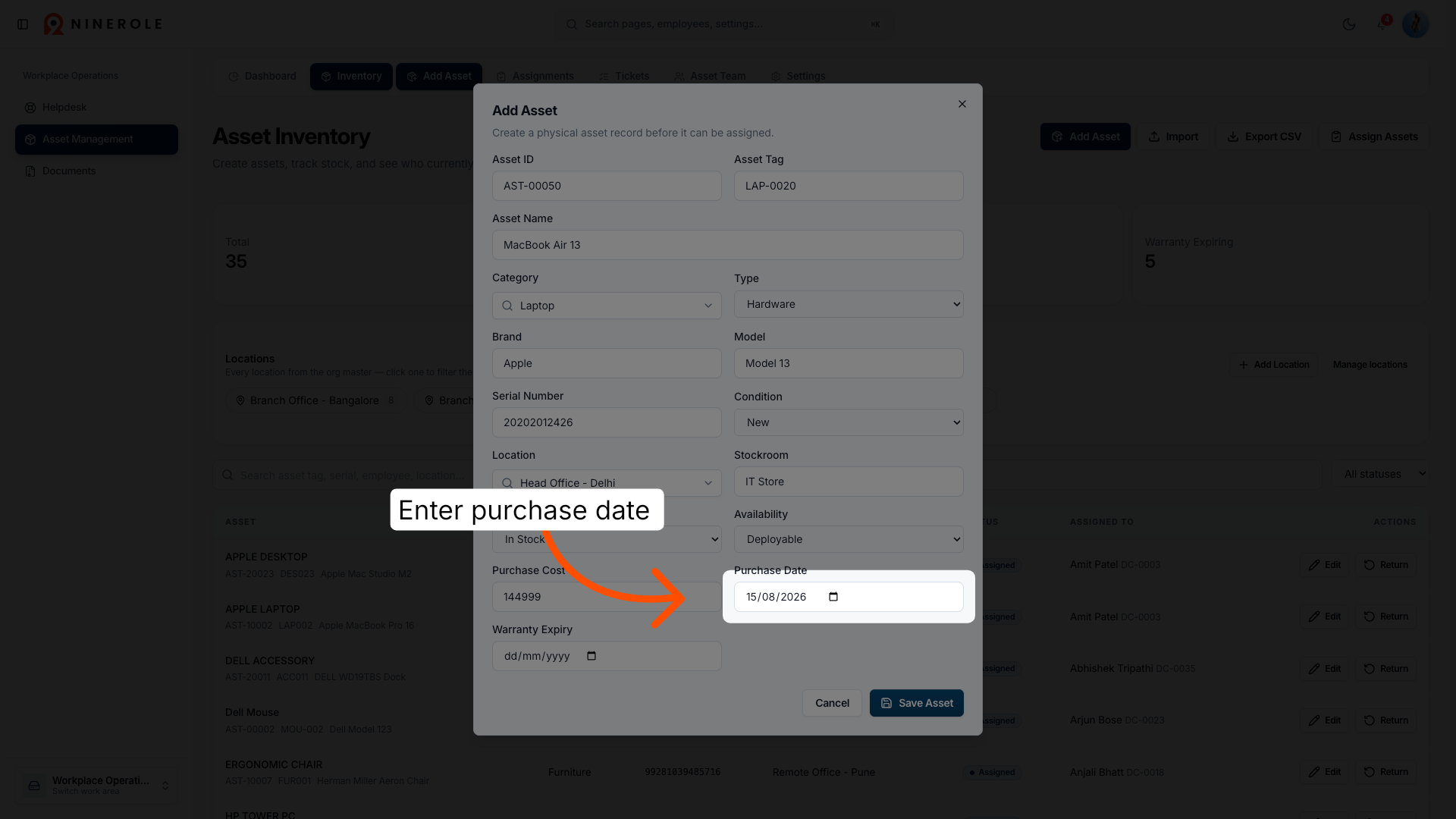
28. Enter purchase date
Enter the purchase date to document when the asset was bought.
29. Select Warranty Expiry field
Click the Warranty Expiry field to input the date when the asset's warranty ends.
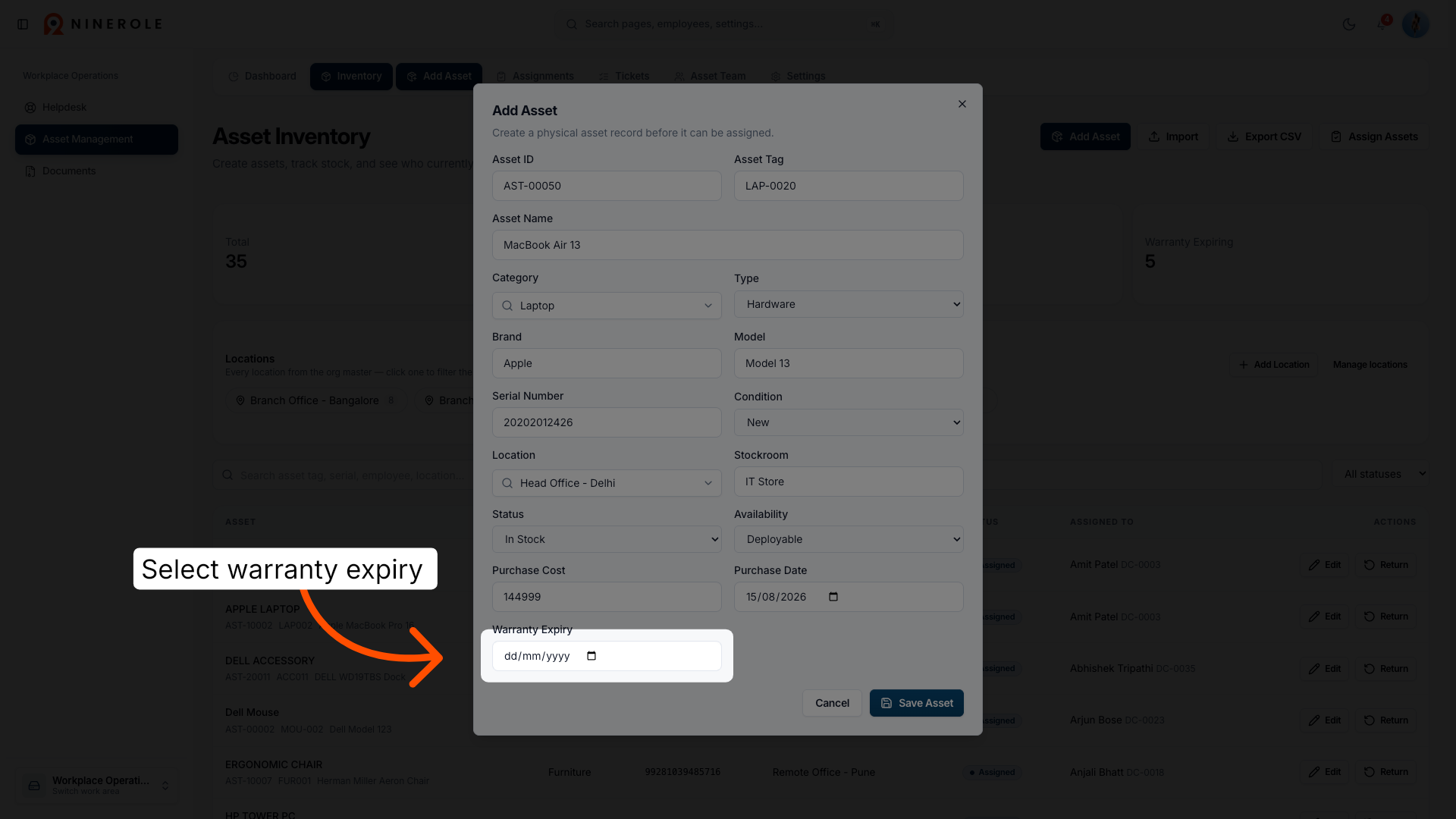
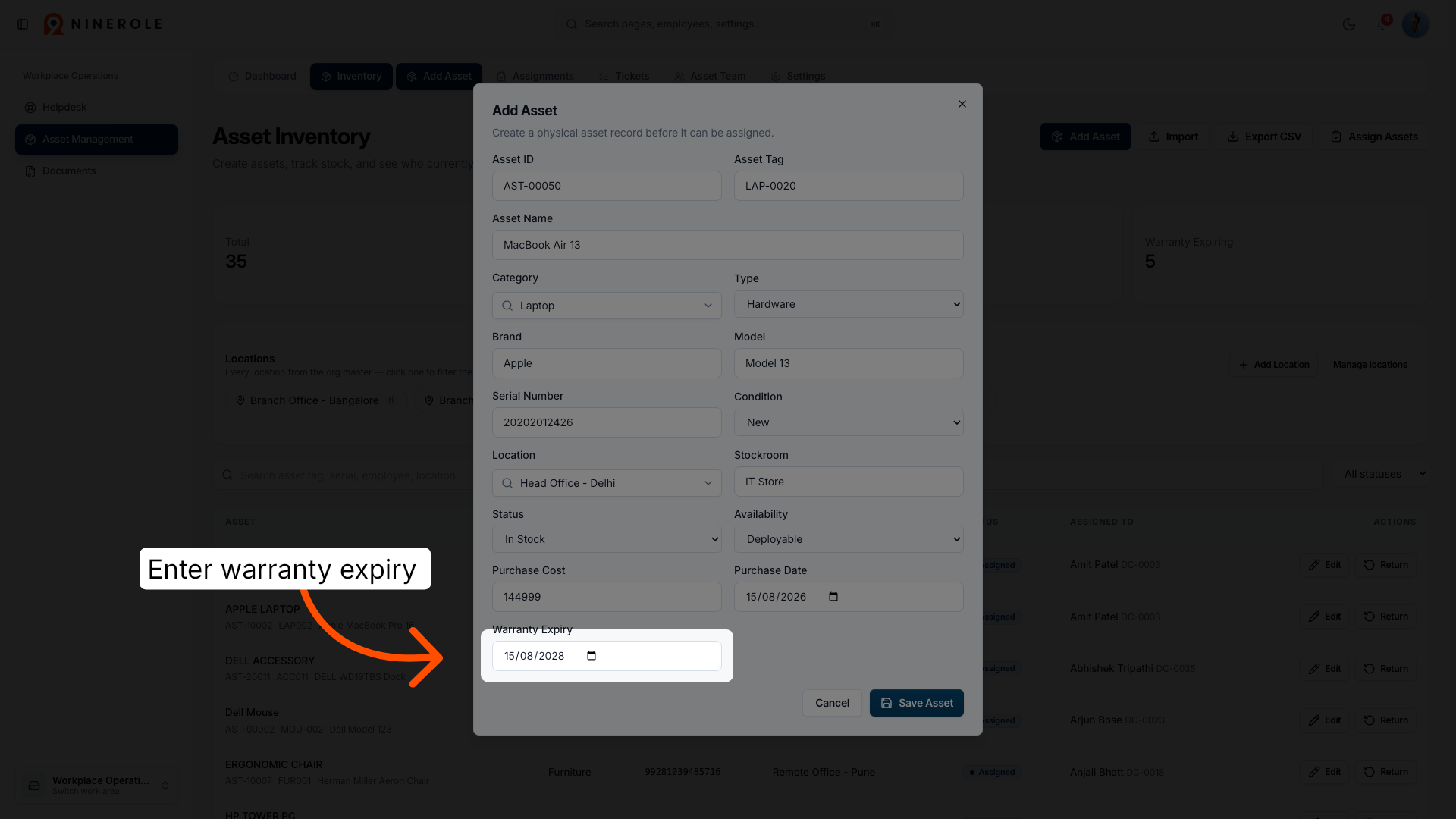
30. Enter warranty expiry date
Enter the warranty expiry date to track the asset's coverage period.
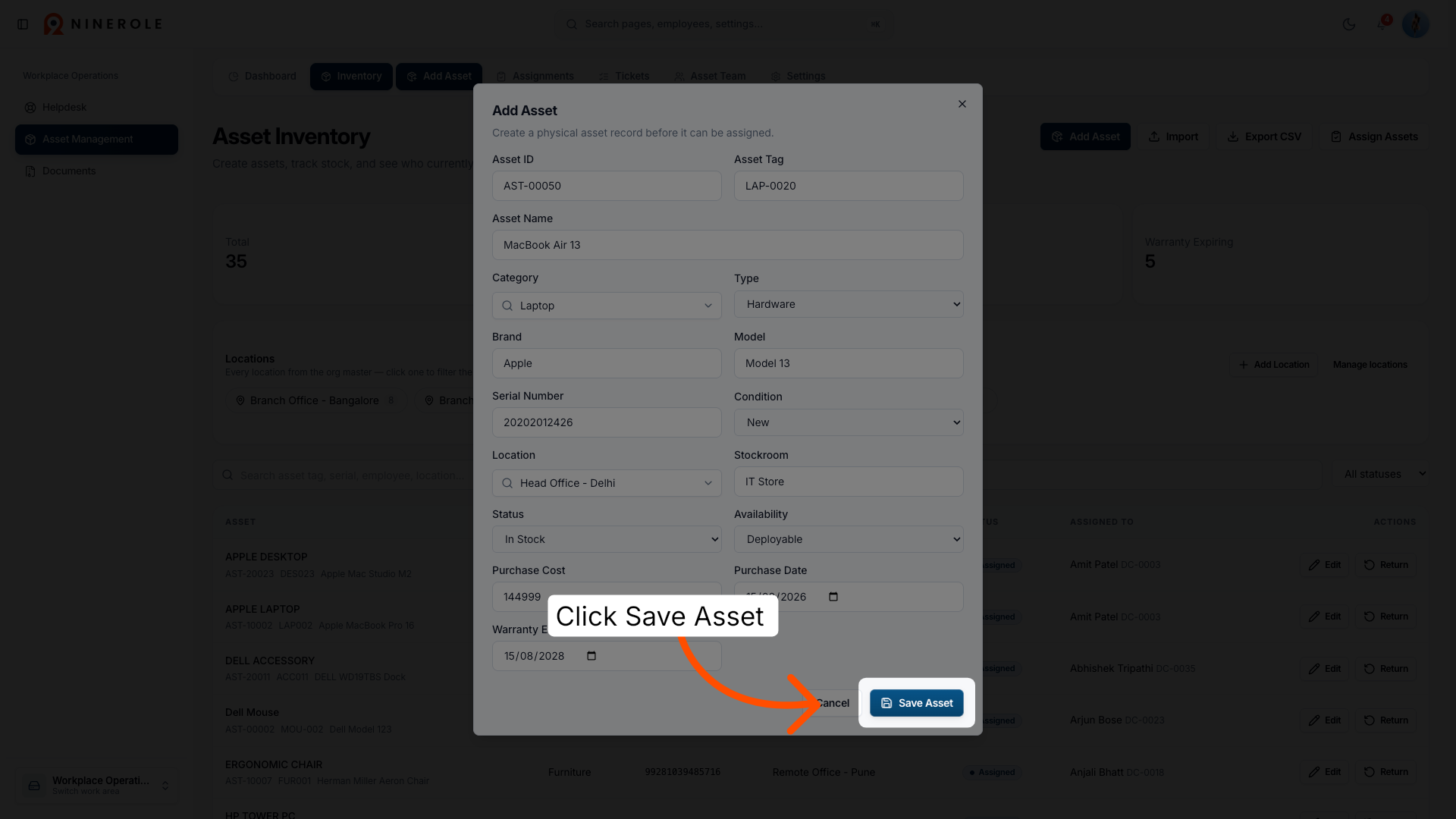
31. Save asset details
Click the Save Asset button to store the new asset information in the inventory system.
Assign an asset to an employee
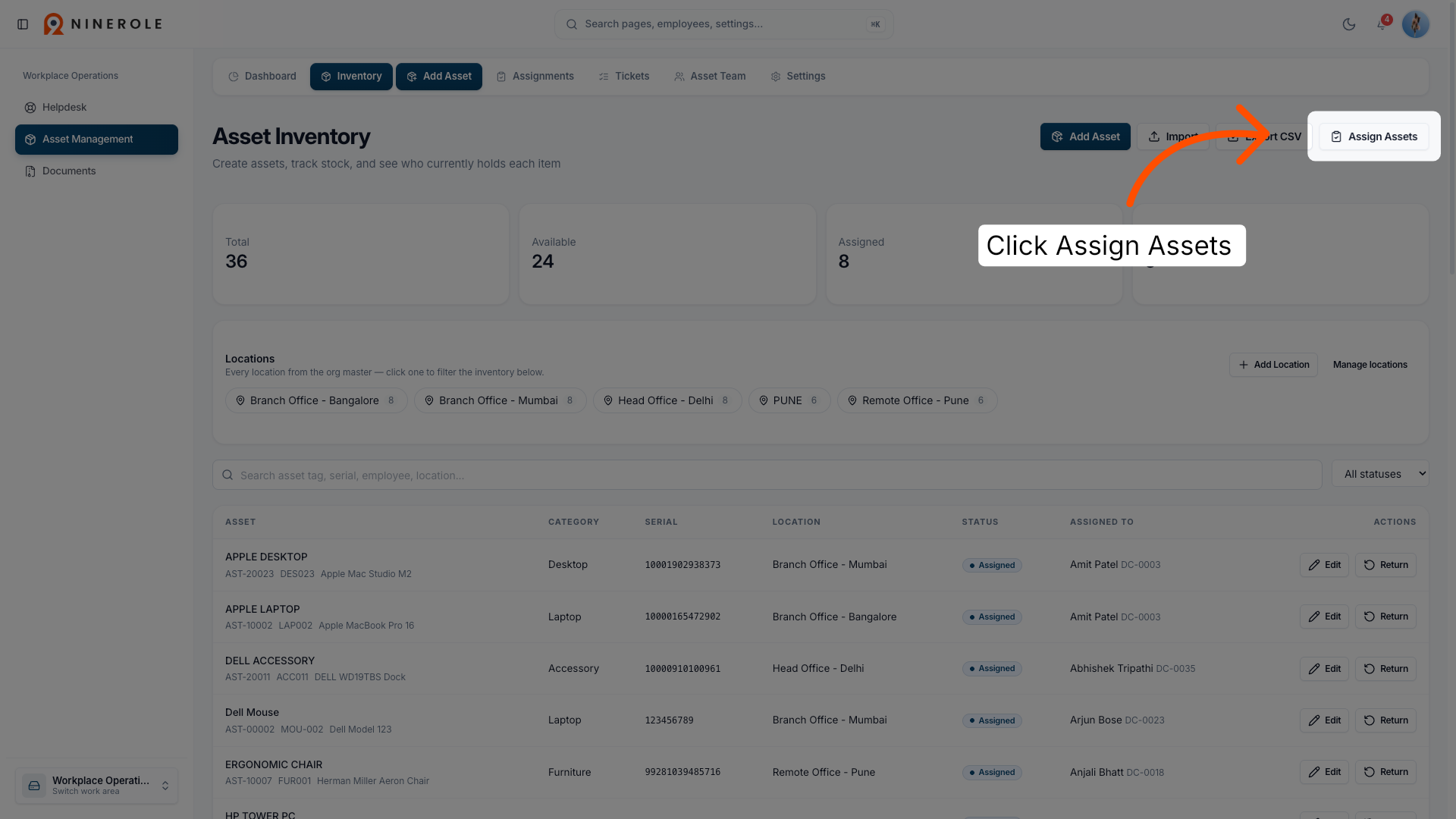
32. Open Assign Assets section
Click the Assign Assets option to allocate assets to users or departments.
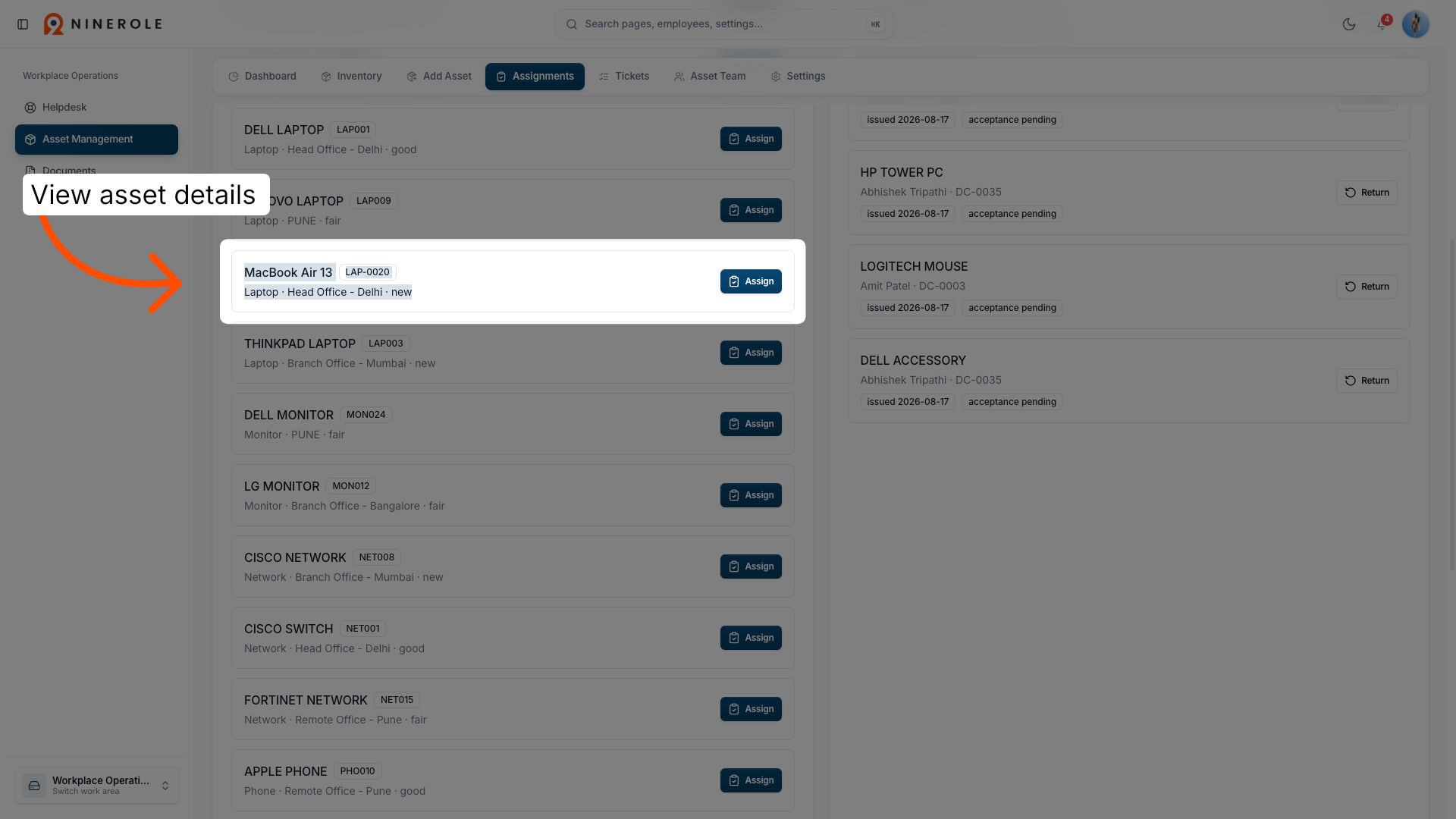
33. View asset details
Click the asset details to review information before assigning it.
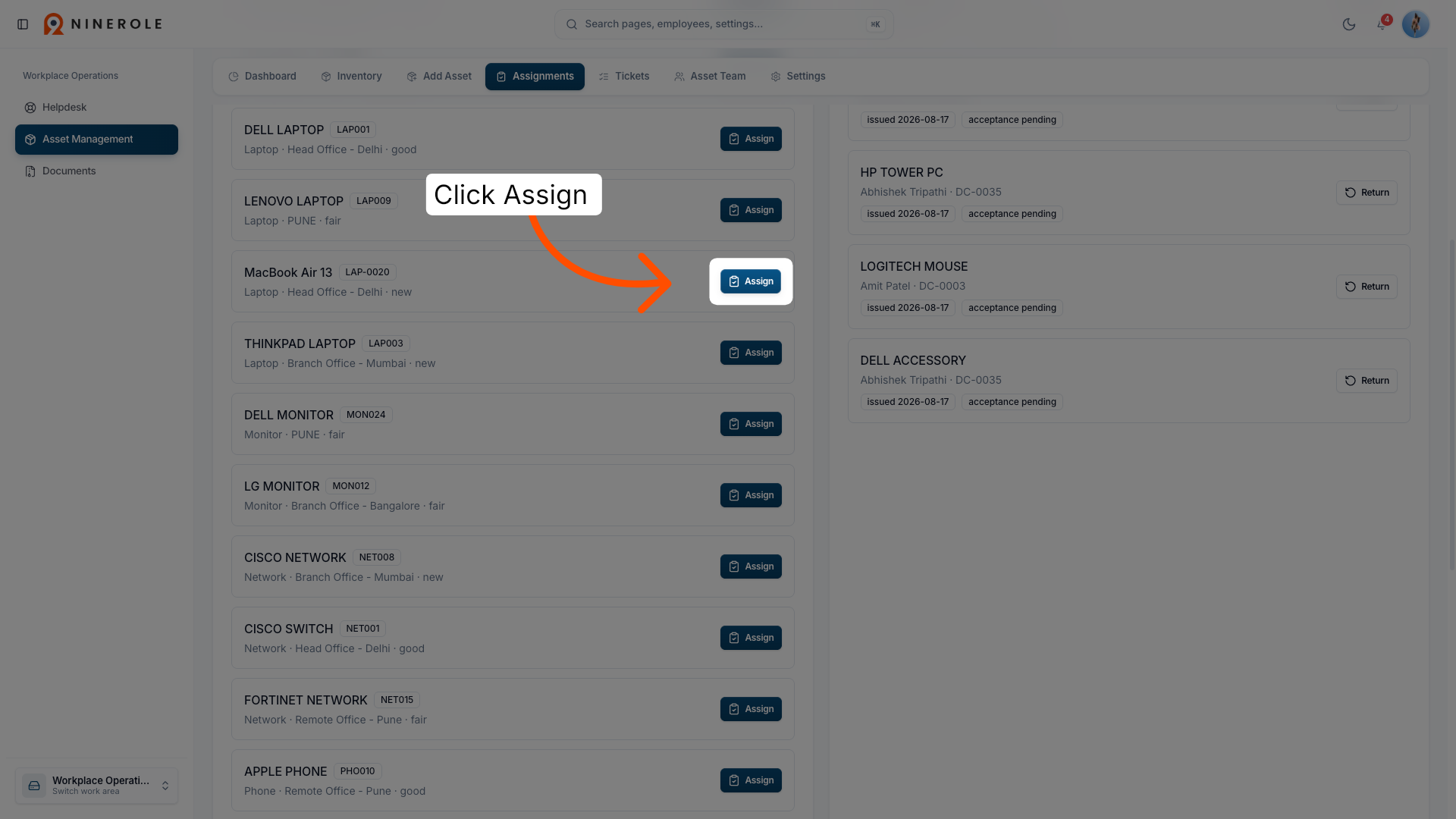
34. Click Assign button
Click the Assign button to begin the process of allocating the asset.
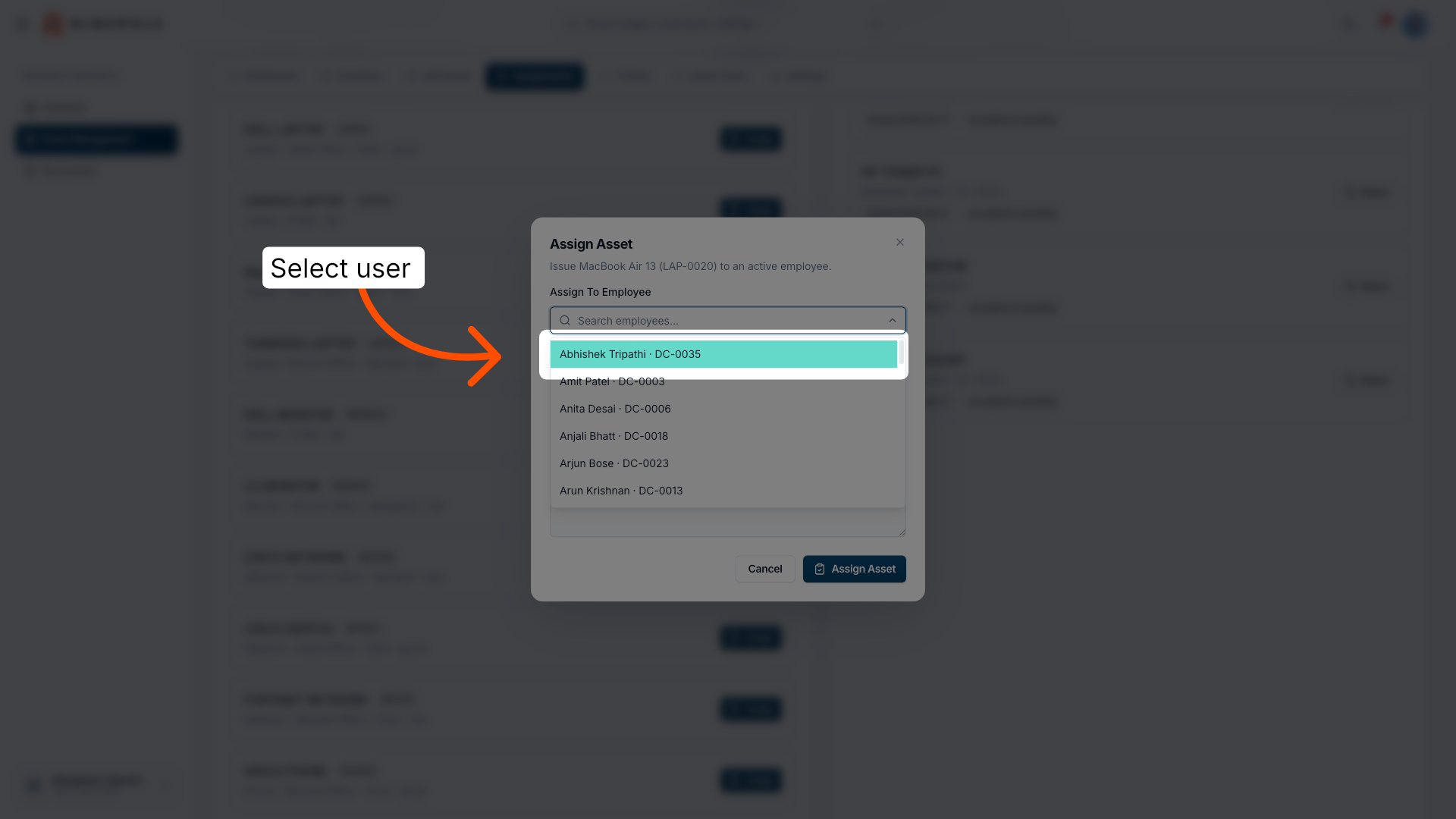
35. Select user for assignment
Click the user name to assign the selected asset to that individual.
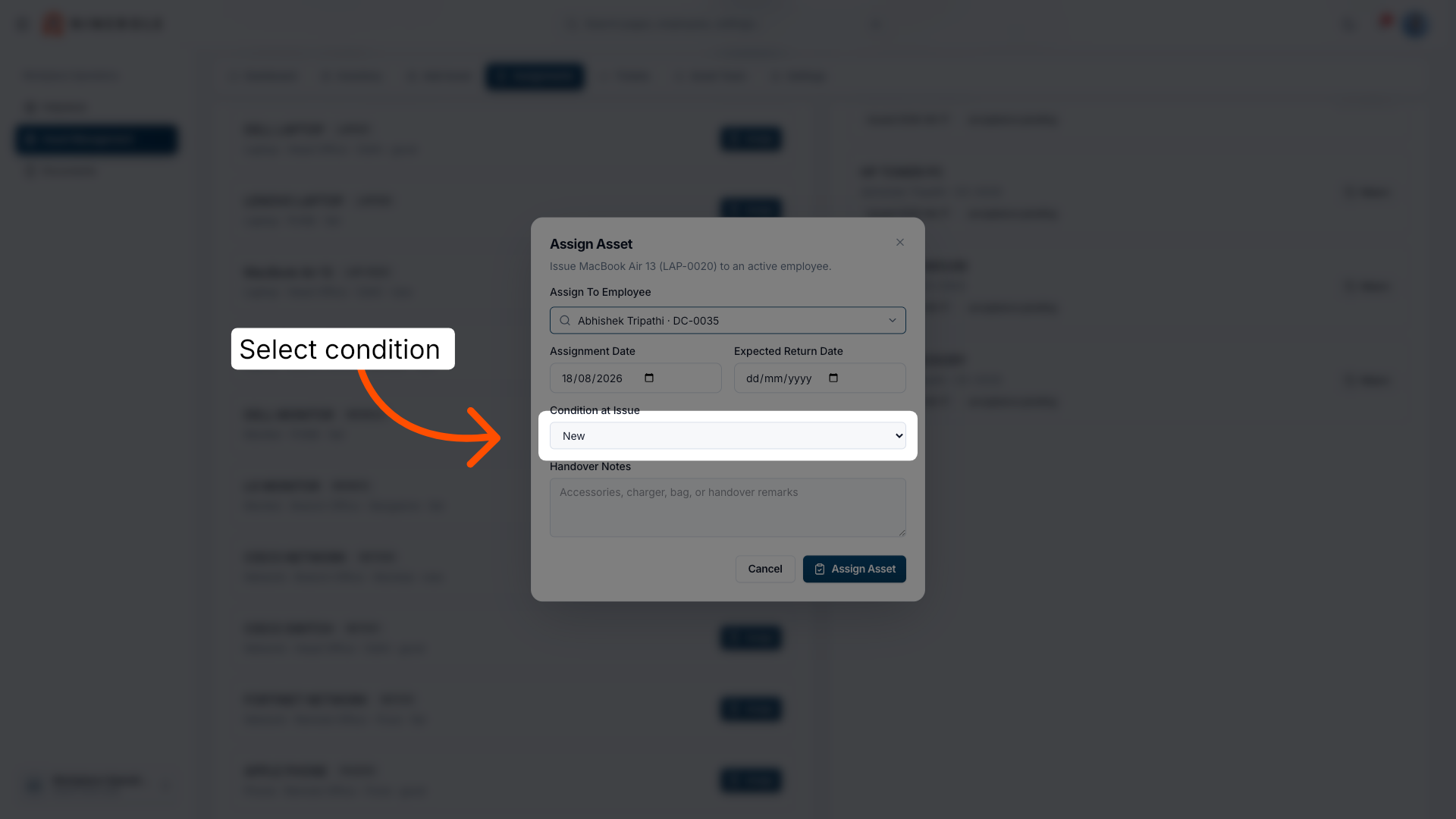
36. Select asset condition
Click the asset condition dropdown to specify the state of the asset during assignment.
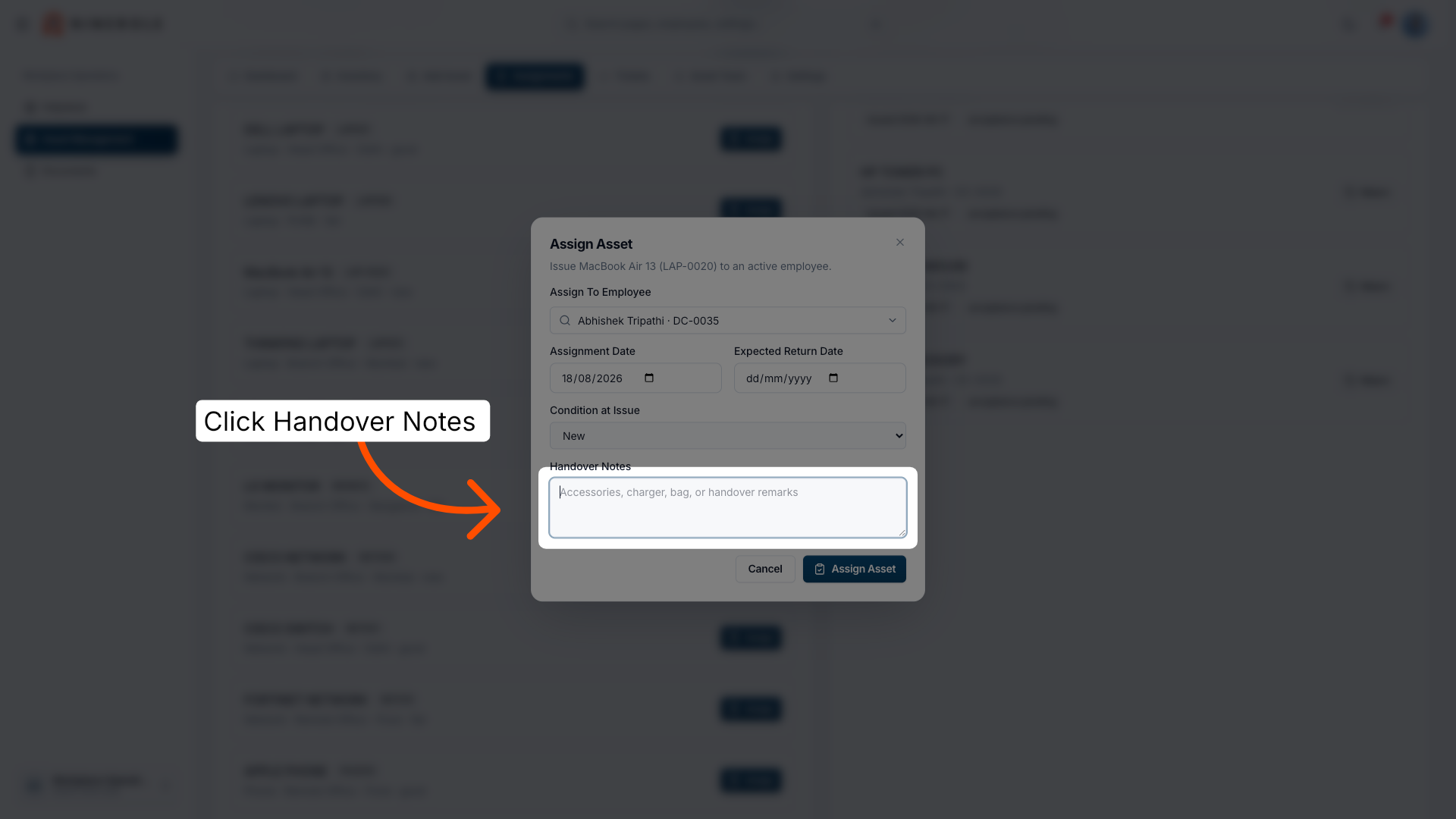
37. Open handover notes
Click the Handover Notes field to add comments about the asset assignment.
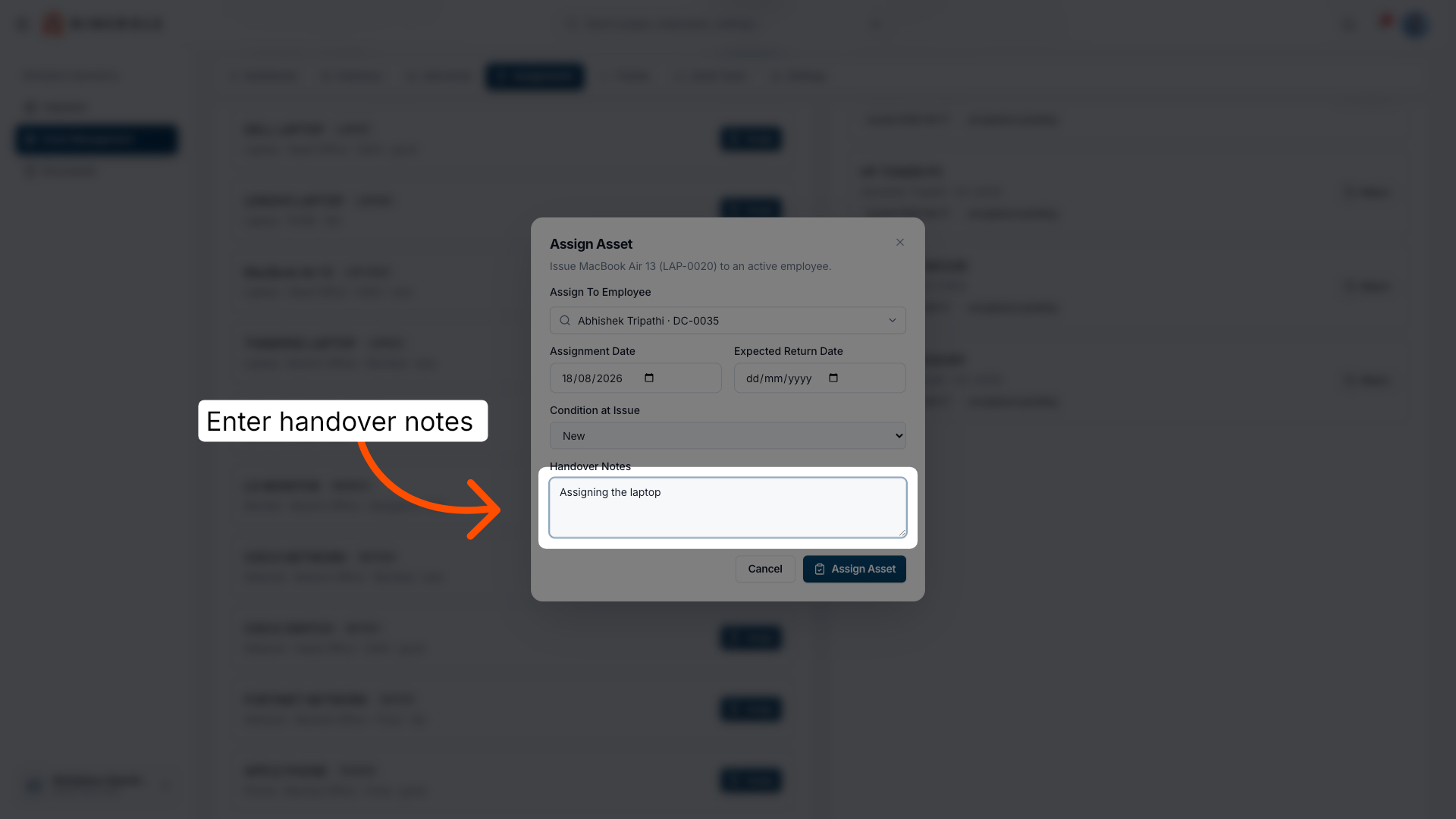
38. Enter handover notes
Enter notes describing the details or purpose of assigning the asset.
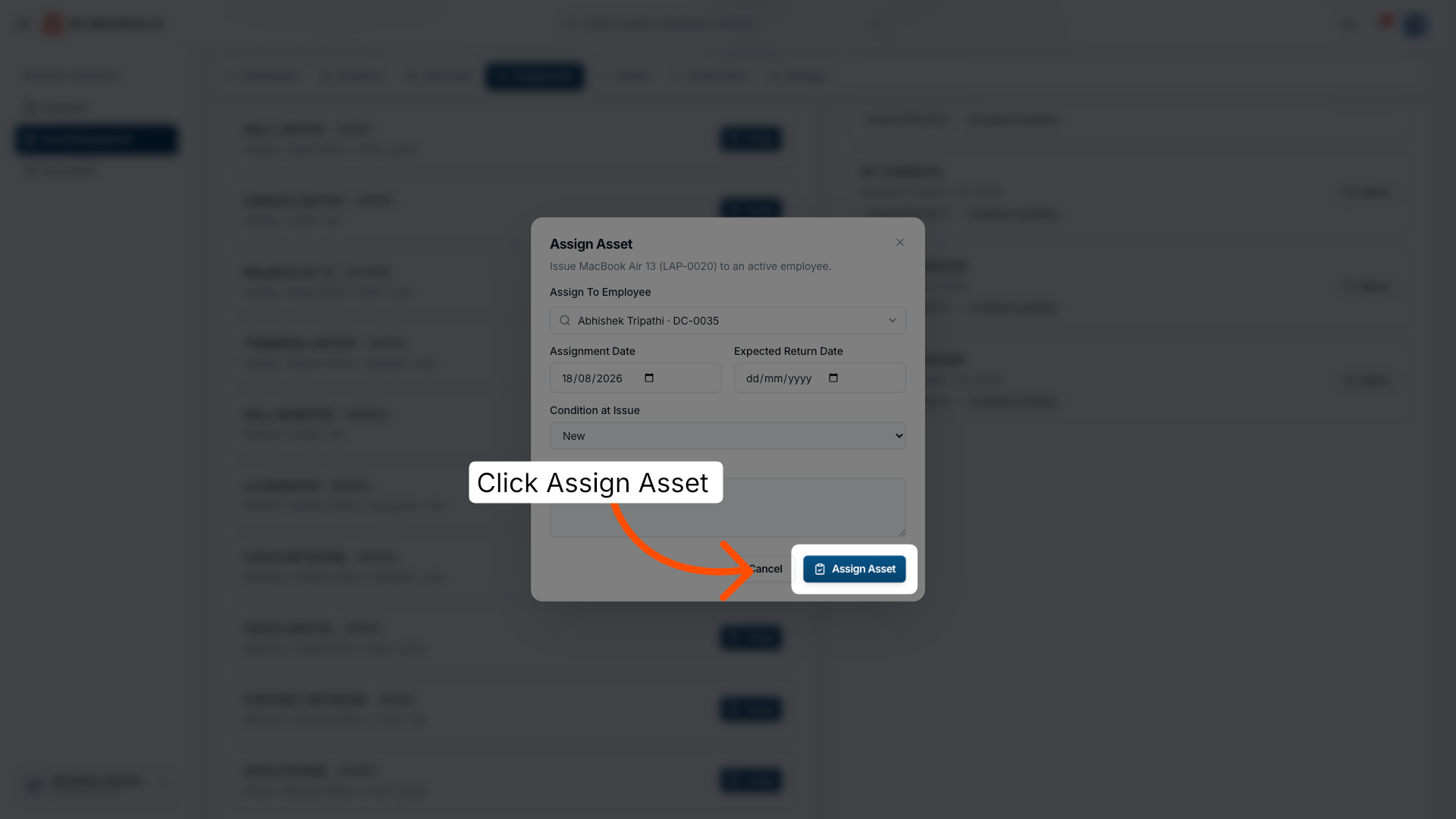
39. Confirm asset assignment
Click the Assign Asset button to finalize the allocation of the asset to the user.
Review and return assets
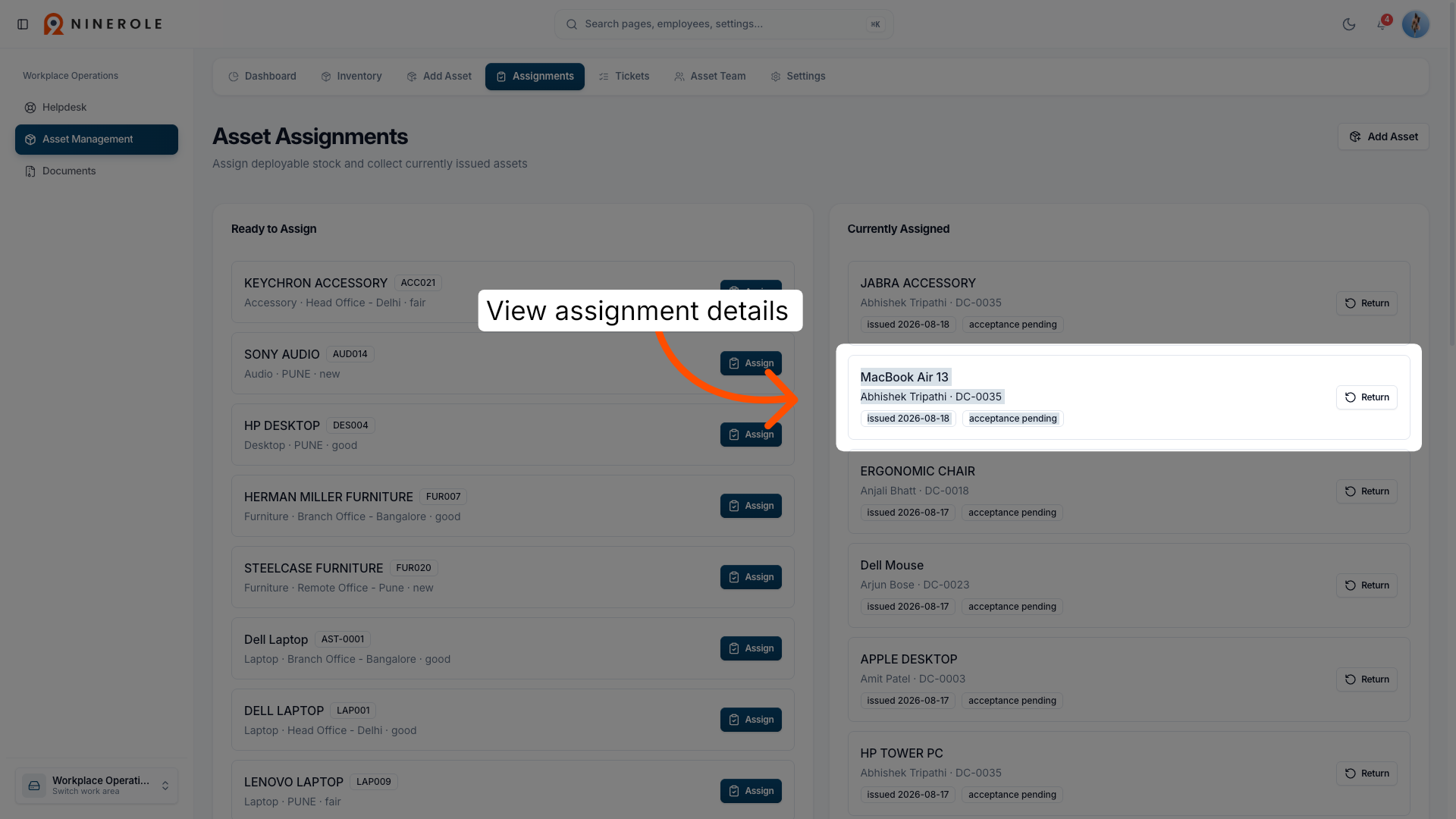
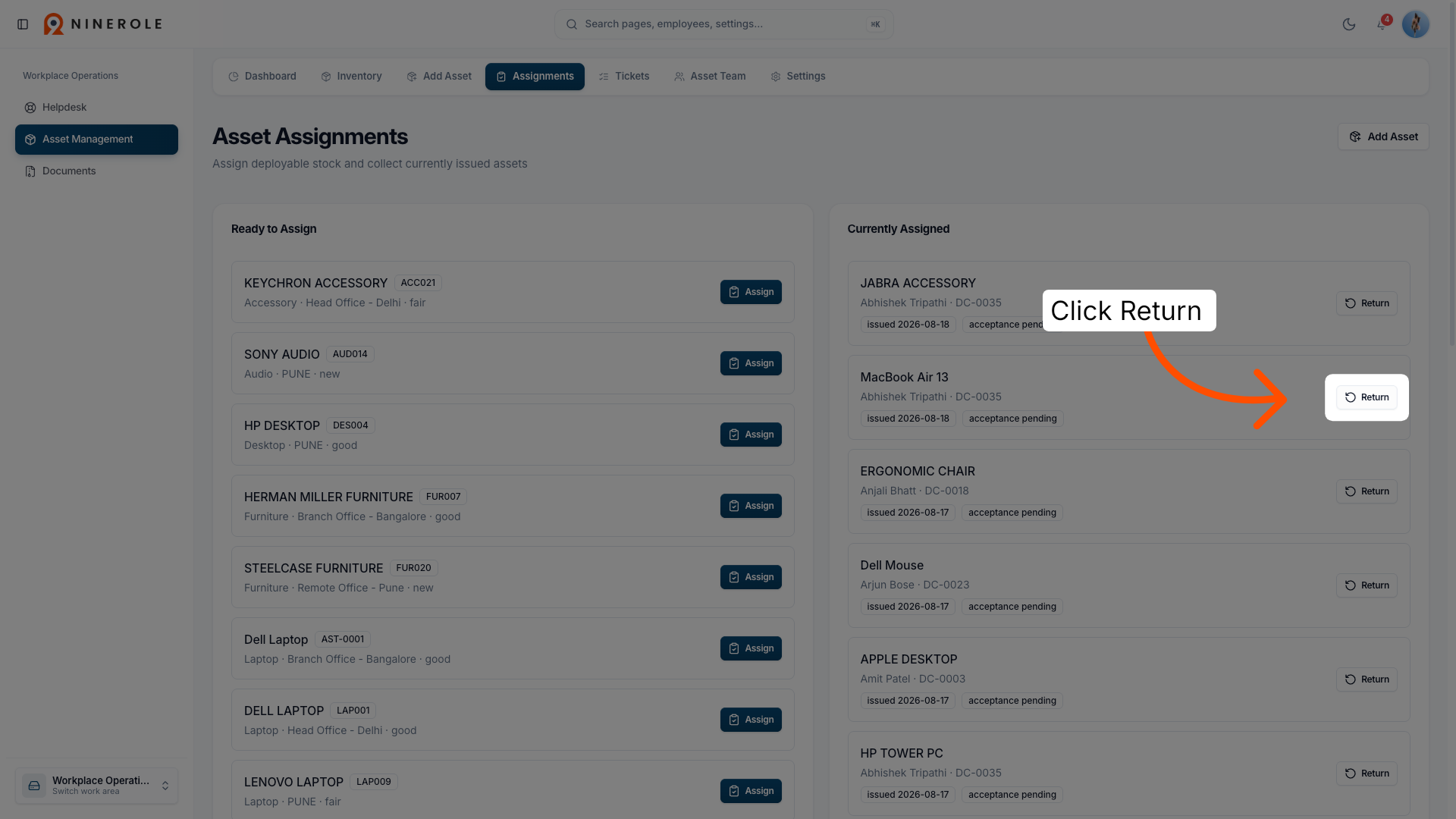
40. View asset assignment details
Click the asset assignment details to review information such as user and status.
41. Click Return button
Click the Return button to initiate the process of returning the assigned asset.
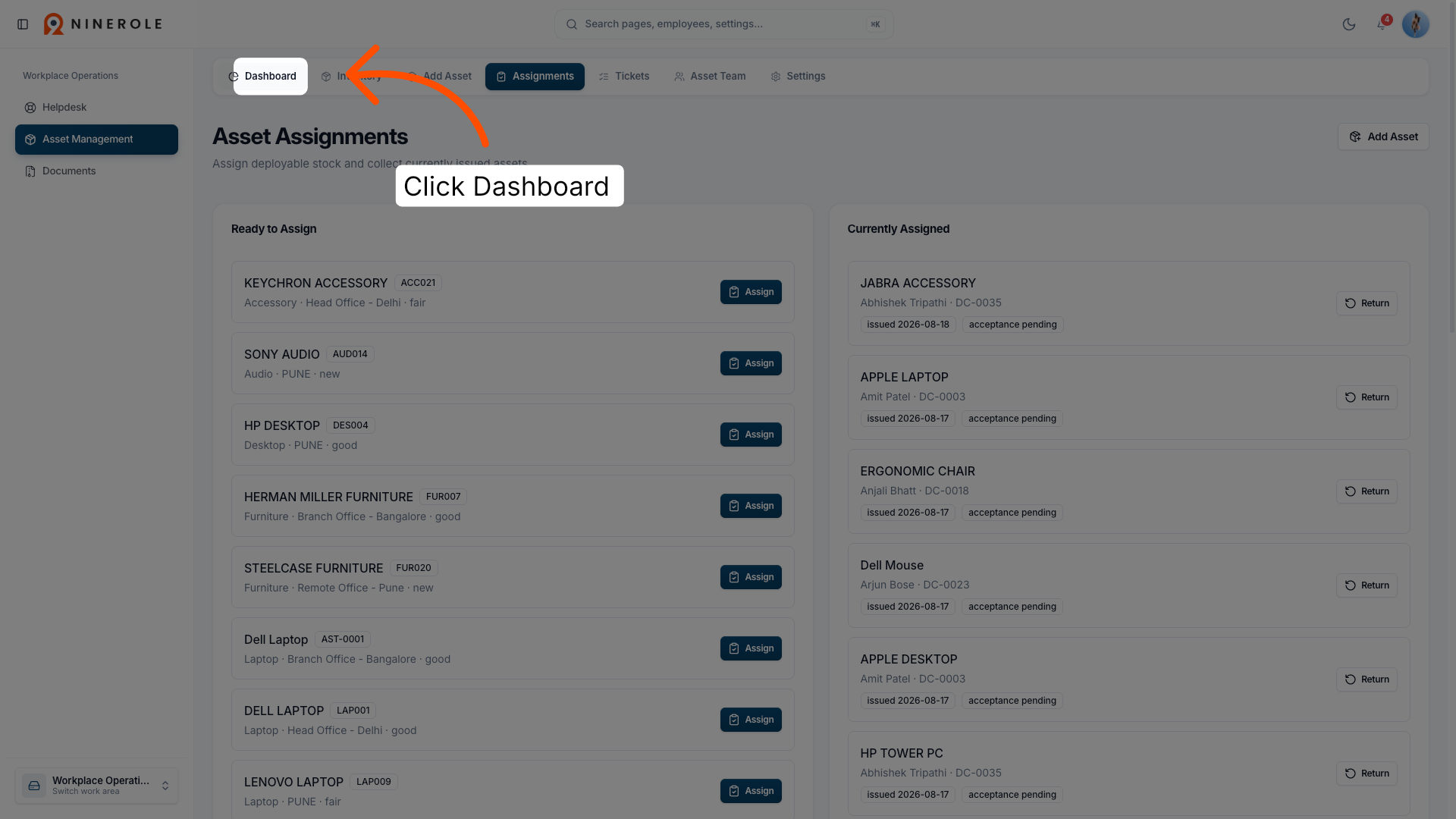
42. Navigate to Dashboard
Click the Dashboard button to return to the main overview page of the Ninerole platform.
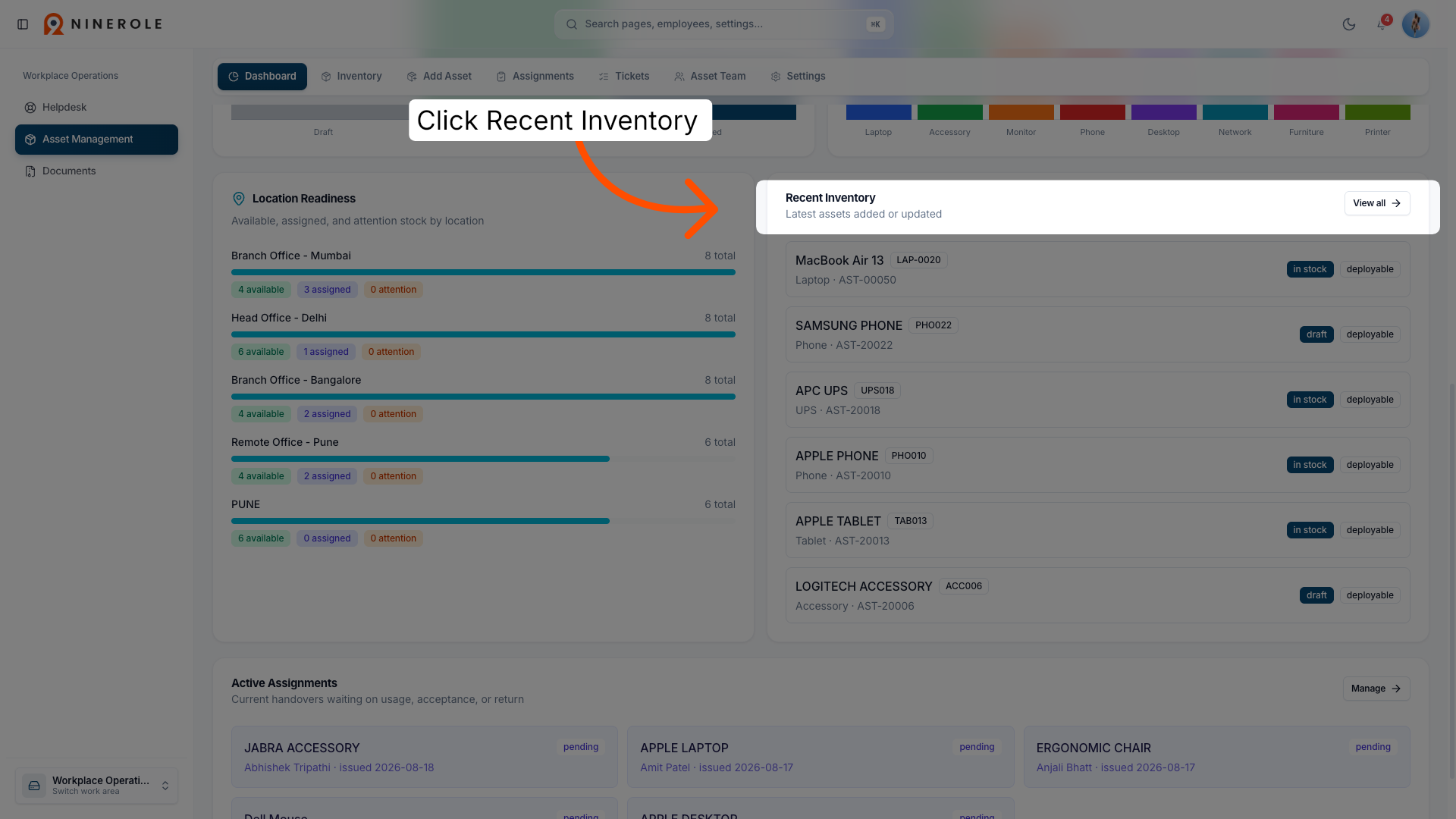
43. View recent inventory
Click the Recent Inventory section to see the latest assets added or updated.
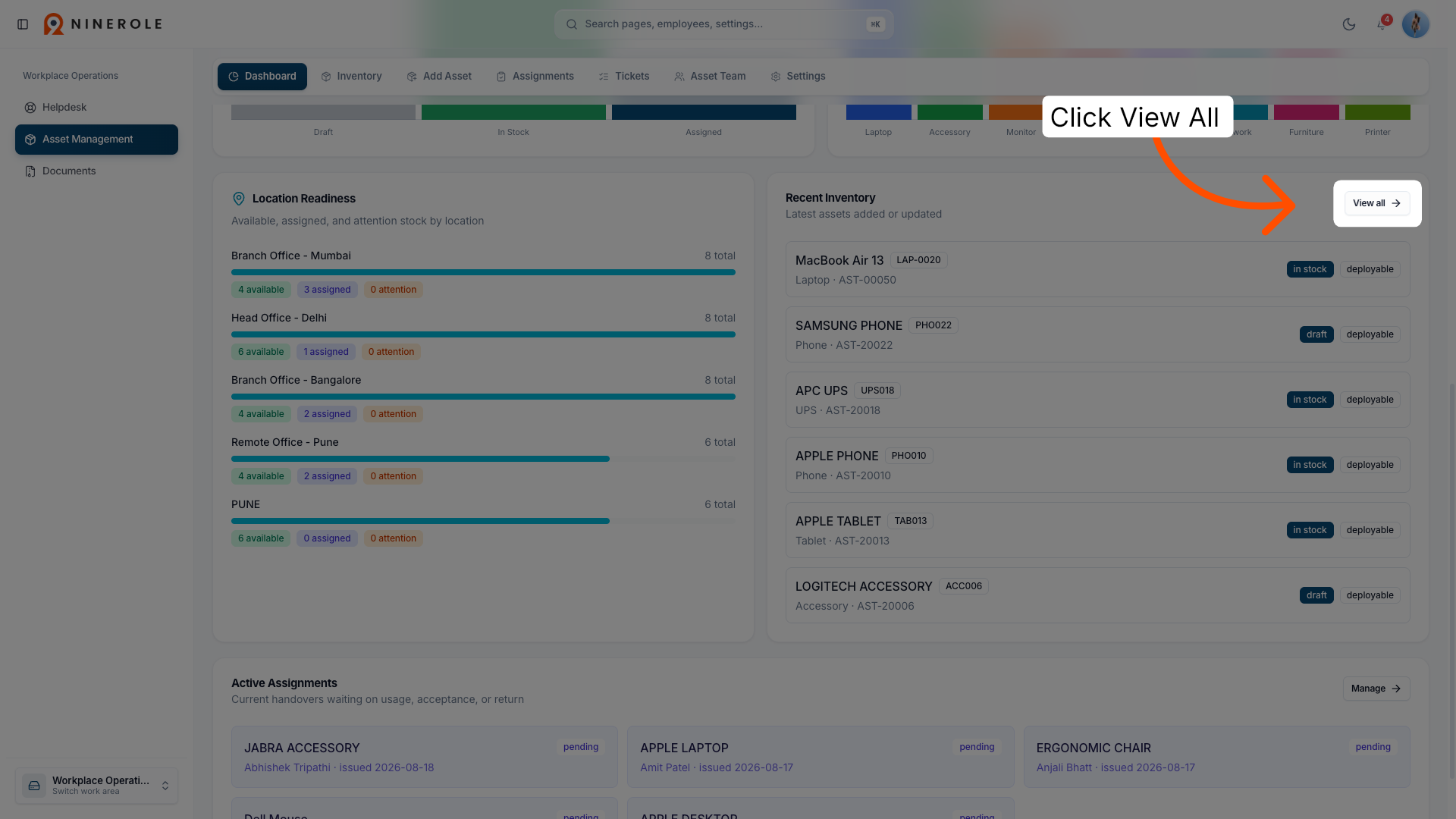
44. Click View All assets
Click the View All button to display the complete list of assets in the inventory.
You can now add assets to the inventory, assign them to employees, track stock and warranty, and review who currently holds each item.
Back to Helpdesk · all modules · Ninerole HRMS overview
Last updated: