

Configure Business Units
This tutorial guides you through configuring business units within the Ninerole platform. You will learn how to add and assign details to new business units effectively.
Before you start, go to ninerole.com.
About this task
- Purpose
- Create a business unit and assign employees to it, so people can be grouped for reporting and access.
- Who can do this
- Owner or HR admin
- Before you start
- The company exists.
- You will need
- A name, a code, a group email and a description.
- Result
- The business unit exists and employees can be assigned to it.
- This unlocks
- Grouping people for hiring, reporting and access control.
This guide answers
- How do I create a business unit?
- How do I assign employees to a business unit?
- What is a business unit used for?
- Can someone belong to more than one?
- Why is my business unit not selectable on an employee?
If something goes wrong
- The unit does not appear when adding an employee.
- It has to be created and saved first. Create it here, then return to the employee record.
- You cannot create one.
- Business units are an Administration function. Confirm you have admin access.
Related: Company details · Roles & permissions · Add an employeeAlso called: department, org unit, division.Last verified: 7 September 2026
1. Introduction
You will learn how to add and assign details to new business units effectively.
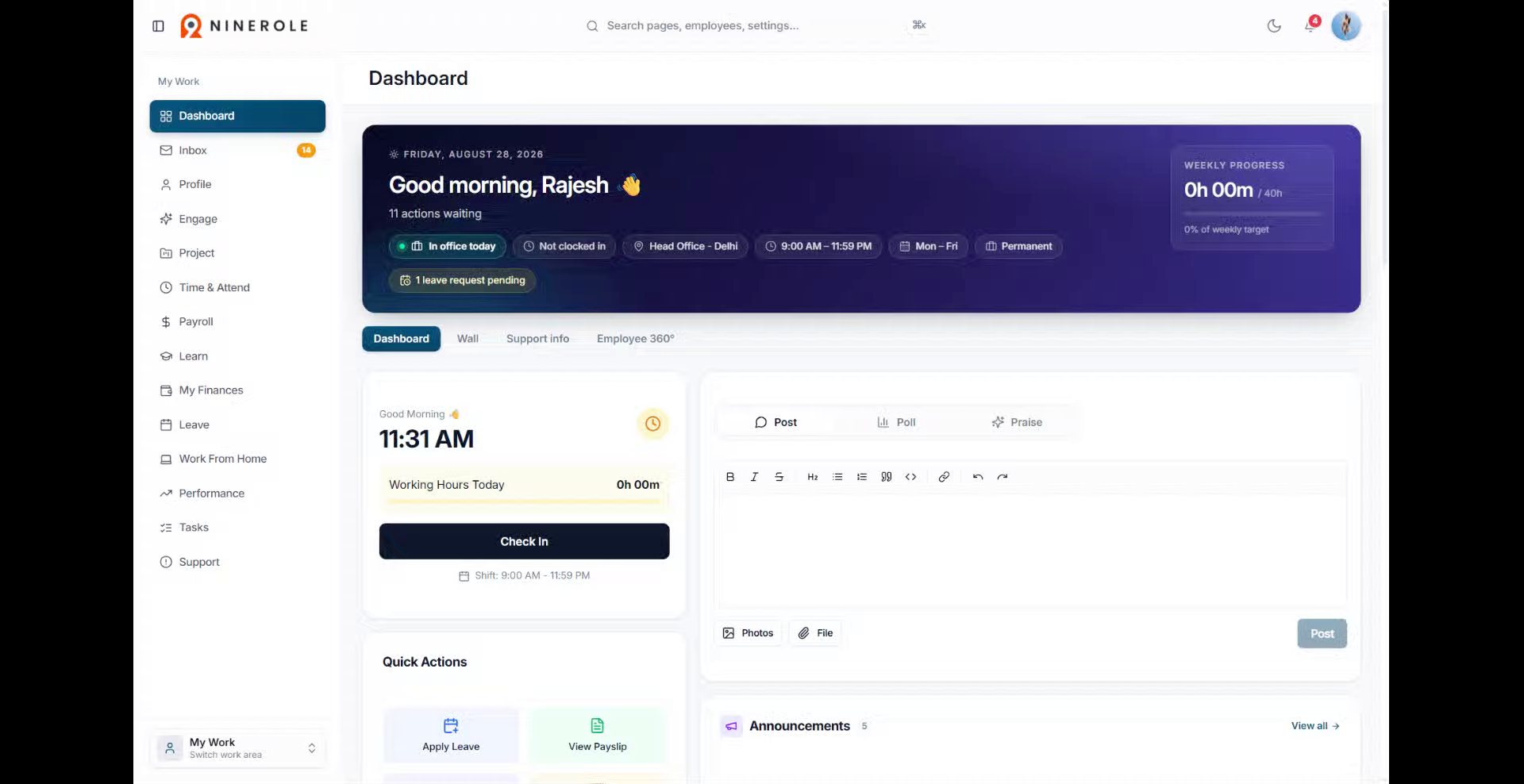
Open Business Units
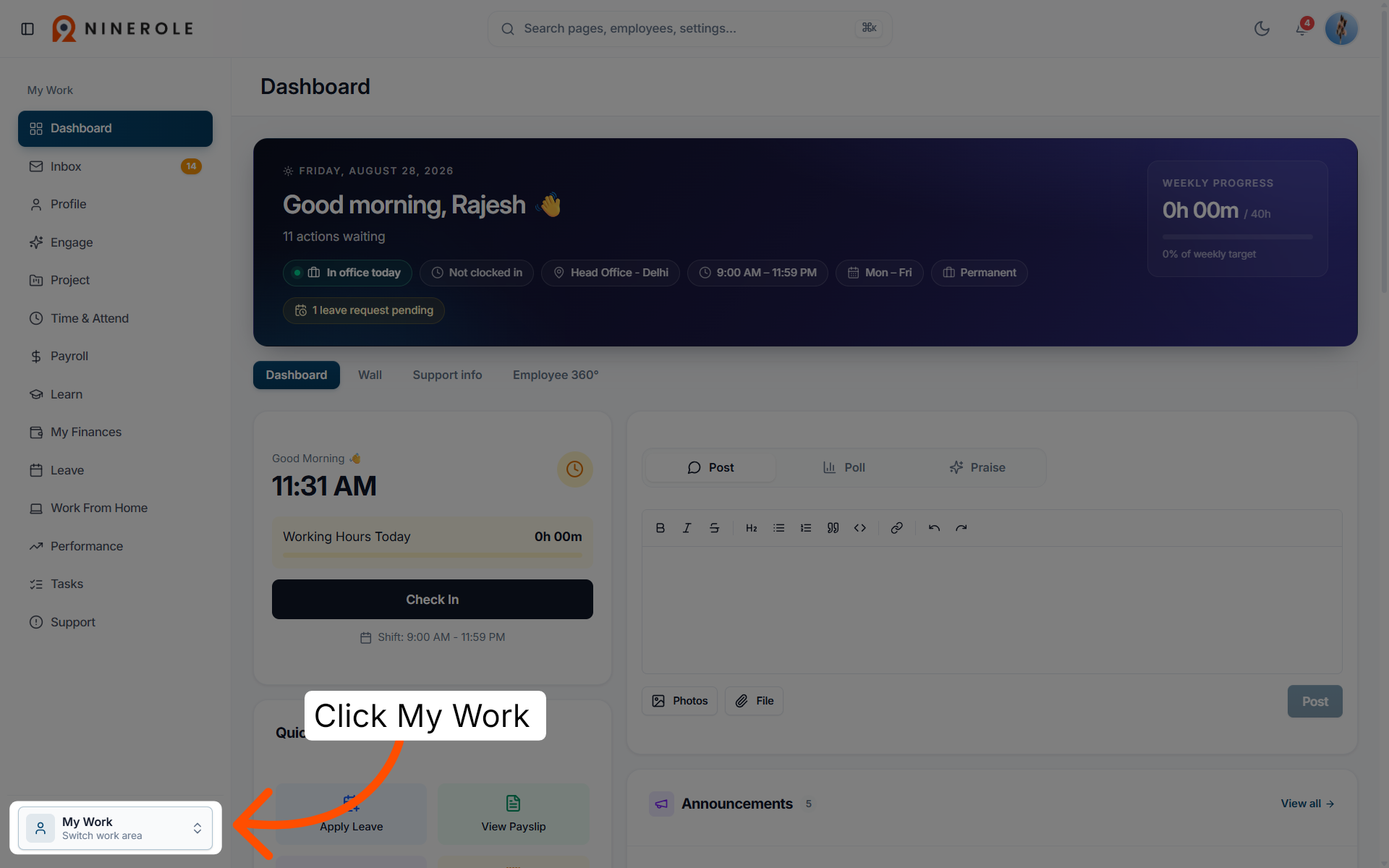
2. Access the My Work section
Click My Work to open your main workspace in Ninerole.
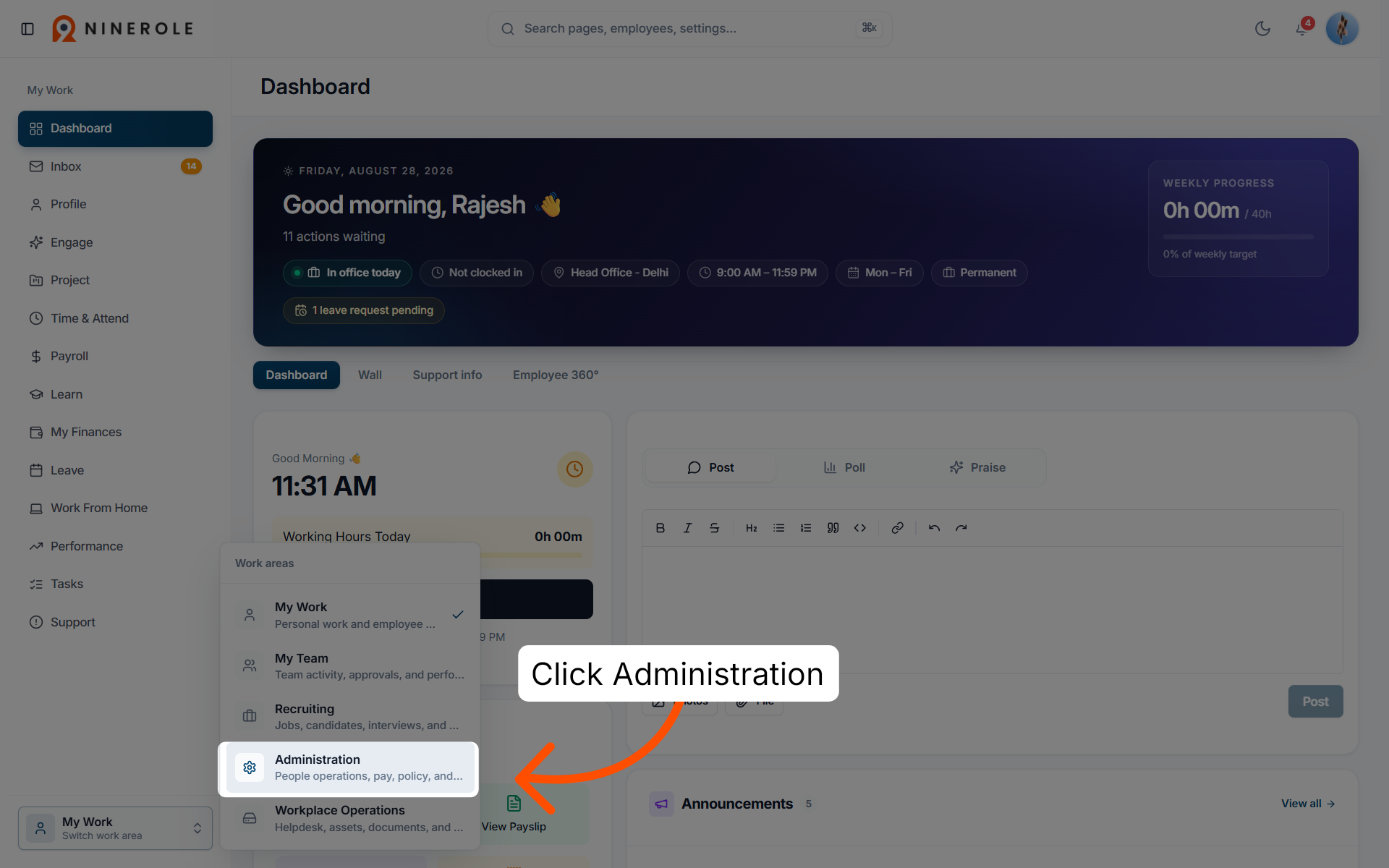
3. Open Administration
Click Administration to access the related organizational settings.
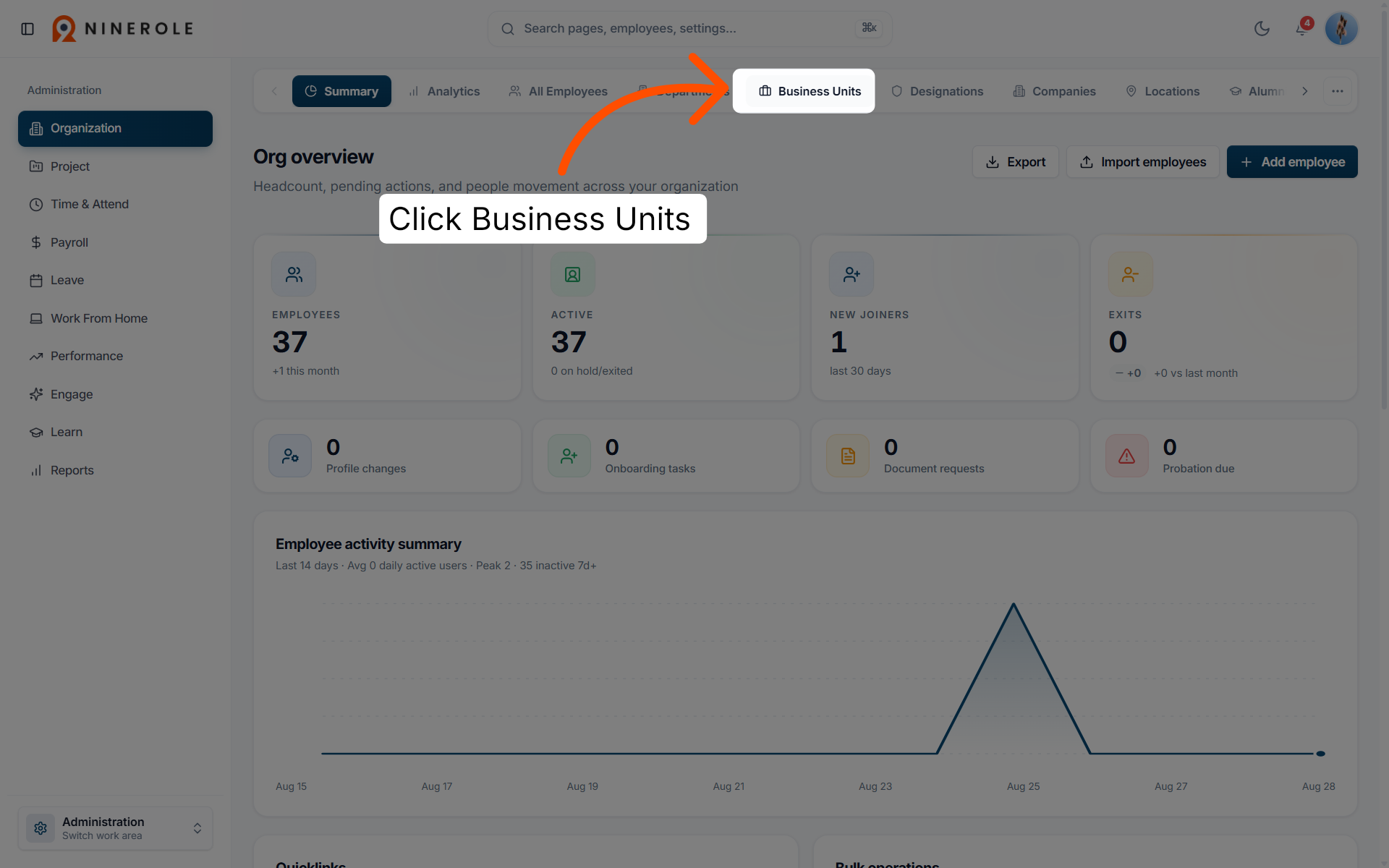
4. Navigate to Business Units
Click Business Units to view and manage your organization's business units.
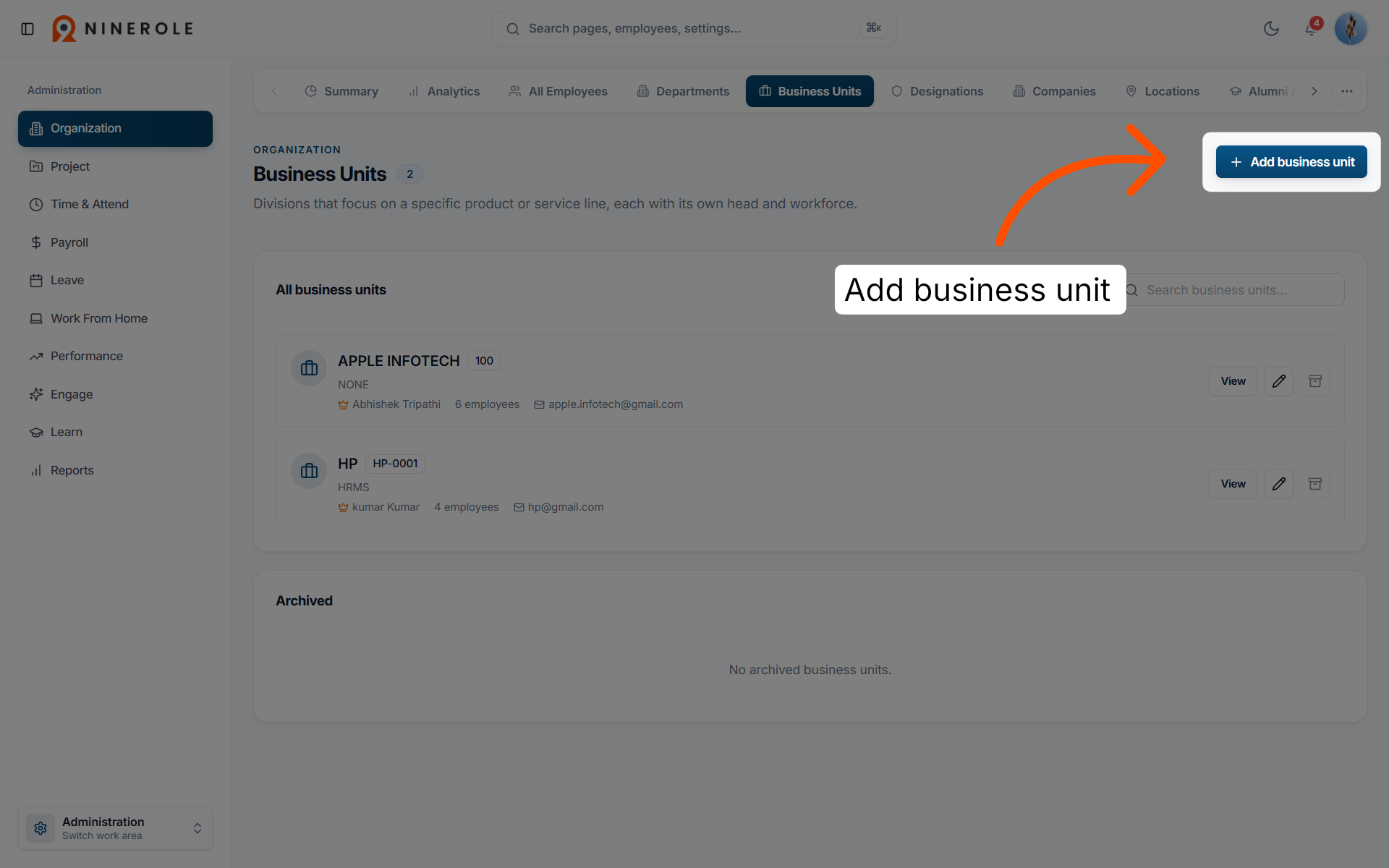
5. Initiate adding a business unit
Click Add business unit to start creating a new business unit.
Enter the unit details
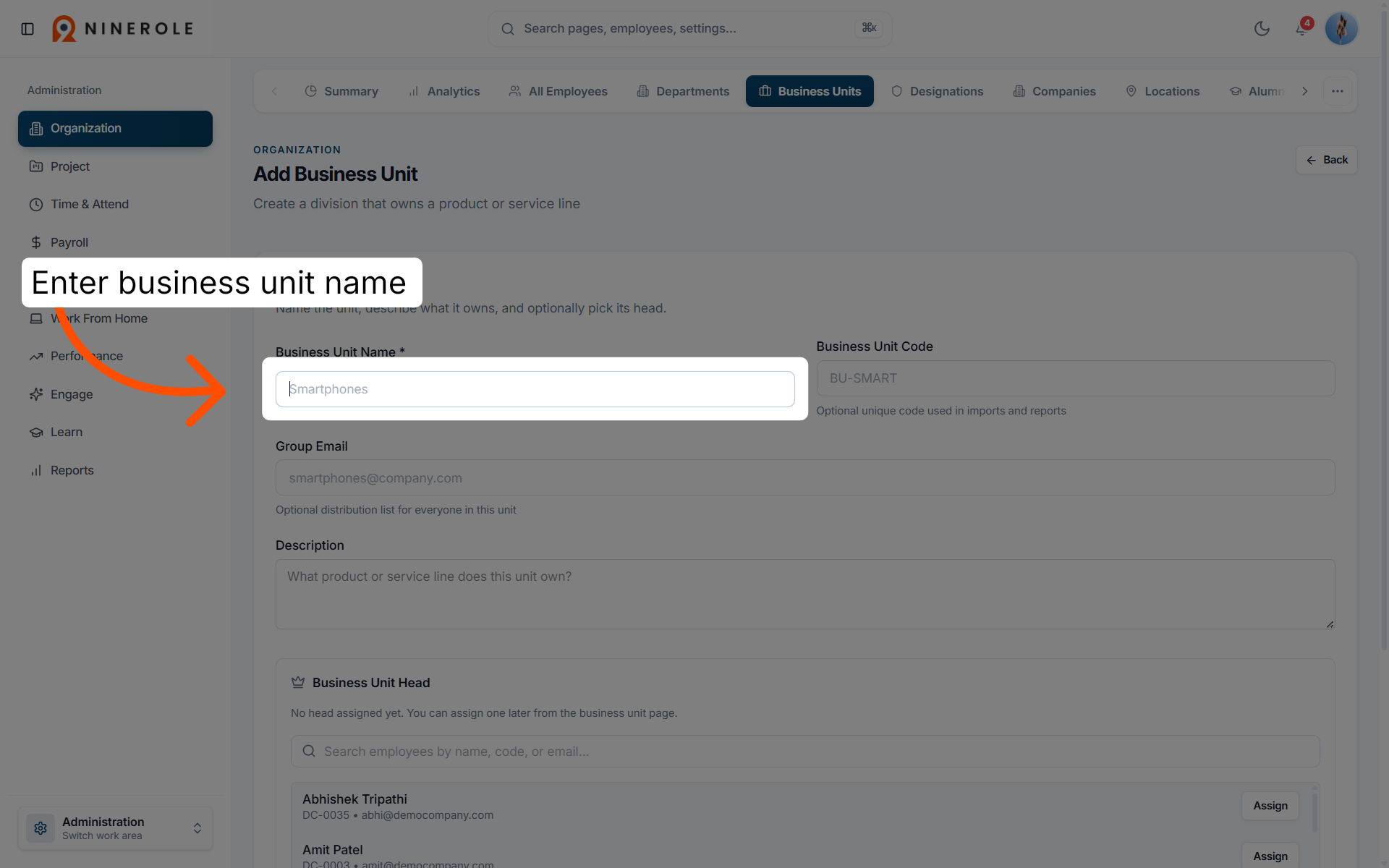
6. Enter the business unit name
Enter Business Unit Name * to input the name of the new business unit.
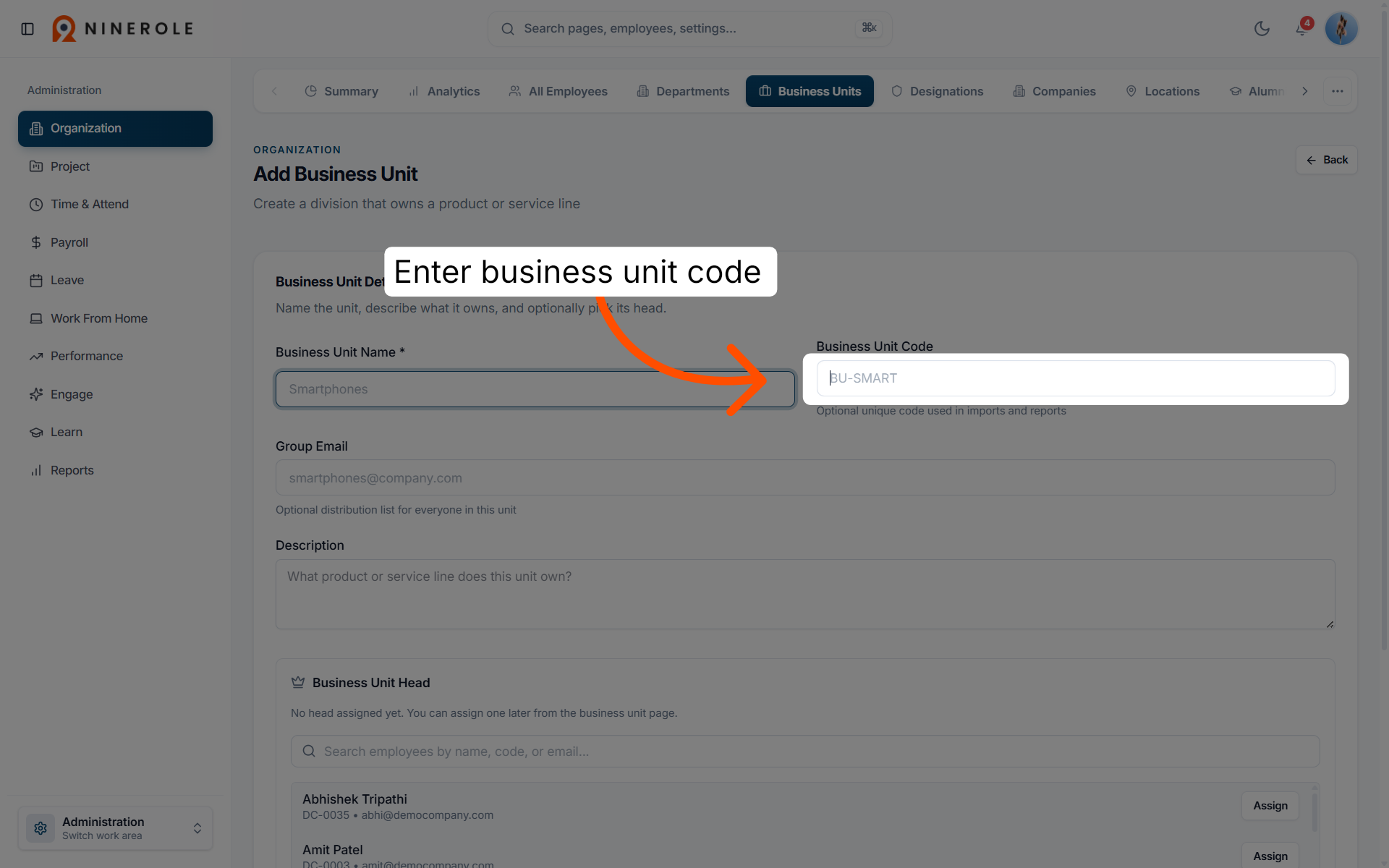
7. Input the business unit code
Click Business Unit Code to enter the unique code identifying the business unit.
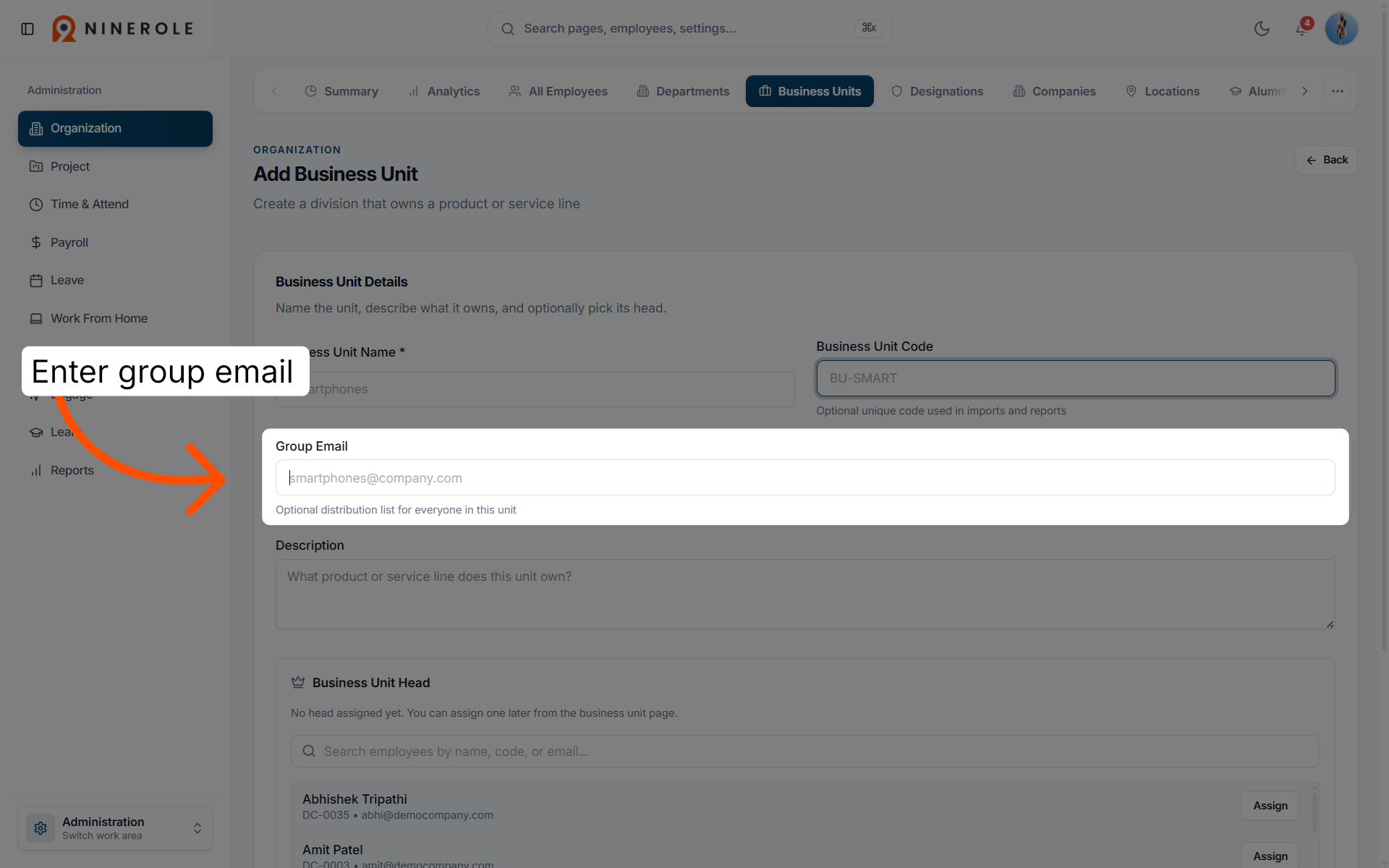
8. Provide the group email
Click Group Email to specify the email address associated with the business unit.
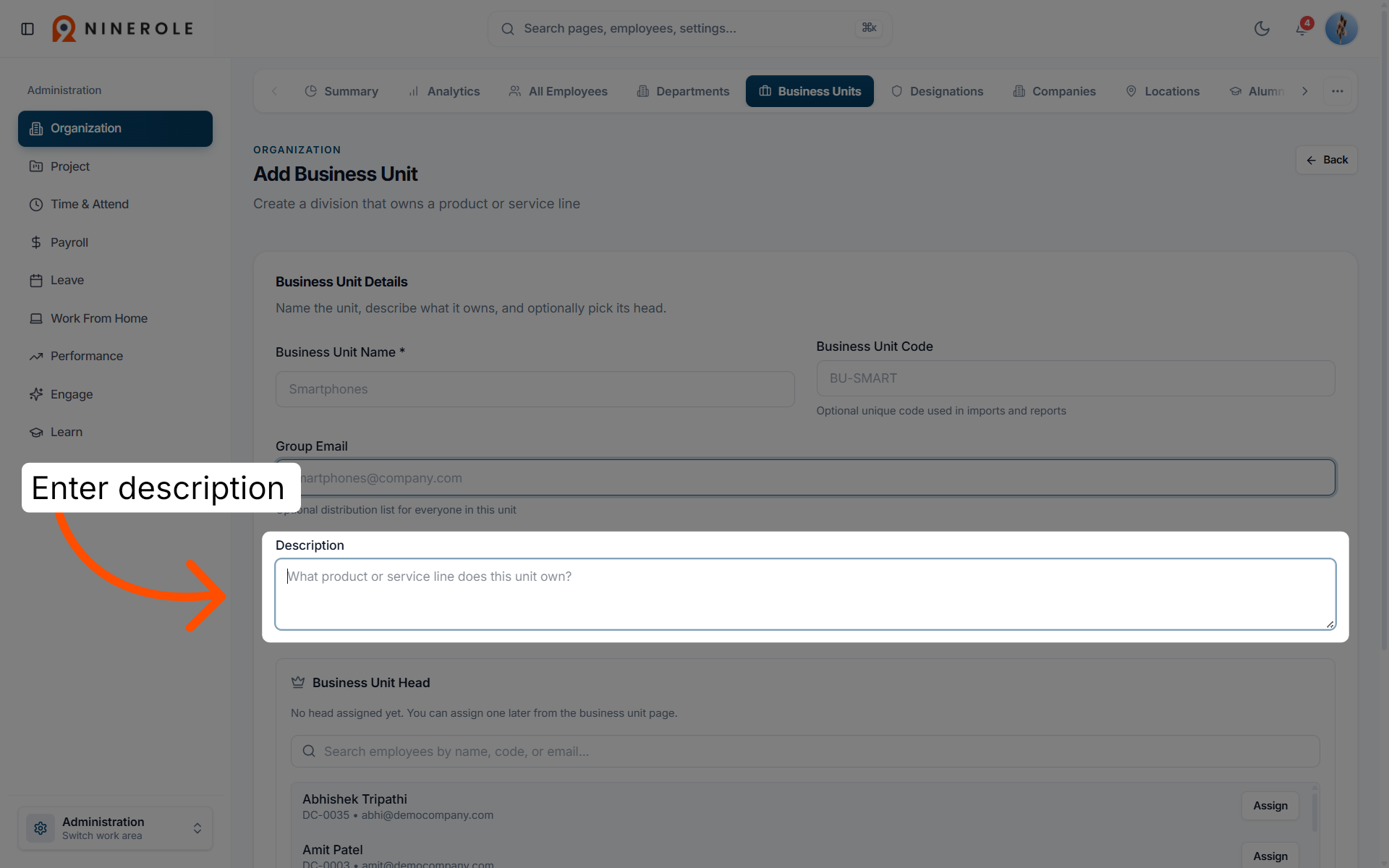
9. Add a description
Enter Description to add details describing the business unit's purpose or scope.
Assign employees and save
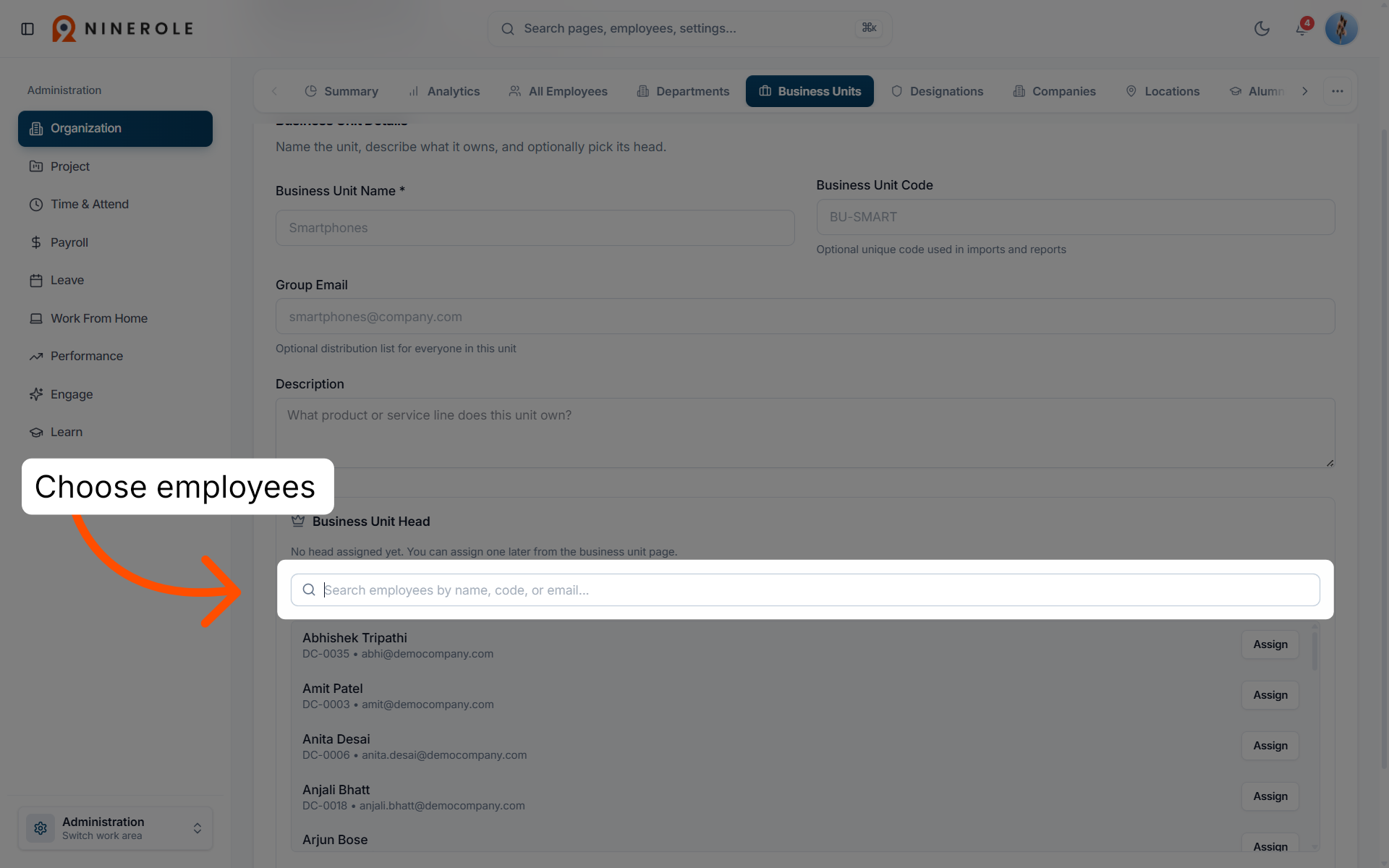
10. Search employees to assign
Use the search field to find employees by name, code, or email to assign to the business unit.
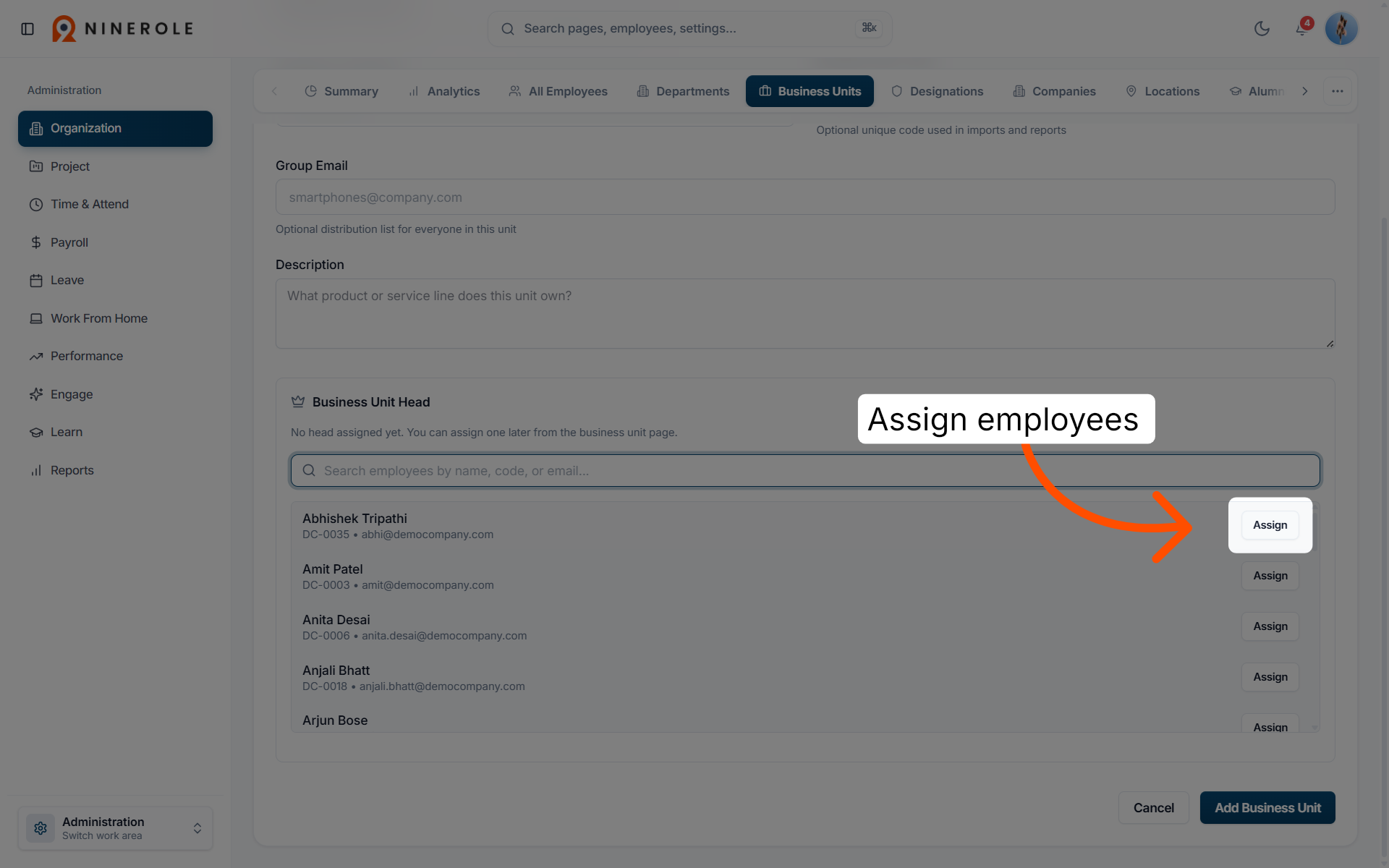
11. Assign employees to the unit
Click Assign to link the selected employees to the new business unit.
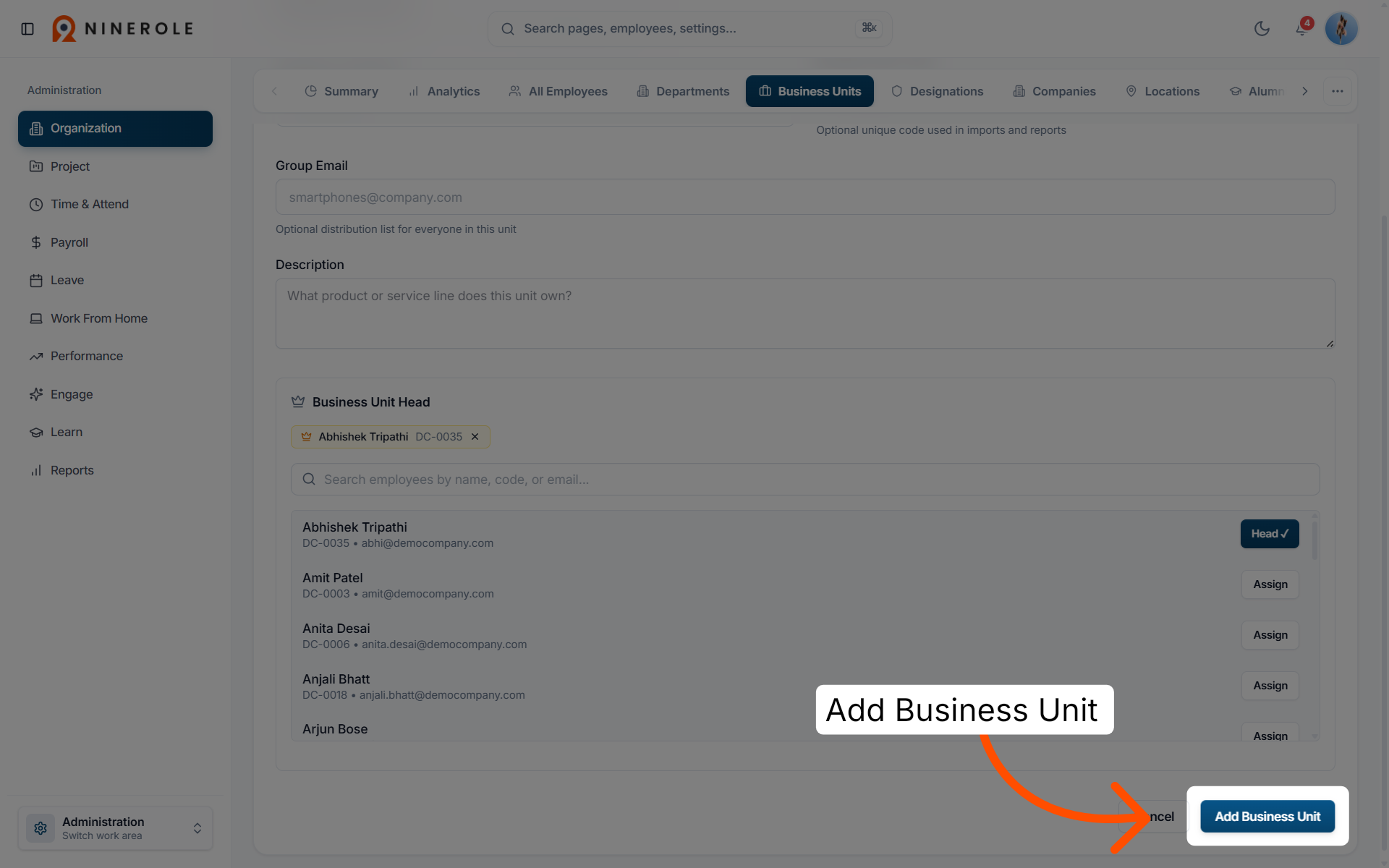
12. Finalize the business unit
Click Add Business Unit to save and create the new business unit in Ninerole.
You have successfully configured a new business unit in Ninerole by adding its details and assigning employees. You can now manage this unit within your organizational settings for streamlined operations.
Business units also appear as a field when adding an employee and when creating a job.
Back to Administration · all modules · Ninerole HRMS overview
Last updated: