

Configure Client Staffing and Billing
This tutorial guides you through configuring client staffing and billing settings in Ninerole. You will learn how to deploy employees to clients and manage billing details effectively.
Before you start, go to ninerole.com.
About this task
- Purpose
- Deploy employees onto a client project and set the billing behind that deployment.
- Who can do this
- Project manager
- Before you start
- The client exists.
- The project exists.
- The employees you want to deploy exist.
- You will need
- The project, the employees, their allocation, and the billing terms.
- Result
- Employees are staffed to the project with billing configured.
- This unlocks
- Timesheets against the project, and billing and utilisation reporting.
This guide answers
- How do I staff someone to a project?
- How do I set billing for a deployment?
- Why is an employee unavailable to staff?
- How do I change an allocation?
- How does staffing relate to timesheets?
If something goes wrong
- An employee cannot be staffed.
- They may already be fully allocated, or their employee record is incomplete.
- Billing is not editable.
- Confirm you have project-management permission on that project.
Related: Create a project · Add a client · TimesheetsAlso called: resource allocation, deployment, project staffing.Last verified: 7 September 2026
1. Introduction
You will learn how to deploy employees to clients and manage billing details effectively.
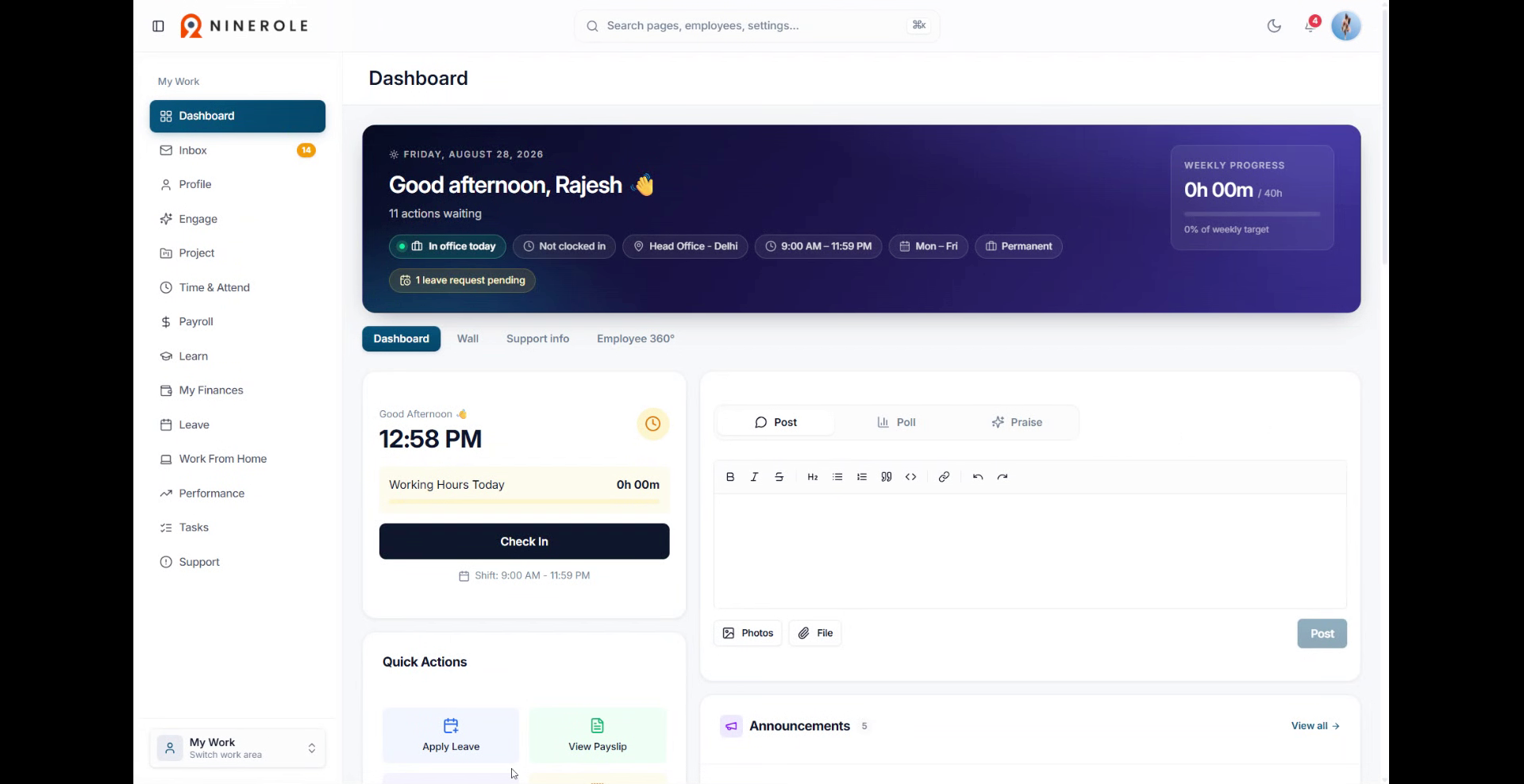
Open Client Staffing
2. Access the My Work section
Click My Work to open your main workspace in Ninerole.
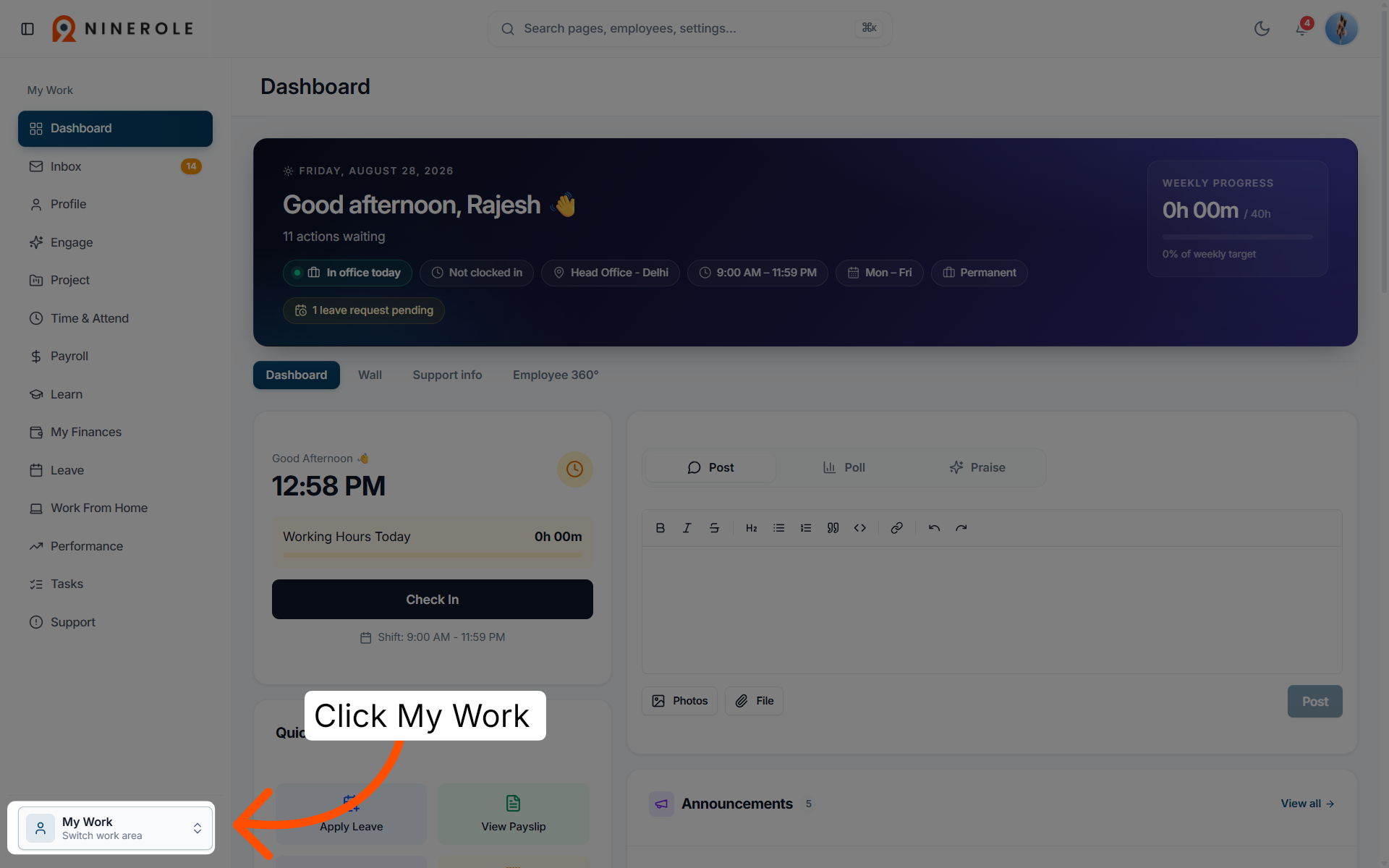
3. Open Administration settings
Click Administration to access the administrative options for your account.
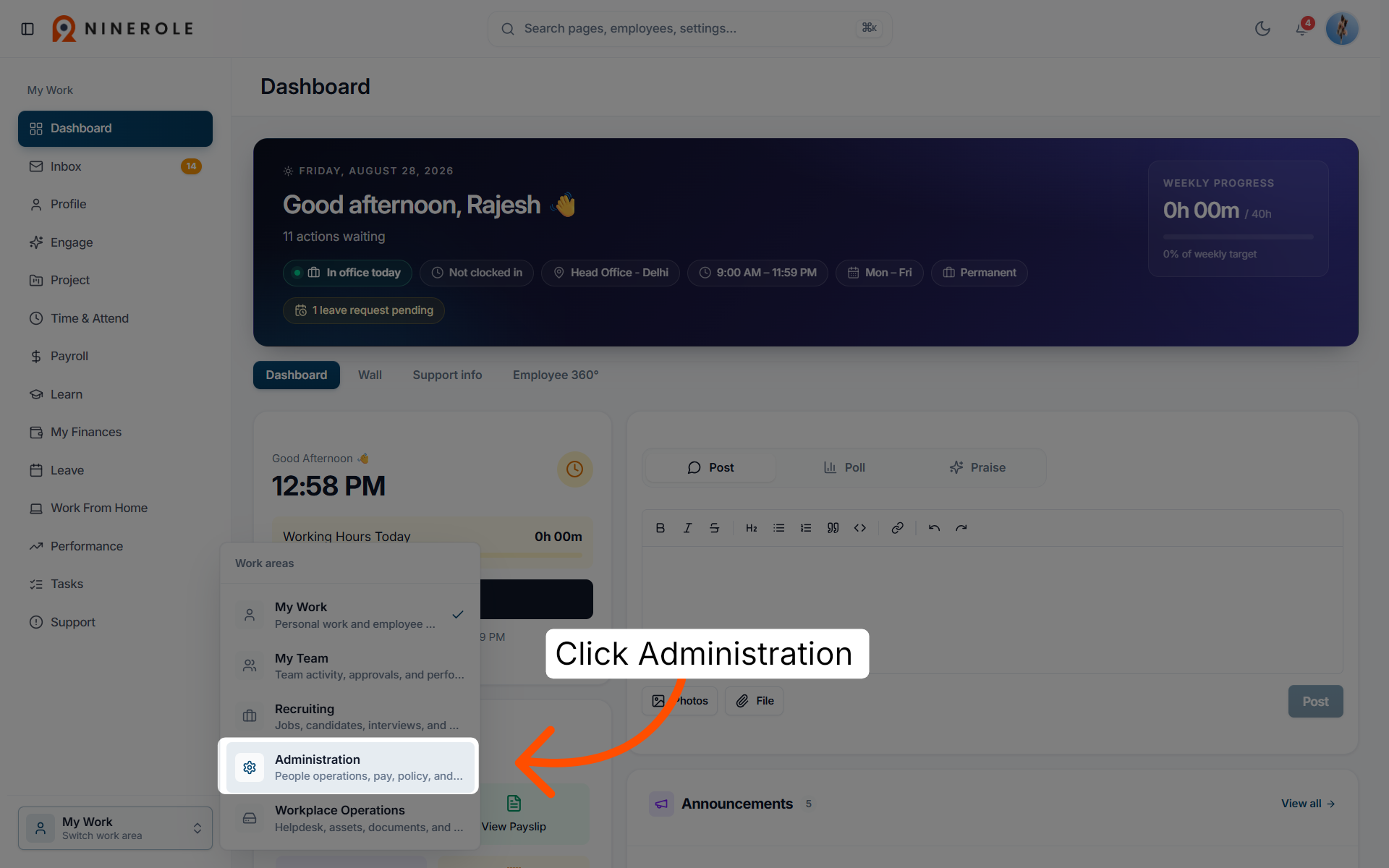
4. Navigate to the project summary
Click Project to view the project summary and related settings.
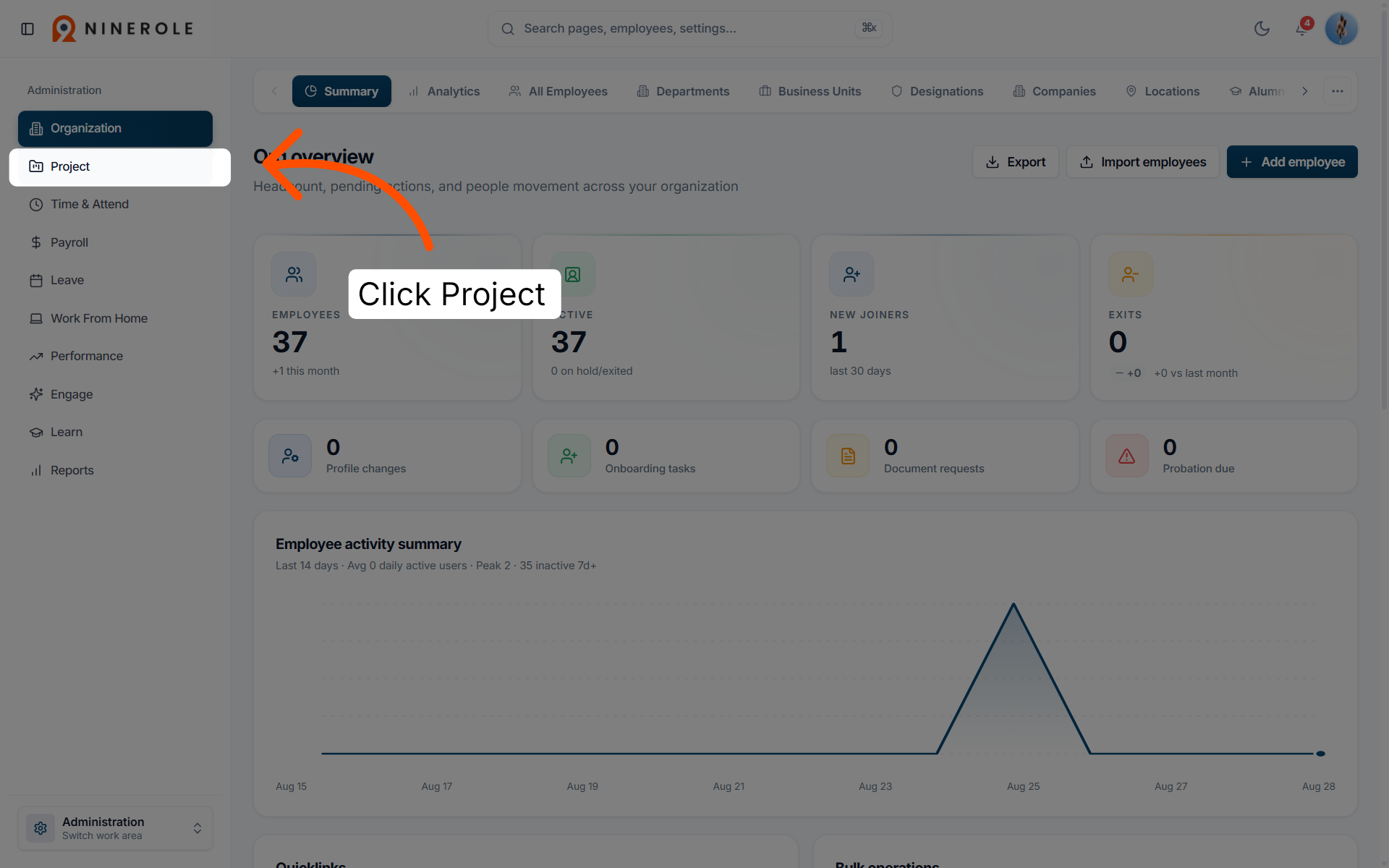
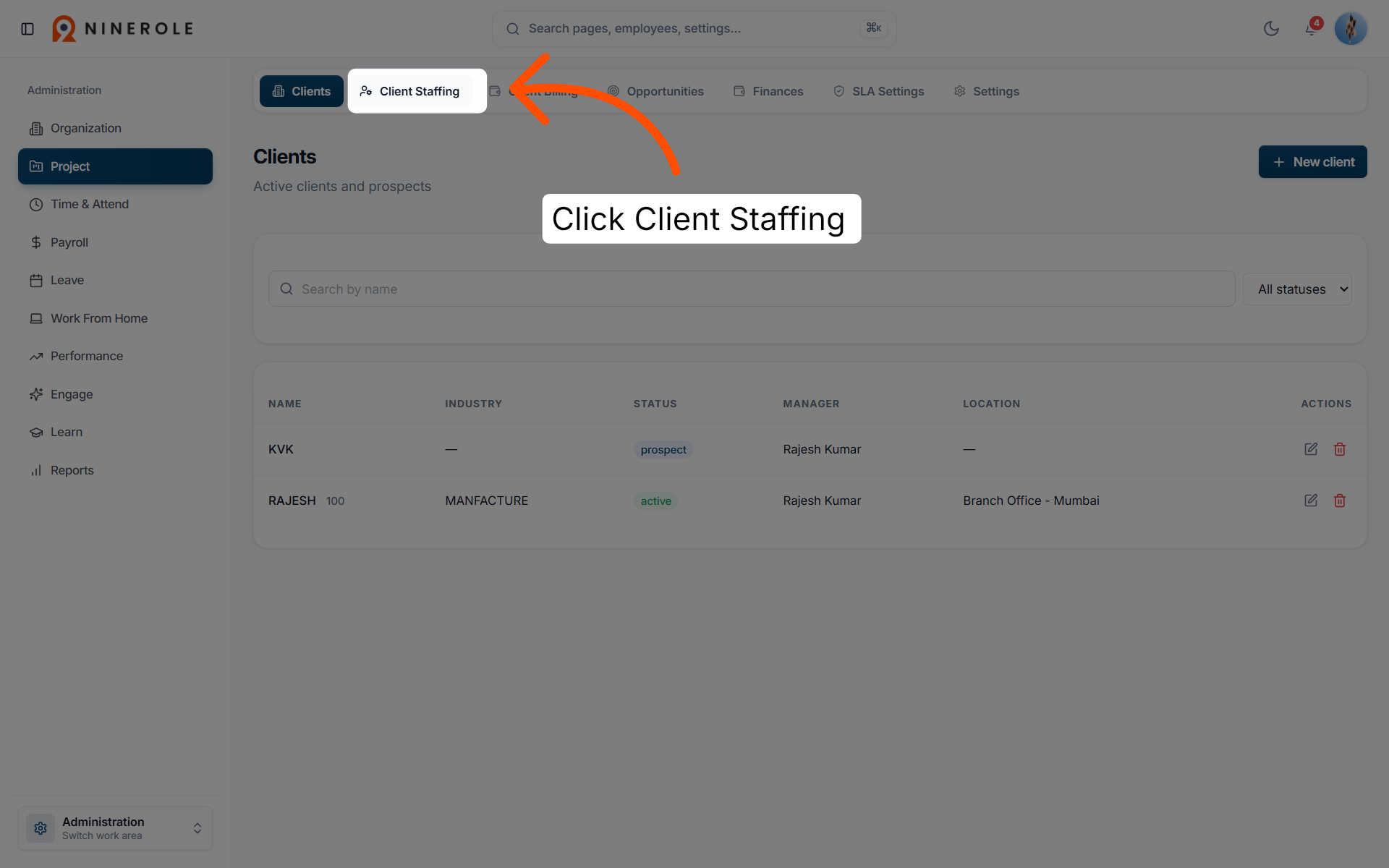
5. Access the Client Staffing page
Click Client Staffing to manage staffing assignments for your clients.
Deploy an employee to a client
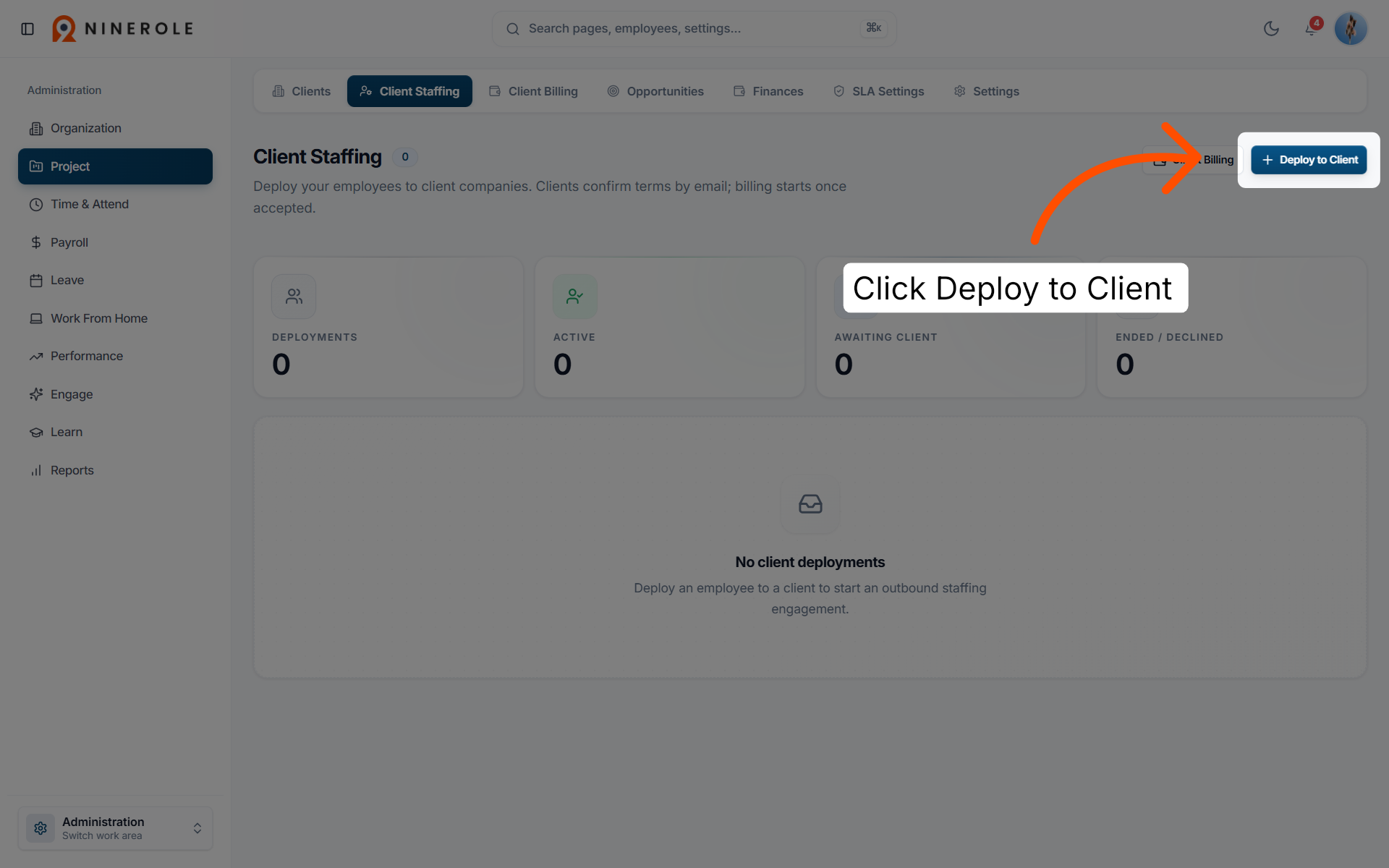
6. Open the Deploy to Client dialog
Click Deploy to Client to start assigning an employee to a client.
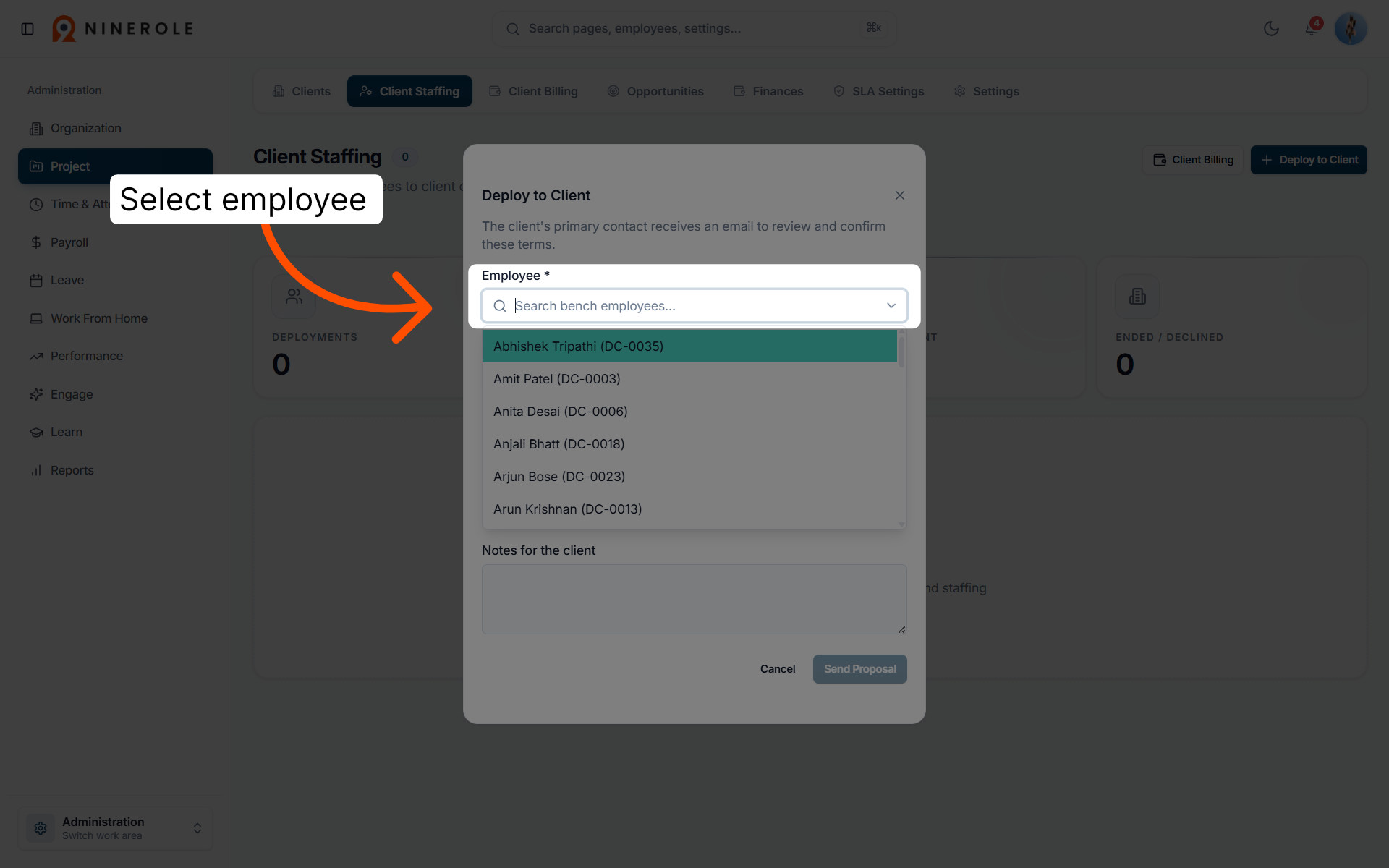
7. Select the employee
Click Employee * to choose the employee you want to deploy to the client.
8. Review the deployment terms
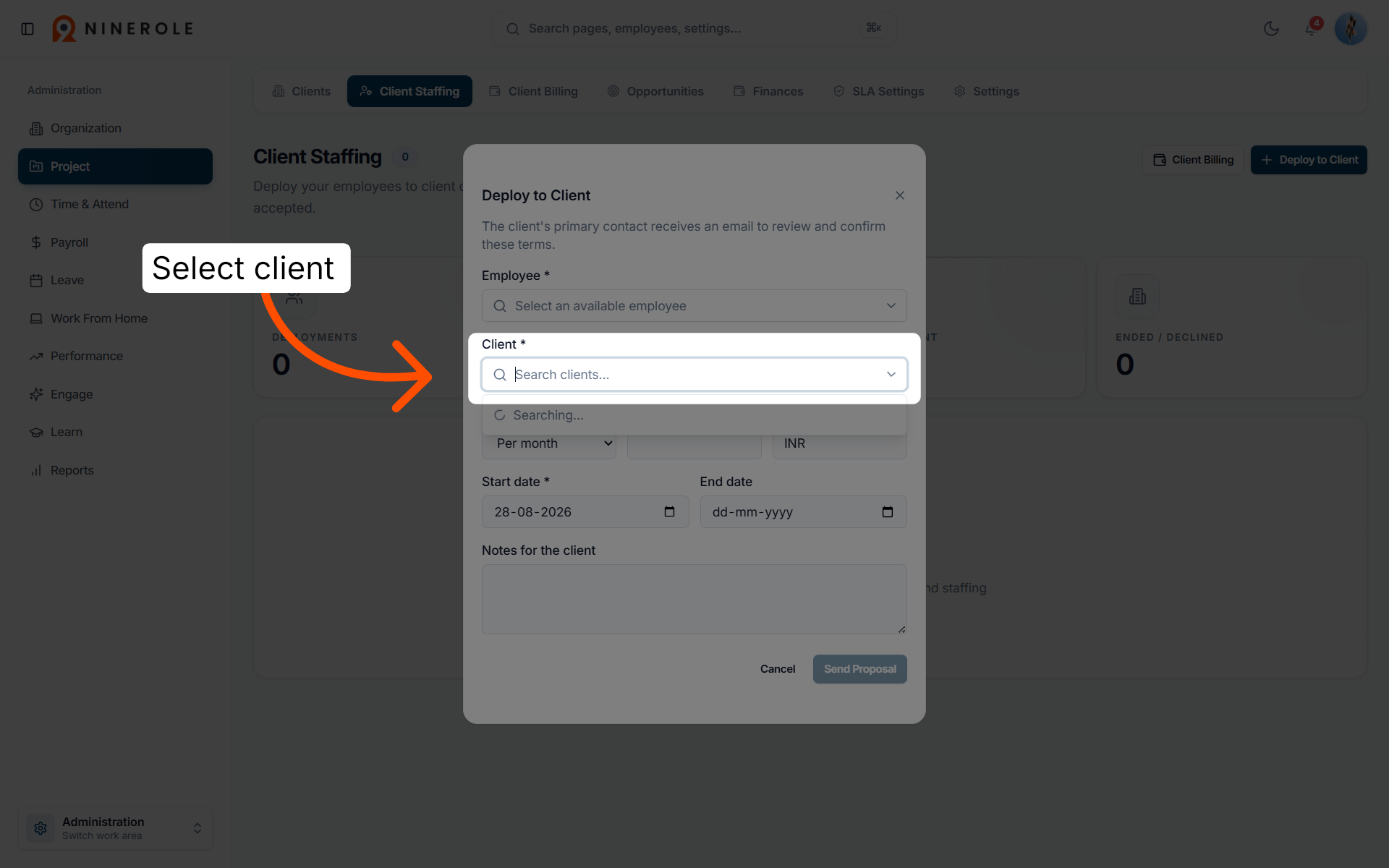
The Deploy to Client dialog collects the employee, client, billing basis, rate, currency, start and end dates, and notes. The client's primary contact receives an email to review and confirm these terms.
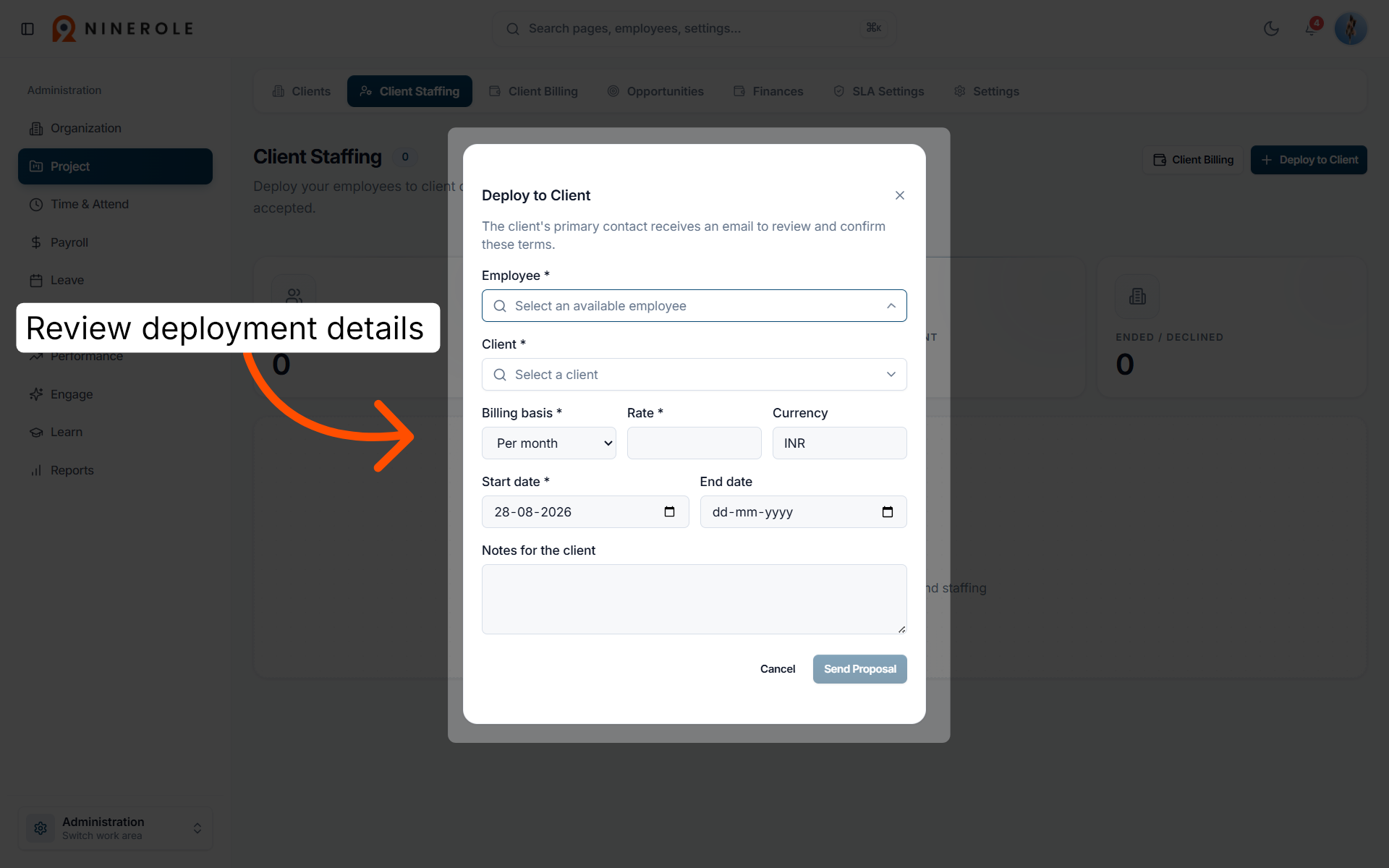
9. Choose the client
Click Client * to select the client the employee will be deployed to.
Set the billing terms
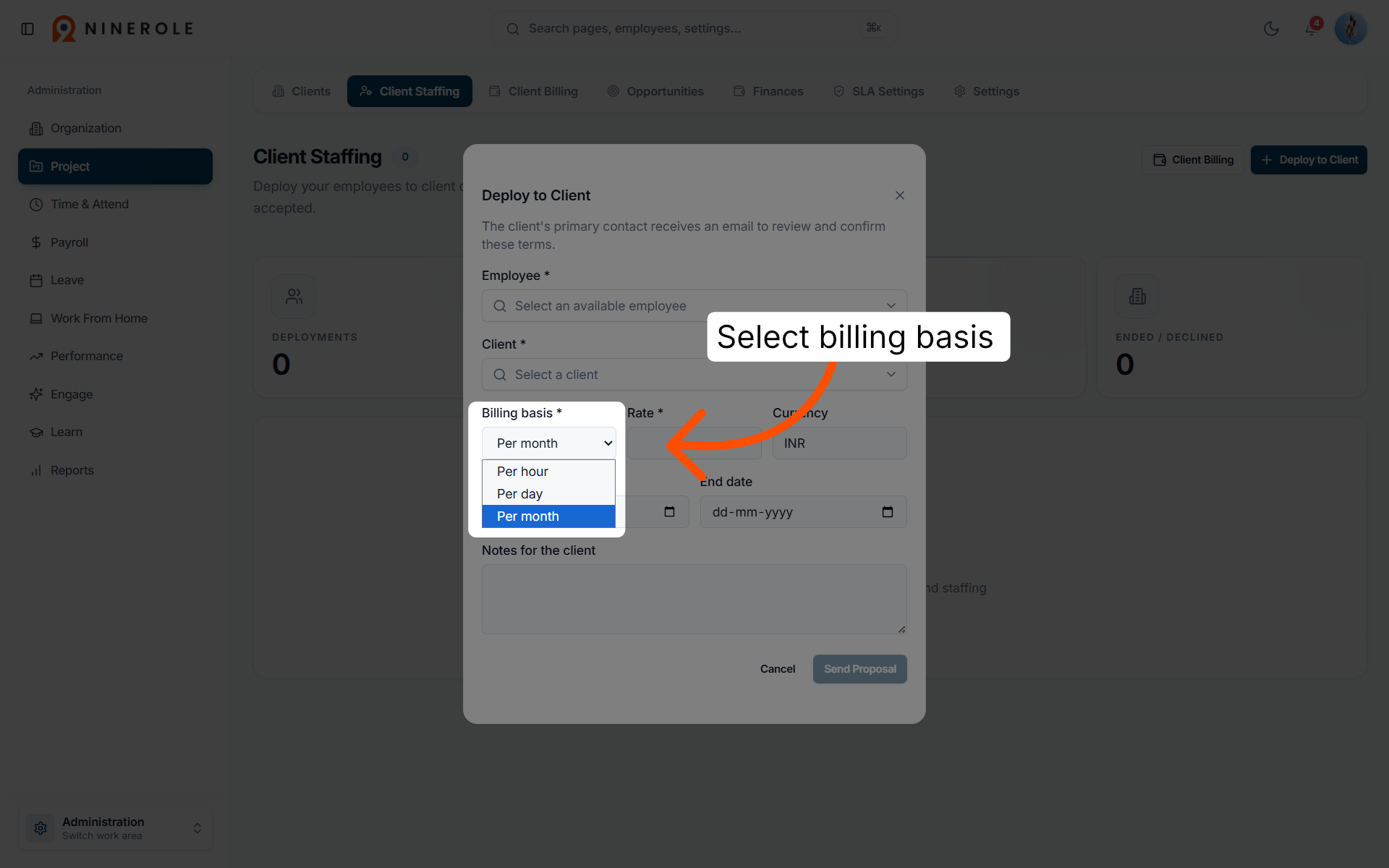
10. Select the billing basis
Choose the billing basis for the deployment — Per hour, Per day, or Per month.
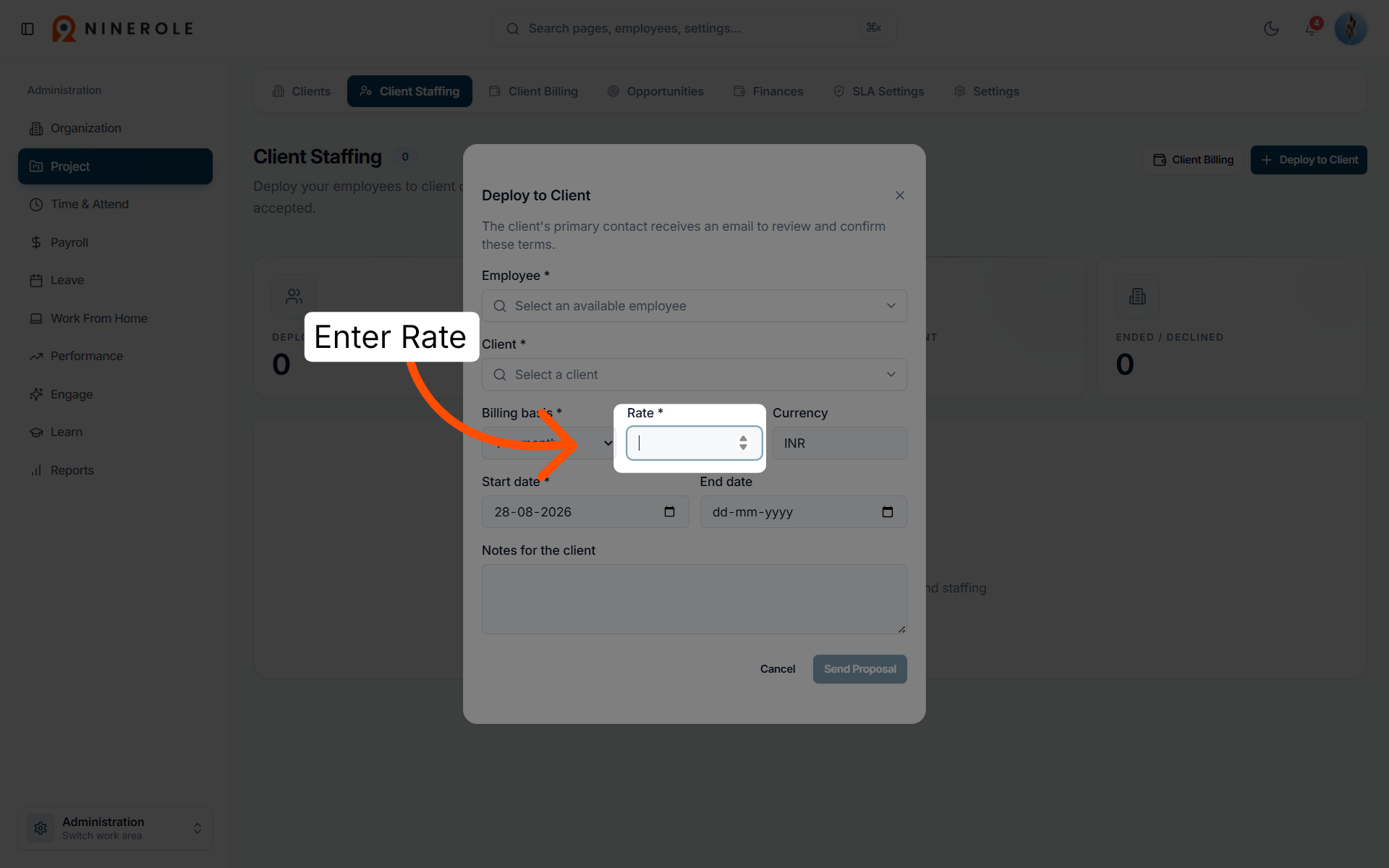
11. Enter the rate
Enter the Rate charged on the selected billing basis.
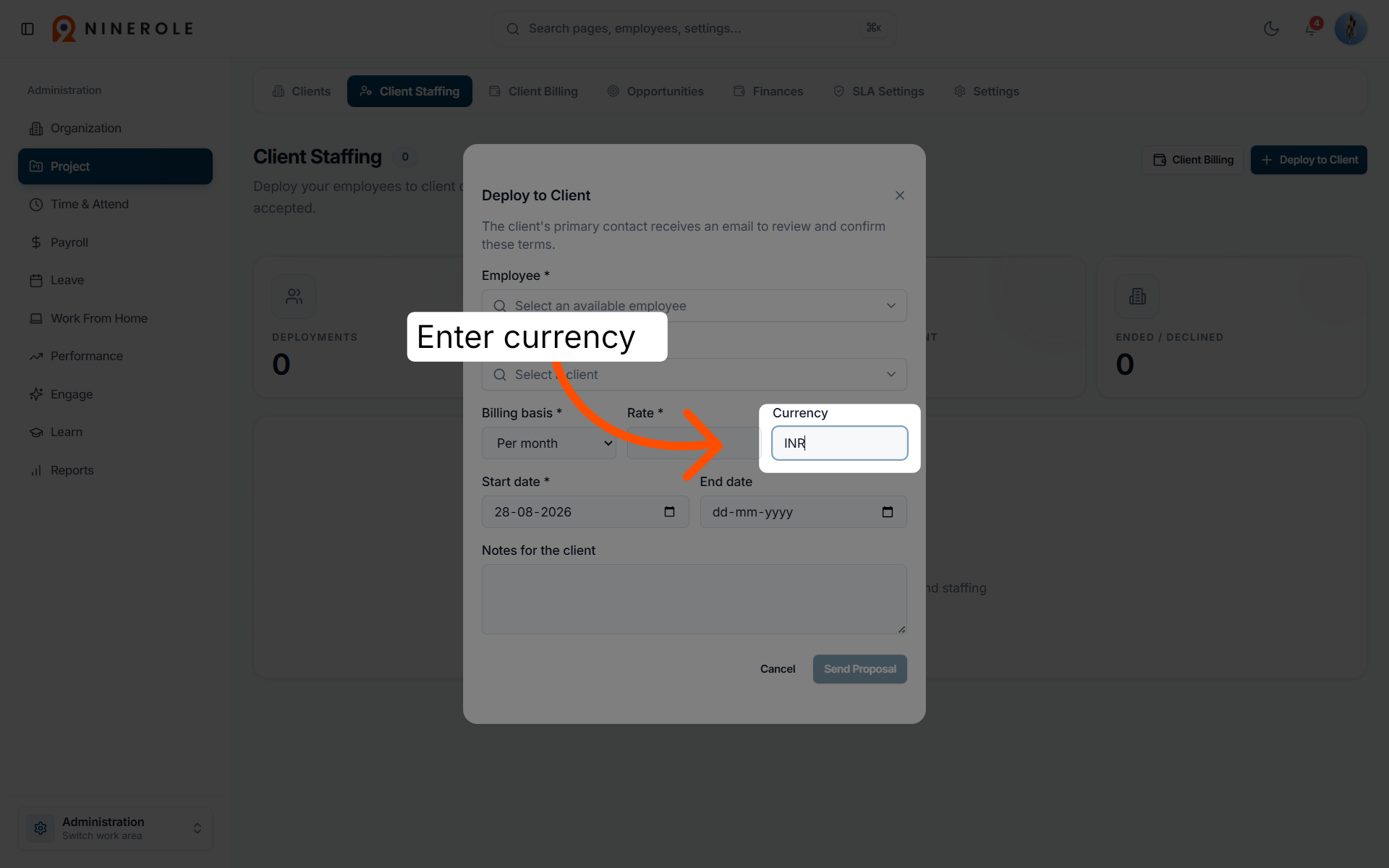
12. Choose the currency
Select the currency for billing purposes.
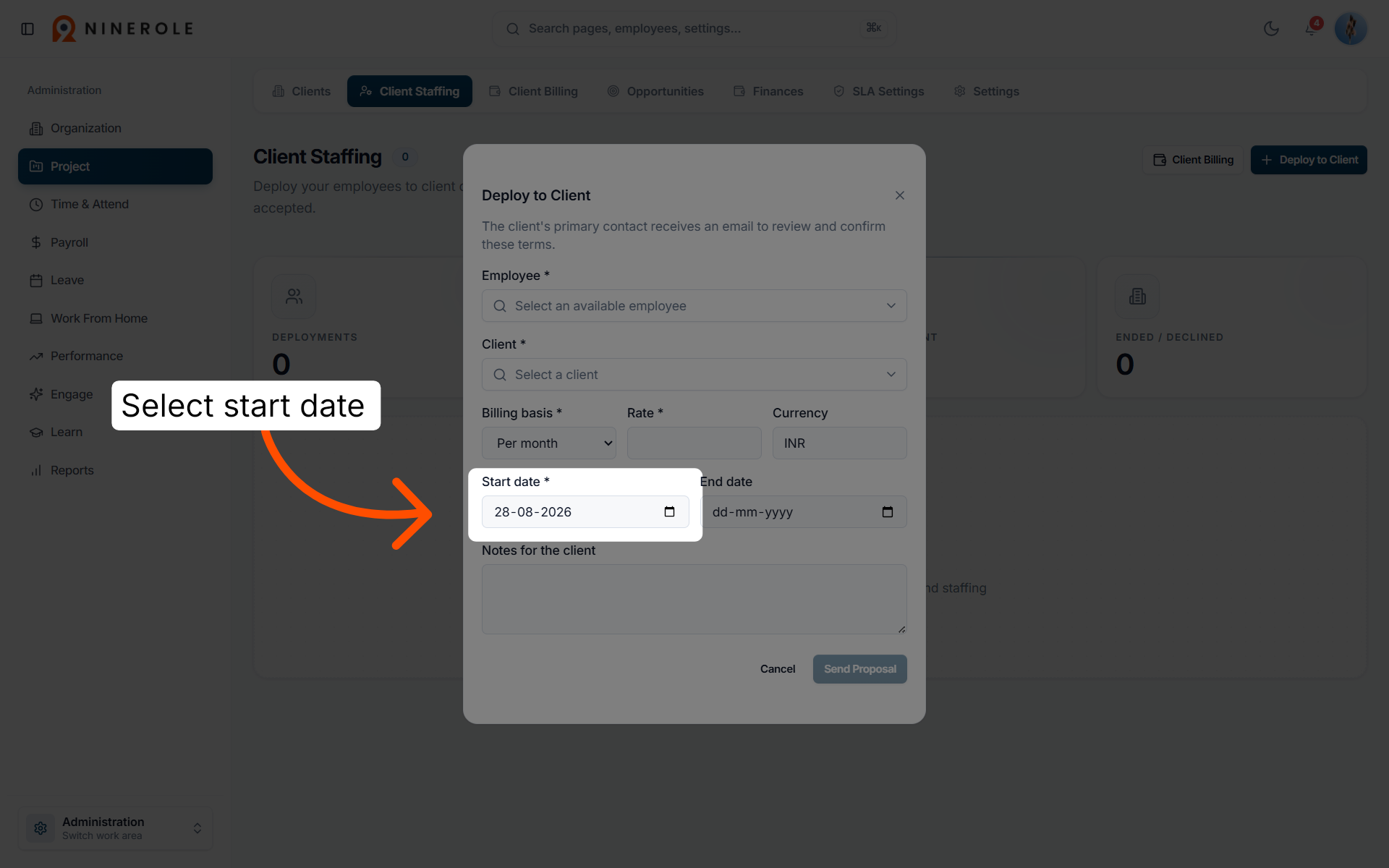
13. Set the start date
Select the Start date for the deployment.
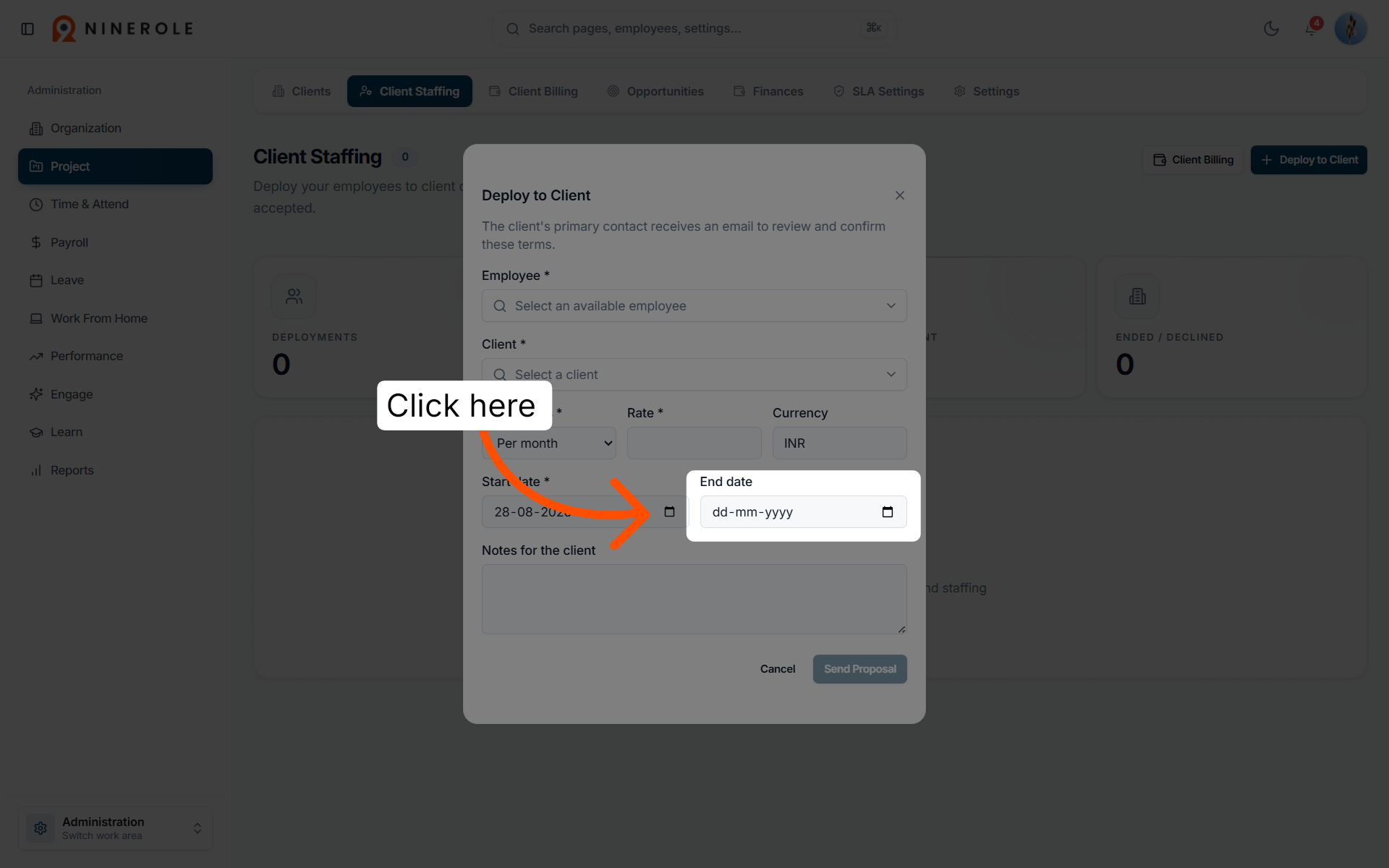
14. Set the end date
Open the date picker to select the End date.
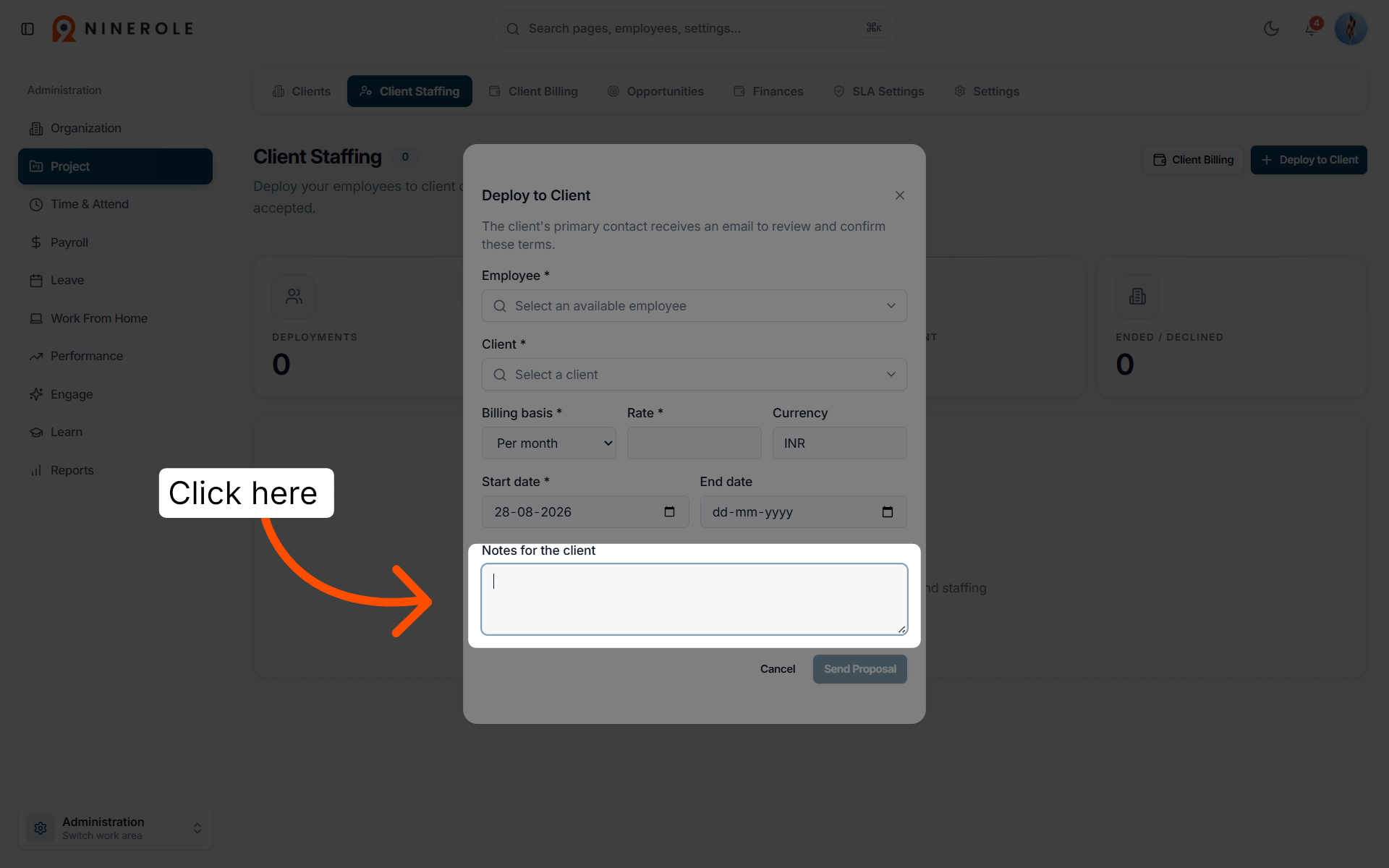
15. Add notes
Add any notes or additional information related to the deployment.
Send the proposal
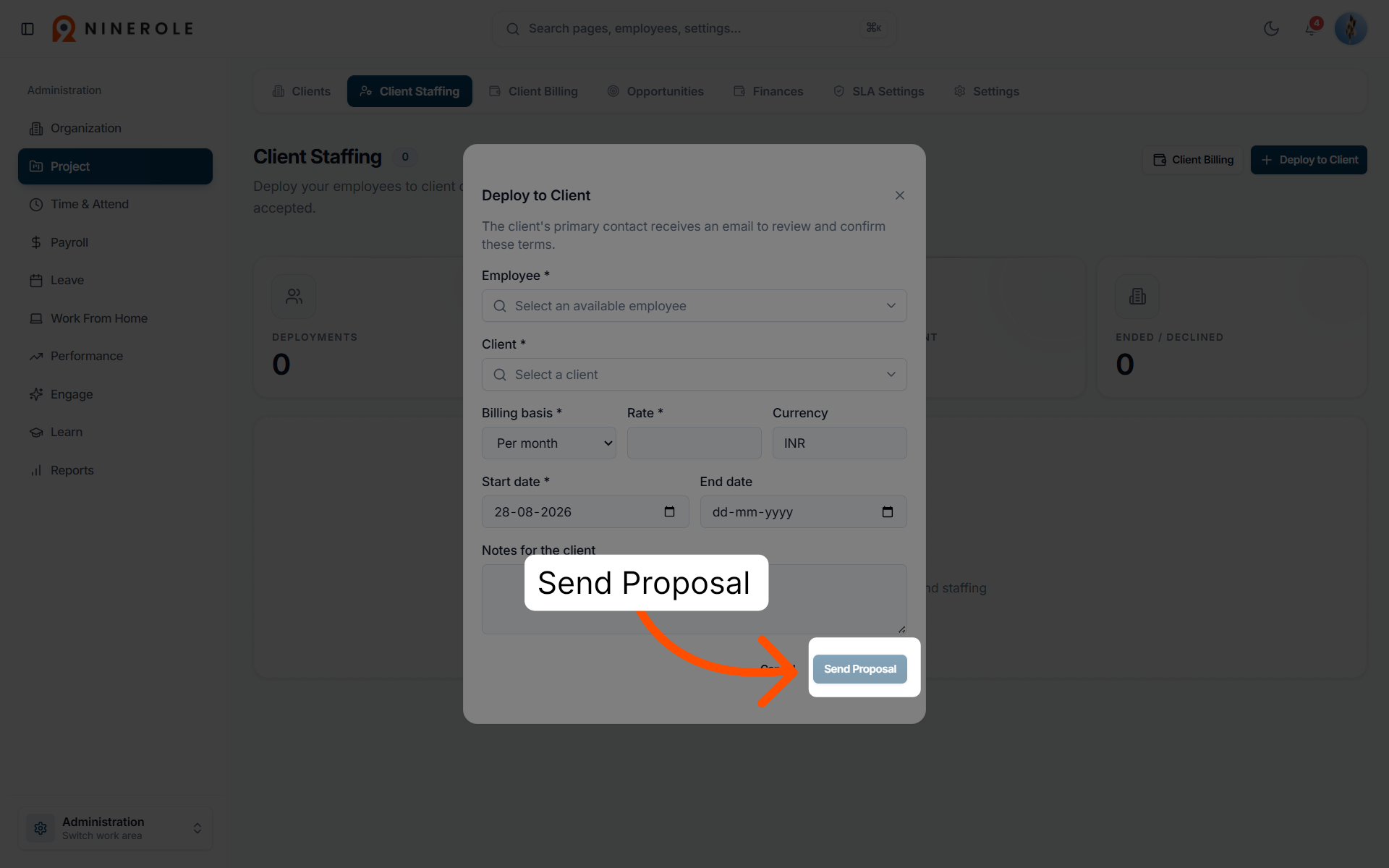
16. Send or cancel the proposal
Click Send Proposal to send the deployment terms to the client's primary contact for confirmation, or Cancel to discard it.
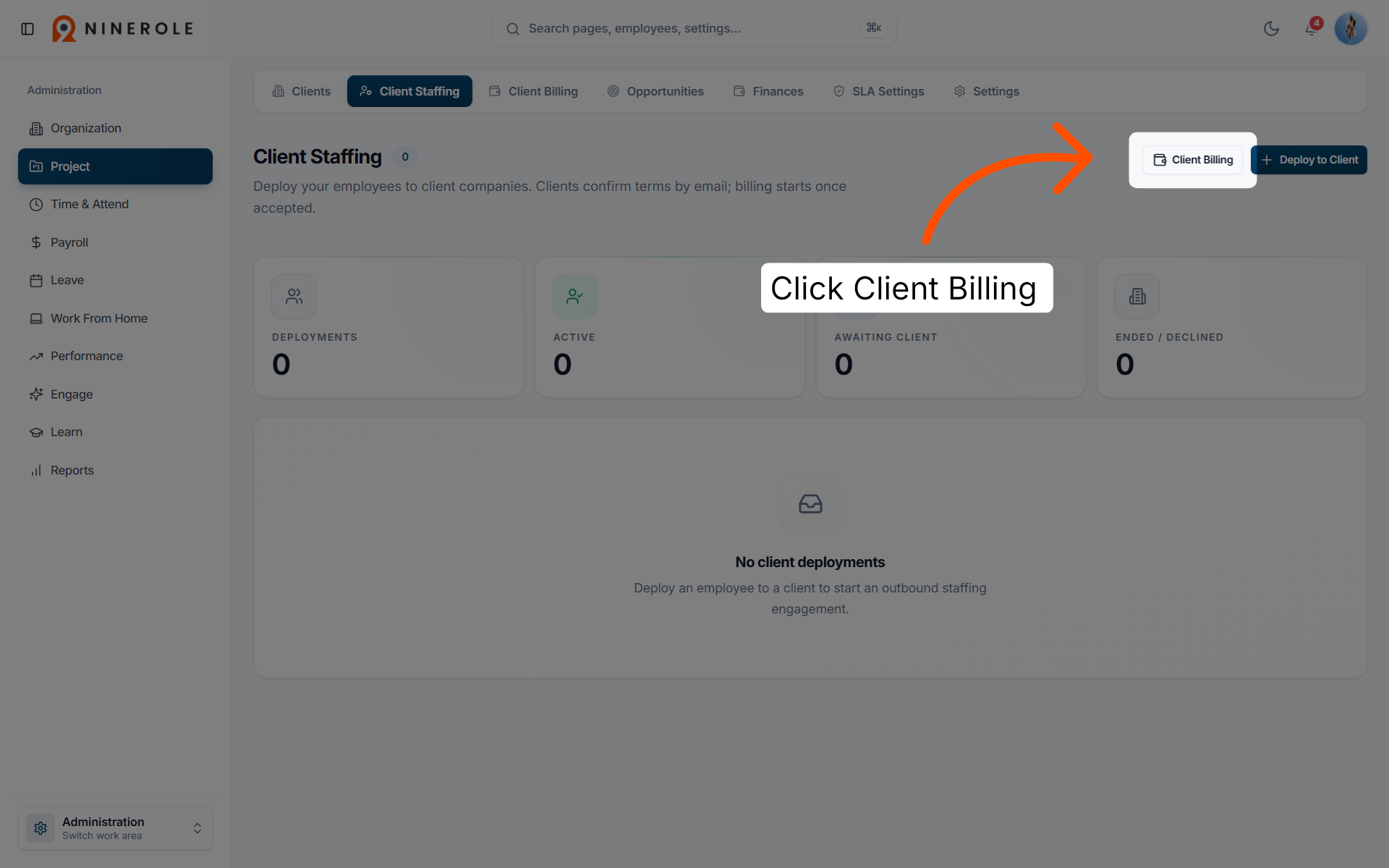
17. Open Client Billing settings
Click Client Billing to manage the billing configurations for your clients.
You have successfully configured client staffing and billing settings in Ninerole by deploying employees to clients and managing billing details. For further customization, explore the additional client management features within the application.
The client must already exist — see Configure New Client Profiles.
Back to Projects · all modules · Ninerole HRMS overview
Last updated: