

Manage Employee Leave
This tutorial guides you through managing employee leave requests efficiently using Ninerole. You will learn how to mark absences, update attendance, and submit leave on behalf of employees.
Before you start, go to ninerole.com.
About this task
- Purpose
- Manager tools for leave — mark an employee present or absent, apply leave on their behalf, and approve or reject requests.
- Who can do this
- Manager, over your own reports
- Before you start
- You have manager access over the employees concerned.
- A leave policy exists so leave types and balances are defined.
- You will need
- The employee, the dates, and the leave type if you are applying on their behalf.
- Result
- Leave is recorded, or a pending request is approved or rejected.
- This unlocks
- The days are reflected in attendance and read correctly by payroll.
This guide answers
- How do I approve a leave request?
- How do I apply leave for an employee?
- How do I mark someone absent or present?
- Why can't I see an employee's request?
- Where do I check someone's leave balance?
If something goes wrong
- An employee's request is not in your queue.
- Approvals follow the reporting structure. If the person does not report to you, the request goes to their manager.
- The employee has no balance left.
- Balance is per leave type, not one pool. Check the specific type before approving.
Related: Request leave · My & team attendance · Work from homeAlso called: leave approval, apply leave for an employee.Last verified: 7 September 2026
1. Introduction
You will learn how to mark absences, update attendance, and submit leave on behalf of employees.
Open manager leave management
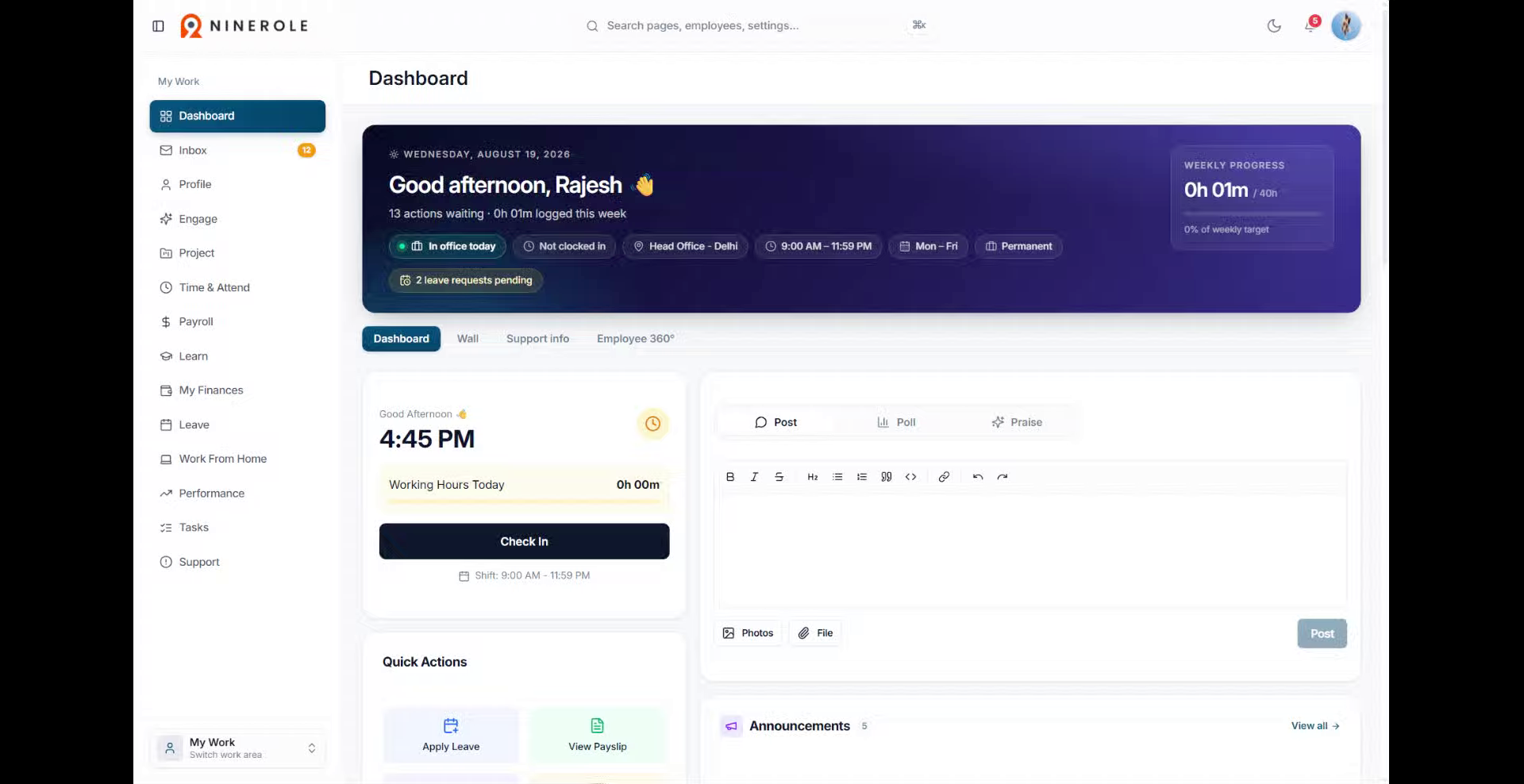
2. Access the Leave section
Click Leave to open the leave management section on your dashboard.
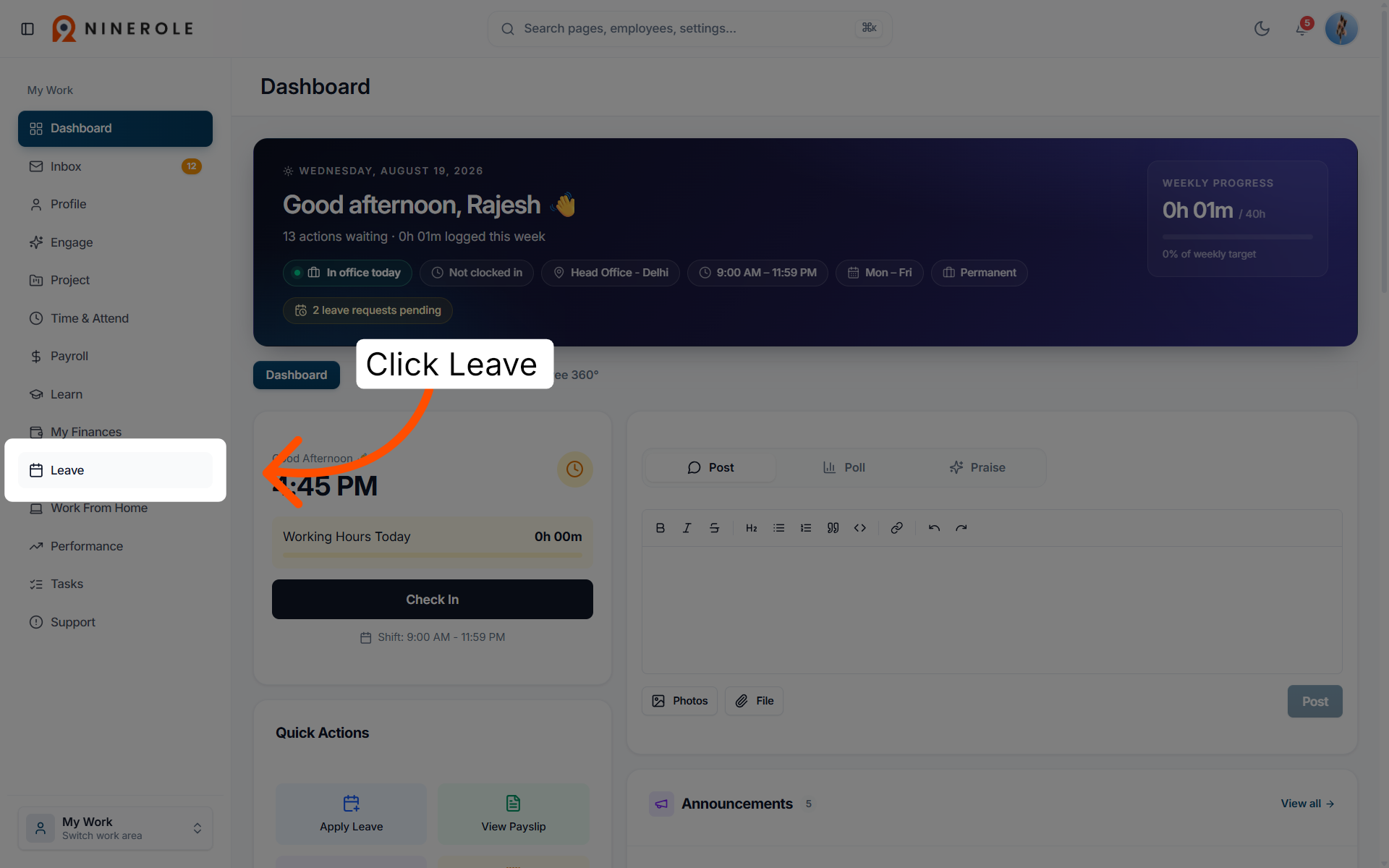
3. Open manager leave management
Click Manage (Manager) to access the leave management interface for managers.
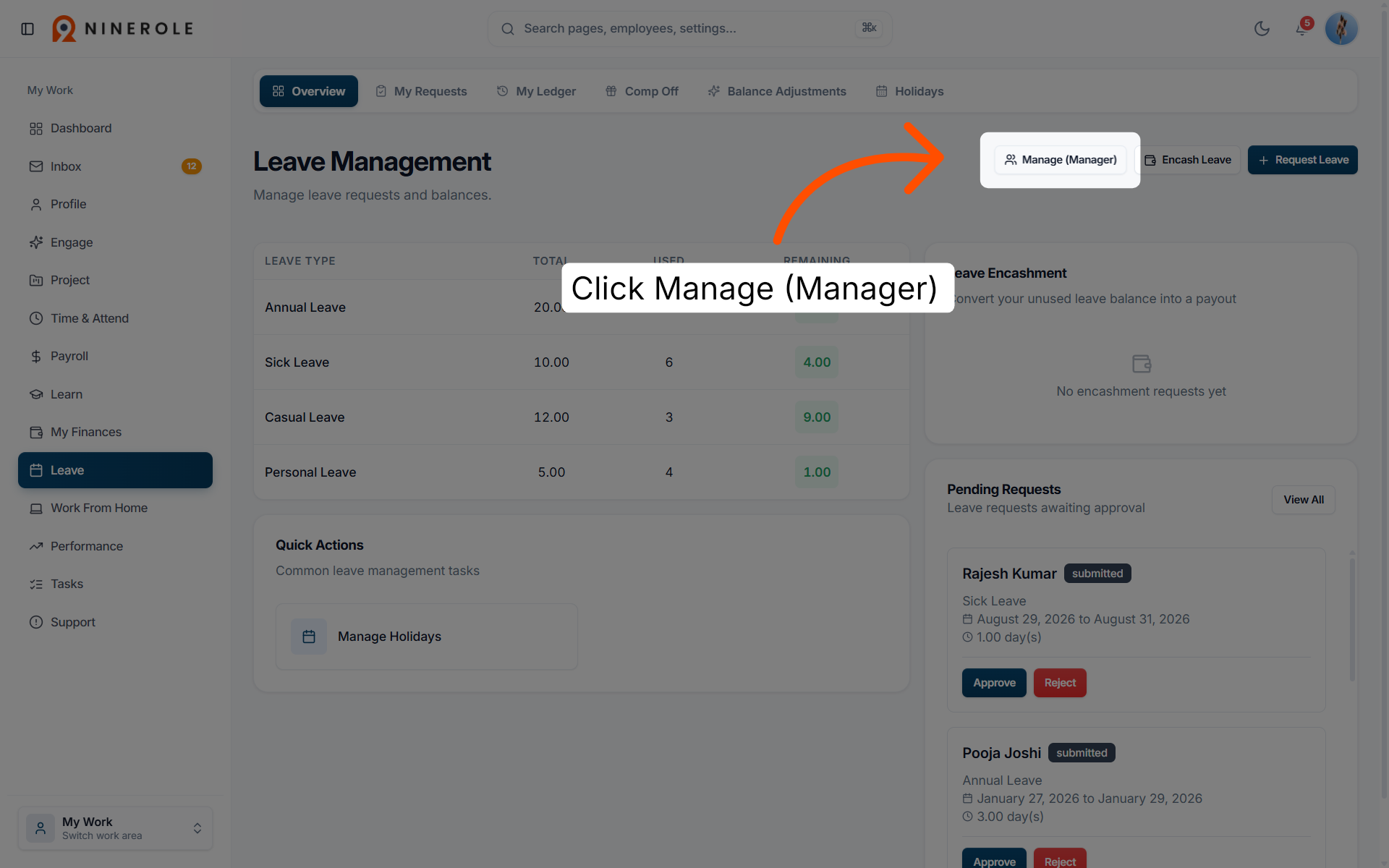
Mark an employee absent
4. Select the employee
Choose Employee to view and manage leave details for that individual.
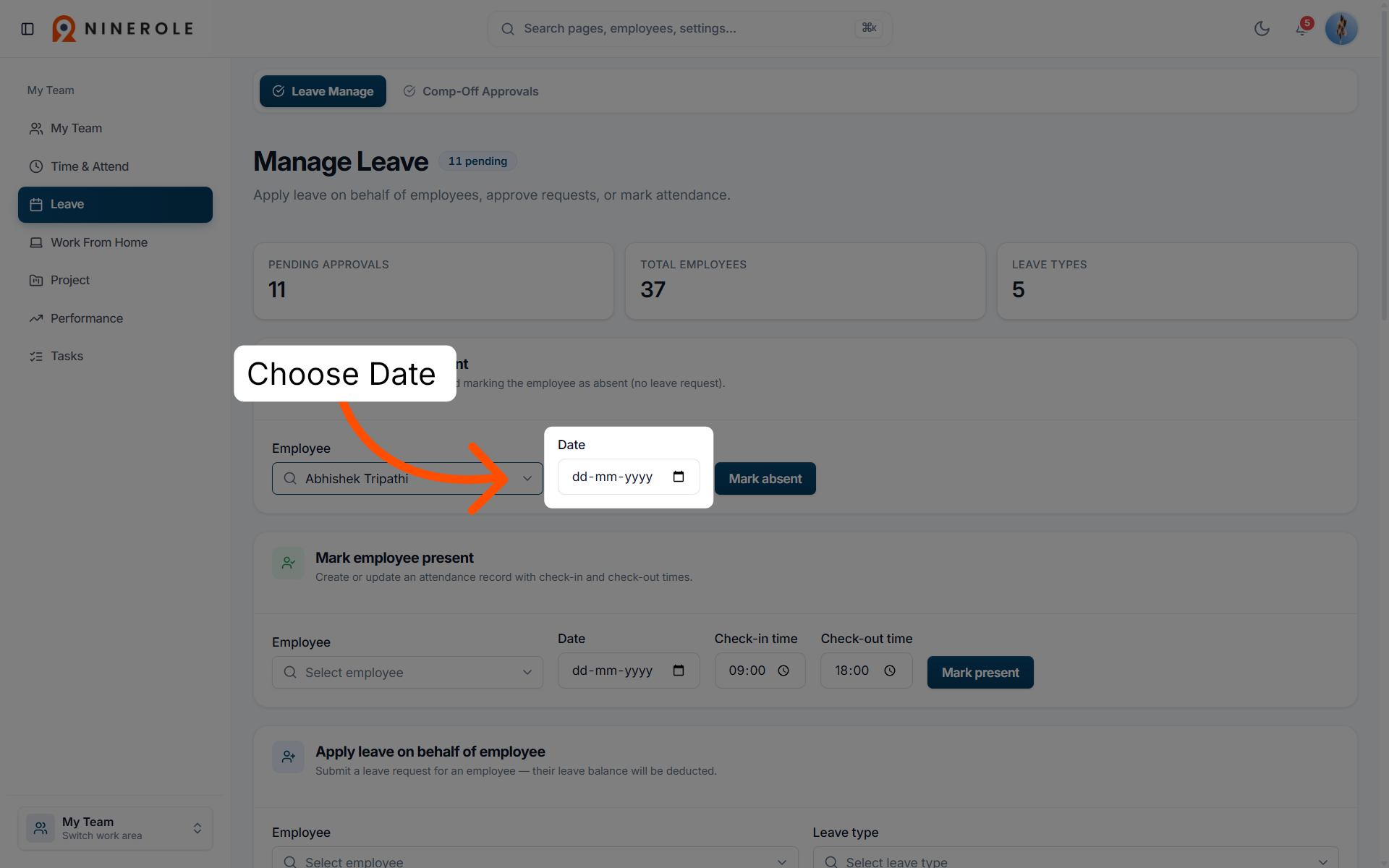
5. Open the date selection
Choose Date to specify the date for marking leave or attendance.
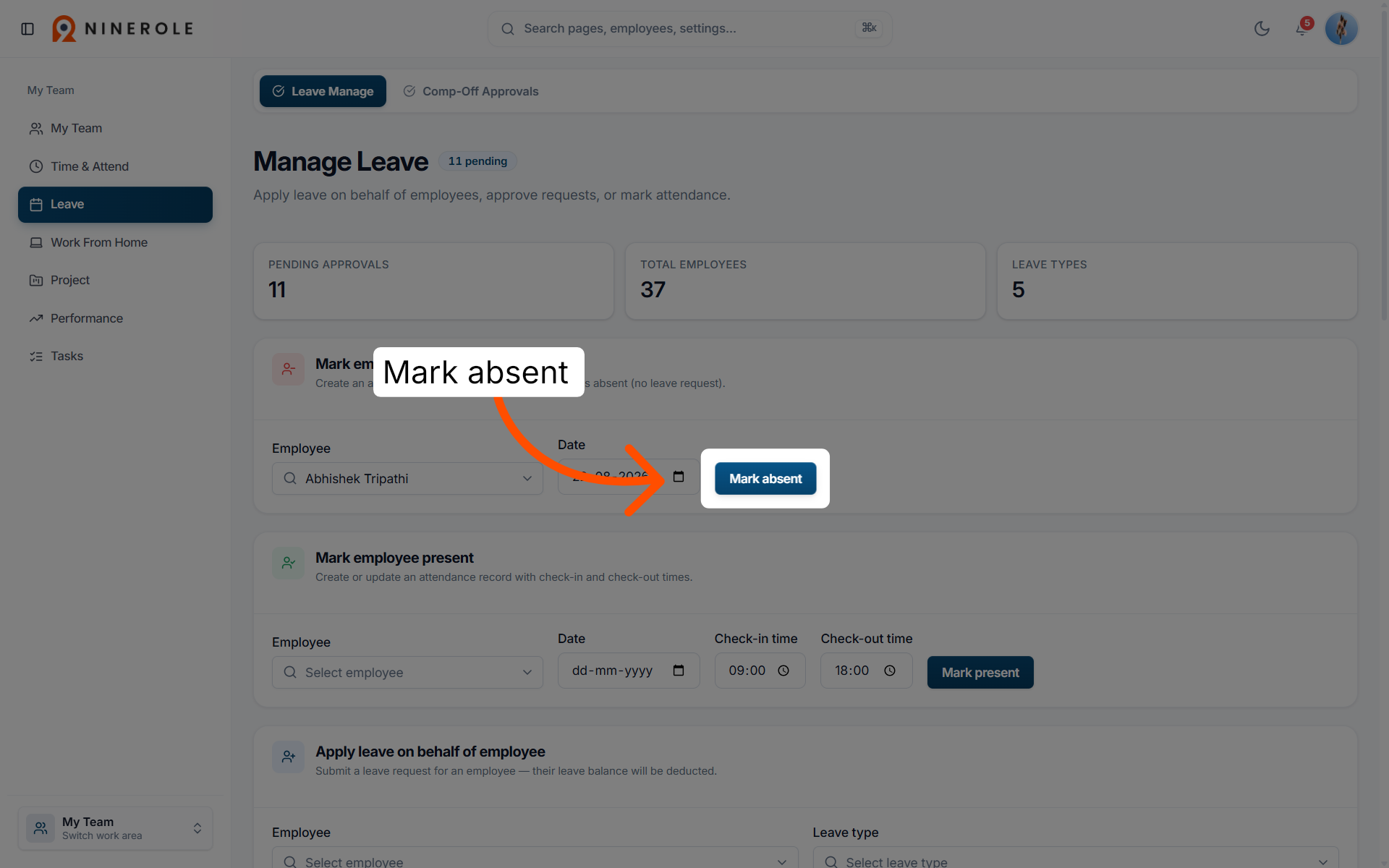
6. Mark the employee absent
Click Mark absent to record the employee as absent on the selected date.
Mark an employee present
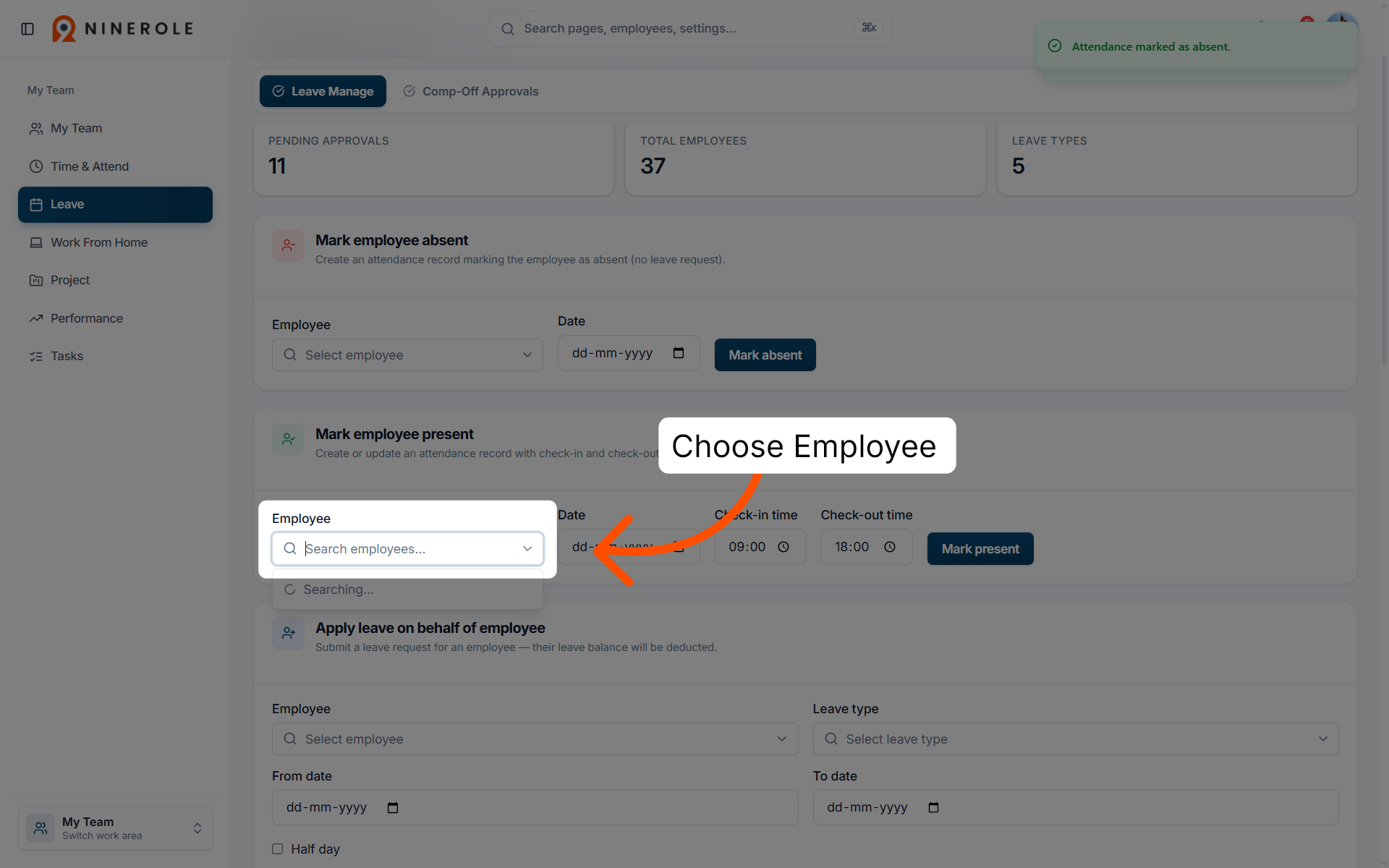
7. Return to the employee list
Choose Employee to go back to the list of employees for further leave management.
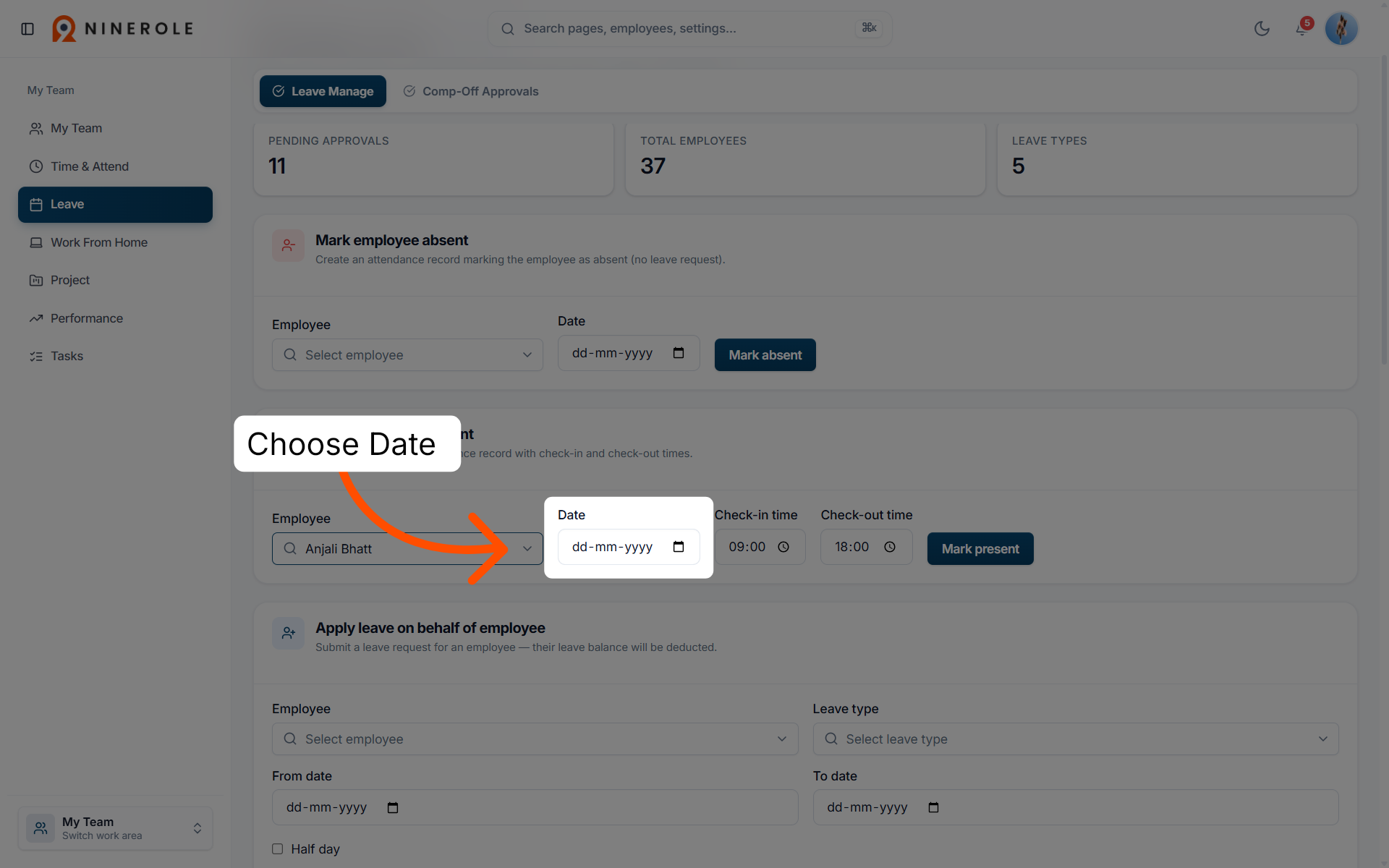
8. Open the date field
Choose Date to pick the date for the attendance update or leave marking.
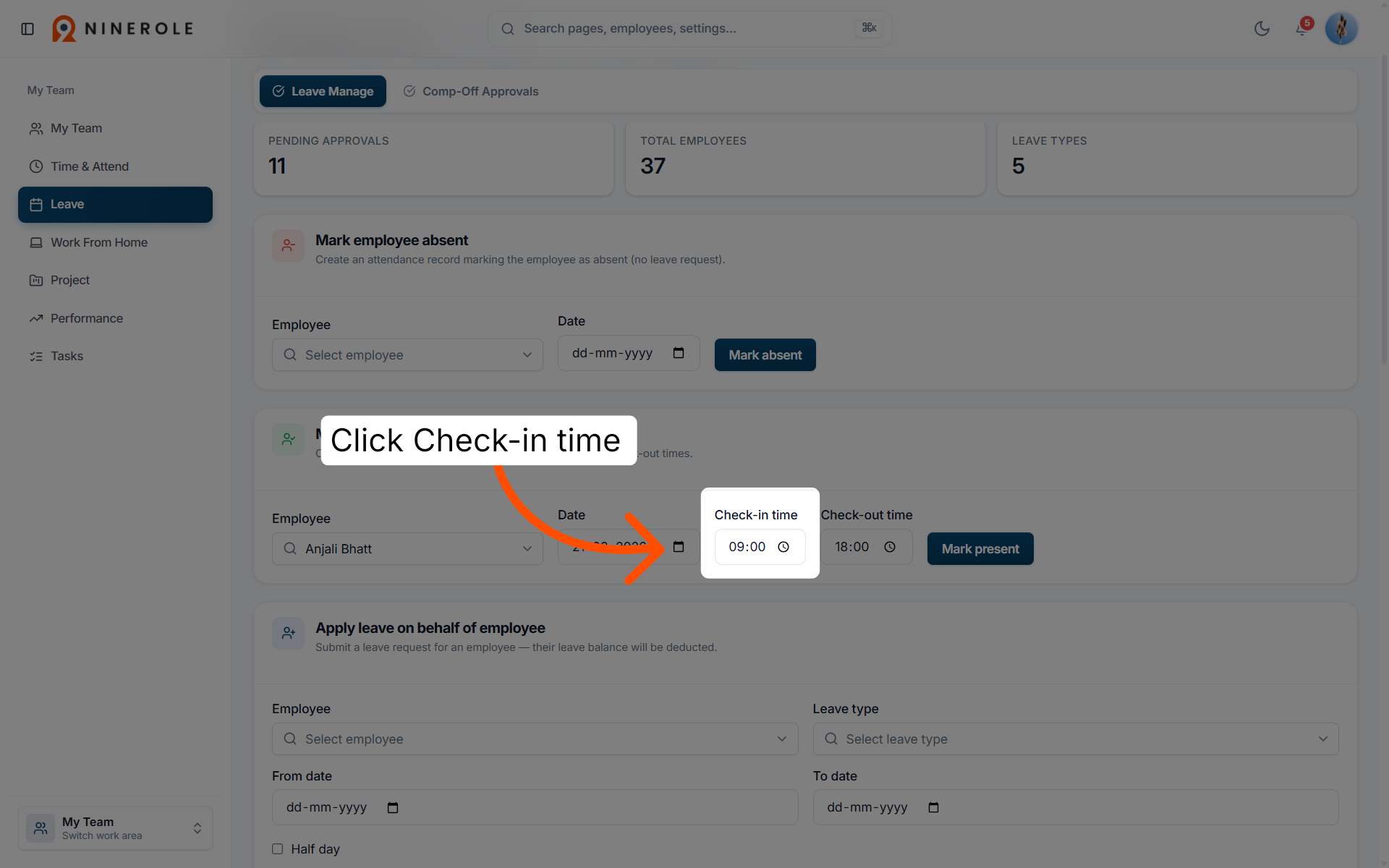
9. Select the check-in time
Add Check-in time to set the employee's arrival time for the day.
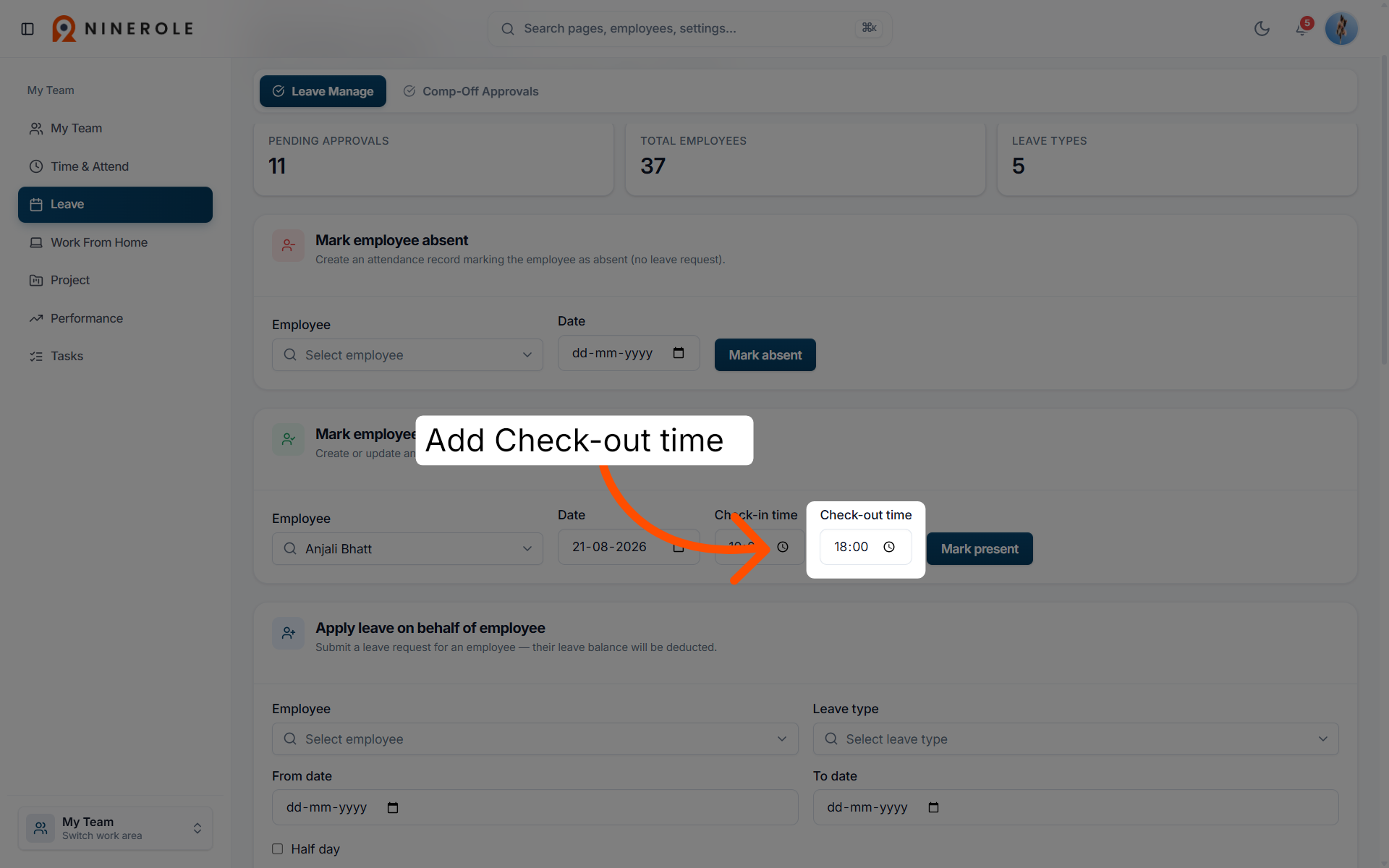
10. Select the check-out time
Add Check-out time to set the employee's departure time for the day.
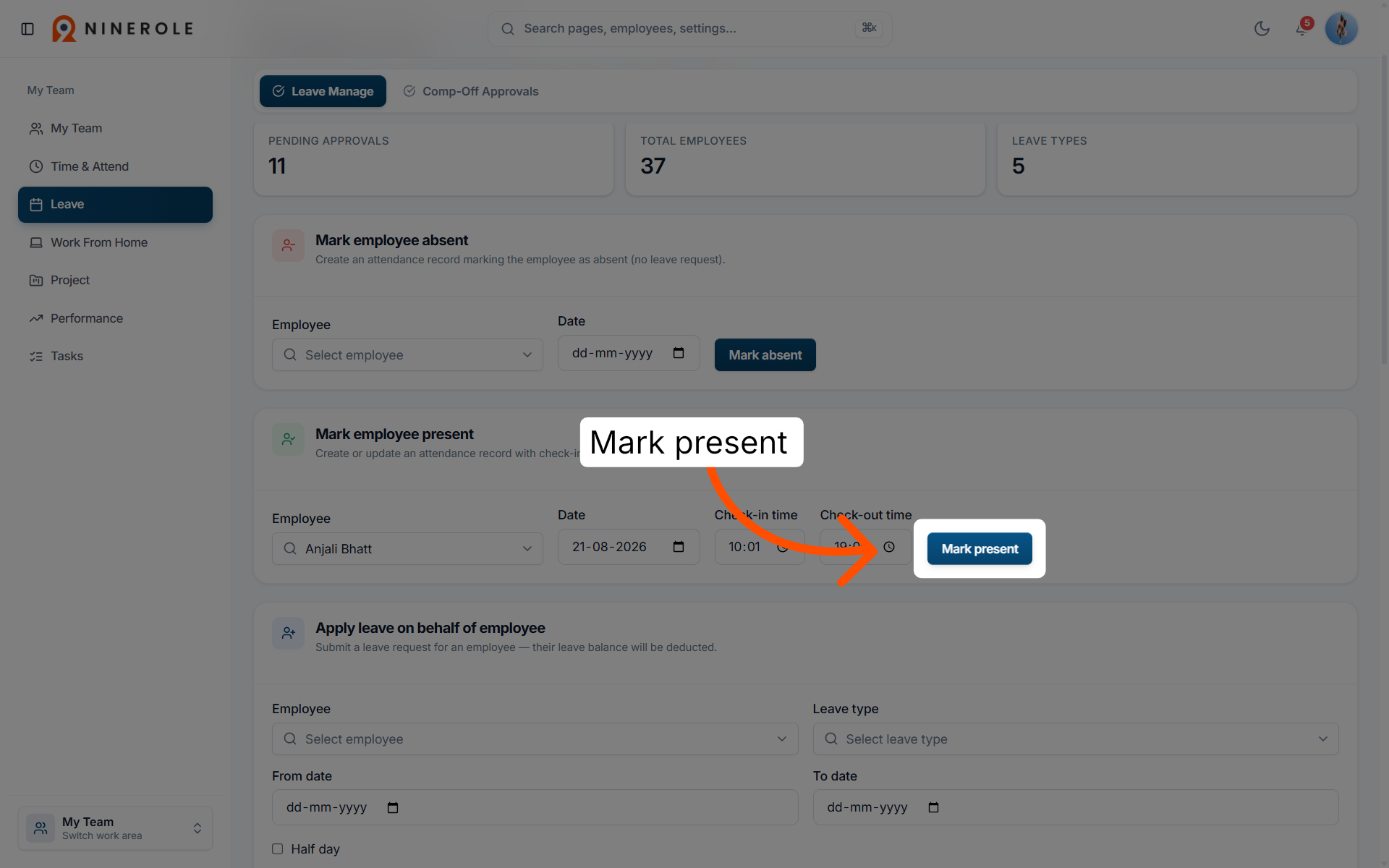
11. Mark the employee present
Click Mark present to confirm the employee's attendance for the selected date.
Apply leave on behalf of an employee
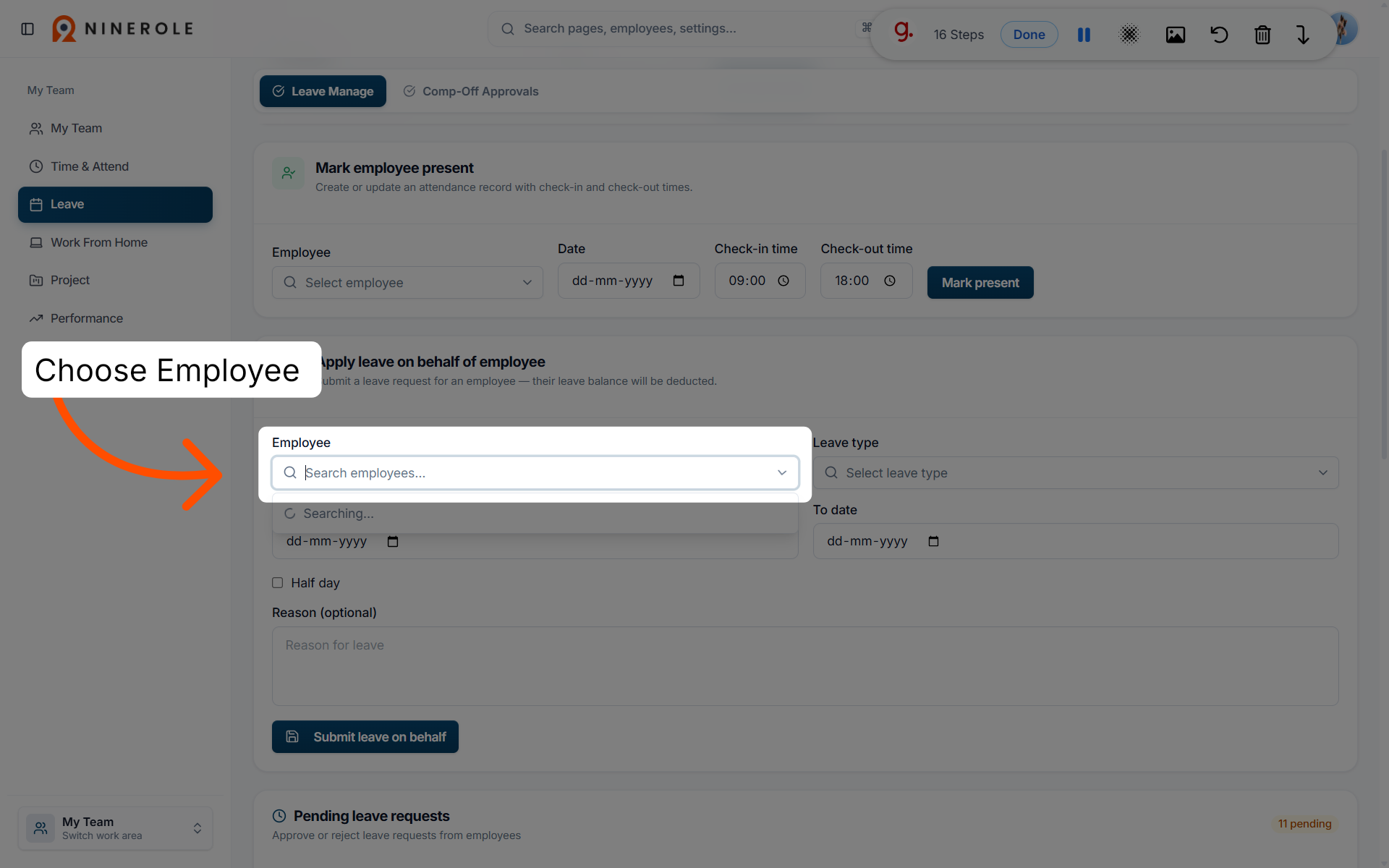
12. Select the employee again
Choose Employee to return to the employee selection list.
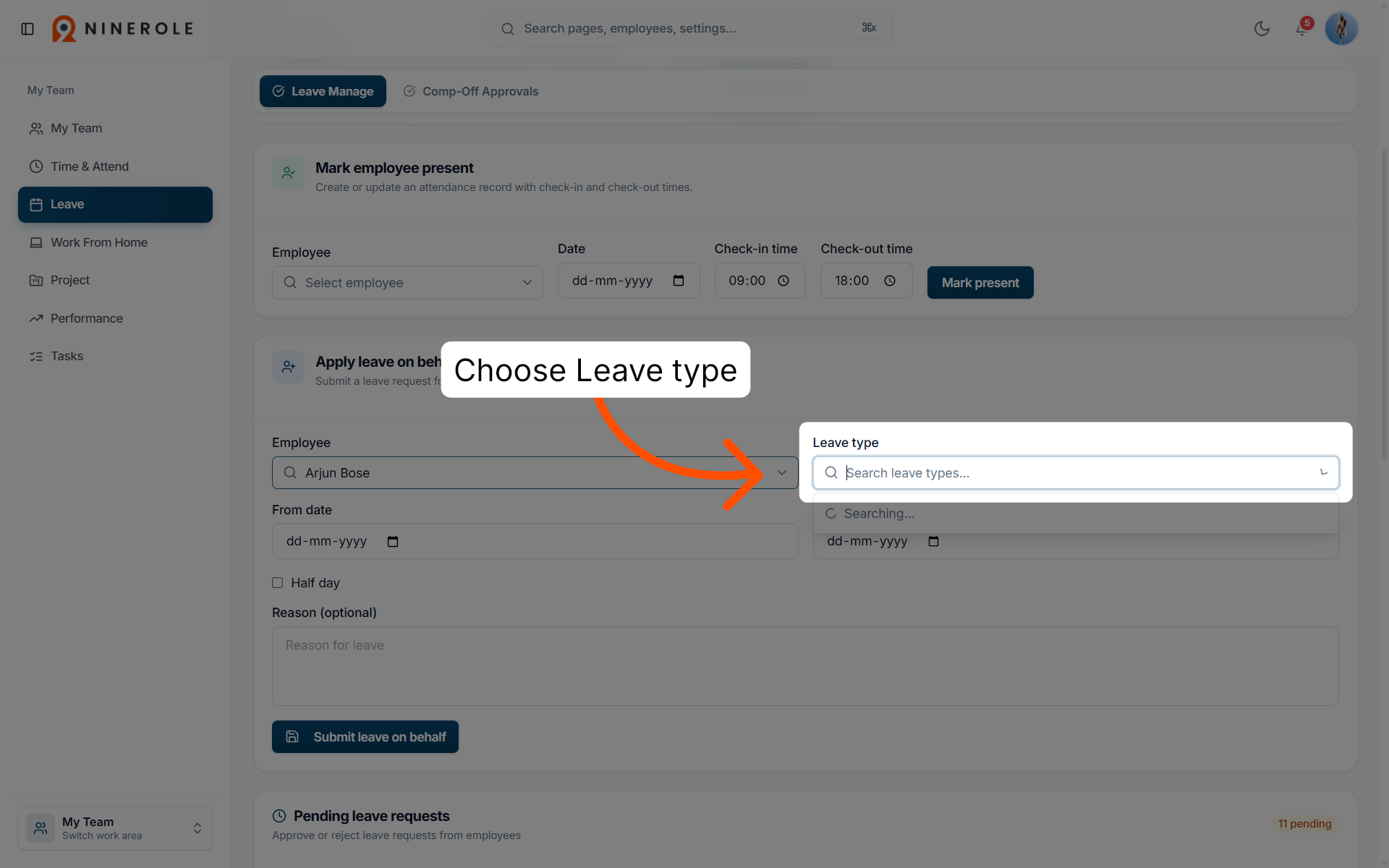
13. Open the leave type menu
Choose Leave type to select the category of leave to assign.
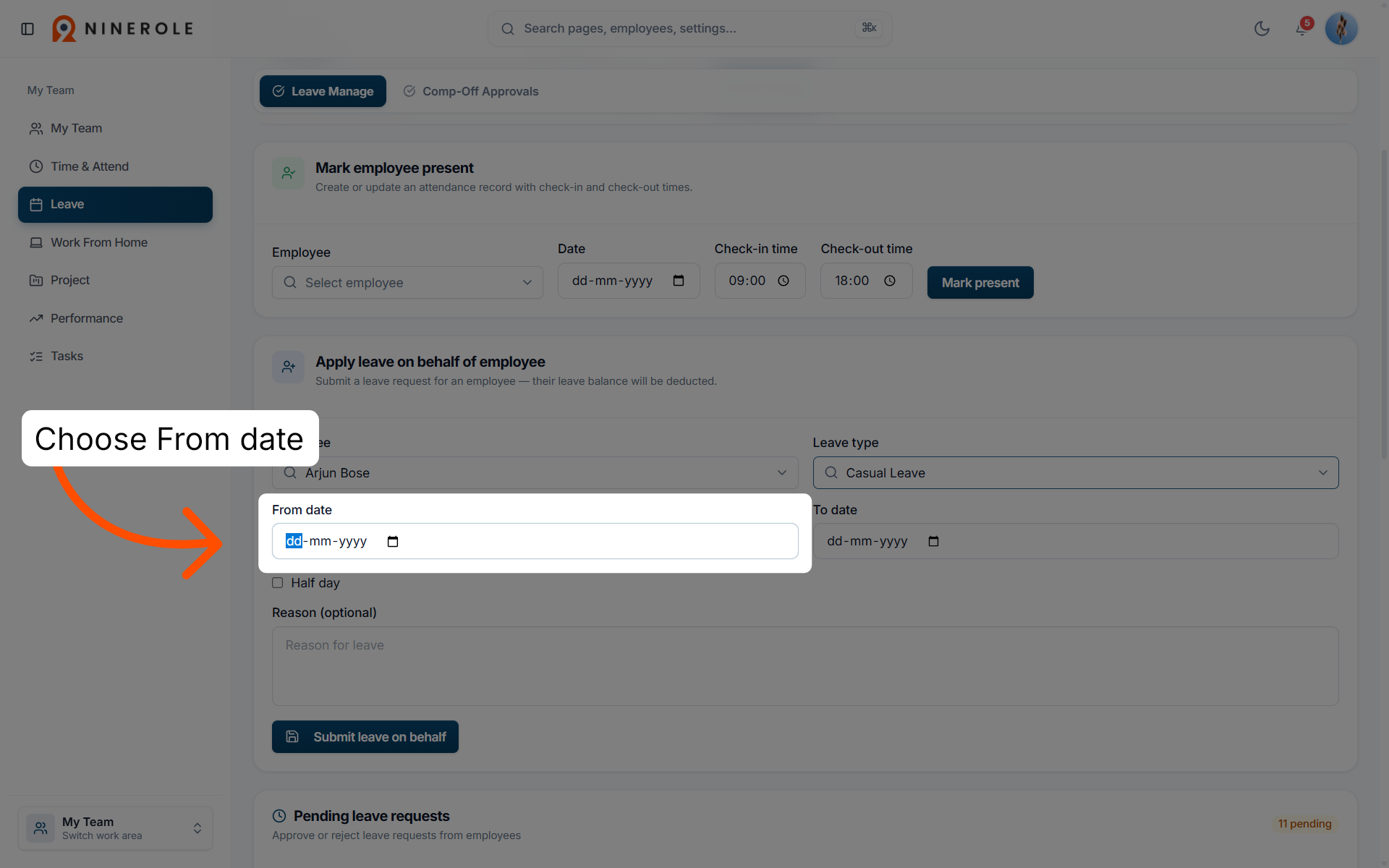
14. Open the From date field
Choose From date to specify the start date of the leave period.
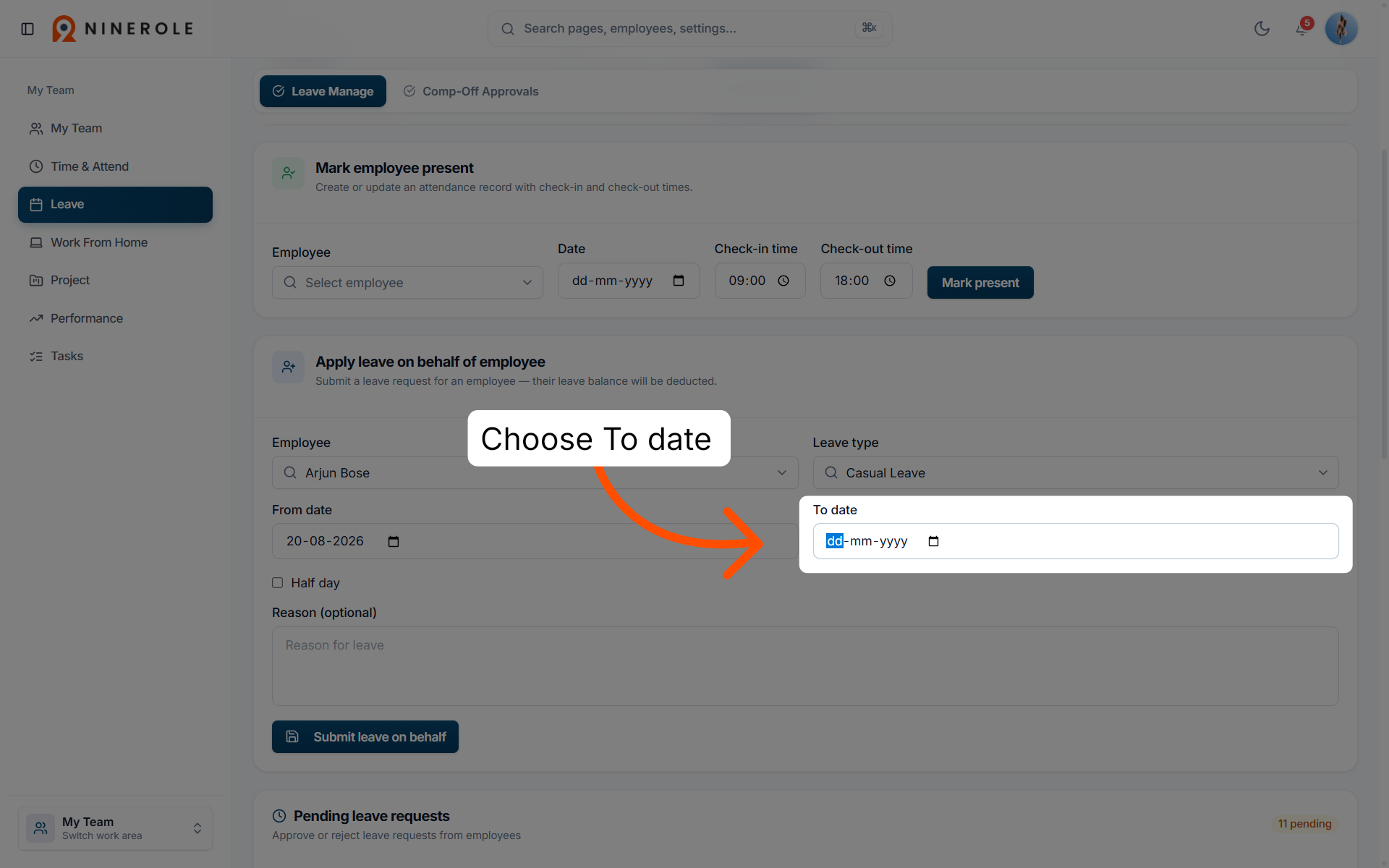
15. Open the To date field
Choose To date to specify the end date of the leave period.
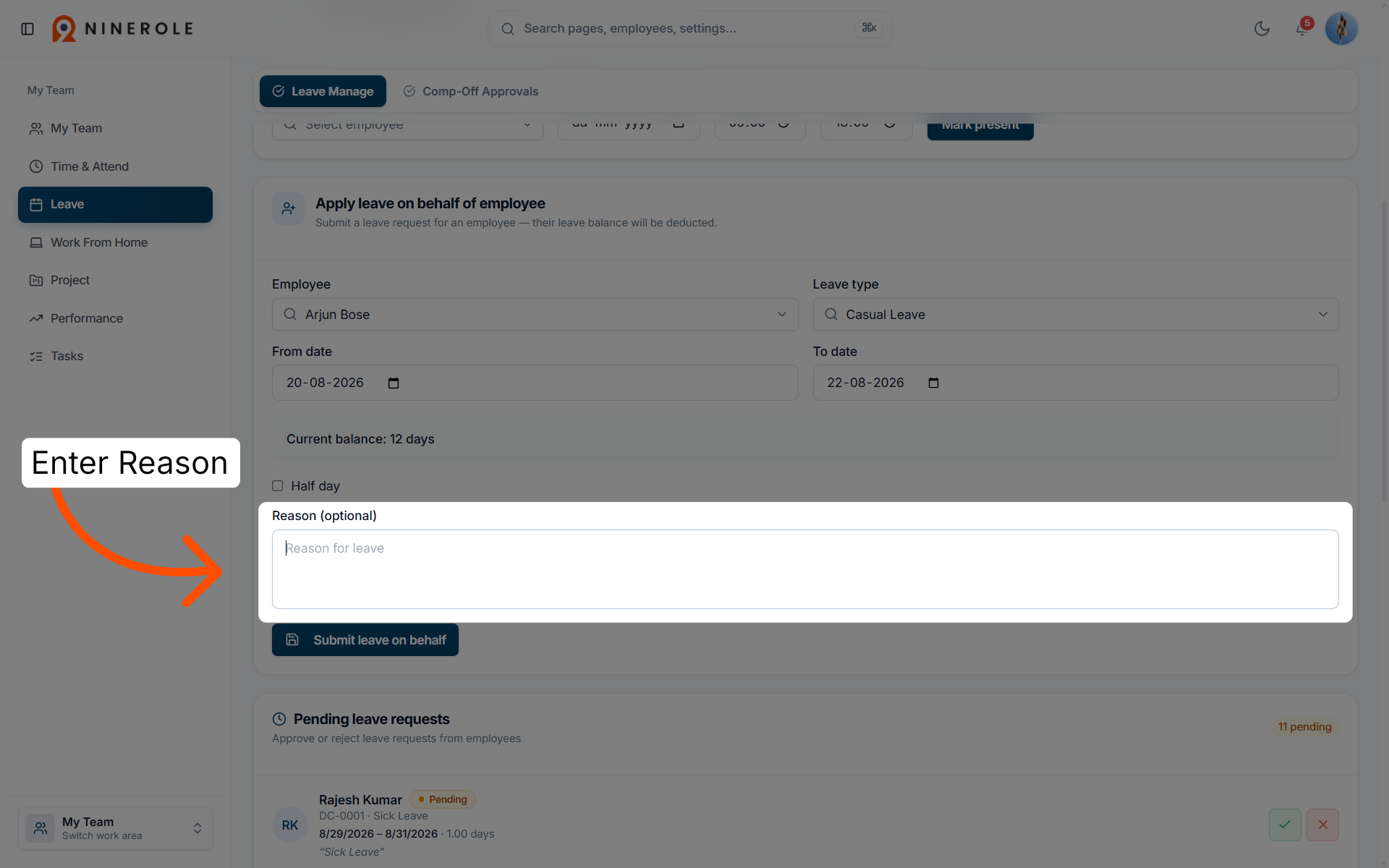
16. Open the reason field
Enter Reason (optional) to provide a justification for the leave request.
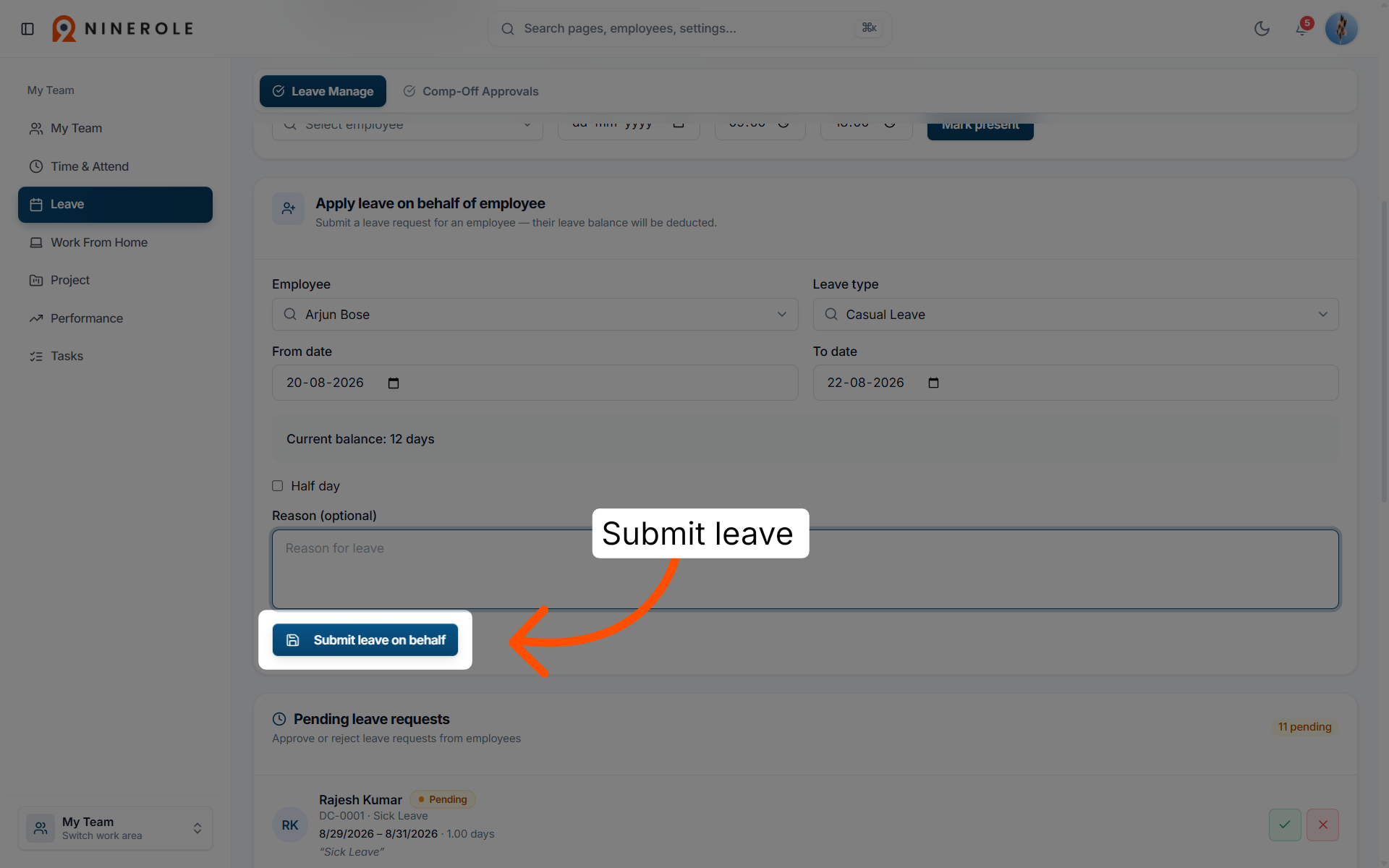
17. Submit the leave request
Click Submit leave on behalf to finalize and send the leave request for approval.
Approve or reject leave requests
18. Approvals overview
You can update, approve, or reject leave application requests.
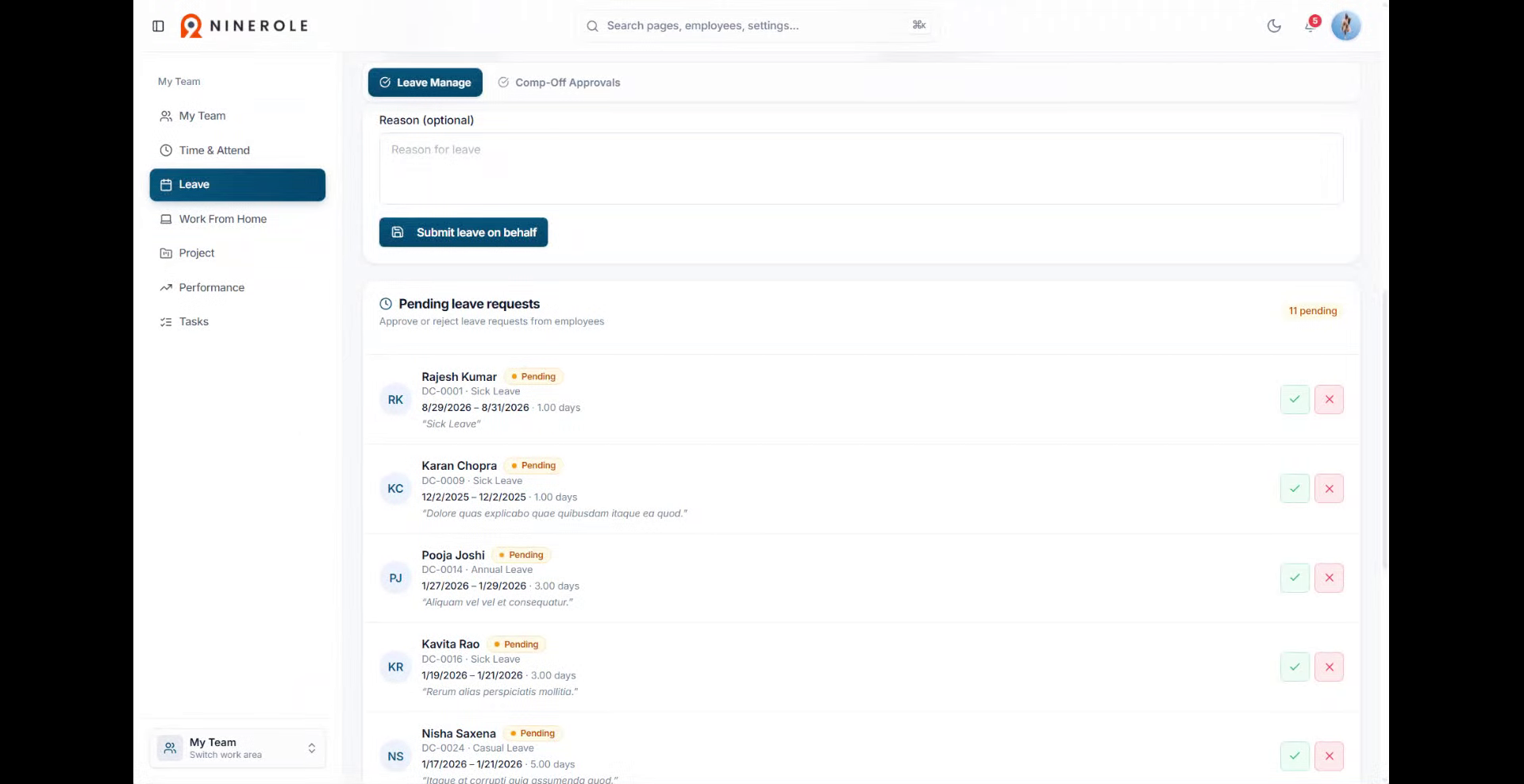
19. Access leave management
Open the Manage Leave section in Ninerole, where you can review leave requests.
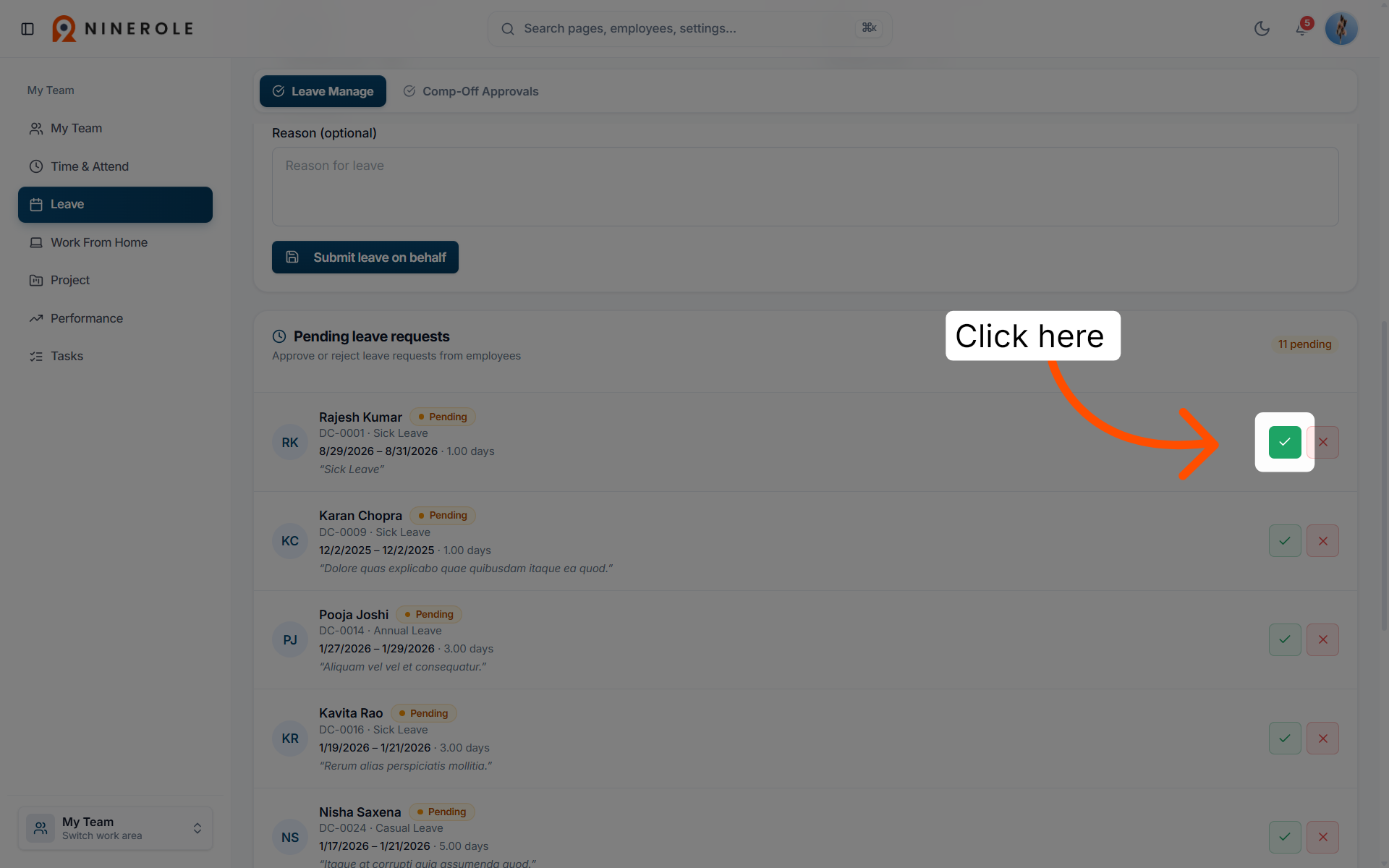
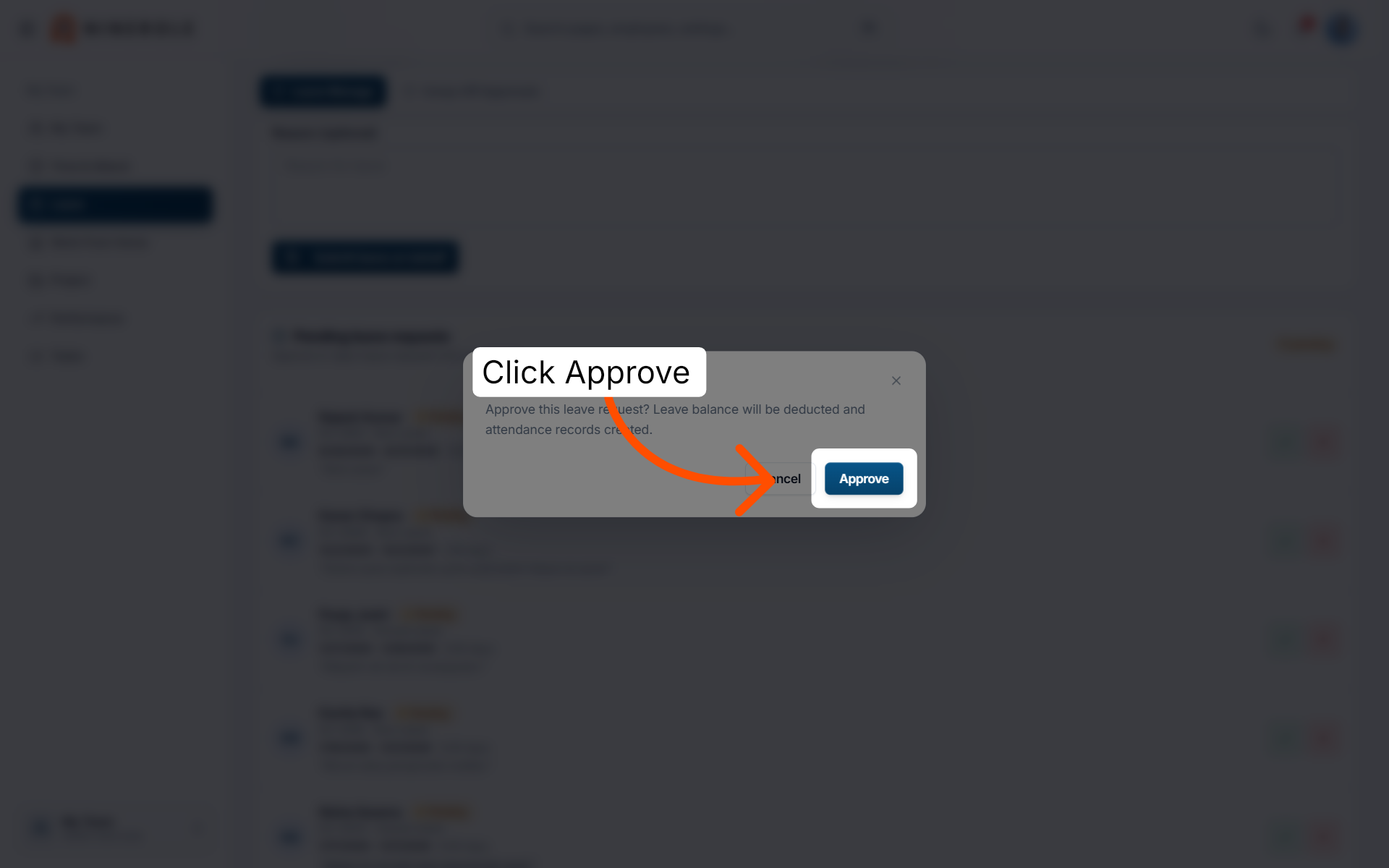
20. Approve a leave request
Click Approve to grant the leave request for the selected employee.
21. Open the rejection option
Start the process of rejecting a leave request if approval is not possible.
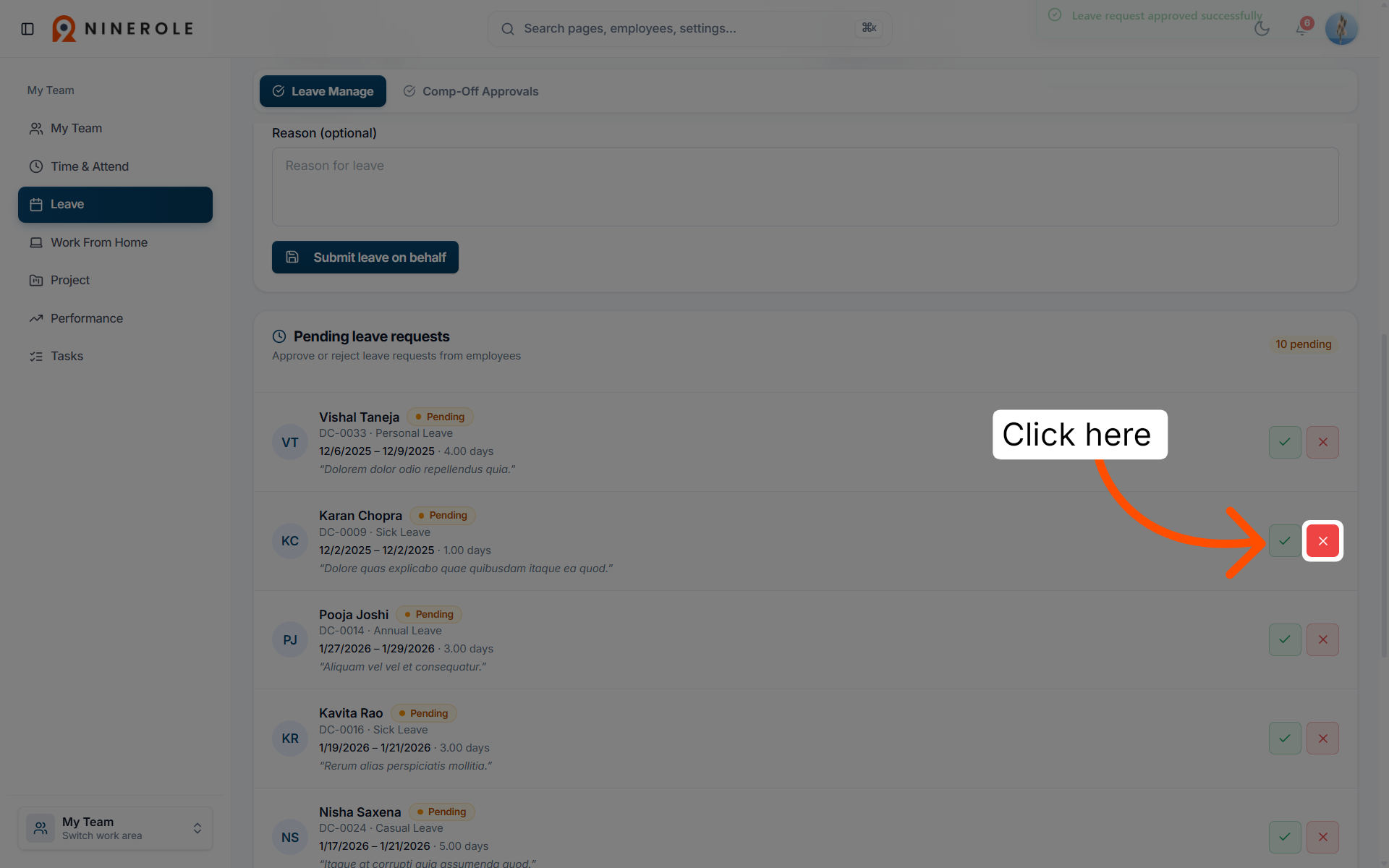
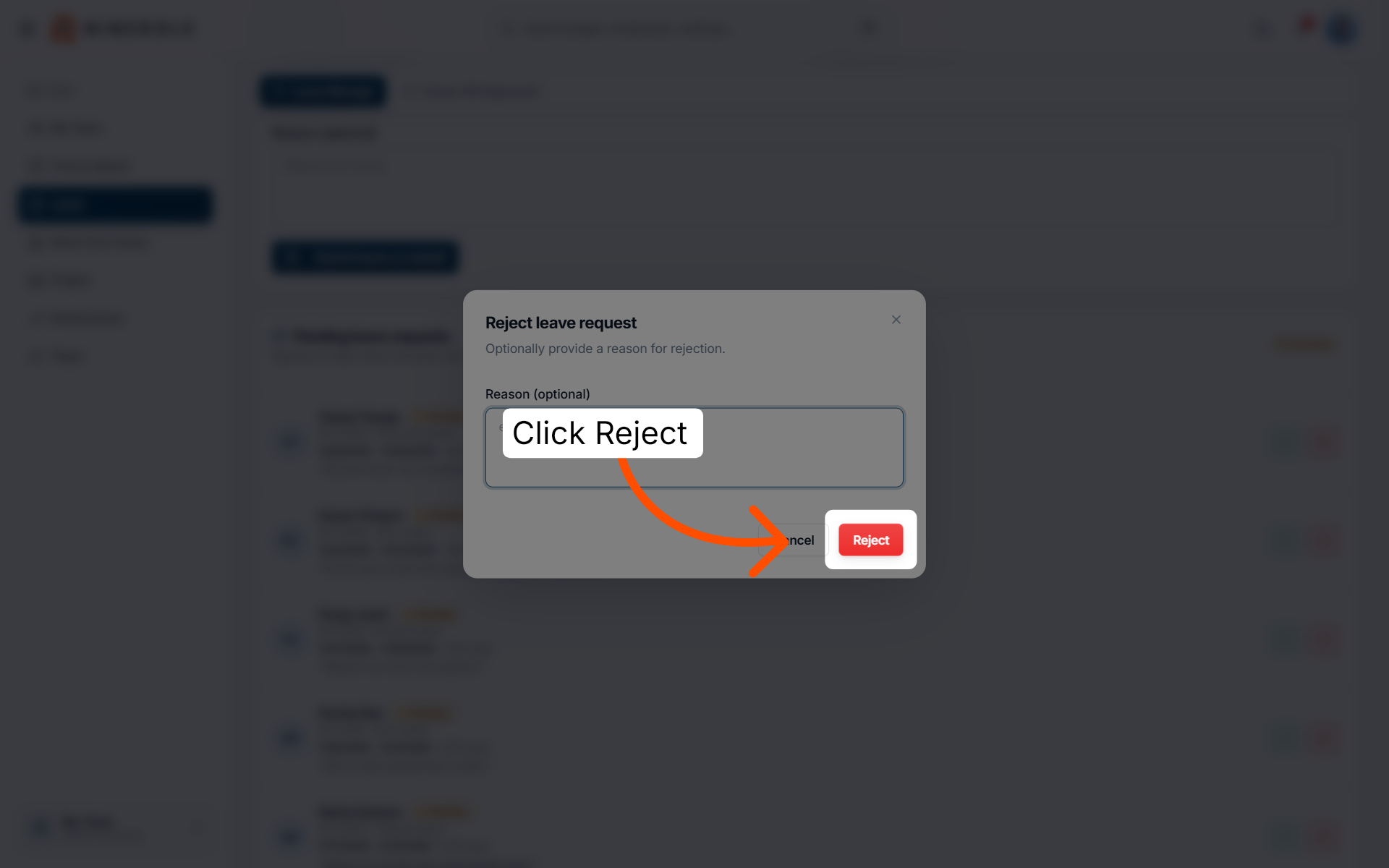
22. Reject the leave request
Click Reject to finalize the rejection of the leave request with the provided reason.
Employees raise their own requests too — see Submit a Leave Request.
Back to Attendance · all modules · Ninerole HRMS overview
Last updated: