

Manage Travel Allowance and Reimbursements
This tutorial guides you through managing travel allowances and reimbursements within the Ninerole platform. You will learn how to navigate the system, filter employee data, review trip details, and process payments effectively.
Before you start, go to ninerole.com.
About this task
- Purpose
- Review employee travel allowance and reimbursement claims, and process them for payment.
- Who can do this
- Payroll administrator or HR admin
- Before you start
- Employees have submitted claims to review.
- You will need
- The claim, its supporting detail, and your approval decision.
- Result
- Claims are reviewed and marked for payment, so they can be included in payroll.
- This unlocks
- Reimbursement amounts flowing into the employee's pay.
This guide answers
- How do I approve a travel reimbursement?
- Where do I see submitted travel claims?
- How does a reimbursement reach the employee's salary?
- Can I reject part of a claim?
- Who can approve reimbursements?
If something goes wrong
- A claim is not visible.
- It may not be submitted yet, or it sits with a different approver.
- An approved claim did not appear in pay.
- It was approved after the pay run was finalized. It will fall into the next period.
Related: Run payroll · My payslipsAlso called: travel expense, reimbursement claim, TA.Last verified: 7 September 2026
1. Introduction
You will learn how to navigate the system, filter employee data, review trip details, and process payments effectively.
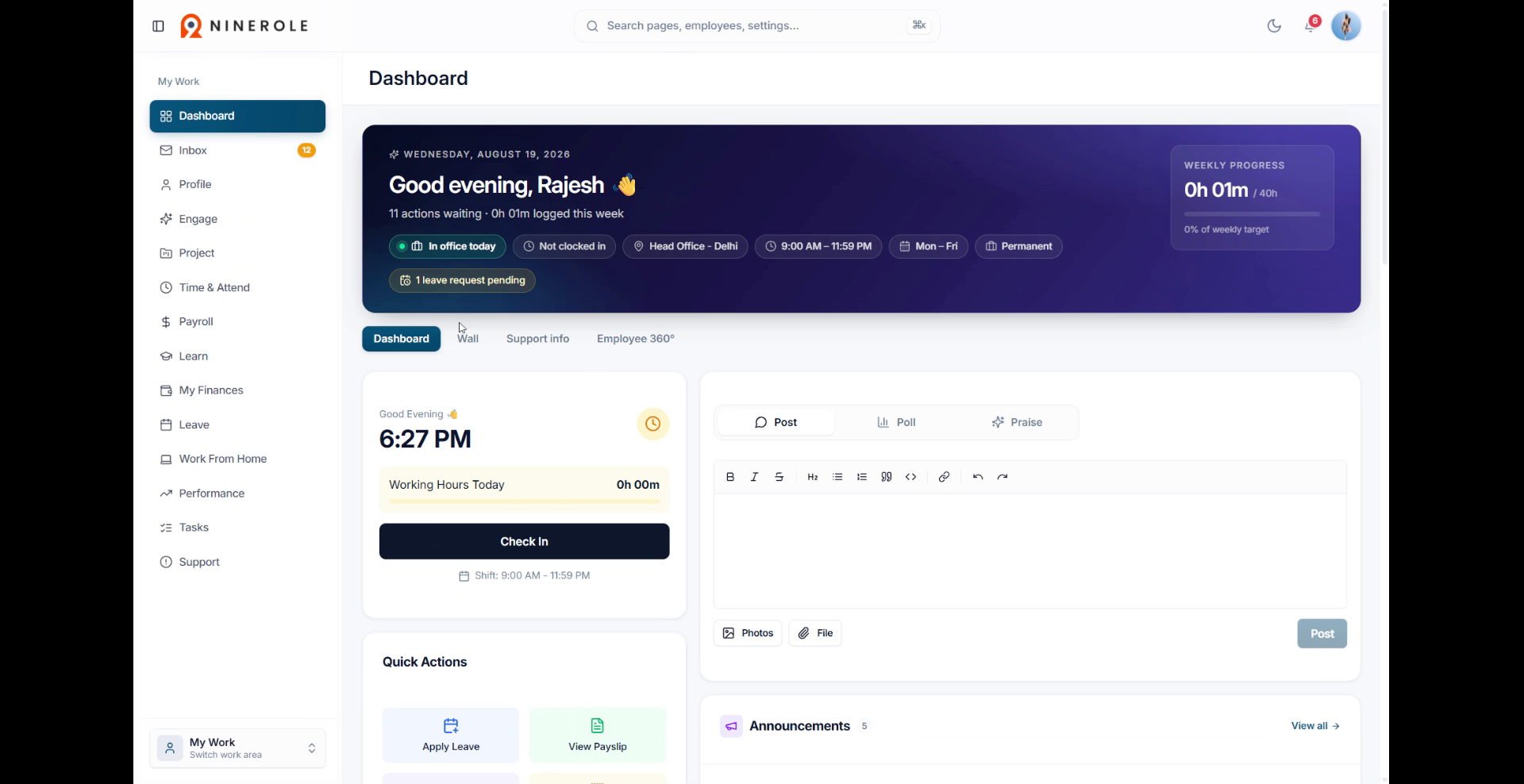
Review travel allowance
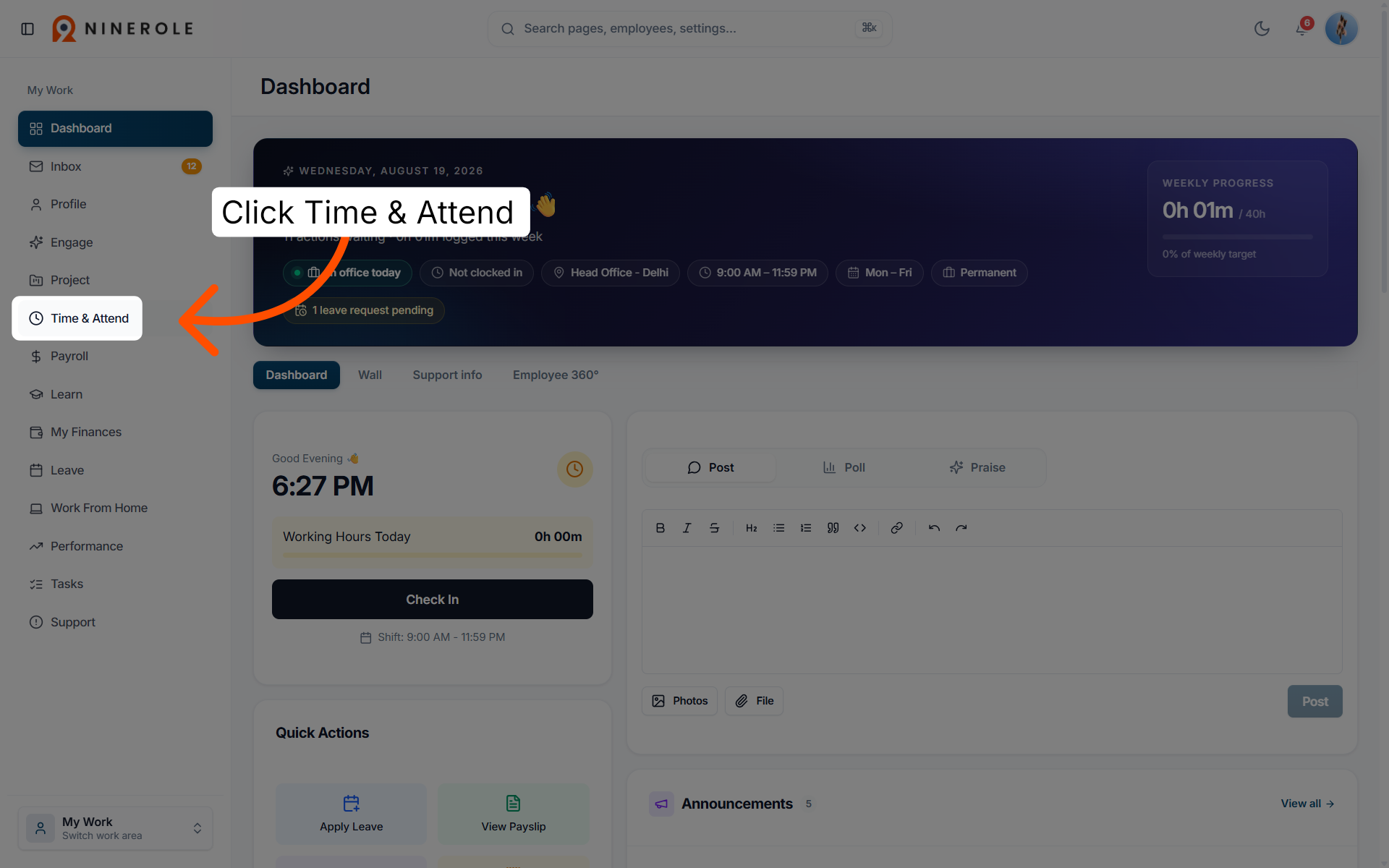
2. Access Time & Attendance
Click Time & Attend to open the attendance management section in Ninerole.
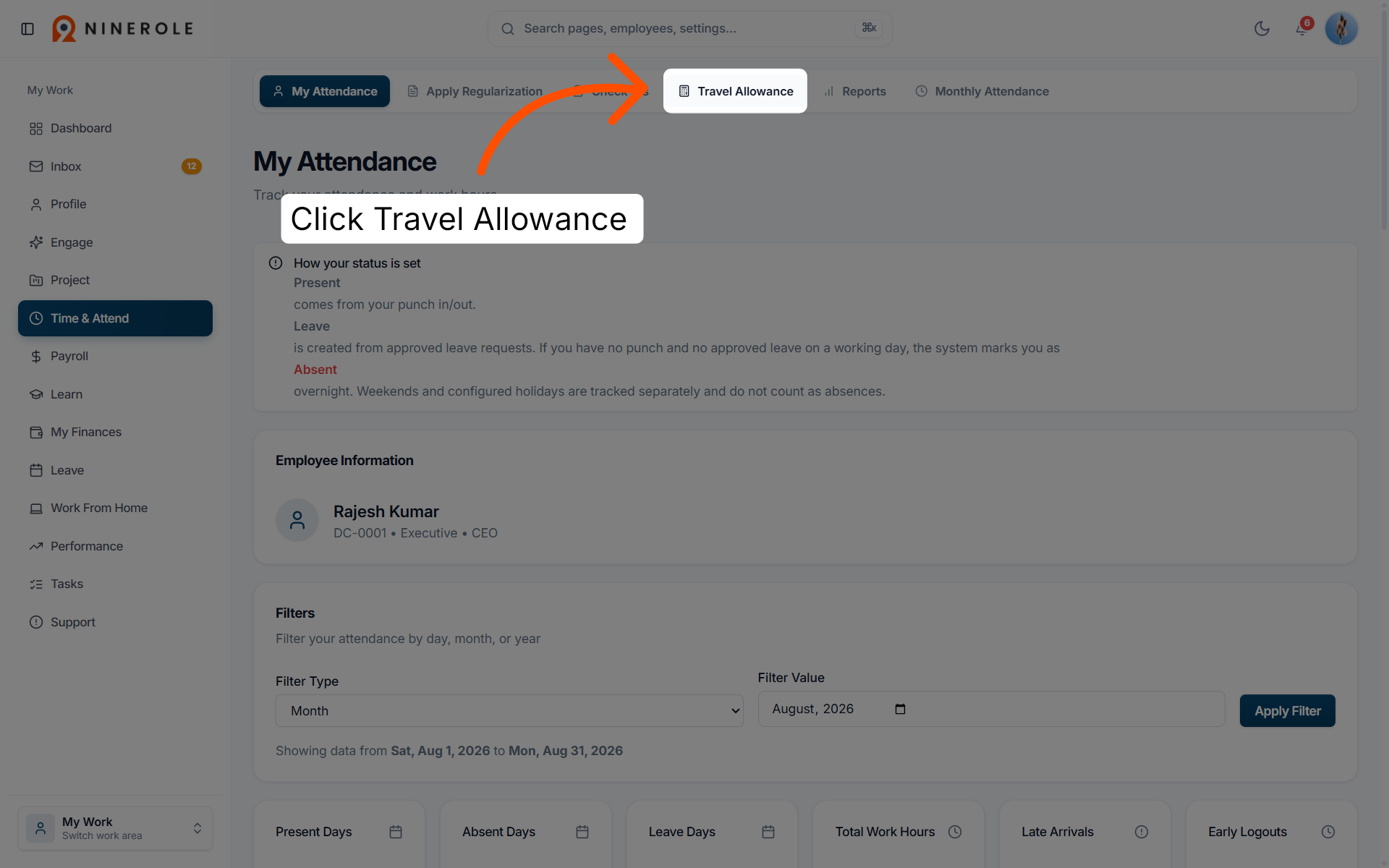
3. Open the Travel Allowance section
Click Travel Allowance to view travel-related allowances and records for employees.
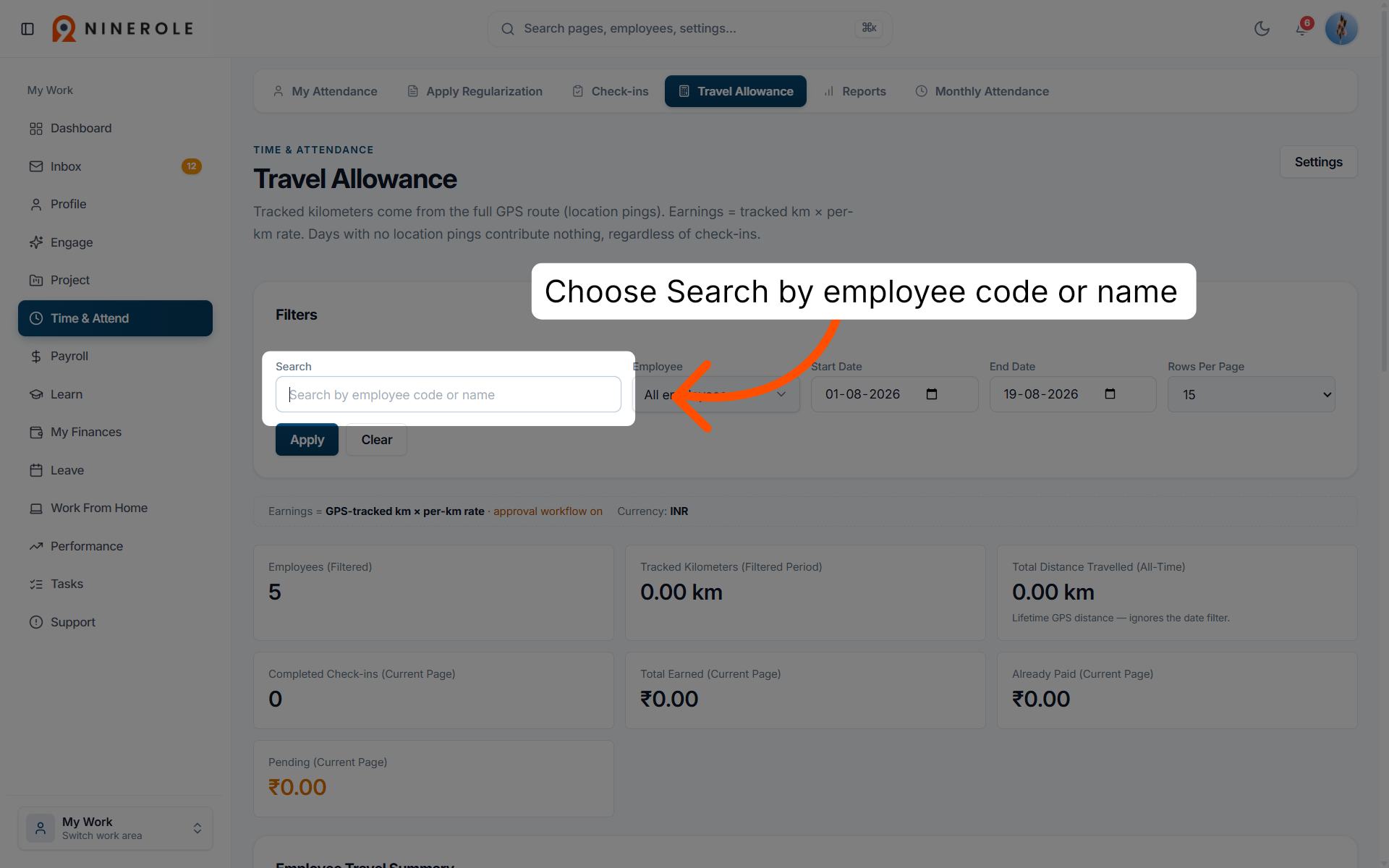
4. Search employees by code or name
Use Search by employee code or name to begin filtering employee travel allowance data.
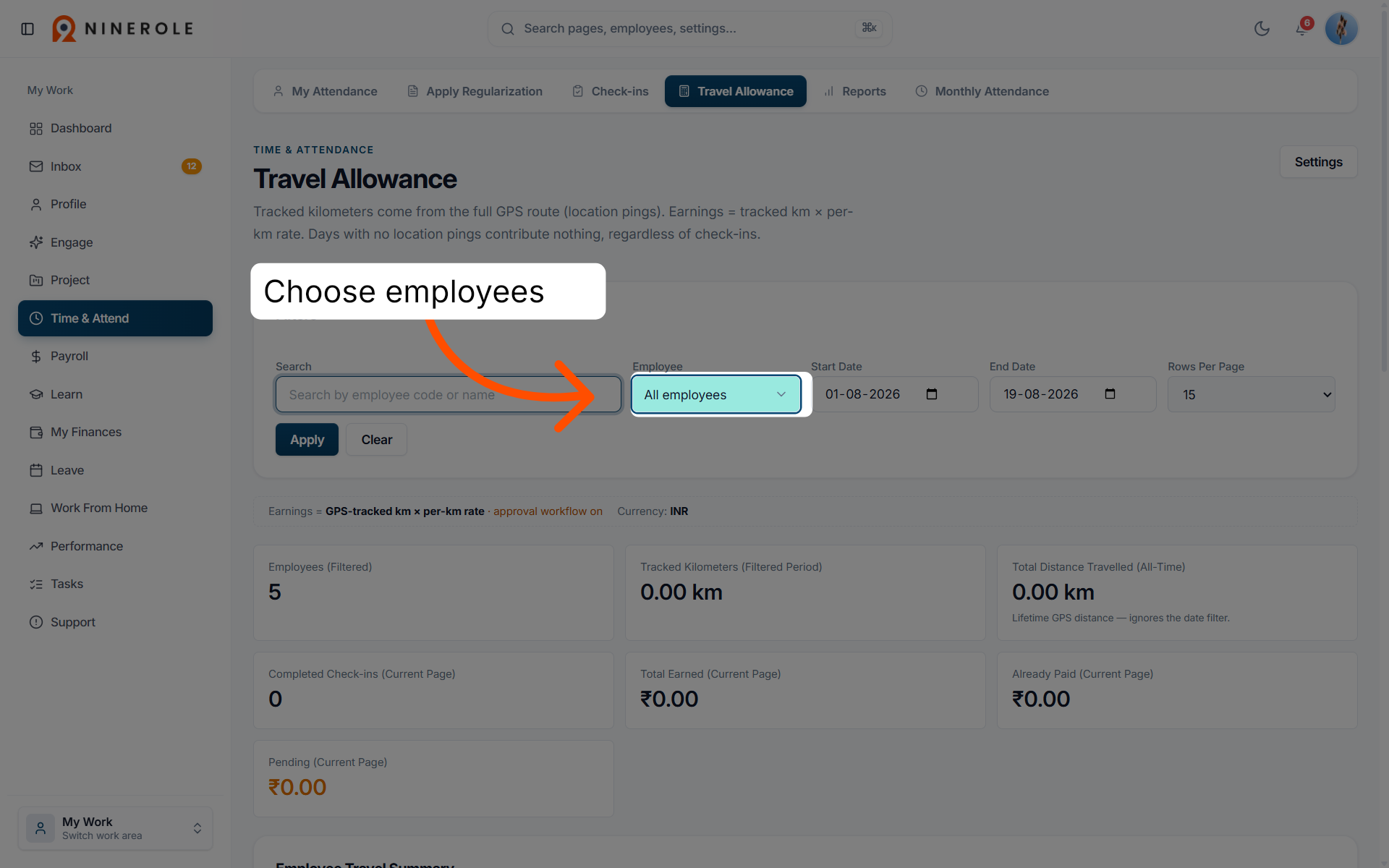
5. Filter all employees
Choose employees in the travel allowance search results.
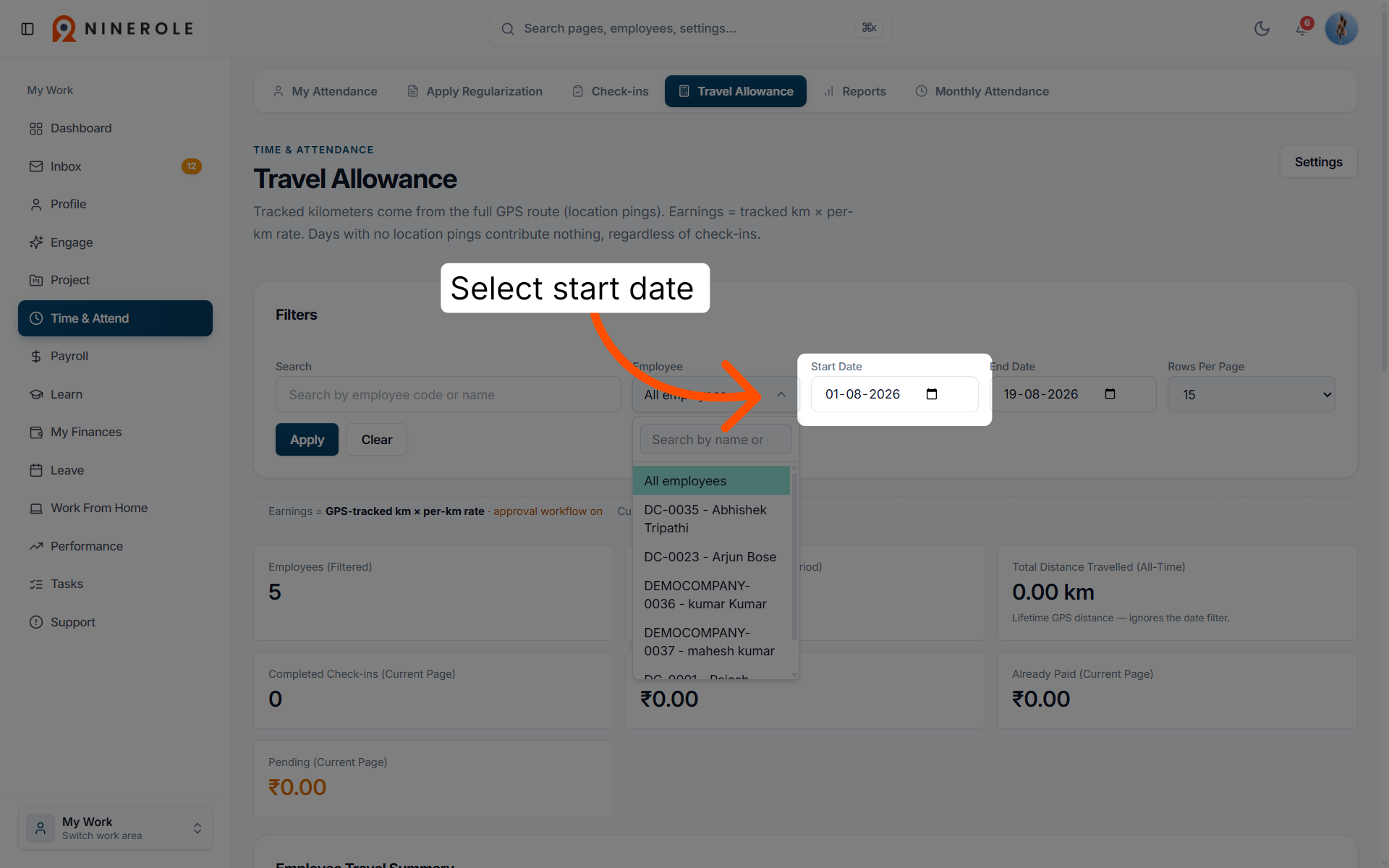
6. Select the start date
Select the date to set the start of the travel allowance period you want to review.
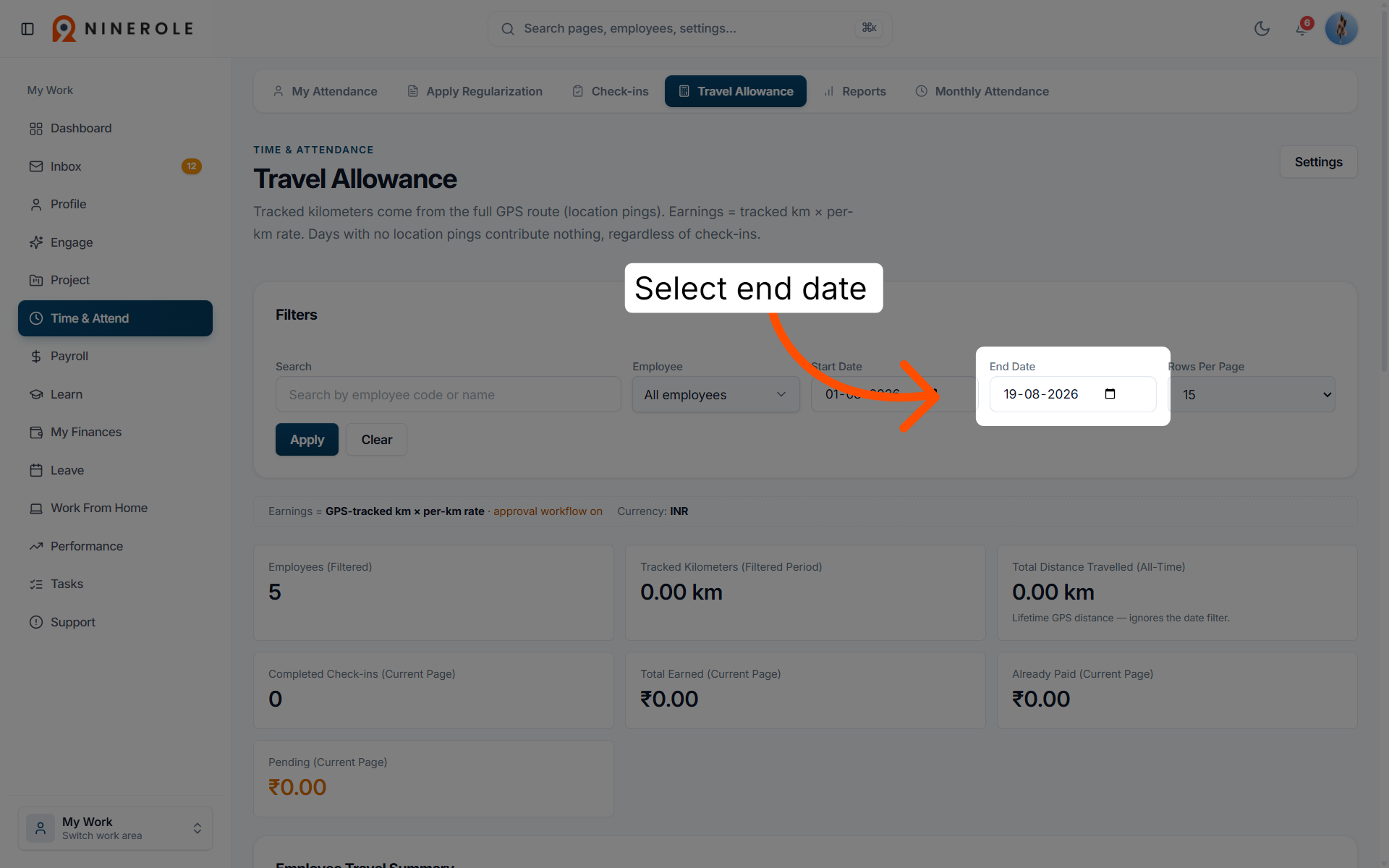
7. Select the end date
Click Date to set the end date for the travel allowance period.
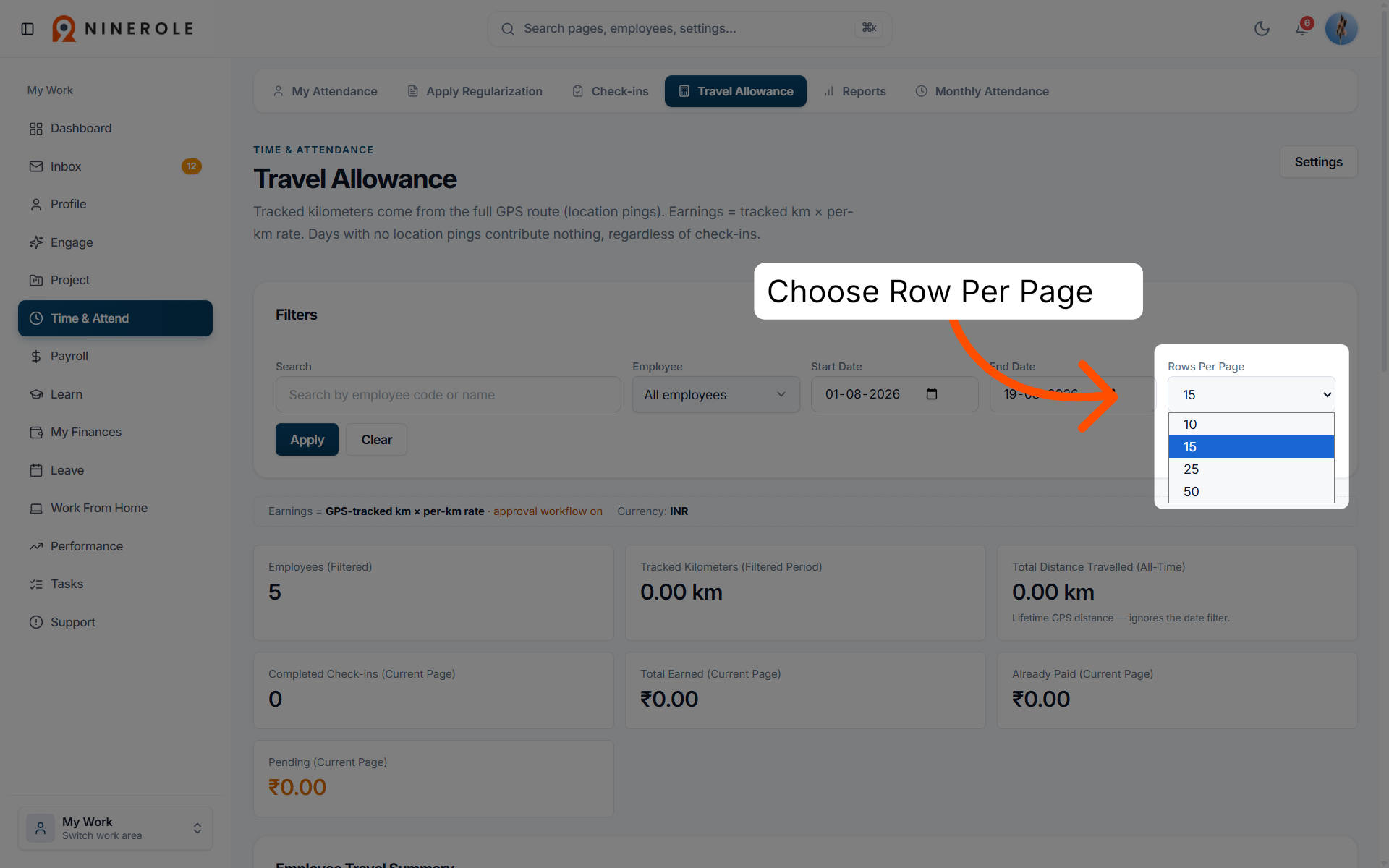
8. Choose rows per page
Choose Row per Page to filter travel allowance data for the specific employee.
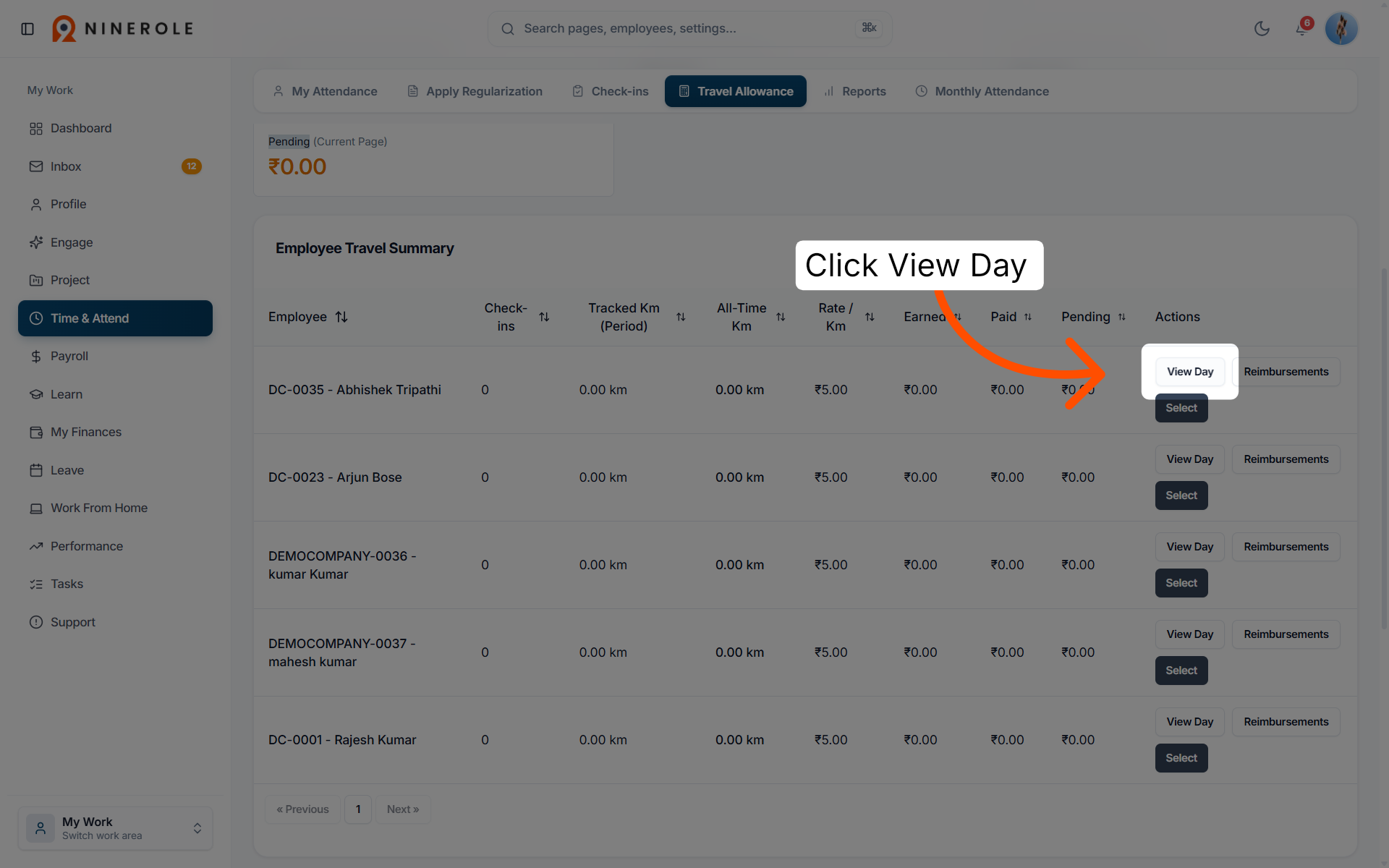
9. Open daily travel details
Click View Day to access detailed travel information for a specific day.
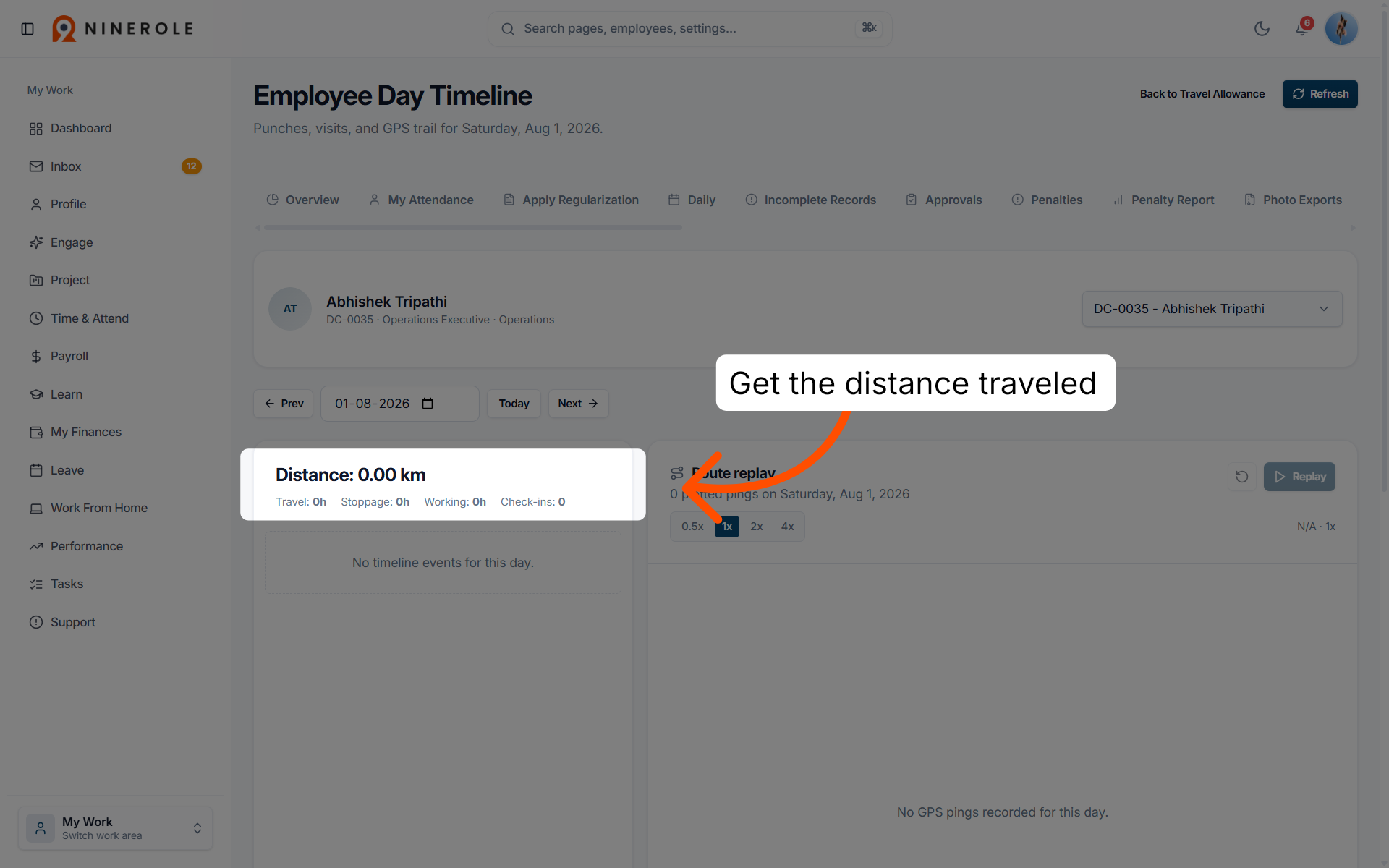
10. Review the trip summary
The summary of the selected trip shows distance in kilometres, along with travel, stoppage, working, and check-in hours.
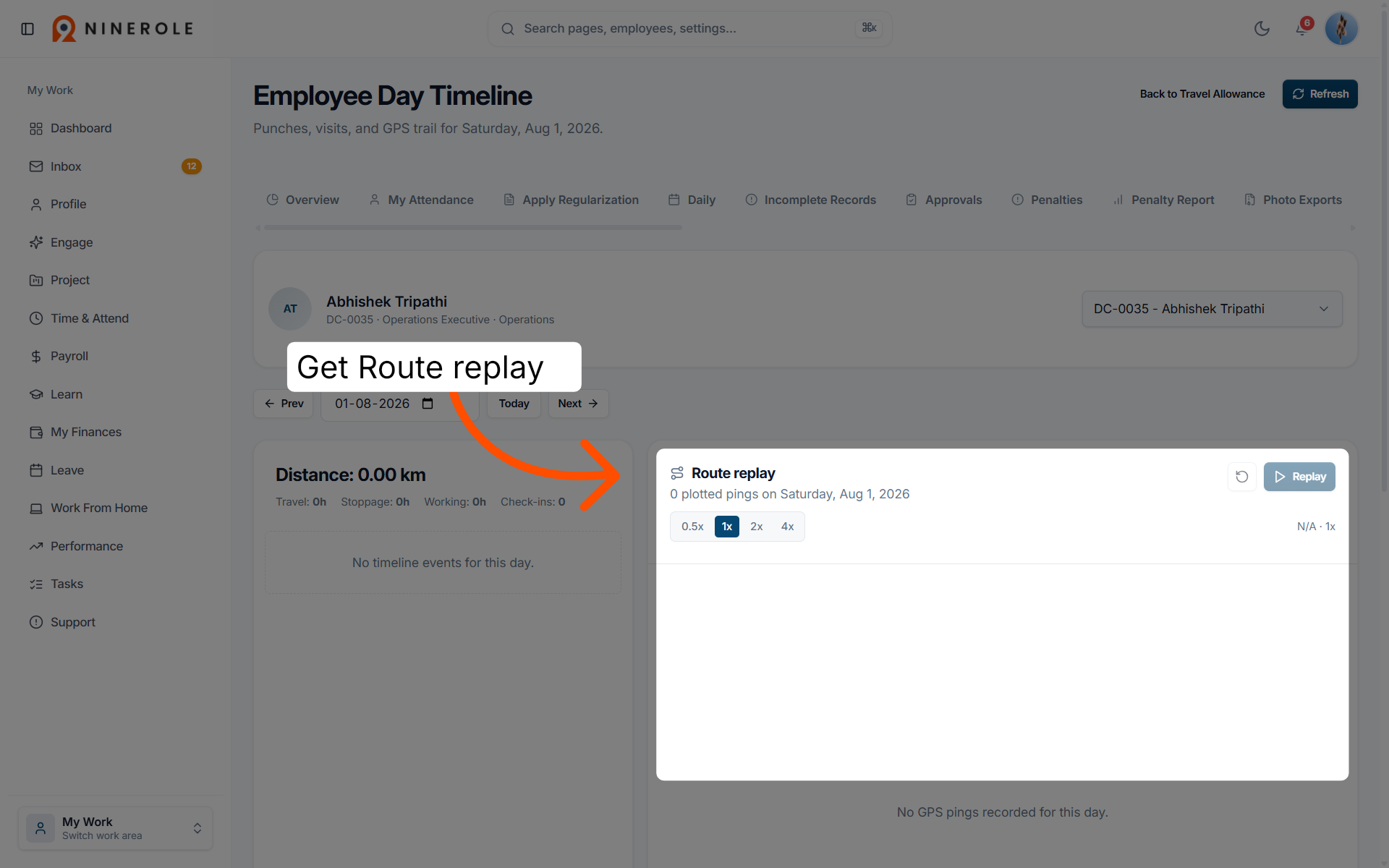
11. Open route replay
Use Route replay to visualise the travel route taken during the trip.
Filter and review reimbursements
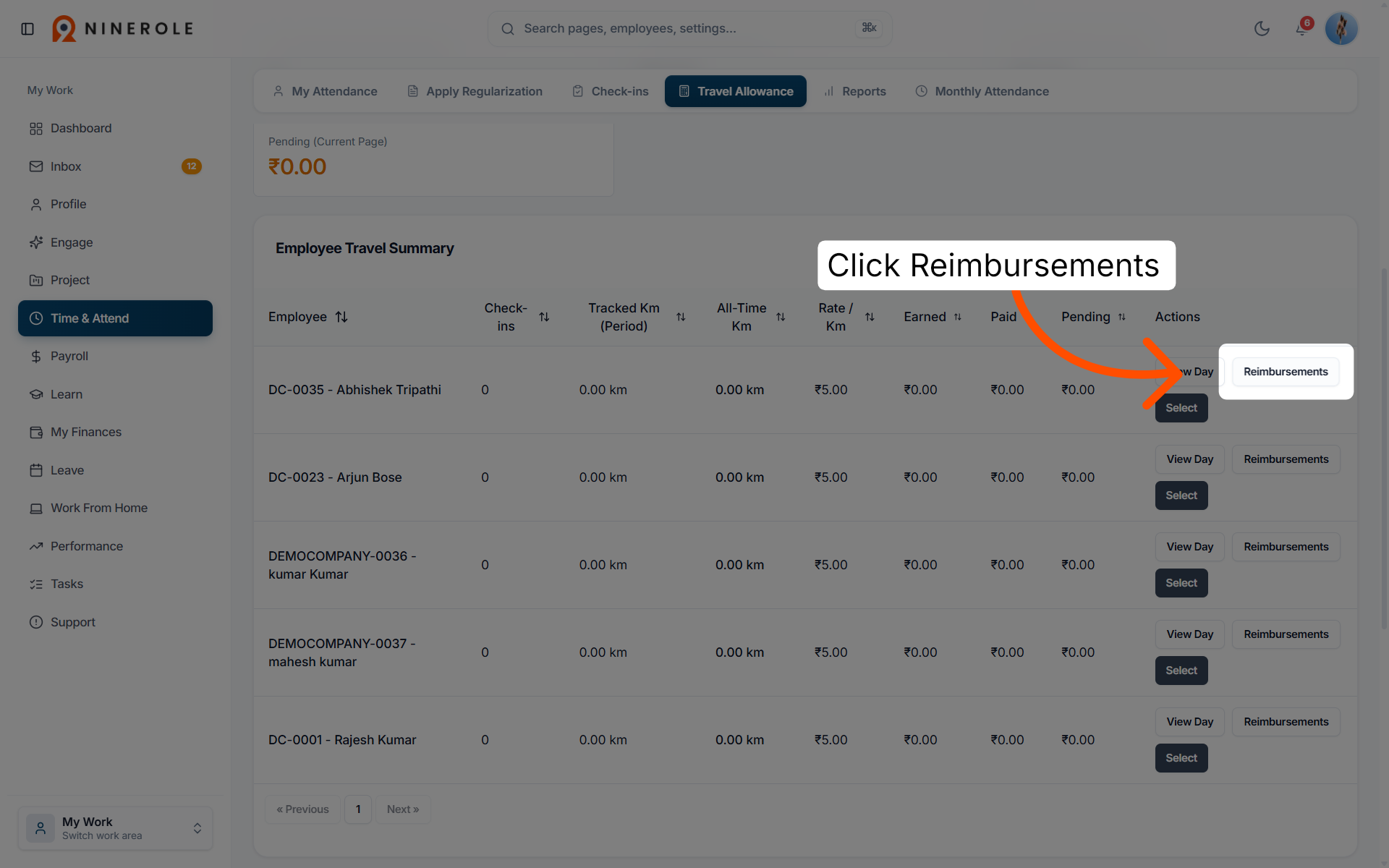
12. Navigate to Reimbursements
Click Reimbursements to manage employee reimbursement requests within Ninerole.
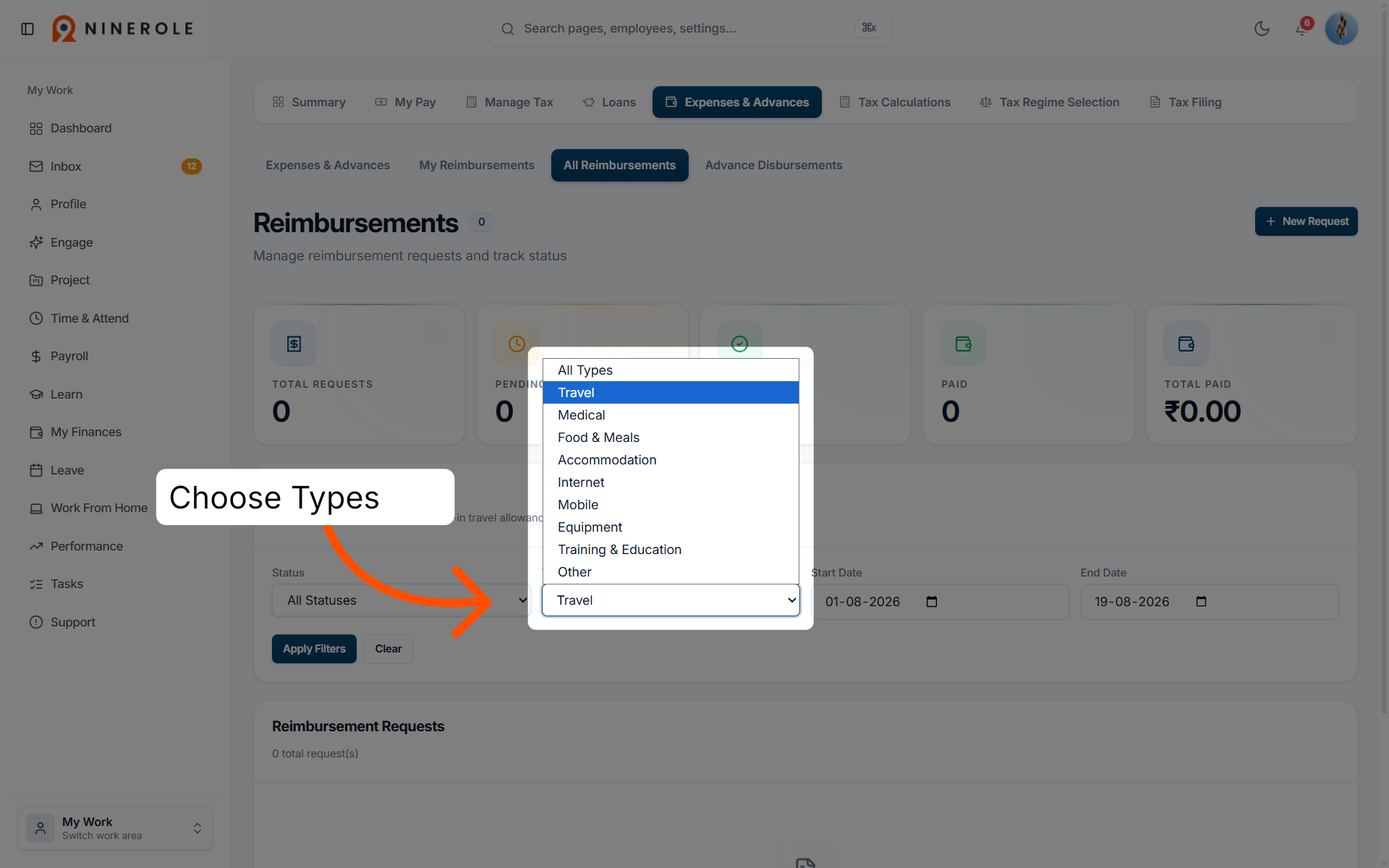
13. Filter reimbursement types
Choose Types to filter reimbursements by type.
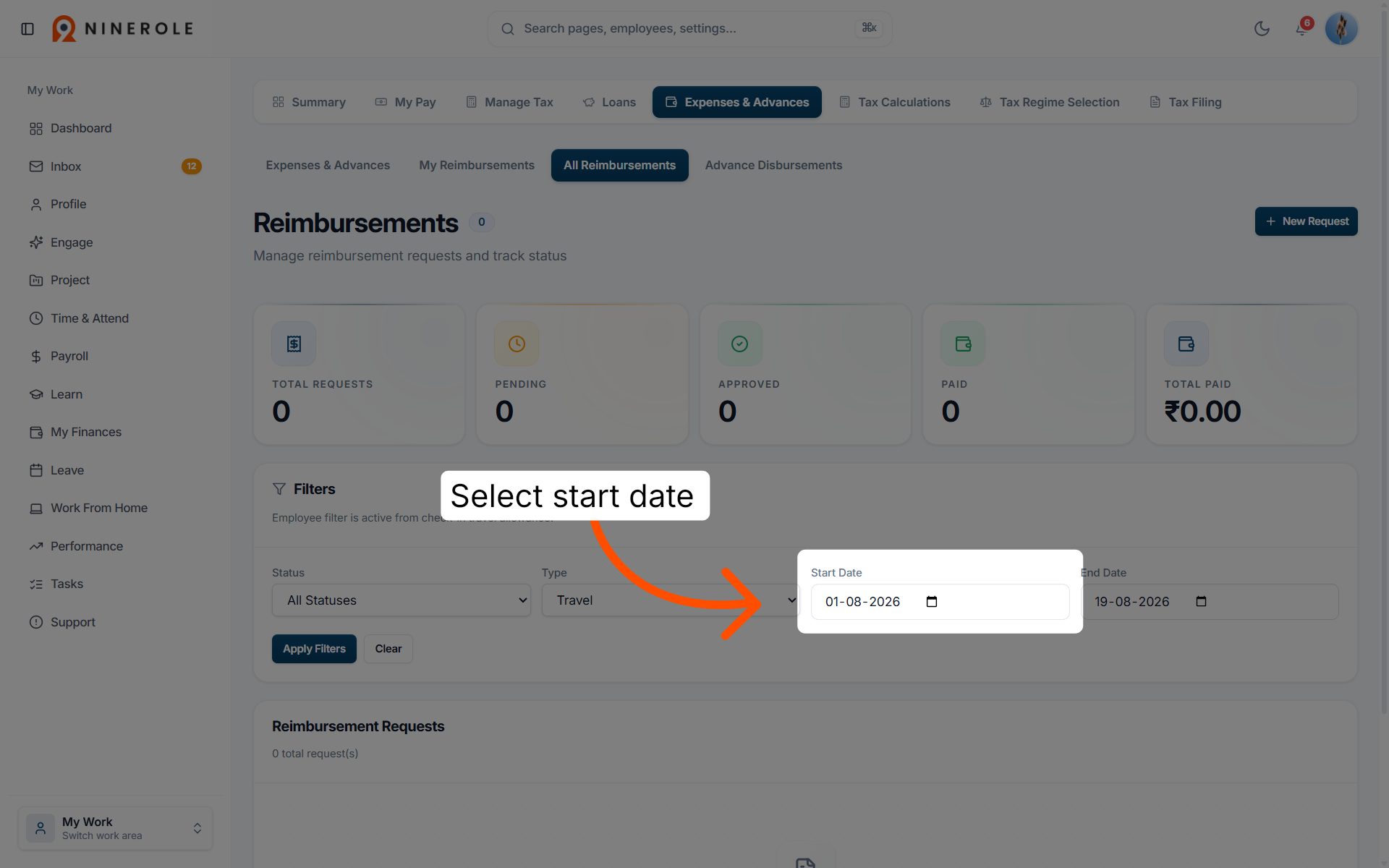
14. Set the reimbursement start date
Select Date to specify the start date for reimbursement filtering.
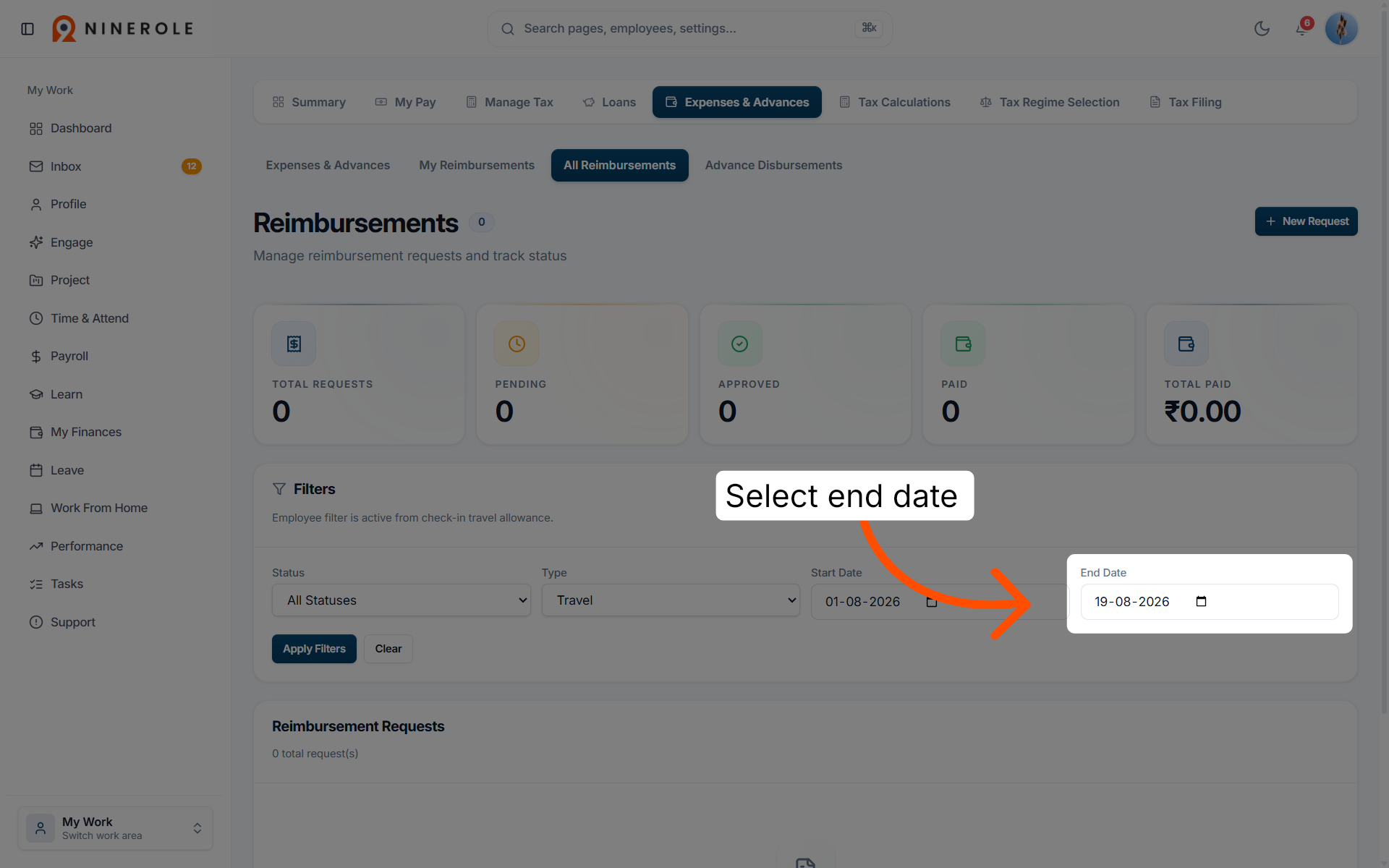
15. Set the reimbursement end date
Select Date to specify the end date for reimbursement filtering.
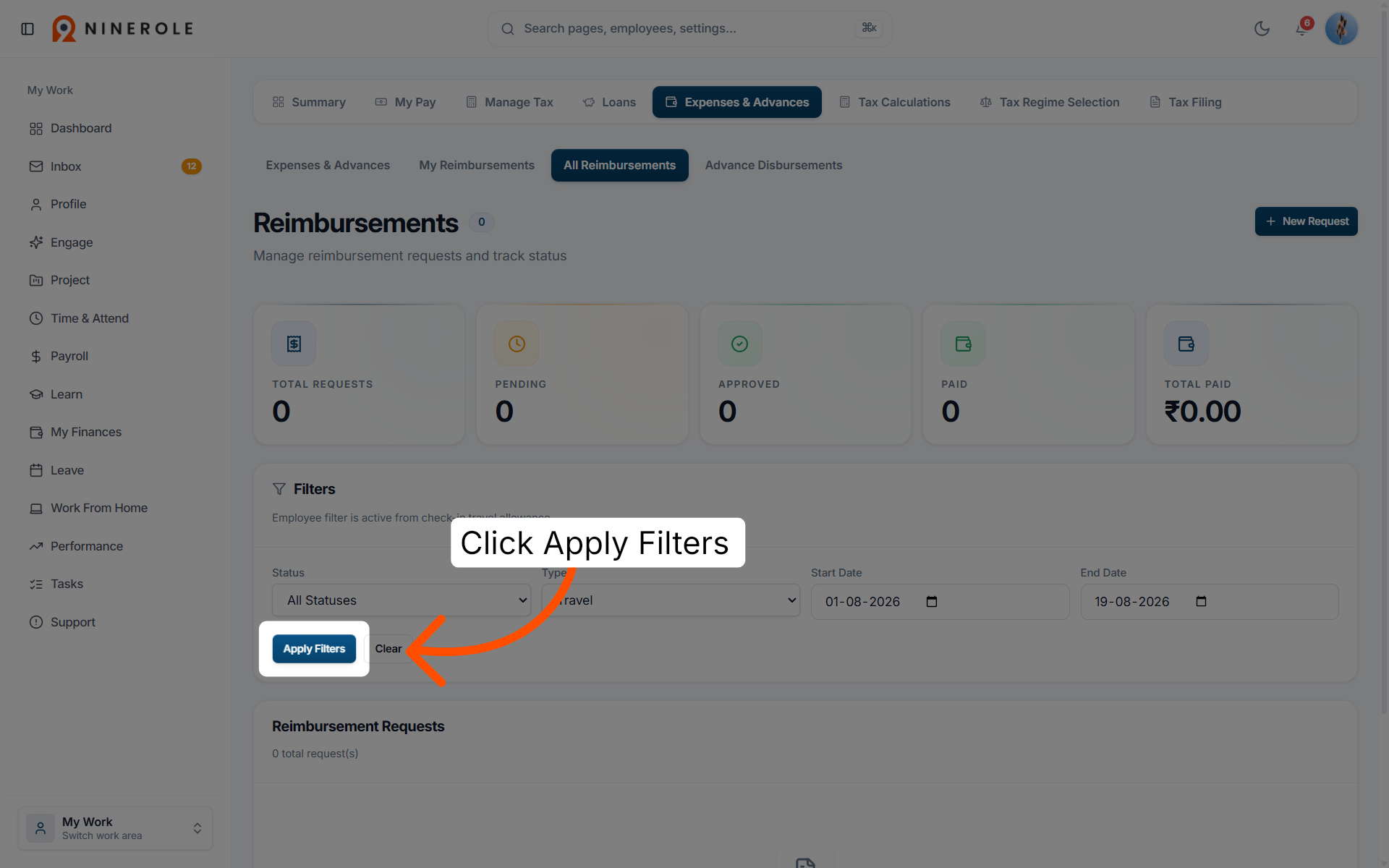
16. Apply the reimbursement filters
Click Apply Filters to update the reimbursement list based on your selected criteria.
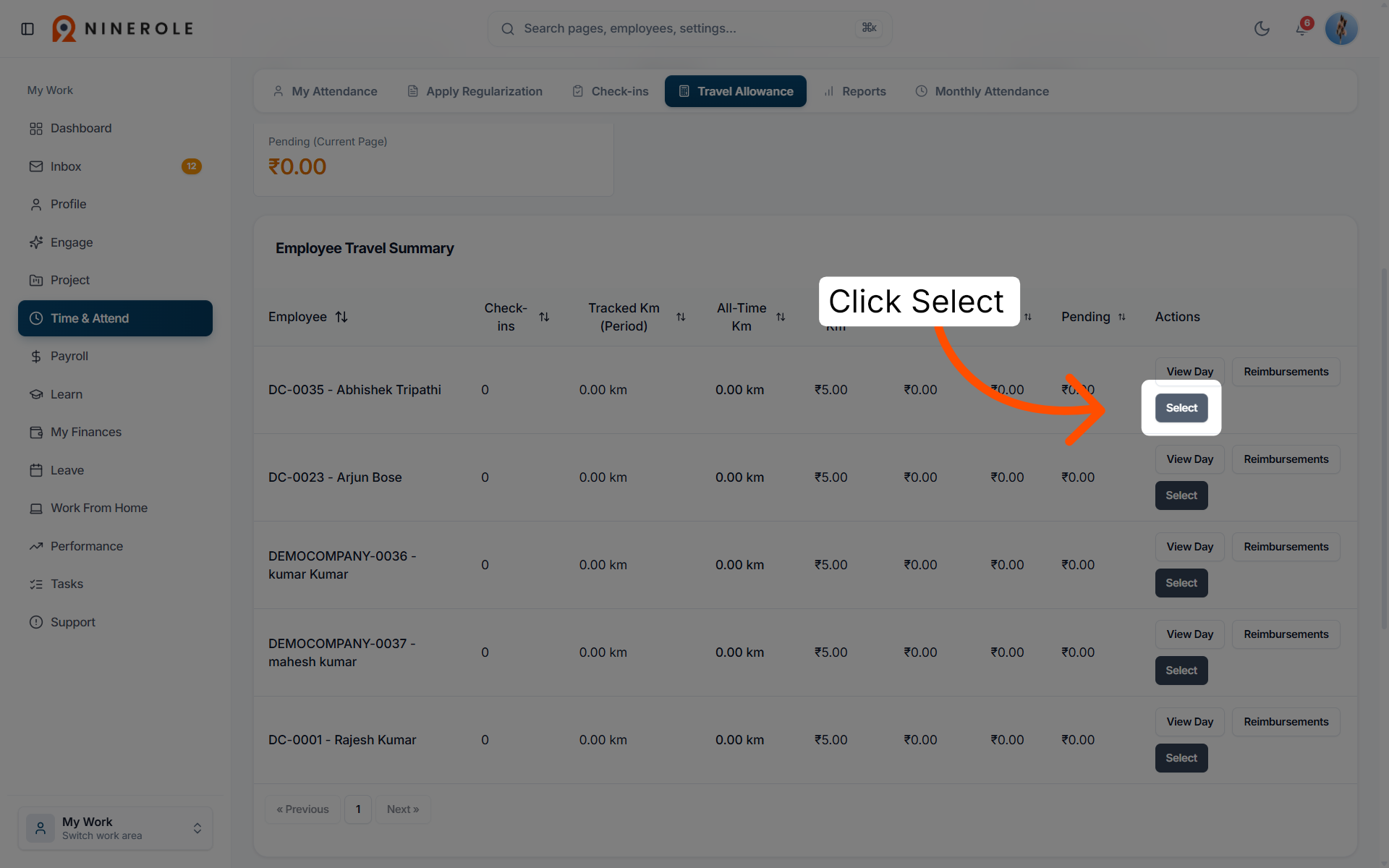
17. Select a reimbursement entry
Click Select to choose a specific reimbursement record for review or action.
Configure rates and process payment
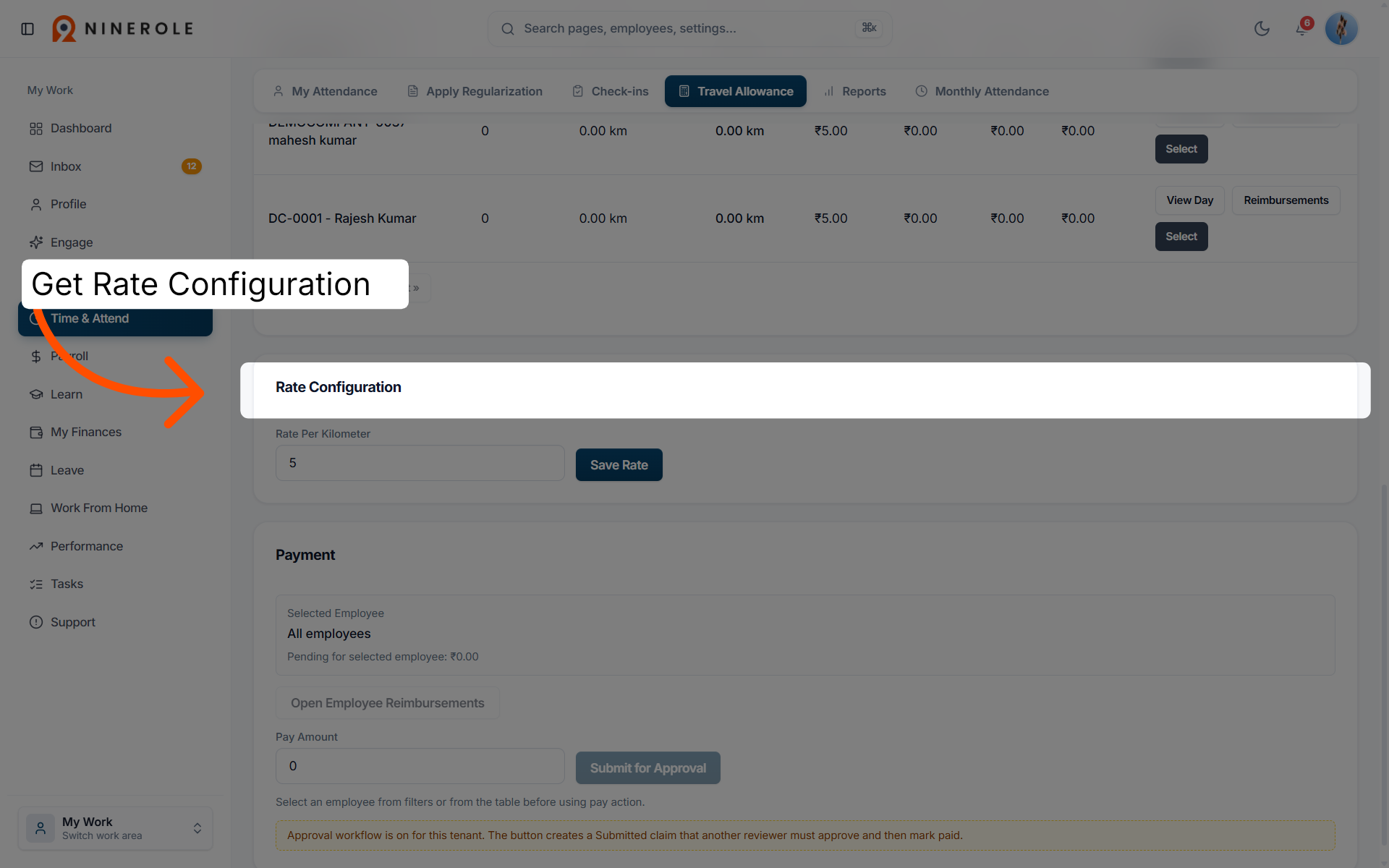
18. Open rate configuration
Open Rate Configuration to adjust travel allowance rates and settings.
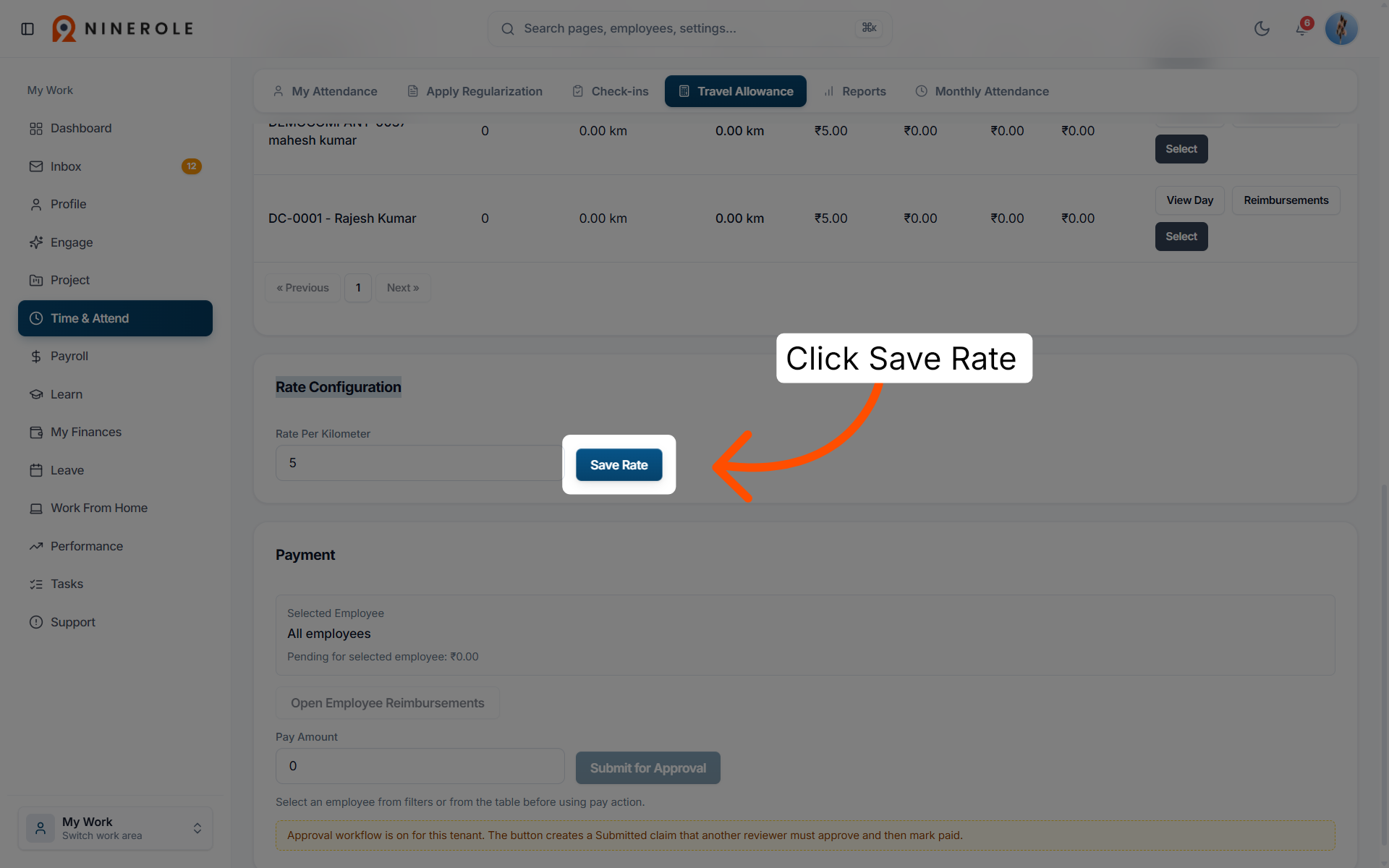
19. Save the rate settings
Click Save Rate to confirm and save your travel allowance rate configurations.
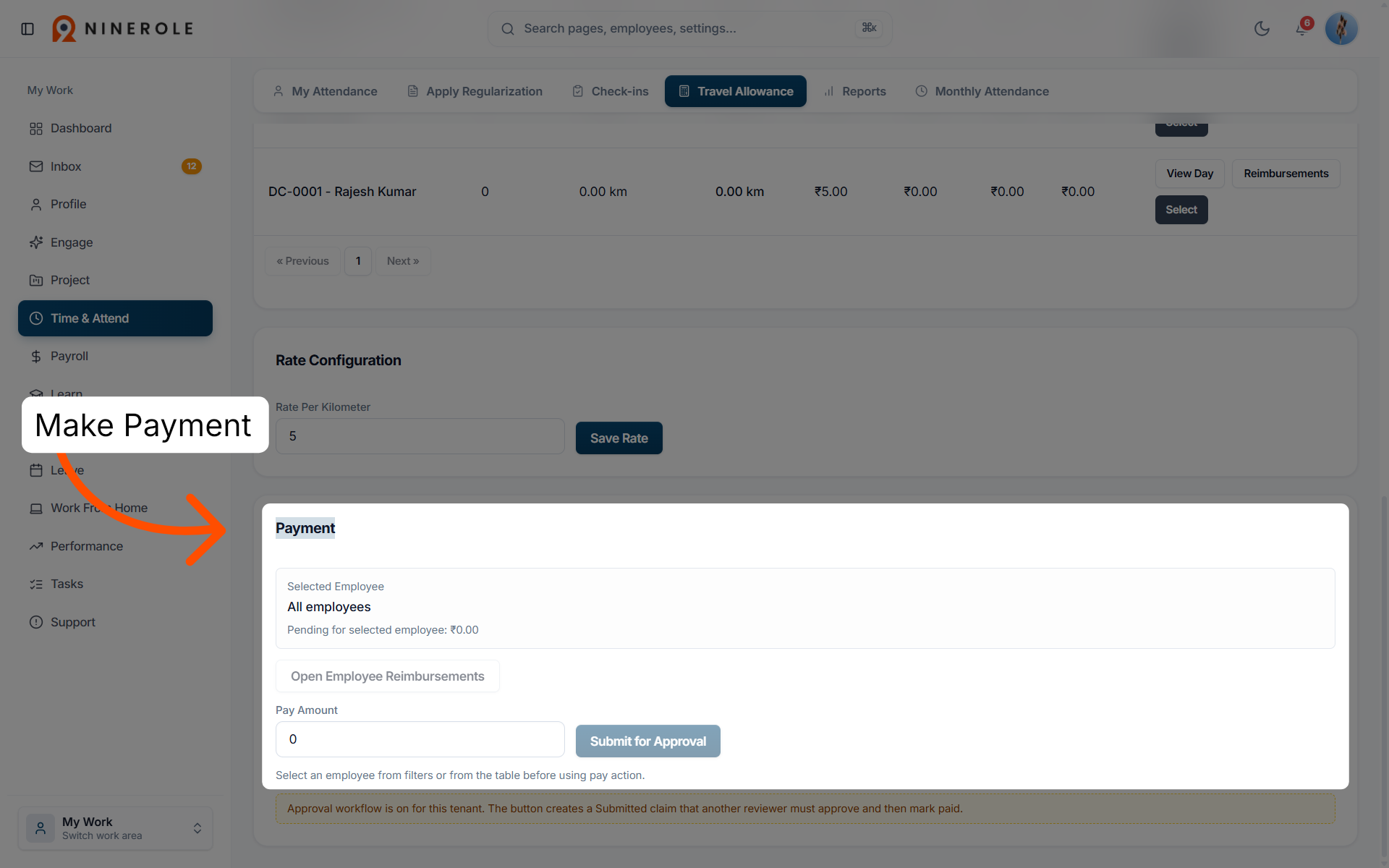
20. Open payment details
Open Payment to view detailed payment information.
21. Select the payment amount
Choose the payment amount for processing.
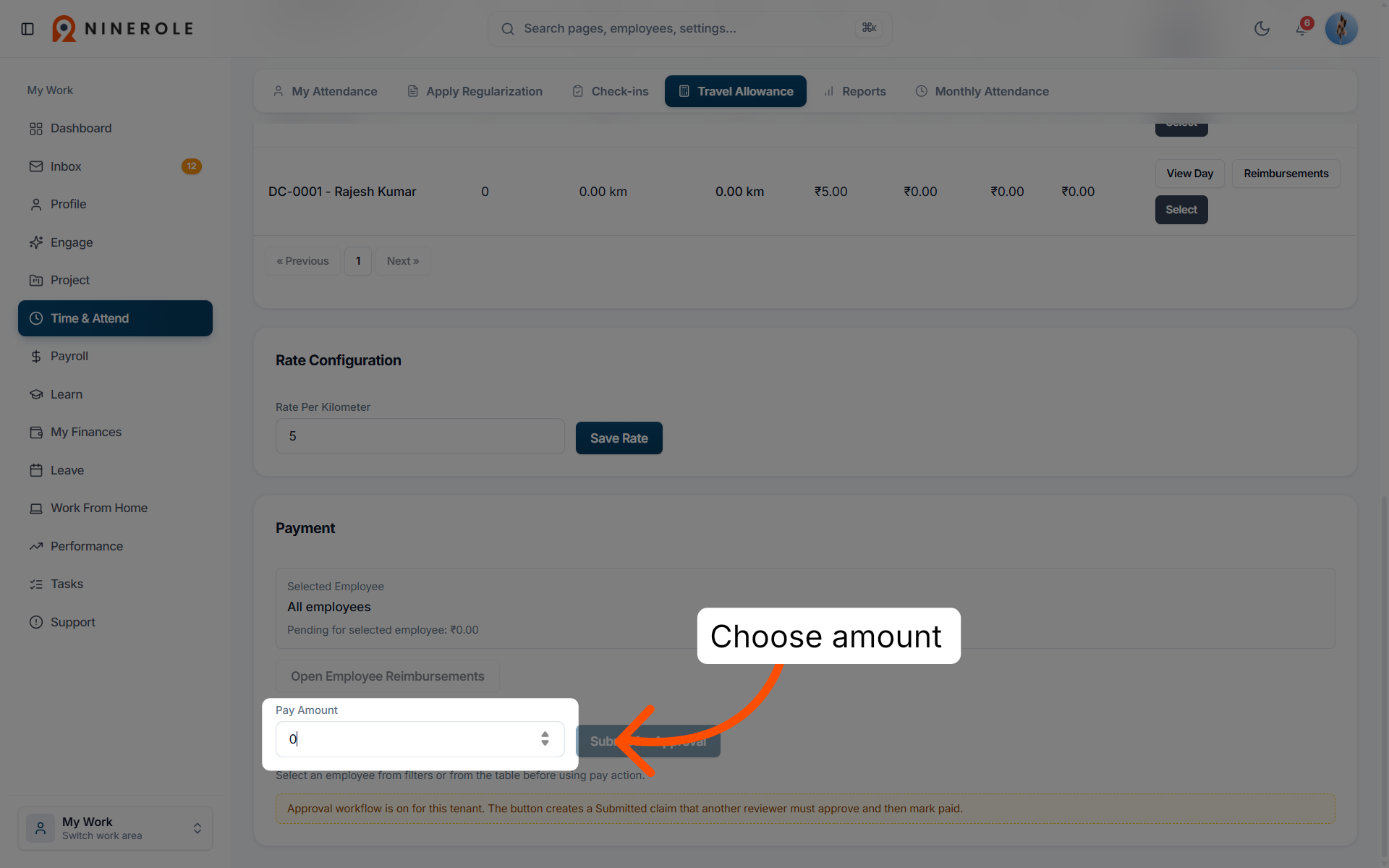
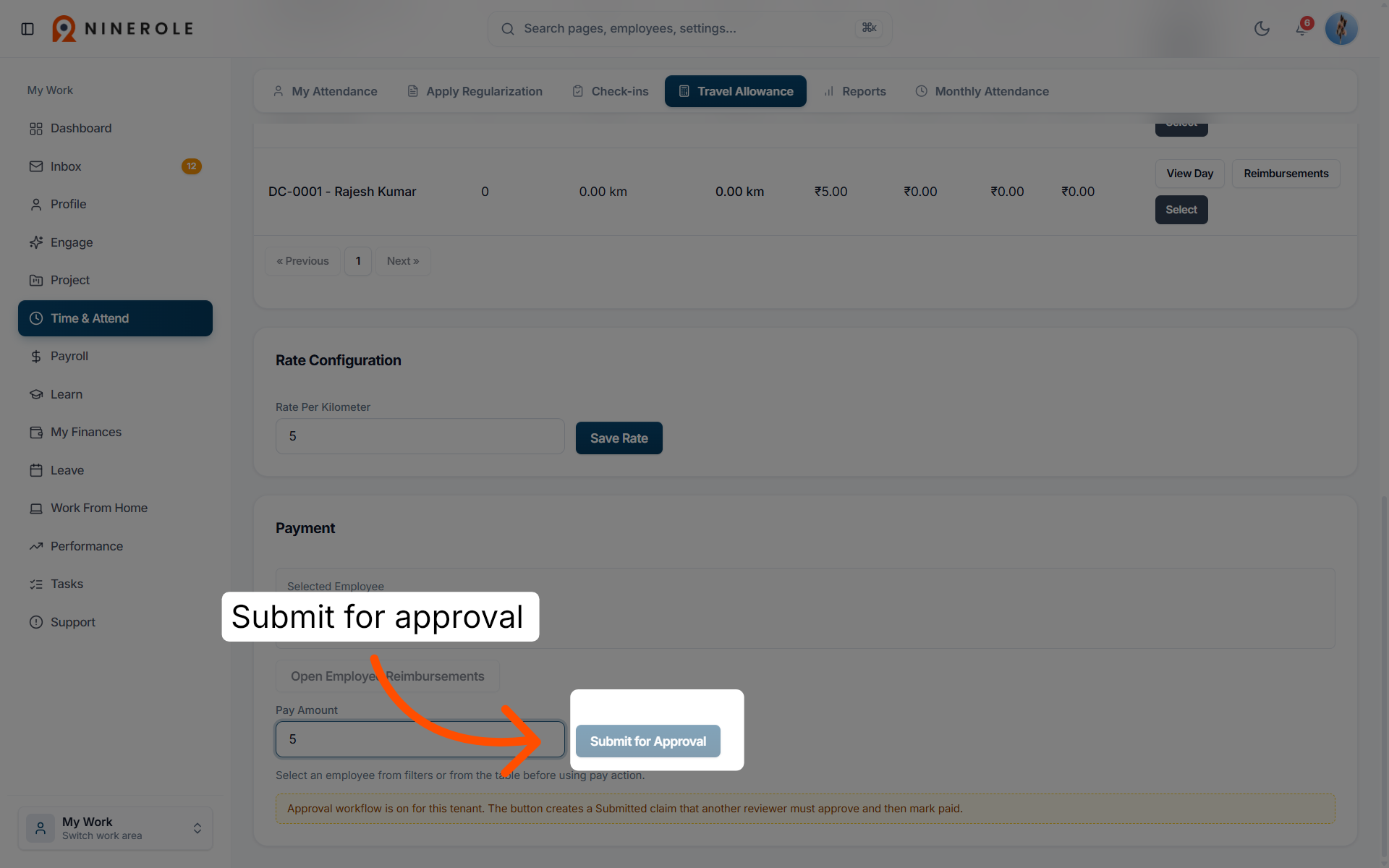
22. Submit the payment for approval
Click Pay Amount and then Submit for Approval to finalize the payment and send it for approval.
You have successfully managed travel allowances and reimbursements in Ninerole by filtering employee data, reviewing trip details, configuring rates, and processing payments. Next, explore advanced reporting features or employee expense tracking for comprehensive management.
Back to Payroll · all modules · Ninerole HRMS overview
Last updated: