

Manage Vendor Records
This tutorial guides you through managing vendor records within the Ninerole HRMS platform. You will learn how to navigate the system and add new vendors effectively.
Before you start, go to ninerole.com.
About this task
- Purpose
- Create and maintain vendor records — the agencies and suppliers you work with, including their contact and payment terms.
- Who can do this
- Recruiter or HR admin
- You will need
- Vendor name, contact details, and payment terms.
- Result
- A vendor record exists and can be referenced against candidate submissions and payments.
- This unlocks
- Tracking which agency submitted a candidate, and the commercial terms behind it.
This guide answers
- How do I add a vendor?
- Where do I record payment terms?
- How do I link a vendor to a candidate?
- How do I update vendor contact details?
- Who can manage vendors?
If something goes wrong
- A vendor is missing when submitting a candidate.
- Create the vendor record first, then return to the candidate.
- Payment terms are unclear on the record.
- Two payment-term fields exist. Confirm with your finance team which applies before relying on it.
Related: Create a jobAlso called: agency, supplier, recruitment partner.Last verified: 7 September 2026
1. Introduction
You will learn how to navigate the system and add new vendors effectively.
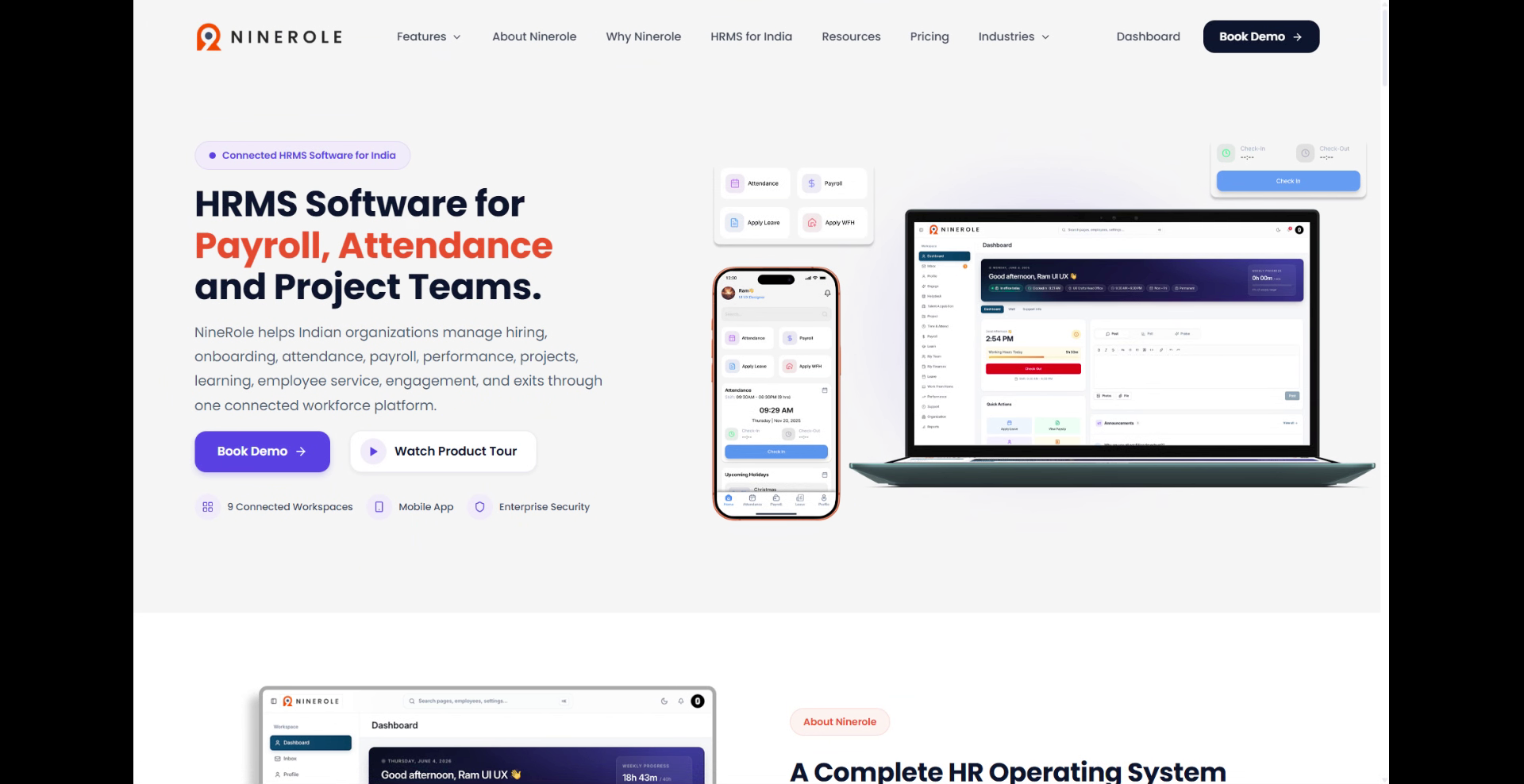
Open Vendors management
2. Access the Ninerole dashboard
Click Dashboard to open the main overview page in Ninerole HRMS.

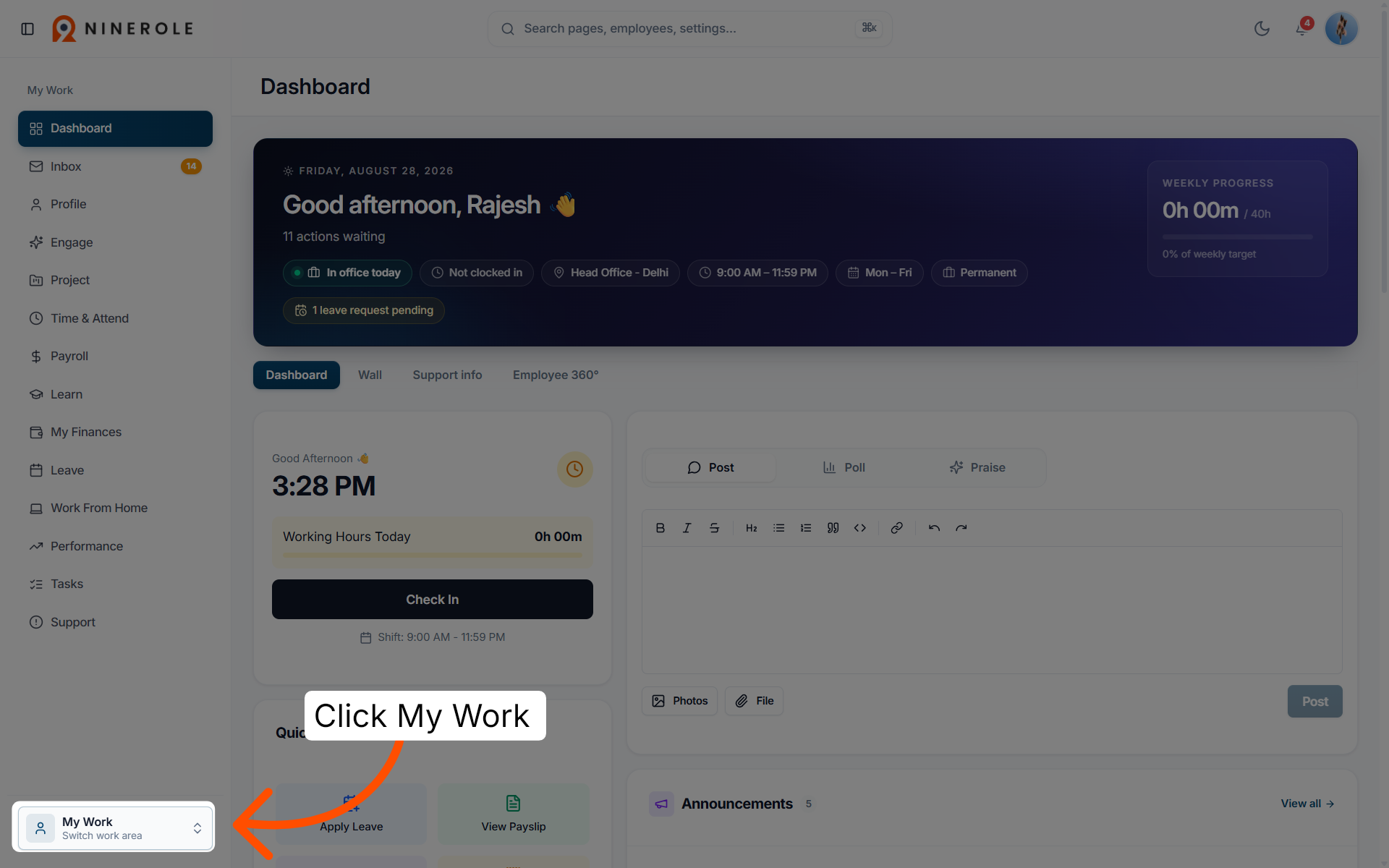
3. Open the My Work section
Click My Work to view your assigned tasks and activities.
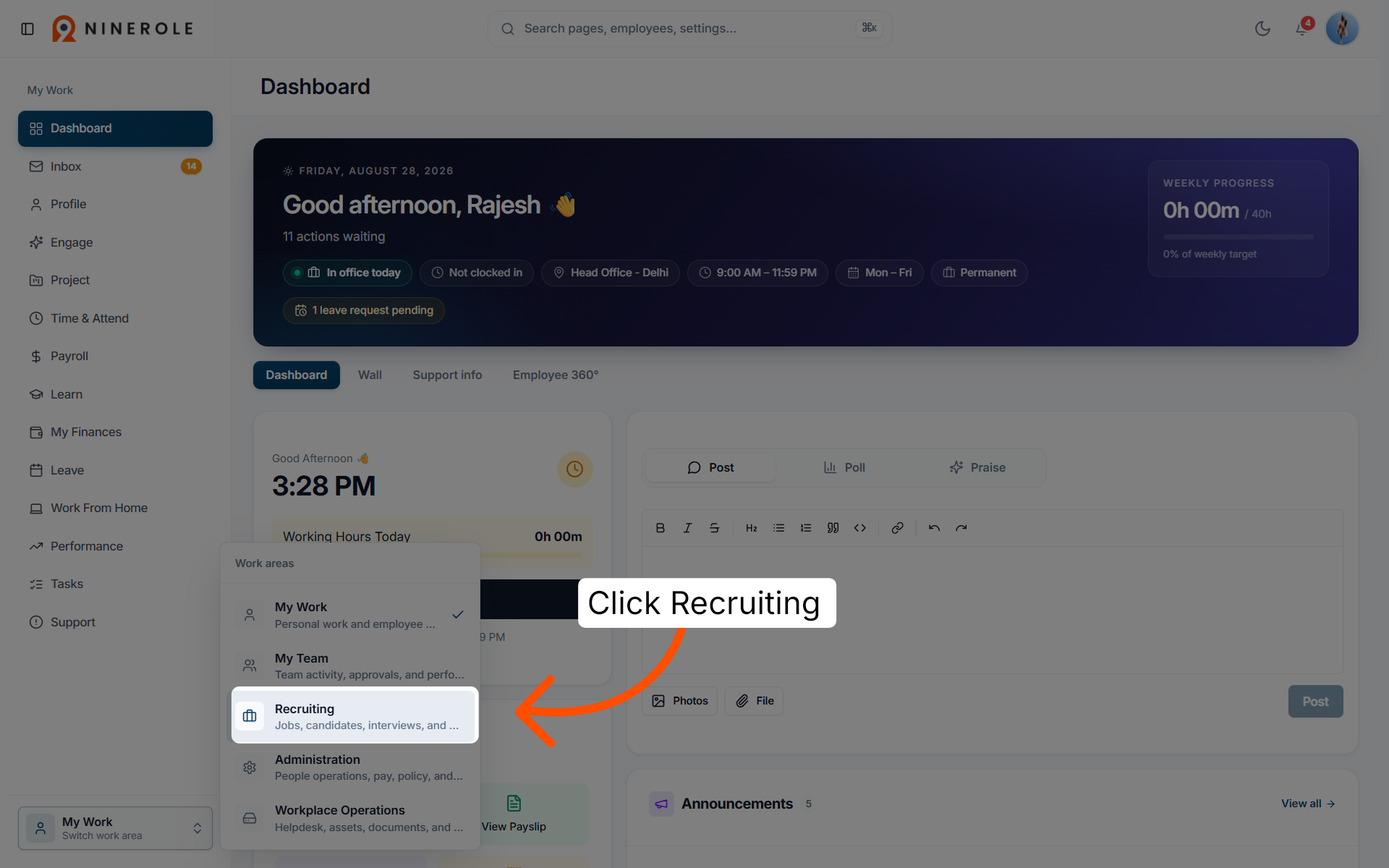
4. Navigate to the Recruiting module
Click Recruiting to access recruitment-related features and options.
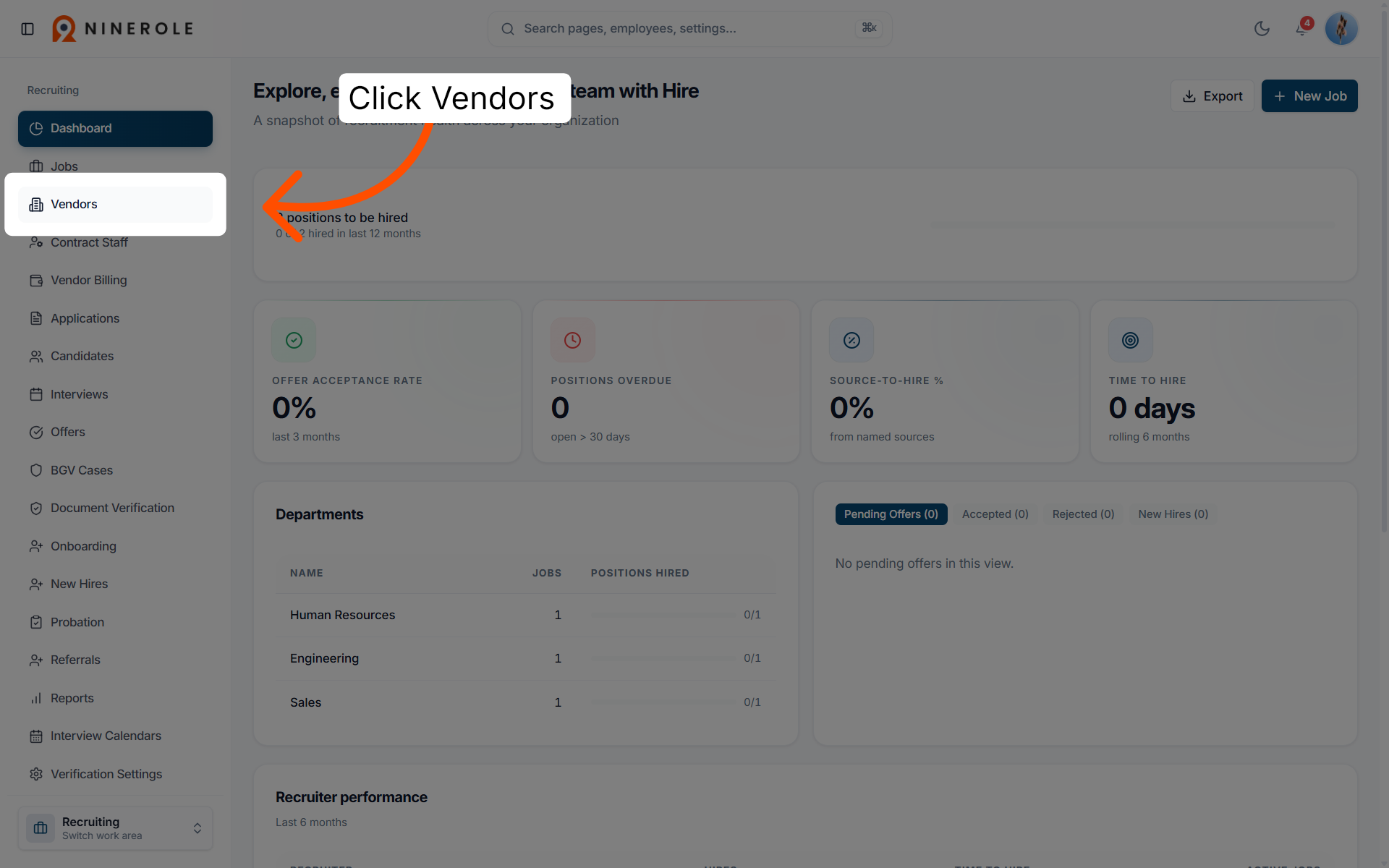
5. Access Vendors management
Click Vendors to manage vendor information and settings.
6. Initiate adding a new vendor
Click Add Vendor to start creating a new vendor record.

Enter the vendor details
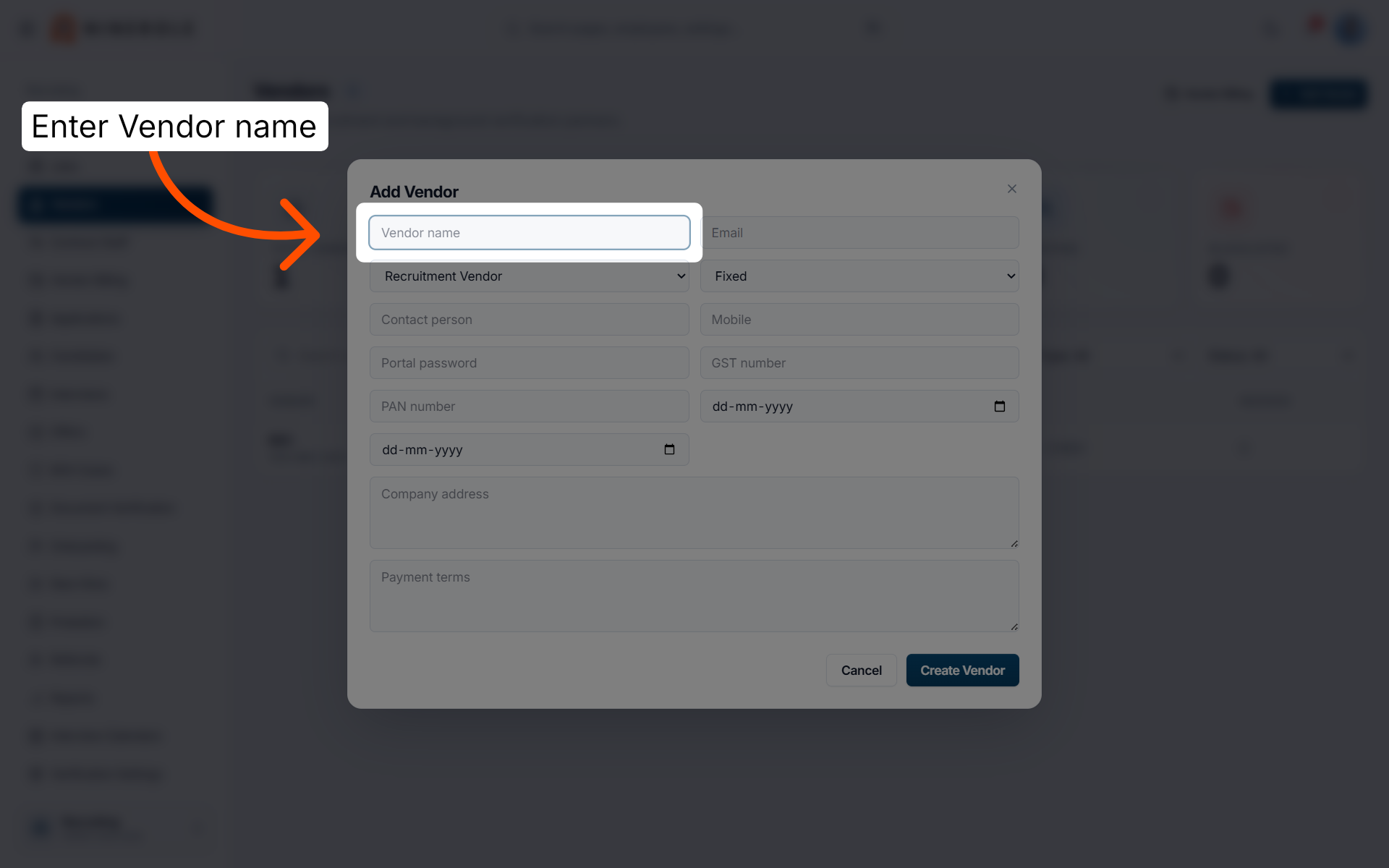
7. Enter the vendor name
Enter Vendor name to record the name of the new vendor.
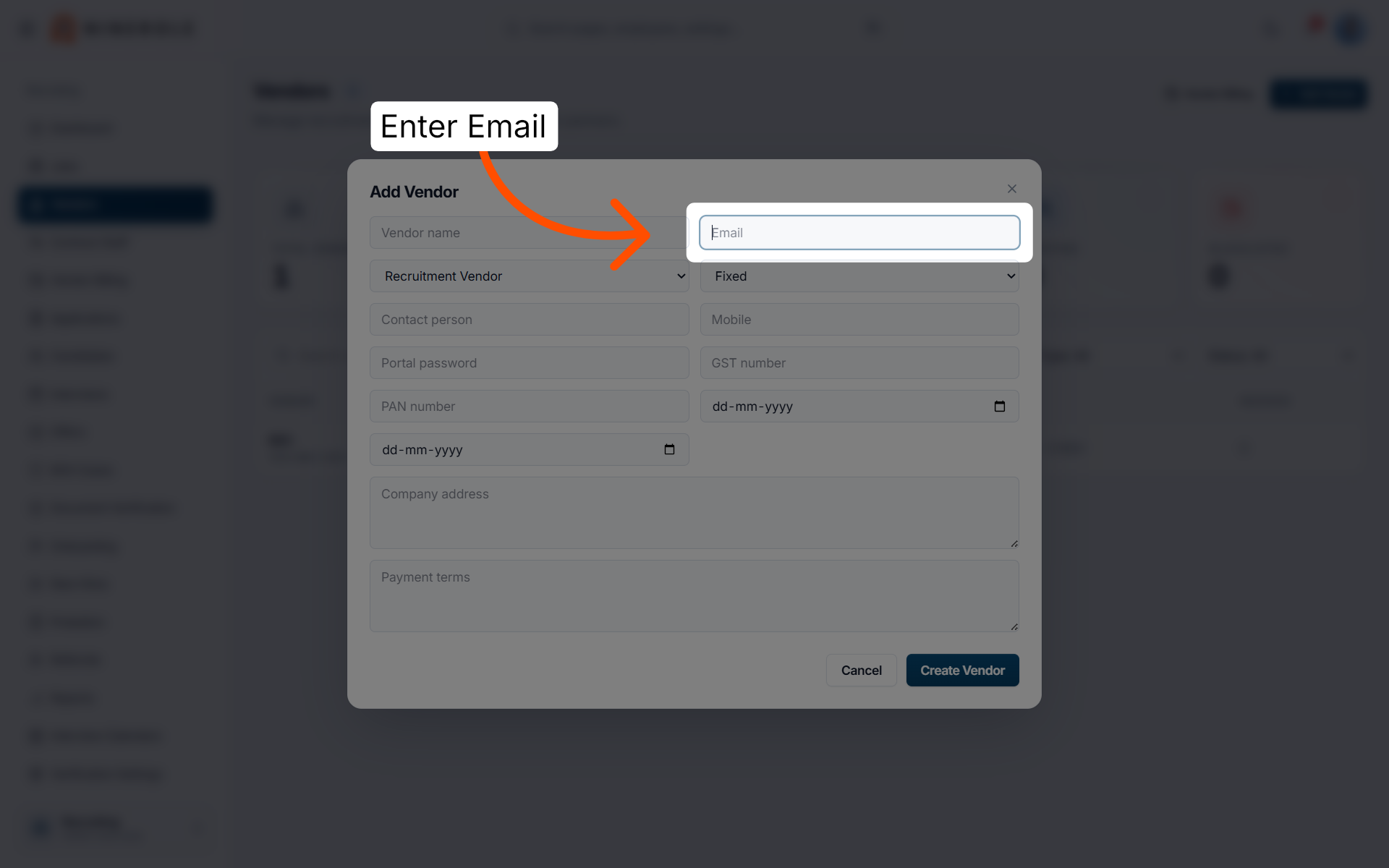
8. Enter the email
Enter Email to input the vendor's email address.
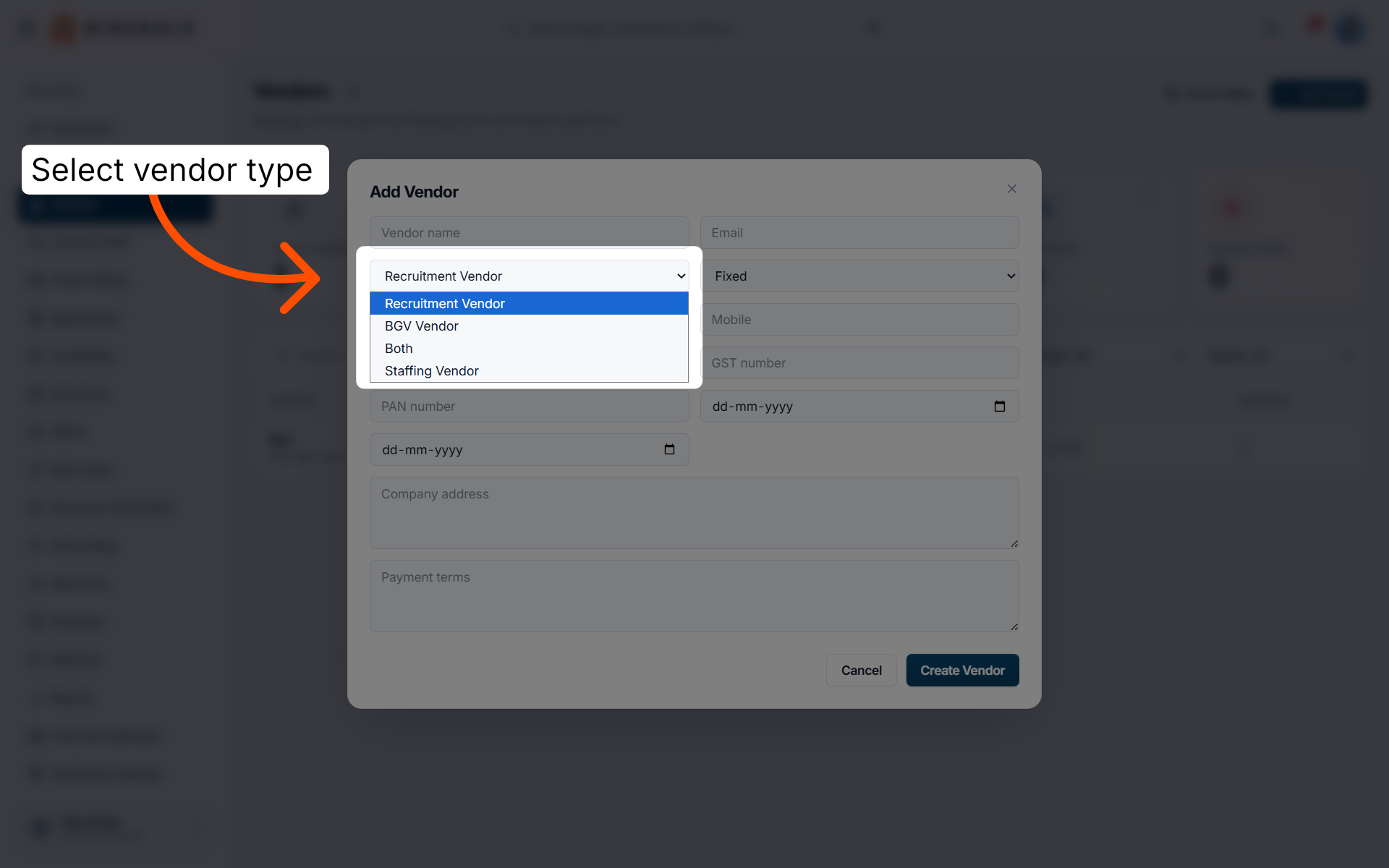
9. Choose the vendor type
Select Vendor type to set the vendor category.
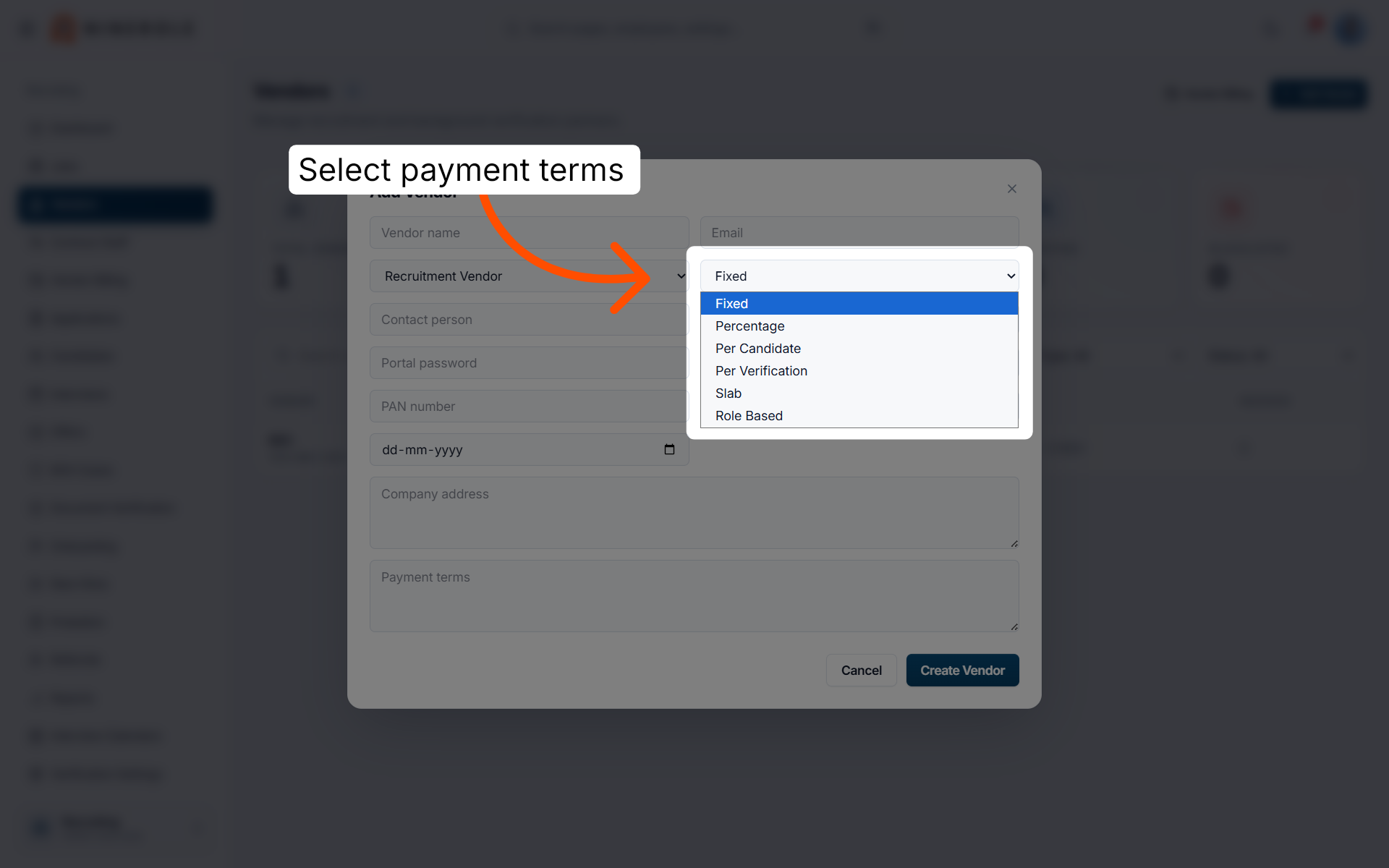
10. Select the payment structure
Select the payment terms structure for this vendor.
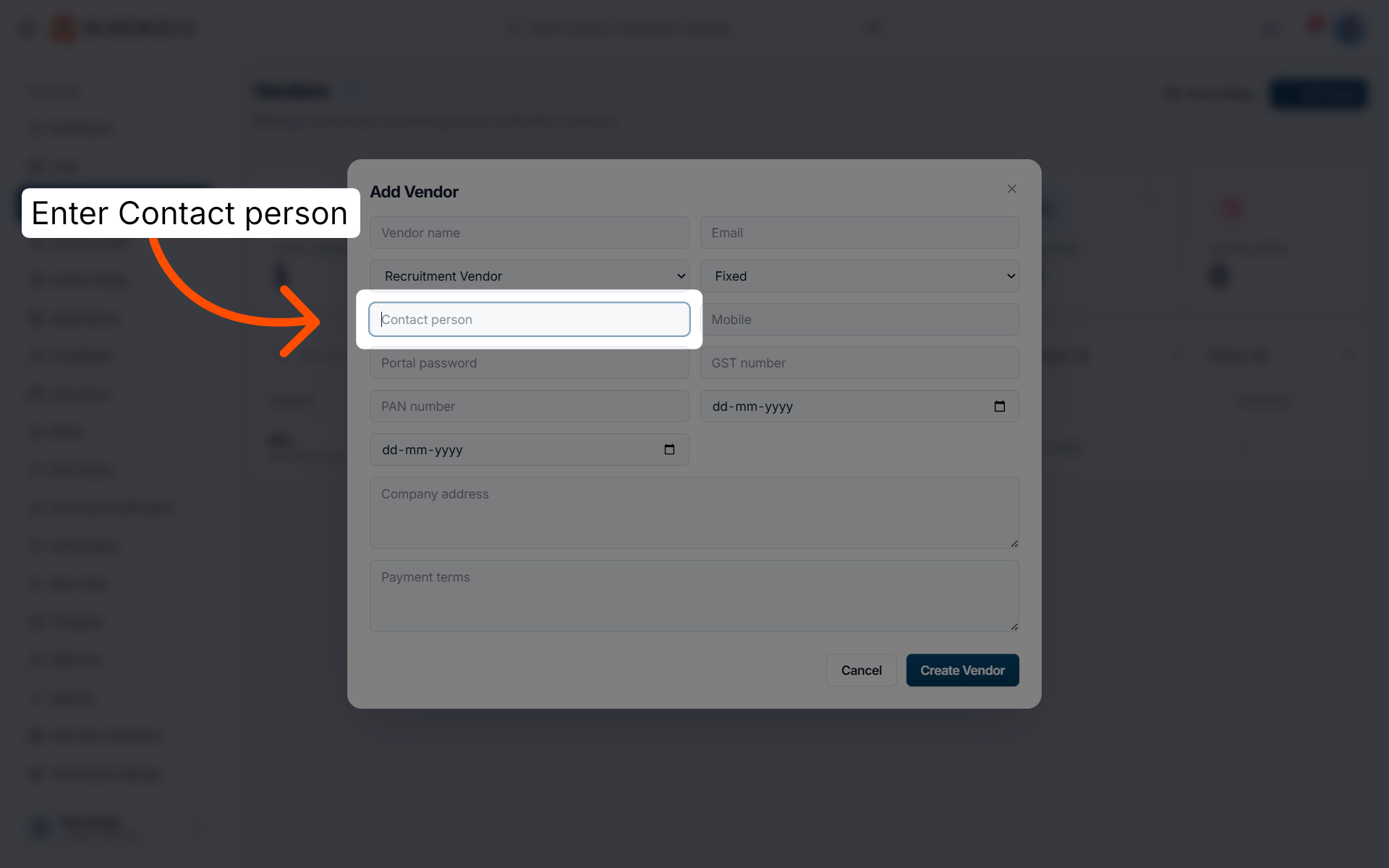
11. Enter the contact person
Enter Contact person to specify the vendor's primary contact.
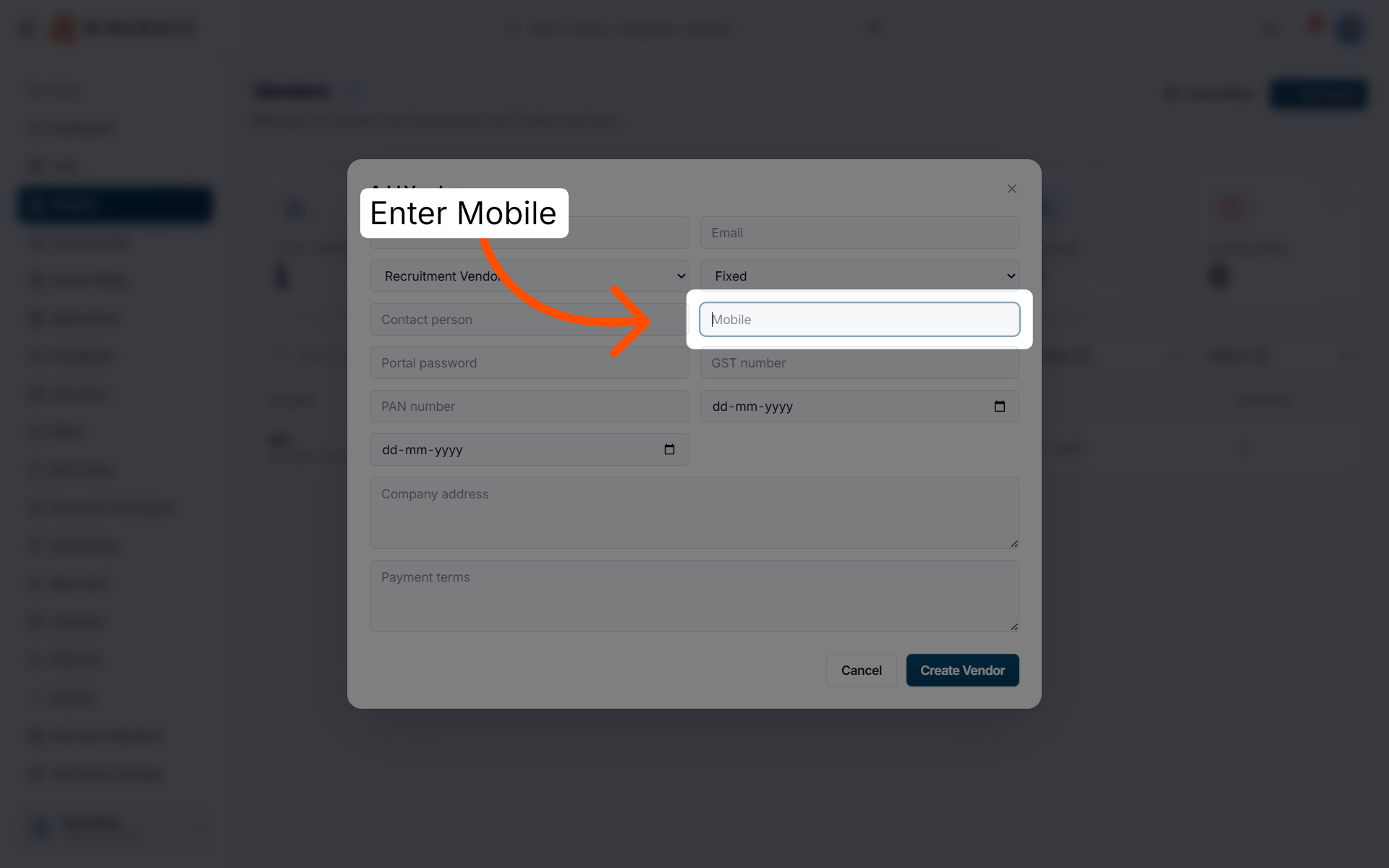
12. Input the mobile number
Enter Mobile to record the contact's phone number.
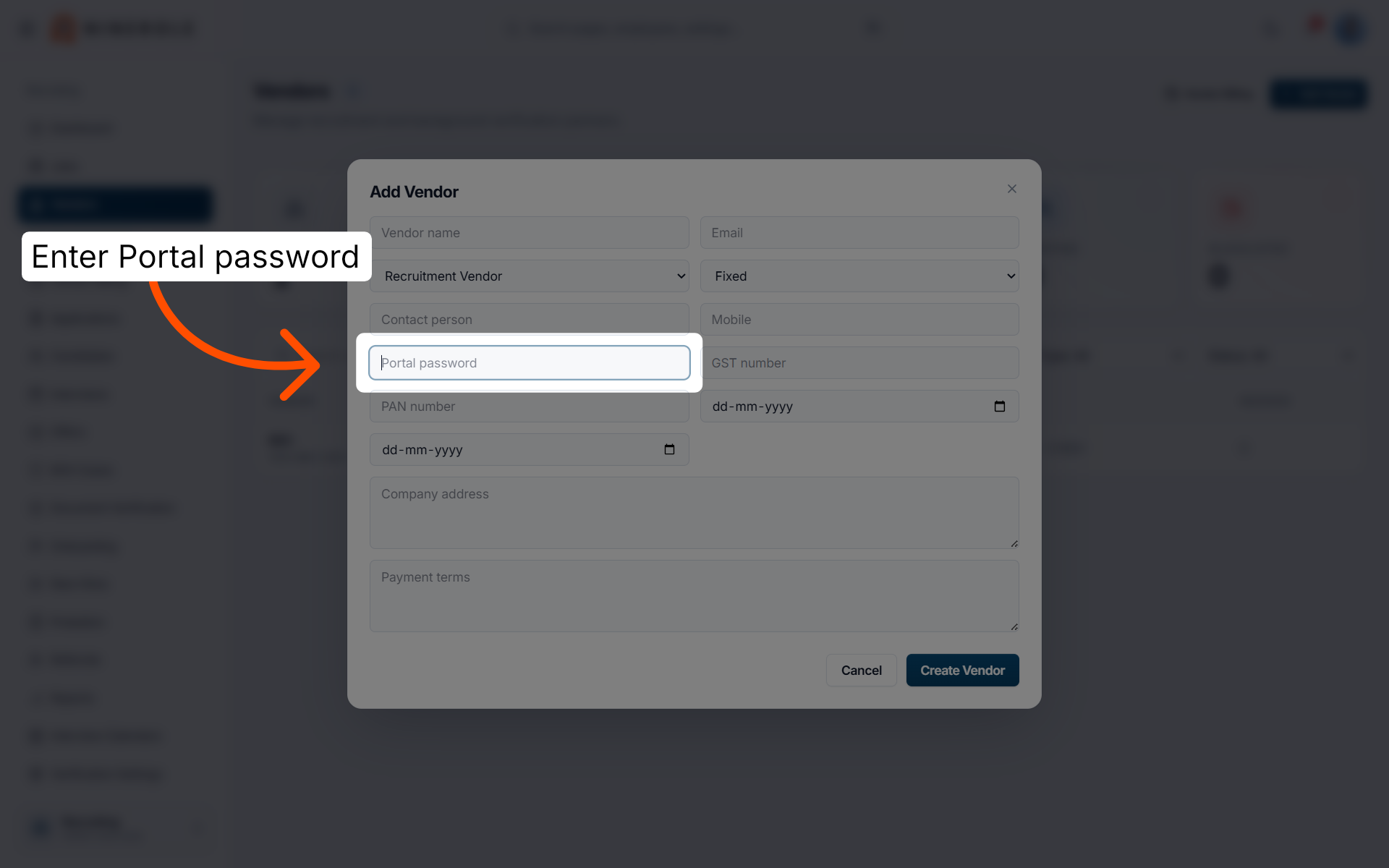
13. Set the portal password
Enter Portal password to define the vendor's access password for the vendor portal.
Add statutory and contract details
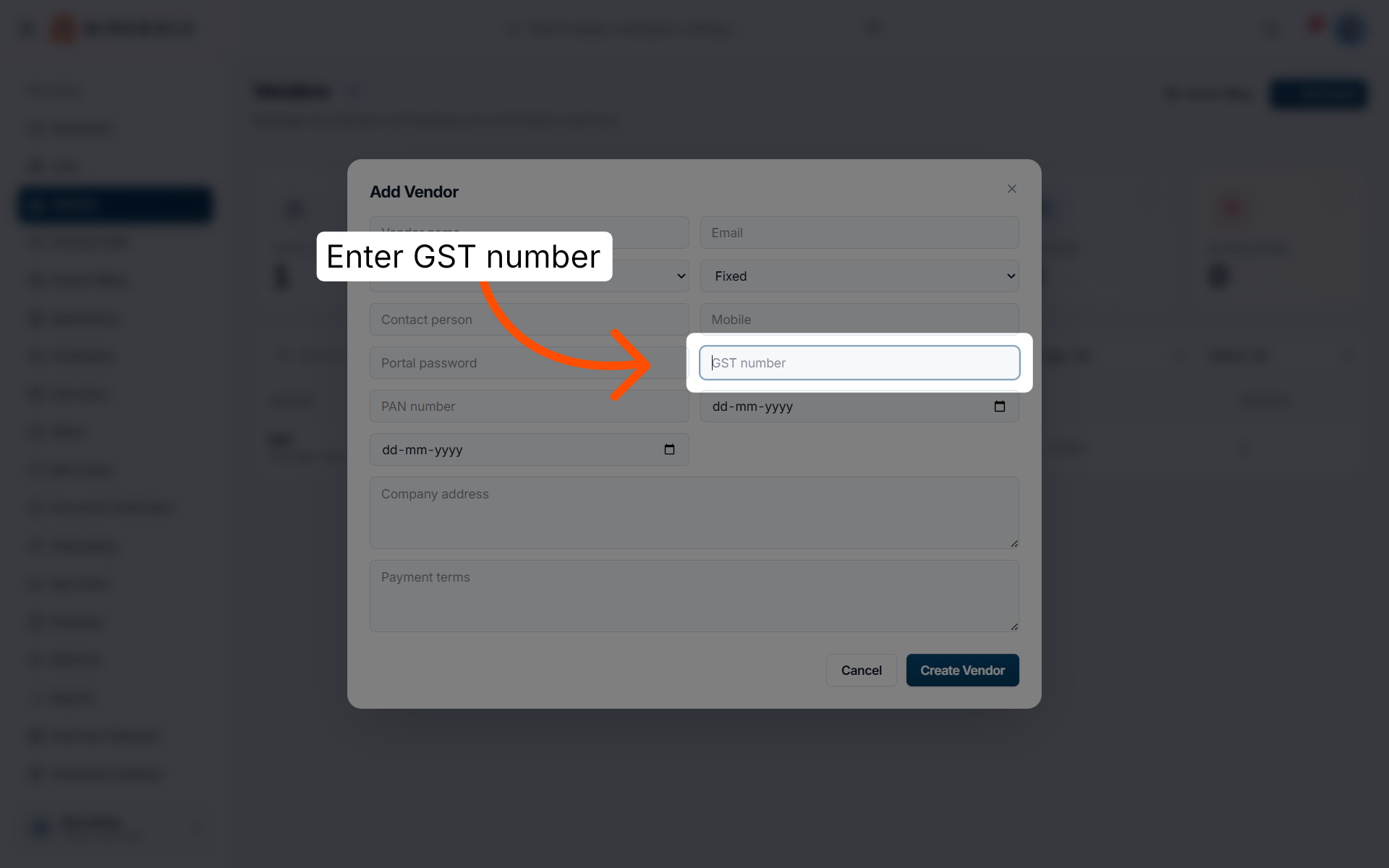
14. Enter the GST number
Enter GST number to input the vendor's tax identification number.
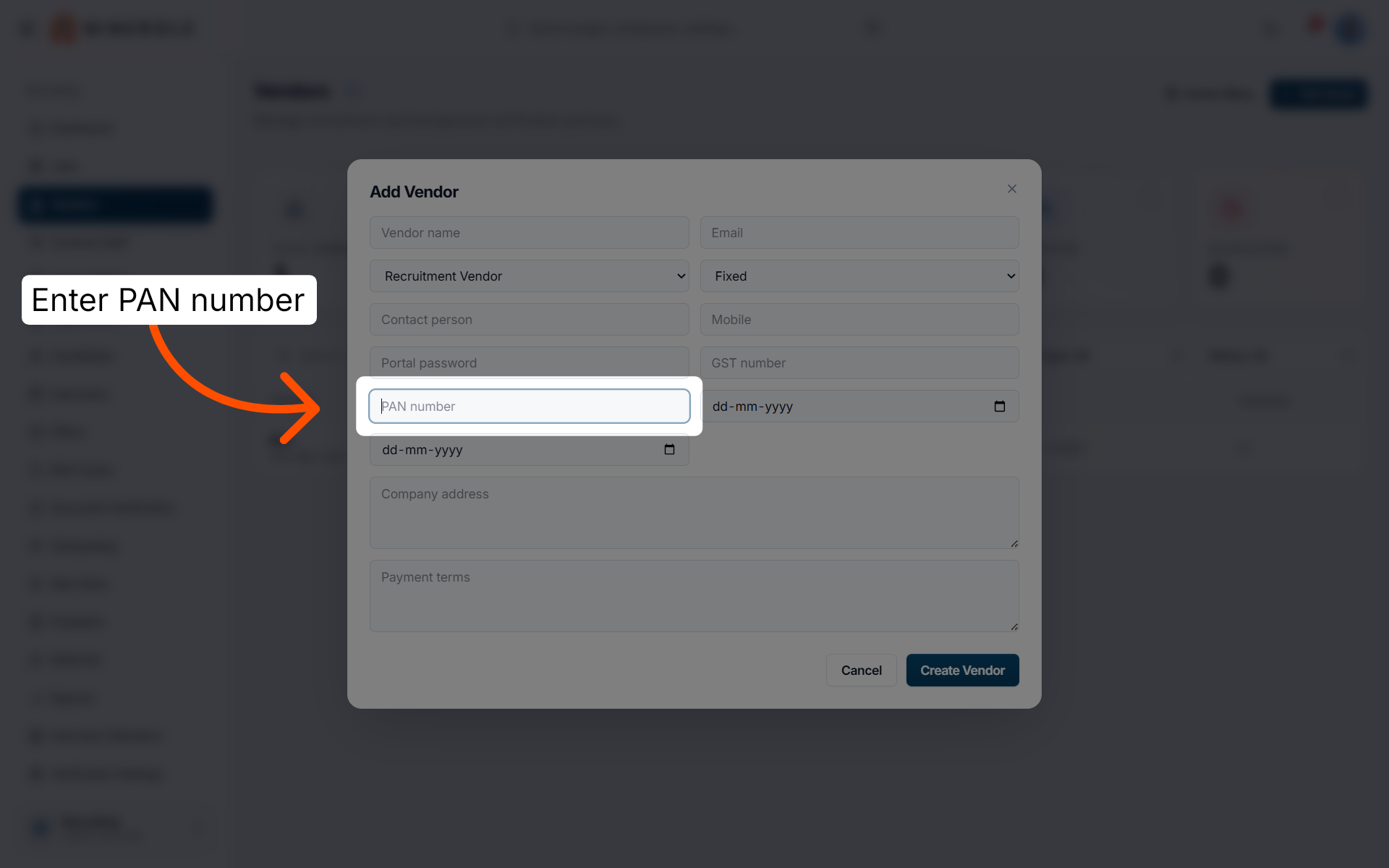
15. Provide the PAN number
Enter PAN number to record the vendor's Permanent Account Number.
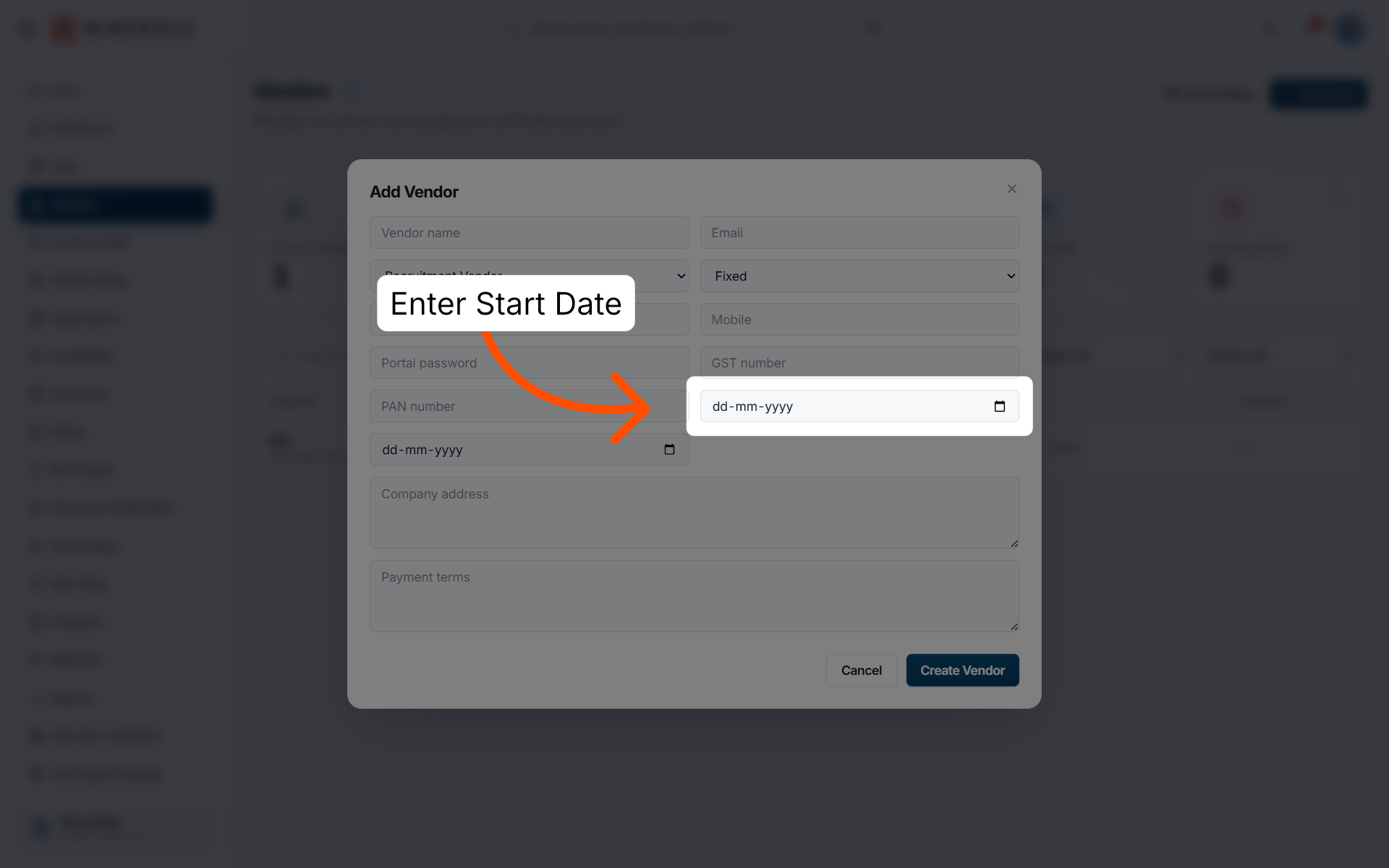
16. Enter the start date
Enter the contract start date for the vendor.
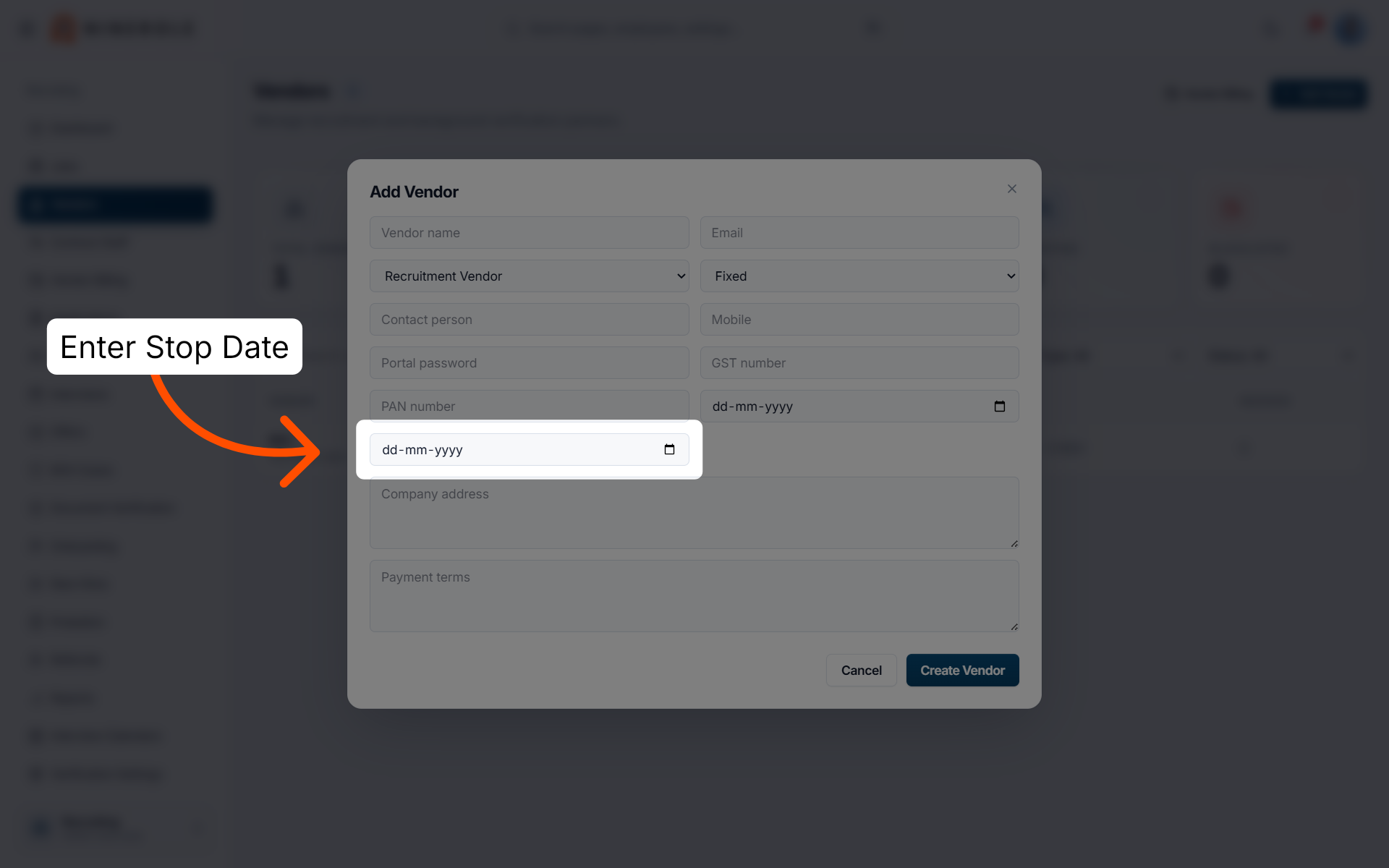
17. Enter the end date
Enter the contract end date for the vendor.
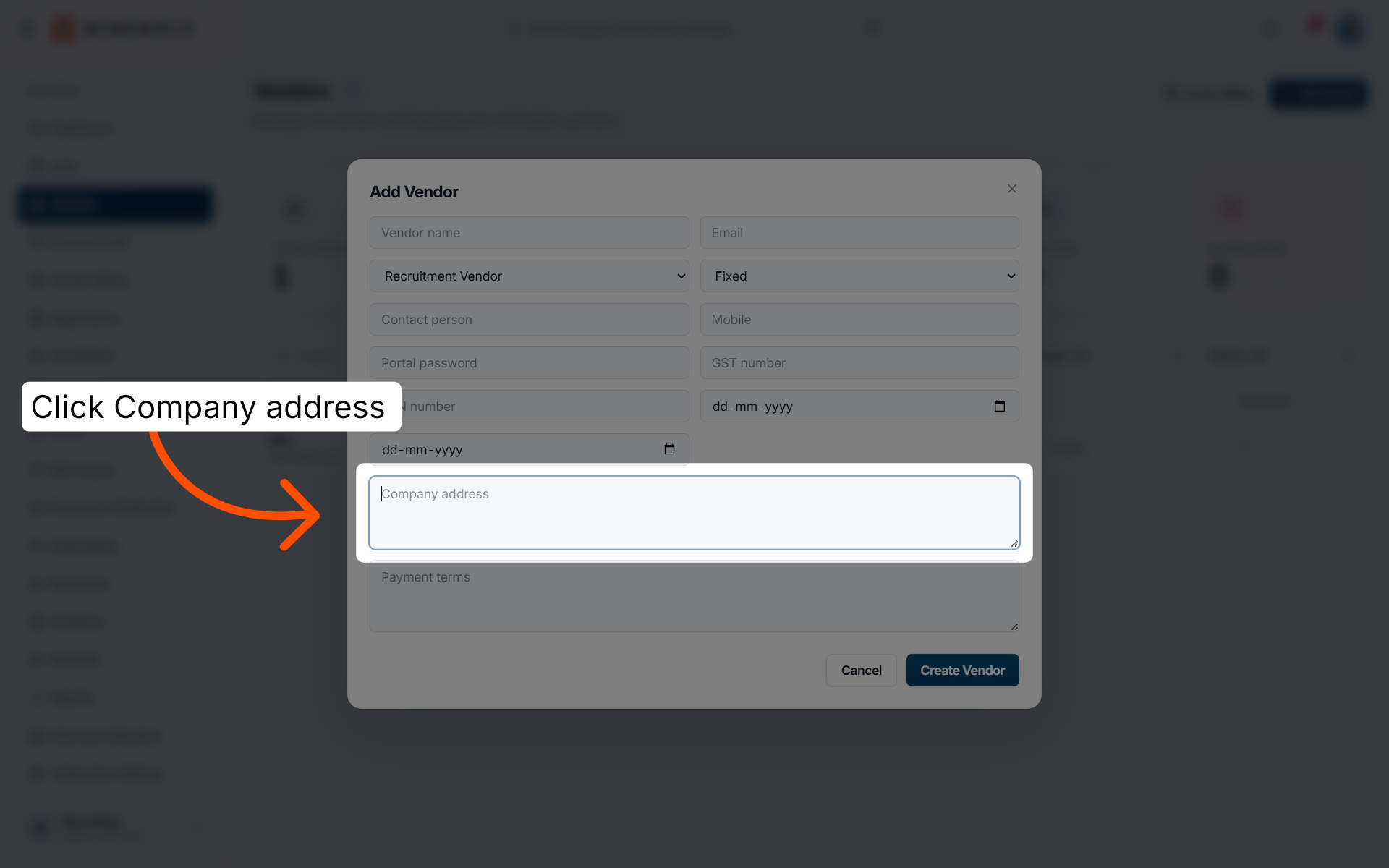
18. Input the company address
Enter Company address to provide the vendor's official location.
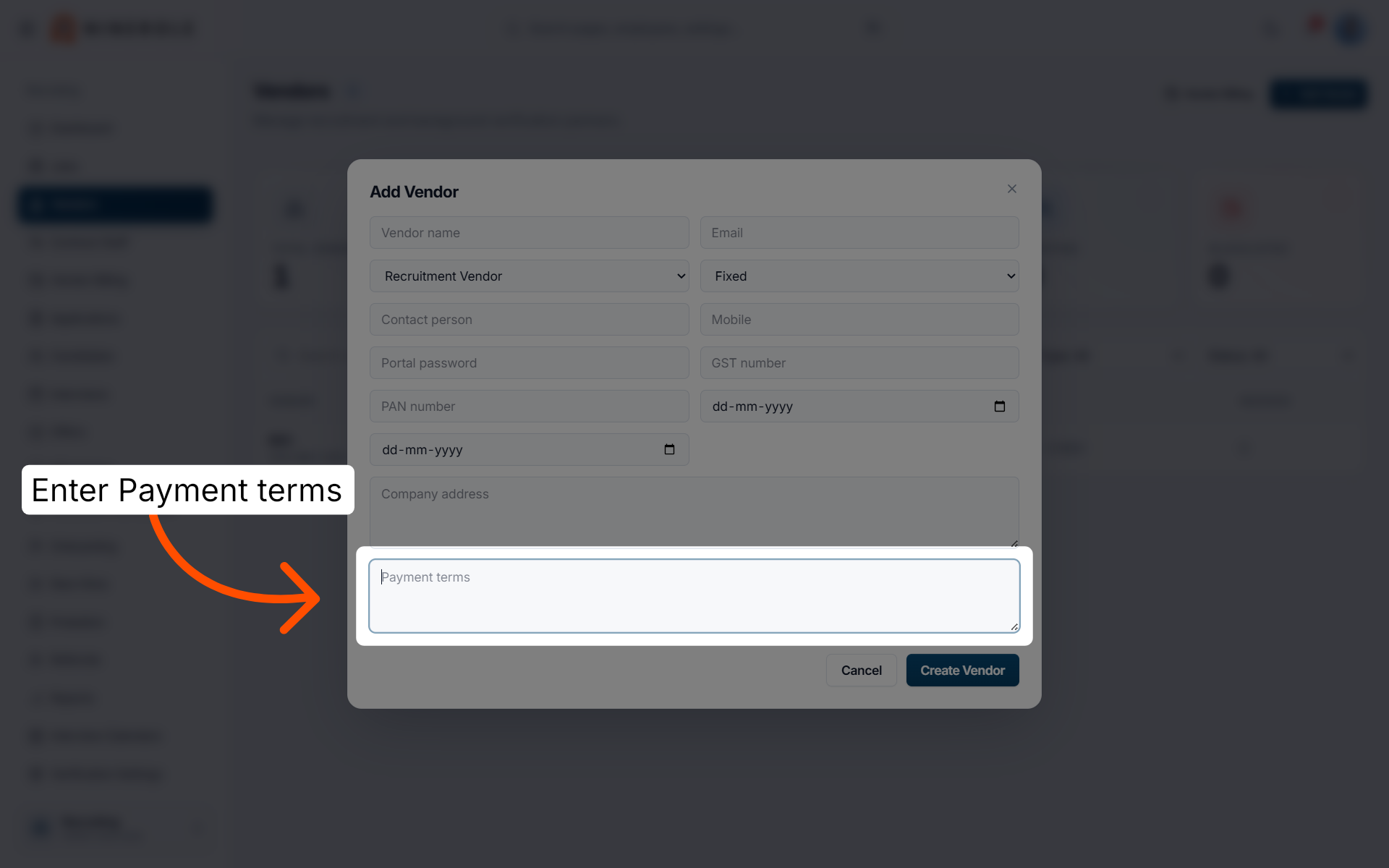
19. Define the payment terms
Enter Payment terms to specify the vendor's billing conditions.
Save the vendor
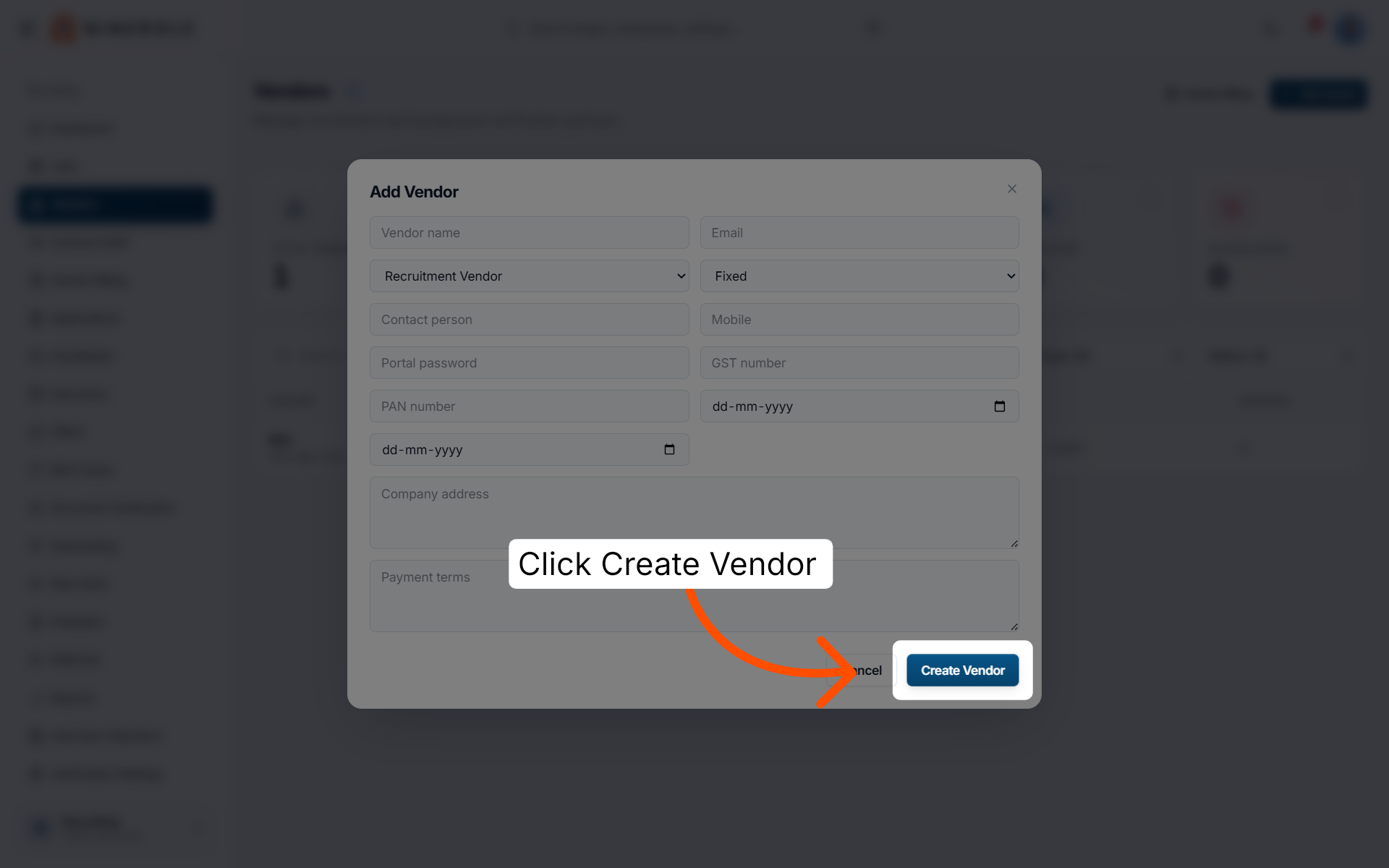
20. Complete the vendor creation
Click Create Vendor to save the new vendor record in the system.
You have successfully added a new vendor record in Ninerole HRMS by navigating through the recruiting module and completing all required vendor details. Next, you can manage vendor contracts or assign vendors to recruitment projects for streamlined operations.
Back to Hiring · all modules · Ninerole HRMS overview
Last updated: