

Create and Configure Projects
This tutorial guides you through creating and configuring a new project in Ninerole HRMS. You will learn how to set project details, assign roles, and save your project successfully.
Before you start, go to ninerole.com.
About this task
- Purpose
- Set up a new project so time, staffing and billing can run against it.
- Who can do this
- A user with project-management access
- Before you start
- The client must already exist — you cannot create a project for a client that isn't set up.
- You know the billing model, dates, budget and the project manager.
- You will need
- Project name and code, client, project manager, billing model, start and end dates, budget hours, project value, currency.
- Result
- A project is created with its dashboard — financial snapshot, milestones and team allocations.
- This unlocks
- Client staffing (deploying employees to the project), timesheets against the project, and billing and analytics.
This guide answers
- How do I create a project?
- Why can't I create a project?
- How do I set the billing model, budget or project manager?
- What has to exist before I create a project?
- What can I do once the project exists?
If something goes wrong
- The client isn't in the list.
- Create the client first, then come back to this screen.
- You can't set a manager or a billing model.
- Confirm you have project-management permission.
Related: Add a client · Client staffing · Timesheets · OpportunitiesAlso called: project setup.Last verified: 7 September 2026
1. Introduction
You will learn how to set project details, assign roles, and save your project successfully.
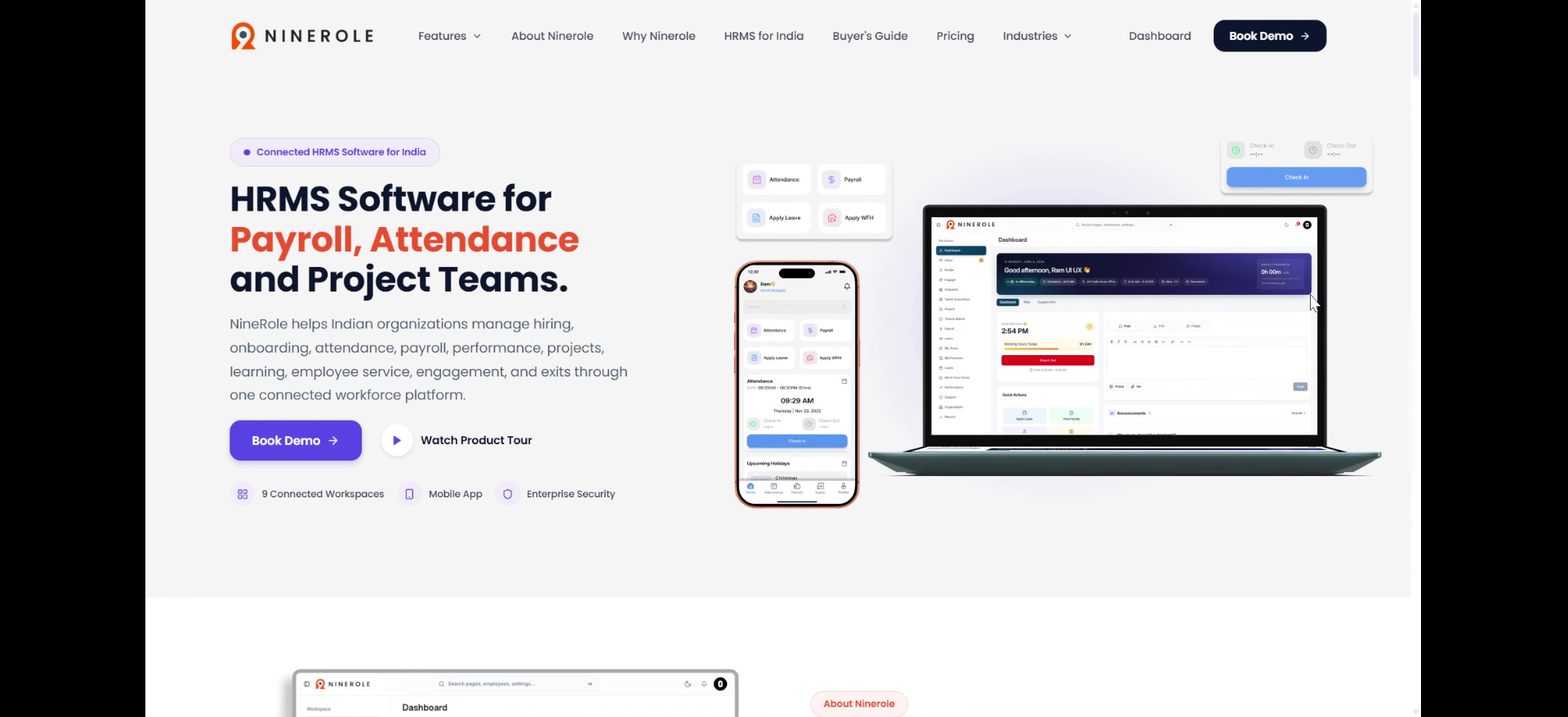
Open the Projects area
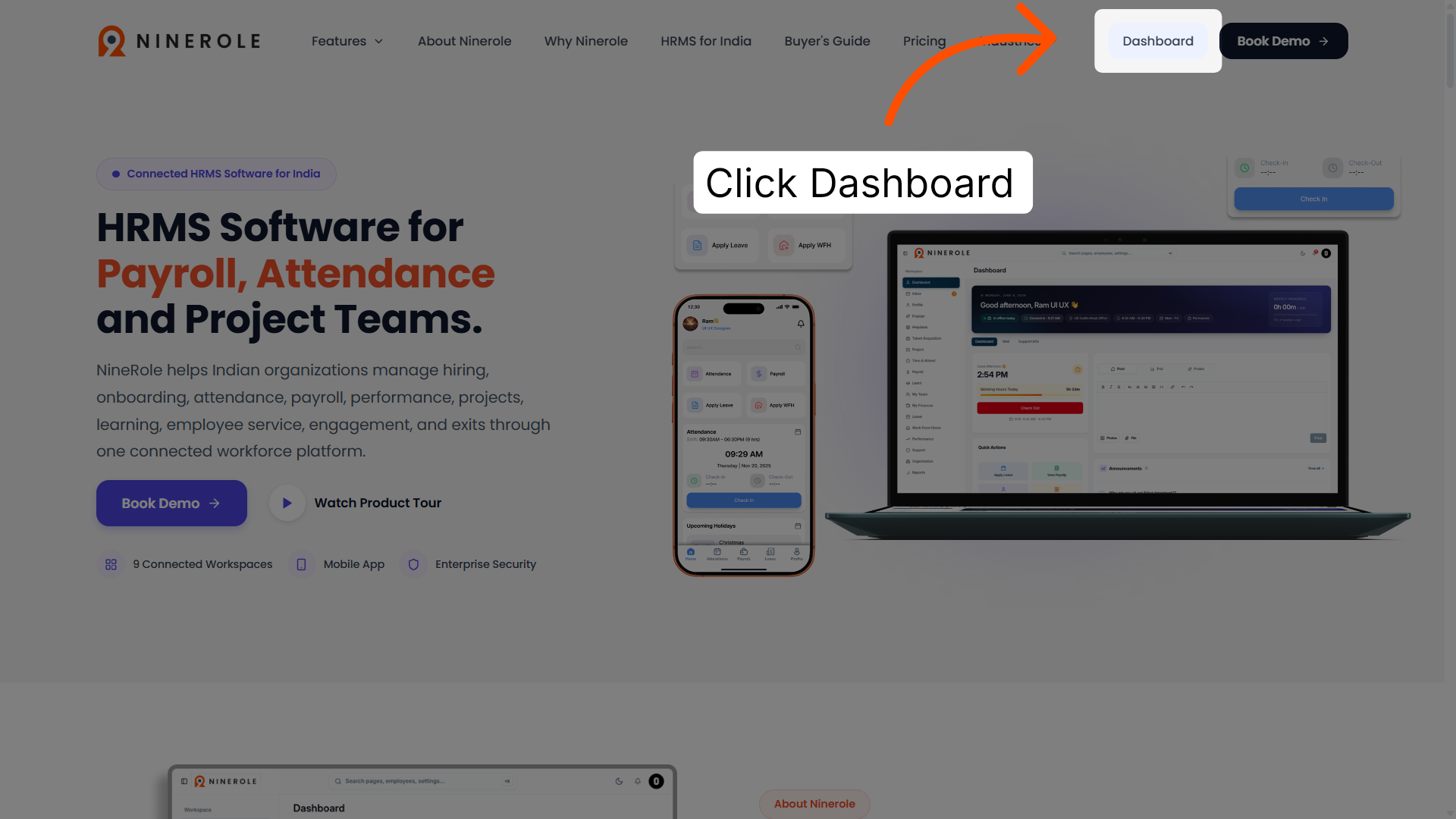
2. Access the dashboard
Click Dashboard to open the main overview page of Ninerole HRMS.
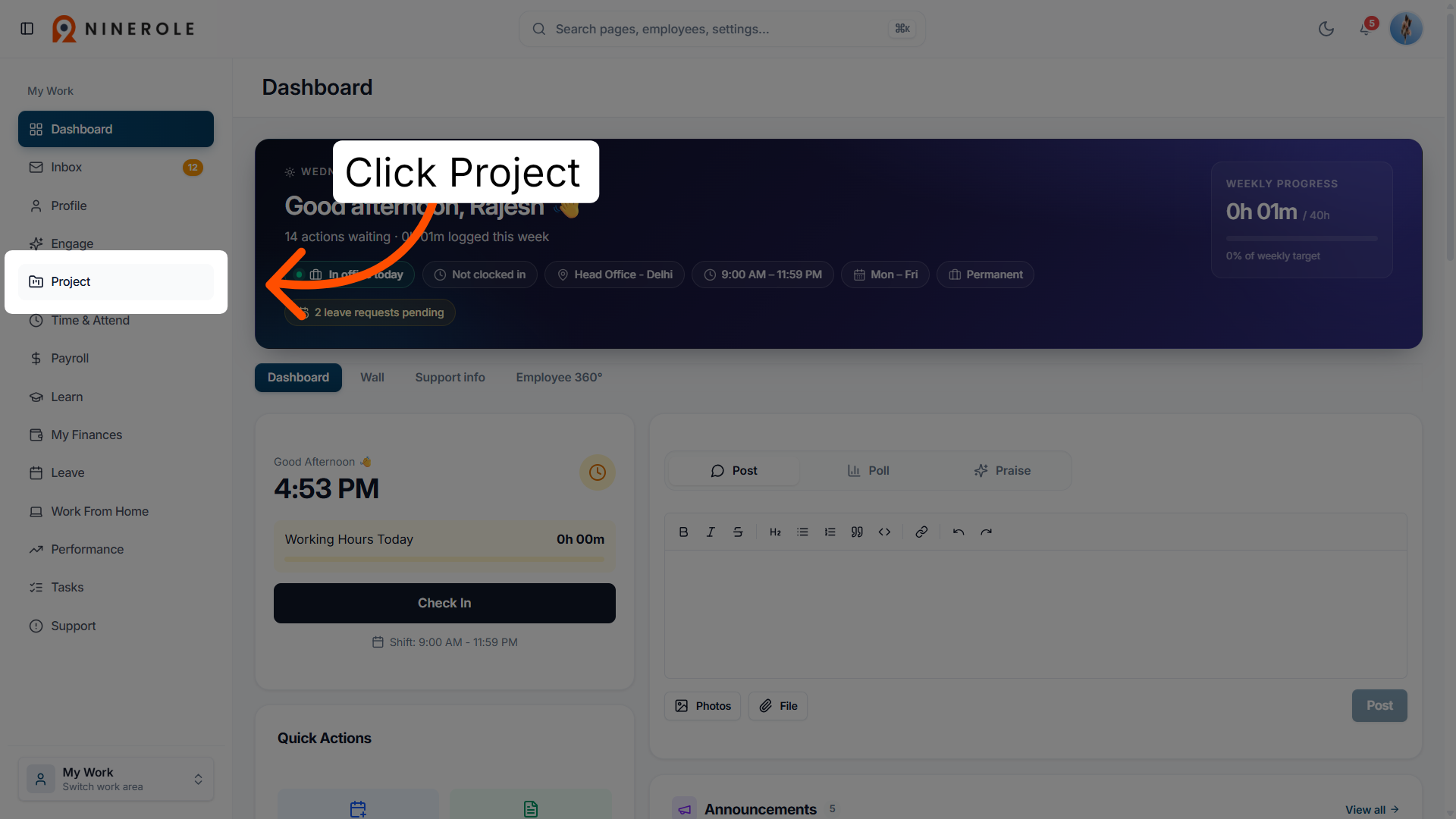
3. Open the Project section
In the sidebar, click Project — singular, which is how the workspace itself is labelled — to open the project management area.
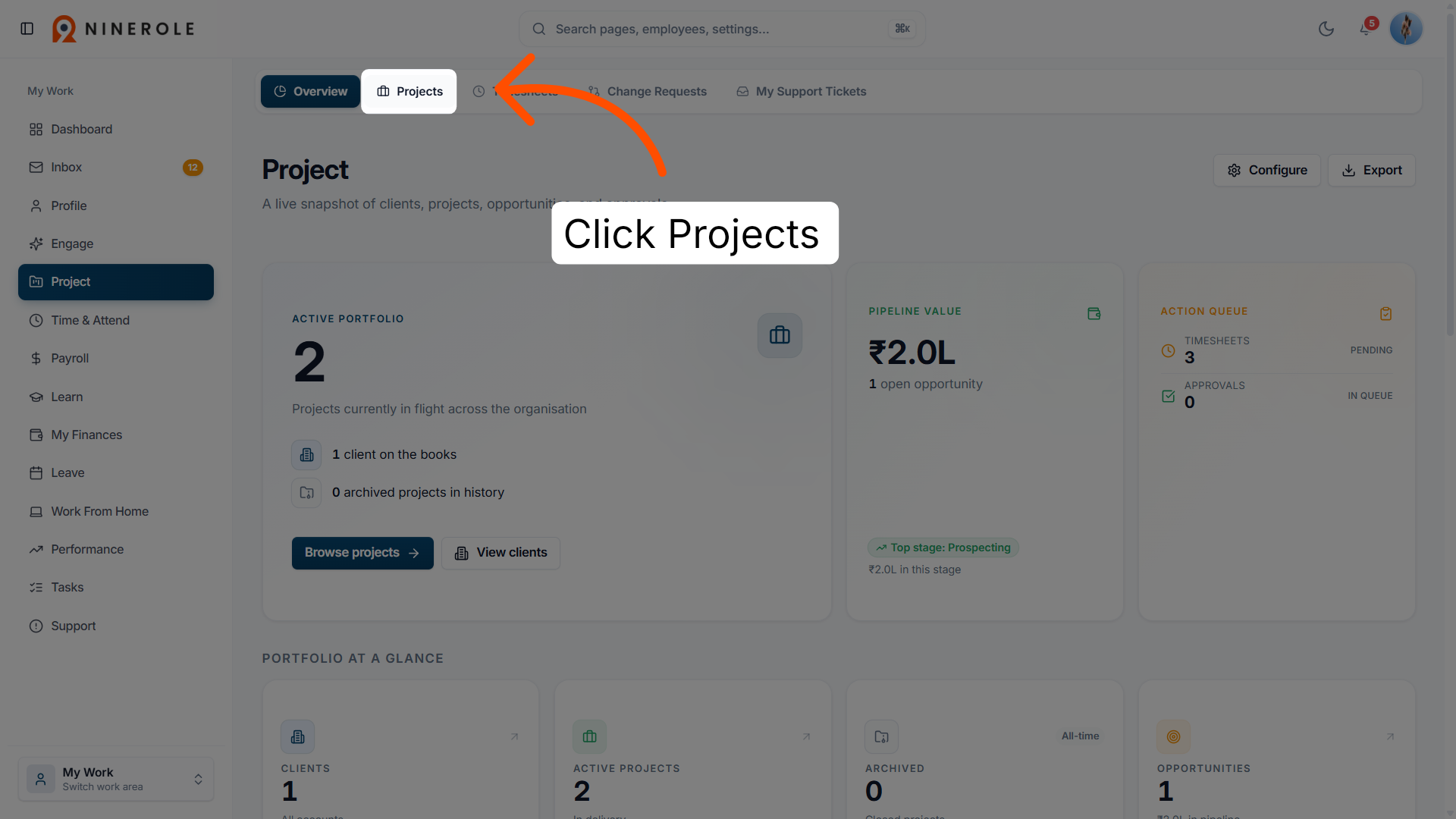
4. View the projects overview
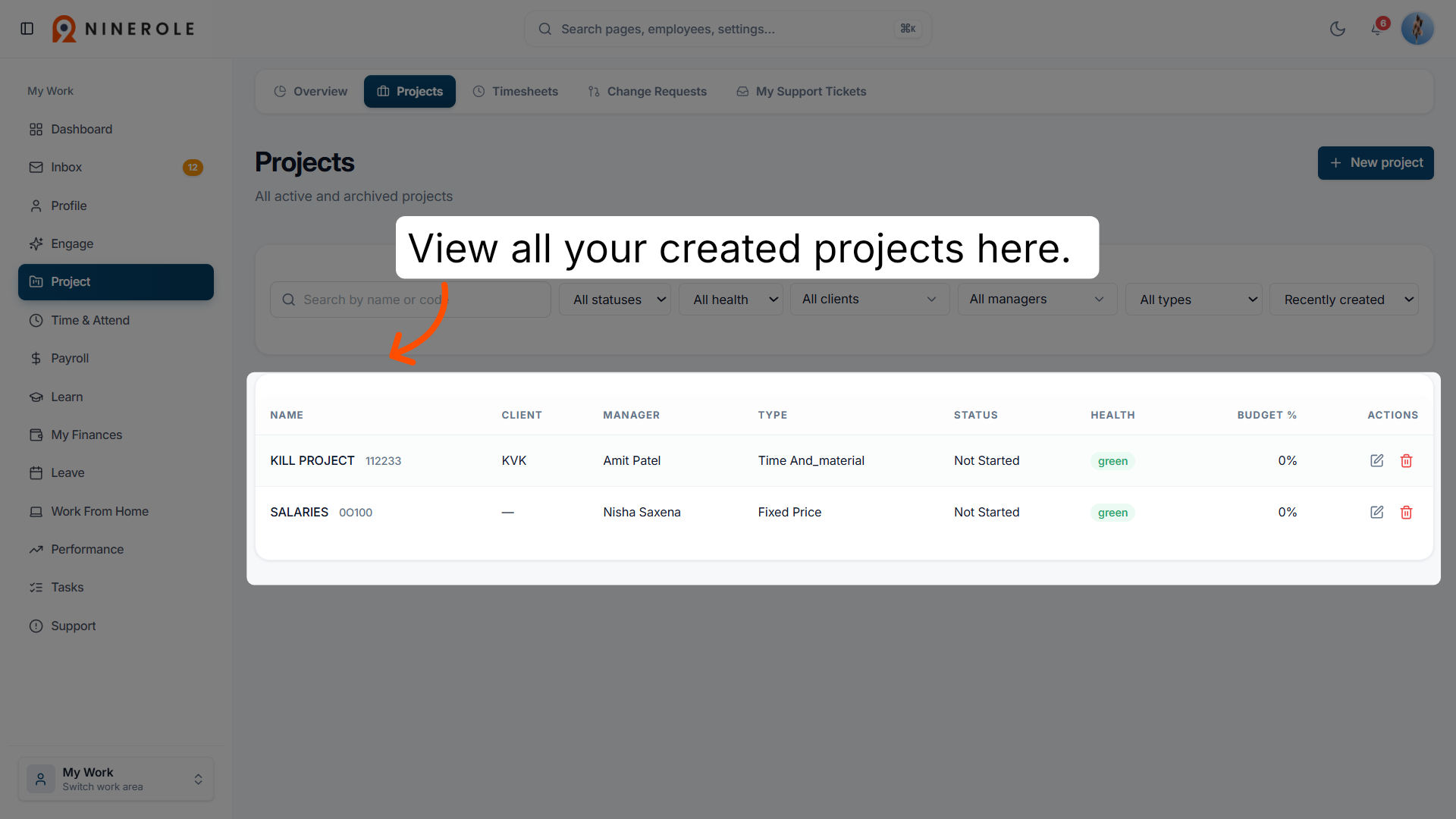
Inside that area, click Projects — plural — to open the list and overview of existing projects.
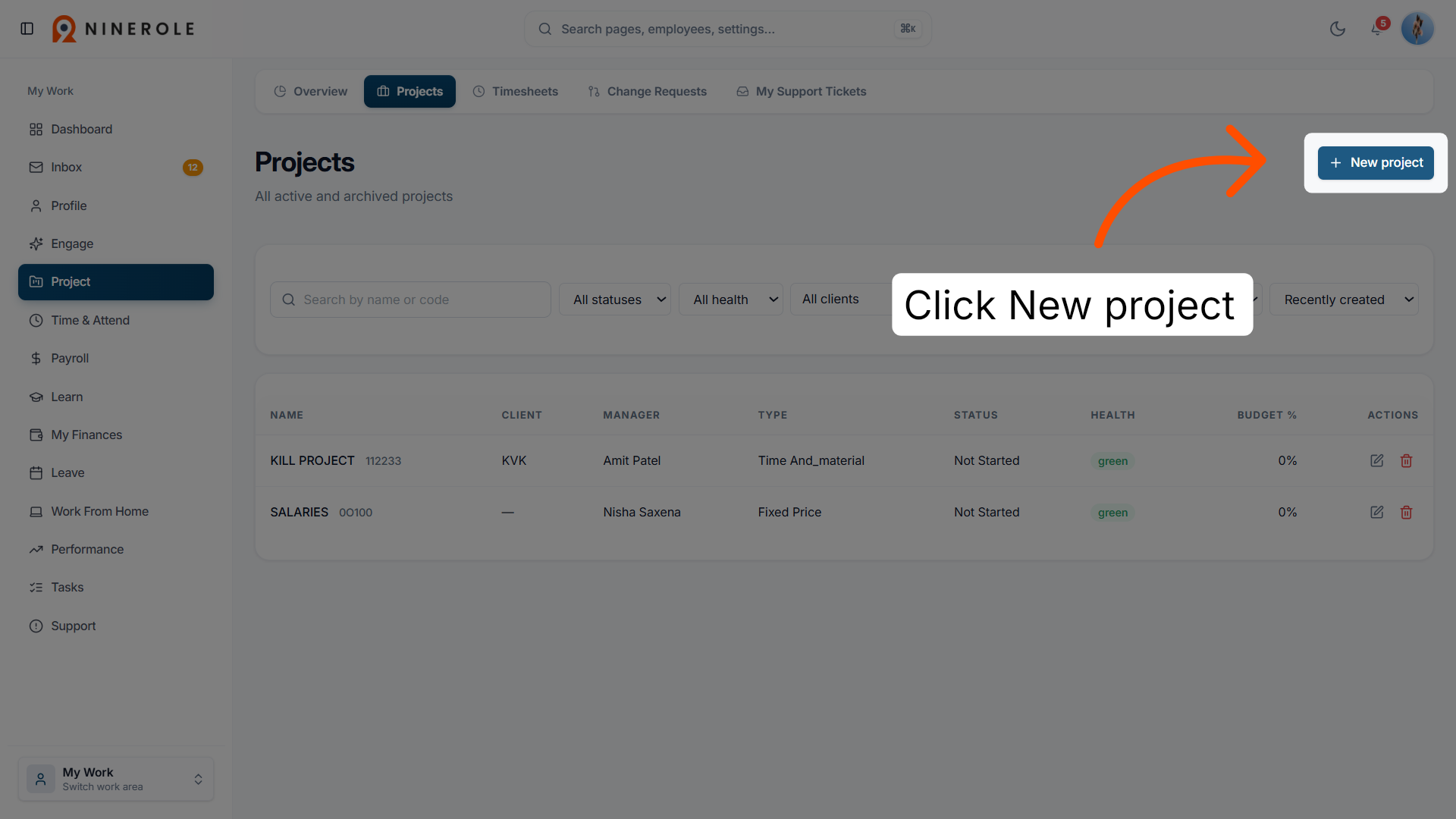
5. Initiate new project creation
Click New project to start creating a new project in the system.
Enter the project details
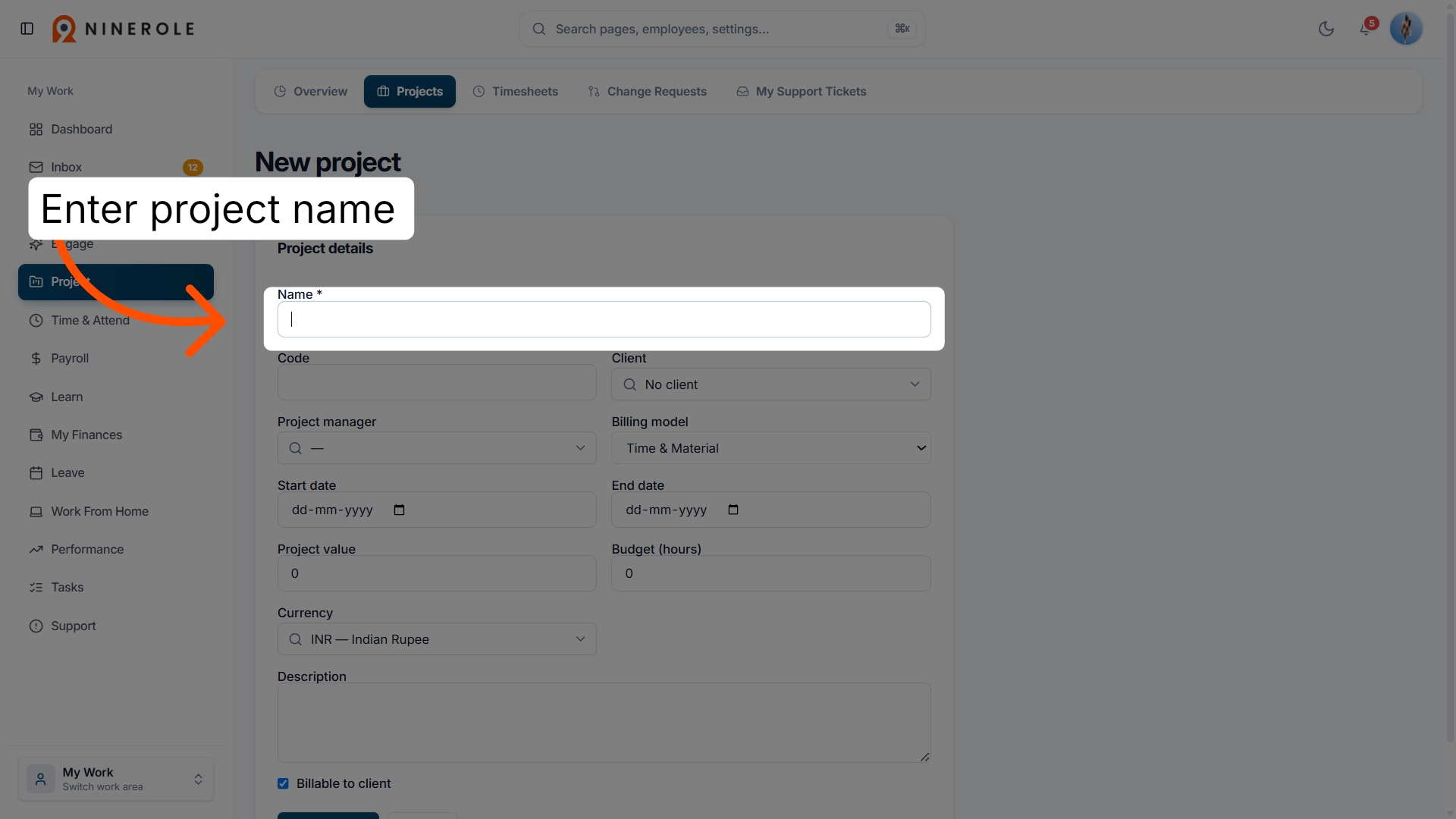
6. Enter the project name
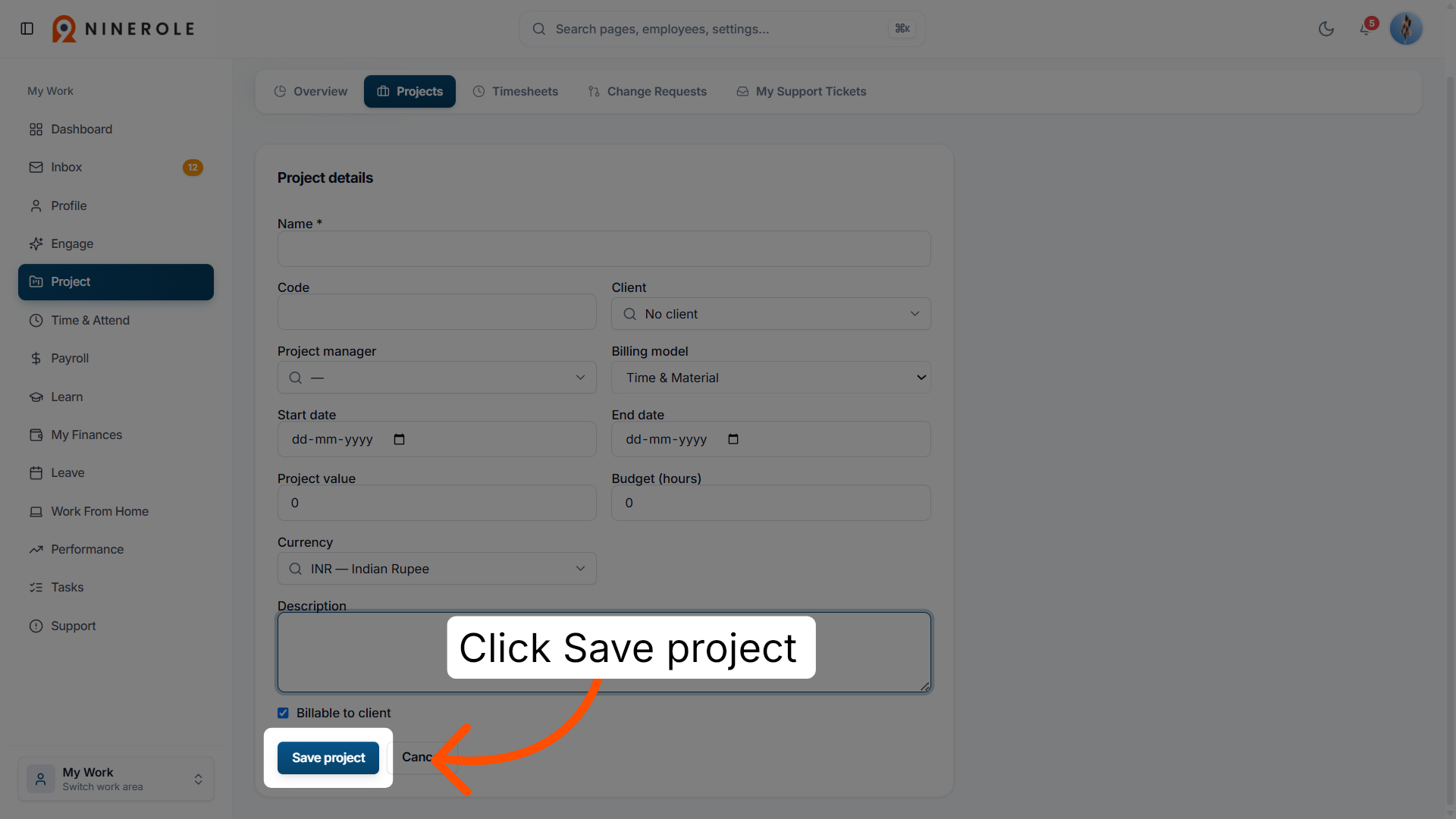
Enter Name * to input the name of your new project.
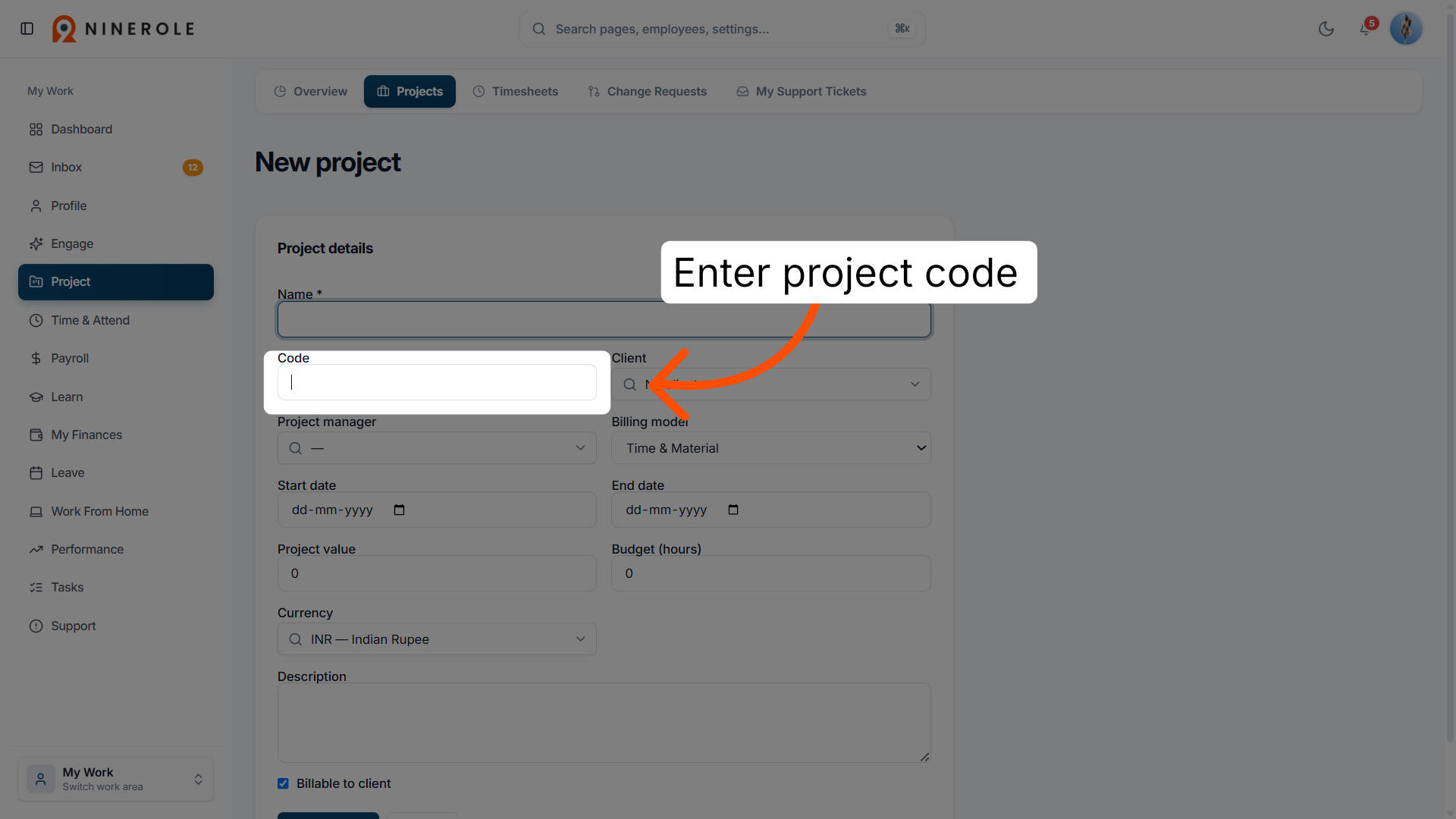
7. Specify the project code
Enter Code to enter a unique identifier code for the project.
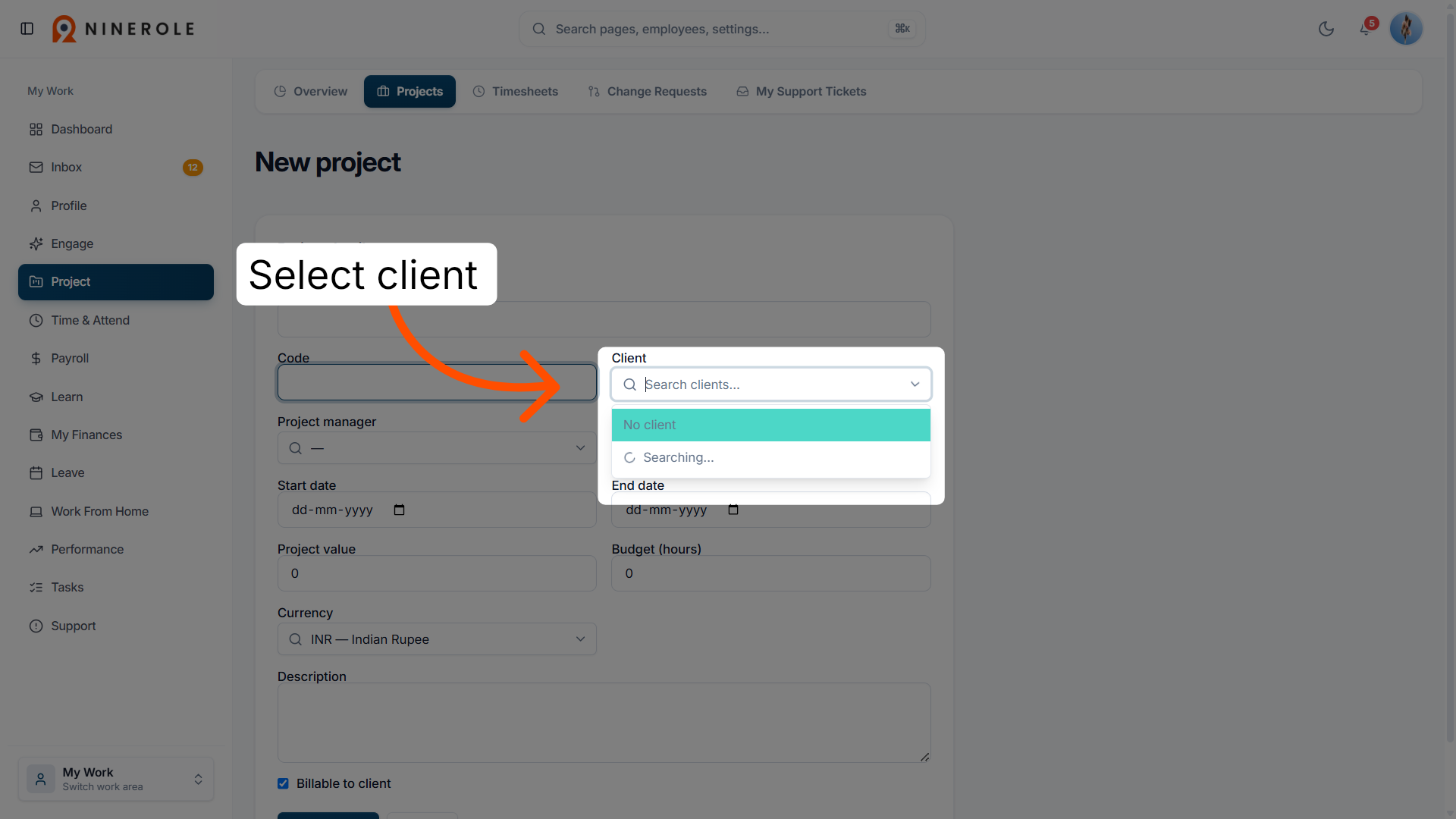
8. Select the client
Select Client to choose the client associated with this project. The client must already exist — see Configure New Client Profiles.
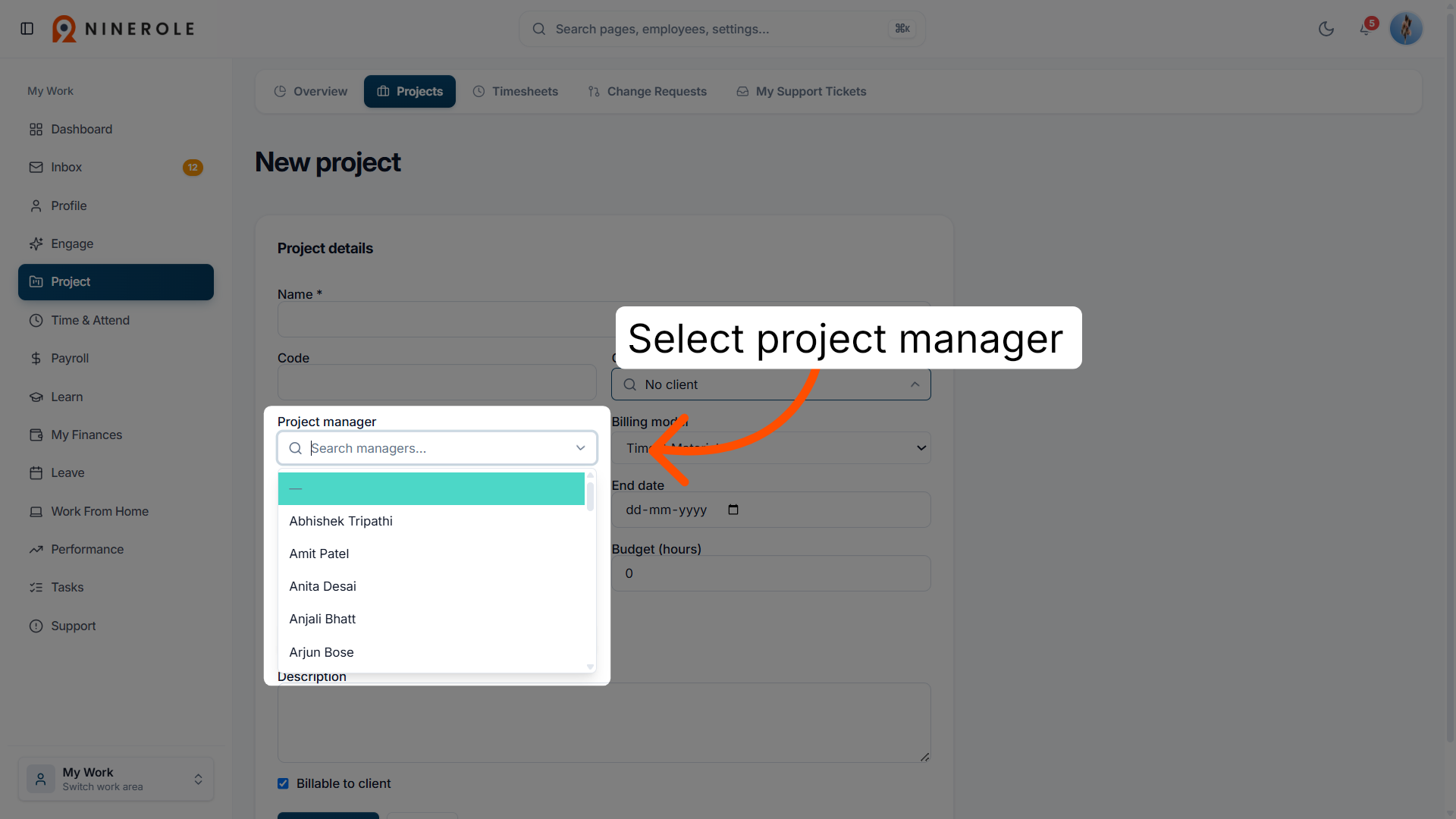
9. Assign the project manager
Select Project manager to designate the person responsible for managing the project.
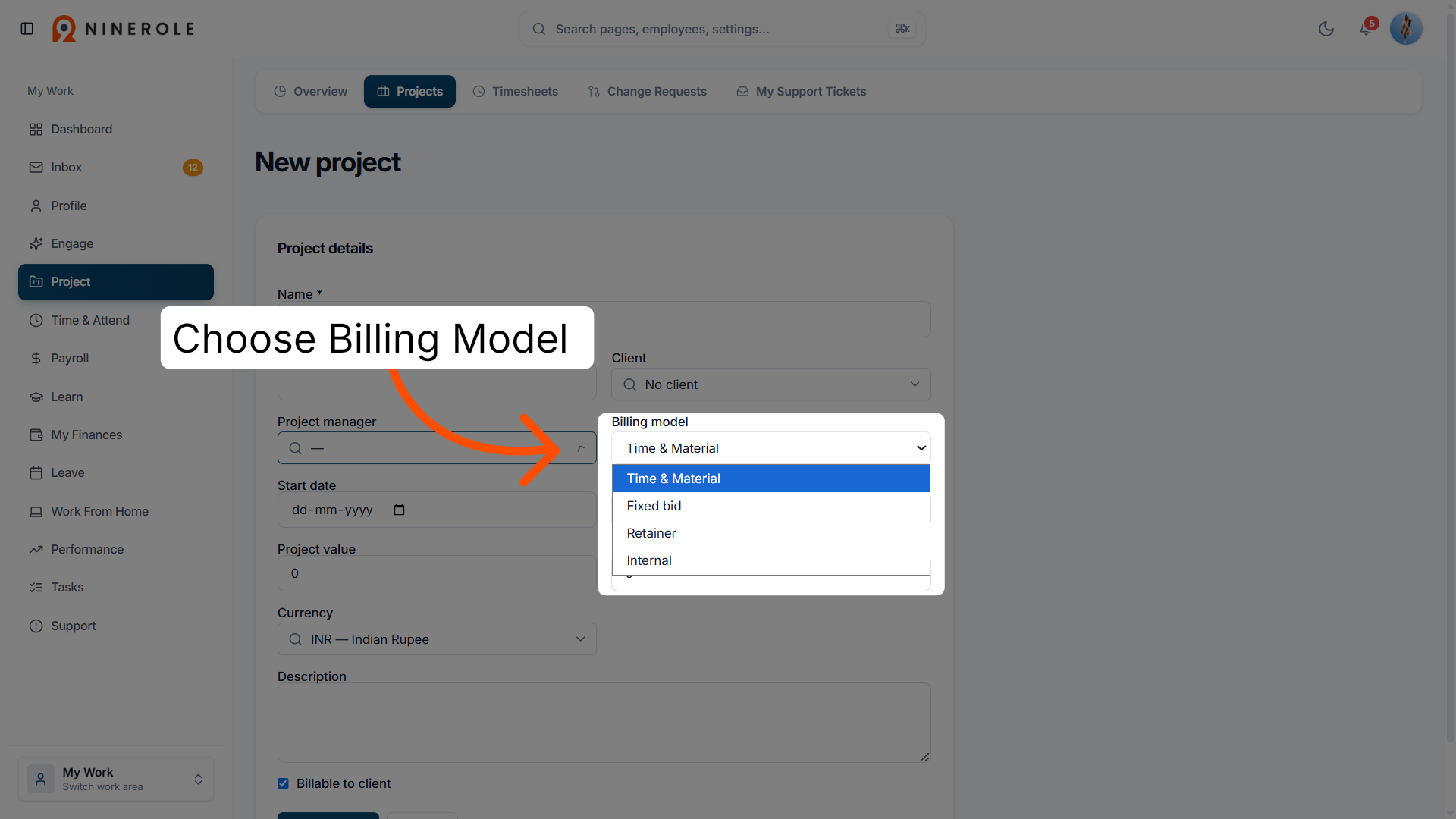
10. Choose the billing model
Choose Billing Model to select the appropriate project billing or engagement type.
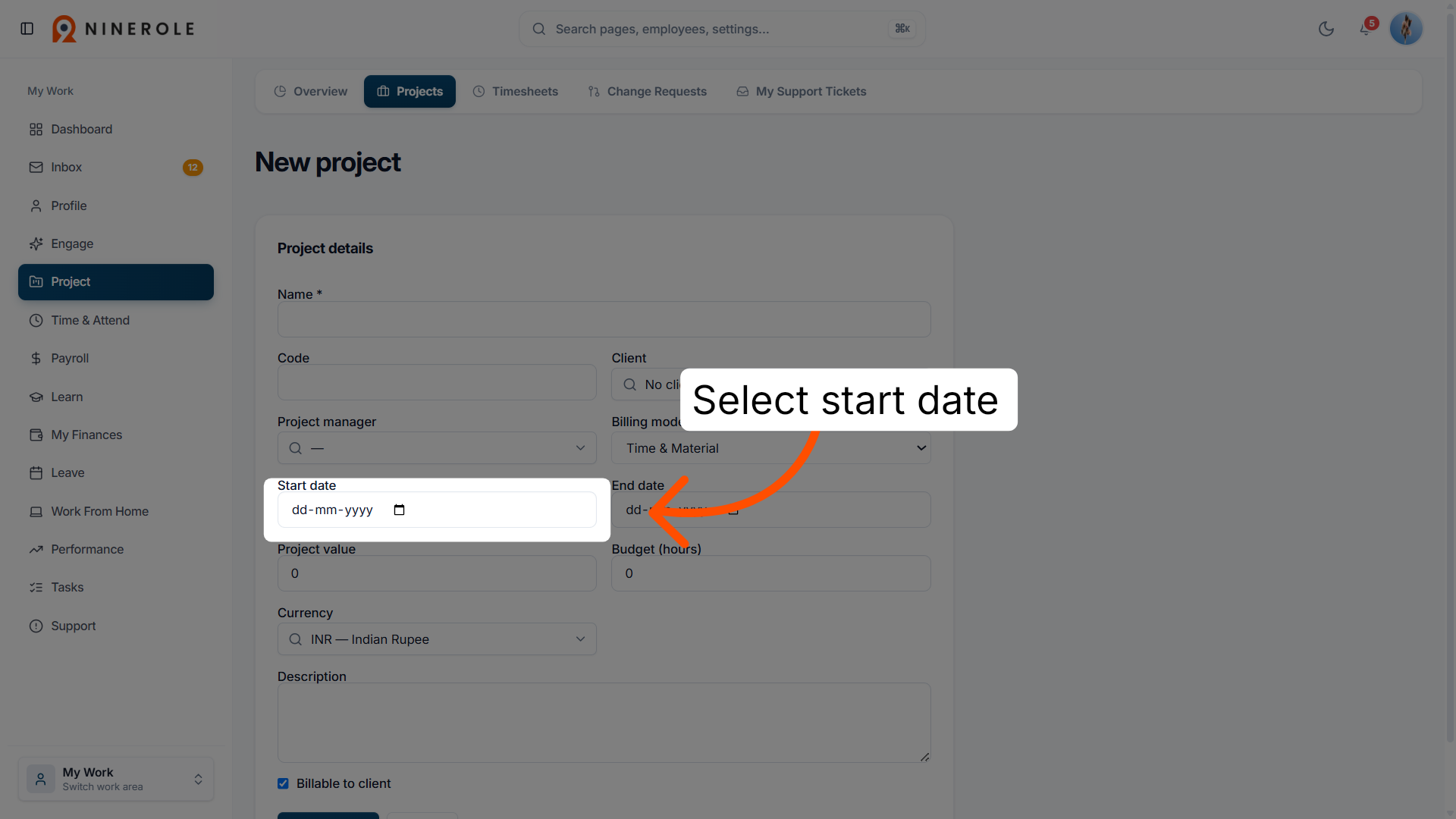
11. Set the project start date
Select Start date to specify when the project will begin.
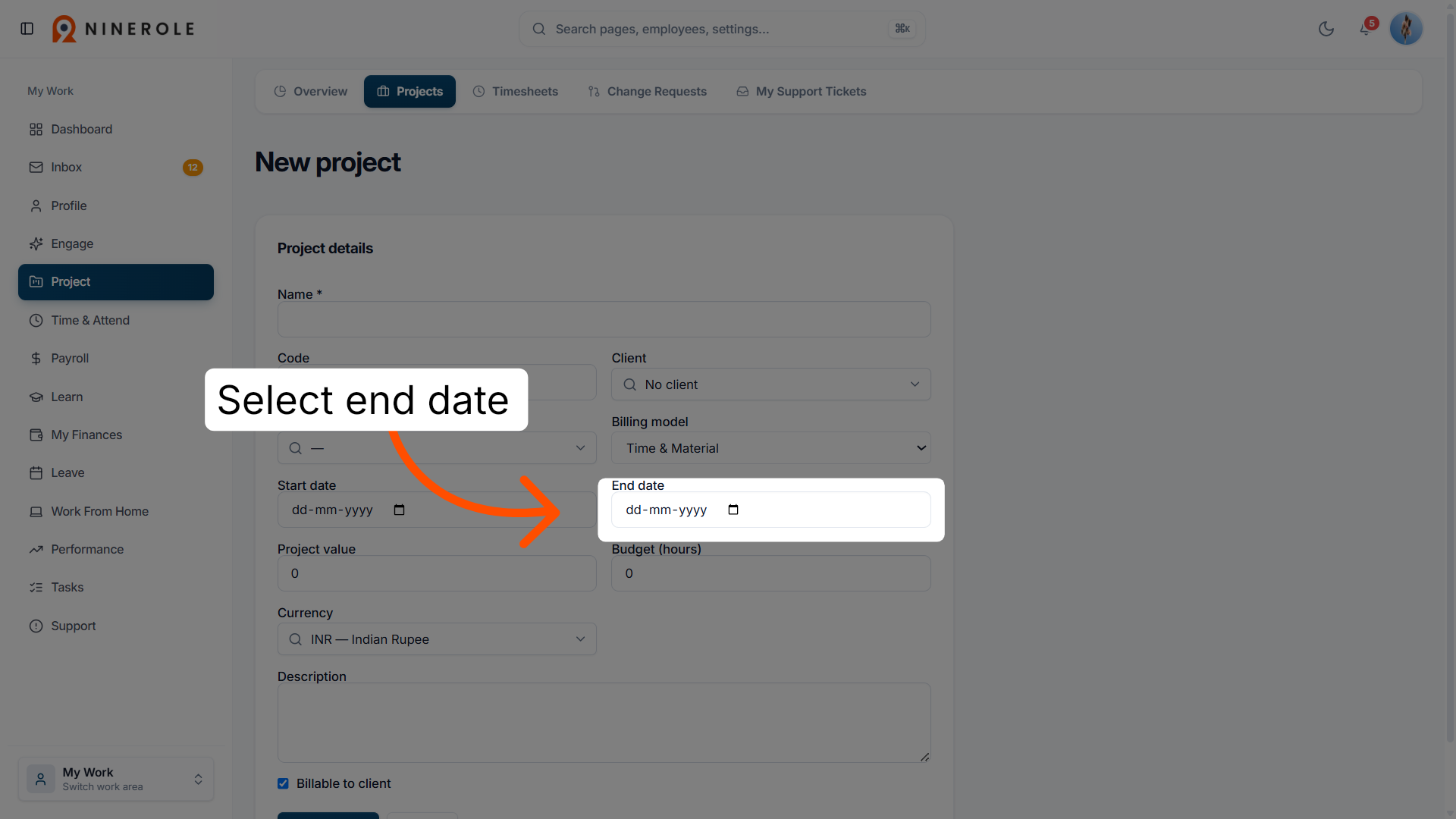
12. Set the project end date
Select End date to define the expected completion date of the project.
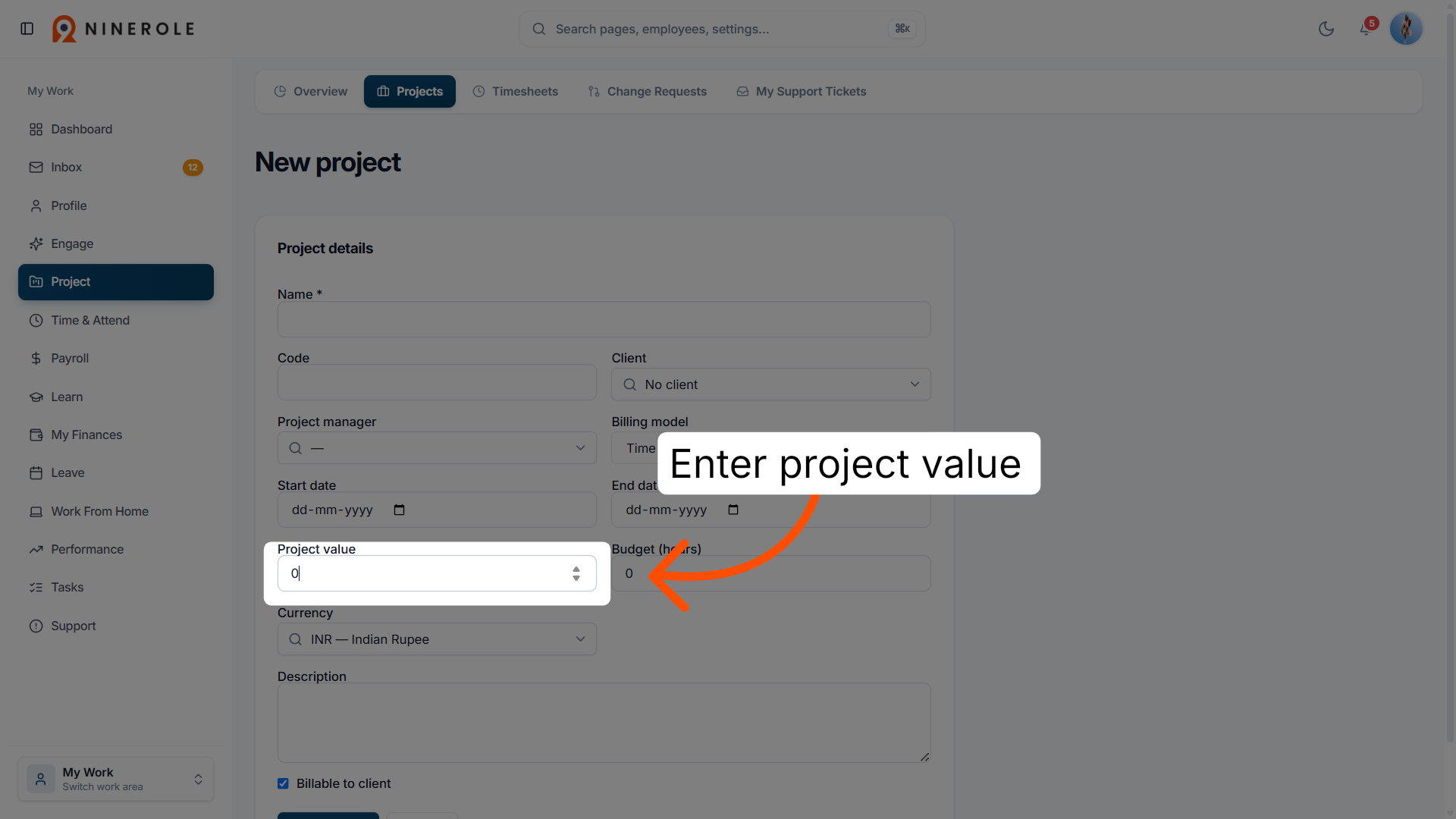
13. Define the project value
Enter Project value — the financial value or budget allocated for the project.
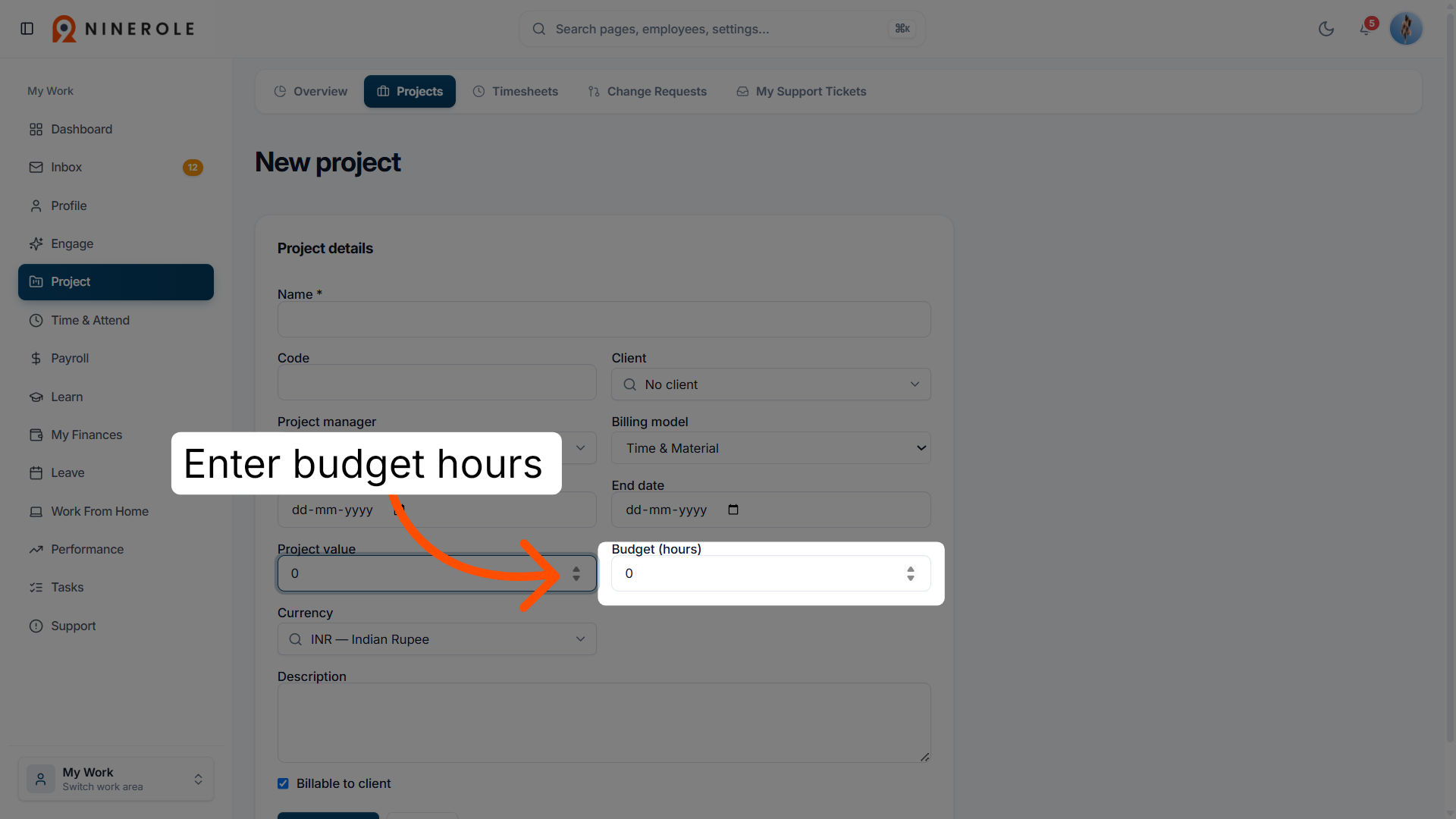
14. Specify the budget hours
Enter Budget (hours) to set the total number of hours budgeted for the project.
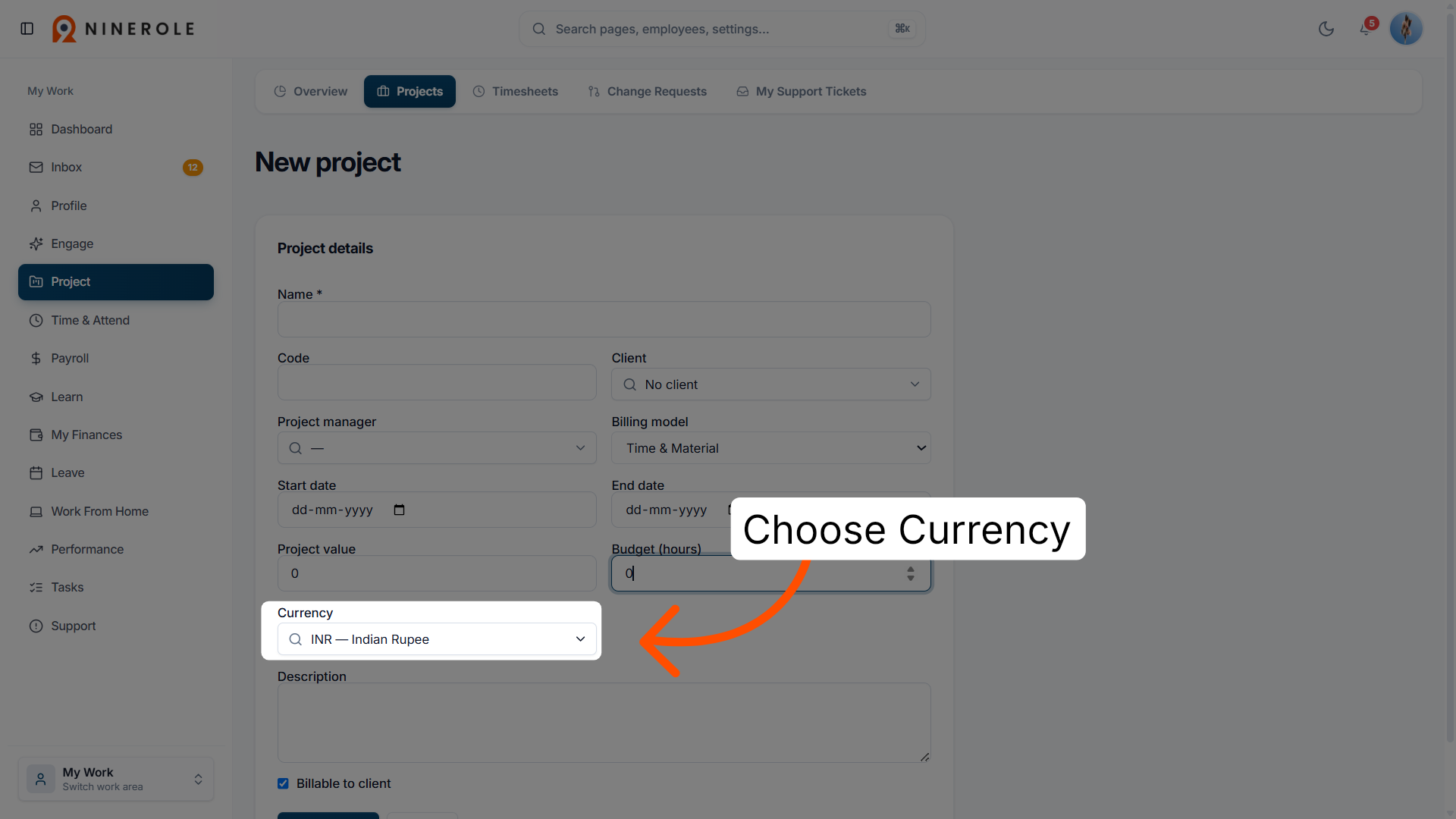
15. Choose the currency
Choose your preferred currency for the project.
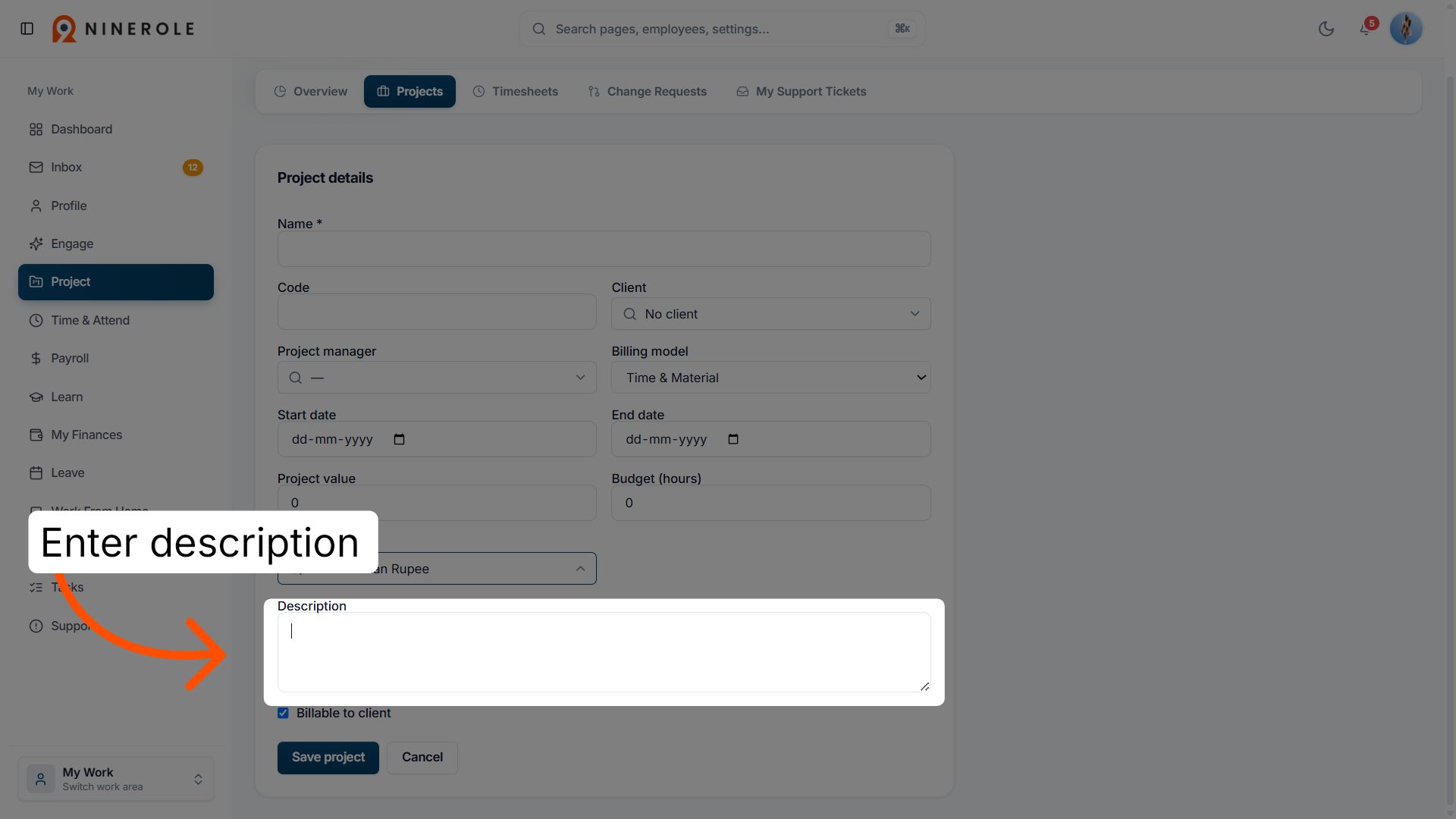
16. Add a project description
Enter a Description to provide detailed information about the project's scope and objectives.
Save and open the project
17. Save the new project
Click Save project to finalize and save all the project details you have entered.
18. Open the created project
Click the project name to open the project you just created.
19. View the project dashboard
The project dashboard opens within Ninerole. From here you can monitor the project's financial snapshot, milestone coverage, and team allocations.
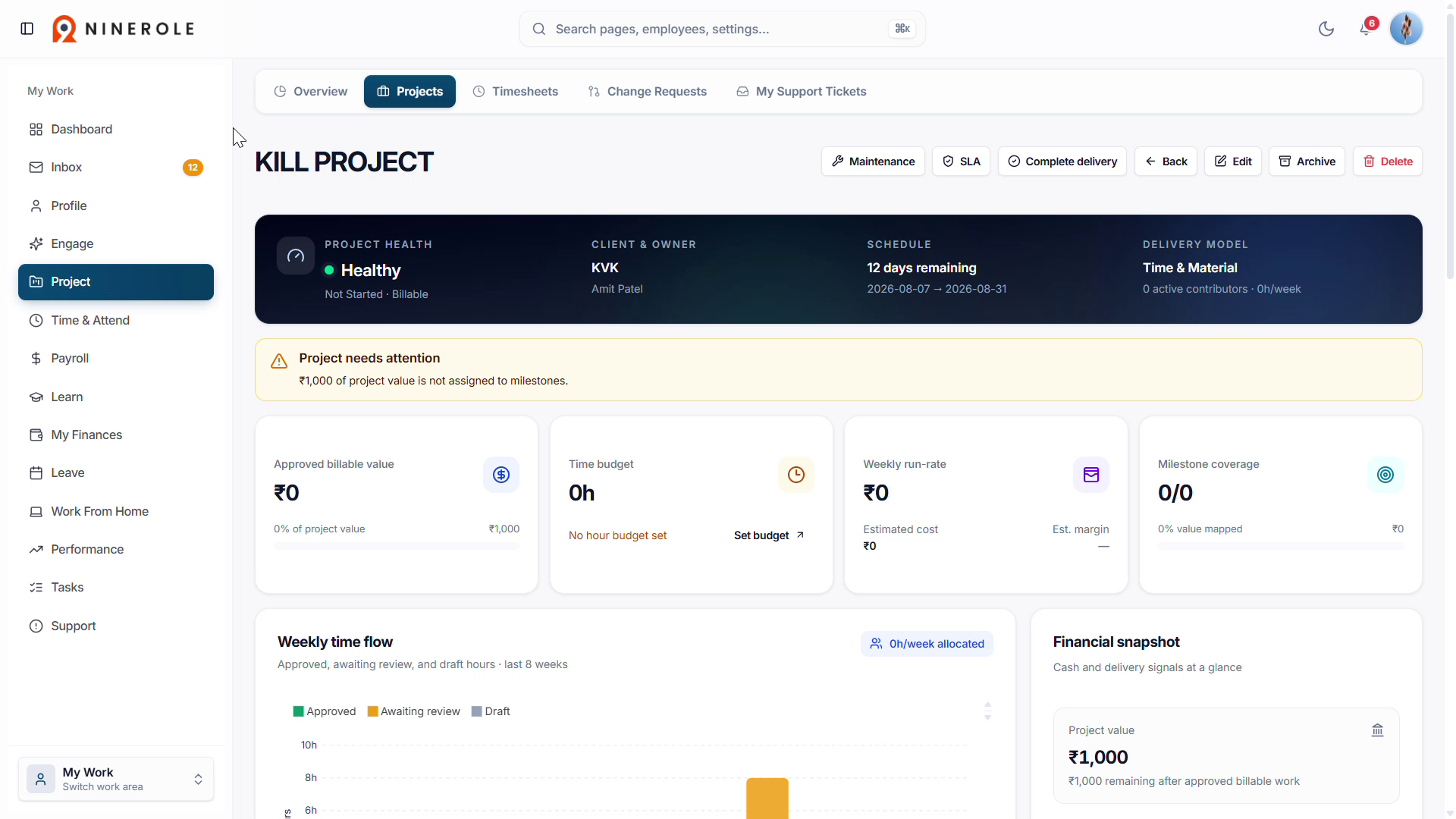
You have successfully created and configured a new project in Ninerole HRMS by entering all necessary details and saving the project. You can now manage this project and track its progress within the platform.
Back to Projects · all modules · Ninerole HRMS overview
Last updated: