

Customize Payslip Templates and Manage Payroll
This tutorial explains how to customize payslip templates and manage employee payslips in Ninerole HRMS. You will learn to configure payslip layouts and access detailed payslip information for employees.
Before you start, go to ninerole.com and sign in with an account that can change payroll settings.
About this task
- Purpose
- Customise what appears on the payslip your employees receive, then review generated payslips.
- Who can do this
- Payroll administrator
- Before you start
- Company details are configured.
- You will need
- Decisions about which sections to show — tax breakdown, amount in words, bank details, footer text.
- Result
- The payslip layout is saved and applies to payslips generated from then on.
- This unlocks
- Running payroll — the readiness check requires a payslip template to exist.
This guide answers
- How do I change what appears on a payslip?
- How do I show the tax and statutory breakdown?
- How do I add a footer to payslips?
- How do I hide empty fields on the payslip?
- Will this change payslips that already exist?
If something goes wrong
- An existing payslip does not show your change.
- Layout changes apply to payslips generated after saving. Already-generated payslips keep their original layout.
- A summary row shows N/A.
- Turn on the option to hide empty fields, or complete the missing employee data.
Related: Run payroll · My payslips · Components & templatesAlso called: payslip layout, payslip design.Last verified: 7 September 2026
1. Introduction
You will learn to configure payslip layouts and access detailed payslip information for employees.
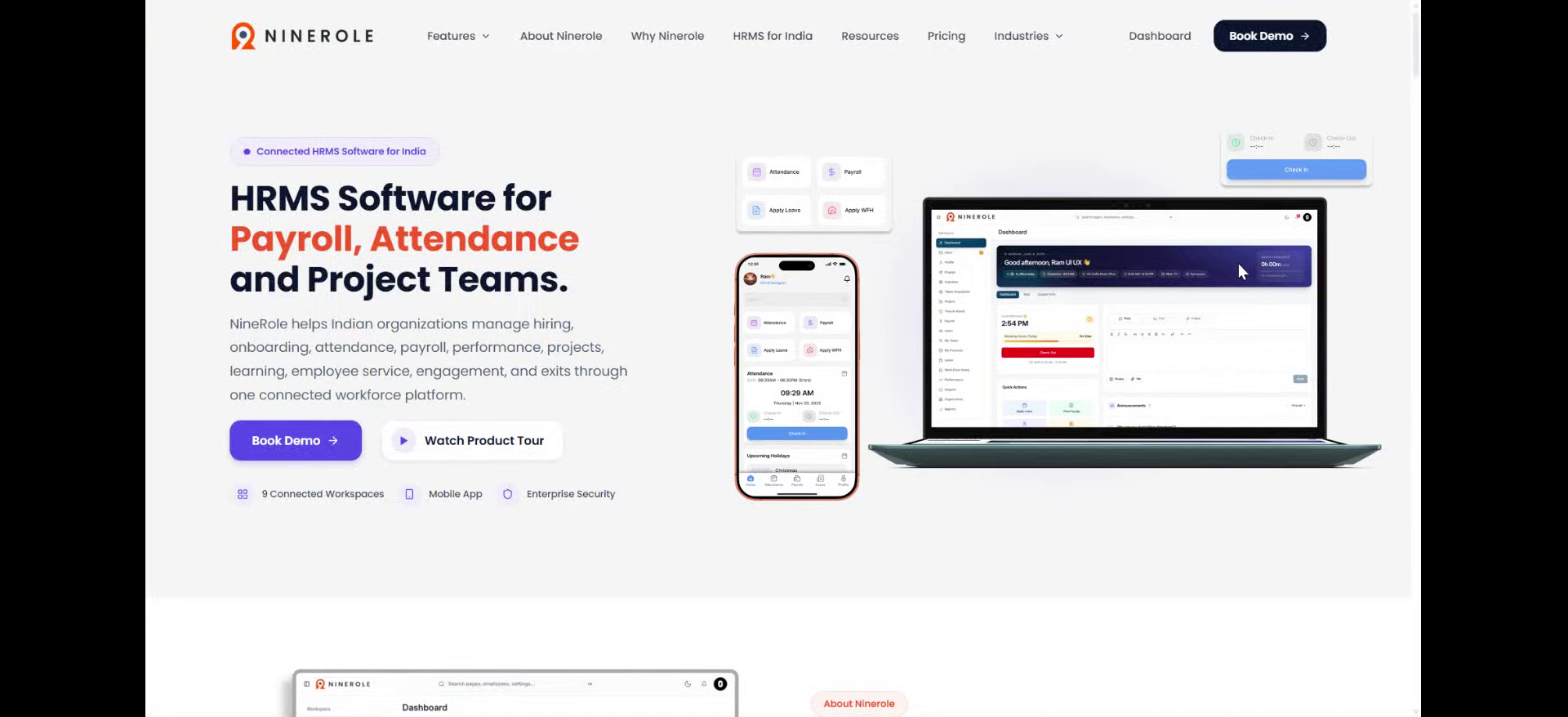
Open payslip template settings
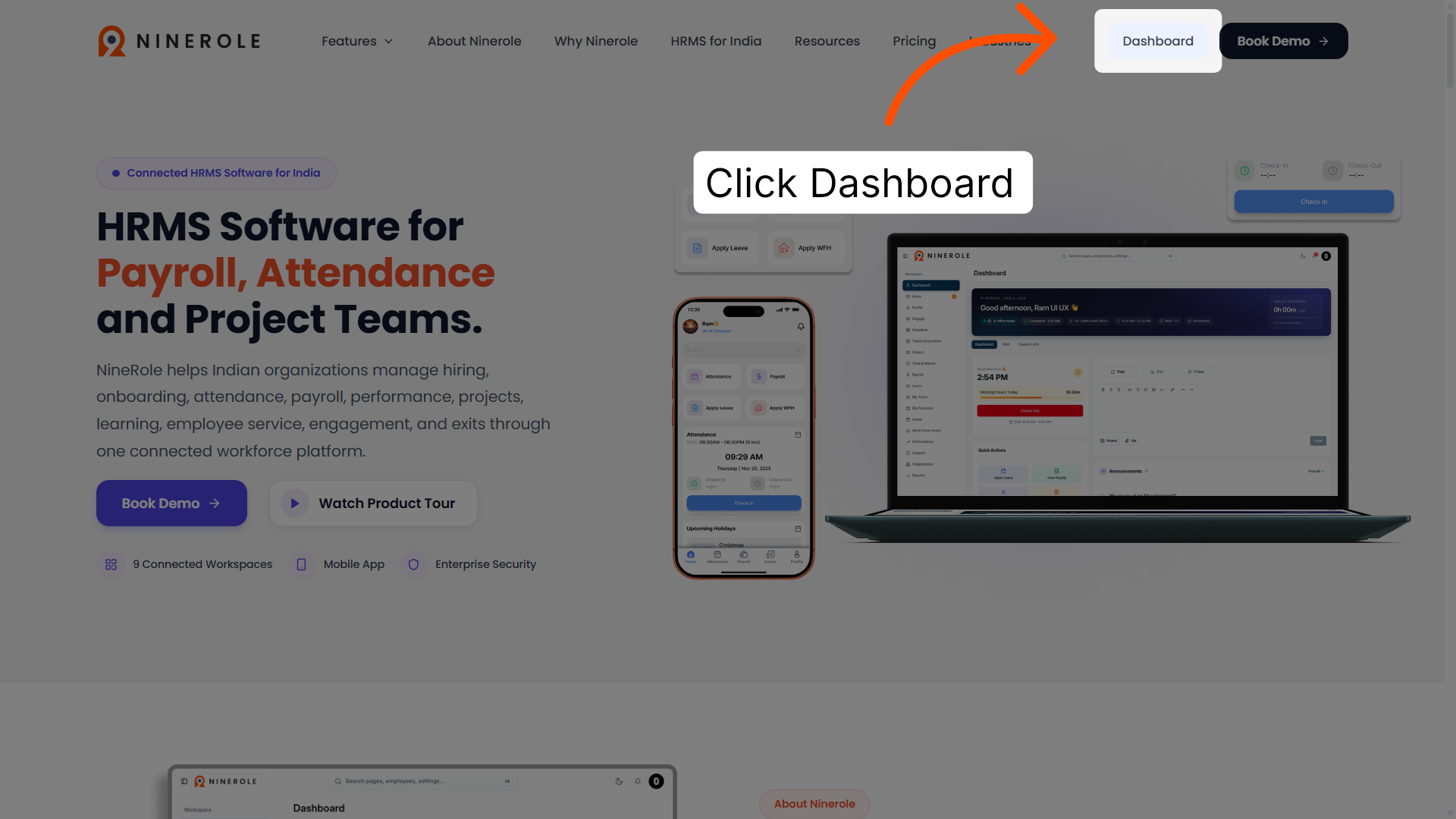
2. Access the main dashboard
Open the main dashboard for an overview of employee management features and system status.
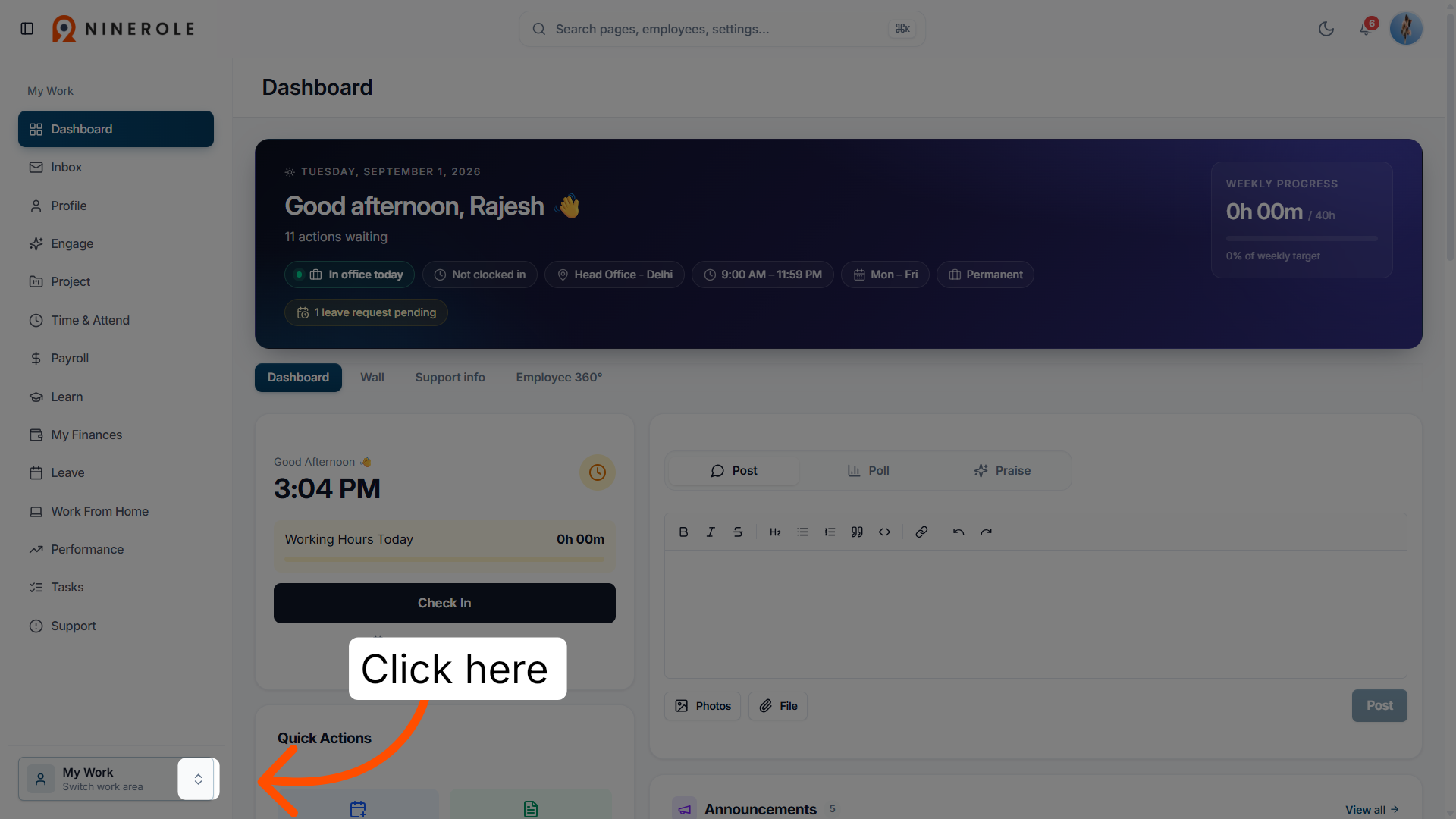
3. Open the dashboard options
Open the dashboard options menu to reach the additional management tools and settings.
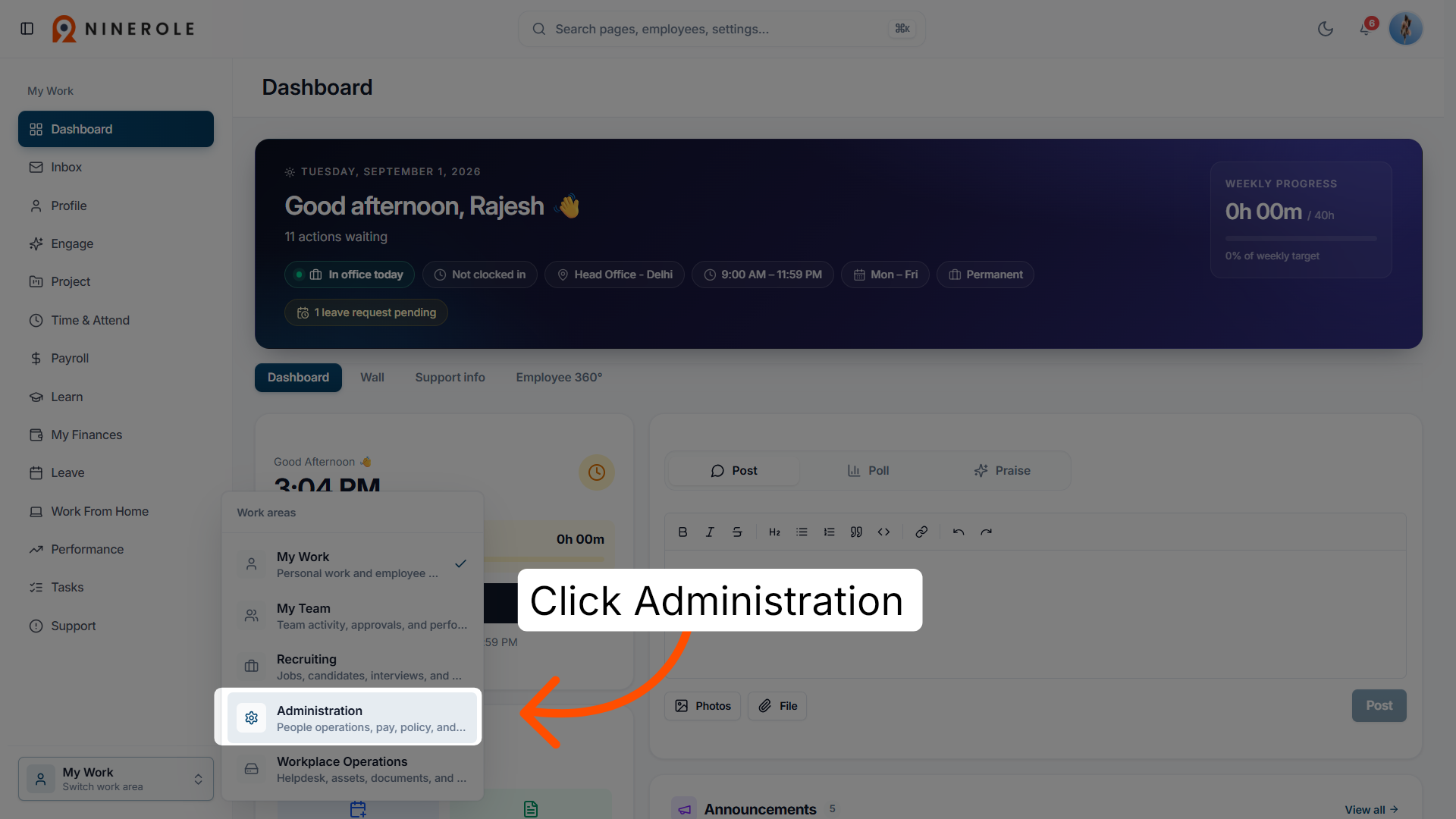
4. Go to Administration
Open the Administration section, where organizational settings and configurations are managed.
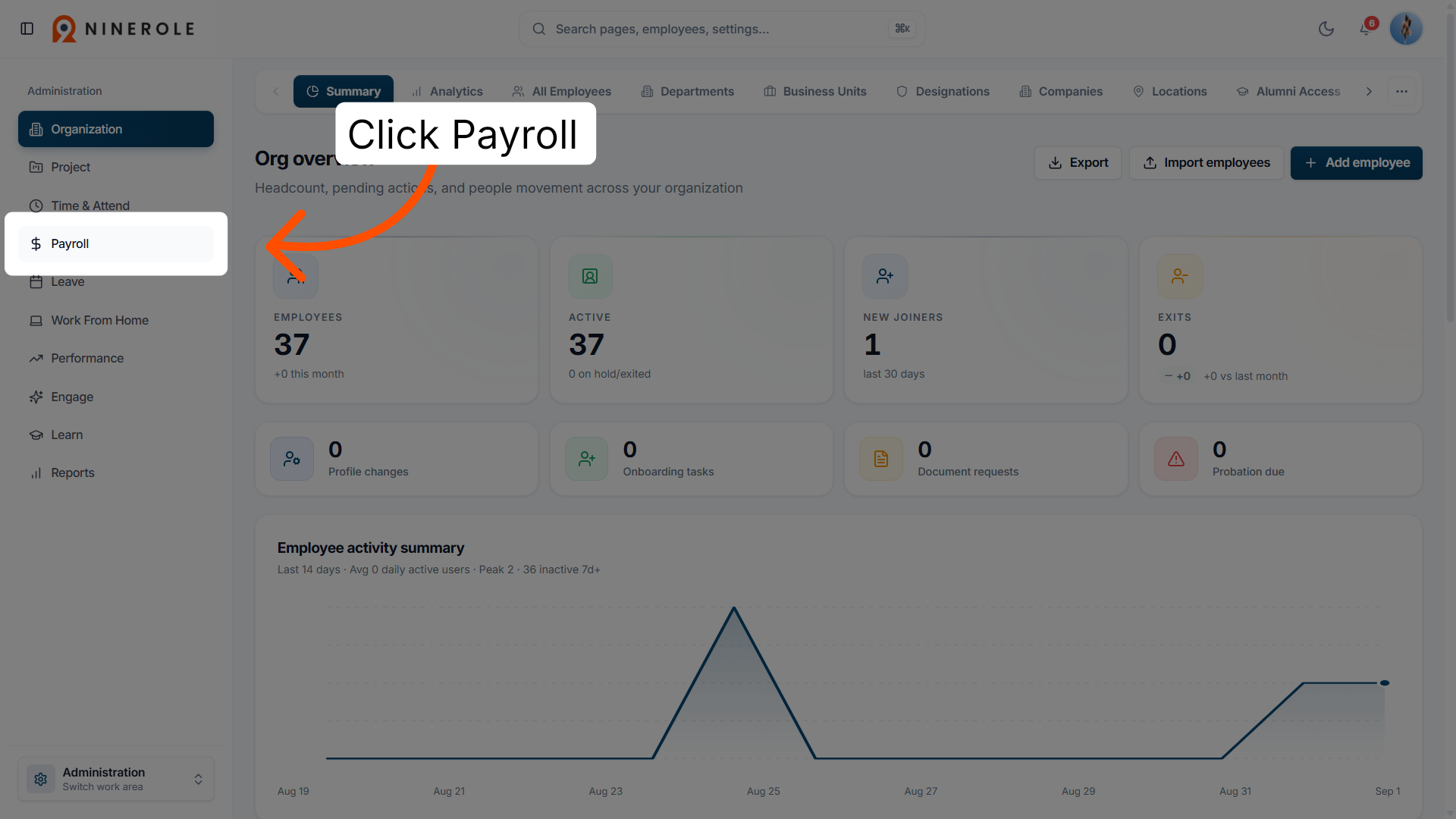
5. Access payroll management
Open the payroll management area, which holds the salary and payment-related settings.
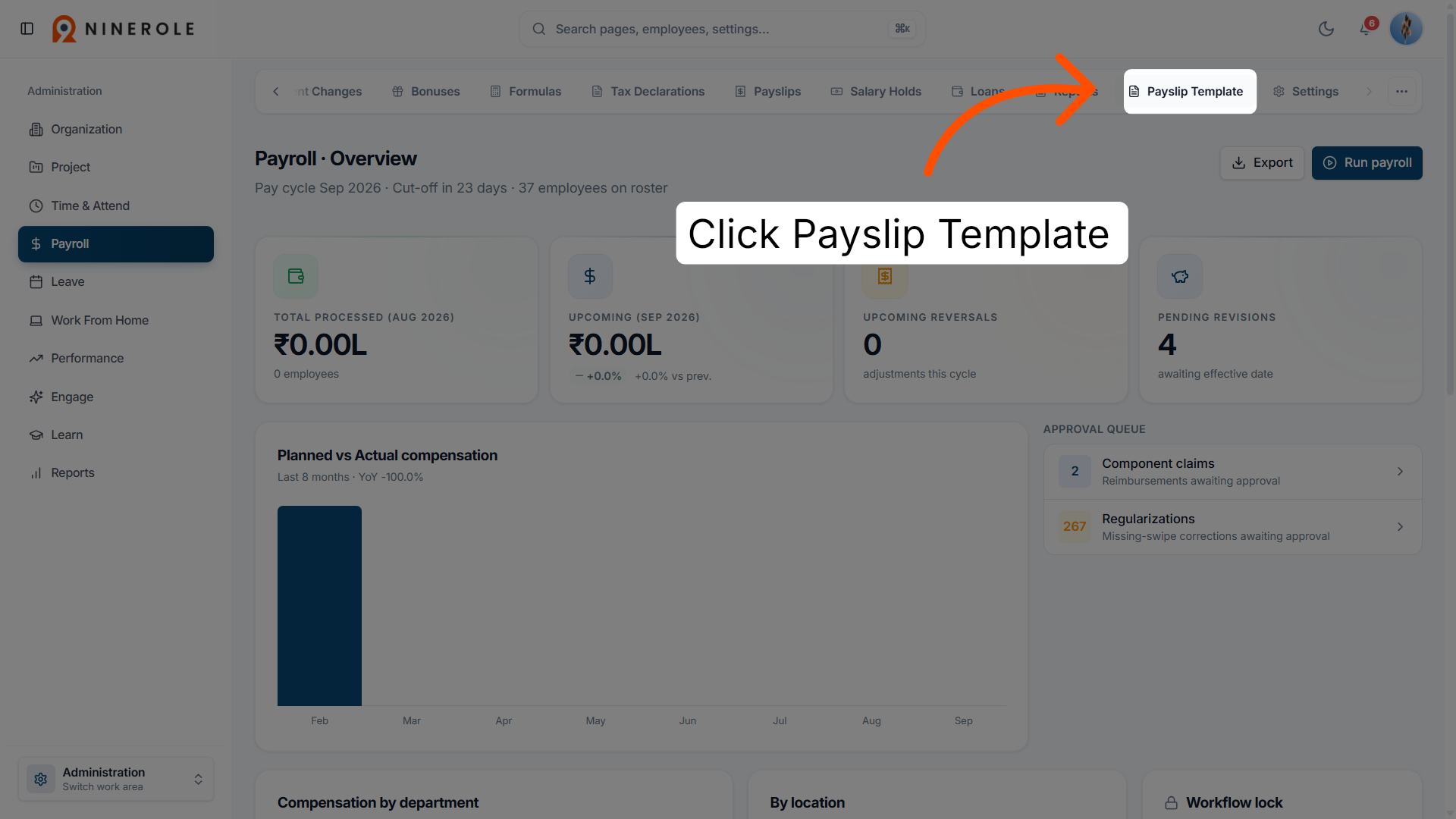
6. Open payslip template settings
Open the payslip template settings to customize the layout and the information shown on employee payslips.
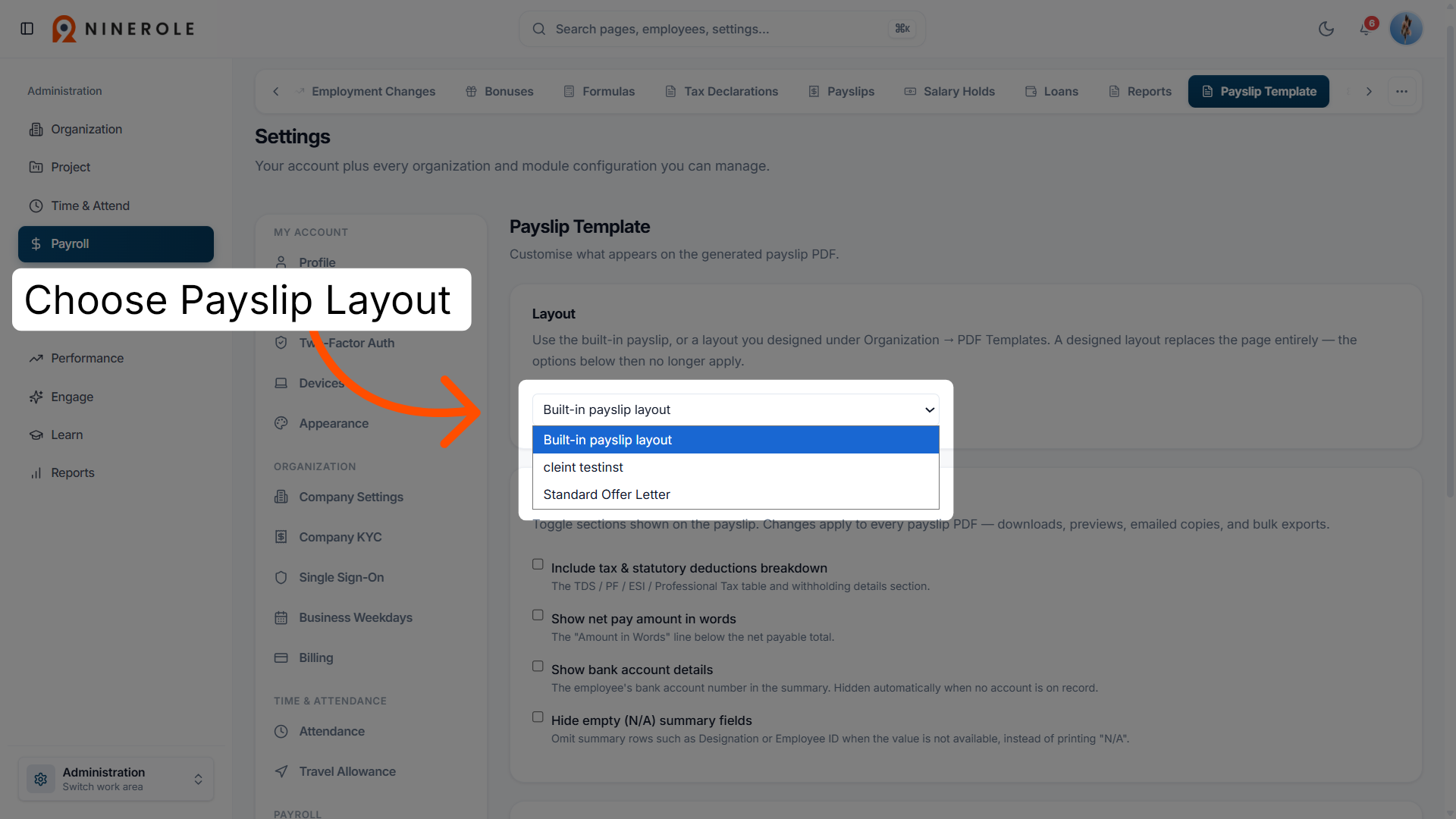
7. Select the built-in payslip layout
Choose the built-in payslip layout — this is the standard format used to generate payslips.
Choose what appears on the payslip
Each of the following settings is a toggle: open the row, then switch the option on.
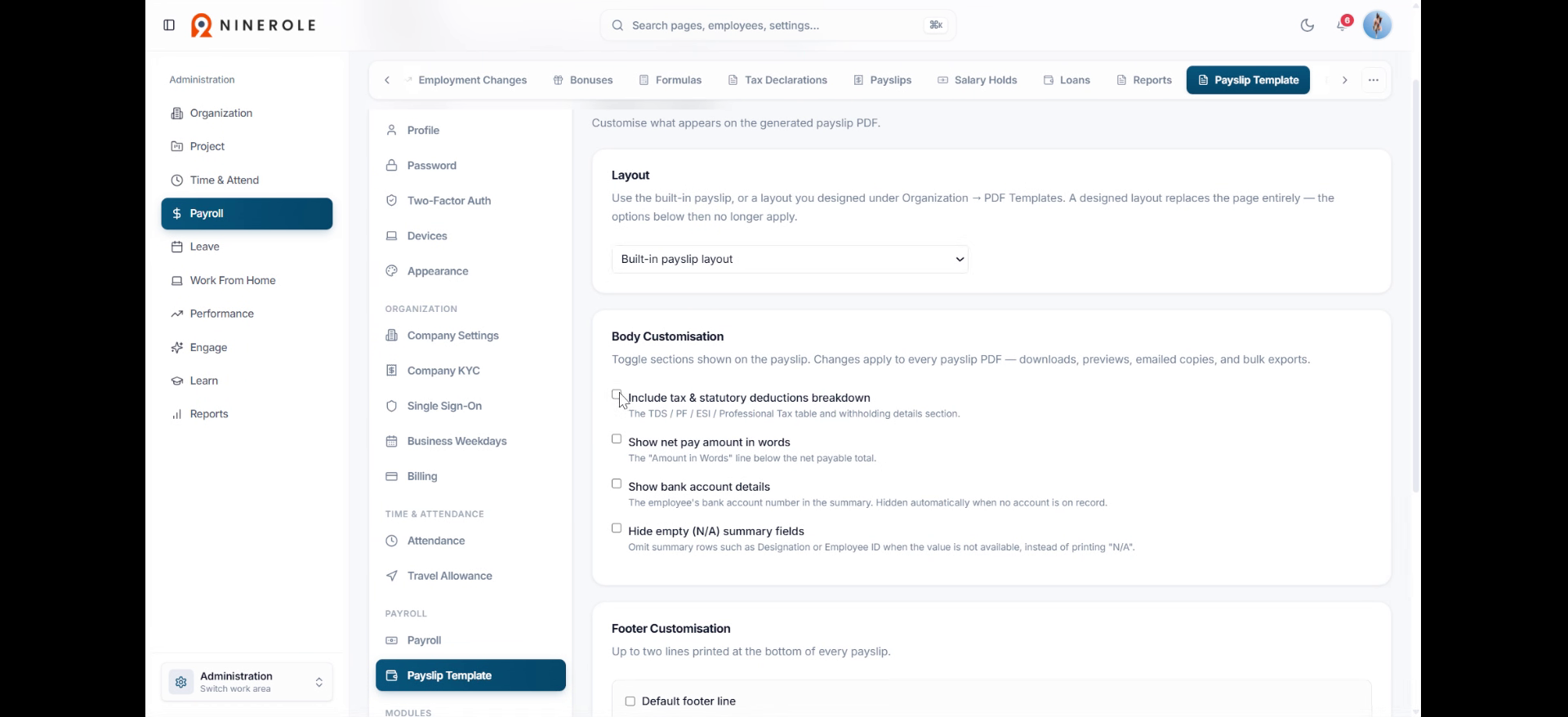
8. Tax and statutory deductions
Open the section that displays tax and statutory deductions such as TDS, PF, ESI and professional tax.
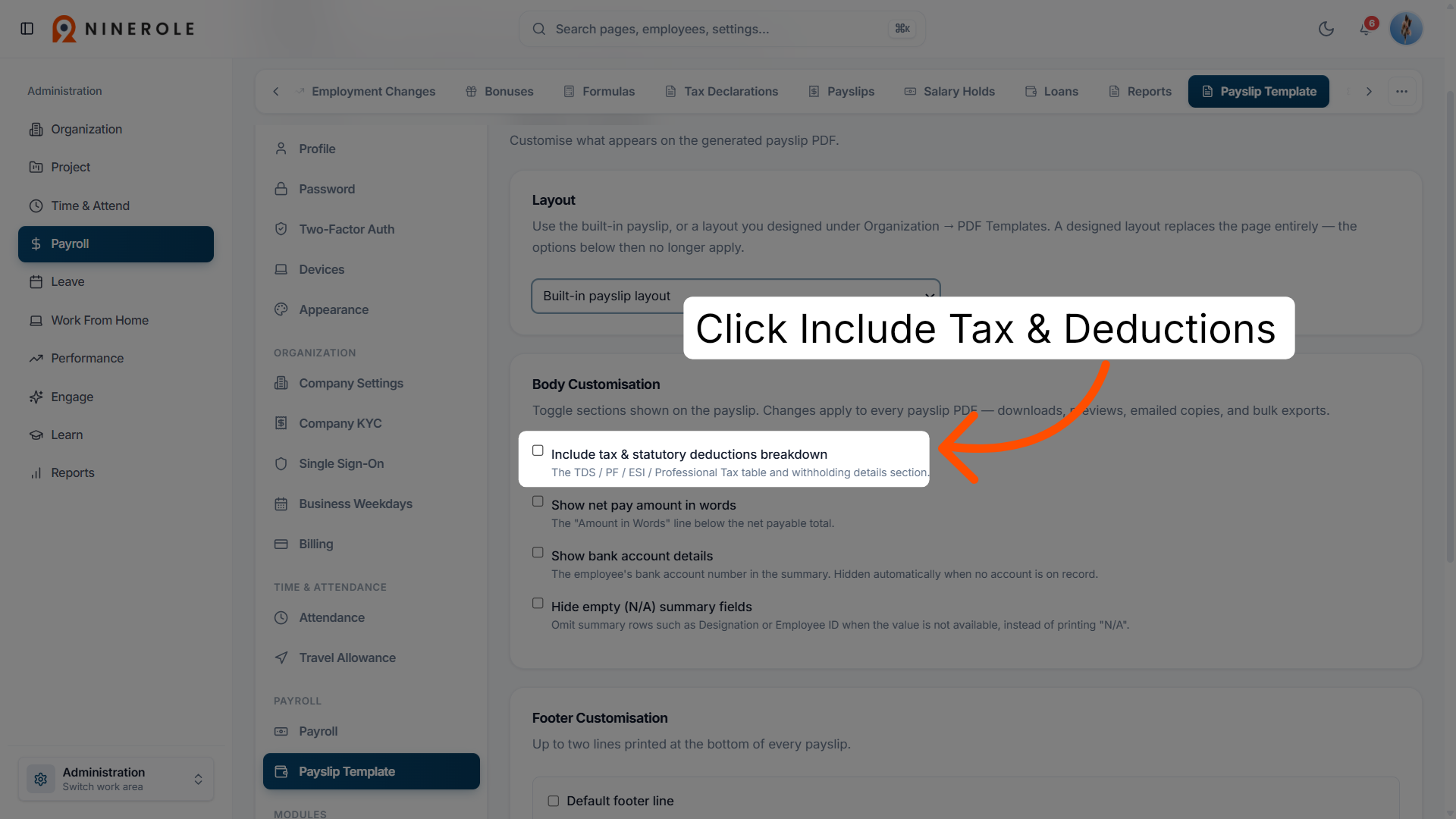
9. Turn on the deductions breakdown
Switch the option on to show the detailed tax and statutory deductions, so payslip calculations are transparent.
10. Net pay amount in words
Open the setting that prints the net payable amount in words below the total.
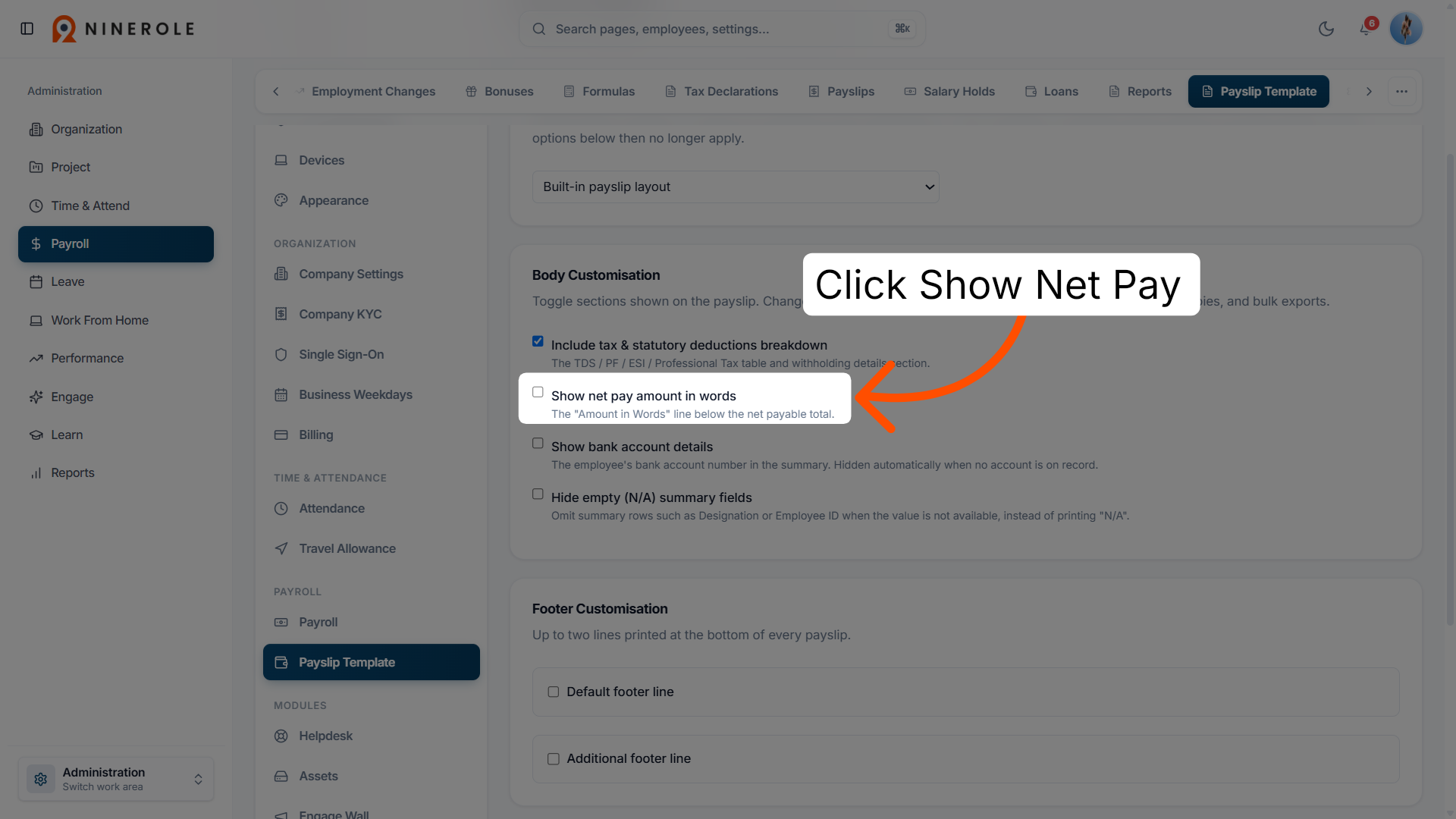
11. Turn on amount in words
Switch the setting on to include the net pay amount written out in words.
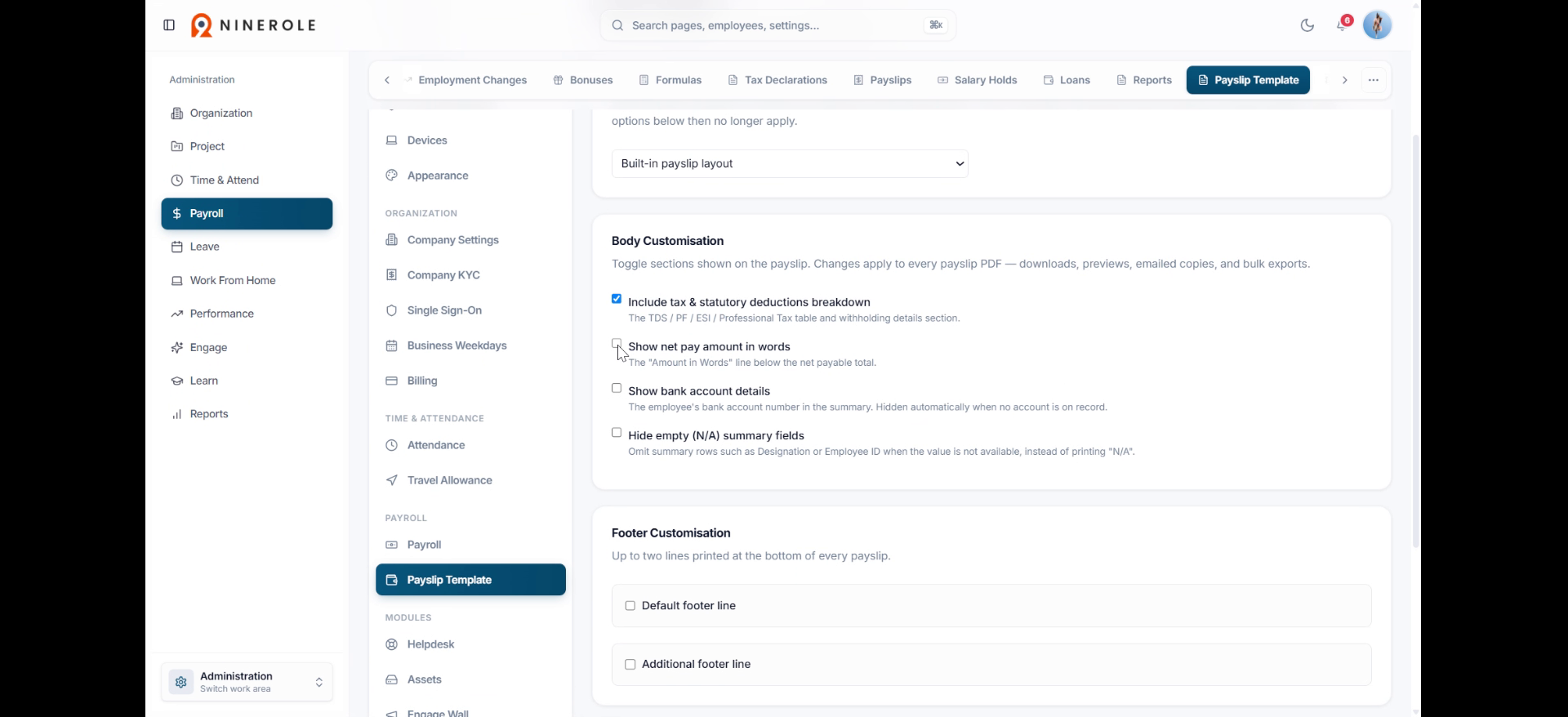
12. Bank account details
Open the setting that shows the employee's bank account number in the payslip summary when it is available.
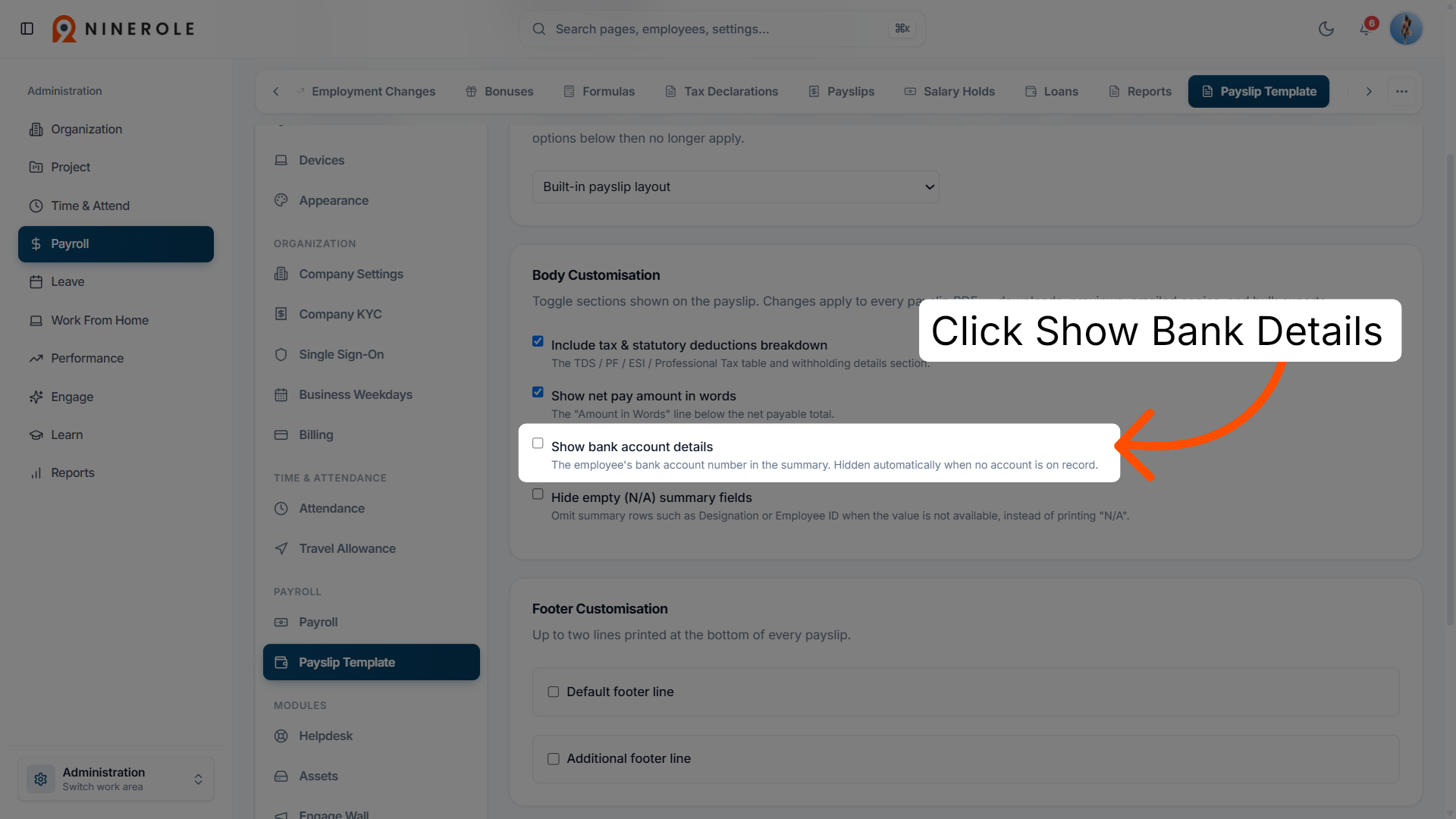
13. Turn on bank details
Switch the option on to include bank account information in the summary for payment reference.
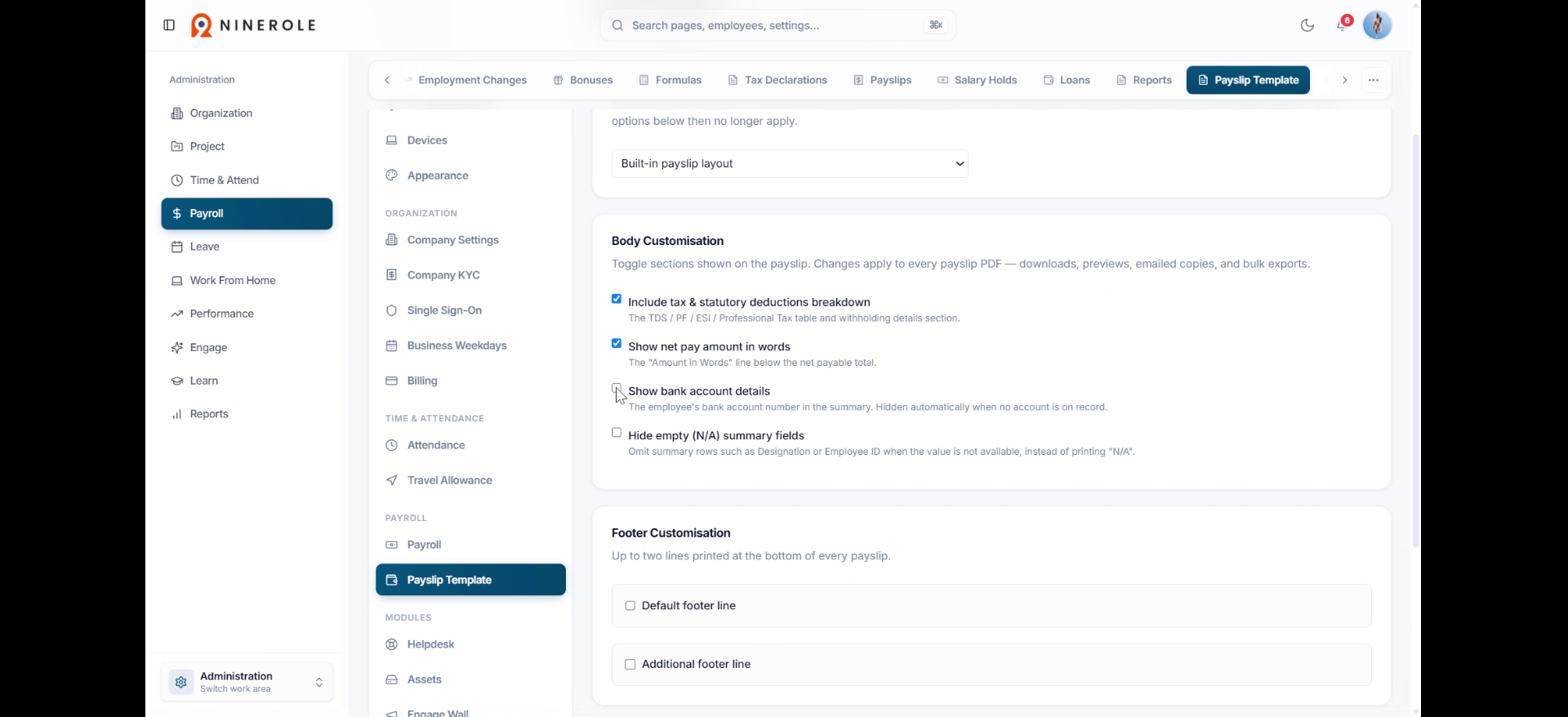
14. Hide empty summary fields
Open the setting that omits summary rows such as Designation or Employee ID when there is no data, instead of printing "N/A".
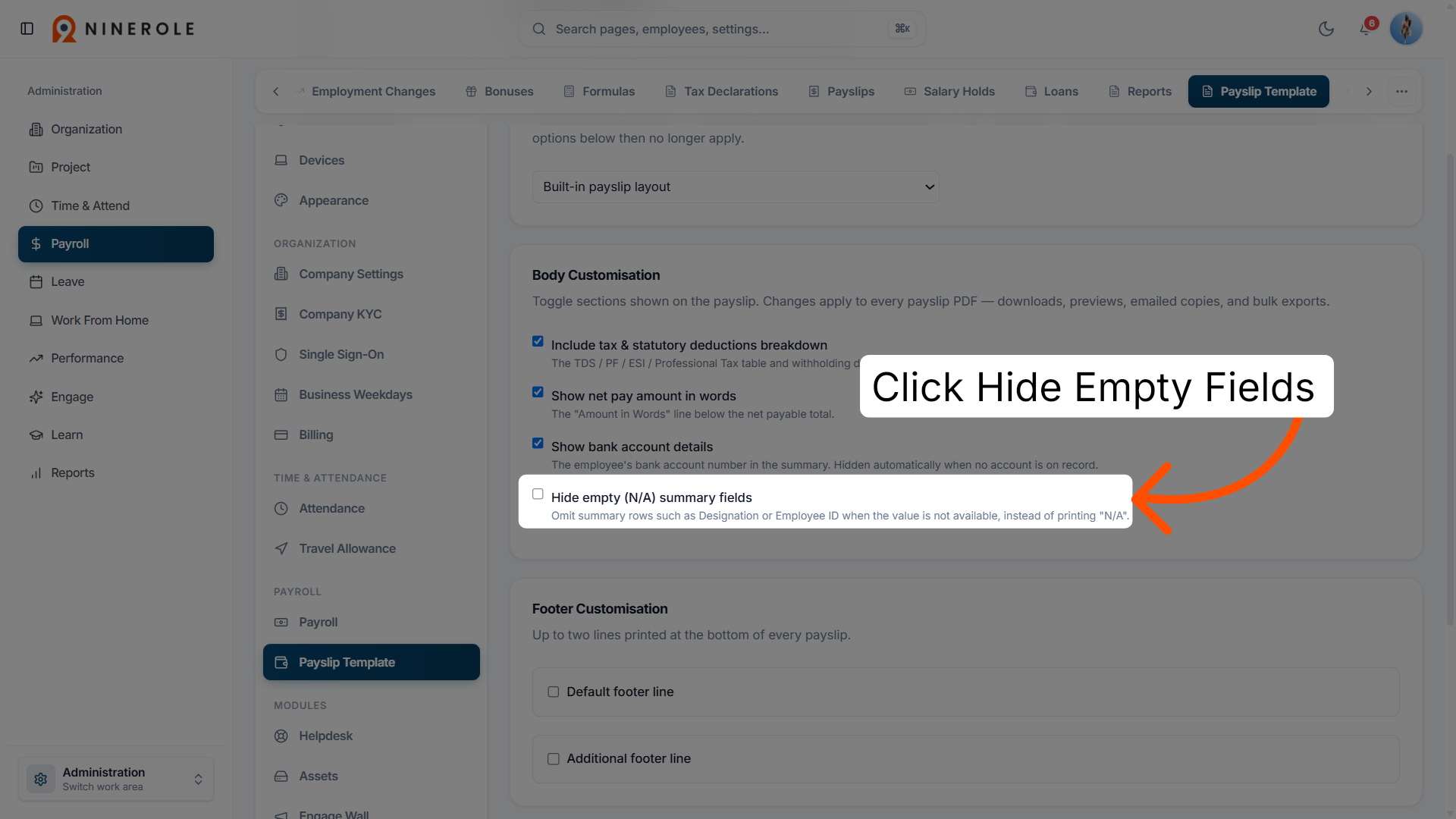
15. Turn on empty field hiding
Switch the setting on so empty or unavailable summary fields are hidden automatically.
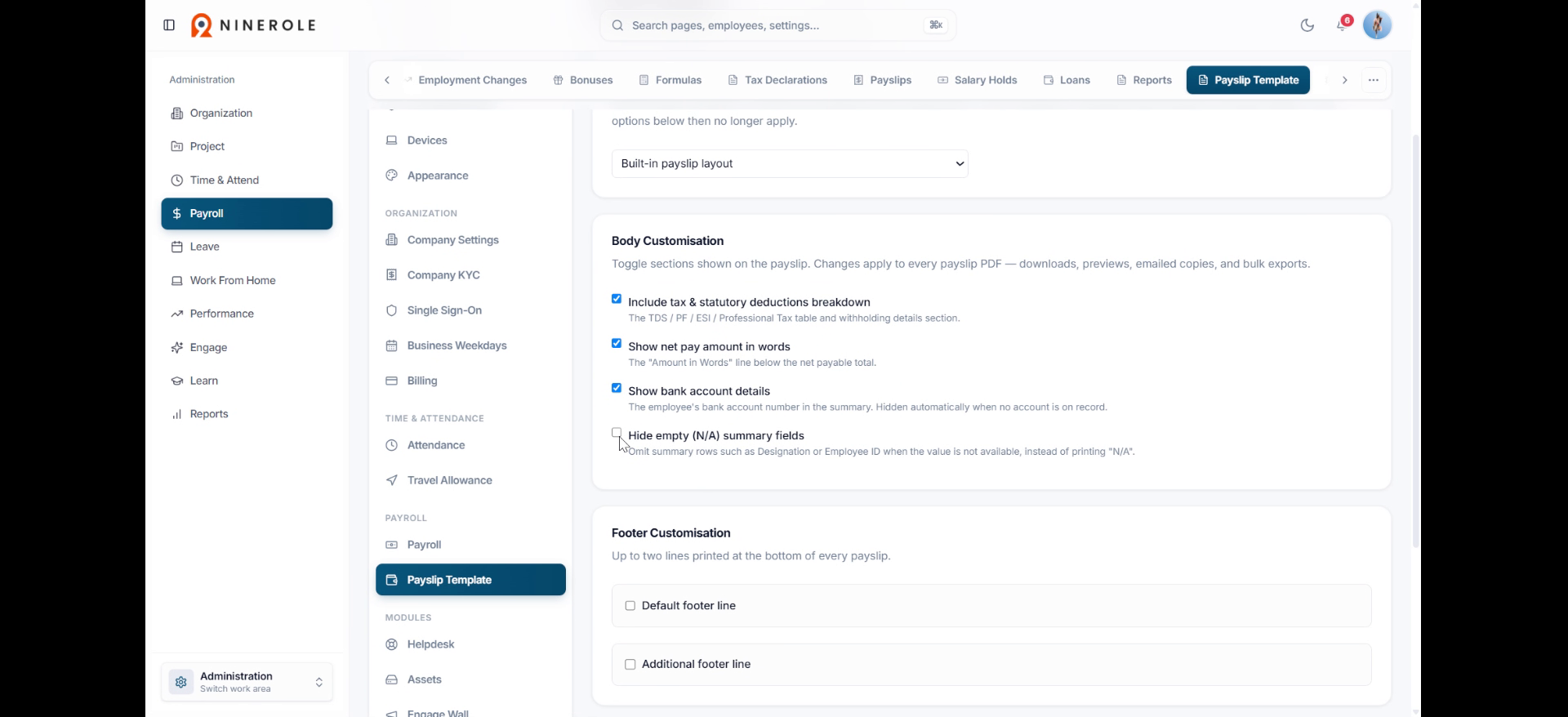
16. Default footer line
Open the default footer line setting, which adds standard information at the bottom of the payslip.
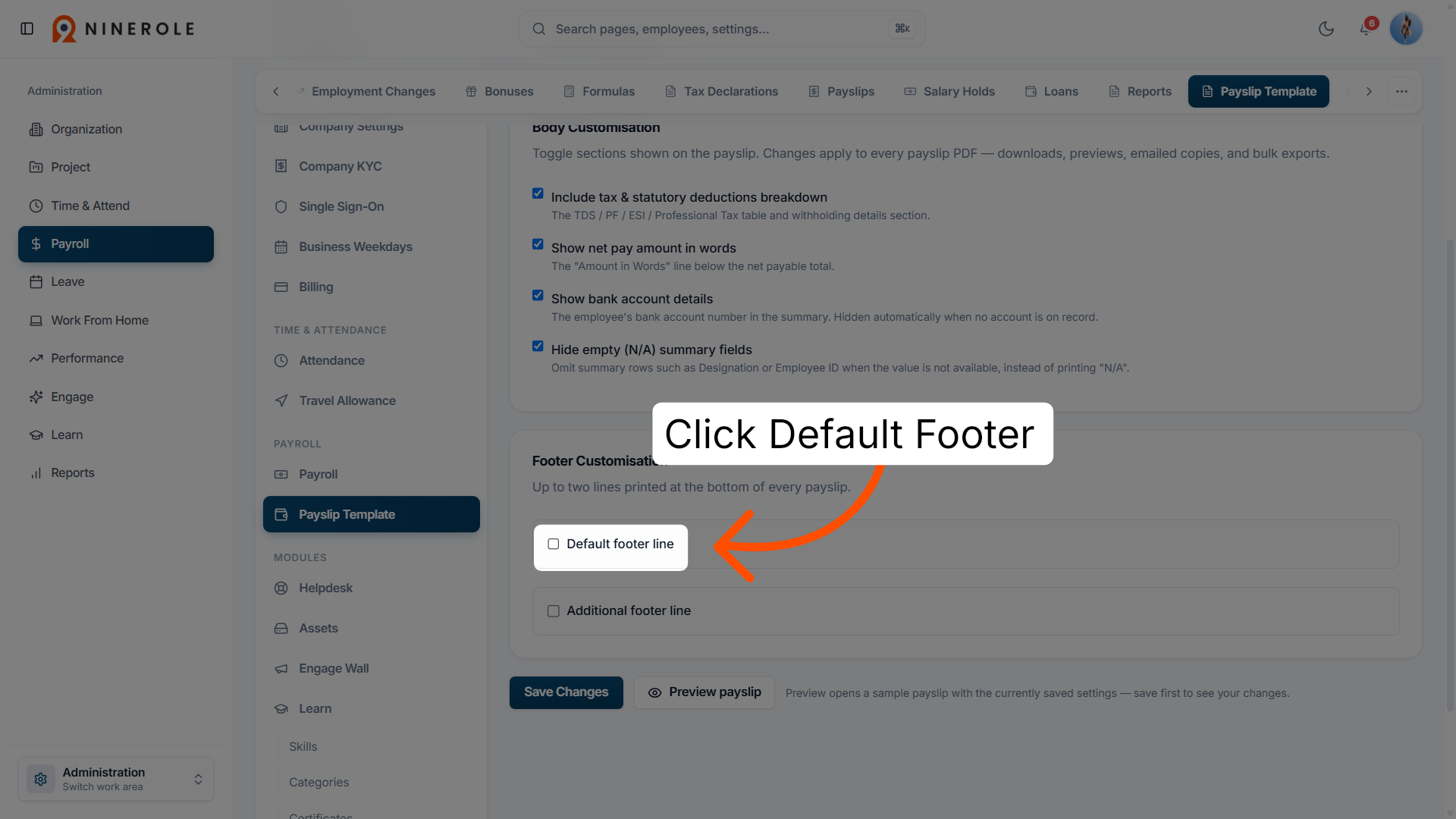
17. Turn on the footer line
Switch the option on to show the default footer line on every generated payslip.
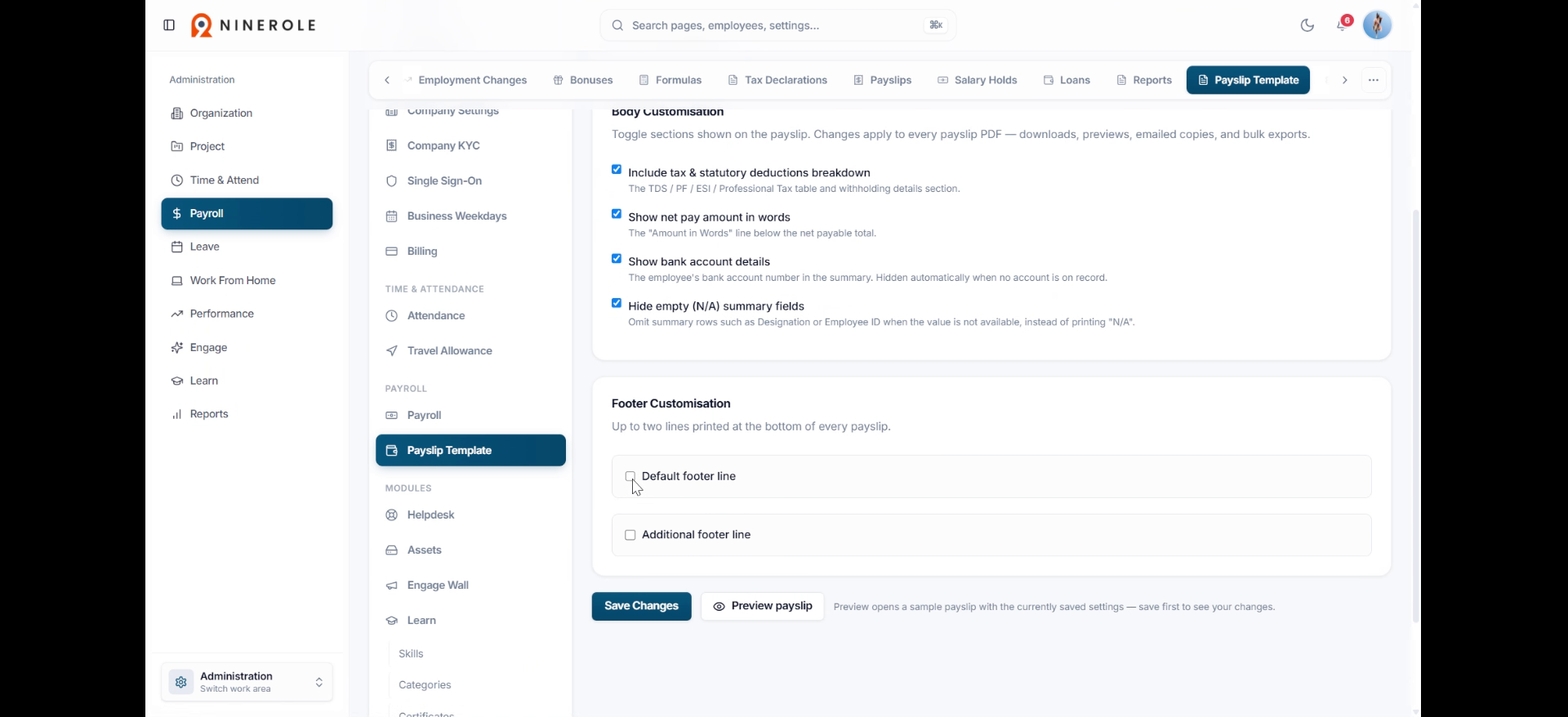
18. Additional footer line
Open the additional footer line setting to add supplementary information or notes.
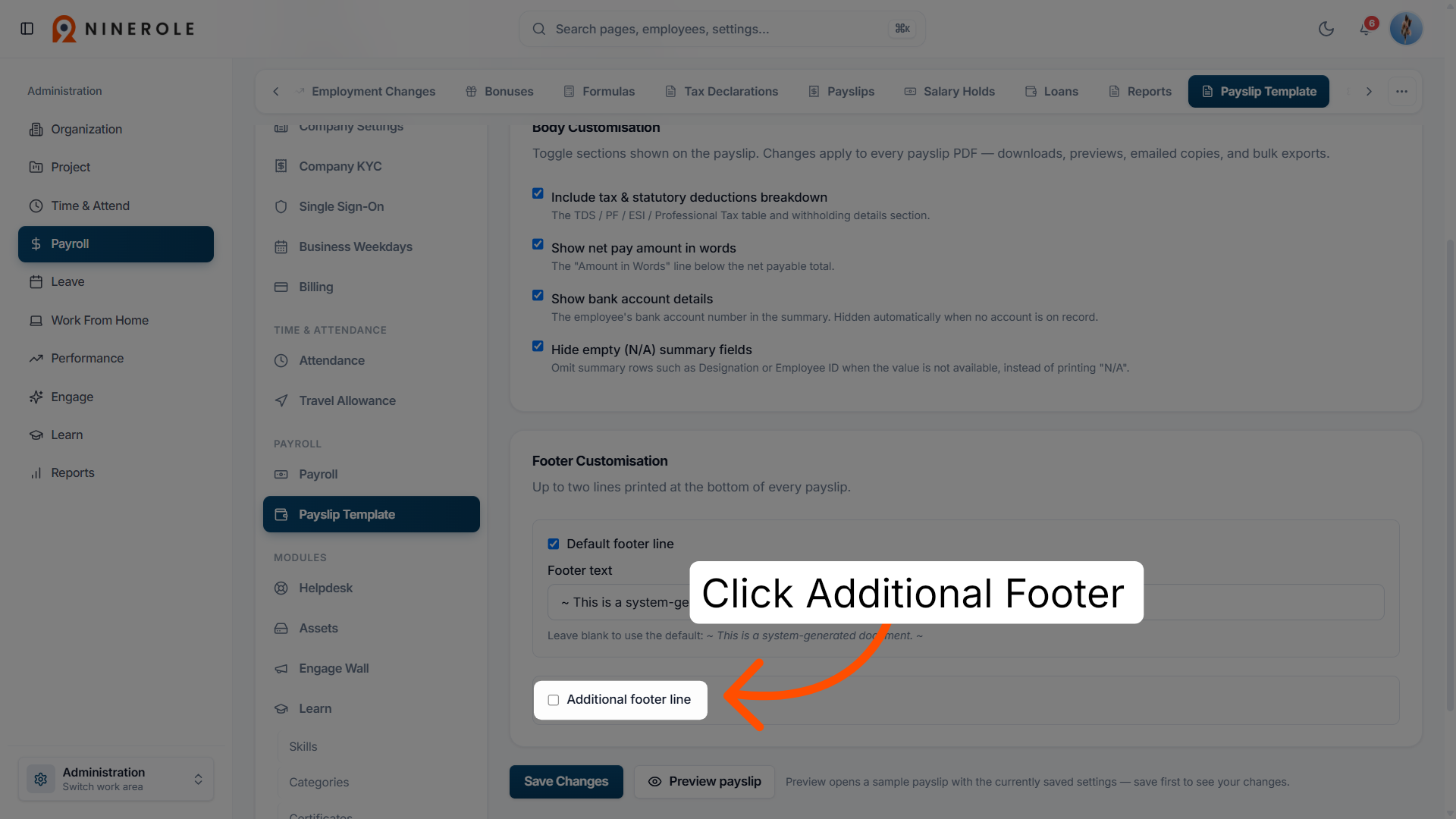
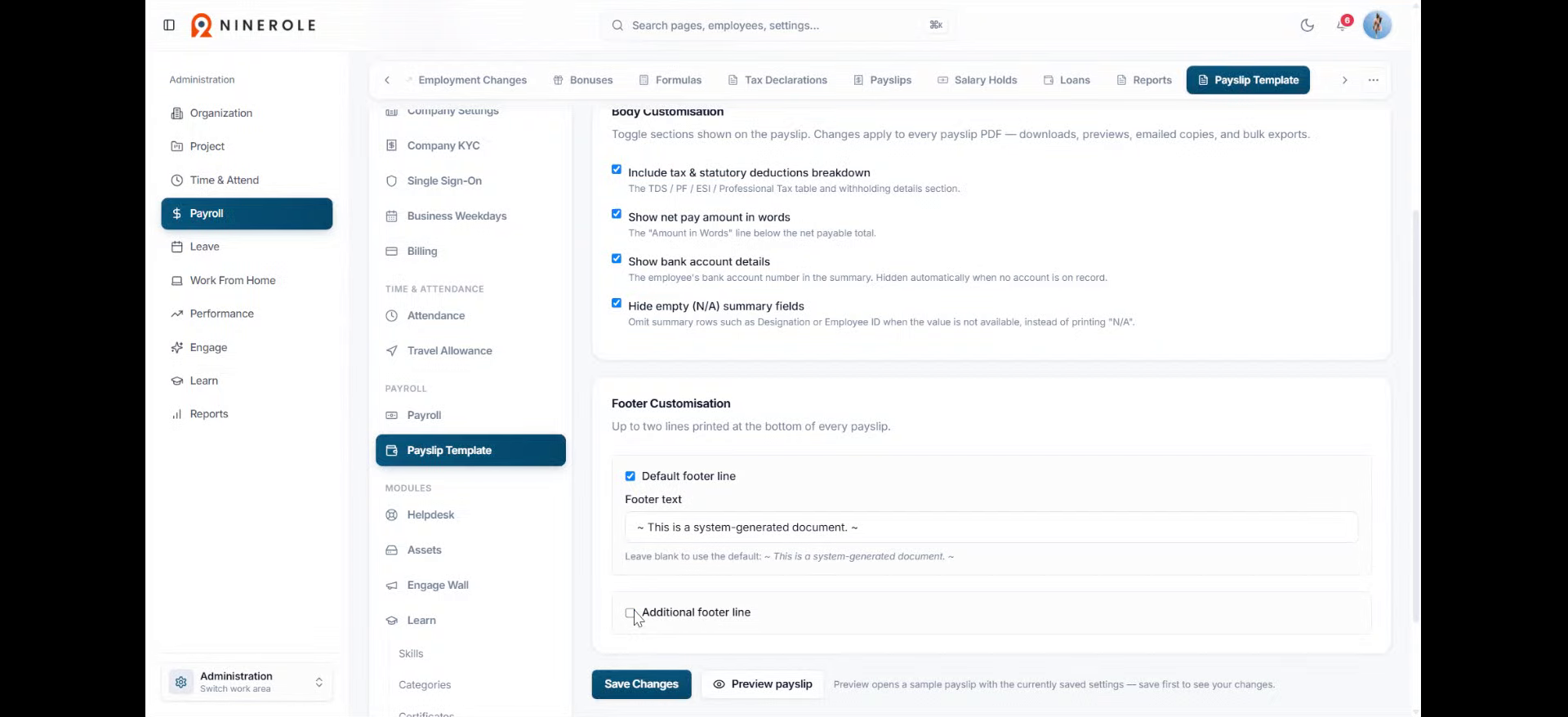
19. Turn on the additional footer
Switch the additional footer line on to carry more detail or a message on the payslip.
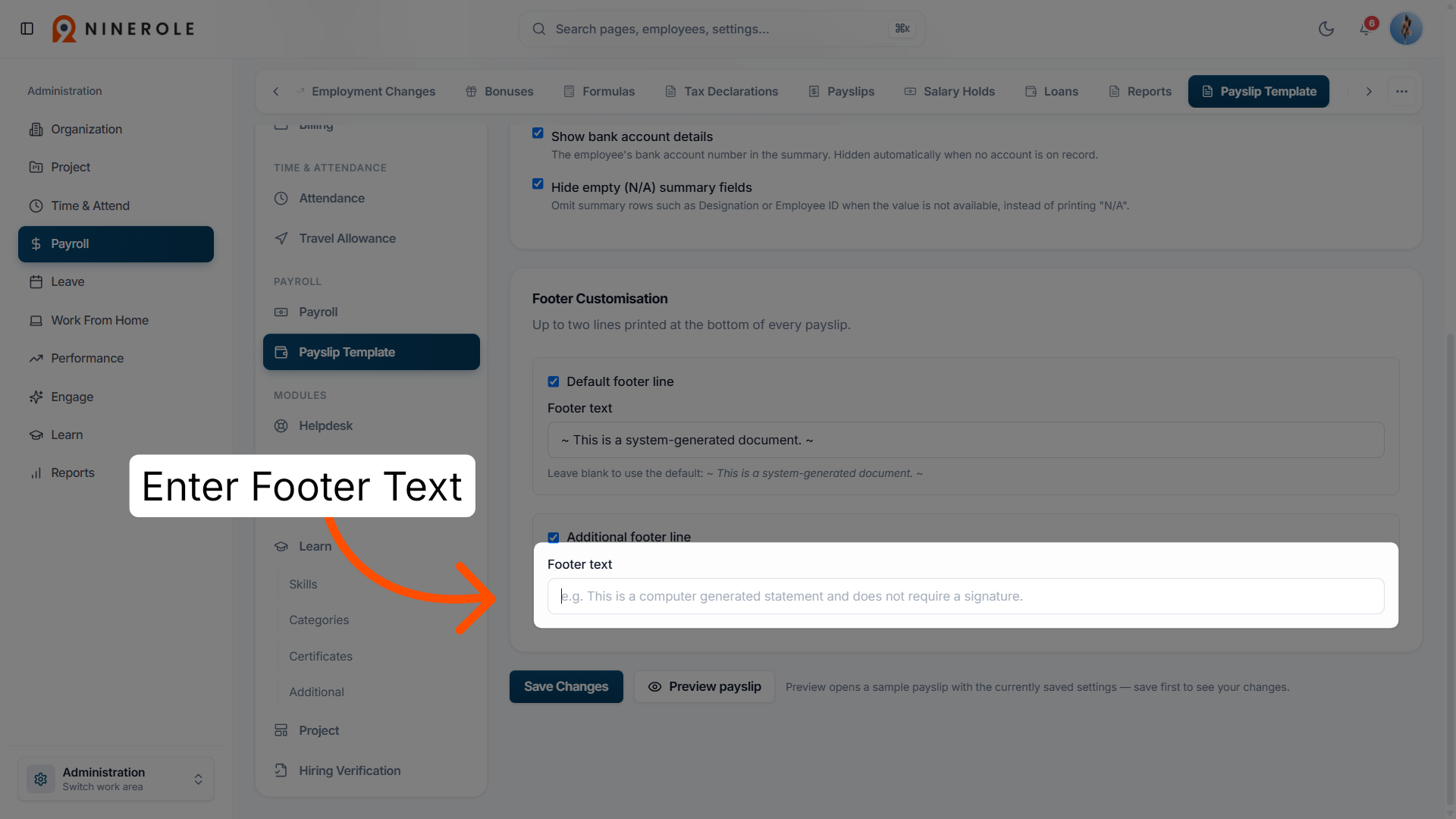
20. Edit the footer text
Open the footer text area and enter the message or information to print at the bottom of the payslip.
Preview and save
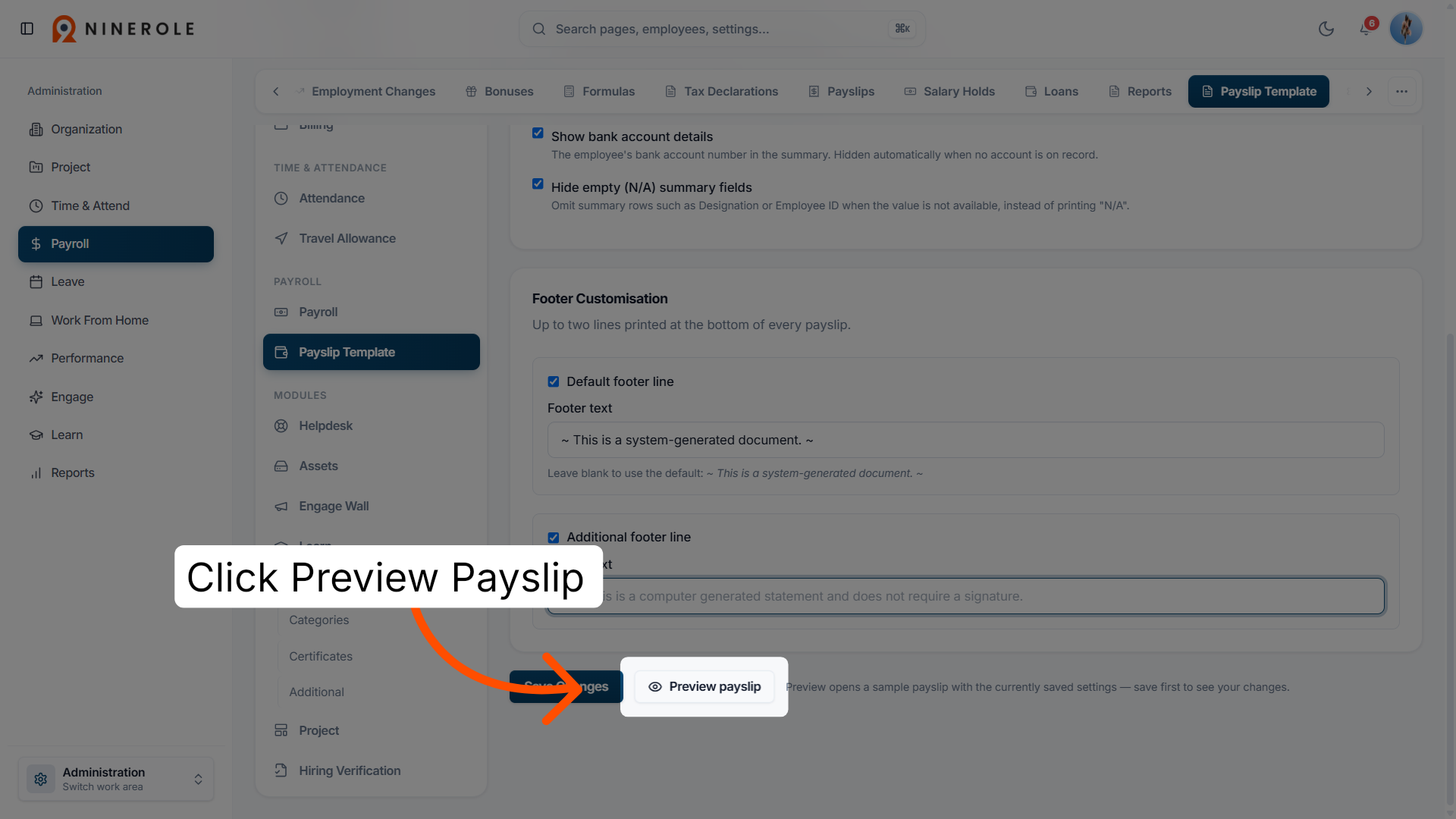
21. Preview the payslip layout
Preview the payslip to check the layout and the information it includes before you save.
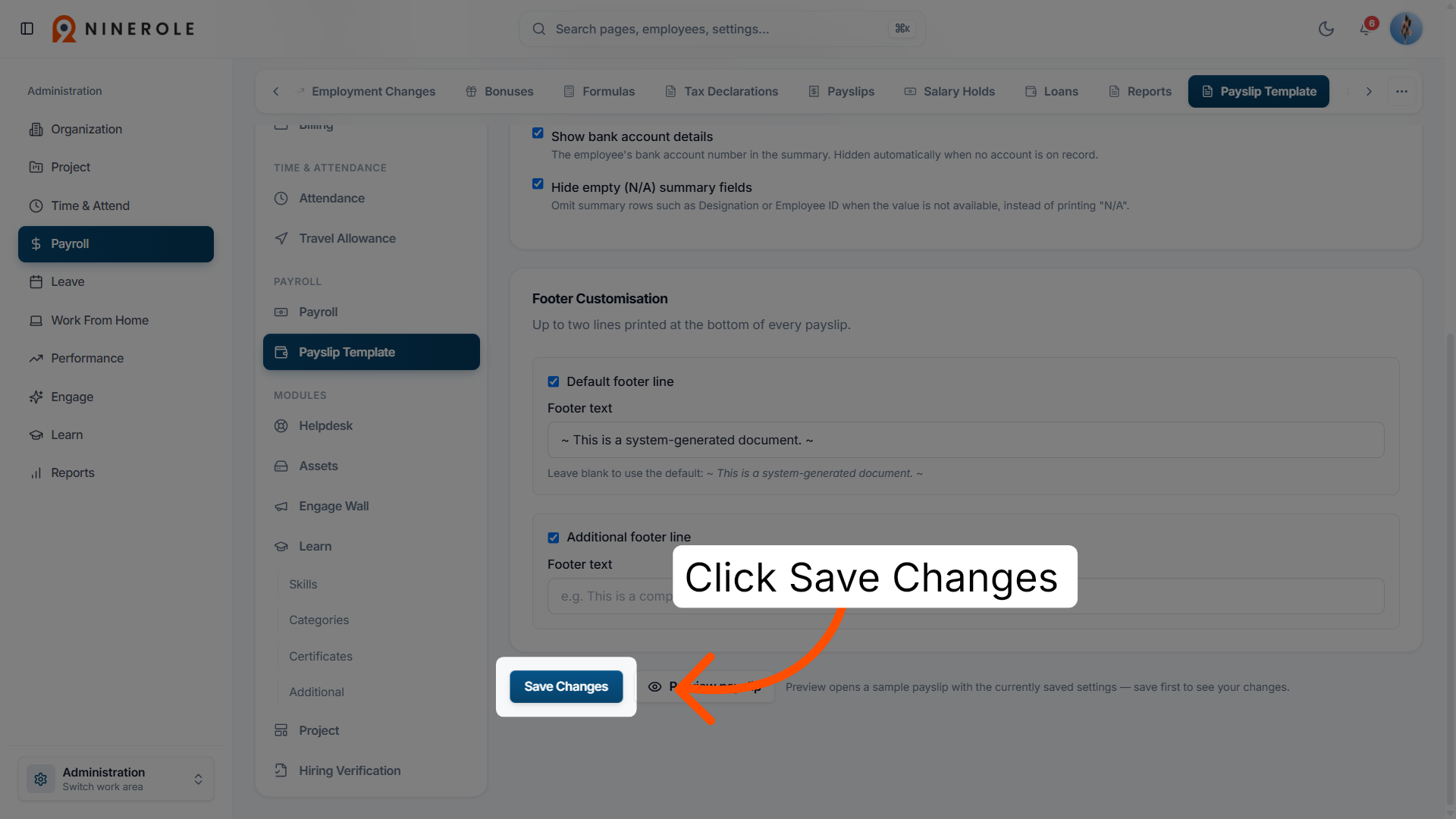
22. Save the template changes
Save the modifications so the new settings apply to future payslips.
Review and update generated payslips
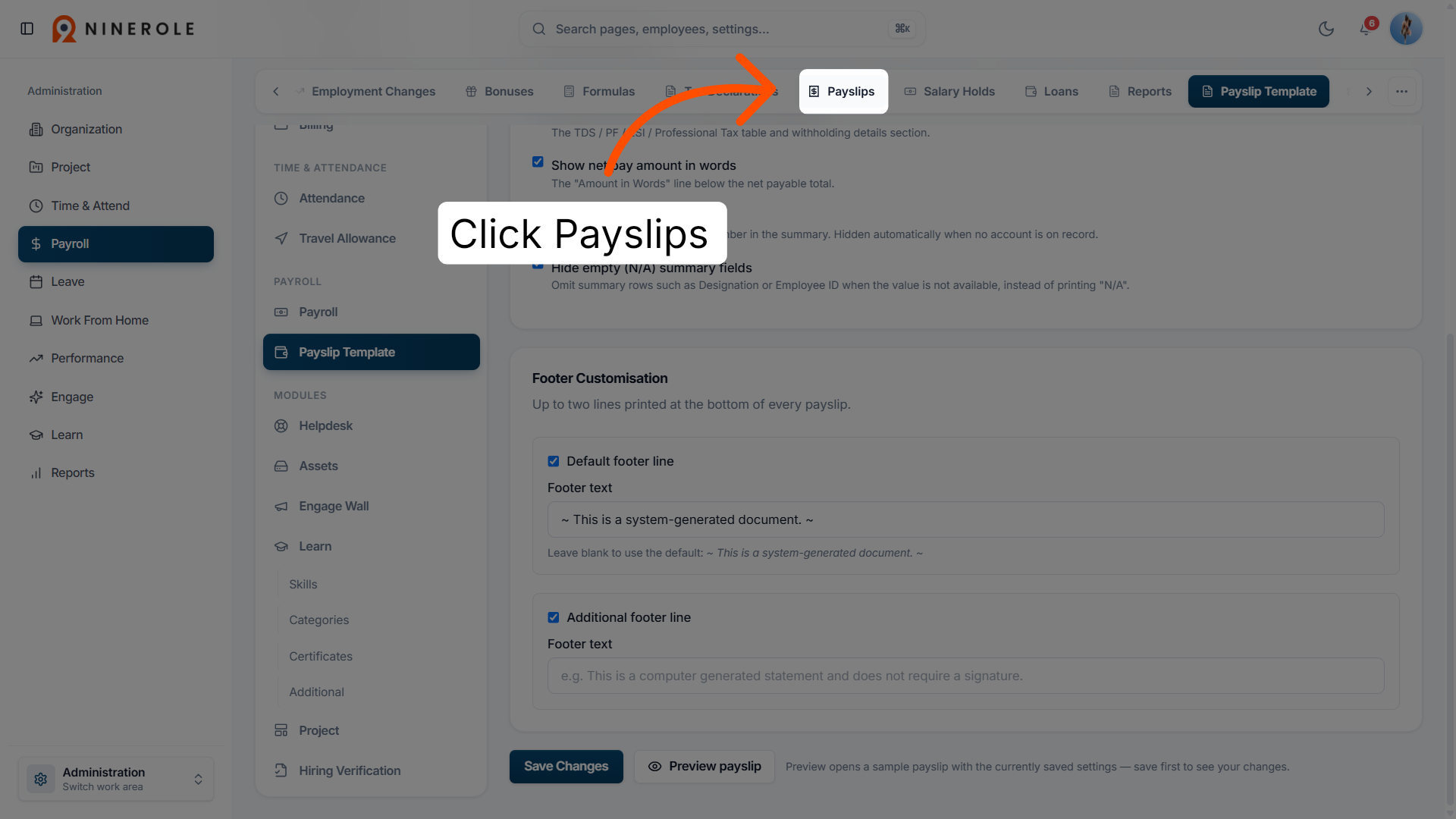
23. Access the Payslips section
Open the Payslips section to review the payslips generated for employees across pay periods.
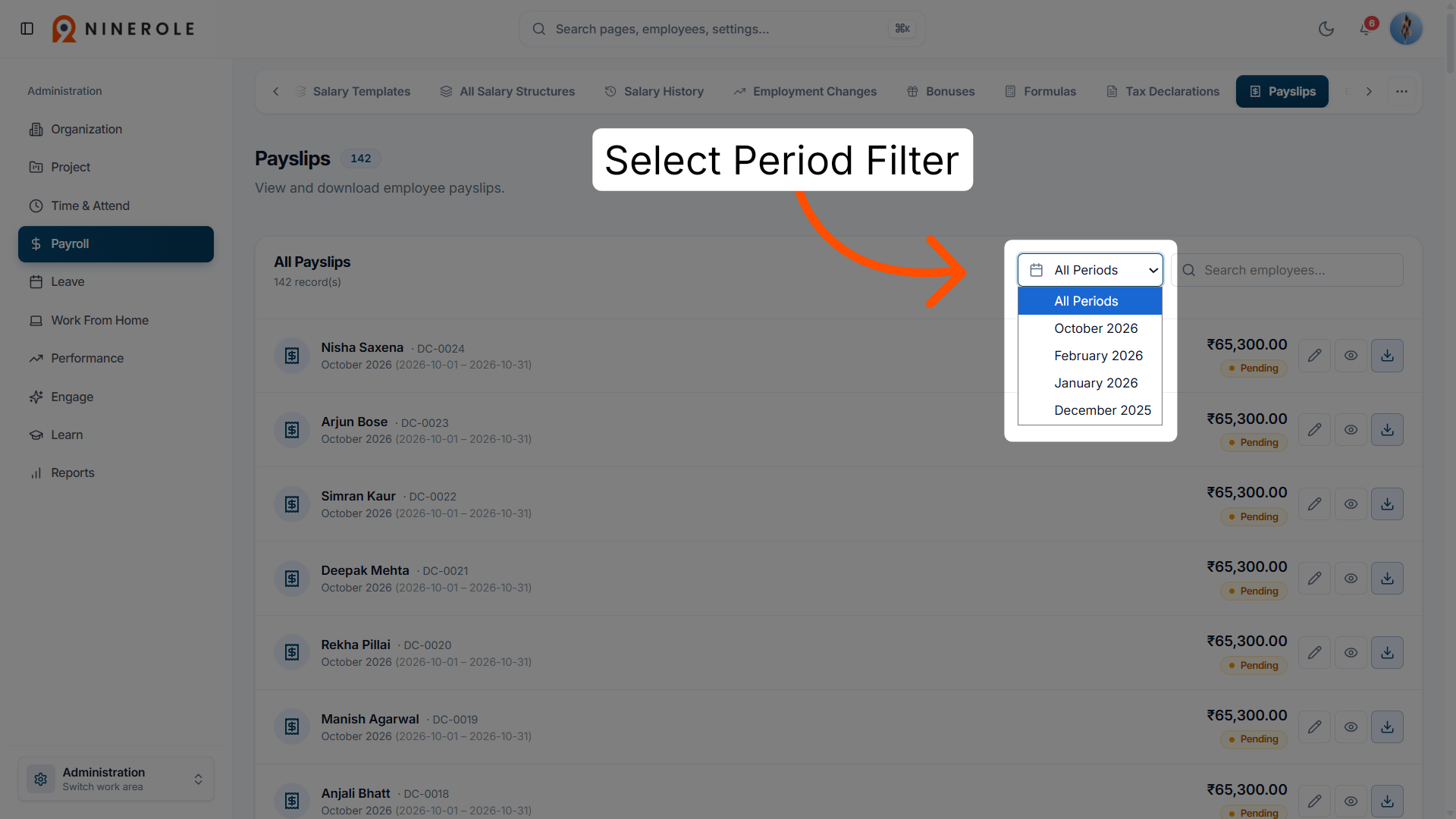
24. Filter payslips by period
Select the payroll period to list the payslips issued in that timeframe.
25. Find the employee's payslip
Locate the individual employee's payslip row for detailed review and verification of the payment information.
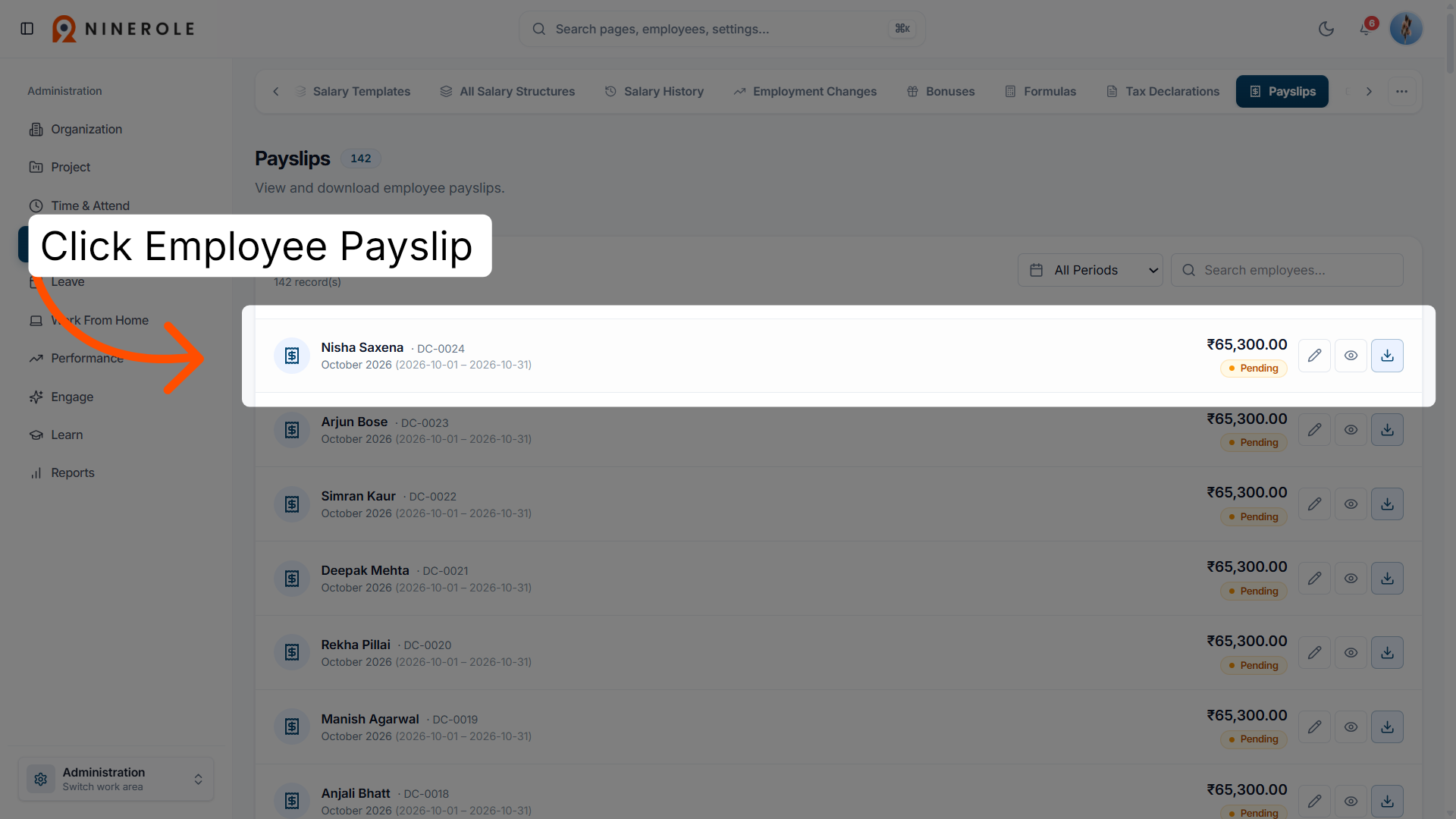
26. Open the edit control
Click the edit icon on the row to change the payslip's information.
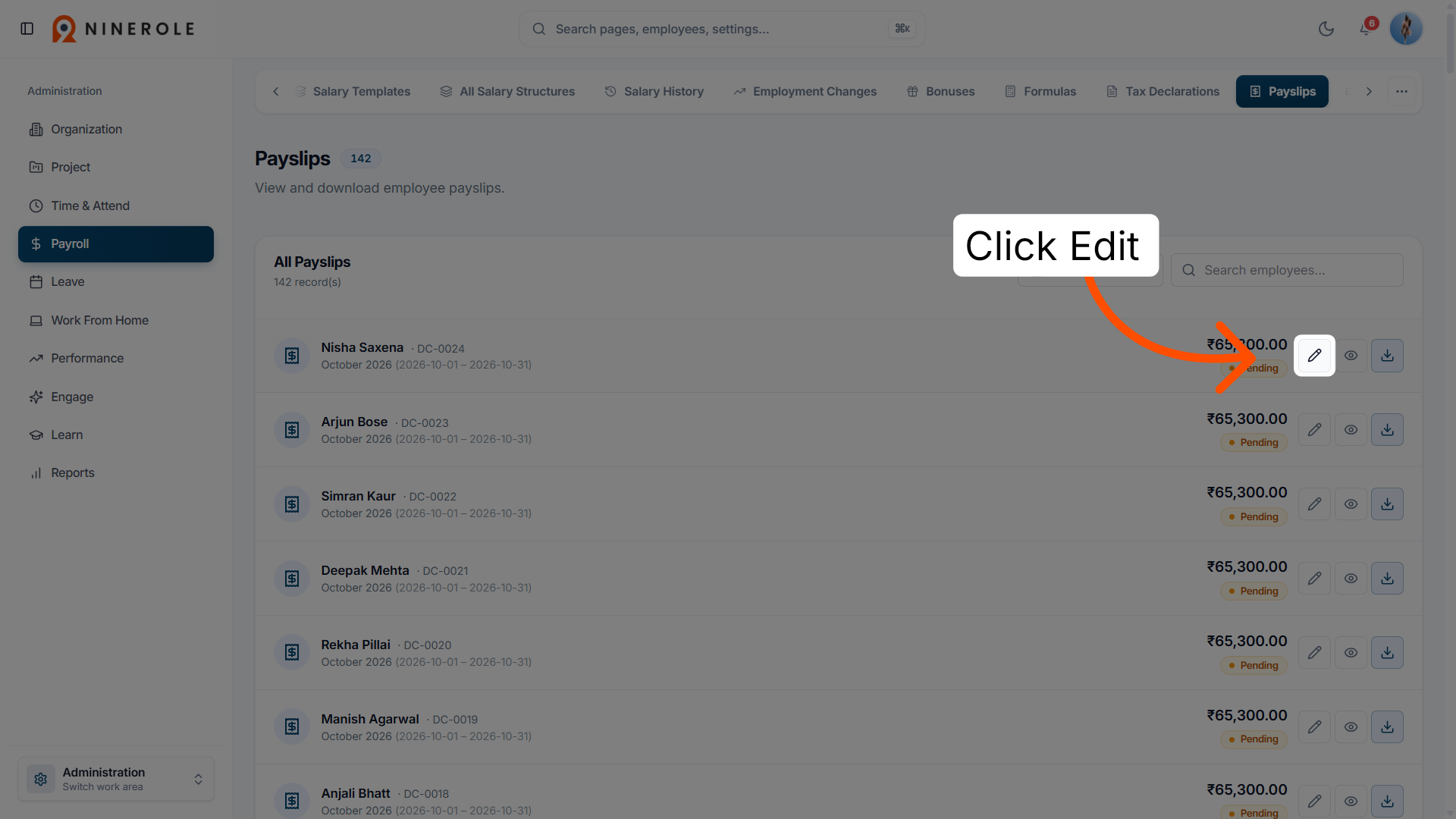
27. Select the payment status
In the status dialog, pick the payment status for the payslip — Pending or Paid.
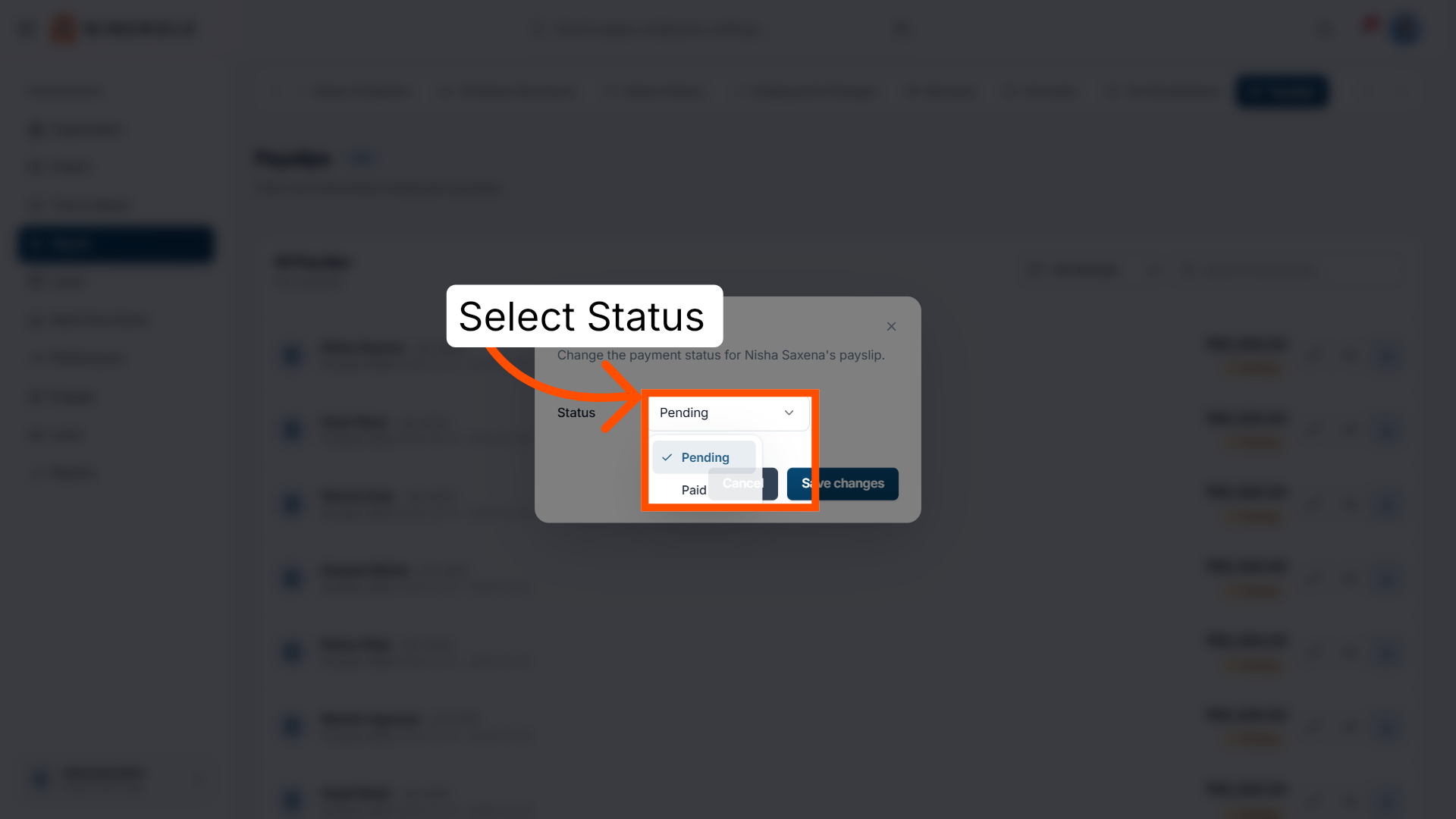
28. Save the payslip changes
Save the change so the employee's payment record is updated. A confirmation appears once the status is saved.
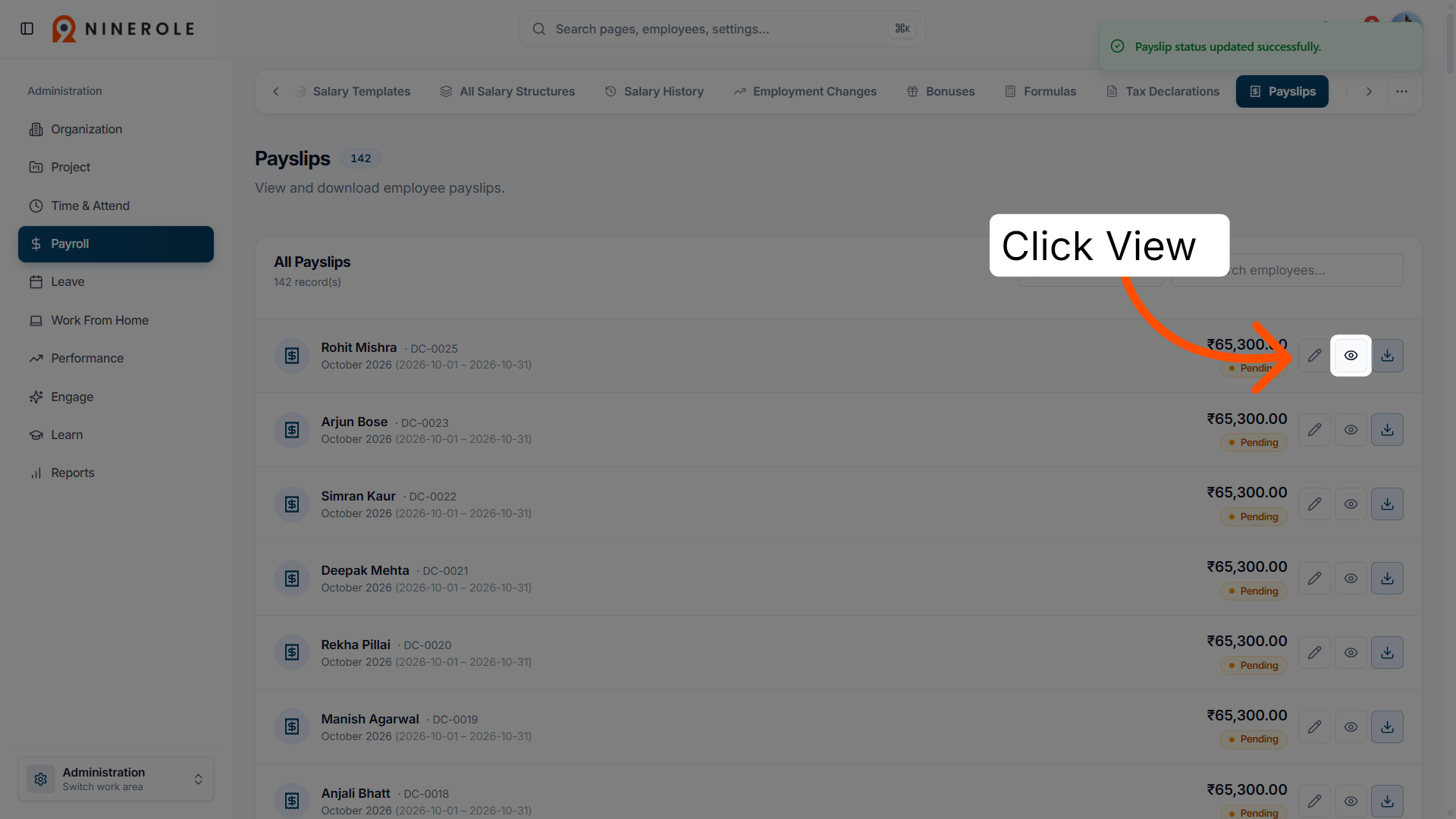
29. View the payslip
Click the view icon on the row to open the payslip and see the full document.
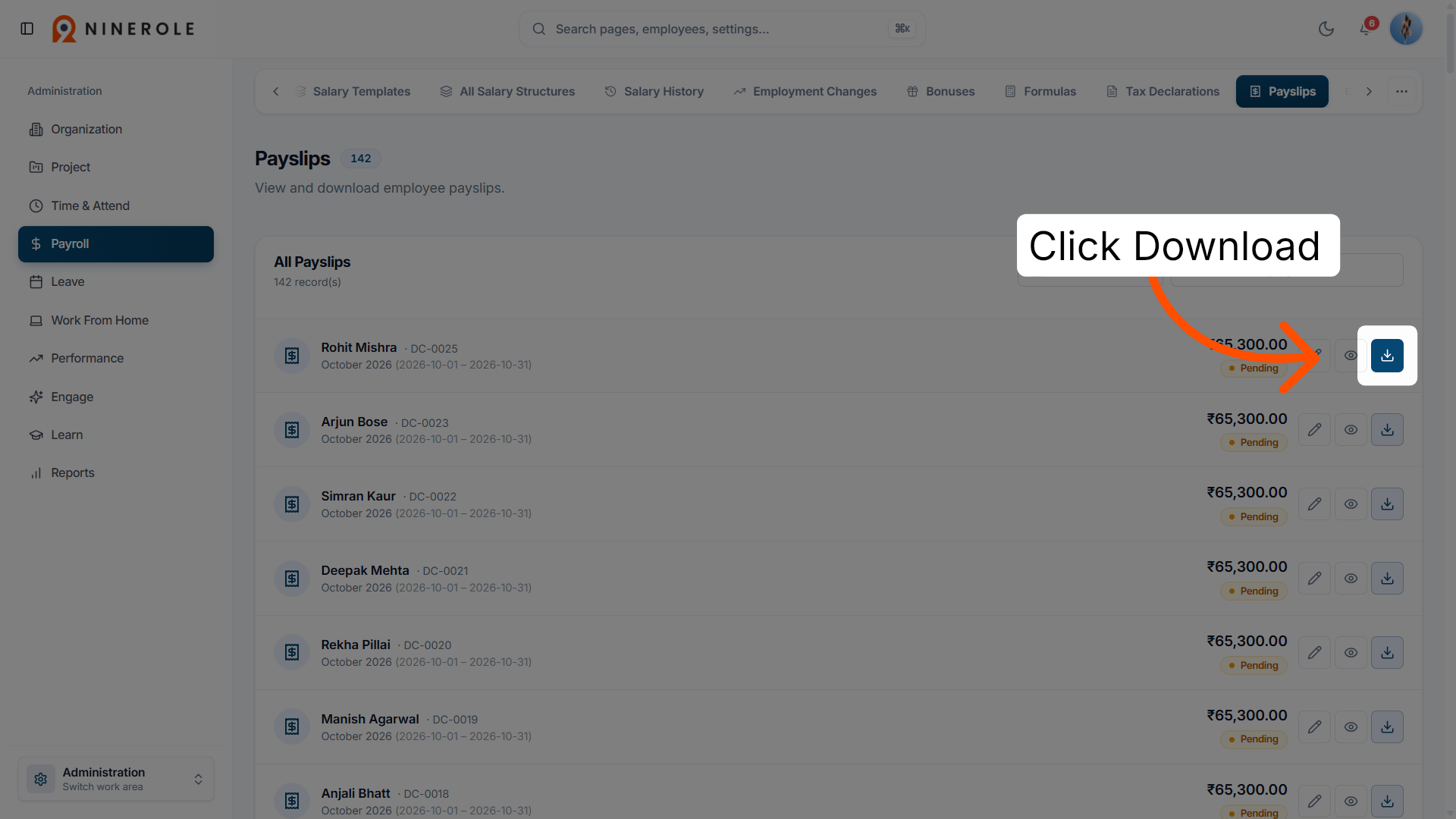
30. Download the payslip
Click the download icon to save the payslip and continue managing payroll records.
You can now configure payslip layouts and review individual payslip details with confidence.
Related: Components and templates · Salary details · Access and review payslips
Back to Payroll · all modules
Last updated: