

Configure Job Listings
This tutorial guides you through setting up job listings within the Ninerole platform. You will learn how to configure job details, hiring team settings, interview plans, pipeline stages, visibility, referral bonuses, and employee notifications when creating a new job.
Before you start, go to ninerole.com.
About this task
- Purpose
- Set up a job opening end to end — role and compensation, visibility, description and skills, approvers, interview rounds, pipeline stages and the hiring team.
- Who can do this
- Recruiter or Hiring Manager
- Before you start
- Company details and business units exist, so the job can be attached to them.
- You will need
- Role details, compensation range, description and skills, the hiring team, and your interview process.
- Result
- A job listing exists and can be published to the careers page.
- This unlocks
- Receiving candidates, running interview rounds, and moving people through the pipeline to an offer.
This guide answers
- How do I create a job opening?
- How do I publish a job to the careers page?
- How do I set up interview rounds?
- How do I add approvers to a job?
- Who can create and publish jobs?
If something goes wrong
- The job does not appear on the careers page.
- It has been created but not published. Publish it from the job listing.
- You cannot add a hiring team member.
- They need an account in Ninerole before they can be assigned a functional hiring role.
Related: Vendors · Add an employee · Business unitsAlso called: job posting, job opening, requisition.Last verified: 7 September 2026
1. Introduction
You will learn how to configure job details, hiring team settings, interview plans, pipeline stages, visibility, referral bonuses, and employee notifications effectively when creating a new job in Ninerole.
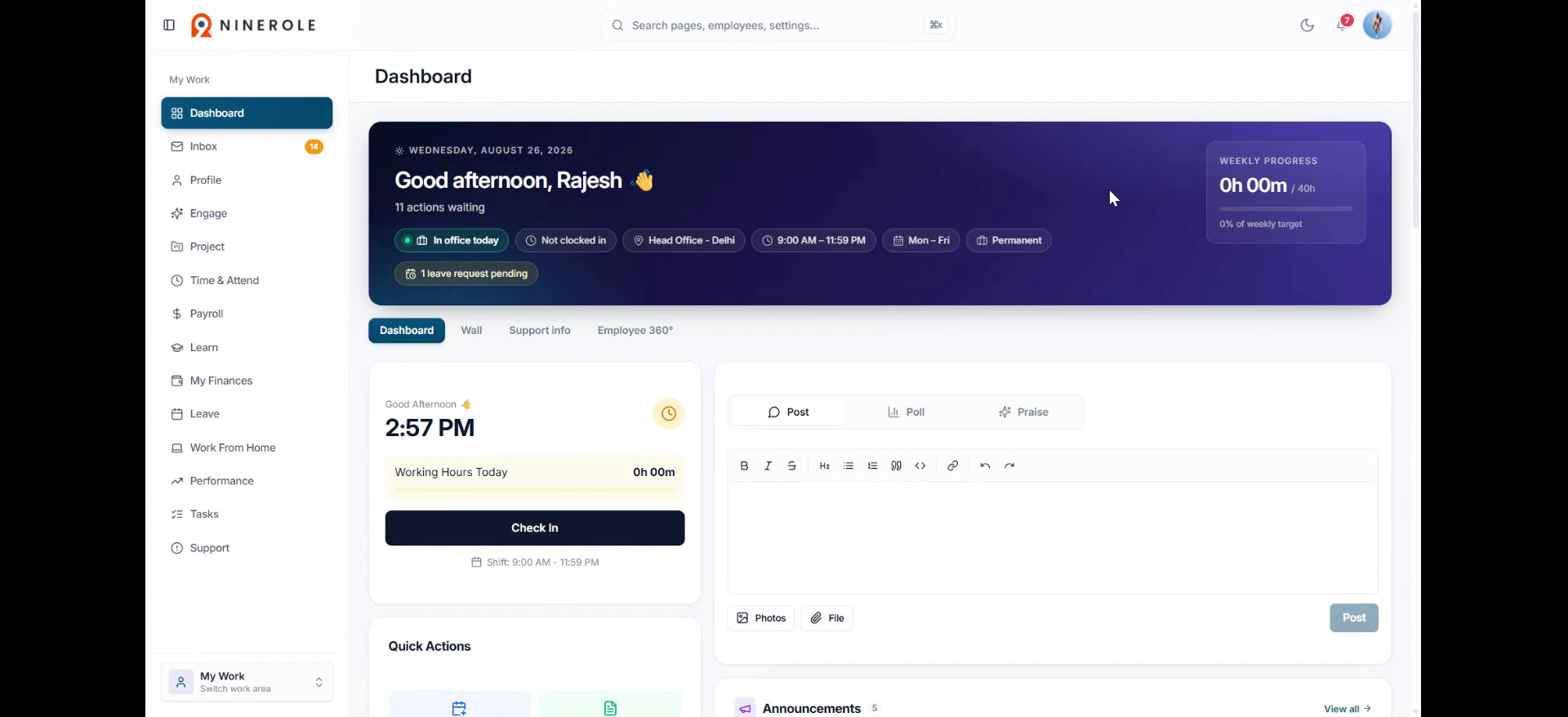
Open the Jobs page
2. Switch work area
Click Switch work area to access different sections of the Ninerole dashboard.
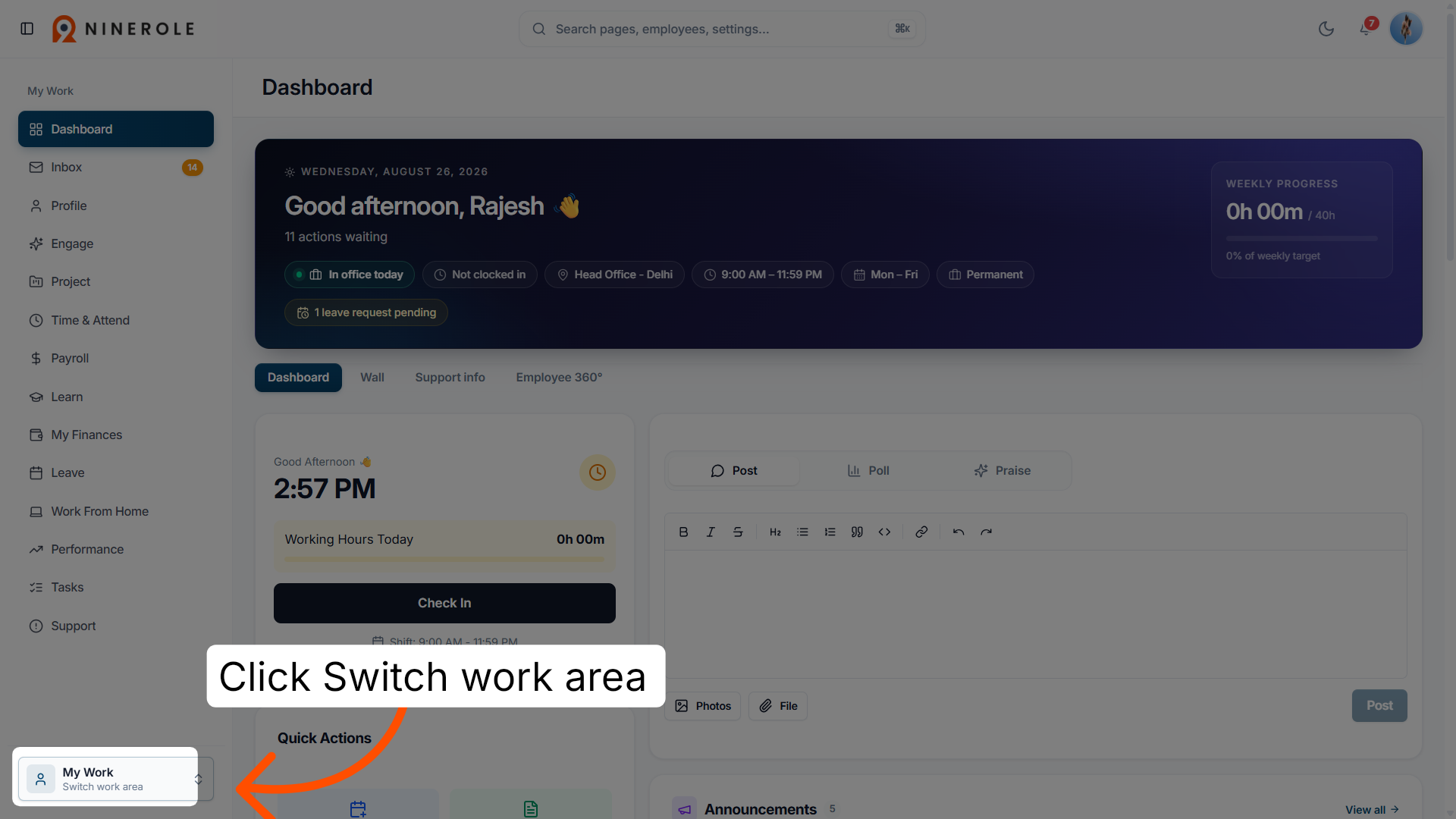
3. Access the Recruiting section
Click Recruiting to navigate to the recruiting module where job postings are managed.
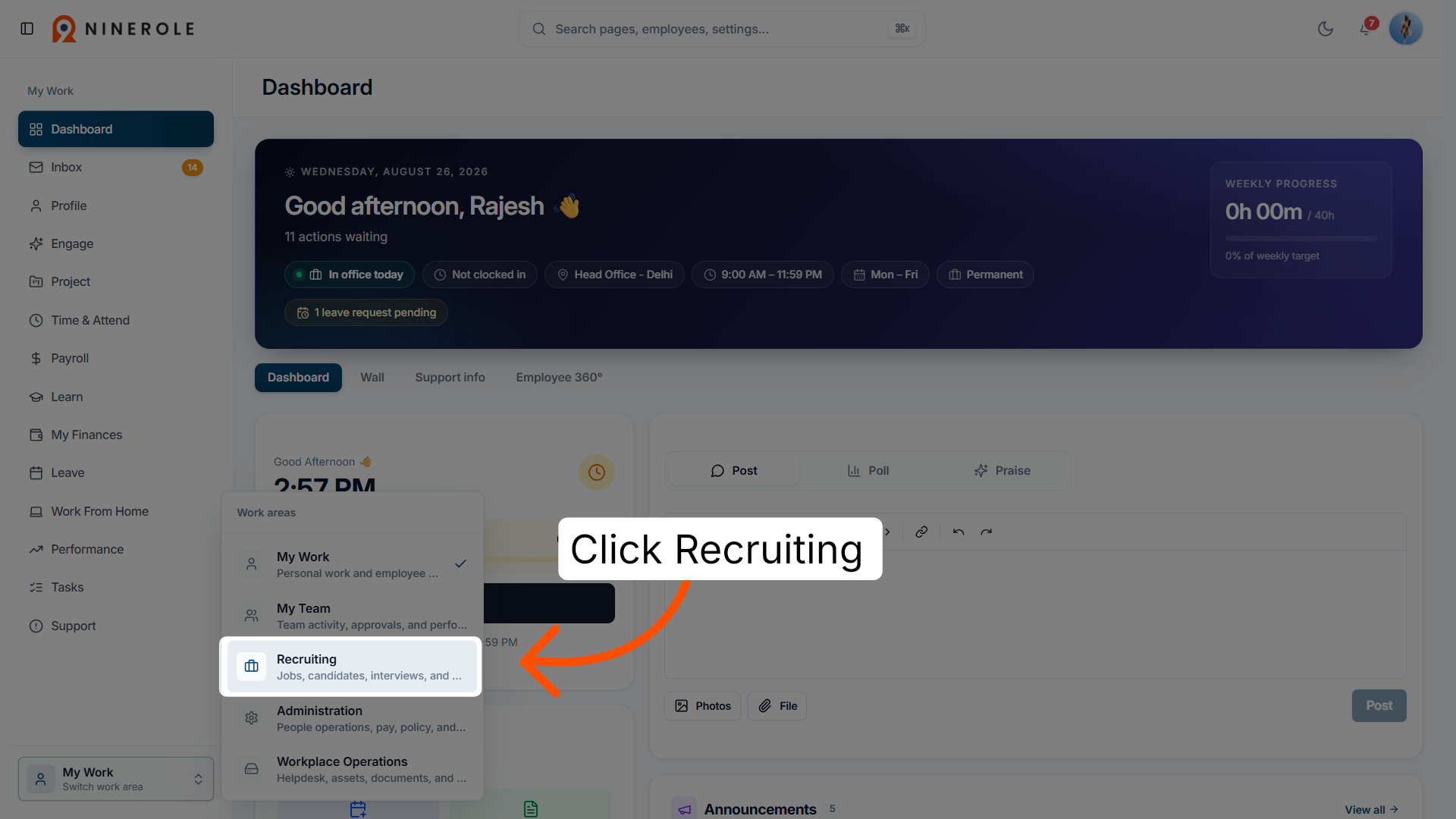
4. Open the Jobs page
Click Jobs to view and manage existing job listings within the recruiting section.
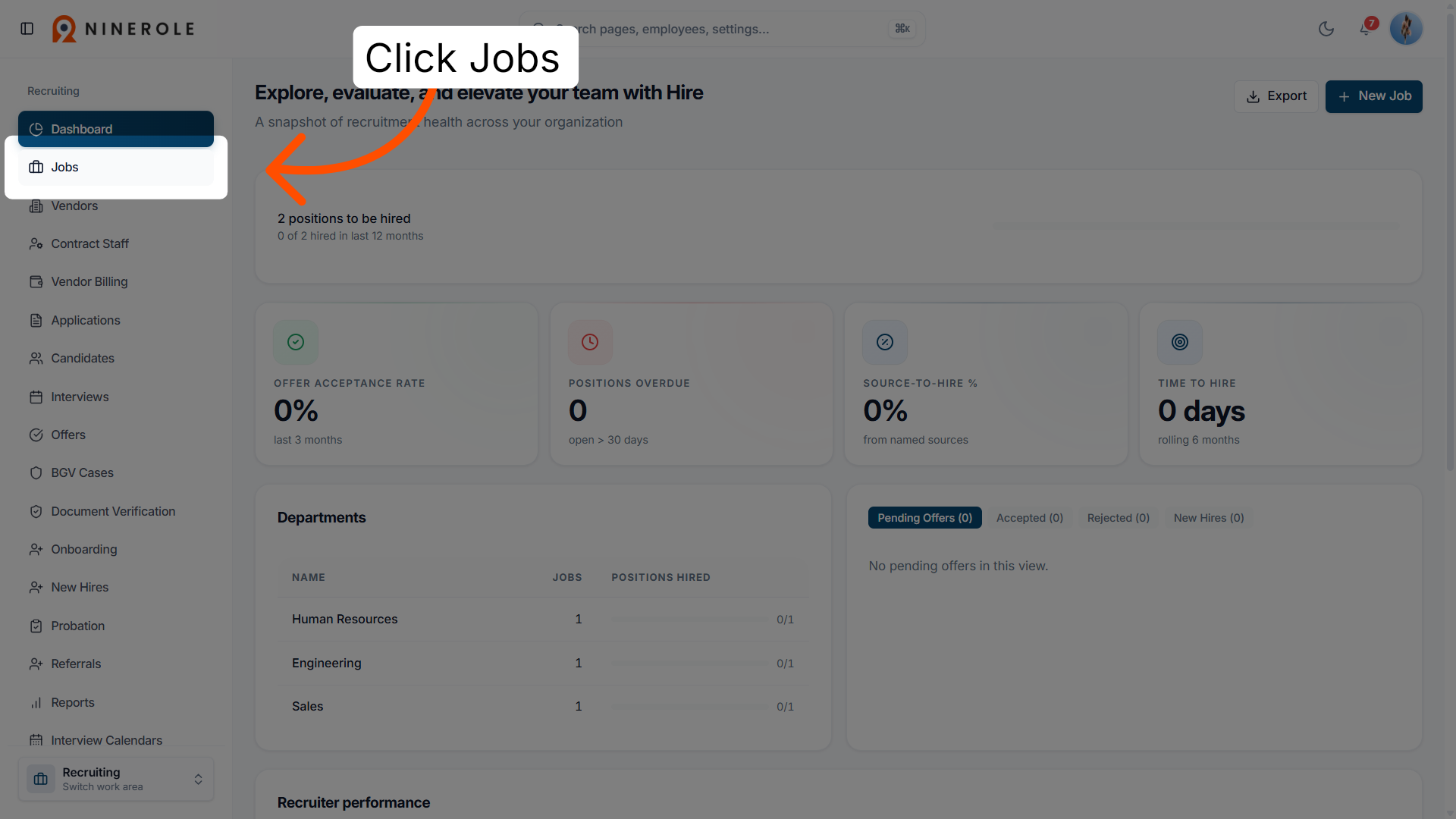
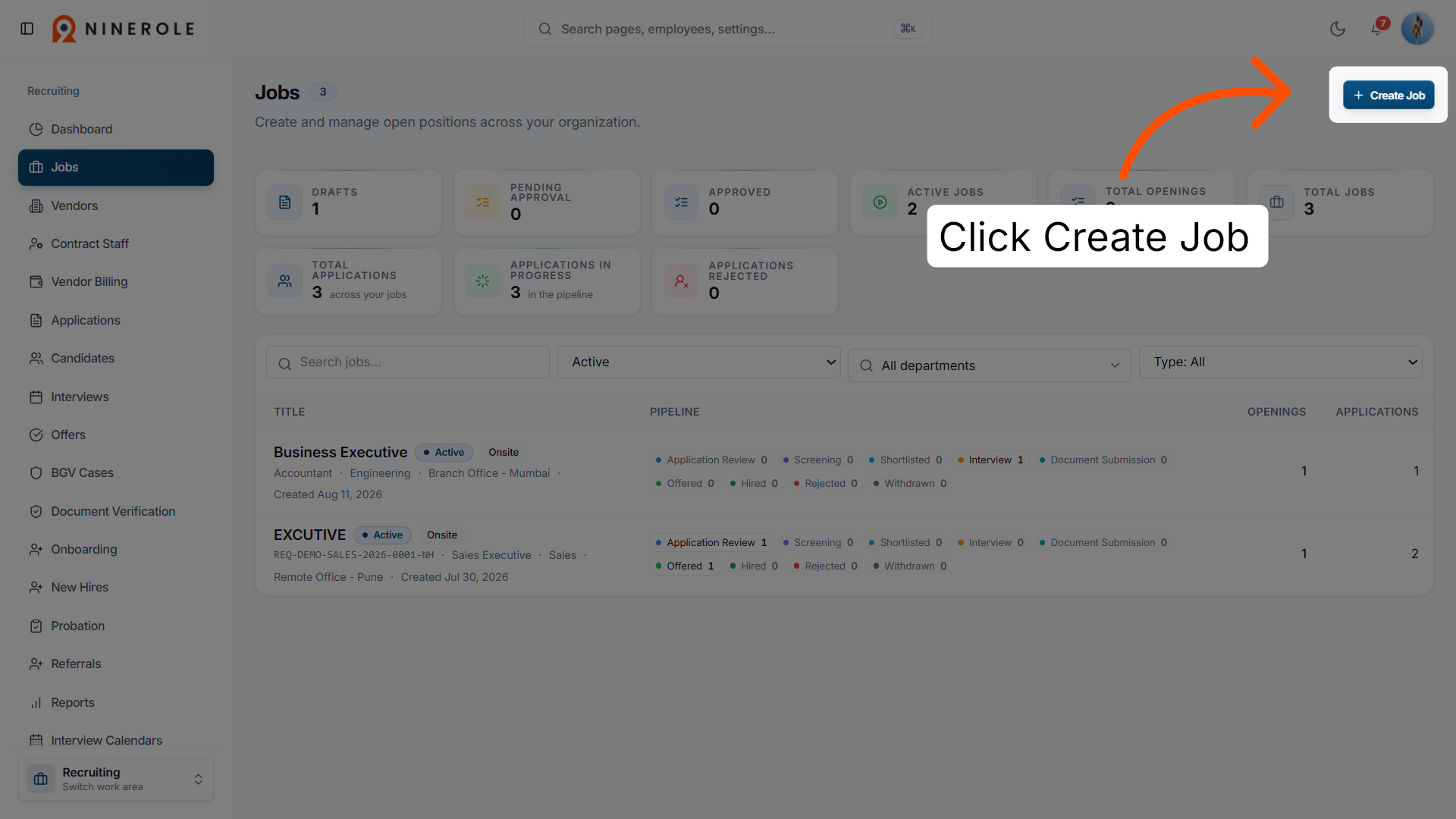
5. Initiate job creation
Click Create Job to start adding a new job listing in Ninerole.
Enter the role details
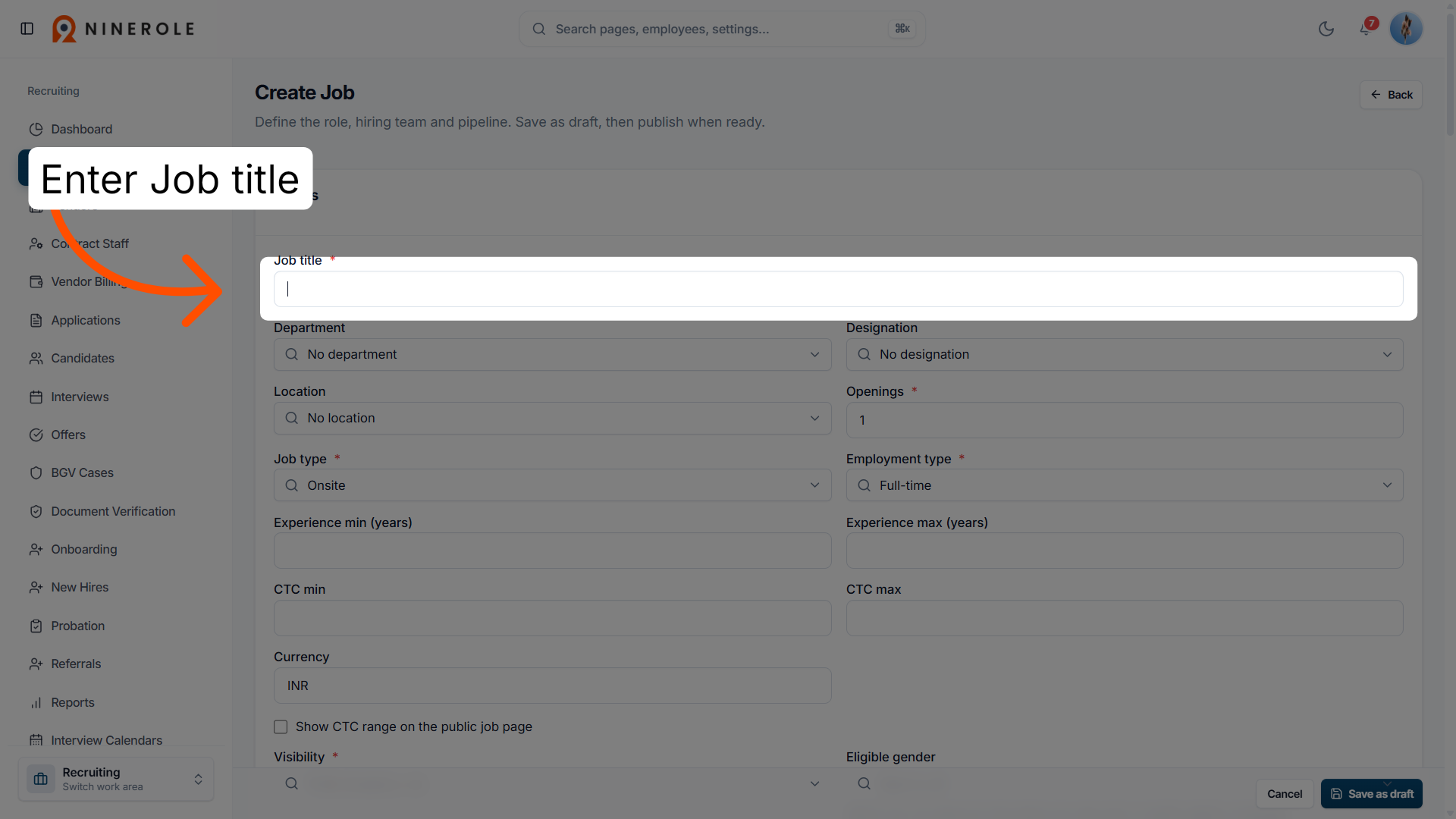
6. Select the Job title field
Enter Job title to specify the title for the new job opening.
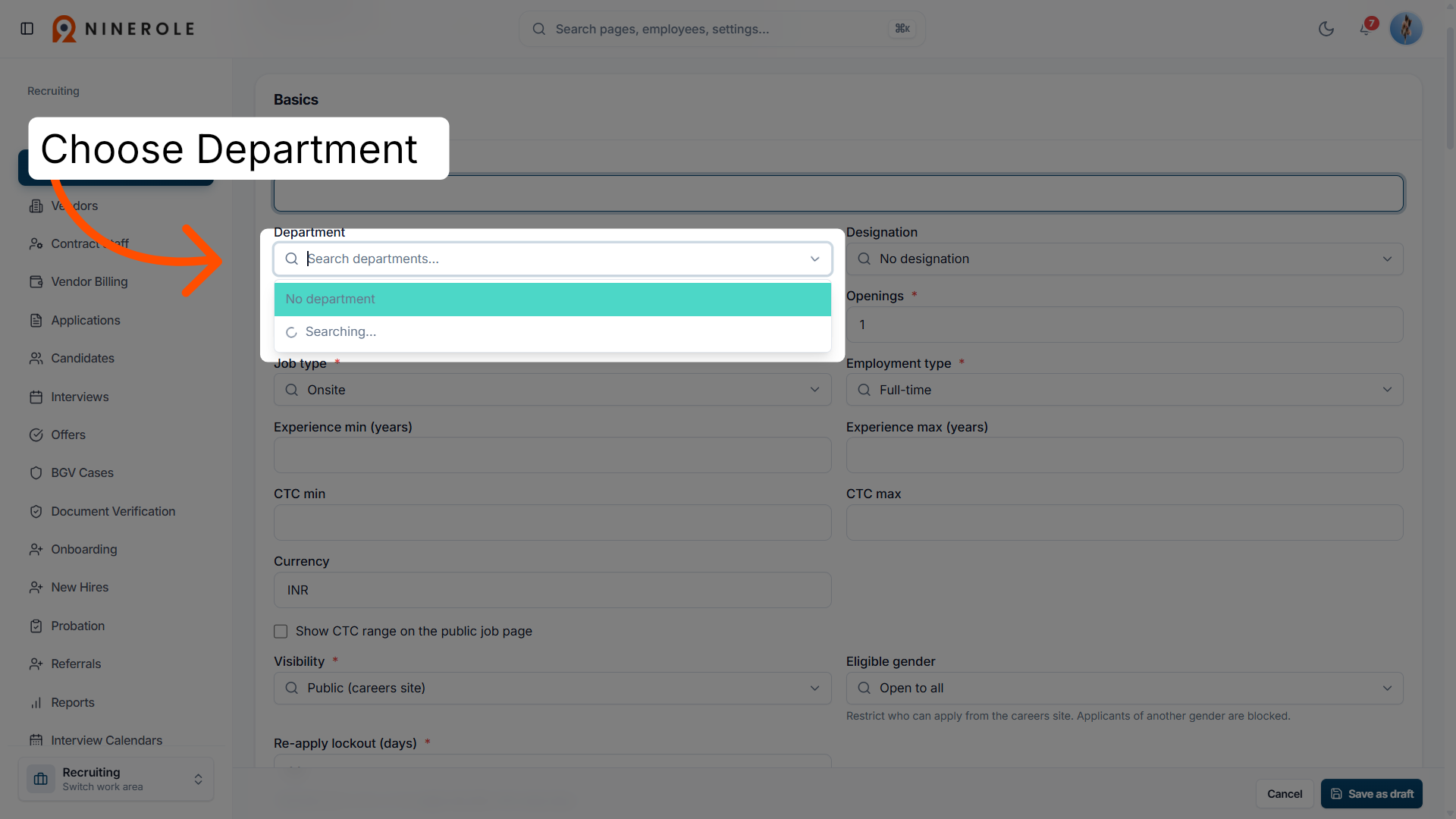
7. Choose the department
Choose Department to assign the job to the appropriate department within your organization.
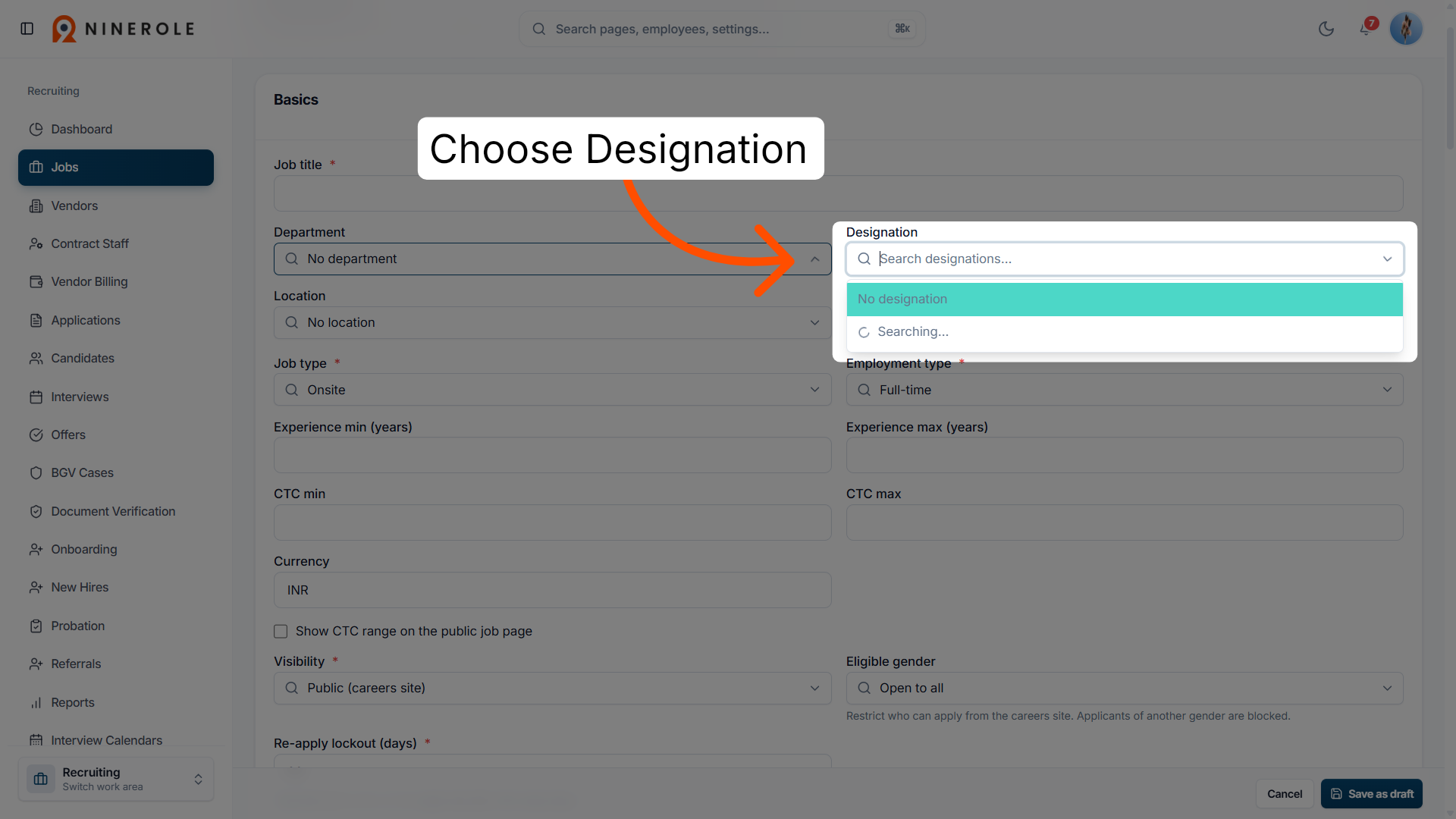
8. Set the designation
Choose Designation to define the job designation or role level.
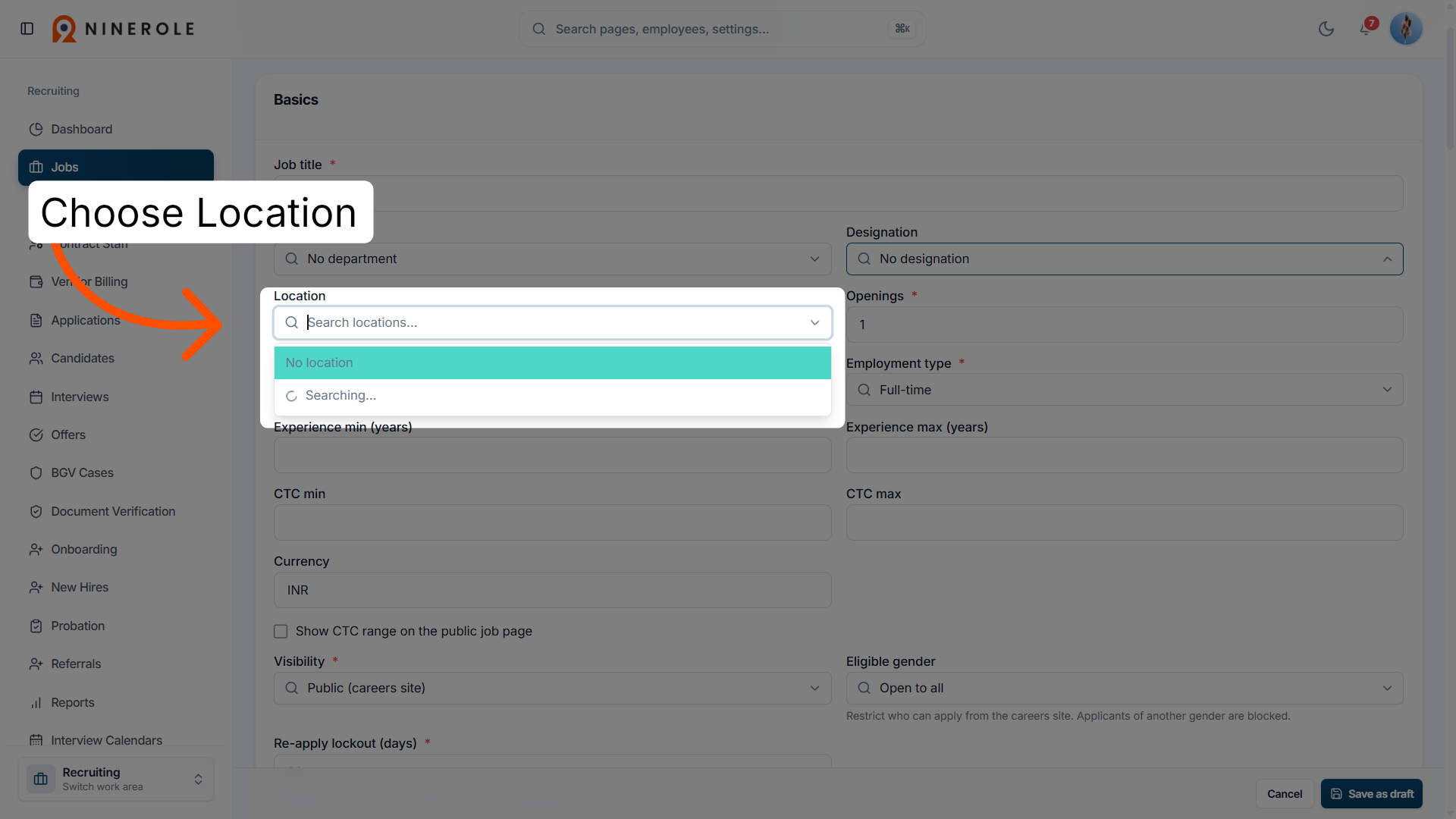
9. Specify the location
Click Location to select the job's work location.
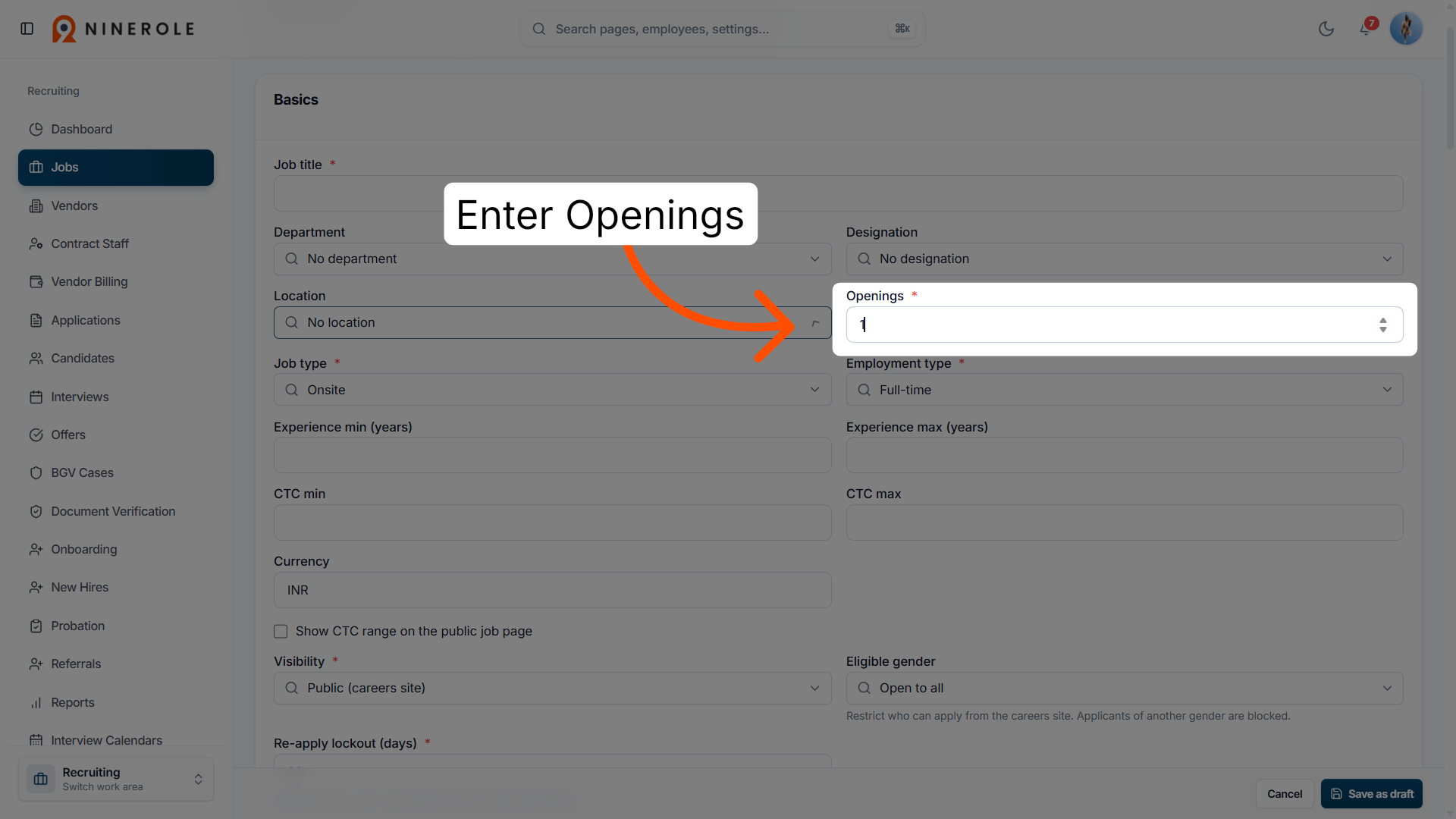
10. Enter the number of openings
Enter Openings to indicate how many positions are available for this job.
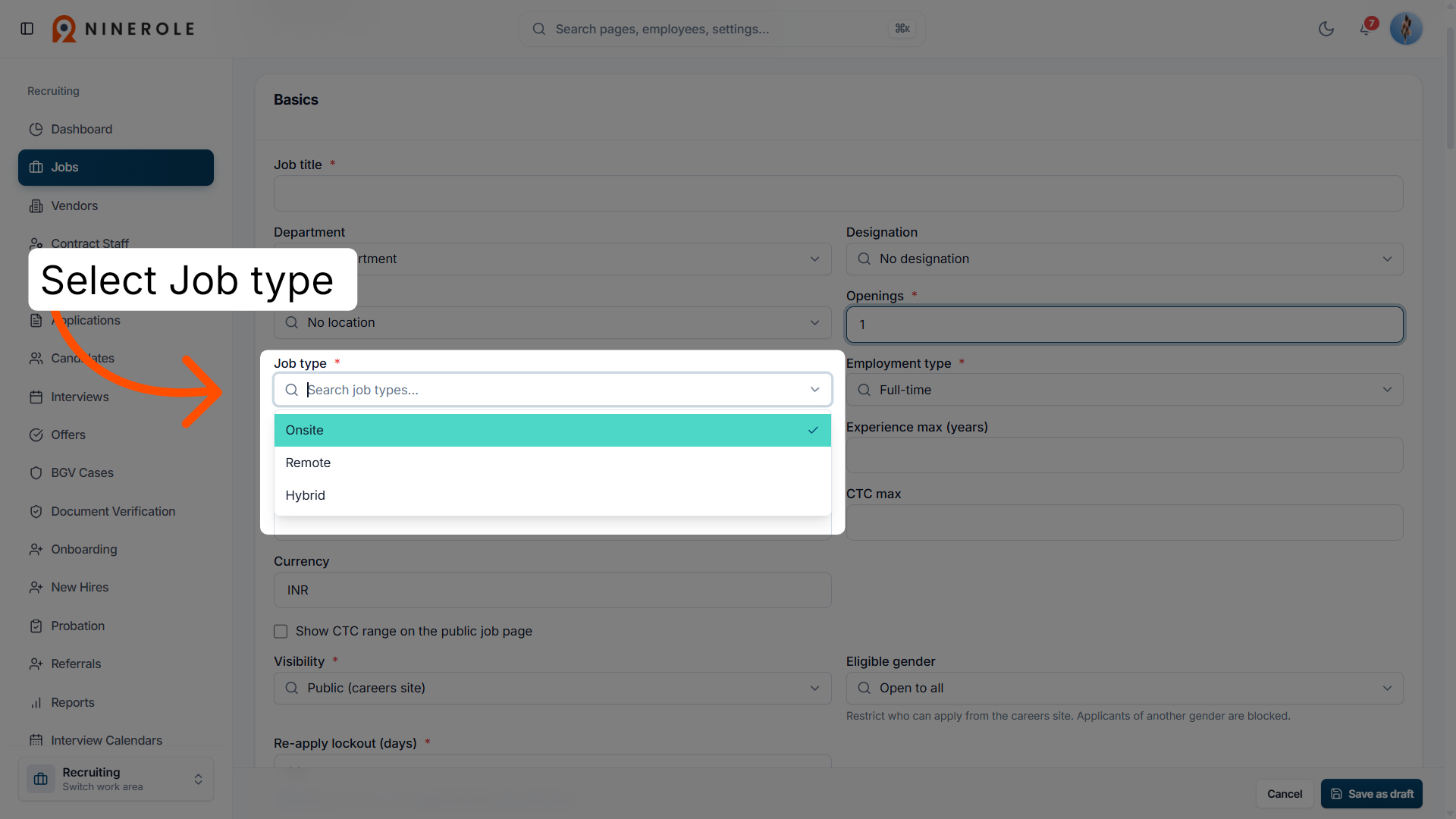
11. Select the job type
Select Job type to choose the category of the job, such as full-time or part-time.
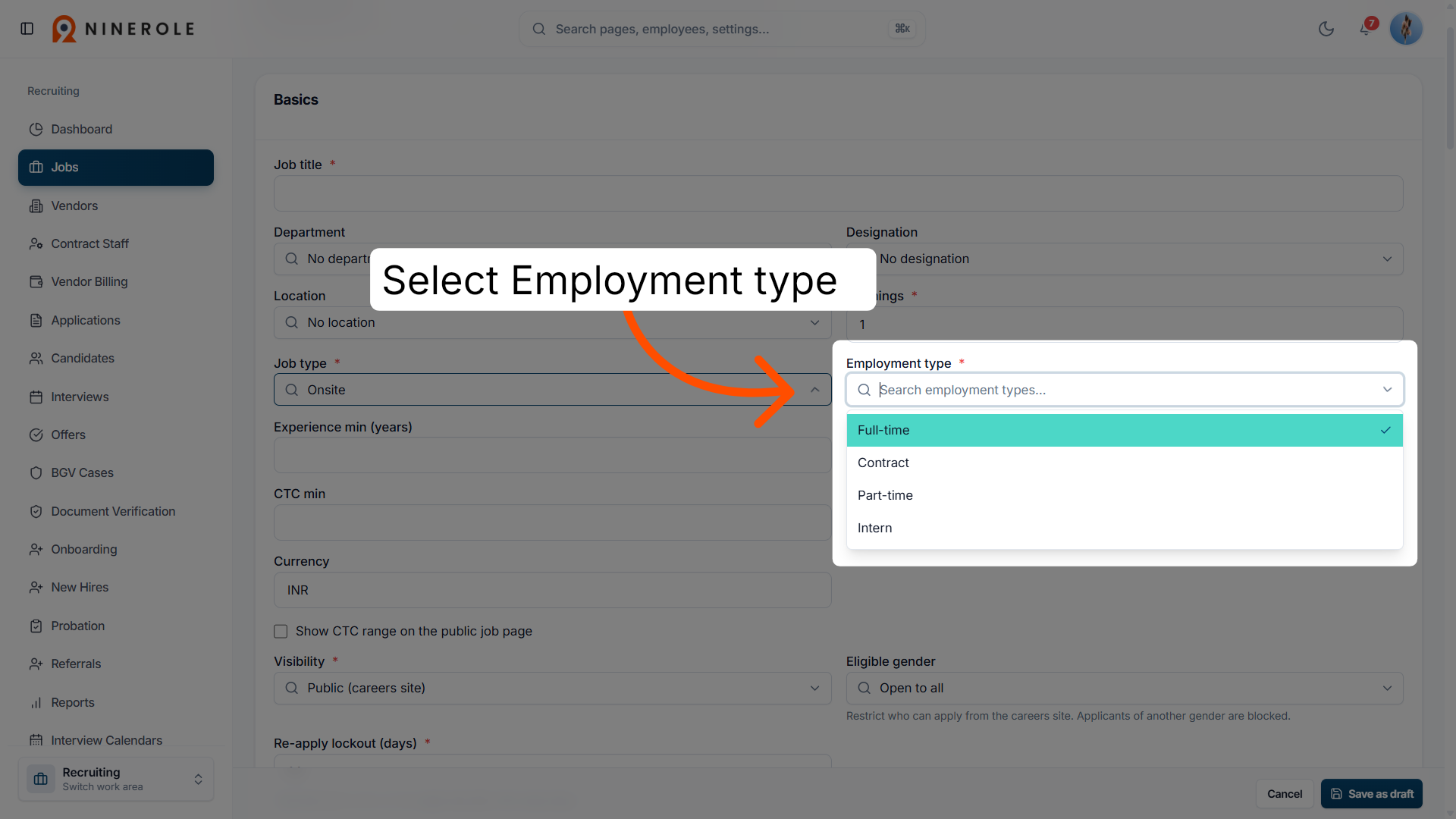
12. Choose the employment type
Choose Employment type * to specify the nature of employment for the position.
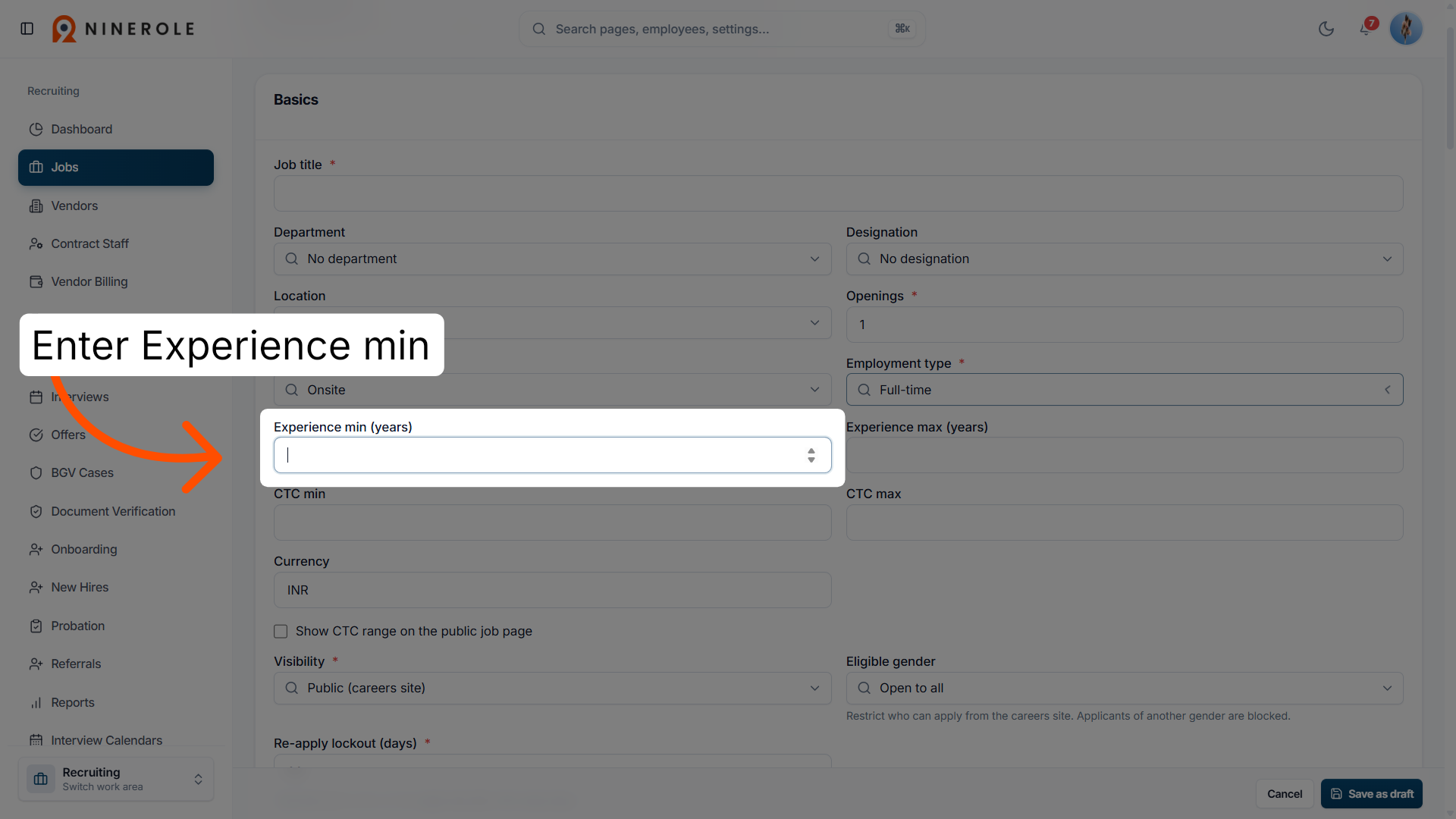
13. Set the minimum experience
Enter Experience min (years) to define the minimum required years of experience.
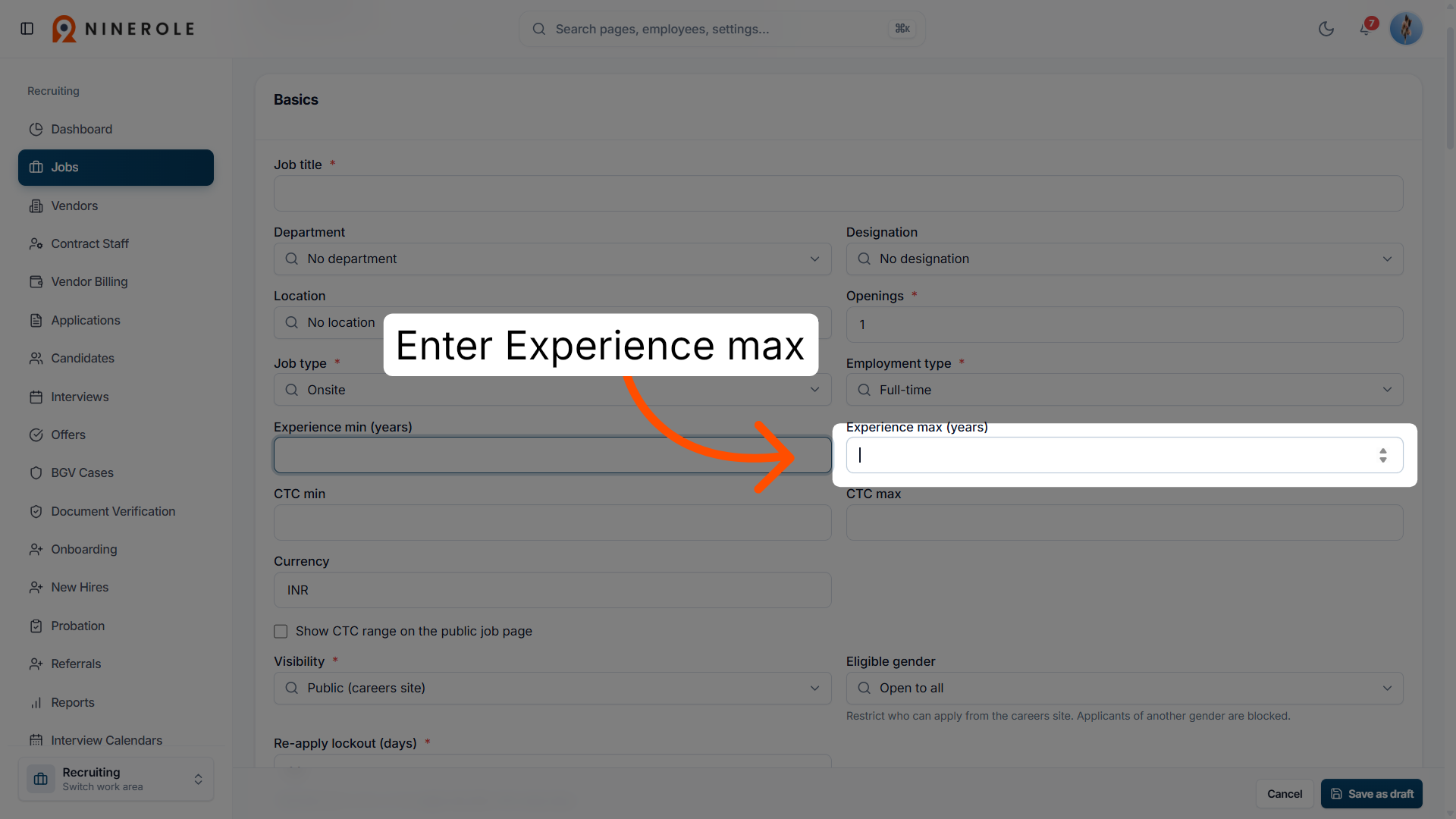
14. Set the maximum experience
Enter Experience max (years) to set the maximum years of experience accepted.
Set compensation and visibility
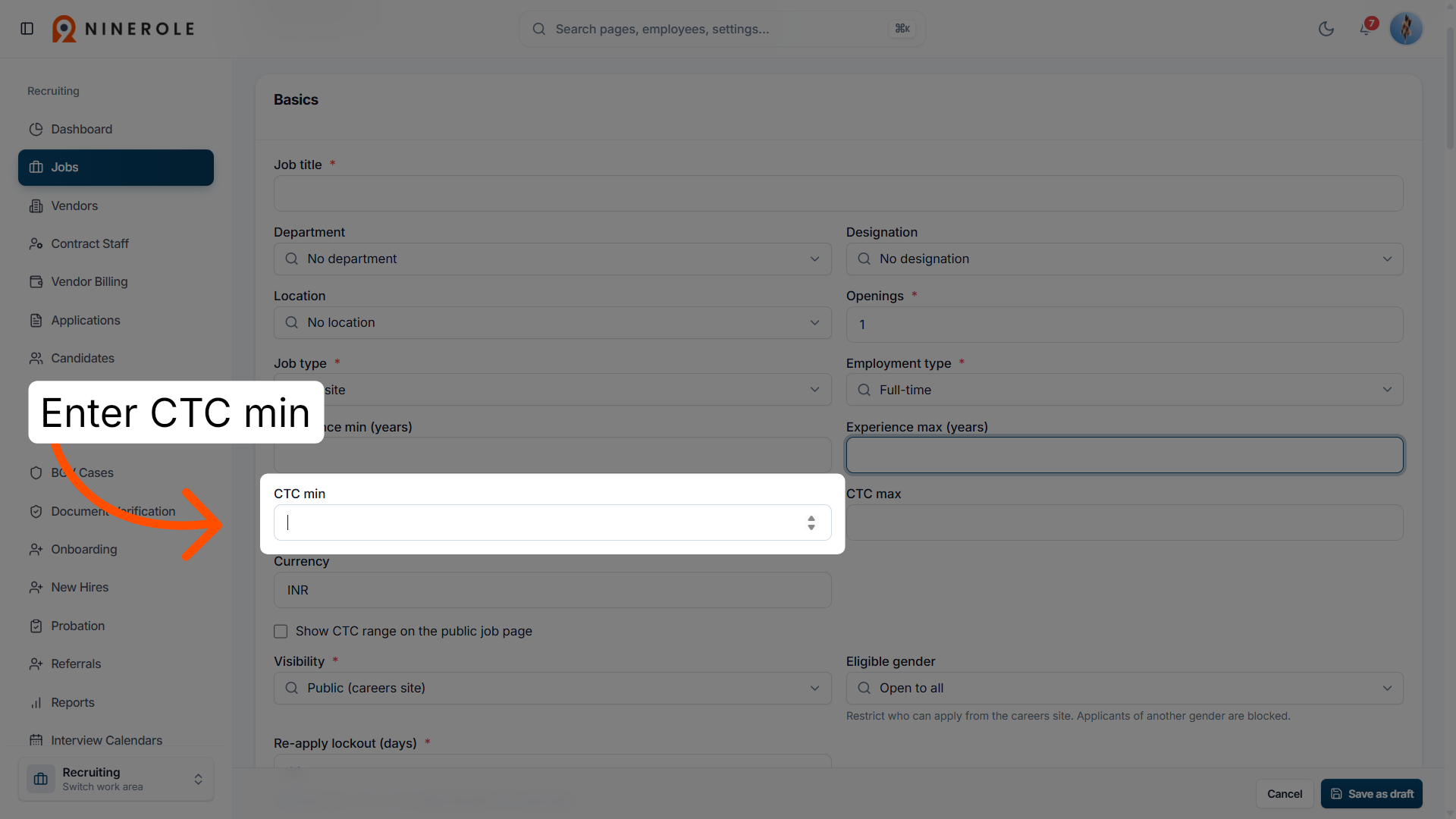
15. Set the minimum CTC
Enter CTC min to specify the minimum cost to company for the position.
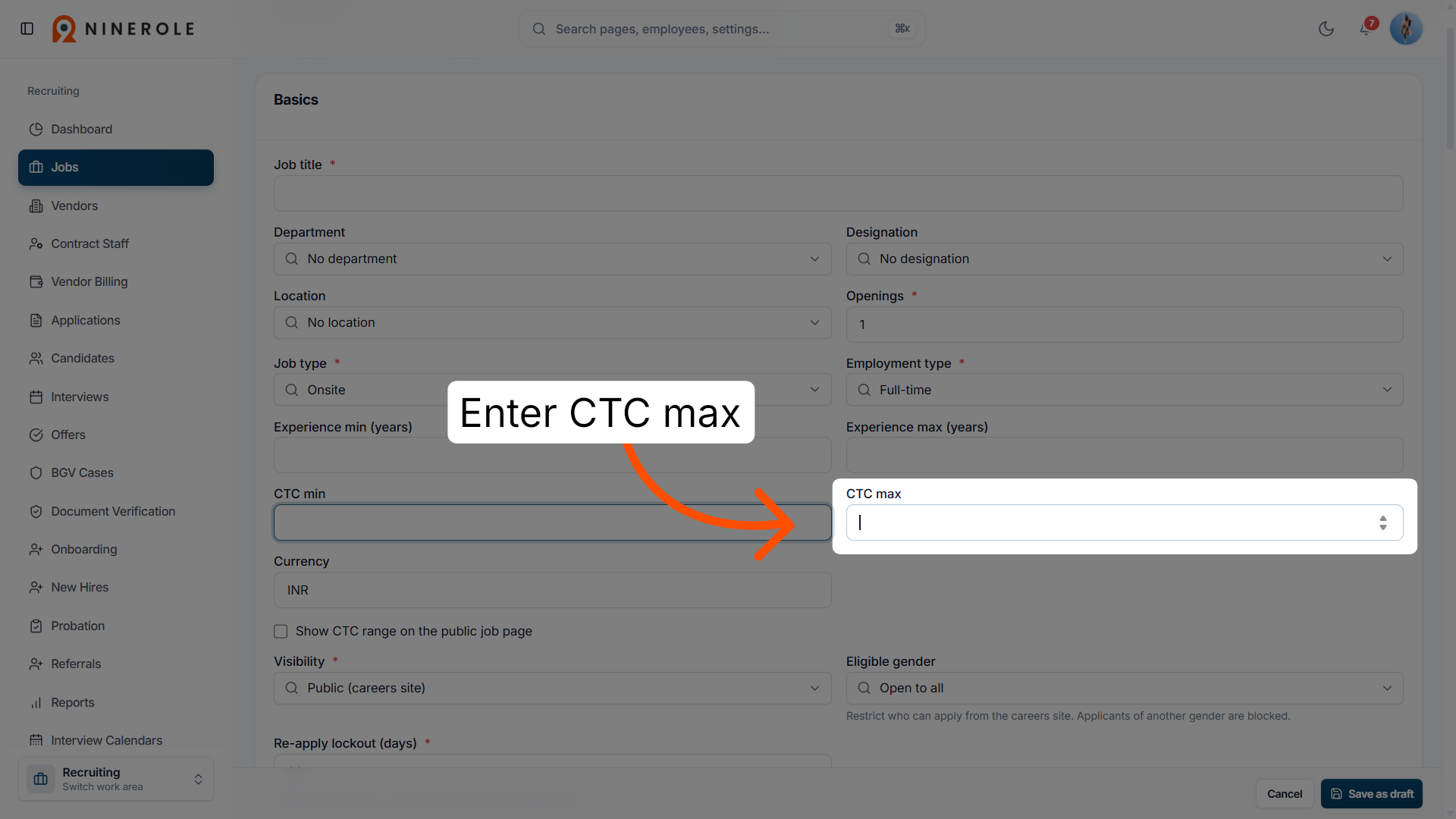
16. Set the maximum CTC
Enter CTC max to define the maximum cost to company for the job.
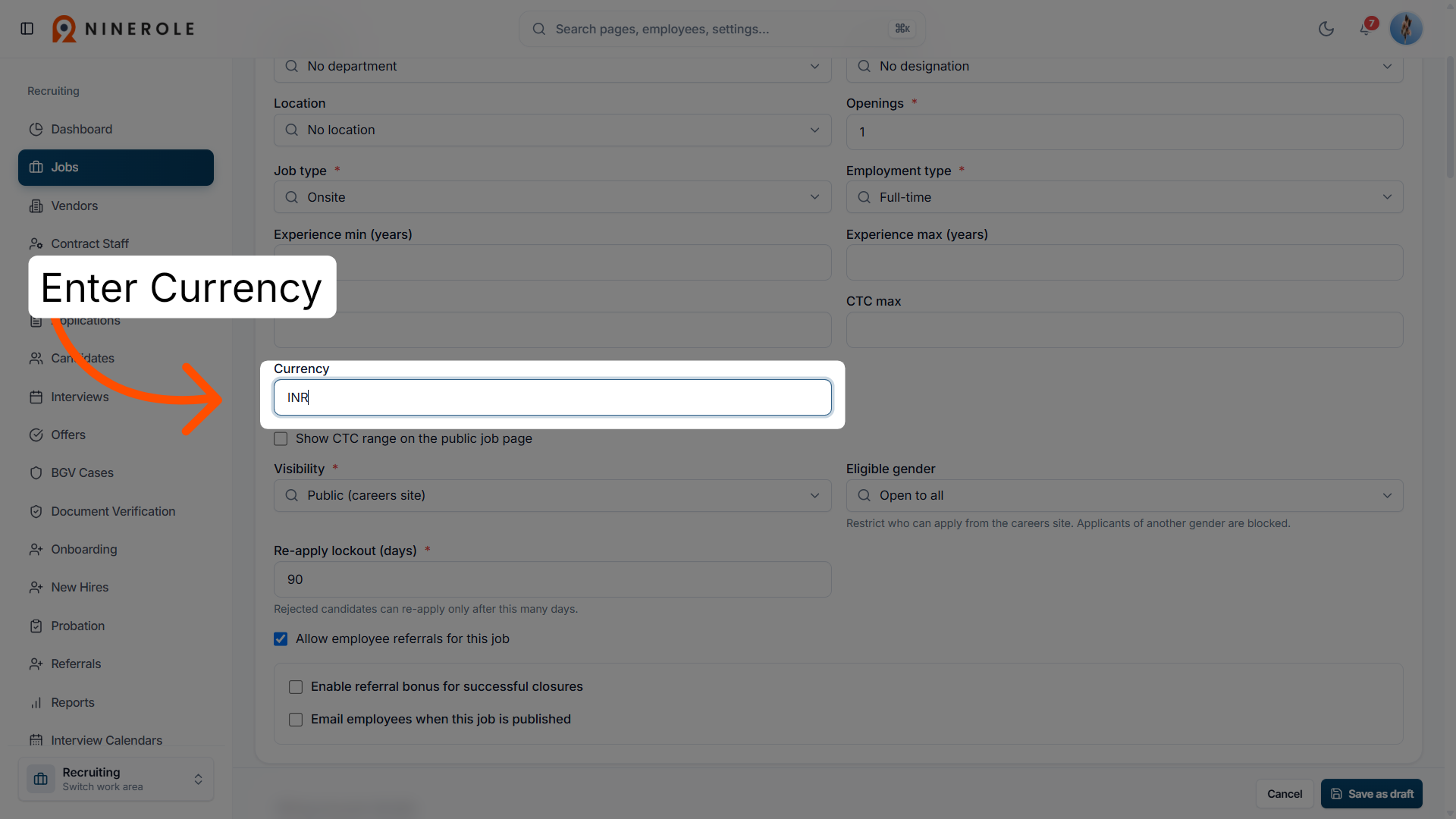
17. Select the currency
Enter Currency to choose the currency for the salary details.
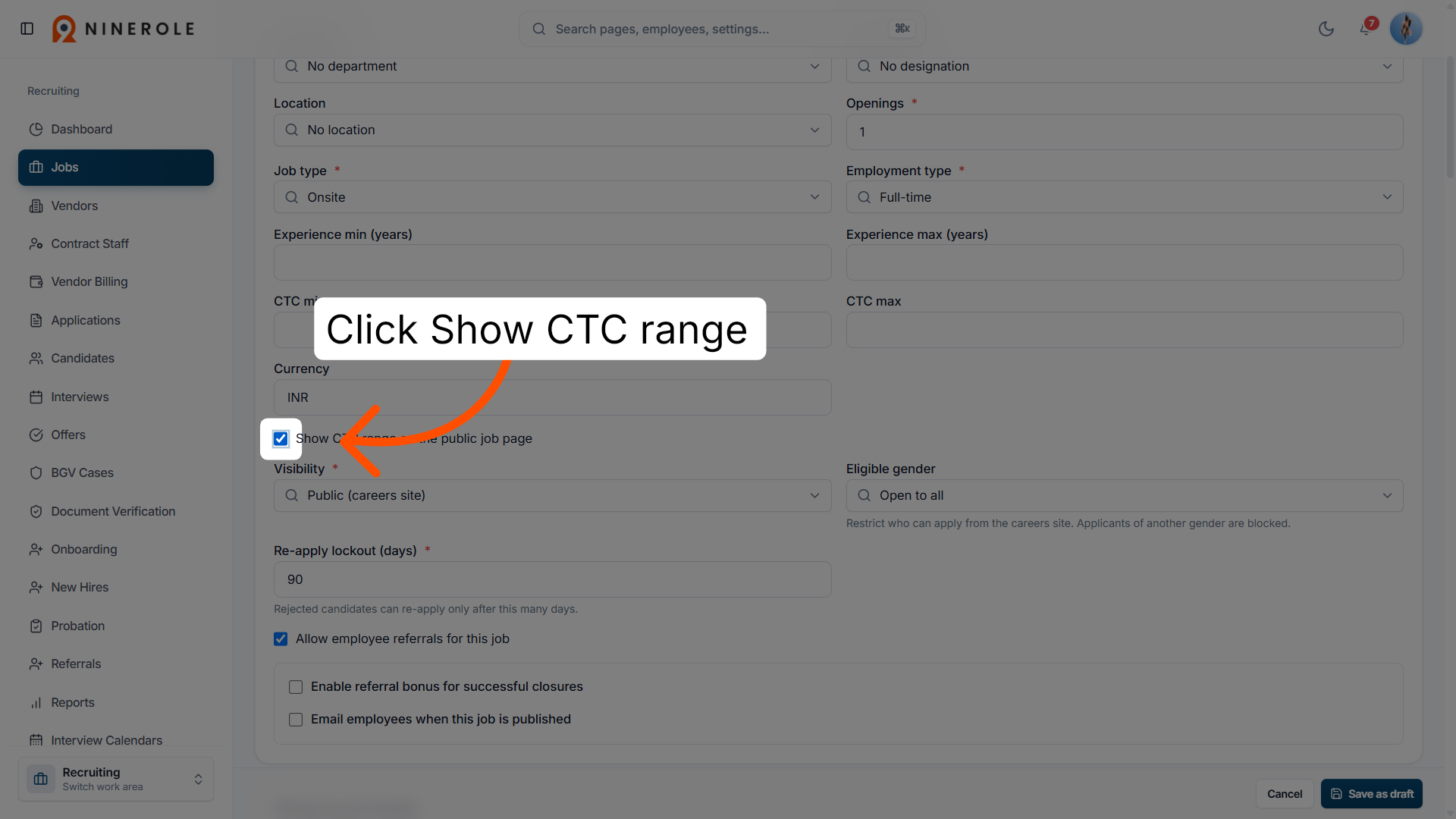
18. Toggle CTC range visibility
Click Show CTC range on the public job page to control whether salary ranges are visible to applicants.
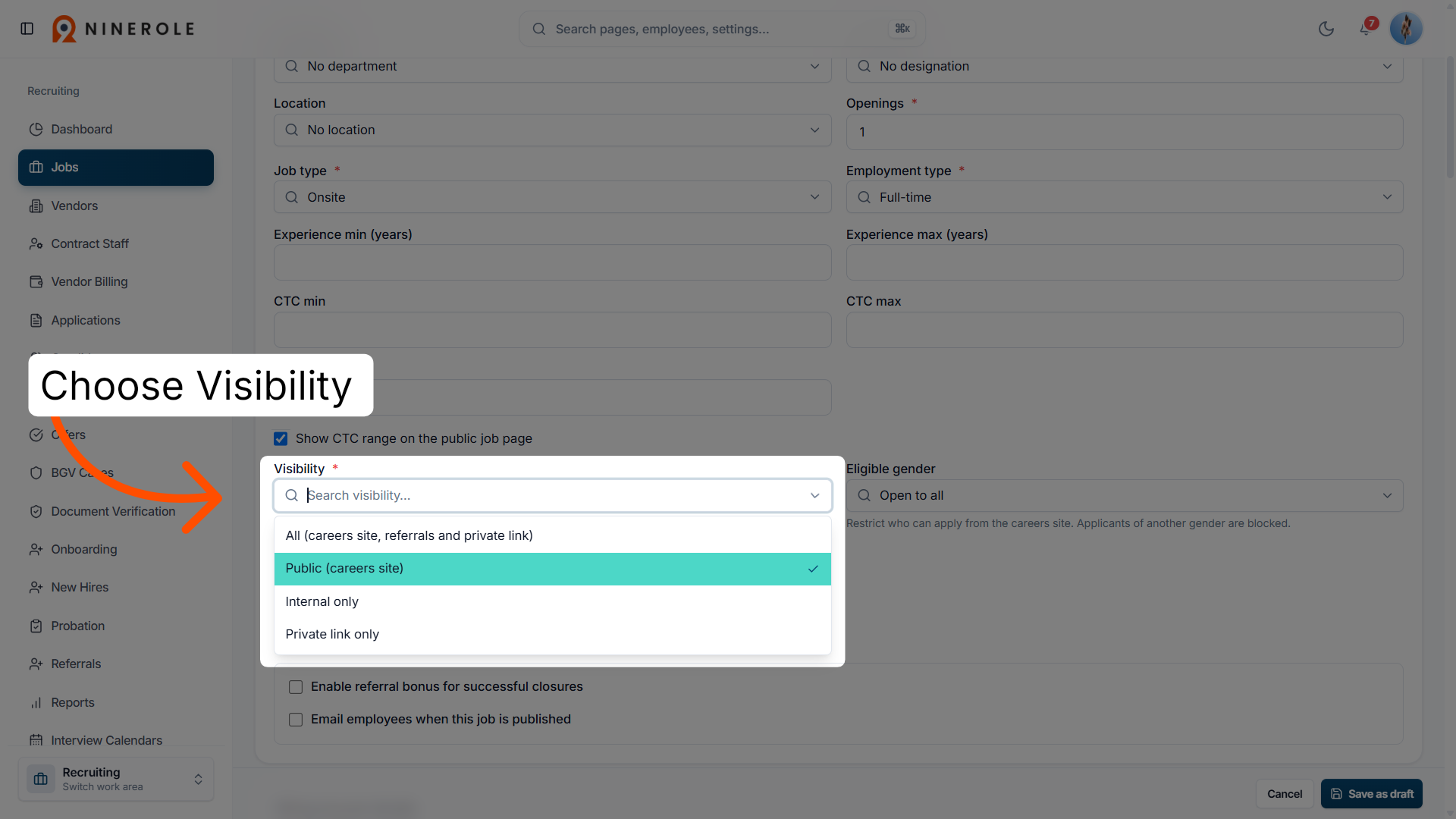
19. Set the job visibility
Choose Visibility * to configure who can see the job listing.
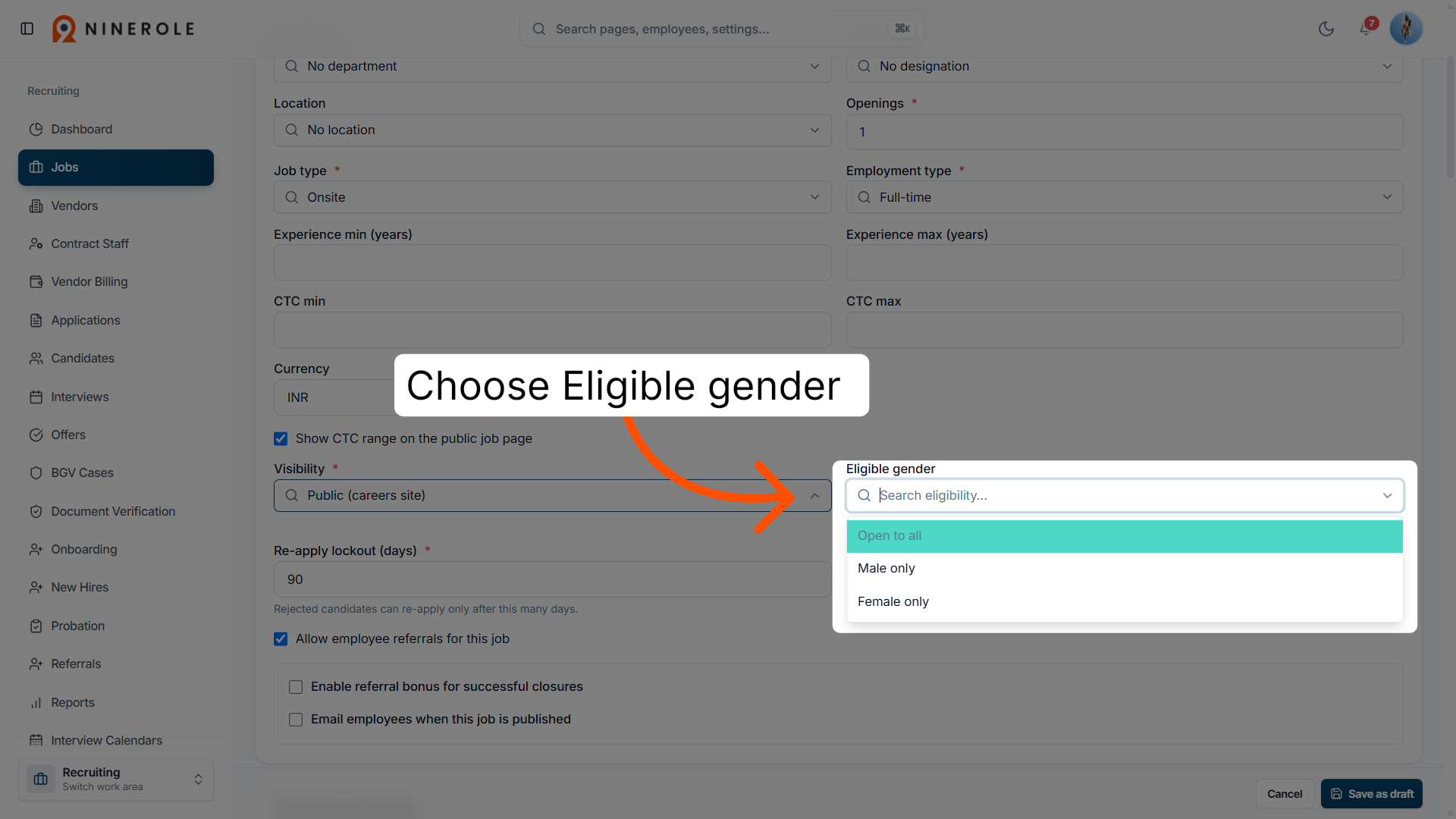
20. Specify the eligible gender
Choose Eligible gender to define gender eligibility criteria for applicants.
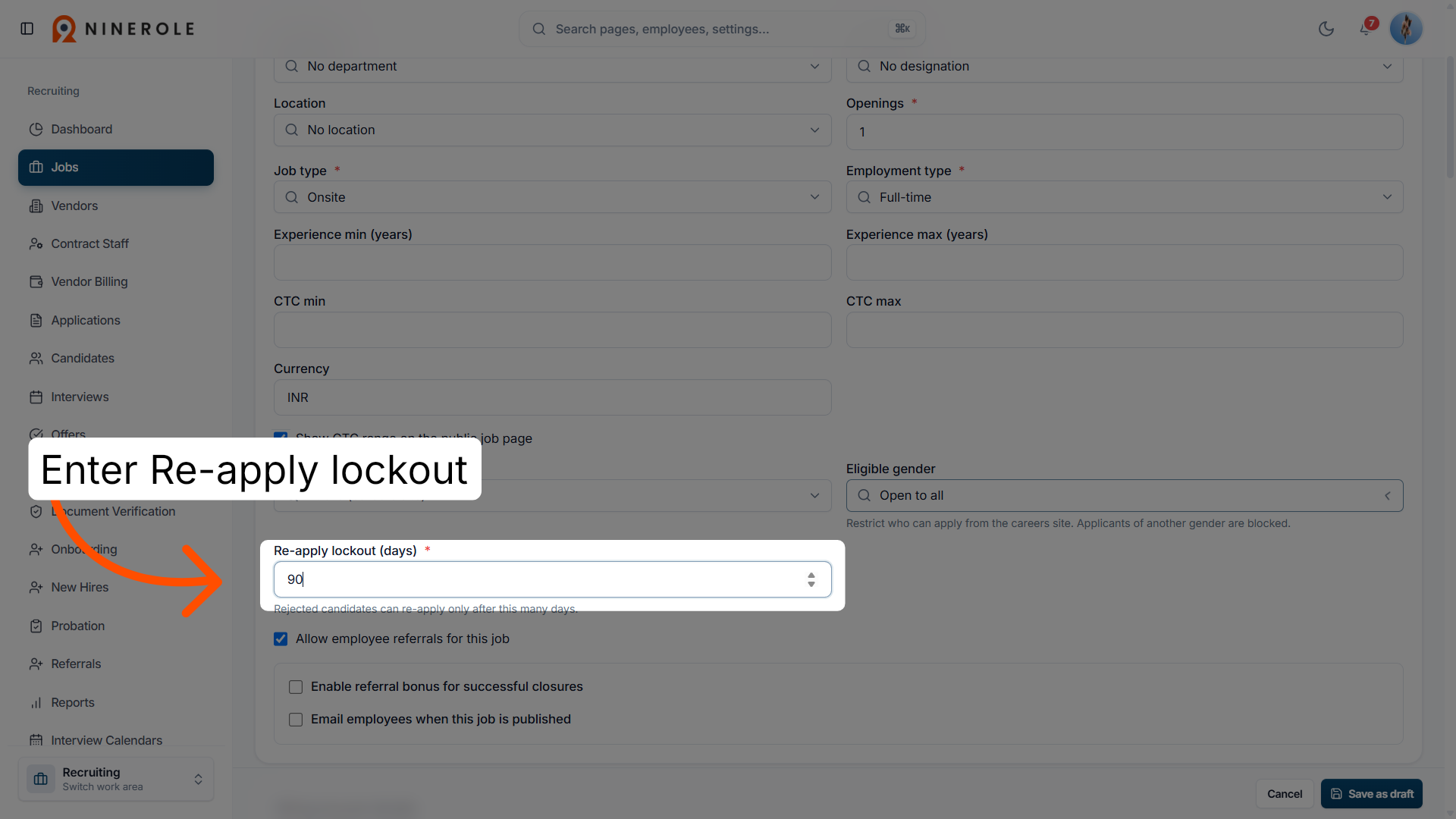
21. Set the re-apply lockout
Enter Re-apply lockout (days) * to determine the number of days before a candidate can reapply.
Configure the referral bonus
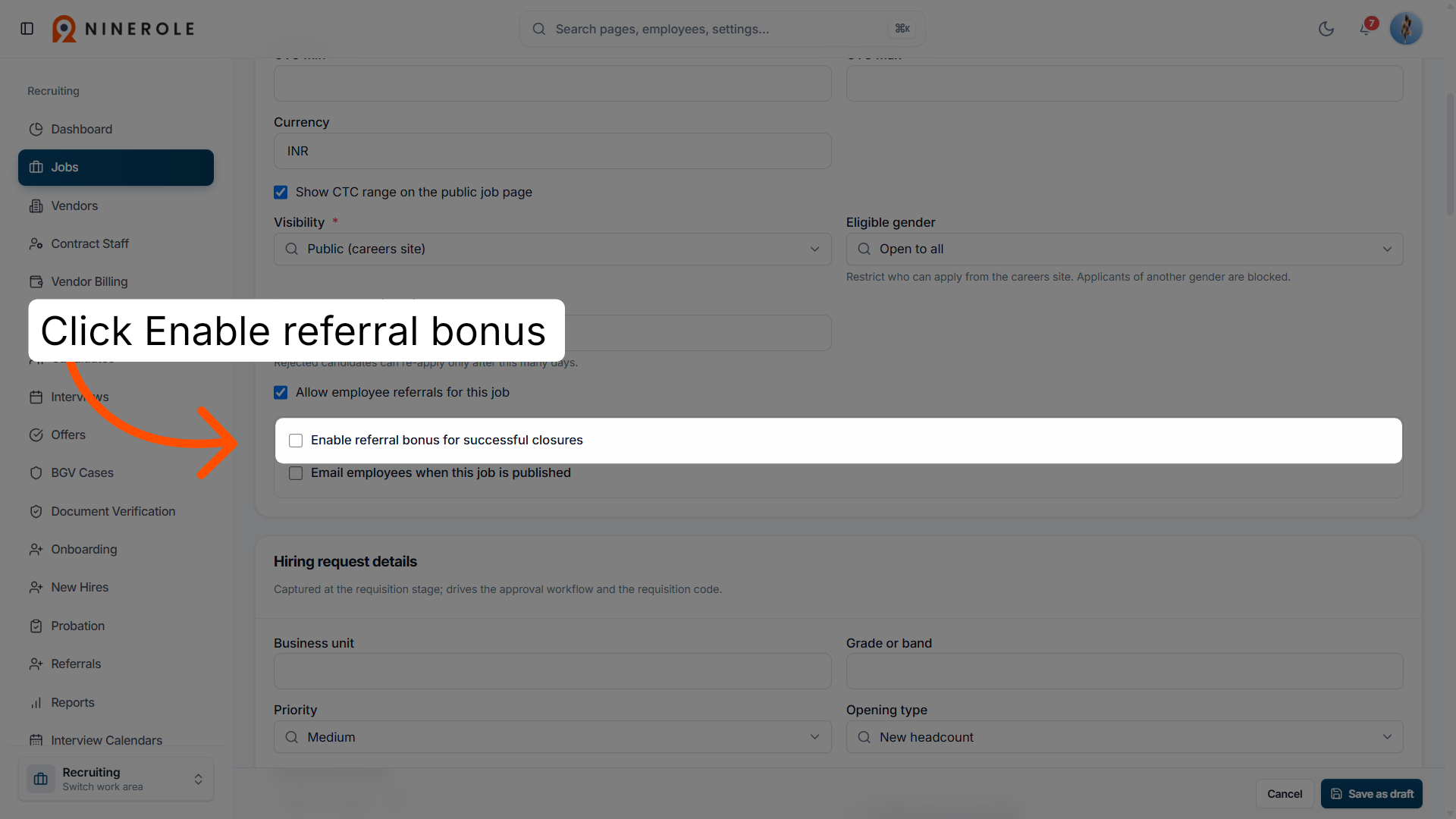
22. Enable the referral bonus
Click Enable referral bonus for successful closures to activate referral incentives for this job.
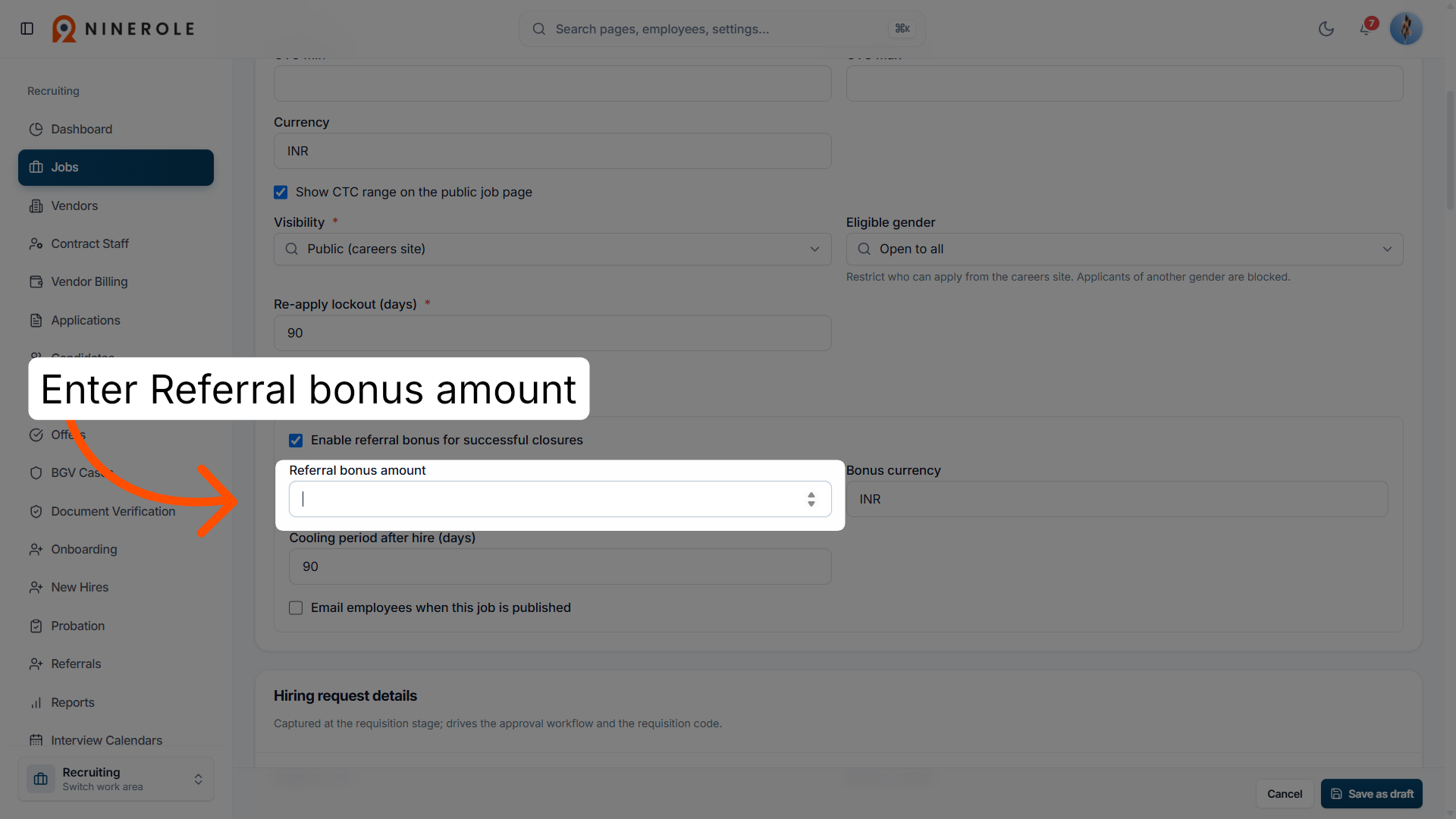
23. Set the referral bonus amount
Enter Referral bonus amount to specify the bonus value for referrals.
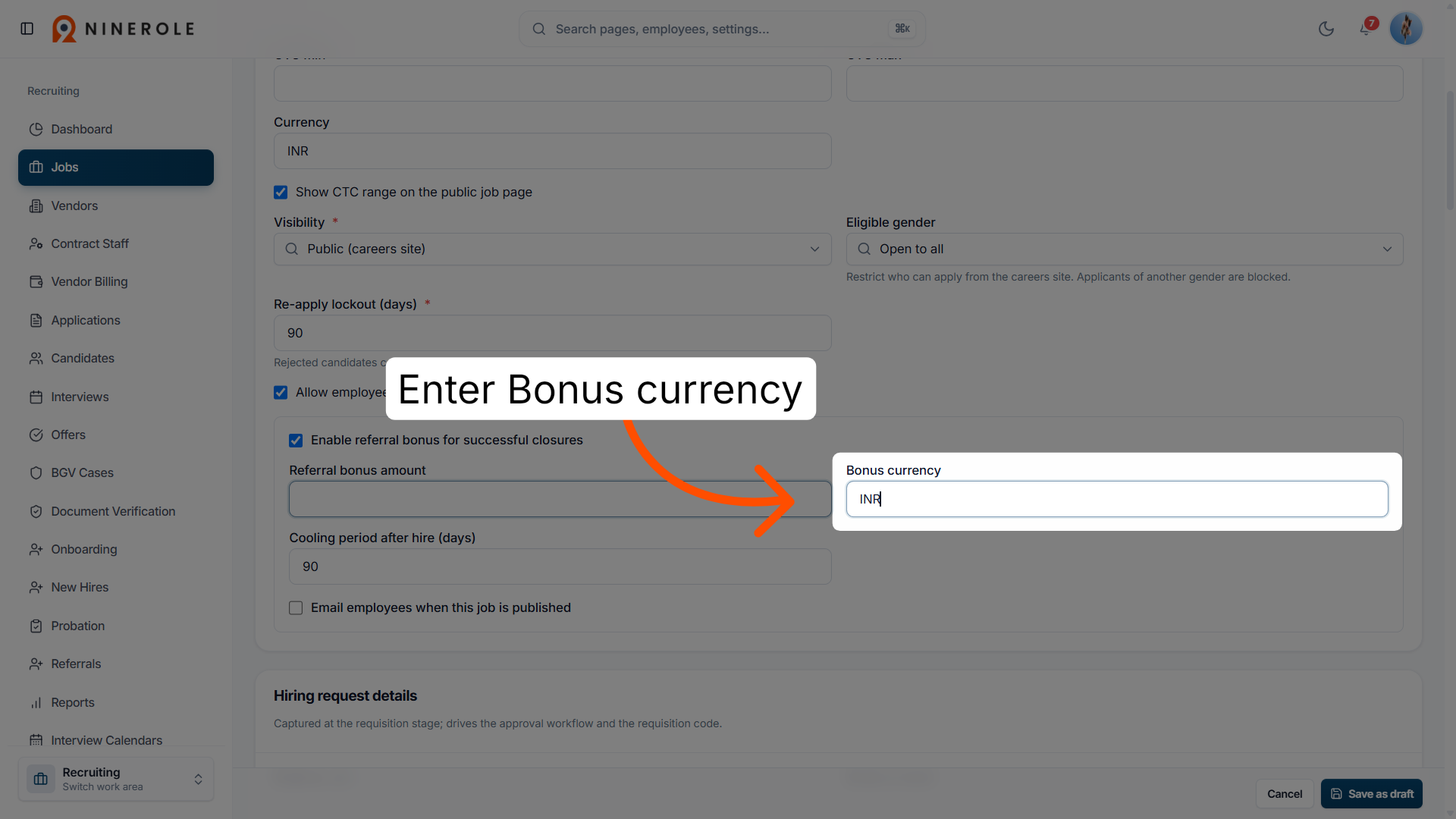
24. Choose the bonus currency
Enter Bonus currency to select the currency for the referral bonus.
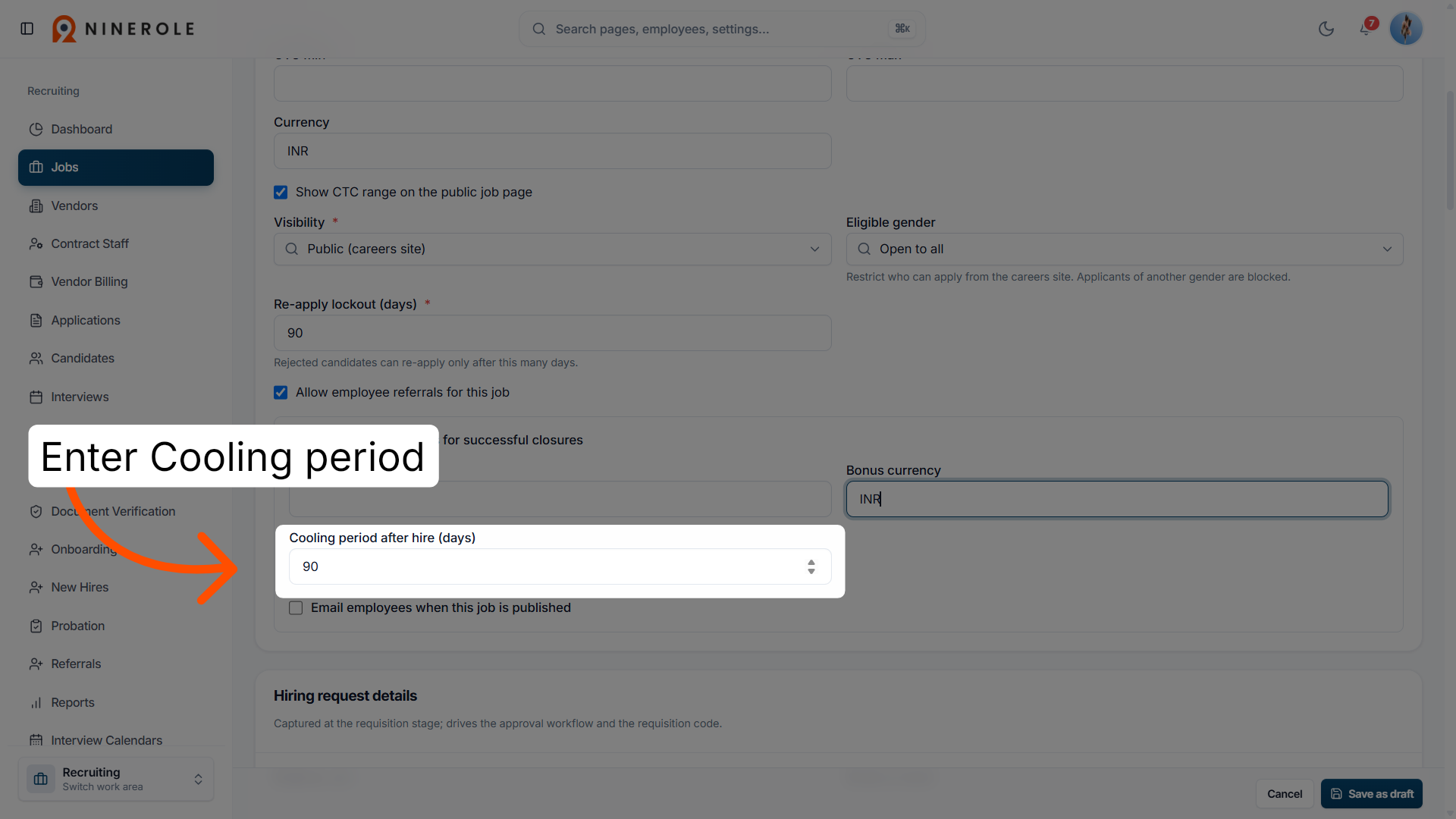
25. Set the cooling period
Enter Cooling period after hire (days) to define the waiting period before a new referral bonus can be earned.
Set up employee notifications
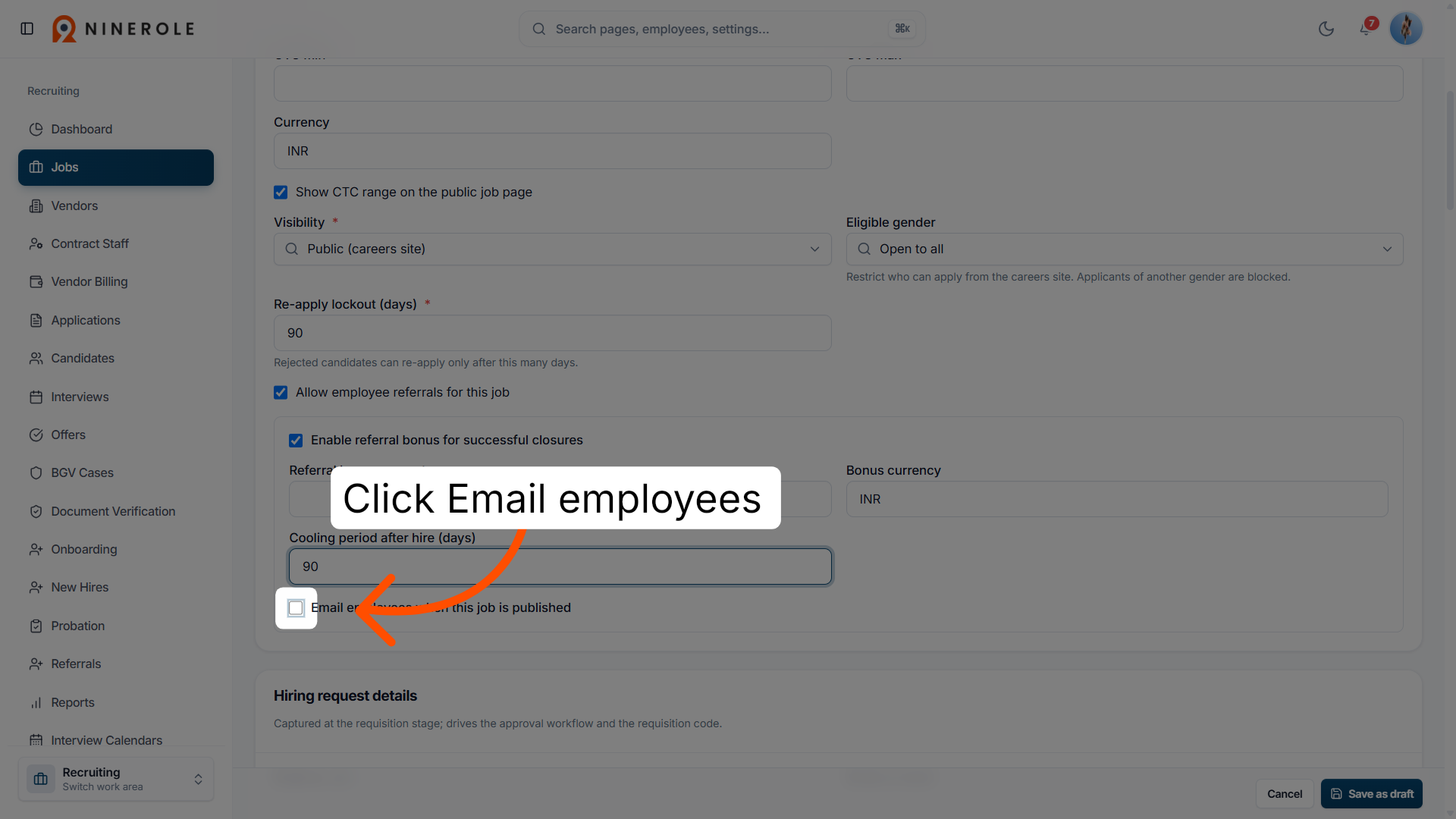
26. Enable email notifications
Click Email employees when this job is published to notify staff about the new job posting.
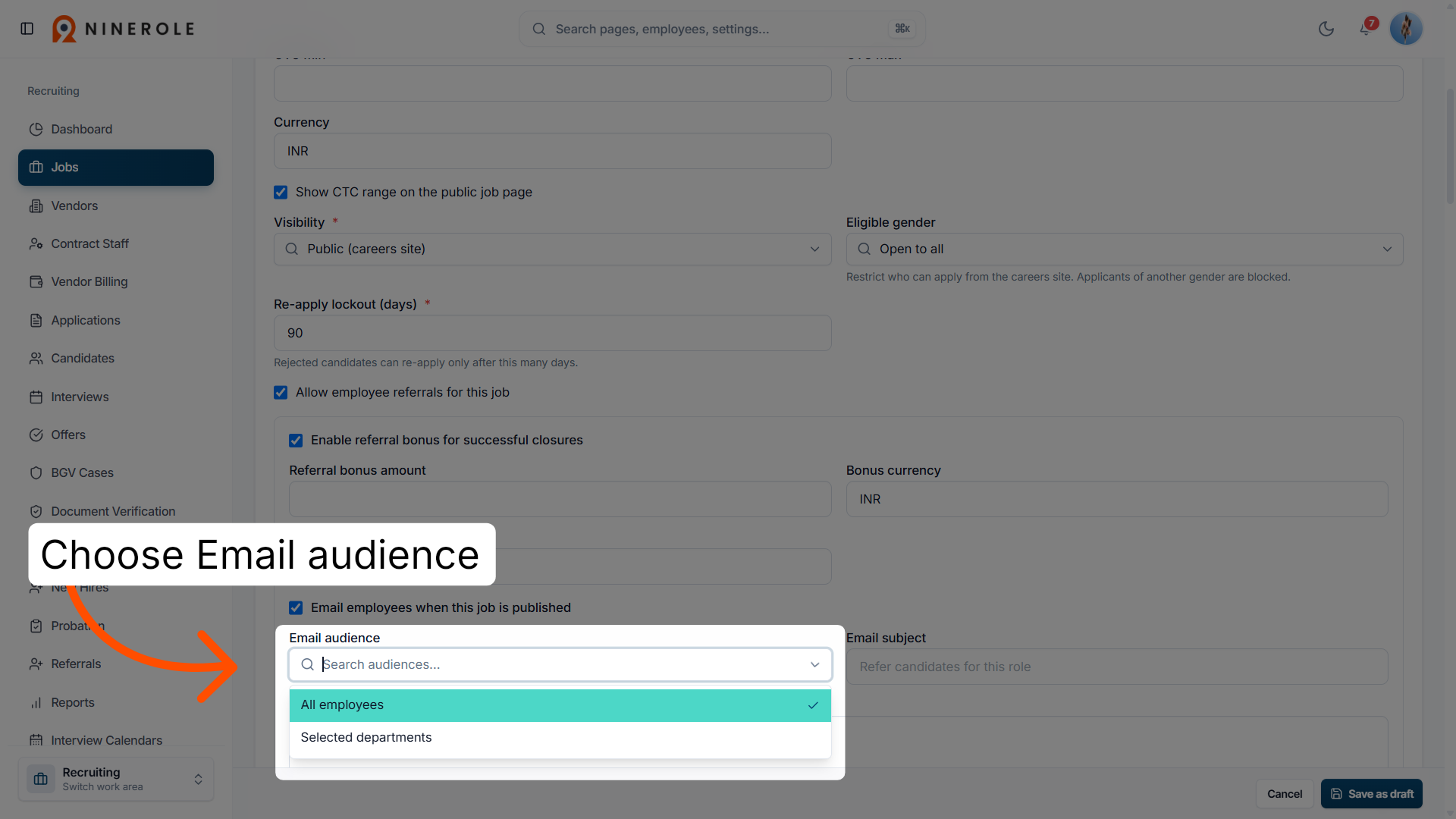
27. Select the email audience
Choose Email audience to choose which employees will receive the job notification emails.
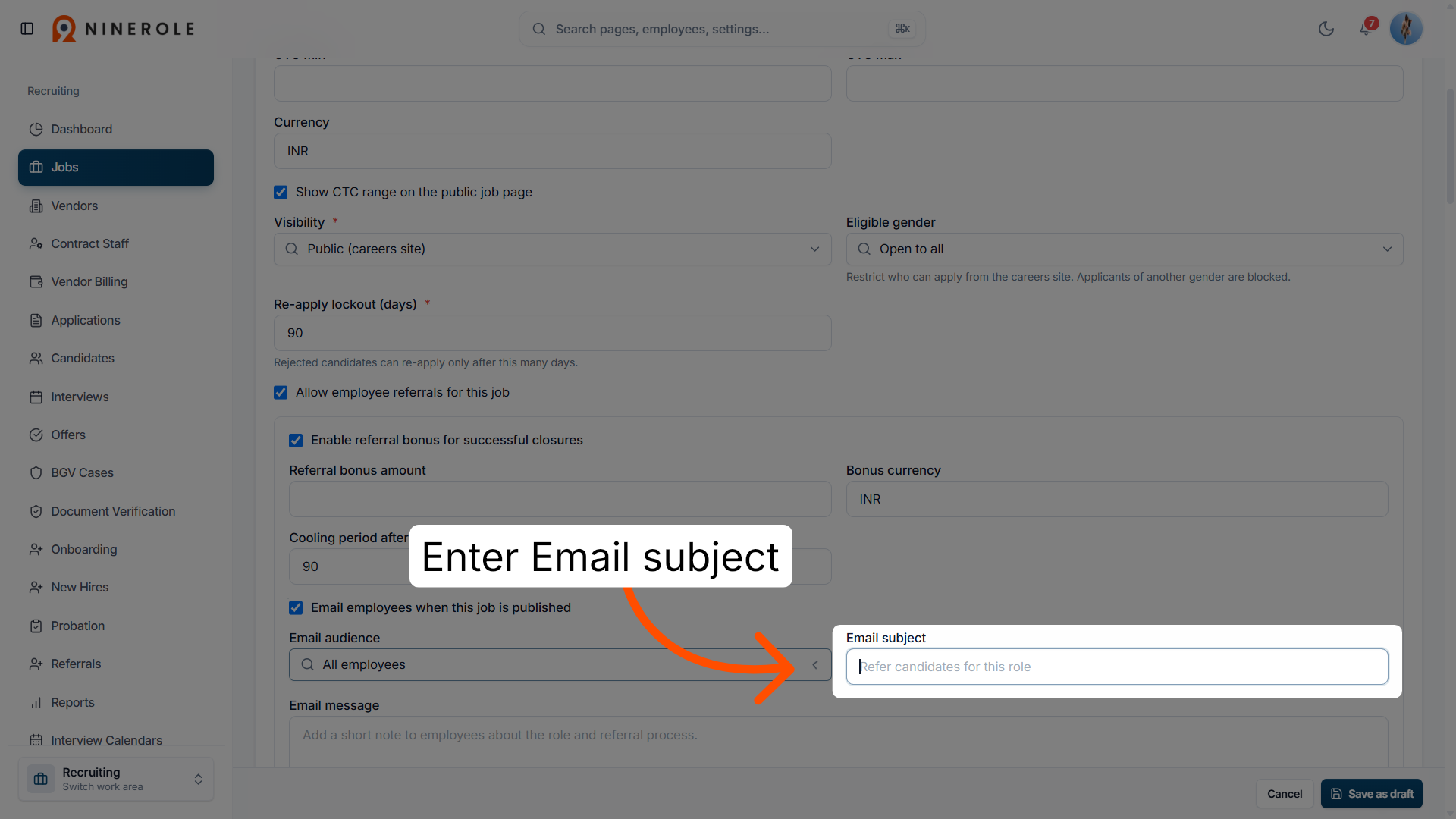
28. Edit the email subject
Enter Email subject to customize the subject line of the notification email.
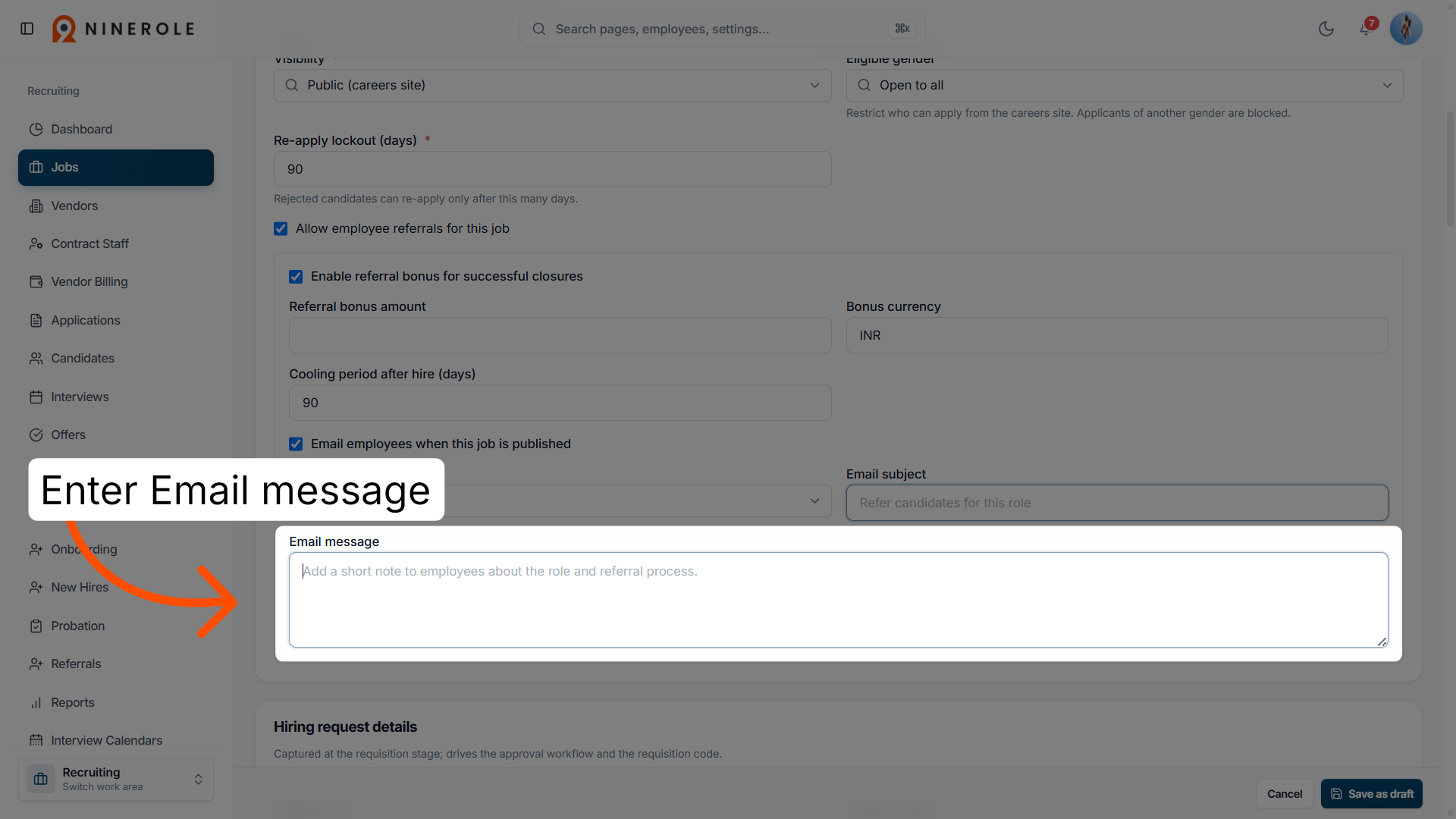
29. Edit the email message
Enter Email message to modify the content of the notification email sent to employees.
Add organizational details
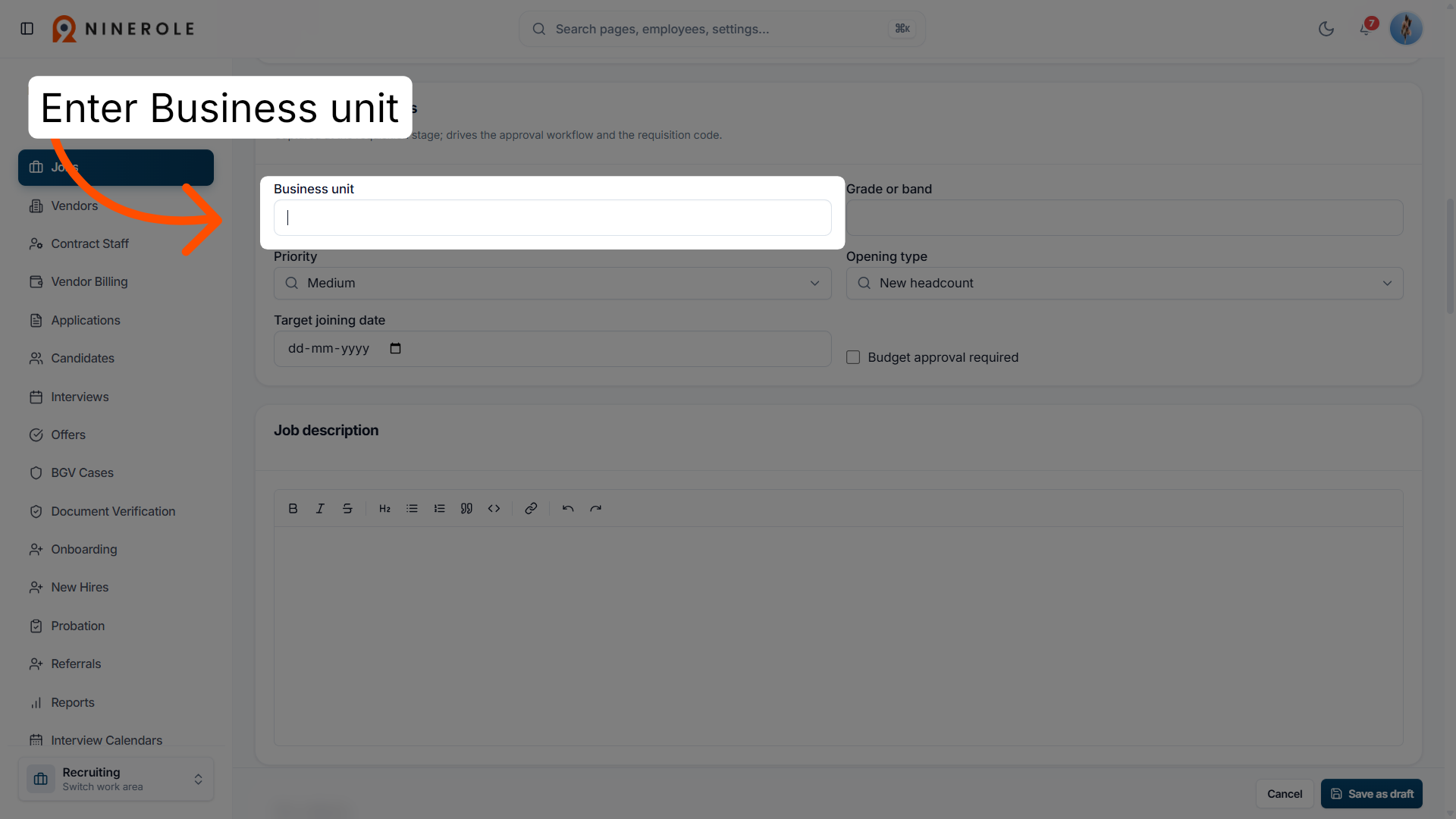
30. Select the business unit
Enter Business unit to specify the department responsible for the job opening.
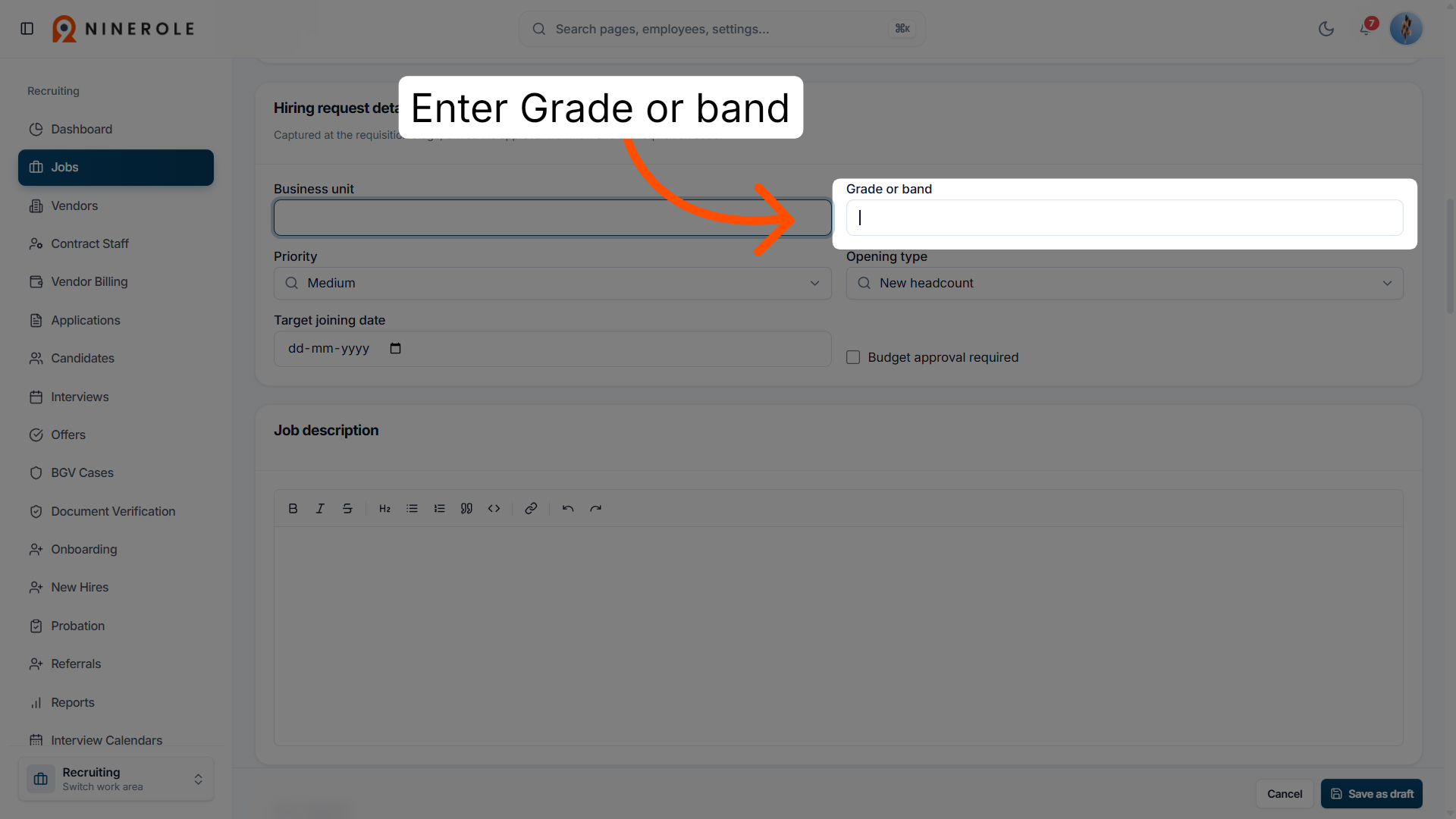
31. Choose the grade or band
Enter Grade or band to define the job's level or classification within the organization.
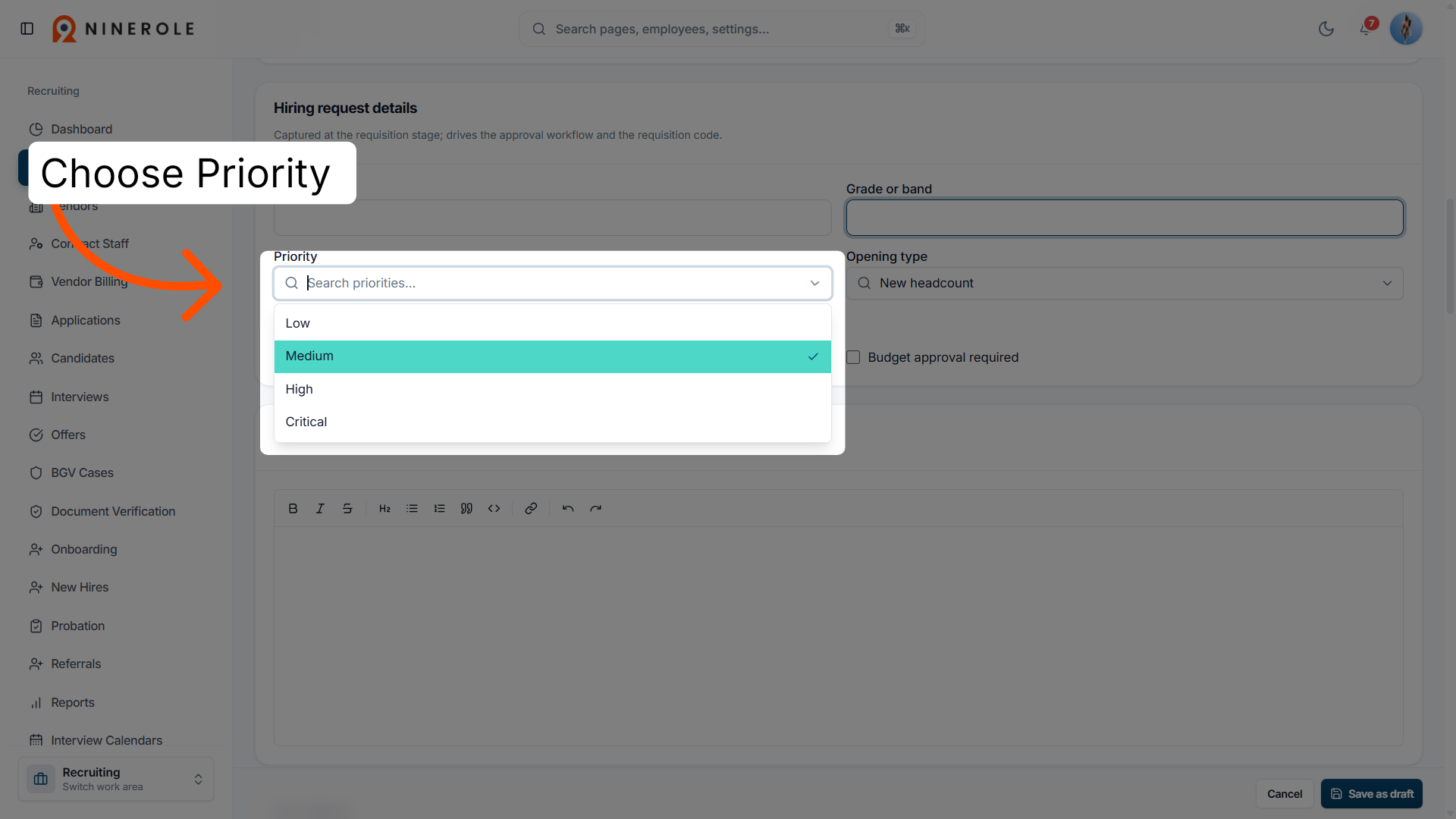
32. Set the job priority
Choose Priority to assign the urgency level for filling the position.
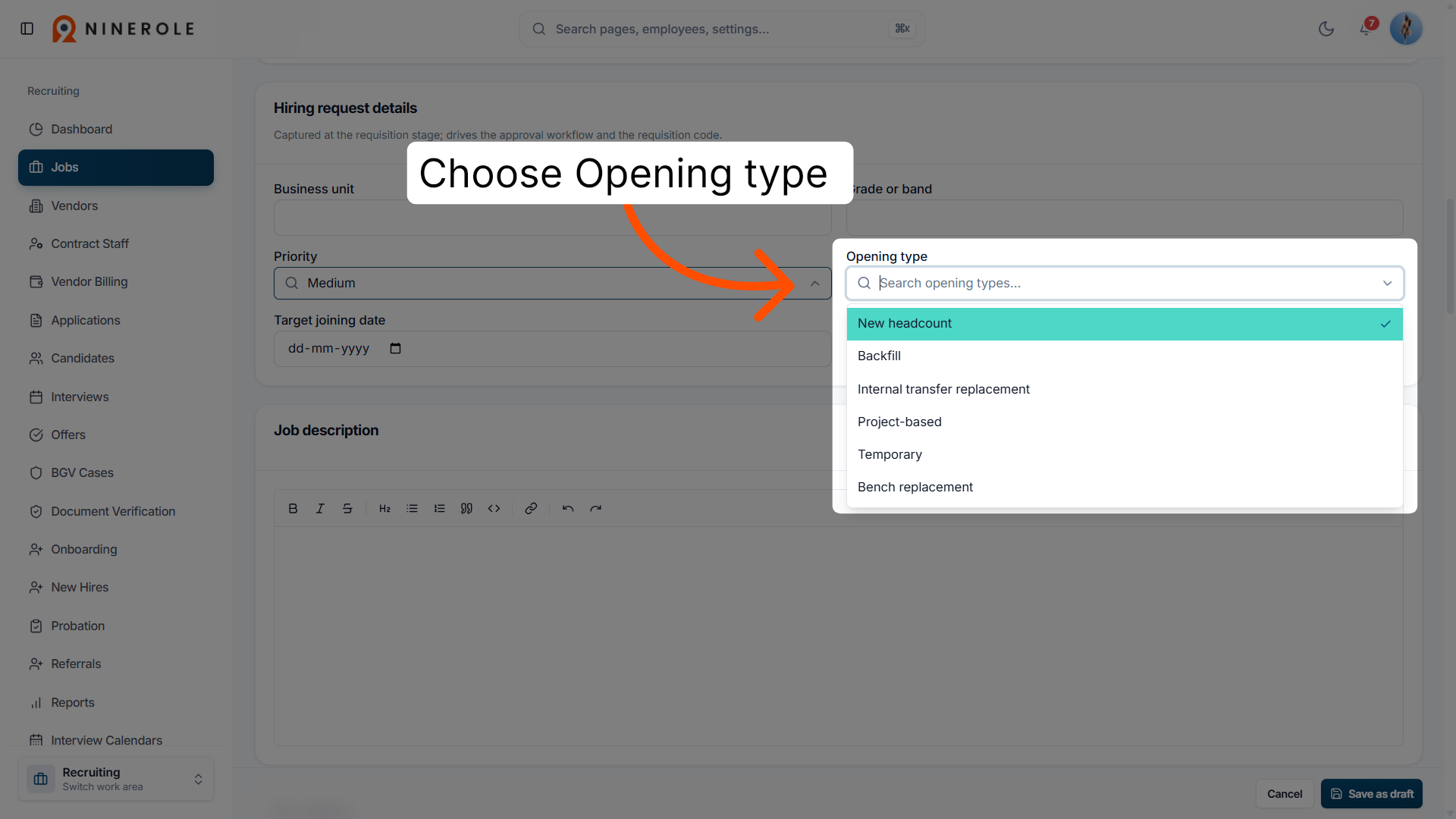
33. Specify the opening type
Choose Opening type to select the nature of the job vacancy.
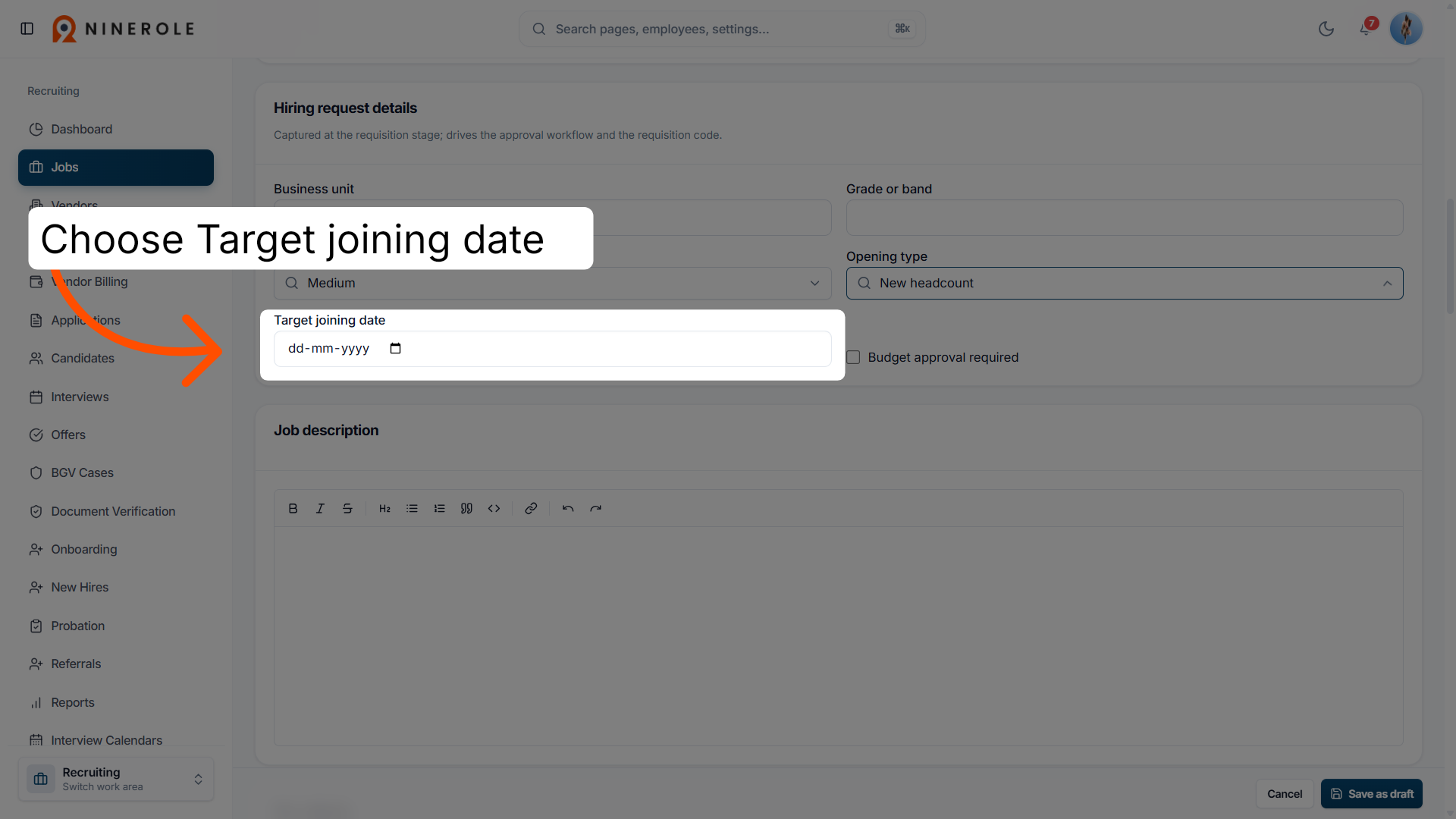
34. Select the target joining date
Choose Target joining date to set the expected start date for the new hire.
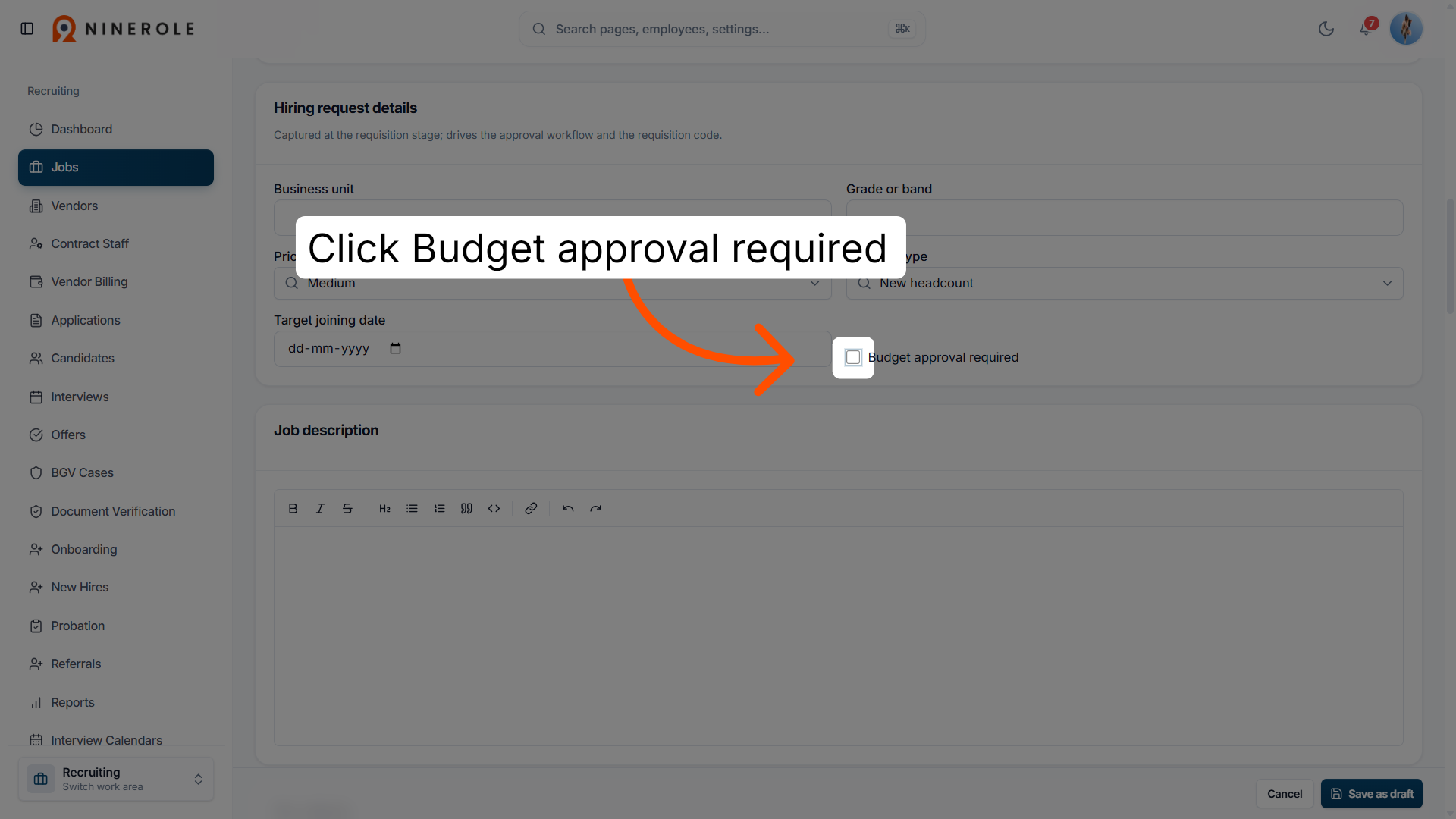
35. Enable budget approval
Click Budget approval required to indicate if budget authorization is necessary for this job.
Write the job description
36. Enter the job description
Enter the job description to continue with the job creation process.
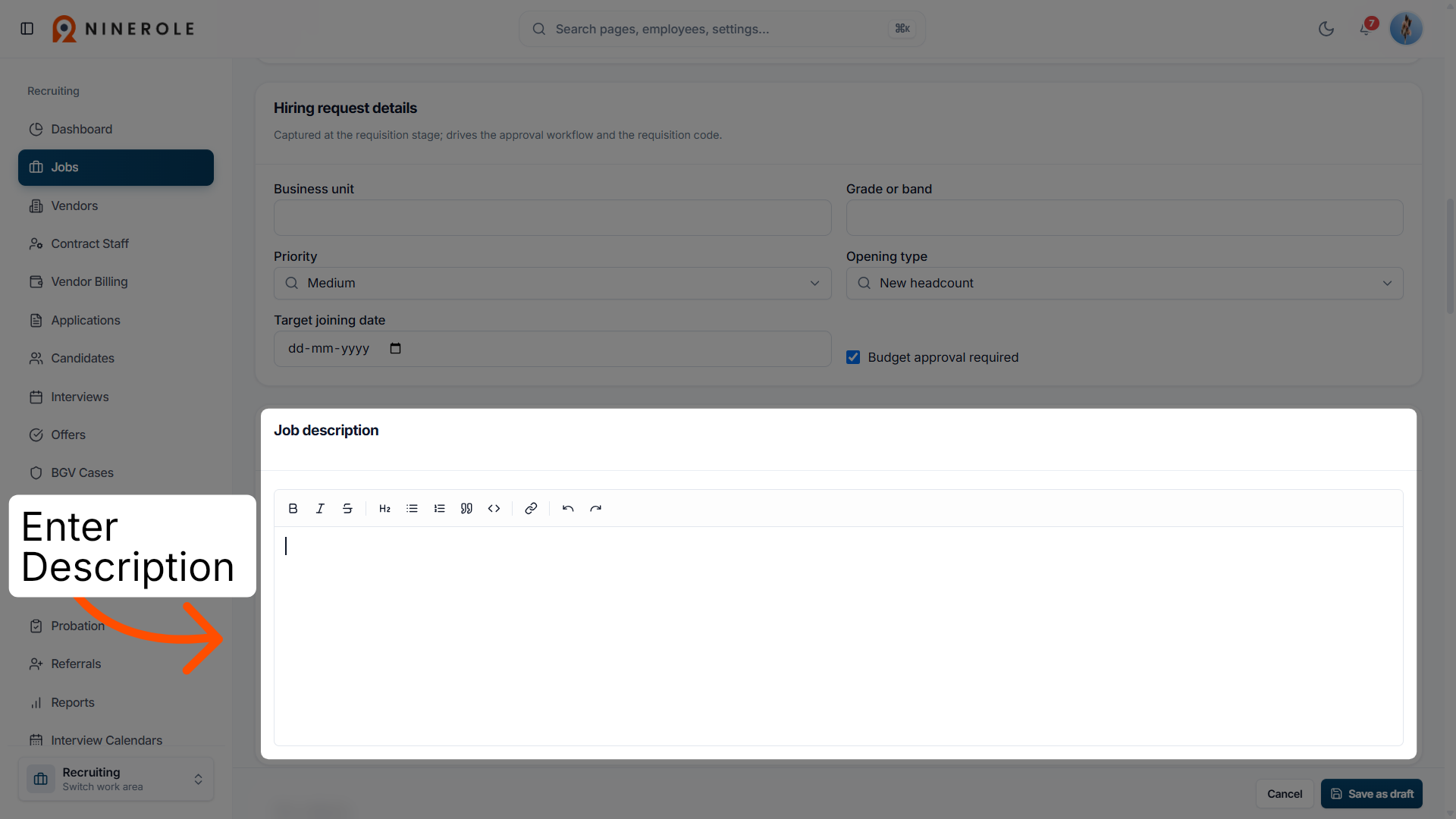
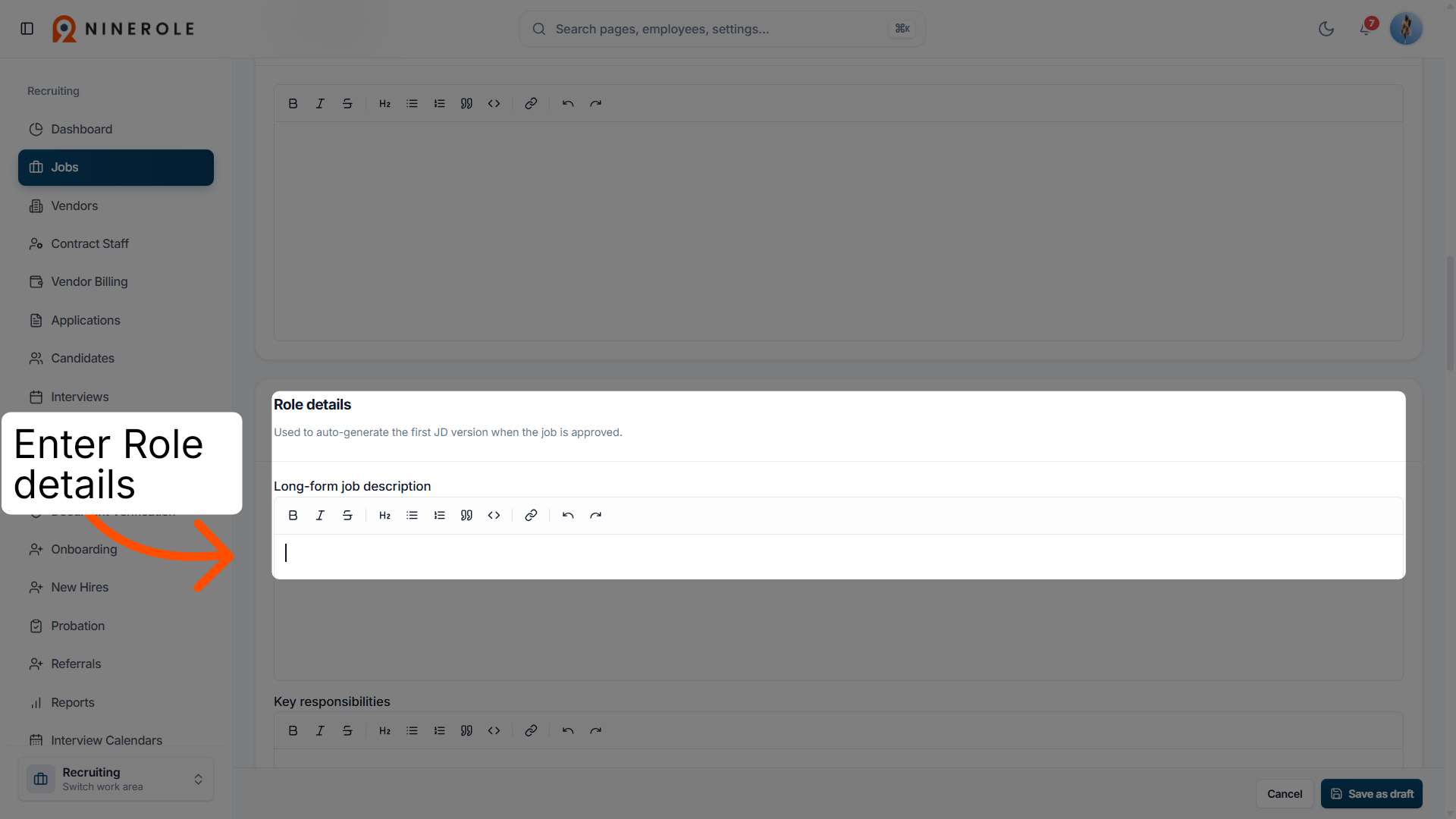
37. Enter the role details
Enter role details such as the long-form job description here.
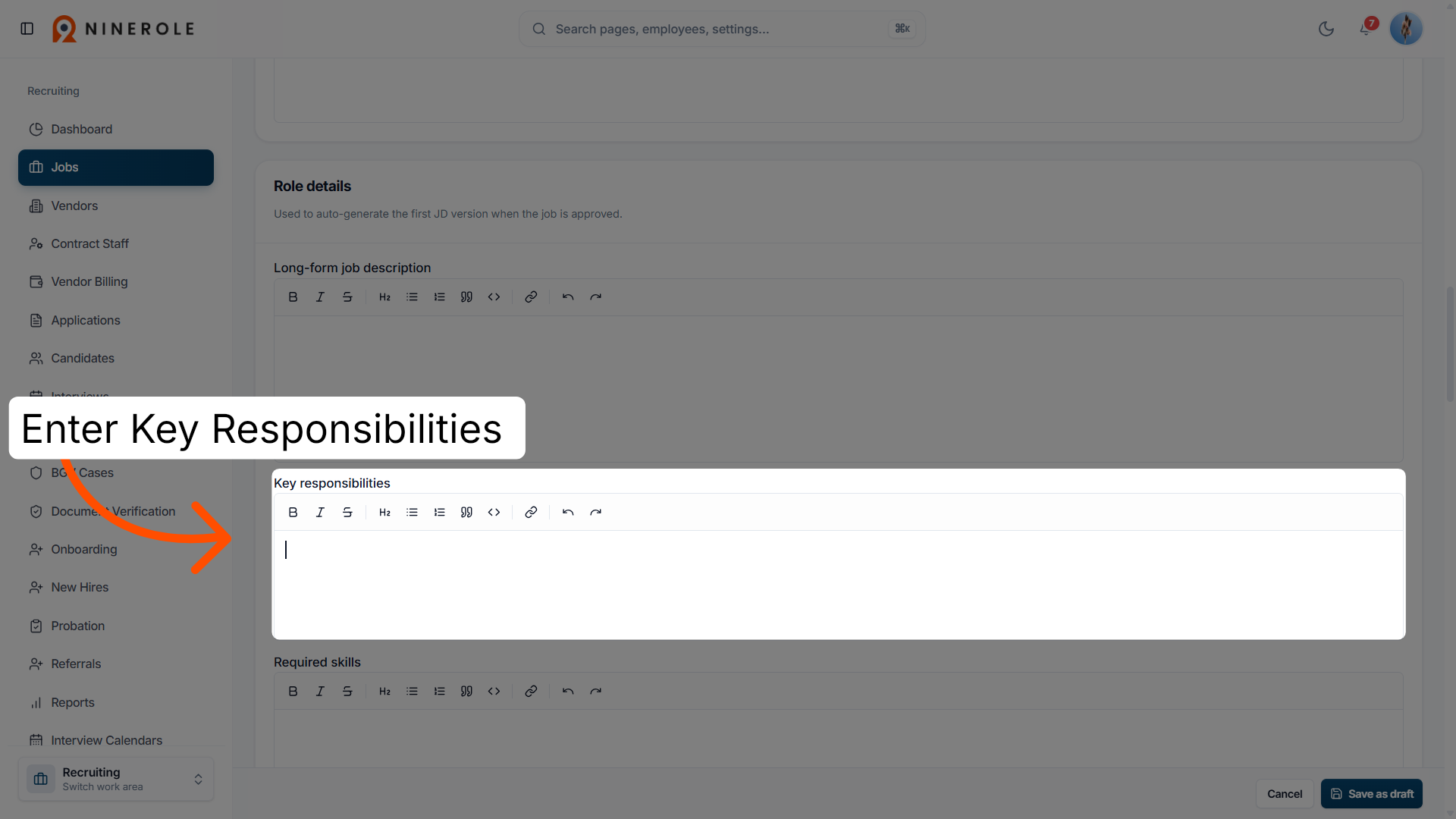
38. Enter the key responsibilities
Enter the key responsibilities of the job here.
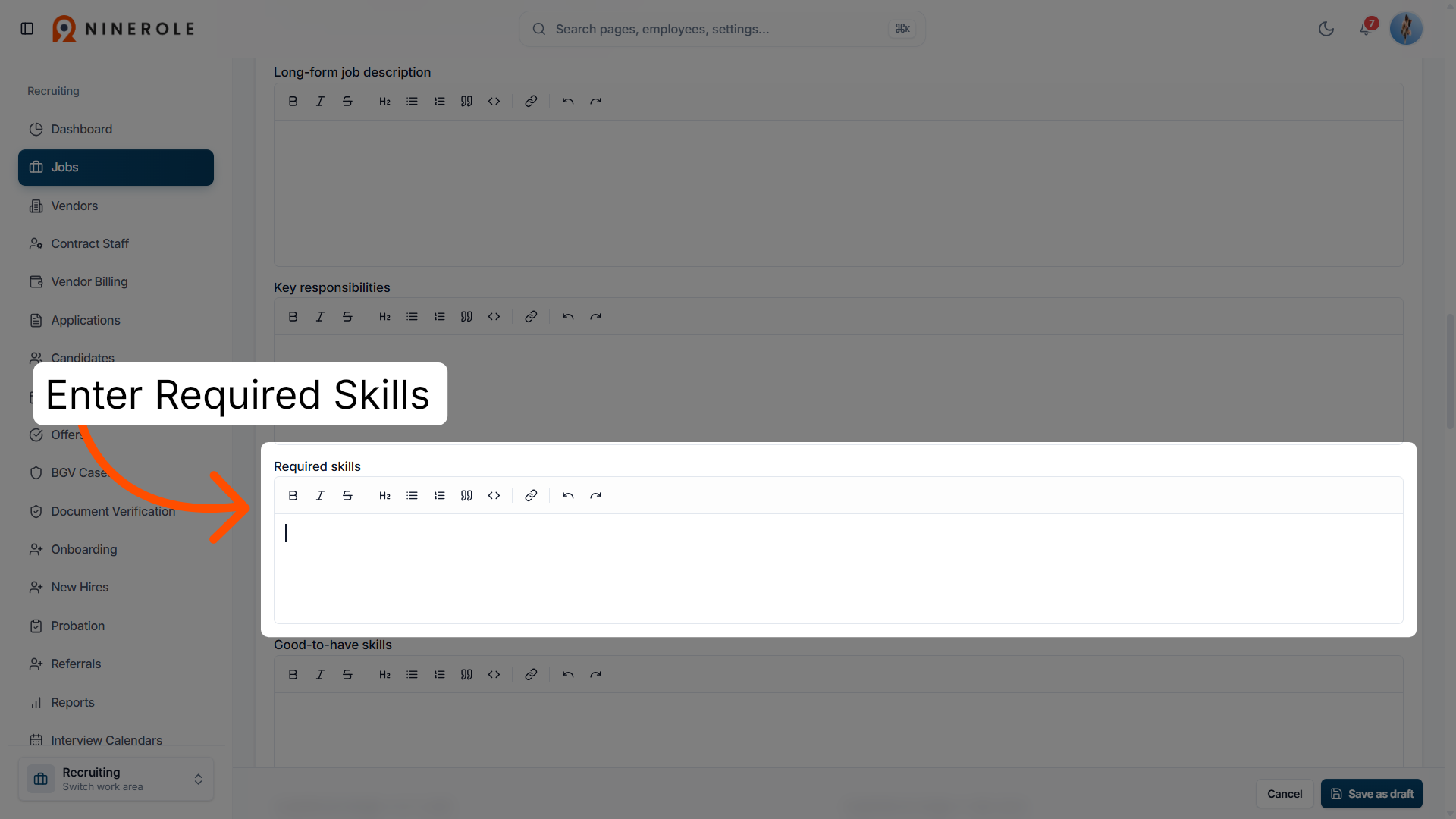
39. Enter the required skills
Enter the required skills here.
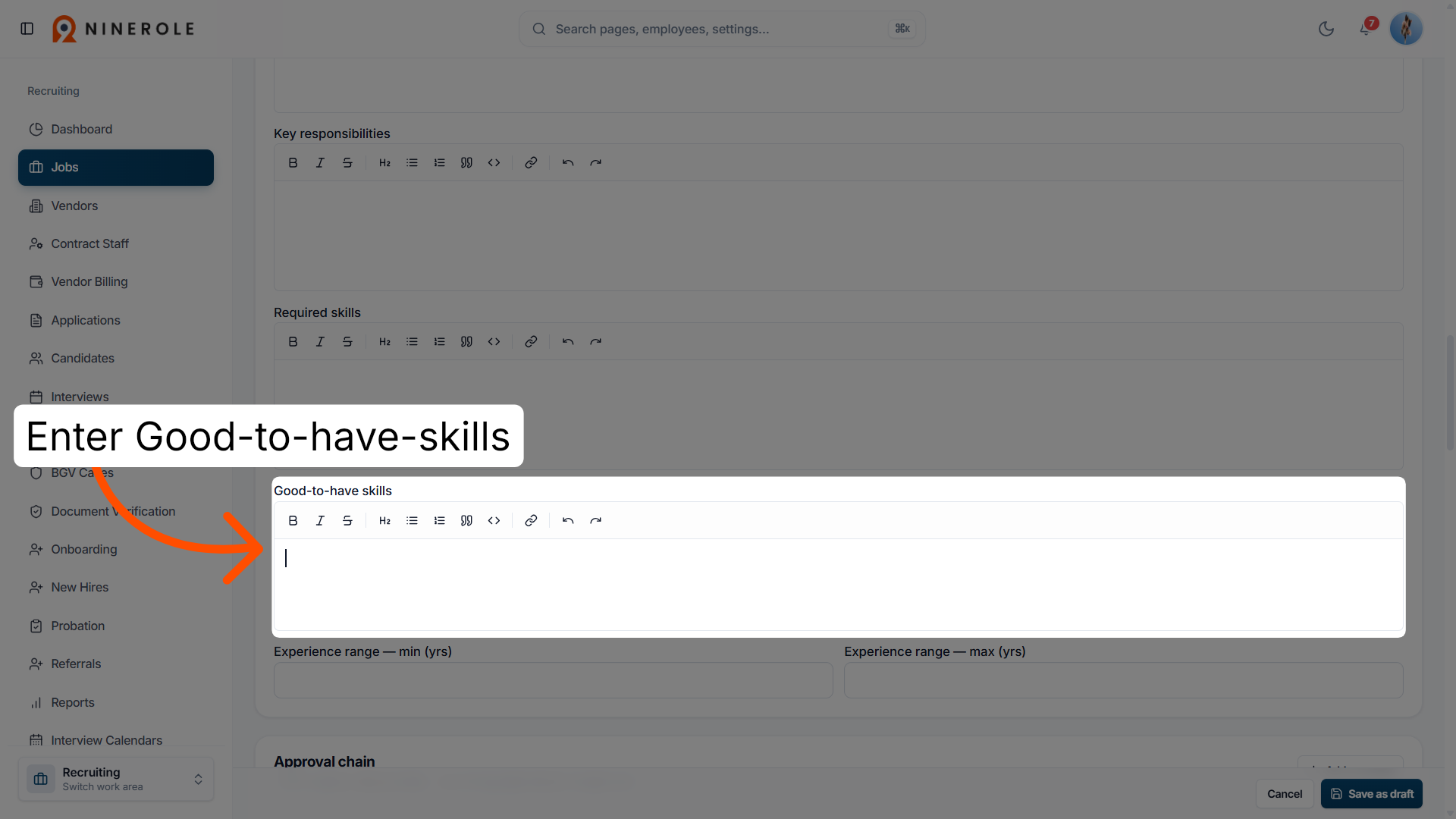
40. Enter the good-to-have skills
Enter the good-to-have skills for the job.
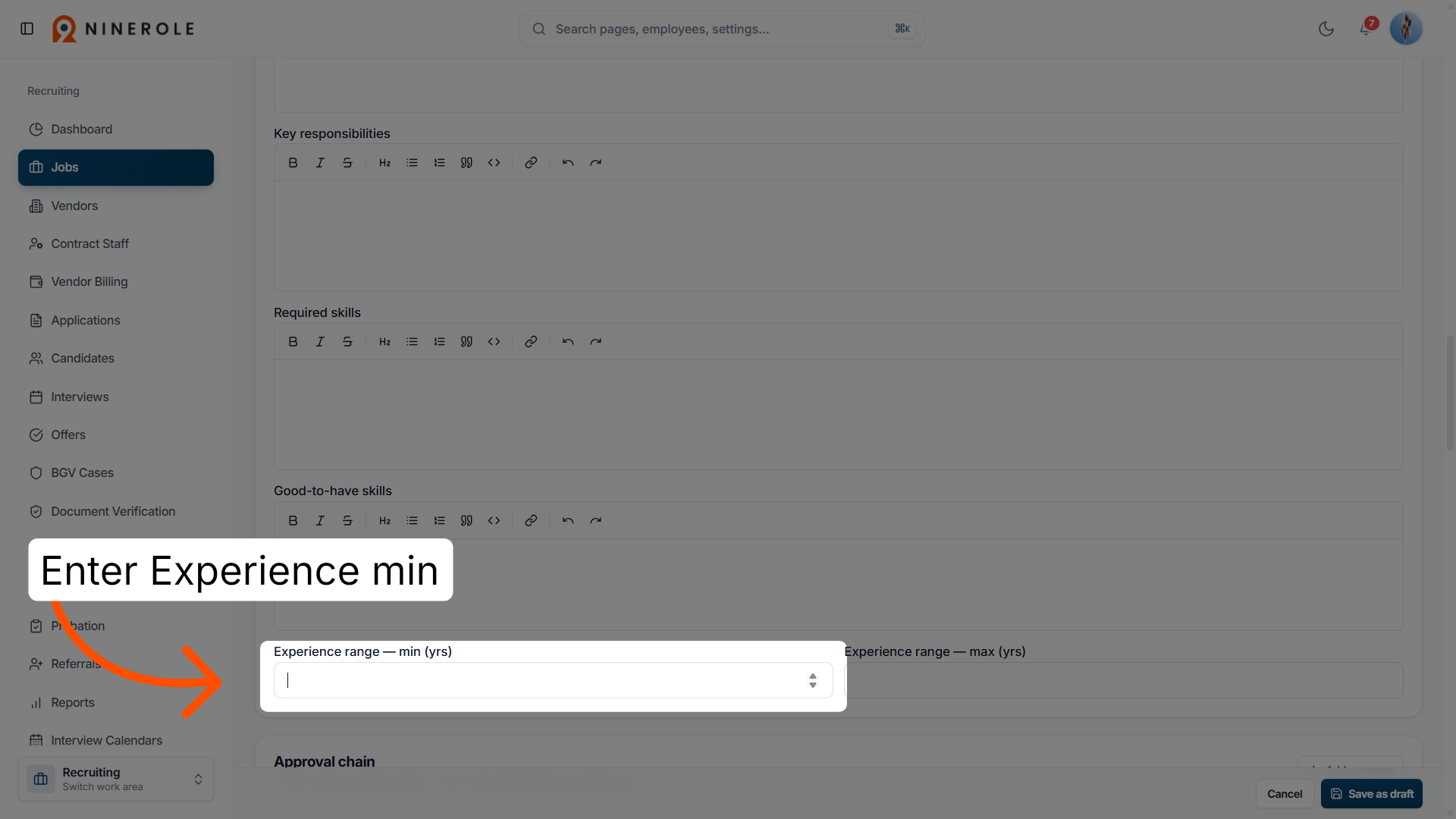
41. Set the minimum experience range
Enter Experience range — min (yrs) to define the minimum years of experience required.
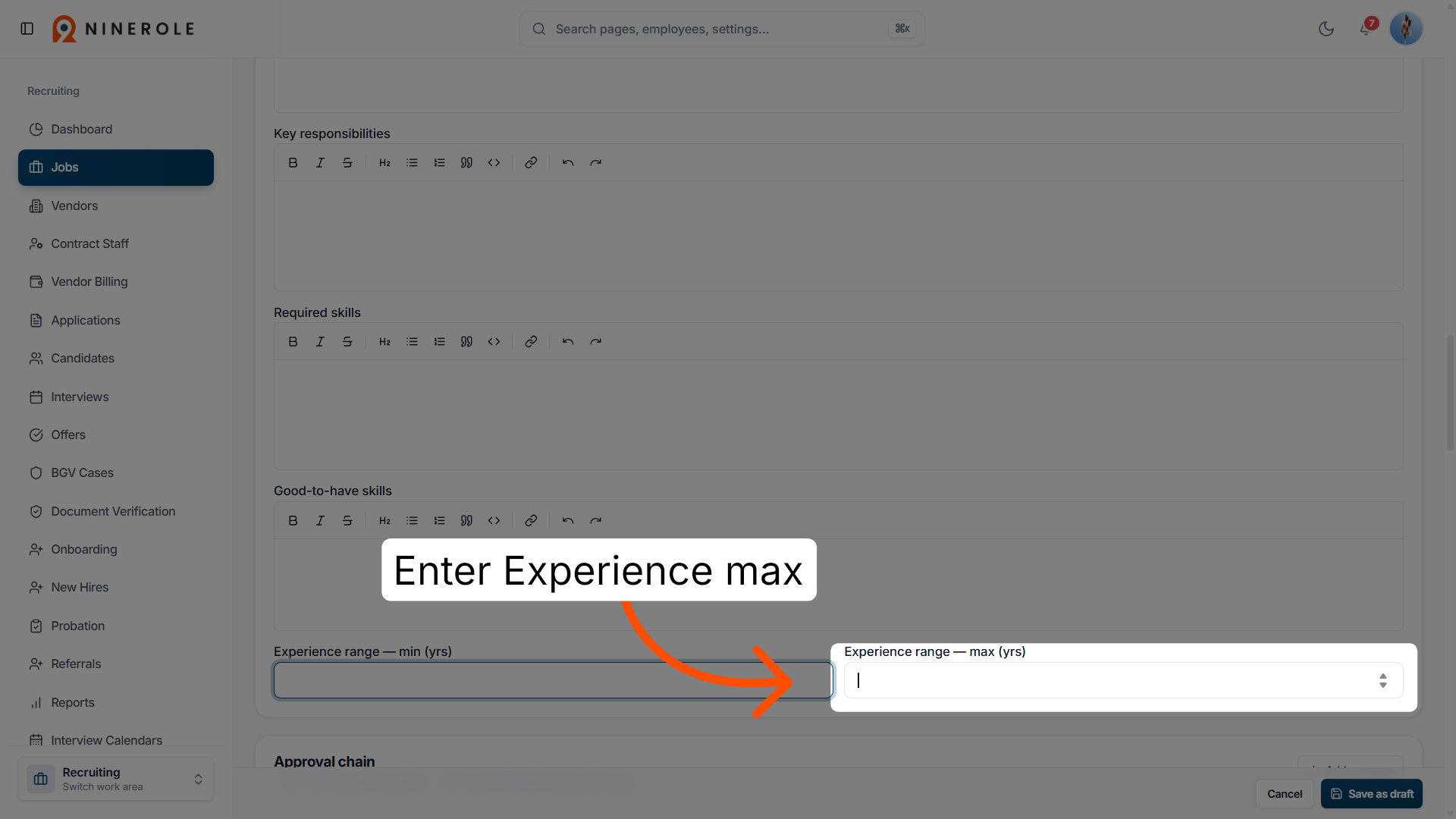
42. Set the maximum experience range
Enter Experience range — max (yrs) to specify the maximum years of experience acceptable.
Add approvers
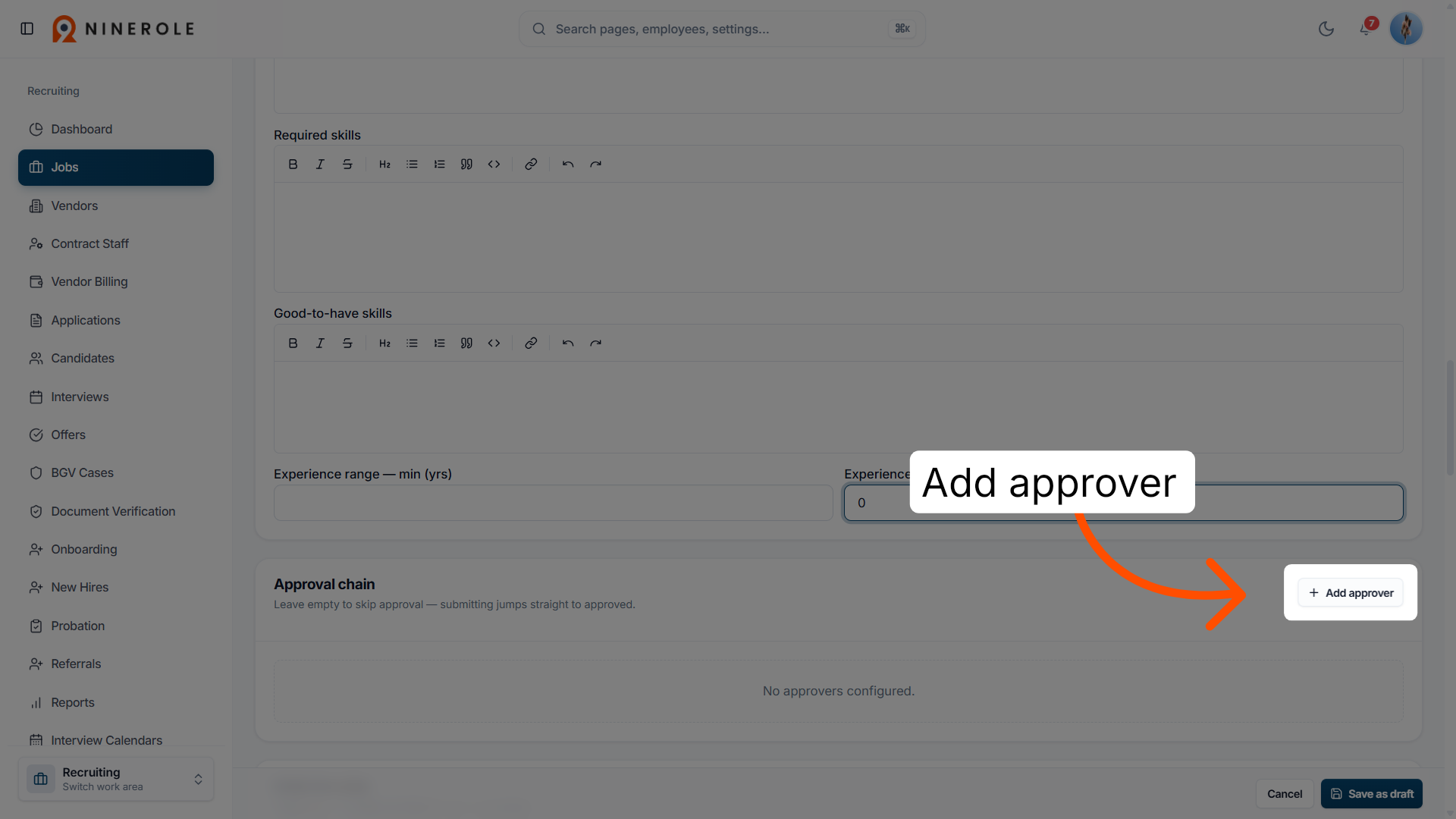
43. Add a job approver
Click Add approver to include a person responsible for approving the job requisition.
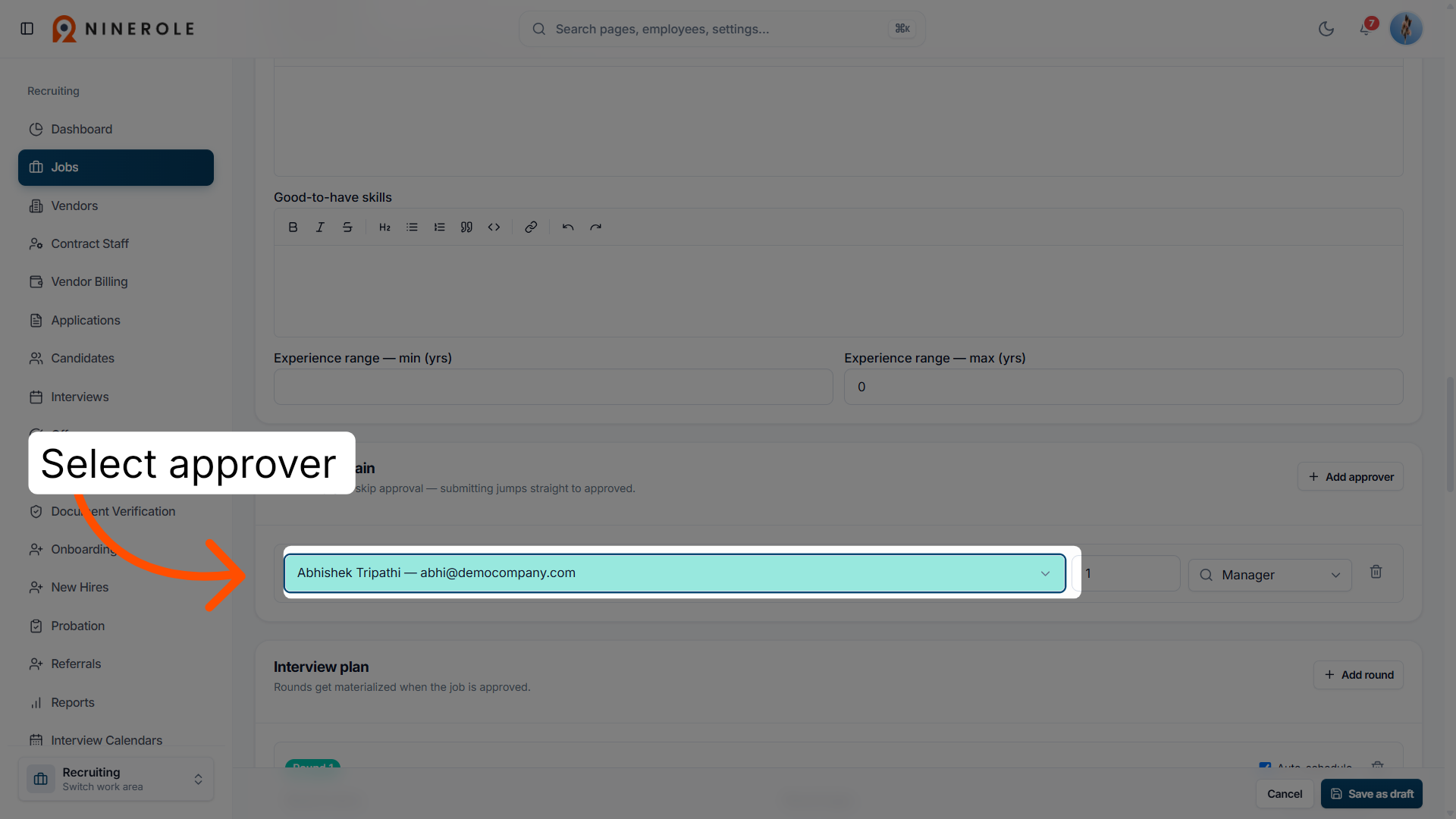
44. Select the approver
Select the Approver Name to assign this individual as an approver.
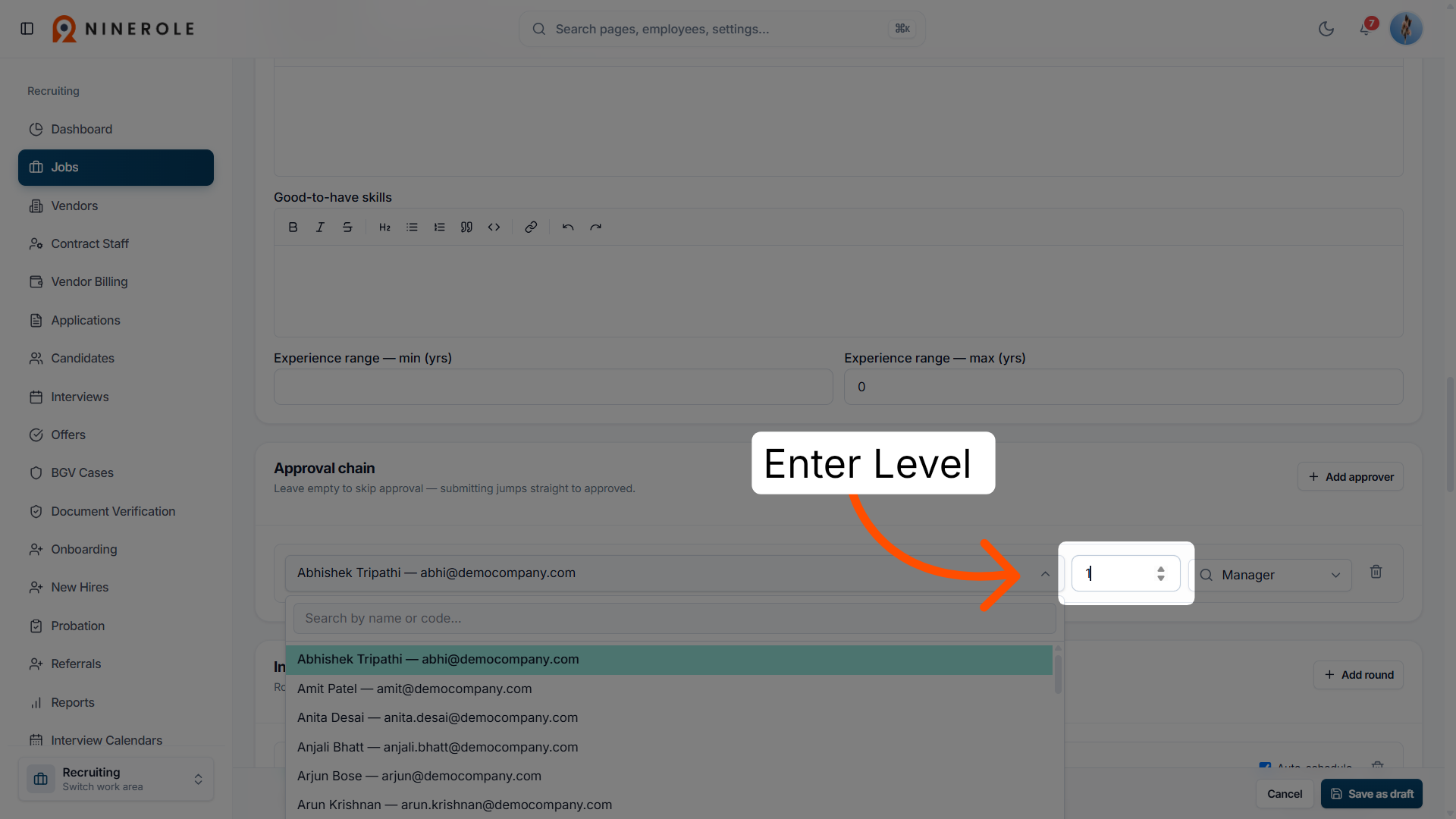
45. Select the hierarchy level
Select the hierarchy level to confirm the selected approver for the job opening.
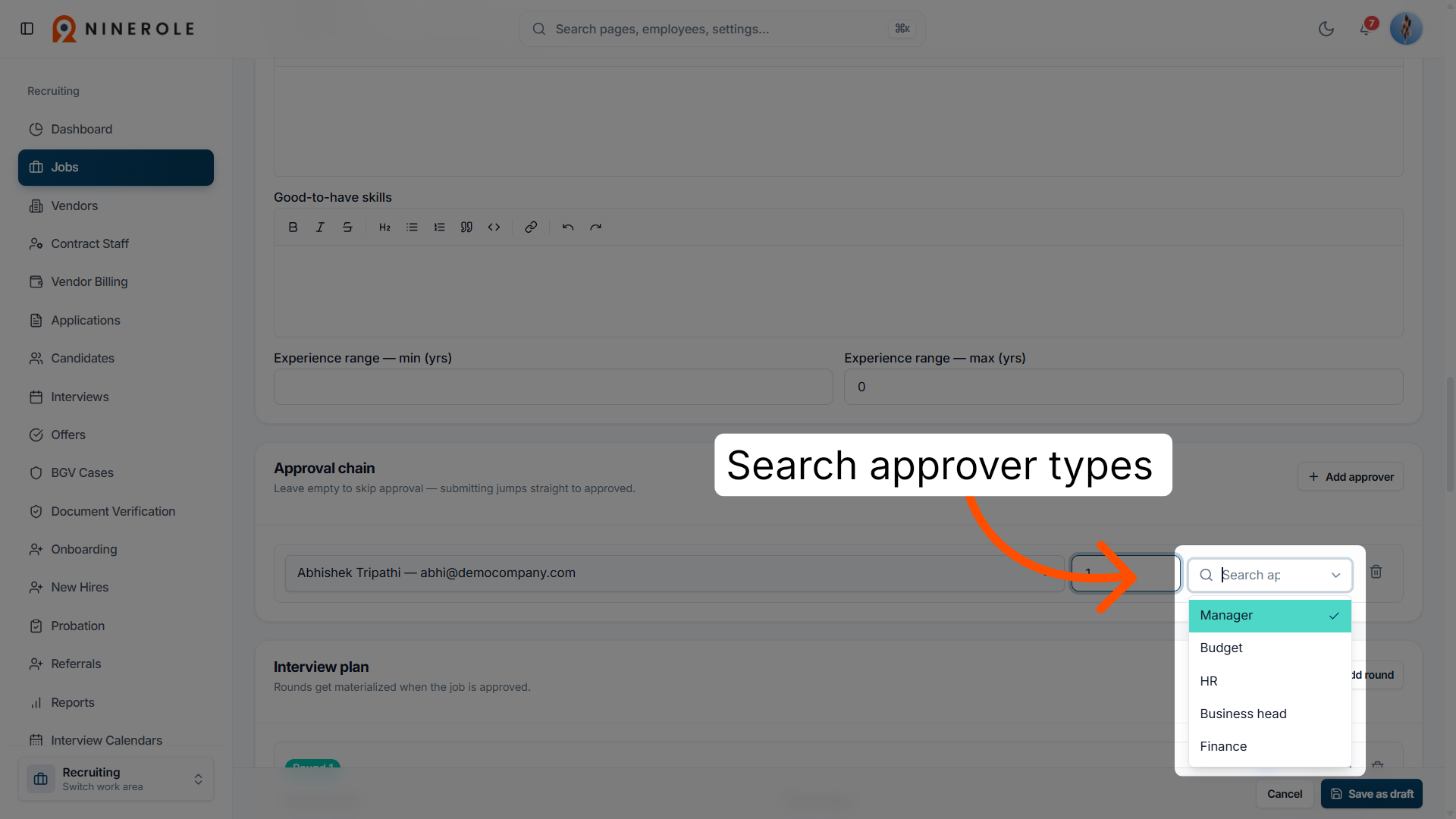
46. Search approver types
Choose Search approver types… to find and select the appropriate approval category.
Build the interview plan
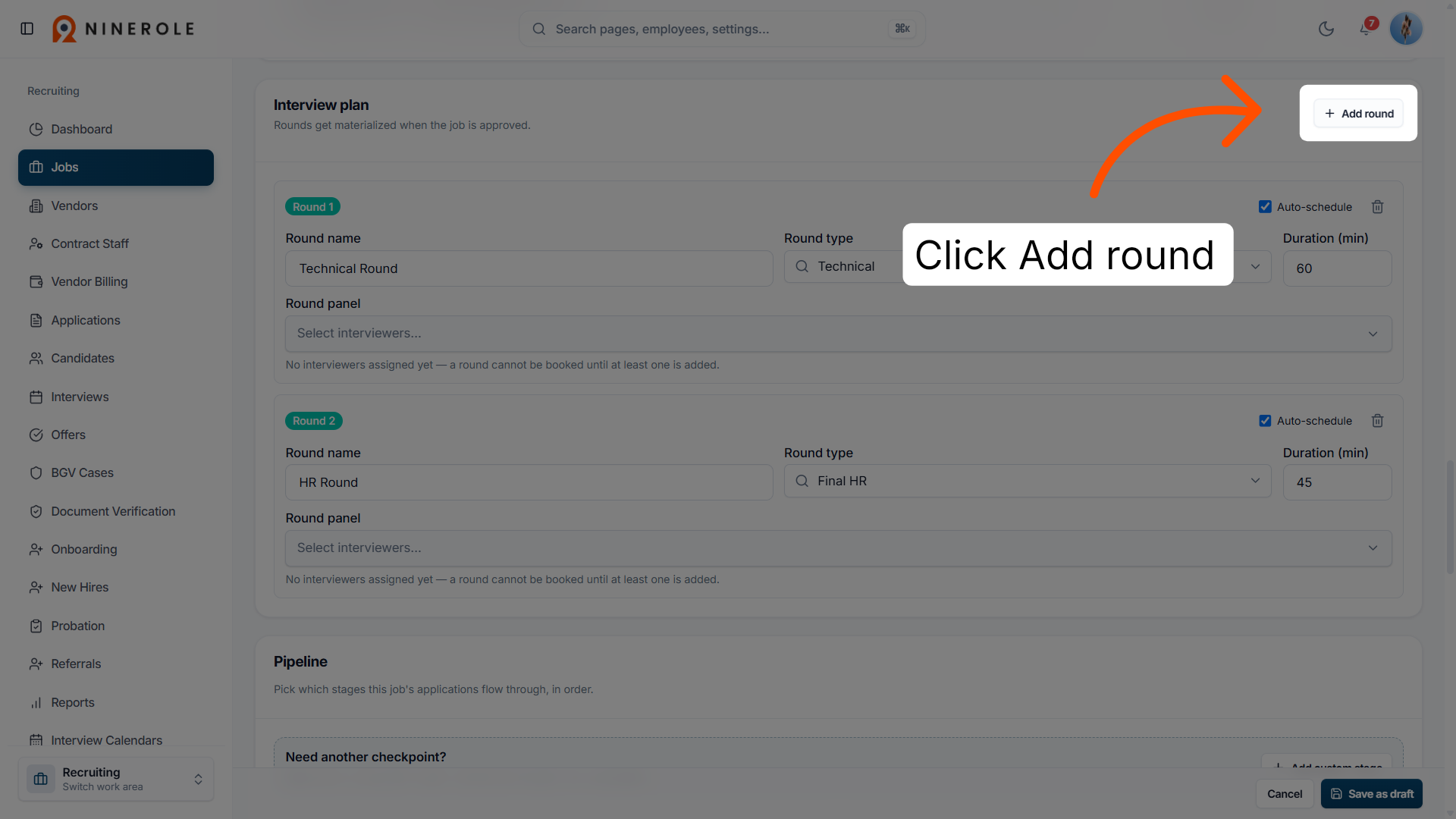
47. Add an interview round
Click Add round to start creating a new interview round for the job opening.
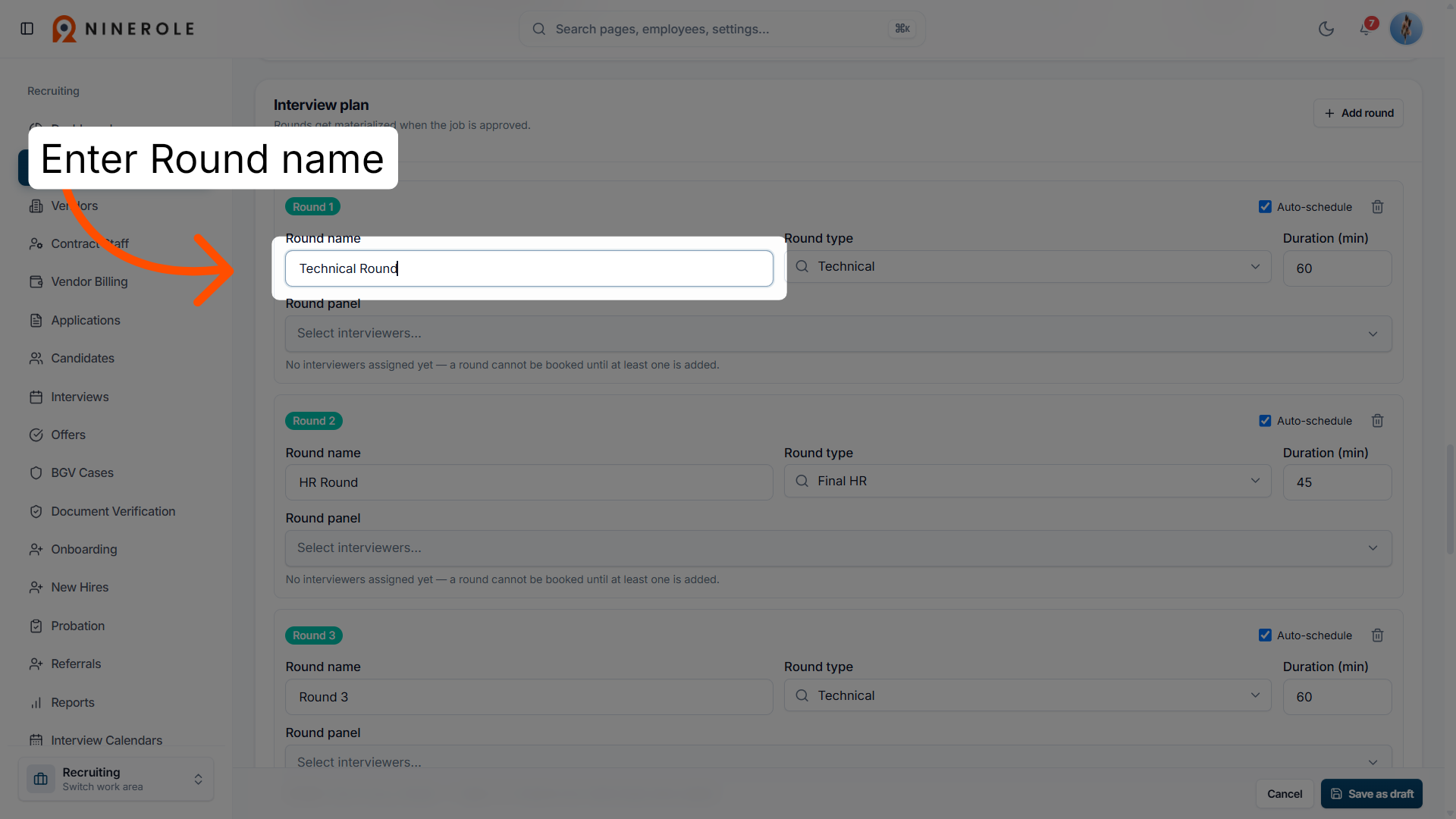
48. Name the interview round
Enter Round name to specify the name of the interview round you are adding.
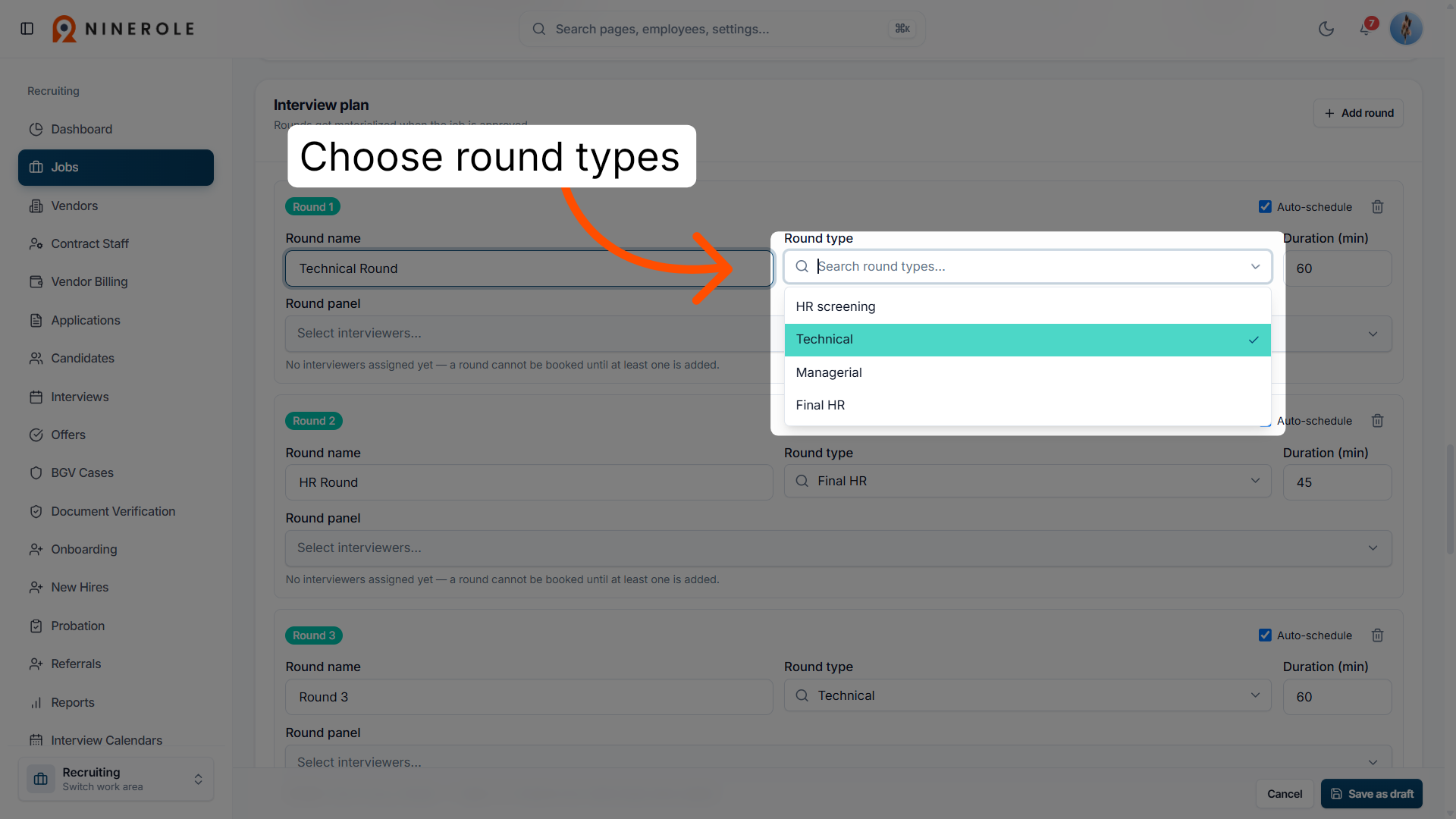
49. Search round types
Choose round types… to find and select the appropriate type for this interview round.
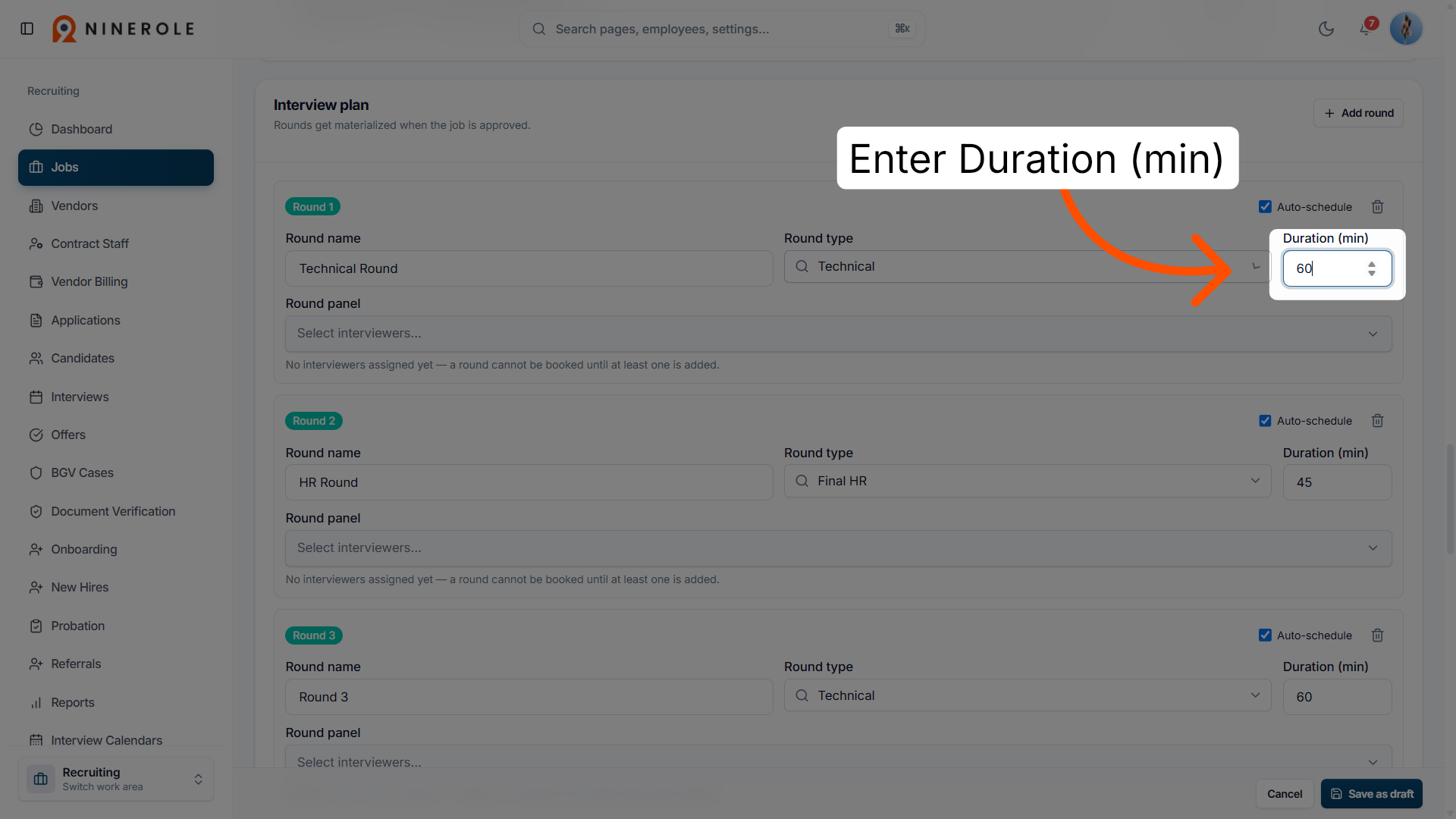
50. Set the round duration
Enter Duration (min) to define how long this interview round will last in minutes.
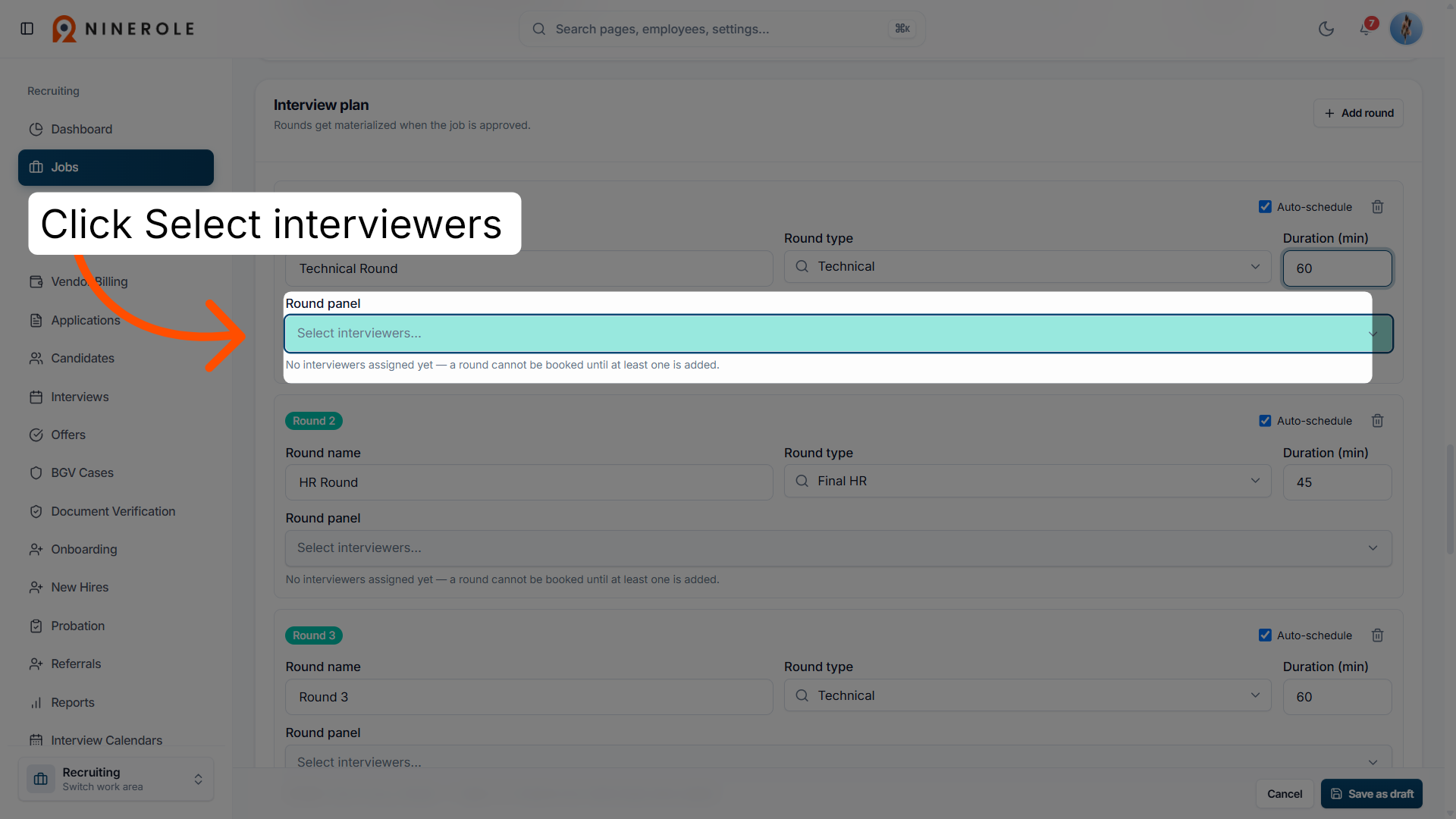
51. Select the interviewers
Use Select interviewers… to choose the team members who will conduct this interview round.
Customize the pipeline stages
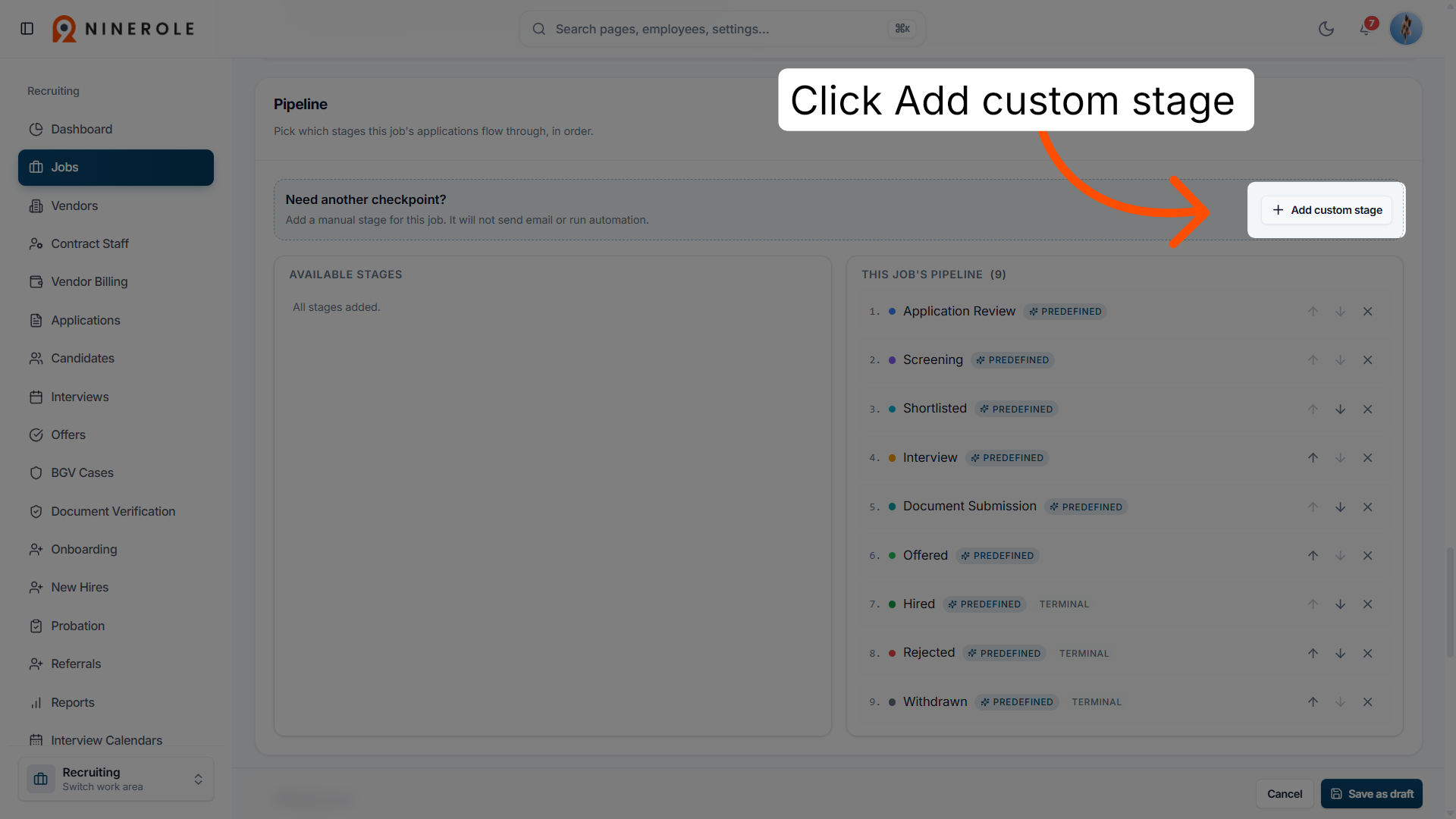
52. Add a custom stage
Click Add custom stage to create a personalized stage within the interview process.
53. Name the custom stage
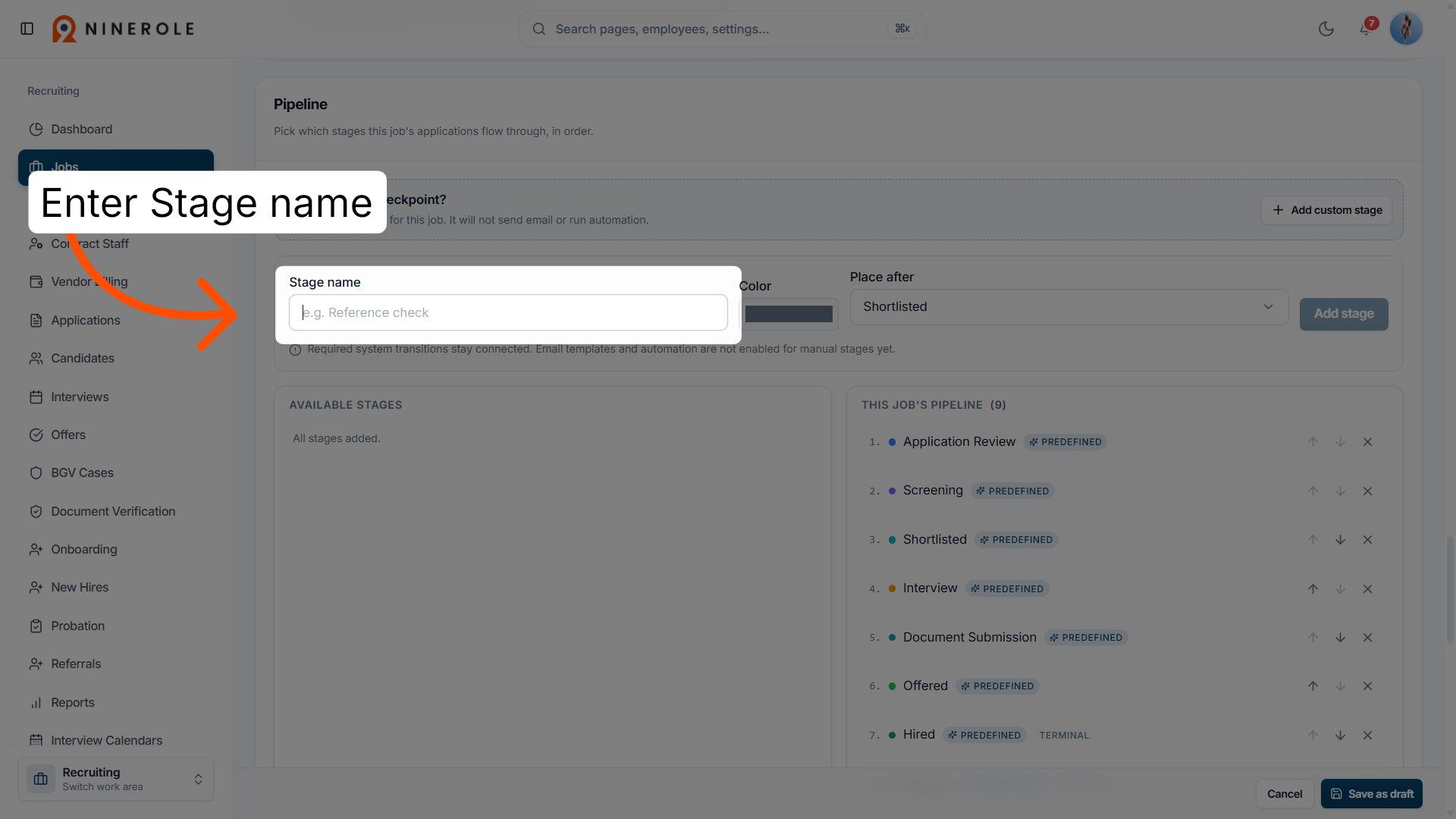
Enter Stage name to enter a title for your custom interview stage.
54. Select the stage colour and position
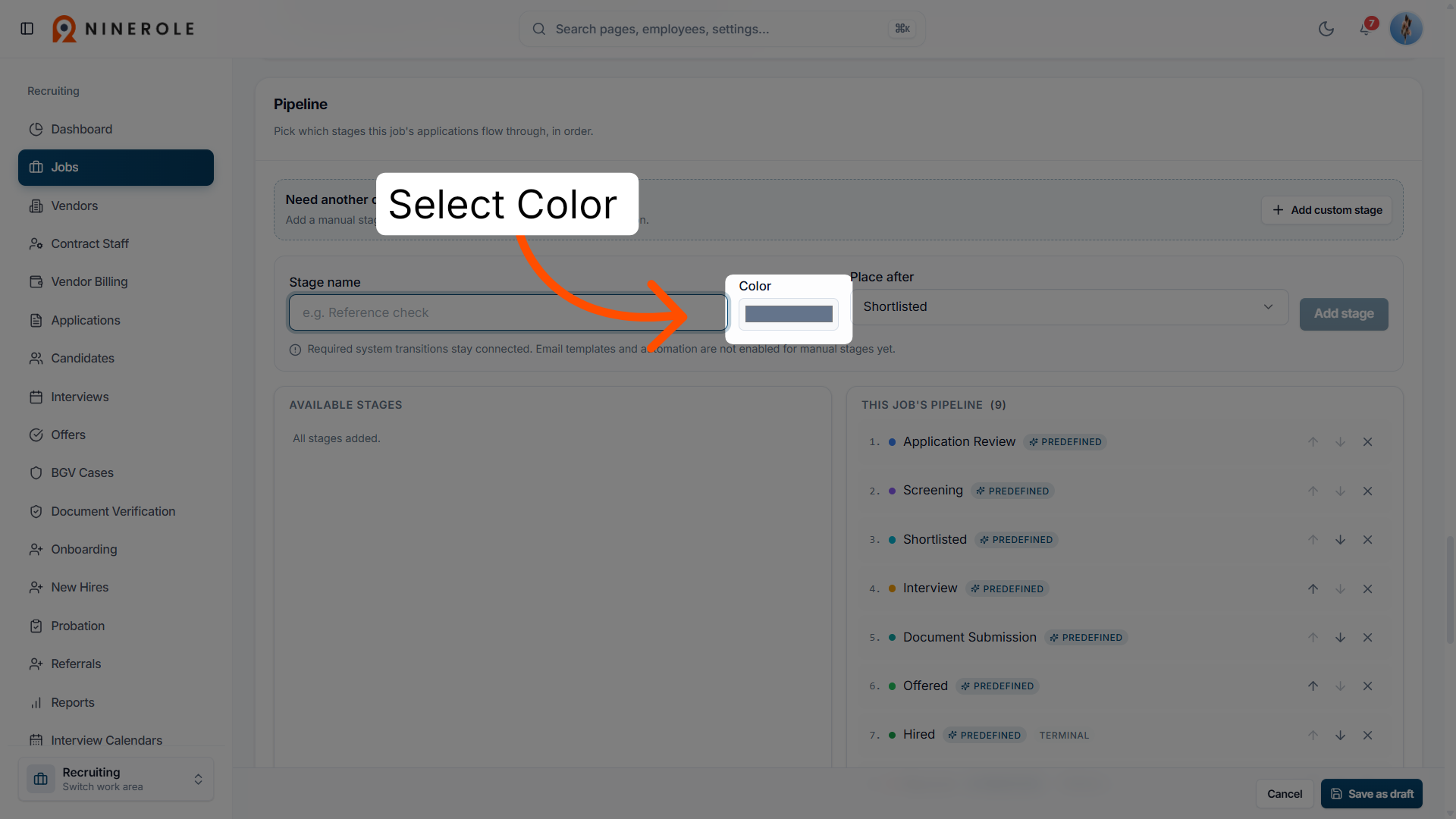
Select a Color to visually represent the custom stage. Under Place after, choose from the shortlisted, document submission, and offered options, then click Add stage.
55. Review the job pipeline
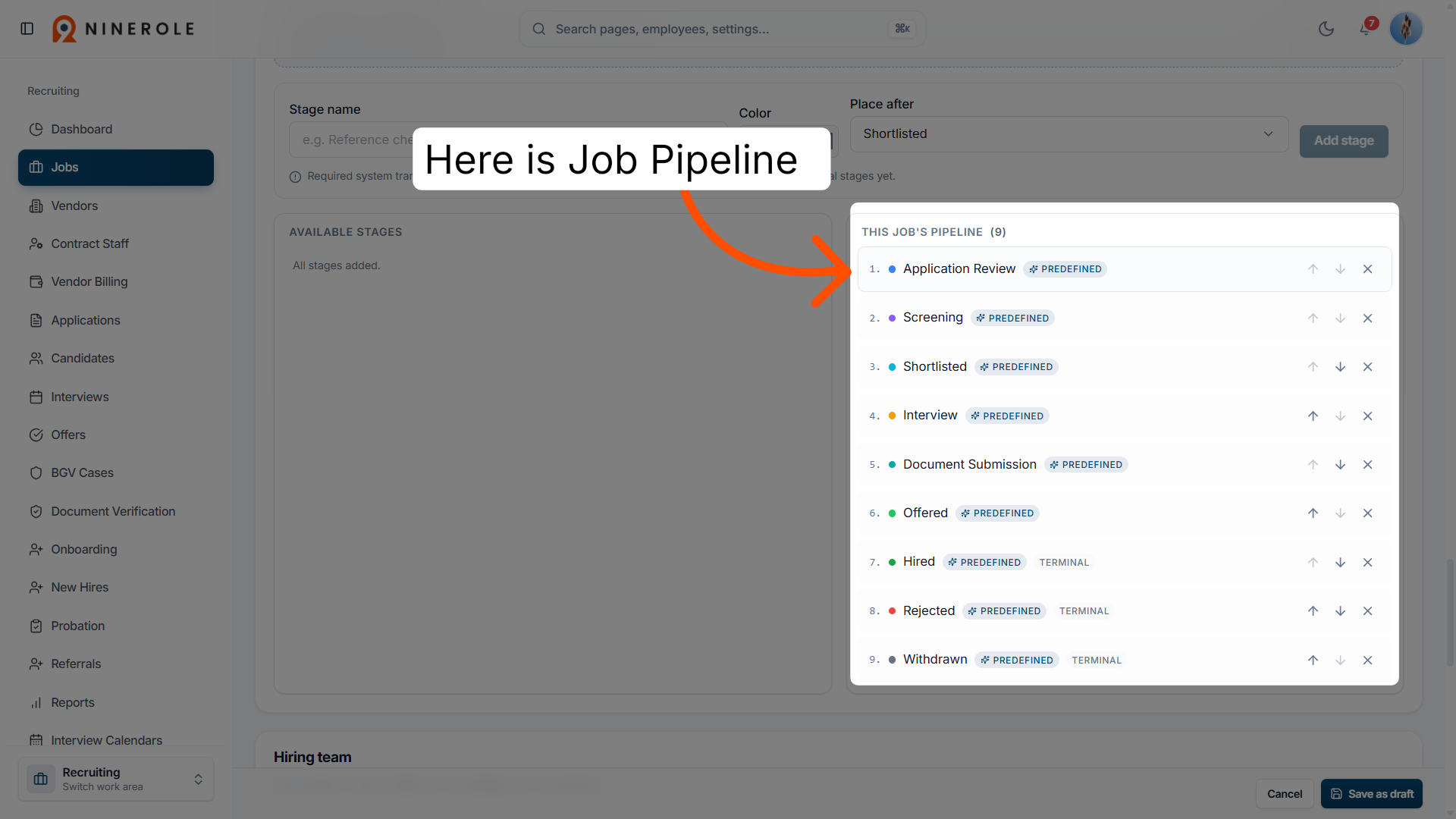
Here you can view the job pipeline, move the steps up and down as needed, and delete stages.
Set up the hiring team
56. Add a team member
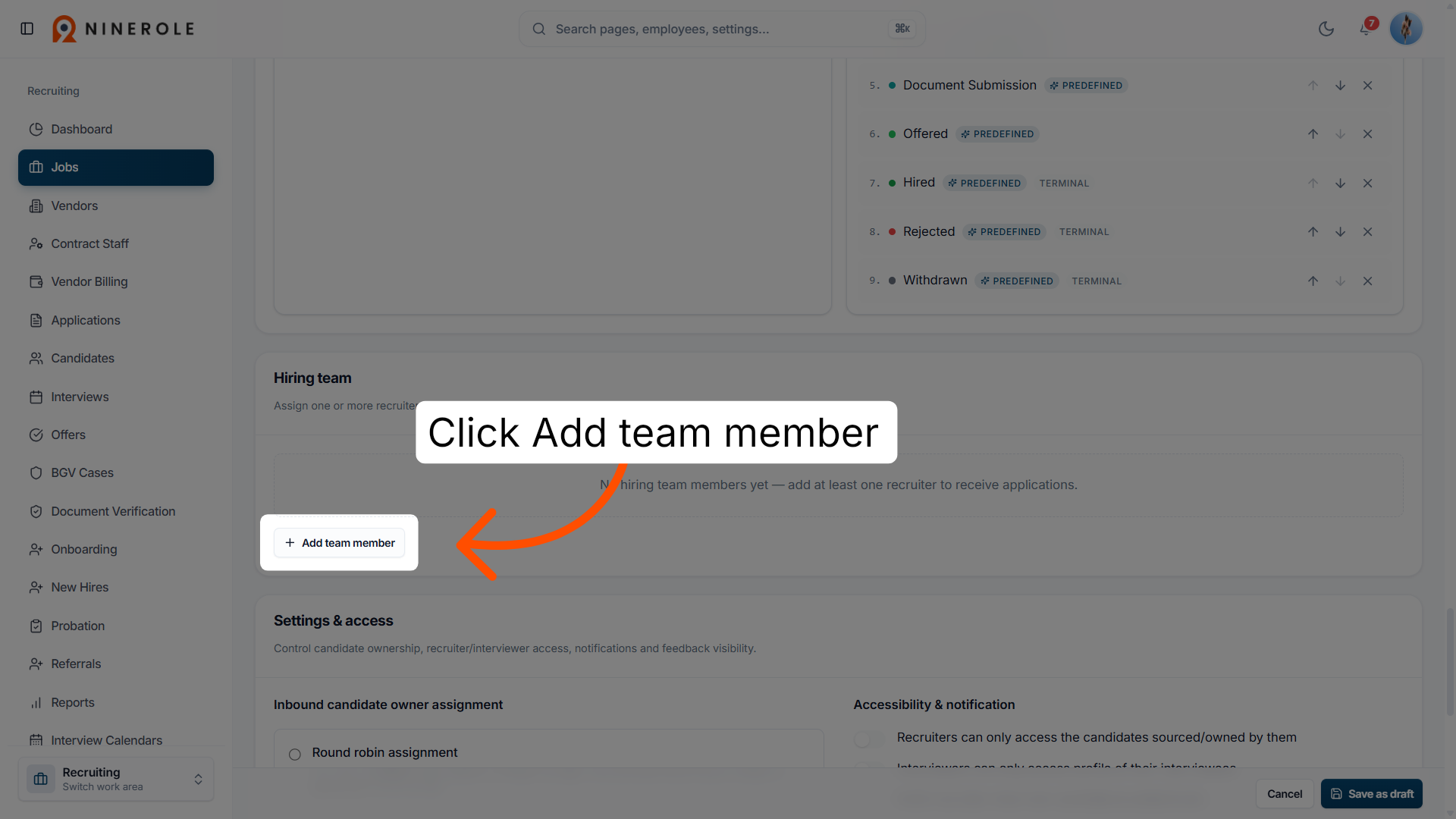
Click Add team member to include additional users in the hiring team for this job.
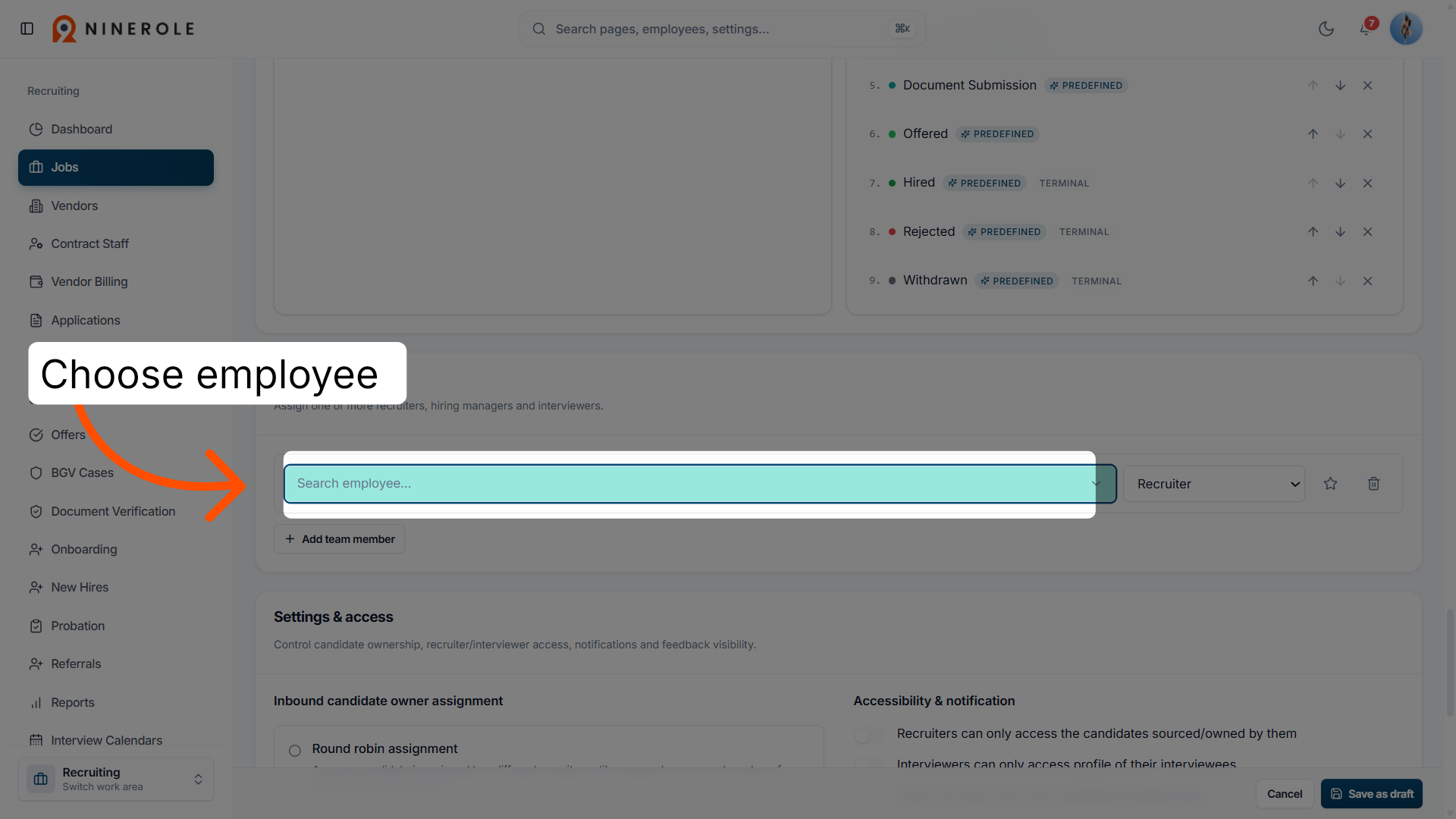
57. Search for an employee
Enter the employee name to find and select a team member to add to the hiring team.
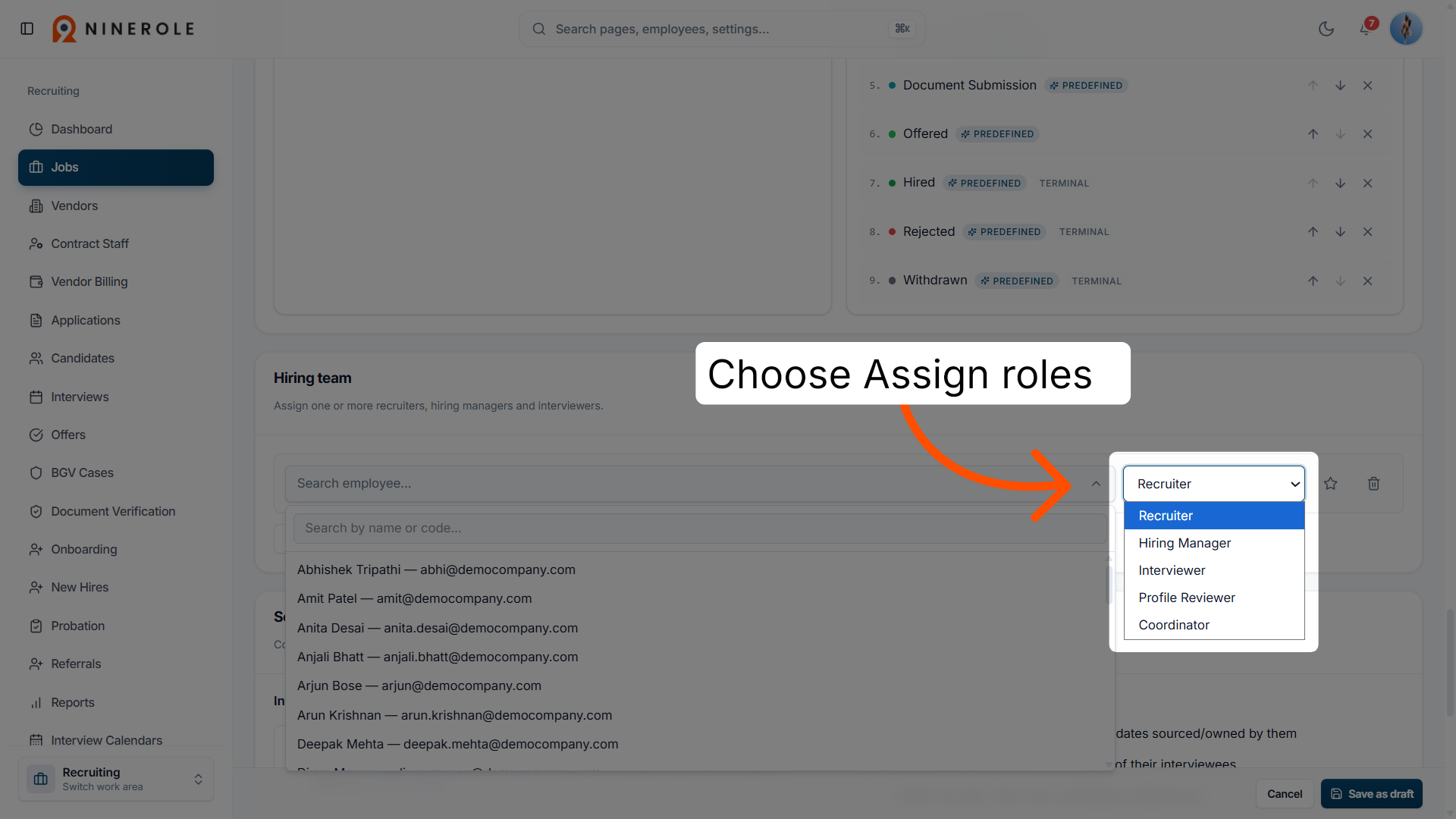
58. Assign team roles
Choose between Recruiter, Hiring Manager, Interviewer, Profile Reviewer, and Coordinator to assign specific roles to team members.
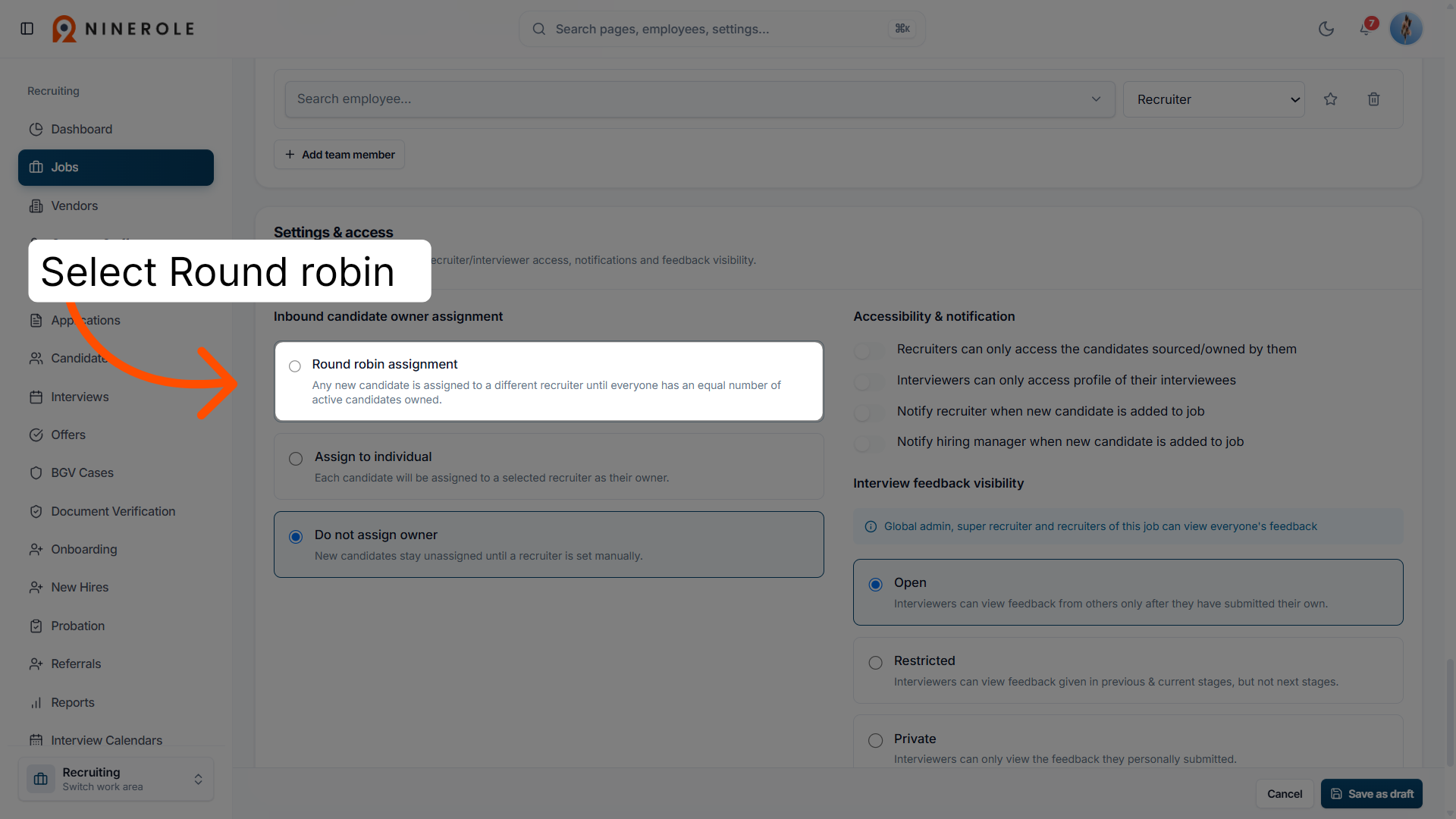
Configure candidate assignment
59. Enable round robin
Select Round robin assignment to distribute candidates evenly — each new candidate is assigned to a different recruiter until everyone owns an equal number of active candidates.
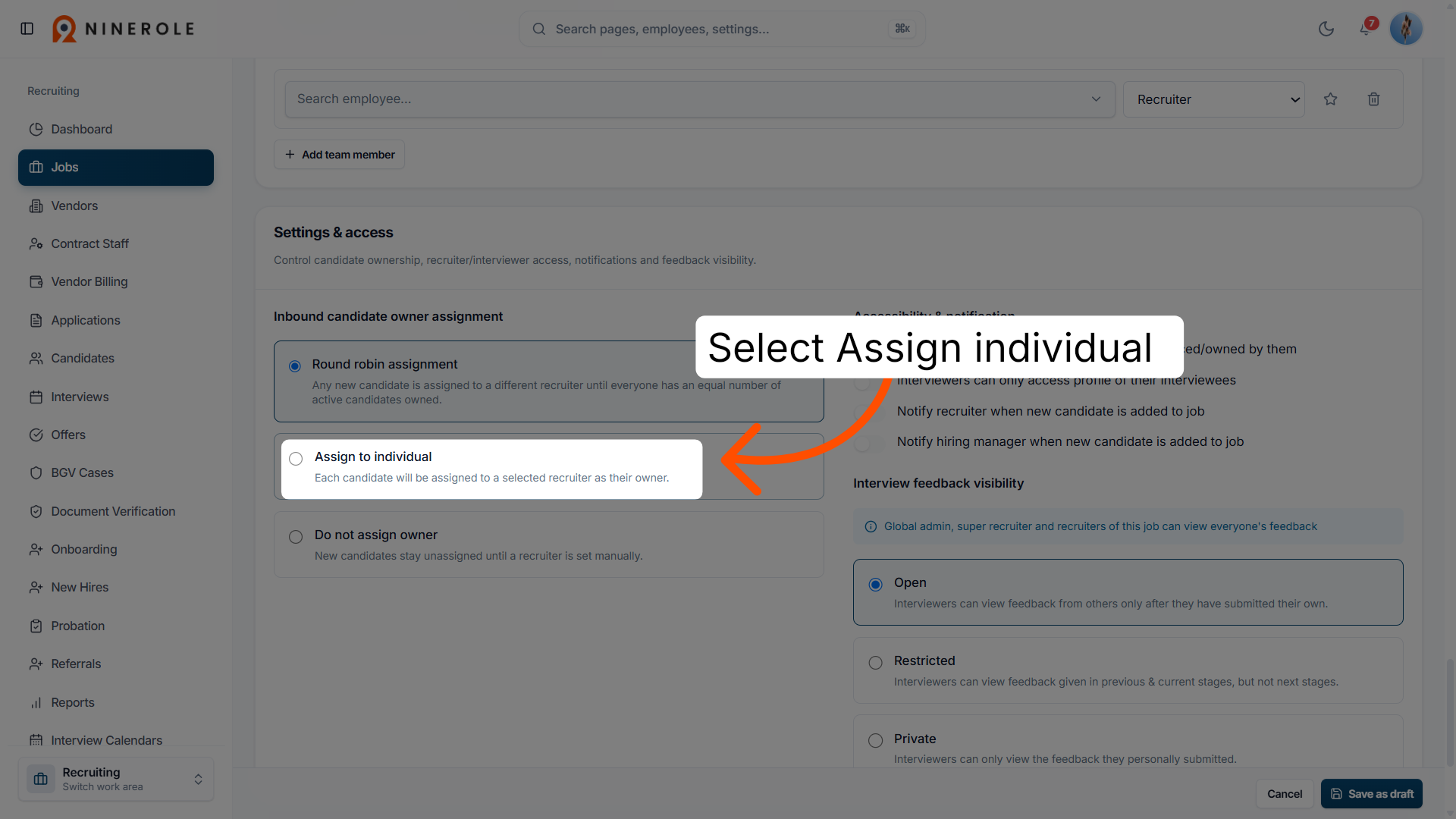
60. Assign individually
Select Assign to individual if you want to manually assign candidates to specific recruiters.
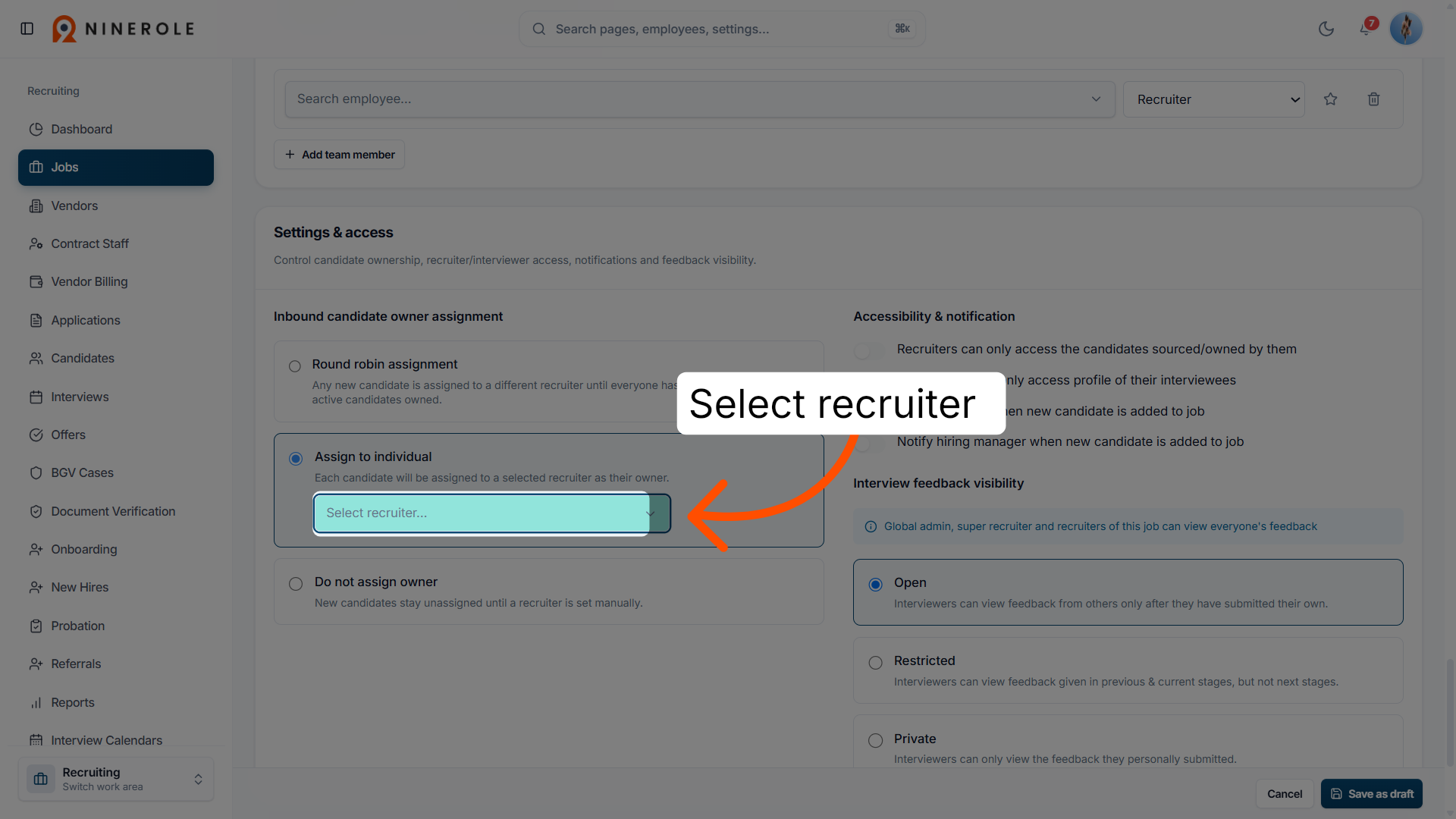
61. Select a recruiter
Use Select recruiter… to choose a recruiter from the list for assignment.
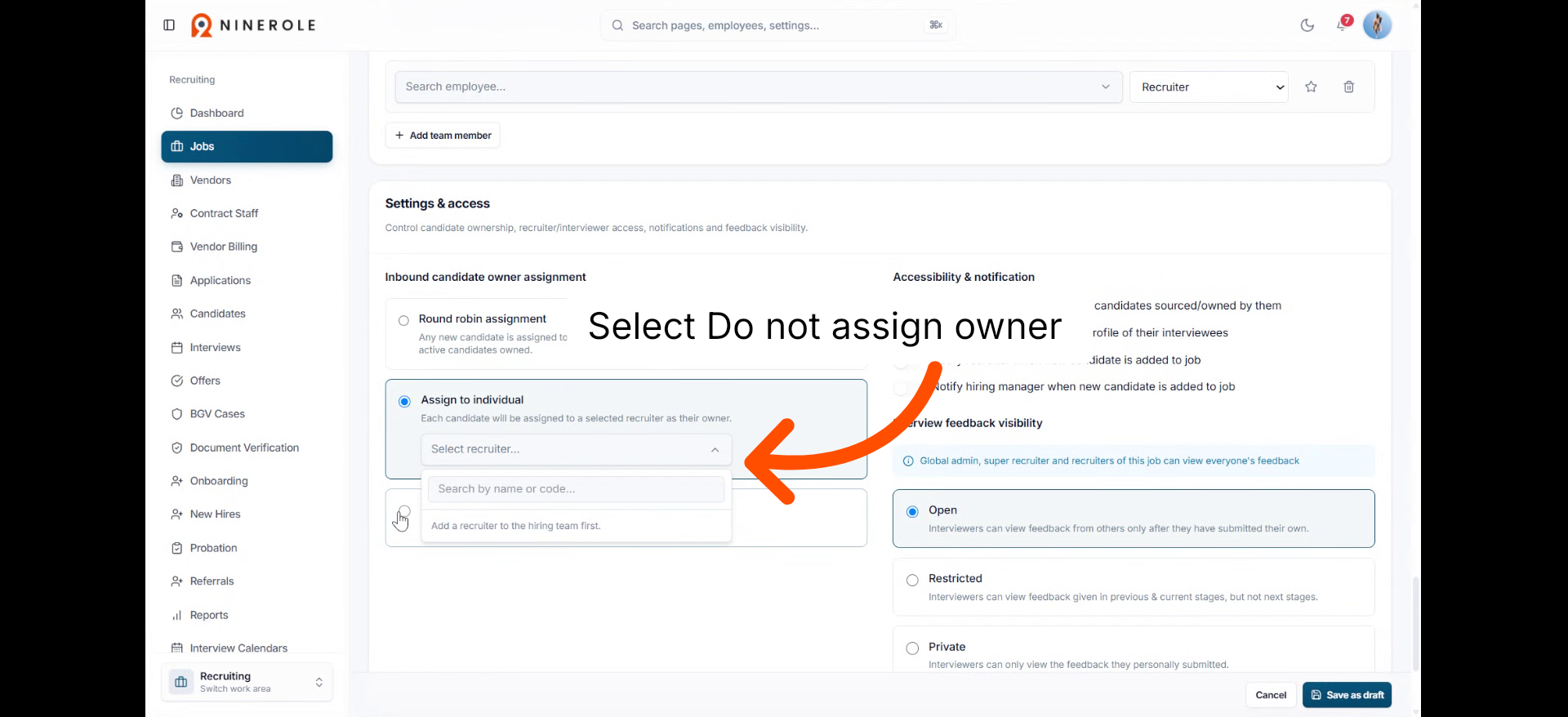
62. Choose the no-owner option
Select Do not assign owner to leave new candidates unassigned until they are manually assigned.
Set access and notification rules
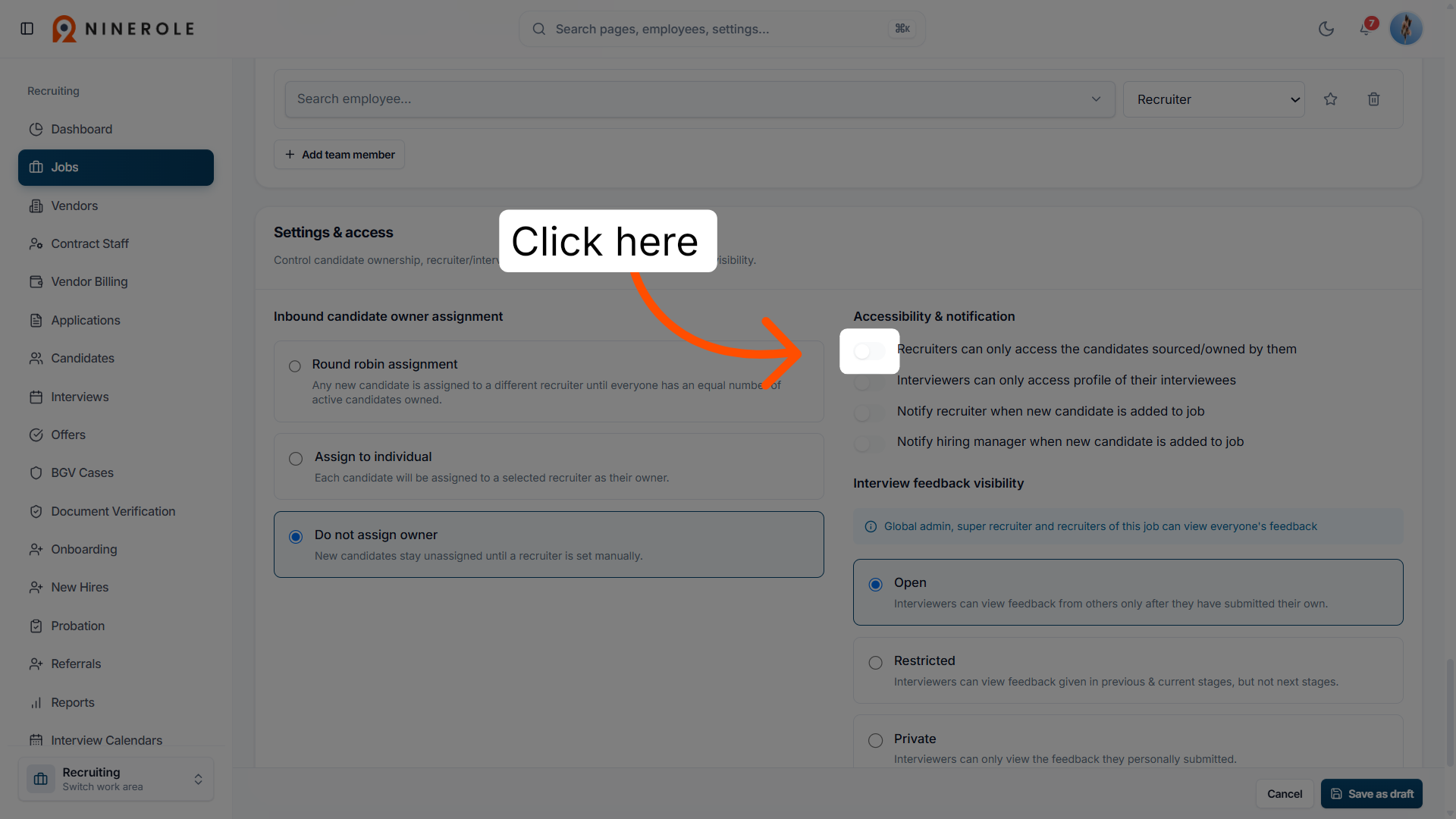
63. Restrict recruiter access
Enable this option so recruiters can only access the candidates they sourced or own.
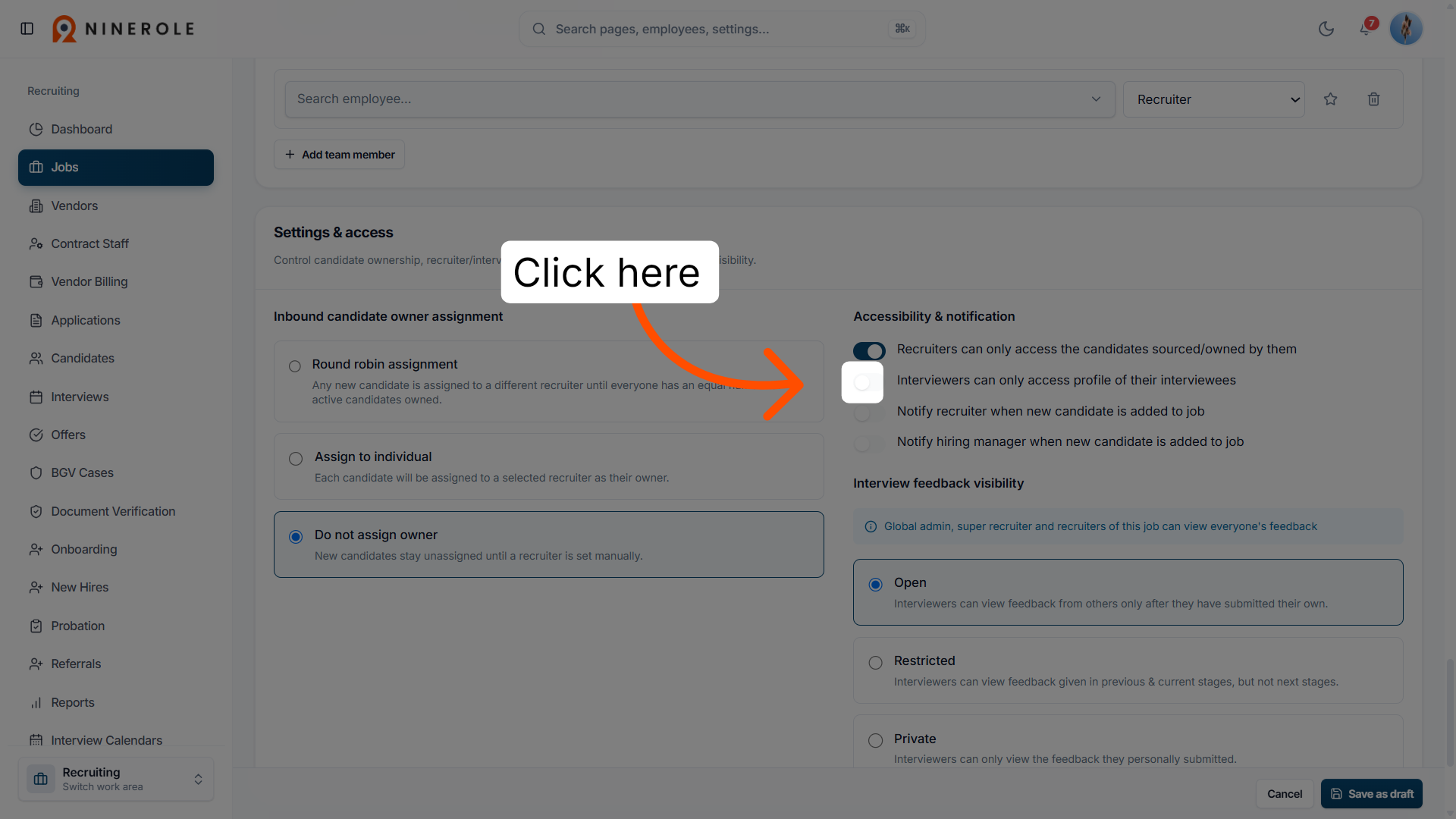
64. Restrict interviewer access
Enable this option so interviewers can only access the profiles of their own interviewees.
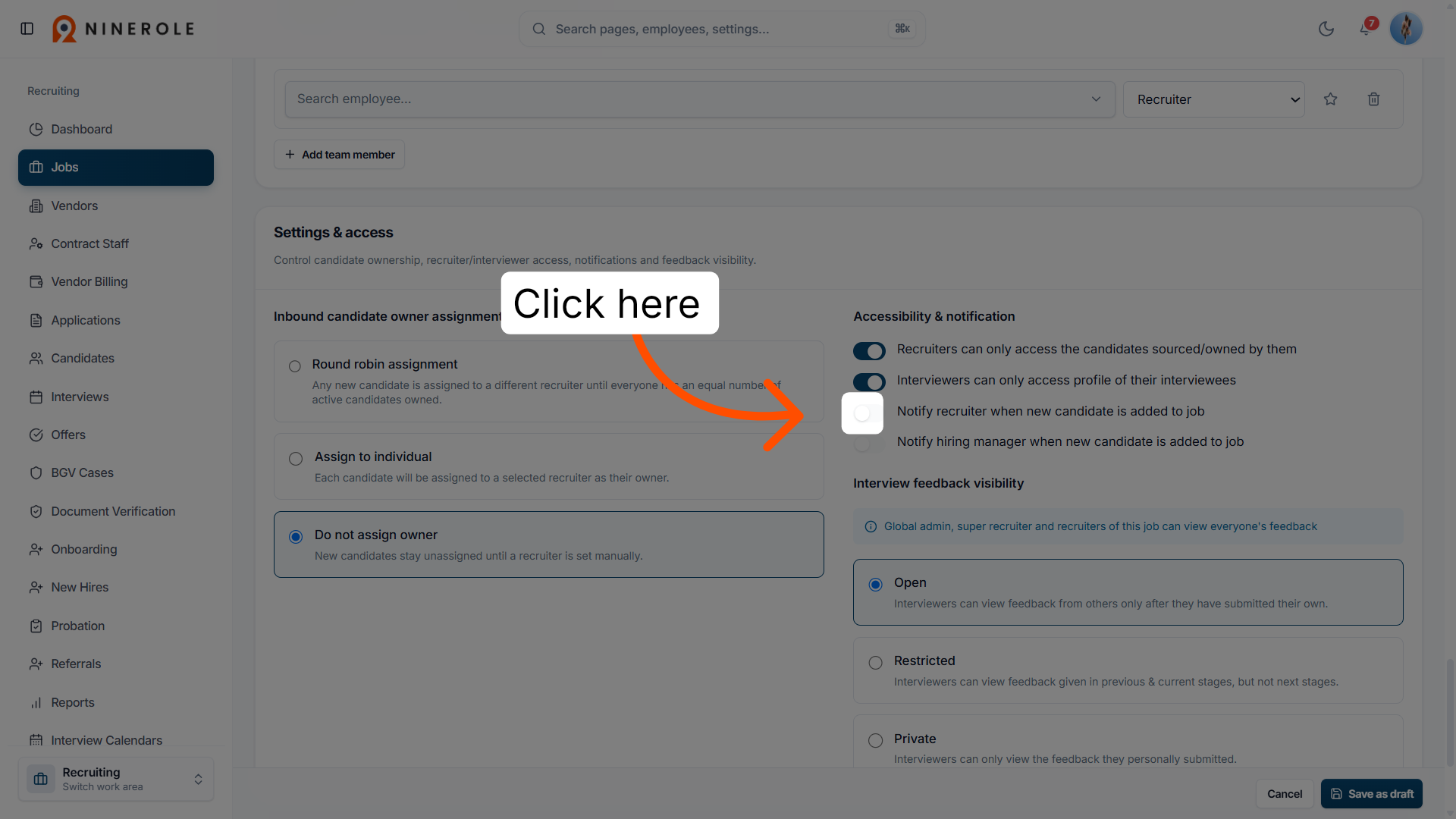
65. Notify the recruiter
Enable this option to notify the recruiter when a new candidate is added to the job.
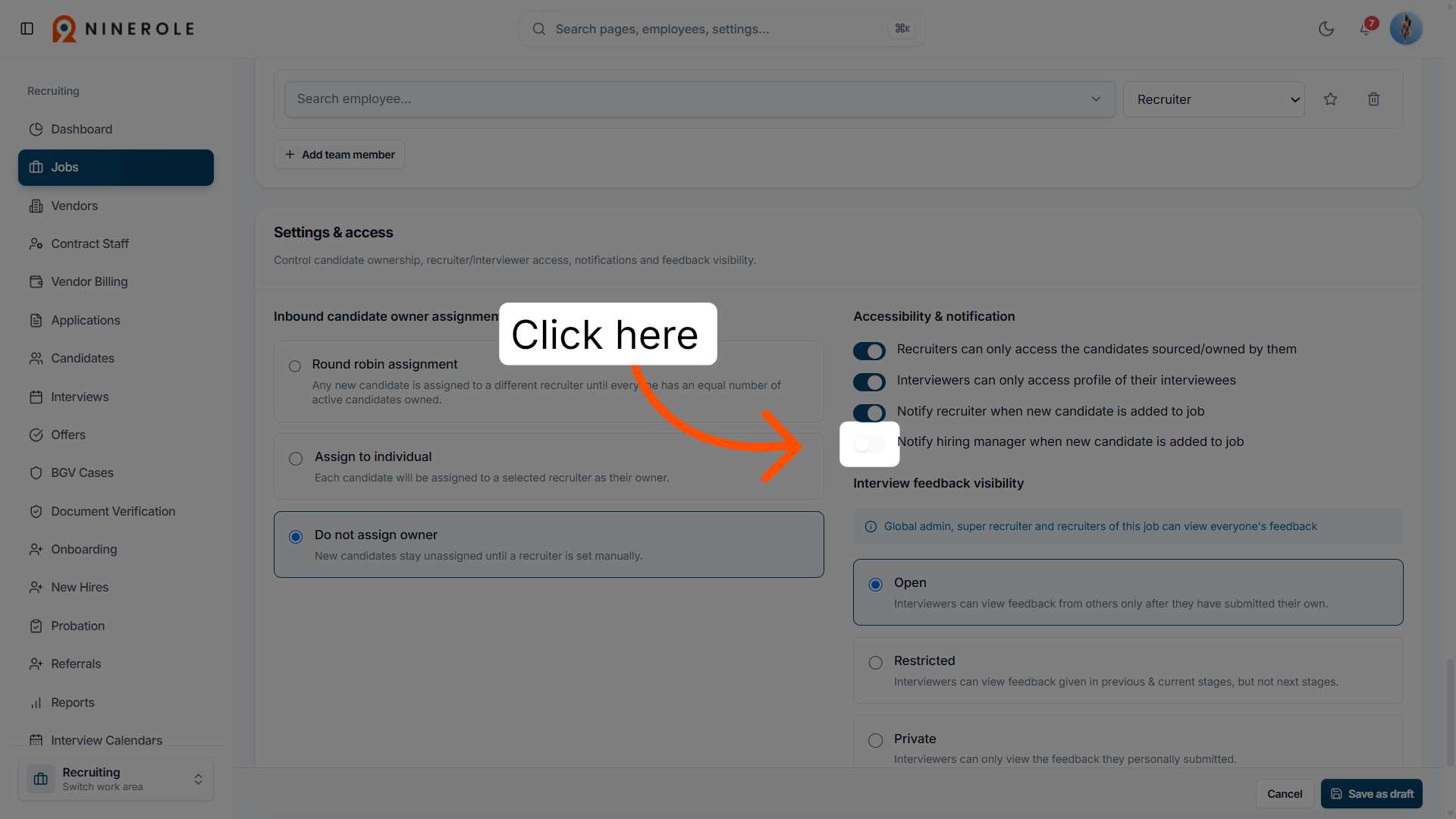
66. Notify the hiring manager
Enable this option to notify the hiring manager when a new candidate is added to the job.
Set feedback visibility
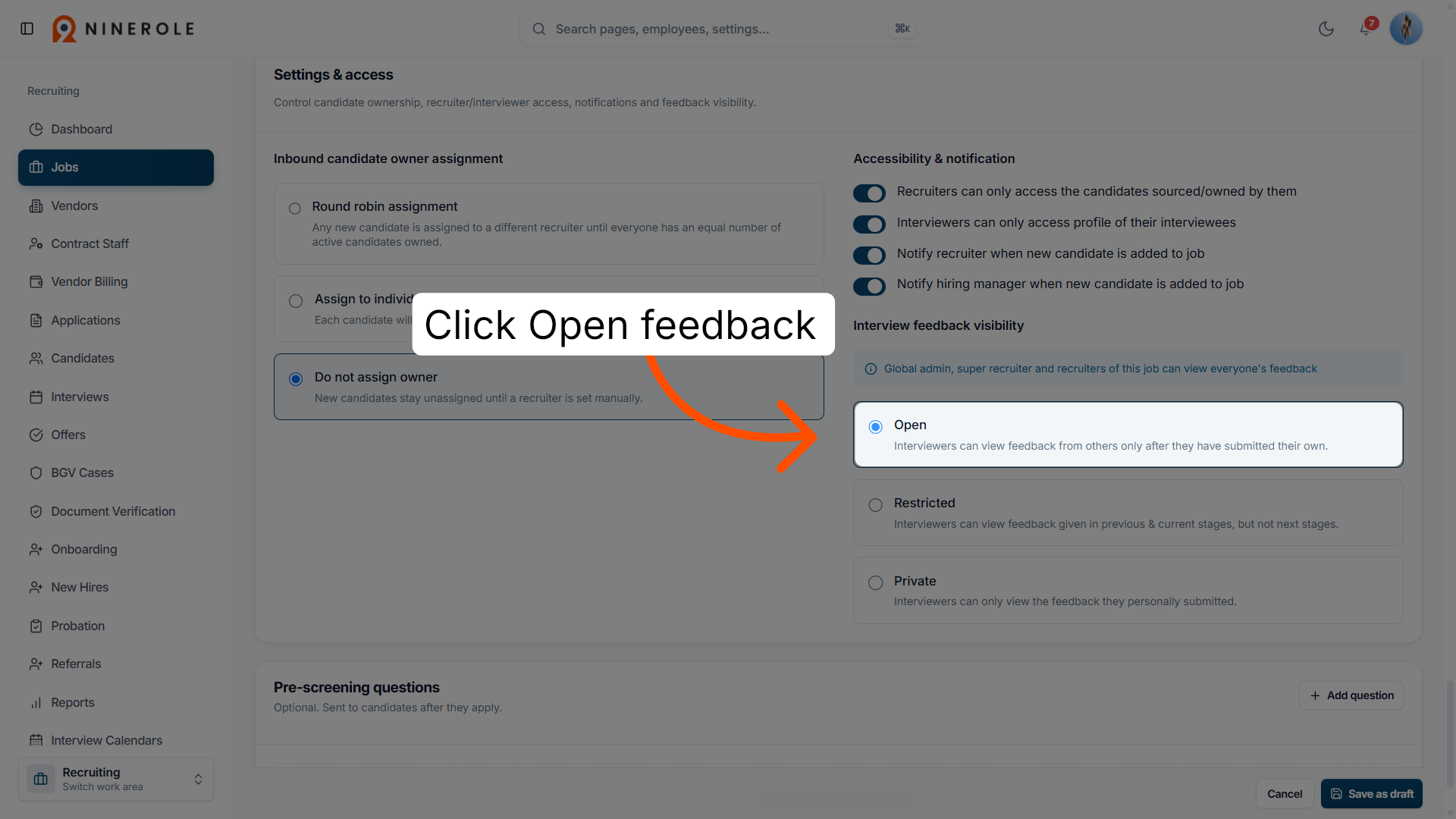
67. Configure feedback visibility
Click Open so interviewers can view feedback from others only after they have submitted their own.
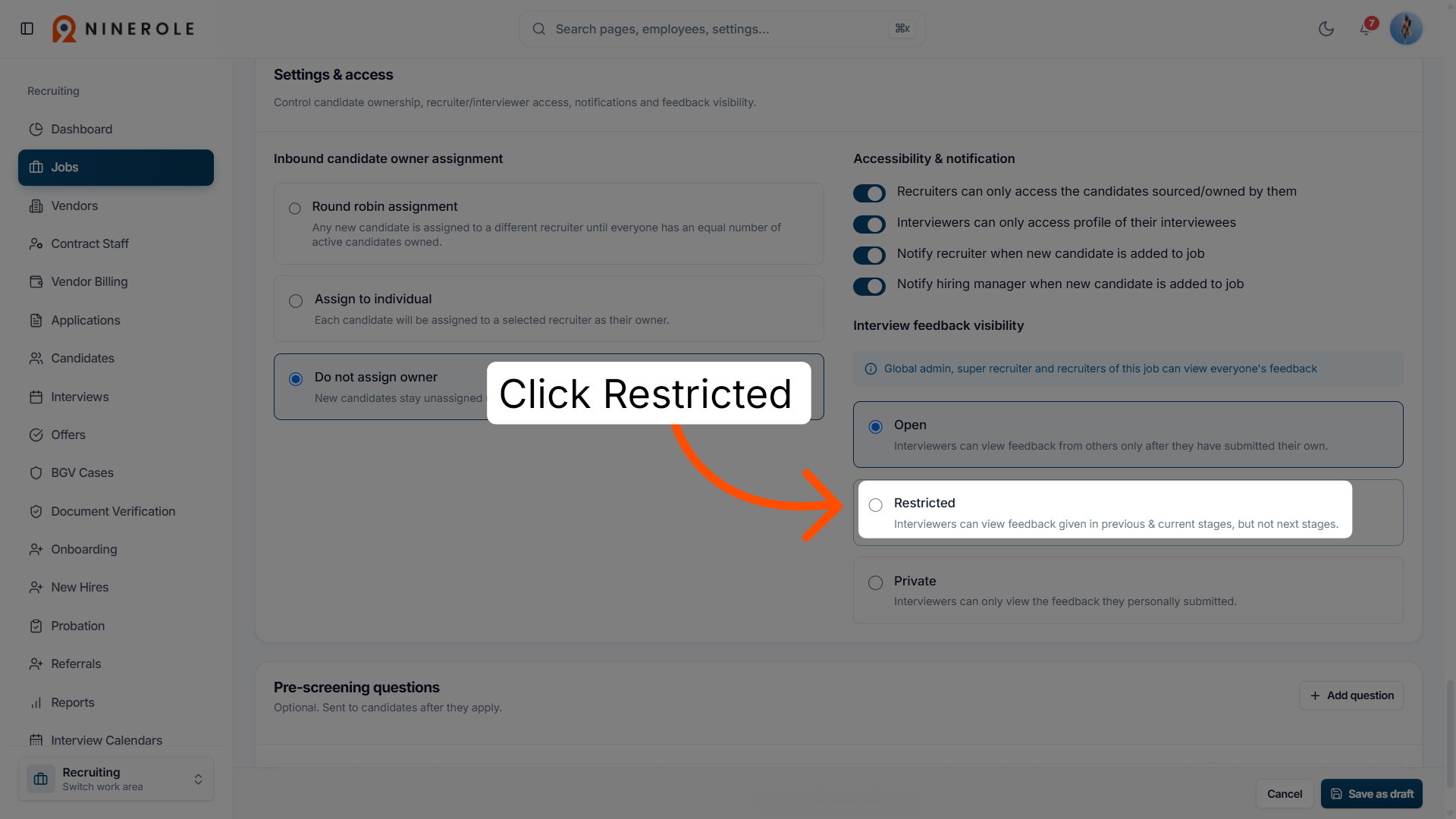
68. Select restricted feedback
Click Restricted to limit feedback visibility to certain interviewers.
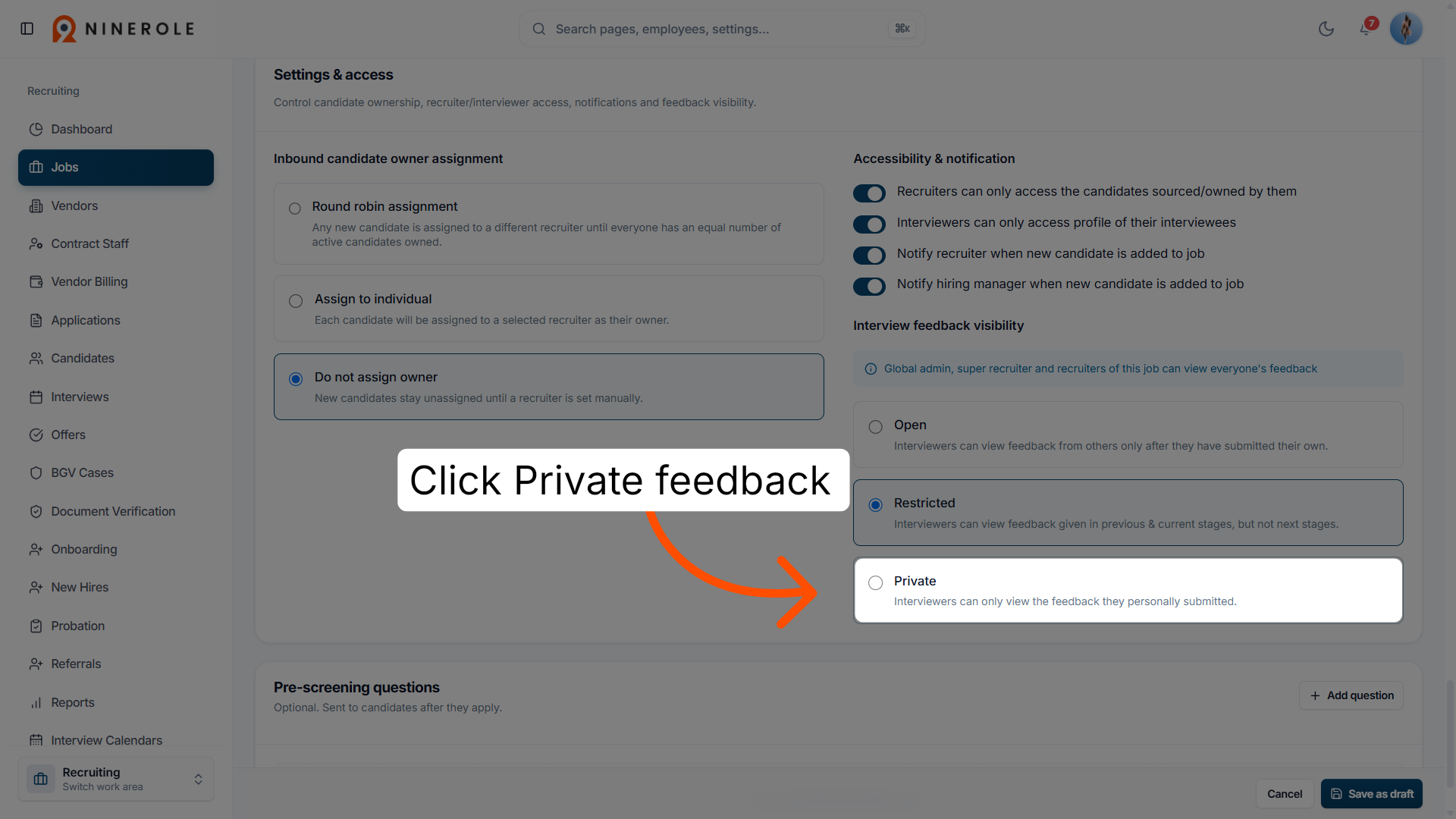
69. Choose private feedback
Click Private so interviewers can only view the feedback they personally submitted.
Add interview questions
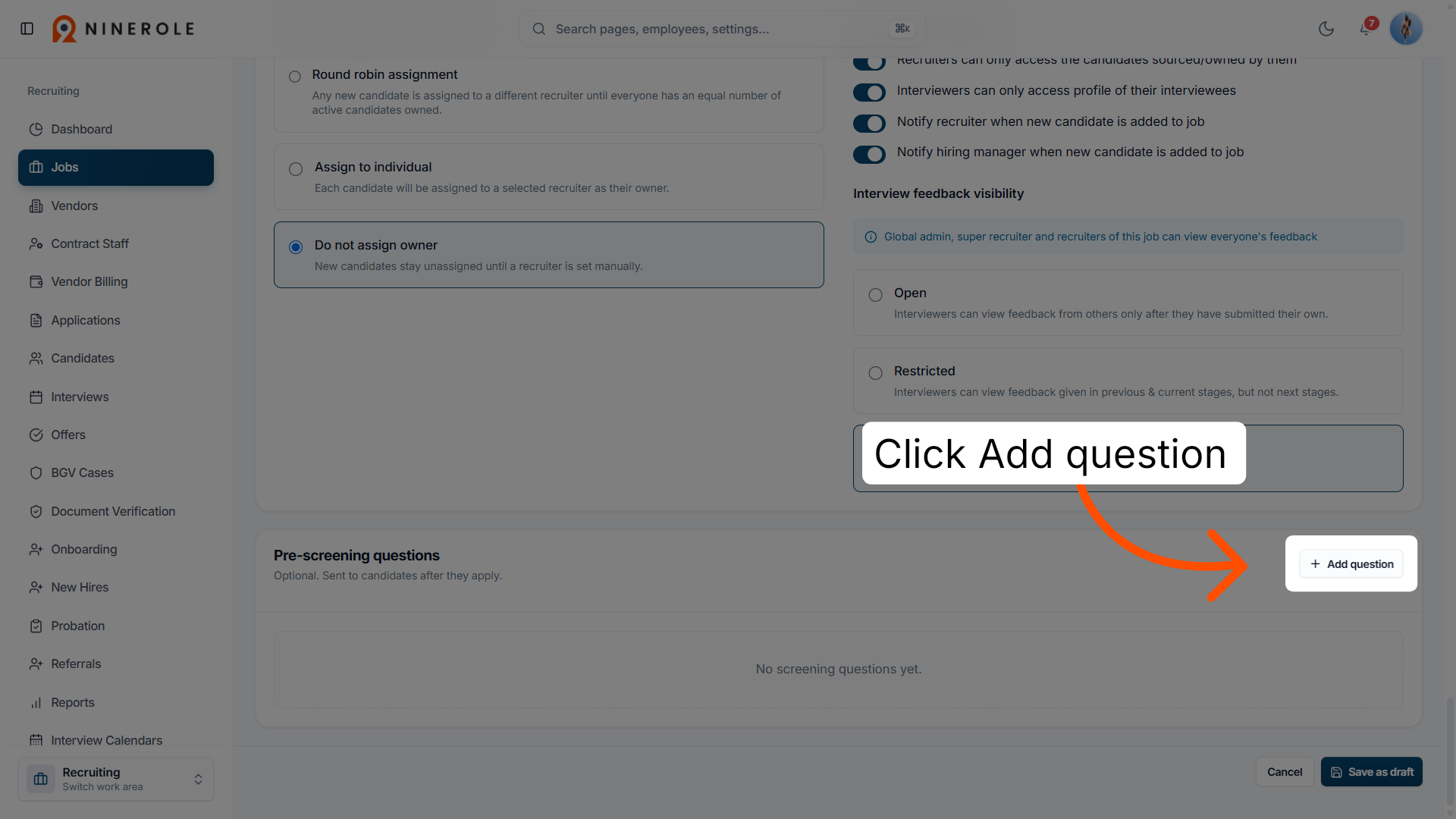
70. Add an interview question
Click Add question to include a new question in the interview questionnaire.
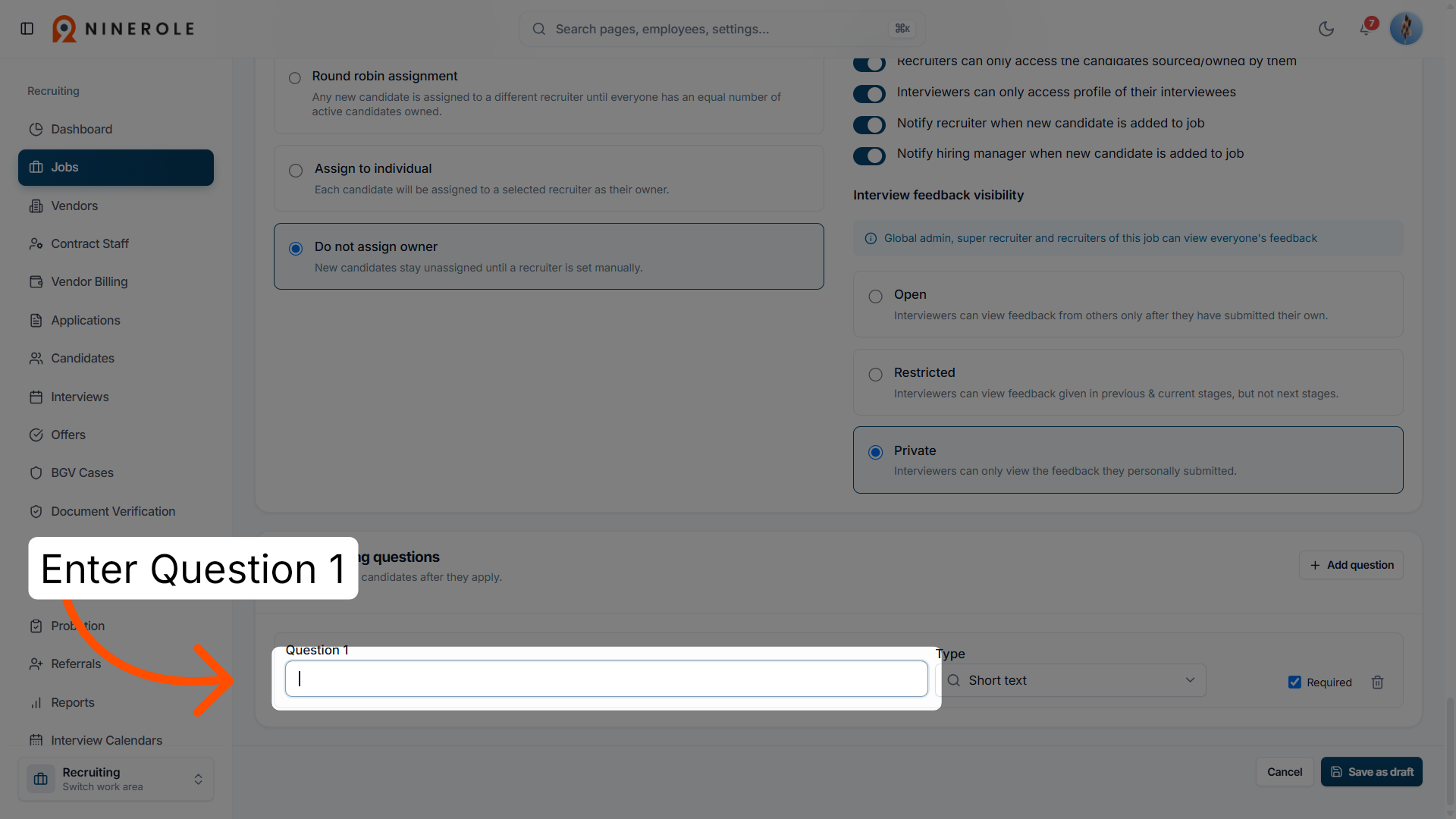
71. Enter the question
Enter Question 1 to edit or review the first interview question.
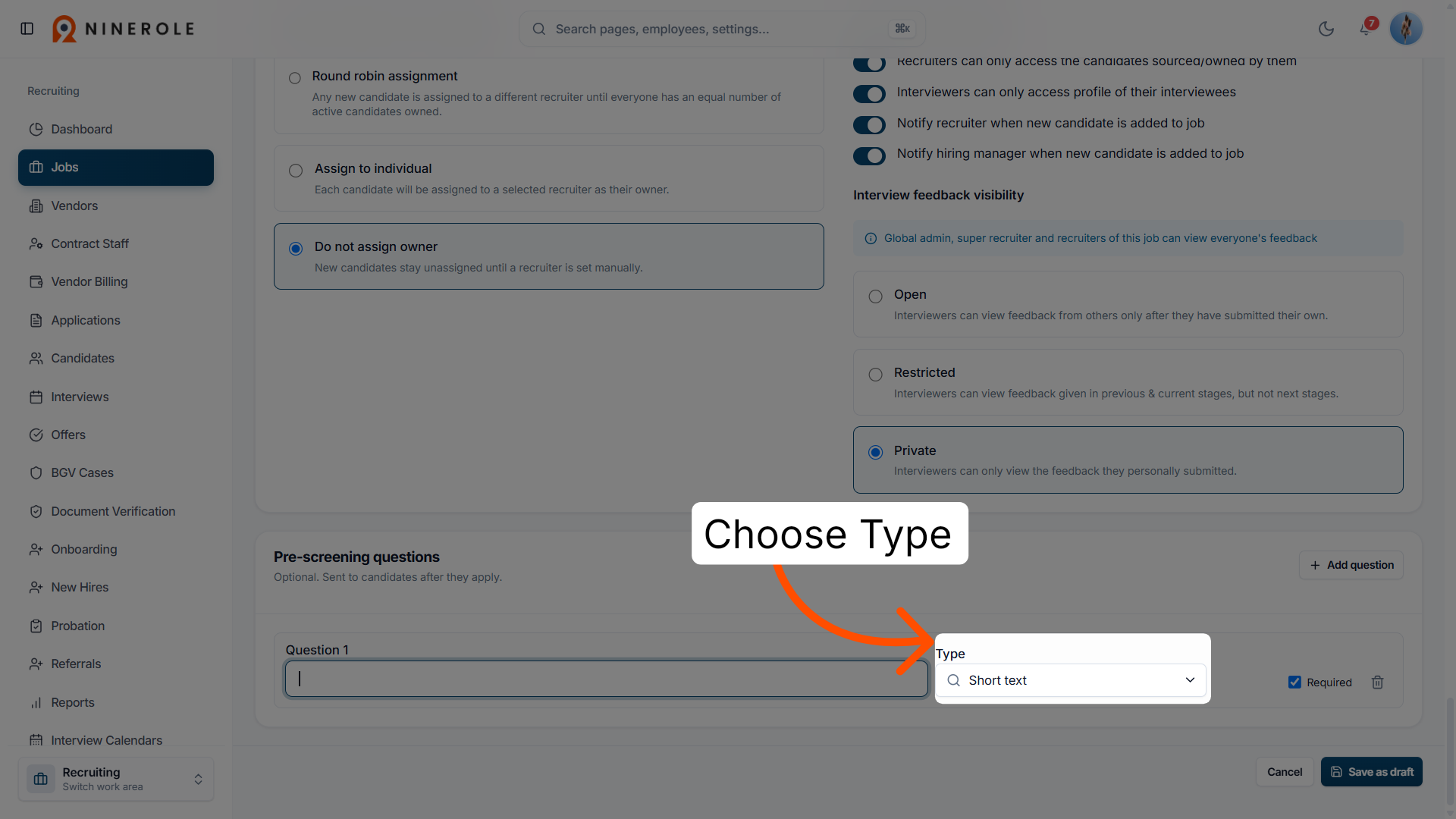
72. Choose the question type
Choose the question type — such as short answer, long answer, or yes/no.
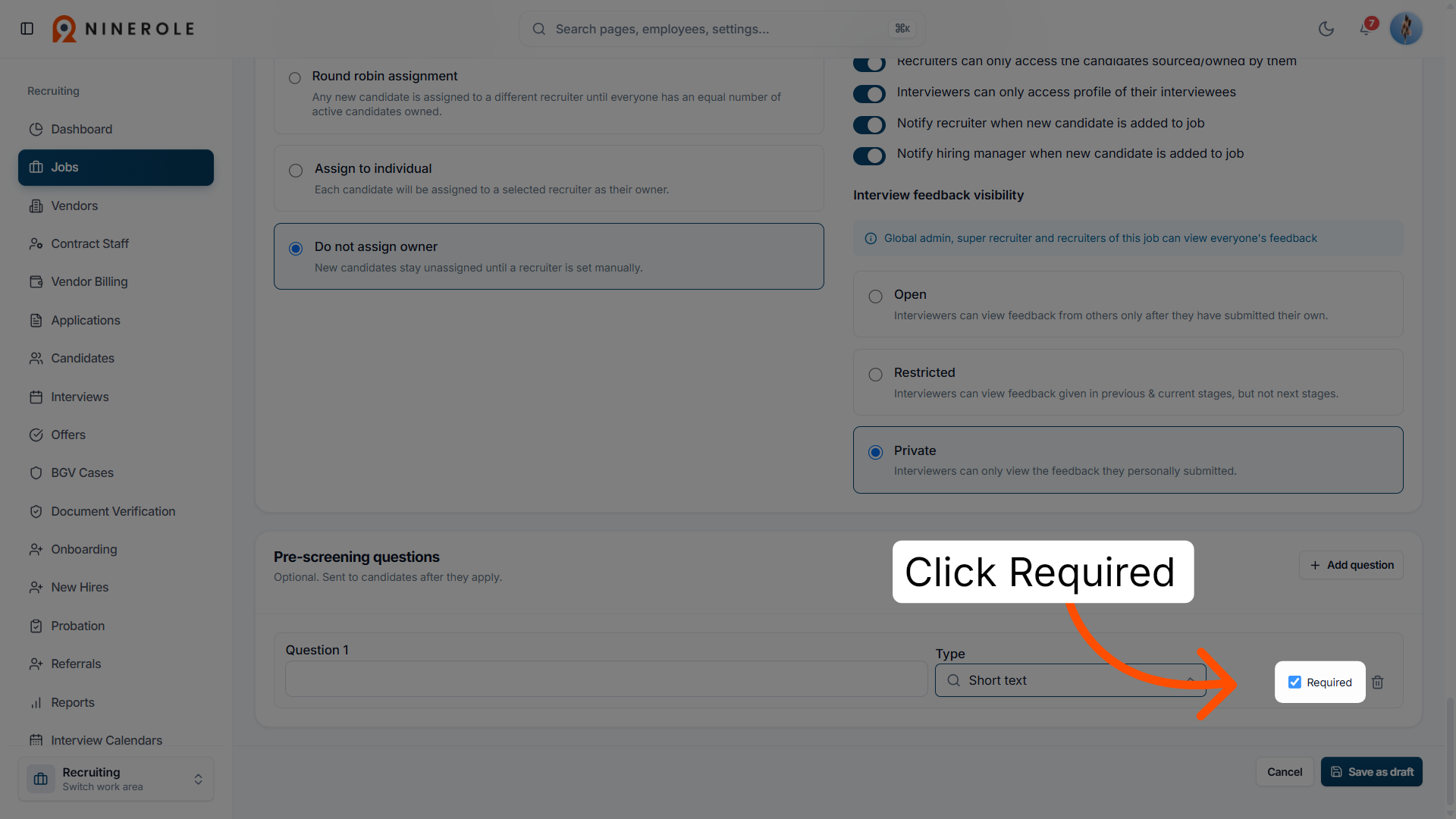
73. Mark the question as required
Click Required to make this interview question mandatory for candidates.
Save the job
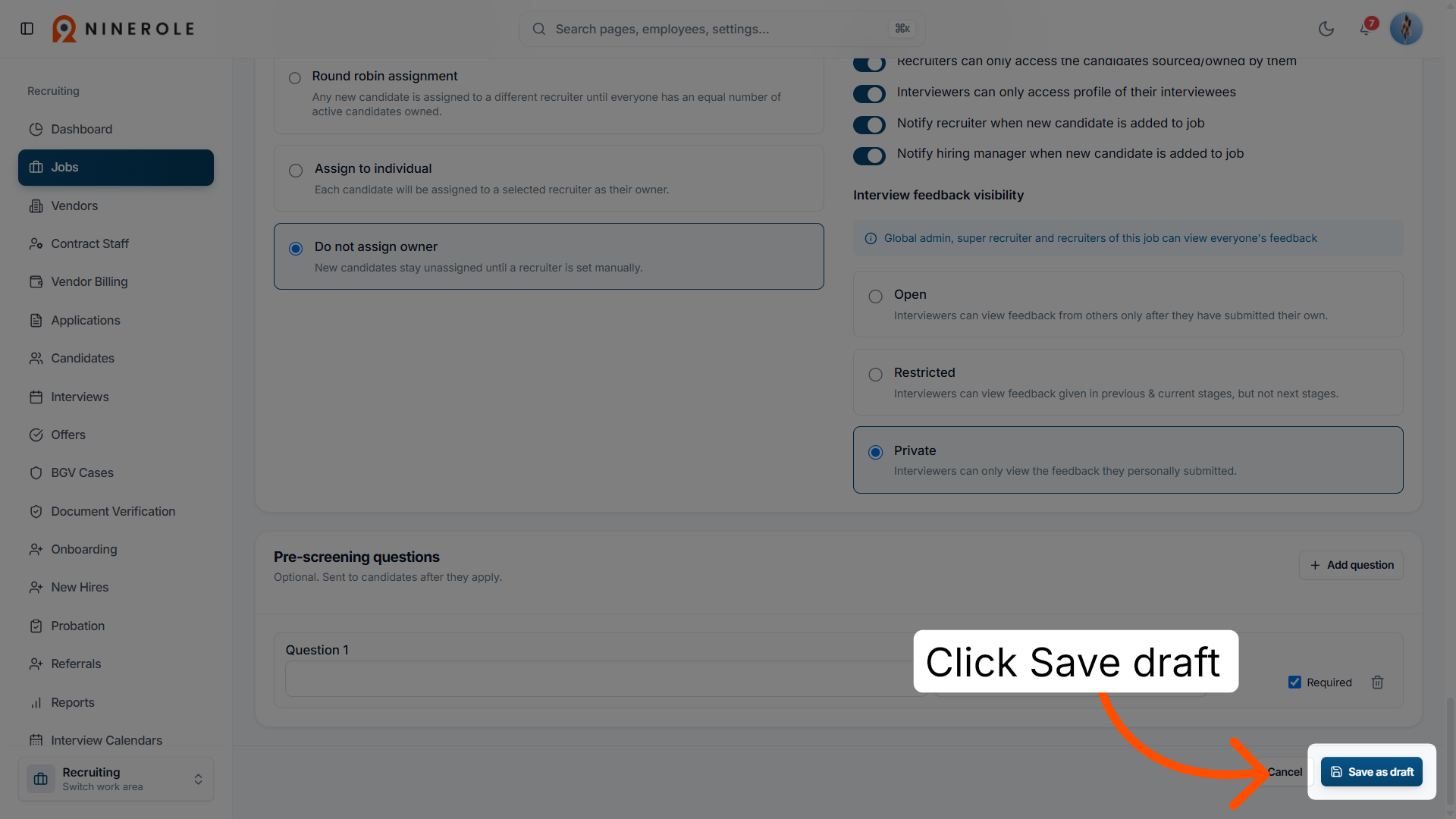
74. Save as draft
Click Save as draft to save your progress without publishing the job or interview setup.
You have successfully configured a new job listing in Ninerole, including job details, hiring and interview settings, pipeline stages, visibility settings, referral bonuses, and employee notifications. Next, you can manage applicants or create additional job postings to simplify your recruitment process.
Back to Hiring · all modules · Ninerole HRMS overview
Last updated: