

Apply Attendance Regularization
This tutorial guides you through applying attendance regularization in the Ninerole HRMS platform. You will learn how to submit a request to correct your attendance records effectively.
Before you start, go to ninerole.com.
About this task
- Purpose
- Correct a missed or wrong attendance punch by submitting a regularization request for approval.
- Who can do this
- Employee (self-service); approved by a Manager
- Before you start
- The date you want to correct already exists in your attendance record.
- You will need
- The date, what needs fixing, the corrected times, and a reason.
- Result
- A regularization request is submitted against that date and awaits manager approval.
- This unlocks
- Once approved, the corrected times replace the missed or wrong punch and the day counts correctly toward payroll.
This guide answers
- How do I fix a missed punch?
- I punched in at the wrong time — how do I correct it?
- Can I edit a punch directly?
- Who approves a regularization?
- How far back can I regularize?
If something goes wrong
- You cannot edit the original punch.
- Saved punches are not editable by design. Regularization is the correction path, and it leaves an approval trail.
- The date is not selectable.
- Regularization windows can be limited by policy. If the date is out of range, ask HR.
Related: Punch in & out · My & team attendance · Manage leaveAlso called: attendance correction, fix a punch.Last verified: 7 September 2026
1. Introduction
You will learn how to submit a request to correct your attendance records effectively.
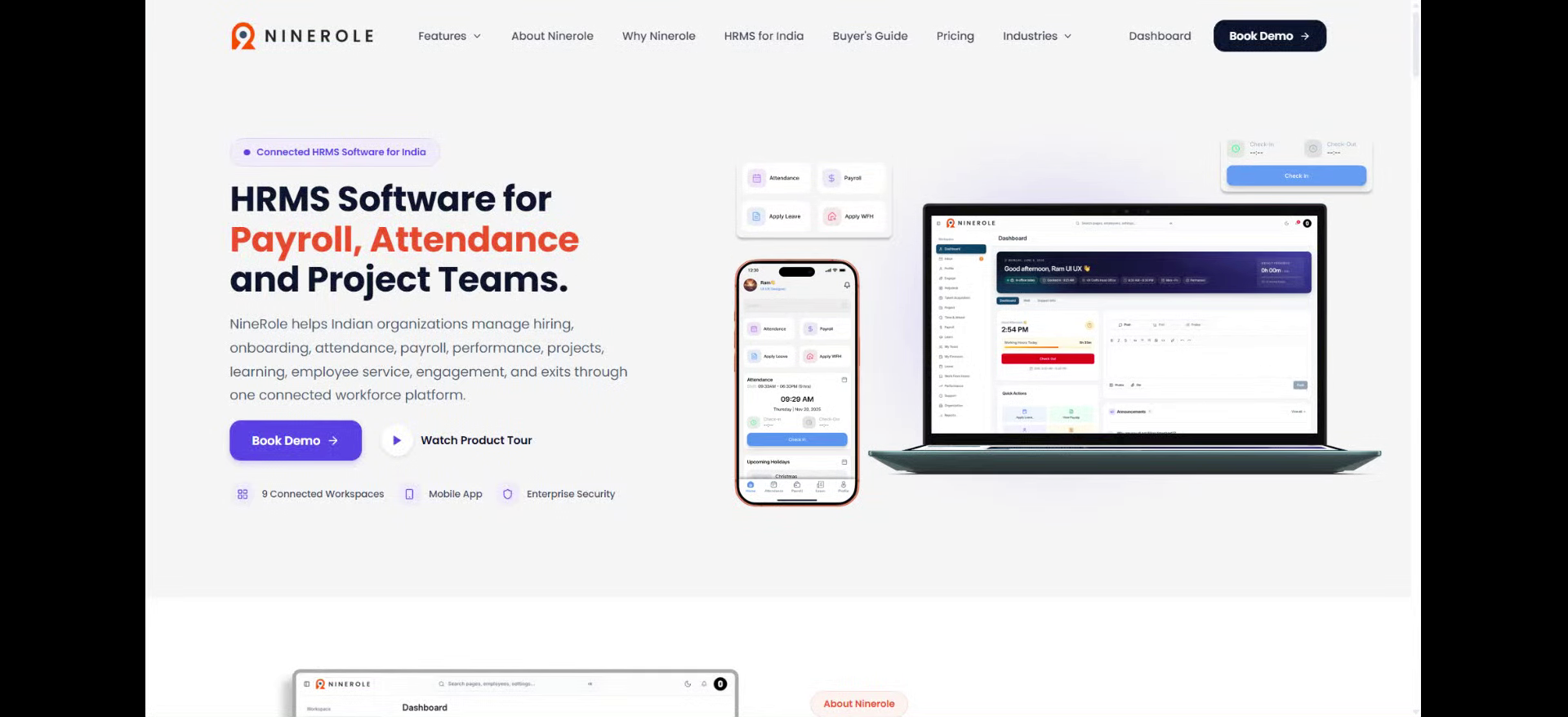
Open Apply Regularization
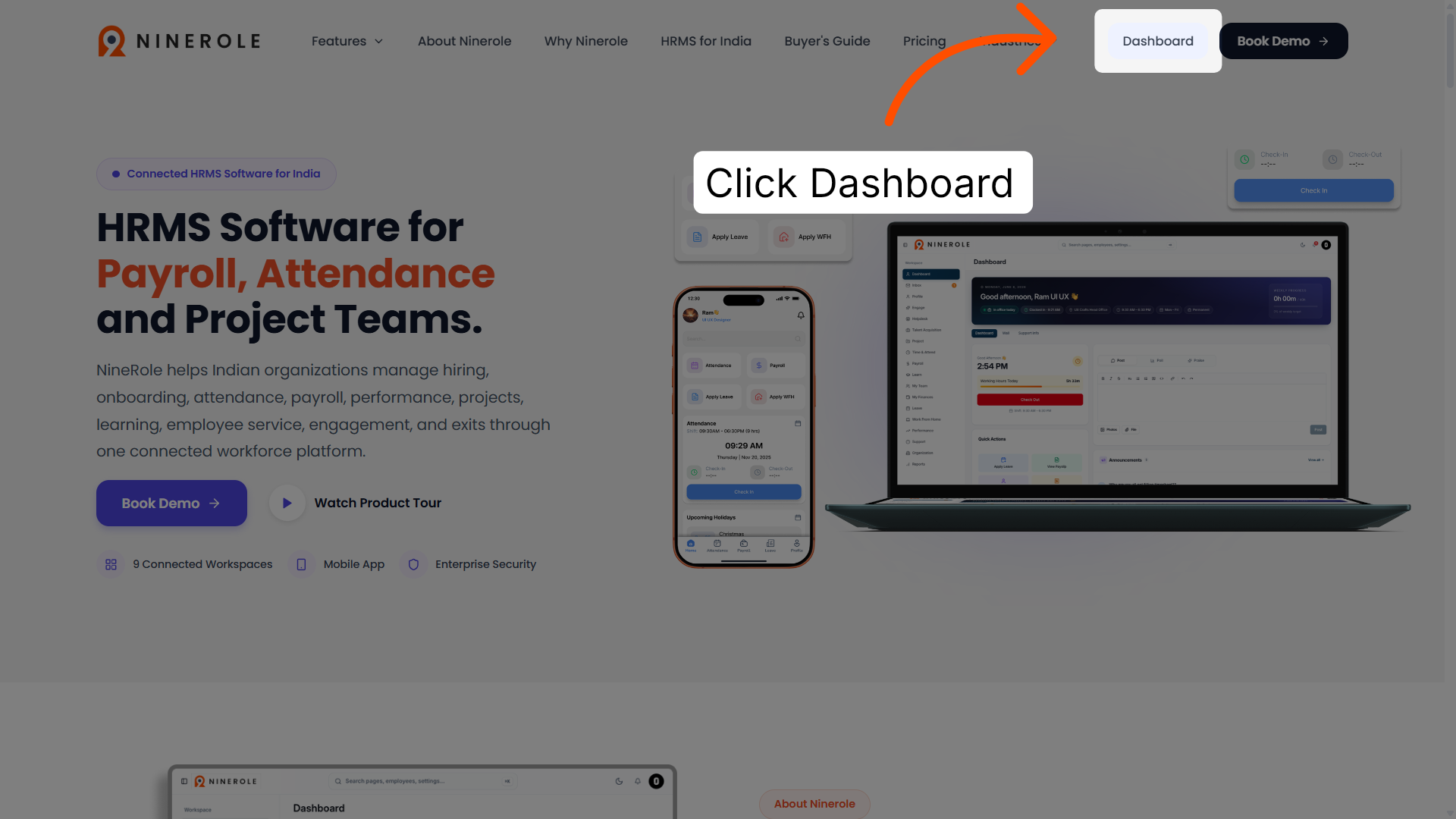
2. Access the dashboard
Click Dashboard to open the main overview page of the Ninerole HRMS platform.
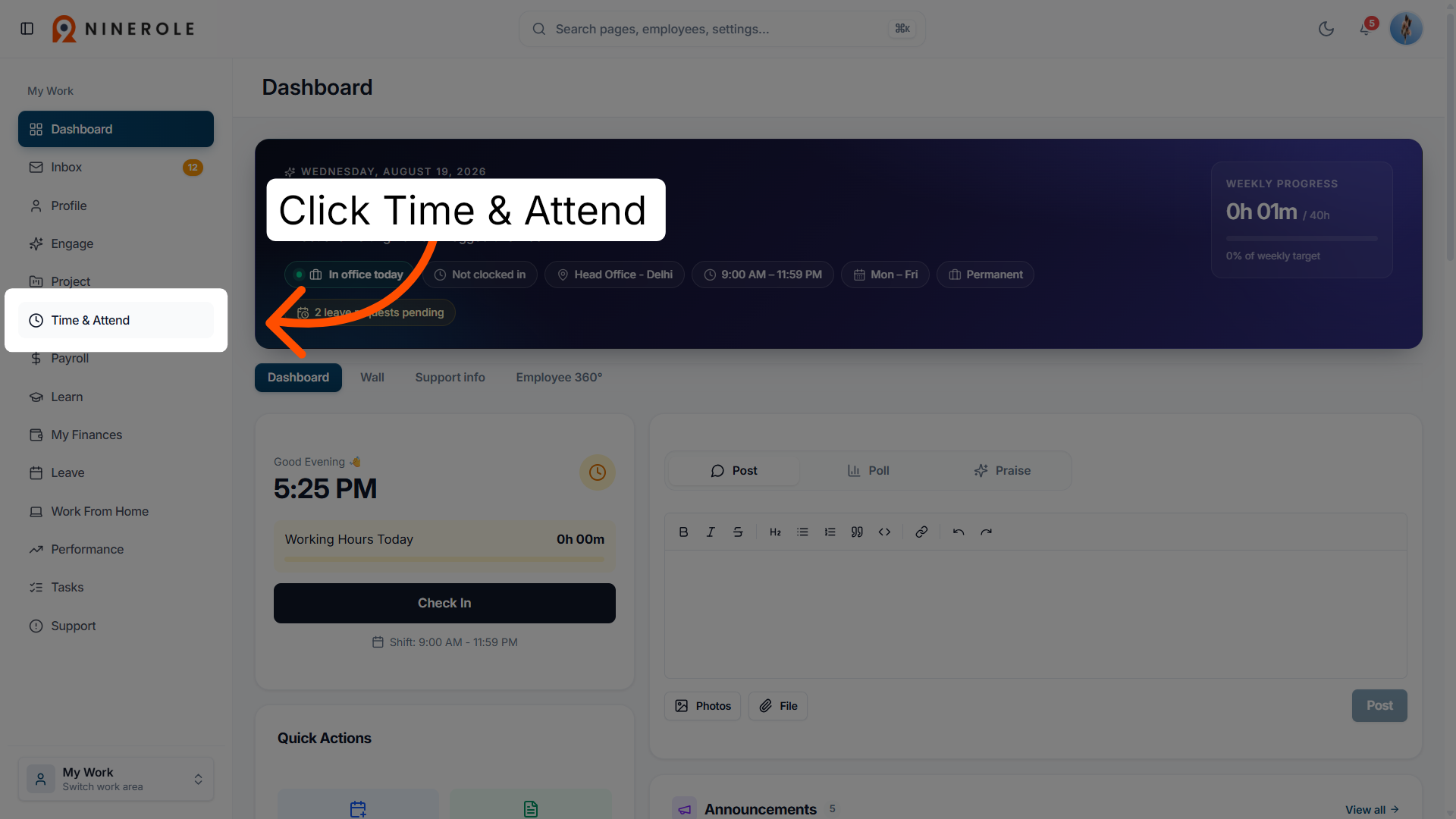
3. Open Time and Attendance
Click Time & Attend to navigate to the attendance management section within your dashboard.
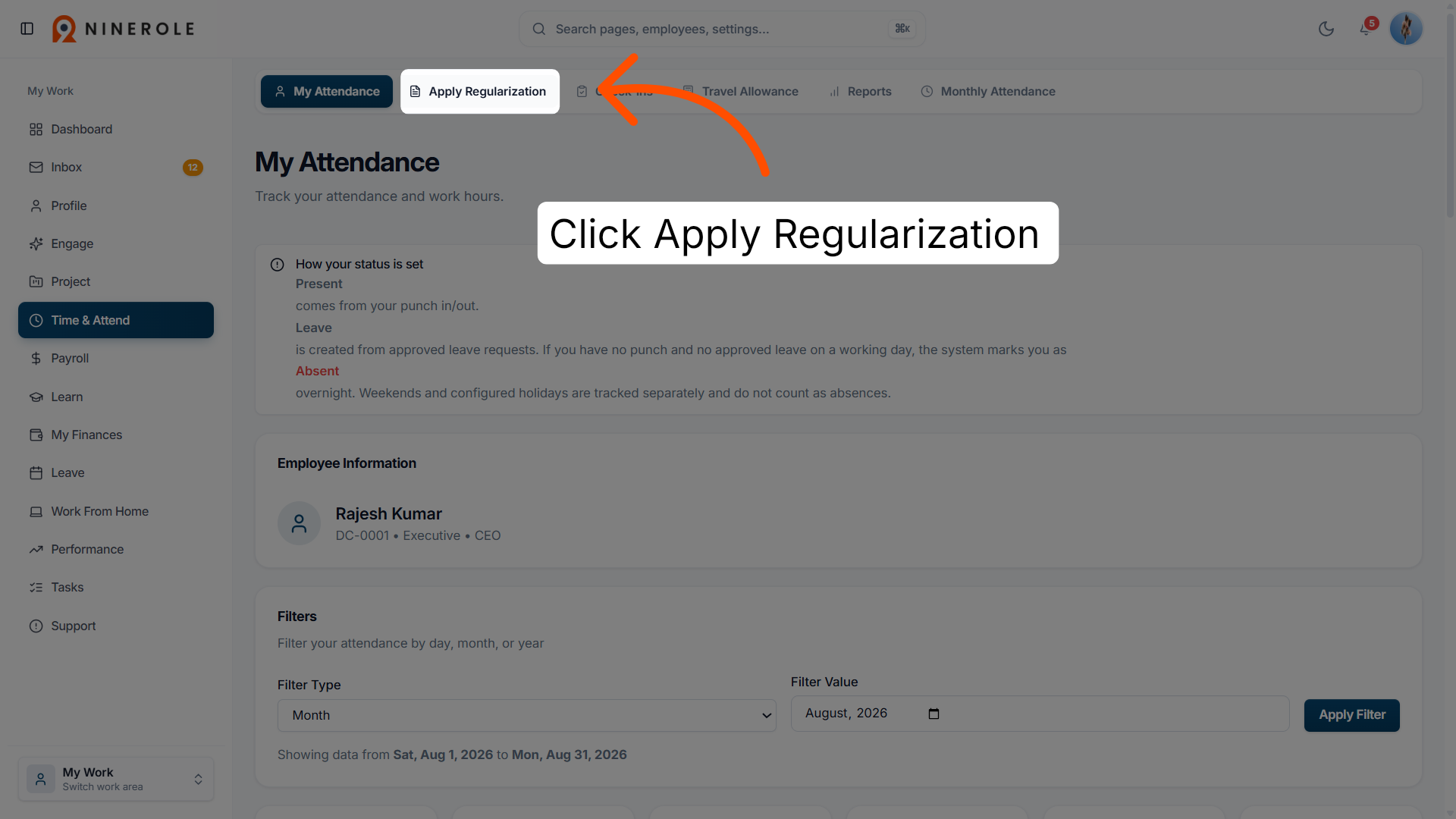
4. Select Apply Regularization
Click Apply Regularization to begin the process of correcting your attendance records.
Complete the regularization form
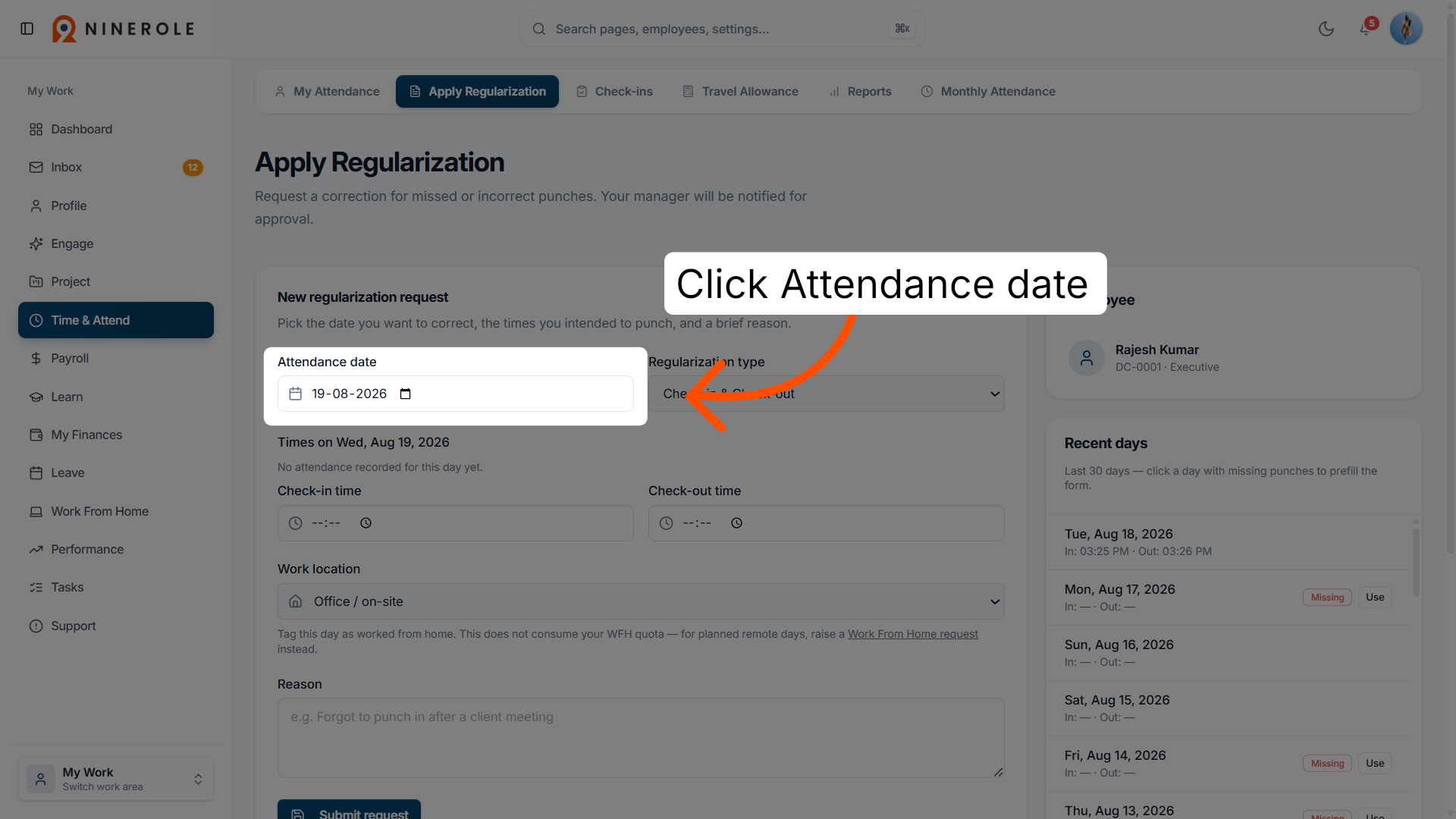
5. Choose the attendance date
Click Attendance date to select the specific date for which you want to apply regularization.
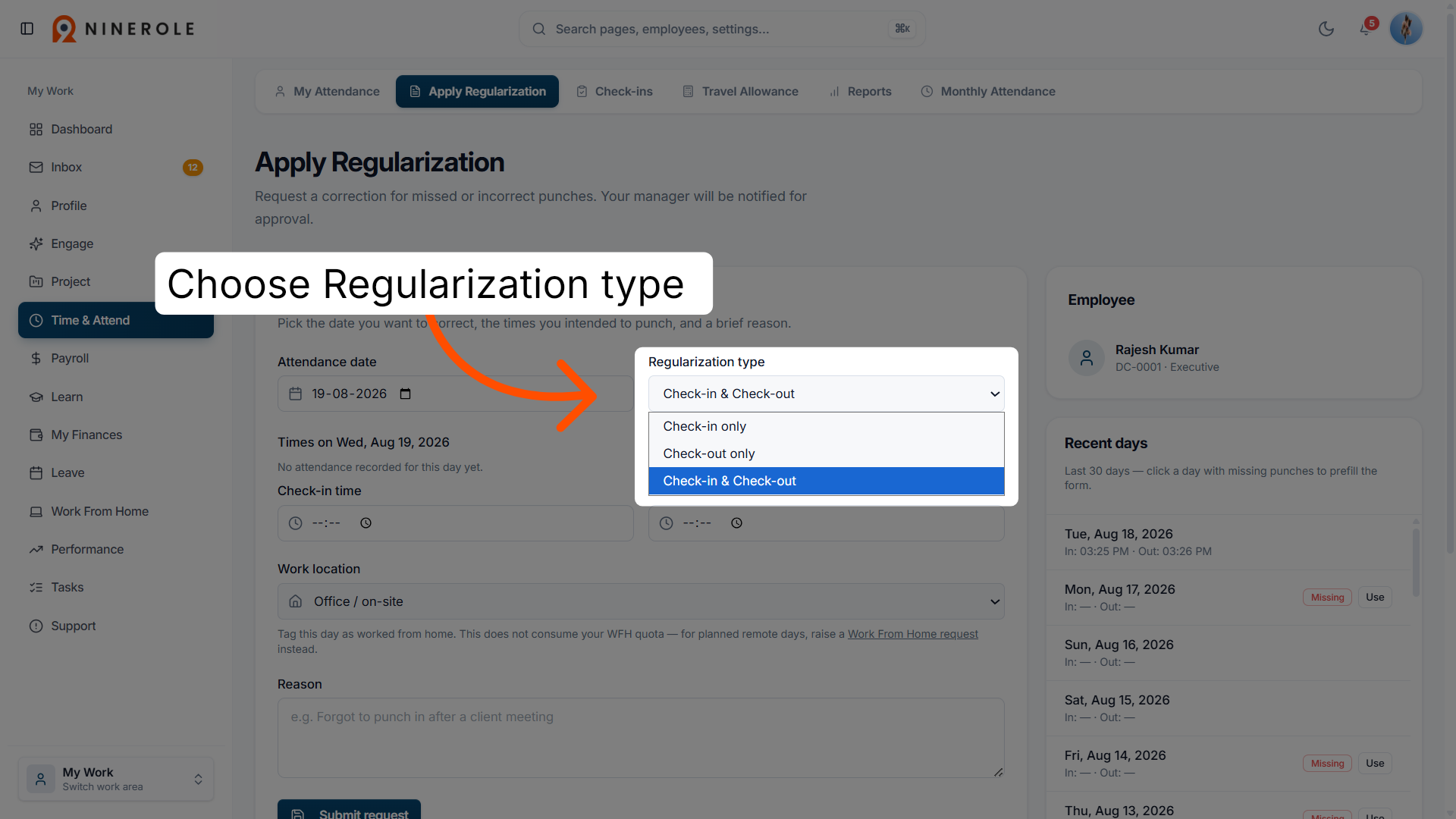
6. Select the regularization type
Choose the type of attendance correction needed:
- Check-in only
- Check-out only
- Check-in & Check-out
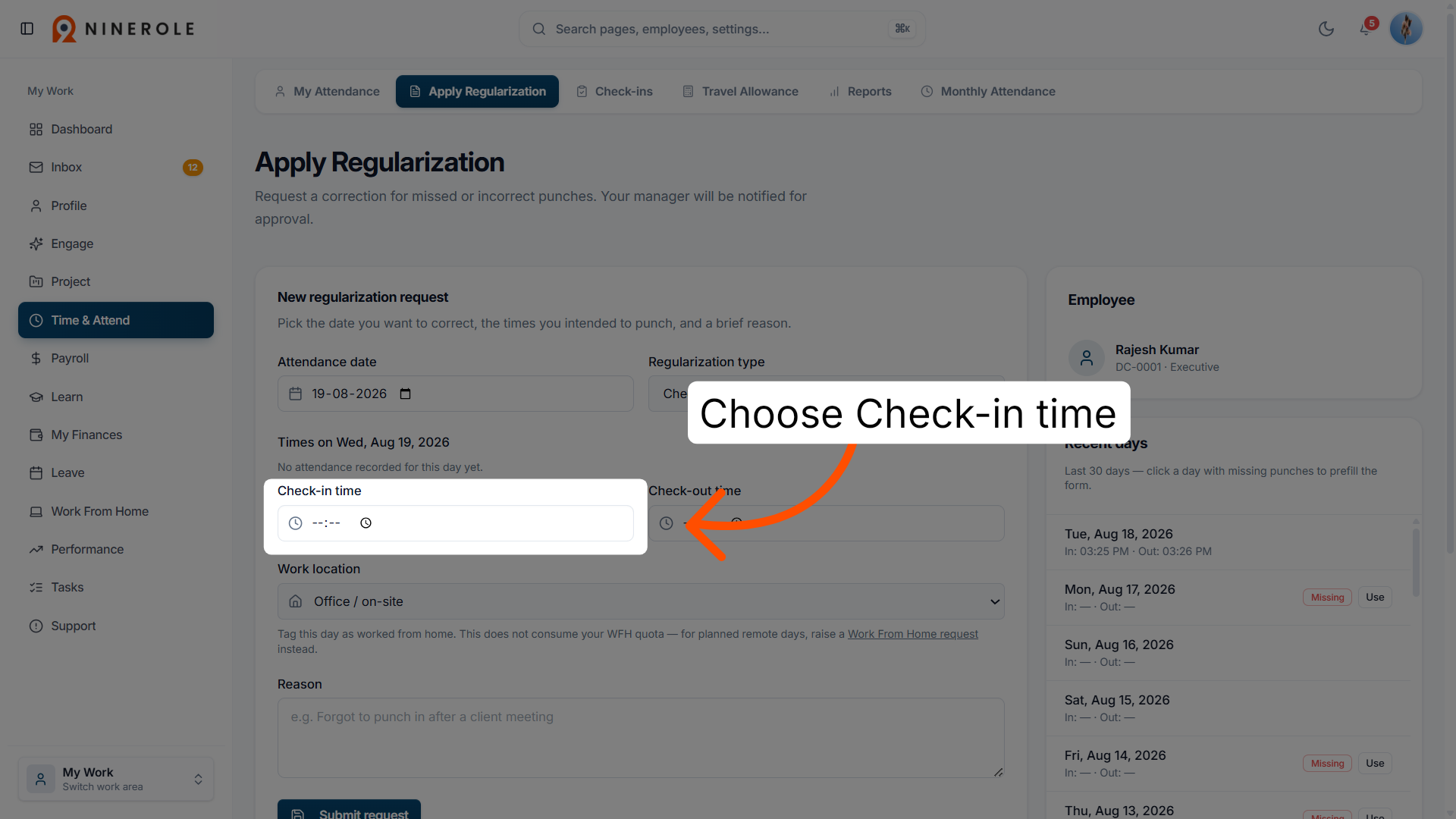
7. Set the check-in time
Choose Check-in time to enter the corrected time you arrived at work for the selected date.
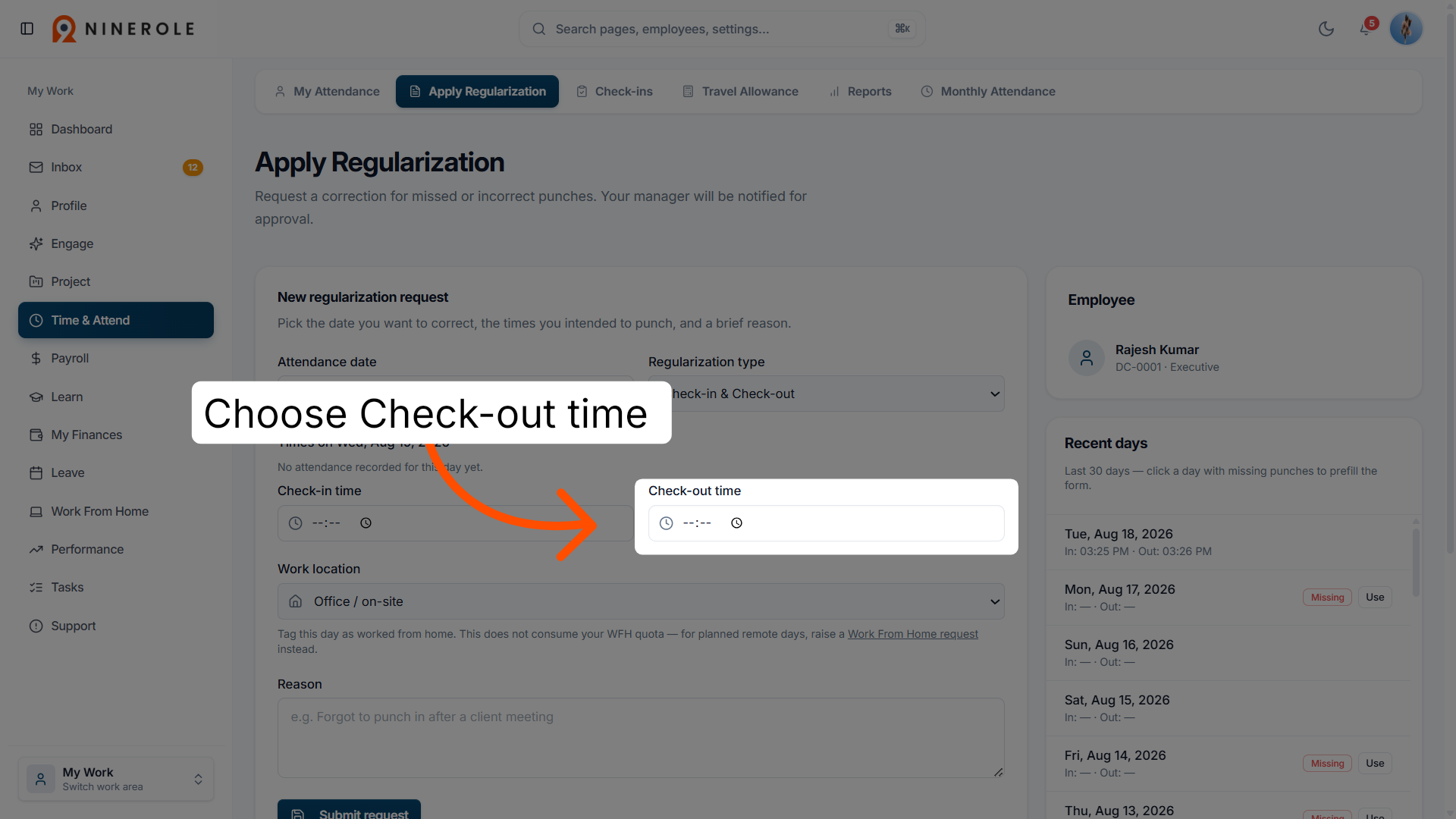
8. Set the check-out time
Choose Check-out time to enter the corrected time you left work for the selected date.
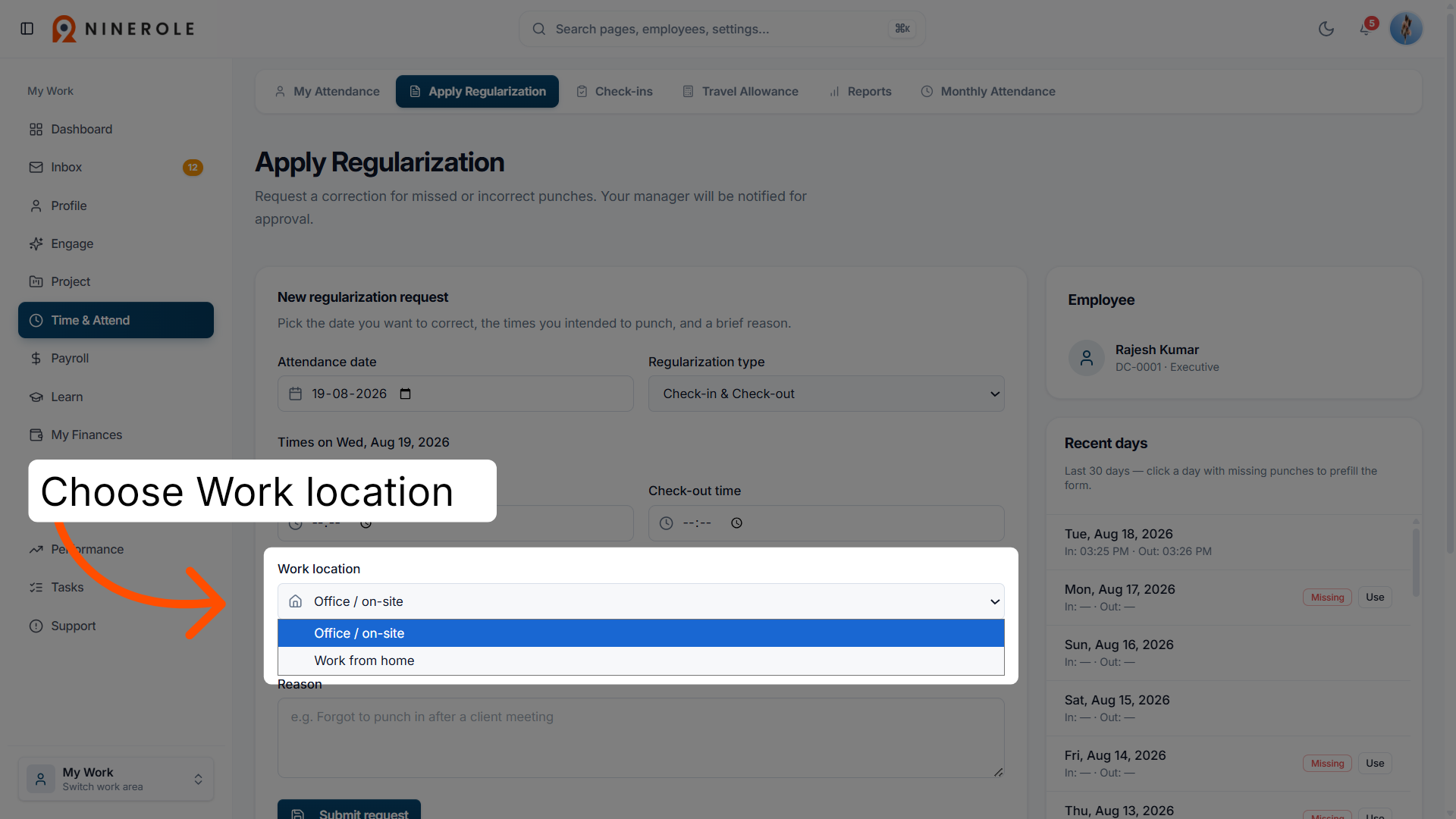
9. Choose the work location
Choose Office / on-site or Work from home to indicate your work location for the attendance regularization.
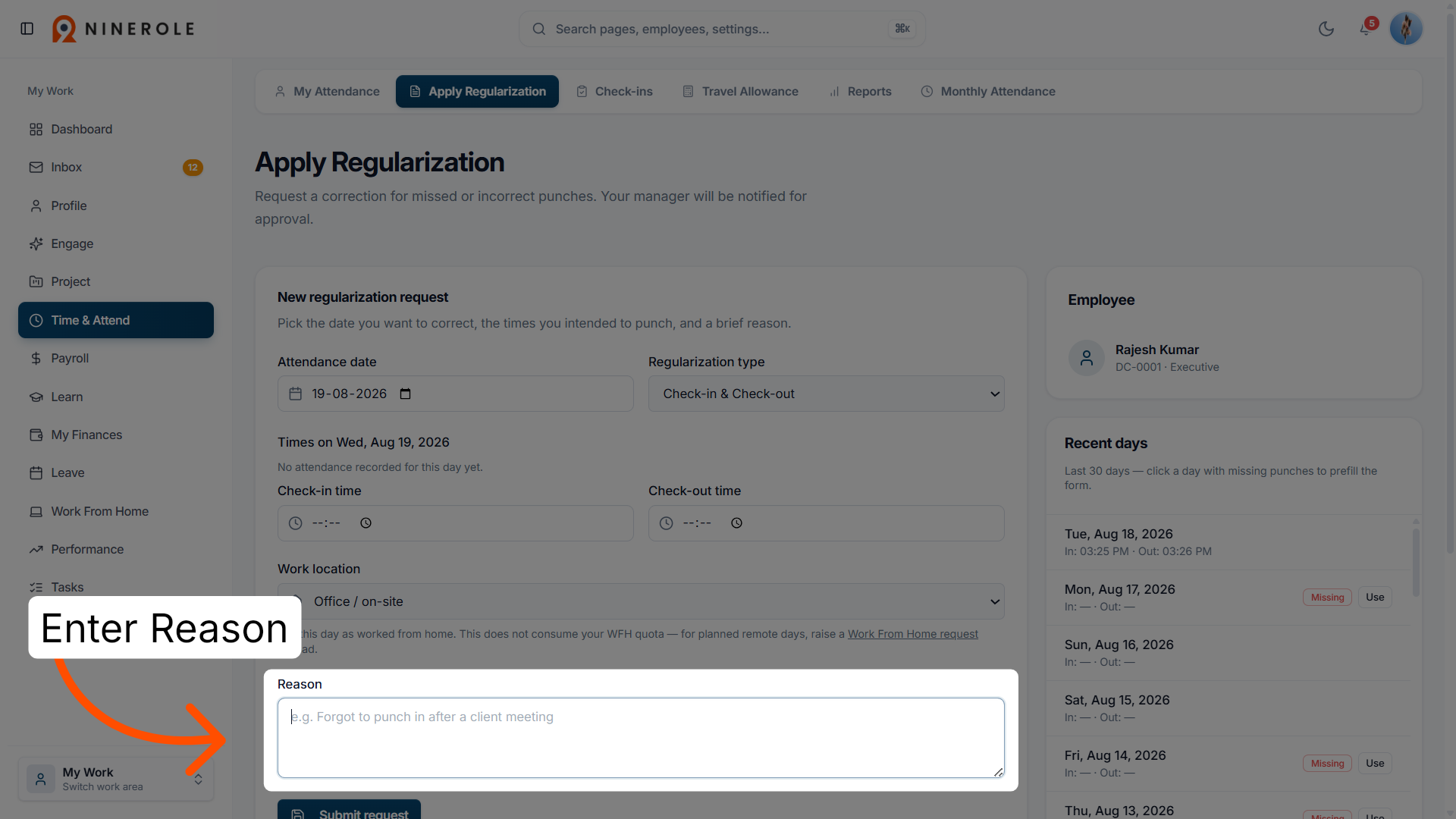
10. Provide a reason for the request
Enter a Reason to justify your attendance regularization request.
Submit and track
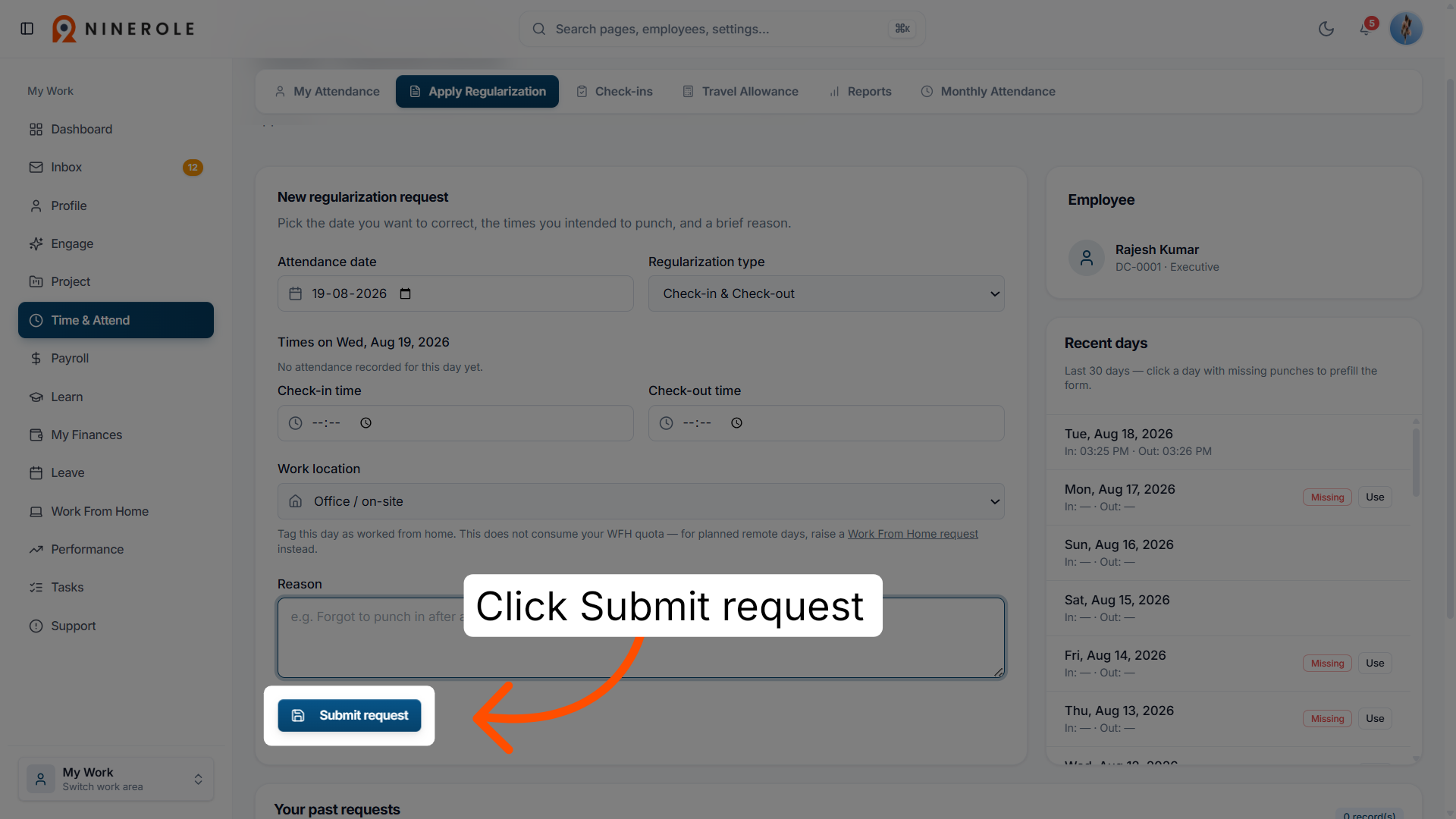
11. Submit the regularization request
Click Submit request to send your attendance regularization for approval and processing.
12. Access the past requests section
Your past requests shows all your previous submissions in the Ninerole application.
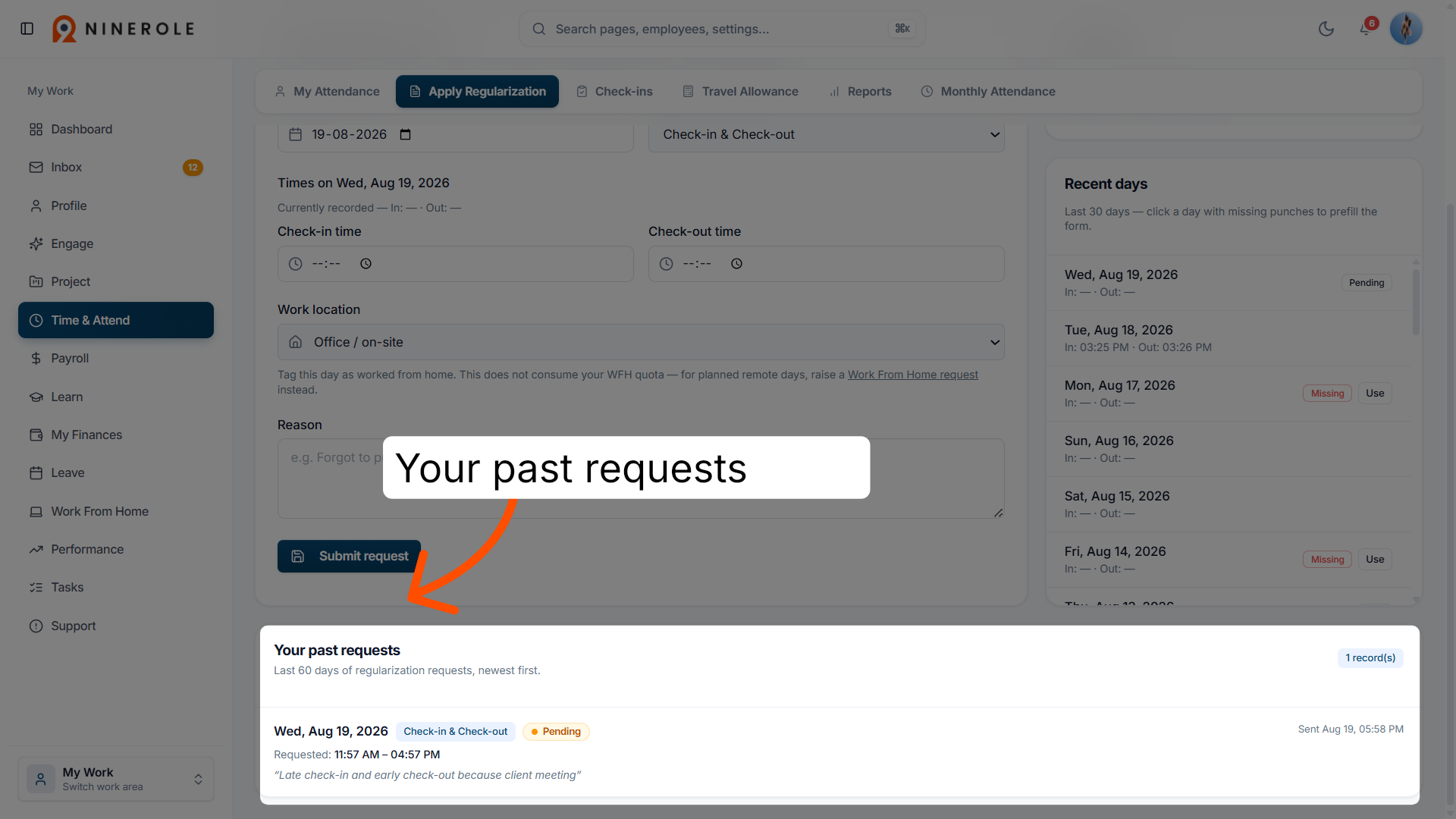
You have successfully submitted an attendance regularization request in Ninerole HRMS. Verify your request status in the attendance section and follow up if necessary for approval or further action.
Back to Attendance · all modules · Ninerole HRMS overview
Last updated: