

Configure and Assign Roles
This tutorial guides you through configuring and assigning roles within the Ninerole administration panel. You will learn how to create a new role and assign the appropriate permissions to manage your organization.
Before you start, go to ninerole.com.
About this task
- Purpose
- Create a user role and choose the permissions that control what its holders can see and manage.
- Who can do this
- Owner or HR admin
- Before you start
- The company exists.
- You will need
- A role name and the set of permissions it should carry.
- Result
- A saved role that can be assigned to employees.
- This unlocks
- Assigning access when creating or editing an employee.
This guide answers
- How do I create a role?
- How do I assign permissions to a role?
- What are the built-in access levels?
- How do I give someone payroll access?
- Why can't a user see a section?
If something goes wrong
- The role was not created.
- Selecting permissions is not enough — you have to click Create Role to save. Leaving the page discards it.
- A user still cannot see a section.
- Check the role is actually assigned on their employee record, and that the permission is in the role.
Related: Company details · Business units · Add an employeeAlso called: permissions, access level, user role.Last verified: 7 September 2026
1. Introduction
You will learn how to create a new role and assign the appropriate permissions to manage your organization.
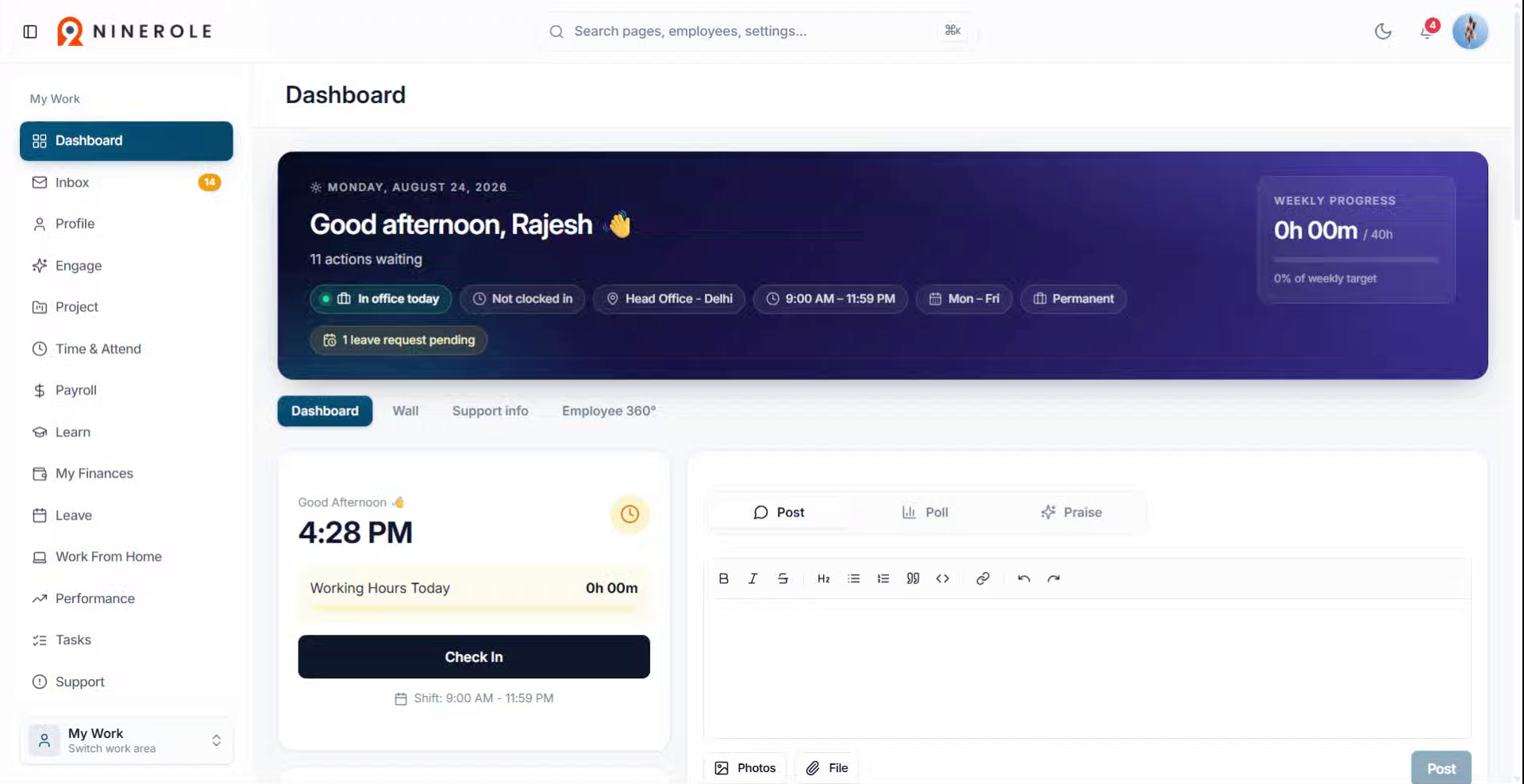
Open Roles management
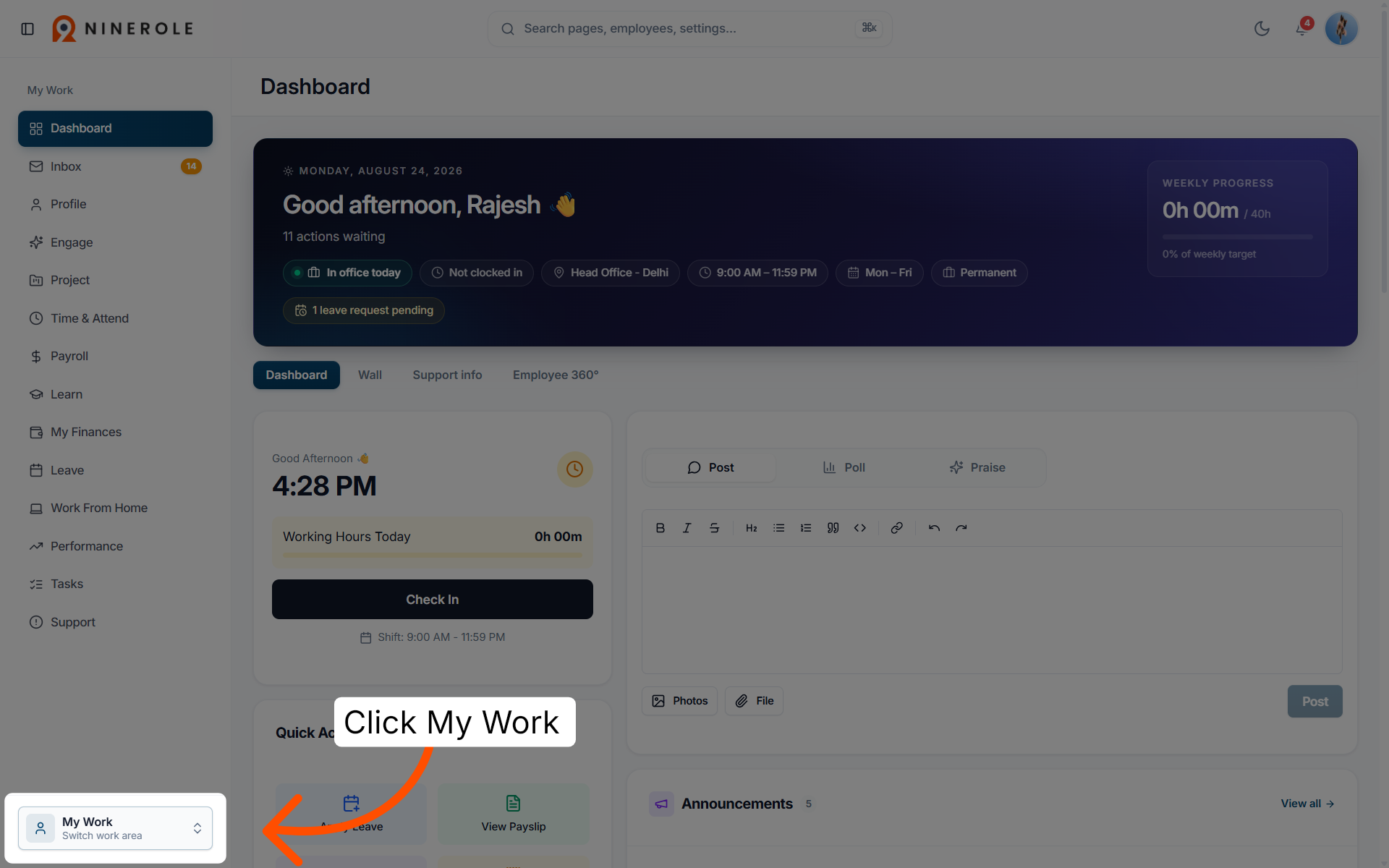
2. Switch work area
Click My Work → Switch work area to change your current workspace.
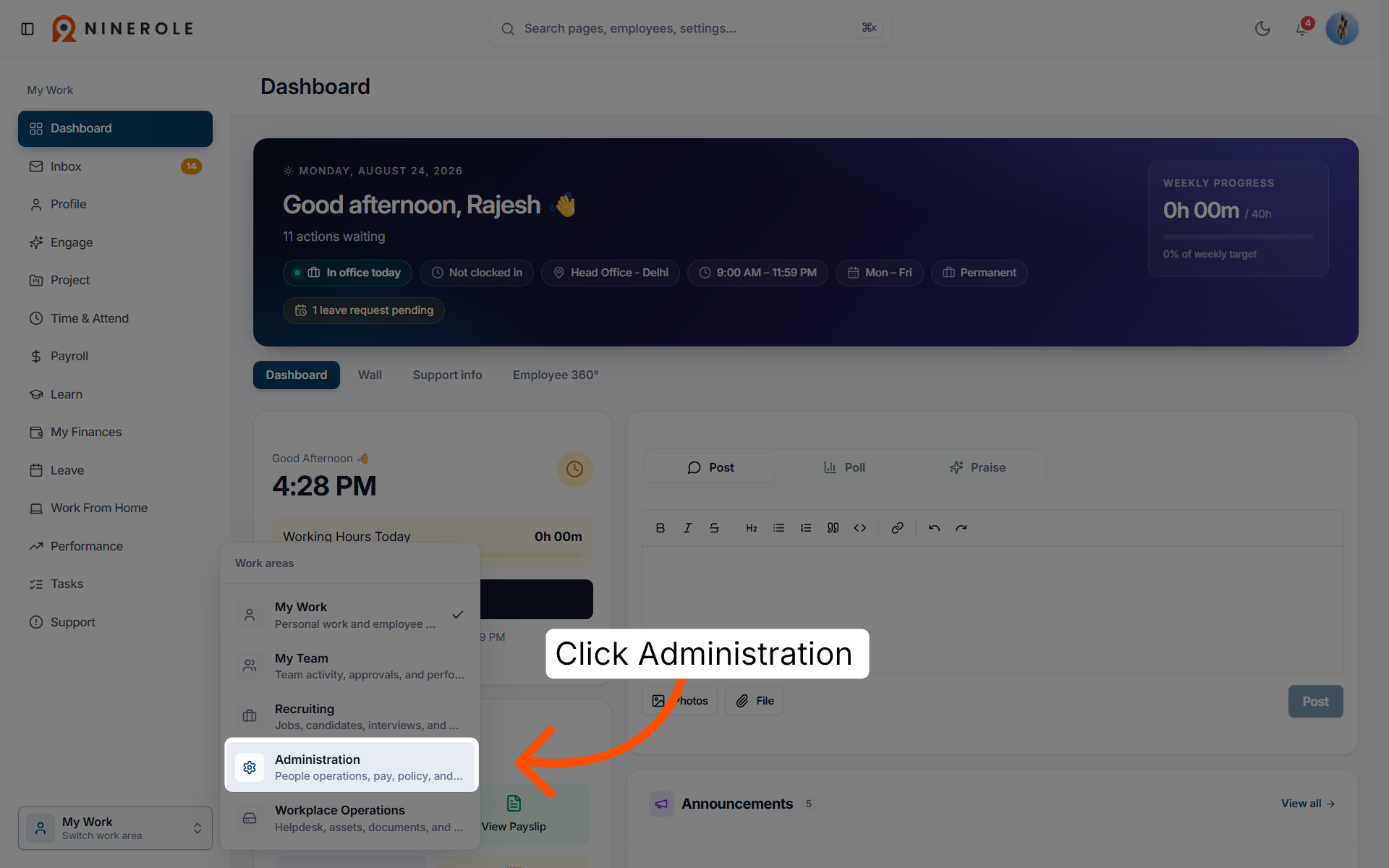
3. Access the Administration section
Click Administration to open the administration settings.
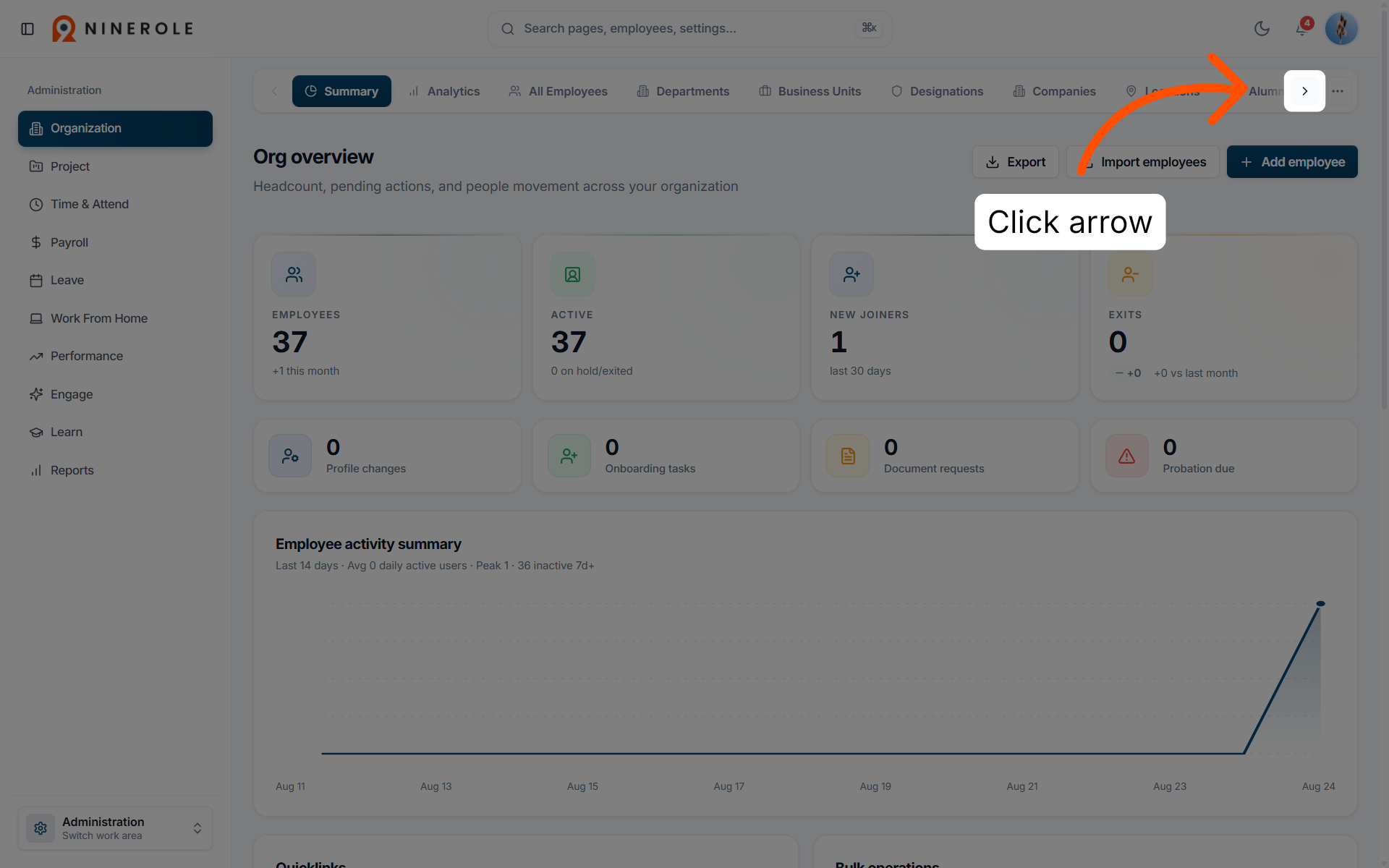
4. Open the organization summary
Click the arrow to navigate to the organization summary page.
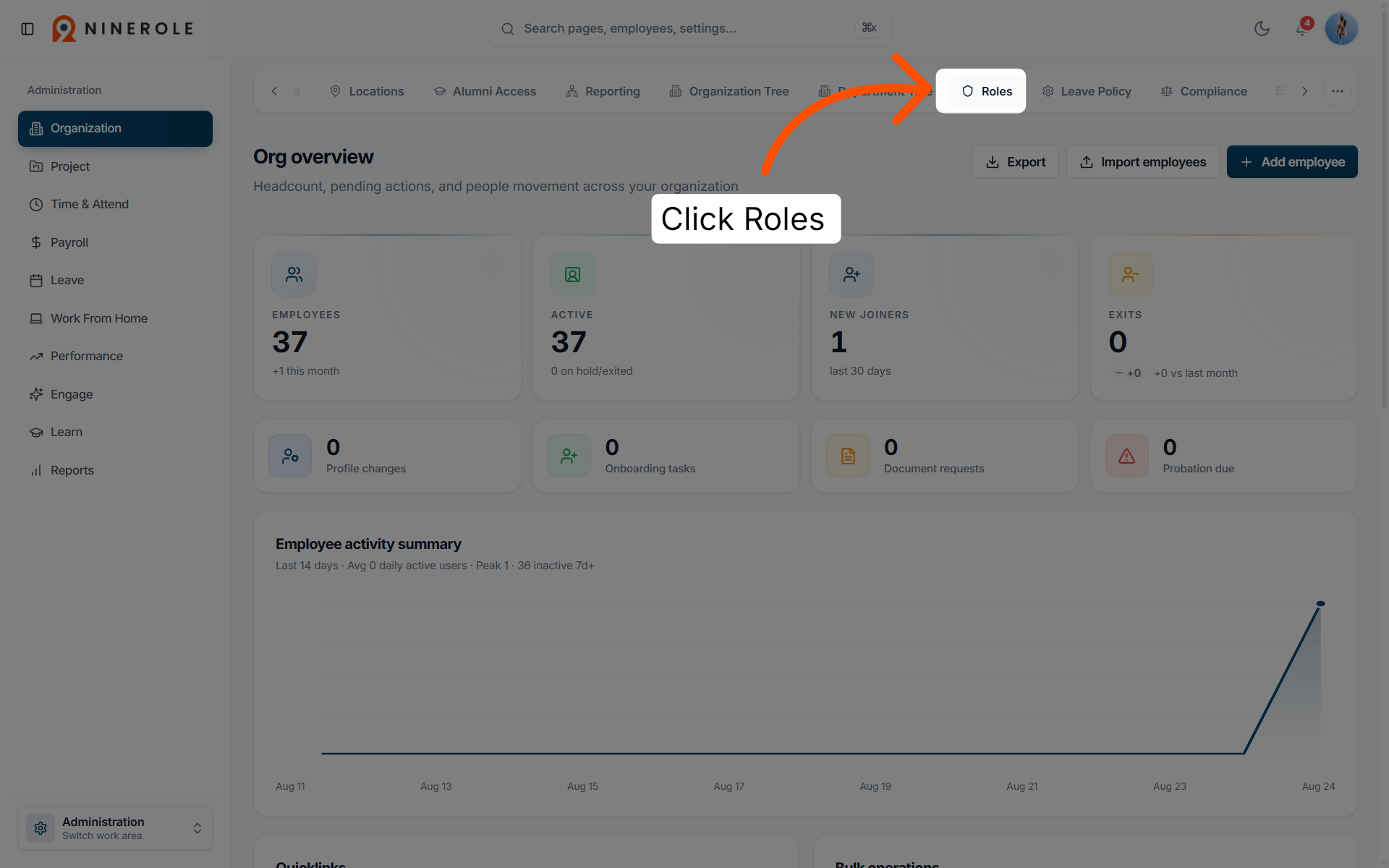
5. Access Roles management
Click Roles to manage user roles within the organization.
Create the role
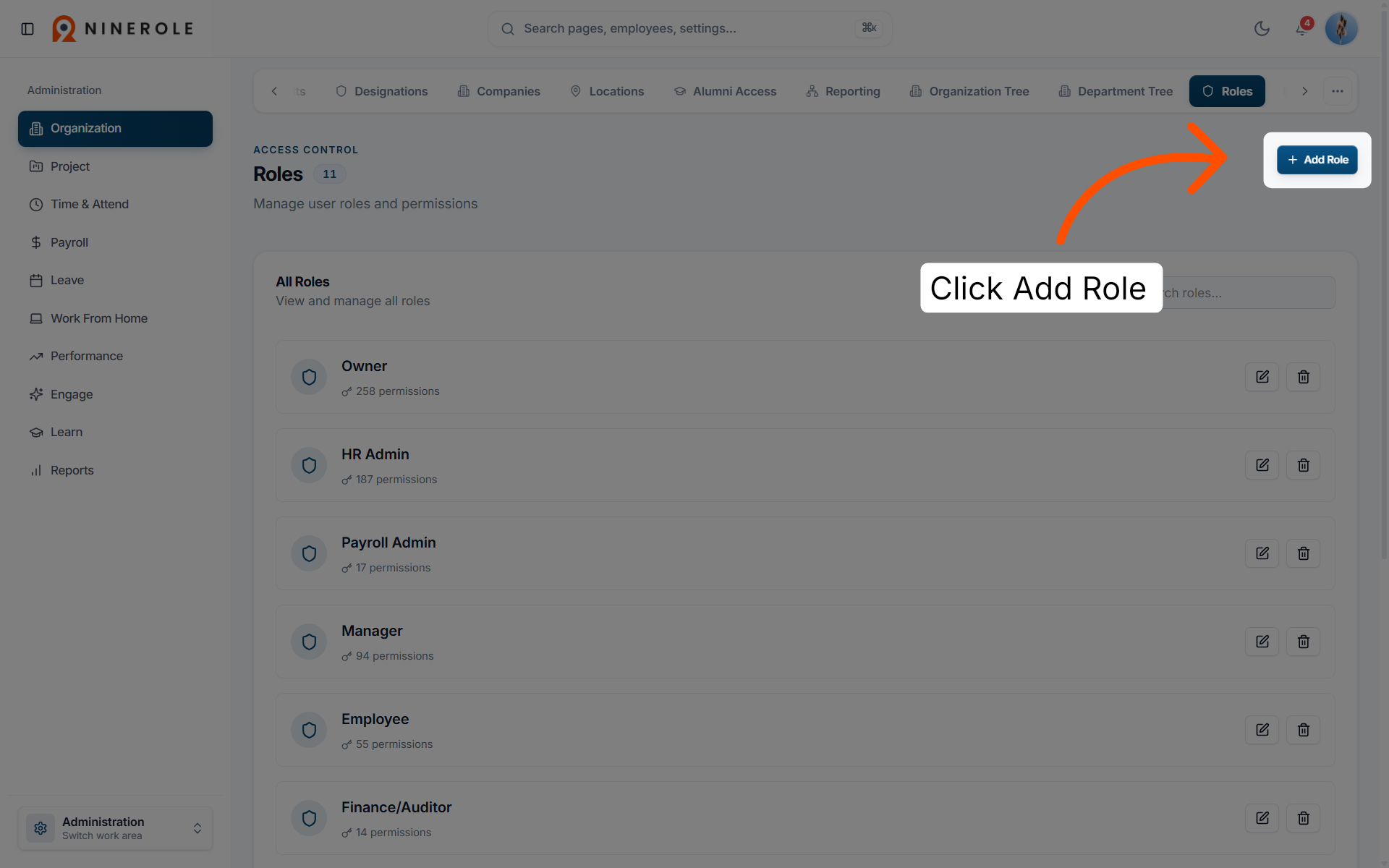
6. Initiate role creation
Click Add Role to start creating a new user role.
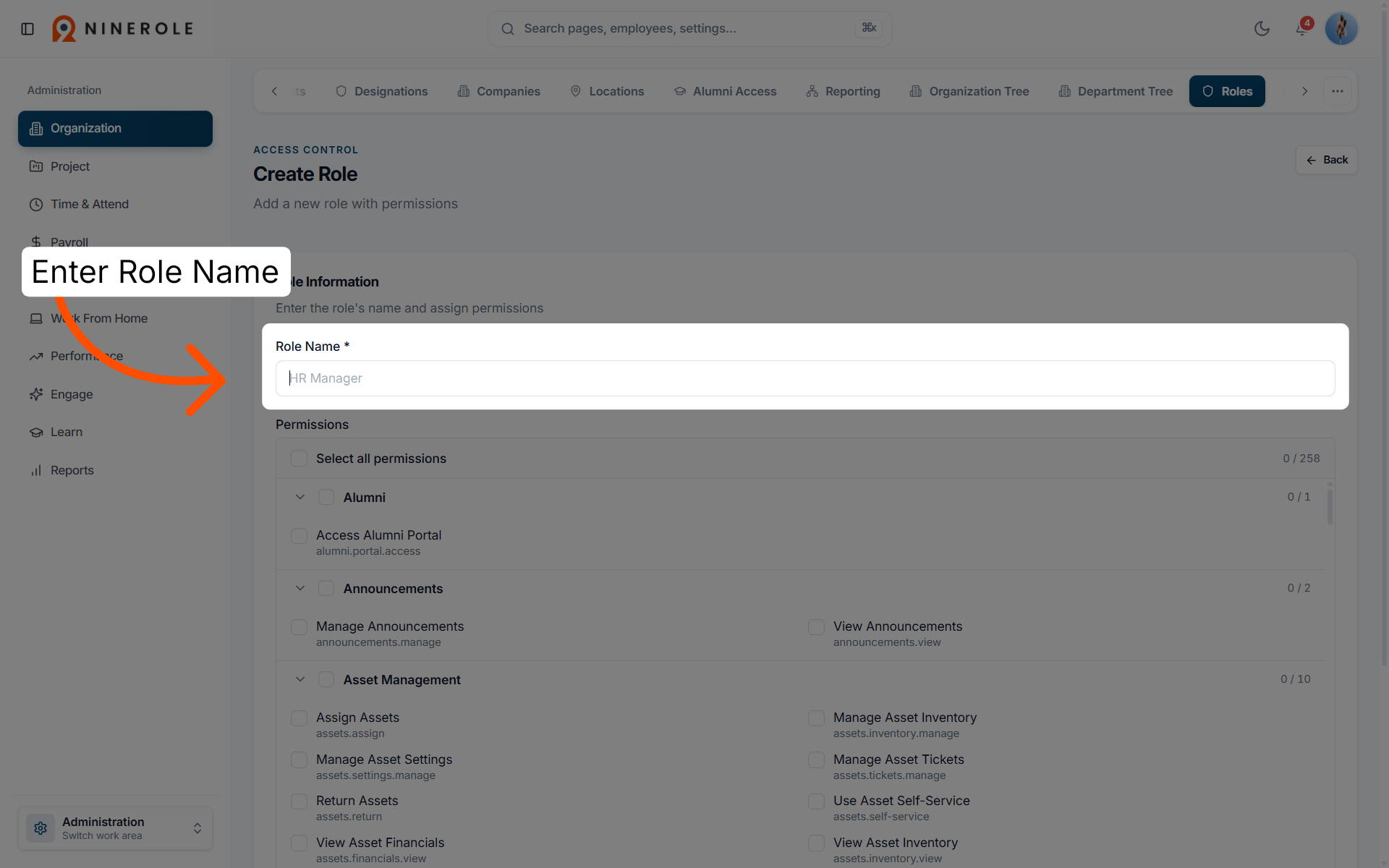
7. Select the Role Name field
Enter Role Name to name the new role.
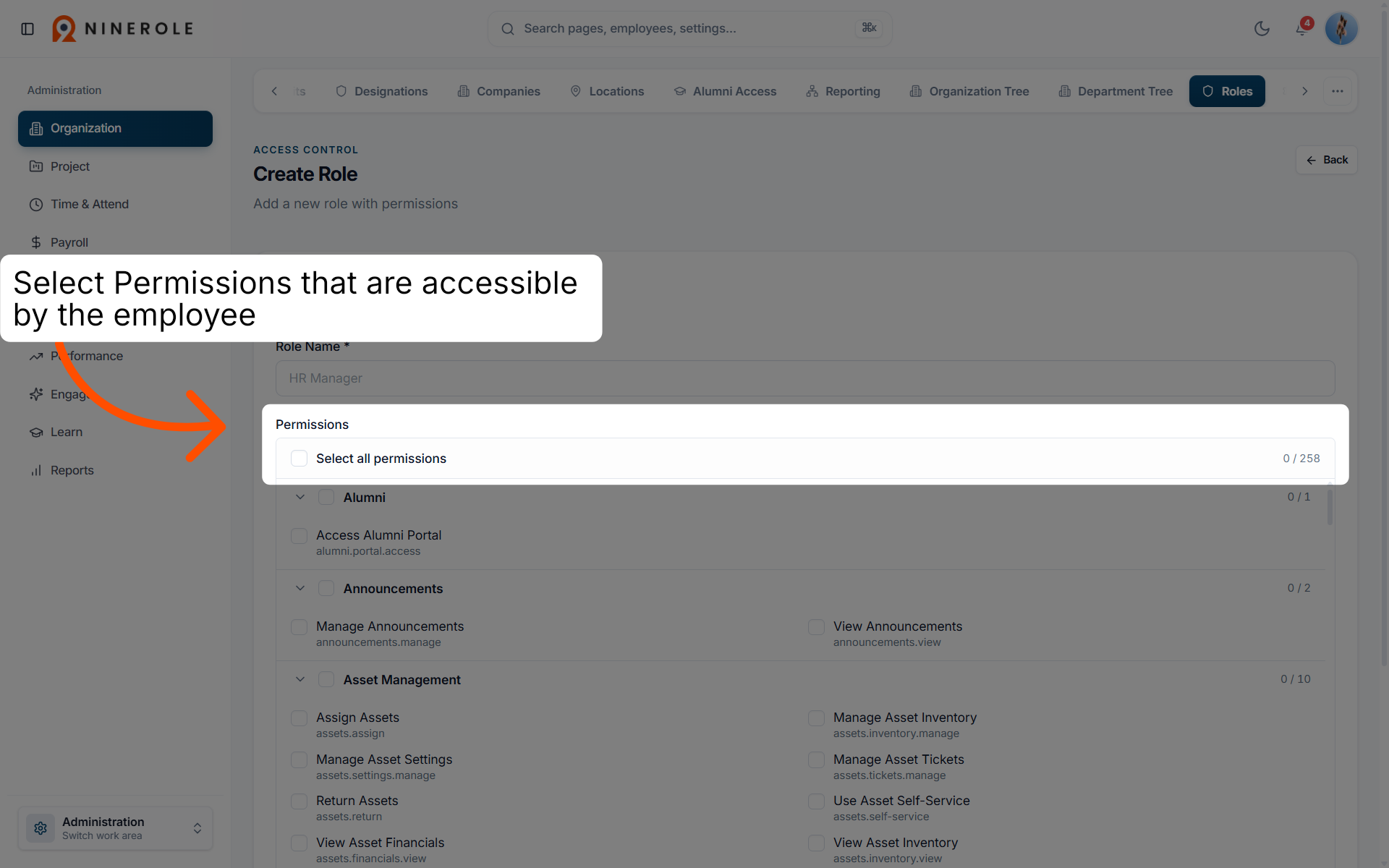
8. Access the permissions options
Select the permissions that should be accessible to employees holding this role.
9. Save the role
Click Create Role to save it. The role is not created until you save — if you leave the page at step 8, the name and permissions you selected are discarded.
You have successfully created a new role in Ninerole and assigned the necessary permissions to manage various organizational functions. You can now manage user access effectively and customize roles as needed for your team.
Back to Administration · all modules · Ninerole HRMS overview
Last updated: