

Run and Finalize Payroll Processes
This tutorial explains how to run and finalize a payroll cycle in Ninerole HRMS — from the readiness check through to the bank file your corporate net banking needs.
Before you start, go to ninerole.com and sign in with an account that can process payroll.
Salary structures and payslip layouts should already be in place. If they are not, set them up first with Components and templates, Salary details and Payslip templates.
About this task
- Purpose
- Process a month's payroll from the readiness check through to the bank salary file.
- Who can do this
- Payroll administrator — not an ordinary employee or manager
- Before you start
- Salary structures are configured.
- A payslip template is set up.
- Each employee's salary details are complete.
- Attendance and leave for the period are settled, so the inputs are correct.
- You will need
- The pay period; approval to finalize; corporate-banking access to upload the bank file afterwards.
- Result
- The pay run is finalized and locked; payslips are generated; the bank salary file (a CSV) is available to download; statutory outputs such as PF ECR and the Form 138 salary-TDS preparation are produced.
- This unlocks
- Payslips for employees; the bank upload that pays people; statutory filing inputs.
This guide answers
- How do I run payroll?
- What has to be ready before I can run payroll?
- What is the difference between "calculate", "finalize calculation" and "finalize payroll"?
- Can I still change an amount before I finalize?
- Can I reverse payroll after it is finalized?
- Who is allowed to run and finalize payroll?
- Where is the bank salary file, and what is Form 138?
If something goes wrong
- The readiness check fails.
- Something in the prerequisites is missing — a salary structure, a payslip template, or incomplete employee salary data. Fix the flagged item and re-run the check.
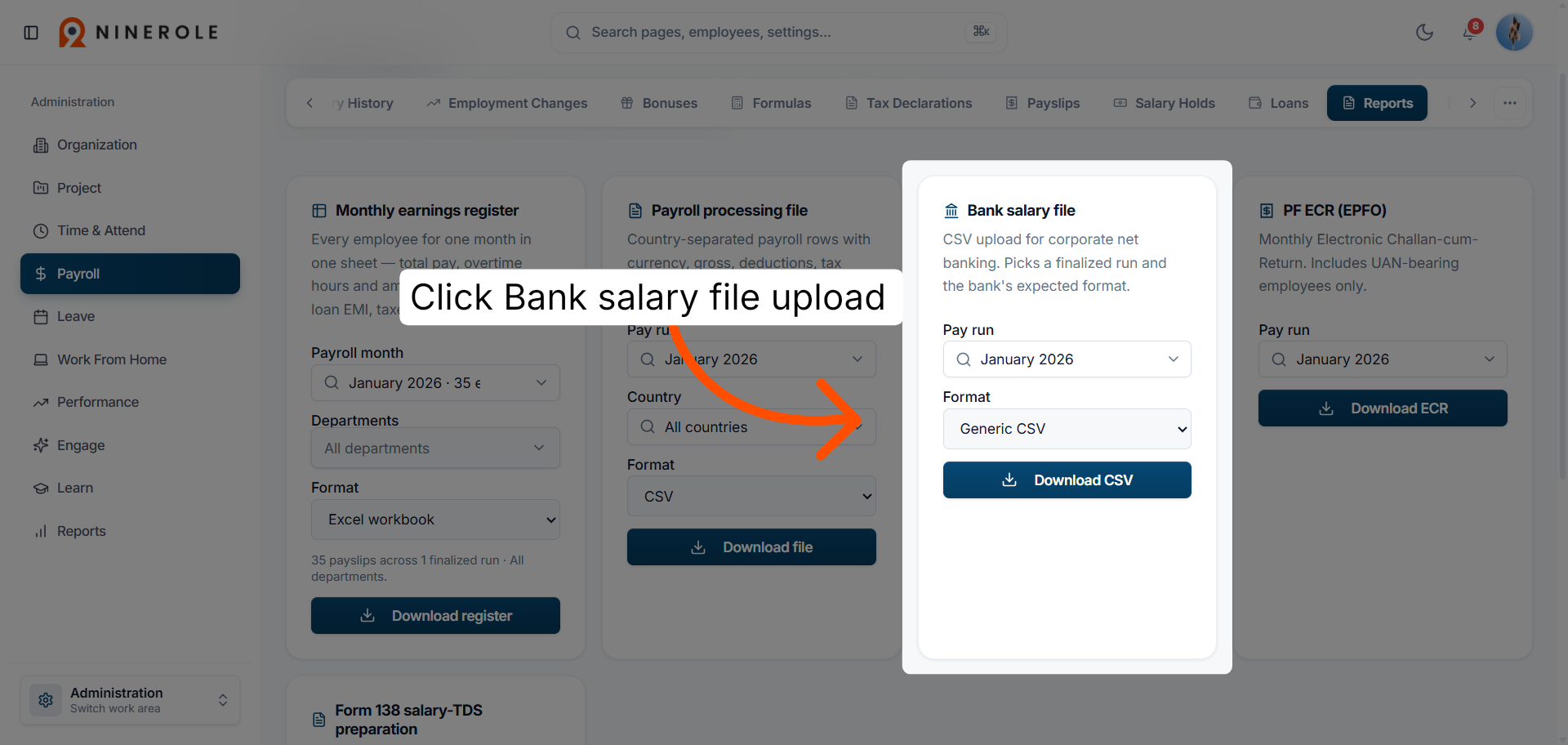
- An employee is missing salary data.
- Complete their salary details, then re-run the readiness check.
- Payroll already finalized.
- The run is locked. Finalizing is not a casual undo, so confirm your correction process before finalizing next time.
Form 138 is the current salary-TDS quarterly return. This help centre names the feature and does not state tax rates or thresholds — direct legal questions to a consultant.
Related: Components & templates · Salary details · Payslip templates · My payslipsAlso called: pay run, payroll processing, the pre-run gate / readiness check.Last verified: 7 September 2026
Open the payroll workspace
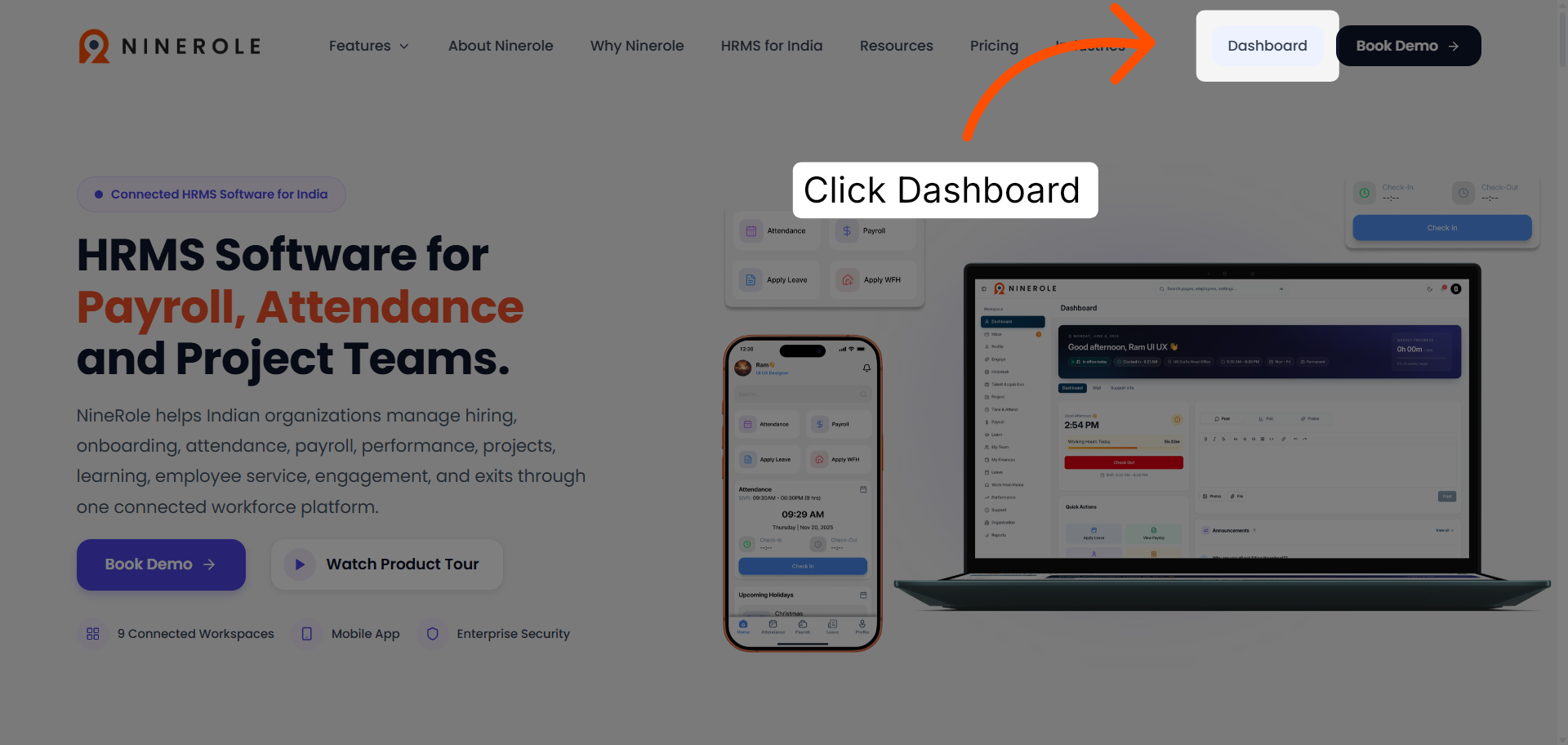
1. Access the dashboard overview
Click Dashboard for an overview of employee activity and system status.
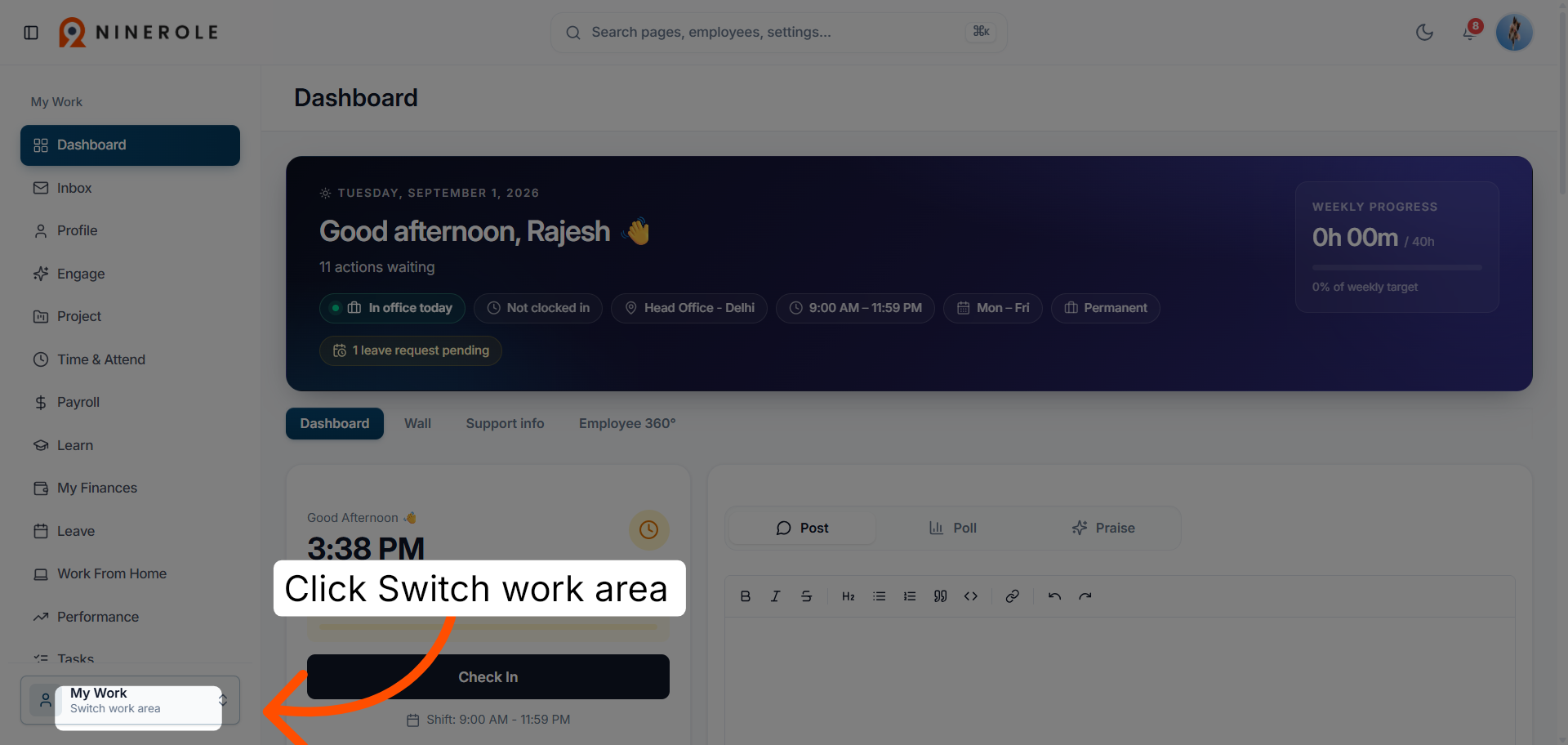
2. Switch the work area
Use Switch work area at the bottom of the sidebar to reach the other organizational functions.
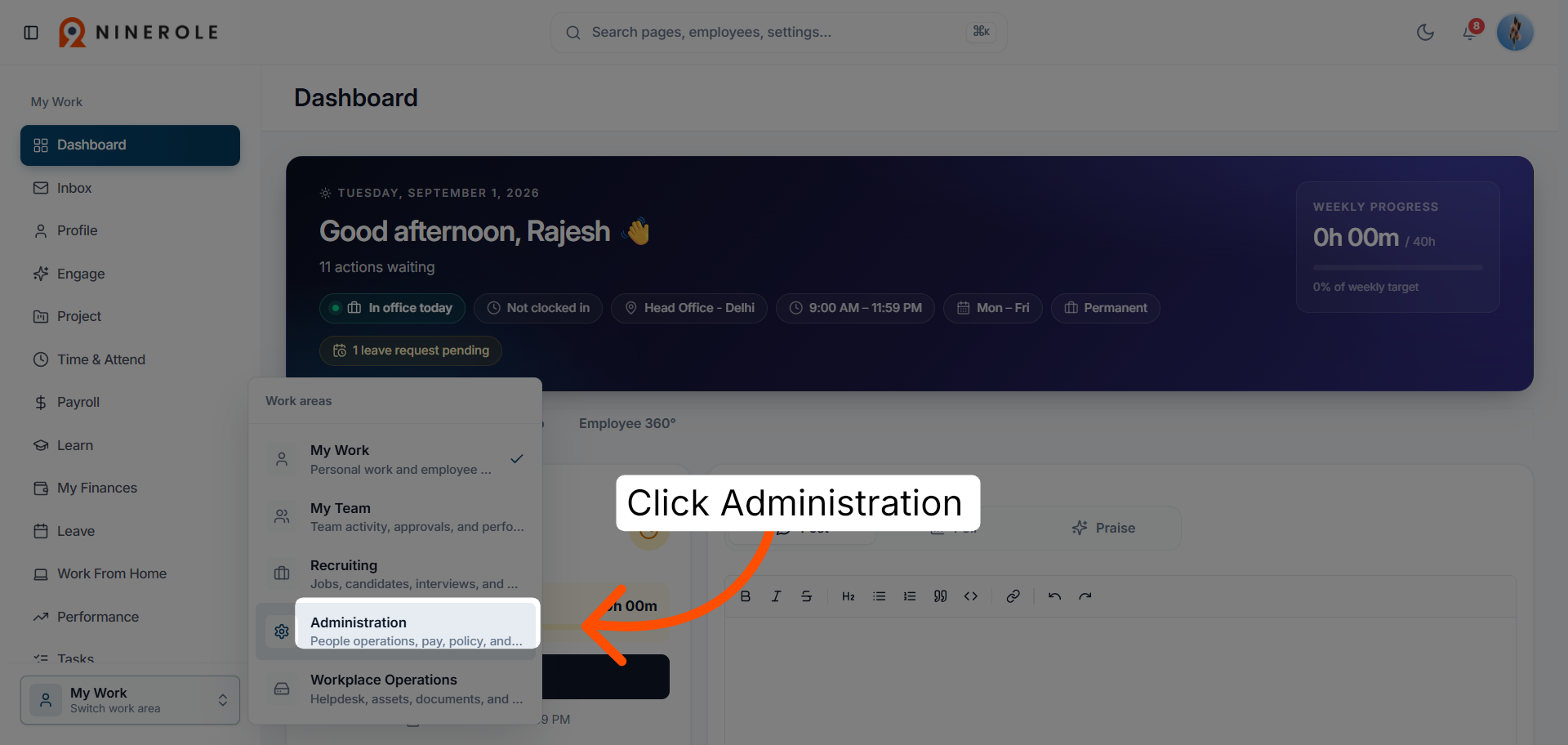
3. Open Administration
Open the Administration area, where organizational configuration and user roles are managed.
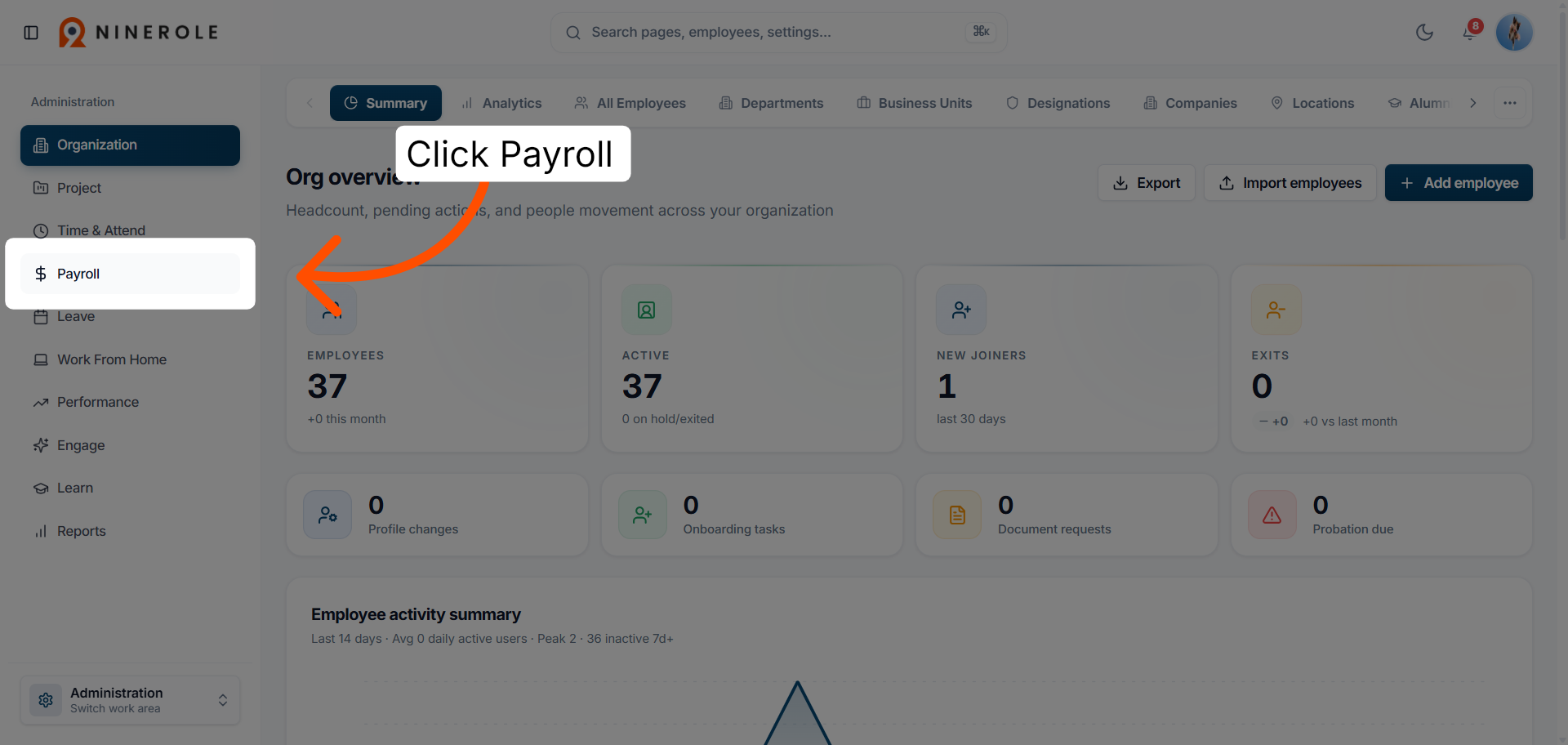
4. Go to the Payroll module
Open Payroll to manage employee compensation and the processes around it.
5. View the payroll overview
Open the payroll overview to monitor payroll status and recent activity.
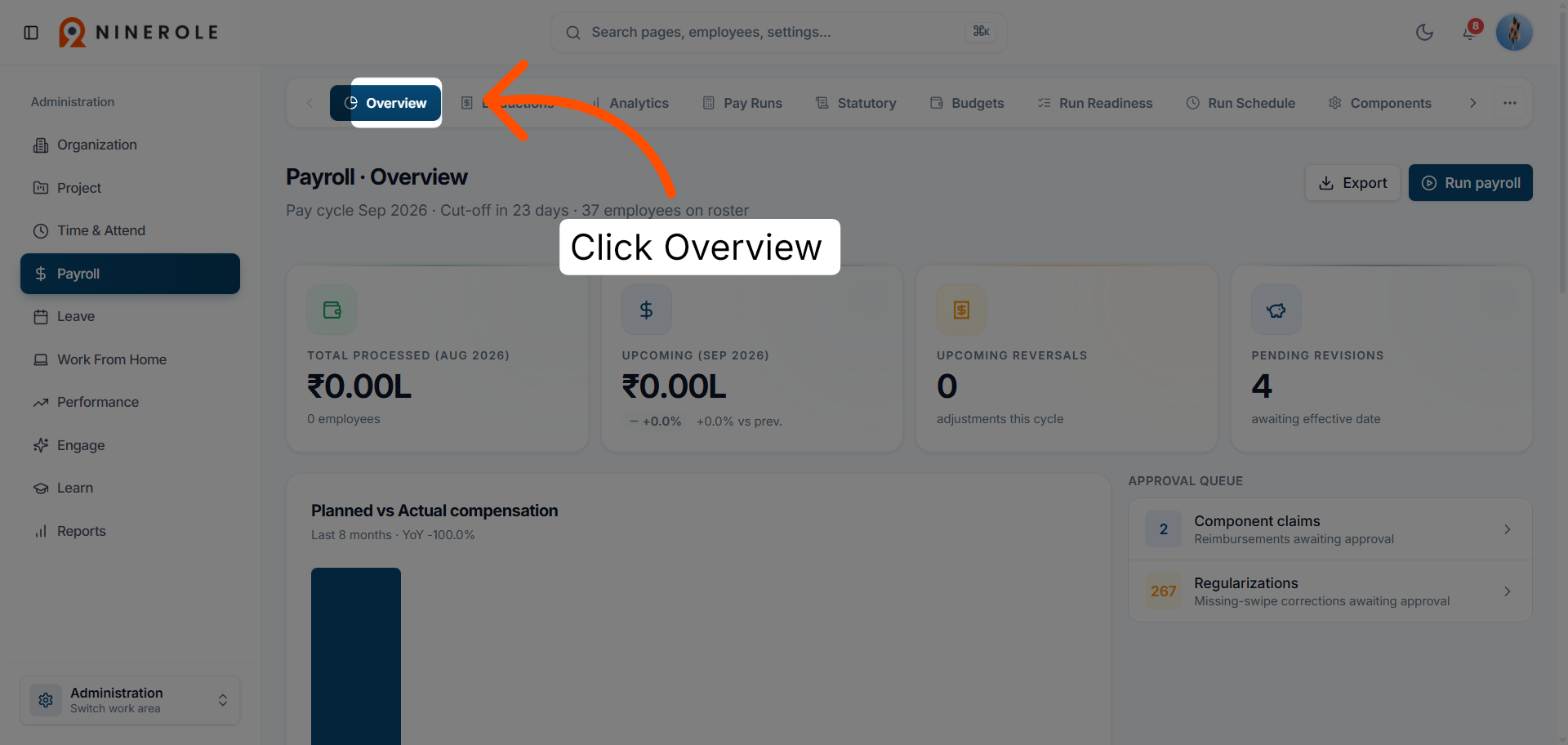
Run the payroll readiness check
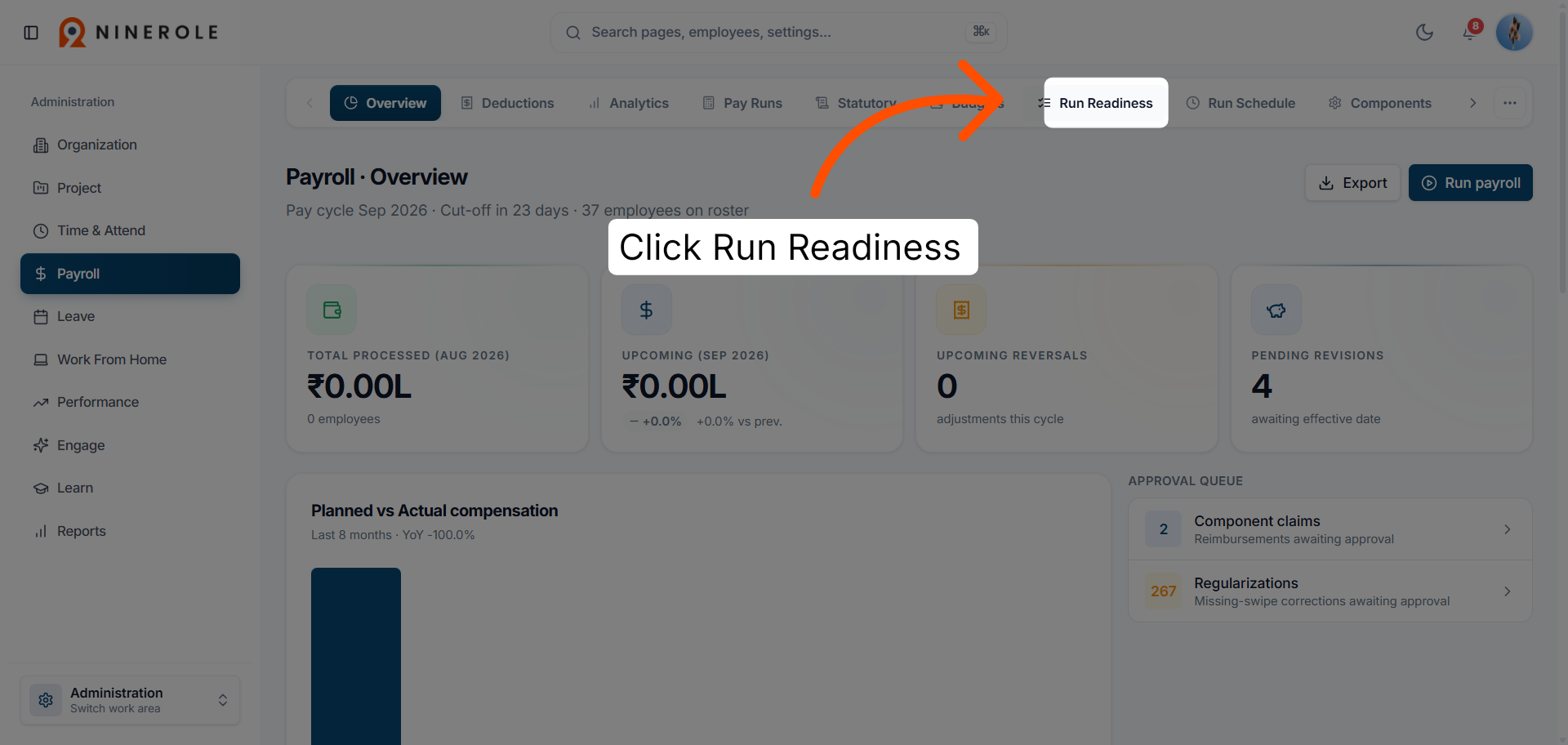
6. Start the readiness check
Click the payroll readiness check to confirm all the data needed for a payroll run is in place.
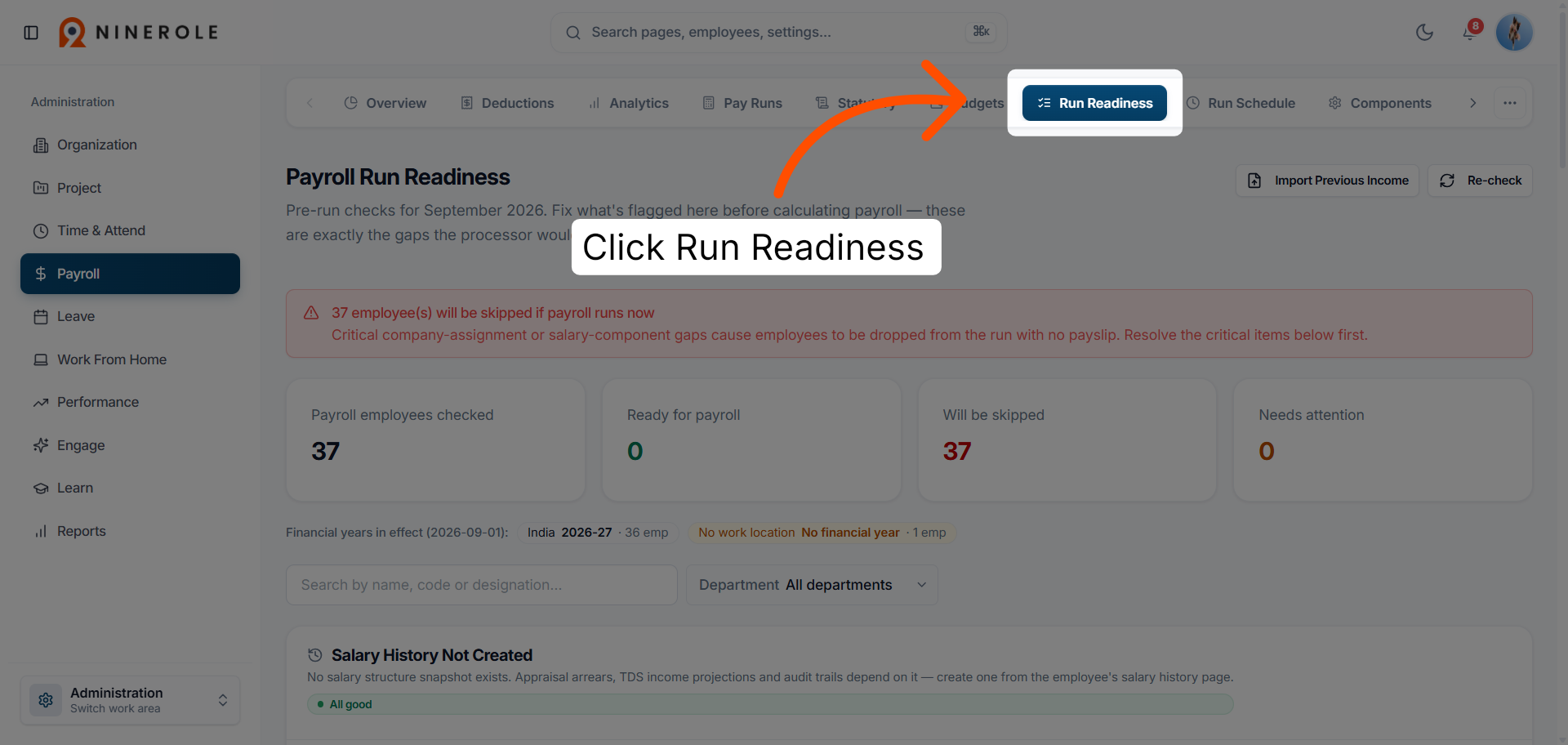
7. Review the readiness result
Run the check again after fixing anything it flags, so every payroll component is accurate and complete before you continue.
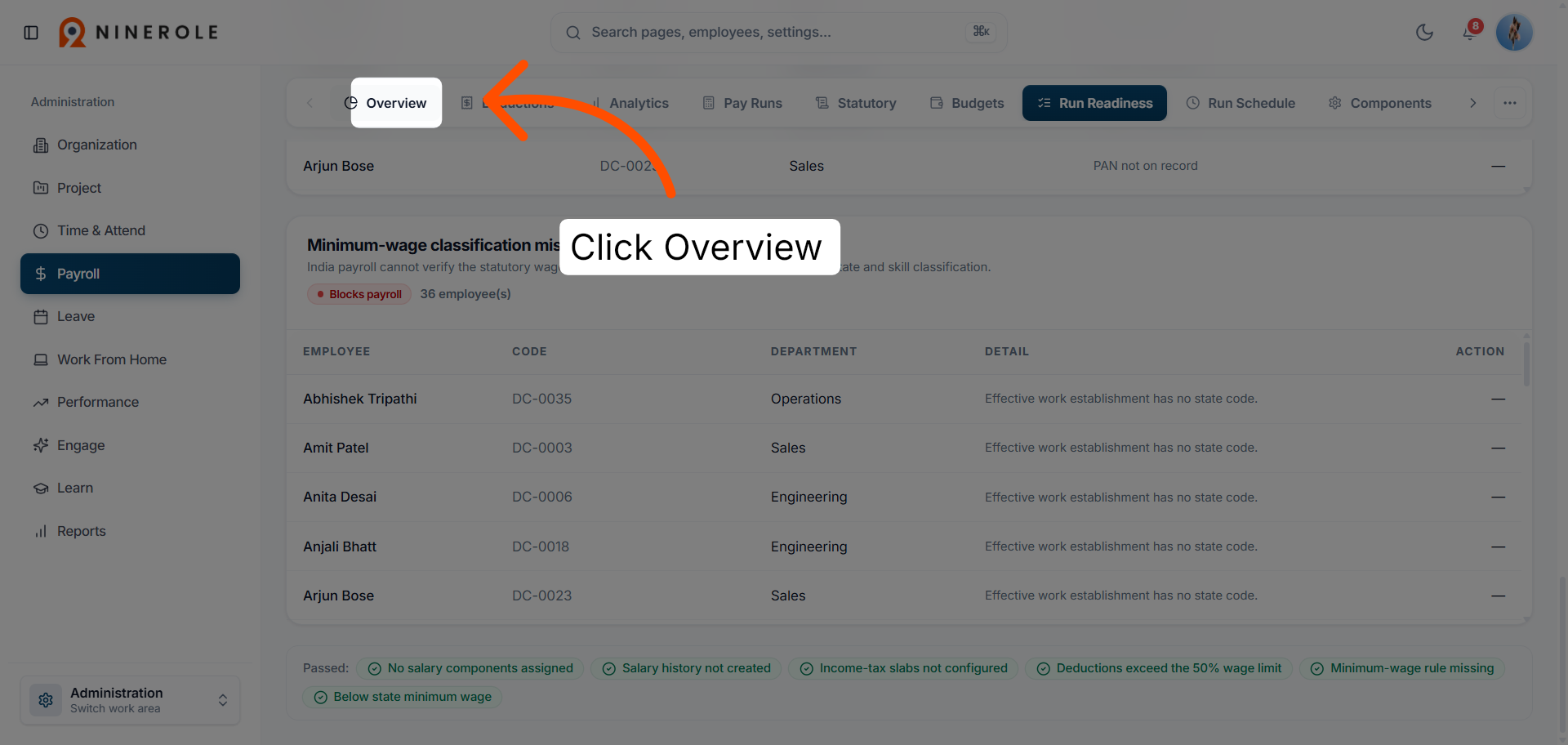
8. Return to the payroll overview
Go back to the overview to carry on once readiness is confirmed.
Create and process a pay run
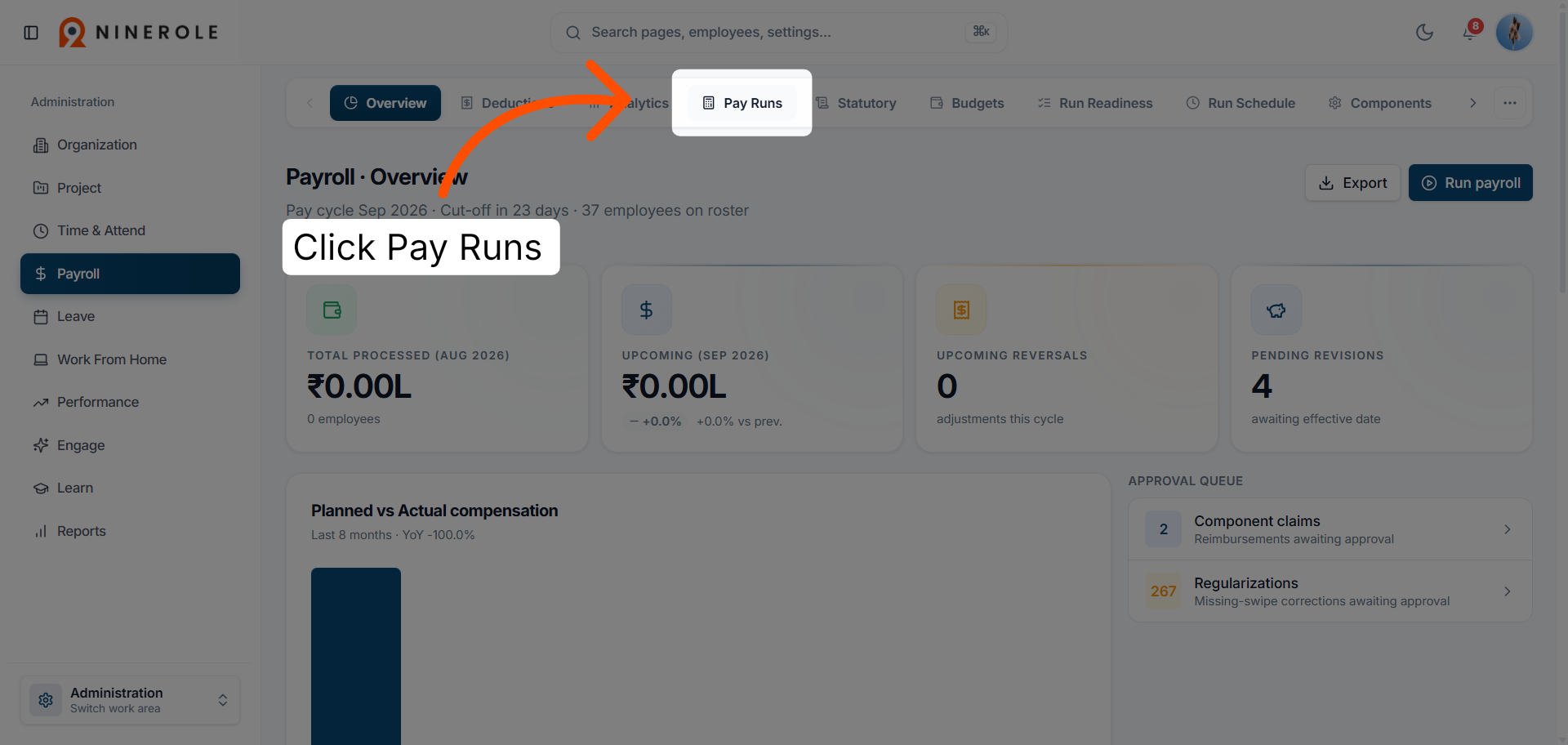
9. Open Pay Runs
Open the Pay Runs section to view and manage individual payroll cycles.
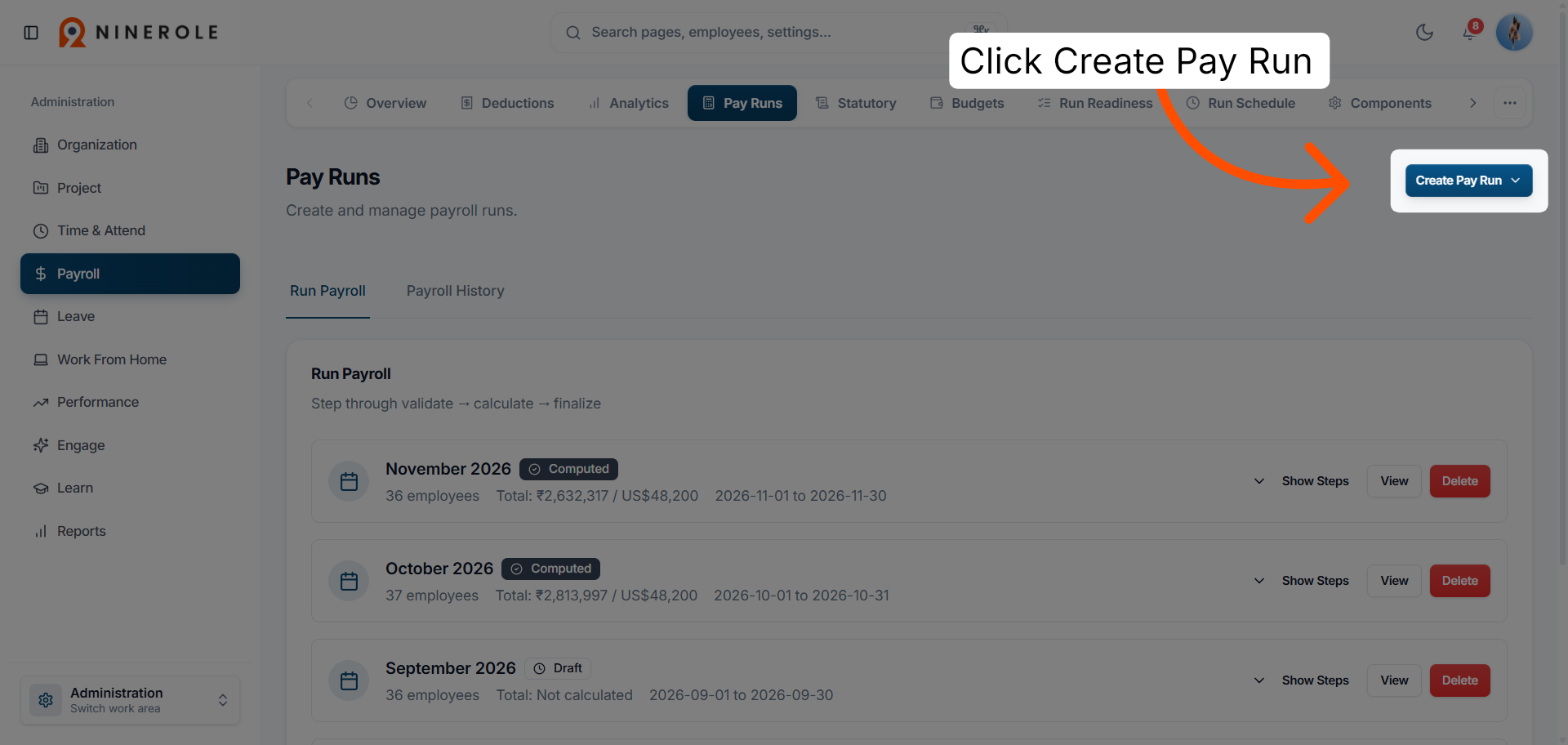
10. Create a pay run
Click Create pay run to start a new run for a specific period.
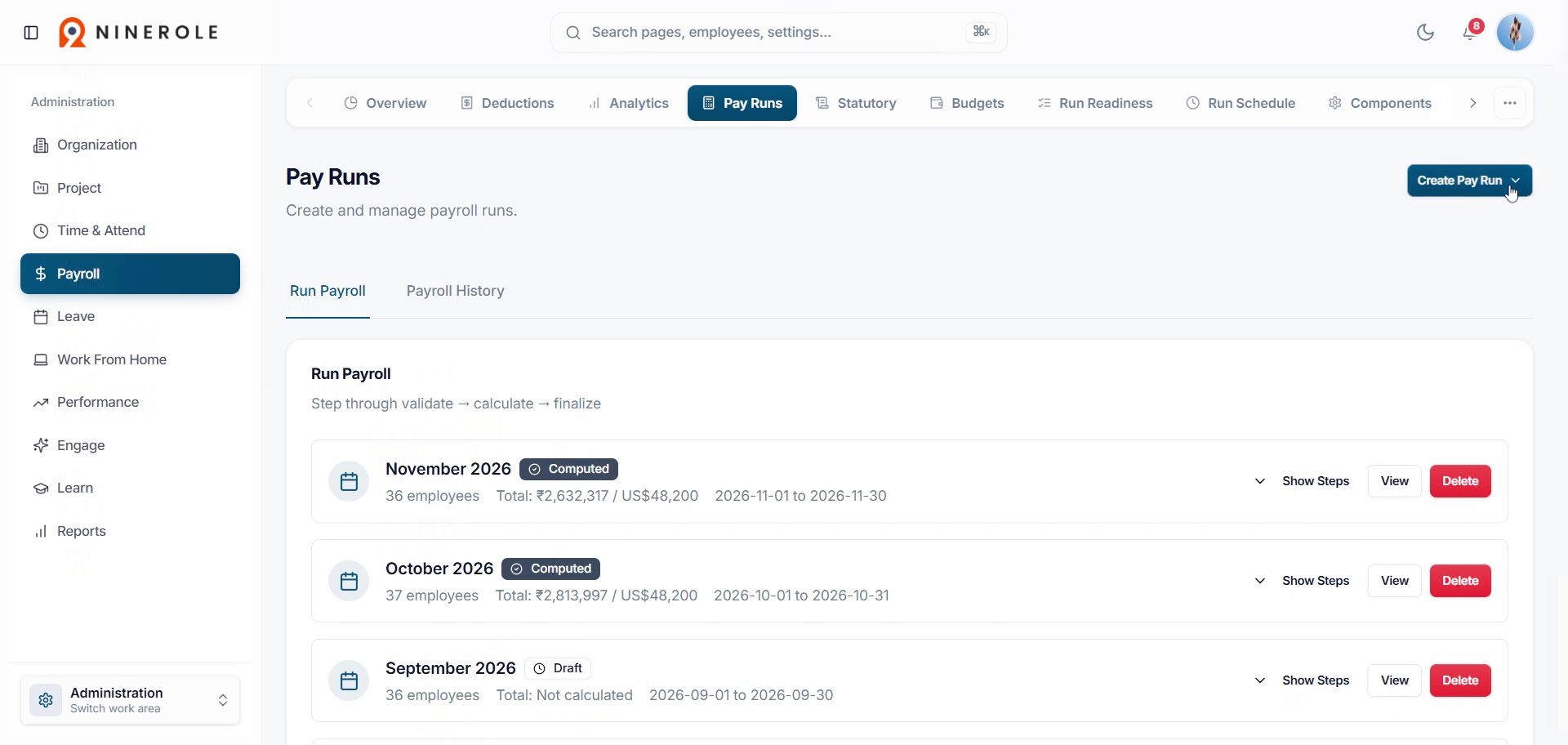
11. Set the pay run period
Specify the payroll period the run covers.
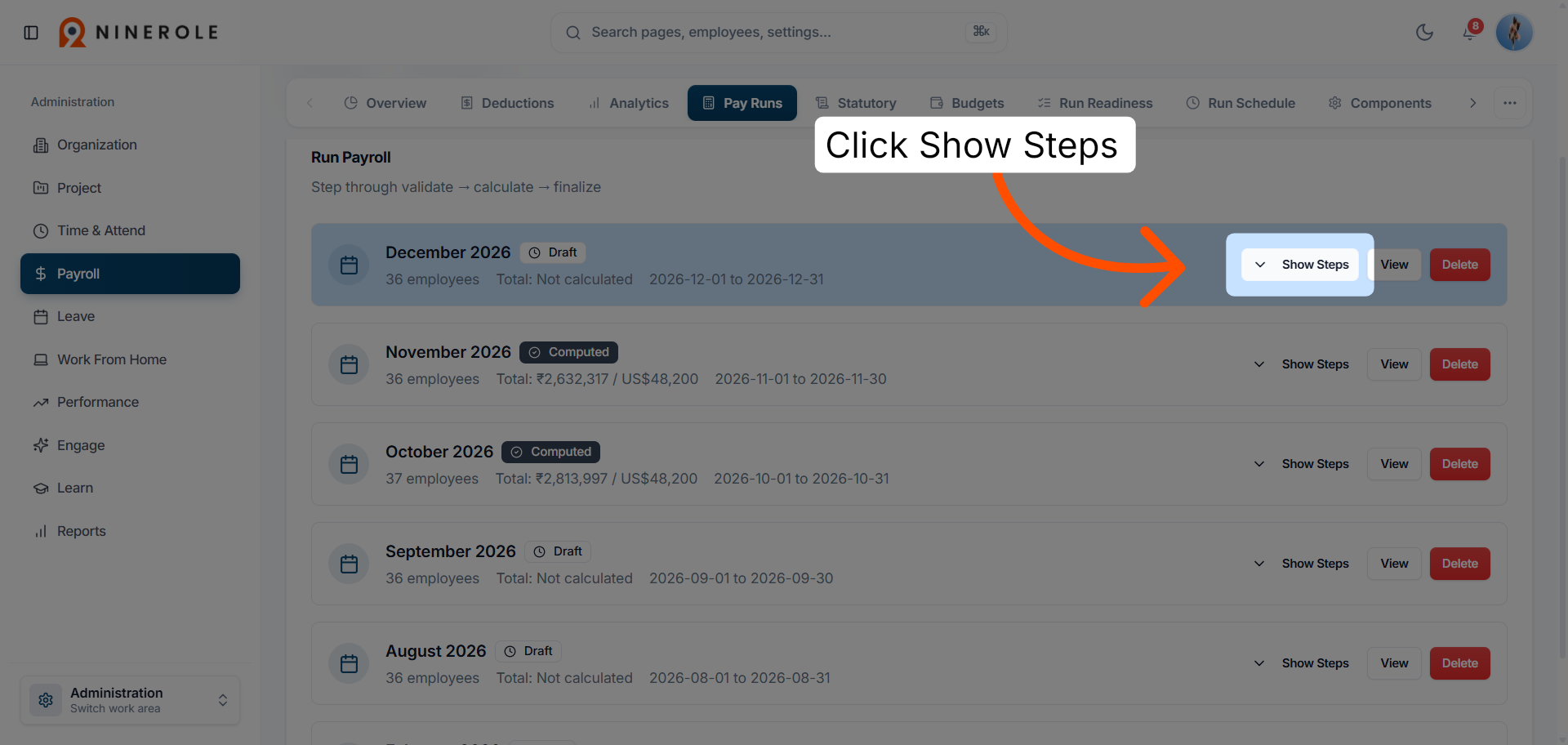
12. Show the pay run steps
Click Show steps to expand the stages the run moves through, so you can track its progress.
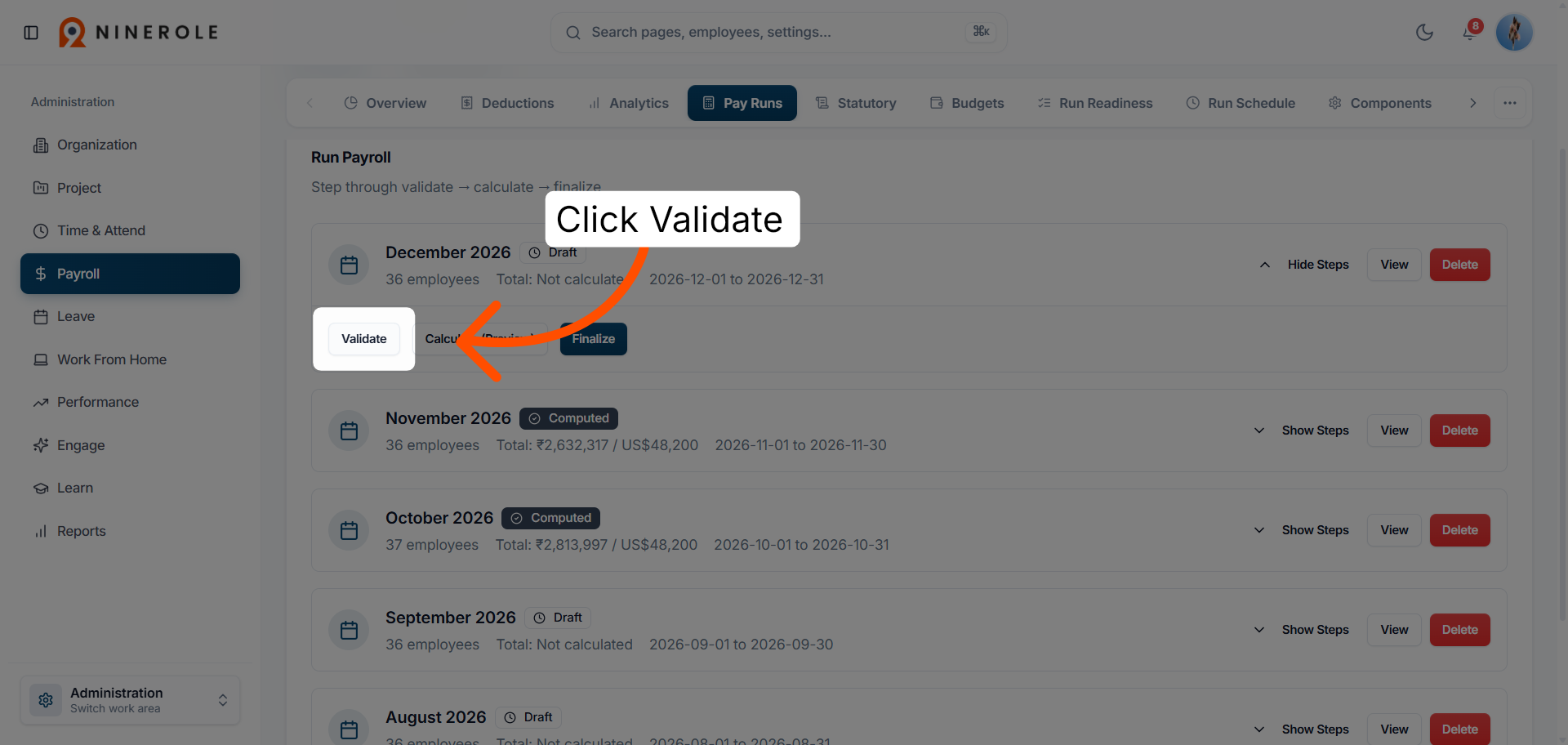
13. Validate the pay run
Click Validate to check the run's data for problems before anything is calculated.
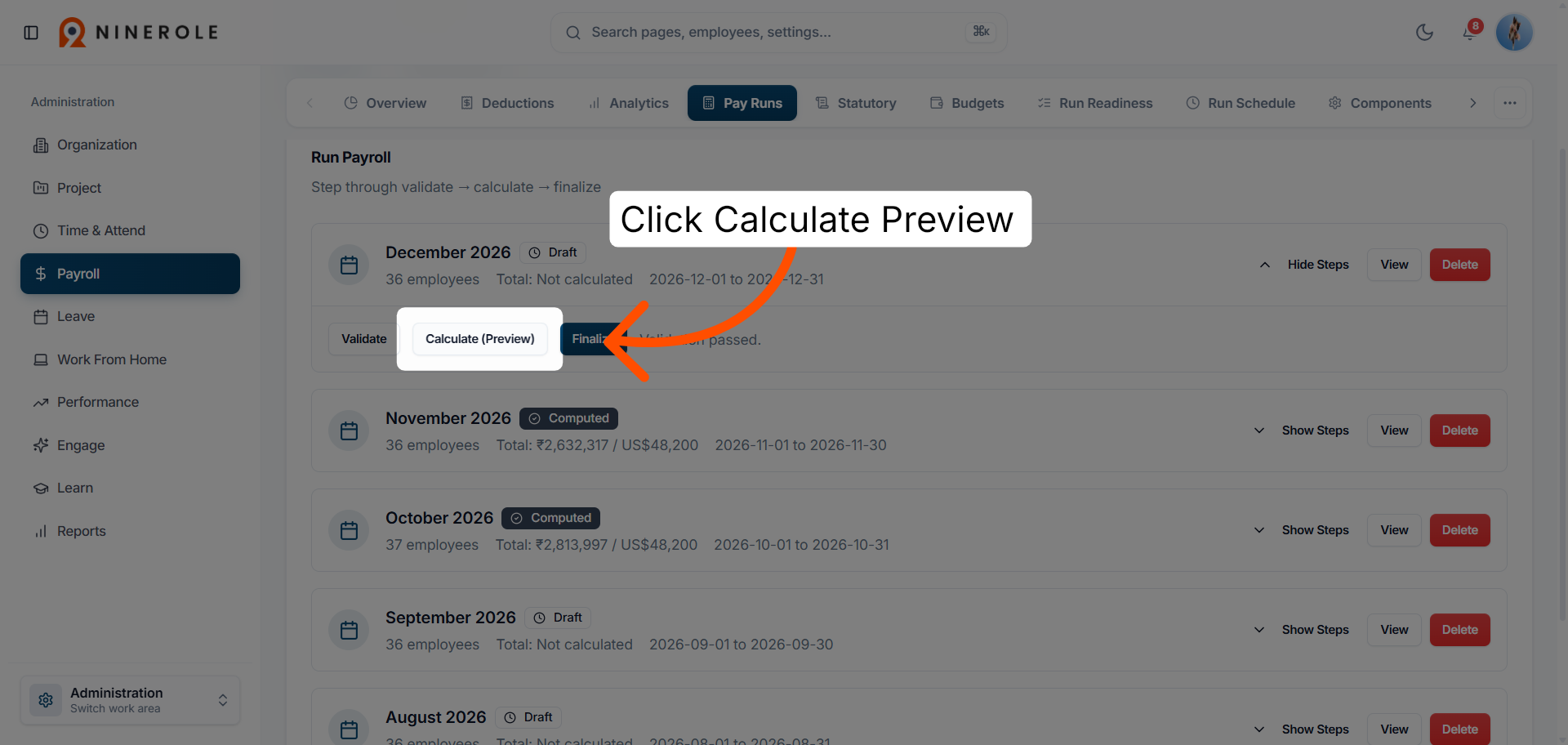
14. Calculate the payroll
Click Calculate to produce a preview of payment amounts and deductions for review.
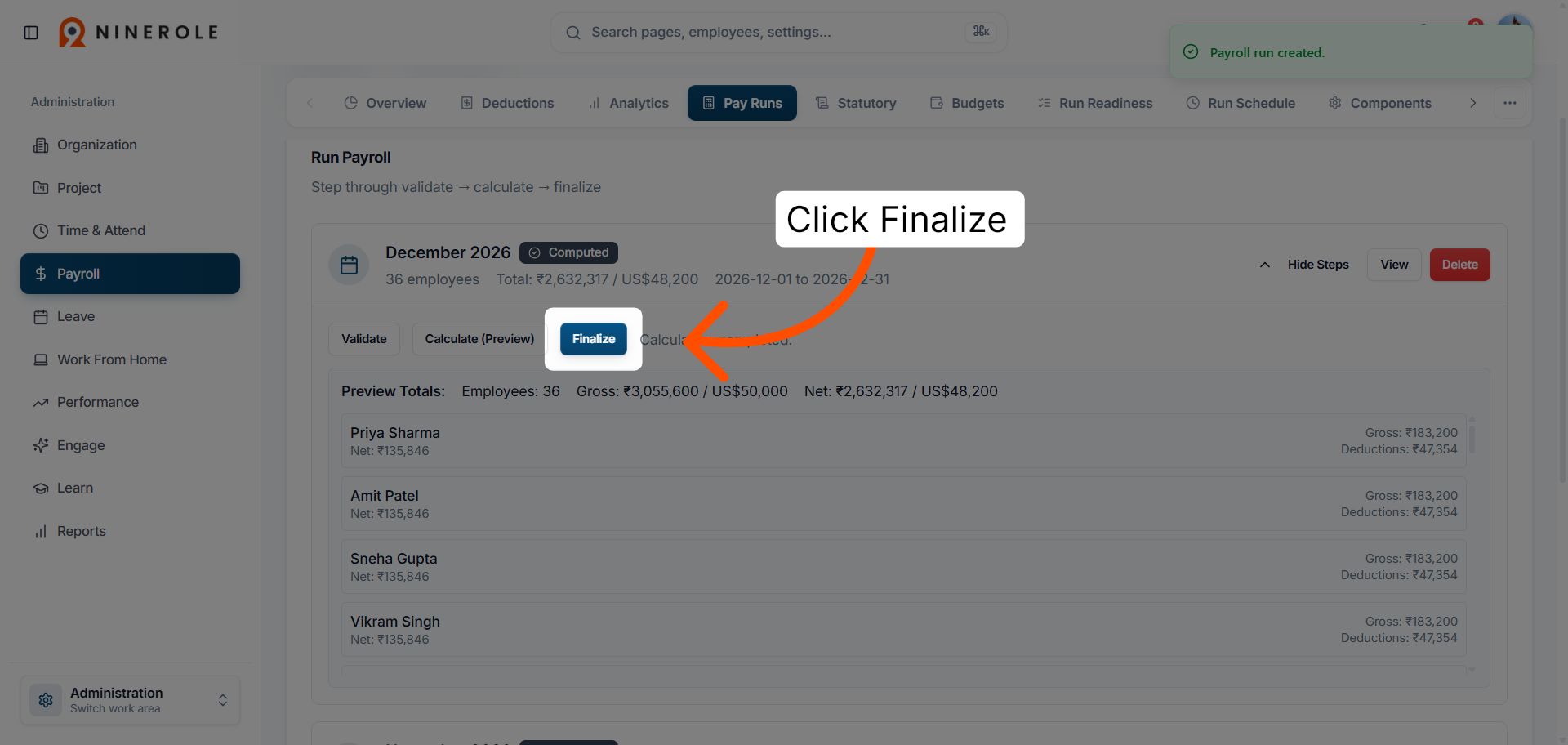
15. Finalize the calculation
Click Finalize to close out the calculation stage and move the run towards payment.
Review the finalized run
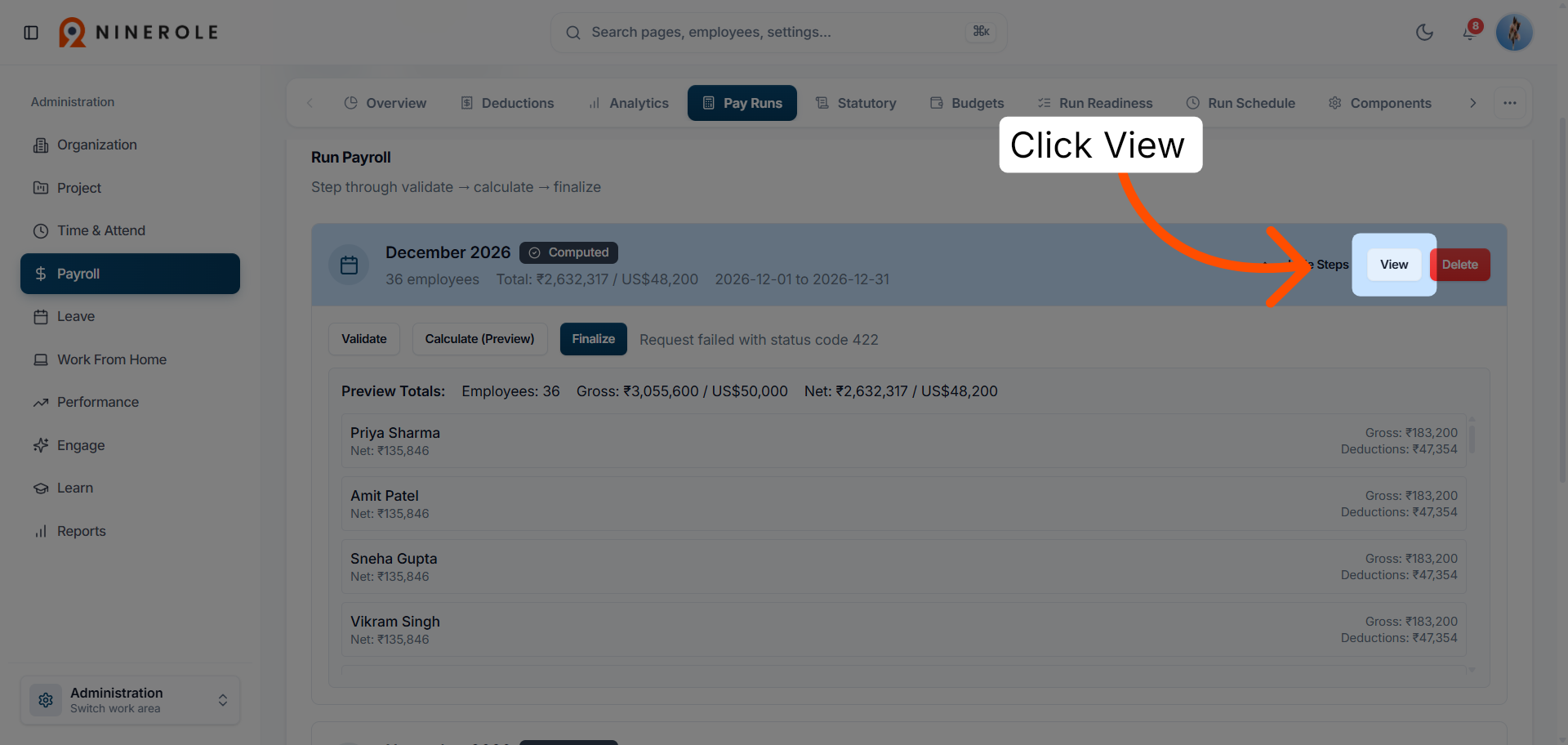
16. Open the finalized pay run
Open the run to review the processed payments and payroll summaries.
17. Open all employees
Click All employees to see the payment detail behind each individual record.
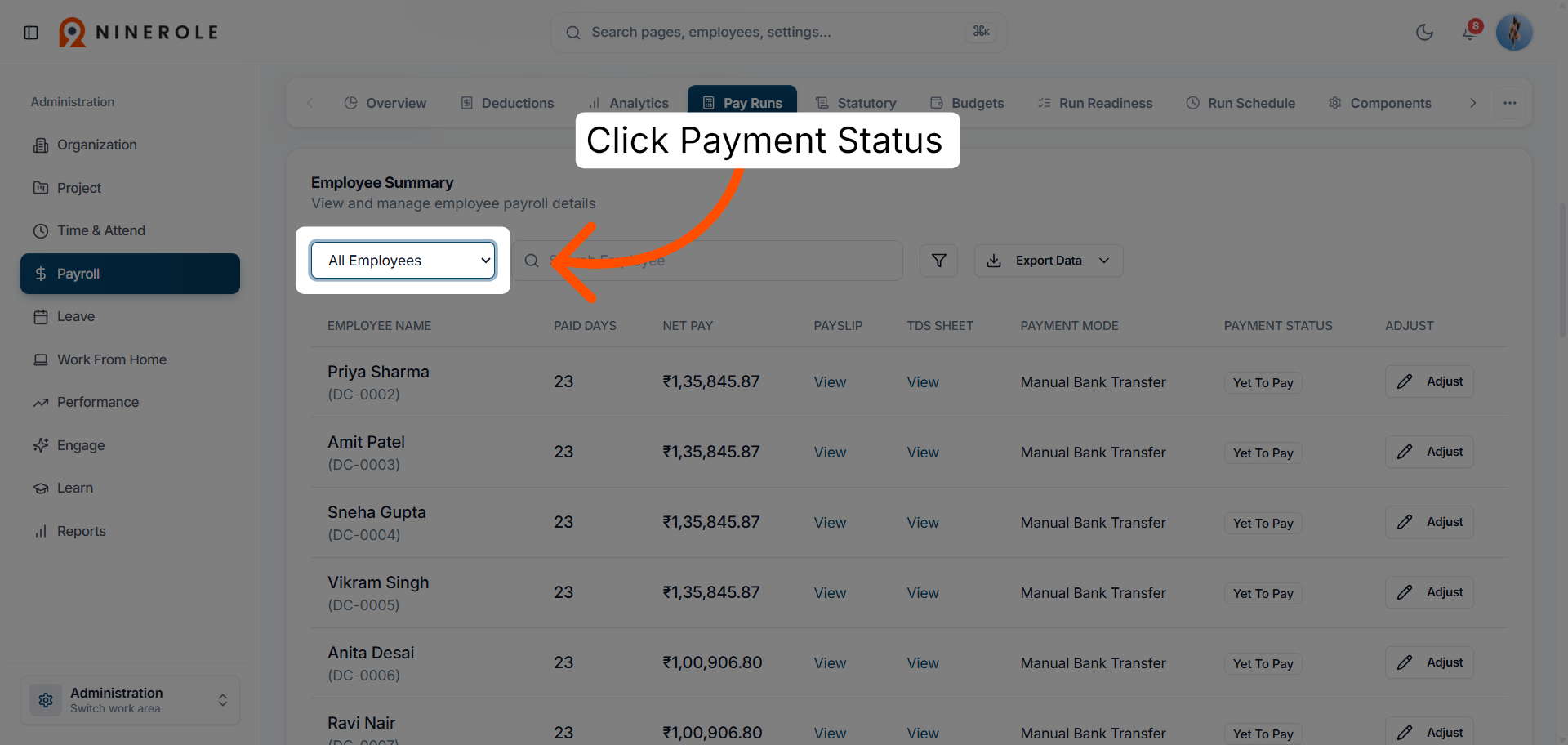
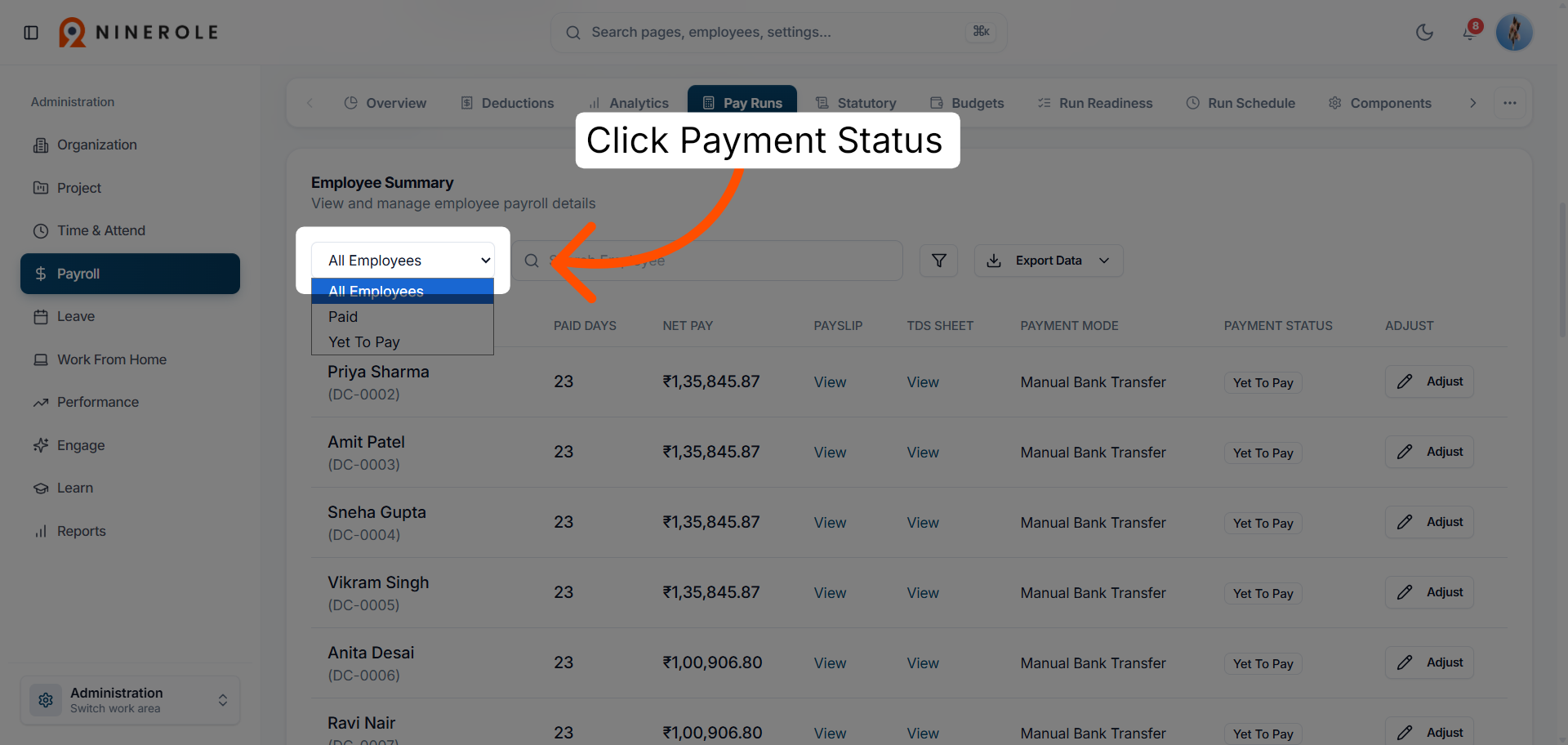
18. Check payment status
Review the payment status column to see who has been paid and who is still pending.
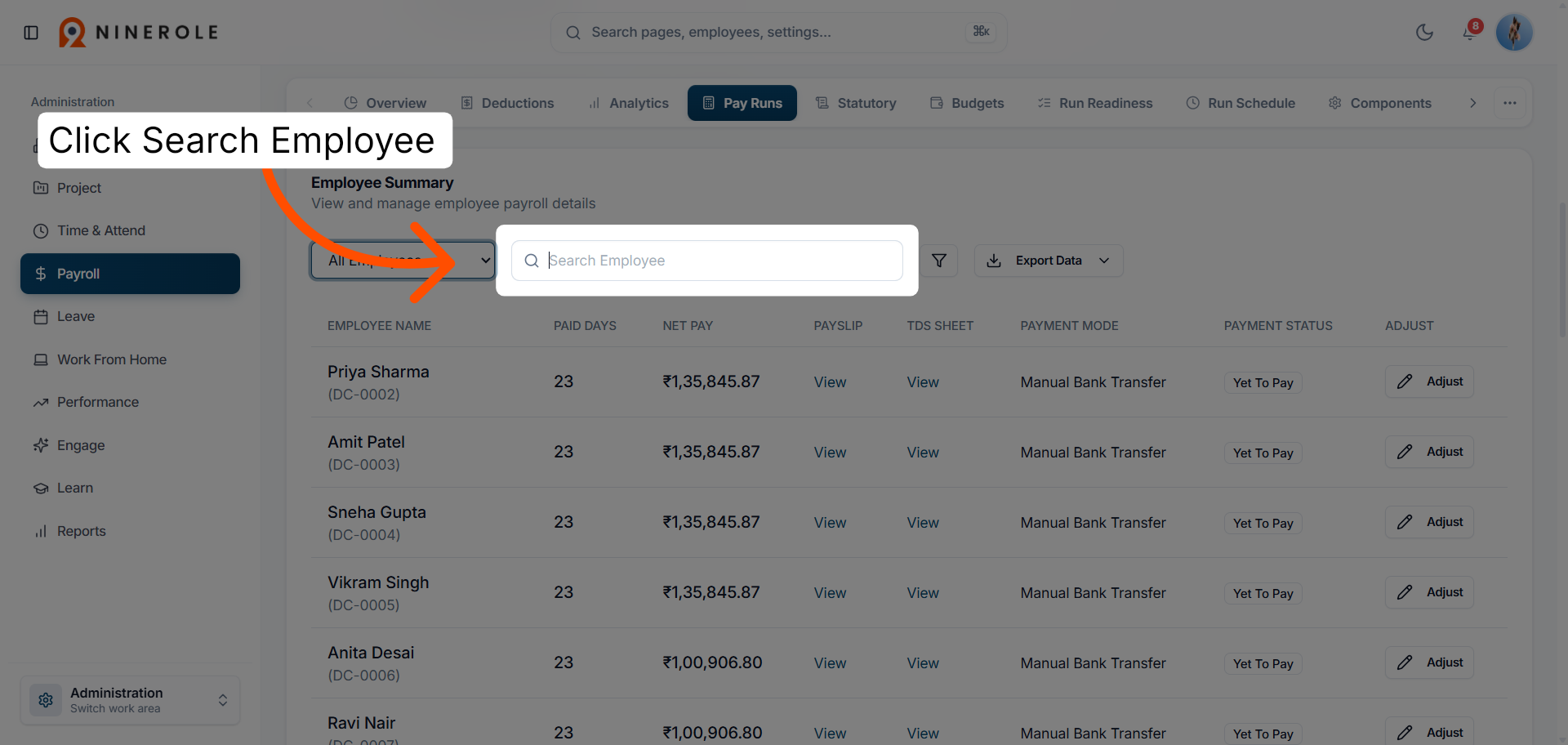
19. Search for an employee
Use the search box to jump straight to one employee's payroll information.
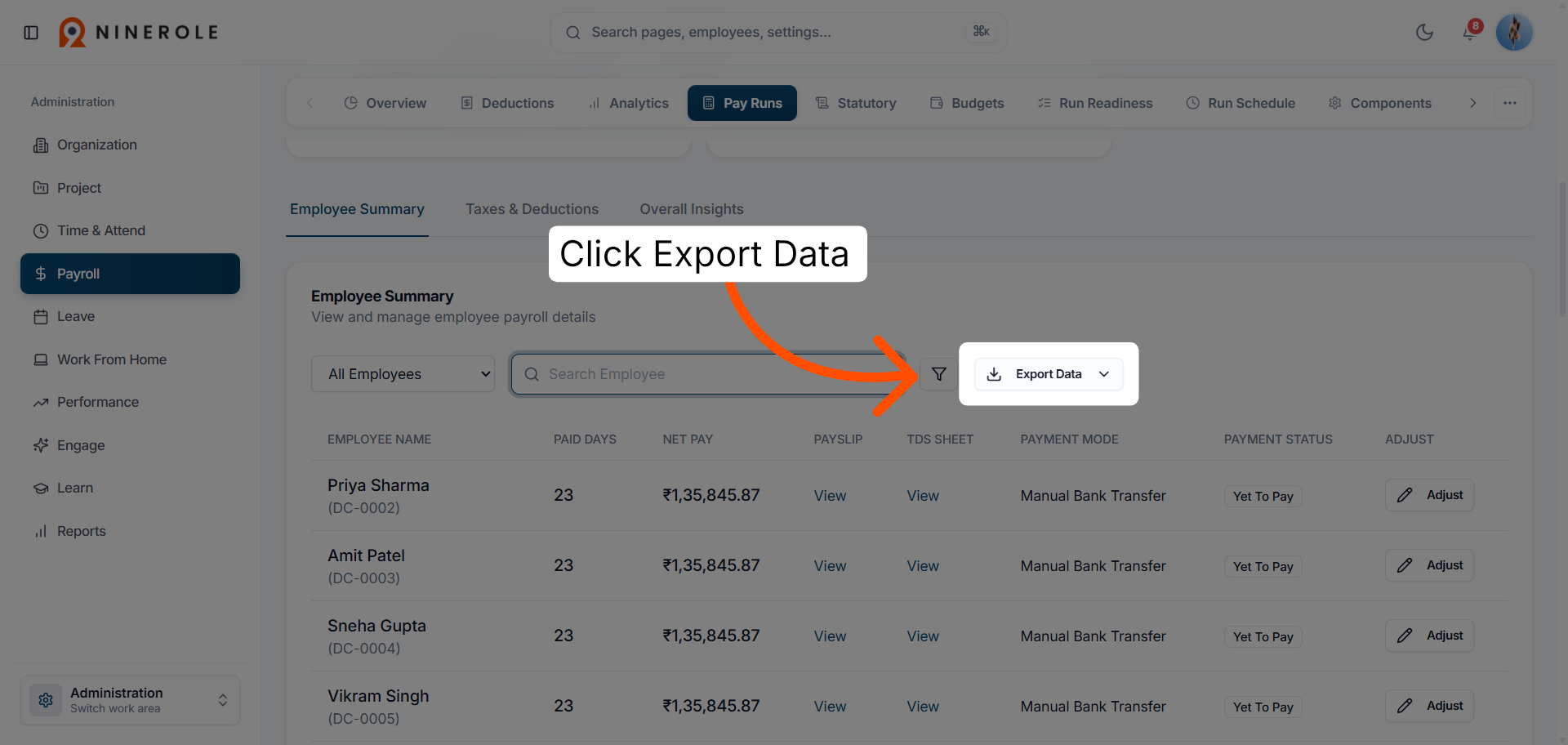
20. Export the payroll data
Export the data for reporting or for processing outside Ninerole.
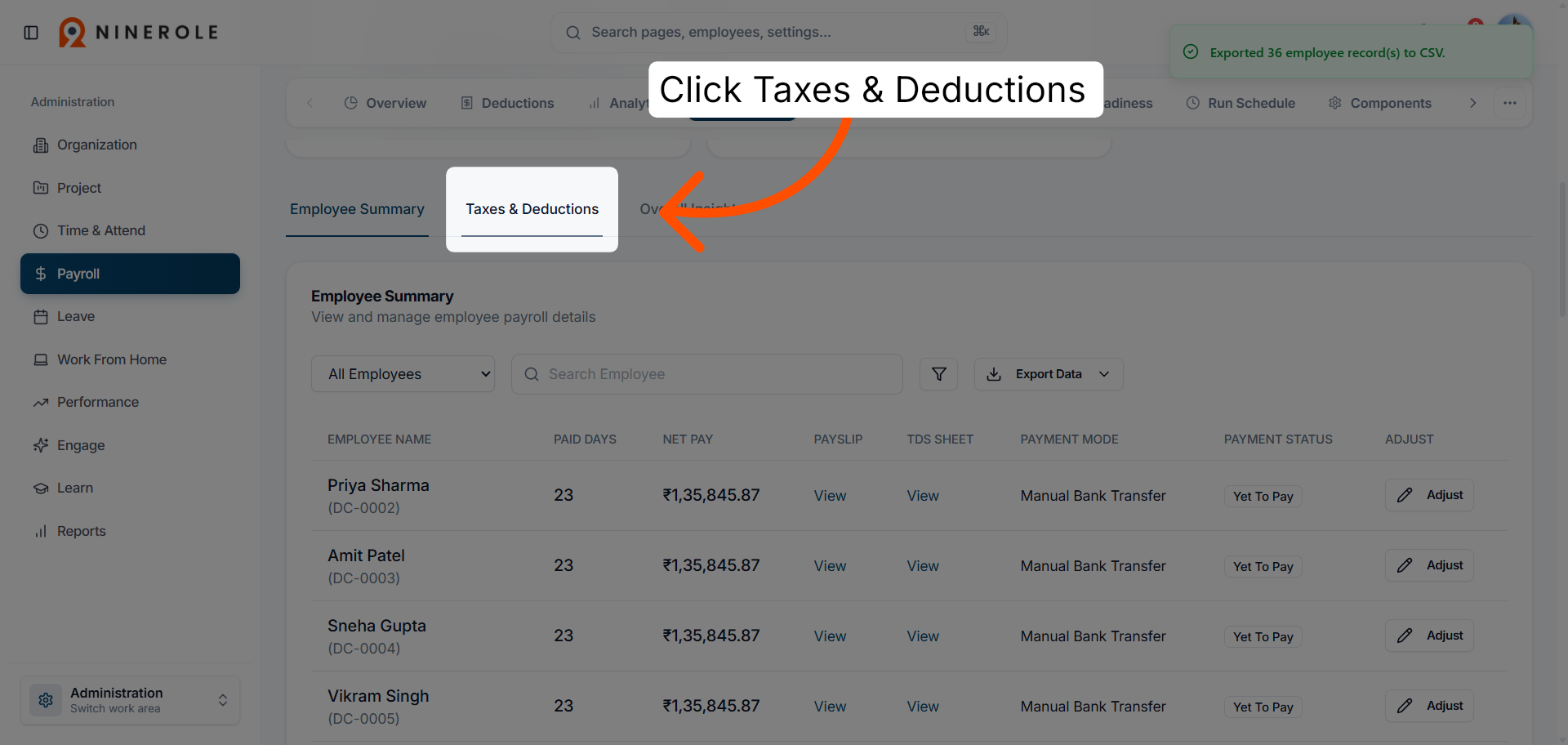
21. View taxes and deductions
Open the taxes and deductions view for the detail of what was withheld in this run.
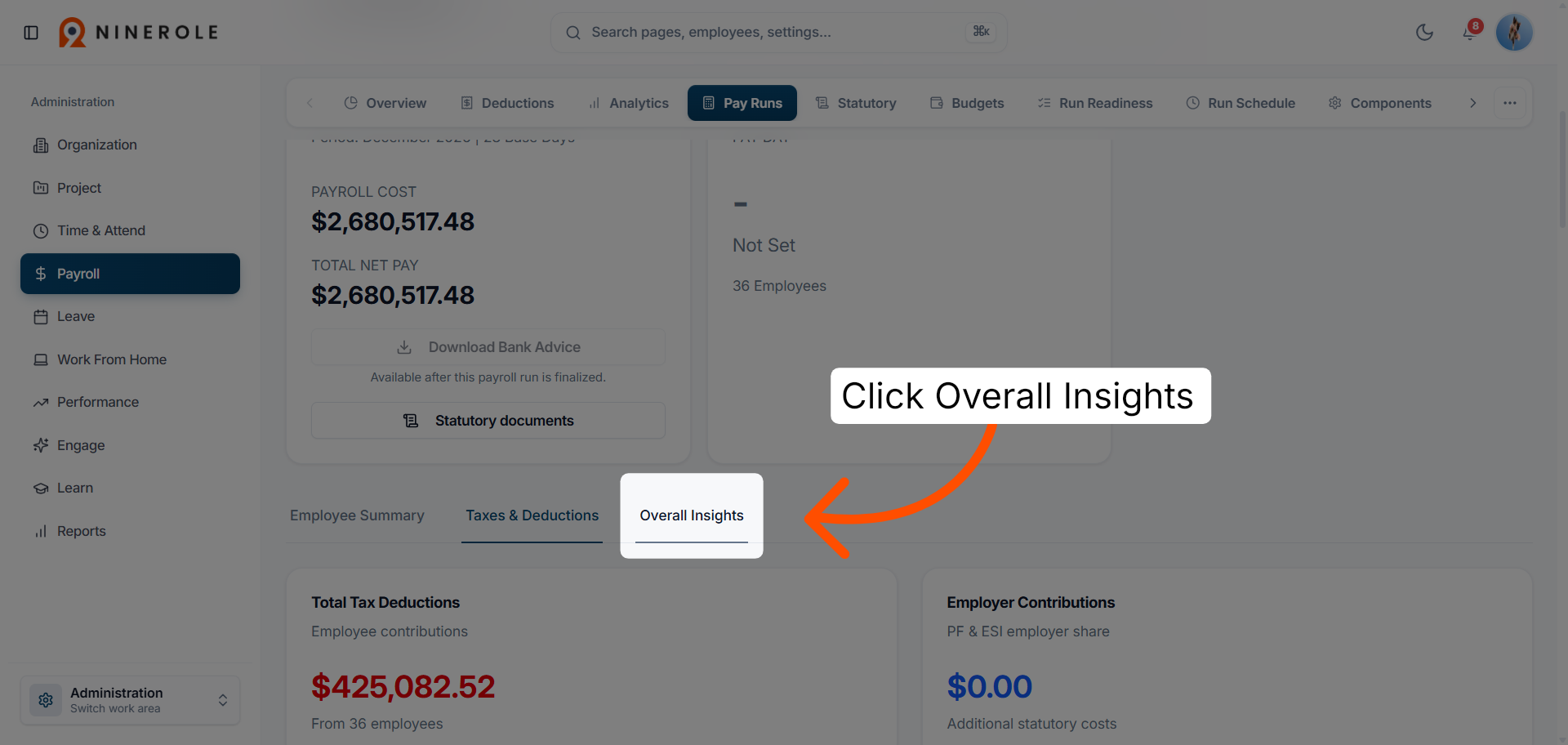
22. Open overall insights
Review the overall insights for payroll trends and summary statistics.
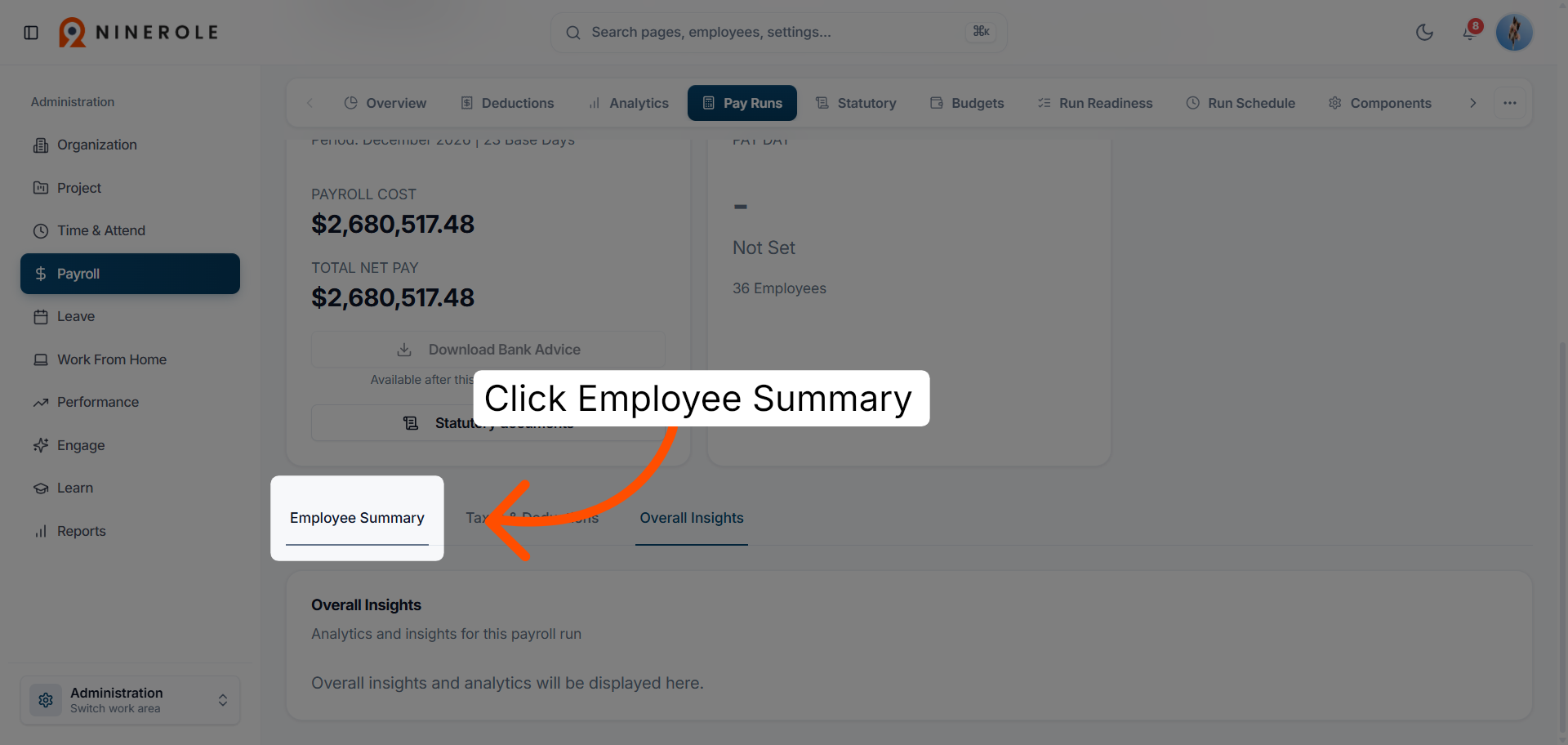
23. Open the employee summary
Open the employee summary for a per-person view of this pay run.
Adjust an employee's payroll amount
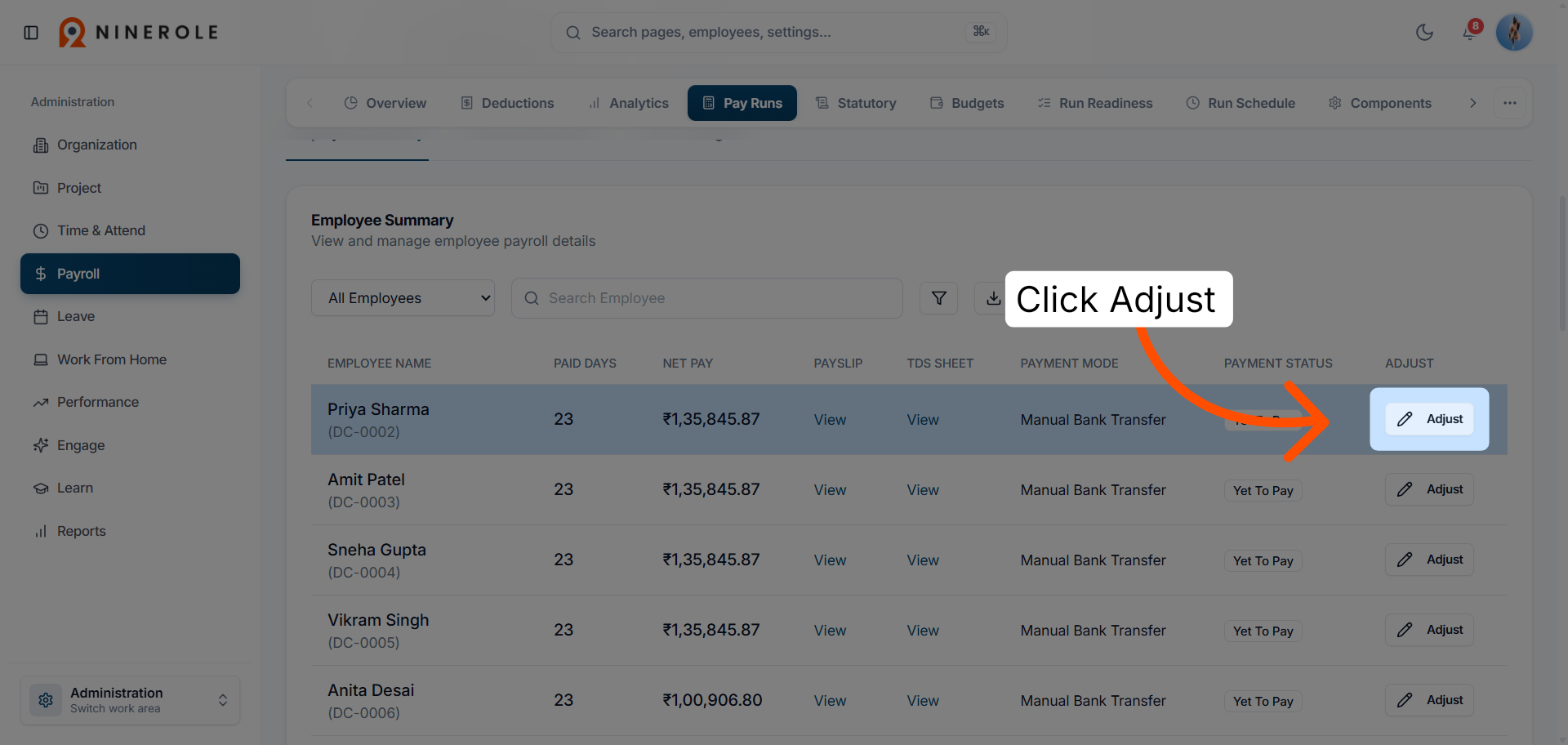
24. Open the adjustment dialog
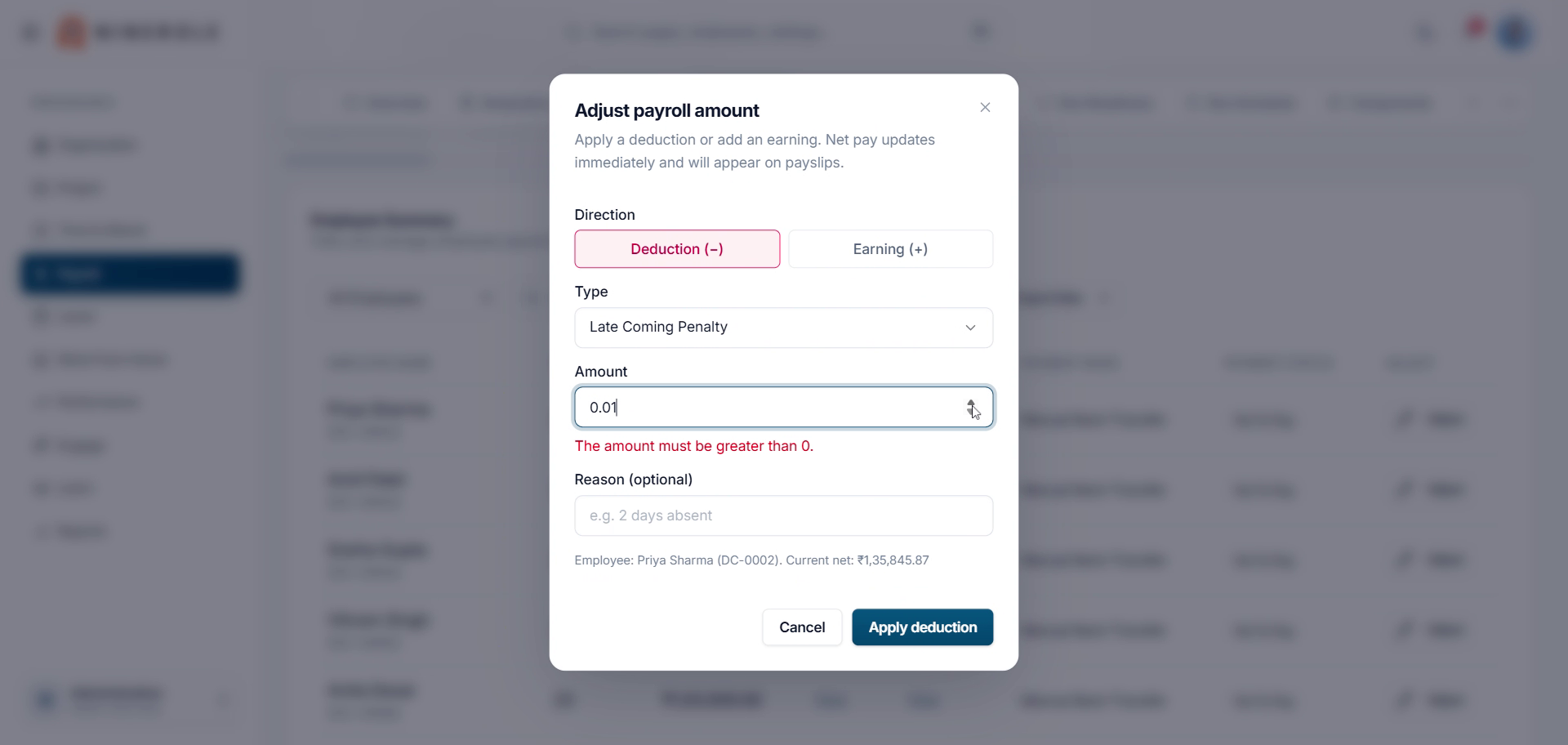
Click Adjust on an employee's row to open Adjust payroll amount. Net pay updates immediately and the change appears on the payslip.
25. Set the direction, type and amount
Choose Deduction (−) or Earning (+), pick the Type — a late-coming penalty in this example — and enter the Amount.
26. Correct the amount
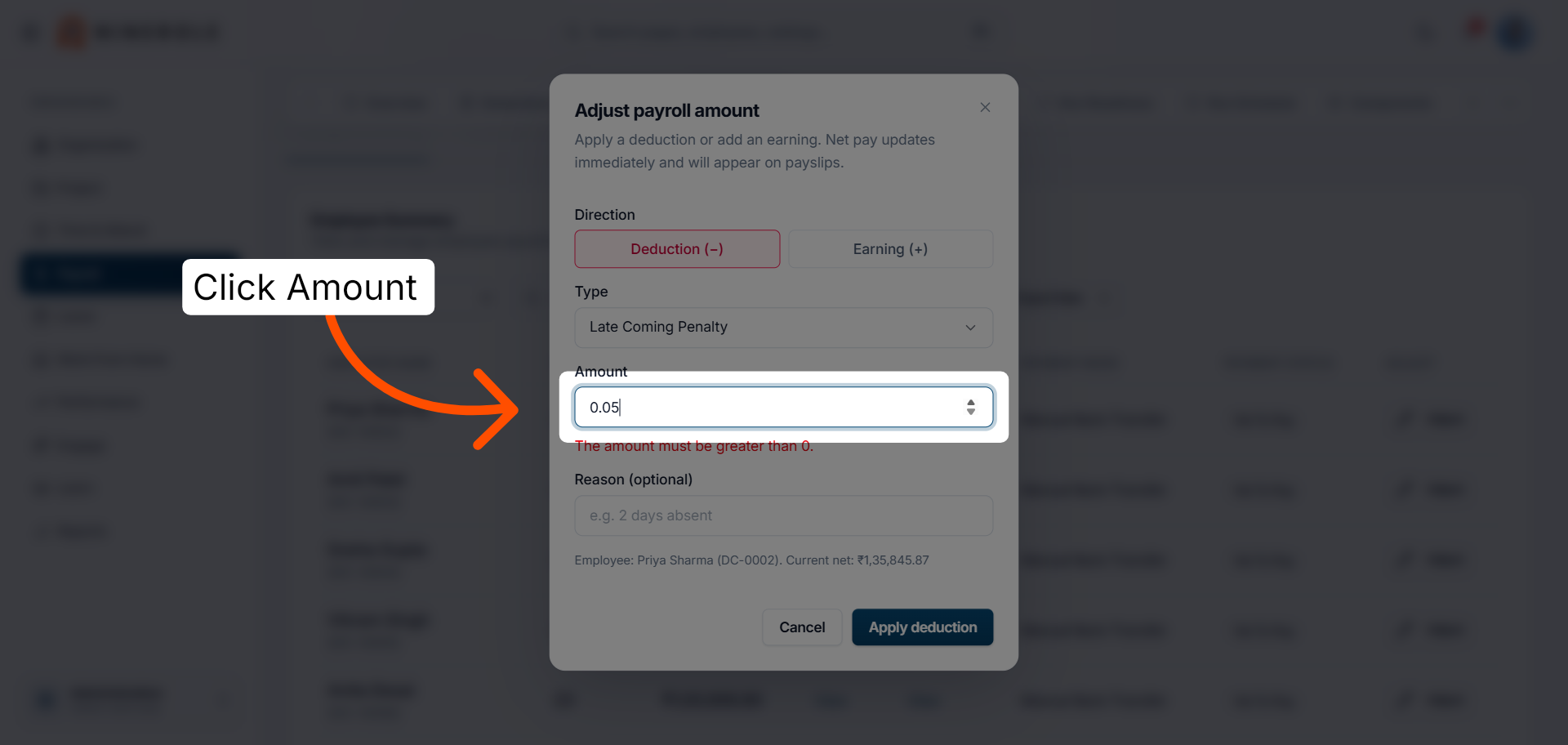
The amount must be greater than 0, so return to the field and enter a valid figure. Add a Reason if it helps whoever reviews the payslip later.
27. Apply the adjustment
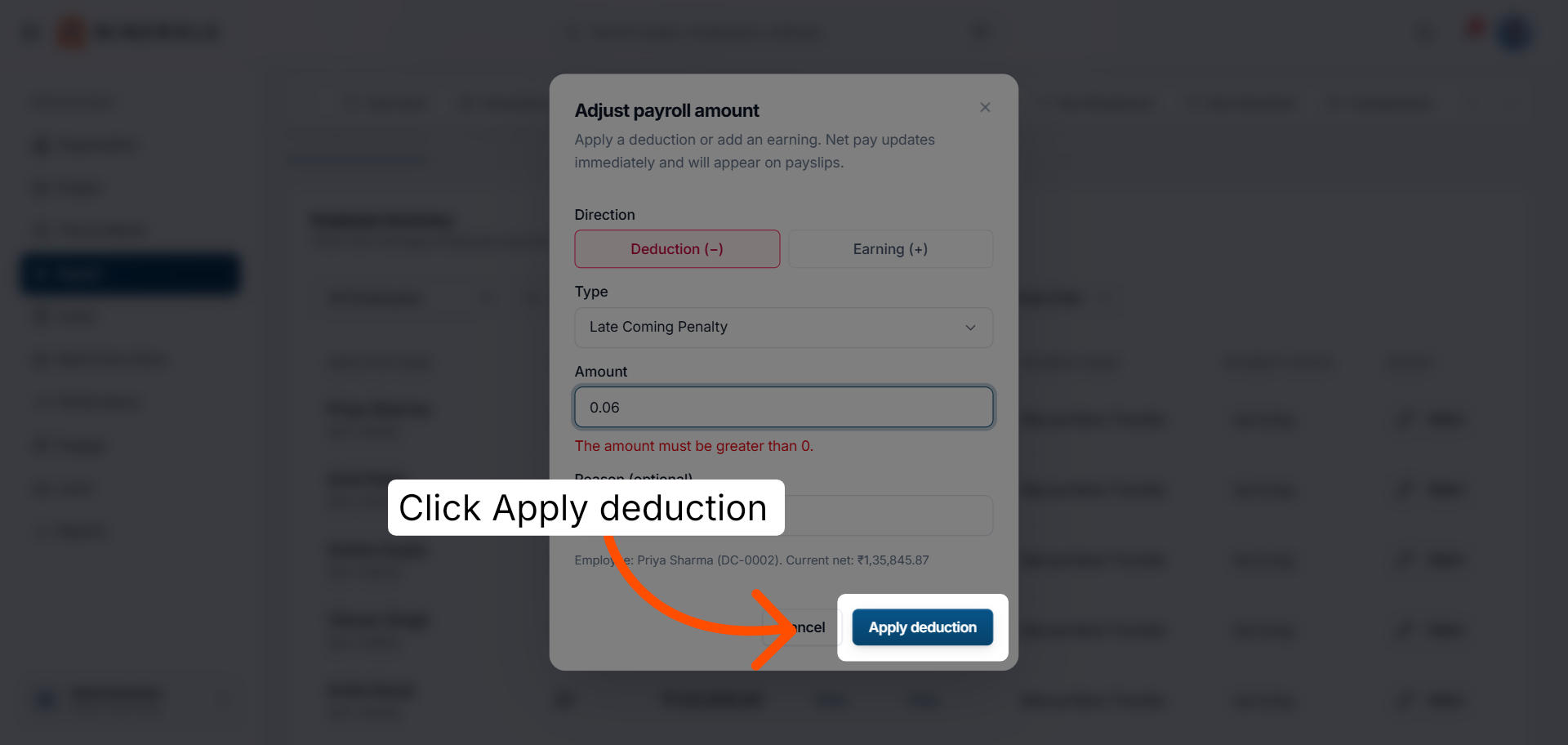
Click Apply deduction to write the change to the payroll record.
Finalize the payroll
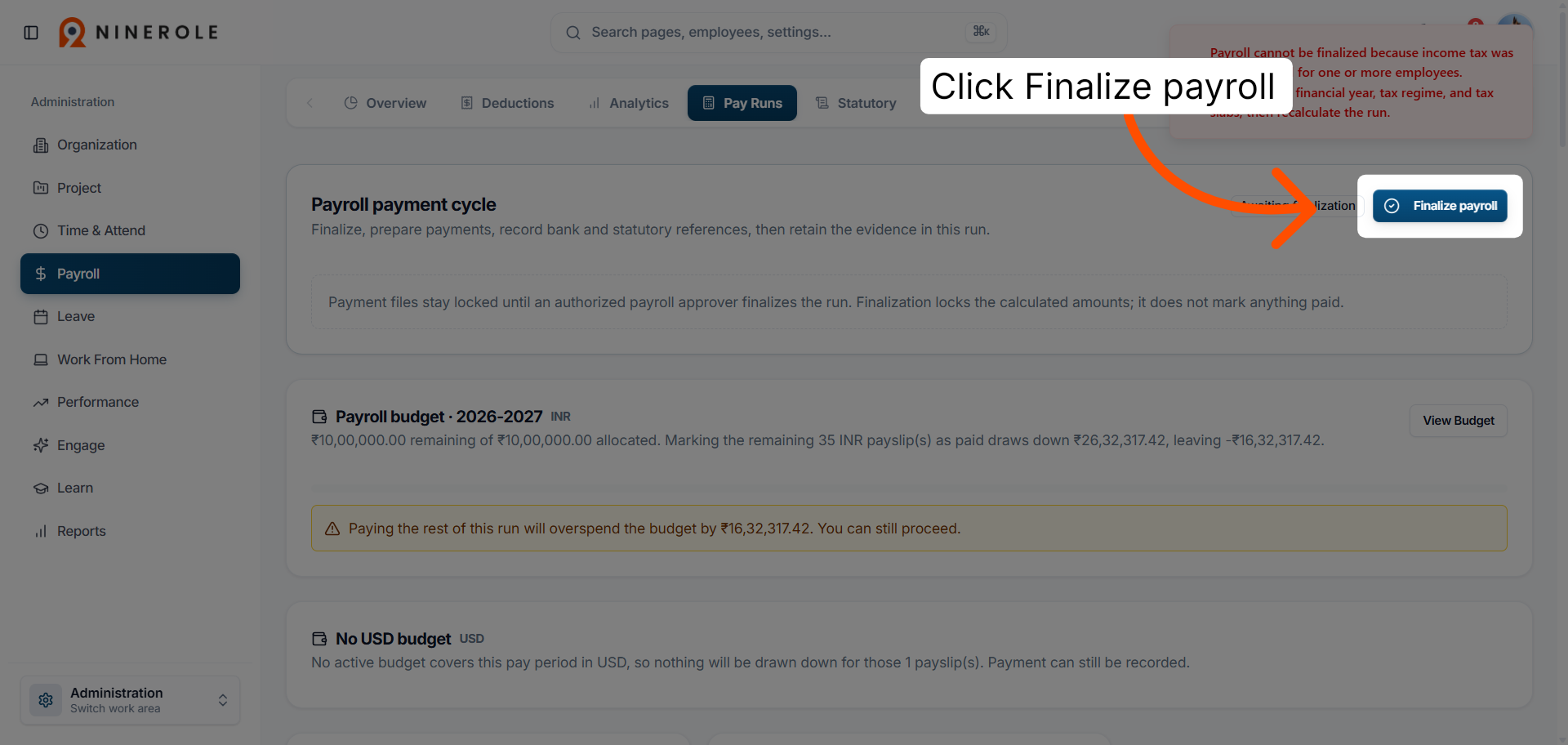
28. Start payroll finalization
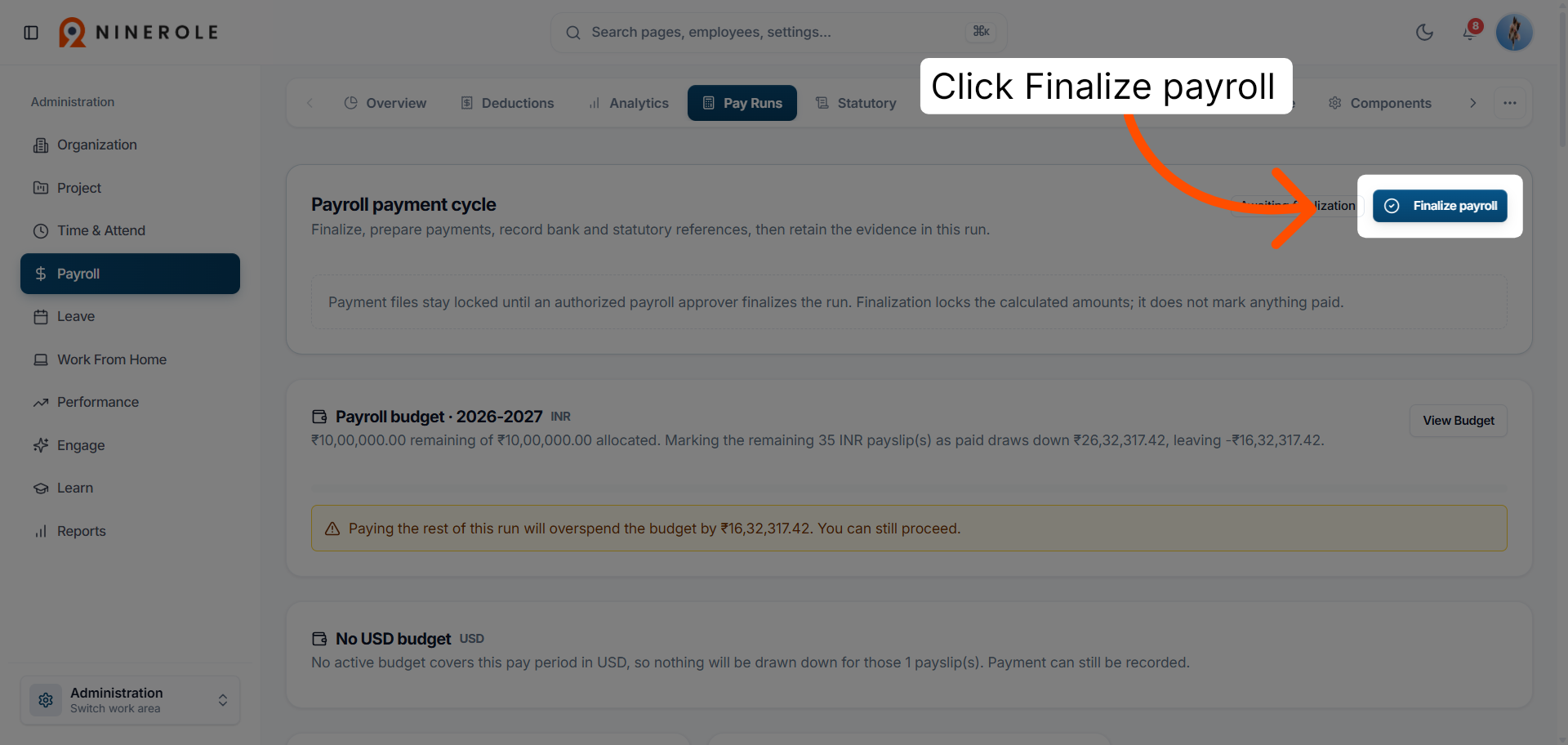
Click Finalize payroll to begin closing the run out for payment.
29. Confirm the finalization
Confirm to lock every payment detail and close the pay run.
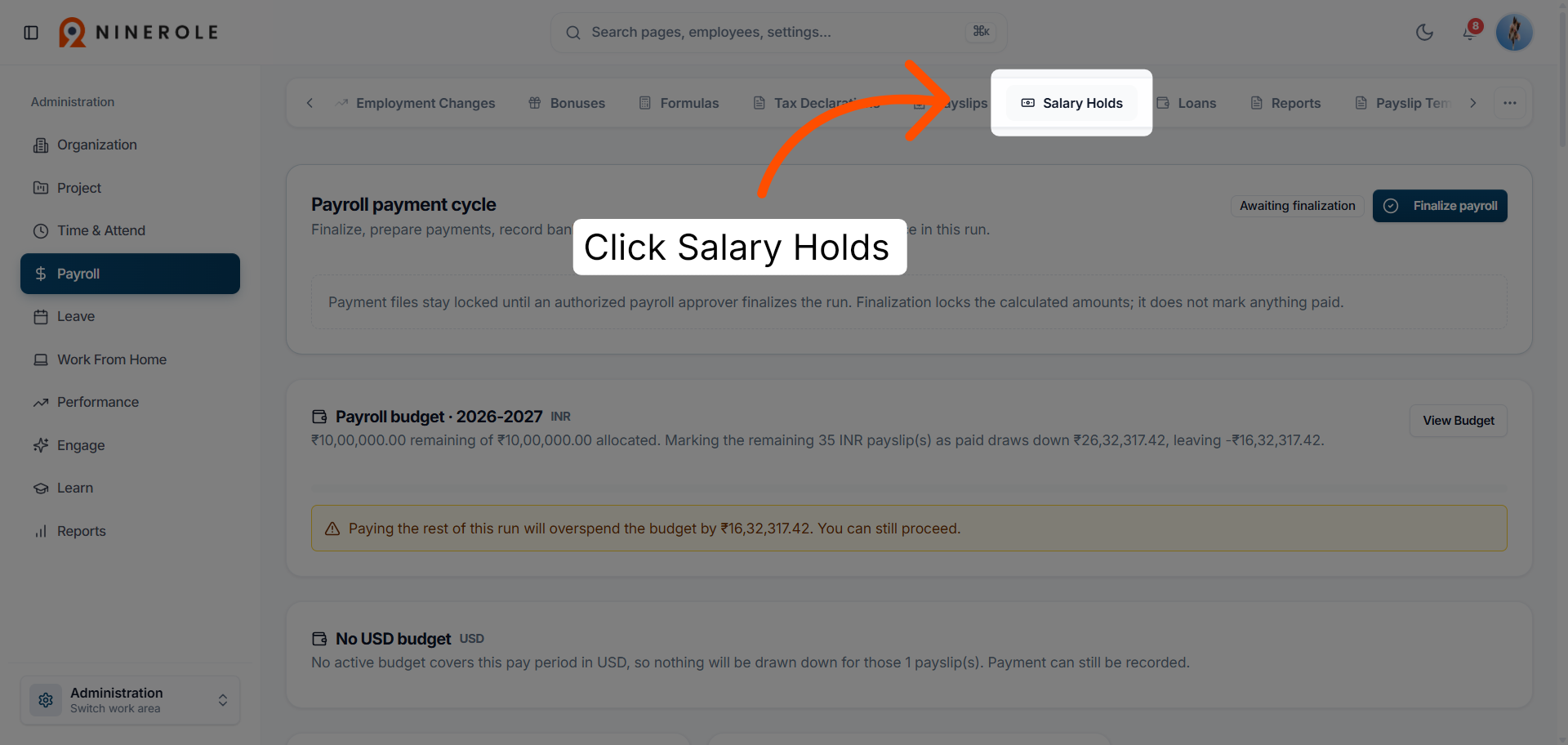
Salary holds and reports
30. Open Salary Holds
Open the Salary Holds section to manage payment holds and exceptions.
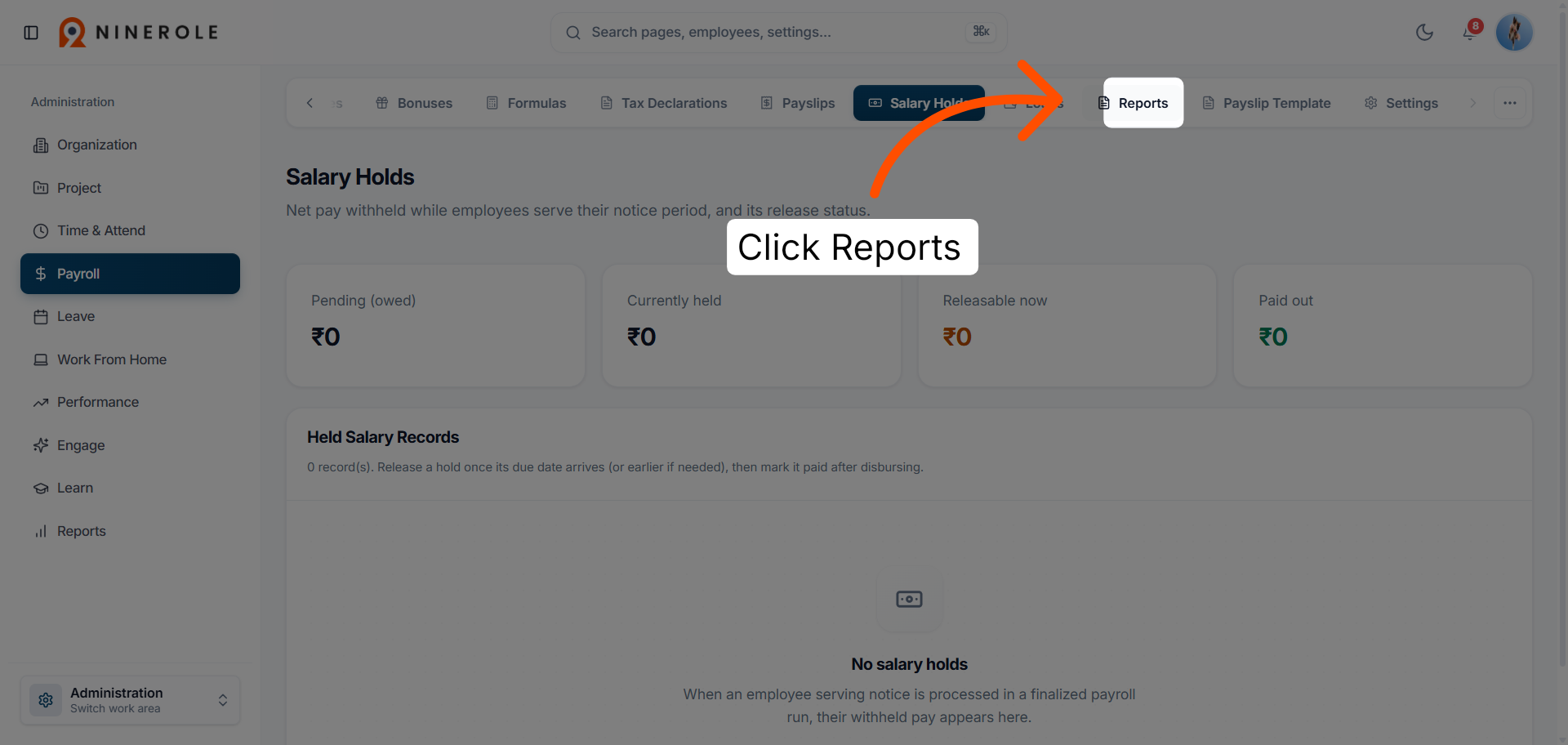
31. Open Reports
Open the Reports tab to generate payroll reports — the monthly earnings register, payroll processing file, bank salary file, PF ECR and Form 138 salary-TDS preparation.
32. Open the bank salary file
Open the Bank salary file card. It takes a finalized run and produces a CSV in the format your corporate net banking expects.
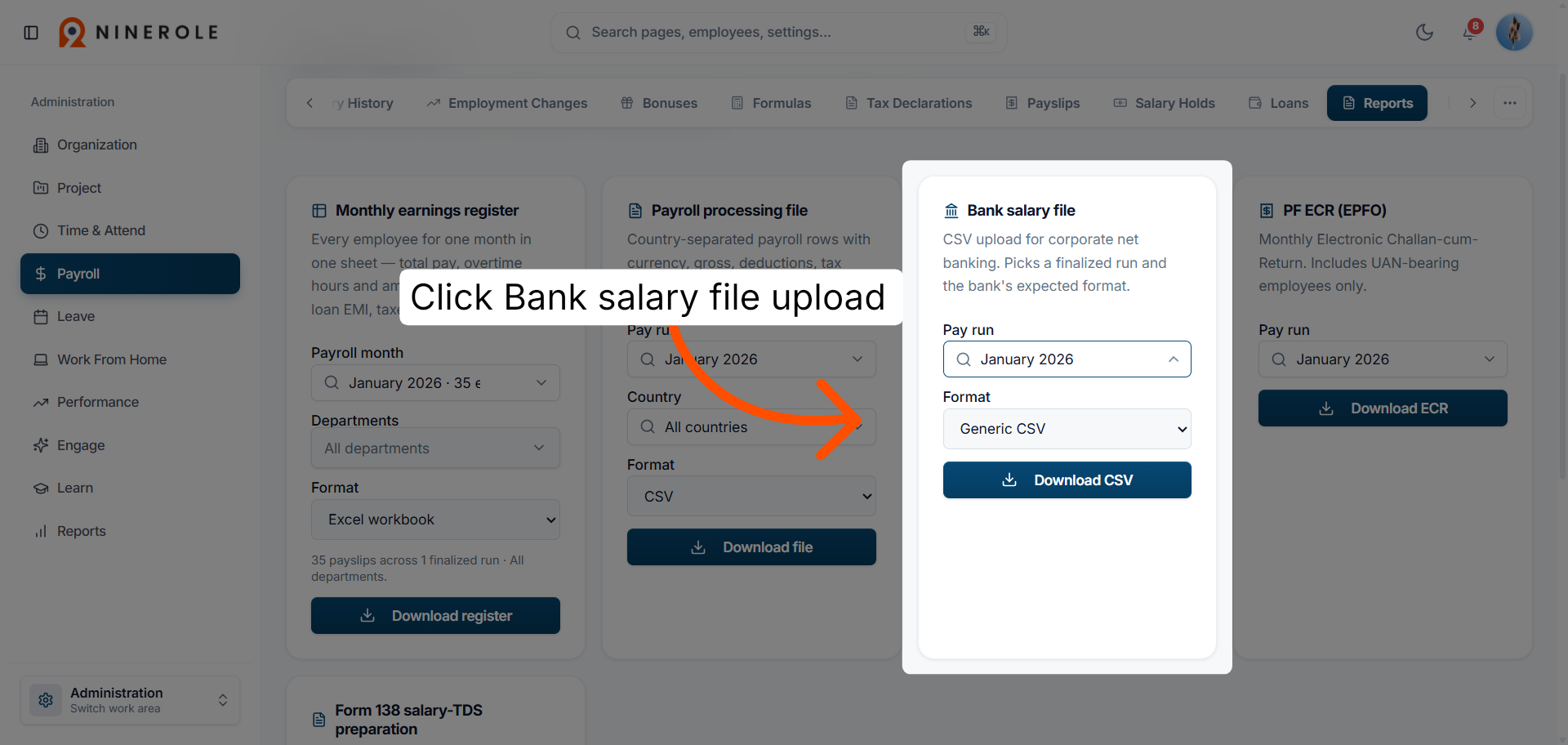
33. Choose the format and download
Confirm the pay run, set Format, then click Download CSV.
The pay run is calculated, adjusted, finalized and exported, and the bank file is ready for upload to your corporate net banking.
Related: Access and review payslips · Salary details · Payslip templates
Back to Payroll · all modules
Last updated: