

Add New Employee Records Efficiently
This tutorial guides you through adding a new employee record in Ninerole. You will learn how to enter all necessary employee details and complete the creation process.
Before you start, go to ninerole.com.
About this task
- Purpose
- Create a complete employee record — work details, personal details, qualifications, banking and salary — so the person exists across every module.
- Who can do this
- HR or an administrator with access to the employee directory — not self-service
- Before you start
- The company, business units and roles you will assign already exist.
- A salary template exists if you want to apply one at the salary step.
- You will need
- Work details (designation, department, joining date), personal and contact details, qualifications, bank account details, and the salary structure.
- Result
- An employee record is created and the person appears in the employee directory.
- This unlocks
- Attendance and leave for that person, payroll and payslips, project staffing, and their own self-service profile.
This guide answers
- How do I add a new employee?
- What information do I need before I can create an employee?
- How do I set an employee's salary when creating them?
- How do I add bank details for payroll?
- What happens after the employee record is created?
- Can the employee fill in their own details afterwards?
If something goes wrong
- The department, designation or role isn't in the list.
- Those come from the organisation setup. Create the missing item in Administration first, then return here.
- You can't apply a salary template.
- The template has to exist before it can be applied. Set up components and templates first.
- Payroll later reports missing salary data for this employee.
- The salary step was skipped or left incomplete. Open the employee's salary details and complete the structure.
Related: Components & templates · Salary details · Profile settings · Business unitsAlso called: create an employee, onboard an employee, add a staff record.Last verified: 7 September 2026
1. Introduction
You will learn how to enter all necessary employee details and complete the creation process.
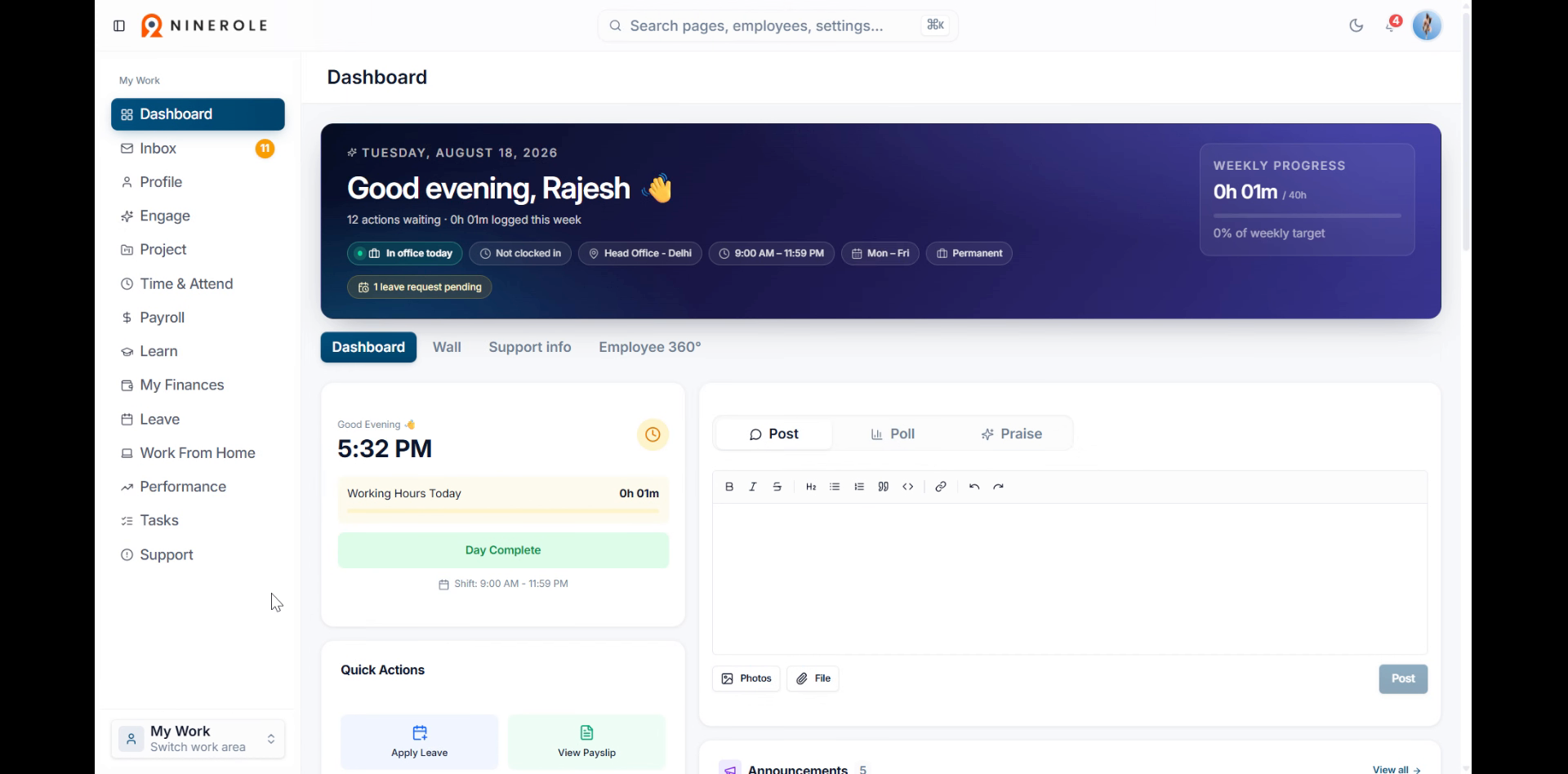
Open the employee directory
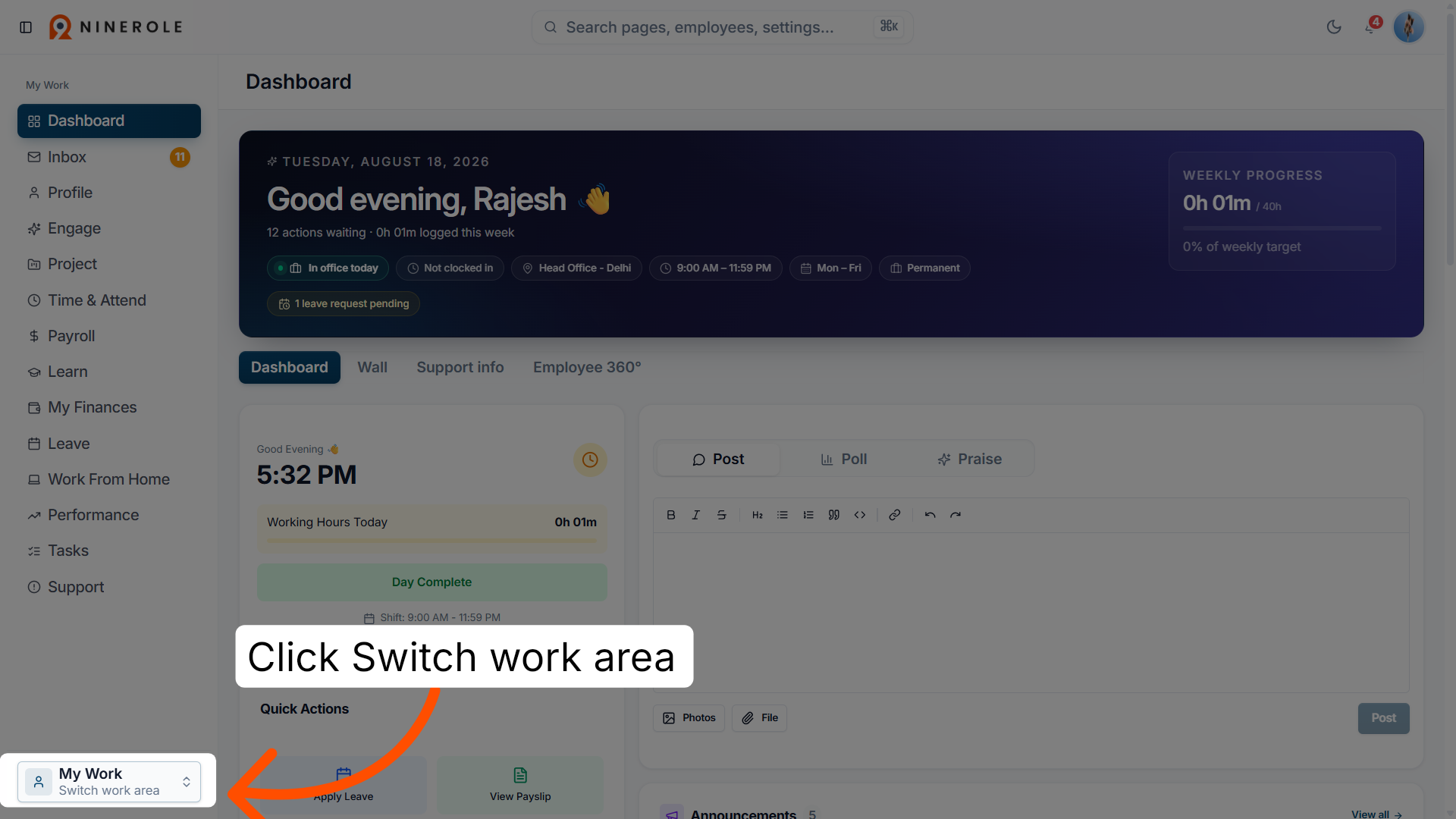
2. Access the work area switcher
Click Switch work area to open the workspace options.
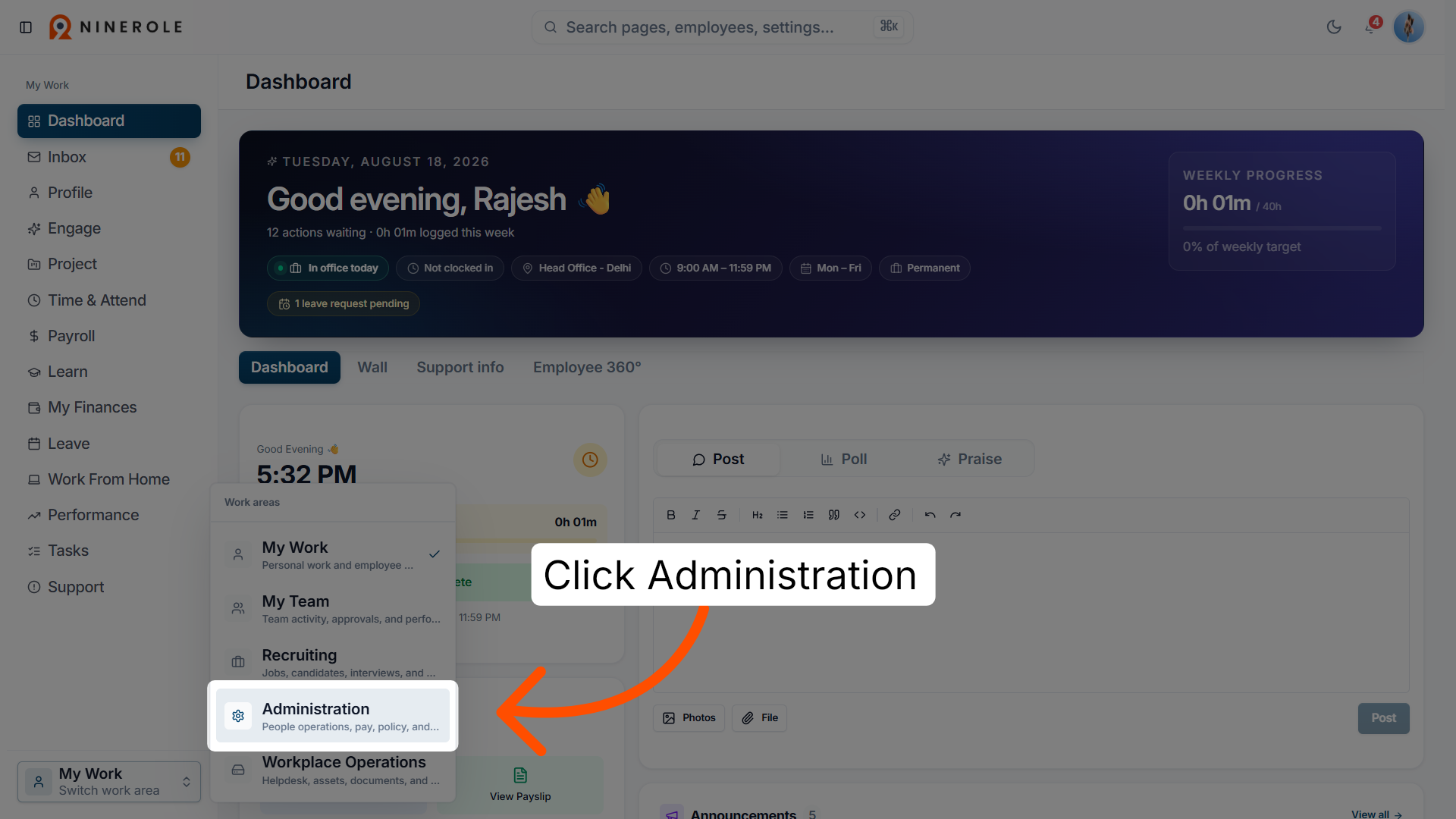
3. Open the Administration section
Click Administration to access administrative settings.
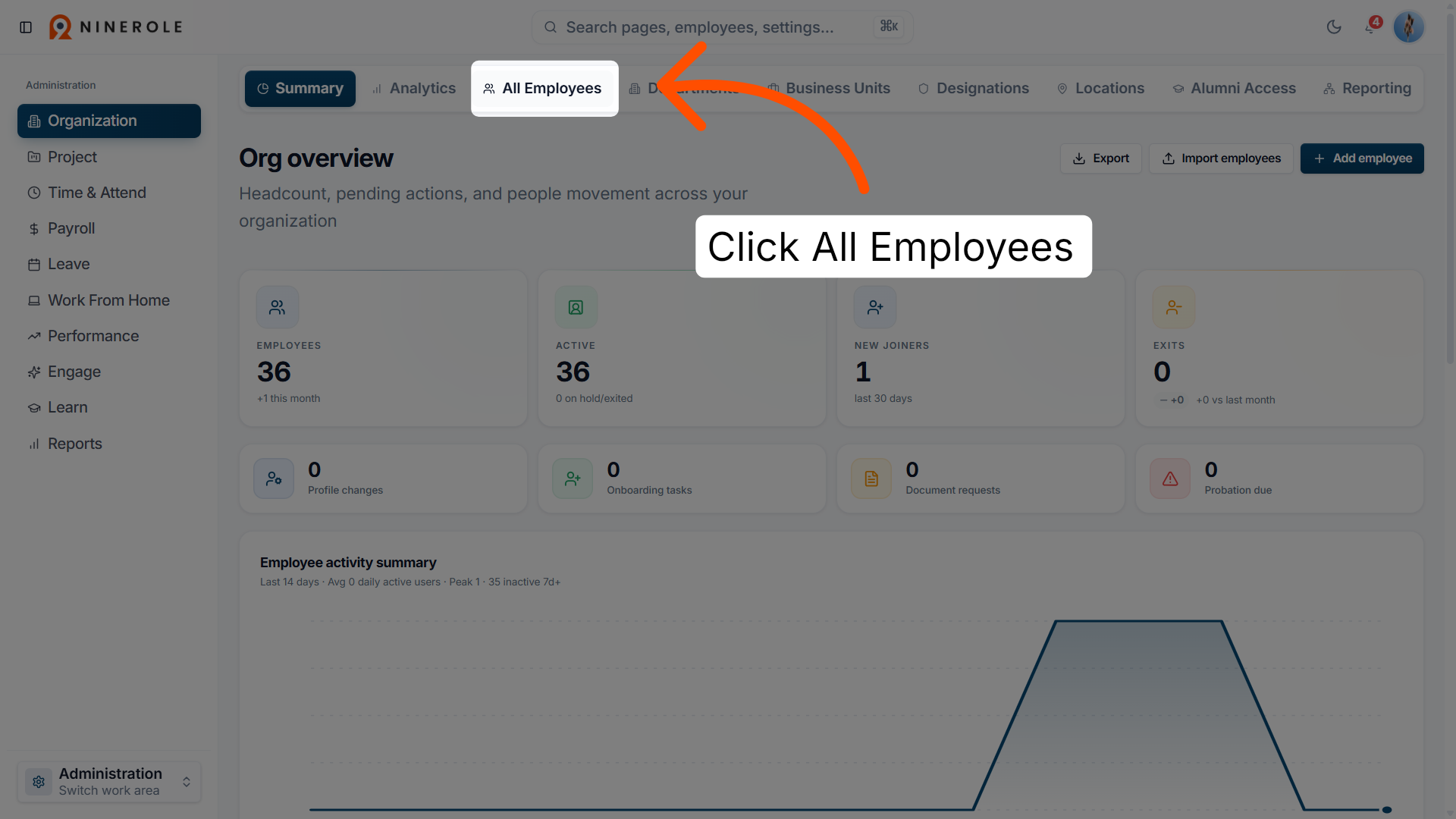
4. View the All Employees list
Click All Employees to see the complete employee directory.
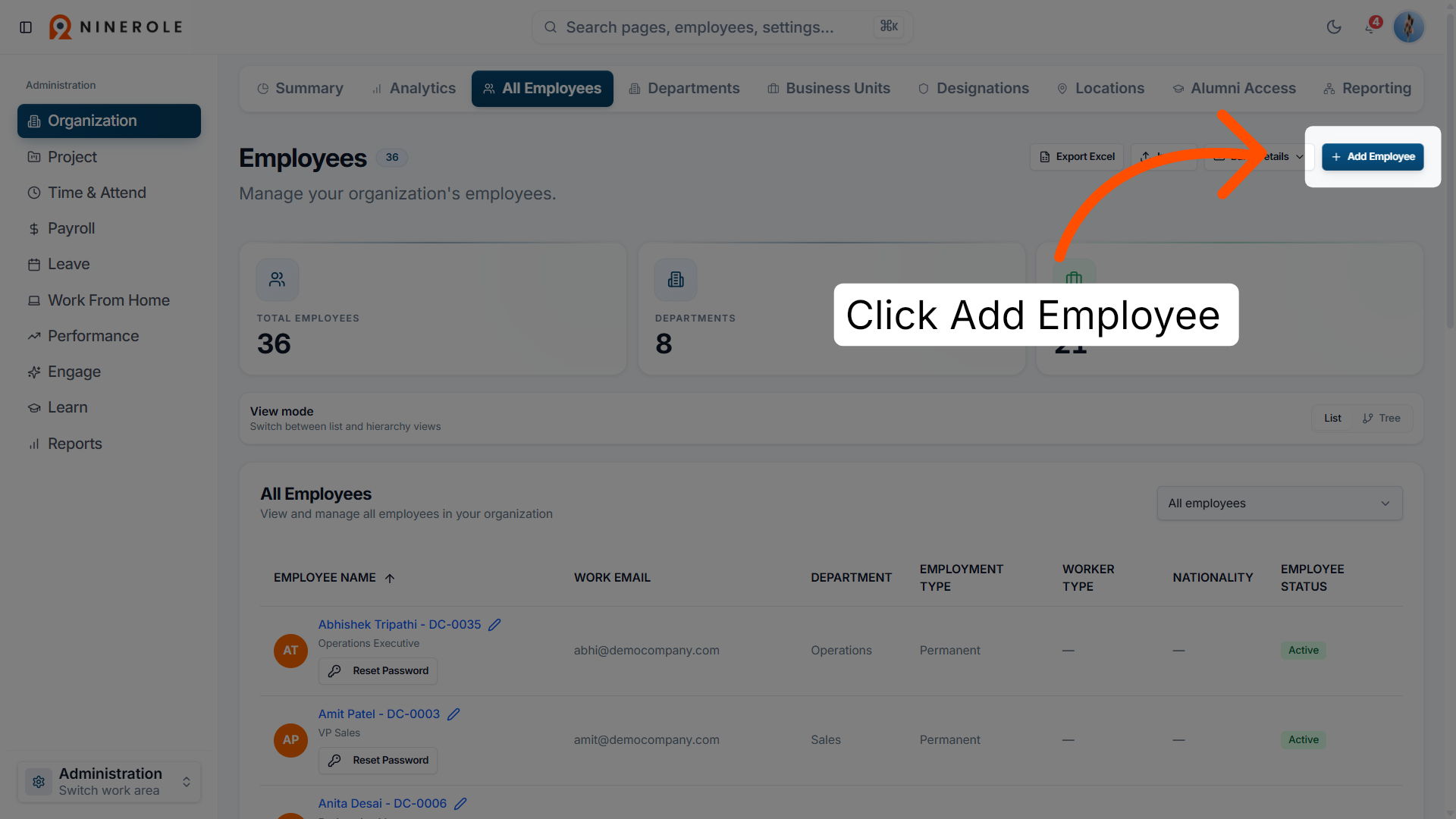
5. Initiate adding an employee
Click Add Employee to start creating a new employee profile.
Enter work details
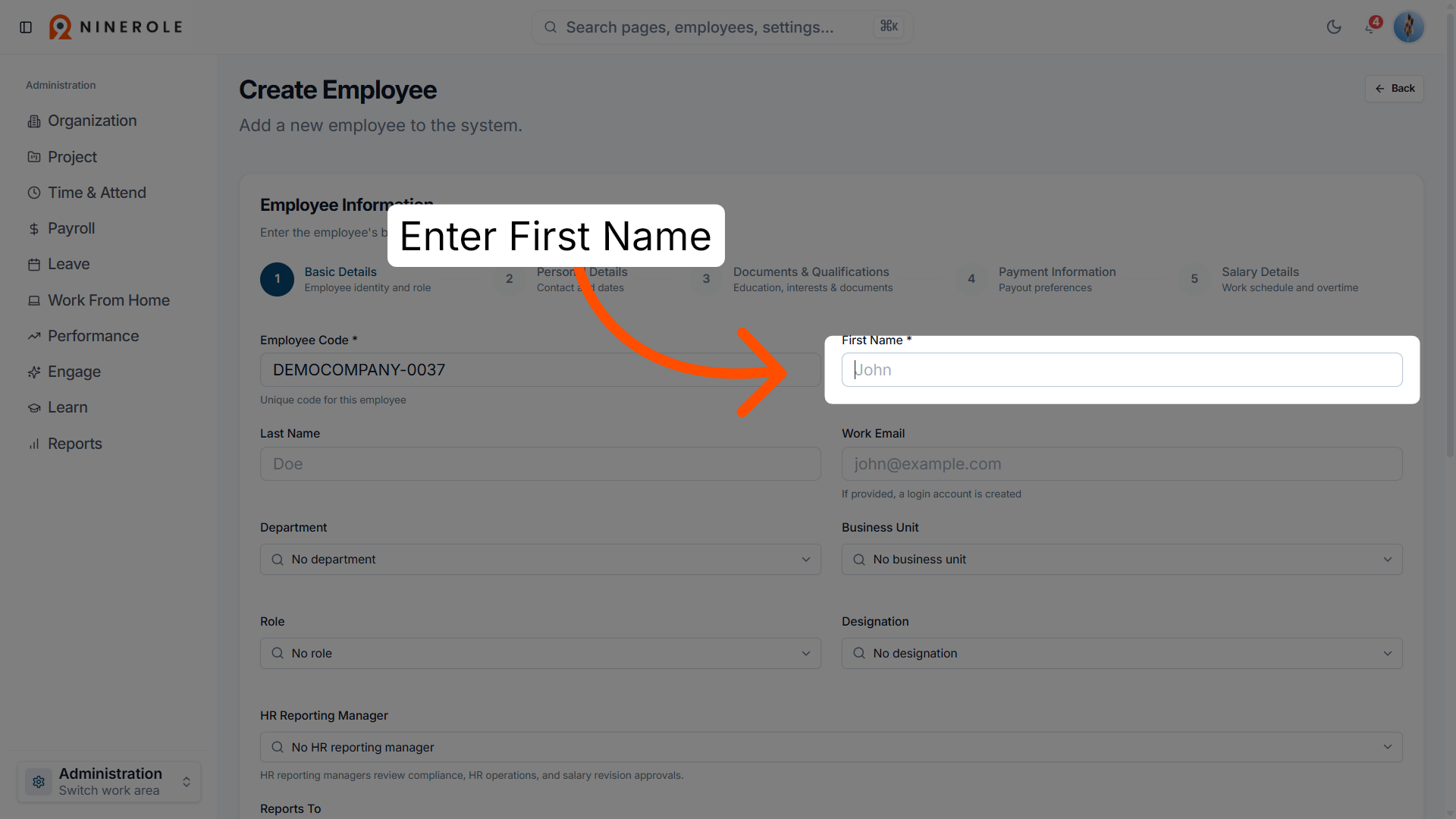
6. Select the First Name field
Enter First Name * to enter the employee's first name.
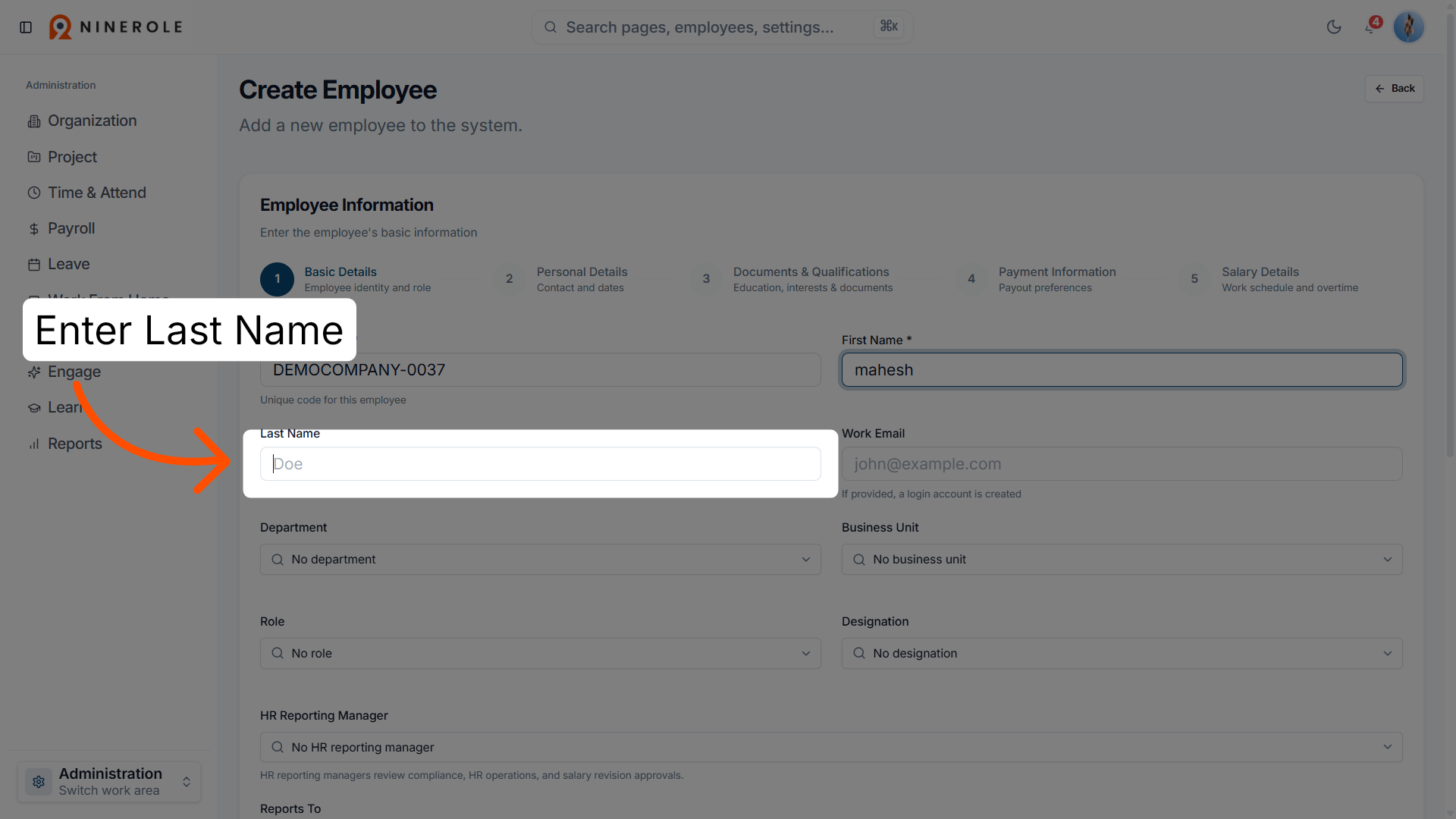
7. Select the Last Name field
Enter Last Name to input the employee's last name.
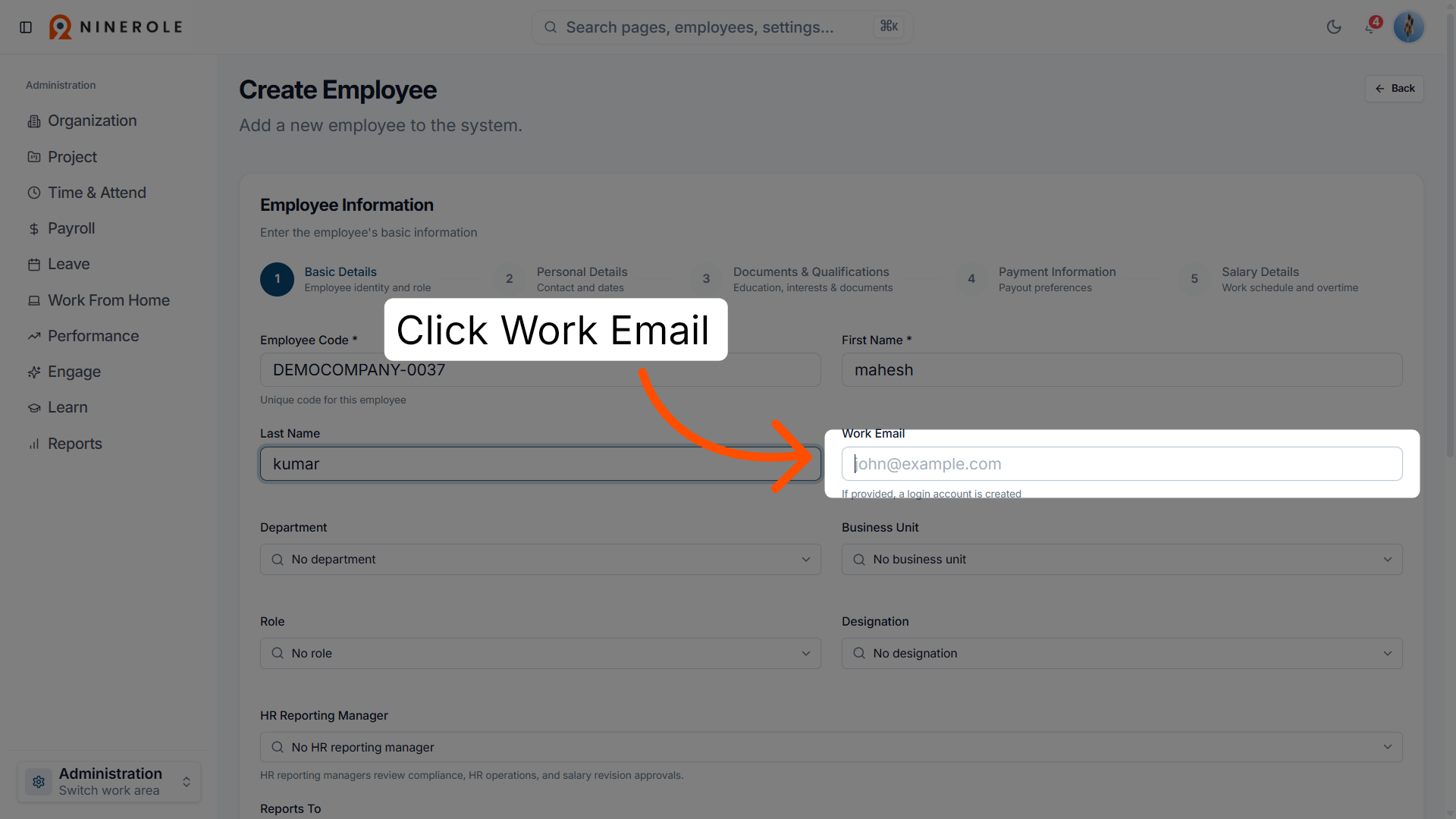
8. Select the Work Email field
Click Work Email to provide the employee's work email address.
9. Enter the work email address
Enter the employee's work email address.
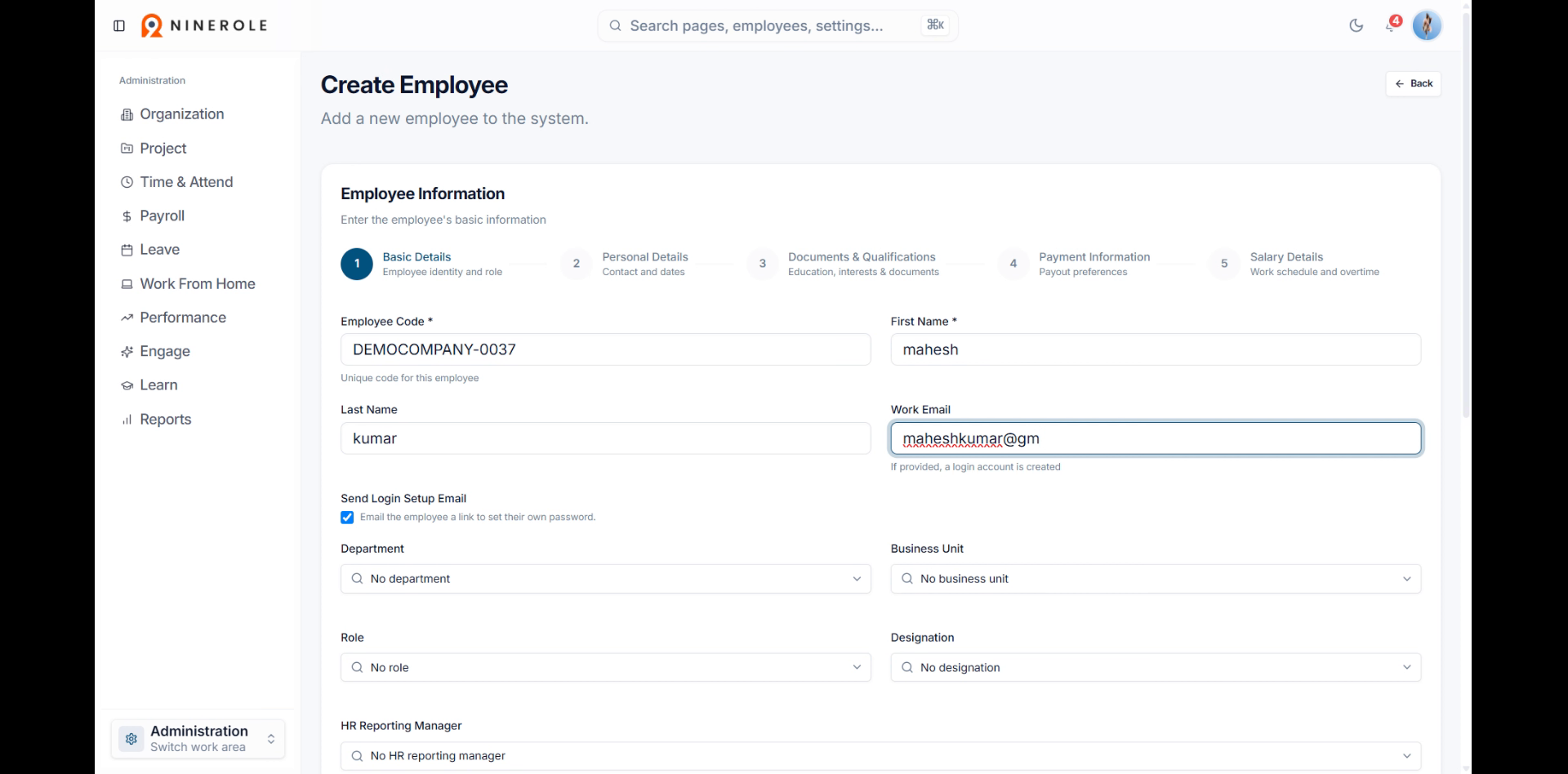
10. Open the Department dropdown
Click the Department dropdown to choose the employee's department.
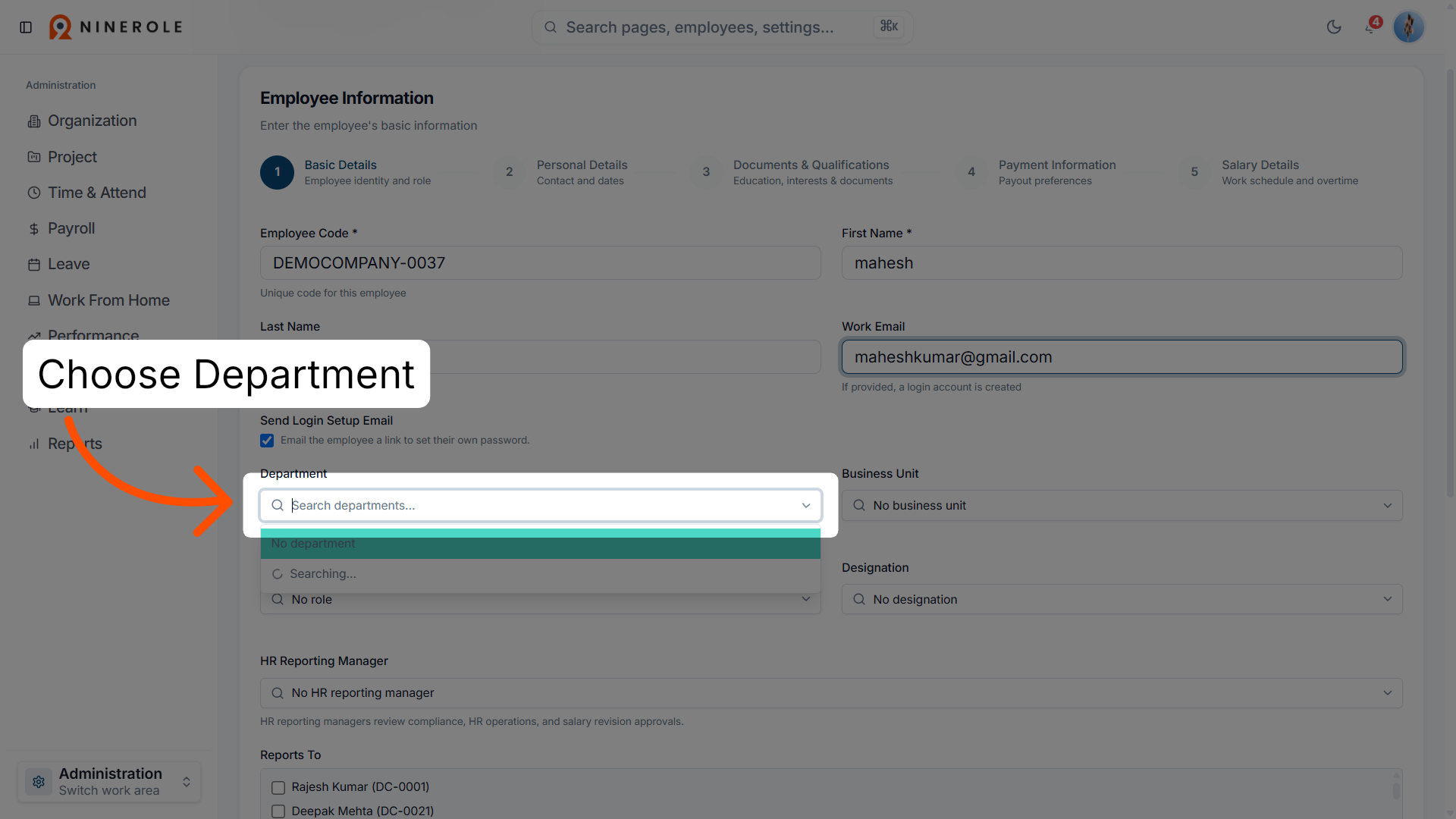
11. Open the Business Unit dropdown
Click the Business Unit dropdown to assign the employee's business unit.
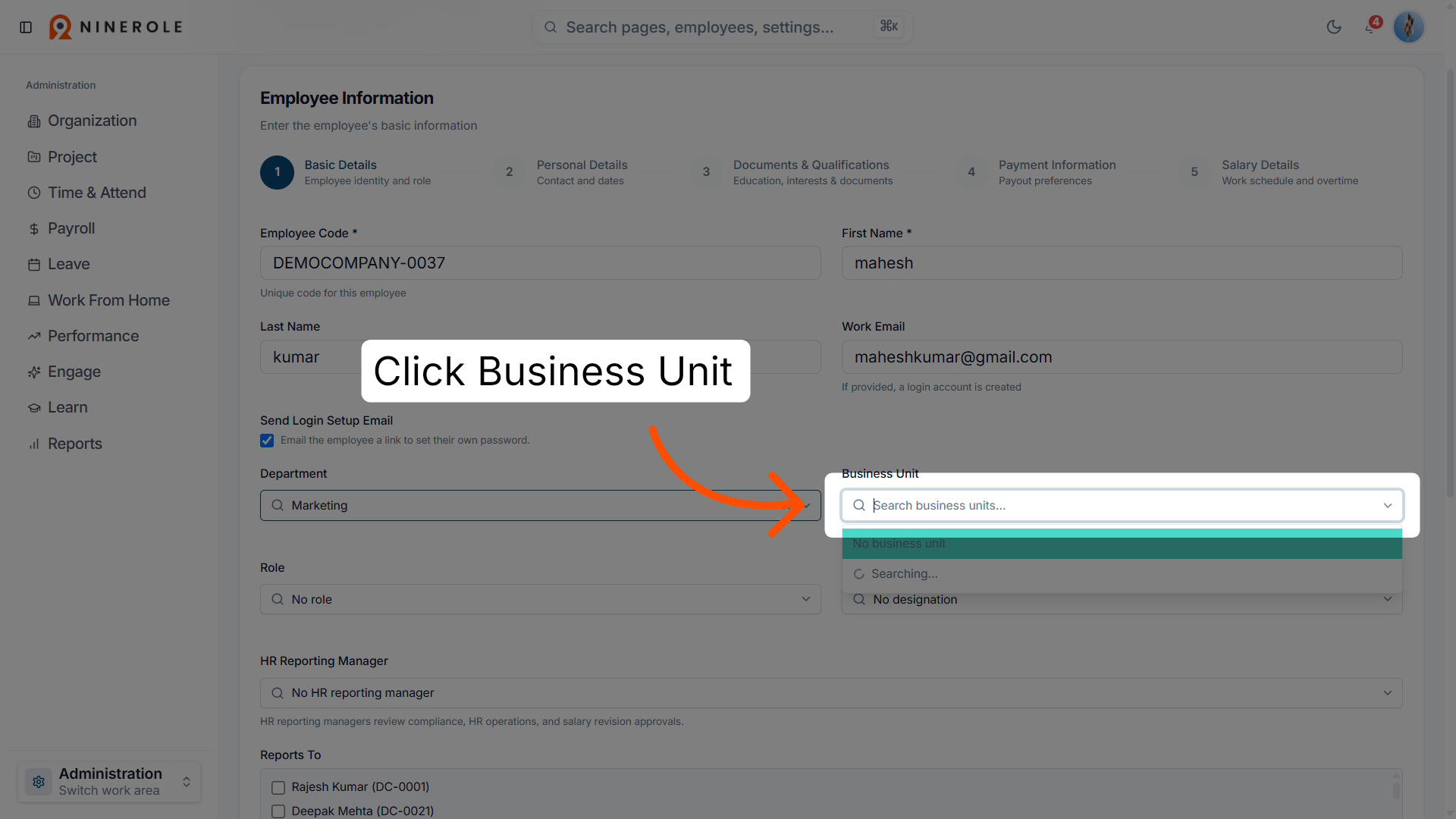
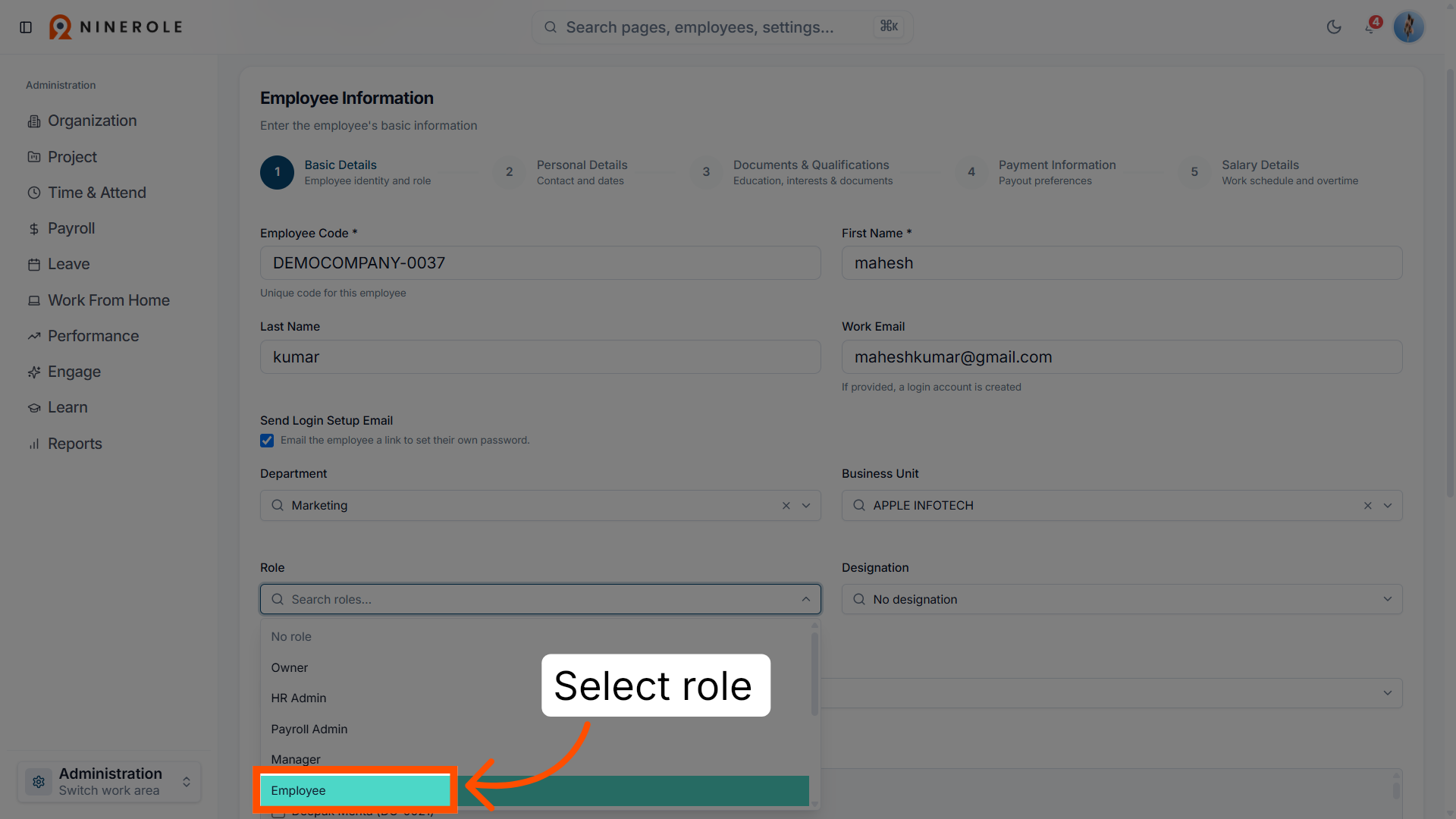
12. Open the Role dropdown
Click the Role dropdown to specify the employee's role.
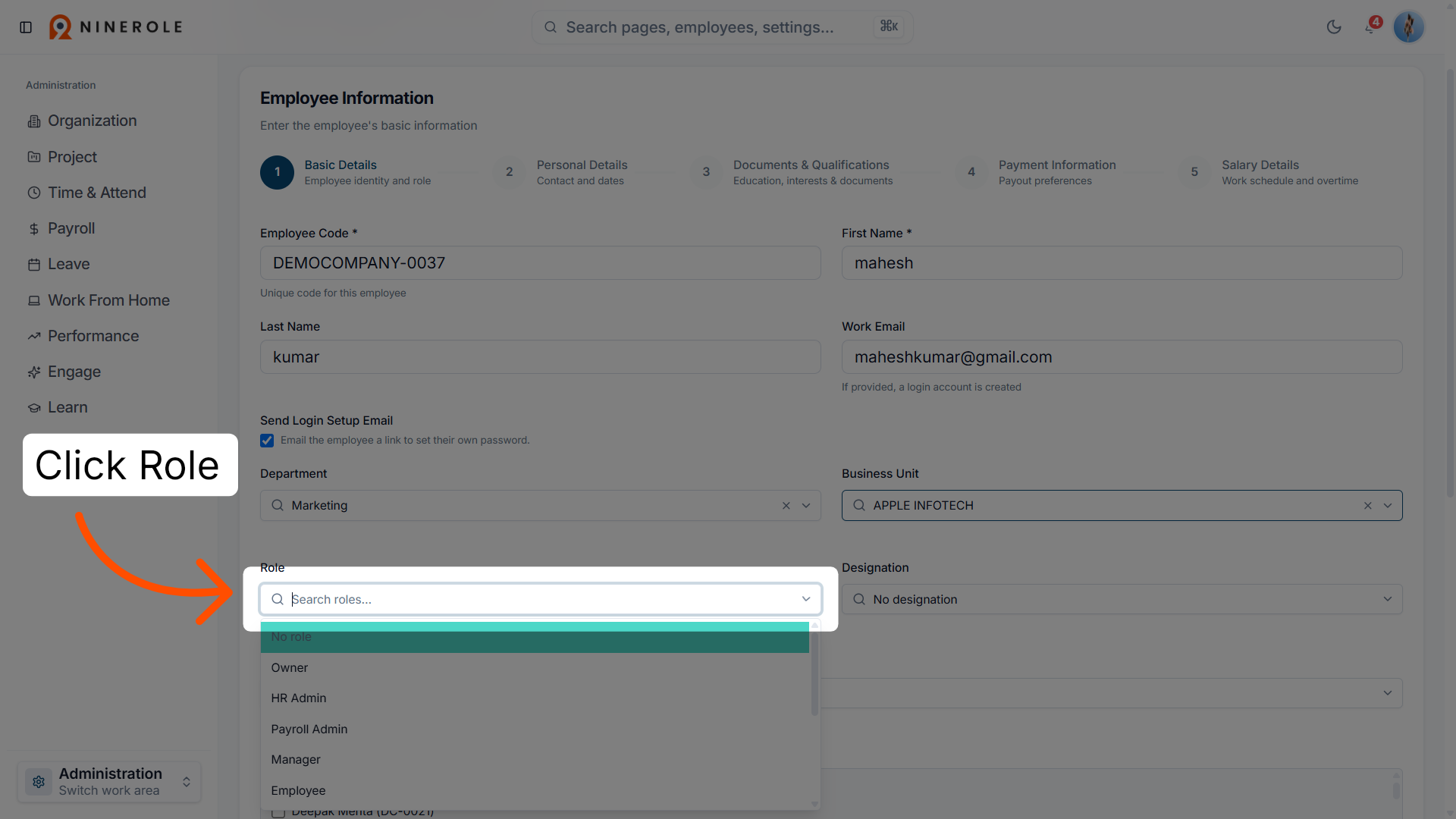
13. Select the employee role
Choose the employee role from the list.
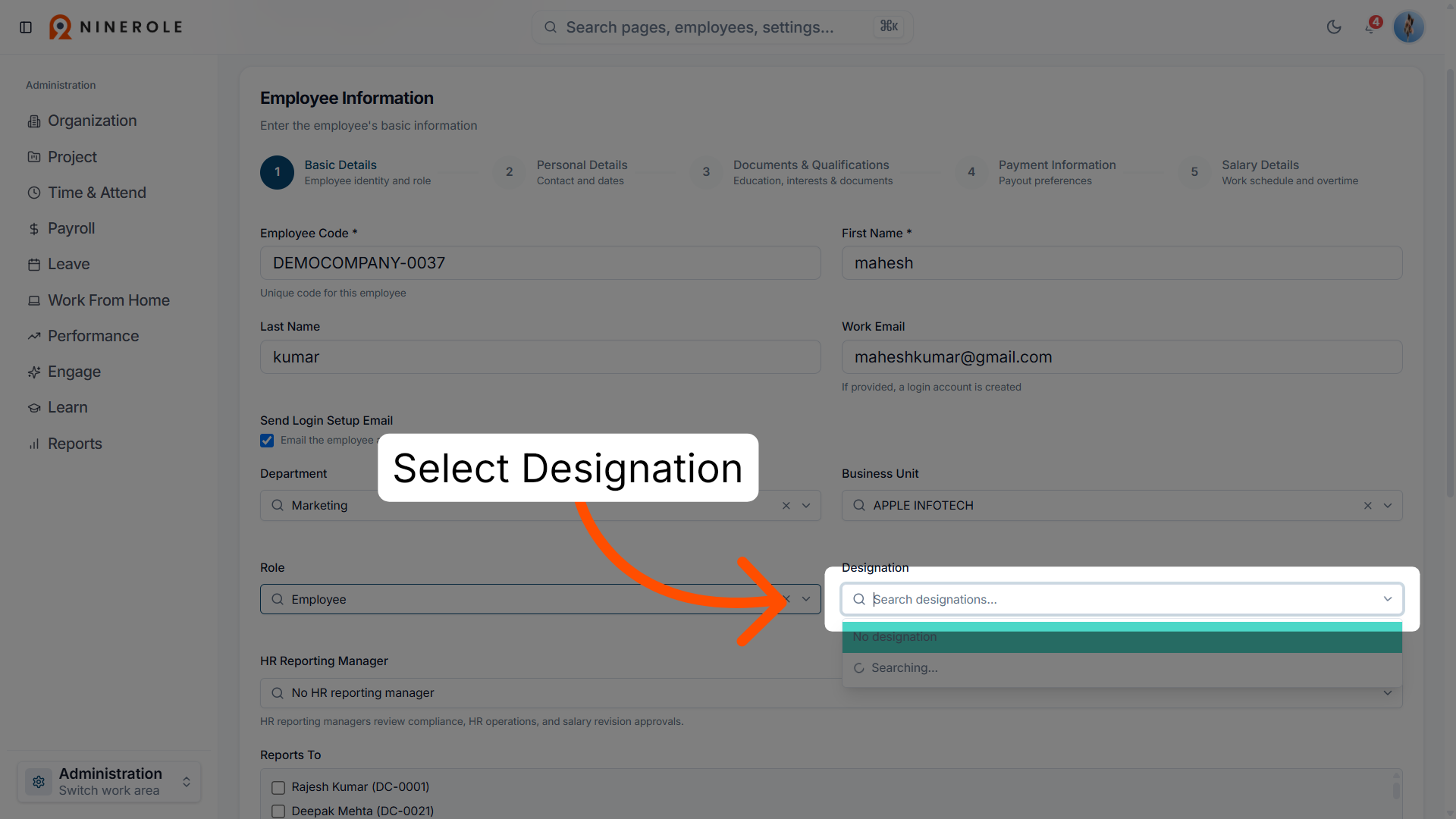
14. Open the Designation dropdown
Click the Designation dropdown to set the employee's designation.
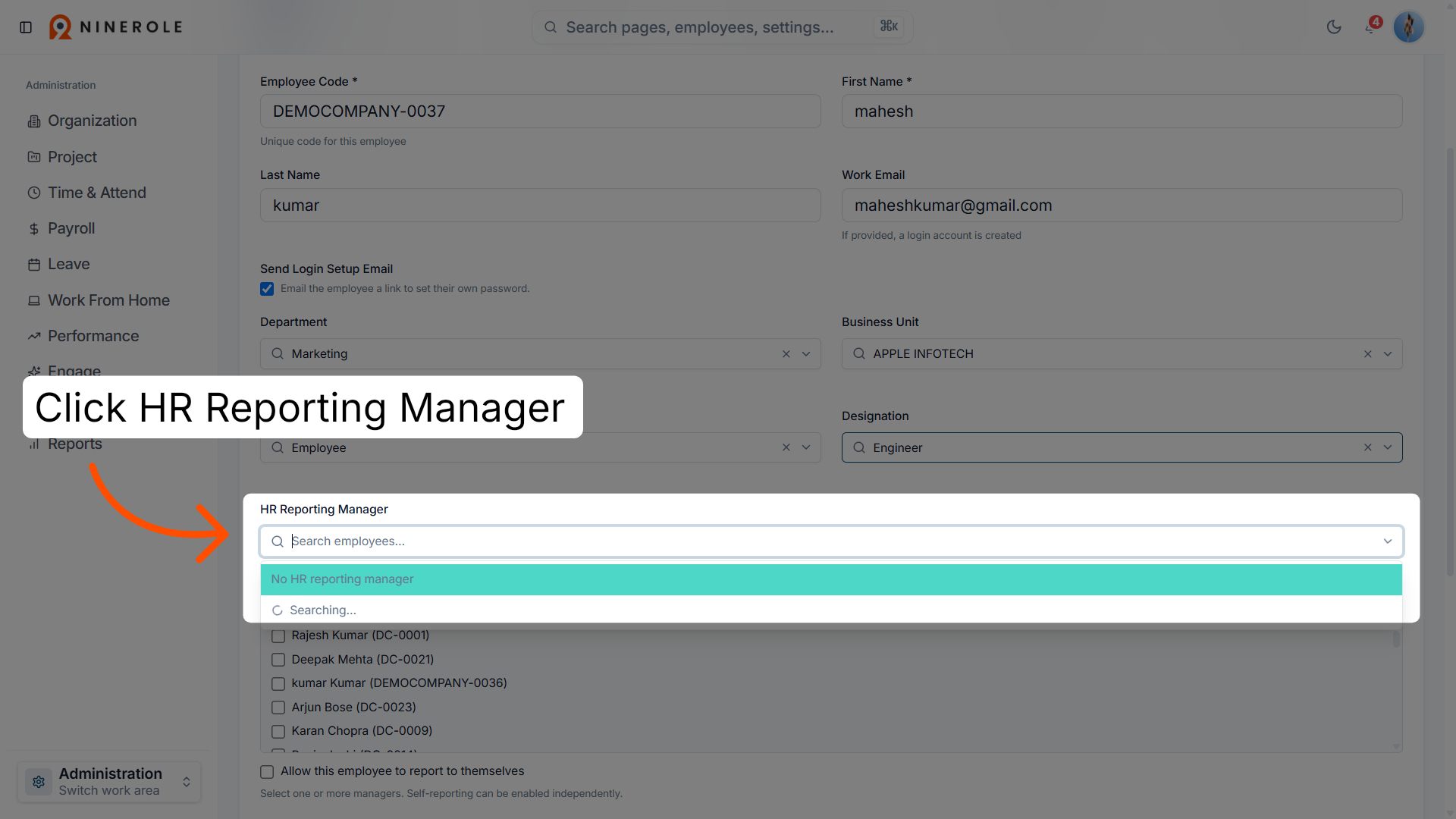
15. Open the HR Reporting Manager field
Click the HR Reporting Manager dropdown to assign a manager.
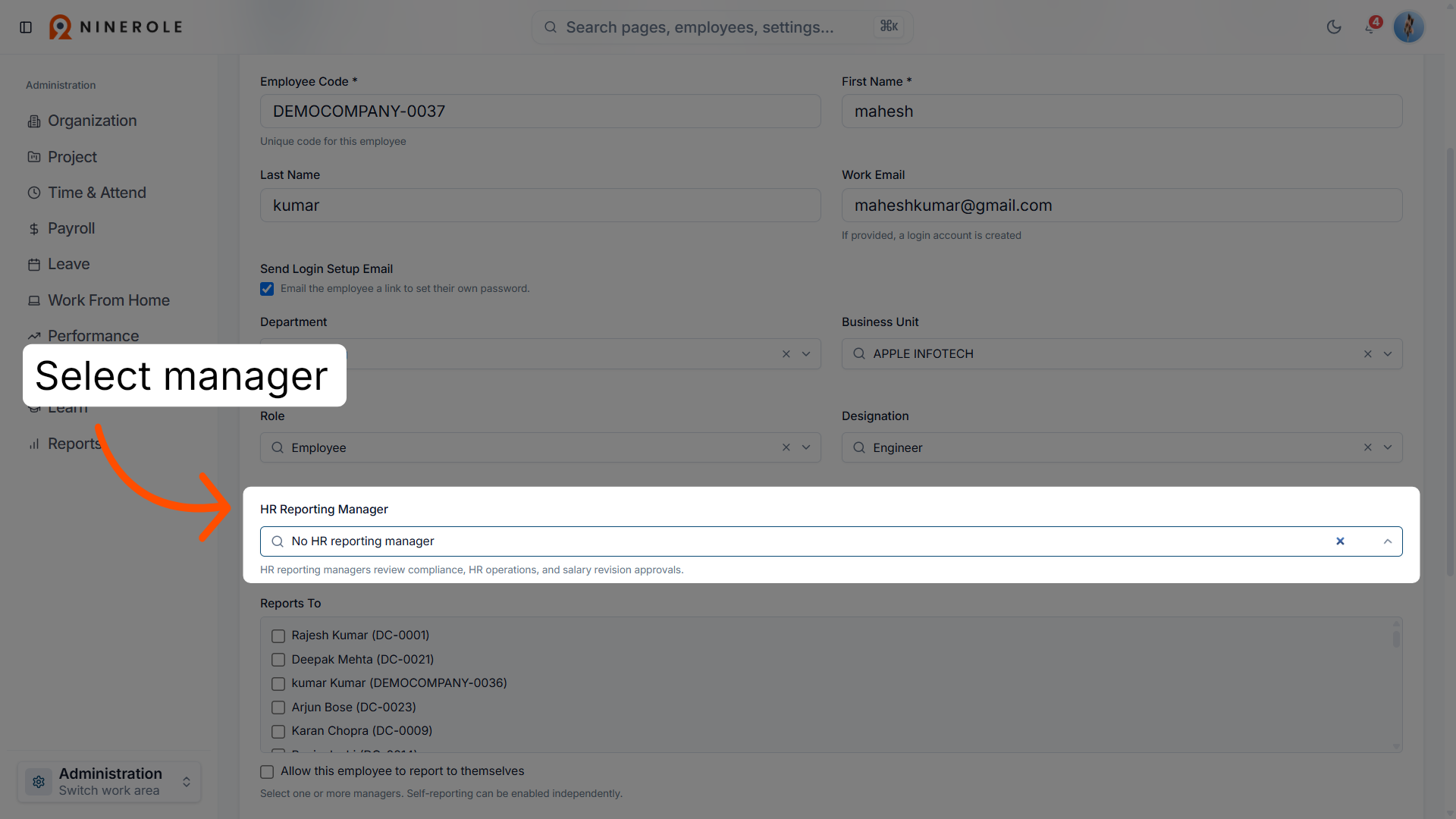
16. Select the HR reporting manager
Choose the HR reporting manager for the employee.
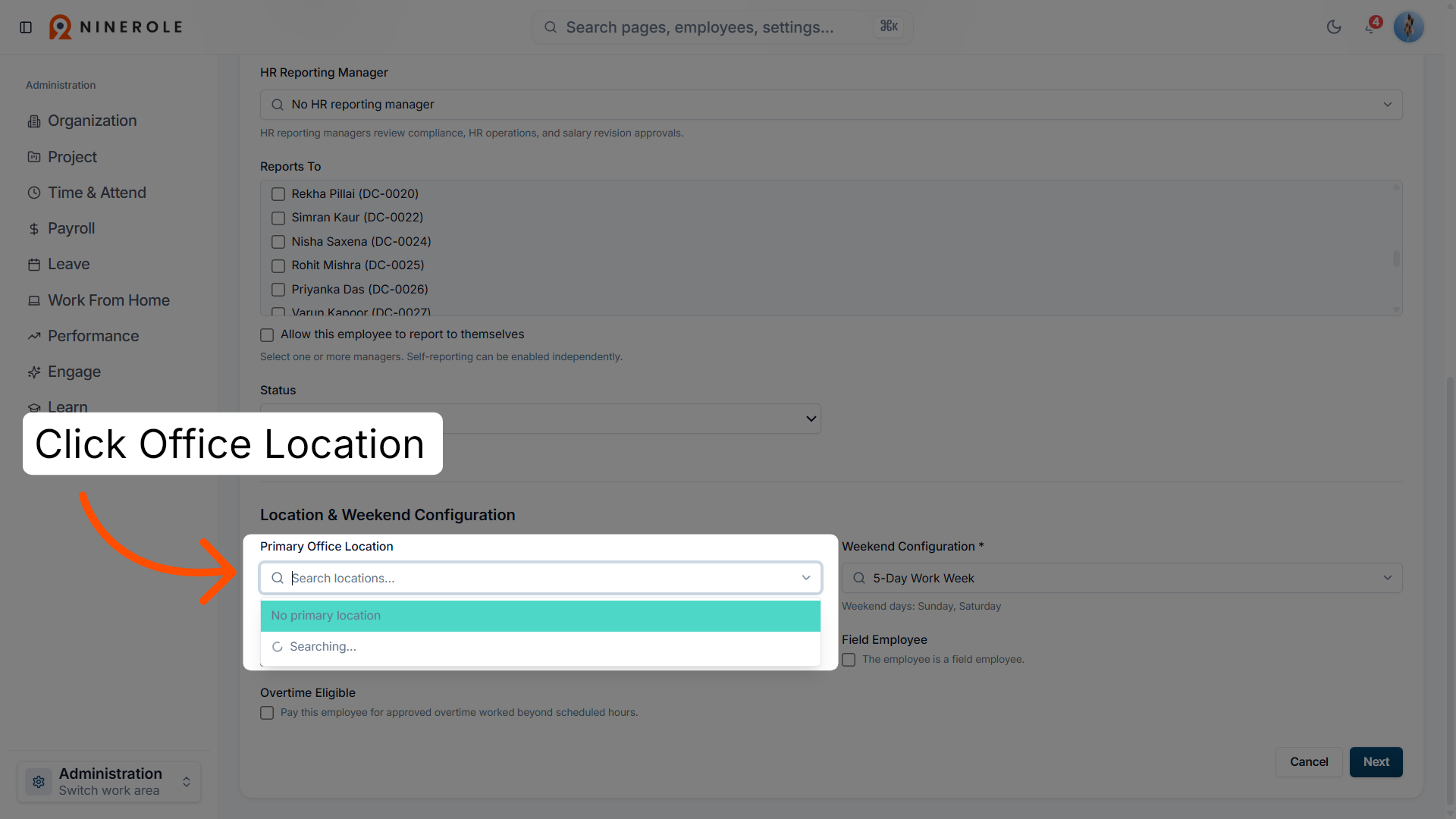
17. Open the office location dropdown
Click the Primary Office Location dropdown to select the office location.
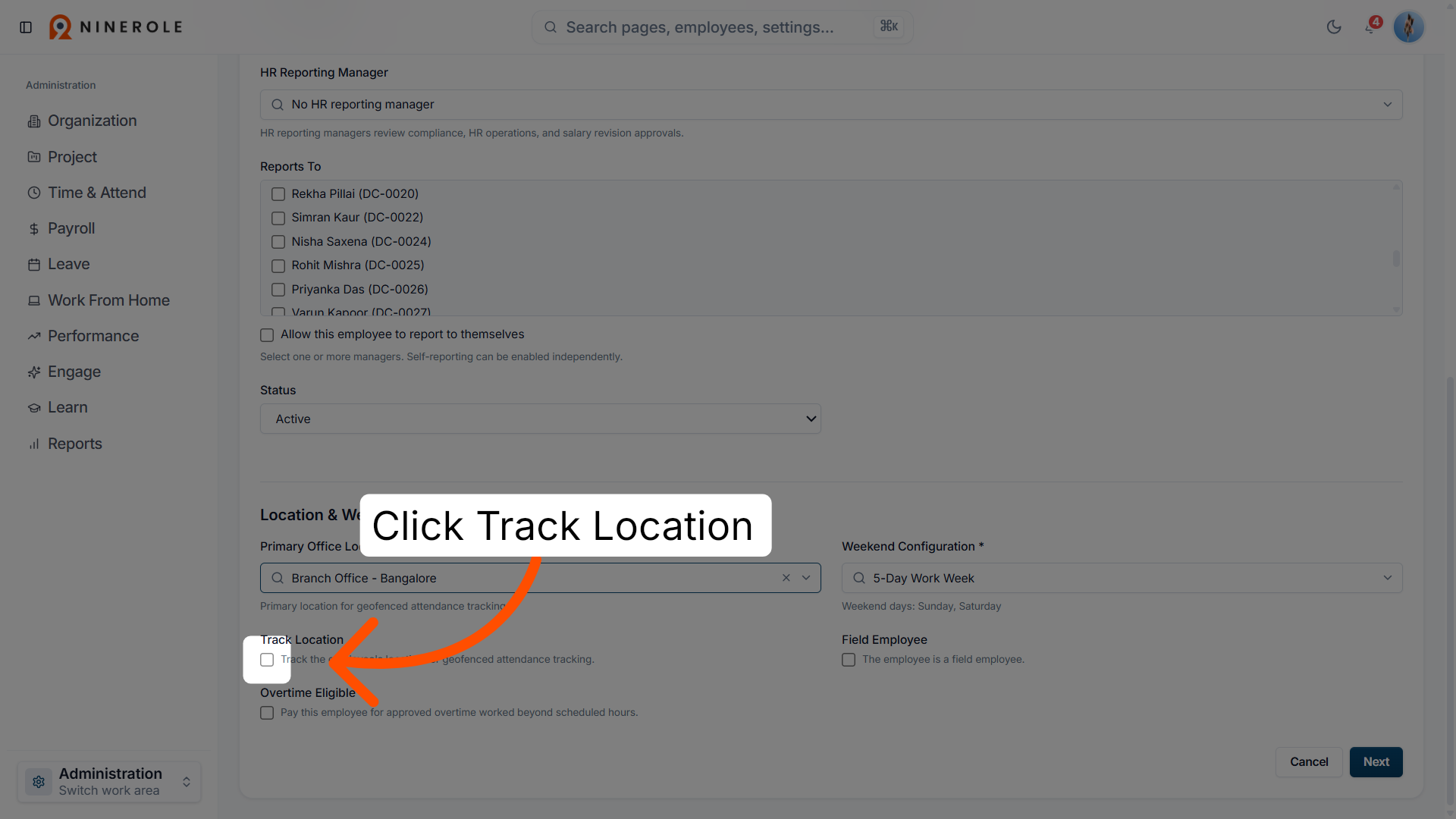
18. Open the Track Location field
Click Track Location to enable location tracking.
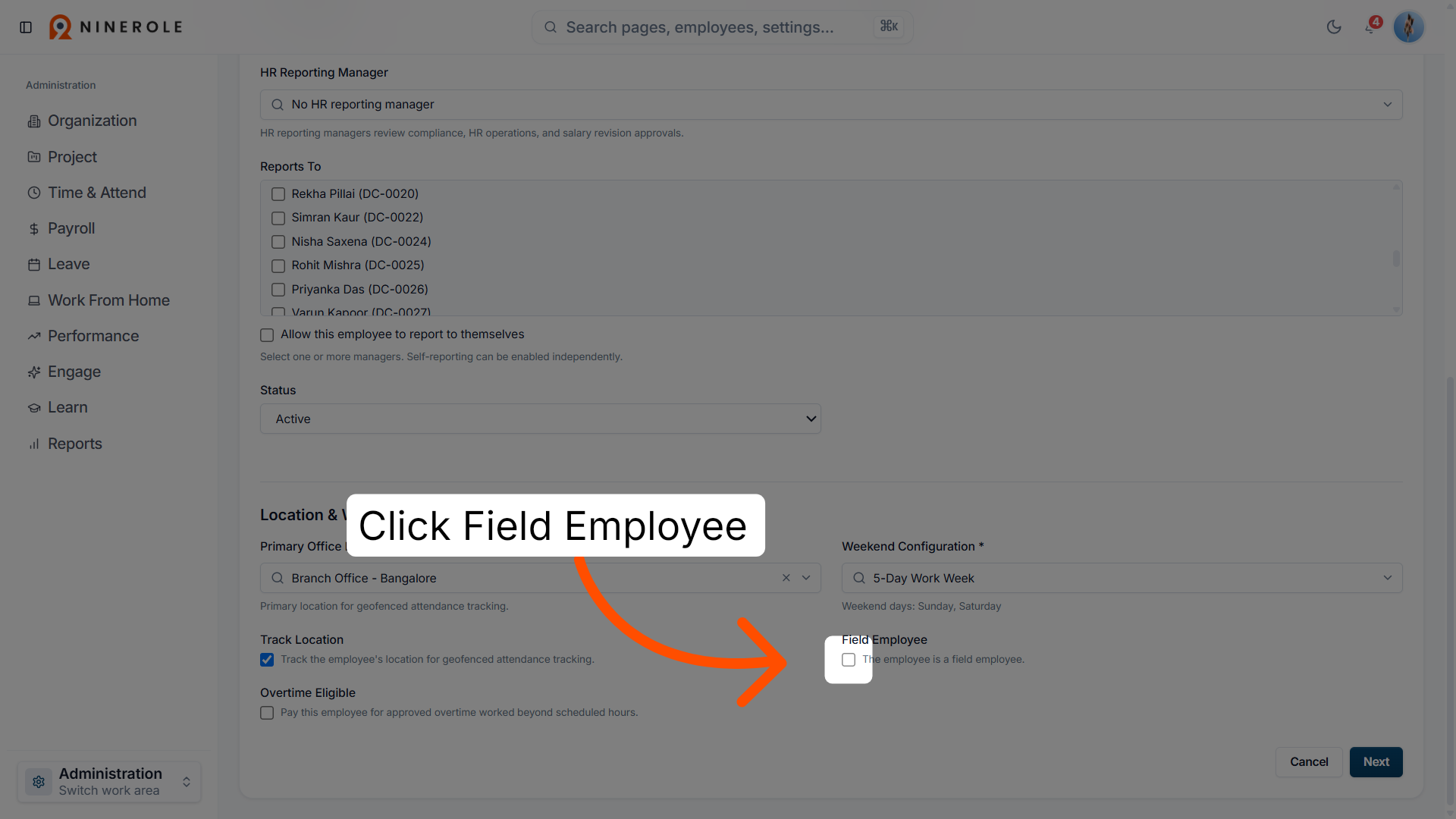
19. Select the Field Employee option
Click Field Employee to specify the employee type.
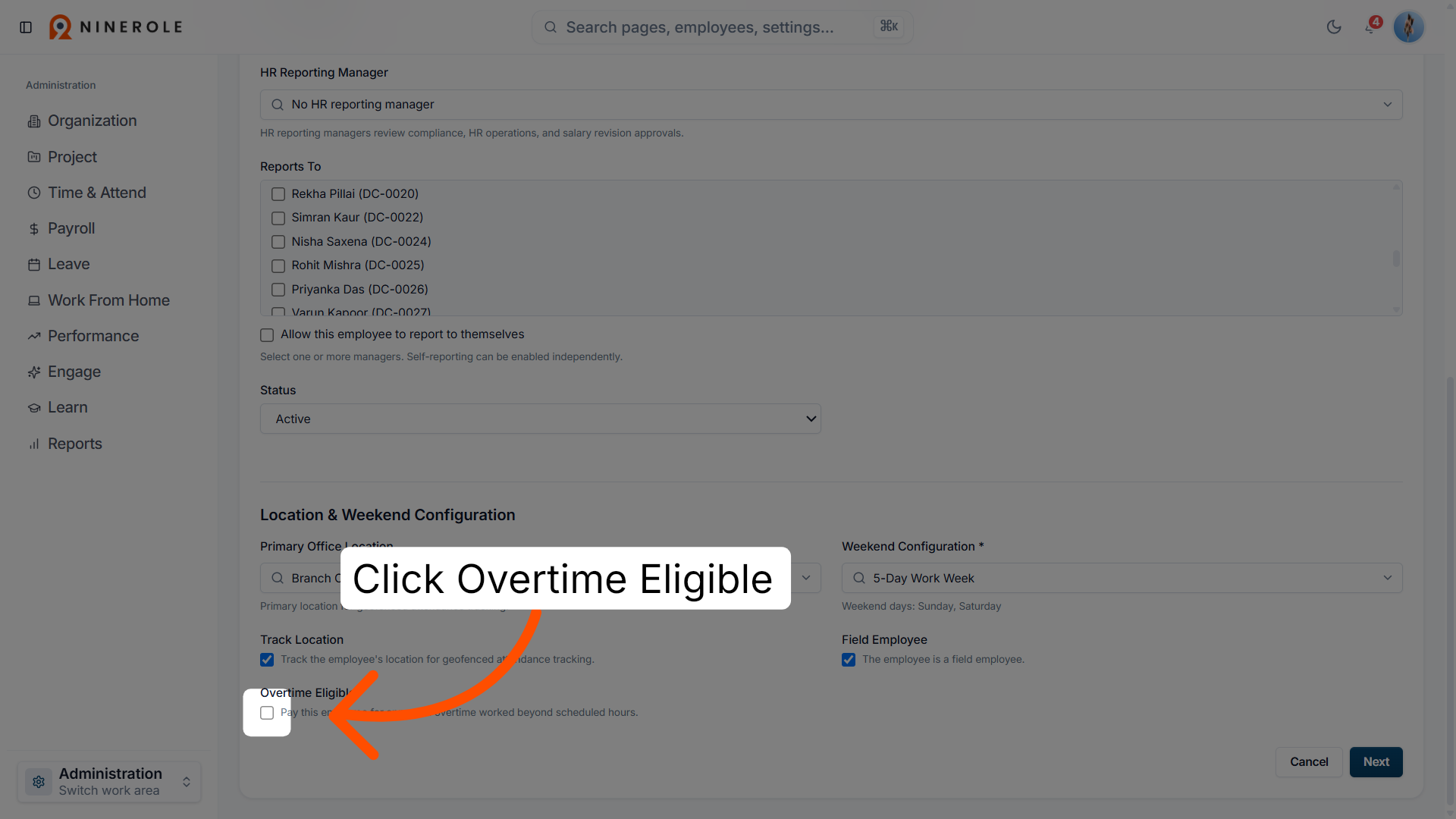
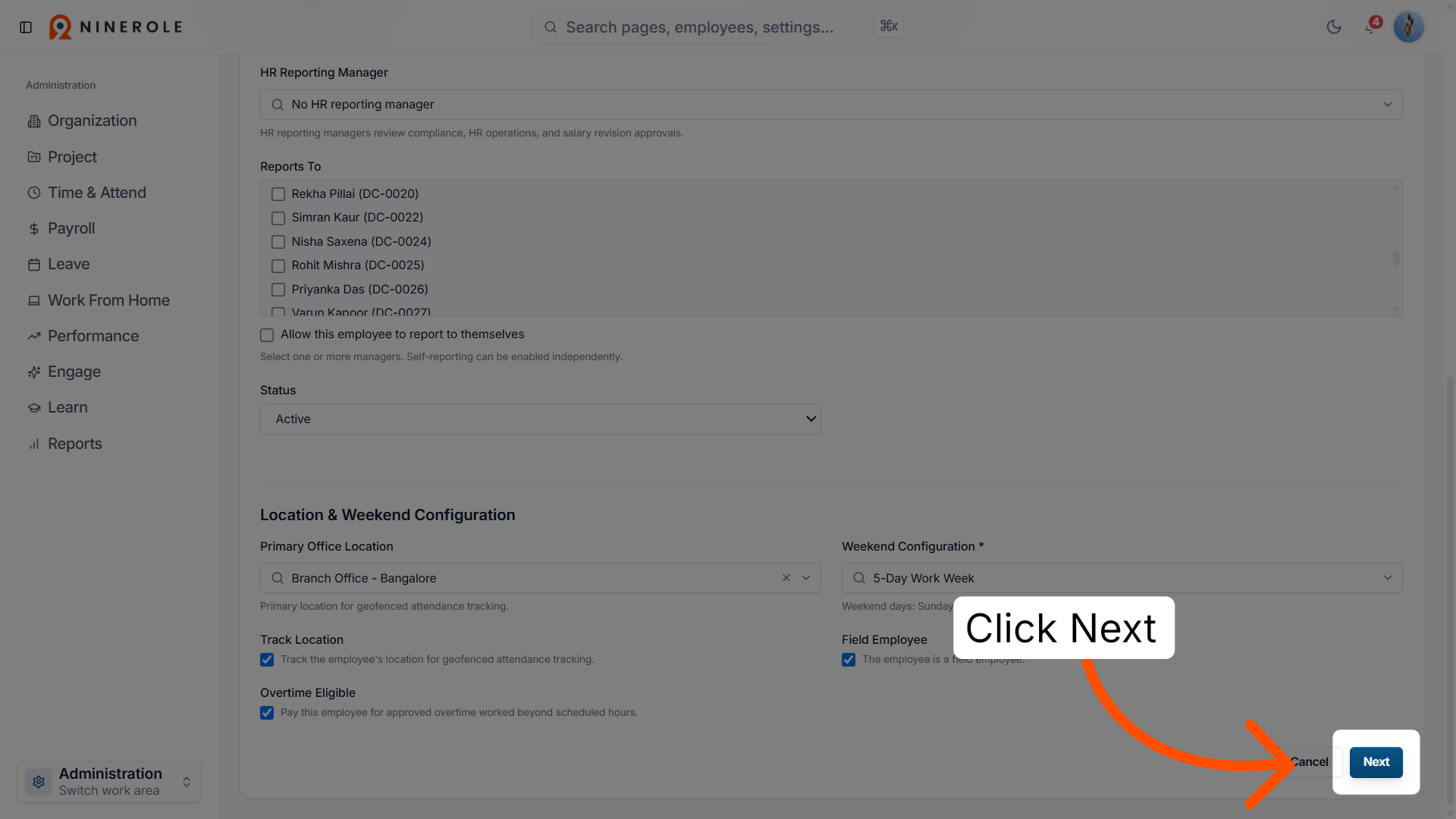
20. Open the overtime eligibility field
Click Overtime Eligible to set eligibility.
21. Proceed to the next step
Click Next to continue to the next section.
Enter personal details
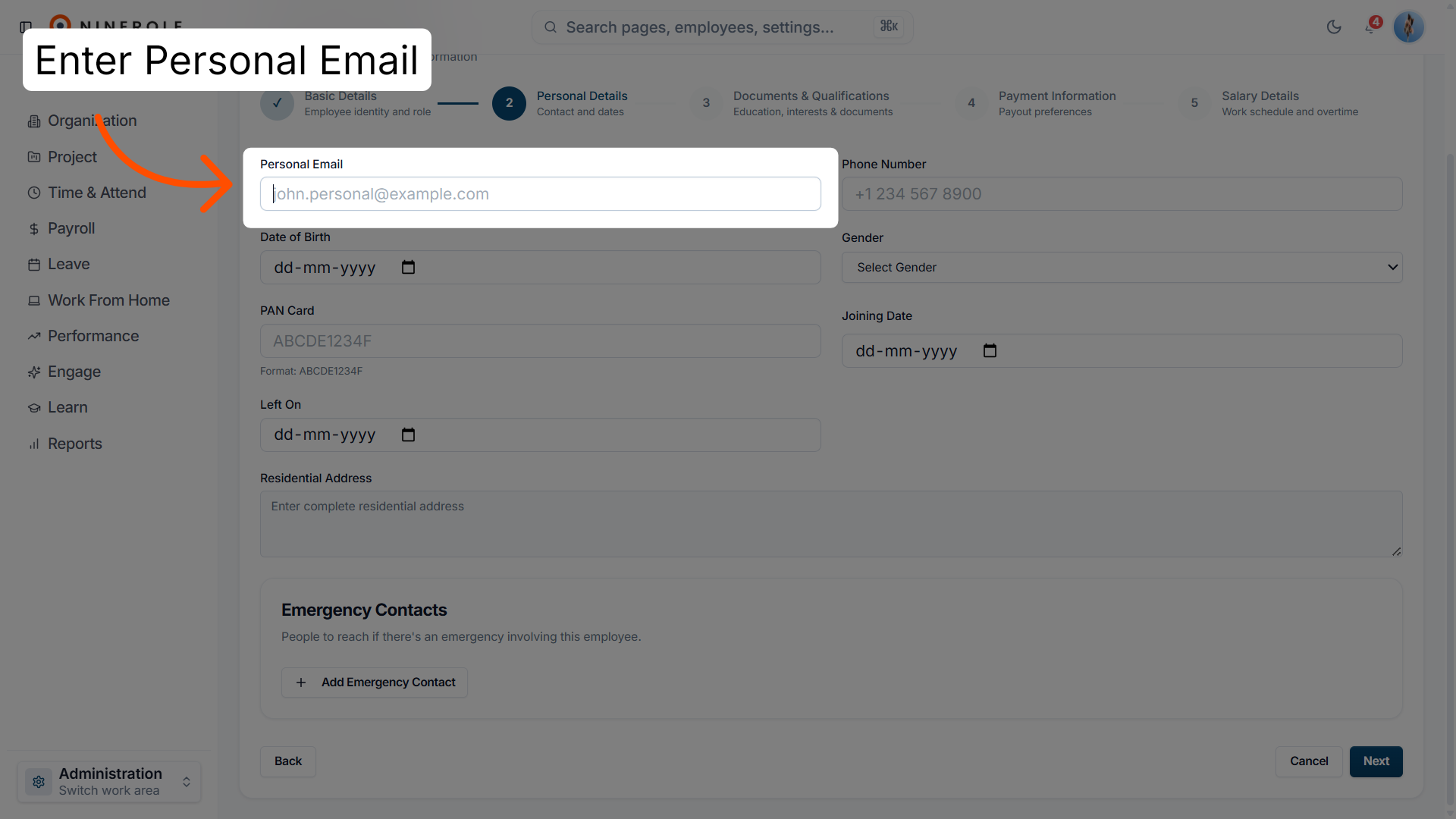
22. Select the Personal Email field
Enter the employee's personal email address.
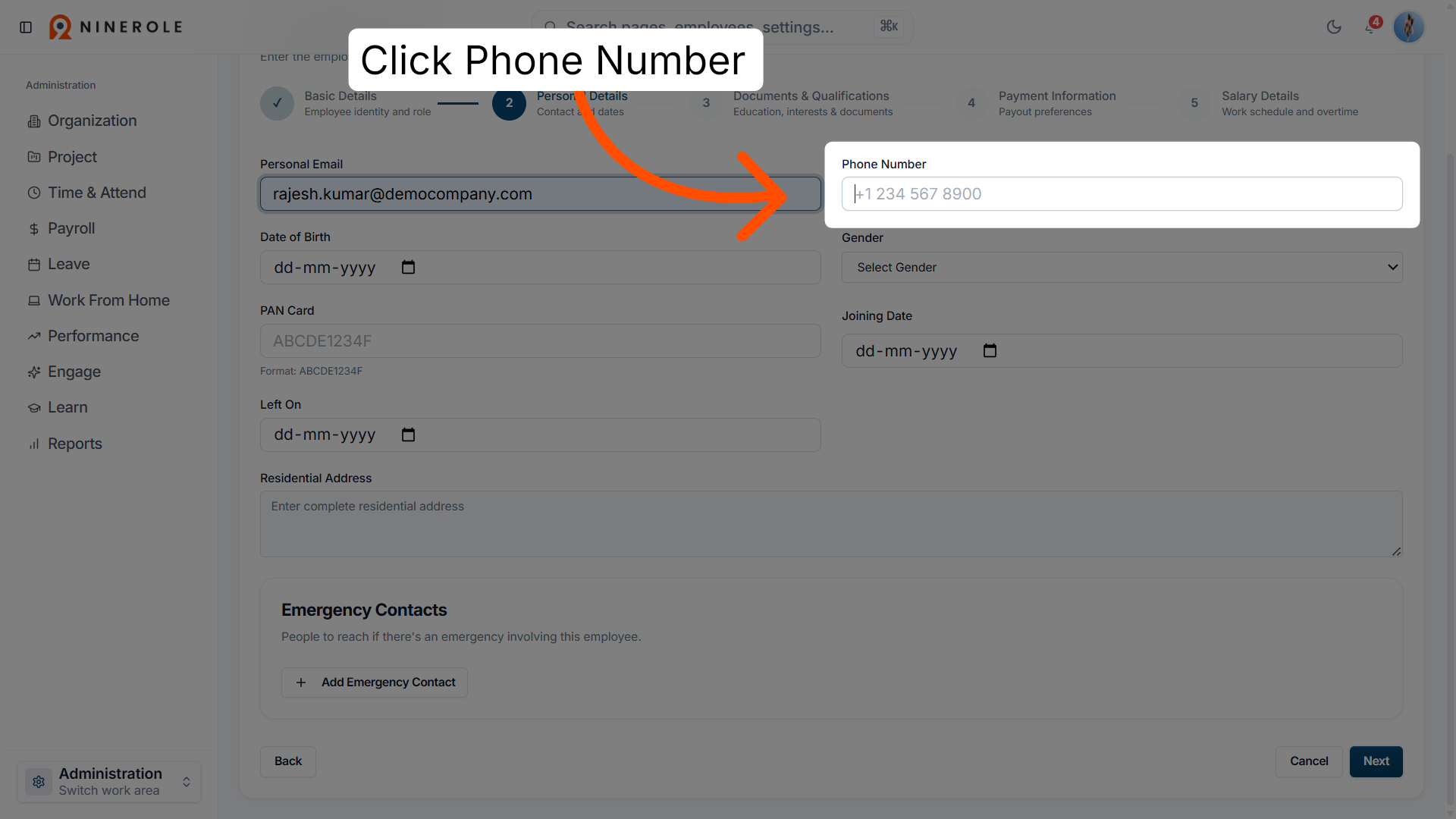
23. Select the Phone Number field
Enter the employee's phone number.
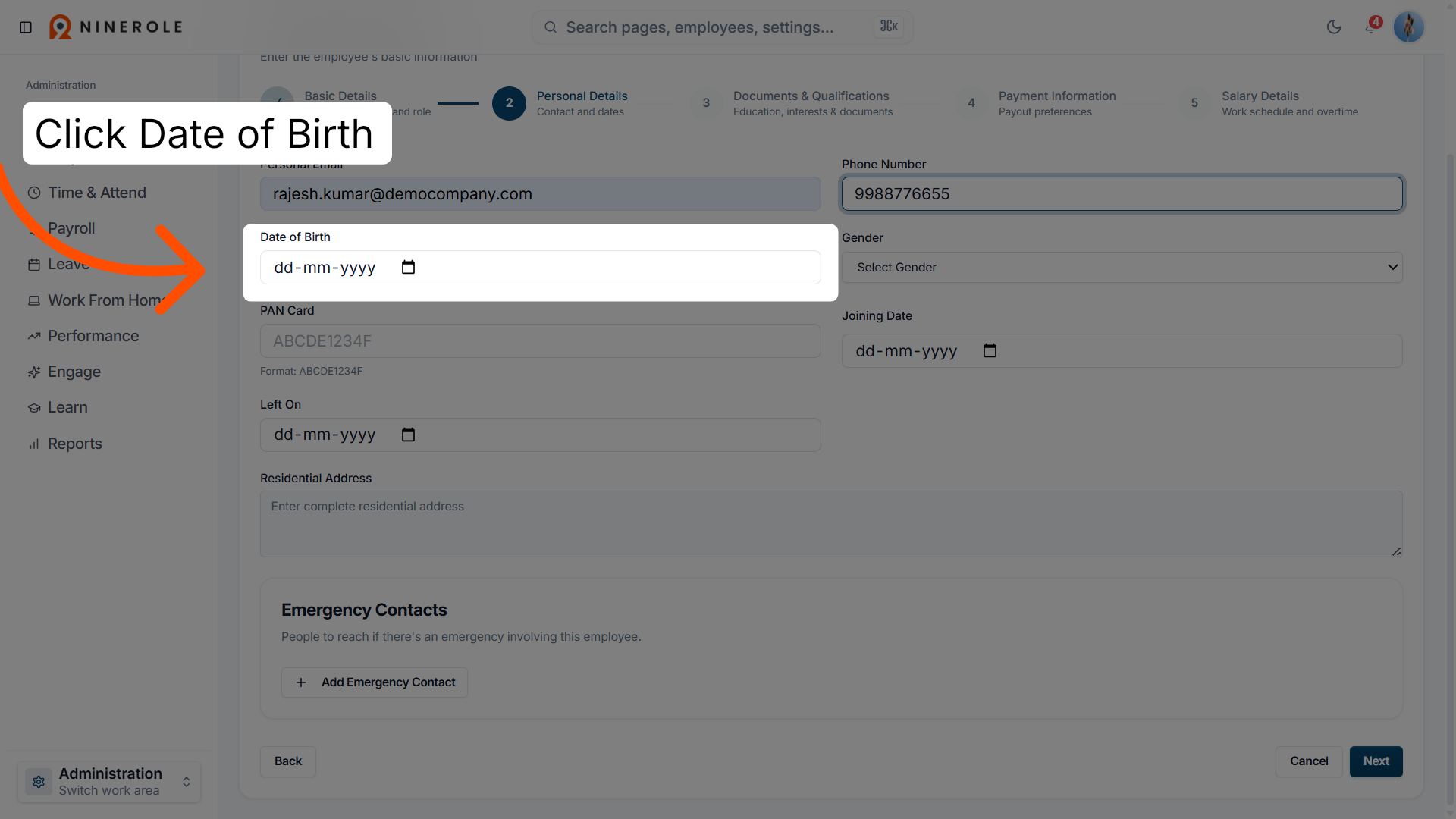
24. Select the Date of Birth field
Select the Date of Birth to specify the birth date, month, and year.
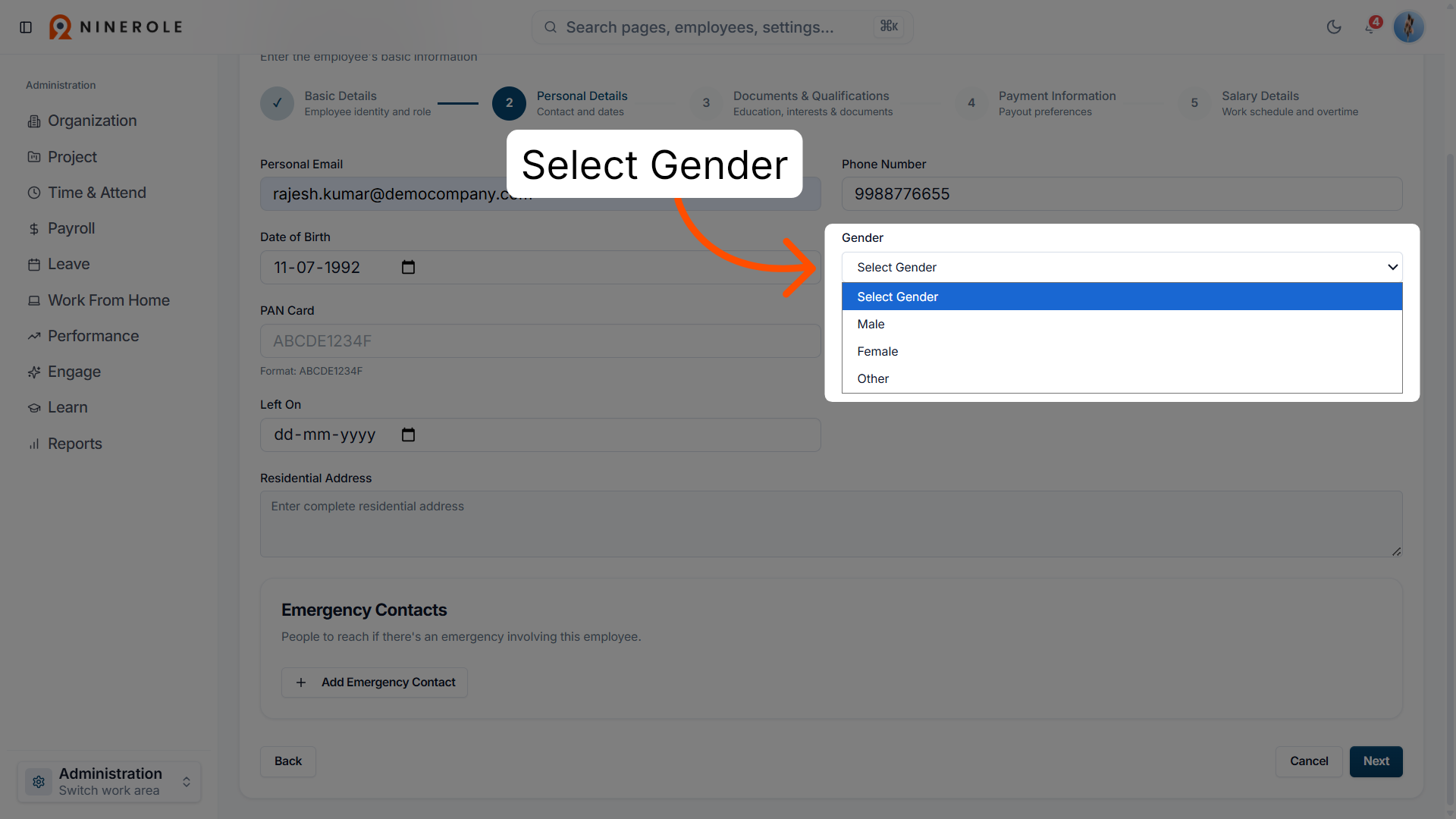
25. Open the gender selection
Choose the employee's gender from the options.
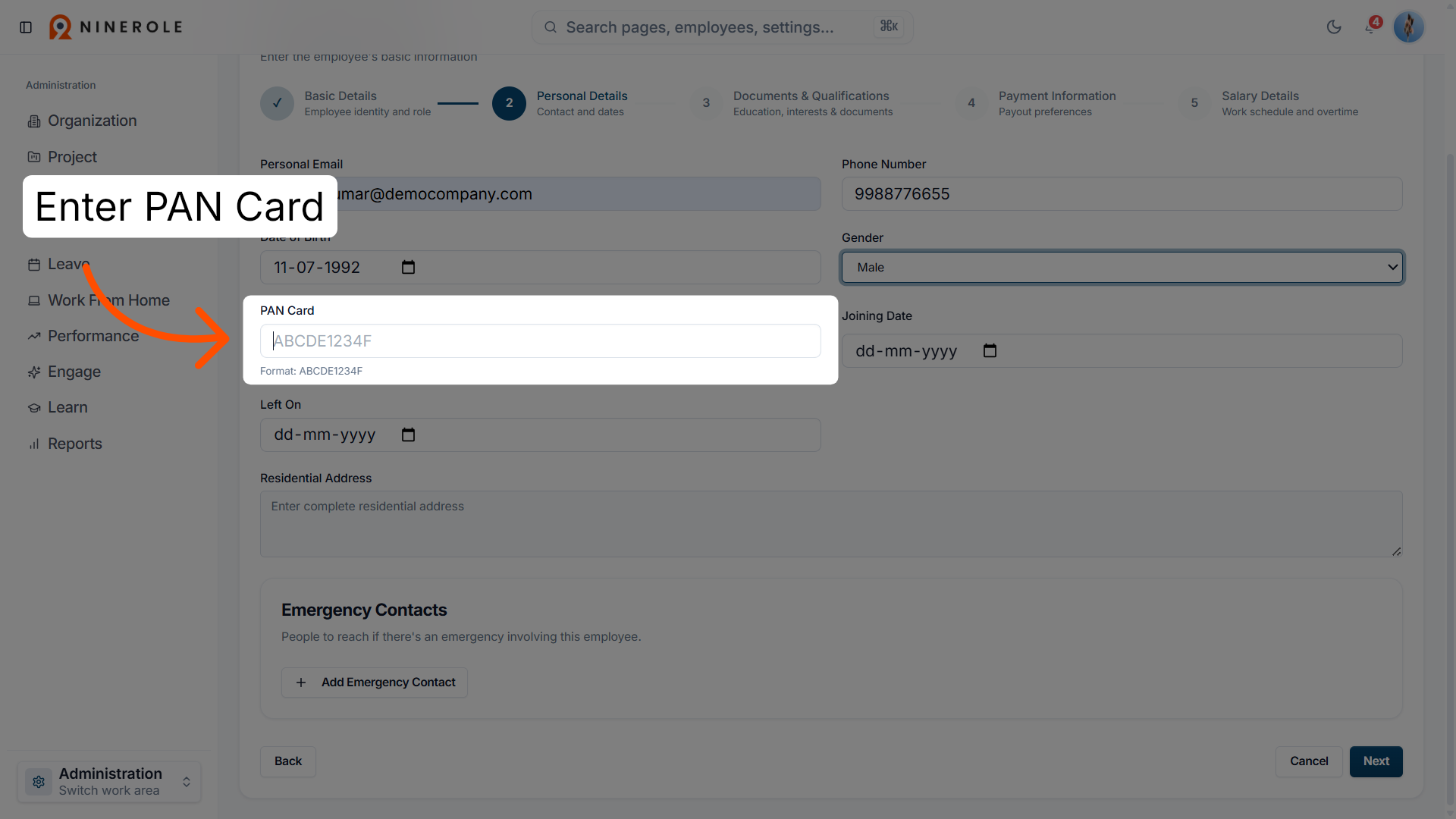
26. Select the PAN card field
Enter the employee's PAN card number.
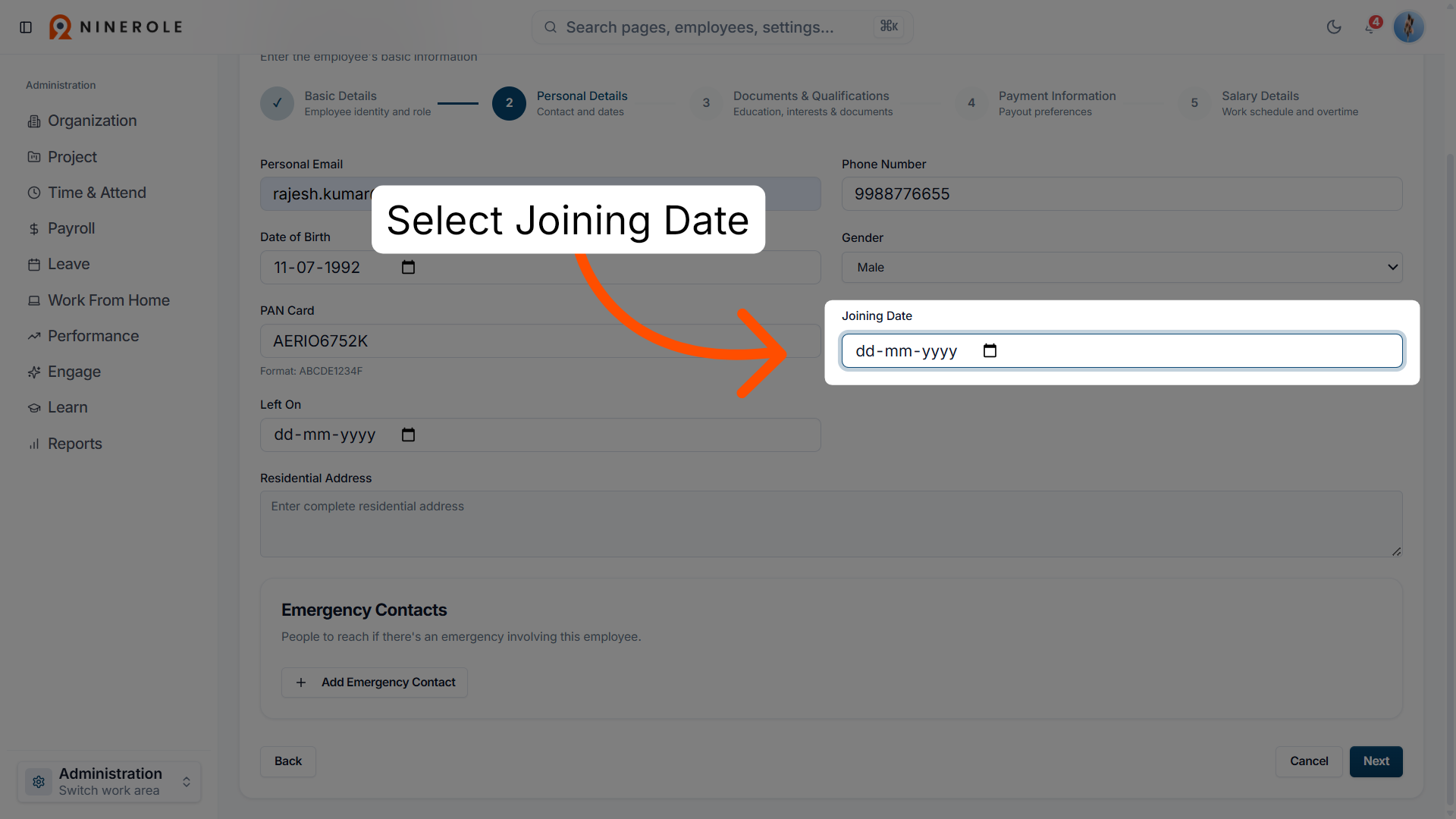
27. Select the joining date
Select the employee's joining date.
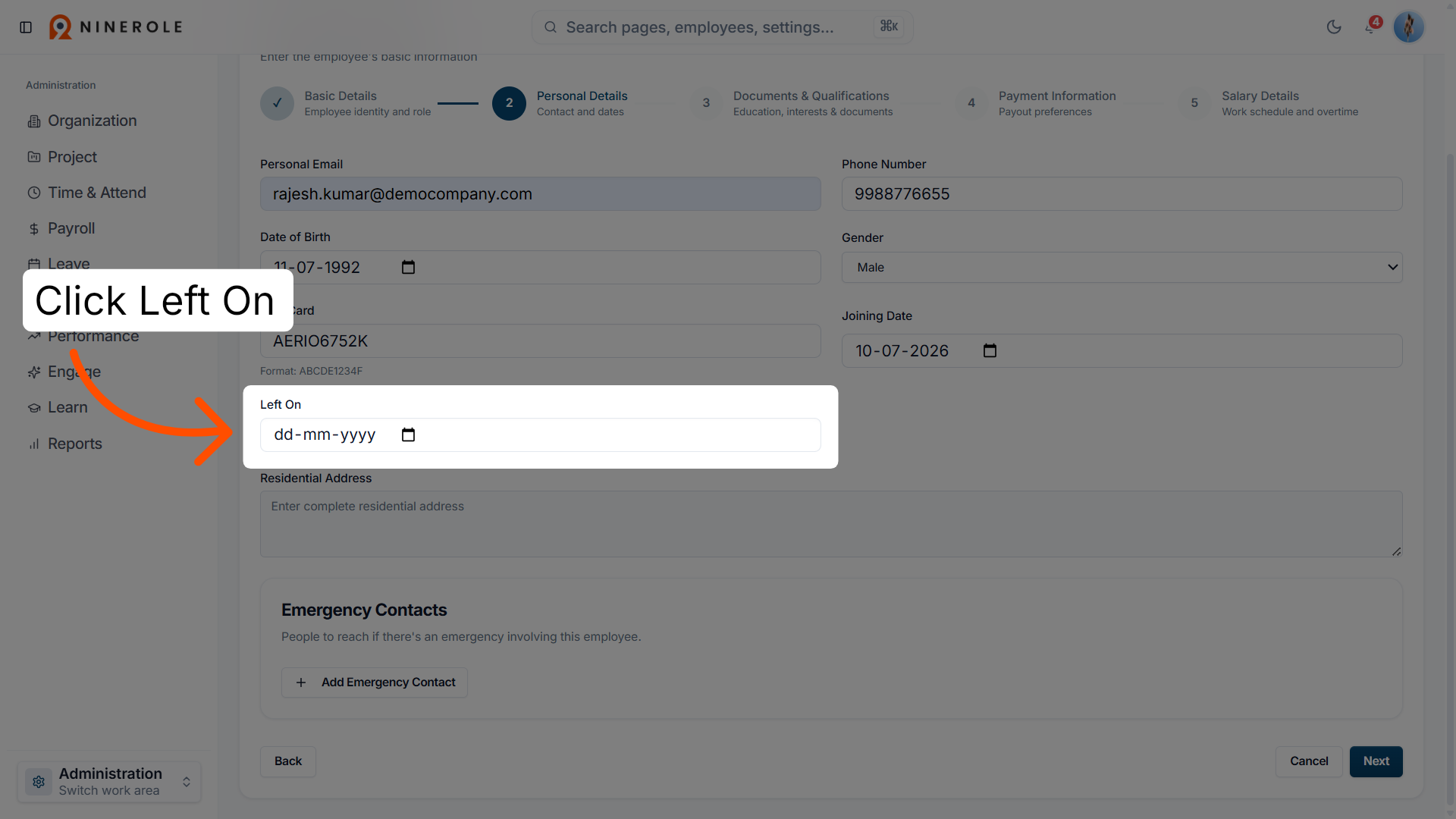
28. Select the Left On field
Click Left On to specify the end date if applicable.
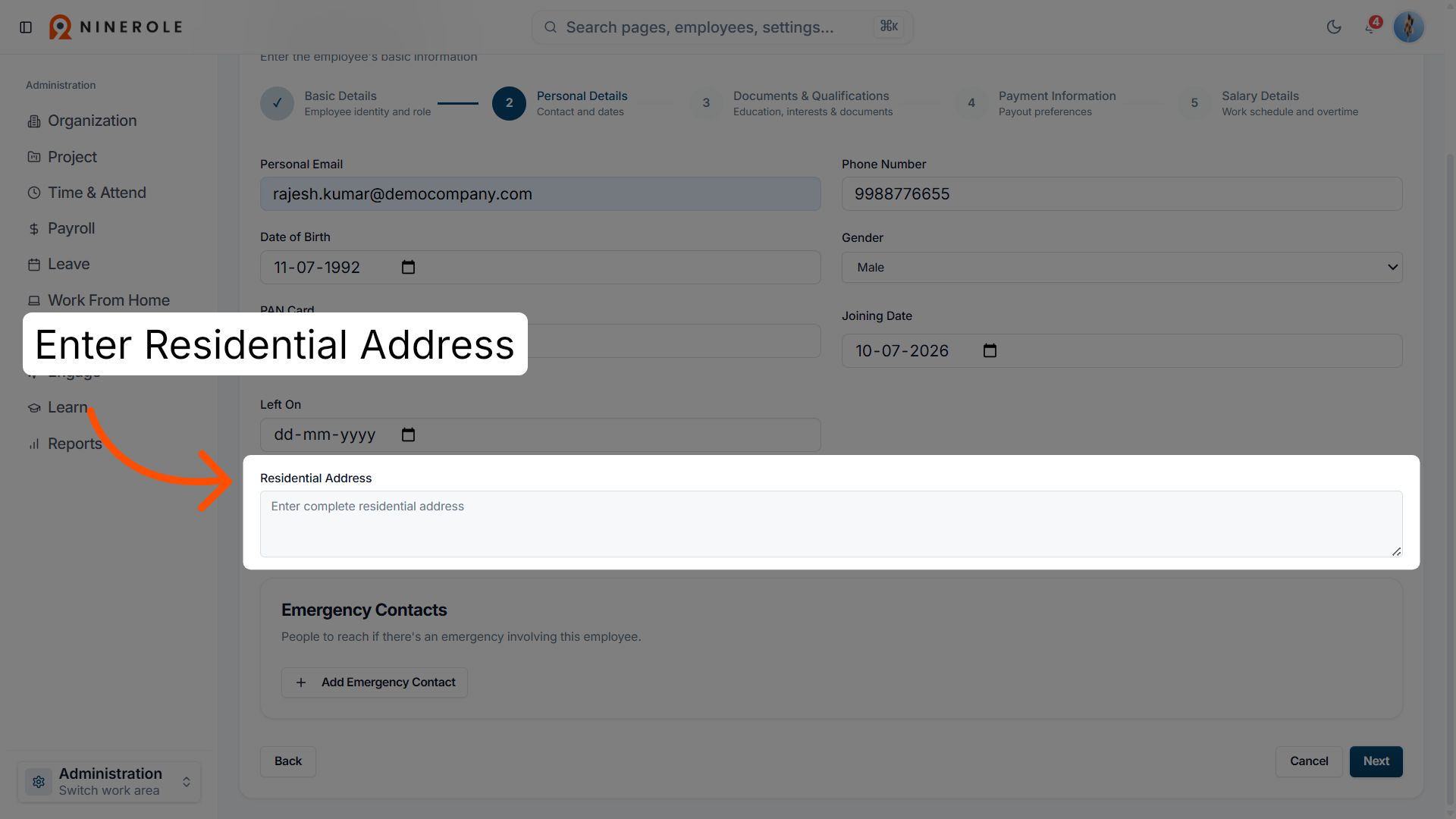
29. Open the residential address field
Enter the complete residential address of the employee.
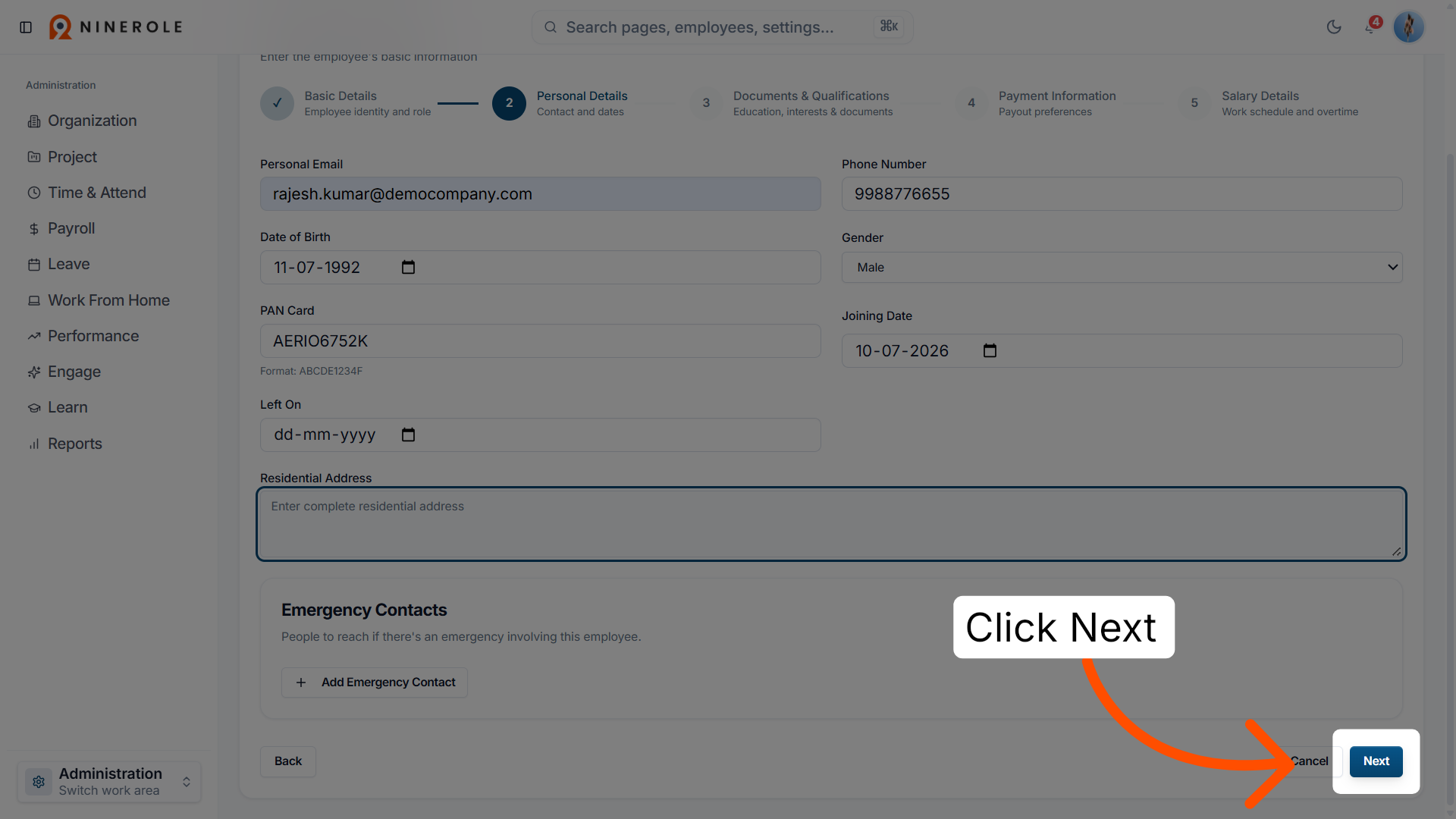
30. Proceed to the next section
Click Next to continue to qualifications.
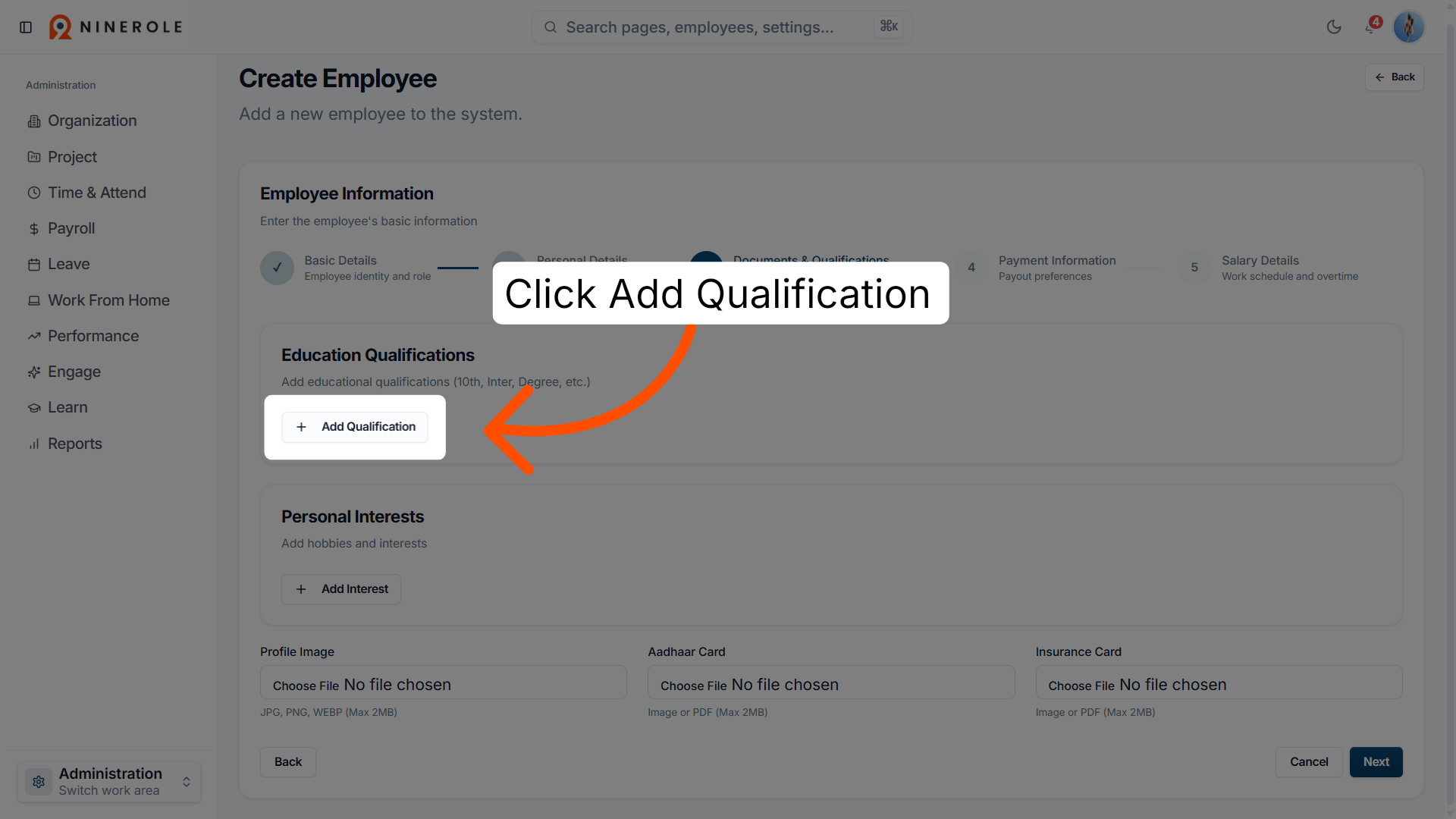
Add qualifications and interests
31. Add a qualification entry
Click Add Qualification to input educational details.
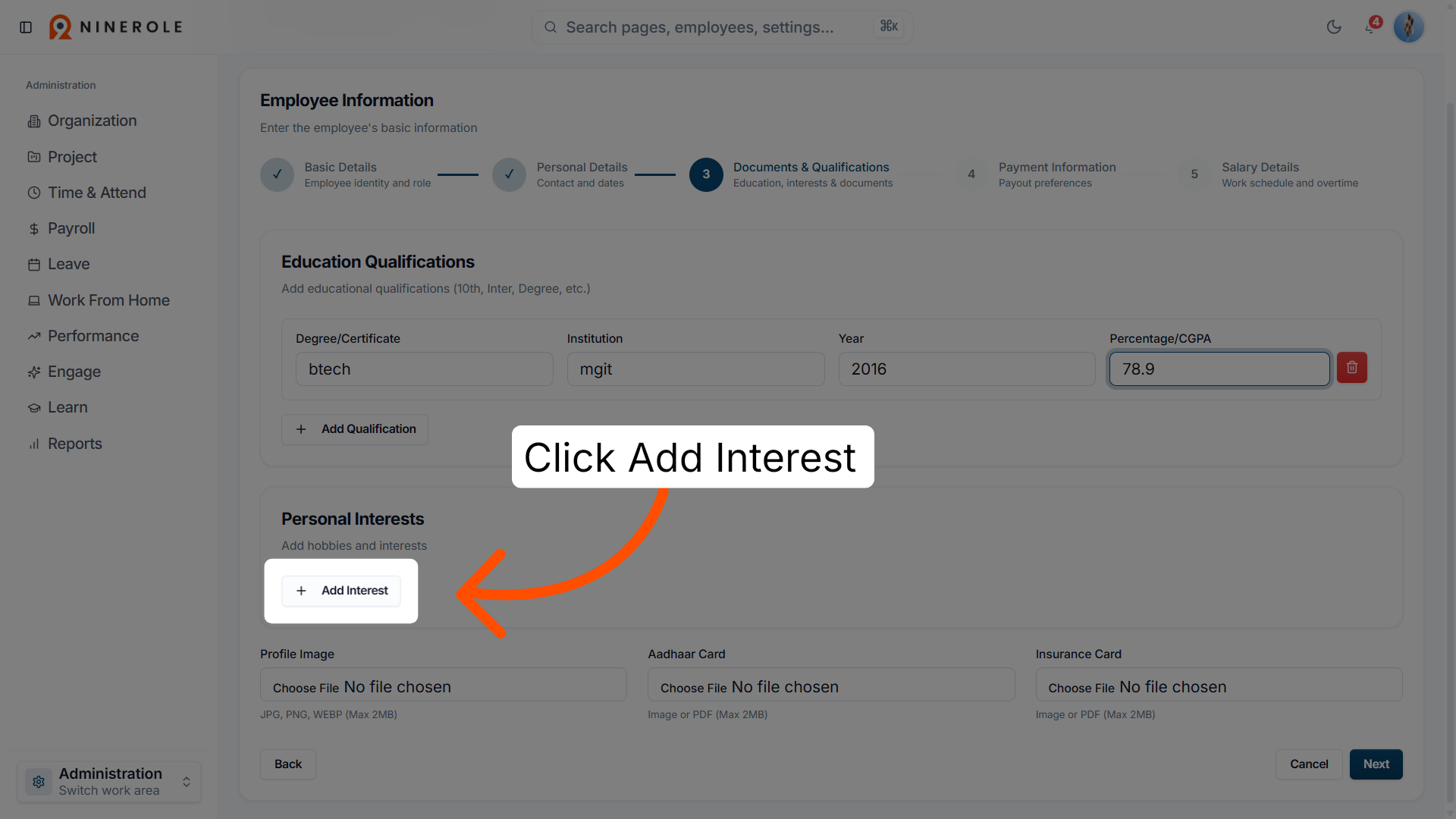
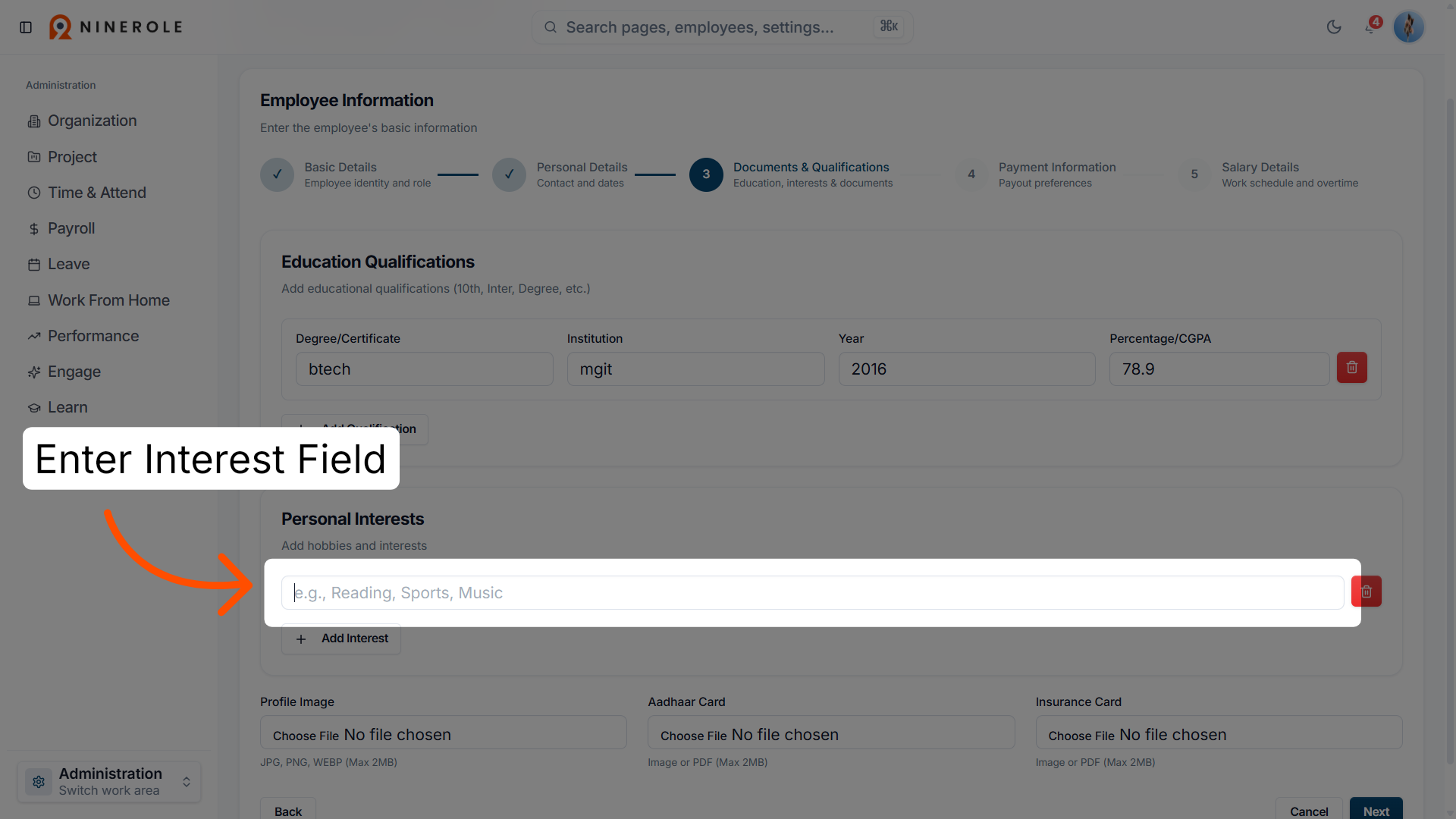
32. Add an interest entry
Click Add Interest to include personal interests.
33. Select the Interest field
Enter the employee's interests, such as sports.
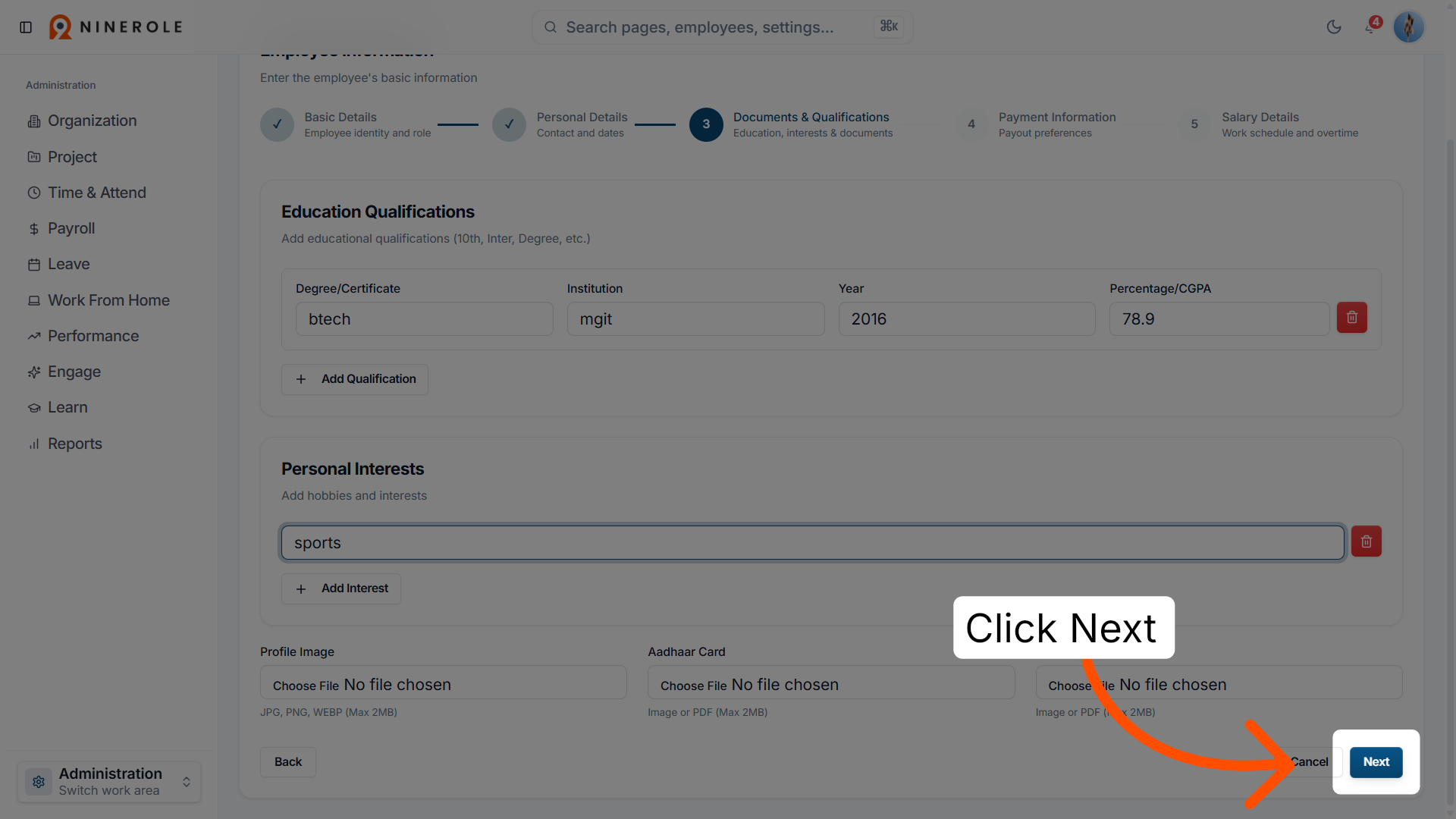
34. Proceed to the next step
Click Next to continue to banking details.
Add banking details
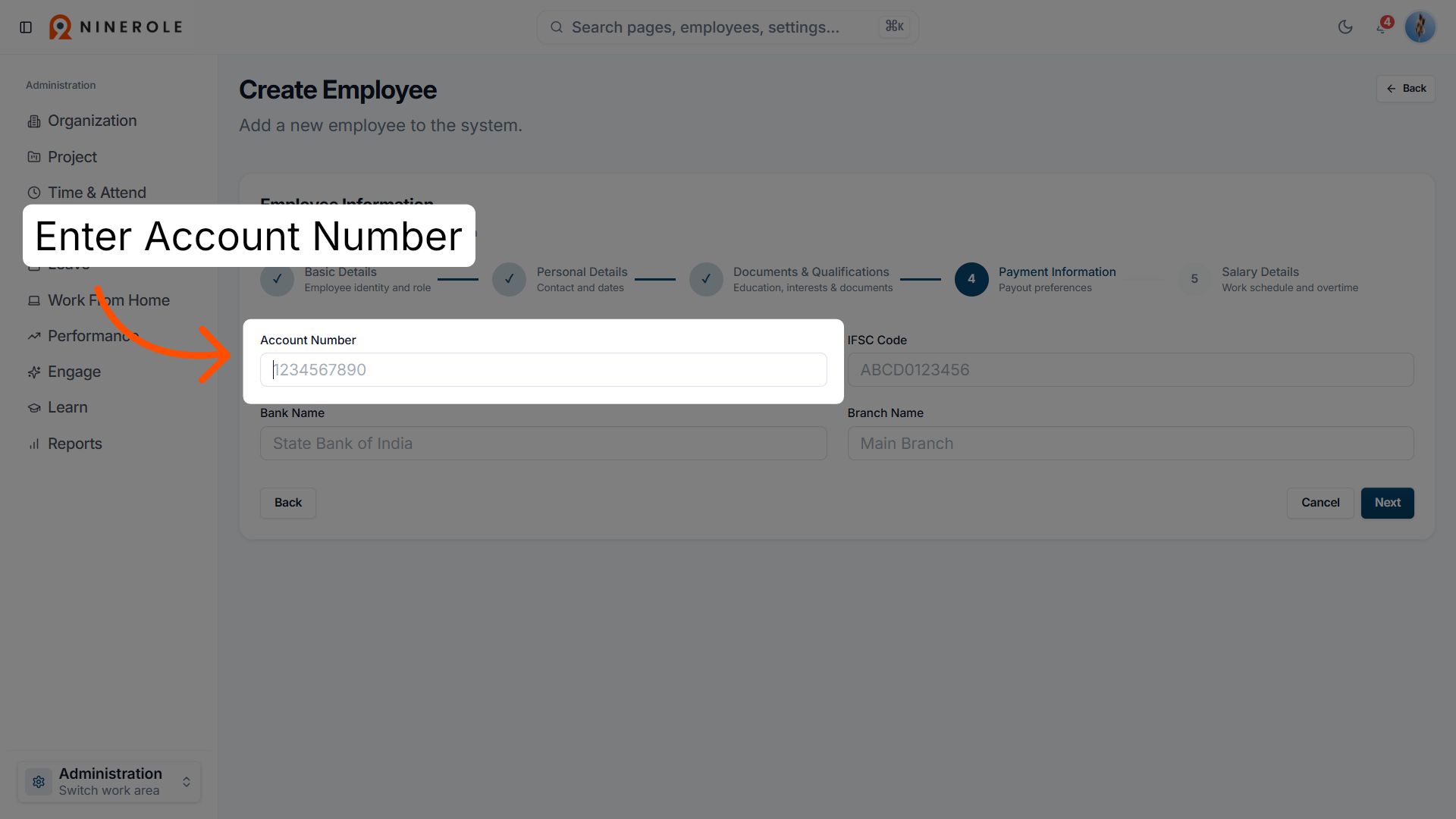
35. Select the Account Number field
Enter the employee's bank account number.
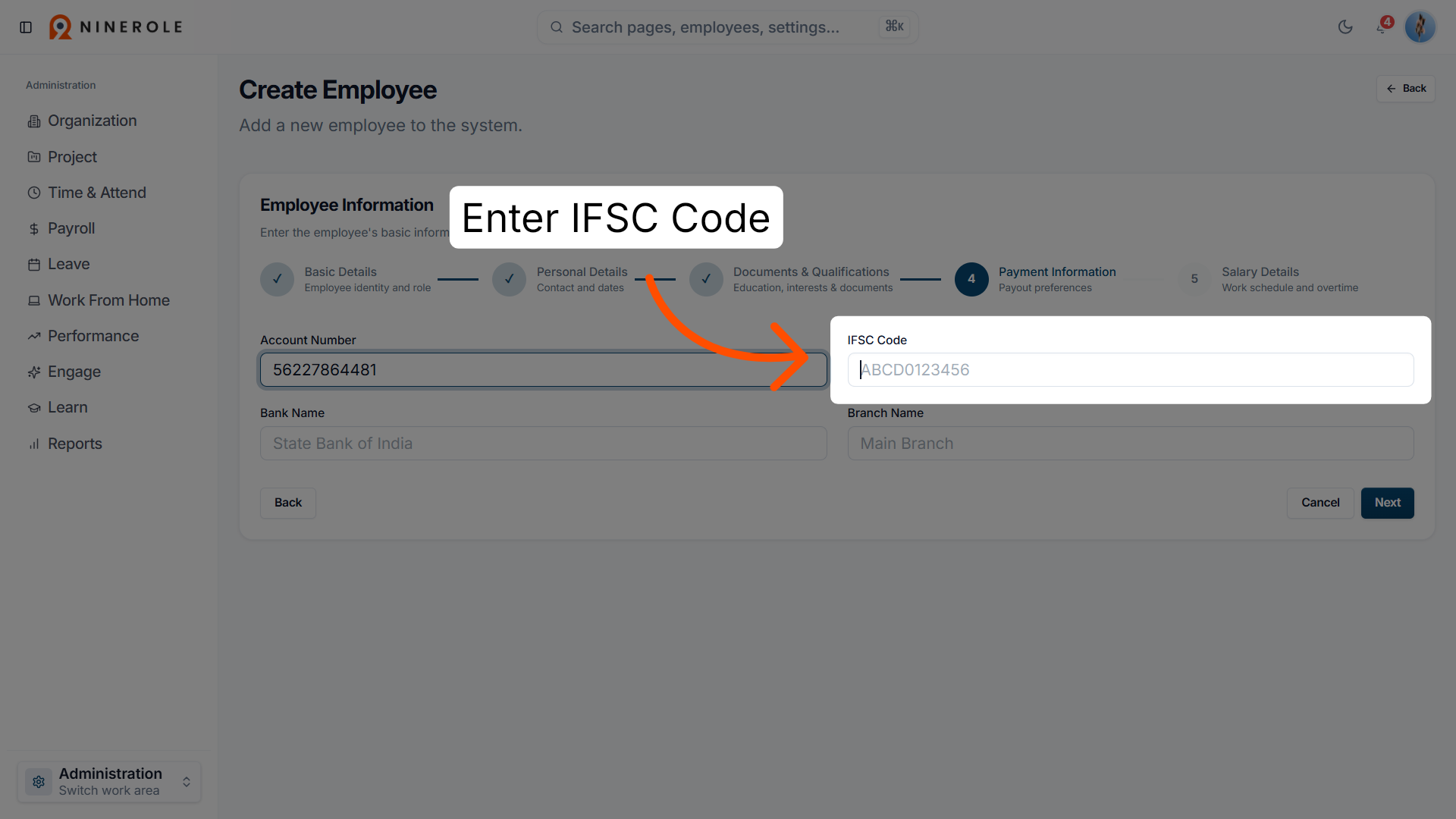
36. Select the IFSC Code field
Enter the IFSC code for the bank branch.
37. Select the Bank Name field
Enter Bank Name to specify the bank.
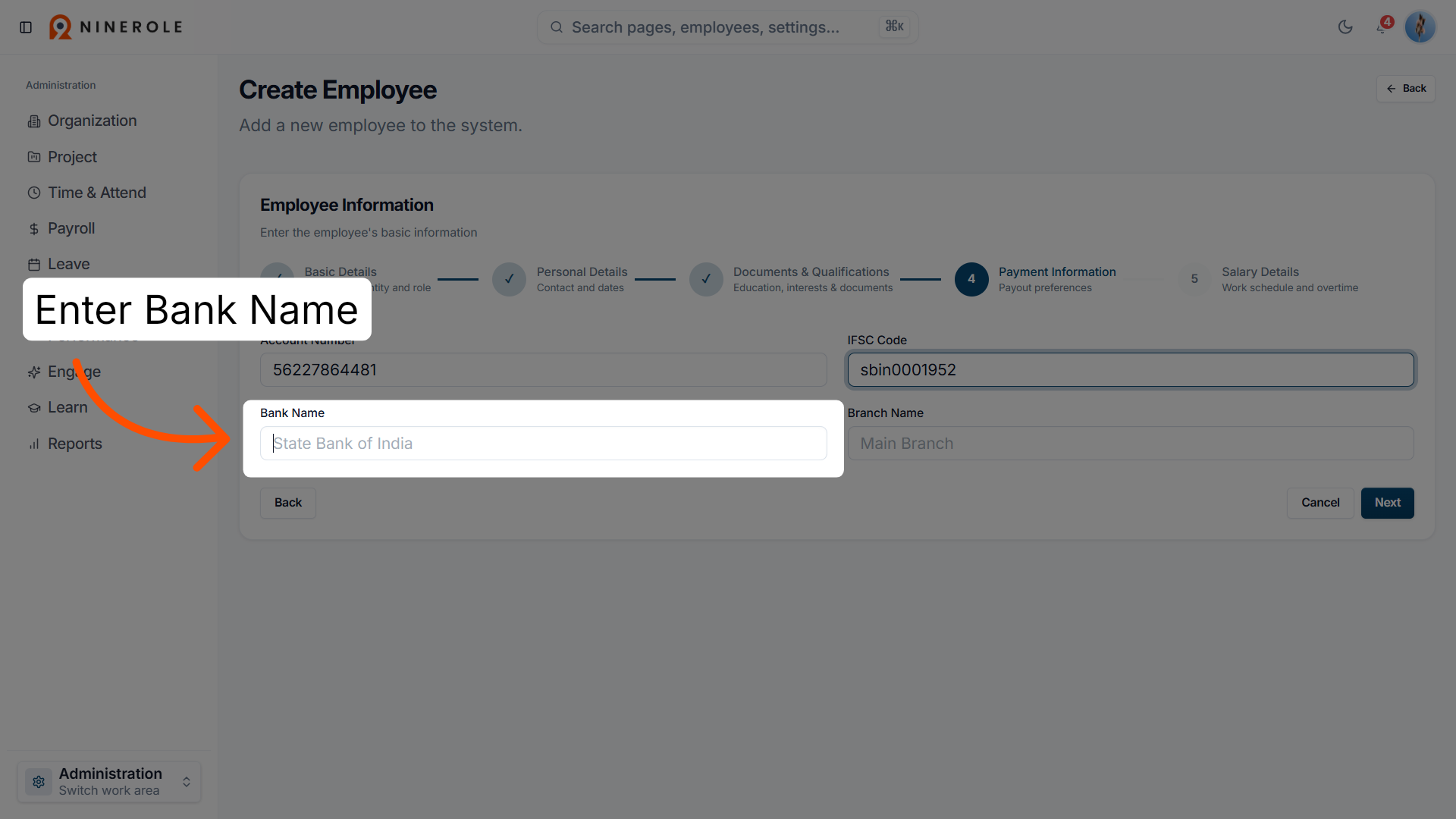
38. Enter the bank name
Enter the name of the bank, such as State Bank of India.
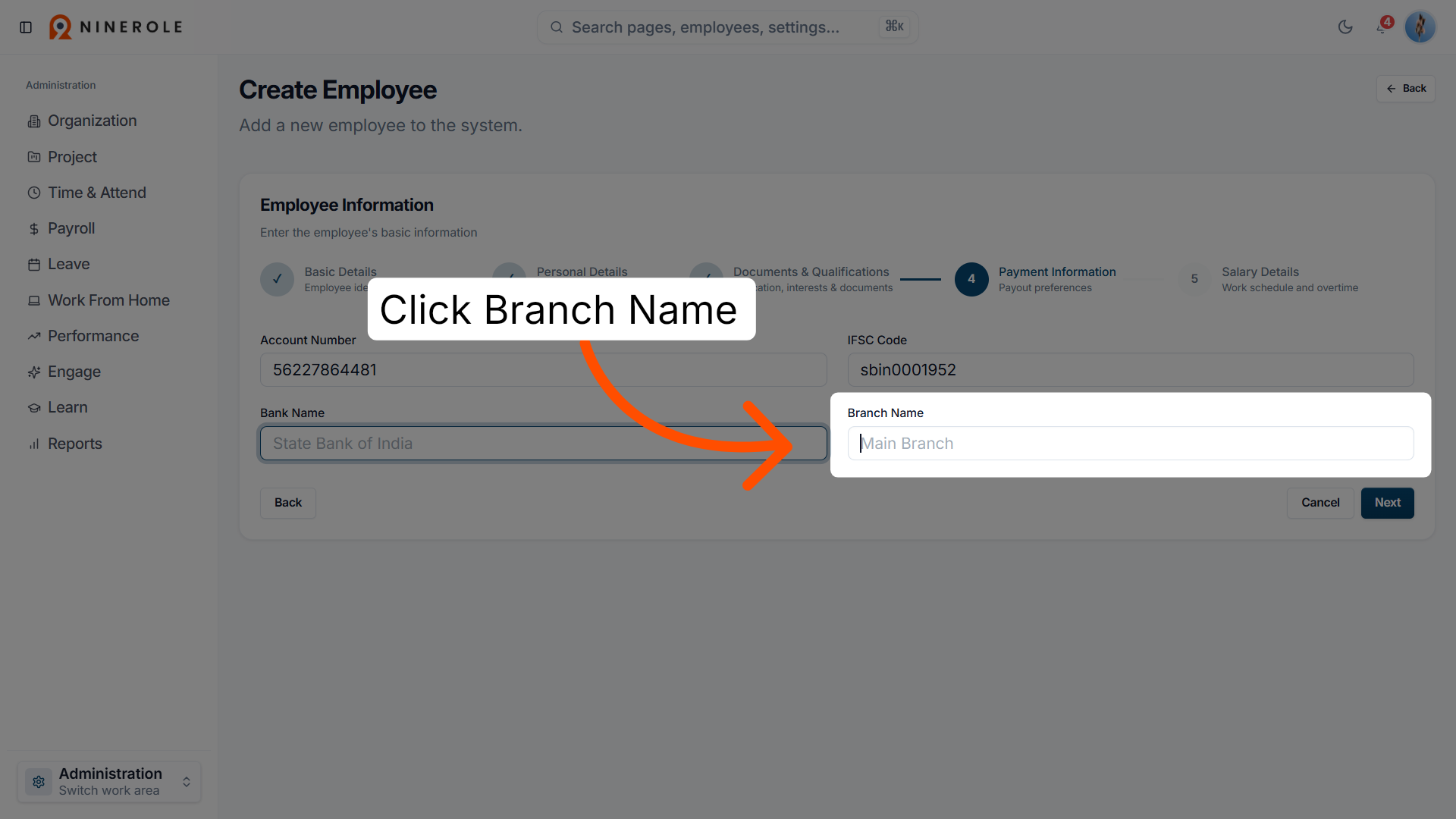
39. Select the Branch Name field
Click Branch Name to enter the branch location.
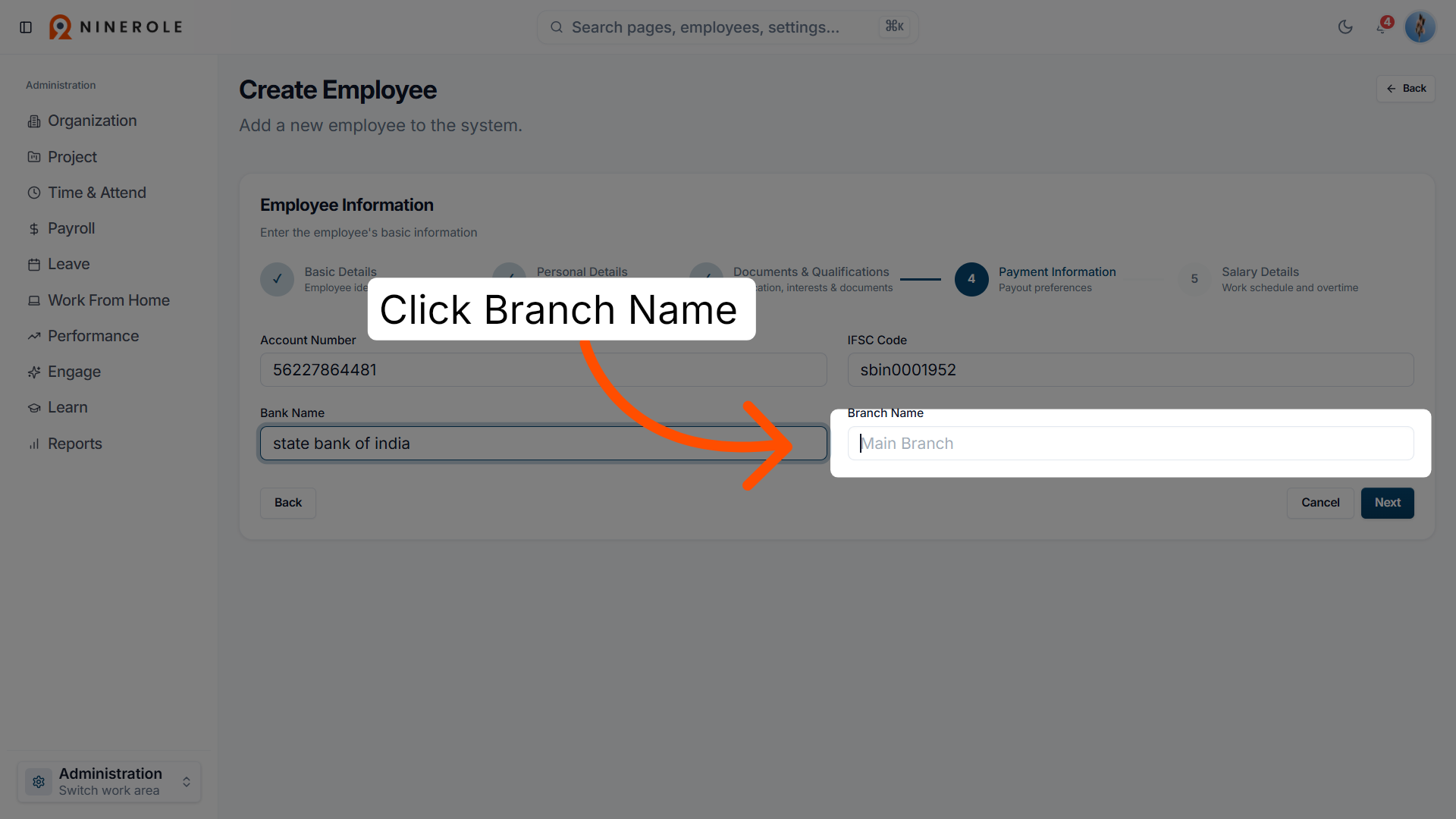
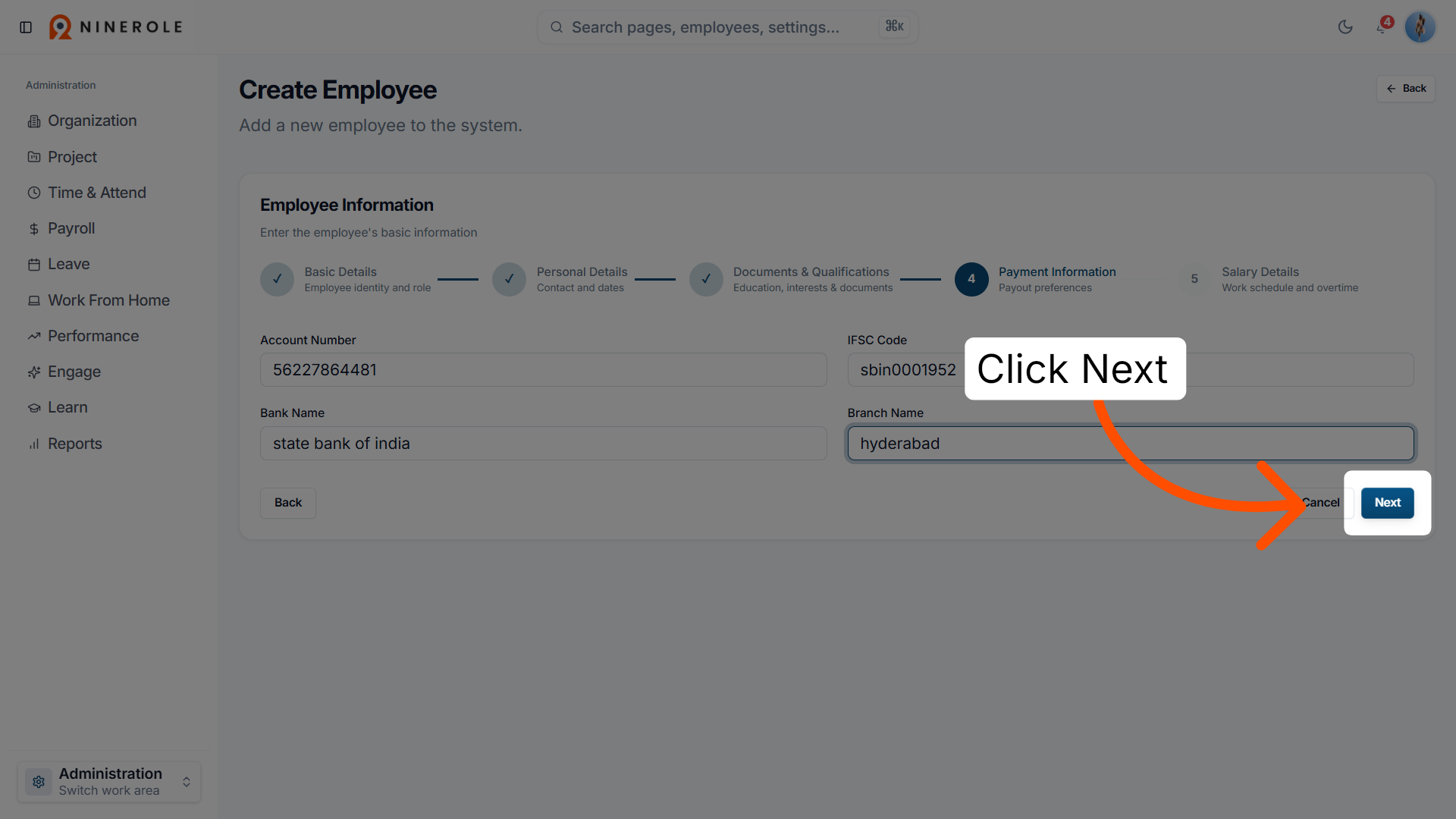
40. Proceed to the next section
Click Next to continue to salary details.
Set salary and create the record
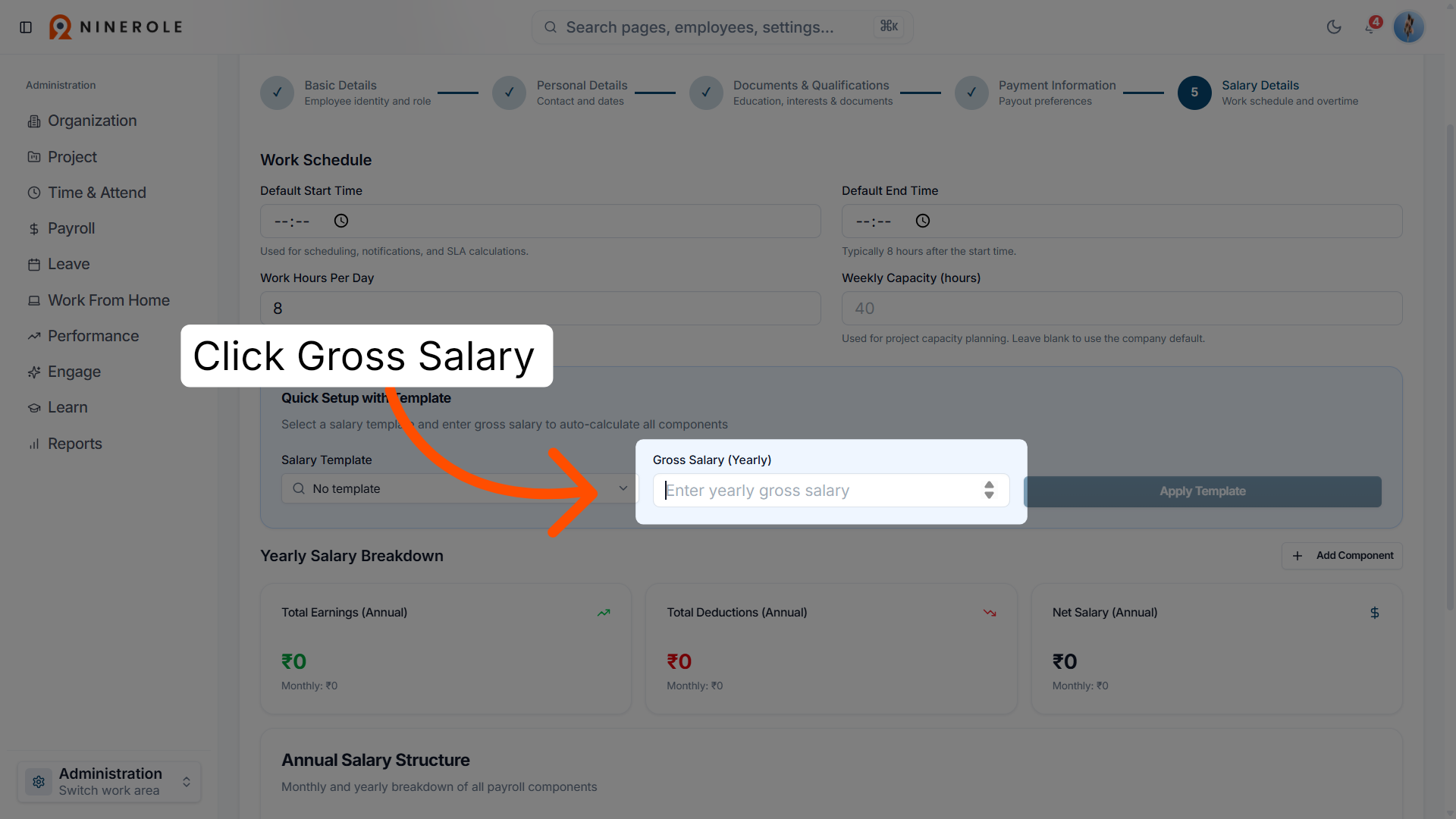
41. Select the Gross Salary field
Enter the employee's yearly gross salary amount.
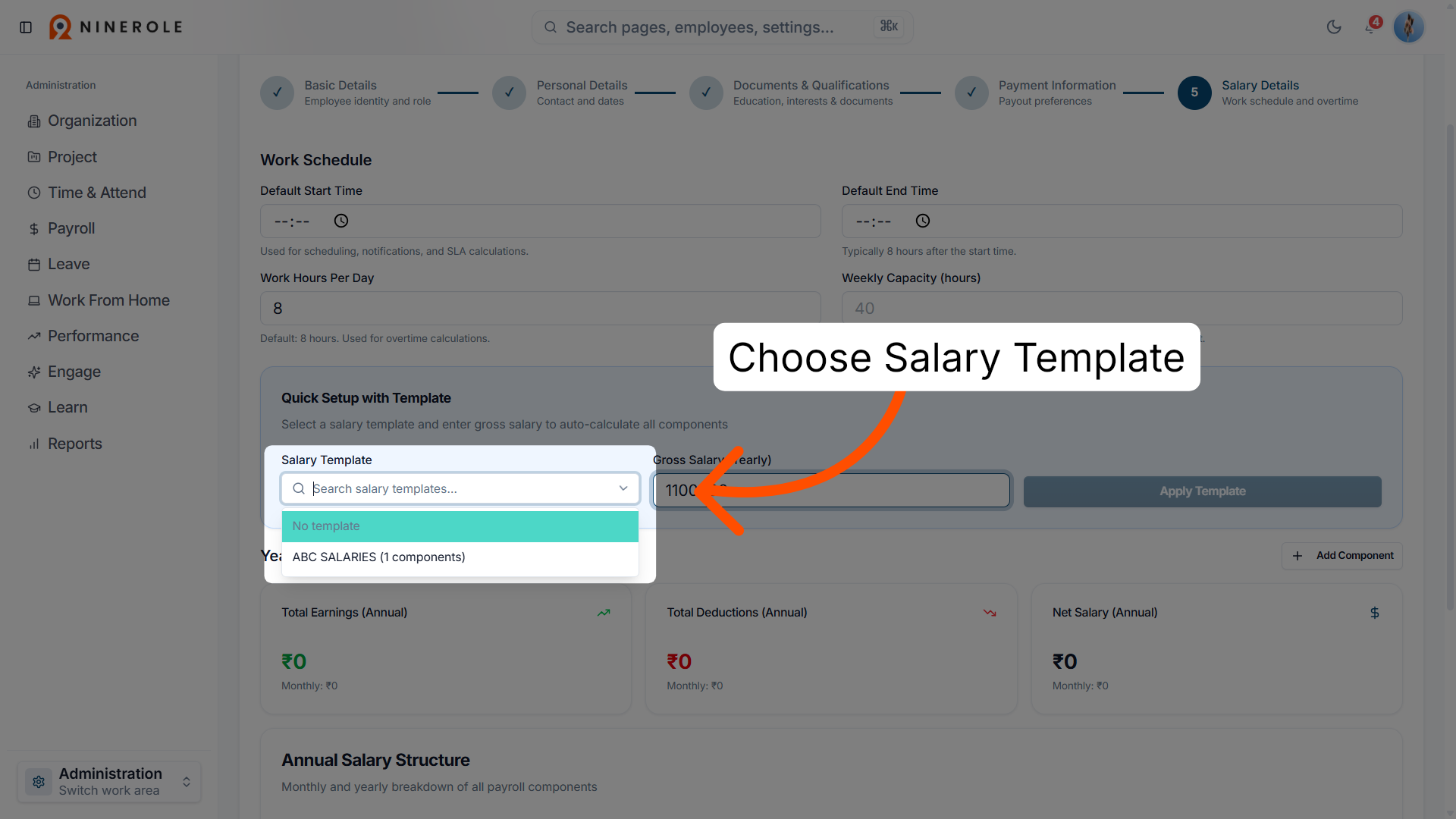
42. Open the salary template dropdown
Choose the appropriate salary template with components.
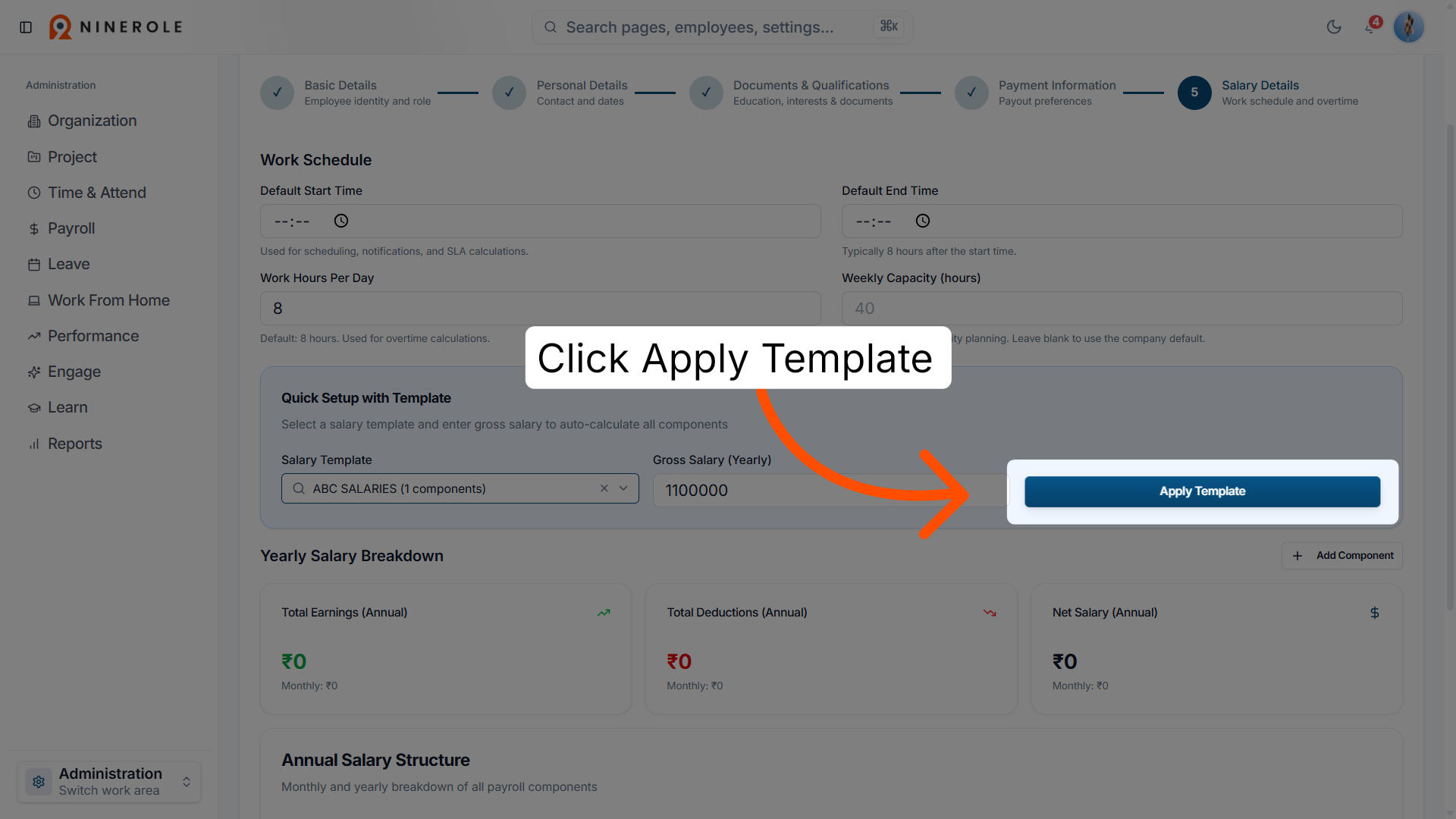
43. Apply the salary template
Click Apply Template to assign the selected salary structure.
44. Complete employee creation
Click Create Employee to finalize adding the new employee.
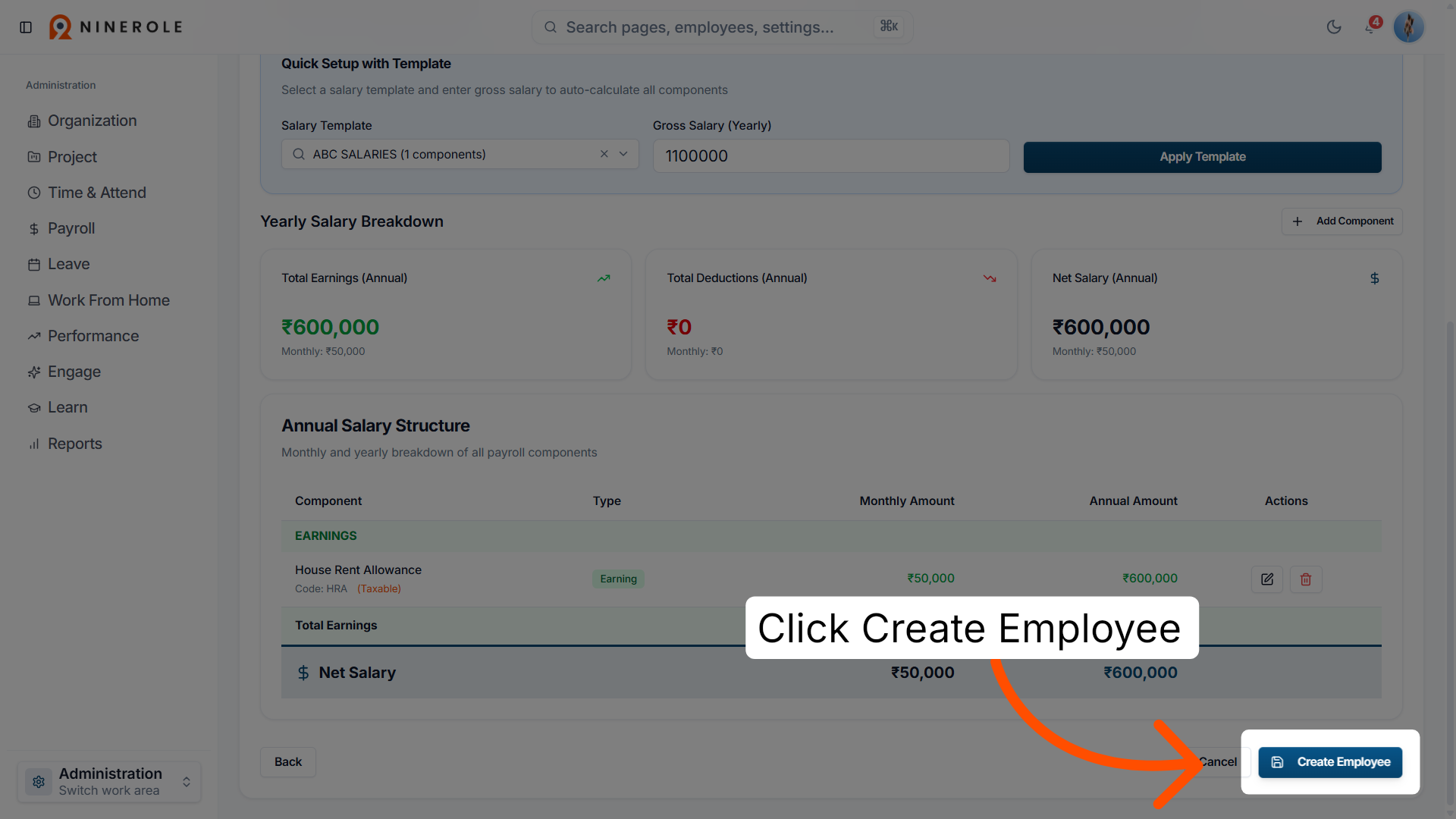
You have successfully added a new employee record in Ninerole by entering all required personal, professional, and banking details.
Back to People · all modules · Ninerole HRMS overview
Last updated: