

Manage Timesheets Efficiently
This tutorial explains how to manage your timesheets effectively within the Ninerole application. You will learn to navigate work areas, add time entries, and submit your timesheet for approval.
Before you start, go to ninerole.com.
About this task
- Purpose
- Record time against projects and submit it, so work can be billed and utilisation reported.
- Who can do this
- Employee (self-service); reviewed by a Project manager
- Before you start
- You are staffed to at least one project.
- You will need
- The project, the dates, and the hours worked.
- Result
- Time is recorded against the project and submitted for review.
- This unlocks
- Billing the client and reporting utilisation.
This guide answers
- How do I fill in my timesheet?
- Why can't I see a project on my timesheet?
- How do I submit a timesheet?
- Who approves timesheets?
- Can I edit a submitted timesheet?
If something goes wrong
- A project is missing from your timesheet.
- You are not staffed to it. Ask your project manager to add you in client staffing.
- You cannot edit a submitted timesheet.
- Once submitted it goes for review. Ask your project manager to return it.
Related: Client staffing · Create a projectAlso called: time entry, timecard, time booking.Last verified: 7 September 2026
Open your timesheets
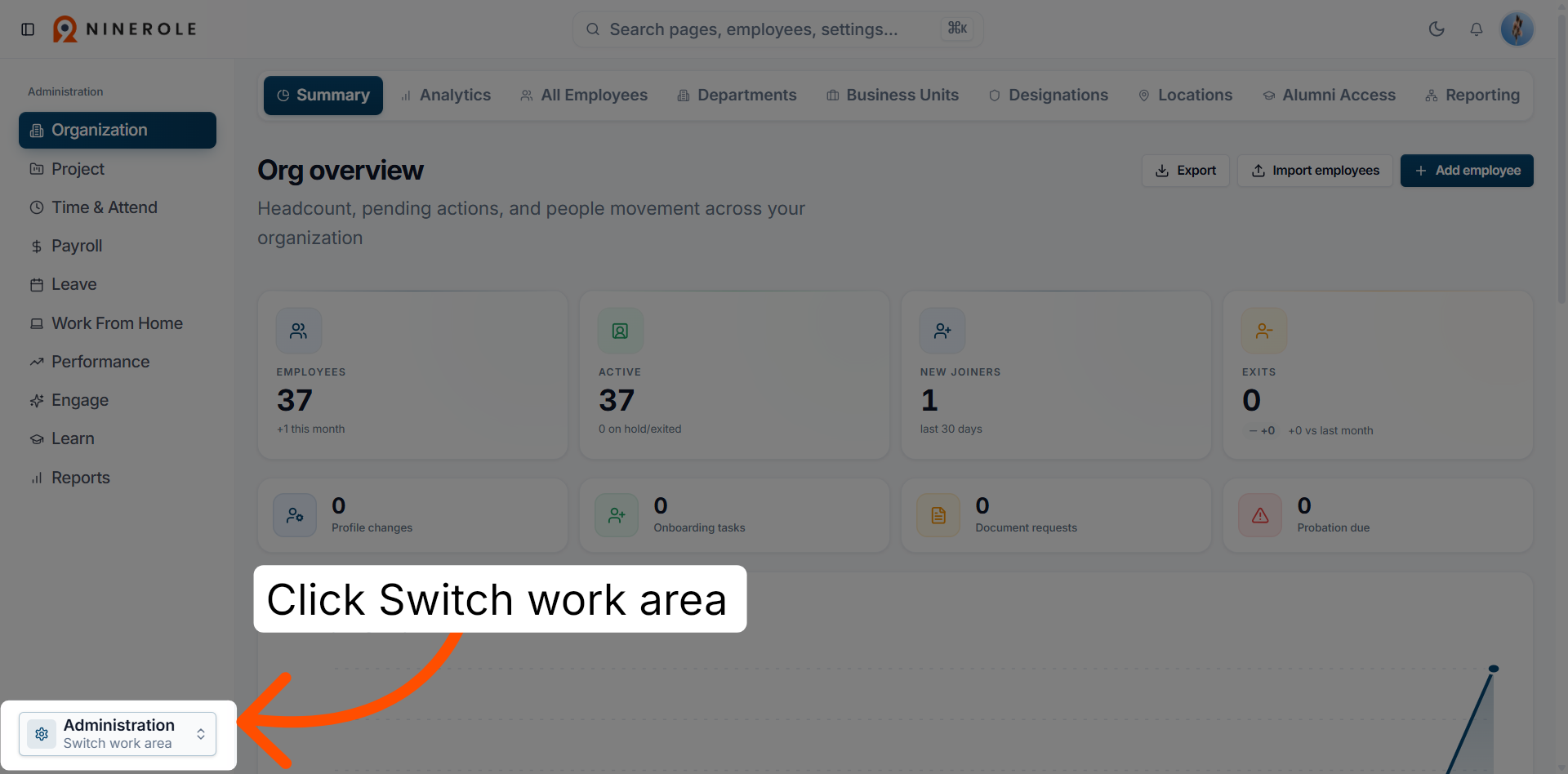
1. Switch work area
Click the Switch work area button to change your current workspace within Ninerole.
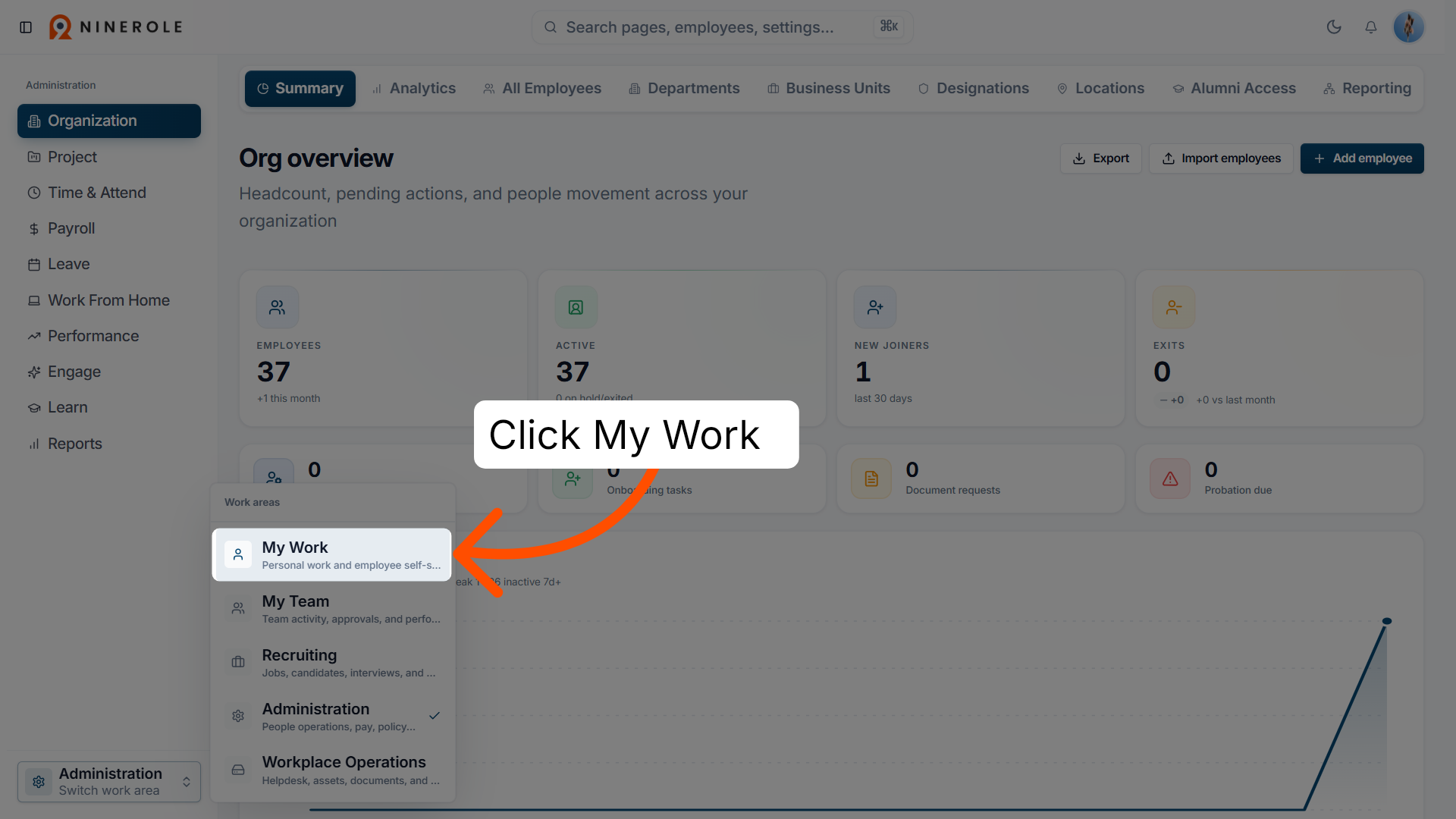
2. Select the personal work area
Click Personal work and employee self-service to access your personal workspace and self-service options.
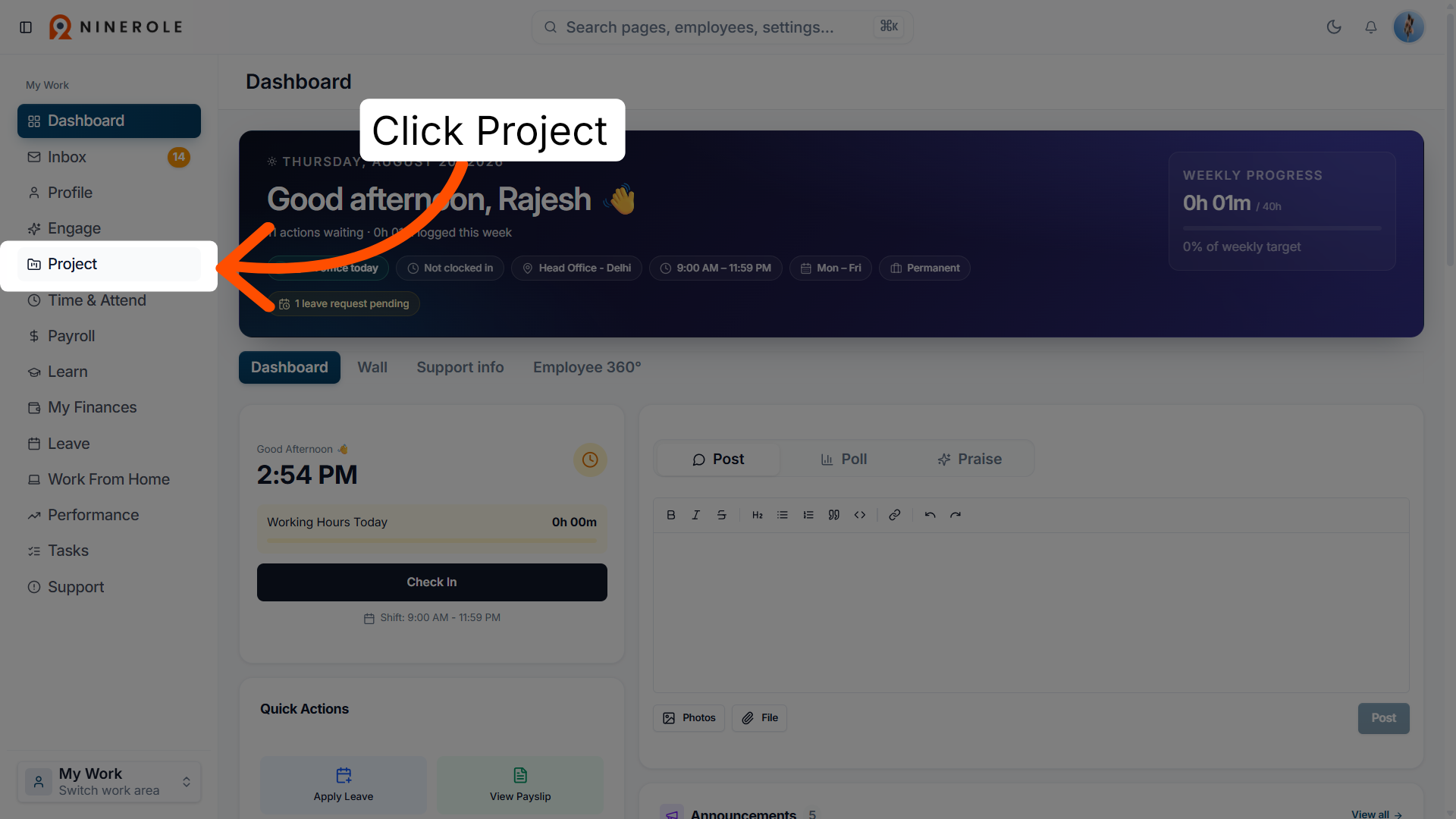
3. Open the Project section
Click the Project tab on your dashboard to view project-related information and options.
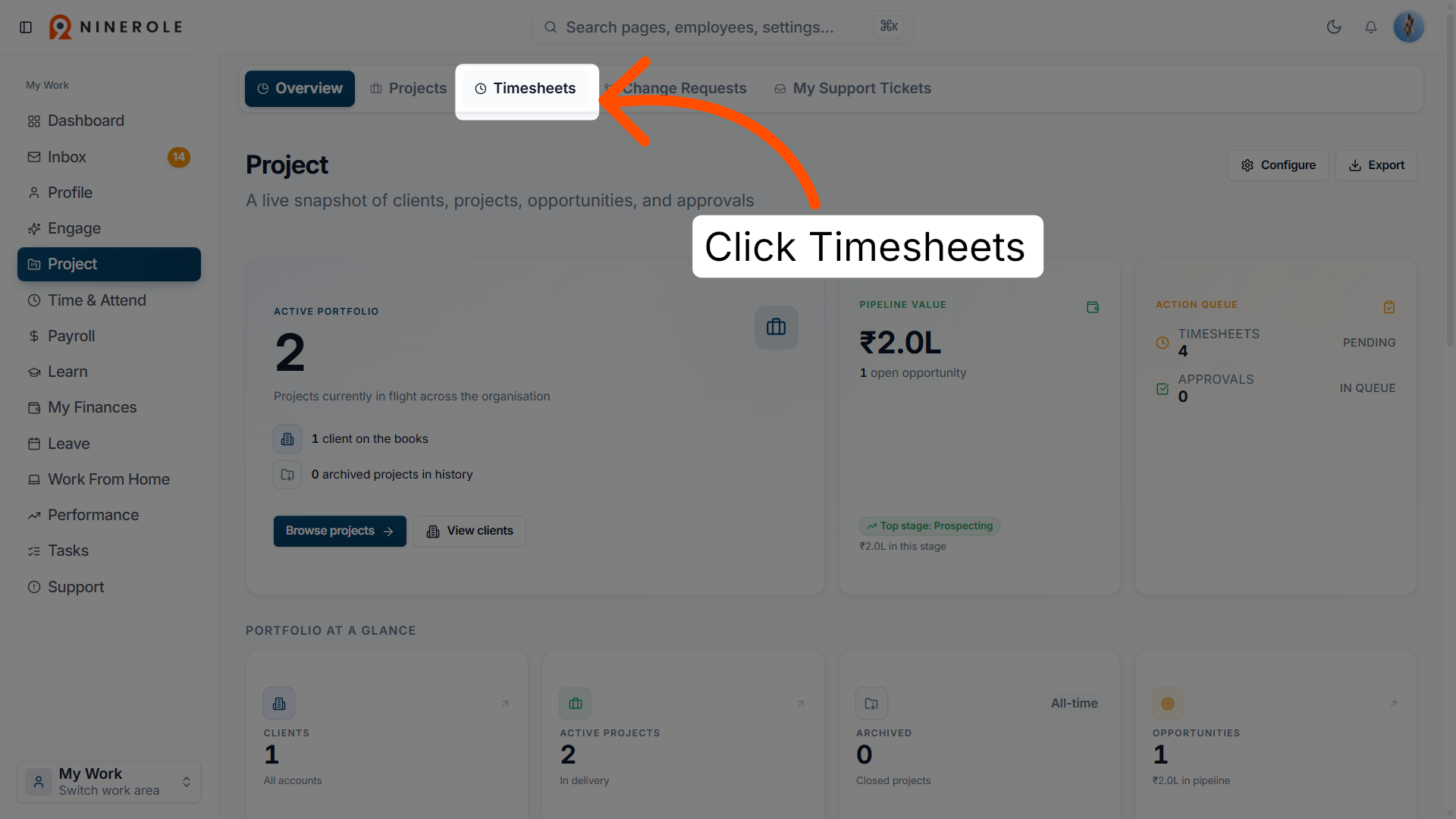
4. Access Timesheets
Click Timesheets within the project overview to manage and review your time entries.
Add a time entry
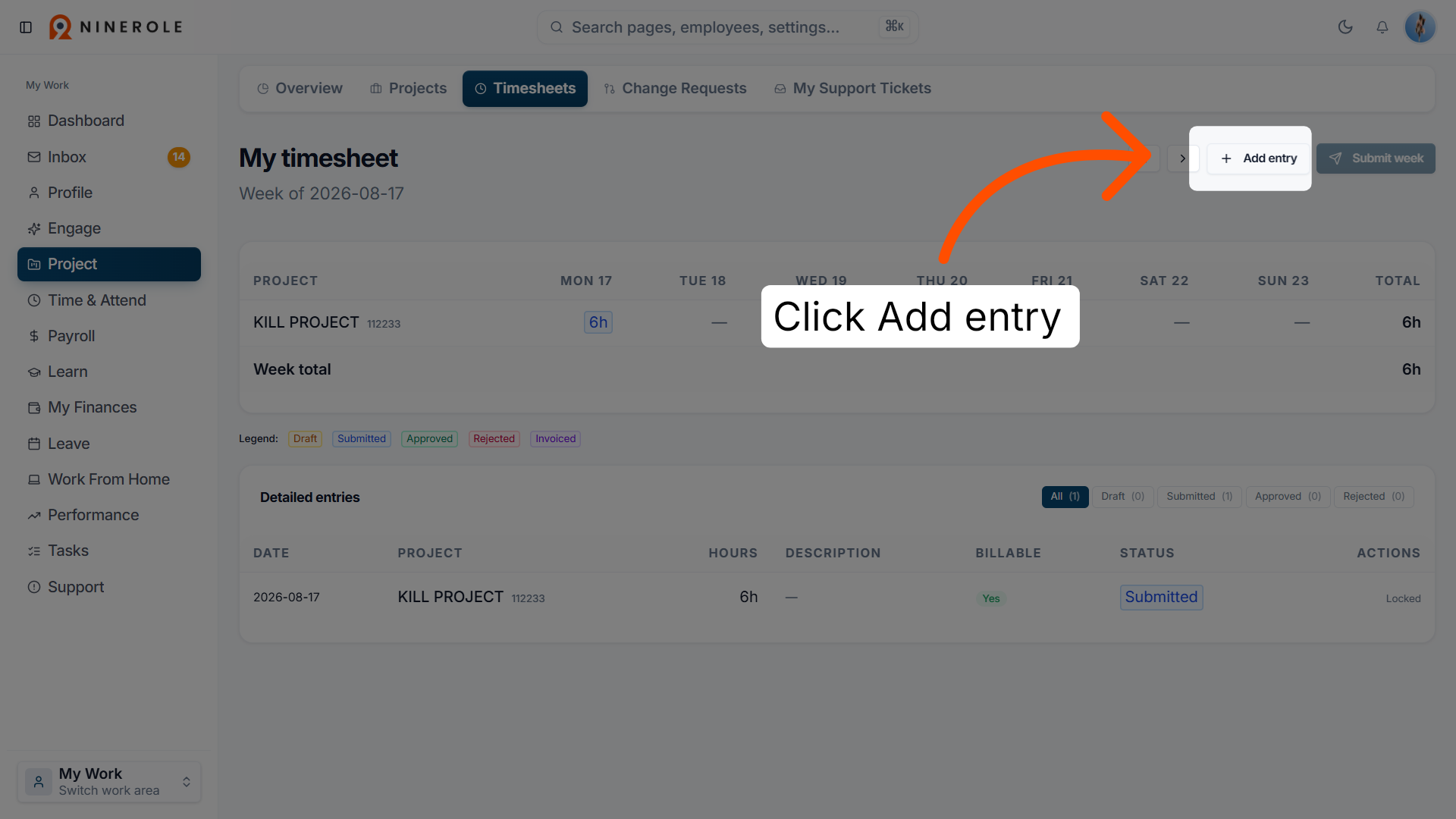
5. Add a timesheet entry
Click the Add entry button to create a new timesheet record for your project work.
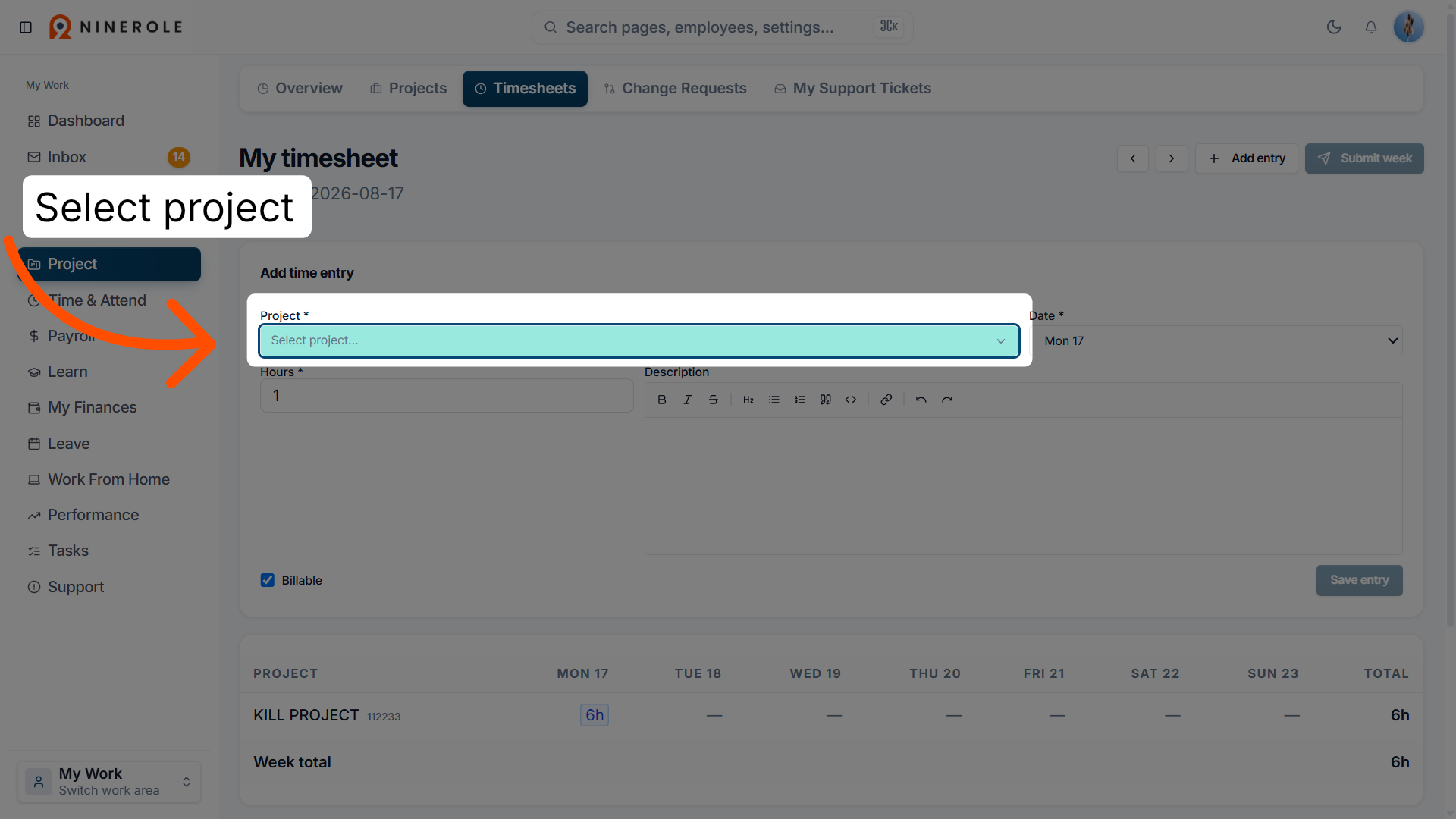
6. Open the project selector
Click Select project to choose the project for which you want to log time.
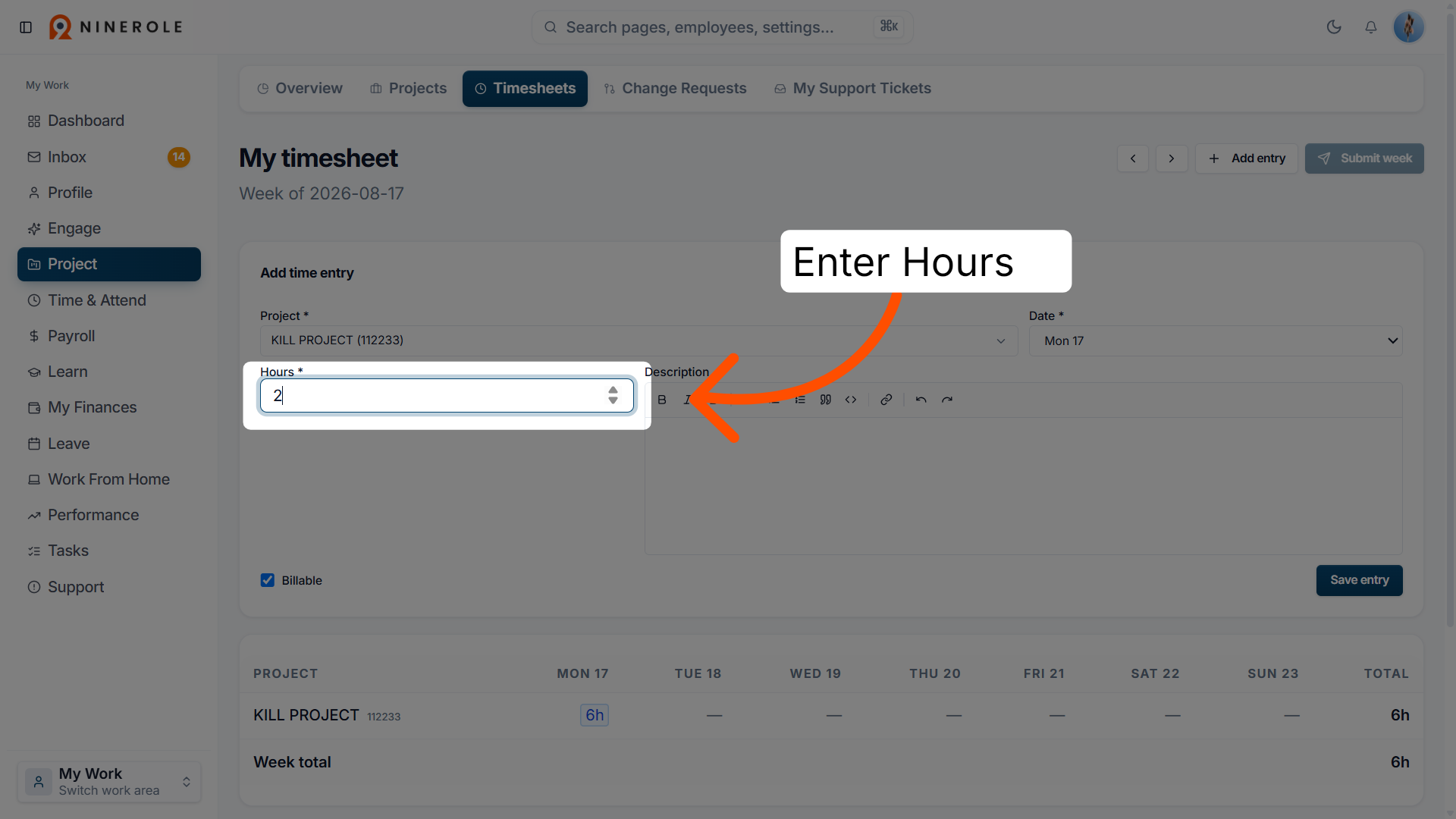
7. Enter the quantity
Enter the amount of time or units worked in the input field to record your effort.
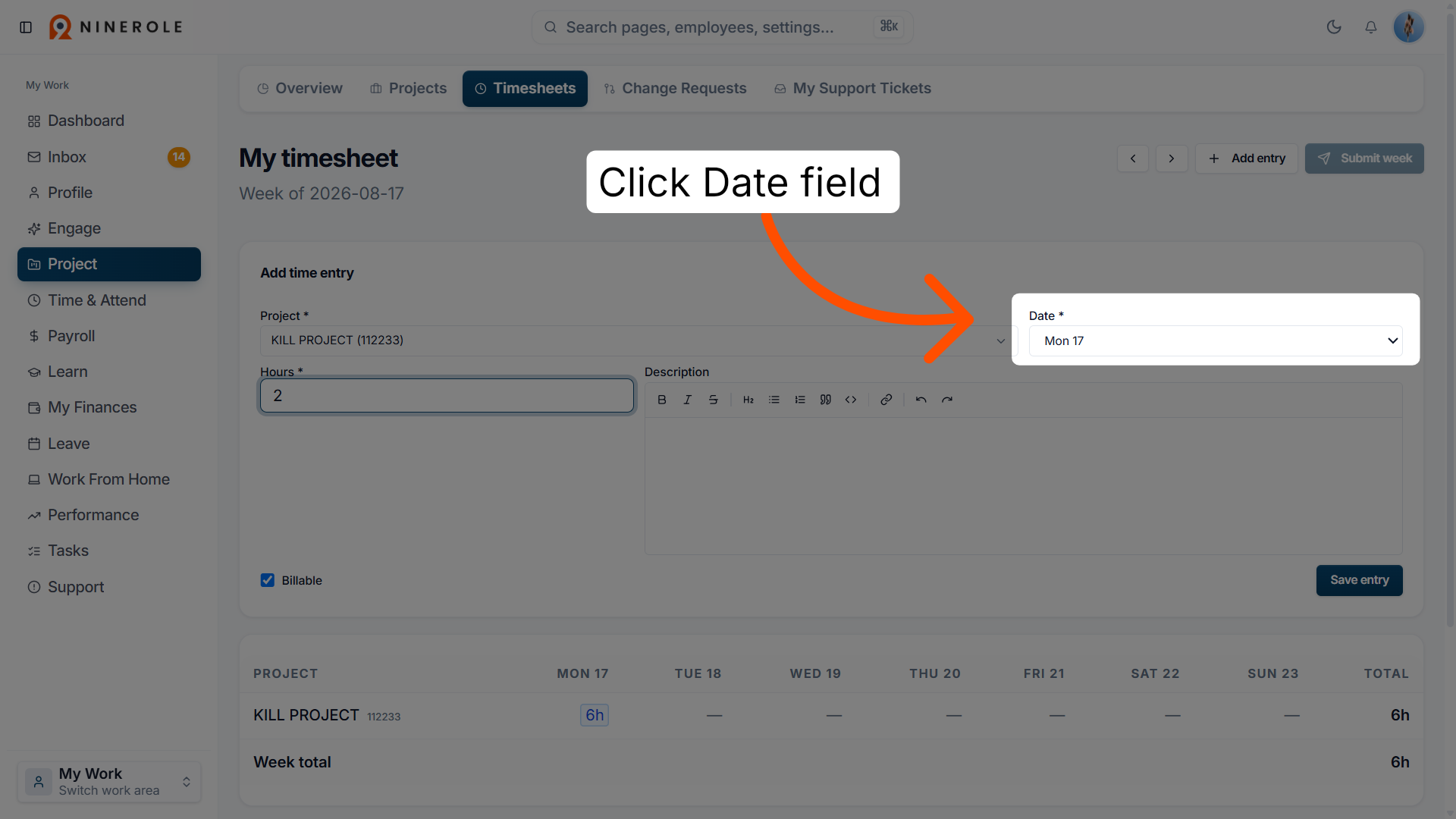
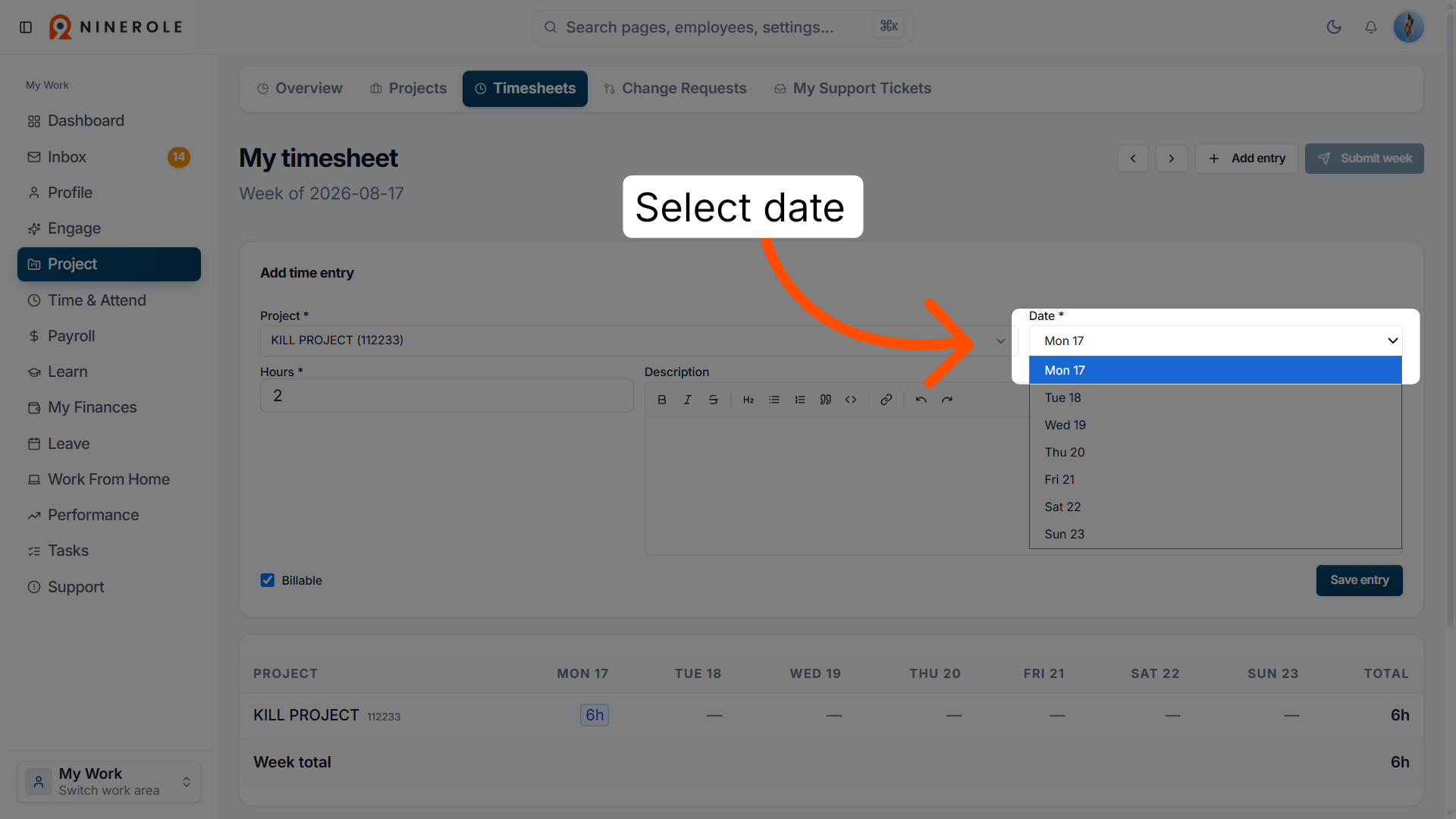
8. Open the date picker
Click the Date field to open the calendar and select the date for your timesheet entry.
9. Select the date
Choose the appropriate date from the calendar to assign to your timesheet entry.
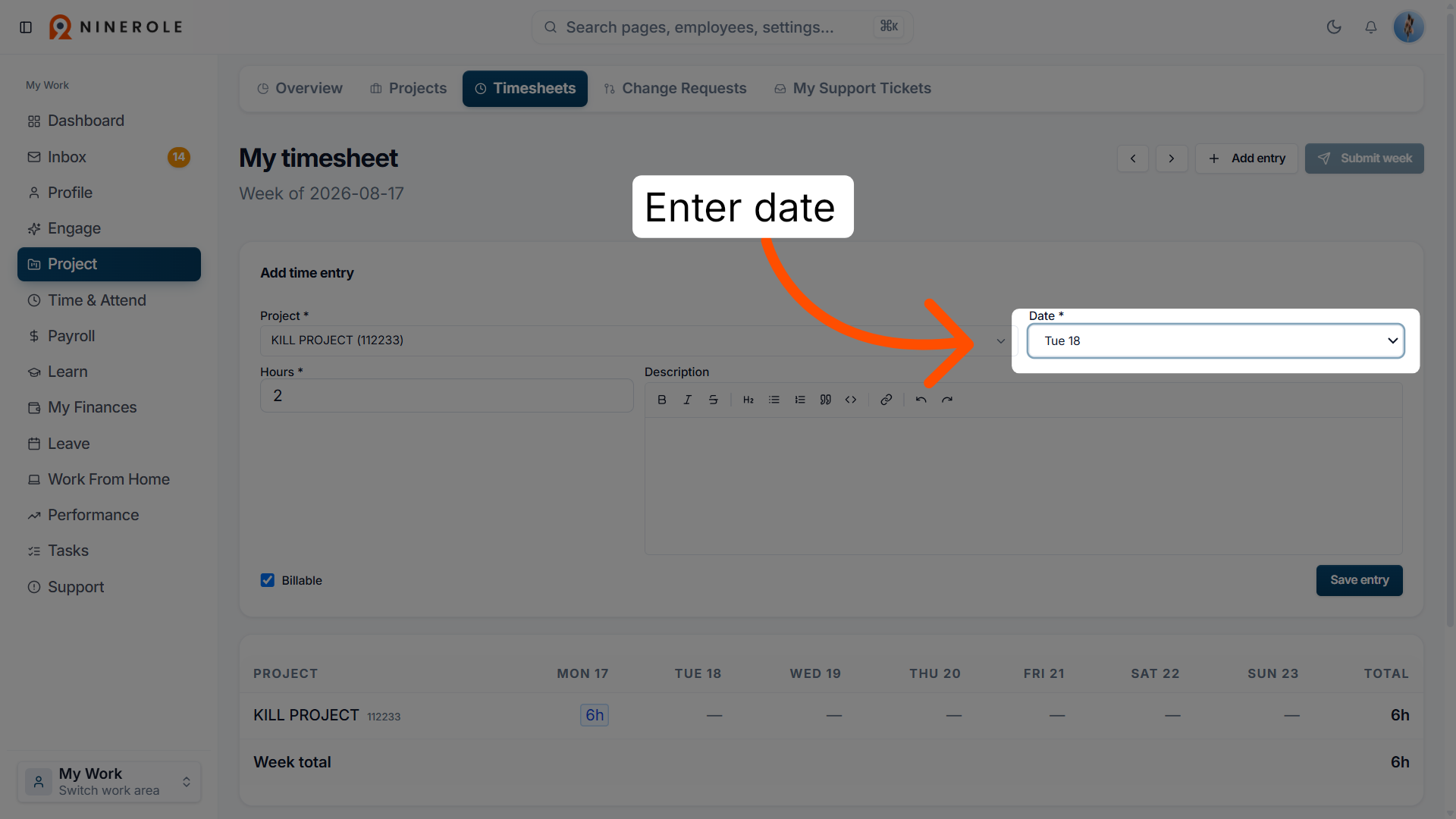
10. Enter the date
Enter the date manually if preferred to specify when the work was performed.
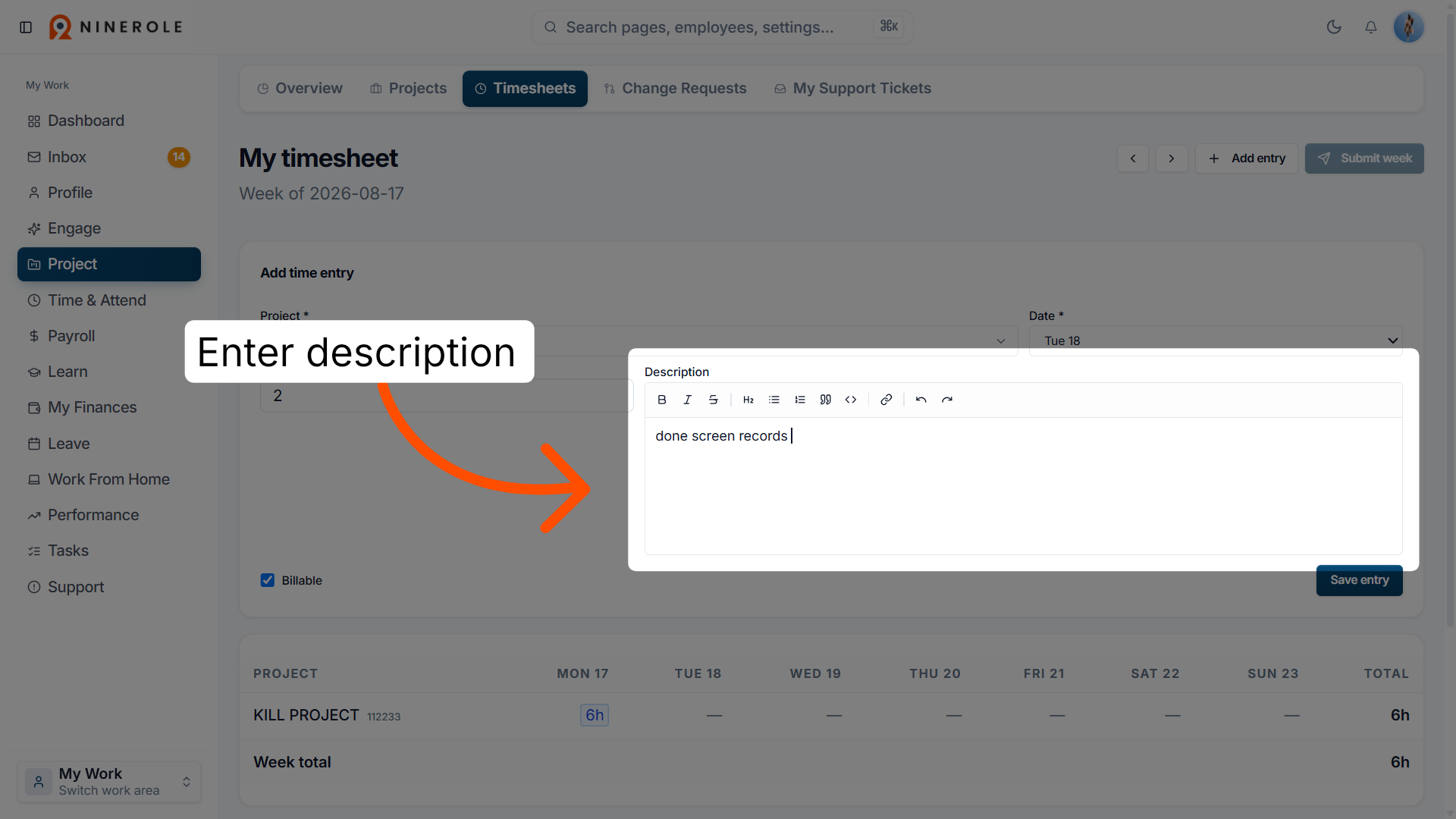
11. Enter a description
Enter a description for your timesheet entry to provide context about the recorded work.
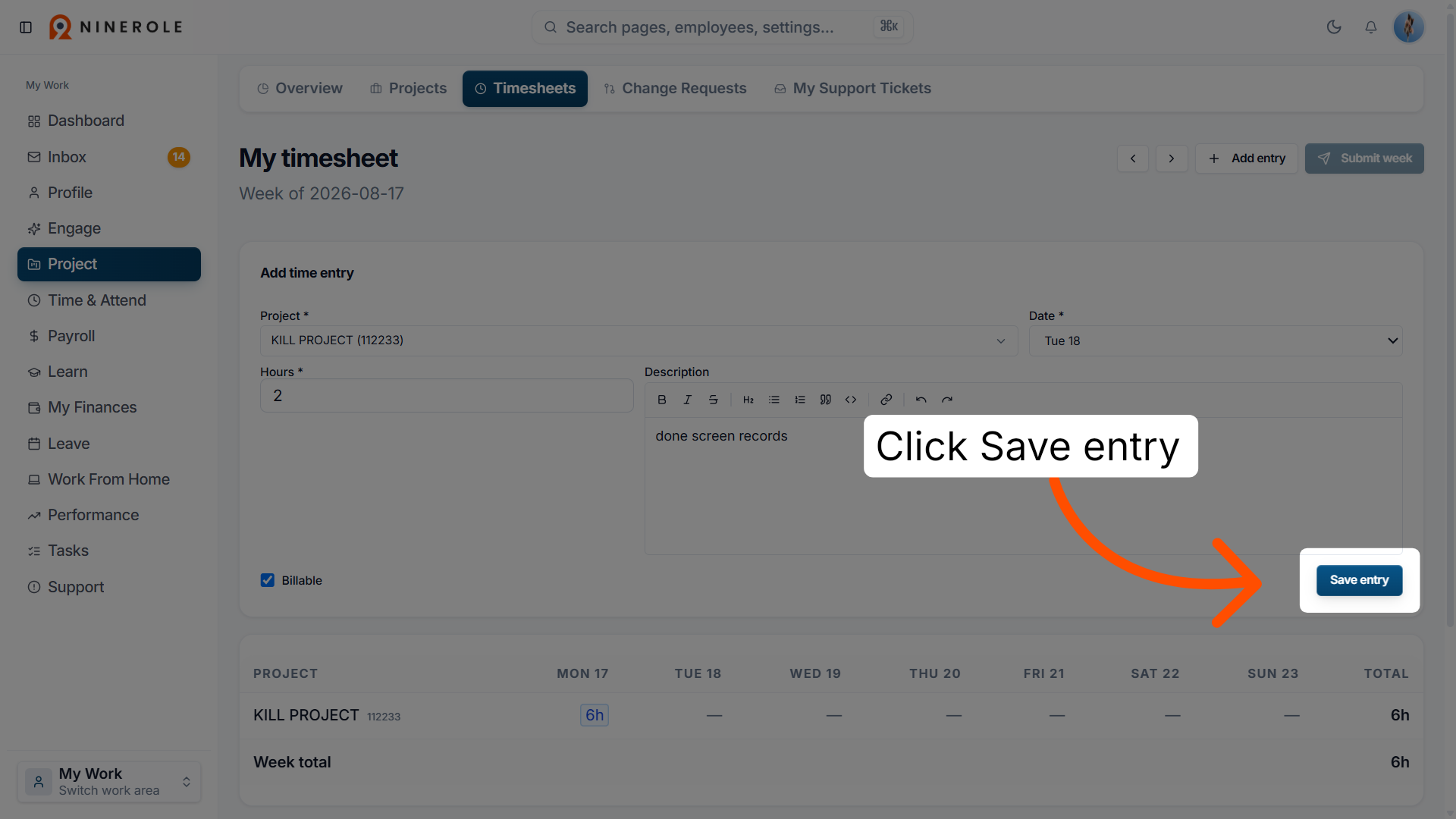
12. Save the timesheet entry
Click Save entry to store your new timesheet record in the system.
Submit for approval
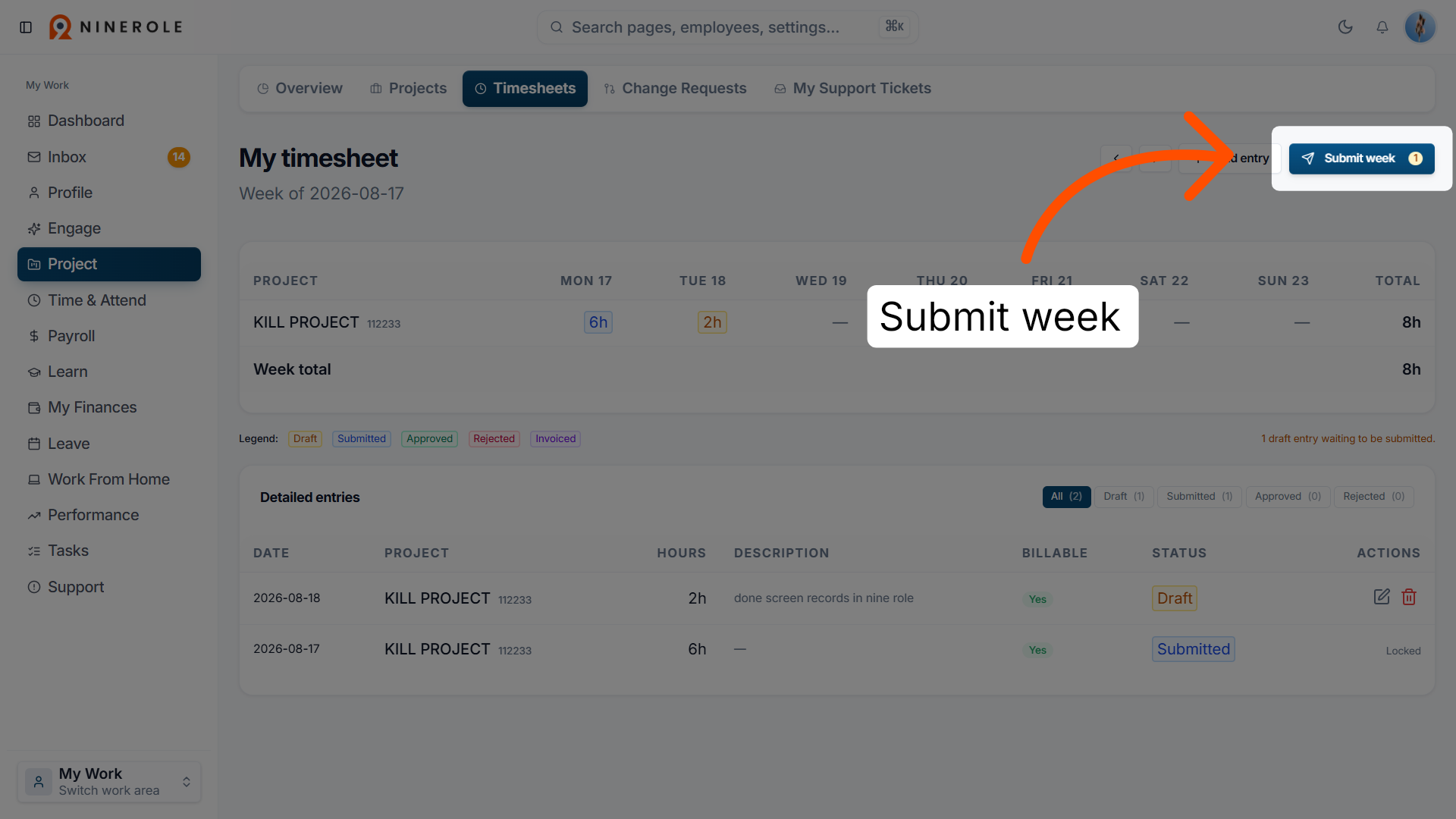
13. Submit the weekly timesheet
Click Submit week 1 to finalize and send your timesheet for the first week for approval.
You have now managed your timesheets in Ninerole — switching work areas, selecting projects, entering time and descriptions, saving entries, and submitting your weekly timesheet for approval.
Back to Projects · all modules · Ninerole HRMS overview
Last updated: