

Create and Submit Support Tickets
This tutorial explains how to create and submit a support ticket within the Ninerole HRMS platform. You will learn how to navigate the dashboard, access support, and complete the ticket submission process.
Before you start, go to ninerole.com.
About this task
- Purpose
- Raise a support ticket to HR, IT, payroll or admin, and track it through to resolution.
- Who can do this
- Employee (self-service)
- You will need
- The category, a subject, a description, and any attachments.
- Result
- A ticket is created and routed to the right team.
- This unlocks
- A tracked record with a status, rather than an untraceable email.
This guide answers
- How do I raise a support ticket?
- Which category should I choose?
- How do I attach a file to a ticket?
- How do I check the status of my ticket?
- What is the difference between this and an operations ticket?
If something goes wrong
- You are unsure which category to pick.
- Choose the closest team. Tickets can be reassigned internally.
- You need a workplace or asset request instead.
- Use the Workplace Operations ticket flow for assets, facilities and devices.
Related: New ticket (operations) · Manage assets · Upload documentsAlso called: helpdesk ticket, support request, raise a ticket.Last verified: 7 September 2026
1. Introduction
You will learn how to navigate the dashboard, access support, and complete the ticket submission process.
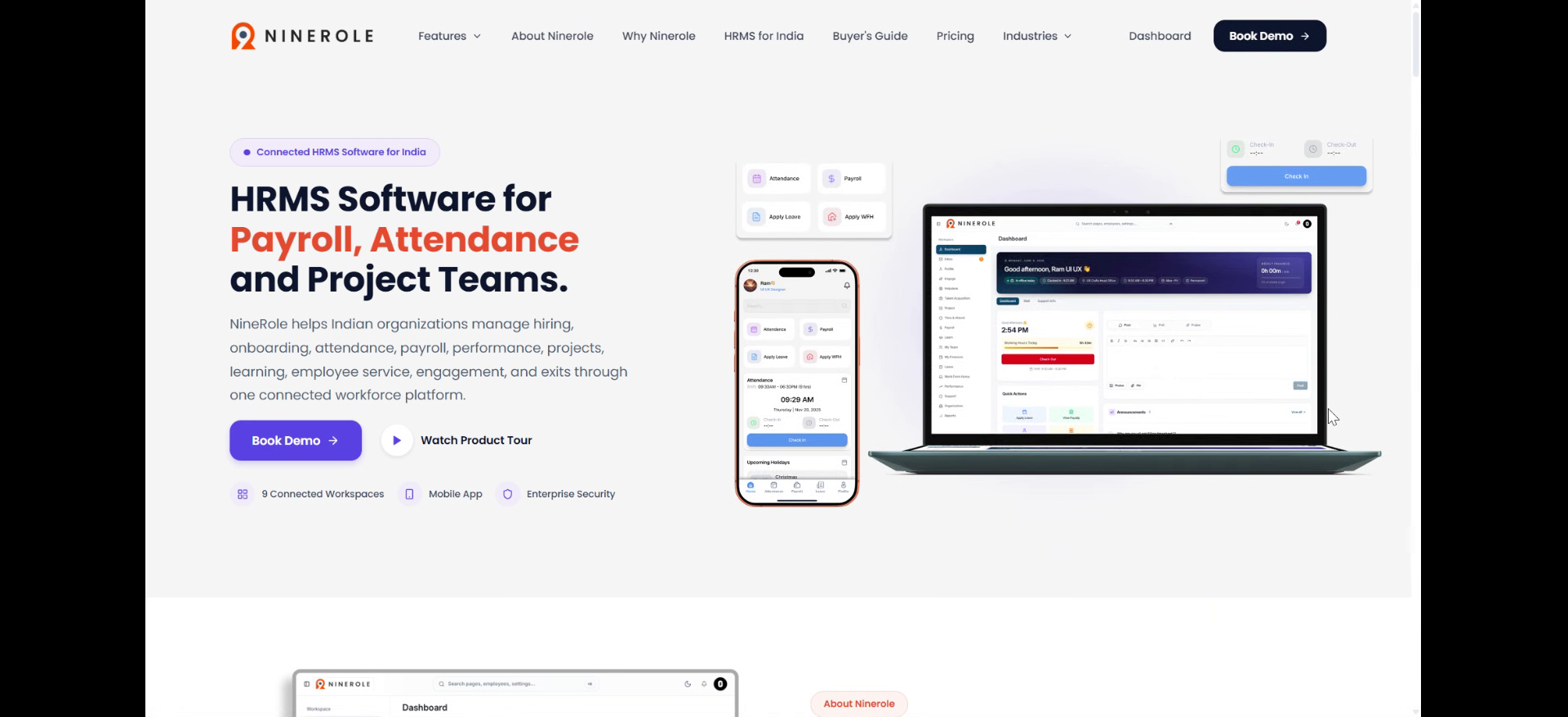
Open the Support section
2. Access the Ninerole dashboard
Click Dashboard to open the main overview page of the Ninerole HRMS platform.
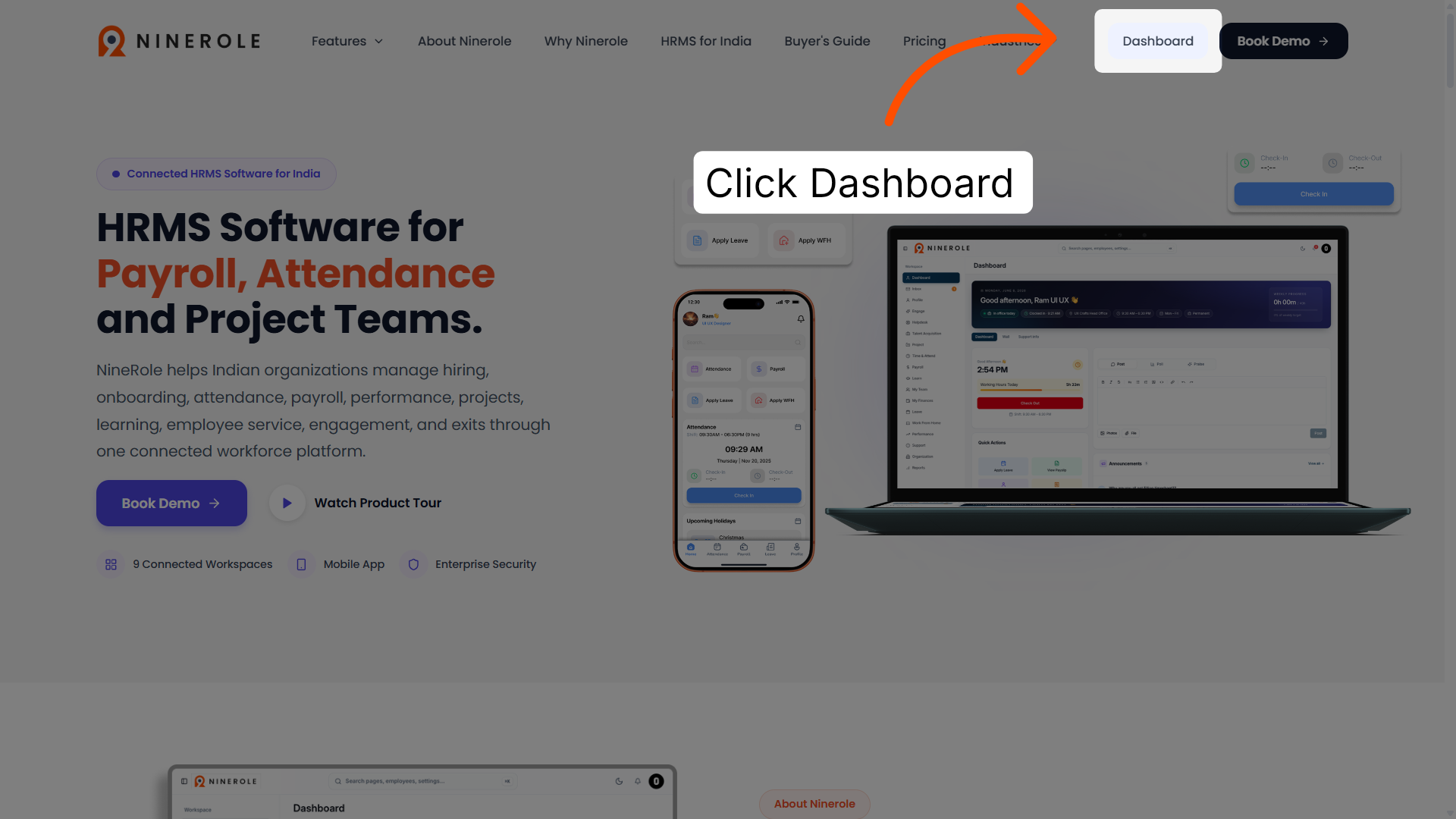
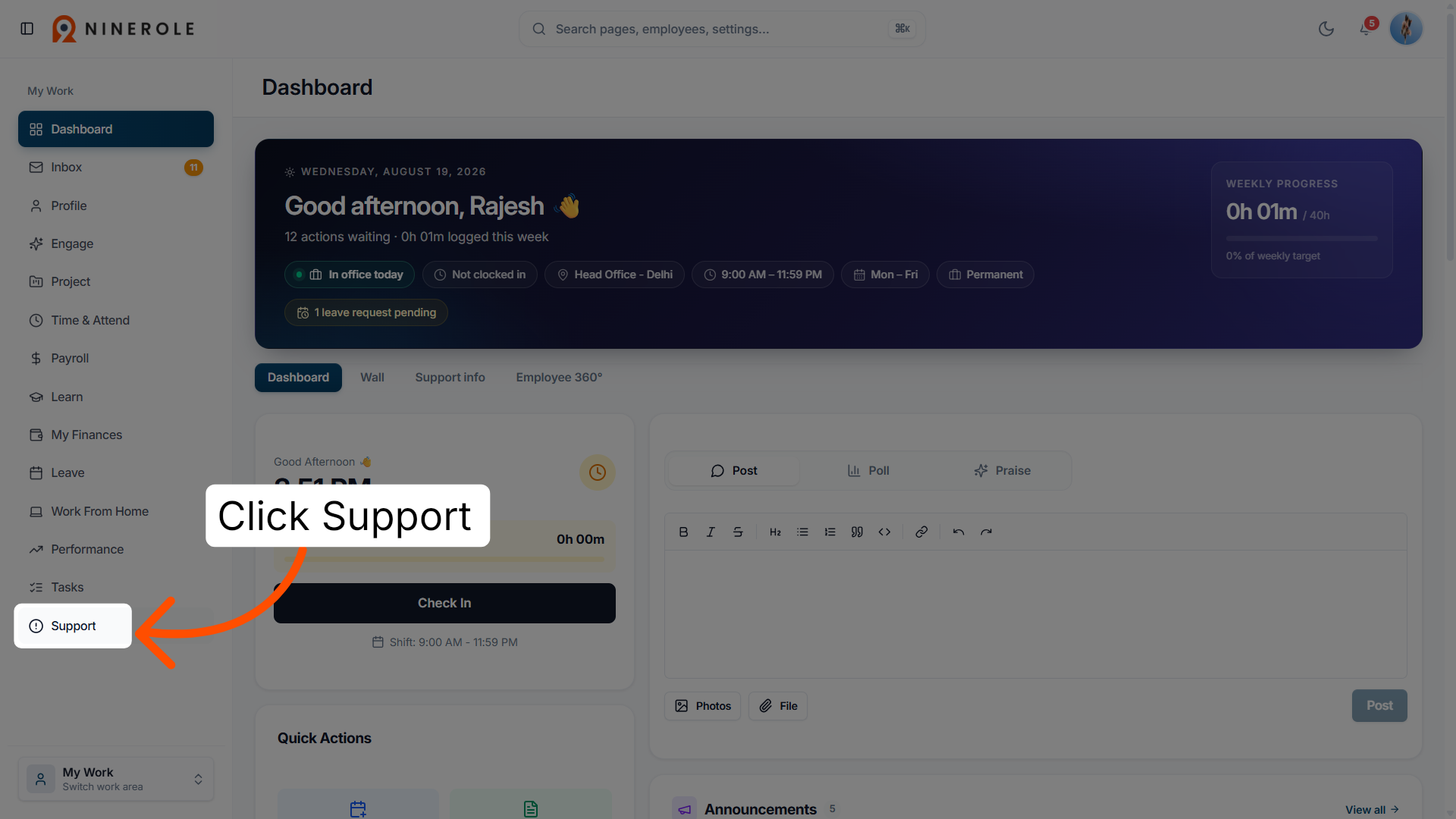
3. Open the Support section
Click Support to navigate to the support area where you can manage your tickets and requests.
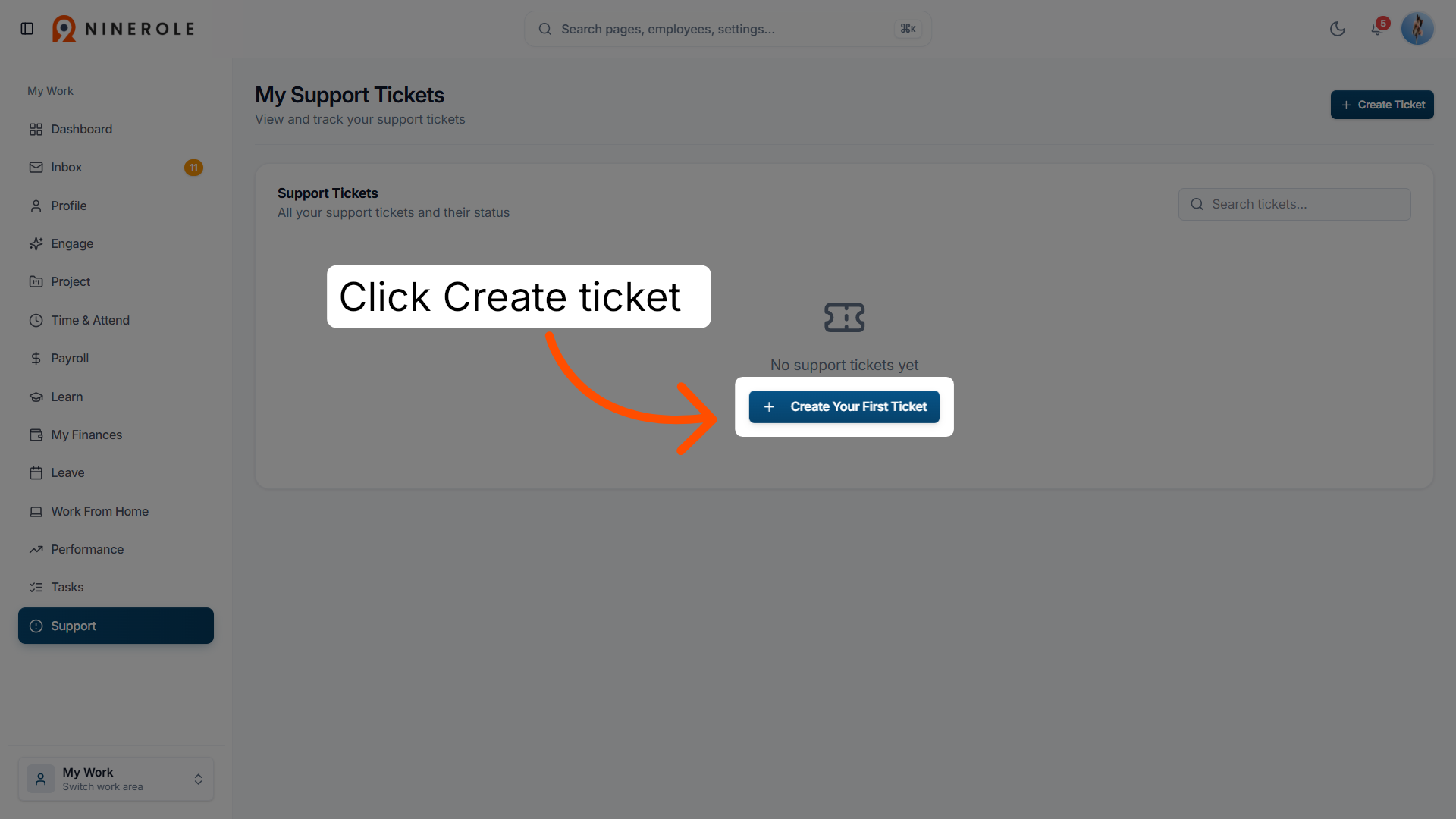
4. Initiate ticket creation
Click Create Your First Ticket to start the process of submitting a new support request.
Complete and submit the ticket
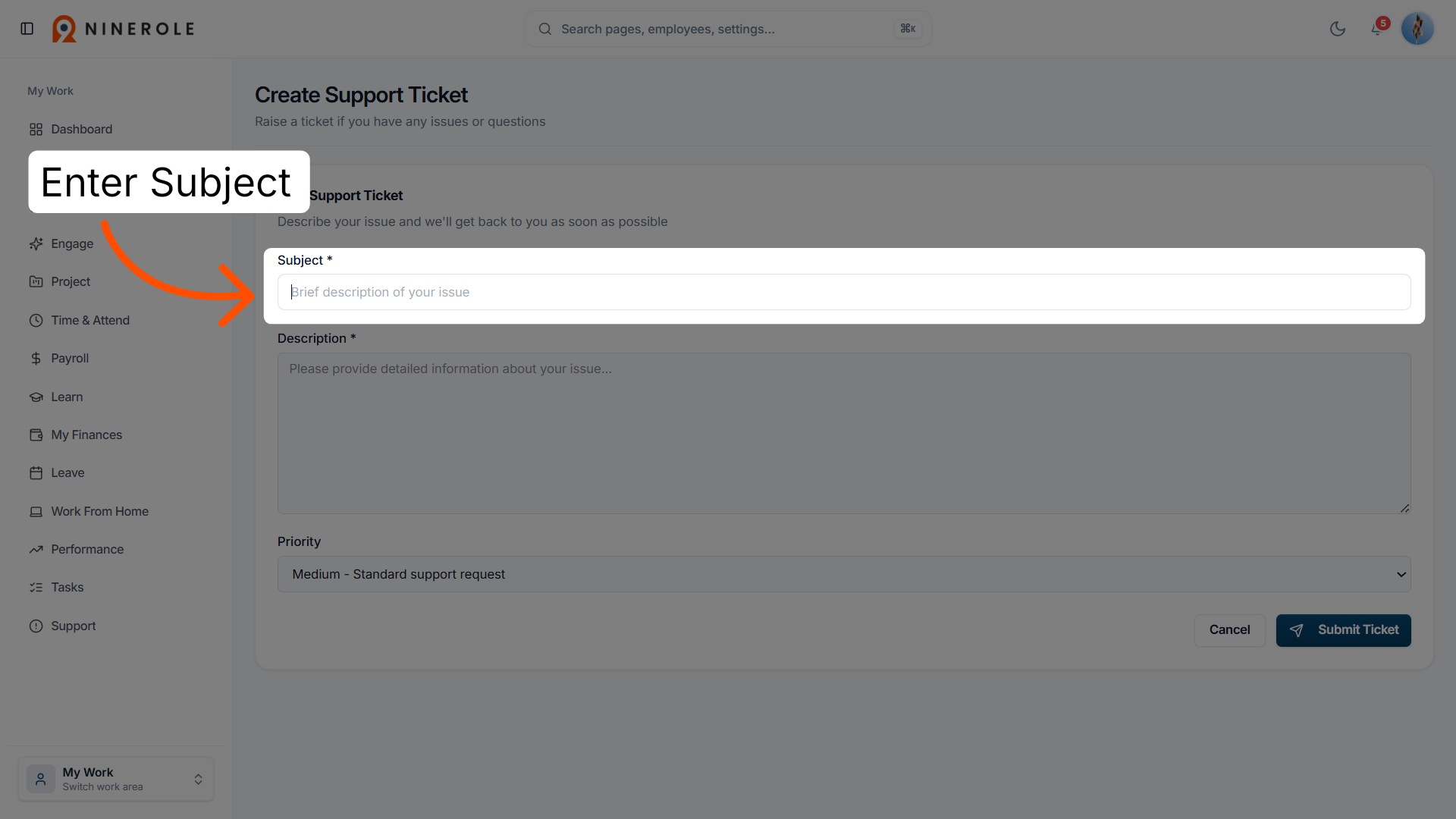
5. Enter the ticket subject
Enter Subject * to specify the main topic or issue for your support ticket.
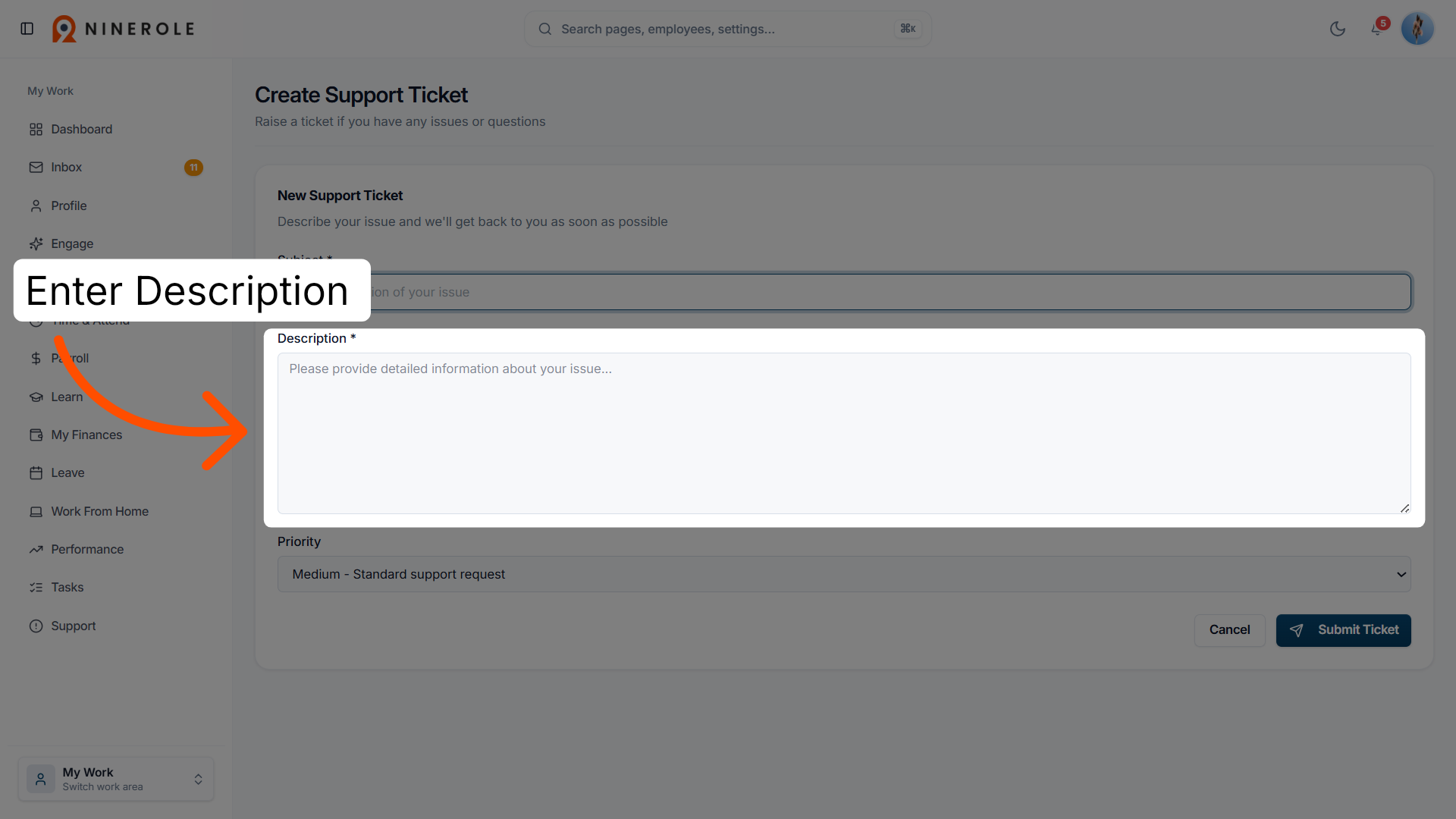
6. Provide the ticket description
Enter detailed information about your support request or issue in the Description field.
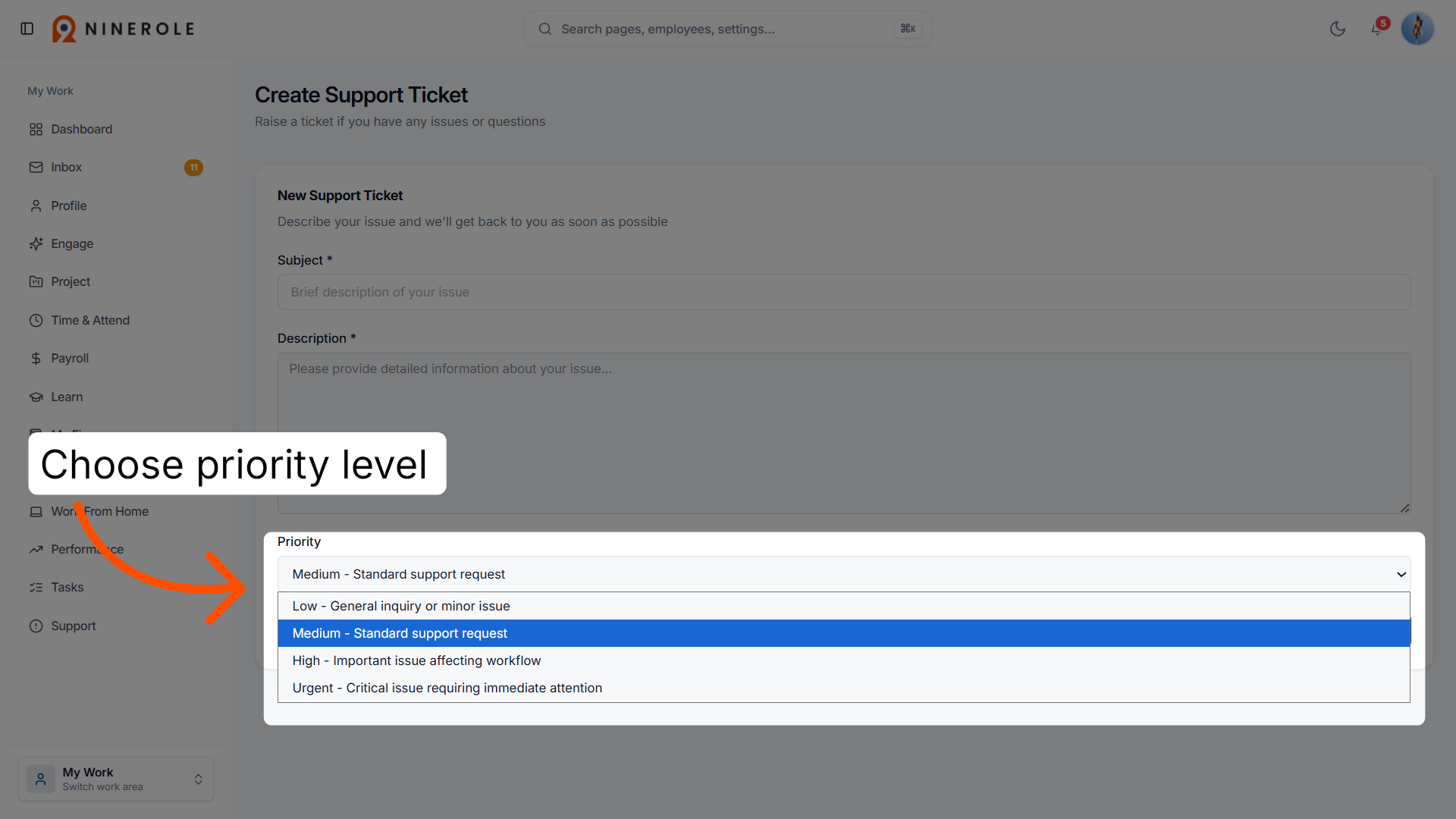
7. Select the ticket priority
Click the priority options to choose the urgency level of your ticket:
- Low — minor issues
- Medium — standard requests
- High — important workflow issues
- Urgent — critical problems requiring immediate attention
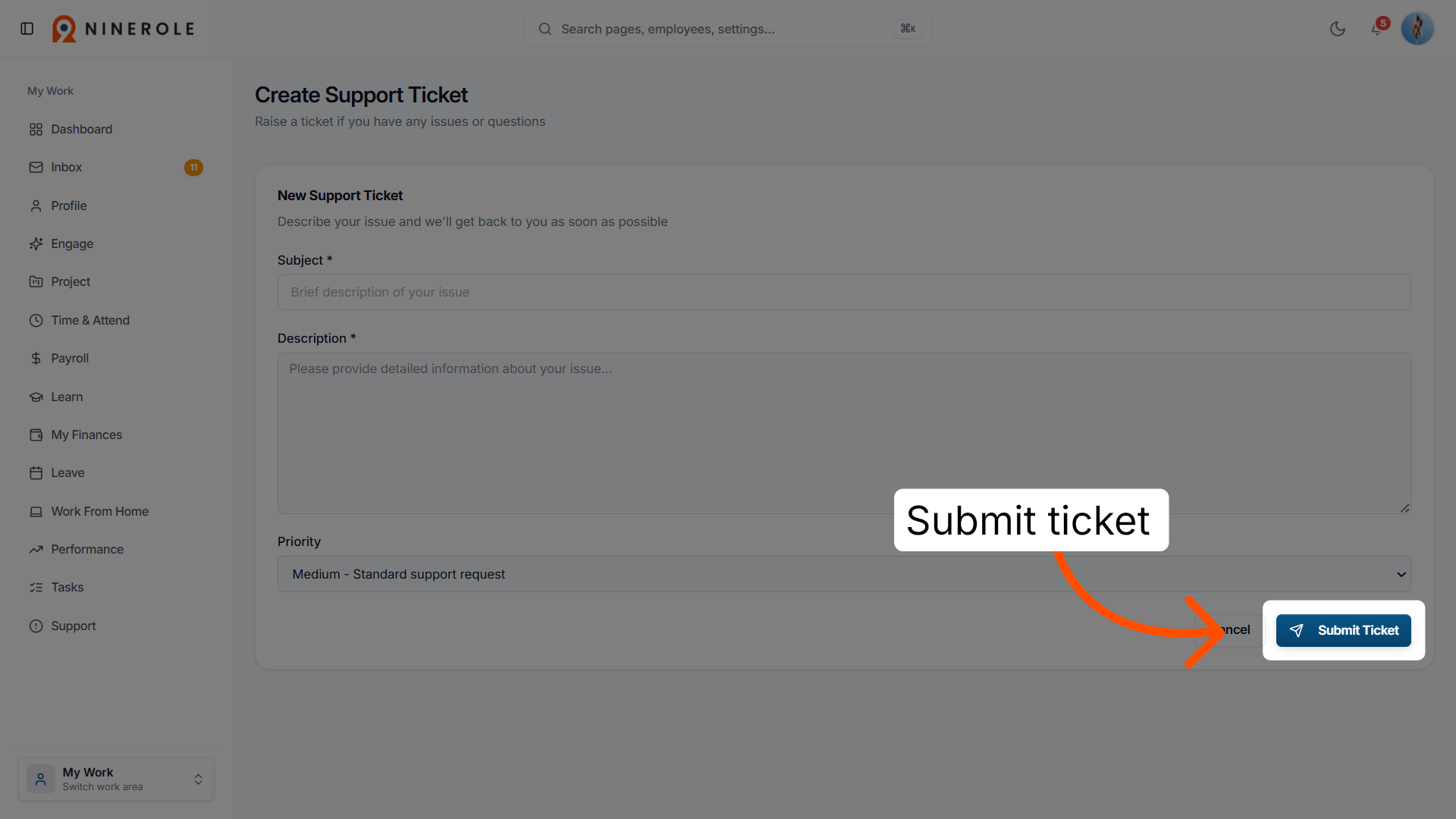
8. Submit the support ticket
Click Submit Ticket to send your completed support request for processing and assistance.
You have successfully created and submitted a support ticket in Ninerole HRMS by navigating through the dashboard, entering ticket details, selecting priority, and submitting the request. For further assistance, explore additional support resources or manage your existing tickets within the platform.
Working in the Workplace Operations area instead? See Create a Ticket from Workplace Operations.
Back to Helpdesk · all modules · Ninerole HRMS overview
Last updated: