

Configure New Client Profiles
This tutorial guides you through setting up a new client profile within the Ninerole dashboard. You will learn how to enter client details and save the profile for project management purposes.
Before you start, go to ninerole.com.
About this task
- Purpose
- Create a client profile so projects, staffing and billing can be attached to it.
- Who can do this
- Project manager
- You will need
- Client name, contact details, and commercial information.
- Result
- A client record exists in Projects.
- This unlocks
- Creating projects for that client — a project cannot be created without one.
This guide answers
- How do I add a client?
- Why can't I create a project?
- What details do I need for a client?
- How do I update client contact details?
- Who can create clients?
If something goes wrong
- You cannot create a project.
- This is almost always a missing client. Create the client here first.
- Duplicate client records.
- Search before creating — clients are matched by name, not automatically deduplicated.
Related: Create a project · Opportunities · Client staffingAlso called: customer, account, client profile.Last verified: 7 September 2026
1. Introduction
You will learn how to enter client details and save the profile for project management purposes.
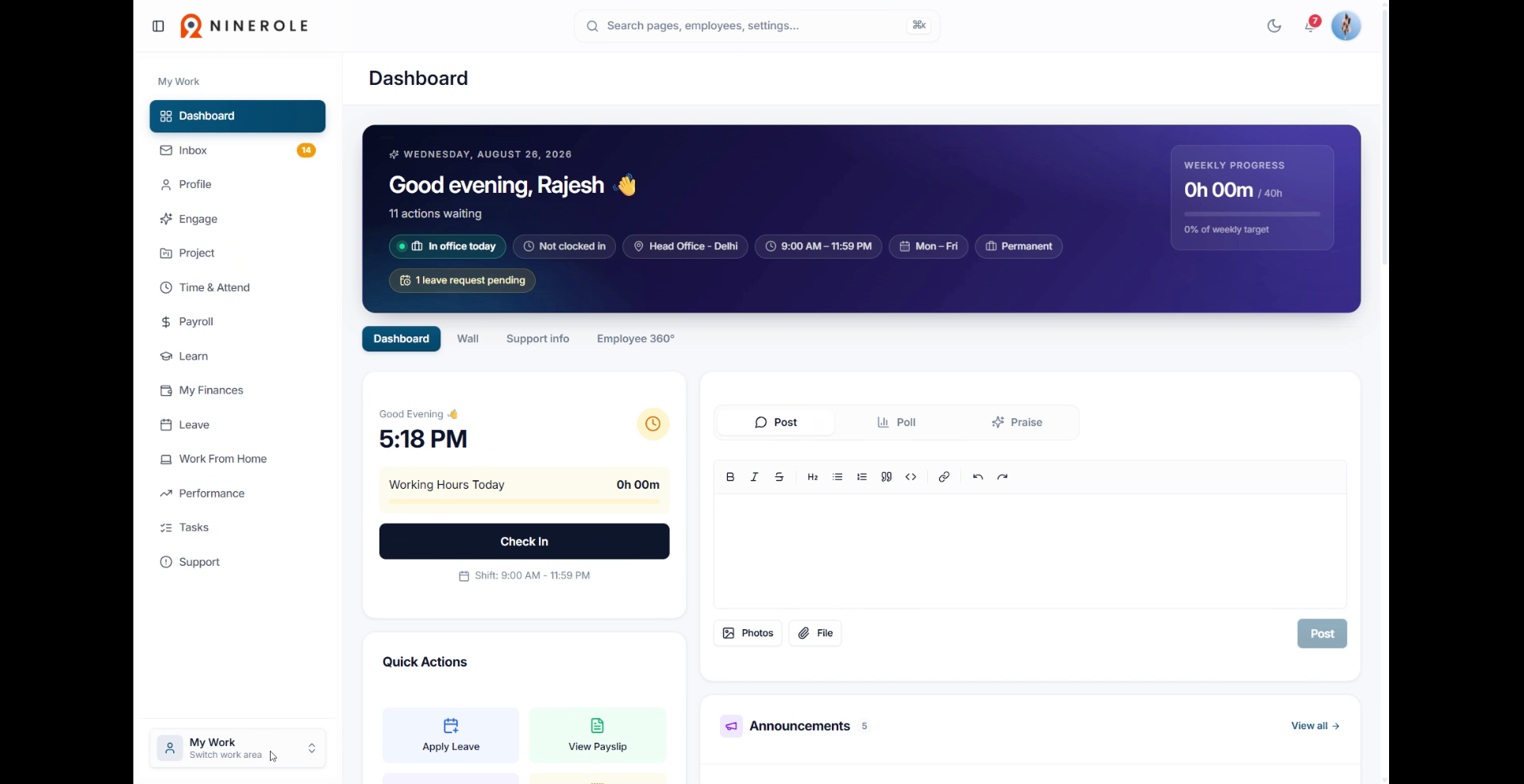
Open the client form
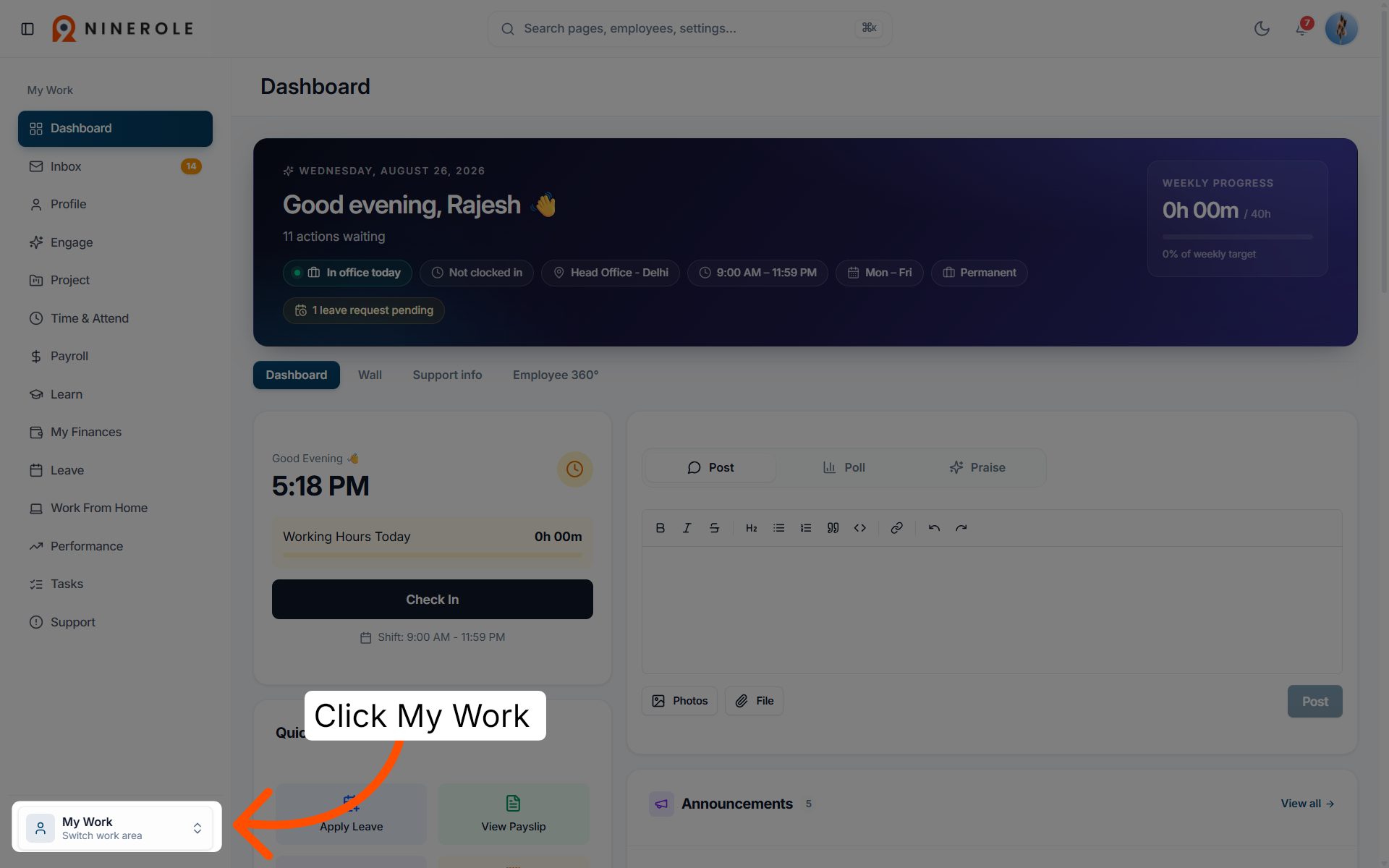
2. Access the My Work section
Click My Work to open your main workspace in Ninerole.
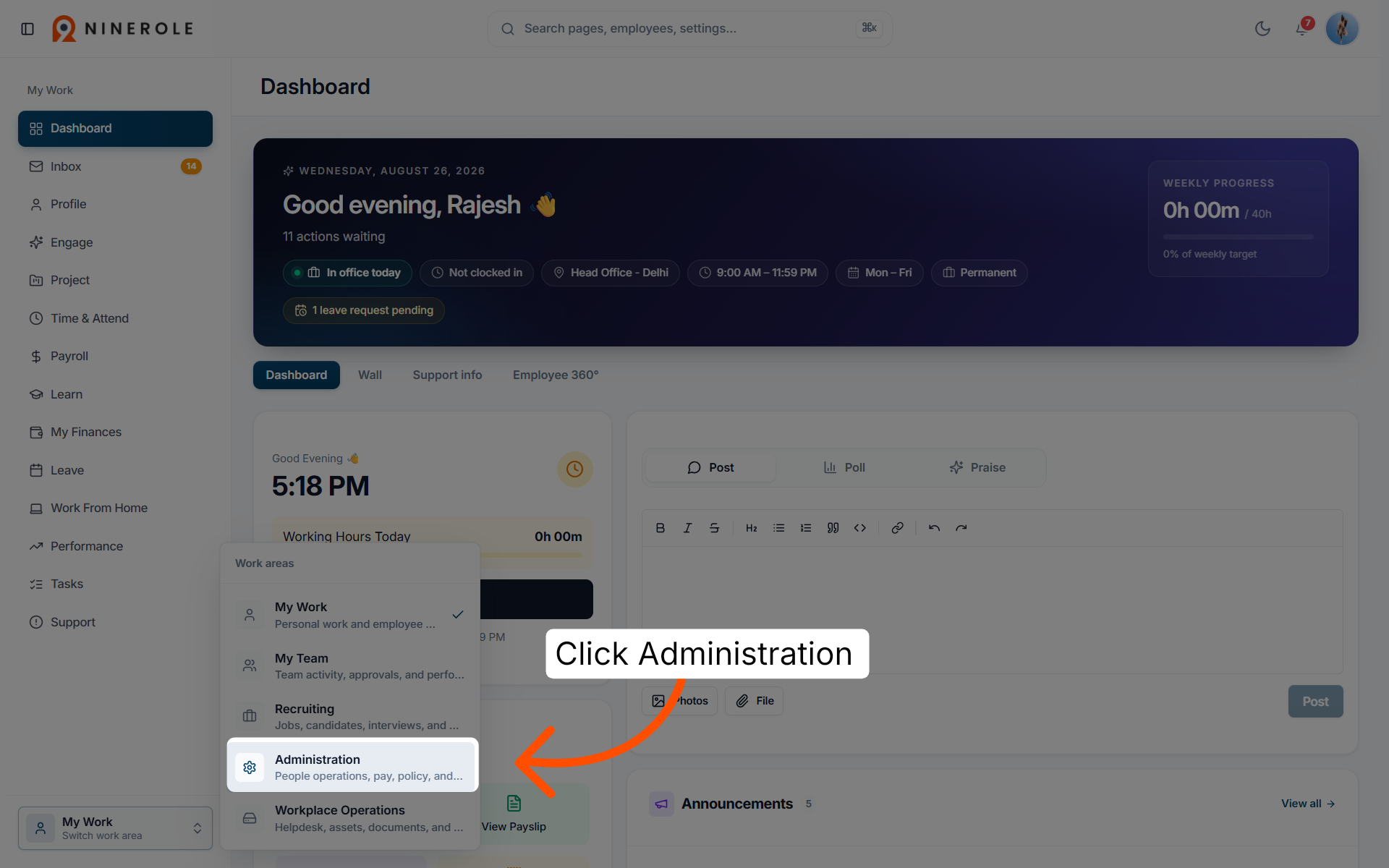
3. Open Administration settings
Click Administration to access administrative options for your account.
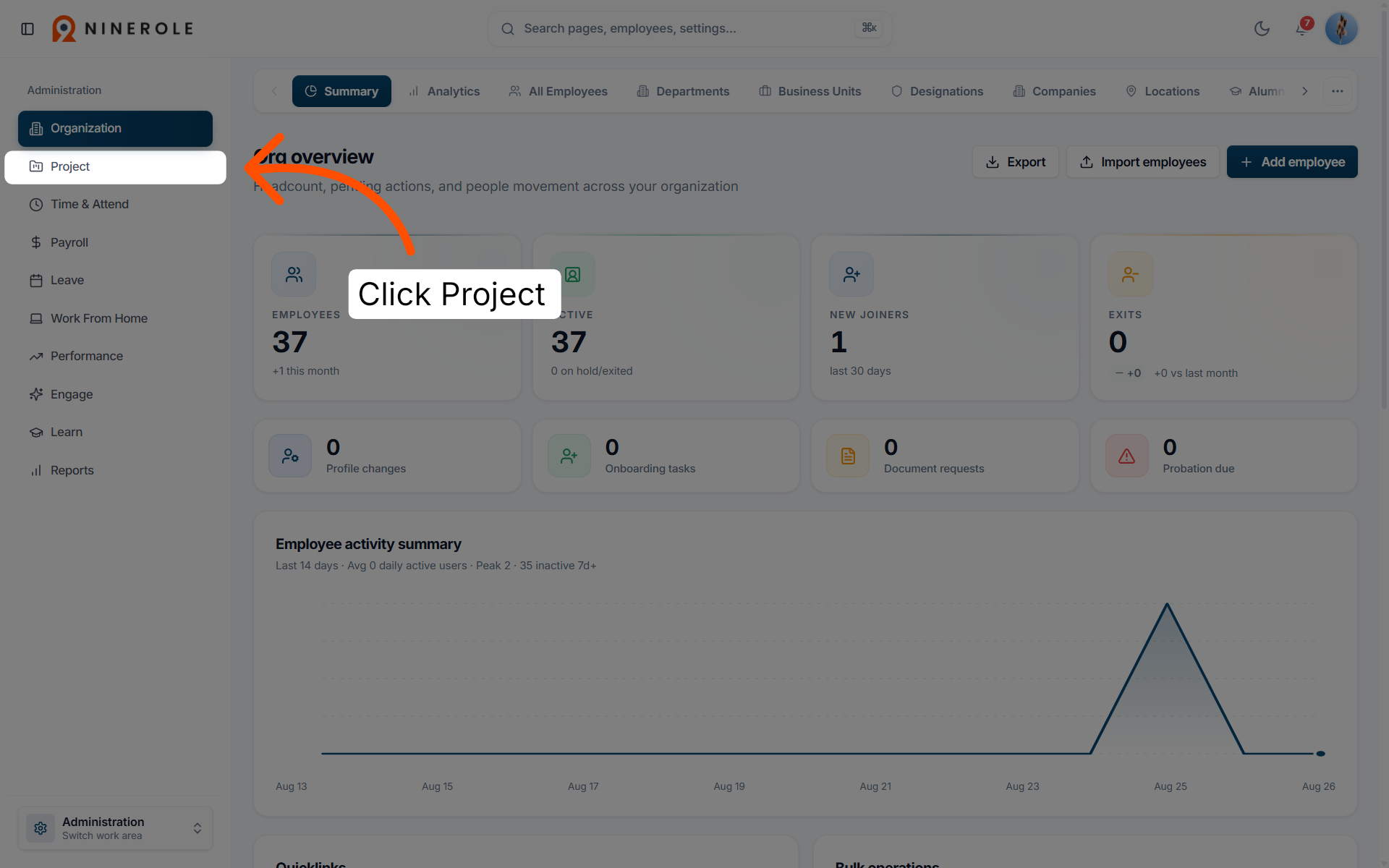
4. Navigate to the project summary
Click Project to view the project summary and related client information.
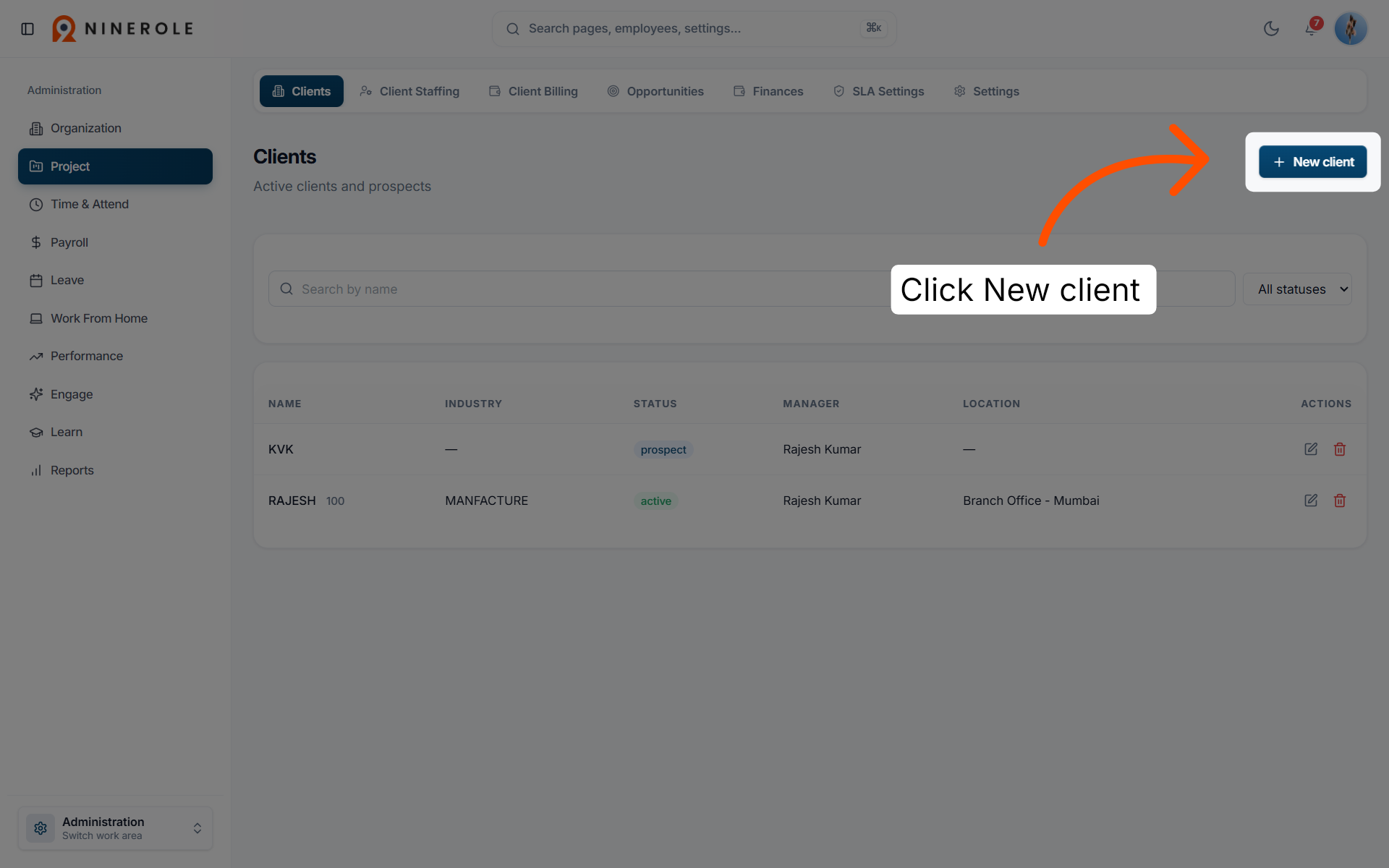
5. Initiate new client creation
Click New client to start adding a new client profile to your project.
Enter the company details
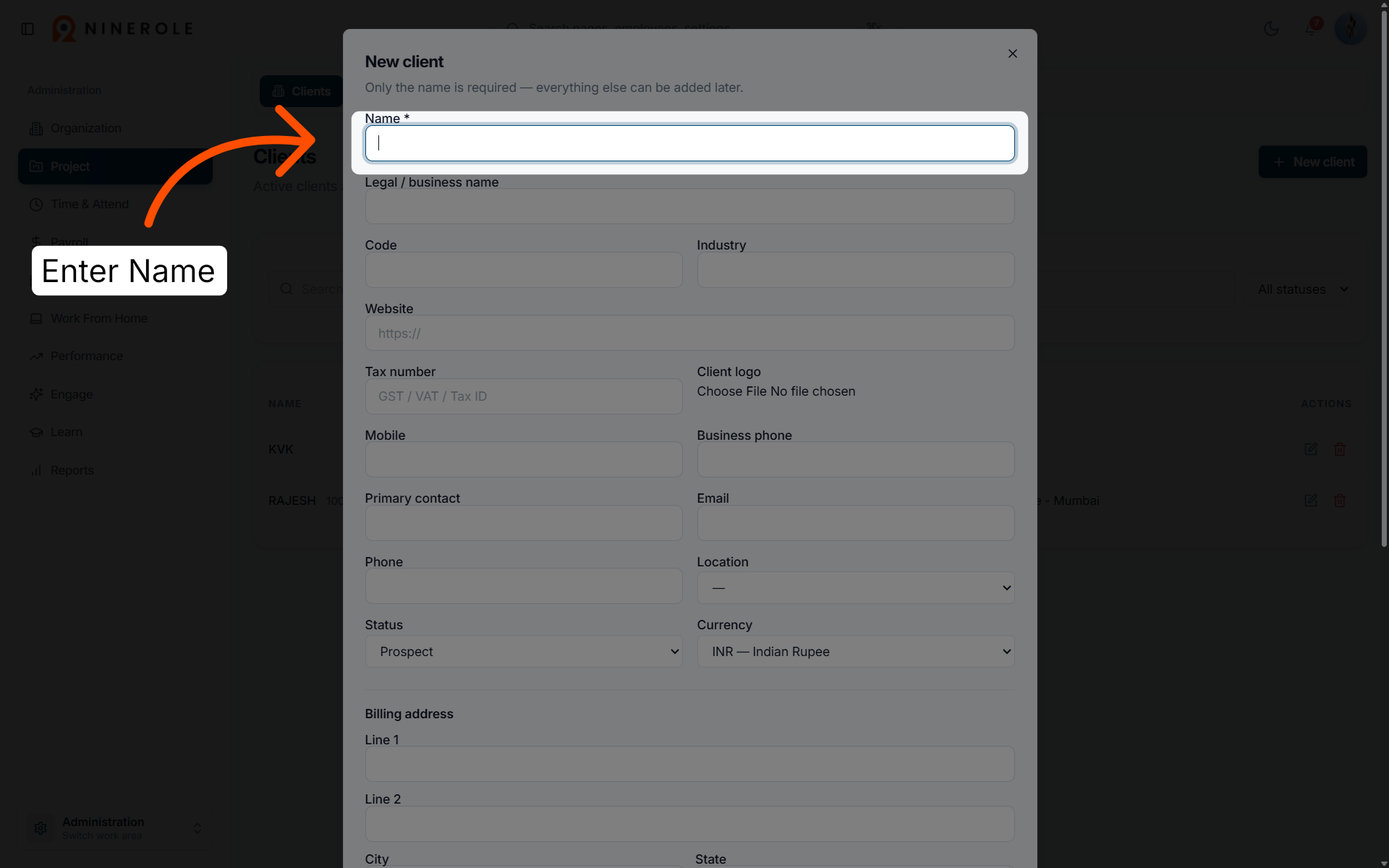
6. Enter the client name
Enter Name to input the client's full name as required.
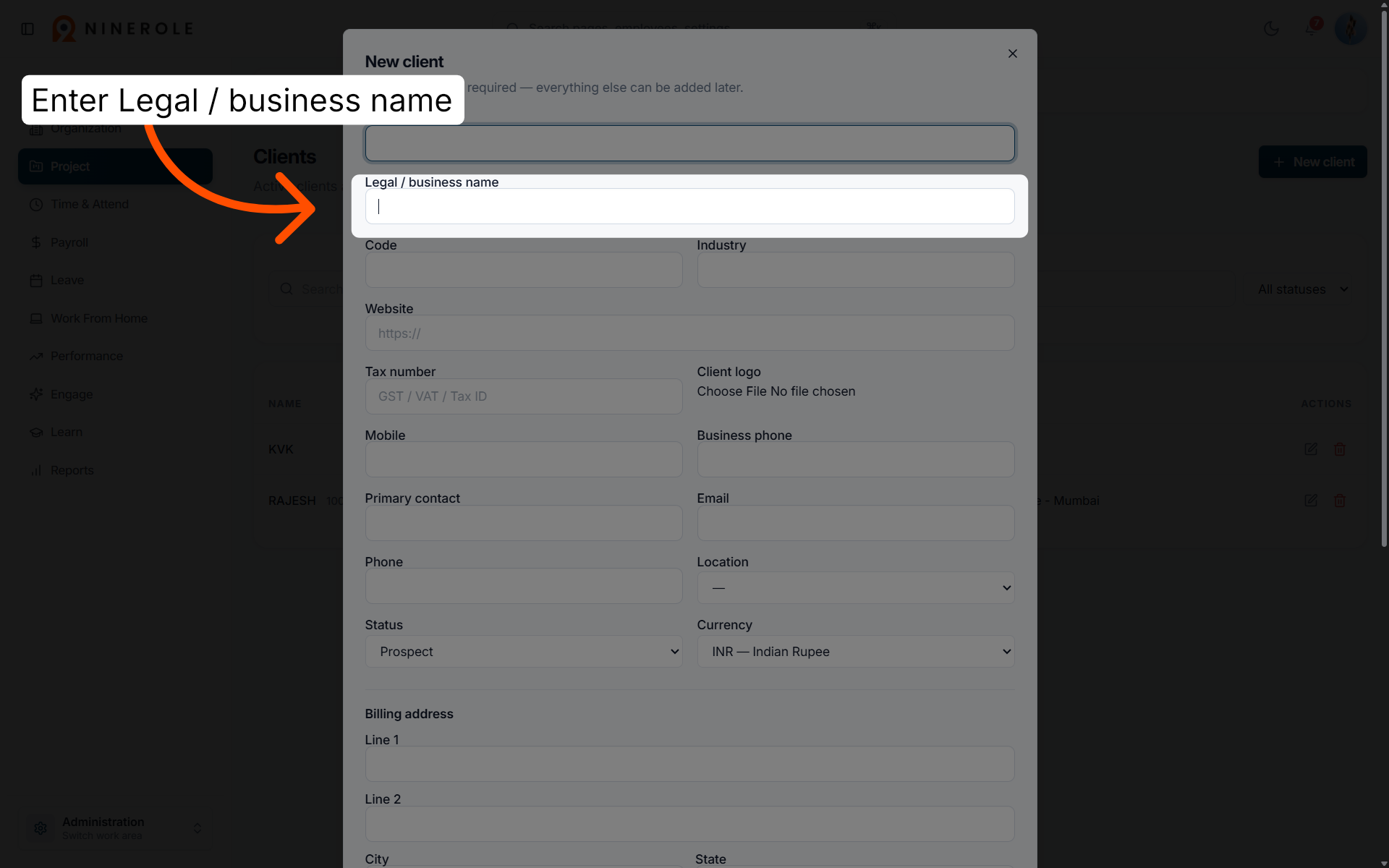
7. Specify the legal business name
Enter Legal / business name to enter the official registered name of the client.
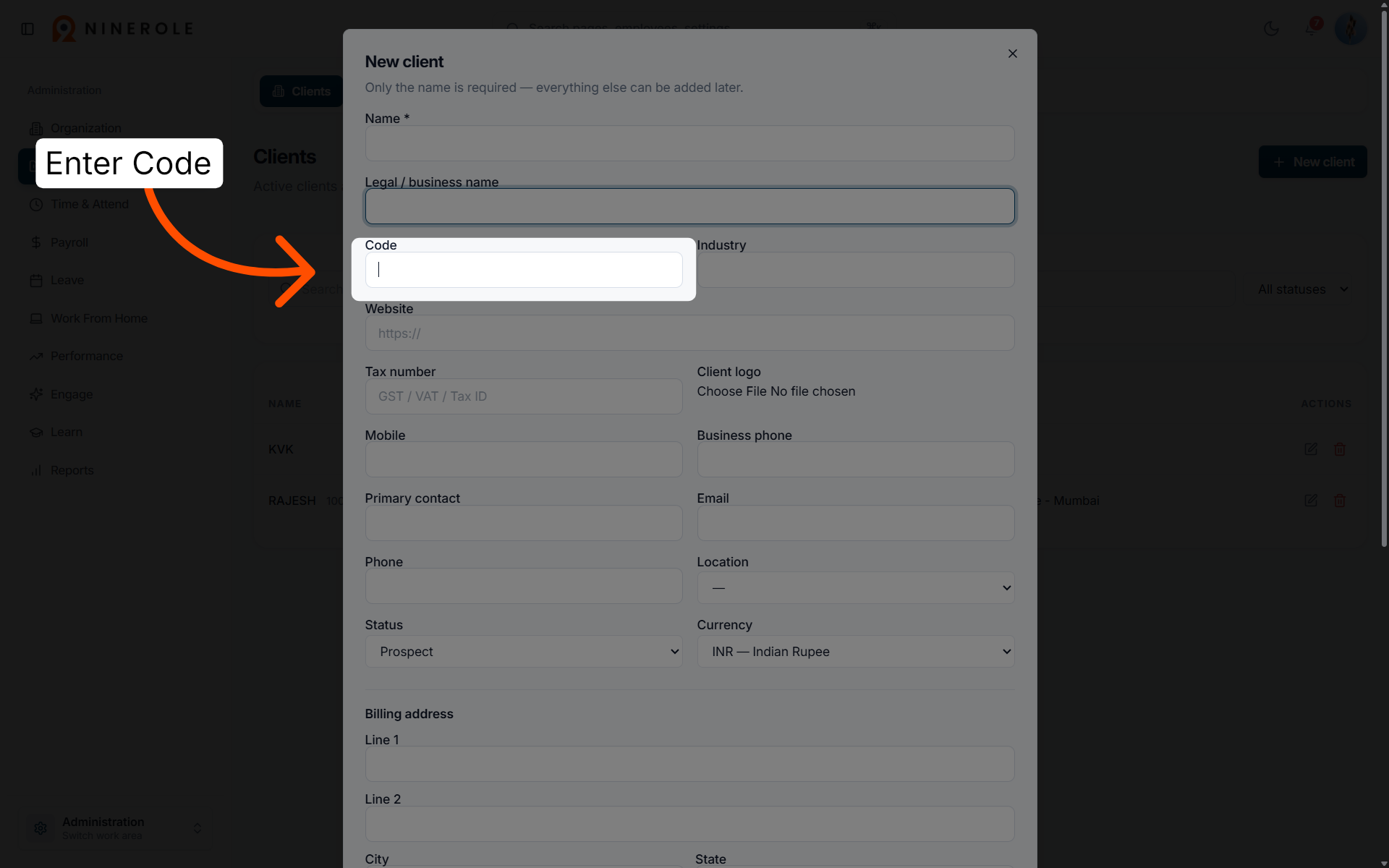
8. Input the client code
Enter Code to assign or enter the unique client identification code.
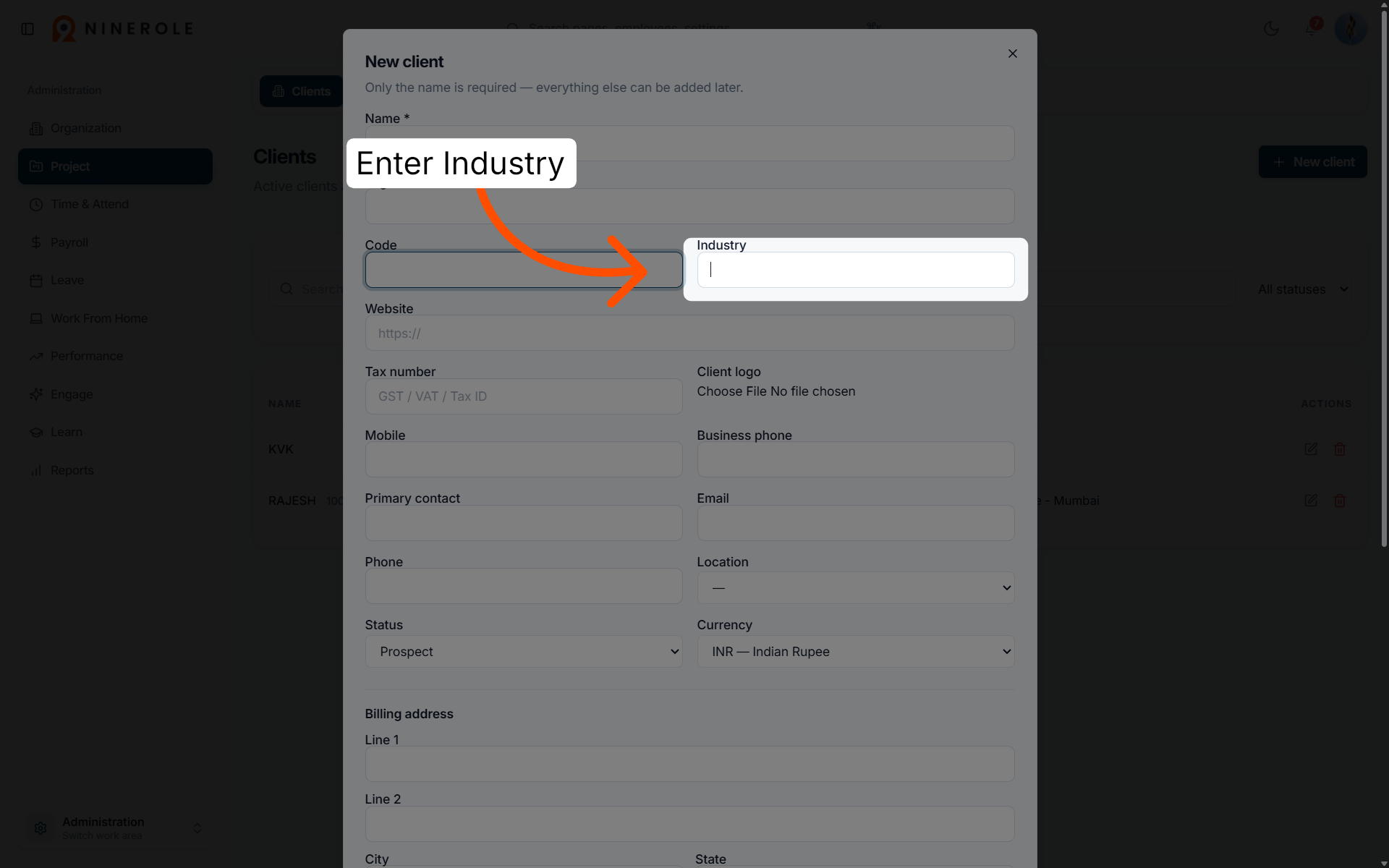
9. Select the industry type
Enter Industry to choose the sector in which the client operates.
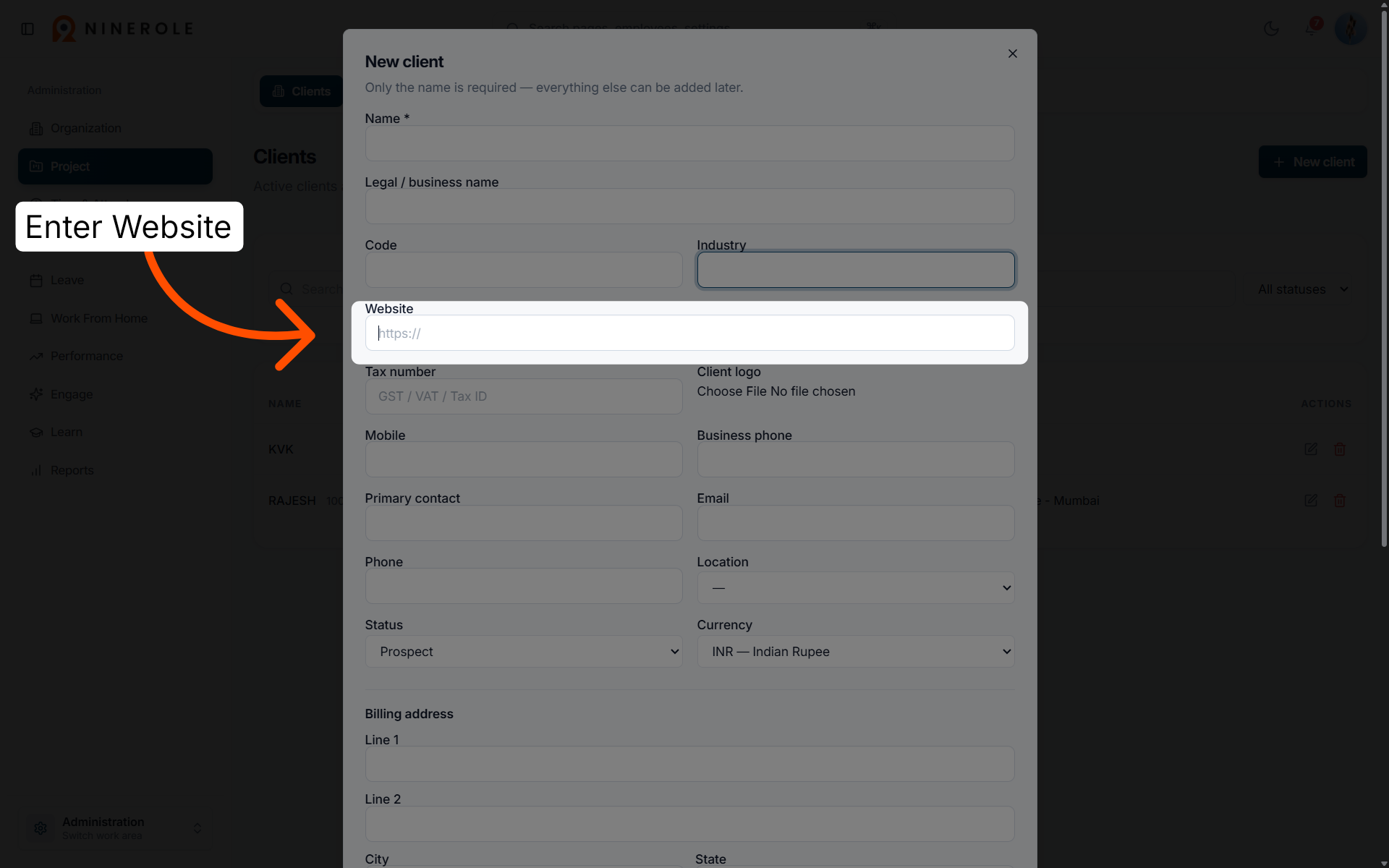
10. Add the client website
Enter Website to provide the client's official website URL.
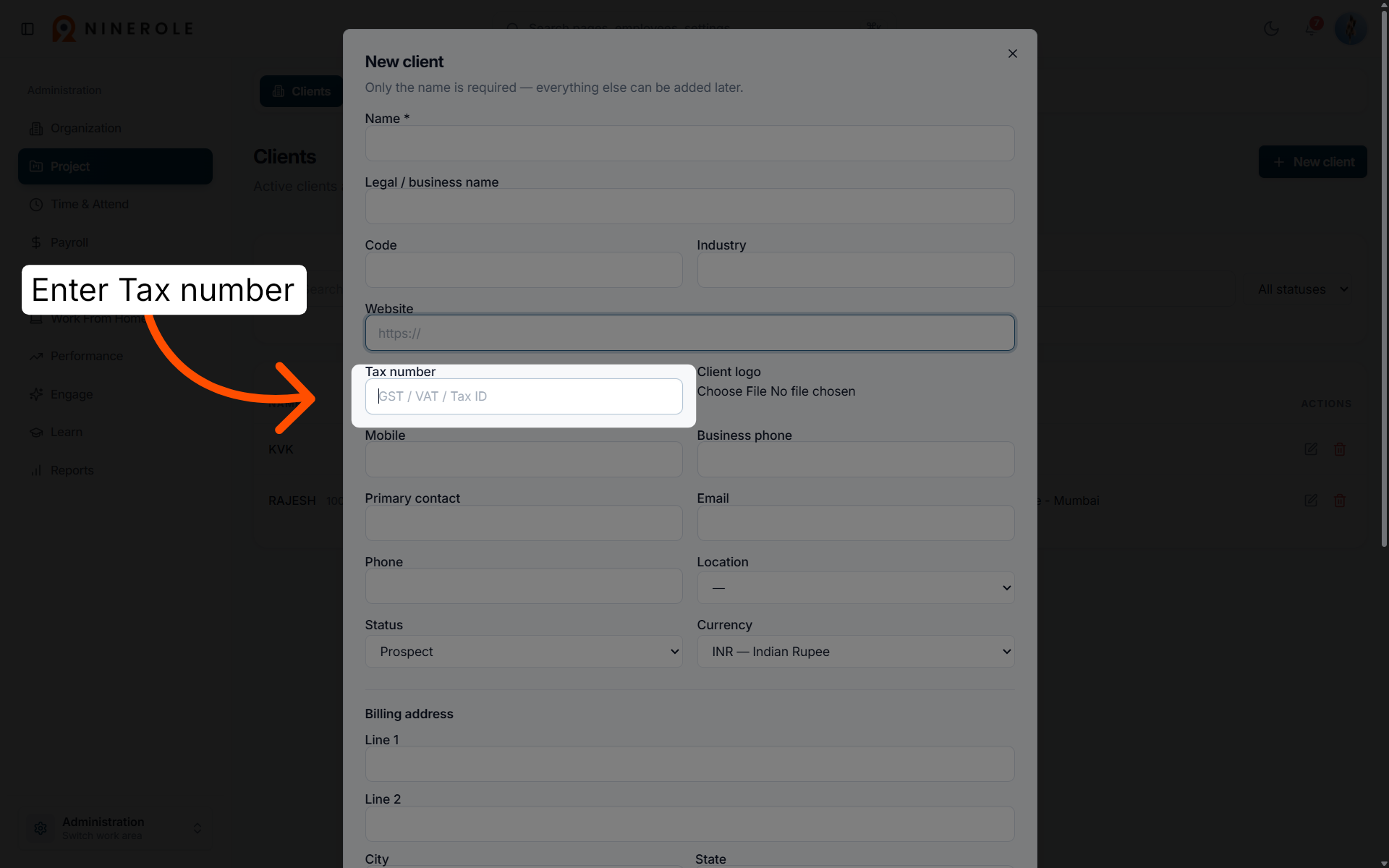
11. Enter the tax number
Enter Tax number to input the client's tax identification number.
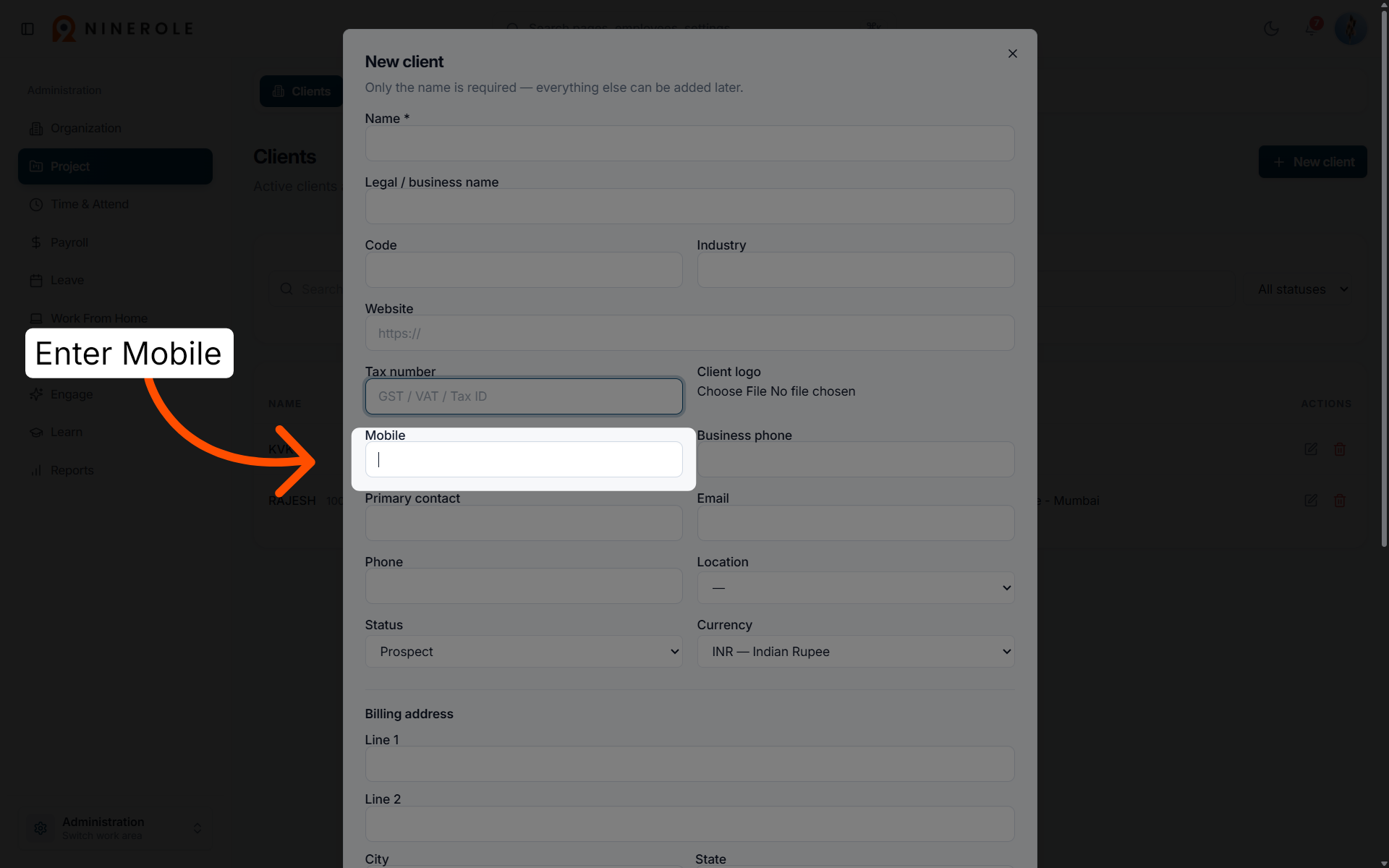
12. Provide the mobile number
Enter Mobile to enter the client's mobile phone number for contact purposes.
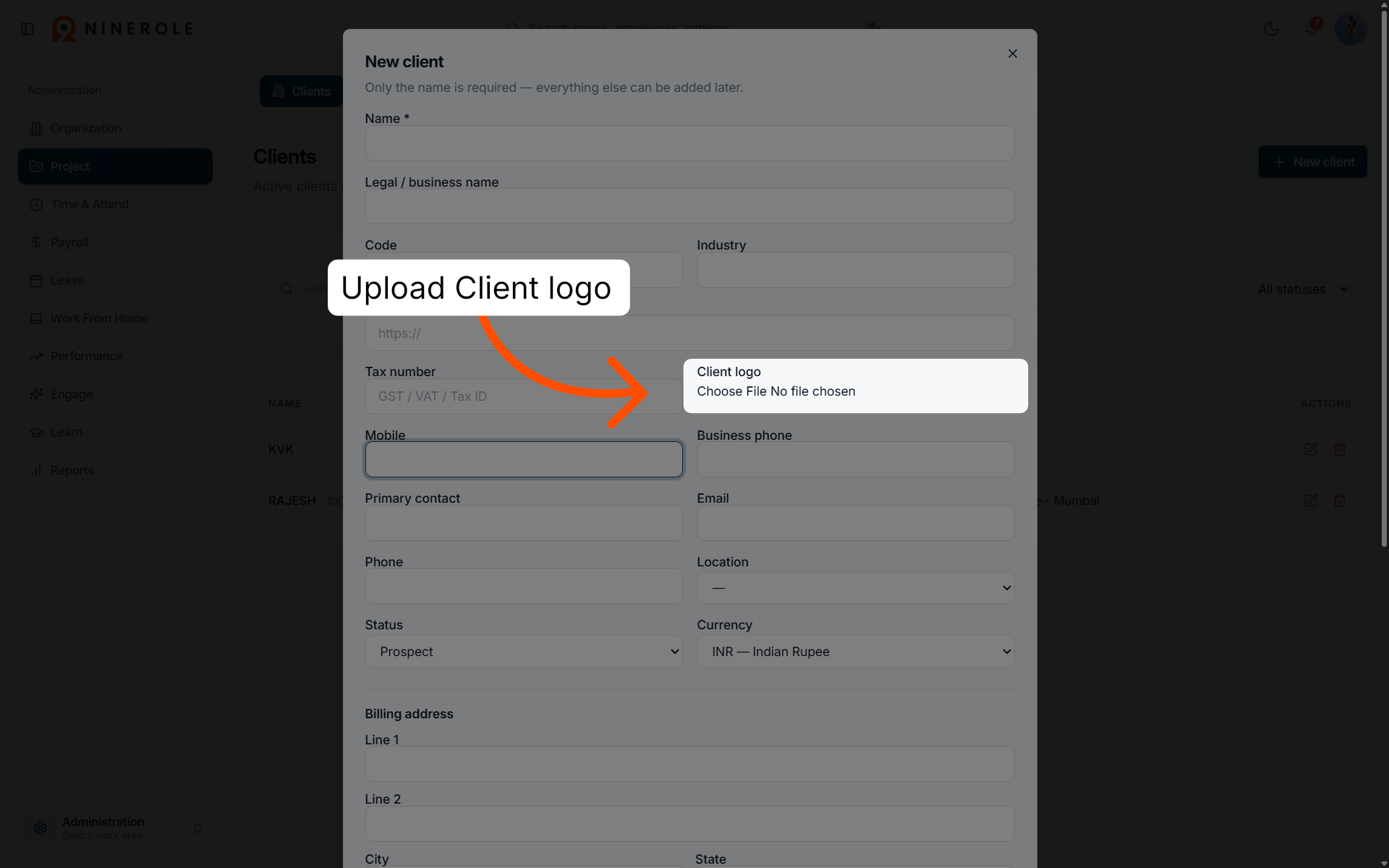
13. Upload the client logo
Upload Client logo to add an image representing the client's brand.
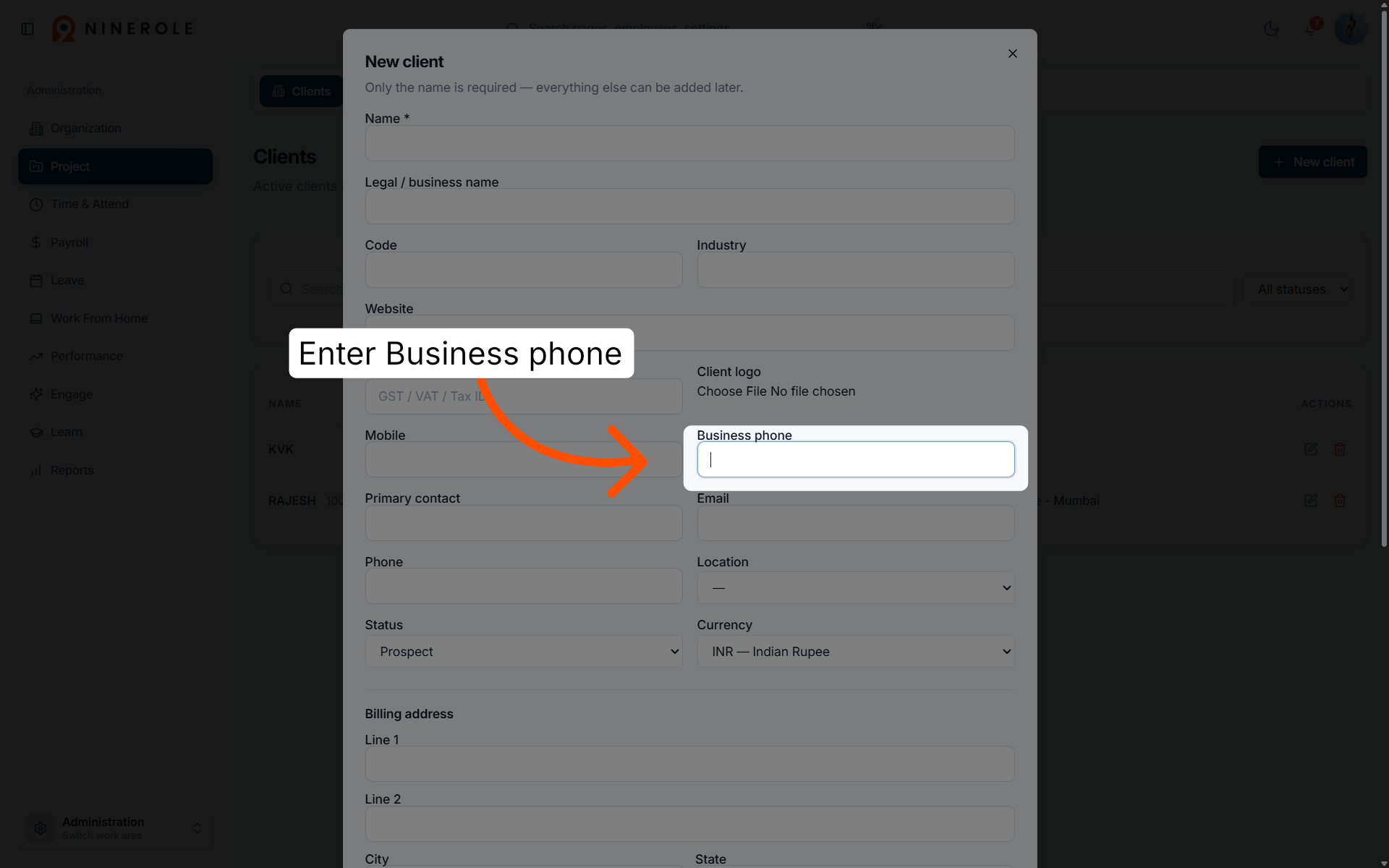
14. Enter the business phone
Enter Business phone to input the client's main business contact number.
Add the primary contact
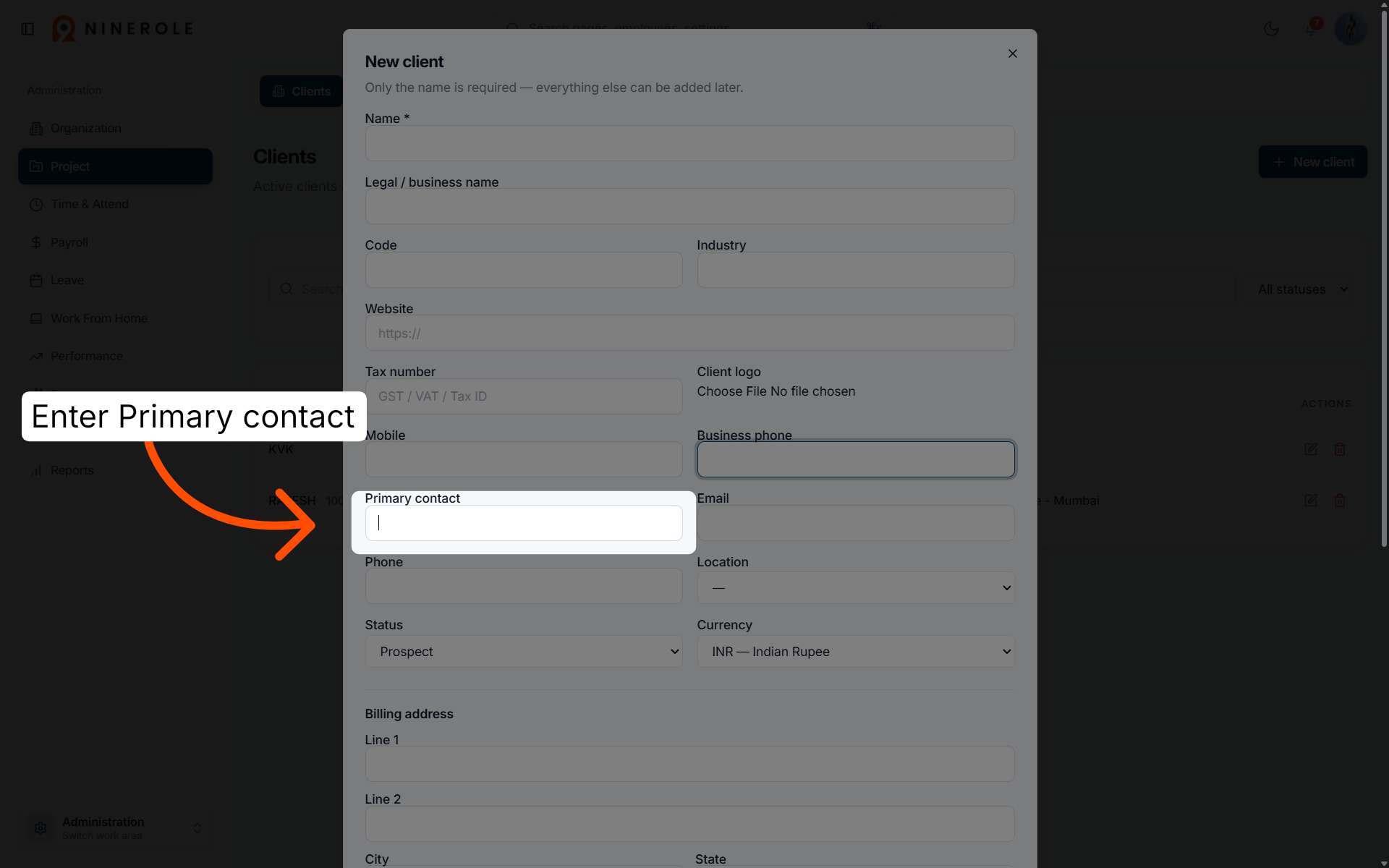
15. Assign the primary contact
Enter Primary contact to select or add the main contact person for the client.
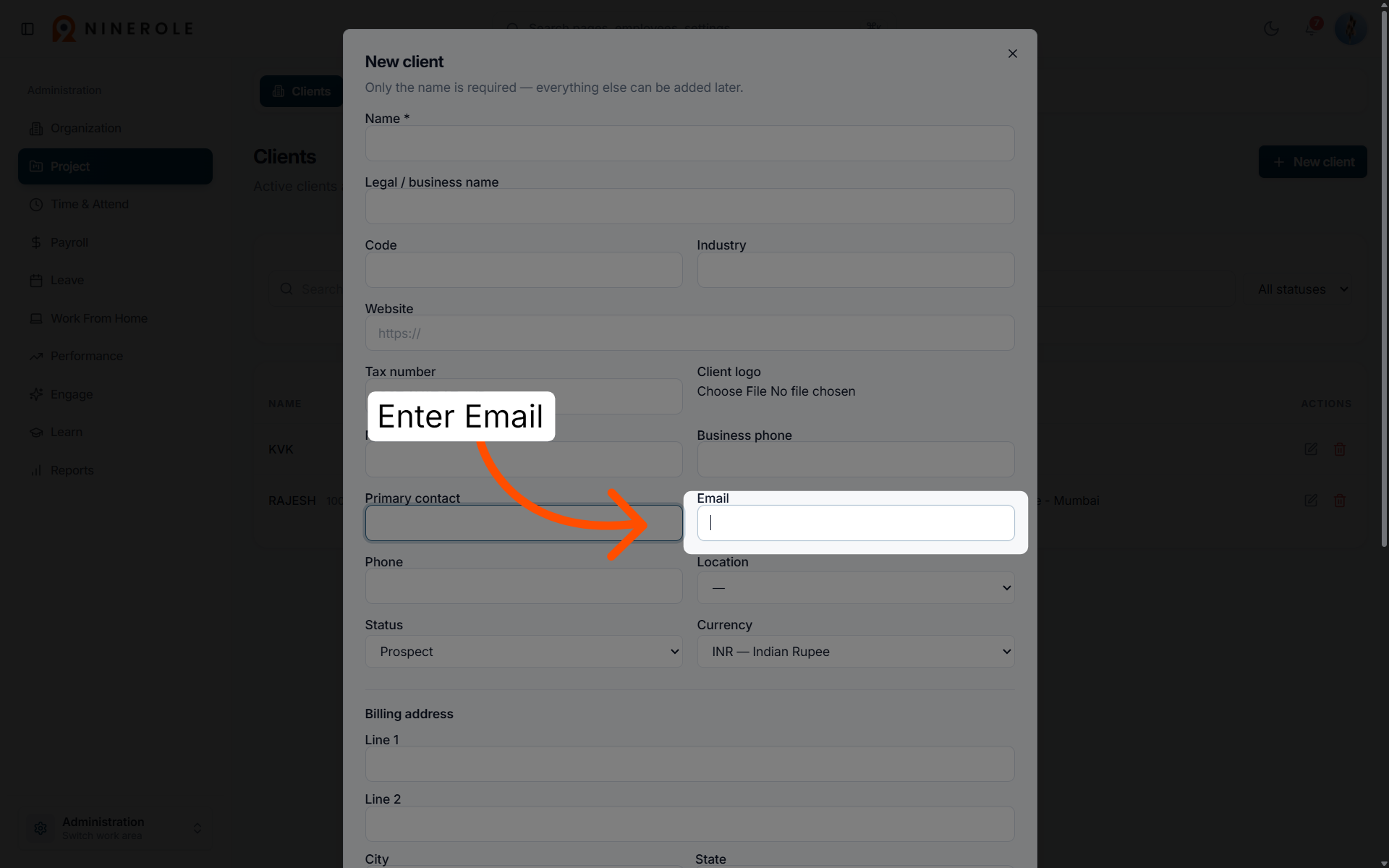
16. Input the contact email
Enter Email to enter the primary email address for client communications.
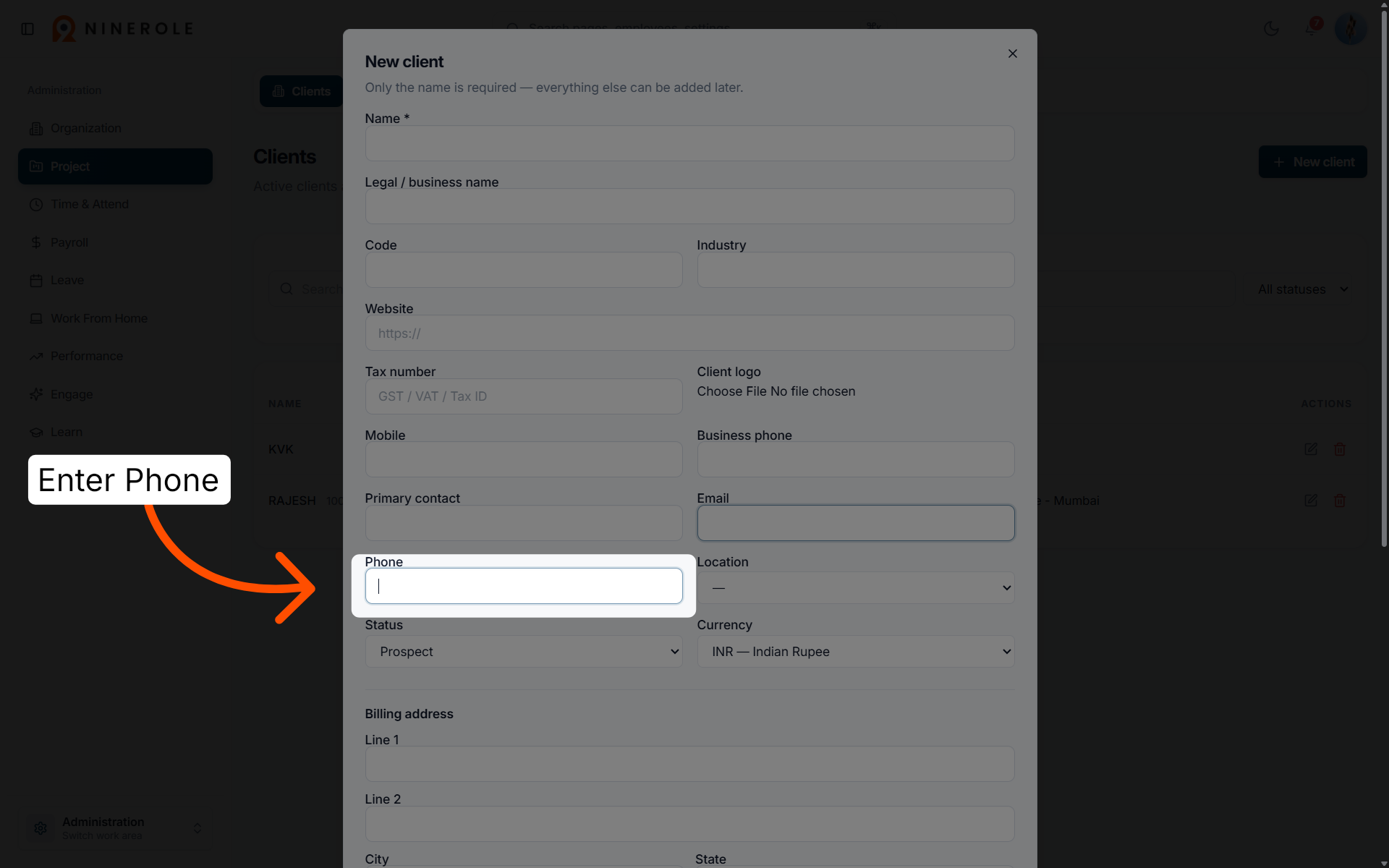
17. Add the contact phone number
Enter Phone to provide an additional phone number for the primary contact.
Set status, location, and currency
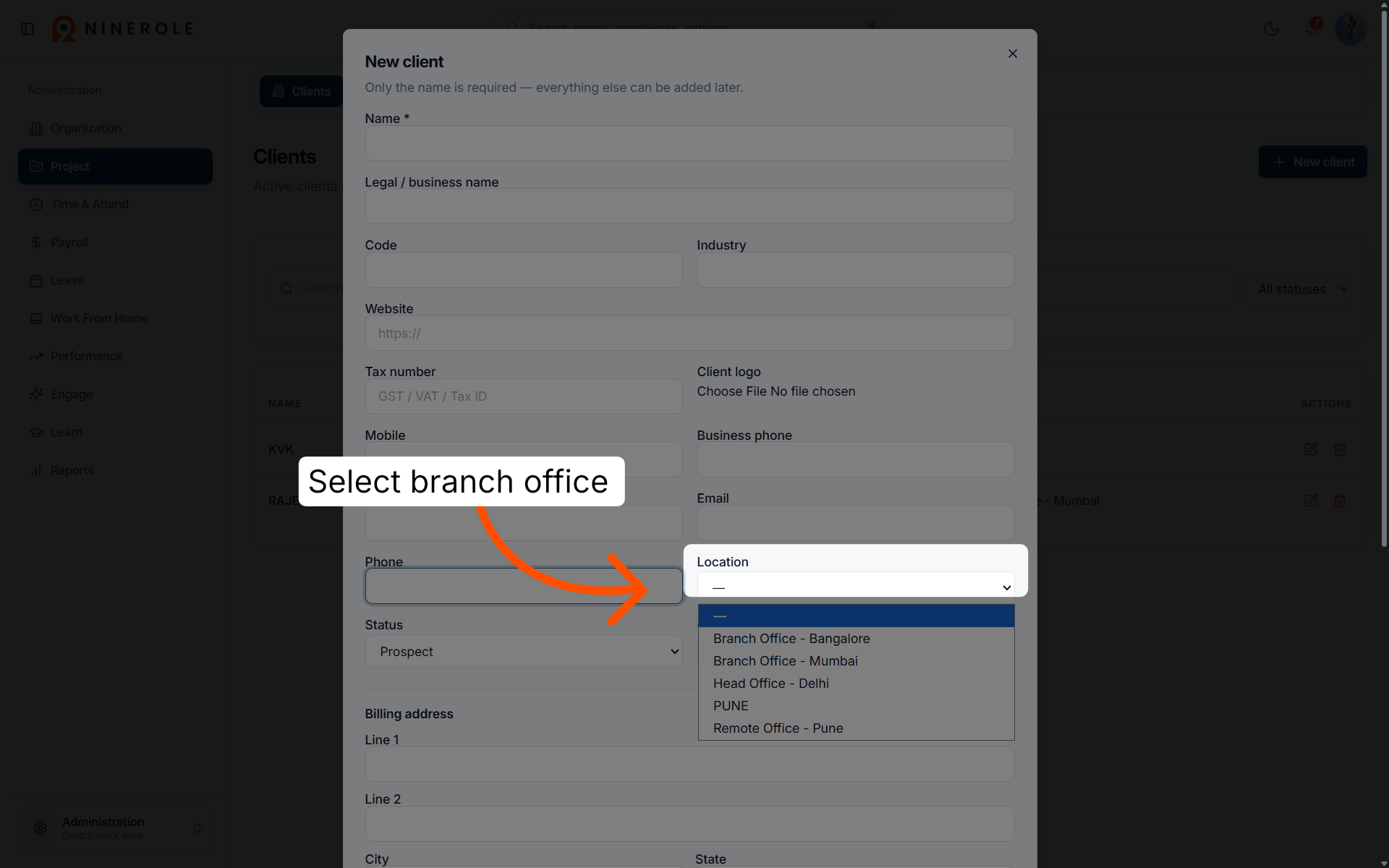
18. Choose the branch office location
Open the branch office dropdown to select the client's office location from the available options.
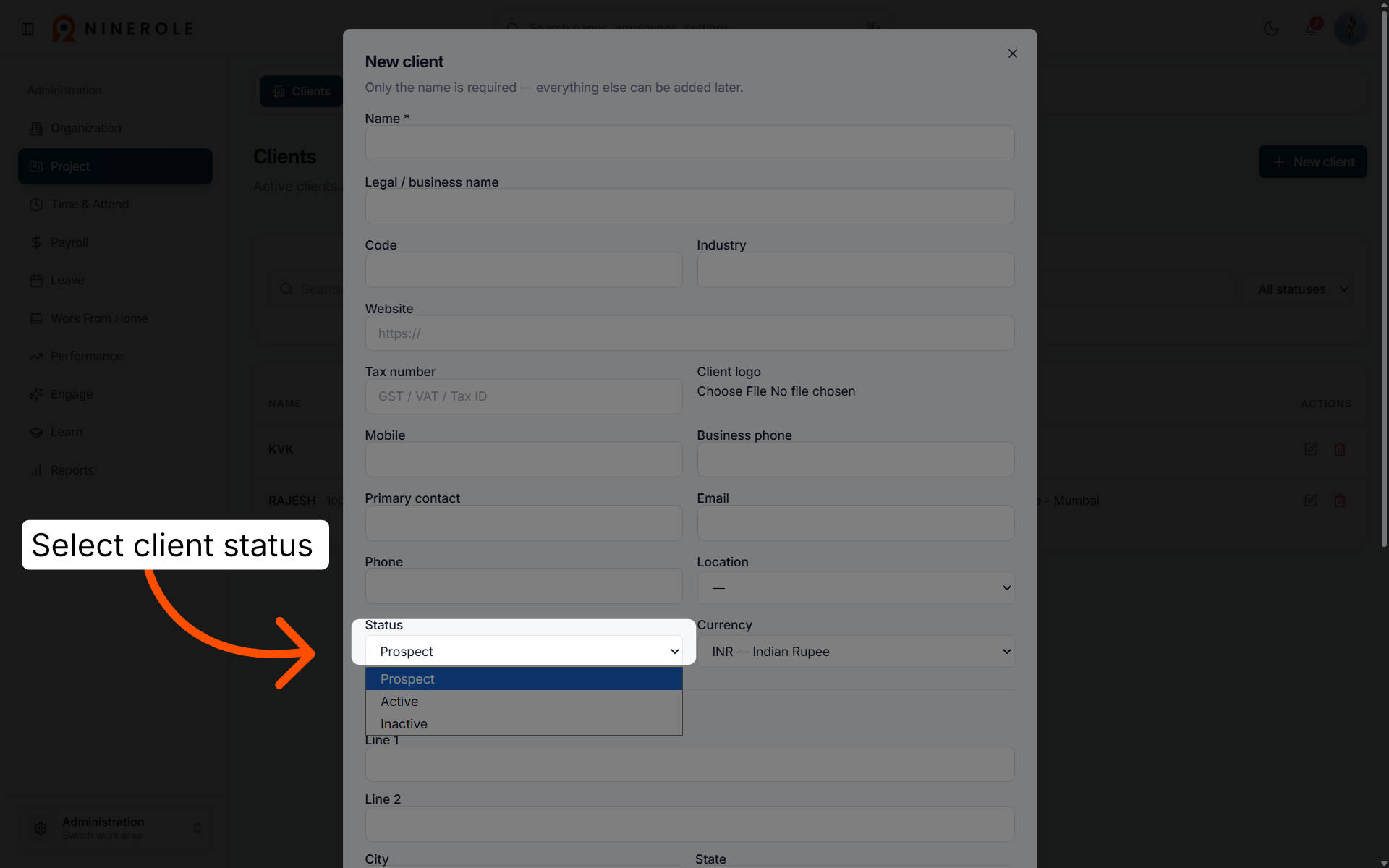
19. Set the client status
Select Status to define the current status of the client relationship.
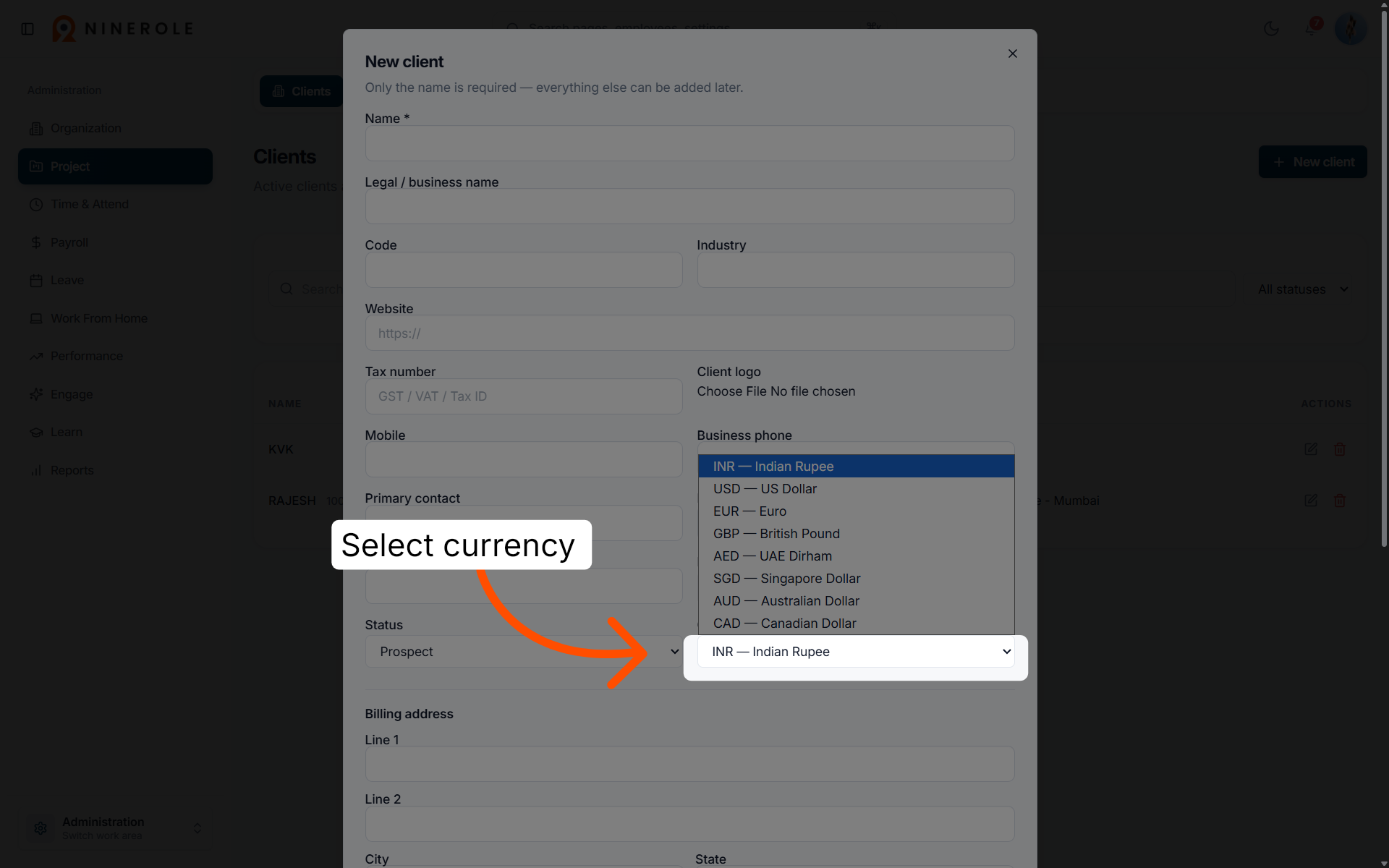
20. Select the currency type
Open the currency dropdown to choose the preferred currency for client transactions.
Enter the billing and shipping addresses
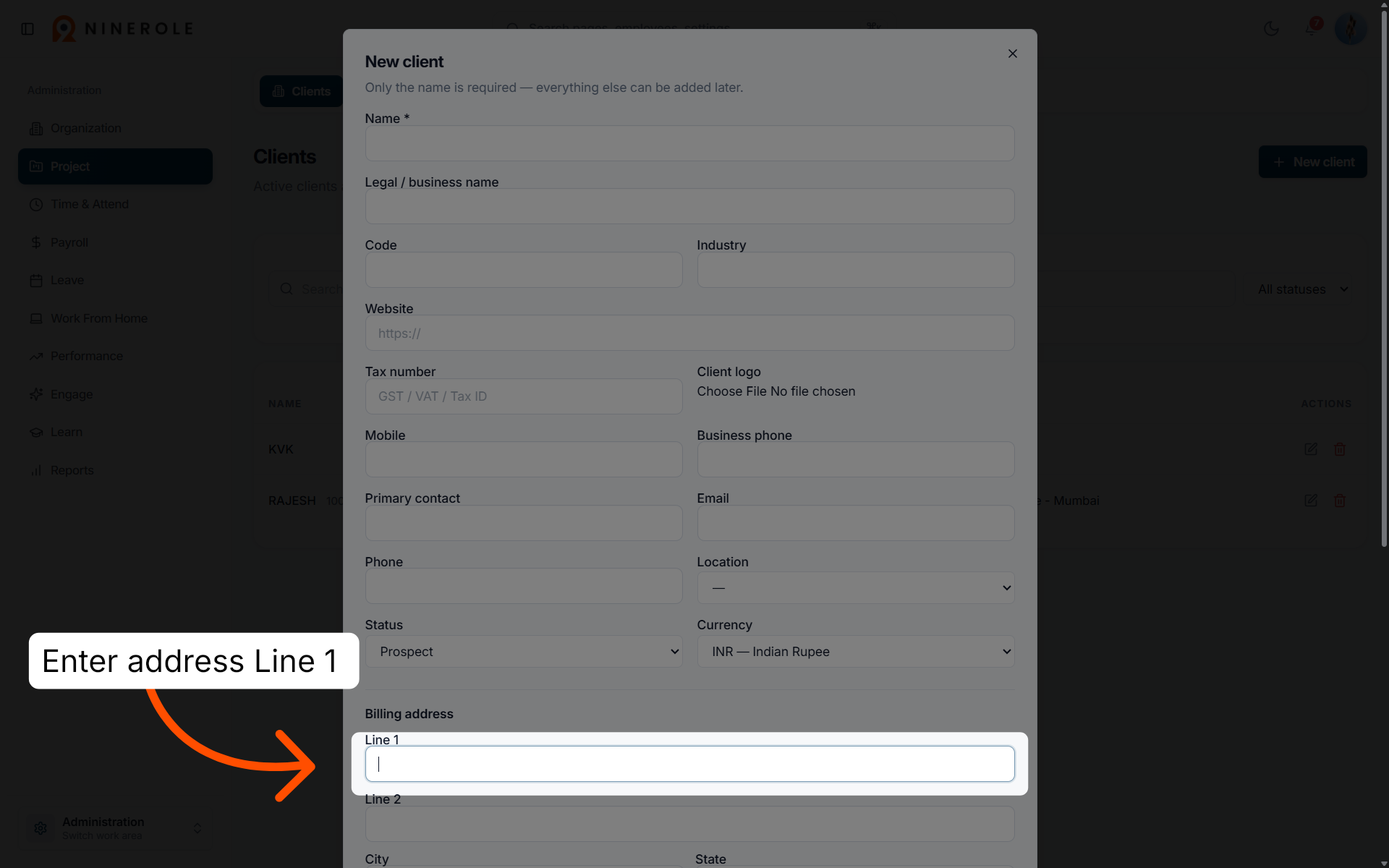
21. Enter billing address line 1
Enter Line 1 to input the first line of the client's billing address.
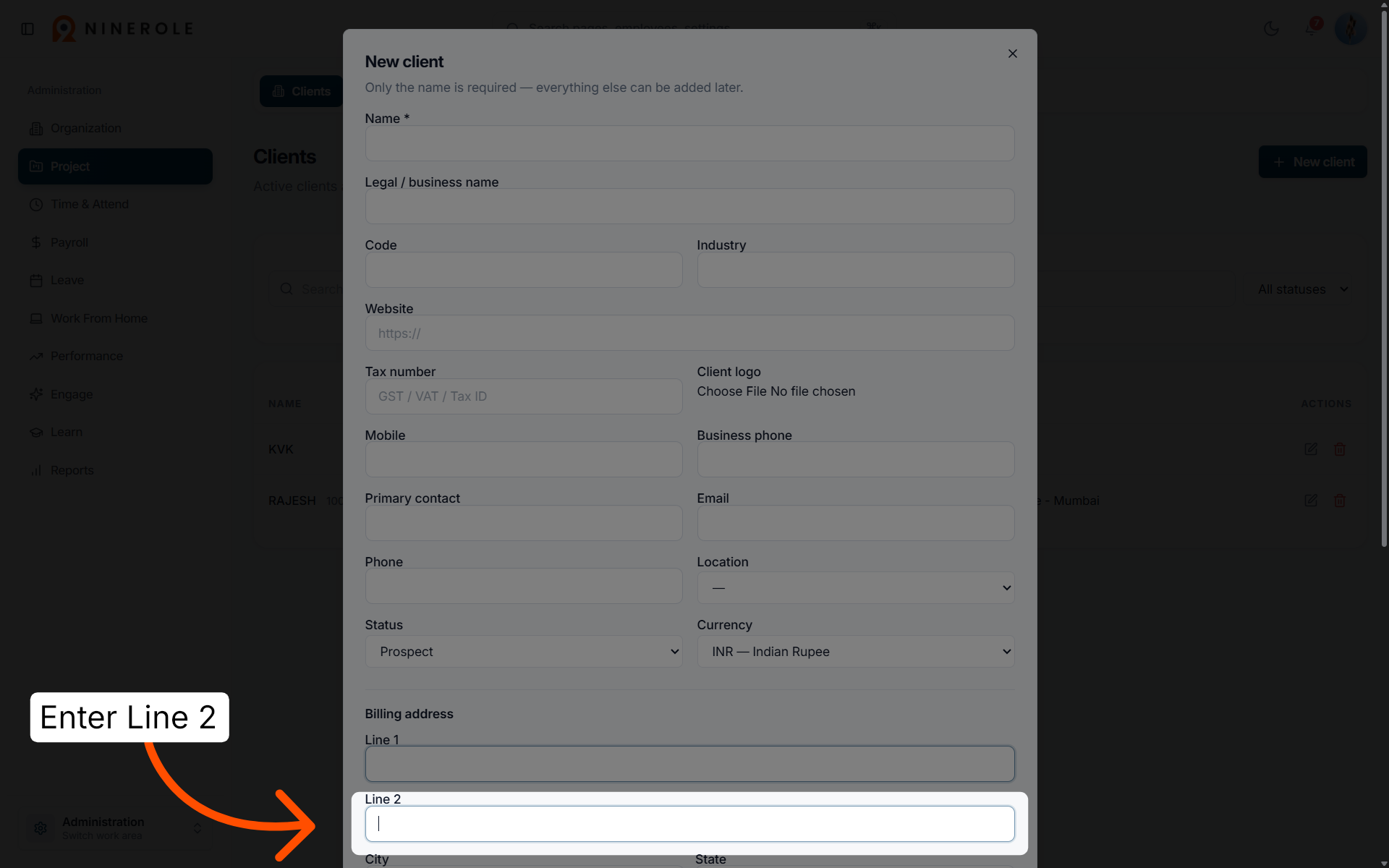
22. Enter billing address line 2
Enter Line 2 to add additional details to the billing address if necessary.
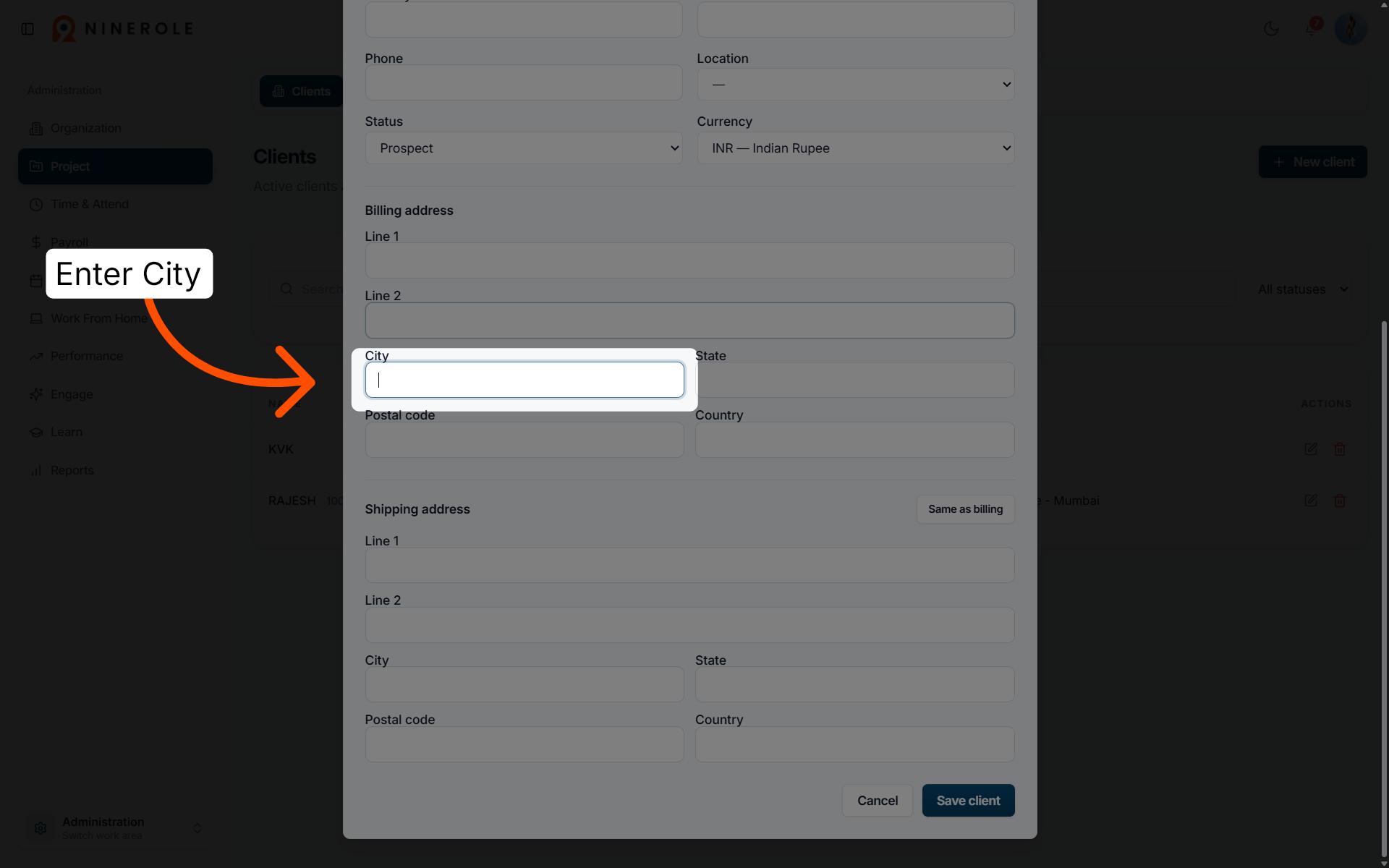
23. Specify the billing city
Enter City for the client's billing address.
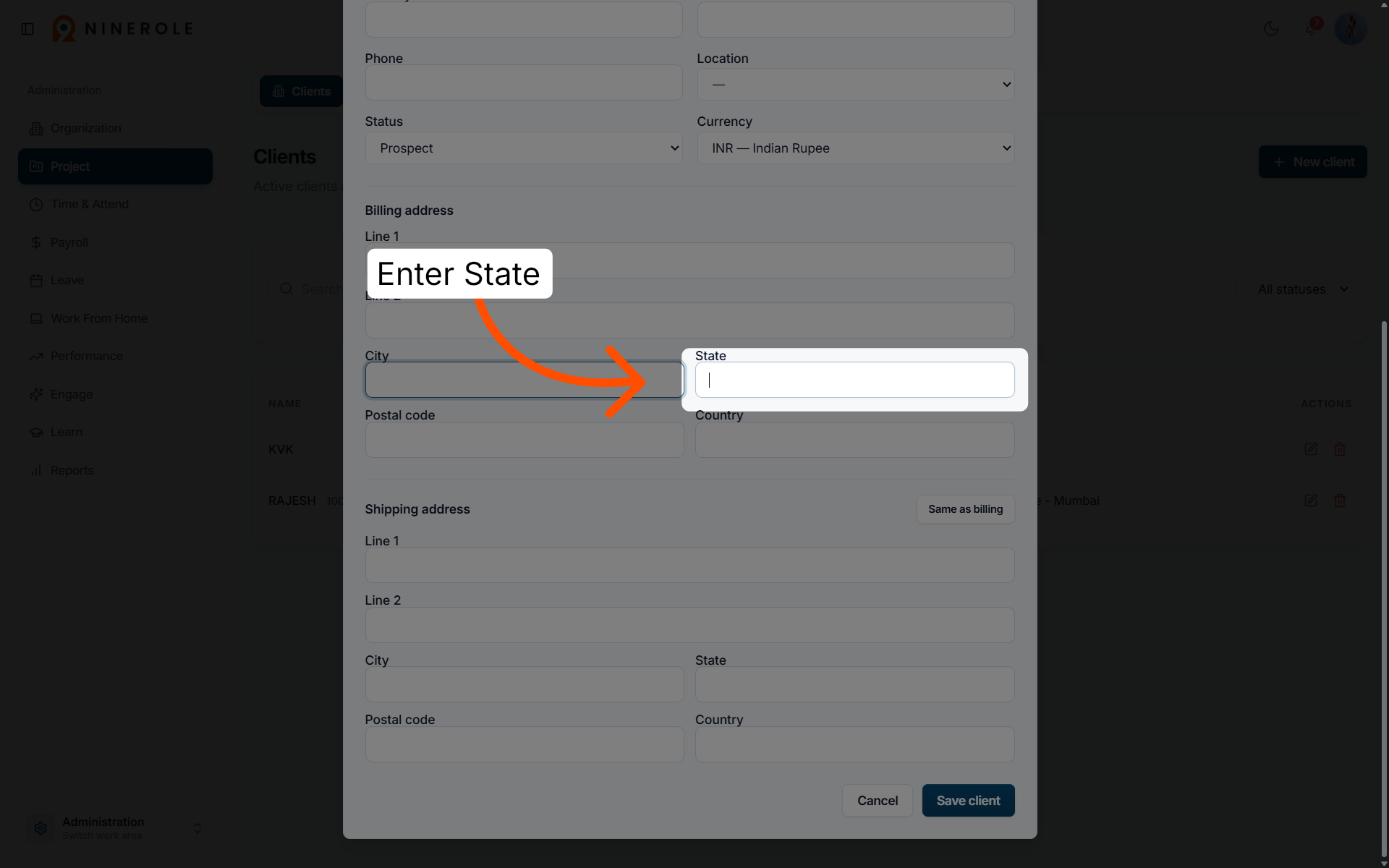
24. Specify the billing state
Enter State to input the state or region for billing purposes.
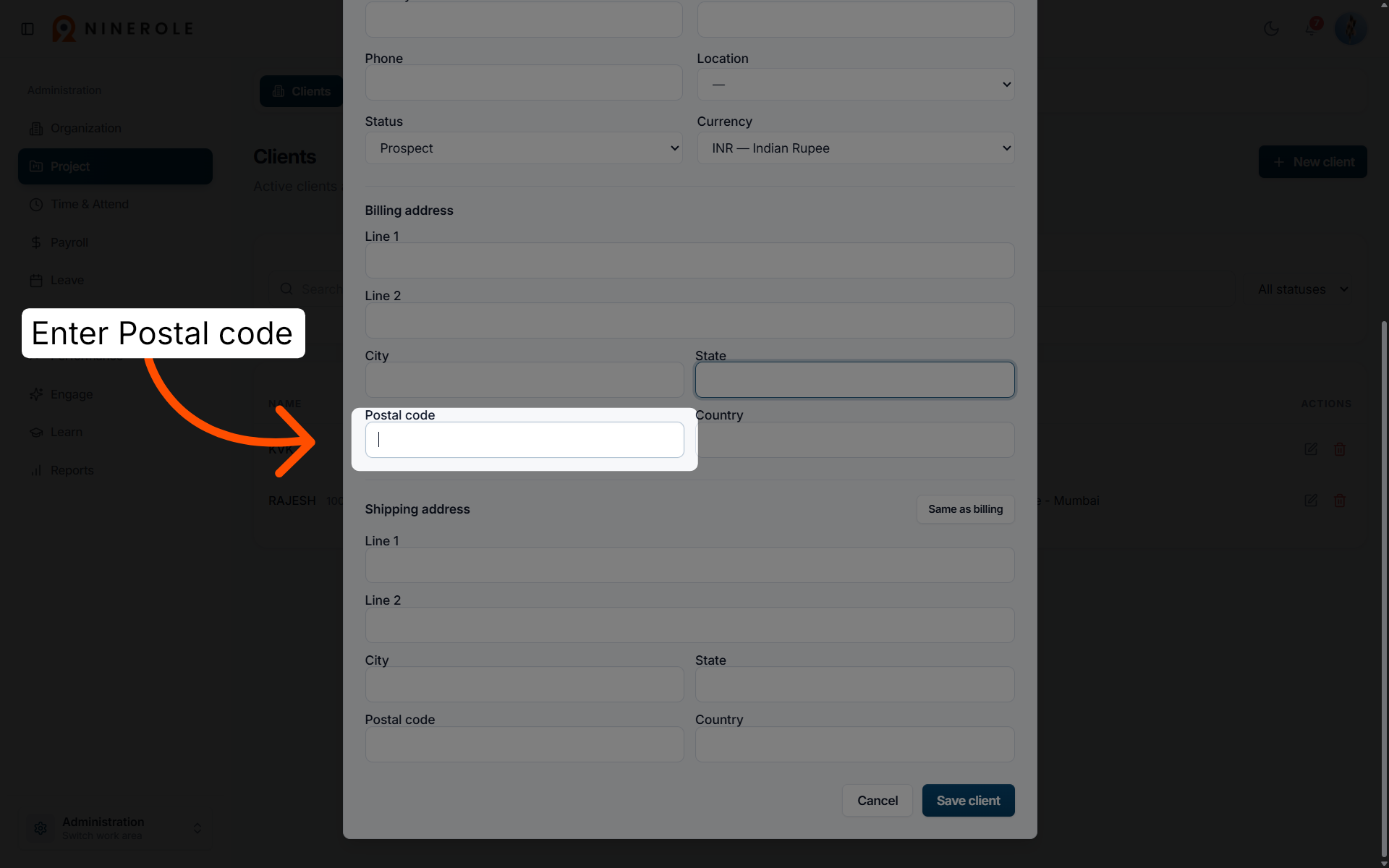
25. Enter the billing postal code
Enter Postal code to provide the postal or ZIP code for billing.
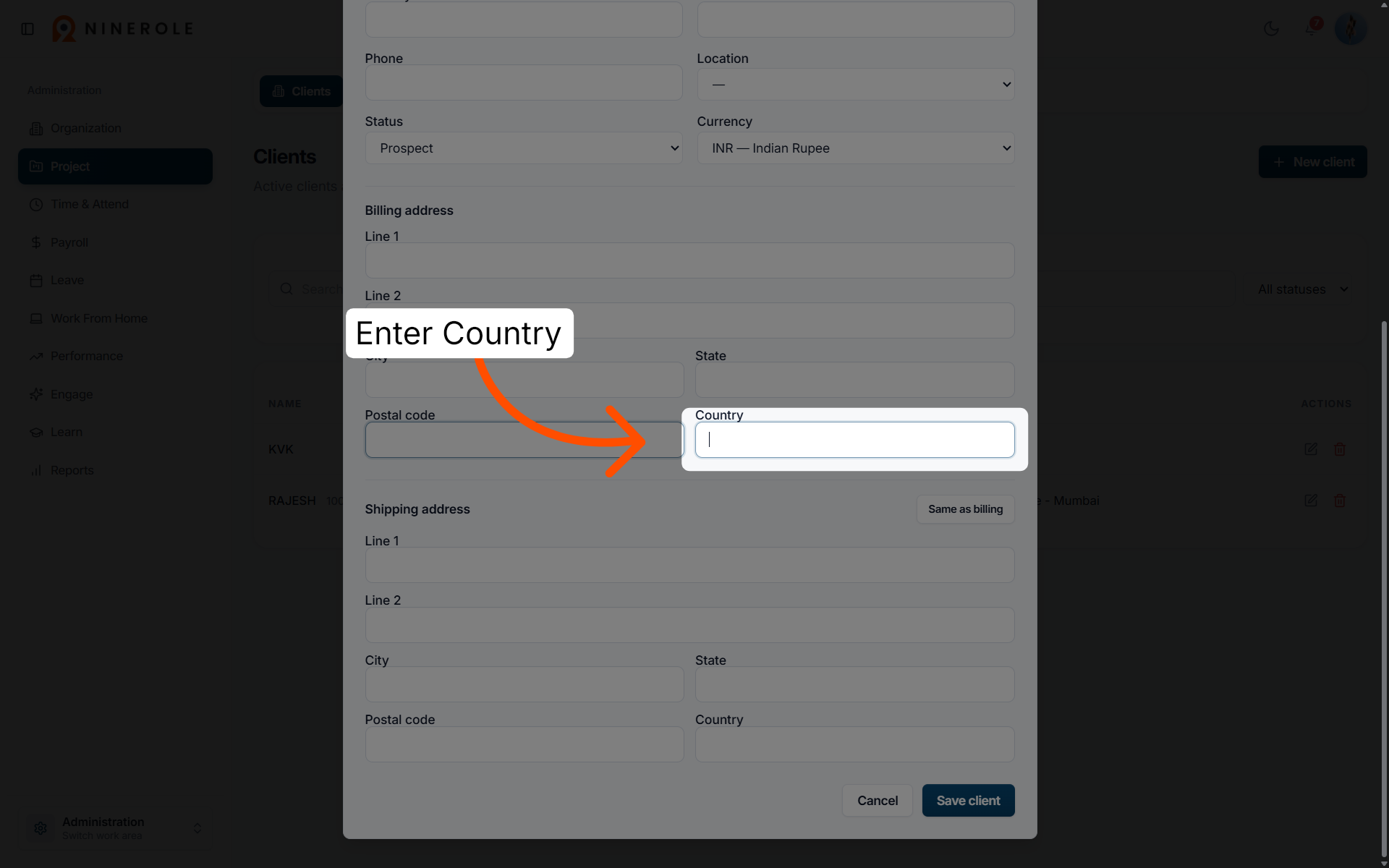
26. Select the billing country
Enter Country to choose the country associated with the billing address.
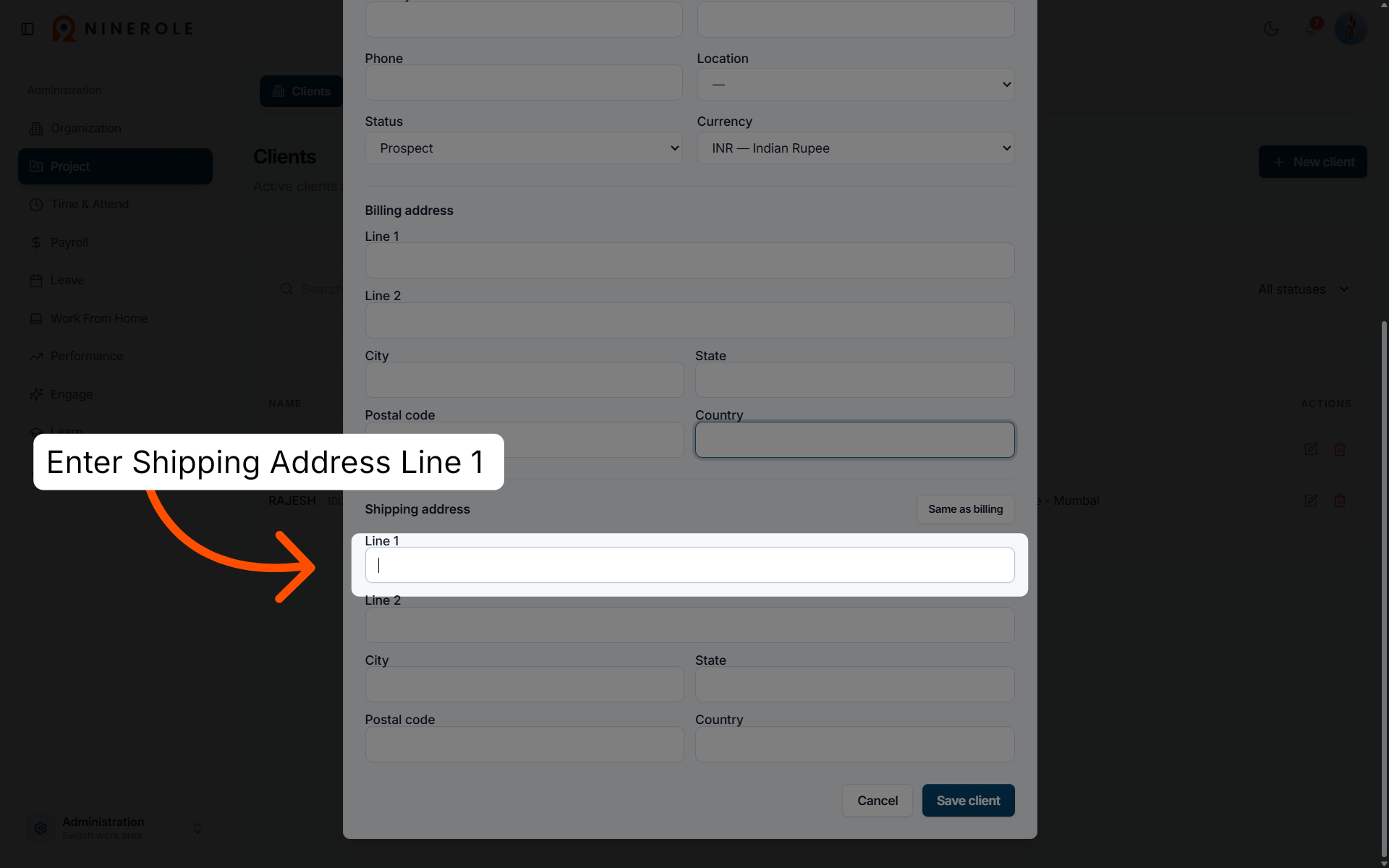
27. Enter shipping address line 1
Enter shipping address Line 1 to input the first line of the client's shipping address.
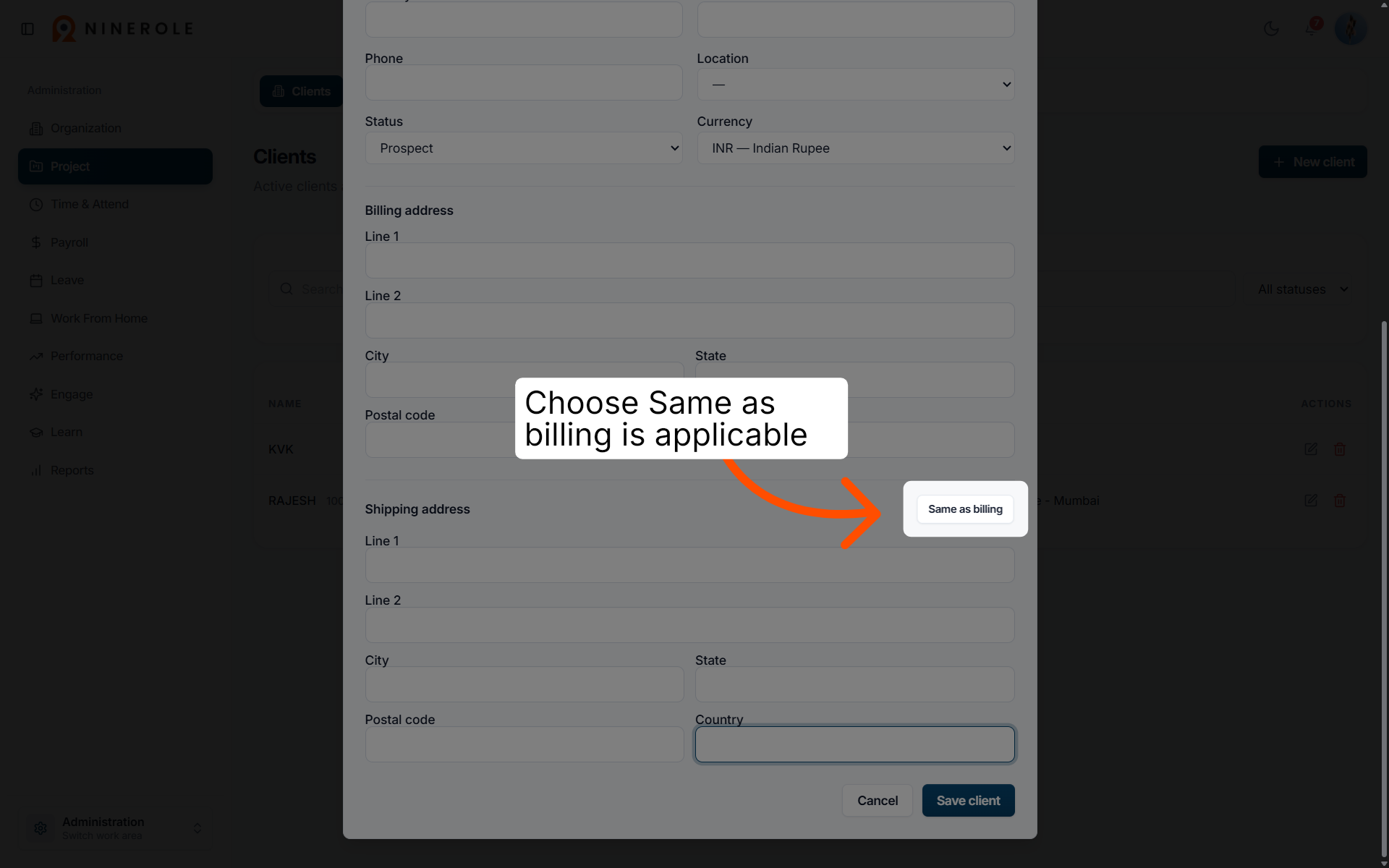
28. Enable the Same as billing option
Choose Same as billing to copy the billing address details to the shipping address fields if applicable.
Save the client
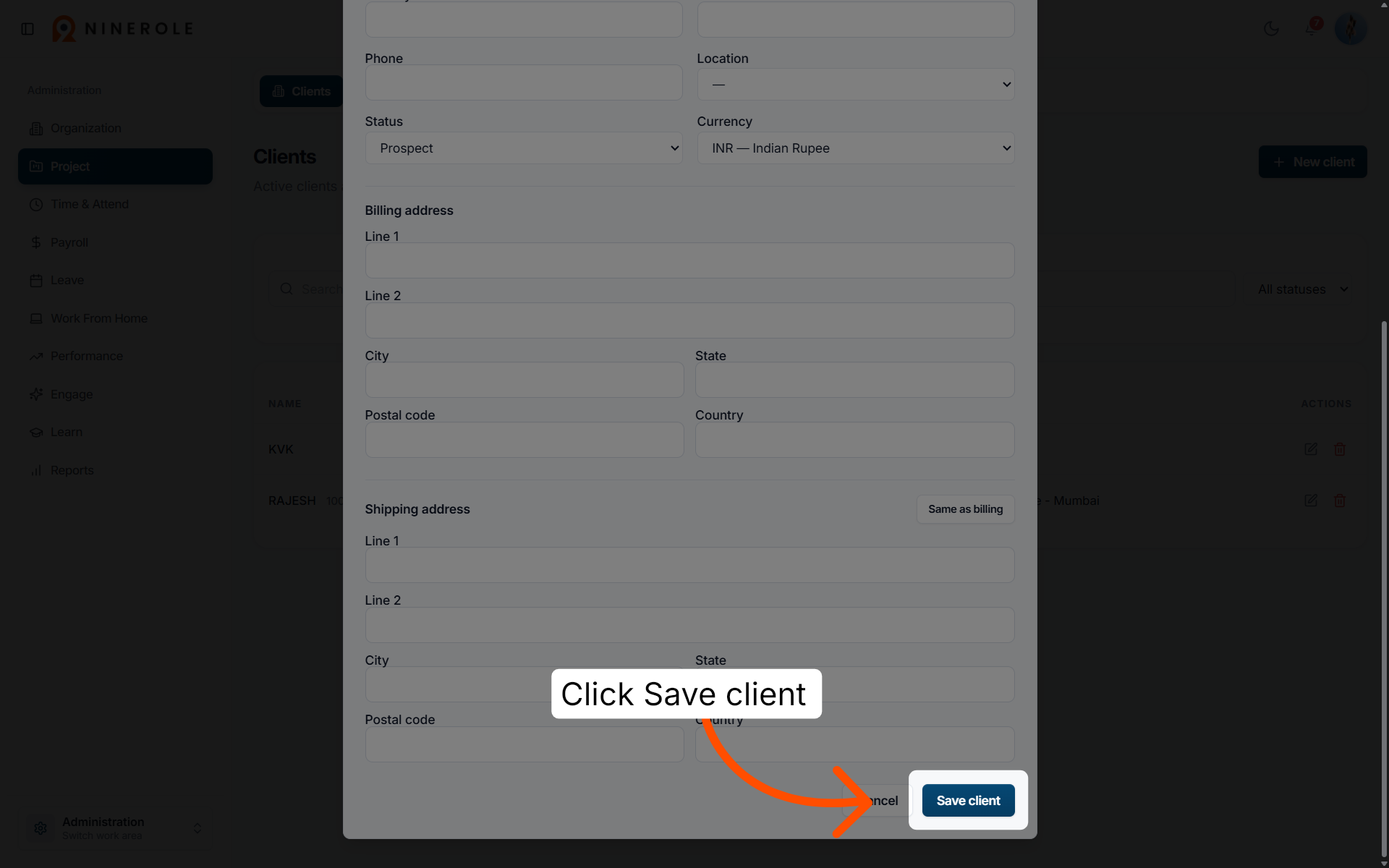
29. Save the new client profile
Click Save client to finalize and store the new client profile in the system.
You have successfully configured a new client profile in the Ninerole dashboard by entering all necessary details and saving the information. You can now manage this client within your projects or proceed to add additional clients as needed.
Next step: create a project for this client.
Back to Projects · all modules · Ninerole HRMS overview
Last updated: