

Access and Review Payslips
This tutorial guides you through accessing, reviewing, and downloading your payslips within the Ninerole payroll system. You will learn how to navigate salary structures and view detailed earnings and deductions.
Before you start, go to ninerole.com.
About this task
- Purpose
- Open and review your own payslips from the Payroll section, and download them.
- Who can do this
- Employee (self-service)
- Before you start
- A pay run covering that period has been finalized — payslips only exist for finalized runs.
- You will need
- The pay period you want to view.
- Result
- You can view the payslip for a period, see earnings and deductions, and download it.
- This unlocks
- Having a payslip to hand for loans, visas and proof of income.
This guide answers
- Where do I find my payslip?
- Why is my payslip not showing for this month?
- How do I download a payslip?
- What do the deductions on my payslip mean?
- Who do I ask about an amount I do not recognise?
If something goes wrong
- This month's payslip is missing.
- Payroll for that period has not been finalized yet. Payslips appear once the run is closed.
- An amount looks wrong.
- Raise it with your payroll administrator. Employees cannot edit a payslip.
Related: Run payroll · Salary details · Travel allowanceAlso called: salary slip, pay slip.Last verified: 7 September 2026
1. Introduction
You will learn how to navigate salary structures and view detailed earnings and deductions.
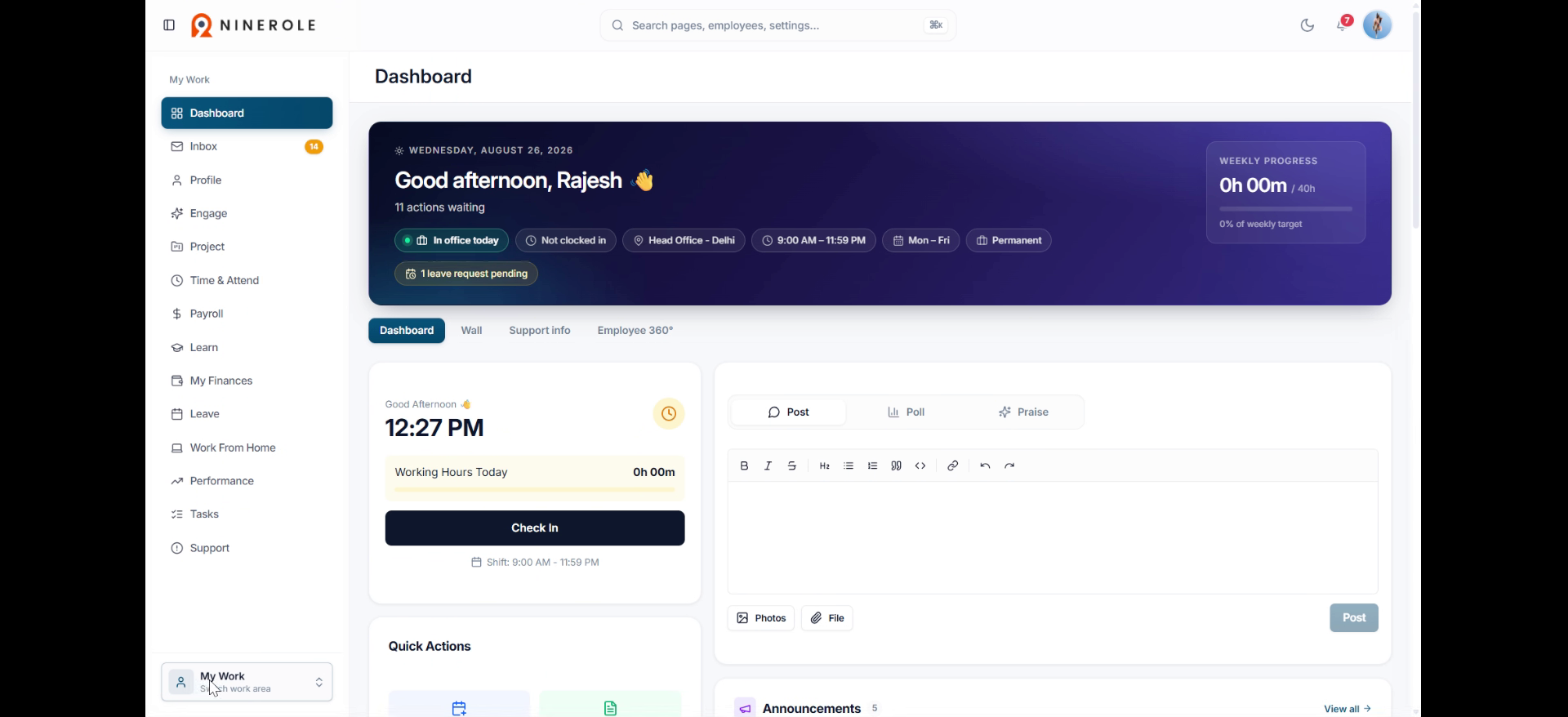
Open your payslips
2. Access the Payroll section
Click Payroll to open the payroll section on your dashboard, where salary-related information is managed.
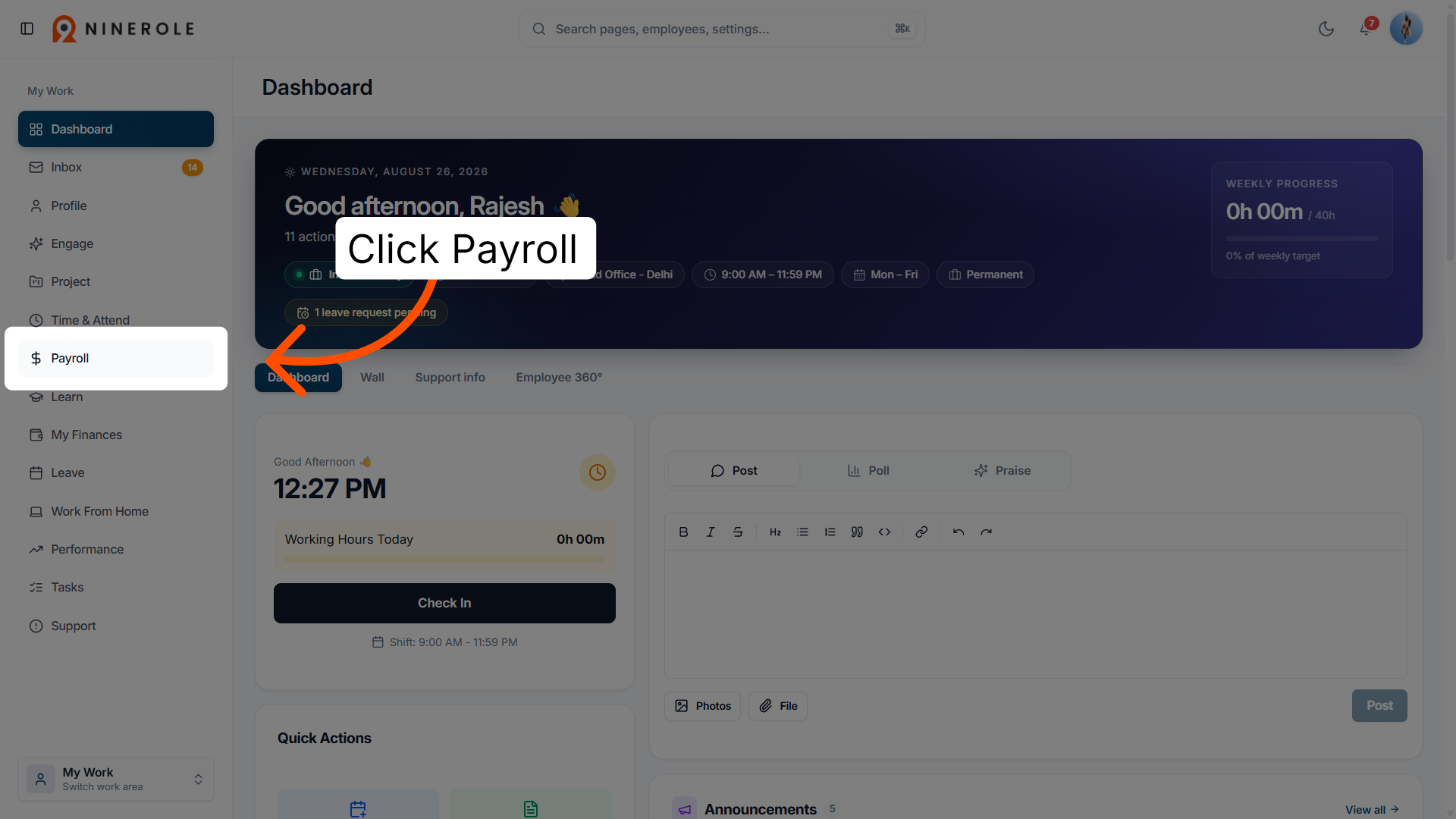
3. Navigate to payslips
Click My Payslips to access your payslip records for different periods.
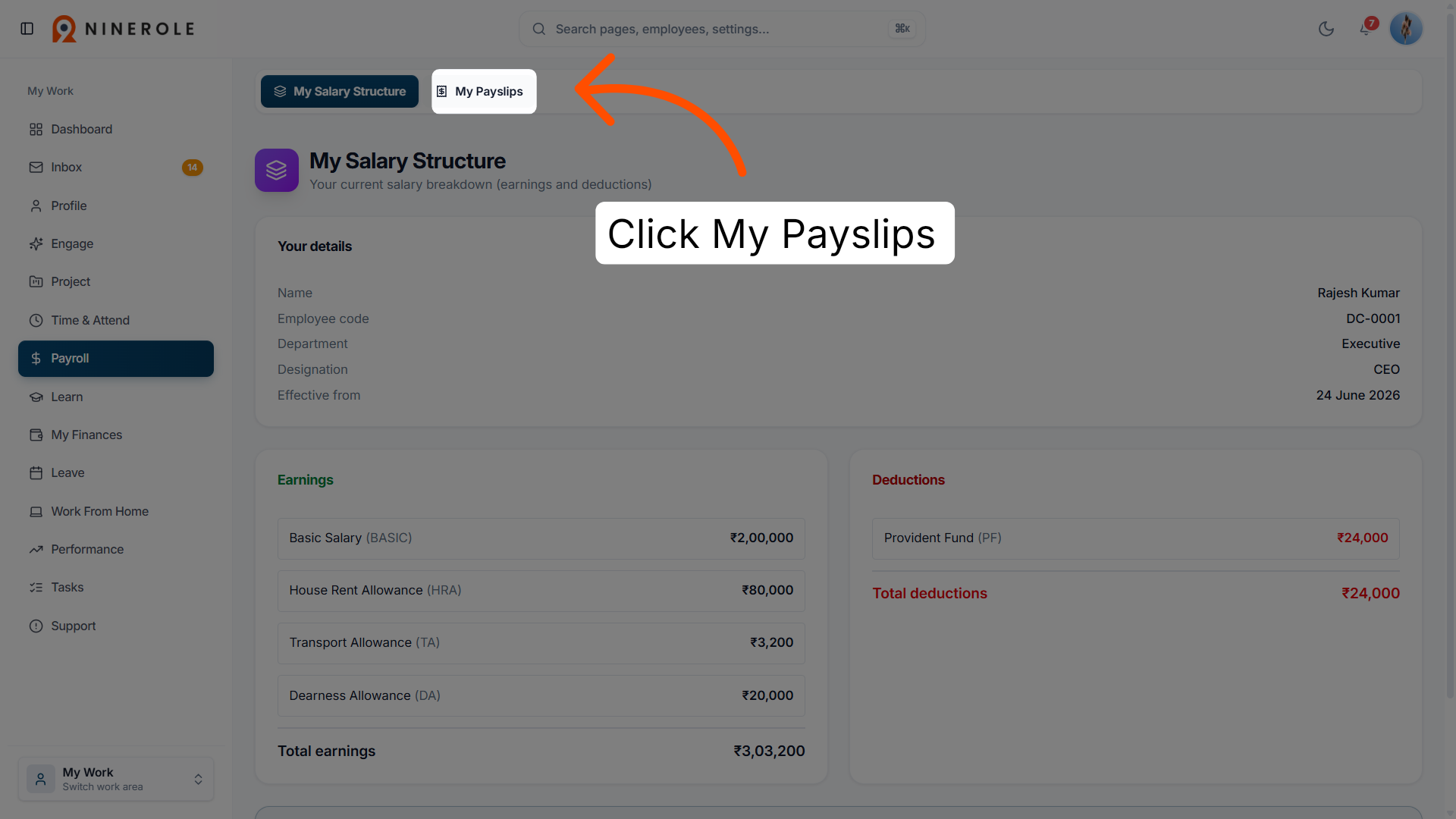
4. Select the payslip period
Select the payslip period — for example January 2026 or December 2025 — to filter payslips by a specific period.
Review and download
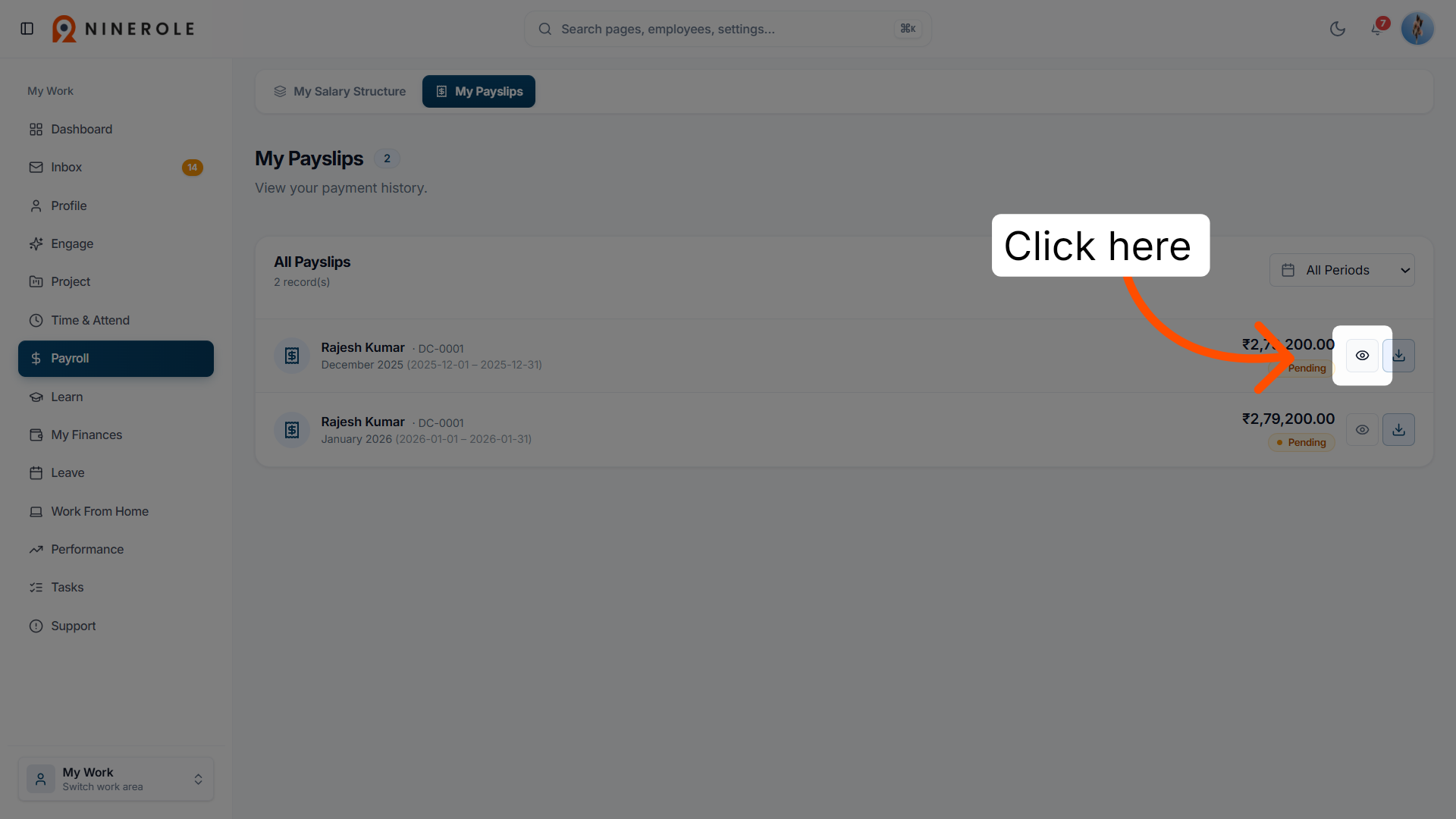
5. Open the payslip details
Open the detailed view of the selected payslip.
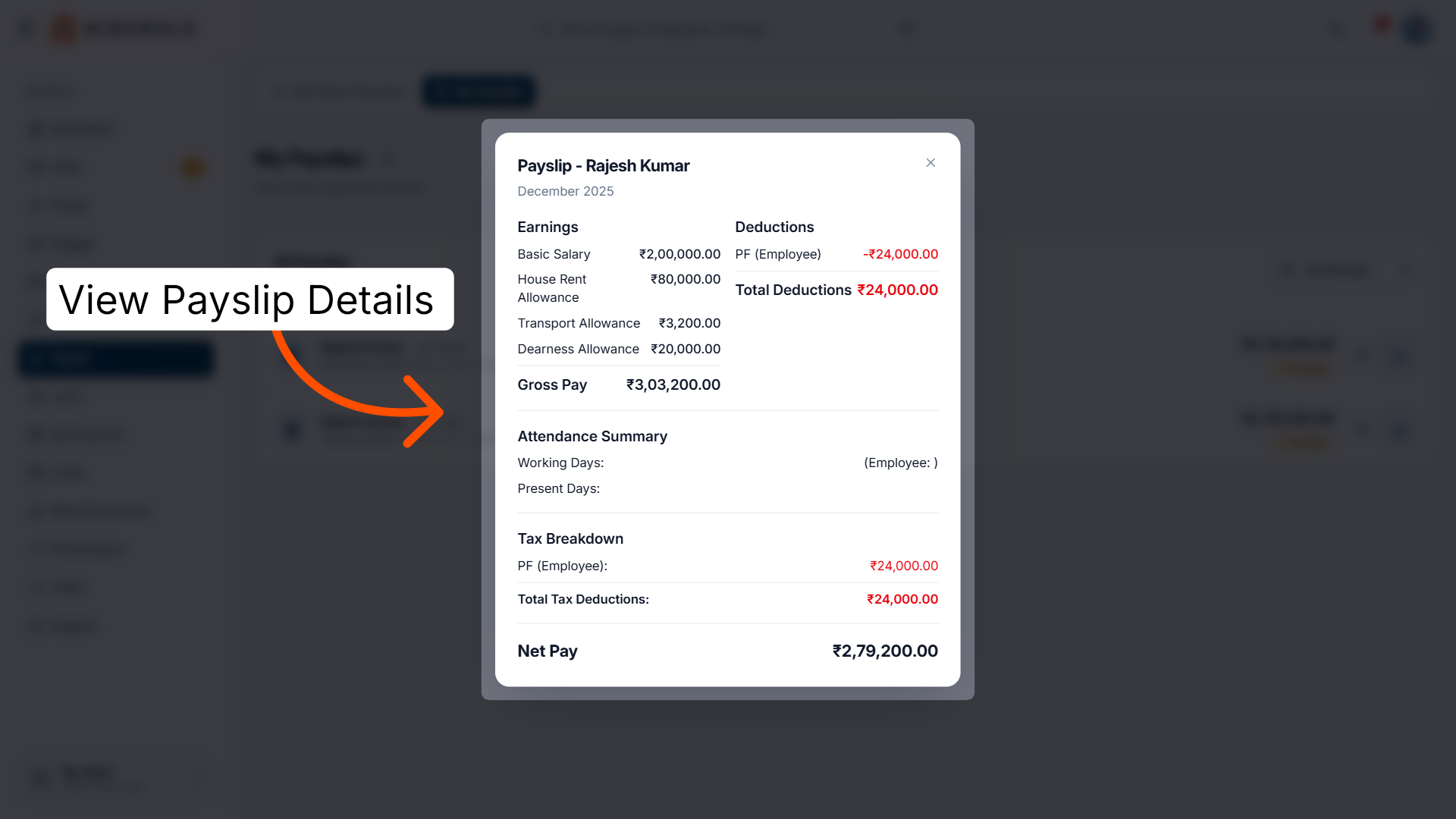
6. View the payslip
The payslip shows your earnings — such as Basic Salary, House Rent Allowance, Transport Allowance, Dearness Allowance, and Gross Pay — along with your deductions.
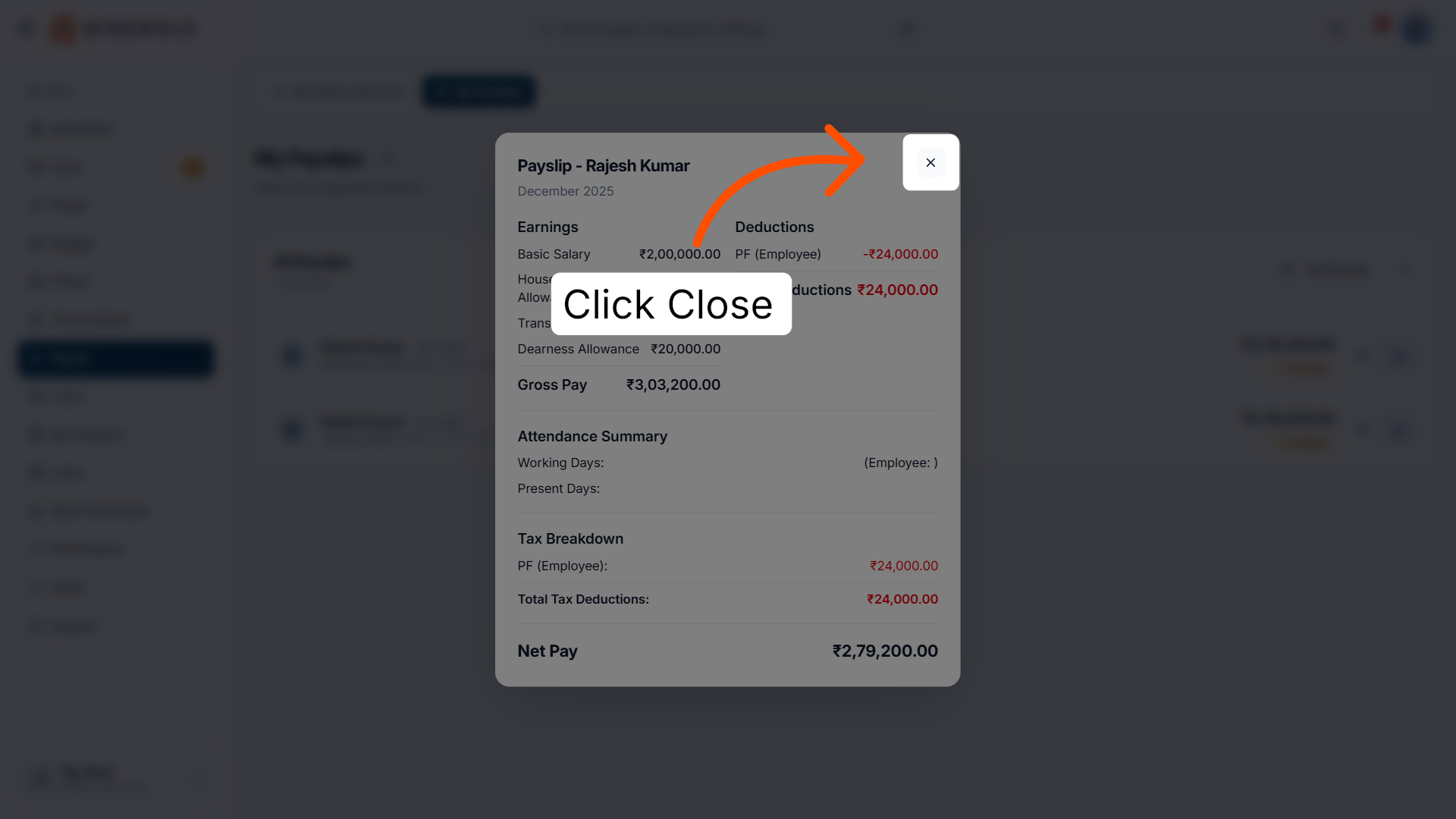
7. Close the payslip view
Click Close to exit the payslip details and return to the payslip list.
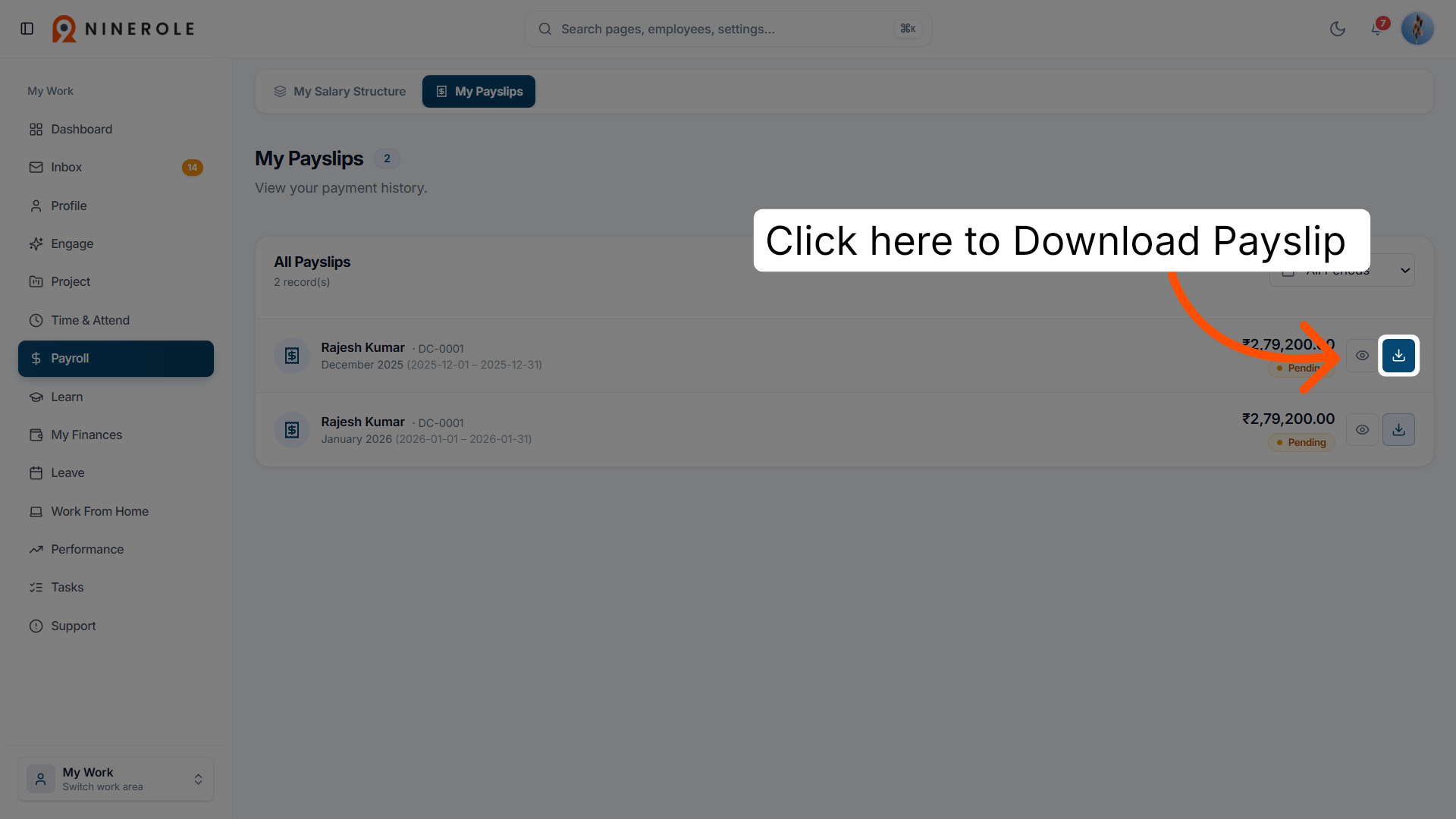
8. Download the payslip
Download the payslip PDF for further review or your records.
You have successfully accessed, reviewed, and downloaded your payslips within the Ninerole payroll system, including detailed salary breakdowns and deductions. For further assistance, explore related payroll features or contact your HR department.
Back to Payroll · all modules · Ninerole HRMS overview
Last updated: